EXTEL

Levo JSV742N2 - Intercom EXTEL - Free user manual and instructions

Find the device manual for free Levo JSV742N2 EXTEL in PDF.

📄 84 pages PDF ⬇️ English EN 💬 AI Question 🖨️ Print
Notice EXTEL Levo JSV742N2 - page 49
Manual assistant
Powered by ChatGPT
Waiting for your message
Product information

Brand : EXTEL

Model : Levo JSV742N2

Category : Intercom

Download the instructions for your Intercom in PDF format for free! Find your manual Levo JSV742N2 - EXTEL and take your electronic device back in hand. On this page are published all the documents necessary for the use of your device. Levo JSV742N2 by EXTEL.
USER MANUAL Levo JSV742N2 EXTEL

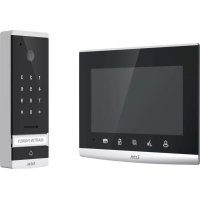
Monitor (ref: MN LEVO)

  • Please read the user guide carefully before installing or using this product.
  • If you are installing this product for someone else, remember to leave the manual or a copy of it for the end user.
  • The different elements are only to be dismantled by an authorised technician. Safety instructions:
  • To safely use this system it is essential the tters, users and technicians follow the safety procedures described in this manual.
  • Specic warnings and warning symbols are displayed on the components if necessary.

2. DESCRIPTION (g 1)

1 • Monitor 4 • Outside station with its rain shield 2 • Wall mounting 3 • Modular power supply Generality This videophone consists of an interior unit with a screen and an outside station making it possible to see and speak to the visitor who has rung. The installation is easy as only 2 wires are needed for all the functions: buzzer, video image, intercom, door opener and automation. To make the most of the videophone, please read this instruction manual carefully

1. Loud speakers to hear the visitor at the outside station

2. 7" colour capacitative touch screen (18 cm).

3. SD card port (max 32Go) not included (DO NOT SELECT AN SD MICRO CARD + ADAPTER)

4. Microphone to speak to visitors at the outside station

5. Power on indicator (Fixed blue LED) and missed messages (ashing blue indicator)

9. Non removable terminal block to connect the wires

b. Outside station (g. 3)

1. Infrared LED for better visibility in the dark (light invisible to the naked eye).

2. Directional C-MOS camera lens (behind the outside station)

3. Loud speaker to listen to the host from the monitor

4. Call button: when this button is pushed the ring tone is heard inside. The connection is made between the

outside (outside station) and the inside (the monitor)

5. Luminous name holder (the name holder is automatically back-lit depending on the light levels). To change the

label in the name holder, gently lift the plastic cover using a small screwdriver and slide the label out.

6. Microphone to speak to the host at the monitor

8. Camera lens adjustment holes (at the back of the outside station)

9. Non removable terminal block to connect the wires

Note: If you try the system before installing it, make sure the outside unit and monitor are not in the same room, otherwise the videophone will emit piercing feedback noise (Larsen effect) a. Installing the outside station (g. 5)

1. Remove the screw under the outside station

2. Tip the outside station forward

3. The panel lens must be placed at a height of about 1.60 m.

4. Place a silicone seal between the shield and the wall to avoid water running inside. *Do not use acetic acid

based silicone (vinegar smell).

5. Solidly x the rain shield using the screws (5).

6. Connect the wires according to the wiring diagram (g. 6).

7. Engage the outside station onto its rain shield

8. Ret the xing screw

Important : Do not point the video camera directly at the sun or at reecting surfaces. Tip: we recommend passing the cables through a protective sleeve to protect them from impacts and the weather. b. Installing the monitor (g. 4)

1. Fasten the wall mounting (2) so that the monitor screen is at a height of about 1.60m.

2. Connect the two outside station wires and the 2 power supply wires (ch. 5.a) according to the wiring diagram

(g. 6 for a basic installation)

3. Position the monitor on its wall mount.

4. Only connect the 230 V~ power supply to the modular adapter after having connected the outside station (on

an installation compliant with applicable standards: BS 7671 in the UK) Please, reserve 5cm each side of MODULO B when install Make sure the power supply polarity is correct c. Installing the extra camera (option)

  • Connect the wires according to the wiring diagram (g. 6)
  • Choose a suitable location to install the camera.
  • Make sure nothing interferes with the installation.
  • Screw the wall part using the supplied screws
  • Screw the camera onto the support
  • Point the camera in the required direction and tighten the holding screw on the side.
  • Connect the camera to the videophone system

To avoid disturbances and malfunction risks, do not pass the wire from the videophone through the same sheaths as electric wires. Caution: never double wires to increase their size. a. Connecting the videophone (g. 6) Use the following wires: • 2 6 /10 th wires up to 25 m

1. Connect the wires following the wiring diagram (fig. 6).

2. To connect the camera, only 2 wires are needed for all functions: ring tone, video image, intercom and opening

controls (door opener and automation).

  • Terminal “1” from the screen to terminal “1” on the station.
  • Terminal “2” from the screen to terminal “2” on the station.GB4
  • For the wiring diagram, please consult the label on the back of the monitor and the back of the station. b. Connecting to a door opener or electronic lock Connect directly to terminals 5 and 6 on the back of the station (no polarity to respect). Note that this function is only valid if the screen is switched on. A humming sound may be heard when the con- trol is used. Important : The door opener or electronic lock you are about to install must have a mechanical memory like all EXTEL references. For the wiring, please consult the label on the back of the station. c. Connecting to a motorised entrance gate Connect directly to terminals 3 and 4 on the back of the station. The outside station delivers a "dry" contact with no current, to be connected to the "push button control" of your automatic opener. Note that this function is only valid if the screen is switched on. A humming sound may be heard when the con- trol is used. d. Connecting an extra camera Use the following wires:
  • 2 6 /10 th wires up to 25 m
  • 2 1.5 mm² wires from 25 to 100 m

1. Connect the wires following the wiring diagram (g. 6).

2. When connecting the camera there is no need to respect polarity.

3. The outside station and camera wires must be connected together.

a. General Brush the screen to turn it on When the monitor is powered on, the home screen is displayed.

1. Date in the mm-dd-year format

The SD card must be inserted when the monitor is switched off in order to be taken into account

1. Select taking a picture (blue picture icon), recording a video (blue camera icon), or neither of the two (white

picture and camera icons) if there is a missed call or for monitoring

2. Select the video recording duration for missed calls or monitoring (10 sec or 20 sec or 30 sec)

3. Select the number of pictures to take for missed calls or for monitoring (1 or 3 or 5 pictures)

4. Equipped energy saving symbol

5. Select a ring tone (from the 6)

6. Set the date and time

7. Delete all data (manual and automatic pictures and videos)

8. View the SD card and internal memory status

11. Back to the home page

1. Outside image (monitoring)

2. Button to start/stop a conversation, then back to the home screen. It has a green surround during a conversa-

3. Portal control button. It has a green surround when the control has been activated

4. Electric lock or door opener control button It has a green surround when the control has been activated

5. Icon showing the origin of the displayed images, press to switch from the outside station to the camera and

6. Contrast, brightness and volume controls

7. Current storage location (SD card or internal memory), here the SD card.

8. Choice to capture/record if there is a missed call or when monitoring. The icon shows a camera if image

capture is selected. The icon shows a video camera if video recording has been selected. Warning: Videos will be recorded only on your SD card.

9. Back to the home page

Using the basic videophone functions

  • A call from the outside station triggers an audible alarm and switches on the monitor. You have up to 30 seconds to answer the call. If you have not answered within 30 seconds, a missed call message is left for the user if the function has been activated (see "missed call" chapter). When the visitor has been identi ed, press the button to talk. The button only needs pressing once to communicate with the visitor.
  • After 120 seconds of conversation the communication is terminated and the screen switches to the home page. If the conversation ends before the 120 seconds have expired, press the key to end the communication. The screen switches to the home page.
  • To display the image again, press the key on the home screen. Then press the key to start 120 seconds of conversation.
  • Control an electronic lock or a door opener by pressing the key
  • Control a portal automation by pressing the keyGB8

CFI EXTEL LEVO - 10/2015

Missed calls A call from the outside station triggers an audible alarm and switches on the monitor. You have up to 30 seconds to answer the call. If you have not answered within 30 seconds, a missed call message is left on the monitor if the function has been activated.

  • You can choose to take pictures if there is a missed call (see "settings tab" part). In this case a certain number of pictures are taken corresponding to the number of pictures you selected. These photos are stored in the internal memory if no SD card has been inserted. Otherwise they are stored on the SD card.
  • You can also choose to record video if there is a missed call (see "settings tab" part). In this case a video is recorded (10, 20 or 30 seconds depending on the selected setting). Warning: Videos will be recorded only on your SD card.
  • If there is a missed call message. A green band with an envelope is displayed on the home page. The number beside the envelope indicates how many missed calls there are. Furthermore, the blue LED located under the screen ashes as a visual indicator if the screen is on standby. Press the green band to access the messages (photos or videos). Once all the les have been viewed, the missed call message disappears and the blue LED stops ashing. Putting the screen on standby Putting the screen on standby consists in it "going to sleep" to save energy and extend the screen's service life. It can be done manually or automatically. In the event of a call from the outside, the screen wakes up automatically and switches directly to the videophone window, and therefore to the images of the visitor. Manual standby Press the button on the top right of the monitor (6 g.6) to put the screen on standby. Press again or brush the screen to wake it up . Automatic standby The "energy saving" function is always active in order to avoid consuming electricity on this system tted with event memory
  • If the screen is on the settings page or the multimedia page for more than 35 seconds, it automatically switches back to the home page
  • If the screen is on the home page, it automatically switches to standby mode after 10 seconds
  • You just need to brush the screen to exit standby mode, or press the button at the top right of the monitor. d. Recorded visitor tab

1. Current tab (Symbol, no action)

2. Access pictures (blue icon = directory selected)

3. Access videos (icon greyed out = directory not selected)

4. Directory of les recorded automatically during missed calls

5. Directory of les recorded manually during monitoring AND les imported using the SD cardGB9

CFI EXTEL LEVO - 10/2015

NB: for compatibility reasons, video les exported from the exterior cannot be read on the LEVO

6. Picture in the selected le, press to switch to full screen

Slide your nger from right to left to go to the next picture

7. Press to move the les from internal memory to the SD card

8. Press to delete the entire selected directory

9. Files available on the current directory

10. Press to access the next les. Press the red cross to delete individually.

11. Back to the home page

7. TECHNICAL CHARACTERISTICS

Monitor (ref. MN LEVO)

  • Resolution: 800 (H) ×480(V)
  • 1 photo = about 600 Ko
  • 10sec of lm = about 3 Mo Power supply (MODULO B) 100-240 V~, 50/60Hz; 17 V, 1.5A adapter Outside station (ref. PL LEVO )
  • Sensitivity: 0.5 Lux (with IR Led)
  • Working temperature (approx.) -15 °C to +50 °C

Extra camera (ref: CAM LEVO)

  • Sensitivity: 0.5 Lux (with IR Led)
  • Working temperature (approx.) - 15 °C to + 50 °C
  • Protection index: IP65 8.OPTIONS
  • All Extel electric door openers
  • All Extel electric locks
  • The monitor does not light
  • The monitor is not con- nected to a power source
  • Check the correct polarity on the power sup- ply.
  • Bad image and/or bad sound
  • Check that the wires used are the correct size and that the connection wires for the video- phone are not in the same sheath as the 230V.
  • We recommend that you check that your prod- uct is operational by carrying out a short dis- tance test
  • Image is too bright • Camera position • Do not expose the lens of the camera directly to sunlight or to a reflective surface.
  • The SD card has not been taken into account
  • The folders have not been created
  • THE first time it is inserted it is mandatory to power off the device for 5 seconds
  • Illegible or frozen image • wire not connected (in the air) or camera dis- connected
  • Check the connections
  • Video is not recorded when a call is made
  • Check the recording mode chap 6d
  • Check that the SD card has been inserted If required, our technical site is at your disposal: www.c-extel.com The latest version of the instructions in colour is downloadable from: www.c-extel.comGB11

CFI EXTEL LEVO - 10/2015

WARRANTY TERMS This appliance has a parts and labour warranty in our workshops. The warranty does not cover: consumables (batteries, etc.) and damage caused by: incorrect use, incorrect instal- lation, third party intervention, deterioration through physical impact or electric shock, dropping, or atmospheric phenomena.

  • Do not open the appliance as this will void the warranty.
  • When returning the appliance for eventual servicing, protect the screen to avoid scratches.
  • Clean using a soft cloth only, do not use solvents. The guarantee is void if parts have been dismantled. Before cleaning, disconnect or power off the appliance. Caution: Do not use any carboxylic acid, alcohol-based or other similar product or solvent. In addition to the risk of damage to your device, fumes are also dangerous to health and are explosive. Do not use any tool which may conduct electricity (metal brush, pointed tool or other) to clean the equipment. The shop receipt or invoice is the proof of the purchase date.

10. SAFETY INSTRUCTIONS

Damage caused by the failure to follow the instructions in this manual lead to the termination of the warranty. We cannot be held liable for the resulting damage! We cannot be held liable for any damage to property or injury to persons caused by incorrect handling or the failure to follow the safety instructions. This product has been manufactured in full compliance with safety instructions. In order to maintain this state of affairs and ensure the best use of the product, the user must follow the safety instructions and warnings contained in this manual. : This symbol indicates a risk of electric shocks or a risk of a short circuit. - You must only use this product at a voltage included between: 100-240 Volts and 50-60 hertz. Never attempt to use this appliance with another voltage. - Make sure that all the system's electric connections are compliant with the usage instructions. - In commercial establishments, make sure you follow accident prevention rules for electric installations. - In schools, training infrastructures, workshops... the presence of qualied staff is required to check the operation of electronic devices. - Follow the usage instructions for the other devices connected to the system. - Please contact an experienced person if you have doubts as to the operation or safety of the appliances. - Never connect or disconnect electric appliances with wet hands. - When installing this product, check that the power supply cables are not in danger of being damaged. - Never replace damaged electric cables yourself! If they are damaged, remove them and call on a experienced person. - The power supply should be near the unit and must be easily accessible. WARNING Warns the user of the presence of important instructions about use and mainte- nance (repairs) in the documentation delivered with the appliance. Noties the user of the presence of "dangerous non insulated voltage" inside the product control box that is sufciently powerful to represent a risk of electrocution.NL1

2. BESCHRIJVING (afb. 1)