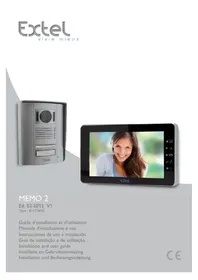
MEMO 2 - Intercom EXTEL - Free user manual and instructions
Find the device manual for free MEMO 2 EXTEL in PDF.
Download the instructions for your Intercom in PDF format for free! Find your manual MEMO 2 - EXTEL and take your electronic device back in hand. On this page are published all the documents necessary for the use of your device. MEMO 2 by EXTEL.
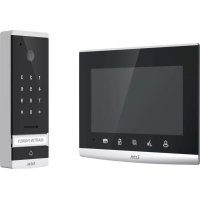
USER MANUAL MEMO 2 EXTEL
- Please read the user manual thoroughly before installing or using this product.
- If you install this product for other people, please give the manual or a copy to the end user.
- The different elements can only be dismantled by an authorised technician. Safety instructions :
- To safety use this system, it is essential the fitters, users and technicians follow the safety procedures described in this manual.
- Specific warnings and caution symbols are indicated on the elements if necessary.CFI EXTEL MEMO 2 - 03/2013 GB2
2. DESCRIPTION (fig 1)
1 • Monitor 4 • Outdoor station 2 • Wall mounting 5 • Rain Shield 3 • Mains adapter Generality This videophone consists of an interior unit with a colour, liquid crystal display screen, a free hand interphone, and a surface-mount exterior outdoor station which makes it possible to see and speak to the visitor who as rung. To make the most of the videophone, please take the time to read this instruction manual thoroughly, and do not lose it.
2. Slot for SD Card (32GB max), not included.
5. Volume settings for sounds coming from outside.
6. Volume settings for the bell sound.
7. Refreshing the picture on the monitor // navigation on the “left” menu
8. Monitor turned on, linked to the intercom unit. This only needs to be pressed once to activate the connection
to the intercom panel. Pressing a second time will turn off the connection and the picture on the intercom panel // navigation on the “right” menu
9. Automatic opener control (only available if the screen is turned on)// Exit a menu.
10. Strike plate/lock control (control with power connected, one-touch)(available only if the screen is on) // Con-
12. Microphone for communicating with the intercom panel.
13. Message indicator (LED flashes when a visitor has called with no response)
14. Removable terminal block to connect the wires.
15. On the back of the monitor, socket for the adaptor’s 17V plug
(adaptor connected in accordance with current installation standards: NFC 15-100 for France). b. Intercom panel, outdoor camera (fig. 3)
1. IR LED for better visibility in the dark (light invisible to the naked eye).
2. Adjustable C-MOS camera lens (at the back of the camera).
3. Loudspeaker: allows you to be heard outside.
4. Call button: when this button is pushed, the bell sound is heard inside. The screen and the camera are activated.
5. Lit name holder (automatic back-lighting of the name holder depending on the amount of daylight). To change
the label in the name holder, gently lift the plastic cover (9) using a small screwdriver and slide the label out.
6. Mic: allows visitors to communicate with those inside.
7. Holes for adjusting the camera lens
8. Removable terminal block to connect the wiresCFI EXTEL MEMO 2 - 03/2013
Note: If you try the system before installing it, make sure the street unit and the monitor are not in the same room, otherwise the videophone will emit piercing feedback noise (Larsen effect). a. Installing the exterior camera (outdoor station) (fig.4)
1. Remove the screw under the roadside panel (1).
2. Move the roadside panel forward (2).
3. The lens of the panel must be placed at a height of approx. 1.60 m.
4. Fix securely the rain shield with the screws (3) and put a silicon joint* (4) between the shield and the wall to
avoid water stream. * Do not use silicone-based acetic acid (vinegar smell)
5. Connect wires according to wiring diagram.
6. Engage the roadside panel and with its rain shield (5-6).
7. Replace the attachment screw (7).
Important ! Do not point the video camera directly at the sun or at reflecting surfaces. Tip: we recommend passing the cables through a protective sleeve to shield them from impacts and the weather. b. Installing the reply station (monitor) (fig.5)
1. Fasten the wall mounting (2) so that the monitor screen is at a height of approximately 1.60 metres.
2. Connect the wires from the street unit.
3. Connect the adaptor plug (3) into the back of the monitor (without connecting it to the mains).
4. Position the monitor (1) on the wall mounting (2).
5. Connect the power supply unit plug to the 230 V wall connector.
Note: If the power supply cable has to be cut, ensure that the colour coding of the wires is maintained when reconnecting (white edging (+) (fig. 7)).
To avoid disturbance and malfunction risks, do not put “low current” wires in the same sheath as high current wires. Caution : In any case, do not double the wires to increase size a. Connecting the videophone (fig. 6) Use the following wires: • lengths up to 25 metres: 2 x 6/10 wires
- lengths between 25 and100 metres: 2 x 1.5 mm
1. Connect the wires securely following the wiring diagram (fig. 6)
2. To connect the camera, only 2 wires are necessary for all the functions: ring tone, video image, door phone and
door-opener control (a latch and an automatic control). Observe the polarity between the screen and the external camera (no polarity is to be observed for the door- opener control).
- Terminal “1” from the screen to the terminal “1” of the camera
- Terminal “2” from the screen to the terminal “2” of the camera Important :
- For the wiring diagram please consult the label on the back of the monitor and the back of the video camera. b. Connecting an electric latch or lock (fig. 6) Connect the lock directly to terminals 5 and 6 on the back of the video camera (no colour coding). Note that this function is only available when the screen is displaying the video from outside. A light appears as confirmation.CFI EXTEL MEMO 2 - 03/2013 GB4 Important: The strike plate or electric lock that you are about to install must have a mechanical memory, like all EXTEL products. For wiring, see the label on the back of the camera. c. Connecting a gate motor (fig. 6) Directly connect to contacts 3 and 4 on the back of the camera. The camera delivers a “dry” contact with no current, to be connected to the “push button” control of your automatic opener. Note that this function is only available when the screen is displaying the video from outside. A light appears as confirmation.
a. Videophone settings (fig.2) 4 settings are accessible at the top of the monitor:
- Volume settings for sounds coming from outside, music and videos (6). b. Settings on the camera (fig.3) If you notice that the camera lens is not correctly aligned when installing the monitor and the intercom panel in their final positions, you can compensate for this misalignment using the adjustment holes located on the back of the intercom panel. Caution, you can only compensate by a few centimetres in height. GENERAL:
- To go back to the previous menu or delete a file, press the key
- To navigate use the and keys.
- The symbol flashes at the bottom of the screen to indicate that a visitor has called and that a photo or video was taken; you will find these recordings in the photo or video folder, depending on your configuration *.
- If no buttons are pressed for 3 minutes, the monitor switches to sleep mode for one hour, after which the screen turns off completely (it will turn on again if there is another call).
- If the power is cut off for more than 7 mins, the dates and times must be reconfigured.
- When the SD card memory is full, the symbol appears and you need to add more memory in order to activate recording (minimum 100MB - maximum 32GB)
- When the internal memory is full, the symbol appears
- The visitor memory function is activated originally in photo mode. To activate the video mode, insert an SD card and follow the instructions chap 6d. c. Using the basic functions of the videophone
- Pressing the button on the intercom panel activates a tone and the monitor turns on for about 30 seconds. Once the visitor has been identified, press the key to begin talking. Note: - Pressing the key only once is sufficient to establish communication with the intercom panel.
- When you have finished talking, wait until the time delay of about 60 seconds has expired, or press the
keys to turn the monitor off.
- Refreshing the picture: To refresh the picture for an additional 60 seconds, press the key.
- Strike plate control: The strike plate or the lock are triggered when the button is pressed.
- Automatic opener control:CFI EXTEL MEMO 2 - 03/2013 GB5 To control an automatic opener, press the key. Note that the opener functions are only available when the screen is displaying the video from outside.
- To activate the monitoring function, press the key.
- Taking a photo or a video in manual mode. In the monitoring mode, you can manually trigger the recording of a photo or a video, with no sound (30s with the SD card) by pressing the key d. Basic configurations
, navigating with the and keys. (see glossary) The clock will appear on the screen (in sleep mode) and the photos and videos generated by the videophone will be labelled according to these dates and times.
- Settings in visitor recording (video or photo) mode: To access the appropriate menu, press the key then select the “configurations” menu then , navigating with the and keys. e. Using multi-media GENERAL:
- To access the videophone menus, press the key and use the and cursors to move about in the menus, the key to confirm and the key to exit.
- The multi-media functions turn off after one hour. At that time, the monitor switches to “stand by” mode.
- A call from the intercom panel turns the multi-media function off while the call is in progress. Then the monitor switches to “stand by” mode
- Photo You can view your photos using the Photo menu. - View them by going into the Photo menu => choose a photo using the and keys and then click on the key. - To navigate between photos, use the and keys. If you have an SD card: the Photo menu only applies to photos on the SD card. The photos on the internal memory will be in: then and You can: Delete the selected photo, move the photo to the SD card, move all photos to the SD card. Photo format supported: JPEG. Slide show: as before, go to the Photo menu => select a photo using the and keys then click the key, then press again to start the slide show.
- Music You can listen to music using the Music menus. Insert an SD Card into the monitor to listen to your favourite music, - Create folders in your SD card beforehand. - Listen to your music by going to the Music menu =>selected folder => choose a piece of music using the and keys then click on the key to play the music. Audio format supported: MP3.
- Video You can watch the videos on your SD card or the videos of your visitors using the Video menu. Insert an SD Card into the monitor to play your favourite videos, 1 Watching videos on the SD card: - Watch your videos by going to the Video menu =>selected folder => choose a video using the and keys then click on the key to play the video. Video format supported: AVI.
Warning: Videos will be recorded only on your SD card.CFI EXTEL MEMO 2 - 03/2013
- Power consumption: 5,1 W
- Other settings GLOSSARY: : recording a video after a call
: taking a photo after a call
: the visitor is not recorded Settings for recording videos of visitors (30s, 60s, 90s, 120s) Settings for the number of photos taken when visitors call (1, 3 or 5 photos) Options for displaying photos in slide show mode
Date and time settings Formatting the memory of the monitor or the SD card Status of the monitor/Managing photos on the monitor Reset delete a photo, video or piece of music go back to the list of photos, video or music Move the selected photo from the monitor to the SD card Move all the photos from the monitor to the SD card &RS\LQJ Copying photos from the monitor to the SD card Internal memory full SD card full
- Adaptor 100-240 V~, 50/60Hz ; 17 V , 1.5A If the power supply cable has to be cut, ensure that the colour coding of the wires is maintained when reconnecting. c. Camera (PL MEMO 2)
- Operating temperature (approximate): -10°C to +45°C.
- All Extel electric catches
- All Extel electric locks
- All Extel mechanisms
- Power supply MODULO (wiring fig.7)
The monitor doesn’t light
- No power is reaching the monitor
- Check that the adaptor plug is correctly pushed home.
- Bad image and/or bad sound
- Installation or interfer- ence
- Check that the wires used are the correct size and that the connection wires of the videophone are not in the same sheath as the 230V.
- We recommend that you check that your equipment is working properly by carrying out a short-distance test (min 2 m, max 5 m cable)
- Image too bright • Position of the video camera
- Do not point the video camera directly at the sun or at reflecting surfaces.
- Blue screen, no chime • Installation • The wires connecting the monitor and the street unit (1 and 2) have been swapped.
- Video is not recorded when a call is made
- Check the recording mode chap 6d
- Check that the SD card has been inserted If necessary, our technical website is at your disposal www.cfi-extel.com
HOTLINE : 0892-35-00-69 €WWFPLQ
Last version of the dowloadable manual in color on : www.cfi-extel.comCFI EXTEL MEMO 2 - 03/2013 GB8 GUARANTEE CONDITIONS : This device is guaranteed for labour and parts in our premises. The guarantee does not cover: the consumables (batteries, etc.) and the damages caused by: misuse, improper installation, external intervention, deterioration by mechanical or electrical shock, fall or atmospheric phenomenon.
- Never open the apparatus or the guarantee will be invalidated.
- For return in SAV, protect the screen to prevent scratching.
- Only ever clean with a soft cloth; never use solvents. Before cleaning, disconnect and switch off the system. Caution : Do not use any acid or alcohol based or other similar cleaning product or solvent. You may damage the appliance and the vapours are explosive and dangerous for your health. Do not use any tool which can be voltage conductor (metallic brush, sharp tool…or other) for cleaning. The sales slip or the invoice is required as proof of purchase date.
10. SAFETY INSTRUCTIONS
The damages caused by the non-compliance to the manual lead to the expiration of the warranty. We will not assume any responsibility for the resulting damage! We will not assume any responsibility concerning any damage, to the goods or people, caused by improper handling or by non compliance with the safety instructions. This product has been manufactured in compliance with safety instructions. In order to keep this status and ensuring the best operation of the product, the user must respect the safety instructions and warnings contained in this manual. : This symbol indicates a risk of electric shock or a risk of short circuit - You should only use this product within a voltage range between: 100-240 Volts and 50-60 hertz. Never intend to use this product with a different voltage. - Make sure all electrical connections of the system are compliant with instructions of use. - In commercial establishments, make sure to respect the rules for preventing accidents with the electrical installations. - In schools, training institutions and workshops… the presence of a qualified personnel is necessary to control the operation of electronic appliances. - Respect the instructions of use of other appliances connected to the system. (video recorder, TV, PC for example) - Please contact an experienced person in case of doubt concerning the mode of operation or the safety of the appliances. - Never connect or disconnect the electrical appliances with wet hands. - When installing this product, check the power supply cables are not liable to be damaged. - Never replace the damaged electrical cables by yourself! In this case, remove them and contact an experienced person. WARNING Informs the user about the presence of important instructions concerning the use and the maintenance (repair) in the documentation supplied with the appliance. Informs the user about the presence of “hazardous voltages” non-isolated inside the housing of the product, being sufficiently high to represent a risk of electrocution for people.CFI EXTEL MEMO 2 - 03/2013 NL1 INHOUD 1 VEILIGHEIDSINSTRUCTIES. ...................................... p.1 2 BESCHRIJVING ............................................................... p.2 3 ONDERDELEN ................................................................ p.2 a. Monitor b. Intercom aan de straatkant, met buitencamera
ManualGo.com