BBK200 - Keyboard BEEWI - Free user manual and instructions
Find the device manual for free BBK200 BEEWI in PDF.



Frequently Asked Questions - BBK200 BEEWI
User questions about BBK200 BEEWI
0 question about this device. Answer the ones you know or ask your own.
Ask a new question about this device
Download the instructions for your Keyboard in PDF format for free! Find your manual BBK200 - BEEWI and take your electronic device back in hand. On this page are published all the documents necessary for the use of your device. BBK200 by BEEWI.
USER MANUAL BBK200 BEEWI
For additional languages, visit our website
www.bee-wi.com
User's guide
ENGLISH 4
FRANCAIS 16
DEUTSCH 28
ITALIANO 40
ESPAñOL 52
PORTUGUES 64
NEDERLANDS 76
Thank you for purchasing the Mini Bluetooth Keyboard from BEEWI. Please read the following instructions to learn how to configure and use more effectively your product
INTRODUCTION
The Mini keyboard BBK200 can be used for emails, chat, internet browsing or to enjoy your favourite games. It is compatible with desktop computers running Windows® or Linux® but also with handhelds running iPhone®, Windows Mobile® or Symbian® S60 Operating systems.
It also supports the Sony® PlayStation®3. Use it with your HTPC on your sofa or browse the internet in the most comfortable manner.
1.PRODUCT DESCRIPTION
1.1. Packaging content
- Keyboard
- USB charging cable
- CDROM with UG and drivers
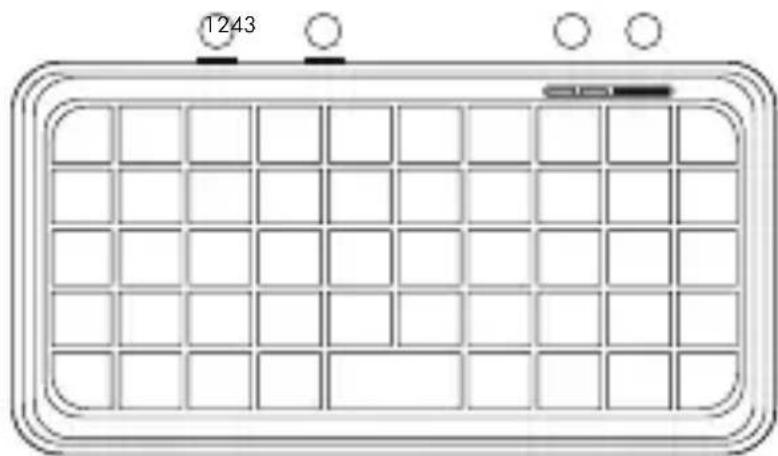
1.2. Product Outlook
- Charging connector
- On/Off switch
- Pairing button
- LED indicators
Note about AZERTY keyboard:
The position of the keys on french AZERTY keyboard may change according to the operating system you use, some keys have double marking. As an example: on Mac OS®, iPad® and iPhone® the combination Shift+6 will display § and on Windows®, Windows Mobile®, Symbian® the combination will display -.
1.3. Specifications
| Bluetooth Chip Broadcom 20 | 42 Chipset Bluetooth 2.0 |
| Operation distance 0 - 10 m | |
| Frequency band 2.4 - 2.483 | 5GHz ISM band |
| Bluetooth Profile HID | |
| Size 115 x 60 x 6 mm | |
| Net weight 40g | |
| Battery Li-ion 220 mAh Rechargeable Battery | |
| Typical use time XXX Hours |
1.4. System Requirements
Apple iPhone® 3Gs with OS4.0 or above
Microsoft Windows Mobile® 5.0 or above
Nokia Symbian® S60 System
Sony Playstation 3®
Bluetooth Enabled PC running under Windows® XP, VISTA or 7 OS
Bluetooth Enabled Mac computers running under Mac OS® 10.2.8 or above
1.5. Charging the keyboard
Connect the mini Bluetooth keyboard to your computer's USB port using the USB cable.
When charging, the red LED will light on. When charging is complete, the red LED will turn off.
When battery is low, the blue LED will blink every second.
1.6. Pairing with a Bluetooth device
Switch the keyboard ON, using the ON/OFF button. The blue LED will light
on for 1 second. Click on the pairing button, on the right side of the blue LED. The blue LED will start blinking roughly every second. Now the Mini Bluetooth keyboard is under pairing state and it's waiting for connecting with your device.
2. DRIVER INSTALLATION & CONNECTION WITH DEVICES
Before using the keyboard, it will be necessary to install a dedicated driver in your Smartphone. The following sections are describing the installation, pairing and connection procedure for each system.
2.1. iPhone (OS 4.0) / iPad
You don't need any driver to connect BBK200 to iPhone. Follow the below instructions on iPhone and keyboard:
- Check that keyboard is in pairing mode.
- On iPhone, open Settings and select Bluetooth. Enable Bluetooth if disabled.
- in the Bluetooth devices list, search for « BeeWi BBK200 » and select to pair.
- Enter the pairing code displayed on screen on the keyboard and confirm with Enter.
- Pairing and connection are confirmed on iPhone. You can now use your BBK200
2.2. Microsoft Windows Mobile OS
2.2.1. Driver installation
Connect your mobile device to your computer via the USB port.
On your desktop:
- Insert Drivers CD and open the CD from "My computer".
- Locate "Mobile" folder and CAB file inside "windowsmobile.cab" (Bluetooth input driver).
- Open ActiveSync on your desktop and Click Explore
- Copy the CAB file to your mobile device. You can do this by dragging
and dropping the file from the desktop folder to My Documents folder on your device.
On your Windows Mobile device:
- Go to Start > Programs > File Explorer > My Documents
- Run the windowsmobile.cab file (tap on it)
The Mini Bluetooth keyboard Driver will now install on your device. At the end of the installation, the setup will require a reset.
The first time you install the Bluetooth Keyboard Driver on your Windows Mobile device, you'll see a prompt to activate the software:
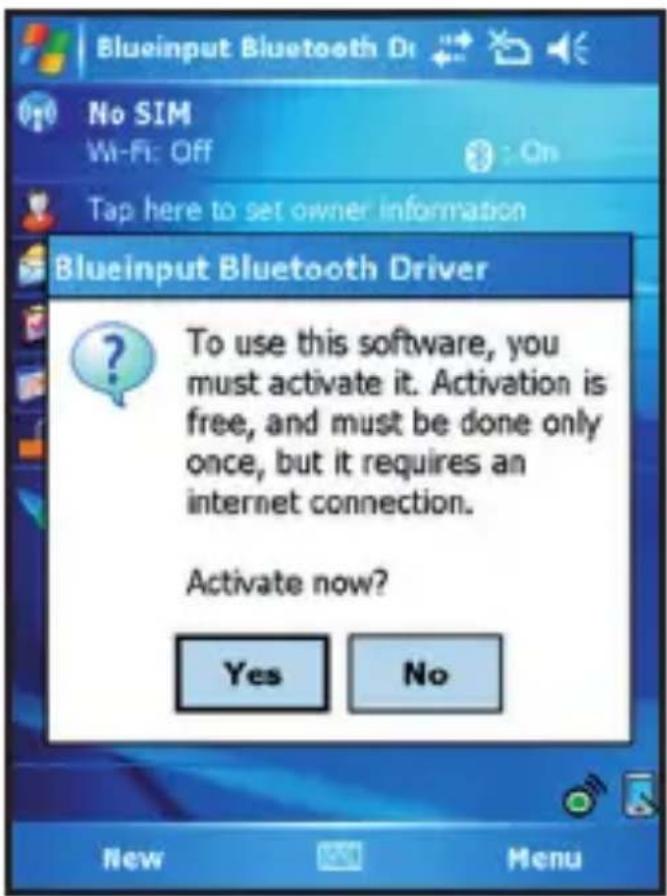
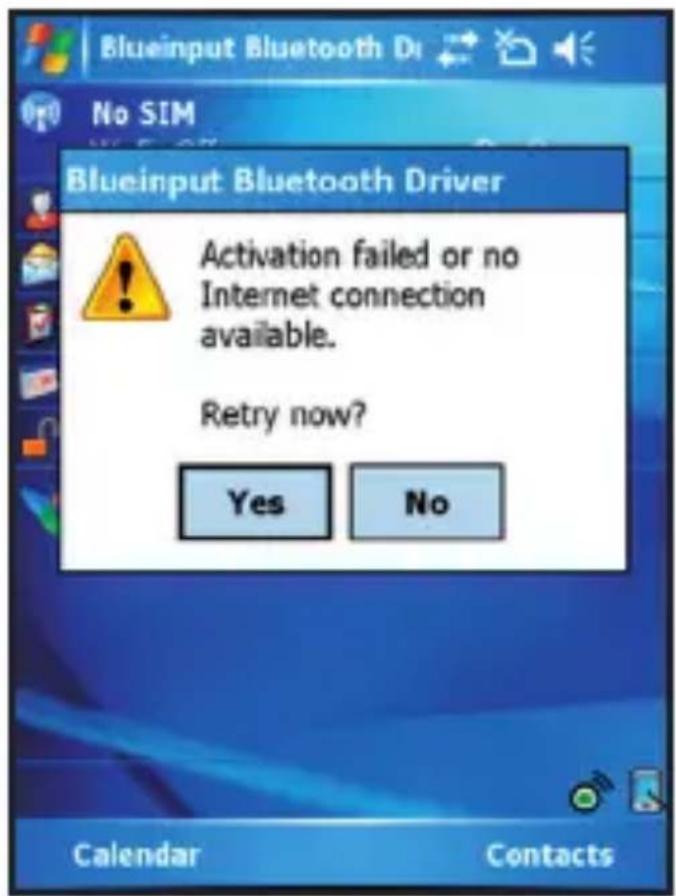
Make sure your Windows mobile device is connected to the internet and press YES. You only need to do this once, after the installation.
2.2.2. Configuration
After the software is successfully installed on your device, you need to pair the Bluetooth mini Keyboard.
- Make sure your Bluetooth mini keyboard is in the pairing state (see
section 1.6.)
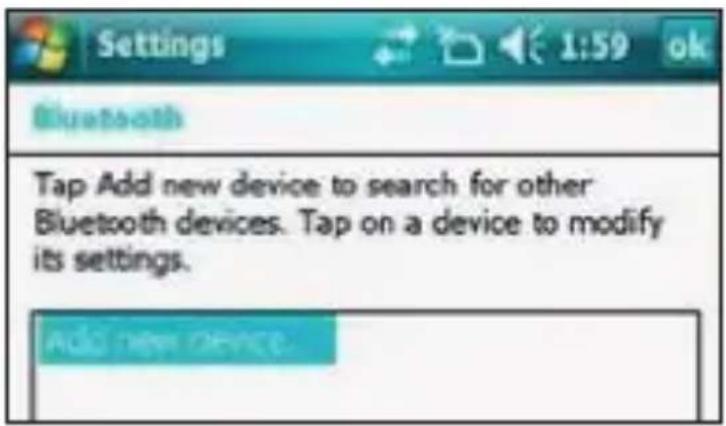
- On your device, open Bluetooth Devices, and click "Add new"
-
After the keyboard is discovered, select it, and then tap "Next"
-
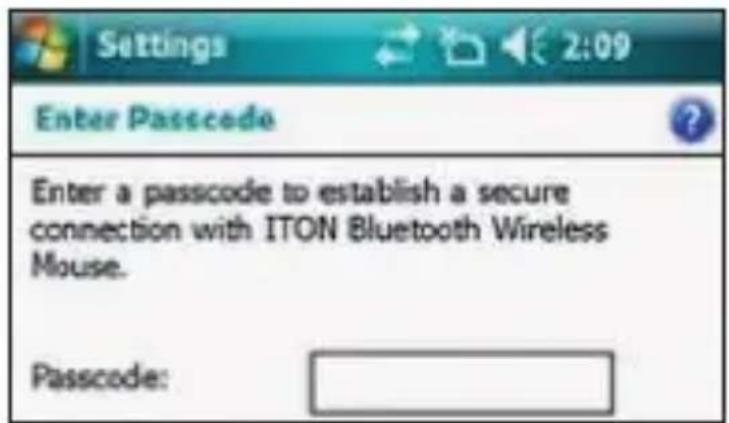
When a passcode is requested, leave the field blank and tap "Next" (if this fails, enter "0000" as a passcode and press Next)
-
At this step select "Input device" service and tap "Finish".
-
Go to the Software Settings panel, and tap "Connect" (see 2.1.4.).
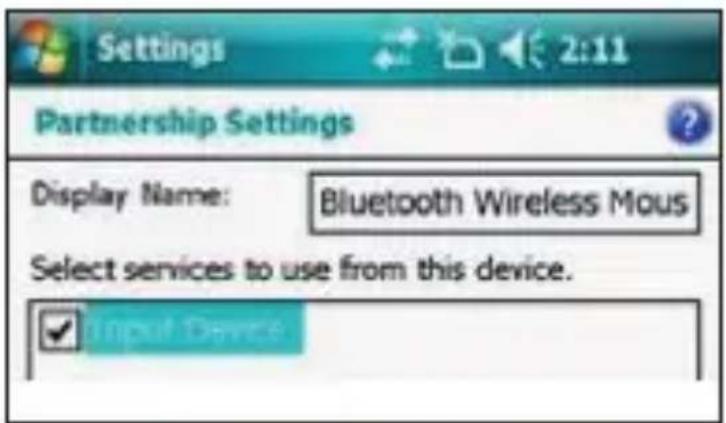
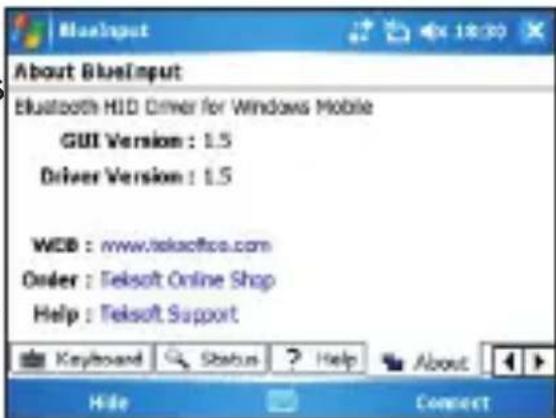
2.2.3. Input Driver
To open the input driver, go in "system" in the Settings menu and click on "Bluetooth Input Driver".
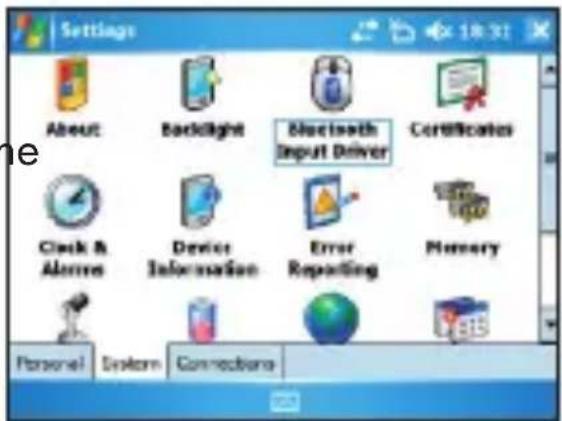
The Bluetooth input driver will display several pages to access the configuration:
- Keyboard :
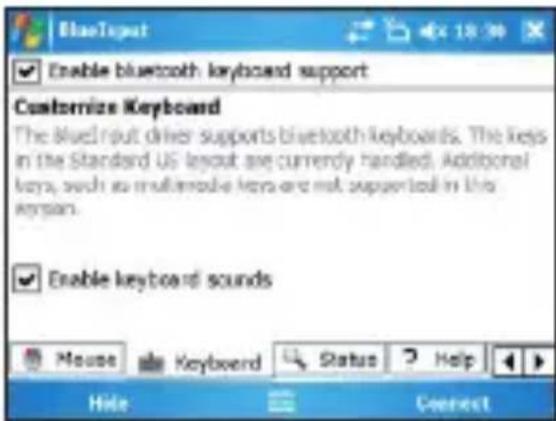
On this page you can enable and disable the keyboard and its sound functions. - Status :
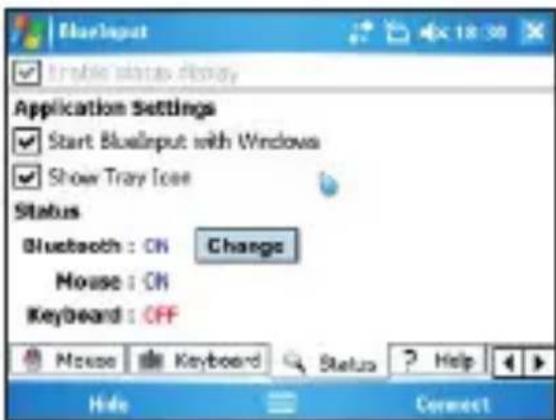
On this page you can verify the status, set the auto start of the driver on Windows Mobile and show/hide the tray icon. - About :
This page will display all legal information about the software.
2.2.4. Troubleshooting
Here are a few solutions for error messages that might appear in the software:
-
"The software is not responding. You need to reinstall this software." This error is caused by a problem with the communication between the software components. You need to check if your Windows Mobile Device is compatible with the software, and to try to reinstall the software.
-
"Bluetooth is turned off. To use the software, please enable your Bluetooth module!"
Make sure you are using the software on a smart phone with Windows Mobile (5.0 or newer) and the Microsoft Bluetooth Stack. Then enable Bluetooth before using the Software.
- "No active Input Device found. You need to pair a device, using the Bluetooth control panel."
Make sure your Mini Bluetooth keyboard is correctly paired to your smart phone. If this error appears while your keyboard is paired, redo the pairing.
This page displays the software version and other useful information.
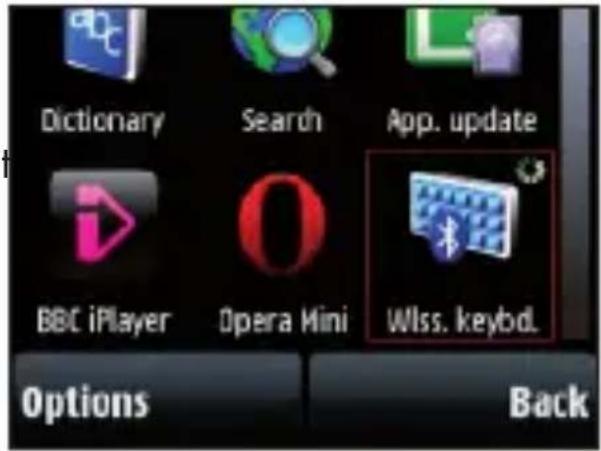
2.3. Nokia Symbian OS
On your desktop:
- Insert Drivers CD and open the CD from "My computer"
- Open "Nokia Wireless Keyboard Application" folder and choose your device model or operating system version, then copy the .sis file to the memory card or directly to the device using a USB cable.
On your Symbian device:
-
Find the .sis file (on mobile device or memory card) and press "OK" button, follow the hints to finish the installation
-
Run the installed application and search the nearby Bluetooth Keyboard.
-
After paired and connected, you will have to set the keyboard layout. If layout is not set correctly, the keyboard might not function as expected.
2.4. Desktop Windows OS with IVT Bluetooth stack Configuration
-
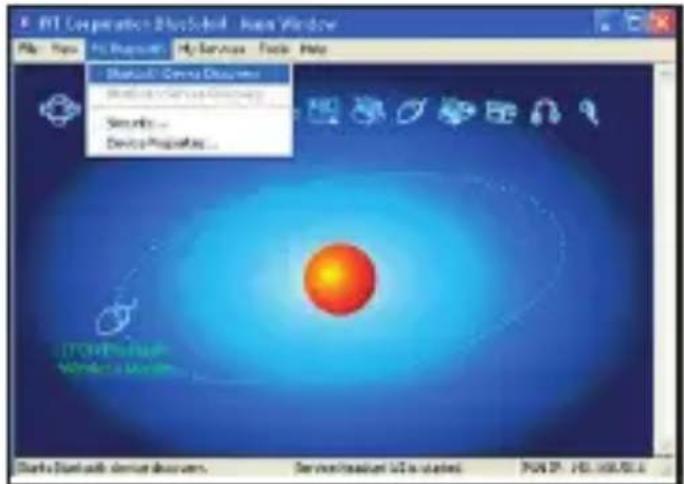
Make sure that the Bluetooth function is active on your PC. Double click the Bluetooth Icon, open the Management window, select "Bluetooth Device discovery" or click the Round Ball in the middle of the window.
-
Right click on the Bluetooth Keyboard found and select "Refresh Services".
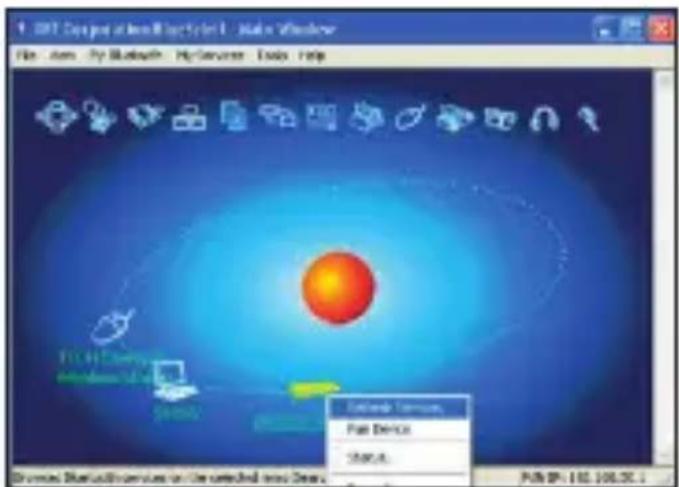
- Right click on the Bluetooth Keyboard again and select "Connect-Bluetooth Input Service".
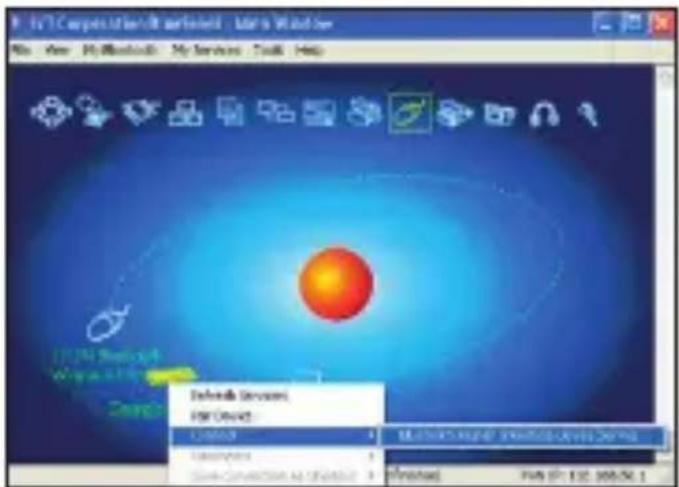
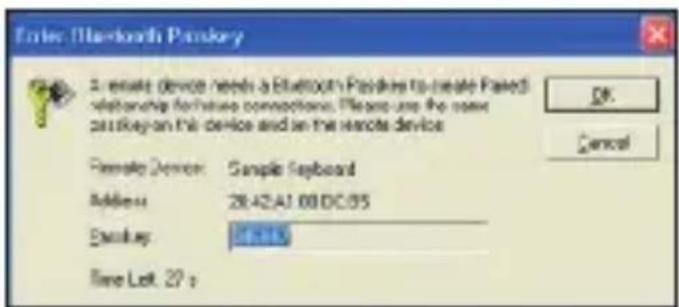
- Input the same pass code on both PC and Bluetooth Keyboard and press OK.
The system will auto install the HID drivers for the Bluetooth Keyboard.
2.5. Desktop Windows OS with Broadcom Bluetooth stack Configuration
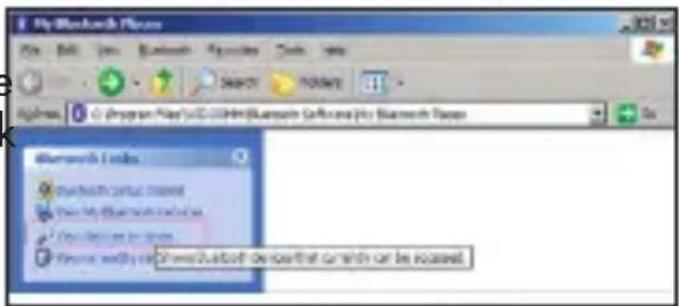
- Make sure that the Bluetooth function is active on your PC. Double click the Bluetooth icon, then click "View devices in range"
-
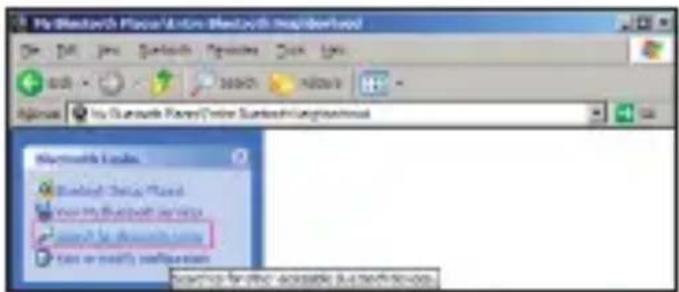
Click "Search devices in range" and wait until the Mini Bluetooth keyboard is discovered.
-
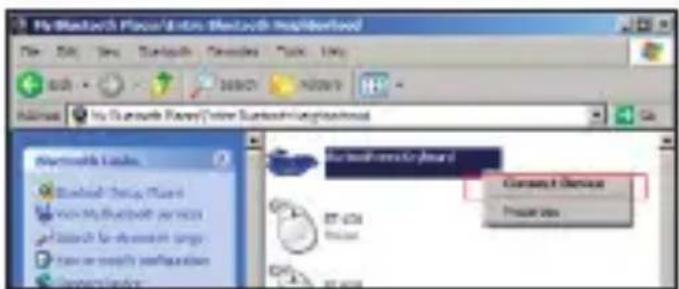
Right clicking the detected keyboard brings a popup menu. Click "Connect device".
-
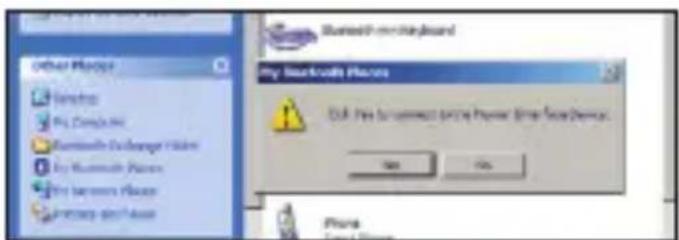
Press YES to connect to the "Human interface Device"
-
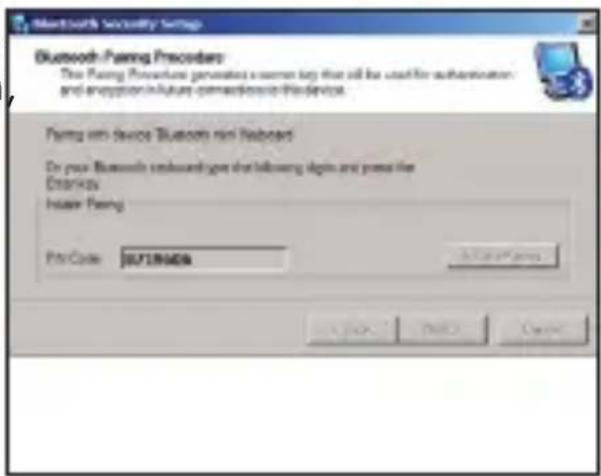
Using the Mini Bluetooth keyboard, type the number displayed on the screen then press enter:
Now the keyboard is connected, you can start using it with your applications.
2.6. Mac OS X Configuration
Open the Bluetooth Manager
Select Configure a Bluetooth Device
Select the type of device (in this case "keyboard")
The Bluetooth manager will find the keyboard. Select it and click on "Next"
Type the pass code provided by the Bluetooth Manager on your mini keyboard
The Bluetooth Manager will confirm a successful pairing.
2.7. Linux OS Configuration
There are several Linux distributions available. This guide was designed for Ubuntu linux, but can be easily adapted for other versions. Your desktop computer must be equipped with a Bluetooth module (built in, or US Dongle).
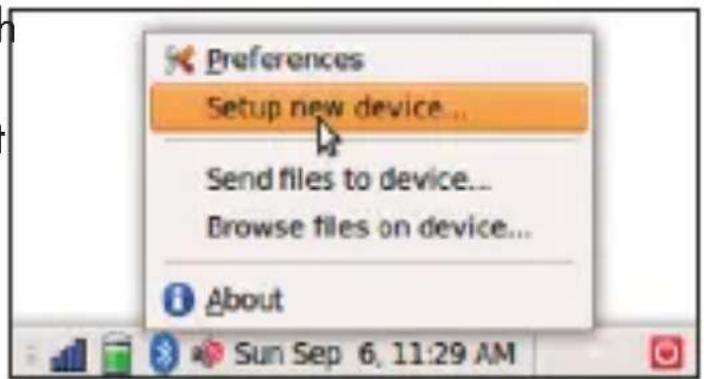
- Make sure that the Bluetooth function is active on your PC. Click the Bluetooth icon and select "Setup new device"
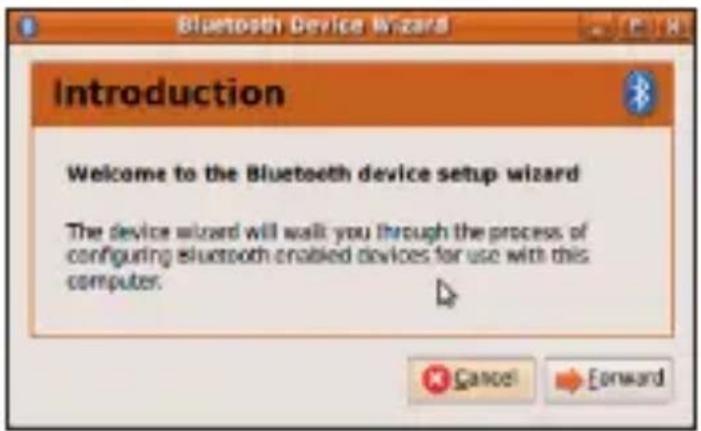
- A wizard window opens, read the text and press "Forward"
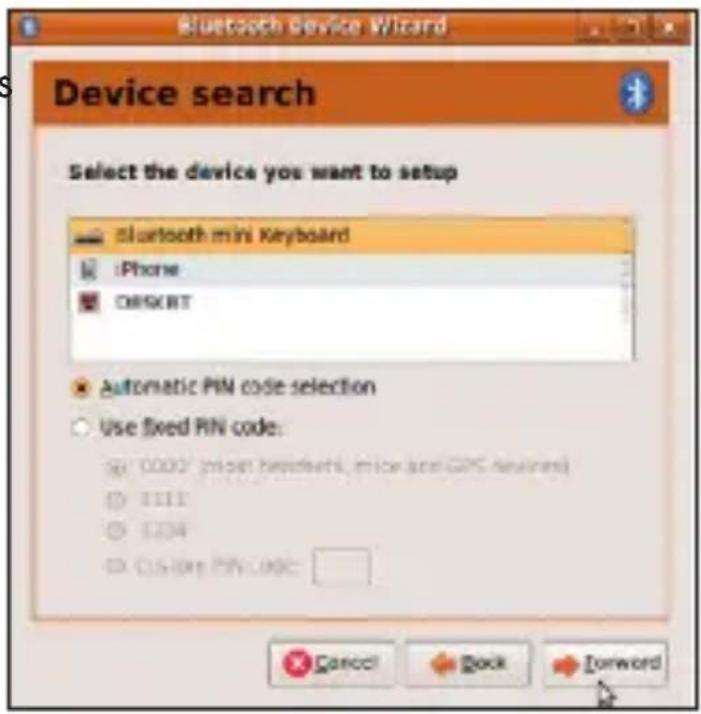
- Wait until the keyboard is discovered, then select it and press "Forward"
- Type the code display on the Mini Bluetooth keyboard, then press Enter
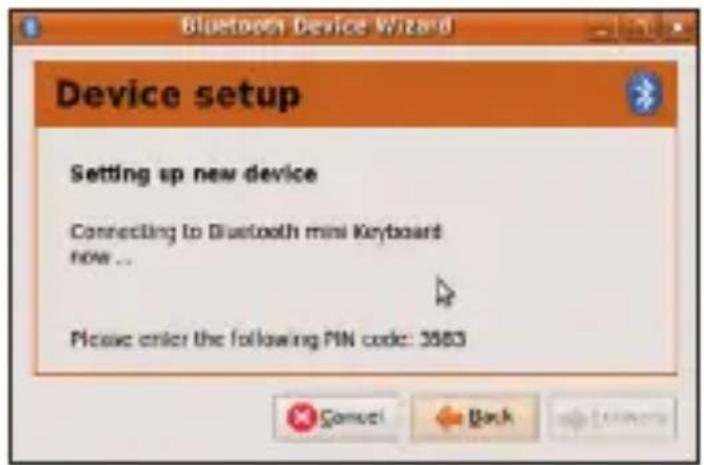
If the code was correctly entered, a confirmation message is displayed. Now you can start using your Bluetooth keyboard.
European Union Directives Conformance Statement
Hereby, VOXLAND declares that this product is in compliance with:
- The essential requirements and other relevant provisions of Directive 1999/5/EC
- All other relevant EU Directives
You can view your product's Declaration of Conformity (DoC) to Directive 1999/5/EC (to R&TTE Directive) at www.bee-wi.com.
Caring for the environment by recycling

Do not dispose of electrical devices or accessories with your household waste.
In some countries or regions, collection systems are set up to handle electrical and electronic waste items. Contact your regional authorities for more details.
Copyright and other legal information
BEEWI is a registered trademark. Other trademarks mentioned herewith are owned by their proprietors. All other product or service names are the property of their respective owners.
The use of wireless devices and their accessories may be prohibited or restricted in certain areas. Always obey the laws and regulations on the use of these products.
This product is covered by a 2-year product warranty which is valid from the date of purchase. Users are not permitted to make changes or modify the device in any way. Changes or modifications not expressly approved by the party responsible for compliance will void the user's warranty.
Please visit our website www.bee-wi.com for more information.
Technical support: support@bee-wi.com.
© VOXLAND, 2010.
Support technique: support@bee-wi.com.
© VOXLAND, 2010.
These Sections demonstrate the use of these two methods to construct a visualisation of the status of a given project. These sections are used to describe how the project is organized, and how it is performed. The first section describes the status of a project and then shows how it can be organized in terms of the status of a project. The second section describes how the project is organized, and then shows how it can be organized in terms of the status of a project.
- About: