BBM300 - Mouse BEEWI - Free user manual and instructions
Find the device manual for free BBM300 BEEWI in PDF.



Frequently Asked Questions - BBM300 BEEWI
User questions about BBM300 BEEWI
0 question about this device. Answer the ones you know or ask your own.
Ask a new question about this device
Download the instructions for your Mouse in PDF format for free! Find your manual BBM300 - BEEWI and take your electronic device back in hand. On this page are published all the documents necessary for the use of your device. BBM300 by BEEWI.
USER MANUAL BBM300 BEEWI
For additional languages, visit our website
www.bee-wi.com
User's guide
ENGLISH 4
FRANCAIS 8
12
ITALIANO 16
ESPAñOL 20
PORTUGUES 24
NEDERLANDS 28
Thank you for purchasing the Slim Laser Mouse from BEEWI. Please read the following instructions to learn how to configure and use more effectively your product.
1. BEFORE STARTING
- If your computer does not support Bluetooth, you must install a Bluetooth USB adapter (not included with this product).
- For better performance and longer use time, use a Bluetooth 2.1 compliant adapter.
- Keep a standard wired mouse as a secondary mouse.
2. CAUTIONS
- The laser mouse cannot work on a glass or a mirror surface. Avoid glossy surface, otherwise the mouse may not operate normally.
- For a better transmission distance, do not use the mouse on a metal plate or desktop.
3. CONNECTION
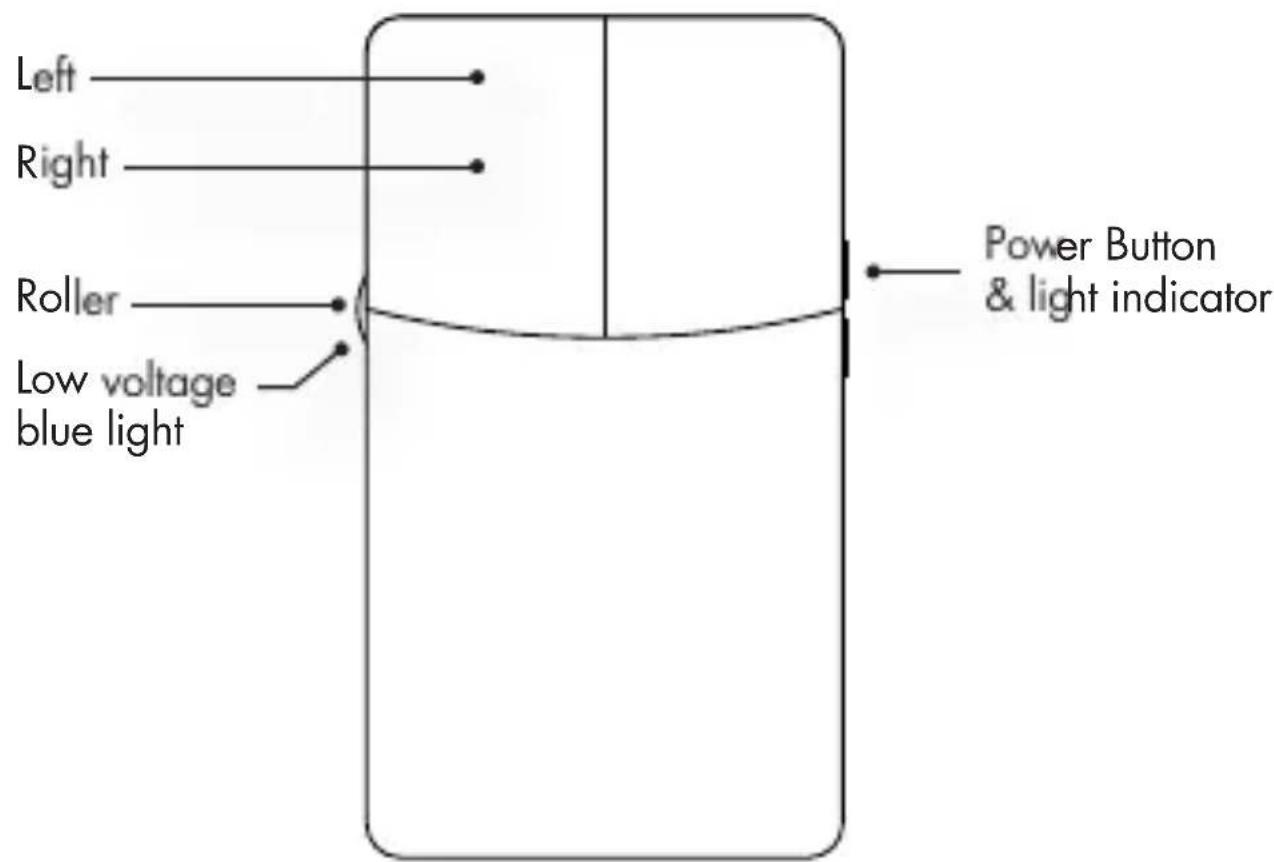
- Turn on the mouse using the on/off switch on the right side of the mouse and press the connection button underneath the mouse.
- Open the Bluetooth manager software on your computer and follow the instructions to search and find remote peripherals.
- Once the search is completed, select the "BeeWi BBM300" mouse and confirm pairing and connection.
Note: the mouse does not require any pairing code and you may have to disable the pass code option on your Bluetooth manager software.
- Once it is paired, the mouse will connect automatically to the computer every time it is switched off and on.
4. OPERATIONS
- The mouse will switch to battery save mode if it is not in use after 10 minutes, the Bluetooth link is disconnected or the computer is switched off. It will be reactivated by double clicking on the left button.
- If the mouse is disconnected during use or the connection button is accidentally pressed, the mouse will have to be reconnected using the Bluetooth utility software.
- When it is turned on, the side wheel of the mouse will illuminate in blue color.
- When connected to the USB port for charging, the right side of the mouse will illuminate in pink color.
5. TROUBLESHOOTING
Here are a few hints in case the Bluetooth mouse cannot connect to the computer, or it does not work properly:
- Make sure a Bluetooth modem is installed on the computer and the Bluetooth modem is turned on.
- If the mouse has been previously paired and it does not connect automatically after double clicking the left button, delete the pairing relationship and redo pairing in the computer.
- Make sure that the mouse is within the effective range of less than 10 meters.
- Make sure that there has been no modification in the Bluetooth manager software. If anything has been changed, try to pair again.
- Make sure that another mouse is not connected to your computer and there is no interference with other connected Bluetooth peripherals.
- Check the batteries and recharge or replace them if needed.
6. SPECIFICATIONS
-Laser sensor ADNS-753
-Bluetooth2.1,HIDprofile
- Working range: 10 meters (class 2)
- MCU: BN1616N/BN1618N
- Free 360 degree operation
- Mini-USB connector
- Battery: 3.7V, 380 mA Lithium Polymer Battery
- Typical continuous use and standby time 30 hours
- Maximum charge time 1 hour and 30~mn
- Compatible with Windows 95, 98, 2000, XP, Vista, 7 and Mac OSX
-Size: 89^50^14mm
European Union Directives Conformance Statement

Hereby, VOXLAND declares that this product is in compliance with:
- The essential requirements and other relevant provisions of Directive 1999/5/EC
- All other relevant EU Directives
You can view your product's Declaration of Conformity (DoC) to Directive 1999/5/EC (to R&TTE Directive) at www.bee-wi.com.
Caring for the environment by recycling

Do not dispose of electrical devices or accessories with your household waste.
In some countries or regions, collection systems are set up to handle electrical and electronic waste items. Contact your regional authorities for more details.
Copyright and other legal information
BEEWI is a registered trademark. Other trademarks mentioned herewith are owned by their proprietors. All other product or service names are the property of their respective owners.
The use of wireless devices and their accessories may be prohibited or restricted in certain areas. Always obey the laws and regulations on the use of these products.
This product is covered by a 2-year product warranty which is valid from the date of purchase. Users are not permitted to make changes or modify the device in any way. Changes or modifications not expressly approved by the party responsible for compliance will void the user's warranty.
Please visit our website www.bee-wi.com for more information.
Technical support: support@bee-wi.com.
© VOXLAND, 2010.
Support technique: support@bee-wi.com.
© VOXLAND, 2010.