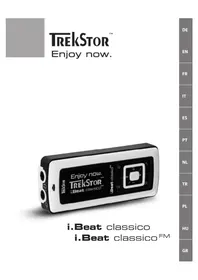
I.Beat classico FM - Mp3 player TrekStor - Free user manual and instructions
Find the device manual for free I.Beat classico FM TrekStor in PDF.



| Product Type | MP3 player with FM radio, microphone, and Line-In input |
| Brand | TrekStor |
| Model | I.Beat classico FM |
| Category | MP3 Player |
| Estimated Dimensions | 80 x 40 x 15 mm |
| Estimated Weight | Approx. 50 g |
| Power Supply | Rechargeable lithium-ion battery via USB (3 h charging, battery life not specified) |
| Display | OLED |
| Internal Memory | Capacity not specified, formatable in FAT32 |
| Supported Audio Formats | MP3, WMA (with DRM9) |
| FM Radio | Yes, FM band, 20 presets, auto search |
| Recording | Built-in microphone, FM radio, Line-In (adjustable quality) |
| Equalizer | 8 presets + customizable user equalizer |
| Connectivity | USB 2.0, 3.5 mm headphone jack (x2), 3.5 mm Line-In input |
| Additional Functions | Folder navigation, key lock, sleep timer, firmware update |
| Safety | High volume may damage hearing; not recommended while driving |
| Maintenance and Cleaning | Clean with a dry cloth; avoid moisture |
| Repairability | Accessible RESET button for reset; formatting possible |
| Included Accessories | USB cable, earphones, Line-In cable, CD with drivers and firmware |
Frequently Asked Questions - I.Beat classico FM TrekStor
User questions about I.Beat classico FM TrekStor
0 question about this device. Answer the ones you know or ask your own.
Ask a new question about this device
Download the instructions for your Mp3 player in PDF format for free! Find your manual I.Beat classico FM - TrekStor and take your electronic device back in hand. On this page are published all the documents necessary for the use of your device. I.Beat classico FM by TrekStor.
USER MANUAL I.Beat classico FM TrekStor
Note: Please charge the i.Beat classico as described in these operating instructions for at least 3 hours before initial use.
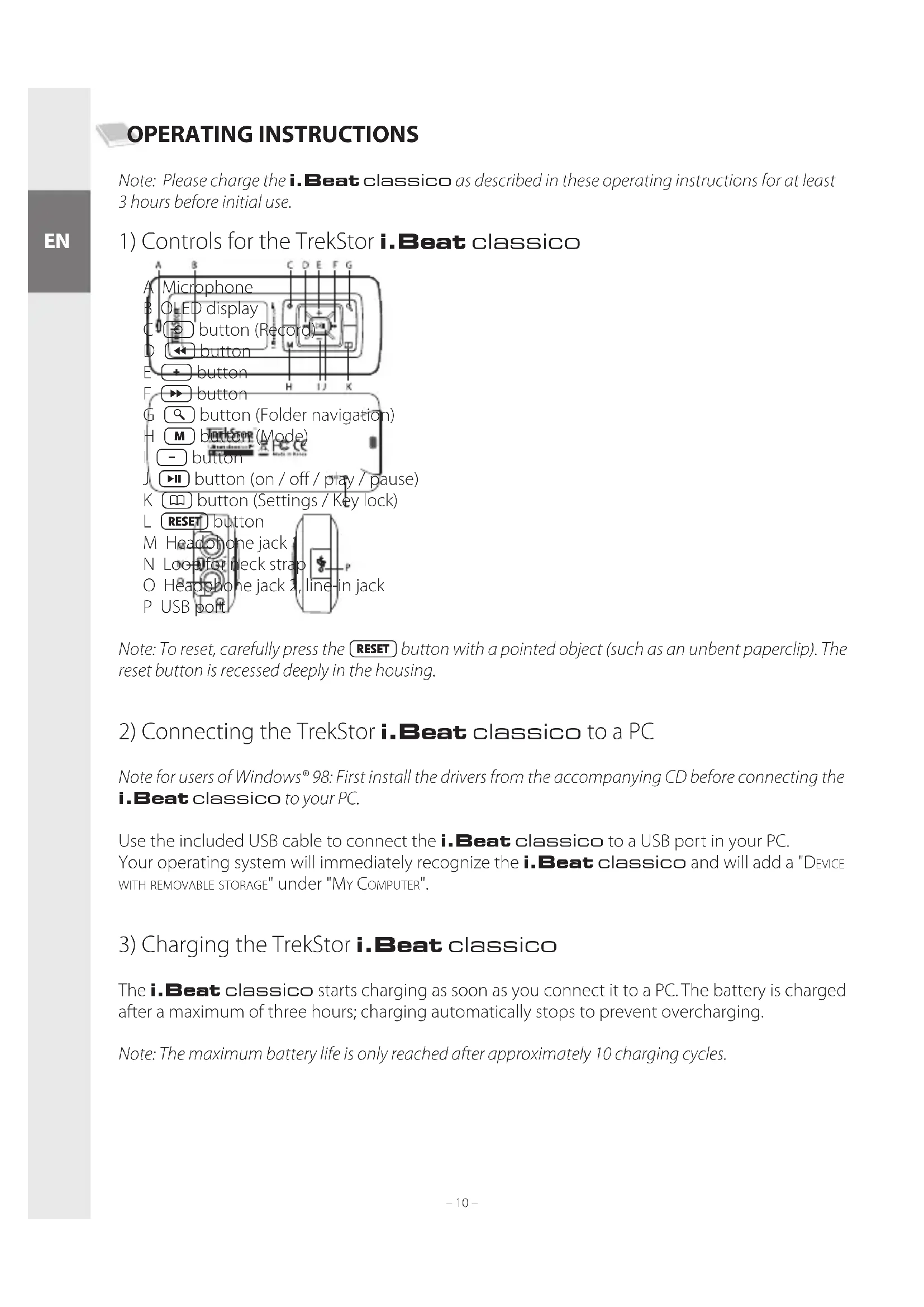
1) Controls for the TrekStor i.Beat classico
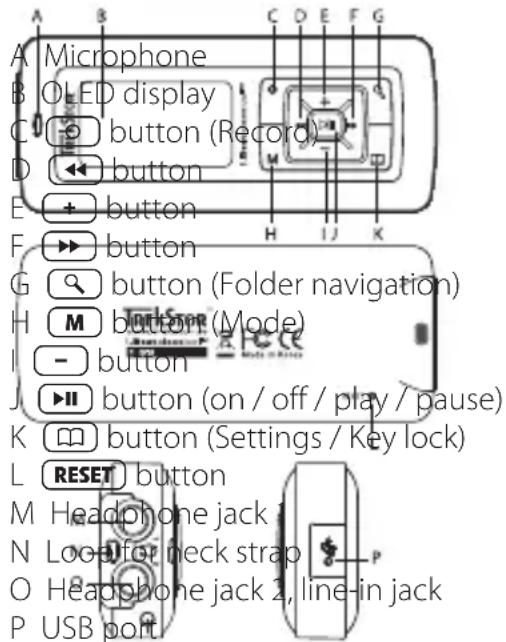
Note: To reset, carefully press the RESET button with a pointed object (such as an unbent paperclip). The reset button is recessed deeply in the housing.
2) Connecting the TrekStor i.Beat classico to a PC
Note for users of Windows® 98: First install the drivers from the accompanying CD before connecting the i.Beat classico to your PC.
Use the included USB cable to connect the i.Beat classico to a USB port in your PC. Your operating system will immediately recognize the i.Beat classico and will add a "DEVICE WITH REMOVABLE STORAGE" under "MY COMPUTER".
3) Charging the TrekStor i.Beat classico
The i.Beat classico starts charging as soon as you connect it to a PC. The battery is charged after a maximum of three hours; charging automatically stops to prevent overcharging.
Note: The maximum battery life is only reached after approximately 10 charging cycles.
4) Exchanging data with the TrekStor i.Beat classico
Files that are not copy-protected
a) Select the desired files (such as MP3) with the mouse. Copy these files by clicking them with your right mouse button and then selecting "Copy".
b) Under "MY COMPUTER", select the device with removable storage, "TREKSTOR I.BEAT CLASSICO".
c) Click it with your right mouse button, and select "PASTE" to start copying. After copying is over, the data will be available on the i.Beat classico.
WMA-DRM9-protected files
To copy DRM9-protected files, you need to use the Windows Media® Player (reference version: Windows Media® Player 9).
a) Connect your MP3 player to your computer and start the Windows Media® Player.
b) In the task bar, left-click on "COPY TO CD OR DEVICE".
c) Drag the desired music files (WMA) to the list "ITEMS TO COPY" on the left.
d) In the pulldown menu at the top right, select the MP3 player under "ITEMS ON DEVICE".
e) Then click the "Copy" button at the top right. The selected music will then be automatically copied to your MP3 player.
5) Logging off the TrekStor i.Beat classico and disconnecting from the PC
Windows® 98 (SE) Look for i.Beat classico under "DEVICE MANAGER" (under "DRIVES"), and click the device with the left mouse button. Select the menu item "REMOVE". You can now disconnect the i.Beat classico from the PC.
Windows® 2000/ME/XP At the bottom right on the task bar, click your right mouse button on the symbol "SAFELY REMOVE HARDWARE". In the context menu that appears, click the left mouse button on "SAFELY REMOVE MASS STORAGE DEVICE – DRIVE" to select it. You can now disconnect the i.Beat classico from the PC.
Note: Please follow the recommended logoff procedure to prevent damage to the device or data loss.
6) Firmware update for the TrekStor i.Beat classico
Warning: Please read all the instructions and follow the update procedures exactly to keep from damaging the i.Beat classico.
a) Connect the i.Beat classico to a USB port of your PC.
b) Back up all the important data on your i.Beat classico onto your PC.
c) You can update the i.Beat classico using either the firmware on the provided CD or using a current firmware version from the Internet (on the TrekStor homepage under http://www.trekstor.de).
Firmware-update using the provided CD:
a) Insert the provided CD into your CD / DVD drive. If the startup function of your system is activated, a menu showing all the contents of the CD will open.
Note: If the startup function of your system is deactivated, you can access the CD/DVD drive via "MY COMPUTER" and start the program "MENU.EXE" in the main directory of the CD.
b) Then select "FIRMWARE" and follow the instructions.
c) Next disconnect the i.Beat classico from the USB port of your PC.
d) Turn the i.Beat classico on to start the automatic update procedure.
e) Please wait until the update procedure is completely finished. Then turn the i.Beat classico on again, if necessary.
Firmware-update using the current firmware version from the Internet:
a) Download the firmware (*.zip-file) from the Homepage and unzip it to a folder.
b) Select the file / files of the folder using the mouse and copy it / them by pressing the right mouse button ("Copy").
c) Under "My COMPUTER", select the device with removable storage, "TREKSTOR I.BEAT CLASSICO".
d) Click it with your right mouse button, and select "PASTE" to start copying. After copying is over, the firmware files will be available on the i.Beat classico.
e) Next disconnect the i.Beat classico from the USB port of your PC.
f) Turn the i.Beat classico on to start the automatic update procedure.
g) Please wait until the update procedure is completely finished. Then turn the i.Beat classico on again, if necessary.
7) Formatting the TrekStor i.Beat classico
a) Connect the i.Beat classico to the USB port of your PC.
b) Back up all the important data on your i.Beat classico onto your PC.
c) Open "My COMPUTER", and click your right mouse button on "DEVICES WITH REMOVABLE STORAGE".
d) Select "FORMAT..." from the context menu.
e) Select the "FAT32" option under "FILE SYSTEM" from the dialog window that appears.
f) Click the "START" button to start the formatting.
8) Operating the TrekStor i.Beat classico
Turning the device on and off
Turn the i.Beat classico on by pressing the ▶■ button for approximately 2 seconds. To turn the i.Beat classico off, hold the ▶■ button for approximately 3 seconds.
Key lock
Hold the 📄 button for approximately 2 seconds to activate the key lock. You can deactivate the key lock by holding the 📄 button for 2 seconds again.
Different modes
The i.Beat classico has different modes. To go to a mode, press the M button briefly. Press the ◀ or ▶ button to select the desired mode, and confirm by pressing the ▶ button. Leave the menu by pressing the M button.
Mode: Music
Switch to "Music" mode.
- Playback
Briefly press the ▶ button to start playing back an audio file.
- Pause
Briefly press the ▶▶ button to stop playback. Repress the ▶▶ button to continue playback.
- Change title
Briefly press the ▶ button to select the next song. If you press the ◀ button within 5 seconds after a song starts, you switch to the prior song. If you push the ◀ button after a playback starts and after at least 5 seconds, the i.Beat classico returns to the beginning of the current title.
Note: If no audio file is playing (Pause function), you can switch songs faster by holding the ◀◀ or ▶▶ button longer.
- Rewind / fast-forward within a song
You can navigate within the current song by holding down the ◀◀ or ▶▶ button. Hold down the ▶▶ or ◀◀ button to fast forward or rewind.
Note: The longer you hold down the ◀◀ or ▶▶ button, the faster you fast-forward or rewind.
- Increase / decrease volume
Briefly press the + or - button to raise or lower the volume.
Note: If you hold down the + or - button, the volume changes gradually.
Folder navigation
You get to folder navigation in "Music" mode by briefly pressing the 🔒 button. Press the - or + button to select the next or previous file. To play the selected file, press the ▶ button. To change to a subfolder, press the ▶ button if the folder is marked. To return to the main directory, press the ◀ button. To leave folder navigation, press the 🔒 button.
- Deleting a file
Select the file you want to delete using folder navigation, and briefly press the ⏻ button. To confirm that you want to delete the file, switch to the delete symbol by pressing the ◀◀ or ▶▶ button, and then press the ▶▶◀ button.
Note: You cannot delete any files during playback of an audio file.
Mode: FM Radio (optional)
Switch to "FM RADIO" mode.
Note: Always connect your headphone jack 1 to the i.Beat classico FM since the earphone cable serves as an antenna for the internal radio.
• Automatic memory assignment / automatic station search
To start automatic station search, hold the 🔒 button for approximately 1 second and confirm by pressing the ▶ button. The i.Beat classico FM now automatically searches for the radio stations with the strongest reception and saves them in 20 memory locations.
- Switching between manual station selection and memory mode
Briefly press the ▶ button to switch between manual station selection "P|OFF" and memory mode "P|xx" (xx = memory location number).
- Switching between saved stations
In memory mode "P|xx" you can switch between available presets by briefly pressing the ◀ or ▶ button.
- Manually change frequency / manual search
In manual station selection mode "P|OFF", briefly press the ◀ or ▶ button to change the reception frequency by 0.1 MHz. Hold down the ◀ or ▶ button for the
i.Beat classico ^FM to automatically scan the upper and lower frequencies for stations with strong reception.
- Saving individual stations
Change to manual station selection "P|OFF". Select the desired frequency, and briefly press the 🔒 button. Press the ◀ or ▶ button to select the desired memory location, and confirm by briefly pressing the ▶ button.
- Deleting saved stations
Briefly press the 🔒 button to display all memory locations. Then select a saved station with the ◀ or ▶ button, and confirm that you want to delete it by briefly pressing the ○ button.
- Switching between mono and stereo
Hold the M button for approximately 2 seconds to switch between mono and stereo.
- Recording FM radio
Hold the ⏻ button for approximately 2 seconds to start recording radio. Briefly press the ⏻ button to stop recording.
Note: All radio recordings are saved in the "RECORD" folder, sub-folder "FM" of the i.Beat classico FM.
Mode: Microphone / Voice recording
Switch to the "MICROPHONE" mode.
You can record your voice using the integrated microphone. Briefly press the ⏻ button to start voice recording. Briefly press the ⏻ button again to stop recording.
Note: All voice recordings are saved in the "RECORD" folder, sub-folder "VOICE" of the i.Beat classico.
Tip: You also have the option of using the integrated microphone as a standard microphone (e.g. for Internet telephony). To do so, connect the provided line-in cable to the microphone jack of your PC. To activate the microphone, switch to the "MICROPHONE" mode without starting voice recording.
Mode: Line-in
Please switch to the "LINE-IN" mode.
You can connect an external device to the line-in jack (such as a CD player) and directly record from it. Briefly press the Ⓞ button to start line-in recording. Briefly press the Ⓞ button again to stop recording.
Note: All line-in recordings are saved in the "RECORD" folder, sub-folder "LINE" of the i.Beat classico.
Settings
Briefly press the 📄 button to retrieve the settings.
Here you can set various audio settings under "AUDIO", recording settings under "RECORDING", display settings under "DISPLAY" as well as general system settings under "SYSTEM".
Press the + / - button or the ◀ / ▶ button to select the desired setting, and confirm by pressing the ▶ button. Leave the settings by pressing the 📄 button.
- Audio
Playback mode: You can select 1 of 9 preset playback modes under the menu item "PLAY MODE".
Equalizer: You can select 1 of 8 preset or user-defined equalizers under the menu item "EQUALIZER".
Set user EQ: You can configure an equalizer according to your own conceptions under the menu item "SET USER EQ".
Play speed: You can set the play speed of your audio files individually under the menu item "PLAY SPEED".
- Recording
FM radio quality: You can set the quality of recording from the integrated radio under the menu item "FM RADIO QUAL.".
Microphone quality: You can set the quality of recording from the integrated radio under the menu item "VOICE QUALITY".
Line-in quality: You can set the quality of recording from the line-in input under the menu item "LINE-IN QUAL.".
- Display
File name / ID3 tag: You can set whether the file name or the ID3 tag should be displayed under the menu item "FILE NAME / ID3".
Scroll speed: You can set the speed of the scrolling to be displayed under the menu item "SCROLL SPEED".
OLED display time: You can set the time at which the OLED display will automatically shut off under the menu item "OLED OFF TIME".
OLED contrast: You can set the contrast of the OLED display under the menu item "OLED CONTRAST".
- System
Energy-saving mode: You can set, at which length of time of non-usage, the i.Beat classico should be automatically deactivated, under the menu item "POWER SAVE".
Sleep timer: You can set the time at which the i.Beat classico should be automatically turned off under the menu item "SLEEP TIMER".
Language: You can select the menu language of the i.Beat classico under the menu item "LANGUAGE".
FM radio region: You can select the radio settings for a specific region under the menu item "FM RADIO BAND".
System info: You can obtain information about the entire memory and the free memory as well as the firmware version of the i.Beat classico under the menu item "SYSTEM INFO".
Formatting: You can format the entire memory of the i.Beat classico under the menu item "FORMAT PLAYER".
Note: Remember that when the i.Beat classico is formatted, it completely deletes ALL the data. Back up all the important data on your i.Beat classico onto your PC beforehand.
Default settings: You can restore the default settings (status at delivery) of the i.Beat classico under the menu item "LOAD DEFAULT".
Note:
• This MP3 player is optimized for the provided earphones (32 Ohm impedance). Using other earphones with a lower impedance can damage the MP3 player or earphone, especially MP3 players with 2 earphone jacks.
- Note: This device can produce high volumes. To prevent hearing loss, do not listen to high volumes for long periods. If you notice a ringing noise in your ears, lower the volume immediately or stop using the MP3 player. Please keep in mind that using earphones or headphones at loud volumes may result in permanent hearing loss. While you become accustomed to higher volumes over time, so that they may seem normal to you, your sense of hearing can still be impaired. The higher you adjust the volume, the faster your sense of hearing can be damaged.
• Note: Using earphones while driving a motor vehicle is not recommended and is prohibited in some countries. Always drive carefully and with full concentration. Stop using your MP3 player if you become distracted or interrupted by it when driving a motor vehicle or during other activities that require your full attention.
- Do not use USB cables longer than 3 meters.
The manufacturer retains the right to continually improve the product. These changes may be made without being directly described in these operating instructions. For this reason, the information provided in these operating instructions may not reflect the current state of the art.
The manufacturer only guarantees suitability for the product's intended purpose. In addition, the manufacturer is not responsible for damages or loss of data and subsequent consequences.
Copyright © 2006 TrekStor GmbH & Co. KG. All rights retained. Other cited product or company names may be trademarks or brand names of the respective owner.