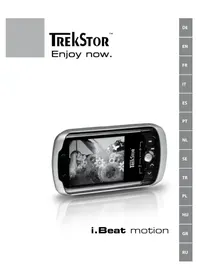
I.Beat motion - Mp3 player TrekStor - Free user manual and instructions
Find the device manual for free I.Beat motion TrekStor in PDF.



Frequently Asked Questions - I.Beat motion TrekStor
User questions about I.Beat motion TrekStor
0 question about this device. Answer the ones you know or ask your own.
Ask a new question about this device
Download the instructions for your Mp3 player in PDF format for free! Find your manual I.Beat motion - TrekStor and take your electronic device back in hand. On this page are published all the documents necessary for the use of your device. I.Beat motion by TrekStor.
USER MANUAL I.Beat motion TrekStor
Note: Please charge the i.Beat motion as described in these operating instructions for at least 3 to 4 hours before initial use.
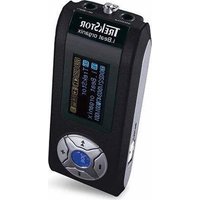
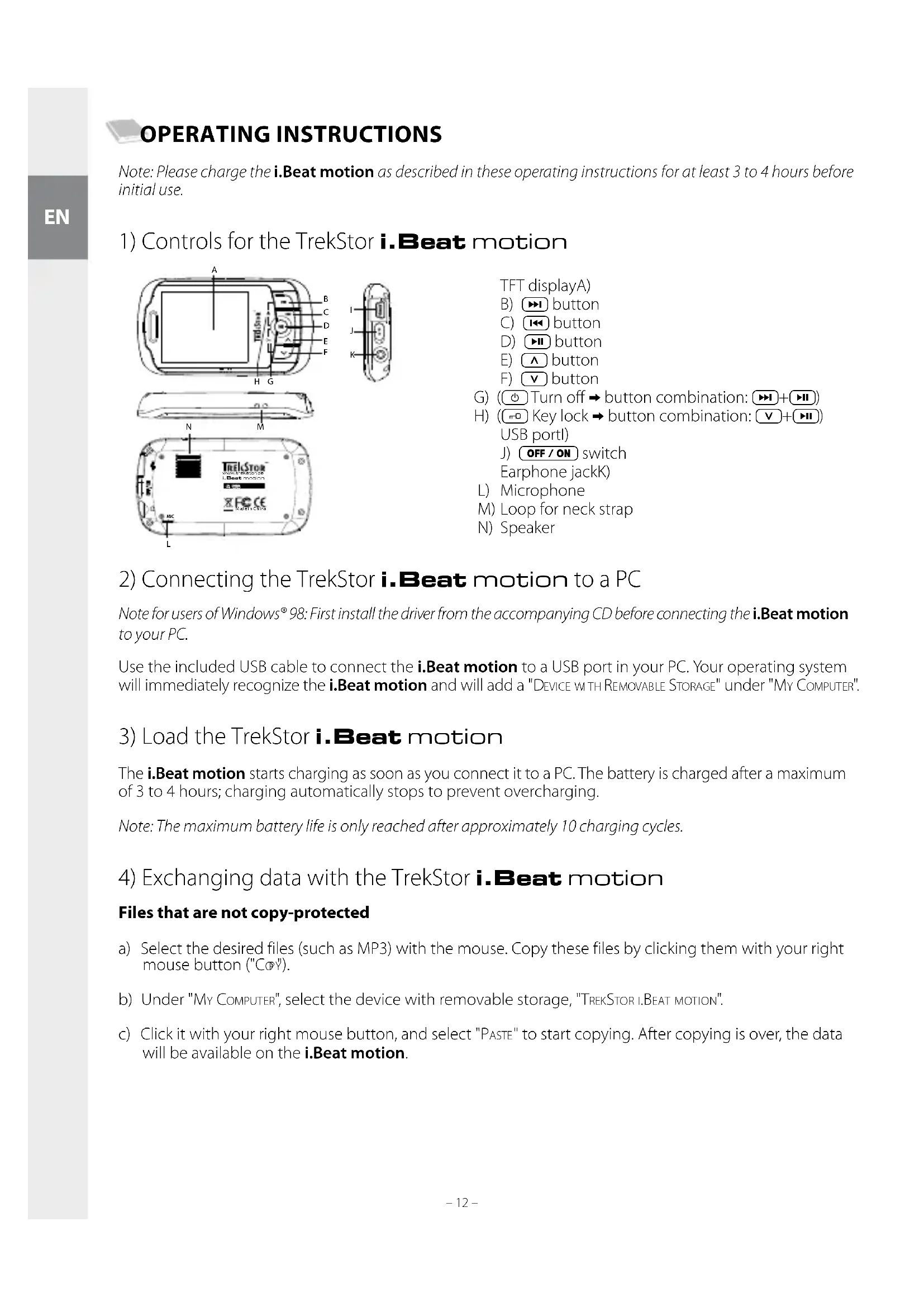
1) Controls for the TrekStor i. Beat motion
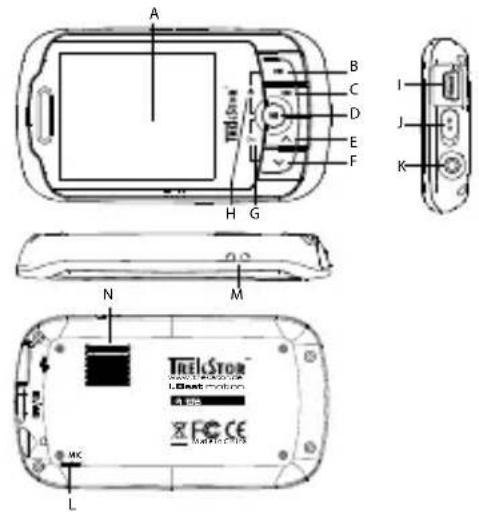
TFT displayA)
B) button
C) 14 button
D) button
E) button
F) button
G) (Turn off button combination: ( +) )
H) (Key lock button combination: V+USB portl) J OFF/ON switch Earphone jackK
2) Connecting the TrekStor i. Beat motion to a PC
Note for users of Windows® 98: First install the driver from the accompanying CD before connecting the i.Beat motion to your PC.
Use the included USB cable to connect the i.Beat motion to a USB port in your PC. Your operating system will immediately recognize the i.Beat motion and will add a "DEVICE WITH REMOVABLE STORAGE" under "MY COMPUTER".
3) Load the TrekStor i.Beat motion
The i.Beat motion starts charging as soon as you connect it to a PC. The battery is charged after a maximum of 3 to 4 hours; charging automatically stops to prevent overcharging.
Note: The maximum battery life is only reached after approximately 10 charging cycles.
4) Exchanging data with the TrekStor i. Beat motion
Files that are not copy-protected
a) Select the desired files (such as MP3) with the mouse. Copy these files by clicking them with your right mouse button ("C@").
b) Under "MY COMPUTER", select the device with removable storage, "TREKSTOR I.BEAT MOTION".
c) Click it with your right mouse button, and select "PASTE" to start copying. After copying is over, the data will be available on the i.Beat motion.
WMA DRM9-protected files
To copy DRM9-protected files, you need to use the Windows Media Player (reference version: Windows Media Player 9).
a) Connect your MP3/movie player to your computer, and start the Windows Media® Player.
b) On the left of the task bar, click "COPY TO CD OR DEVICE".
c) Drag the desired music files (WMA) to the list "ITEMS TO COPY" on the left.
d) In the pulldown menu at the top right, select the MP3/movie player under "ITEMS ON DEVICE".
e) Then click the "Copy" button at the top right. The selected music will then be automatically copied to your MP3/movie player.
5) Logging off and disconnecting the TrekStori. Beat motion from the PC
Windows® 98 (SE): Click in the lower right of the task bar, on the symbol "SAFELY REMOVE HARDWARE". In the "SAFELY REMOVE HARDWARE" window, select the i.Beat motion and click on the "Yes" button. You can now disconnect the i.Beat motion from the PC.
Windows® 2000/ME/XP/Vista: At the bottom right on the task bar, click the right mouse button on the symbol "SAFELY REMOVE HARDWARE". In the context menu that appears, click the left mouse button on "SAFELY REMOVE MASS STORAGE DEVICE - DRIVE" to select it. You can now disconnect the i.Beat motion from the PC.
Note: Please follow the recommended logoff procedure to prevent damage to the device or data loss.
6) Firmware update for the TrekStor i. Beat motion
a) Connect the i.Beat motion to a USB port of your PC.
b) Back up all the important data on your i.Beat motion onto your PC.
c) You can update the i.Beat motion with the most current firmware from the internet (on the TrekStor homepage at http://www.trekstor.de).
d) Insert the provided CD into your CD/DVD drive. When the startup function of your system is activated, a menu showing all the contents of the CD will open.
Note: If the startup function of your system is deactivated, you can access the CD/DVD drive via "My Computer" and start the program "MENUE.EXE" in the main directory of the CD.
e) Select "FIRMWARE" and follow the instructions. Your internet browser opens, and the TrekStor homepage is loaded.
f) Download the firmware (*.zip-file), and unzip it to a folder of your choice.
g) Then follow the installation instructions and the accompanying update instructions. Follow the update procedure exactly to keep from damaging the i.Beat motion.
7) Formatting the TrekStor i.Beat motion
a) Connect the i.Beat motion to a USB port of your PC.
b) Back up all the important data on your i.Beat motion onto your PC.
c) Open "My Computer", and click your right mouse button on "DEVICES WITH REMOVABLE STORAGE".
d) Select "FBA." from the context menu.
e) Select the "FAT32" option under "FILE SYSTEM" from the dialog window that appears.
f) Click the "START" button to start the formatting.
8) Using the TrekStor i. Beat motion
Turning the device on and off
Before you can turn on the i.Beat motion, the OFF/ON switch must be in the "ON" position. Turn the i.Beat motion on by pressing the button for approx. 2 seconds. To switch the i.Beat motion to standby mode (0), hold down both the button and button for around 3 seconds. To turn off the i.Beat motion, move the OFF/ON switch to the "OFF" position.
Note: Switch the i.Beat motion to standby mode before turning it off so that all the current settings will be saved.
Key lock
To activate the key lock (m), hold down both the v button and button for around 2 seconds. The key lock symbol then appears in the display of the i.Beat motion. To deactivate the key lock (m), hold down both the v button and button again for around 2 seconds.
Different modes
The i.Beat motion has different modes that you can select in the main menu. If you are already in a mode, press the button for about 1 second to go to folder navigation. Hold down the button for approx. 1 second to open the main menu.
Note: In the modes "FM RADIO" and "RECORD", you immediately go to the main menu.
Press the A or v button to select the desired mode, and confirm by briefly pressing the H button.
Folder navigation
Press the button for approx. 1 second to go from folder navigation to the modes "MUSIC", "VIDEO", "PICTURES" and "TEXT".
Note: In folder navigation, only the current files of the most recently selected mode are displayed (i.e., only music files are displayed when you are in the "Music" mode).
Press the or button to select the next or previous file. To play or display the selected file, press the button. To change to a subfolder, press the button if the folder is marked. To return to the main directory, briefly press the 山 button. To leave folder navigation, hold the 山 button for approx. 1 second.
Mode: Music
Switch to the "Mu" mode.
Play mode
Briefly press the button to play an audio file.
Pause
Briefly press the + + button to stop playback. Repress the + + button to continue playing.
Change track
Briefly press the button to select the next song. Briefly press the button to select the previous song.
Fast-forward/rewind within a track
You can navigate within the current song by holding down the 14 or 15 button. Hold down the 16 or 17 button to fast-forward or rewind.
Increase/lower volume
Briefly press the or button to raise or lower the volume.
Note: If you hold down the or button, the volume changes gradually.
Mode: Video
Switch to the "VDD" mode.
You can watch movie files (.avi) in video mode. To create movie files in AVI format, please use the "AVICONVERTER" on the accompanying CD.
The functions in this mode are like the ones in "Music" mode.
Mode: FM radio
Switch to the "FM mode.
Note: Always connect your earphone or headphone to the headphone jack of the i.Beat motion since the earphone/headphone cable serves as an antenna for the internal radio.
To go to the FM radio menu, hold the button for approx. 1 second. Press the or button to select the desired menu item, and confirm by briefly pressing the button.
Switching between manual station selection and memory mode
In the FM radio menu, choose between manual station selection "SCAN" and memory mode "PRESET".
Switching between saved stations
In memory mode "PRESET", you can switch between the existing memories by briefly pressing the + or button.
Manual frequency change/manual search
In manual station selection mode "Scan", briefly press the 1串 or button to change the reception frequency by 0.1 MHz. Hold down the 1串 or button for the i.Beat motion to automatically scan the upper and lower frequencies for stations with strong reception.
Saving individual stations
Change to the FM radio menu for manual station selection "SCAN". Choose the desired frequency, and select "SAVE" from the FM radio menu. Press the or button to select the desired memory, and confirm the next question by briefly pressing the button.
Deleting saved stations
To delete a saved station, select "Delete" from the FM radio menu. Press the or button to select the station to be deleted, and confirm the next question by briefly pressing the button.
Automatic memory assignment/automatic station scan
To start the automatic station search, select "AUTO SCAN" in the FM radio menu, and confirm the question that appears. The i.Beat motion now automatically searches for the radio stations with the strongest reception and saves them in 25 memory locations.
Recording FM radio
In the FM radio menu, select "RECORD" to record FM radio. To start recording FM radio, briefly press the button. To pause the current recording, briefly press the button. To continue with the current recording, briefly press the button again. Hold the button for approx. 1 second to stop recording.
Note: All "FMxxx" radio recordings are saved in the main directory of the i.Beat motion. Switch to "Music" mode to play the radio recordings.
Mode: Pictures
Switch to the "Purs" mode.
You can view picture files (*.jpeg) in this mode.
Note: All pictures must be in JPEG format. Large pictures are automatically displayed in a reduced size which can lengthen the loading time.
In folder navigation, select a picture file and briefly press the + + button to show the picture.
Cycle picture
Briefly press the >> or < button to go to the next or previous picture.
Slide show
To start a slide show, briefly press the button. During the slide show, you can change the length of time the pictures are shown by briefly pressing the or button. Briefly press the button again to stop the slide show.
Mode:Text
Switch to the "Tbx" mode.
You can view text files (.txt) in this mode.
In folder navigation, select a text file and briefly press the button to show the text. Briefly press the v or A button to read the text line by line. Briefly press the or k button to read the text page by page. Briefly press the button to turn on and off automatic text loading (by the page). Set the length of time that the text is displayed by briefly pressing the v or A button.
Mode: Record
Switch to the "R" mode.
You can make voice recordings in this mode using the integrated microphone.
Briefly press the button to start recording. To pause the current recording, briefly press the button. To continue with the current recording, briefly press the button again. Hold the button for approx. 1 second to stop recording.
Note: All voice recordings ("RECxxx") are saved in the main directory of the i.Beat motion. Switch to "Music" mode to play the voice recordings.
Mode: Folder navigation
Switch to the "FOLDERNAVIGATION" mode.
All the files that are on the i.Beat motion are displayed in this mode. You can play back audio and video files or display picture and text files that are supported by i.Beat motion.
Mode: Settings
Switch to the "SNNs" mode.
Here you can make various audio settings under "AUDIO", select play modes under "PLAY MODE", and activate or deactivate the shuffle function under "SHUFFLE MODE". In addition, you can specify the display settings under "DISPLAY", time settings under "TIMER", radio settings under "FM RADIO" and recording settings under "RECORD OPTIONS". You can display system information under "SYSTEM INFORMATION", select the menu language under "LANGUAGE", load the defaults under "DEFAULT SETTINGS", and run a firmware update under "UPDATE".
Press the or button to select the desired setting, and confirm by pressing the button. Hold down the 144 button to leave the settings.
Audio
Equalizer: Under the "EQUALIZER" menu item, you can select one of 7 preset equalizers and the user-defined equalizer.
User EQ: You can configure an equalizer as you wish under the menu item "USER EQ SET".
Play modes
Normal: Select the menu item "NORMAL" to play all tracks once.
Repeat one: Select the menu item "REPEAT ONE" to have the current track repeated in a loop.
Repeat all: Select the menu item "REPEAT ALL" to have all the tracks played in sequence repeatedly.
Folder once: Select the menu item "FOLDER ONCE" to play all tracks once of the selected folder.
Folder repeat: Select the menu item "FOLDER REPEAT" to repeatedly play all tracks of the selected folder one after the other.
Intro: Select the menu item "INTRO" to play the first 10 seconds of every track.
Shuffle mode
Under the menu item "ShUFFLE MODE" you can activate or deactivate the shuffle mode. In shuffle mode, the playback order of the tracks is selected at random.
Display
Brightness: Under the "BRIGHTNESS" menu item, you can adjust the brightness of the display.
Background illumination: Under the menu item "BACKLIGHT TIME", you can set the length of time until the display automatically shuts off.
Picture slide show: Under the "PICTURE SLIDE SHOW" menu item, you can adjust the length of time that the pictures in the slide show are displayed.
Text slide show: Under the "TEXT SLIDE SHOW" menu item, you can adjust the display time for automatically loading a text page.
Timer
Power management: Under the menu item "POWER MANAGEMENT", you can set how long it takes the i.Beat motion to automatically shut down after it has not been used.
Sleep timer: Under the menu item "SLEEP TIMER", you can set how long it takes the i.Beat motion to automatically shut down.
FM radio
Mode: Under the menu item "Mode", you can set if the received station will play in stereo or mono.
FM region: In the FM radio menu, select "FM REGION" to make regional radio settings.
Record options
Recording quality: Under the "RECORD QUALITY" menu item, you can adjust the recording quality of the integrated microphone.
Note: The recording quality for the integrated FM radio is set at 32kHz
Input gain: Under the "INPUT GAIN" menu item, you can adjust the recording amplification.
System information
You can obtain information about the firmware version and the overall and free memory of the i.Beat motion under the menu item "SYSTEM INFORMATION".
Update
Select the menu item "Update" to run a firmware update for the i.Beat motion.
Language
Under the menu item "LANGUAGE", you can select the menu language of the i.Beat motion.
Default settings
Under the menu item "DEFAULT SETTINGS", you can restore the factory settings (settings upon delivery) of the i.Beat motion.
9) Convert video files
With the i.Beat motion, you can play video files in AVI format that have been converted with the "AVICONVERTER".
a) Insert the provided CD into your CD/DVD drive. When the startup function of your system is activated, a menu showing all the contents of the CD will open.
Note: If the startup function of your system is deactivated, you can access the CD/DVD drive via "My Computer" and start the program "MENU.EXE" in the main directory of the CD.
b) Then select "AVICONVERTER".
c) The "AVICONVERTER" is installed on your computer.
d) Start the "AVICONVERTER" by going to "START" "PROGRAMS" "AVICONVERTER" "AVICONVERTER".
e) Click on the "ADP" button, select the file to be converted (such as MPG, AVI), and enter the destination folder.
f) Under "RESOLUTION", select the picture size "220 x 176".
g) Under "SETTING", select the quality and the picture format of the output file.
h) Click the "SA" button to save the settings.
i) Click the "Ctrl" button to close the window.
j) Start conversion by clicking the "CONVERT NOW" button.
k) Then copy the created AVI file to the i.Beat motion.
Troubleshooting
| Problem Possible cause What can you do? | ||
| My MP3 player cannot be turned on. | The HOLD function is activated. | Check if the key lock (HOLD switch/HOLD function) of the MP3 player is activated. If yes, deactivate the key lock as described in the operating instructions. |
| No power With an MP3 p | layer that has an integrated battery:When the battery is dead, charge your MP3 player either with a USB cable connected to your PC, or with a USB charger. | |
| With a battery-operated MP3 player:The battery is dead. Replace the battery. Only use alkaline batteries. To find out if your MP3 player can also be operated with rechargeable batteries, contact our support team.The battery was incorrectly inserted. Check the polarity of the battery. | ||
| External effects External | effects (such as an electrostatic discharge) can cause your MP3 player to malfunction. If the malfunction continues after you turn your MP3 player off and on, reset the player or update the firmware (the software of the MP3 player). You can find the procedure for this in the operating instructions. The current firmware for your MP3 player is on our website under "Downloads". If you have any questions concerning the firmware update that were not answered in the instructions, please contact our support team. | |
| My MP3 player freezes. If this repeatedly occurs for a specific audio file, the file may be damaged. Delete the file.If this does not eliminate the problem, reset the player if possible. If your MP3 players still freezes, update the firmware. | ||
| My MP3 player does not respond when I press a button. | The HOLD function is activated. | Check if the key lock (HOLD switch/HOLD function) of your MP3 player is activated. If yes, deactivate the key lock as described in the operating instructions. |
| I do not hear any music from the earphones/headphones. | Check if an audio file is being played (the display of the elapsed or remaining time is changing). If not, start playback. | |
| Make sure that the stereo jack of the earphones/headphones is firmly seated in the jack socket. | ||
| Check if the volume of your MP3 player is loud enough. | ||
| I transferred files to my MP3 player. The MP3 player cannot play these files. | Wrong file format The files might be in a format that your MP3 player cannot play. The file formats supported by your MP3 player can be found on the respective datasheet on the TrekStor homepage at www.trekstor.de. | |
| I transferred WMA audio files to my MP3 player. The MP3 player cannot play these files. | The files are copy-protected. | If the files are WMA DRM copy-protected, you need to copy them through the Windows Media® player. Check beforehand if your MP3 player can play WMA DRM copy-protected files. You can find this information on the datasheet of your MP3 player on the TrekStor homepage at www.trekstor.de. |
EN
| Problem Possible cause | What can you do? | |
| I transferred audio files to my MP3 player from my Mac®. The MP3 player cannot play these files. | Wrong file format Audio files in AAC format, for example, files that you generate with iTunes®, cannot be played on most MP3 players. Convert these files into MP3 format using a current iTunes® program or a different program. Audio files downloaded from the Internet may have protective mechanisms that prevent conversion. | |
| The audio files on my MP3 player are not played in the correct sequence. | The playback mode "Shuffle" has been selected. | If the playback mode "Shuffle" has been selected, switch to the "Normal" playback mode. |
| Sort your audio files in a subfolder before you copy them, and copy this folder to your MP3 player. In addition, you can sort your audio files by renaming them (by adding numbers such as "001 TITLE", "002 Title", etc.). | ||
| Odd characters appear on the display when I play music. | The character set is not supported. | Some MP3 players cannot correctly display all characters. Only use the standard character set of the menu language selected on the MP3 player when writing file names and ID3 tags, and do not use special characters (such as accents, etc.). |
| I cannot understand the menu language and do not know how to change it. | The menu language was incorrectly set. | Reset the player or, if this is not possible or does not work, update the firmware. Then the language selection menu usually appears. |
| How can I create MP3 files? To convert audio files (such as music from a CD) into the MP3 format, you need an MP3 encoder (such as the presently free "Audiograbber" program that can be obtained from www.audiograbber.de). Instructions and assistance for operating the program can be found under the help function of the program. | ||
Notes:
This MP3/movie player is optimized for the provided headphones (32 Ohm impedance). Using other earphones with a lower impedance can damage the MP3/movie player or earphone, especially MP3/movie players with 2 earphone jacks.
- Exposing the unit to an electrostatic discharge may interrupt the data transfer between the unit and the computer. If this occurs, the unit should be unplugged from the USB port and then plugged in again.
Note: This device can produce high volumes. In order to avoid hearing loss that can occur immediately, in the future, or gradually, you should not listen at high volumes for extended periods. This applies regardless of whether you listen with speakers, headphones, or earphones. If you notice a ringing noise in your ears, lower the volume immediately or stop using the MP3/movie player. Please keep in mind that permanent hearing loss can first appear at a later point in time. While you may become accustomed to higher volumes over time so that they may seem normal to you, your sense of hearing may still have been impaired by this. The higher you adjust the volume, the faster your sense of hearing can be damaged.
Note: Using earphones while driving a motor vehicle is not recommended and is prohibited in some countries. Always drive carefully and with full concentration. Stop using your MP3/movie player if you become distracted or interrupted by it when driving a motor vehicle or during other activities that require your full attention.
Do not use USB cables longer than 3 meters.
The manufacturer retains the right to continually improve the product. These changes may be made without being directly described in these operating instructions. For this reason, the information provided in these operating instructions may not reflect the current state of the art.
The manufacturer only guarantees suitability for the product's intended purpose. In addition, the manufacturer is not responsible for damages or loss of data and subsequent consequences.
Copyright © 2007 TrekStor GmbH & Co. KG. All rights reserved. Other cited product or company names may be trademarks or brand names of the respective owner.

NOTICE D'UTILISATION
Yka3aHue: Naped nepbIM uCnoNb3ObaHuem 3apdume, noKaNyUcma, nleep i.Beat motion, KaonucHo B Hacmou e uHcmpkyauu no Kcnnyamauu, Ha npomjKeHu He MeHee 3-4 yacob.
1) Делемы упавлий TrekStor i. Beat motion
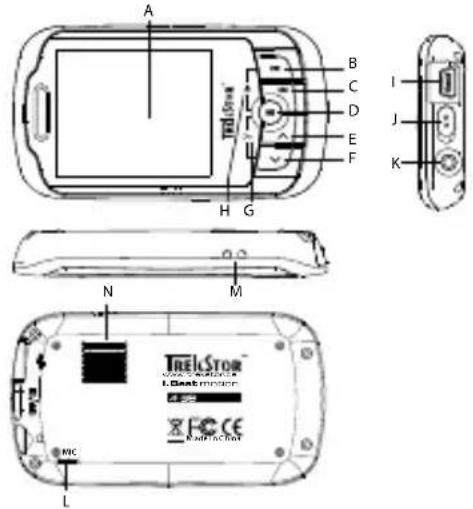
TFT-dncnnneA)
KHonka B)
KHonka C)
KHonkaD) H
KhoNkaE)
KHonkaF) V
G) (BbIKNoueHHe KOM6nHaCnKHOIOK:
+
H) (BLOKINPOBka KHOJOK KOM6HauNKA HOJOK:
V+
USB-nopTl)
BUNKJ) OFF/ON
K) Pa3bemДЯ NOdkIIOUeHn HayuHnKOB
L) MinkpoΦOH
M) Uko pemnЯ dny HOweHna Ha Wee
N)PomkoorobopnteB
NoBToP Bcex: BbIePeNTe NyHKT MeHIO "PiBTOP BCEX", 706bl NOBTOpHO BOCnpon3BeCTN BCE TpeKn OdnH 3a dpyrM.
NanKa: Bb6epuTe NyHKT MeHIO "PAnKA", UTo6bl BocnpOn3BecTu BCE TpeKu Bb6paHHo nnKn OdnH pa3.
Nobtop nankn: Bb6epnte npHKT MeHIO "NobTOp nankn", YTO6bl NOBtOPOHO BOCnPON3BecTN BCE TpeKn Bb6paHHo nankn ODNH 3a dpyrnm.
PpOurpaTb Hauano: BbI6epnte nyHKT MeHIO "PpOurp. Hauaio", uTo6bl npouirpaTb nepBbIe 10 cekyHd BCex TpeKOB.
PekmwaΦn
B nyHKTe MeHIO "Pekm IaФ"MOxHO aKTHUN3nPOBaTb NIN De3aKTHUN3nPOBaTb peKm IaΦ. BpeKImIaΦn NOcJIeNOBaTeIbHOCTb BOCnPON3BeDEHn TpeKOB BBIbNpaTc SNyauHo.
Ducnnei
ApKocTb:BnyHKTe MeHIO "APKOCTb" Bbl MoKeTe HaCtPONTb ApKOCTb DnCnJIeA.
NoCBeTka: B nyHKTe MeHIO "BPEMa NOCBETKn" Bbl MoXKeTe yCTaHOBtB PpeM, uepe3 KOToPoE NoCDBeTka. DnCpIe 6yDet BbIKIOUeHa aBTOMaTnueCKN.
Ckoocb dnaawoy: B nyHkTe MeHIO "Ckoocb foto"MOxHO yCTaHOBnTB nnTeNbHOCTb OTO6paXeHNr oTOBnaawoy.
Ckoocb TeKCTa: B nyHKTe MeHIO "CKOPOCTb TEKCTA" MOXHO yCTaHOBnTb dNITeNbHOCTb OTO6paKeHnI aBTOMaTuYeCKo 3aRpy3KN TEKCTOBO CTpaHnUcbl.
Taimep
BbIKIOueHHe: B nyHKTe MeHIO "BbIKIOueHHe" Bbl MoXKeTe yCTaHOBnTb, yepe3 KaKoe Bpemr nIeep i.Beat motion IOLJKeH BBKIOUHTbcra ABOTMaTNUeCKn.
Taimep"cha":BnyHKTe MeHIO"TAIMIP"CHA"" BbMOKeTe yCTaHOBnTB,Hepe3 KaKoe Bpemr nIeep i.Beat motion DOLJKeH BBKJIIOuHTbcra ABOTOMaTIueCKN.
FM-npneMHNK
Pekm: B nyHKTe MeHIO "Pekm" Bbl MoKte yCTaHOBNTb, BOCppon3BOJNTc JI npHnMaempaiaocTahnBa "CTepeo" UIN "MOHO".
FM-pernoh: Bb6epnte "FM-PEINOH" B MeHIO FM-npneMHnKa, yTo6bl npOn3BecTn cneuaJIbHbIe NaHCTpoiKN perHOHa npneMHnKa.
3anncb
KauecBo 3aHncn: B nyHKTe MeHIO "KAeCTBO 3aHNCN" MOxHO yCTaHOBNTb KauecTBo 3aHNCN BCTPOeHHoro MInKpOfoHa.
Yka3aHue:Kauecm8o 3anucu co BcmpoeHHo2 npuemHuKa HacmpoeHo Ha 32 Kf4.
YcJIeHHe: B nyHKTe MeHIO "YcJIeHHe" Bbl MoKeTe HAcTPOb YcJIeHHe 3aNtCn.
O cncTeMe
B nyHKTe MeHIO "O CNTEME" OTo6paKaTcR INHΦOpMaUra O BepCn NpoWNBKn, a TaKKe O BceN CBO6oHNo nAMrtn PHeepa i.Beat motion.
06HOBn.
Bb6epnte NyHKT MeHIO "ObHOBJ, yTO6bl BbINOHNtB O6HOBHeHne npoWNBKn nIeepa i.Beat motion.
R3bIK
B nyHKTe MeHIO "R3bIK MOXHO Bbl6paTb Ra3bIK 3KpaHHOr MoHIO nIeepa i.Beat motion.
3aB. NaCTpOKn
B IIyHKTE MeHIO "3AB. HAcTPOI K" Bb I MOXeTe BOCCTaHOBNTb 3aBOIDCKne HAcTPOIKN (COCTOHNIE NocTaBKN) PnEepa i.Beat motion.
** Please check with your local telephone provider for connection costs.