
AMU34EU - Mouse TARGUS - Free user manual and instructions
Find the device manual for free AMU34EU TARGUS in PDF.



Frequently Asked Questions - AMU34EU TARGUS
User questions about AMU34EU TARGUS
0 question about this device. Answer the ones you know or ask your own.
Ask a new question about this device
Download the instructions for your Mouse in PDF format for free! Find your manual AMU34EU - TARGUS and take your electronic device back in hand. On this page are published all the documents necessary for the use of your device. AMU34EU by TARGUS.
USER MANUAL AMU34EU TARGUS
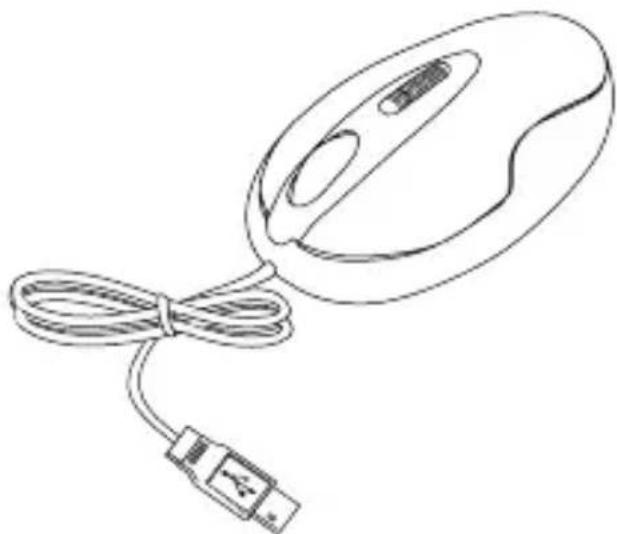
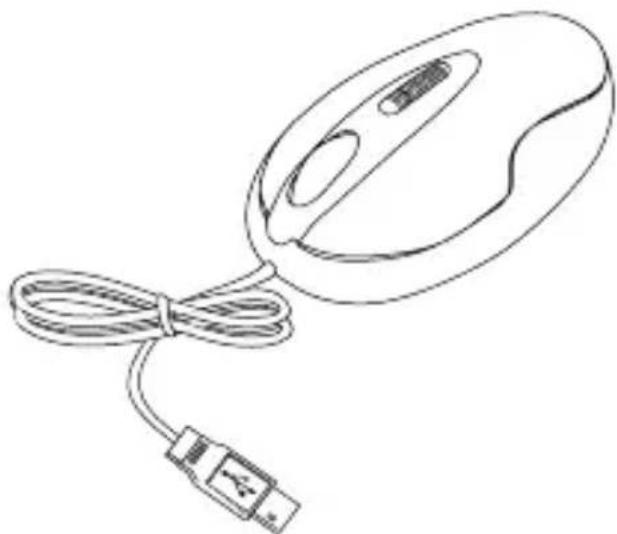
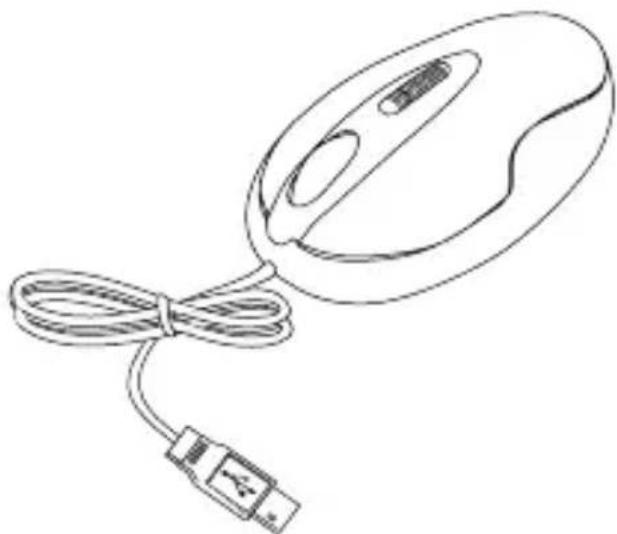
Congratulations on your purchase of a Targus USB 3-Button Laser Notebook Mouse. This mouse features the latest laser tracking technology which provides up to 2000 dpi of resolution. This mouse features a resolution changing function for users who require more precision with different types of applications.
Package Contents
- USB 3-Button Laser Notebook Mouse
- User Guide
System Requirements
Hardware
USB Port
Operating System
- Windows® ME/2000/XP
- Windows Vista™
Operating Instructions
This laser mouse does not require either a driver or software. Simply plug the USB cable into your computer's USB port.
Changing the resolution (1000 dpi - 2000 dpi):
- Press and hold both left and right mouse buttons for 2 seconds then release to switch the resolutions. The default setting for the mouse is at 2000 dpi.
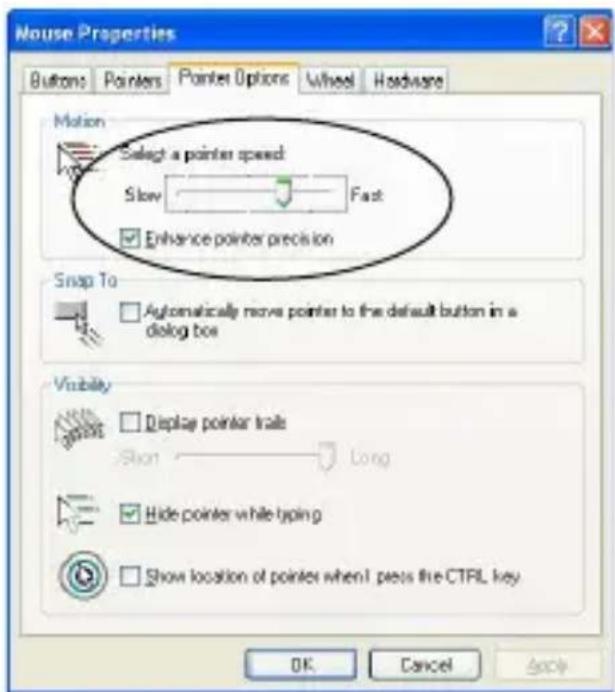
Due to the change in (high) resolution, the mouse may become too sensitive and difficult to use (too fast for some users). After selecting the suitable resolution, you can also fine tune the sensitivity. This can be adjusted in the "control panel" of the Windows operating system. Click on Start -> Setting -> Control Panel -> Mouse
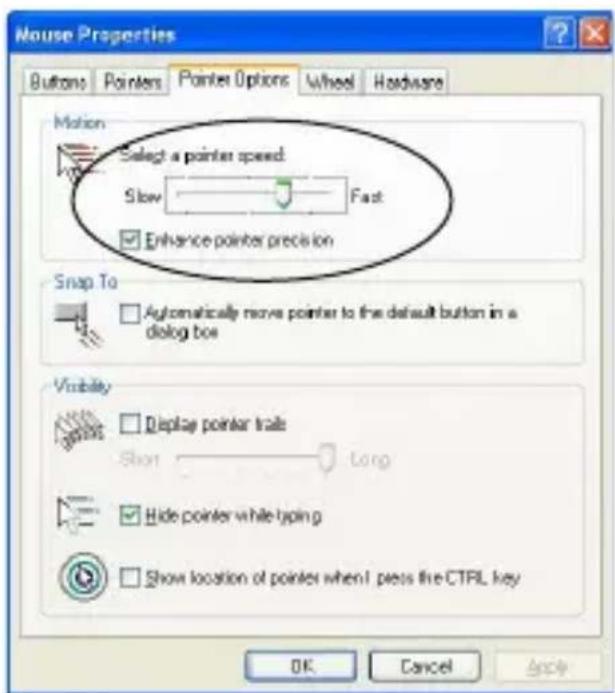
In the "mouse properties" window, locate the "pointer options" tab. Under "motion", use the slider to change the speed of the mouse. Click Apply to confirm the setting.
Safety Measures
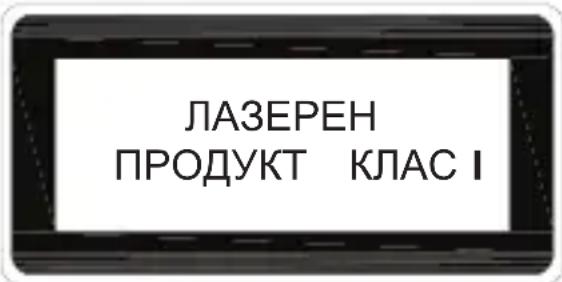
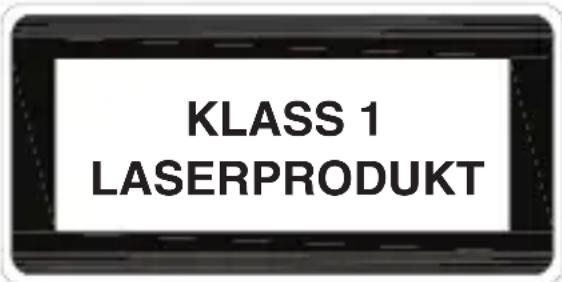
- While the mouse is functioning, no laser light is visible to the naked eye. Although this mouse is a Class 1 Laser Product and safe for operation, avoid pointing the laser into the eyes or looking directly into the laser emitter.
- Keep the mouse away from young children.
- Any attempt to disassemble, adjust or repair the mouse may result in exposure to laser light or other safety hazards.
Troubleshooting
I do not see the laser light when the mouse is active.
- Unlike traditional optical mice, the light is not visible when the laser mouse is active.
- To make sure the mouse is on and functioning properly, move the mouse back and forth and check to see if the cursor responds.
My mouse does not work on a mirror or glass surface.
- Though rated for most of these kinds of surfaces, occasionally there will be one such surface that will cause the mouse to work improperly or not at all.
- If you are using the mouse on a reflective or mirrored surface, move it to another surface.
Microsoft, Windows, and Windows Vista are either registered trademarks or trademarks of Microsoft Corporation in the United States and/or other countries. All trademarks and registered trademarks are the properties of their respective owners. All rights reserved.
BHIMAHNE
JIa3EPHA PAIINAUJ. HE CE B3NPAITE B JbUa IJIeAITE INPEKTHO C ONTNUH NHCTPYMEHTN. JIA3EPEH PPOyKT KJIACI
HNKORA HE HACOBAIte JIA3EPEH JbU B OuNTE Dpyr, KAKTO IN HE TJIEDAITE DNPEKTHO B JIA3EJbU, TbN KATO NPOIDbJIXTEJIHOTO N3JIaFAHE MOXe DA E BPeDHO 3A OuNTE.
MOMEHTHOTO I3JIAGAHE HA CBETJIINHATA OT JIA3EPHA IOKA3AJKA, KATO HANPIMEP CIIyauHOT IPEMHABAHGE HA JbUa IPE3 OYTE IPN YNO, MOKE DA IPNuHHN BPEMEHHO 3ACJENRAHE, IOIOBHO HA EFEKTA OT CBETKABUNA HA FOTOANAPAT. BbIPEKN UE TOBA CbCTOJHNE E BPEMEHHO, TO MOKE DA E ONACHO, AKO JInceto N3IOXEGHO HA JbUa IN3BbPWBDA EINHOCT, 3A KO POJIYATA HA 3PEHNETO E KPUTNUHA, KATO HANPV YNPABJEHNE HA ABTOMOBNJ.
Targus Лазерна USB мишka c 36byToHa 3a HoyT6yK
BbVeJeHne
YeCTnTo! BVE 3aKynxTe Targus Ia3epHa USB MnIka c 3 6yToHa 3a HoYt6yK. Ta3n MIIka n3NoJ3Ba nocJeHaTa Ia3epHa TpeKnHr TexHoJorna, ocNpyraBa7a pa3dJIteJIHa cnOco6HocT do 2000 dpi. Ta3n MIIka pa3noJara c cyHKcIg 3a cmHa Ha pa3deJInteJ cnOco6HocT 3a Notpe6bTeJI, KOINTO IMAT HjXda OT NO-TOJMa npEzIN3HOCT pR pa3JIuHN BVIOBe pRINOJKeHn.
CbDbPkaHne Ha naketa
- Лаэрна USB мишka c 3 бутона за HOуТбук
Hapbukn Ka notpe6nteJ
CnCTeMHN n3nCKBaHna
Xapnyep
- USB nopT
Onepaunonha cnctema - Windows® ME/2000/XP
- Windows Vista™
HctpyKznn 3a ekCnIooatazaia
Ta3n Ia3epHa Mmka He ce Hxkdae OT dpaBepn nIIN coCpIpoCTo BkIIOueTe USB ka6ena B USB nopT ha Baunr KOMnHtbp.
Cmha ha pa3deneHtHaTa cnoc6noCT (1000 dpi - 2000 dpi):
HaTnchete 3aApbXTe eHOBpeMeHNO JeBnI N DeCHNHa MmKata 3a 2 cekyHn, cJeT TOBa OCBO6OeTe 6yToHnTe, 3a Da CMeHnTe pa3dEJIHTeHnHaTa cnoc6HocT. No noDpa3bnpaHe, HacTpoKata Ha MmKata e 2000 dpi.
Iopadn n3MeHeHra Ta BbB (BvcoKaTa) pa3deJIteJHa cnoc6HocT, MUskata MoKe Da CtaHe IpeKaJIeHO YyBCTBHTeJHa N TpydHa n3PON3BaHe (IpeKaJIeHO 6bp3a 3a HЯКОI NOTpe6HtEN). CJeD KaTO cTe n36paII NOxOJaTa pa3deJIteJHa cnoc6HocT, MoKeTe CbIo Taka Da peryInpate N yyBCTBHTeJHocTTa. ToBa MoKe DOT "KoHTpOJHnnaHe" Ha onepaunOHnata cnCTema Windows. KInkHeTe Bbpxy Hauano --> HAcTpoJKN --> KoHTpOJen naHeI --> MnUka.
Morya Mmka He pa60n Bbpxy orJealHa nn CTbKneHa NOBbpxHOCT.
- Makap Да e пpoektnpaHa Дa pa60TN Bbpxy NOBeueTo OT NOBbpxHOCTN, ПОняKOra ИMa NOBbpxHOCTN, Bbpxy KOnTO MmShKaTa pa60TN He npabnHNo ИЛn И3O6so He ФункцINHnpa.
- Ako n3noJ3BaTe MmKaTa Bbpy OtpaKaTeJHa IJI NOrJeJaHnIOBbpxHOCT, npemecTeTe Ra Bbpy dpyra NOBbpxHOCT.
XapakTePncTnKnte n cneuФkaunTe noJnxat Ha n3MeHHe 6e3 npedn3BeCTne. Bcnyk TbproBckn Mapkn n peinctpnpaHn TbproBCKn MapKn npHaJnxat Ha cbOTBeTHnTe co6CTBeHnCn. Bcnyk npaba 3ana3eHn. © 2008, Tapryc rpyn INtepHeShhbl, IHK. n Tapryc (BeInko6pnTaHn), IHK.
LASEROVÉ ZÁRENÍNEDIVEJESEDO PAPRSKU ANI SE NEDIVEJEPE PRIMOPOMOCI OPTICKYCH PRISTROJU.PRODUKT LASEROVÉ TRIDY 1.
LASEROVYM PAPRSKEM NIKDY NEMIRTE DO OČÍ JINÉ OSOBY ANI SE NEDIVEJTE PRÍMO DO PAPRSKU. DELŠÍ KONTAKT MÜZE BYT OČÍM NEBEZPEČNY.
CHVILKOV Y KONTAKTS LASEROVYM UKAZOVATKEM, JAKO JE NAPR. NAHODNÉ PREJETI OCI LASEREM, MUZE ZPUSOBIT DOÇASné ZÁBLESKY PODOBNÉ BLESKU FOTOAPARATU. MUZE BYT NEBEZPEČNÉJSI, POKUD SE TATO OSOBA VěNUJE CINNOSTI NÁROČNÉ NA SLEDOVÁNÍ, NAPR. RIZENÍ
3TLACICTKOVÁ LASEROVÁ MYŠ USB TARGUS PRO NOTEBOOK
Uvod
RATON TARGUS LASER 3
BOTONES USB PARA
PORTÁTIL
Introduccion
TpexKhoNoHna Ia3epHaMbIb USB dIyHO
-PykoBoDCTBO NOIb3OBaTeJIa
HcTpyKcnn no pa6oTe cMbIshbIO
Данная Мышь He Tpe6yeT yCTaHOBKn ДраиВера Илп ДОпОЛНИТeльНOrO nporpaMMHOrO obecneueHЯ. ПрocTo BCTaBbTe Ka6eNB USBВUSB-nopT Baшero KOMNbIOTepa
I3MeHHe pa3peWeHn (1000 - 2000 ToeK Ha KBaDpaTHbI dIOm):
-Чтоби ИзMeHNTb pa3peшeHneMbIiN,нжмITEи удрЖиBaITe ee npaByIOи ЛБуIO KHOПКВ TeueHne 2 ceKyHd,3aTeM OTnycTnte. Pa3peшeHneMbIiN no yMOJuaHnIO coCTabJIeT 2000 TOUeK Ha KBaДpaTHbIДIOМ.
MepbI npedoctopoXHOCTN
CBeT Ia3epa pa6oTaIOUeMblHn HeIb3yBnIDeTb HeBOOpJKe Ira3OM.XOTa DaHHa Mblb YBJIeTCa Ia3epHbIM yCTpOiCTBOM Klaacca 1 n 6e3oNaChA B pa6ote, cTapaITeCb He HappaBnIbTb Ia3ep B Ila3a ININ CMOTpeTB nprMo B OTBepCTne Ia3epa.
XpaHnTeMbIbBMeCTe,HeIOCTyINHomДЯDeTei.
- Любая поны Кразборки, Настpoшни ремонта Мыши может
- РИВЕСТК BO3ДЕИСТВИЮ Ла3ерногО ИЗЛУЧЕНИЙ BO3НИКHOBEH
- ДругХ OnaCHOCTeI.
Понск и устараенье Нецправност
MbIb pa6oTaet,HO He BnKy Ia3epHbI JyU
B OTIINUHe OT TpaIuIcNIOHHbIX ONTNUeCKNX MbIiWei, Ja3ep DaHHoH MblHn He BnDeH B IpoUceCee ee pa6Otbl.
-Чтобу убedingя, чTOMbIшь BKЛючeha И pa6oTaET HopMaJIbHo,перемechITE Мblшь NO NOBepxHOCtN CToJa I NOCMOTpIte,ДВИл eе yka3aTeJb Ha эКраHe.
MbIb He pa6oTaET Ha 3epKaJIbHOJ IIN CTeKJIaHHOJ NOBepXH
- HecmOTpHa To, YTO Mblb MoKeT pa6oTaTb Ha 60JIbHnHCTBe ПОДБнБИ X NOBepXHOCTeN, cyIeCTByIOT NOBepXHOCTN I3 DaHHbIX MATEPnaIOB, Ha KOTOpbIX Mblb MoKeT pa6oTaTb He npabINbHO He pa6oTaTb BOO6Ie.
- Ecni Bbl pa6oTaTe MbIbH Na 3epKaIbHoi IIN dpyroI OTPaJIOUe NOBepXHOCTN, NOCTaBBte ee Ha dpyrYIO NOBepXHOCTb.
WARNING
LASERSTRÄLNING. STIRRA INTE IN I STRÄLEN ELLER TITTA INTE DIREKT PÅ STRÄLEN MED OPTISKA INSTRUMENT. KCLASS 1 LASERPRODUKT.
PEKA ALDRIG MED EN LASERSTRÅLE IN I NAGONS ÖGON ELLER TITTA ALDRIG PÅ EN LASERSTRÅLE DIREKT, EFTERSOM FÖR-LÄNGD EXPONERING KAN VARA SKADLIG FÖR ÖGONEN.
TILLFÄLLIG EXPONERING MOT LASERPUNKTEN, SÅSOM I EN SVEPANDE HANDLING MED LJUS ÖVER EN PERSONS ÖGON, KAN FÖRORSAKA TILLFÄLLIG BLIXTBLIND-HET LIKNANE DEN EFFEKT EN KAMERABLIXT HAR. ÄVEN OM DET HÄR TILLSTÄNDET AR TILLFÄLLIGT, KAN DET BLI FARLIGARE OM EXPONERADE PERSONER ÅR INBLANDADE I EN VISIONSKRITISK AKTIVITET SÅSOM BILKÖRNING.
TARGUS USB 3-KNAPPARS LASERMUS FÖR BÄRBAR DATOR
Introduction
Visit our Website at www.targus.com/emea
Features and specifications subject to change without notice.
© 2008 Targus Group International, Inc. and Targus Group (UK) Ltd.