DR260N - Calculator CITIZEN - Free user manual and instructions
Find the device manual for free DR260N CITIZEN in PDF.



| Product Type | Scientific Calculator |
| Brand | Citizen |
| Model | DR260N |
| Dimensions (approx.) | 155 x 80 x 12 mm |
| Weight (approx.) | 110 g |
| Power Supply | 2 G13 (LR44) alkaline batteries |
| Battery Life | Automatic shut-off after approximately 9 minutes |
| Display | 10-digit LCD with mode and function indicators |
| Main Functions | Basic calculations, fractions, percentages, trigonometry, logarithms, powers, roots, factorials, permutations, combinations, unit conversions, statistical mode (one variable), complex number mode, base-n mode (binary, octal, hexadecimal), polar/rectangular coordinates, random numbers |
| Memory | Independent memory (M+) and statistical data editor |
| Angular Units | Degrees, radians, grads |
| Display Formats | Floating point, fixed, scientific, engineering |
| Overload Protection | Error indicator (E) with clear by [ON/C] |
| Cleaning | Wipe with a dry cloth; do not use solvents |
| Operating Temperature | 0 °C to 40 °C (estimated) |
| Warranty | 1 year (generally) |
Frequently Asked Questions - DR260N CITIZEN
User questions about DR260N CITIZEN
0 question about this device. Answer the ones you know or ask your own.
Ask a new question about this device
Download the instructions for your Calculator in PDF format for free! Find your manual DR260N - CITIZEN and take your electronic device back in hand. On this page are published all the documents necessary for the use of your device. DR260N by CITIZEN.
USER MANUAL DR260N CITIZEN
CITIZEN is a registered trademark of CITIZEN Holdings CO, LTD. Japan CITIZEN uses a unique, proprietary brand of CITIZEN Global Co. LTD., Japan.
Design and specifications are subject to change without notice.
File name:SR-260N_HDBSR260T08_COVER_cx2.txt
Vision:2008.12.15
Order of operations 4
Correction 5
Accuracy and Capacity 5
Overflow/Error conditions. 7
Basic calculation 8
Mixed arithmetic calculation. 8
Parentheses calculations 8
Constant calculation. 8
Percentage calculation. 9
Memory calculation. 9
Scientific calculation. 10
Reciprocal, Factorial 10
Square, Square / Cubic Root, Power, Root 10
Logarithms and Antilogarithms 10
Fraction calculation. 10
Angular units conversion 11
Trigonometric/Inverse trigonometric functions 11
Hyperbolic / Inverse hyperbolic functions 12
Rectangular / Polar coordinates 12
Permutations, Combinations 13
Sexagesimal Decimal form conversion 13
Base-n mode calculation. 14
Complex numbers calculation. 14
Random numbers and Exchange key. 15
Unit conversion 15
Statistics calculation. 15
Computing single variable statistics 15
Viewing statistics data. 17
Adding a data entry. 17
Editing statistics data 18
Delete error 18
Weighted data entry method 19
General guide
Power supply
On or Off :
To turn the calculator on, press [ON/C]; to turn the calculator off, press [2ndF] [OFF].
Auto power-off function :
This calculator automatically turns off it when not operated for approximately 9 minutes. Power can be restored by pressing the [ON/C] key again. Memory contents and the previous mode setting (STAT, DEG, CPLX, Base-n,) are retained even when power is turned off or auto power-off.
Battery replacement :
The calculator is powered by two alkaline batteries (G13 or LR44).
When the display dims, replace the batteries. Be careful not to be injured when you replace the battery.
- Unscrew the screws on the back of the calculator.
- Insert a flat bladed screwdriver into the slot between the upper and lower case then carefully twist it to separate the case.
- Remove both batteries and dispose of them properly. Never allow children to play with batteries.
- Wipe off the new batteries with a dry cloth to maintain good contact.
- Insert the two new batteries with their flat sides (plus terminals) up.
- Align the upper and lower cases then snap them to close together.
- Tighten the screws.
The keyboard
Many of the calculator's keys are used to perform more than one function. The functions marked on the keyboard are printed differently to help you find the one you need quickly and easily.
| 2nd function | sin-1 |
| 1st function | sin |
1st functions
Those are the functions that are normally executed when you press the key.
2nd functions
The second function is printed above or to the right of the key. To execute 2nd functions key, please press [2ndF] then the corresponding key. When you press [2ndF], the "2ndF" indicator shown in the display is to tell you that you will be selecting the second function of the next key you press. If you press [2ndF] by mistake, simply press [2ndF] again to remove the "2ndF" indicator.
E2
(Note): [A], [B], [C], [D], [E], [F] are 1^st functions in HEX mode.
Display symbols
Indicators shown on the display is to indicate you the current status of the calculator.
DEG or RAD or GRAD : angular unit
M: Independent memory CPLX: Complex number mode
E: Overflow/Error STAT:Statistical mode
- : minus 2ndF: [2ndF] key pressed
(): Parenthesis calculation CP: Precision capability
BIN: Binary mode CPK: Process capability
OCT:Octal mode
HEX:Hexadecimal mode USL: Setting upper limit
ED: Edit mode LSL: Setting lower limit
HYP: Hyperbolic mode
Display formats
The calculator can display numbers in four formats: floating point, fixed point, scientific, and engineering.
Floating point display format
The floating point format displays numbers in decimal form, using up to 10 digits. Any trailing zeros are truncated.
If the result of a calculation is too large to be represented in 10 digits, the display automatically switches to scientific format. If the result of later calculations is small enough to be displayed in 10 digits, the calculator returns to floating point format.
(Ex.): Set the display in floating display format.
| Step: Press [2ndF] [TAB] [●] | DEG | 0. |
Fixed point display format
The fixed point, scientific, and engineering formats use a fixed number of decimal places to display numbers. If more than the selected number of decimal places is keyed, it will be rounded to the correct number of decimal places.
(Ex.): Fix the display at 2 decimal places, then key in 3.256
Step 1: Press [2ndF][TAB]2
Step 2: key in 3.256 [=]
| DEG | 0.00 |
| DEG | 3.26 |
On the contrary, if fewer than the selected number of decimal places is keyed, it will be padded with trailing zero.
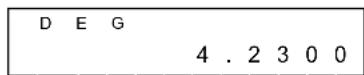
(Ex.): Fix the display at 4 decimal places, then key in 4.23
Step 1: Press [2ndF][TAB]4
| DEG | 0.0 | 0 | 0 | 0 |
Step 2: key in 4.23 [ = ]
Scientific display format
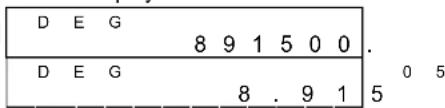
In Scientific display format, the number 891500 can be shown in scientific format as 8.915 × 10^05 , where 8.915 is called the mantissa and 5 is as the exponent of 10.
(Ex.):7132× 125 is displayed in scientific display format.
Step 1: key in 7132[x] 125 [=]
Step 2: press [F E]
(in floating point format)
Besides, entry can be made in scientific notation by using the [EXP] key after entering the mantissa.
(Ex.): Key the number 4.82296 × 10^5
Step :key in 4.82296 [ EXP ] 5

(in floating point format)
Engineering display format
The format is similar to the scientific format, expect the mantissa can have up to three digits left of the decimal, instead of only one, and the exponent is always a multiple of three. It is useful for engineers to convert units based on multiples of 10^3 .
(Ex.): Convert 15V into 15000mV (V: Volt)
Step 1: key in 15
Step 2: press [ENG] twice
(Ex.): Convert 15V into 0.015KV
Step 1: key in 15
Step 2: press [2ndF] [] twice
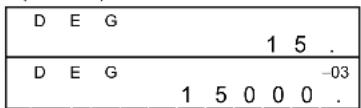
(V: Volt)
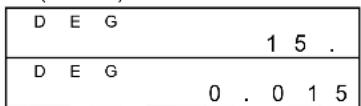
3
Order of operations
Each calculation is performed in the following order of precedence :
1) Operation in parenthesis.
2) Functions required pressing the function key before entering, for example, [DATA] in STAT mode and [EXP] key.
3) Functions required inputing values before pressing the function key, for example, cos, sin, tan, ^-1 , ^-1 , ^-1 , , , x^2 , 1/x , , , [3] , x! , %, RND, ENG, and 6 units conversion.
4) Fractions
5) + / -
E4
6) x^y, [y]x
7) nPr, nCr
8) x, ÷
9) +, -
Correction
If you have made a mistake when entering a number (but you have not yet pressed an arithmetic operator key), just press [CE] to clear the last entry then input it again, or delete individual digits by using the backspace key [00 0] .
(Ex.): Correct 12385 as 789
Step: Press [CE] 789

(Ex.): Correct 12385 as 123
Step: Press [00 0] twice

In a series of calculations, you can correct errors in immediate results by pressing [ON/C] to clear the calculation completely (expect clearing memory, see page 9).
If you press the wrong arithmetic operation key, just press [CE] key before entering anything else.
Accuracy and Capacity
Accuracy: ±1 in 10th digit.
Capacity :
In general, every reasonable calculation is displayed up to 10 digit mantissa, or 10-digit mantissa plus 2-digit exponent up to 10^-99 or integers between -9999999999 and 9999999999.
Numbers used as input must be within the range of the given function. The range for each of the calculator's functions is given in the following pages.
| Functions Input range | |
| sin x, cos x, tan x | Deg : \( \left| x\right| < {4.5} \times {10}^{10}\mathrm{{deg}} \) Rad : \( \left| x\right| < {2.5} \times {10}^{8}\pi \) rad Grad : \( \left| x\right| < 5 \times {10}^{10} \) grad however, for tan x Deg : \( \left| x\right| \neq {90}\left( {{2n} + 1}\right) \) Rad : \( \left| x\right| \neq \frac{\pi }{2}\left( {{2n} + 1}\right) \) Grad : \( \left| x\right| \neq {100}\left( {{2n} + 1}\right) \) (n is an integer) |
| \( {\sin }^{-1}x,{\cos }^{-1}x \) | \( \left| x\right| \leq 1 \) |
E6
| \( tan^{-1}x \) | \( |x|<1 x 10^{100} \) |
| \( sinh x, cosh x \) | \( |x|≤230.2585092 \) |
| \( tanh x \) | \( |x|<1 x 10^{100} \) |
| \( sinh^{-1}x \) | \( |x|<5 x 10^{99} \) |
| \( cosh^{-1}x \) | \( 1≤x<5 x 10^{99} \) |
| \( tanh^{-1}x \) | \( |x|<1 \) |
| \( log x, ln x \) | \( 1 x 10^{-99}≤x<1 x 10^{100} \) |
| \( 10^x \) | \( -1 x 10^{100}<x<100 \) |
| \( e^x \) | \( -1 x 10^{100}<x≤230.2585092 \) |
| \( \sqrt{x} \) | \( 0≤x<1 x 10^{100} \) |
| \( x^2 \) | \( |x|<1 x 10^{50} \) |
| \( 1/x \) | \( |x|<1 x 10^{100}, x≠0 \) |
| \( \sqrt[3]{x} \) | \( |x|<1 x 10^{100} \) |
| \( x! \) | \( 0≤x≤69, x is an integer. \) |
| \( R\rightarrow P \) | \( \sqrt{2 y x^2}+<1 x 10^{100} \) |
| \( P\rightarrow R \) | \( 0≤r<1 x 10^{100} \)Deg: \( |θ|<4.5 x 10^{10}deg \)Rad: \( |θ|<2.5 x 10^8π rad \)Grad: \( |θ|<5 x 10^{10}grad \)however, for tan xDeg: \( |θ|≠90 (2n-1) \)Rad: \( |θ|≠\frac{\pi}{2} (2n-1) \)Grad: \( |θ|≠100 (2n-1) (n is an integer) \) |
| \( →0,∞) \) | \( |DD|, MM, SS.SS<1 x 10^{100}, \)0≤MM, SS.SS |
| \( →0,∞) \) | \( |x|<1 x 10^{100} \) |
| \( x^y \) | \( x>0: -1 x 10^{100}<y log x<100 \) \( x=0:y>0 \) \( x<0:y=n, 1/(2n+1), n is an integer. \) but \( -1 x 10^{100}<y log |x|<100 \) |
| \( y√x \) | \( x>0:y≠0,-1 x 10^{100}<\frac{1}{y} \log x<100 \) \( x=0:y>0 \) |
SR-260N_English_090324.rtf SIZE:135x75mm /SCALE 2:1 /2009/3/24
| \( \mathrm{x} < 0 : \mathrm{y} = {2n} + 1,\mathrm{l}/\mathrm{n},\mathrm{n} \) is an integer. \( \left( {\mathrm{n} \neq 0}\right) \) but \( - 1 \times {10}^{100} < \frac{1}{y}\log \left| x\right| < {100} \) | |
| a % | Input: Total of integer, numerator and denominator must be within 10 digits (includes division marks) Result: Result displayed as fraction for integer when integer, numerator and denominator are less than \( 1 \times {10}^{10} \) |
| nPr, nCr | \( 0 \leq \mathrm{r} \leq \mathrm{n},\mathrm{n} \leq {9999999999},\mathrm{n},\mathrm{r} \) are integers. |
| STAT | \( \left| x\right| < 1 \times {10}^{50},\left| {\sum x}\right| < 1 \times {10}^{100} \) \( 0 \leq \left| {\sum {\mathrm{x}}^{2}}\right| < 1 \times {10}^{100},\mathrm{n},\mathrm{r} \) are integers \( \bar{x} : \mathrm{n}/0,\mathrm{\;S} : \mathrm{n} > 1,\sigma : \mathrm{n} > 0 \) Range \( = 1 \sim \mathrm{r},1 \leq \mathrm{n} \leq \mathrm{r},{80} \leq \mathrm{r} \leq {20400} \) |
| \( \rightarrow \) DEC | \( 0 \leq x \leq {9999999999}\left( {\text{for zero or positive}}\right) \) \( - {9999999999} \leq x \leq - 1 \) (for negative) |
| \( \rightarrow \) BIN | \( 0 \leq x \leq {0111111111}\left( {\text{for zero,positive}}\right) \) \( {1000000000} \leq x \leq {1111111111} \) (for negative) |
| \( \rightarrow \) OCT | \( 0 \leq x \leq {3777777777}\left( {\text{for zero or positive}}\right) \) \( {4000000000} \leq x \leq {7777777777} \) (for negative) |
| \( \rightarrow \) HEX | \( 0 \leq x \leq {2540BE3FF}\left( {\text{for zero or positive}}\right) \) FDABF41C01 \( \leq x \leq \) FFFFFFFF (for negative) |
Overflow / Error conditions
A symbol "E" are indicated on the display when any of the following conditions occur and further calculation becomes impossible. Just press [ON/C] to release those overflow or error indicator and the subsequent calculation can then be performed.
1) When function calculations are performed with a number exceeding the input range.
2) When a number is divided by 0.
3) When the [ ( ] key is used more than 15 times in a single expression.
4) When a result (whether intermediate or final) or accumulated total in memory exceeds the limit. ( ± 9.999999999 × 10^-99 )
5) When more than six pending operations.
Basic calculation
Before performing the following calculation, check to see that your calculator is in decimal base and floating point display.
Mixed arithmetic calculation
| 1 + 2 x 3 = ? 1[+]2[x]3 [=] | DEG |
| -3.5 + 8 ÷ 2 = ? 3.5 [+/-][+]8 [ ÷]2 [=] | DEG |
| 0. |
Parentheses calculations
Operation inside parentheses are always executed first. You can use up to 15 levels of parentheses in a single calculation. When the first parenthesis is opened, the " ( ) indicator appears and remains in the display until the last parenthesis is closed.
| (5-2x1.5)x3+0.8x(-4)=? | [()5[-]2[x]1.5[]][x]3[+]0.8[x]4[+/-][=] | DEG2.8 |
| 2x{7+6x(5+4)}=? | 2[x][()7[+]6[x][()5[+]4[=] | DEG1 2 2 . |
(Note): It is unnecessary to press the [ ] key before the [ = ] key.
Constant calculation
The calculator enables you to repeat the last number entered or the last operation executed by pressing [=] key.
Repeating the last number
| 3 x 3 = ?\( 3 \times 3 \times 3 = ? \) \( 3 \times 3 \times 3 \times 3 = ? \) | \( 3\left\lbrack \mathrm{x}\right\rbrack \left\lbrack = \right\rbrack \) | DEG9. |
| [ = ] | DEG2 7 . | |
| [ = ] | DEG8 1 . |
Repeating the arithmetic operation
| 321 + 357 = ?654 + 357 = ? | 321 [+] 357 [= ] | DEG678. |
| 654 [= ] | DEG1011. | |
| 579 - 159 = ?456 - 159 = ? | 579 [-] 159 [= ] | DEG420. |
| 456 [= ] | DEG297. | |
| 18 x 45 = ?18 x 23 = ?18 x (0.5 x 102) = ? | 3 [x] 6 [x] 45 [= ] | DEG810. |
| 23 [= ] | DEG414. | |
| 0.5 [EXP] 2 [= ] | DEG900. | |
| 96÷8=?75÷8=?\( \left( {{1.2} \times {10}^{2}}\right) \div 8 \) \( = ? \) | 96 [÷] 8 [=] | DEG1 2 . |
| 75 [ = ] | DEG9. 3 7 | |
| 1.2 [EXP] 2 [ = ] | DEG1 5 . |
5
Percentage calculation
| 30% of 120 = ?70% of 120 = ? | 120 [x] 30 [2ndF] [%][=] | DEG36. |
| 70 [2ndF] [%][=] | DEG84 . | |
| 88 is 55% ofwhat number=? | 88 [÷] 55 [2ndF] [%][=] | DEG160 . |
| 30% add-on of120=? | 120 [+] 30 [2ndF] [%][=] | DEG156 . |
| 30% discount of120 = ? | 120 [-] 30 [2ndF] [%][=] | DEG84 . |
Memory calculation
You should keep the following rules in mind when performing memory calculations.
1) The "M" indicator appears when a number is stored in the memory.
2) Recalling from a memory by pressing [MR] key does not affect its contents.
3) All memories are unavailable under STAT mode.
4) In order to exchange the content of the memory for the displayed number, please press [X M] key.
5) The contents of the memories can be cleared by pressing [0] [X M] or [ON/C] [X M] in sequence.
| 3 x 5 +) 56 ÷ 7 +) 74 - 8 x 7 Total = ? | [ ON/C ] [X→M] | DEG 0. |
| 3 [x] 5 [M+] | DEG M 1 5 . | |
| 56 [÷] 7 [M+] | DEG M 8 . | |
| 74 [−] 8 [x] 7 [M+] | DEG M 1 8 . | |
| [ MR ] | DEG M 4 1 . | |
| 0 [X→M] | DEG 0 . |
Scientific calculation
Before performing the following calculation, check to see that your calculator is fixed at 2 decimal places display format.
Reciprocal, Factorial
| 1/1.25 = ? | 1.25 [ 2ndF ] [1/x ] [=] | DEG 0. 8 |
| 5! = ? | 5 [ 2ndF ] [x!] [=] | DEG 1 2 0 . 0 0 |
Square, Square / Cubic Root, Power, Root
| 22+34=? 2[x | 2][+]3[xy]4[=] | DEG 8 5 . 0 0 |
| 5x3√27+√34 =? | 5[x]27[2ndF][3√] [+]34[√][=] | DEG 2 0 . 8 3 |
| 9√72=? | 72[2ndF][√x]9[=] | DEG 1 . 6 |
Logarithms and Antilogarithms
| ln7 + log100 = ? | [ In ] [ + ] 100 [ log ] [ = ] | DEG 3. 9 |
| 10^2 = ? | 2 [2ndF] [10^X] [ = ] | DEG 1 0 0 . 0 0 |
| e^5 - e^-2 = ? | 5 [2ndF] [e^X] [-] 2 [+/-] [2ndF] [e^X] [ = ] | DEG 1 4 8 . 2 8 |
Fraction calculation
Fraction value display is as follow :
(Note): Total of integer, numerator and denominator must be within 10 digits, or the fractional value couldn't be shown completely. By pressing [2ndF] [ %] , the displayed value will be converted to the improper fraction.
| \( \frac{2}{3} + 7\frac{3}{5} \) \( = {8}\frac{4}{15} \) | \( 2\left\lbrack \begin{matrix} a & b \\ c & \end{matrix}\right\rbrack 3\left\lbrack +\right\rbrack 7 \) \( \left\lbrack \begin{matrix} a & b \\ c & \end{matrix}\right\rbrack 3\left\lbrack \begin{matrix} a & b \\ c & \end{matrix}\right\rbrack 5 \) [ = ] | DEG \( 8 \sqcup 4 \sqcup {15} \) |
| [2ndF] \( \left\lbrack {\rightarrow \% }\right\rbrack \) | DEG \( {124} \sqcup {15} \) |
When a press of [a] key after the [=] key or a fraction performed with a decimal, the answer is displayed as a decimal.
| 5 4/9 3 3/4 =9 7/36 =9.19 8 4/9 3.75 =12.19 | 5 [a]p/c[ a]p/c [+] 3 [a]p/c [a]p/c[ = ] | DEG 9.1 7 3 6 |
| [a]p/c | DEG 9 . 1 9 | |
| 8 [a]p/c[ a]p/c [+] 3.75[ = ] | DEG 1 2 . 1 9 |
During a fraction calculation, if the figure is reducible, a figure is reduced to the lowest terms after pressing a function command key [+], [-], [x] or [÷] or the [=] key.
| 3 119/21 = 8 2/3 | 3 [a]b/c119 [a]b/c11 [=] | DEG 8 ⊟ 2 ↗ 3 |
If total of integer, numerator and denominator exceeds 10 digits (including division marks), the result answer will be displayed as a decimal.
| 12345 5/16 + 5 6/13 = 12350.77 | 12345 [a %] 5 [a %] 16 [+] 5 [a %] [ a %] 13 [=] | DEG 1 2 3 5 0.7 7 |
Angular units conversion
The calculator enables you to convert a angular unit among degrees(DEG), radians(RAD), and grad(GRAD).
The relation among the three angle units is :
$$ 1 8 0 ^ {\circ} = \pi \mathrm {r a d} = 2 0 0 \mathrm {g r a d} $$
1) To change the default setting to another setting, press [DRG] key repeatedly until the angular unit you want is indicated in the display.
2) After entering an angle, press [2ndF] [DRG→] repeatedly until the converted value is displayed.
| 90 °(deg) = ? (rad) = ? (grad) | 90 | DEG 9 0 . |
| [ 2ndF ] [ DRG→] | RAD 1.57 | |
| [ 2ndF ] [ DRG→] | GRAD 1 0 0.00 |
Trigonometric / Inverse trigonometric functions
When using those key, make sure the calculator is set for the angular unit you want.
| 3 sin 85° = ? 3 [x] 85 [sin] [=] | DEG 2. 9 9 | |
| cos (π/4 rad) = ? | [DRG] [2ndF] [π] [÷] 4 [=] [cos] | RAD 0. 7 1 |
| tan 150grad = ? [DRG] 150 [tan] | GRAD - 1. 0 0 | |
| sin-10.5 = ? deg | [DRG] 0.5 [2ndF] [sin-1] | DEG 3 0. 0 0 |
| cos-1(1/√2) = ? rad | [DRG] 2 [√] [2ndF] [1/x] [2ndF] [cos-1] | RAD 0. 7 9 |
| tan-11 = ? grad | [DRG] 1 [2ndF] [tan-1] | GRAD 5 0. 0 0 |
Hyperbolic / Inverse hyperbolic functions
| \( \cosh {1.5} + \sinh {1.5} \) = | 1.5 [ HYP ] [ cos ] [ + ] 1.5 [ HYP ] [ sin ] [ = ] | DEG 4. 4 8 |
| \( \sinh {}^{-1}7 = \) | 7 [ HYP ] [ 2ndF ] [ sin \( {}^{-1} \) ] | DEG 2. 6 4 |
| tanh 1 = | 1 [ HYP ] [ tan ] | DEG 0. 7 6 |
Rectangular / Polar coordinates
Rectangular Coordinates
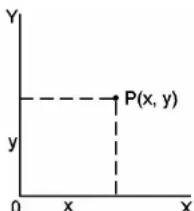
a + bi = r (cos 0 + i sin 0)
Polar Coordinates
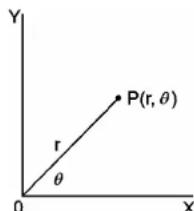
(Note): When using those key, make sure the calculator is set for the angular unit you want.
Converting from Rectangular to Polar
| If a = 5 and b = 6, what are r and θ? | 5 [a] 6 [b] [2ndF] [R→P] | DEG 7.81 |
| [b] | DEG 50.19 |
Converting from Polar to Rectangular
Permutations, Combinations
| If r = 25 and () = 56°, what are a and b? | 25 [a] 56 [b] [2ndF] [P→R] | DEG 1 3 . 9 8 |
| [b] | DEG 2 0 . 7 3 |
$$ n \Pr = \frac {n !}{(n - r) !} \quad n C r \frac {n !}{\bar {r} ! (n - r) !} $$
| How many permutations of 4 items can you select out of a set of numbers of 7 items? | 7 [2ndF] [nPr] 4 [=] | DEG 8 4 0. 0 0 |
| How many combinations of 4 items can you select out of a set of numbers of 7 items? | 7 [2ndF] [nCr] 4 [=] | DEG 3 5 . 0 0 |
Sexagesimal Decimal form conversion
The calculator enables you to convert the sexagesimal figure (degree, minute and second) to decimal notation by pressing [0199] and converts the decimal notation to the sexagesimal notation by [2ndF] [ 0199] .
Sexagesimal figure value display is as follow :
1245'30'15 Represent 12 degrees, 45 minutes, 30.5 seconds
(Note): The total digits of D, M and S and separator marks must be within 10 digits, or the sexagesimal couldn't be shown completely.
Converting from Sexagesimal to Decimal
| 12 deg., 45 min., 30.5 sec.=? | 12 [ o' ' ' → ] 45 [ o'' ' ' → ] 30.5 [ o'' ' ' → ] | D EG 1 2.7 6 |
Converting from Decimal to Sexagesimal
| 2.12345 = ? | 2.12345 [2ndF] [→0] | 2 7 1 2 4 11 4 2 |
Base-n mode calculation
Converting between bases
The unit enables you to calculate in number base other than decimal. The calculator can add, subtract, multiply, and divide binary, octal, and hexadecimal numbers. Select the number base you want by the [ BIN] , [ OCT] , [ HEX] , [ DEC] keys. The BIN, OCT, and HEX indicators show you which base you are using. (if none of the indicators appears in the display, you are in decimal base.)
The keys active in each base is described as follows :
Binary base : [0] [1]
Octal base: [0]~[7]
Decimal base: [0]~[9]
Hexadecimal base: [0]~[9], [A]~[F]
| 31 (base 10) = ? (base 2) = ? (base 8) = ? (base 16) | [2ndF] [→DEC] 31 | DEG 3 1 . |
| [2ndF] [→BIN] | DEG BIN 1 1 1 1 1 . | |
| [2ndF] [→OCT] | DEG OCT 3 7 . | |
| [2ndF] [→HEX] | DEG HEX 1 F . | |
| 4 X 1B (base 16) = ? (base 2) = ? (base 10) = ? (base 8) | [2ndF] [→HEX] 4 [x] 1B [=] | DEG HEX 6 C . |
| [2ndF] [→BIN] | DEG BIN 1 1 0 1 1 0 0 . | |
| [2ndF] [→DEC] | DEG 1 0 8 . 0 0 | |
| [2ndF] [→OCT] | DEG OCT 1 5 4 . |
Negative and Complements
In binary, octal, and hexadecimal bases, the calculator represents negative numbers using complement notation. The complement's is the result of subtracting that number from 1000000000 in that number's base by pressing [+/-] key in non-decimal bases.
| Calculate the complement of binary number 11011 | [2ndF] [→BIN] 11011 [+/-] | DEG BIN 1 1 1 1 1 0 0 1 0 1 . |
Complex numbers calculation
Select the complex numbers mode by pressing [CPLX] key and make sure "CPLX" indicator appears on the display. The calculator enables you to add, subtract, multiply, and divide complex numbers.
Complex numbers are generally represented as a + b i, where a is a real and b is imaginary.
| (7-9i)+(15+10i)=? | [2ndF][CPLX]7[a]9[+/−][b][+]15[a]10[b][]=] | DEG CPLX2 2 0 |
| [b] | DEG CPLX1 . 0 |
(Note): Memory calculation is available in complex number mode.
Random numbers and Exchange key
Random key
Pressing [RND] key enables the display to generate random numbers between 0.000 and 0.999.
Press [2ndF] [RND]
| D E G | 0.231 |
Exchange key
Pressing [2ndF] [X Y] enables the displayed value to exchange as the previous value.
| 123 + 456 = ? | 123 [+] 456 [=] | DEG | 5 7 9.0 0 |
| [2ndF][X↔Y] | DEG | 4 5 6.0 0 | |
| [2ndF][X↔Y] | DEG | 5 7 9.0 0 |
Unit conversion
in<cm
| 12 in = ? cm | 12 [A→B][2ndF] [in←cm] | DEG 30.48 |
| 98 cm = ? in | 98 [2ndF][A←B] [2ndF][in←cm] | DEG 38.58 |
(Note): The operating procedure for unit conversion key, [^ F C] , [mmHg<>kpa], [gal<>l], [lb<>kg], [oz<>g], is similar to the above example.
Statistics calculation
Computing single variable statistics
Select the mode by pressing [ STAT ] key and make sure "STAT" indictor appears on the display.
The STAT mode enables you to calculate the following single variable statistics :
n number of all data
∑x sum of all data
∑x² sum of the squares
mean value
S Sample Standard deviation
$$ \sqrt {\frac {\sum x ^ {2} - (\sum x) ^ {2} / n}{n - 1}} $$
Population standard deviation 2 nxxj
CP Precision capability 6σ
CPK Process capability Min(CPU, CPL)
$$ \text {w h e r e} \mathrm {C P U} = \frac {\mathrm {U S L} - \bar {x}}{3 \sigma} \quad \mathrm {C P L} = \frac {\bar {x} - \mathrm {L S L}}{3 \sigma} $$
(Note): In STAT mode, all function key are available, except base-n calculation.
| (Ex. 1): Enter the following data to calculate Σx, Σx2, n, x̅, S, CP, and CPK, where data 1 = 2, data 2~5 = 5, data 6~8 = 9, USL value: 12, LSL value: 2 | ||
| In STAT mode | [2ndF][STAT] | DEG STAT 0.0 0 |
| Enter all data | [DATA]2 | DEG STAT 2. |
| [DATA]5 | DEG STAT 5. | |
| [DATA]5 | DEG STAT 5. | |
| [DATA]5 | DEG STAT 5. | |
| [DATA]5 | DEG STAT 5. | |
| [DATA]9 | DEG STAT 9. | |
| [DATA]9 | DEG STAT 9. | |
| [DATA]9 | DEG STAT 9. | |
| [=] | DEG STAT 0.0 0 | |
| x̅ = ? | [x̅] | DEG STAT 6.1 3 |
| n = ? | [n] | DEG STAT 8.0 0 |
| S = ? | [S] | DEG STAT 2.5 9 |
| Σx = ? | [2ndF][Σx] | DEG STAT 4 9.0 0 |
| Σx2=? [2ndF][ | Σx2] | DEG STAT347.00 |
| σ=? [2ndF][ | σ] | DEG STAT2.42 |
| CP=? | [2ndF][CP]12 | DEG STAT1USL |
| [=]2 | DEG STAT2PSL | |
| [=] | DEG STAT0.69 | |
| CPK=? | [2ndF][CPK] | DEG STAT12.0USL |
| [=] | DEG STAT2.0LSL | |
| [=] | DEG STAT0.57 | |
(Note): The calculator keeps a record of all the entries you make and these entries are retained even if auto power-off or turning off, unless exiting STAT mode.
Viewing statistics data
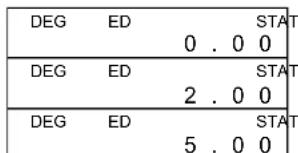
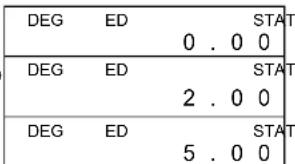
Pressing [DATA] or [=] key under ED mode can view the statistics data you have entered. The difference between [DATA] and [=] is the item of the data entry appears 1.5 sec. before the value by [DATA], the value appears immediately without the item by [=] .
(Ex.2): View the statistics data based on Ex. 1.
Step 0: Press [2ndF] [EDIT] to enter ED mode.
(Method 1):
Step 1: Press DATA once to view the first data.
| DEG ED STAT 1.5 sec. | |
| d A t A 1 | → |
| DEG ED STAT | |
Step 2: Continue pressing [DATA] once for each data, it will display data 2, 5.00, data 3, 5.00, data 4, 5.00, data 5, 5.00, data 6, 9.00, data 7, 9.00, data 8, 9.00 in sequence.
(Method 2):
Step 1: Press [=] once to view the first data
| DEG | ED | STAT | ||
| 2 . 0 | 0 |
Step 2: Continue pressing [=] once for each data, it will display 5.00, 5.00, 5.00, 5.00, 9.00, 9.00, 9.00 in sequence.
Adding a data entry
(Ex.3) : Add data 9 = 10 to Ex.1
Step 1: Press [DATA] 10

Step 2: The calculator updates the statistics as you enter data. You can recall all variable statistics to get the following result: = 6.56 , n = 9.00 , S = 2.74 , x = 59.00 , x^2 = 447.00 , = 2.59 , where data 1 = 2.00 , data 2 5 = 5.00 , data 6 8 = 9.00 , data 9 = 10.00
Editing statistics data
(Ex.4) : Based on Ex.1, correct data 1 = 2 as data 1 = 3 . Method 1 :
Press 2 [2ndF] [DEL] 3 [=] to overwrite.
Method 2 :
Step 1: Press [2ndF] [EDIT]
Step 2: Find out 2 by [ DATA ] or [ = ]
Step 3: Enter 3 to overwrite 2
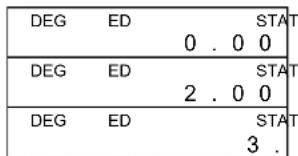
Step 4: Press [=] and [2ndF][EDIT] to exit ED mode, where those data are changed as data 1 = 3.00 , data 2 5 = 5.00 , data 6 8 = 9.00 .
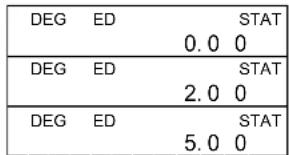
(Ex.5): Based on Ex.1, delete data 1 = 2 . Method 1:
Press 2 [2ndF][DEL] to delete 2. Method 2 :
Step 1: Press [2ndF] [EDIT]
Step 2: Find out 2 by [DATA] or [=]
Step 3: Press [2ndF] [DEL]

Step 4: Press [2ndF] [EDIT] to exit ED mode, where those data are changed as data 1 4 = 5.00 data 5 7 = 9.00
Delete error
(Ex.6): If you enter and delete a value that isn't included in the stored data by mistake, "dEL Error" appears, but the previous data are still retained, for example, delete 7 based on Ex.1.
Step 1: Press 7 [2ndF] [DEL]
Step 2: Press any key to clear it
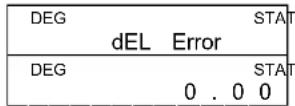
Step 3: Enter ED mode, then view data by [DATA] or [=] , where those data are still data 1 = 2.00 , data 2 5 = 5.00 , data 6 8 = 9.00 .
(Ex.7): Based on Ex.1, enter 5 × 5 and delete it.
Step 1: Press 5[x] 5[2ndF][DEL]
Step 2: Press any key to clear it
| DEG | dEL | Error | STAT |
| DEG | STAT | ||
| 0 . 0 | 0 |
Step 3: Enter ED mode, then view data by [DATA] or [=] , where those data are changed as data 1 = 2.00 , data 2 4 = 9.00 .
Weighted data entry method
Instead of entering directly each data, when often several item of data have the same value, you can enter the value and the number of occurrences up to 255. The data based on Ex.1 can be rewritten and entered as follow:
| Value | Number of occurrences | Alternative method |
| 2 | 1 | [DATA]2 |
| 5 | 4 | [DATA]5[x]4 |
| 9 | 3 | [DATA]9[x]3 |
where data 1 = 2 data 2 5 = 5 data 6 8 = 9
Under ED mode, when you continue choosing a value from data 2~5 and correcting it as 33, the permutation among those data will be changed as data 1 = 2 , data 2 4 = 5 , data 5 = 33 , data 6 8 = 9 , where the new value 33 is inserted after data 4 = 5 .
(Note): A "FULL" is indicated when any of the following conditions occur and further data entry becomes impossible. Just pressing any key can clear the indicator. The previous data entries are still retained unless exiting STAT mode.
1) If the times of data entry by [DATA] is more than 80
2) The number of occurrences is more than 255
3) n > 20400 ( n = 20400 appears when the times of data entry by [DATA] are up to 80 and the number of occurrences for each value are all 255, i.e. 20400 = 80 × 255 .)
CONTENIDOS
GUIA GENERAL 2
CALCULO ARITMÉTICO MIXTO 8
CALCULO ENTRE PARENTESIS 8
CALCULO CONSTANTE 8
CALCULO PERCENTUAL 9
CALCULO MEMORIZADO 9
CALCULO CIENTIFICO. 10
RECIPROCO,FACTORIAL 10
CUADRADO, RAIZ CUADRADA/ CUBICO, POTENCIA, RAIZ.... 10
LOGARITMOS Y ANTILOGARITMOS 10
CALCULO FRACCIONARIO 10
CONVERSION DE UNIDADES ANGULARES 11
TRIGONOMÉTRICO / FUNCIONES INVERSAS
TRIGONOMÉTRICAS 12
HIPERBOLICO / FUNCIONES INVERSAS HIPERBOLICAS. 12
RECTANGULAR / POLARES COORDINADOS 12
- : Menos 2ndF: Tecla (2ndF)
() : Cálculo entre parentesis CP : Precisión de capacité
Paso 1: Presiona [2ndF] [TAB] 4
Paso 2: Tecla 4.23 [ = ]
| DEG | 0.000 |
| DEG | 4.2300 |
FORMATO CIENTIFICO
CALCULO ARITMÉTICO MIXTO
| 1 + 2 × 3 = ? 1[+]2[x]3 [=] | DEG |
| -3.5 + 8 ÷ 2 = ? 3.5 [+/-][+]8 [ ÷]2 [=] | DEG |
CALCULO ENTRE PARENTESIS
$$ 1 8 0 ^ {\circ} = \pi \text {r a d} = 2 0 0 \text {g r a d} $$
| 31 (base 10) = ? (base 2) = ? (base 8) = ? (base 16) | [ 2ndF ] [→DEC ] 31 | DEG 3 1 . |
| [ 2ndF ] [→BIN ] | DEG BIN 1 1 1 1 1 . | |
| [ 2ndF ] [→OCT ] | DEG OCT 3 7 . | |
| [ 2ndF ] [→HEX ] | DEG HEX 1 F . | |
| 4 X 1B (base 16) = ? (base 2) = ? (base 10) = ? (base 8) | [ 2ndF ] [→HEX ] 4 [ x ] 1B [ = ] | DEG HEX 6 C . |
| [ 2ndF ] [→BIN ] | DEG BIN 1 1 0 1 1 0 0 . | |
| [ 2ndF ] [→DEC ] | DEG 1 0 8 . 0 0 | |
| [ 2ndF ] [→OCT ] | DEG OCT 1 5 4 . |
| 12 in = ? cm | 12 [A→B][2ndF] [in←cm] | DEG 3 0. 4 8 |
| 98 cm = ? in | 98 [2ndF][A←B] [2ndF][in←cm] | DEG 3 8. 5 8 |
Paso 1: Presional [2ndF] [EDIT]
Paso 2: Encunar 2 por [DATA] o [ = ]
Paso 1: Presional [2ndF] [EDIT]
Paso 3: Presionar [2ndF] [DEL]
Paso 1: Presionar 7 [2ndF] [DEL]

2ndF: [2ndF] tecla pressionada
Reciproco, Factorial
| 1/1.25 = ? | 1.25 [ 2ndF ] [1/x ] [ = ] | DEG 0. 8 |
| 5! = ? | 5 [ 2ndF ] [x!] [ = ] | DEG 1 2 0 . 0 0 |
$$ 1 8 0 ^ {\circ} = \pi \text {r a d} = 2 0 0 \text {g r a d} $$
Permutacoes, Combinations
$$ n P r = \frac {n !}{(n - r) !} \quad n C r \frac {n !}{\bar {r}} h (- r! $$
| 31 (base 10) =? (base 2) =? (base 8) =? (base 16) | [2ndF] [→DEC] 31 | DEG 3 1 . |
| [2ndF] [→BIN] | DEG BIN 1 1 1 1 1 . | |
| [2ndF] [→OCT] | DEG OCT 3 7 . | |
| [2ndF] [→HEX] | DEG HEX 1 F . | |
| 4 X 1B (base 16) =? (base 2) =? (base 10) =? (base 8) | [2ndF] [→HEX] 4 [x] 1B [=] | DEG HEX 6 C . |
| [2ndF] [→BIN] | DEG BIN 1 1 0 1 1 0 0 . | |
| [2ndF] [→DEC] | DEG 1 0 8 .0 0 | |
| [2ndF] [→OCT] | DEG OCT 1 5 4 . |
| 12 in = ? cm | 12 [A→B][2ndF] [in←cm] | DEG 3 0.48 |
| 98 cm = ? in | 98 [2ndF][A←B] [2ndF][in←cm] | DEG 3 8.58 |
| 31 (Base 10) = ? (Base 2) = ? (Base 8) = ? (Base 16) | [2ndF] [→DEC] 31 | DEG | 3 1 . |
| [2ndF] [→BIN] | DEG | BIN 1 1 1 1 1 . | |
| [2ndF] [→OCT] | DEG | OCT 3 7 . | |
| [2ndF] [→HEX] | DEG | HEX 1 F . | |
| 4 X 1B (Base 16) = ? (Base 2) = ? (Base 10) = ? (Base 8) | [2ndF] [→HEX] 4 [x] 1B [=] | DEG | HEX 6 C . |
| [2ndF] [→BIN] | DEG | BIN 1 1 0 1 1 0 0 . | |
| [2ndF] [→DEC] | DEG | 1 0 8 .0 0 | |
| [2ndF] [→OCT] | DEG | OCT 1 5 4 . |
| 12 in = ? cm | 12 [A→B][2ndF] [in←cm] | DEG 3 0 . 4 8 |
| 98 cm = ? in | 98 [2ndF][A←B] [2ndF][in←cm] | DEG 3 8 . 5 8 |
Opération: appuyer [2ndF] [TAB][·]

Opération 1: appuyer [2ndF] [TAB] 2
Opération 1: appuyer [2ndF] [TAB]4
| 31 (base 10) = ? (base 2) = ?(base 8) = ? (base 16) | [2ndF] [→DEC] 31 | DEG 3 1 . |
| [2ndF] [→BIN] | DEG BIN 1 1 1 1 1 . | |
| [2ndF] [→OCT] | DEG OCT 3 7 . | |
| [2ndF] [→HEX] | DEG HEX 1 F . | |
| 4 X 1B (base 16) = ? (base 2) = ? (base 10) = ? (base 8) | [2ndF] [→HEX] 4 [x] 1B [=] | DEG HEX 6 C . |
| [2ndF] [→BIN] | DEG BIN 1 1 0 1 1 0 0 . | |
| [2ndF] [→DEC] | DEG 1 0 8 . 0 0 | |
| [2ndF] [→OCT] | DEG OCT 1 5 4 . |
Opération : appuyer [ 2ndF ] [ RND ]
| DEG | 0.2 | 3 | 1 |
Touched'échange
Opération 3 : Taper [ 2ndF ] [ DEL ]
Operation 1: taper 5[x]5[2ndF][DEL]
Logarithms and Antilogarithms
| \( \operatorname{ln}7 + \log {100} = ? \) | 7 [ In ] [ + ] 100 [ log ] [ = ] | DEG |
| 3.9 | ||
| \( {10}^{2} = ? \) | 2 [ 2ndF ] \( \left\lbrack {10}^{ \times }\right\rbrack \left\lbrack = \right\rbrack \) | DEG |
| 100000 | ||
| \( {\mathrm{e}}^{5} - {\mathrm{e}}^{-2} = ? \) | 5 [ 2ndF ] \( \left\lbrack {\mathrm{e}}^{\mathrm{x}}\right\rbrack \left\lbrack {-}\right\rbrack 2\left\lbrack {+/ - }\right\rbrack \) \( \left\lbrack {{2ndF}}\right\rbrack \left\lbrack {\mathrm{e}}^{\mathrm{x}}\right\rbrack \left\lbrack = \right\rbrack \) | DEG |
| 14828 |
Calcolo frazionario
$$ 1 8 0 ^ {\circ} = \pi \text {r a d} = 2 0 0 \text {g r a d} $$
| 31 (base 10) =? (base 2) =? (base 8) =? (base 16) | [2ndF][→DEC] 31 | DEG | 3 1 . |
| [2ndF][→BIN] | DEG | BIN | |
| 1 1 1 1 1 1 . | |||
| [2ndF][→OCT] | DEG | OCT | |
| 3 7 . | |||
| [2ndF][→HEX] | DEG | HEX | |
| 1 F . | |||
| 4 X 1B (base 16) =? (base 2) =? (base 10) =? (base 8) | [2ndF][→HEX] 4 [x] 1B [=] | DEG | HEX |
| 6 C . | |||
| [2ndF][→BIN] | DEG | BIN | |
| 1 1 0 1 1 0 0 . | |||
| [2ndF][→DEC] | DEG | 1 0 8 .0 0 | |
| [2ndF][→OCT] | DEG | OCT | |
| 1 5 4 . |
Negativo e Complementi
| D E G | 0. | 0 | 0 |
| D E G | 3. | 2 | 6 |
| D E G | 1 5. |
| D E G | 03 |
| 1 5 0 0 0. |
(B.v.): Converteer 15V maar 0.015KV (V: Volt)
- Toets 15 in
- Druk tweeemaal op [2ndF] []
| D E G | 1 5. |
| D E G | 0.0 1 5 |
0 3
D4
SR-260N_Dutch_v090325.doc SIZE:135x75mm /SCALE 2:1/2009/3/25
| 3 x 5 +) 56 ÷ 7 +) 74 - 8 x 7 Totaal = ? | [ ON/C ] [X→M] | DEG 0. |
| 3 [x] 5 [M+] | DEG M 1 5 . | |
| 56 [÷] 7 [M+] | DEG M 8 . | |
| 74 [−] 8 [x] 7 [M+] | DEG M 1 8 . | |
| [ MR ] | DEG M 4 1 . | |
| 0 [X→M] | DEG 0 . |
$$ 1 8 0 ^ {\circ} = \pi \text {r a d} = 2 0 0 \text {g r a d} $$
| 31 (basis 10) = ? (basis 2) = ? (basis 8) = ? (basis 16) | [2ndF] [→DEC] 31 | DEG | 3 1 . |
| [2ndF] [→BIN] | DEG | BIN 1 1 1 1 1 . | |
| [2ndF] [→OCT] | DEG | OCT 3 7 . | |
| [2ndF] [→HEX] | DEG | HEX 1 F . | |
| 4 X 1B (basis 16) = ? (basis 2) = ? (basis 10) = ? (basis 8) | [2ndF] [→HEX] 4 [x] 1B [=] | DEG | HEX 6 C . |
| [2ndF] [→BIN] | DEG | BIN 1 1 0 1 1 0 0 . | |
| [2ndF] [→DEC] | DEG | 1 0 8 . 0 0 | |
| [2ndF] [→OCT] | DEG | OCT 1 5 4 . |
| 12 in = ? cm | 12 [A→B][2ndF] [in←cm] | DEG 3 0 . 4 8 |
| 98 cm = ? in | 98 [2ndF][A←B] [2ndF][in←cm] | DEG 3 8 . 5 8 |
Stap 1: Druk op [2ndF] [EDIT]
Stap 2: Toon 2 door op [ DATA ] of [ = ] te drukken
Stap 1: Druk op [2ndF] [EDIT]
Stap 3: Druk op [2ndF][DEL]
| DEG | ED | 0 . 0 | STAT |
| DEG | ED | 2 . 0 | STAT |
| DEG | ED | 5 . 0 | STAT |
Permutation,kombinationer 13
Konvertering sexagesimal decimal format 13
Base-n-mode beregninger 13
SR-260N_Dannish_v090325.doc SIZE:135x75mm /SCALE 2:1/2009/3/25
(Bemärk) : [A], [B], [C], [D], [E], [F] er 1st Funktioner i HEX-mode.
Displaysymboler
Der vises indicatorer på displayet for at angive lommeregnerens aktuelle status.
DEG aller RAD aller GRAD : vinkelenhed
OCT:Oktal mode 0 :Afvigelse
HEX:Hexadecimal mode USL :Indstillet ovre granse
ED : Edit-mode
HYP:Hyperbolsk mode
Displayformater
SR-260N_Dannish_v090325.doc SIZE:135x75mm /SCALE 2:1/2009/3/25
Da6
| sinh x, cosh x | \( \left| x\right| \leq {230.2585092} \) |
| tanh x | \( \left| x\right| < 1 \times {10}^{100} \) |
| \( {\sinh }^{-1}x \) | \( \left| x\right| < 5 \times {10}^{99} \) |
| \( {\cosh }^{-1}x \) | \( 1 \leq x < 5 \times {10}^{99} \) |
| \( {\tanh }^{-1}x \) | \( \left| x\right| < 1 \) |
| \( \log x,\ln x \) | \( 1 \times {10}^{-{99}} \leq x < 1 \times {10}^{100} \) |
| \( {10}^{x} \) | \( - 1 \times {10}^{100} < x < {100} \) |
| \( {\mathrm{e}}^{x} \) | \( - 1 \times {10}^{100} < x \leq {230.2585092} \) |
| \( \sqrt{x} \) | \( 0 \leq x < 1 \times {10}^{100} \) |
| \( {x}^{2} \) | \( \left| x\right| < 1 \times {10}^{50} \) |
| 1/x | \( \left| x\right| < 1 \times {10}^{100},x \neq 0 \) |
| \( \sqrt[3]{x} \) | \( \left| x\right| < 1 \times {10}^{100} \) |
| \( x! \) | \( 0 \leq x \leq {69},x \) er et heltal. |
| \( R \rightarrow P \) | \( \sqrt{{}^{2}y{x}^{2} + } < 1 \times {10}^{100} \) |
| \( P \rightarrow R \) | \( 0 \leq r < 1 \times {10}^{100} \) Grader : \( \left| \theta \right| < {4.5} \times {10}^{10} \) grader Radianer : \( \left| \theta \right| < {2.5} \times {10}^{6}\pi \) radianer Nygrader : \( \left| \theta \right| < 5 \times {10}^{10} \) nygrader for tan x, dog Grader : \( \left| \theta \right| \neq {90}\left( {{2n} - 1}\right) \) Radianer : \( \left| 0\right| \neq \frac{\pi }{2}\left( {{2n} - 1}\right) \) Nygrader : \( \left| \theta \right| \neq {100}\left( {{2n} - 1}\right) \) (n er et heltal) |
| \( \rightarrow 0\cdots \) | \( \left| \mathrm{{DD}}\right| ,\mathrm{{MM}},\mathrm{{SS}}.\mathrm{{SS}} < 1 \times {10}^{100}, \) \( 0 \leq \mathrm{{MM}},\mathrm{{SS}}.\mathrm{{SS}} \) |
| \( 0\cdots \) | \( \left| x\right| < 1 \times {10}^{100} \) |
| \( {x}^{y} \) | \( x > 0 : - 1 \times {10}^{100} < y\log x < {100} \) \( x = 0 : y > 0 \) \( x < 0 : y = n,1/\left( {{2n} + 1}\right) ,n \) er et heltal. men \( - 1 \times {10}^{100} < y\log \left| x\right| < {100} \) |
| \( y\sqrt{x} \) | \( x > 0 : y \neq 0, - 1 \times {10}^{100} < \frac{1}{y}\log x < {100} \) \( x = 0 : y > 0 \) \( x < 0 : y = {2n} + 1,l/n,n \) er et heltal. \( \left( {n \neq 0}\right) \) |
SR-260N_Dannish_v090325.doc SIZE:135x75mm /SCALE 2:1/2009/3/25
| men \( - 1 \times {10}^{100} < \frac{1}{y}\log |x| < {100} \) | |
| \( a\frac{b}{c} \) | Input : Heltal, tæller og nævner på hjost fylde 10 cîfret itilsammen (inklusive divisionsstegn) Resultat: Resultatet vises som brøk for heltal, hvis heltal, tæller og nævner erindre end 1 x \( {10}^{10} \) |
| nPr, nCr | \( 0 \leq r \leq n,n \leq {9999999999},n,r \) er heltal. |
| STAT | \( \left| x\right| < 1 \times {10}^{50},\;\left| {\sum x}\right| < 1 \times {10}^{100} \) \( 0 \leq \left| {\sum {x}^{2}}\right| < 1 \times {10}^{100},n,r \) er heltal \( \bar{x} : n/0,S : n > 1,\sigma : n > 0 \) Range \( = 1 \sim r,1 \leq n \leq r,{80} \leq r \leq {20400} \) |
| \( \rightarrow \) DEC | \( 0 \leq x \leq {9999999999}\left( {\text{for nul og positive tal}}\right) \) \( - {9999999999} \leq x \leq - 1 \) (for negative tal) |
| \( \rightarrow \) BIN | \( 0 \leq x \leq {0111111111}\left( {\text{for nul og positive tal}}\right) \) \( {1000000000} \leq x \leq {1111111111} \) (for negative tal) |
| \( \rightarrow \) OCT | \( 0 \leq x \leq {3777777777}\left( {\text{for nul og positive tal}}\right) \) \( {4000000000} \leq x \leq {7777777777} \) (for negative tal) |
| \( \rightarrow \) HEX | \( 0 \leq x \leq {2540BE3FF} \) (for nul og positive tal) FDABF41C01≤ x ≤ FFFFFFFFFF (for negative tal) |
Overləb / Fejtilstande
SR-260N_Dannish_v090325.doc SIZE:135x75mm /SCALE 2:1/2009/3/25
| 3 119/21 = 8 2/3 | 3 [a %/c]119 [ a %/c]21 [=] | DEG 8 ∟ 2 ∟ 3 |
Hvis heltal, taeller og naevner tilsammen overstiger 10 citre (inklusive divisionstegt), vil resultatet som et decimalt.
| 12345 5/16 + 5 6/13 = 12350.77 | 12345 [a]5 [a]c 16 [+] 5 [a/b] 6 [a/b] 13 [=] | DEG 1 2 3 5 0.7 7 |
| If a = 5 and b = 6, what are r and θ? | 5 [a]6 [b][2ndF] [R→P] | DEG 7.81 |
| [b] | DEG 50.19 |
Da12
SR-260N_Dannish_v090325.doc SIZE:135x75mm /SCALE 2:1/2009/3/25
Konvertering fra polare til rektangulare
| If r = 25 and l = 56°, what are a and b? | 25 [a] 56 [b] [2ndF] [R→P] | DEG 1 3 . 9 8 |
| [b] | DEG 2 0 . 7 3 |
Permutationer, kombinationer
| nPr = n! / (n - r)! | n! / r! (n - r)! |
| 31 (base 10) =? (base 2) =? (base 8) =? (base 16) | [2ndF] [→DEC] 31 | DEG 3 1 . |
| [2ndF] [→BIN] | DEG BIN 1 1 1 1 1 . | |
| [2ndF] [→OCT] | DEG OCT 3 7 . | |
| [2ndF] [→HEX] | DEG HEX 1 F . | |
| 4 X 1B (base 16) =? (base 2) =? (base 10) =? (base 8) | [2ndF] [→HEX] 4 [x] 1B [=] | DEG HEX 6 C . |
| [2ndF] [→BIN] | DEG BIN 1 1 0 1 1 0 0 . | |
| [2ndF] [→DEC] | DEG 1 0 8 . 0 0 | |
| [2ndF] [→OCT] | DEG OCT 1 5 4 . |
Negative tal og komplementer
I binær, oktal og hexadecimal base reppesenterer lommeregneren negative tal i komplementnotation. Komplementet er resultatet af subtractionen af tallet fra 1000000000 i tallets base ved at trykke pa tasten [+/-] i ikke-decimale baser.
| 12 in = ? cm | 12 [A→B][2ndF] [in←cm] | DEG 3 0. 4 8 |
| 98 cm = ? in | 98 [2ndF][A←B] [2ndF][in←cm] | DEG 3 8. 5 8 |
Trin 1: Tryk pä [2ndF] [EDIT]
Trin 2: Find 2 med [DATA] or [=]
Trin 3: Indtast 3 for at overskrive 2
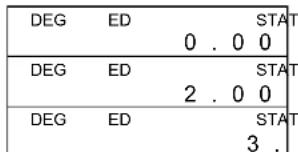
Tryk pà 2 [2ndF] [DEL] for at slette 2.
Metode 2:
Trin 1: Tryk pä [2ndF] [EDIT]
Trin 2: Find 2 med [DATA] or [=
Trin 3: Tryk pä [2ndF] [DEL]
Trin 4: Tryk pa [2ndF] [EDIT] for at forlade ED-mode, hvor dissedata er aendret til data 1 4 = 5.00 data 5 7 = 9.00
Slet fejl
Toohocb npa3peweHne 5
CoToHnI pReBbIeHn/ oWn6kn 8
Ipoctoe BbIuHcJIeHne 8
CmeuHoe apnFMeTnueckoe BbIuNcIeHne. 8
BbIuIcJIeHnco cKo6kam 8
BbIuCJIeHHe c IOBTOpOM 8
BbIuIcJIeHHe c IpoUeHTaMn 9
BbIuNCHeHcNcNoJIb3OBAHHeMaTn 9
HayuHoe Bbyucnene H
06paTHa BeHnHa, KaTOpnaI 10
KbaDpaT, KopeHb KbapTaHbI / Ky6nueckn,Bo3BeDeHne B CTeNeHb,
KopeHb 10
Iorapnmbi n aHTnIorapnmbi 10
BbIuCJIeHHe c Ipo6aMn 11
Ipeo6pa3OBAHnue yrrnoBbIX eINHnU 12
TpuroHOMeTpuecka/ o6paTHa TpuroHOMeTpuecka fynKcun 12
TnepboJnuecka/ o6paTHa TnepboJnuecka fynKcun 12
Ppmyrohble /nonrphe KoopDHaTb1 13
IpeceTaHOBKn,coYeTaHnna 13
Ipeo6pa30BaHHe n3 7eCTnDeCtepuHOnfOpMbI B DcTeTnHyU H
obpaTHo 13
BbIcJIeHnBpeKmE n3MeHryIOeCraCTemblcncJIeHHa 14
BbIcHHe c KOMJIeKCHbIM NcIaMn. 15
KhoIkn "CnyaHbIe Yncna" n "3ameHa" 15
Ipeo6pa3ObaHne eDHHu. 16
CTaTnCTnueeCKoe BbIuNCJIeHne 16
CtaTnCTnueckn paueT c OndH nopeMeHHo.. 16
PpocMTo p cTaTnCTnuecknx daHHbIX 18
106aBOHyB BBOD aHHbIX 18
PepaTnpoBaHne cTaTncTnuecknx daHHbIX 18
UdaneHne ounokn 19
MeToD BBOda cpeHeB3BeWeHHbIX daHHbIX 20
06uee pykoBODCTBO
3neKtponntaHne
BkHIOHTb nn BbIKHOHTb :
YTo6bl BkIIOHTb KaIbKpyIaTOp, HaxKMITE [ON/C]; YTo6bl BbIKIOHTb KaIbKpyIaTOp, HaxKMITE [2ndF] [OFF].
Функца ABTomaTnueckoro OTKlHoueHnA:
DaHbKabJyTOpOTKnHaeTnTaHne ABToMaTHeckn,ecnHa HEmHe npOn3B0aT onepaun npNbn3nteBHO 9 MNHyT. nTaHne MoXeT 6bIbBOcCTaHOBnEHO NOBtOpHBm HaxaTneM KhoNk [ON/C]. KoTda nITaHneOTKnHoaTeCpNHyDnTeBHO nn ABToMaTWeckn, coepxahne naMtn npebduuzaHacTpOka peXMMOB (STAT, DEG,CPLX,Base-n,…) coxpaHnoTc.
3aMeHa 6aTapei:
Iitahne KaIbkyIaTopa OcyuceCTBnreTcO T DByX IeIOUHyIx 6batae G13(LR44).Ecnn ducnne tyckbl, cJeDuET 3ameHITb 6batae.Bo n36exAHne TpaBM 6yDbTe aKKypaTHbl npn 3ameHe 6bataeKn.
- OtkpyTHe BnHTbHa 3aHne KpbIiKe KaJIbKjIyTopa.
2.BCTaBbTe nIOCKyIO TBepKBy B eIb MeKdy BepXHeN HnKHe NactrMn KOpNyCa N OCTOpOxHOb pa3DbInhBe TepKnyc.
3.BbHbTe N BbIbOcBte CTapblé 6aTapeKn. HNKoRda He pa3peuAte DeTm UprpaTb C 6aTapeKamn.
4.ПоТРИTe HOBbie 6aTapeKn cyXoB BeTOUbIO nIЯ obecneueHnJIyUwero KOHTaTa.
5.BCTaBtBe DBe HOBbIe 6aTapeKn NIOCKoN CTOpOHoN (NIOc) KBepyx.
6.CBnHbTe BepXHIO HmXHIO IOJIOBNKn KOpnyca n 3aueKNHnTe IN. - 3aBHTNTe BnHTbI.
KnaBnatapya
MHOrne KhoNKn KaIbKyIaTopa 06bHNO BblOnJIHrO7 6OJee Yem OndHy cyHKnIO.3TN cyHKnHaHnCaHbHa KNabNaType No-pa3Homy, yTO6bl NOMOBy Bam JERKO HaTI Ty, KOtOpA Bam Heo6xOIMMa.

1-bie dyHKunn
3To Te cyHKuH, KOtOpBle 06bUHO BbINOHNHO TcR, KOrDa Bbl HaxnMaTe OnpedeJeHHyIO KHONKy.
2-bieФyHKcH
Btopa yHKnHa HaneataHa HAD KHNKo NnCnpaba O Hee. Yo6bI BblONHInTb 2-yOyHKNUIO KNKNOXaNMyCTa, HaxMntE [2ndF], a 3aTeem COOTBeTcTByUOyIO KNOKy. KorDa Bbl HaxMmaTe [2ndF], naXok "2ndF" HaKpaHe DoJxKeH Coo6uNTb Bam o TOM, YTO Bbl
R2
co6npaetecb BbIbpaBt BTOpyHO cyHKUIO KONK, KOToPyHO BHaXMeTe CneIyUoJe. Ecnn Bbl HaxMeTe [2ndF] no Own6Ke, TO npocTo HaxMITE [2ndF] eue pa3, YTO6bI c6pocntb 3OT fnaXok "2ndF".
(O6paTHTe BHIMaHHe):[A][B][C][D][E][F]ABJIOCTc1-MNФyHKUmaBpeKmHEX.
3KpaHHbI cMBOJbI
Флaxкн HaэКранпрднэнчeHbДгТOrO,уTOБыУka3bBaTb BaM TeKUse COCTOHRHe KaIbKuJrToPA.
DEG nRAD nGRAD: cHrynpaHnaeDnHua
M: He3aBucmam naTb CPLX: Pekm KOMnKChbix YceJ
-:MnHyc 2ndF:Haxkata KhoNka [2ndF]
JaHHb KaIbKyIJIaTOP MoKeT OTo6paKaTaH Ha 3KpaHe YnCna B qHTbIePex FopMaTax : "PiIaBaIOUaTouKa", "ΦNkCnPoBaHHa TOnKa", "HayHb" n "INHexeHepHb".
ΦopMaT 3KpaHa "PnlaBaIoUaToUka
B φopmate "Плаваюця точka" Испа Ha Акрае отобрахаOTсВ DecaTинов Форme, сИнноьзовиемdo 10 pa3рдов.Любье 3ambikaоциу hyн OTcekaOTcR.
Ecnn pe3ynbTaB bHNCHeHHn CnHkOM BeNik, YTo6bl 6blb npedctabJIeHHbIM B 10 pa3pJax, 3KpaH ABtOMaTHueckn nepeKIOUaETcHa HauHybI φOpMaT. Ecnn pe3ynbTaT NocJeDyOuNX BbHNCHeH IOCTaTOUHO Man, YTo6bl 6blb OTo6paXeHHbIM B 10 pa3pJax, KaNbKyIITop BO3BpaUaetcKa φOpMaTy "PiabaUOaJra TOka".
Jar 1: Haxmte [2ndF] [TAB] 2
| D E G | 0. | 0 | 0 | ||
| D E G | 3. | 2 | 6 | ||
Uar 2: BBeDnTe 3,256 [ = ]
HObopoT,ecnBBOIDTCKOLNueCTBOpa3PraOBDECaTNUHOI DpO6MeHee BbIbpaHHoro,TOcno 6yJeTdoNOJIHeHO 3aMbkaHOUIMHyneM.
(Пример): yctaHOBITE 3KpaH Ha 4 pa3PraJa DecaTHyHoiДpo6n, 3aTeM BBeDHTe 4,23
Uar1:naXmTe[2ndF][TAB]4
| D E G | 0 . 0 0 0 0 |
| D E G | 4 . 2 3 0 0 |
Uar2:BBeDnte4,23[=]
ΦopMaT 3KpaHa "HayHbI"
B“HayHOM"ΦopMaTe 3KpaHa YncIoo 891500 MoKeT 6bITb Noka3aHO B HayHOMΦopMaTe Ka8,915 x 1005, rDe 8,915 Ha3bIbaeTcMaHTncca,a 5-3TO Noka3aTeJIb CTeneHn YncJa 10.
BbIuHcJIeHHe c NoBToPOM
KaIbkyIaTOp NO3BONeR BAm NOBTOpTaB BBOd NocJeHero YcCnA ININ NOCJIeDHeE BblONHeHHoe DeNCTBne C NOMOuBu HaxaTNKHOHNK [=].
IobtopeHne nocJeHero qncna
| 3 x 3 = ?\( 3 \times 3 \times 3 = ? \) \( 3 \times 3 \times 3 \times 3 = ? \) | \( 3\left\lbrack \mathrm{x}\right\rbrack \left\lbrack = \right\rbrack \) | DEG9 . |
| [ = ] | DEG27. | |
| [ = ] | DEG81 . |
Iobtopenhe apnФmetuueckoro DeiCTBna
| 321 + 357 = ?654 + 357 = ? | 321 [+] 357 [= ] | DEG678. |
| 654 [= ] | DEG1011. | |
| 579 - 159 = ?456 - 159 = ? | 579 [-] 159 [= ] | DEG420. |
| 456 [= ] | DEG297. | |
| 18 x 45 = ?18 x 23 = ?18 x (0.5 x 102)=? | 3 [x] 6 [x] 45 [= ] | DEG810. |
| 23 [= ] | DEG414. | |
| 0.5 [EXP] 2 [= ] | DEG900. | |
| 96 ÷ 8 = ?75 ÷ 8 = ?(1.2 x 10²) ÷ 8= ? | 96 [÷] 8 [= ] | DEG12. |
| 75 [= ] | DEG9.37 | |
| 1.2 [EXP] 2 [= ] | DEG15. |
BbIcJIeHHe c npoUeHTaMn
| 30% ot 120 = ?70% ot 120 = ? | 120 [x] 30 [2ndF] [%] [=] | DEG | 3 | 6 | . | |
| 70 [2ndF] [%] [=] | DEG | 8 | 4 | . | ||
| 88 coştablanget55% ot kakuorocuţa =? | 88 [÷] 55 [2ndF] [%] [=] | DEG | 1 | 6 | 0 | . |
| увениftsв 120ha 30% = ? | 120 [+] 30 [2ndF] [%] [=] | DEG | 1 | 5 | 6 | . |
| уменьштв 120ha 30% = ? | 120 [-] 30 [2ndF] [%] [=] | DEG | 8 | 4 | . |
BbIuNCJIeHne c nCNoJIb3OBAHEm nAmrTn
BbI DOnKHbI NOMHnTb O cIeNyUOxN npabnax, KOrda BblonHnReTe BByNCHeHn, IcNoIb3y nAmTb.
1)KordaHcNo3aHocntcBnamrTb,noBnIeTcHpJaxokM
2) BbIOB n3 pAMrTn HAXaTneM KHOPIKn [MR] He BJIraeT Ha ee coIepXIMoe.
3)BpeKIMe STAT HeIOCTyIeH Hn OIN Hn 3BVIOB nAMrTn.
4)ДЯТOrO,УTO6bI 3aMeHHTb COdEpKIMMoE NaMrtN Ha OTo6paKaemoe YHCnO, NOxAnyUcTa, HxMnTe KhoNky [X→M].
5)CoepKIMoe BcEx BnIOB nAMrTm MoXeT BbITb OHISeHO nocNeIOBaTeNbHbIM HaxaTneM [0] [X M] nJIn [ON/C] [X M]
| 3 x 5 +) 56 ÷ 7 + ) 74 - 8 x 7 ОБsolete КOLONСЕТВО = ? | [ON/C] [X→M] | DEG 0 . |
| 3 [x] 5 [M+] | DEG M 1 5 . | |
| 56 [÷] 7 [M+] | DEG M 8 . | |
| 74 [-] 8 [x] 7 [M+] | DEG M 1 8 . | |
| [MR] | DEG M 4 1 . | |
| 0 [X→M] | DEG 0 . |
HayuHoe BbIuNcJIeHHe
Ipeed BbINOHeHnem CNeyUoJero BbyuNCHeHn npOBepTe n y6eNTecb,yTO Baaw KaIbkyJrTOp yCTaHOBJIeH Ha DecaTNUHbI fopmat 3kpaHa c 23hakm nocJe 3anToi.
06paTHaBENnHa,paKTopnaI
KbaDpaT, KopeHb KBaDpaTHbI/
| 1/1.25 = ? | 1.25 [ 2ndF ] [1/x ] [= ] | DEG 0. 8 |
| 5! = ? | 5 [ 2ndF ] [x!] [= ] | DEG 1 2 0 . 0 0 |
Ky6nueckn,BO3BeDeHne BCTeNeHb,KopeHb
| \( 2^2 +3^4 = ? \) 2[x | \( ^2 \)[+]3[x^y]4 [=] | DEG85.00 |
| \( 5 \times \sqrt[3]{27} +\sqrt{34} \)=? | \( 5[x]27[2ndF][^3\sqrt{}] \)[+]34[√][=] | DEG20.83 |
| \( \sqrt[9]{72} = ? \) | \( 72[2ndF][\sqrt[x]{x}]9 [=] \) | DEG1.6 |
Jorapnmbn aHTNlORapnmbi
| ln7 + log100 = ? | 7 [ In ] [ + ] 100 [ log ] [ = ] | DEG 3. 9 |
| 10^2 = ? | 2 [2ndF] [10^X] [ = ] | DEG 1 0 0 . 0 0 |
| e^5 - e^-2 = ? | 5 [2ndF] [e^X] [-] 2 [+/-] [2ndF] [e^X] [ = ] | DEG 1 4 8 . 2 8 |
BbIuNCJIeHne c dpo6aMn
OTo6paKeHHe 3HaueHn Ha 3KpaHe BbIgIaNT CTeNyUoIIM o6pa30M :
| 5」12 |
OTo6paKeHne 5 12
56 5 12
OTo6paKeHne 56 12
(Obpatnte BHIMAHHe): 06uee KOnIueCTBO 3HakOB, COCTOuaee H3 ceIOJ Yactn YnCna, YnCnTneYn 3HameHaTeYn, DOnJXHO 6bItB npeJeonax 10, INaue 3NaueHne IpoBn He MOxet B6bItb NOKa3Ho NOnIHocTbIO.
HaxaTneM [2ndF] [ %] ,OTo6paXeHHe 3HaYeHHe 6yTeI npoe6pa3OBAHO B HnepaBnBHyIO dp06b.
| 2/3 + 7 3/5 =8 4/15 =124/15 | 2 [a]b[+]7 [a/b] 3 [a/b] 5 [=] | DEG 8 4 ↓ 1 5 |
| [2ndF] → d/ | DEG 1 2 ↓ 4 1 5 |
Korda BbIOnHReTc HkaTne KhoNKn [a^] nocne KhoNKn [ ] nINBBOJ DecrTuHOro YnCnA C np6HoN YaCTbO, OTBET OTo6paKaetcB DdecTuHOM fOpMaTe.
| 5 4/9 + 3 3/4 =9 7/36 =9.19 8 4/9 + 3.75 =12.19 | 5 [a %] / 4 [ a %] / 9 [+] 3 [a %] 3 [a %] [ = ] | DEG 9.1 7 3 6 |
| [a %] | DEG 9 . 1 9 | |
| 8 [a %] 4 [a %] 9 [+] 3.75 [ = ] | DEG 12 . 1 9 |
BoBpEmBaHcneHnC np6mM,ecnUΦpy MoKHO cOKpaTntb,To OHa ynpoaaetcdo camoro npeEtna nocne haxKaTHyHKUHOHaIbHO KOMaHDoH KHNKn [+ ,[-],[x] or [÷ ] ) INN KHONK [=]
| 3 119/21 = 8 2/3 | 3 [a %] 119[a %] | DEG |
| 21 [=] | 8 ∟ 2 ∟ 3 |
Ecnn obuee konuchebTO 3nAokOB, coctouae n3 cenooh qactn YnCnna, cnCnTeN 3nHameHaTeN pBeblaaet 10 (BKNIOyA metKn- paZdennTeN), nTOrOBb OTEB 6yET OTOpBXaKe H DEcAUYHOM fOpMaT.
| 12345 5/16 + 5 6/13 = 12350.77 | 12345 [a %] 5 [a %]16 [+] 5 [ a %] 6 [a %] 13 [=] | DEG 1 2 3 5 0.7 7 |
Ipeo6pa30BaHHe yrNoBbIX eDHHu
KaIbkyJITop no3BOJnEeBAM npeo6pa3OBbBaTb yrnoByIO eINHcy
m3MepeHnB rpaDycbl (DEG), paMaHaBI (RAD), n rpaDbI (roH)
(GRAD).
Co0THoUeHHe MeKdy 3TtMM TpEmyrgIOBbIMN eHNHcBi TaKOBO : 180^ = paHaH=200 rpa
1) 406bI n3MeHnTb yCTaHOBky NO yMOJIaHaHIO Ha dpyryIO, HAXIMaTe KhoNky [DRG] HeCKoNbKO pa3 Do Tex nop, NOKa Tpe6yEmar Bam yrnoBa eHNHa He 6yDen Yka3aHa Ha 3KpaHe.
2) Nocne BBOda yrna HaxMNte HeckoNbko pa3 [2ndF] [DRG→] DoTex nop, noka pneo6pa3oBaHHoe 3haeHne He 6ydet OTo6paKeHo.
| 90°(градусов) = ? (разиан) = ? (град) | 90 | DEG 9 0 . |
| [2ndF] [DRG→] | RAD 1. 5 . | |
| [2ndF] [DRG→] | GRAD 1 0 0. 0 0 |
TpuroHOMeTpuecka / o6paTHa TpuROHOMeTpuecka 4yHKuIN
Ecnn nncnonb3yeTe 3n KhoNKn, y6eAnTecb, YTO KaIbkyJrTop yCTaHOBJIeH Na TY rIOyO eHNHcU, KOtOpA Bam Heo6xOdima.
| 3 sin 85° = ? | 3 [x] 85 [sin] [=] | DEG 2. 9 9 |
| cos (π/4 radian) = ? | [DRG] [2ndF] [π] [÷] 4 [=] [cos] | RAD 0. 7 1 |
| tan 150rpaia = ? | [DRG] 150 [tan] | GRAD - 1. 0 0 |
| sin-10.5 = ? rpaiauc | [DRG] 0.5 [2ndF] [sin-1] | DEG 3 0. 0 0 |
| cos-1( 1/√2 ) = ? paiaiah | [DRG] 2 [√] [2ndF] [1/x] [2ndF] [cos-1] | RAD 0. 7 9 |
| tan-11 = ? paiaiah | [DRG] 1 [2ndF] [tan-1] | GRAD 5 0. 0 0 |
Tnep6oJnuecka/06paTHaRtnep6oJnuecka 1yHKuIN
| \( \cosh {1.5} + \sinh {1.5} \) = | 1.5 [ HYP ] [ cos ] [ + ] 1.5 [ HYP ] [ sin ] [ = ] | DEG | ||
| 4. | 48 | |||
| \( \sinh {}^{-1}7 = \) | 7 [ HYP ] [ 2ndF ] [ sin \( {}^{-1} \) ] | DEG | ||
| 2. | 64 | |||
| tanh 1 = | 1 [ HYP ] [ tan ] | DEG | ||
| 0. | 76 |
PpmoyroIbHbI / noJIpaHbIe KoOpDHaTbI
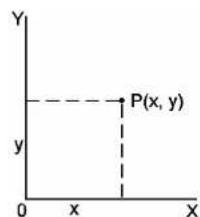
PpmyoIbIbIe KoOpDHaTbI
$$ a + b i = r (\cos \theta $$
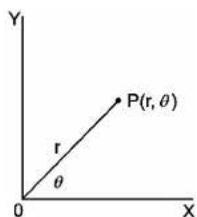
PoiJIaRbHbIe KoOpdINHaTbI
$$ s (n) $$
(O6paTnte BHIMAHne): Ecnnncnoj3yete 3tn KhoNkn, y6eHntecb, YTOKaNkYJrTOp yCTaHOBnEHa Ty rTIOBByIO eHNu, KOtopra BamHeo6xOIMa.
Ppeo6pa3OBAHHe n3 npMoyroIbHbIX KOOpDnHaT B NOJIrpHbIe
| Еспа =5и b =6, чему разны я η? | 5[a]6[b][2ndF] [R→P] | DEG 7. 8 1 |
| [b] | DEG 5 0 . 1 9 |
Ppeo6pa3OBAHHe n3 noIpyhBix KOOpDnHaT B npMoyrOblbHie
| Еспу r = 25 u θ = 56°, чем равны и b? | 25 [a] 56 [b] [2ndF] [P→R] | DEG 1 3 . 9 8 |
| [b] | DEG 2 0 . 7 3 |
PepecTaHOBKn, coUeTaHn
$$ n P r = \frac {n !}{(n - r) !} \quad n C r \frac {n !}{\bar {r} ! (n - r) !} $$
| Скобко пессанов и3 4элenteю Вbl Можete вьбрачы Наборе и3 7 чincel? | 7 [2ndF] [nPr] 4 [=] | DEG 8 4 0 0 0 |
| Скобко комбиаций и3 4элenteю Вbl Можete вьбрачы Наборе и3 7 чincel? | 7 [2ndF] [nCr] 4 [=] | DEG 3 5 . 0 0 |
Ipeo6pa3ObaHne n3 wecTndecTeepuHoiΦopMbIB DecaTHHyIO o6paTHO
KaIbkyIyTopNo3BOJIeT Bam npeo6pa3OBBiBaT IeCTnIeCtepuHoe YncNO (rpaDcybl, MNHyTbI IN CeKYHdbI) B DecrTHHyHO HotaUNH OhaKATHe [0] n ppeo6pa3OBBiBaET DecrTHHyHO HotaUNIO B
WeCTnIeCeTepuHyo C nOmoUbIO [→O]
3NaueHHe IeCTNIEcTepeuHOro YnCna Ha 3KpaHe BbIJIaNTcNeDyUOUM O6pa30M:
1245'30'5 IpeIcTaBneHo 12 yacOB, 45 mHyT, 30,5 ckyHn.
(Obpatnte BnHmAHne) : Obee uCNo 3aKOB bActx D, M n S He
MOXeT npeBbIaTb 10 (BMeCTe C3anrToi),
HNaue rpaDychoe YnCNo He MoKet 6bItb
BbICBeYeHO NOJIHOCTbIO.
Ppeo6pa3OBAHHe n3 wecTnDEcTepeuHOn φopMbIB DecaTnHy
| 12часов,45 Минут,30.5 секунд=? | 12 [ o'j'j'→ ] 45 [ o'j'j'→ ] 30.5 [ o'j'j'→ ] | DEG |
| 1 2 . 7 6 |
Ppeo6pa3OBAHne n3 DecaTnHcH OΦOpMbI B 1eCTnDEcTePnHyIO
| 2.12345 = ? | 2.12345 [2ndF] [→0,] | 2 7 2 4 11 4 2 |
BbUncIeHne BpeXnme N3MeHraIOuecraCNCCTembl CUncIeHn
Ppeo6pa3OBAHHe MeXdy cNCTeMaMn CYNcJIeHn
KaIbkyJrTOp NO3BONReT BAM BbIcNcTb B CnCTeMe CnCnEHHa, OTINHHOIT DecaTNuHO. OH MoXeT Pn6BaJIbTa, BbyNTaTb, yMHOKAtb NDeiHTb DBOINHBe, BOcMbepInHBe I WeCTHaUcaTePnHbIe cHcna. BbIbpaTe NyxKHyIO BAM CnCTeMy CnCnEHHa C nOMOcbIO KhoNok [→BIN], [→OCT], [→HEX], [→DEC] ΦnaxKn BIN, OCT, HEXnoka3bIbaIOT BAM CnCTeMy CnCnEHHa, KOtopyIO BblncnObl3yeTe. (Ecnn HOnIH N3 ΦnaxKOB He npncytCTByeT Ha 3kpaHe, 3NaHTB bI B DeCArTHHOH CNCTeMe CnCnEHHa.)
Jaee OINcBIAOTCA KHONK, AKTNBHbIe B KaXDoN I3 CnCTEm CYNCJIeHn:
Двонная систema:[0] [1]
BocbMepuHna CnCTema:[0]~[7]
Дecетиная ситема:[0]~[9]
JeeTHaIaTePnHna CnCTema:[0]~[9],[A]~[F]
| 31 (Десятуная) = ?(Двоуная) = ?(Восмершиая) = ?(Шебадцатуная) | [2ndF] [→DEC] 31 | DEG 31 . |
| [2ndF] [→BIN] | DEG BIN 1 1 1 1 1 . | |
| [2ndF] [→OCT] | DEG OCT 37 . | |
| [2ndF] [→HEX] | DEG HEX 1 F . | |
| 4X1B (Шебладцатерчна) =? (Двончна) =? (Дec的对象化) =? (Восьмерчна) | [2ndF][→HEX] 4 [x] 1B [=] | DEG HEX 6 C. |
| [2ndF][→BIN] | DEG BIN 1 10 1 100. | |
| [2ndF][→DEC] | DEG 1 0 8 . 0 | |
| [2ndF][→OCT] | DEG OCT 1 5 4. |
OtpuataeIbHbIe I donoJHraUoune Yncna
B DBOUHNO, BOcMbepuHNO H N WeCTHaIaTePepuHNO CNTeMax CNCNEHNA KALbKyIaTOp PpeDCTaBnEe TPOuAteJIbHbIe YNCNa C NOMOULIOONJHHTeNbHO HOTaUM. IOnONHeHne -3TO pe3yIbTaT BbHTAHNcYNCla n3 1000000000 B CNTeMe CNTeHnE 3TOI YNCNa HaxaTNEM KHONK [+/-] B HeJeCErTuHbIX CNTeMAX CNTeHnE.
Uar: haxmte [2ndF] [RND]
DEG
0.2 31
Khonka "3aMeHa"
Haxatne [2ndF][X Y]no3BOJnEeT 3aMeHnTb OTO6paXaEmoe 3HaueHHe Ha npedIyUe.
| 123 + 456 = ? | 123 [+] 456 [=] | DEG 579.00 |
| [2ndF][X↔Y] | DEG 456.00 | |
| [2ndF][X↔Y] | DEG 579.00 |
Ppeo6pa3ObaHne eHNHn
IOIMbl CM
| 12 Дюймов = ? CM | 12 [A→B] [2ndF] [in←cm] | DEG30.48 |
| 98 CM = ? Дюймов | 98 [2ndF] [A←B] [2ndF] [in←cm] | DEG38.58 |
(ObpaTnTe BnMaHHe): PpoaeDpyaDeiCTBm c KhoNkAMn no
npoeobpaOBAHnIO eHNHnU, [F<>C], [mmHg<>kpa],
[gal<>I], [lb<>kg], [oz<>g], noo6Ha npImepy,
npuBeDeHHOMy Bblue.
CTaTnCTnueckoe BbIyncJeHne
CtaTnCTnueckn paCyeT c OndHoi nepemehno
BbIePHTe 3OT pexn HaxaTneM [STAT] n y6eNTecb, YTO Ha 3KpaHe npncyTcByet fJiaKoK "STAT".
PexMM STAT n03B0JnEe Bam npOn3BODInb cneDyUOuNcCTaTNCtYueckne BByHCnEHHC OONH NepemEHNO :
n KOJIINHcTBO BCEx DAHHbIX
∑x Cymma BceX daHHbIX
∑x² Cymma KBaipatoB
X CpeDHee 3NaueHne
S HeCMeeHHeO cTaNapTHoe OTKIOHOHE (HCIO CTENHeCNBO6OdbpaBnEaTcN-1)
σ CMEUeHHeO CTAndapTHeO OTKIOHEHNE (NCHC NOCTepeHc CBO6DpaBHeTc n)
CP 0ecneueHHeToUHOCTn
$$ \sqrt {\frac {\sum x ^ {2} - (\sum x) ^ {2} / n}{n - 1}} $$
$$ \sqrt {\frac {\sum x ^ {2} - (\sum x) ^ {2} / n}{n}} $$
$$ \frac {U S L - L S L}{6 \sigma} $$
CPK ObecneueHne o6pa6oTKn
$$ \mathrm {r} \text {d e C P U} = \frac {U S L - \bar {x}}{3 \sigma} \quad \mathrm {C P L} = \frac {\bar {x} - L S L}{3 \sigma} $$
(ObpaTHe BnHMaHHe):BpeKIme STAT DocTyNbI BCE cyHKIOHaJIbHbIe KHOIIK, KpOme BbINcIEHnR B peXIMe N3MeHouEIC CHCTeMbl ChCInEHN.
(Примет 1):ВьeДиTe cIeIyIouIe ДaHHbIe,чTOБы BbIuNcIITb Σx,Σx²,n, x,S, CP,I CPK,I De dAnHbIe 1 = 2, daHHbIe 2~5 = 5,daHHbIe 6~8 = 9,3aueHne USL:12,3aueHne LSL:2
| В рекIME STAT [ | 2ndF] [ STAT ] | DEG 0 . 0 0 |
| В两年前е今天我们��нные | [ DATA ] 2 | DEG STAT 2 . |
| [ DATA ] 5 | DEG STAT 5 . | |
| [ DATA ] 5 | DEG STAT 5 . | |
| [ DATA ] 5 | DEG STAT 5 . | |
| [ DATA ] 9 | DEG STAT 9 . | |
| [ DATA ] 9 | DEG STAT 9 . | |
| [ DATA ] 9 | DEG STAT 9 . | |
| [ = ] | DEG STAT 0 . 0 0 | |
| x = ? [ | x ] | DEG STAT 6 . 1 3 |
| n = ? [ n ] | DEG STAT 8 . 0 0 | |
| S = ? [ S ] | DEG STAT 2 . 5 9 | |
| Σx = ? [2ndF] [ | Σx ] | DEG STAT 4 9 . 0 0 |
| Σx² = ? | [2ndF] [Σx²] | DEG STAT 3 4 7 . 0 0 |
| σ = ? | [2ndF] [σ ] | DEG STAT 2 . 4 2 |
| CP = ? | [2ndF] [CP ] 12 | DEG STAT 1 CP 0SL |
| [ = ] 2 | DEG STAT CP 0SL | |
| [ = ] | DEG STAT 0 . 6 8 | |
| CPK = ? | [2ndF] [CPK ] | DEG STAT 1 2 . 0US |
| [ = ] | DEG STAT 2 . 0LSL | |
| [ = ] | DEG STAT 0 . 5 CRK |
(ОбразпгЕ ВИHMANHE):Калькелагпрnpолжаetperиctpaцю BCEXBBODOB,КOTOPьБуДeлaeTe,ИЗТN BBOДБ coxpaHЯTcR,Даме ecnINITaHne
OTKIOUOaETCI pINHyDITeJIbHO IIN
ABTOMaTueckn,ecJIIToJIbKO BbI He BbIXOJNTe n3 peKIma STAT.
PpocMToP cTaTnCTnuecknx DaHHbIX
HaxaTneM KhONOK [DATA] nnn [] B pexKIme ED MoxHo Bb3BaTbIPOCMOTp cTaNCTnuecknx DaHHbIX, KOtOpBle Bbl BBen. Pa3HnUaMeJdy [DATA] n [] 3akIIuOaETcB TOM, yTO npn IcNoIb3OBaHm [DATA] kateropn BBOda daHHbIX NOBnEeTc3a1 CekHy nepei nx3HaHeHem, a npn [] 3HaHeHne NOBnEeTc Cpa3y Jke 6e3 kateropn.
(Приимер.2) : ПрочмOTРе CTaTnCTUYeCKne ДаHHьe, OCHOBaHHьe на Пprimepe 1.
Uar 0: Yto6bI BbIpaTb peXIM ED, HaxMnTe [2ndF] [EDIT].
(Metod1):
War 1: YTo6bI npocMTopeTb nepBoe 3HaueHne n3 pRdaaHHbIX,HaxMMTe [DATA] oINH pa3.
| DEG | ED | STAT | 1.5 se0EG | ED | STAT |
| d A t A | 1 | → | 2.0 0 |
War 2: Пюдоглжайт eнхимаь [DATA] n o odHomy pa3y дя КождогоЗнчehи n3 ряда даньх.ТakIM obpa3OM nocledoBATEnbHO 6уdYTOTo6paXeHbI 3naHeyn DAnHBx 2 (5,00), dAnHBx 3 (5,00), dAnHBx 4(5,00), dAnHBx 5 (5,00), dAnHBx 6 (9,00), dAnHBx 7 (9,00), dAnHBx8 (9,00).
(Metod2):
Uar 1: Uto6bI npocMOTpeTb nepBbIe DaHHbIe,HaKMITE [ ] OINH pa3.
| DEG | ED | STAT |
| 2.0 0 |
Uar 2: PpOdoJXaIte HaKImaTb [ = ] NO OHNOMy pa3y IIN KAKdOro n3 daHbIX. TaKIM o6pa30M bdyT NocJIeOBOaTeNbHO oTo6paKeHbI 5,00, 5,00, 5,00, 5,00, 9,00, 9,00, 9,00.
D6aBOHbBBODaHHbIX
HaxmTe2[2ndF][DEL]3[=],yTo6bIzAncaTb3aHOBO.
MeToD2:
Uar 1: Haxmte [2ndF][EDIT]
War2:HaJInTe 2 c nOmoBIO [DATA]uIN [= ]
War 3: BBeDnTe 3, YTo6bl 3aHnCaTb 3aHOBO 2
Uar 4: Haxmnte [=] n [2ndF] [EDIT], qTo6bI BbItn n3 peXnma ED, rTe 3Tu dAnHbIe n3MeHeHbI Ha daHHbIe 1 = 3,00, daHHbIe 2-5= 5,00, daHHbIe 6-8 = 9,00.
HaxmTe 2 [2ndF] [DEL], yTo6bI ydaNTb 2. MetoJ 2 :
| DEG | ED | 0 . 0 0 |
| DEG | ED | 2 . 0 0 |
| DEG | ED | 3 . |
Uar1:HaXMMTe[2ndF][EDIT]
War2:HaIInTe 2c nOmoBIO [DATA] mnn[=]
Uar 3: HaxmTe [2ndF][DEL]
| DEG | ED | 0.0 STAT |
| DEG | ED | 2.0 0 STAT |
| DEG | ED | 5.0 0 STAT |
Uar 4: Haxmte [2ndF][EDIT], YTO6bI BbItn n3peXnMa ED, rIe 3TN DaHHbI N3MeHeHbI Ha daHHbIe 1-4 = 5,00, daHHbIe5-7 = 9,00.
YdaJIeHHe oUn6Ku
(Примс6):EcIn Bbl BBOJTe HeKOTOpoe 3HaueHne N no OuN6Ke ydaJIeTe, He BKIOUHb erO B COxpaHeHHbIe DaHHbIe, NOBnTcR coo6JIeHne "dEl Error", Ho npdeIduYIe NaHHbIe BCE eIe coxpaHryIOTcra; HanpIMep, ydaJInte 7, noIyueHHOB Pprimepe 1.
Jar1:HaxmTe7[2ndF][DEL]
War 2: HaxMMTE JIO6yIO KHOKNy, YTO6bI y6paTb erO
| DEG | dEL | Error | STAT |
| DEG | STAT | ||
| 0 . 0 | 0 |
Uar 3: Bb6epnte peKIM ED, 3aTeM npocMoTpTe daHHbIe c nOMOuHo [DATA] uIN [ = ] , rIe 3Tu DaHHbIe BCE eue ocTaIOcra daHHbIMn 1=2,00, daHHbIMn 2-5=5,00, daHHbIMn 6-8=9,00.
Uar 1: Haxmte 5[x]5[2ndF][DEL]
| DEG | dEL | Error | STAT |
| DEG | STAT | ||
| 0 . 0 | 0 |
Uar 2:HaxMITEIIO6yIO KHOKNy,TO6bI y6paTbeO
War 3: Bb6epnte pexm ED, 3aTe m npocmotpnte daHHble c nOMoUbO[DATA] nn [=], rIe 3Tn daHHble nomehraHncb Ha daHHble 1 = 2,00, daHHble 2-4 = 9,00.
MetoB BBOda cpeHb3BeWeHHbIX daHHbIX
Korda HeckoIbko DaHHbIX IMeIoT OINHAKOBoe 3HaueHHe, BMeCTo HneOpceDCTBEHHORO BBOda KaJDo rO DAHHORO, Bb MoKeTe BBecTN 3TO 3HaueHHe NcONb3oBaTb erO B NOBToprIOxxC RByHCnEHNX Do 255 pa3. DaHHble, OCHOBaHHle Ha PImpe 1, MOrTy 6bItb 3aNtcaHb 3aHO BO N BBeDeHb CNeyIOuMm 06pa30:
3NaueHne KOnnueCTBO npmHeHH AItbTePHaTHBHy MeToD
21 [DATA]2
54[DATA]5[x]4
93 [DATA]9[x]3
1, rde daHHbIe 1 = 2, daHHbIe 2~5 = 5, daHHbIe 6~8 = 9.
B pexime ED, kOrDa Bbl npOOnJaTe, Bbl6paB 3HaueHne n3 daHHbIX 2~5 nncpabNB ero Ha 33, nepeTaHOBka cpeDn 3TxN daHHbIX 6ydet npon3BeHea CneIyUoMm O6pa3OM: DaHHbIE 1=2, daHHbIE 2~4=5, daHHbIE 5=33, daHHbIE 6~8=9, rde HOBoe 3HaueHne 33 BCtABnReTcNocne daHHbIX 4 = 5.
(O6paTne BHMaHHe): KOrJa IMeet MeCTo JIO6oe H3
nepeuNCNEHHXHIXe ycNOBn, n
daJIbHeIbn BBoD daHbIX CTaHOBNTc
HEBO3MOxHBiM,IOBbIeTcR cPnaKOK "FULL".
YTo6bIc 6pcOITb 3OT pJaxKOK, IpocTo
HaXkMTe IIO6yIO KhoNky. BBeDeHbIe nepeI
3TNm DaHbIbe BCE eue coXpaHraOTc, cEIN
BbI He BbIXoNDte n3 peXIMa STAT.
1) Ecnn KOnHueCTBO BBOIOB DaHHbIX C NOMOuBo [DATA] npebblaaet 80.
2) Yncno nobTopeHn npebbwaet 255.
3) n >20400 (KoIgda KOIINueCTBO BBOIOB DaHHbIX C NOMOuBbO [DATA] IOCTnrae 80, IN KOINueCTBO NOBTOpeHn IJRA KaXdOrO 3HaueHncoCTaBnre BCE 255, T.e. 20400 = 80r'255, noRbIeTcAo6UeHne n = 20400.)
Zawartosci
2ndF: Wcisniety klawisz [2ndF]
| D E G | 0 . 0 0 0 0 |
| D E G | 4 . 2 3 0 0 |
Format naukowy
| D E G | 1 5 |
| D E G | 0 1 5 |
0 3
Kolejnosć operaci
SR-260N_Polish_v090122.doc SIZE: 135x75mm / SCALE 2:1 / 2009/3/25
| \( \sqrt[4]{x} \) | \( x > 0 : y \neq 0, - 1 \times {10}^{100} < \frac{1}{y}\log x < {100} \) \( x = 0 : y > 0 \) \( x < 0 : y = {2n} + 1,I/n,n \) liczba calkowita. \( \left( {n \neq 0}\right) \) ale \( - 1 \times {10}^{100} < \frac{1}{y}\log \left| x\right| < {100} \) |
| \( a\begin{matrix} b \\ c \end{matrix} \) | Wprowadzanie:.częsć calkowita liczby,licznik i mianownik nie moga przyzekroczyść 10 cyfr (wȩcznie z przycecinkiem dziesiȩtnym) Wynik: Jeźli czȩsć calkowita liczby,licznik i mianownik nie przyekraczenia 1 x \( {10}^{10} \) ,towynikendency wyświetlony w postaci ulamka |
| nPr, nCr | \( 0 \leq r \leq n,n \leq {9999999999},n,r - {liczby} \) calkowite |
| STAT | \( \left| x\right| < 1 \times {10}^{50},\;\left| {\sum x}\right| < 1 \times {10}^{100} \) \( 0 \leq \left| {\sum x}\right| < 1 \times {10}^{100},n,r - {liczby} \) calkowite \( \bar{x} : n \neq 0,S : n > 1,\sigma : n > 0 \) Przedziaj \( = 1 \sim r,1 \leq n \leq r,{80} \leq r \leq {20400} \) |
| \( \rightarrow \) DEC | \( 0 \leq x \leq {9999999999}\left( {\text{dla zera i liczb dodatnich}}\right) \) \( - {9999999999} \leq x \leq - 1 \) (dla liczb ujemnych) |
| \( \rightarrow \) BIN | \( 0 \leq x \leq {0111111111}\left( {\text{dla zera i liczb dodatnich}}\right) \) \( {1000000000} \leq x \leq {1111111111} \) (dla liczb ujemnych) |
| \( \rightarrow \) OCT | \( 0 \leq x \leq {3777777777}\left( {\text{dla zera lub liczb dodatnich}}\right) \) \( {4000000000} \leq x \leq {7777777777} \) (dla liczb ujemnych) |
| \( \rightarrow \) HEX | \( 0 \leq x \leq {2540BE3FF}\left( {\text{dla zera i liczb dodatnich}}\right) \) FDABF41C01 \( \leq x \leq \) FFFFFFF(FDABF41C01 \( \leq x \leq \) FFFFFFF(FDABF41C01 \( \leq x \leq \) FFFFFFF(FDABF41C01 \( \leq x \leq \) FFFFFFF(FDABF41C01 \( \leq x \leq \) FFFFFFF(FDABF41C01 \( \leq \) x \( \leq \) FFFFFFF(FDABF41C01 \( \leq x \leq \) FFFFFFF(FDABF41C01 \( \leq x \leq \) FFFFFFF(FDABF41C01 \( \leq x \leq \) FFFFFFF(FDABF41C01 \( \leq x \leq \) FFFFFFF(FDABF 41C01 \( \leq x \leq \) FFFFFFF(FDABF41C01 \( \leq x \leq \) FFFFFFF(FDABF41C01 \( \leq x \leq \) FFFFFFF(FDABF41C01 \( \leq x \leq \) FFFFFFF(FDABF41C01 \( \leq x = {100000000} \) |
Przepełnienie /Bląd
| 30% of 120 = ?70% of 120 = ? | 120 [x] 30 [2ndF] [%][=] | DEG36. |
| 70 [2ndF] [%][=] | DEG84. | |
| 88 is 55% of what number=? | 88 [÷] 55 [2ndF] [%][=] | DEG160. |
| 30% add-on of 120=? | 120 [+] 30 [2ndF] [%][=] | DEG156. |
| 30% discount of 120 = ? | 120 [-] 30 [2ndF] [%][=] | DEG84. |
SR-260N_Polish_v090122.doc SIZE: 135x75mm / SCALE 2:1 / 2009/3/25
Obliczenia naukowe
SR-260N_Polish_v090122.doc SIZE: 135x75mm / SCALE 2:1 / 2009/3/25
| 31 (base 10) =? (base 2) =? (base 8) =? (base 16) | [2ndF] [→DEC] 31 | DEG | 3 1 . |
| [2ndF] [→BIN] | DEG | BIN | |
| 1 1 1 1 1 . | |||
| [2ndF] [→OCT] | DEG | OCT | |
| 3 7 . | |||
| [2ndF] [→HEX] | DEG | HEX | |
| 1 F . | |||
| 4 X 1B (base 16) =? (base 2) =? (base 10) =? (base 8) | [2ndF] [→HEX] 4 [x] 1B [=] | DEG | HEX |
| 6 C . | |||
| [2ndF] [→BIN] | DEG | BIN | |
| 1 1 0 1 1 0 0 . | |||
| [2ndF] [→DEC] | DEG | 1 0 8 . 0 0 | |
| [2ndF] [→OCT] | DEG | OCT | |
| 1 5 4 . |
| 12 in = ? cm | 12 [A→B][2ndF] [in←cm] | DEG 3 0. 4 8 |
| 98 cm = ? in | 98 [2ndF][A←B] [2ndF][in←cm] | DEG 3 8. 5 8 |
(Uwaga): Konwersja jegnostek z uzyciem klawiszny [^ F ^ C] , [mmHg kpa], [gal l], [lb kg], [oz g] jest podobna do powyżsego przykladu.
Krok 1: Nacisnj [2ndF] [EDIT]
Krok 2: Znajdž 2 naciskajac [ DATA ] lub [=]
Krok 3: Nacisnj [2ndF] [DEL]
Krok 4: Nacisnj [2ndF] [EDIT] aby wyjsć z trybu ED; teraz wpwadzone dane to 1 4 = 5.00 data 5 7 = 9.00
Bład kasowania
Information for Users on Collection and Disposal of used Batteries.
The symbol in this information sheet means that used batteries should not be mixed with general household waste.
For proper treatment, recovery and recycling of used batteries, please take them to applicable collection points.
For more information about collection and recycling of batteries, please contact your local municipality, your waste disposal service or the point of sale where you purchased the items.
Information on Disposal in other Countries outside the European Union.
This symbol is only valid in the European Union. If you wish to discard used batteries, please contact your local authorities or dealer and ask for the correct method of disposal.

- Basic calculation 8
- Scientific calculation. 10
- Statistics calculation. 15
- General guide
- Power supply
- On or Off :
- Auto power-off function :
- Battery replacement :
- The keyboard
- 1st functions
- 2nd functions
- Display symbols
- Display formats
- Floating point display format
- Fixed point display format
- Scientific display format
- Engineering display format
- Order of operations
- Correction
- Accuracy and Capacity
- Capacity :
- Overflow / Error conditions
- Basic calculation
- Parentheses calculations
- Constant calculation
- Memory calculation
- Scientific calculation
- Fraction calculation
- Angular units conversion
- Trigonometric / Inverse trigonometric functions
- Rectangular / Polar coordinates
- Sexagesimal ↔ Decimal form conversion
- Base-n mode calculation
- Converting between bases
- Negative and Complements
- Complex numbers calculation
- Random numbers and Exchange key
- Random key
- Exchange key
- Unit conversion
- Statistics calculation
- Computing single variable statistics
- Viewing statistics data
- Adding a data entry
- Editing statistics data
- Delete error
- Weighted data entry method
- CONTENIDOS
- GUIA GENERAL 2
- CALCULO CIENTIFICO. 10
- FORMATO CIENTIFICO
- CALCULO ENTRE PARENTESIS
- Permutacoes, Combinations
- Touched'échange
- Calcolo frazionario
- Negativo e Complementi
- Displaysymboler
- Displayformater
- Overləb / Fejtilstande
- Negative tal og komplementer
- Slet fejl
- Ipoctoe BbIuHcJIeHne 8
- HayuHoe Bbyucnene H
- CTaTnCTnueeCKoe BbIuNCJIeHne 16
- 06uee pykoBODCTBO
- 3neKtponntaHne
- BkHIOHTb nn BbIKHOHTb :
- Функца ABTomaTnueckoro OTKlHoueHnA:
- 3aMeHa 6aTapei:
- KnaBnatapya
- 1-bie dyHKunn
- 2-bieФyHKcH
- R2
- 3KpaHHbI cMBOJbI
- ΦopMaT 3KpaHa "PnlaBaIoUaToUka
- ΦopMaT 3KpaHa "HayHbI"
- BbIuHcJIeHHe c NoBToPOM
- BbIuNCJIeHne c nCNoJIb3OBAHEm nAmrTn
- HayuHoe BbIuNcJIeHHe
- BbIuNCJIeHne c dpo6aMn
- Ipeo6pa30BaHHe yrNoBbIX eDHHu
- TpuroHOMeTpuecka / o6paTHa TpuROHOMeTpuecka 4yHKuIN
- Tnep6oJnuecka/06paTHaRtnep6oJnuecka 1yHKuIN
- PpmoyroIbHbI / noJIpaHbIe KoOpDHaTbI
- PepecTaHOBKn, coUeTaHn
- Ipeo6pa3ObaHne n3 wecTndecTeepuHoiΦopMbIB DecaTHHyIO o6paTHO
- BbUncIeHne BpeXnme N3MeHraIOuecraCNCCTembl CUncIeHn
- Ppeo6pa3OBAHHe MeXdy cNCTeMaMn CYNcJIeHn
- OtpuataeIbHbIe I donoJHraUoune Yncna
- Khonka "3aMeHa"
- Ppeo6pa3ObaHne eHNHn
- CTaTnCTnueckoe BbIyncJeHne
- CtaTnCTnueckn paCyeT c OndHoi nepemehno
- PpocMToP cTaTnCTnuecknx DaHHbIX
- D6aBOHbBBODaHHbIX
- YdaJIeHHe oUn6Ku
- MetoB BBOda cpeHb3BeWeHHbIX daHHbIX
- Zawartosci
- Format naukowy
- Kolejnosć operaci
- Przepełnienie /Bląd
- Obliczenia naukowe
- Bład kasowania
- Information for Users on Collection and Disposal of used Batteries.
- Information on Disposal in other Countries outside the European Union.
Brand : CITIZEN
Model : DR260N
Category : Calculator