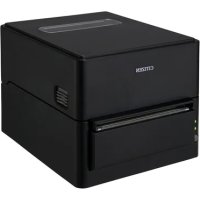
CTS4500 - Printer CITIZEN - Free user manual and instructions
Find the device manual for free CTS4500 CITIZEN in PDF.


| Product type | Thermal line printer |
| Brand | Citizen |
| Model | CTS4500 |
| Dimensions (standard) | 170 x 151.3 x 216.2 mm |
| Weight (standard) | Approximately 2.5 kg |
| Power supply | 100-240 V AC, 50/60 Hz, AC adapter 24 V DC, 2.5 A |
| Print speed | Up to 200 mm/s |
| Max print width | 104 mm (832 dots) |
| Resolution | 203 dpi (8 dots/mm) |
| Interfaces | USB, RS-232C serial, Bluetooth, Ethernet, wireless LAN depending on model |
| Paper types | Thermal roll, labels, black mark paper |
| Max paper width | 112 mm |
| Power consumption (printing) | Approximately 65 W |
| Power consumption (standby) | Approximately 1.5 W |
| Thermal head life | 100 km (thermal paper) / 50 km (labels) |
| Maintenance | Regular cleaning of the thermal head with ethyl alcohol |
| Safety | Mandatory grounding, do not use with wet hands |
| Certifications | UL, C-UL, FCC Class A, CE marking, ENERGY STAR |
| Operating temperature | 5 to 40 °C |
| Operating humidity | 10 to 90% RH (non-condensing) |
Frequently Asked Questions - CTS4500 CITIZEN
User questions about CTS4500 CITIZEN
0 question about this device. Answer the ones you know or ask your own.
Ask a new question about this device
Download the instructions for your Printer in PDF format for free! Find your manual CTS4500 - CITIZEN and take your electronic device back in hand. On this page are published all the documents necessary for the use of your device. CTS4500 by CITIZEN.
USER MANUAL CTS4500 CITIZEN
LINE THERMAL PRINTER
MODEL CT-S4500
User's Manual
Mode d'emploi
Benutzerhandbuch
Manuale dell'utente
Manual de Nombre
If you want to dispose of this product, do not mix it with general household waste. There is a separate collection systems for used electronics products in accordance with legislation under the WEEE Directive and is effective only within European Union.
Ge
Compliance Statement for European Users
CE marking shows conformity to the following criteria and provisions:
Low Voltage Directive (2014/35/EU), EMC Directive (2014/30/EU), and RoHS directive (2011/65/EU)
Full text of the EU declaration of conformity is available at the following internet address:
http://www.citizen-systems.co.jp/english/support/download/primer/others/eu_doc/
IMPORTANT: This equipment generates, uses, and can radiate radio frequency energy and if not installed and used in accordance with the instruction manual, may cause interference to radio communications. It has been tested and found to comply with the limits for a Class A computing device pursuant to Subpart J of Part 15 of FCCRules, which are designed to provide reasonable protection against such interference when operated in a commercial environment. Operation of this equipment in aresidential area is likely to cause interference, in which case the user at his own expense will be required to take whatever measures may be necessary to correct the interference.
CAUTION: Use shielded cable for this equipment.
Sicherheitshinweis
This Class A Information Technology Equipment (ITE) complies with Canadian CAN ICES-3(A)/NMB-3(A).
This Information Technology Equipment (ITE) does not exceed the Class A limits for radio noise emissions from digital apparatus set out in the Radio Interference Regulations of the Canadian Department of Communications.
- Before using this product, be sure to read through this manual. After having read this manual, keep it in a safe, readily accessible place for future reference.
- The information contained herein is subject to change without prior notice.
- Reproduction or transfer of part or all of this document in any means is prohibited without permission from Citizen Systems.
- Note that Citizen Systems is not responsible for any operation results regardless of omissions, errors, or misprints in this manual.
- Note that Citizen Systems is not responsible for any trouble caused as a result of using options or consumables that are not specified in this manual.
- Except explained elsewhere in this manual, do not attempt to service, disassemble, or repair this product.
- Note that Citizen Systems is not responsible for any damage attributable to incorrect operation/handling or improper operating environments that are not specified in this manual.
- Data is basically for temporary use and not stored for an extended period of time or permanently. Please note that Citizen Systems is not responsible for damage or lost profit resulting from the loss of data caused by accidents, repairs, tests or other occurrences.
- If you find omissions, errors, or have questions, please contact your Citizen Systems dealer.
- If you find any pages missing or out of order, contact your Citizen Systems dealer for a replacement.
"Made for iPod," "Made for iPhone," and "Made for iPad" mean that an electronic accessory has been designed to connect specifically to iPod, iPhone, or iPad, respectively, and has been certified by the developer to meet Apple performance standards. Apple is not responsible for the operation of this device or its compliance with safety and regulatory standards.
Please note that the use of this accessory with iPod, iPhone or iPad may affect wireless performance.
- iPad, iPhone and iPod touch are trademarks of Apple Inc., registered in the U.S. and other countries. iPad Air and iPad mini are trademarks of Apple Inc.
- EPSON and ESC/POS are registered trademarks of Seiko Epson Corporation.
- QR Code is a registered trademark of DENSO WAVE INCORPORATED.
- Ethernet is a registered trademark of Fuji Xerox Corporation.
- Bluetooth® is a registered trademark of Bluetooth-SIG Inc.
- CITIZEN is a registered trademark of Citizen Watch Co., Ltd.
- All other trademarks are the property of their respective owners.
- Citizen Systems use these trademarks in accordance with the license of relevant owners.
Copyright© CITIZEN SYSTEMS JAPAN CO., LTD. 2019
SAFETY PRECAUTIONS...WHICH SHOULD BE STRICTLY OBSERVED
Before using this product for the first time, carefully read these SAFETY PRECAUTIONS. Improper handling may result in accidents (fire, electric shock or injury). In order to prevent injury to operators, third parties, or damage to property, special warning symbols are used in the User's Manual to indicate important items to be strictly observed.
- After having read this Manual, keep it in a safe, readily accessible place for future reference.
- Some of the descriptions contained in this manual may not be relevant to some printer models.
The following describes the degree of hazard and damage that could occur if the printer is improperly operated by ignoring the instructions indicated by the warning symbols. Be sure to read this information carefully.

WARNING
Neglecting precautions indicated by this symbol may result in fatal or serious injury.

CAUTION
Neglecting precautions indicated by this symbol may result in injury or damage to property.

This symbol is used to alert your attention to important items.

This symbol is used to alert you to the danger of electric shock or electrostatic damage.

This symbol denotes a request to unplug the printer from the wall outlet.

This symbol is used to indicate that the power supply must be grounded.

This symbol is used to indicate useful information, such as procedures, instructions or the like.

This symbol is used to indicate prohibited actions.
PRECAUTIONS ON PRINTER INSTALLATION

WARNING
Do not use or store this product in a place where it will be exposed to:
- Flames or moist air.
- Direct sunlight.
- Hot airflow or radiation from a heating device.
- Salty air or corrosive gases.
- Ill-ventilated atmosphere.
- Chemical reactions in a laboratory.
- Airborne oil, steel particles, or dust.
-
Static electricity or strong magnetic fields.
-
These locations create the risk of printer damage, as well as product failure, overheating, emission of smoke, fire, or electric shock. They can also result in fire or electric shocks and so should always be avoided.



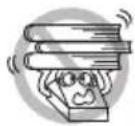
- Do not drop any foreign object nor spill liquid into the printer. Do not place any object on the printer either.
- Do not drop any metallic object such as paper clips, pins or screws into the printer.
- Do not place a flower vase, pot, or anything containing water on the printer.
■ Do not spill coffee, soft drinks, or any other liquid into the printer.
■ Do not spray insecticide or any other chemical liquid over the printer. - Dropping a metallic foreign object into the printer, may cause printer failure, fire, or electric shock.
Should it occur, immediately turn the printer off, unplug it from the supply outlet, and call your local Citizen Systems dealer.


Do not handle the printer in the following ways:
- Do not subject the printer to strong impacts or hard jolts (e.g., being stepped on, dropped or struck).
-
Never attempt to disassemble or modify the printer.
-
These actions create the risk of printer damage, as well as product failure, overheating, emission of smoke, fire, or electric shock.
They can also result in fire or electric shocks and so should always be avoided.

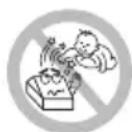
This device is not appropriate to be used where a child may be present. Install, store, or use the device where it cannot be reached by a child.
- Electric appliances could cause an unexpected injury or accident if they are handled or used improperly.
- Keep the power cord and signal cables out of the reach of children. Also children should not be allowed to gain access to any internal part of the printer.
- The plastic bag the printer came in must be disposed of properly or kept away from children. Wearing it over the head may lead to suffocation.
| CAUTION |
| Do not use the printer under the following conditions. ■ Avoid locations subject to vibration or instability. ■ Avoid locations where the printer is not level. · The printer may fall and cause an injury. · The quality of printing may deteriorate. ■ Do not obstruct the printer's air vents. ■ Do not place anything on the printer. ■ Do not cover or wrap the printer in cloth or blankets. · Doing so could cause heat to build up and deform the case or start a fire. ■ Avoid using the printer near a radio or TV set or from supplying it from the same electric outlet as these appliances. ■ Avoid using the printer interconnected with a cable or cord that has no protection against noise. (For interconnections, use shielded or a twisted pair of cables and ferrite cores, or other anti-noise devices.) ■ Avoid using the printer with a device that is a strong source of noise. · The printer may have an adverse effect on nearby radio or TV transmissions. There may also be cases when nearby electrical appliances adversely influence the printer, causing data errors or malfunction. ■ Installed in any orientation other than those specified. · Malfunction, failure, or electric shock may result. |
| Connect the printer to a ground. · Electric leakage may cause an electric shock. ■ Do not connect the printer's ground to any of the following: · A gas explosion could result. * Gas piping * Telephone line ground * Lightning rod · If lightning strikes a large surge of current may cause fire or shock. * Water pipes · Plastic water pipes should not be used for grounding. (Those approved by a Waterworks Department may be used.) ■ Before connecting or disconnecting the grounding lead to or from the printer, always unplug it from the electric outlet. |
PRECAUTIONS IN HANDLING THE PRINTER

WARNING
Please observe the following precautions for power source and power cord:
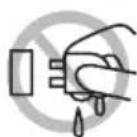
- Do not plug or unplug the power cord with a wet hand.
Use the printer only at the specified supply voltage and frequency.
Use only the specified AC adapter with the printer. - Use only the power cord that comes with the printer, and never use the supplied power cord with another device.
- Check to make sure that the supply outlet from which the printer is powered has a sufficient capacity.
- Do not supply the printer from a power strip or current tap shared with other appliances.
- Do not plug the power cord into an electric outlet with dust or debris left on the plug.
Do not use a deformed or damaged power cord.
Do not move the printer while its power is on. - Neglecting to handle it properly may result in printer failure, emission of smoke, fire, or electric shock.
- An overload may cause the power cord to overheat, catch fire, or the circuit breaker to trip.
- Do not allow anything to rest on the power cord. Do not place the printer where the power cord may be stepped on.
- Do not subject the power cord to severe bending, twisting, or pulling. Do not carry the product while it is in this state either.
Do not attempt to modify the power cord unnecessarily. - Do not place the power cord near any heating device.
- Neglecting these cautions may cause wires or insulation to break, which could result in electric leakage, electric shock, or printer failure. If the power cord sustains damage, contact your Citizen Systems dealer.
Do not leave things around the electric outlet.
Supply power to the printer from a convenient electric outlet, readily accessible in an emergency. - Pull the plug to immediately shut it down in an emergency.
Insert the power plug fully into the outlet.
If the printer will not be used for a long time, disconnect it from its electric outlet. - Hold the plug and connector when plugging or unplugging the power cord or signal cable after turning off the printer and the appliance connected to it.




| CAUTION |
| Caution label is attached in the position shown in the following figure. Carefully read the handling precautions before using the printer. These labels indicate that the head becomes hot, so touching it may cause burns, and touching the auto cutter when opening the paper cover may cause cuts on hands. |
| Do not transport this printer with the paper roll inside. • Printer failure or damage may occur. |
| To prevent possible malfunction or failure observe the following. ■ Do not open the paper cover during printing. ■ Avoid operating the printer without paper properly loaded. ■ Avoid the use of paper not complying with specifications. ■ May result in poor print quality. ■ Avoid using torn pieces of paper or paper spliced with plastic adhesive tape. ■ Avoid forcibly pulling already loaded paper by hand. ■ Avoid using a sharp pointed device to operate panel buttons. |
| Be sure to firmly insert the cable plugs into their mating sockets. • A cross connection may damage the printer's internal electronics or the host system's hardware. Only use the printer with devices that have designated solenoid specifications for the cash drawer interface connector. • Neglecting this caution may result in malfunction or failure. |
To prevent injury and printer failures from worsening, observe the following:
- Do not touch the printing surface of the thermal head.
- Do not touch any of the moving parts (e.g., paper cutter, gears, active electric parts) while the printer is working.
In case of trouble do not attempt to repair the printer. Ask Citizen Systems service for repair.
■ Be careful that the covers do not pinch your hands or fingers.
■ Be careful of the sharp edges on the printer. Do not allow them to injure you or damage property. - May result in electric shock, burn, or injury.

If the printer emits smoke, an odd smell, or unusual noise while printing, immediately abort the current print session and unplug the printer from the electric outlet.
① DAILY MAINTENANCE
Observe the following precautions for daily maintenance.
■ When cleaning the printer, always turn it off and unplug it from the electric outlet.
Use a soft, dry cloth for cleaning the surface of the printer case.
For severe stains, use a soft cloth slightly dampened with water.
Never use organic cleaning solvent such as alcohol, paint thinner, trichloroethylene, benzene, or ketone. Never use a chemically processed cleaning cloth.
To remove paper dust, use a soft brush.


CAUTION
The thermal head is at a dangerously high temperature immediately after printing.
Allow it to cool off before starting maintenance work.
THE TABLE OF CONTENTS
1. GENERAL OUTLINE 15
1.1 Features 15
1.2 Unpacking 16
1.3 Model Classification 17
1.4 Basic Specifications 18
2. EXPLANATION OF PRINTER PARTS 20
2.1 Printer Appearance 20
2.2 Inner area of the top cover 23
2.3 Other Built-in Functions 25
3. SETUP 27
3.1 Connecting the AC Power Cord 27
3.2 Serial Interface Board 29
3.3 USB Interface 30
3.4 Bluetooth Interface Board 31
3.5 Bluetooth USB host interface board 34
3.6 Ethernet (LAN)/Wireless LAN Interface Board 39
3.7 USB Power Supply Port 45
3.8 Connecting the Cash Printer 47
3.9 Precautions for Installing the Printer 49
3.10 Adjusting the Paper Near-end Sensor 50
3.11 Roll paper partition 51
3.12 Loading Paper 53
3.13 Adjusting Media Sensor Positions 58
3.14 Selecting a Paper Type 60
3.15 Calibrating the Paper Sensor 61
3.16 Precautions for Creating Applications and Practical Operations.....63
3.17 Download Site for Various Electronic Files 63
4. MAINTENANCE AND TROUBLESHOOTING 64
4.1 Periodic Cleaning 64
4.2 Clearing a Cutter Error 65
4.3 Self Test 66
4.4 Hexadecimal Dump Printing 67
4.5 Error Indications 68
4.6 Paper Jams 70
4.7 Precautions for Performing Printing for Which Printing Speed Changes 70
5. OTHER 71
5.1 External Views and Dimensions 71
5.2 Printing Paper 74
5.3 Manual Setting of Memory Switches 78
5.4 Selecting and Setting the Cut Action 83
1. GENERAL OUTLINE
This product is a line thermal printer capable of printing on media up to 4 inches wide. It can instantly print labels, tickets, and receipts containing a large volume of data that would not fit on normal width receipt paper.
This printer has extensive features so it can be used in a wide range of applications.
1.1 Features
High-speed printing at up to 200 mm/sec possible
- Stylish design
Support for media up to 112 mm wide
Support for label paper and black mark paper
High-speed cutter employed
- USB interface included as standard
- Equipped with a standard USB power supply port
- Interchangeable interface board
Built-in drawer kick interface
- USB-linked power OFF function available
- Paper saving function available
- ENERGY STAR compliant power saving function
- XML/Web print function included (wired LAN or wireless LAN model)
- USB host function capable of controlling peripheral devices included (wired LAN or Bluetooth USB host model)
- Support for the JIS X0213 third and fourth level Kanji character sets
- Support for the simplified and traditional Chinese character sets and Hangul character set
Support for UTF-8 using commands
- Various customizations using the memory switches possible
- User created characters and logos can be saved in the user memory
- Support for barcodes and 2D codes, including GS1-DataBar
Apple MFi certified Bluetooth communication support (Bluetooth model)
1.2 Unpacking
Make sure the following items are included with your printer.
| NAME | QUANTITY | ILLUstration |
| Printer 1 | ||
| AC Adapter *1 1 | ||
| AC cord 1 | ||
| Media shaft *2 1 | ||
| USB cable clamp 1 | ||
| Sample paper roll 1 roll | ||
| Quick Start Guide 2 |
1: Standard model only
2: Use this with label paper and ticket paper that has a large core.
1.3 Model Classification
Model numbers indicate printer features according to the following system.

- Model name
- AC adapter storage case
A: None
S: Yes
- Interface
RS: Serial RS-232C+USB
ET: Ethernet+USB
HET: Ethernet (USB host function) + USB
BT: Bluetooth+USB
HBT: Bluetooth (USB host function) + USB
WF: Wireless LAN+Ethernet+USB
NN: USB
- Market
U: North America
E: Europe
I: India
- Body case color
WH: Pure white
BK: Black
Contact us in advance for special combinations, some of which may not be available.
1.4 Basic Specifications
| Item Specifications | |||||
| Model CT-S4500 | |||||
| Print method Line the | mal dot print method | ||||
| Print widths 104 mm/832 dots, 90 mm/720 dots, 82.5 mm/660 dots, 72 m/576 dots, 68.25 mm/546 dots, 64 mm/512 dots, 54.5 mm/436 dots, 54 mm/432 dots, 52.5 mm/420 dots, 48 mm/384 dots, 45 mm/360 dots, factory default 104 mm/832 dots | |||||
| Dot density 8 × 8 dots/mm (203 dpi) | |||||
| Print Speed 200 mm/sec (maximum speed, print density level 100%, 1600 dot lines/sec) | |||||
| Number of print columns *1 | Font Maximum number of characters (columns) / 112 mm | Maximum number of characters (columns) / 80 mm | Maximum number of characters (columns) / 58 mm | Dot configuration (dots) | |
| Font A 69 48 35 12 × 24 | |||||
| Font B 92 64 46 9 × 24 | |||||
| Font C 104 72 52 8 × 16 | |||||
| Character size *2 | Font A:1.50×3.00 mm, Font B:1.13×3.00 mm, Font C:1.00×2.00 mm | ||||
| Character type | Alphanumeric characters, international characters, PC437/850/852/857/858/860/863/864/865/866, WPC1252, WPC1258, Katakana, ThaiCode 11/18 (1Pass/3Pass), TCVN-3, Kanji (JIS first, second, third, and fourth level), Kana, extended characters, JIS X0213, GB18030, BIG5, KS Hangul, EUC Hangul | ||||
| User memory | 384 KB (capable of storing user-defined characters and logos) | ||||
| Bar code types | UPC-A/E, JAN(EAN) 13 digits/8 digits, ITF, CODE39, CODE128, CODABAR (NW-7), CODE93, PDF417, QR Code, GS1-DataBar | ||||
| Line spacing | 4.25 mm (1/6 inch) (Variable by command) | ||||
| Paper | Roll paper: 112 mm × maximum Ø102 mm Paper thickness: 65-85 μm (25.4 mm ≥ core tube inner diameter ≥ 12 mm/32 mm ≥ core tube outer diameter ≥ 18 mm) 85-150 μm (core tube diameter: inner 25.4 mm / outer 32 mm) Label paper: 150 μm or less (core tube diameter: inner 25.4 mm / outer 32 mm) | ||||
| Interface | Serial (RS-232C standard), USB, Bluetooth+USB, LAN, wireless LAN+LAN, LAN (USB host function) (USB 2 port), Bluetooth (USB host function) (USB 2 port)) | ||||
| Ethernet | 100BASE-TX/10BASE-T | ||||
| Wireless LAN | IEEE802.11n, IEEE802.11a, IEEE802.11g, IEEE802.11b | ||||
| Bluetooth Version: Bluetooth Version: Bluetooth 3.0 + EDR Profile: SPP (Serial Port Protocol), iAP (iPod Accessory Protocol) Power class: Class2 | Max. 2.1 A | ||||
| USB power supply port | Max. 2.1 A | ||||
| Cash drawer kick-out | Supports 2 cash drawers | ||||
| Input buffer 4 K bytes | 45 bytes | ||||
| Power consumption | Approximately 65 W (for normal printing), approximately 1.5 W (during standby) | ||||
| AC Adapter Rated input: AC 100 to 240 V, 50/60 Hz, 150 VA Rated output: DC 24 V, 2.5 A | |||||
| Weight Standard model | Approximately 2.5 kg Model with stored AC adapter: Approximately 3.2 kg | ||||
| Outside dimensions | Standard model: 170 (W) × 151.3 (H) × 216.2 (D) mm Model with stored AC adapter: 170 (W) × 193.3 (H) × 216.2 (D) mm | ||||
| Item Specifications | |
| Operating temperature and humidity | 5 to 40°C,10 to 90% RH (no condensation) (65 μm ≤ paper thickness ≤ 85 μm)10 to 80% RH (no condensation) (85 μm ≤ paper thickness ≤ 150 μm) |
| Storage temperature and humidity | -20 to 60°C, 10 to 85% RH (no condensation) |
| Print head life *3 Thermal | mal roll paper: 100 km, 200 million pulsesThermal label roll paper: 50 km, 100 million pulses |
| Auto cutter life *3 Thermal | rmal roll paper: 1 million cutsThermal label roll paper: 200 thousand cuts |
| Safety standard *4 UL, C-UL, FCC Class A, CE Marking | |
Notes:
*1: The number of printable columns is selected using a memory switch.
The numbers of columns noted in this table refer to typical models. The number of columns varies depending on specifications.
2: Characters appear small because the dimensions include a blank area surrounding each character.
3: According to our test conditions
*4: This standard applies when our AC Adapter is used.
2. EXPLANATION OF PRINTER PARTS
2.1 Printer Appearance
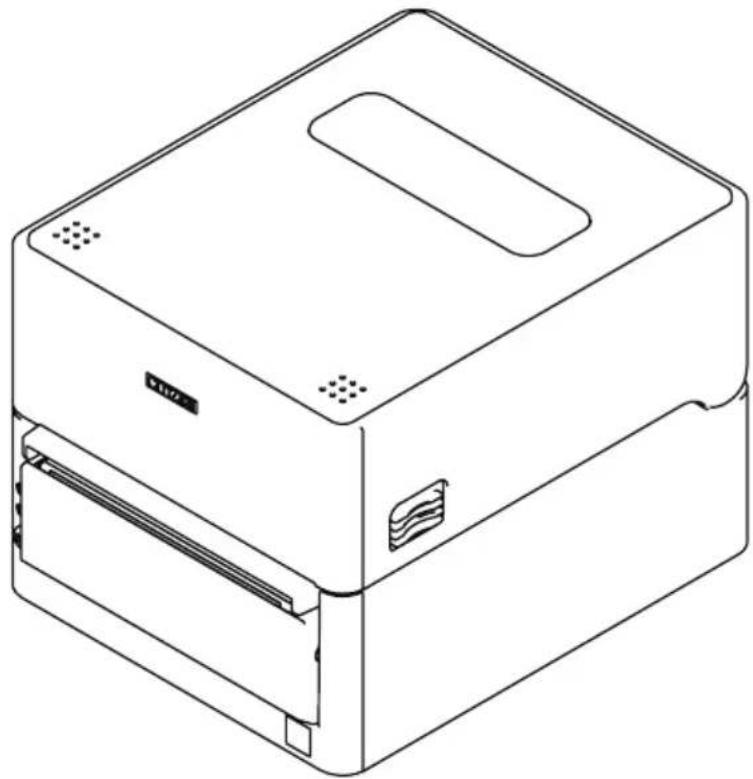
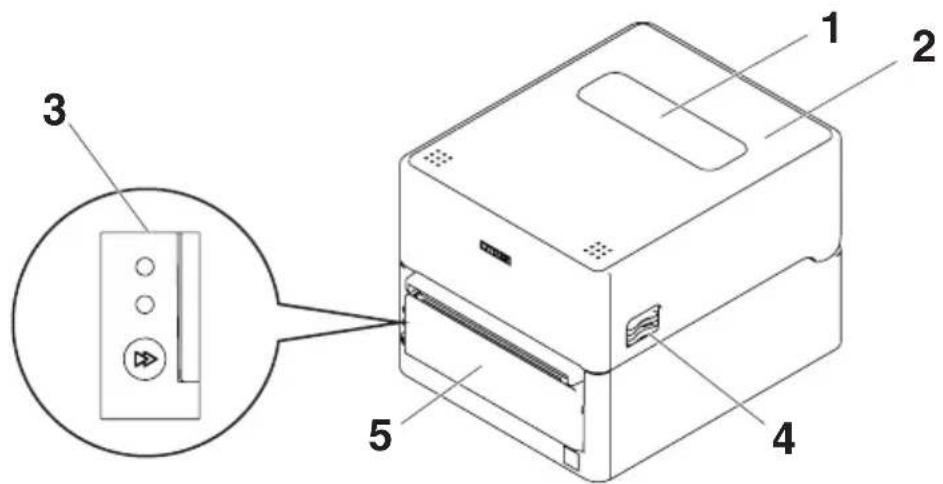
Names of parts
Standard model
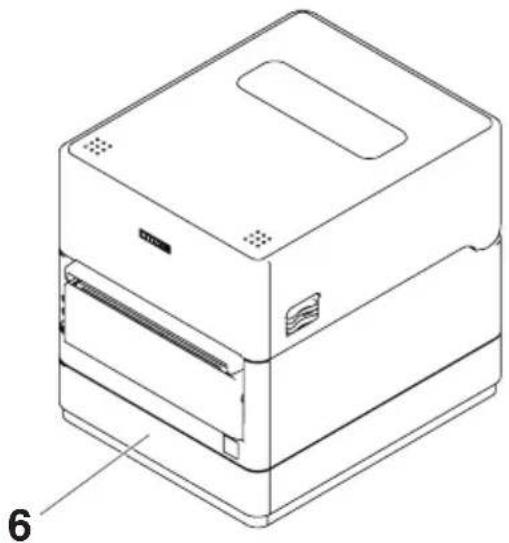
Model with stored AC adapter
- Media window
Enables users to check the media level.
- Top cover
Opens upward so users can replace or set media.
-
Operation panel
-
Cover release buttons
The cover is opened by pressing the buttons on both the right and left sides.
-
Auto cutter
-
AC adapter storage case
Operation panel
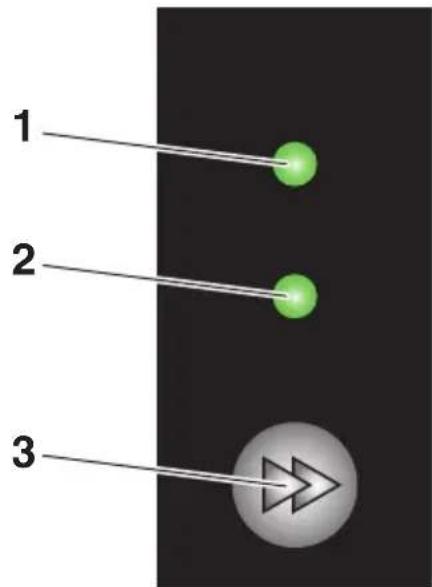
The operation panel includes 2 LEDs and 1 key.
- Power LED
Turns on when the power is turned on and turns off when the power is turned off.
- Status LED
Turns on or flashes in green, red, and amber depending on the printer status.
| Color | Lights/ flashes | Status |
| Green | On Printer is online | |
| Flashes Receiving data | ||
| Amber On Startup | ||
| Red, green, amber Flashes | Error or alarm | |
- FEED key
Paper feeds while the key is pushed.
Enter the test printing or memory switch setting mode.

Refer to 4.3 Self Test

Refer to 5.3 Manual Setting of Memory Switches
Rear connectors (serial interface example)

- USB interface
- USB power supply connector Supplies power to USB devices.
- Cash drawer kick-out connector Connect to the cable from the cash drawer.
- DC jack Connects to the included AC adapter.
- Power switch Turns the printer power supply on and off.
- USB cable clamp attachment holes USB cable clamps can be attached.
- Ground wire attachment screw Screw in the ground wire from the drawer to attach it.
- Interface connector (serial, USB, etc.) Connect to the interface cable.
2.2 Inner area of the top cover
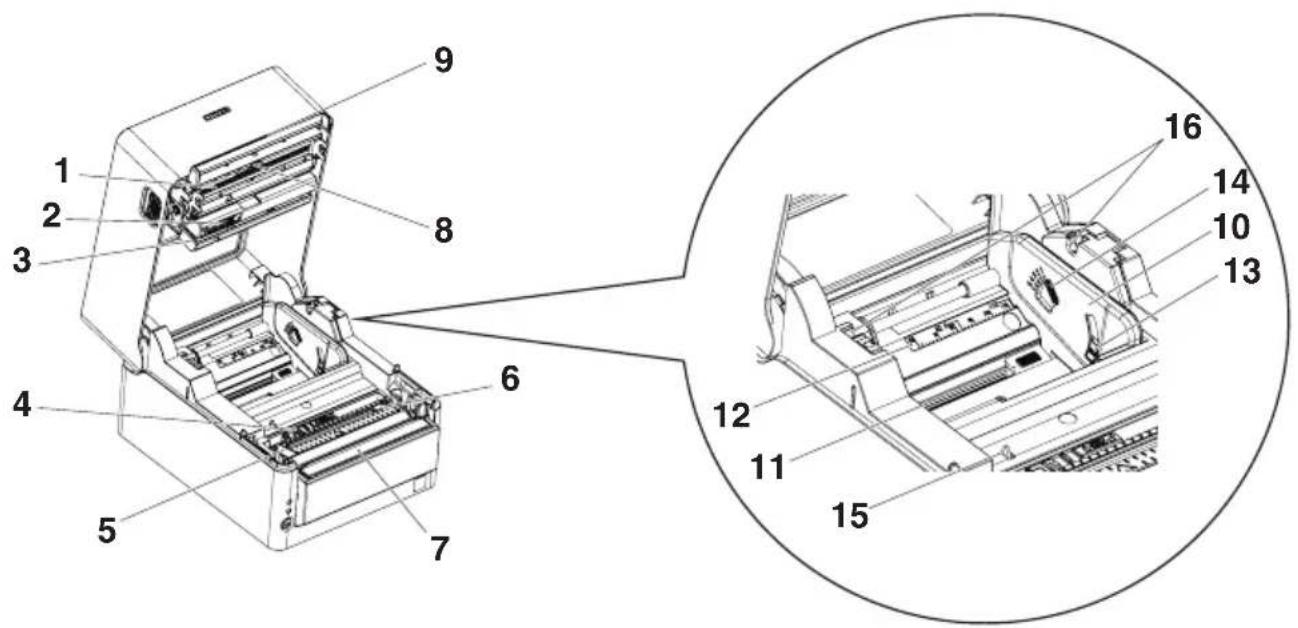
- Thermal head
Prints characters and graphic data on paper (paper rolls).
- Upper sensor
This sensor detects the media position.
- Media damper
When using roll media, absorbs tension generated by media feed operations to prevent print errors.
- Bottom sensor
This sensor detects the media position.
Devices are equipped with lock mechanisms.
-
Fixed left-side media guide
-
Paper guide (Movable right-side paper guide)
-
Platen roller
This roller transports media.
-
Head balance adjustment slider
-
Manual cutter
-
Paper partition
Move the partition to a position suitable for the paper width.
- Paper partition position adjustment button
With this button pushed, move the paper partition to the left or right. - Paper width scale
- Paper near-end (PNE) sensor
Detects when the paper is near the end of the roll.
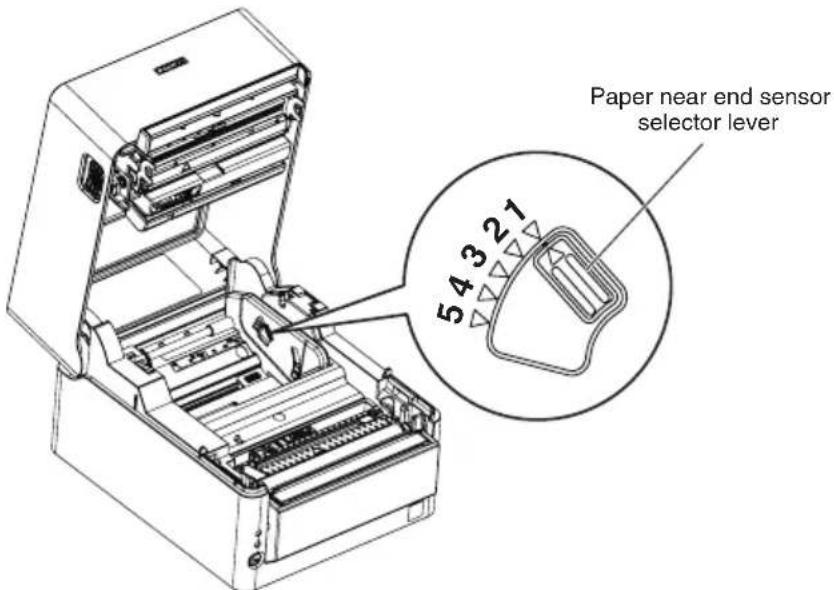
- Paper near end sensor selector lever
Adjust the position of the sensor to determine when it detects the end of the paper is near.
- Paper end (PE) sensor
Detects when there is no paper. Printing stops when this sensor detects there is no paper.
- Media shaft mounting groove
When using a media shaft, attach it to this section.
2.3 Other Built-in Functions
- Buzzer
Buzzes when errors occur or when operations or command operations are performed.

Refer to 4.5 Error Indications
- User memory
You can save user-defined logo and character data in this memory. Data remains stored in this memory even if the printer is turned off. For information on how to save data, refer to the Command Reference.
- Memory switch
Setting of various kinds of functions can be stored in memory. Settings remain stored in the memory even if the printer is turned off.
- USB-linked power OFF (When MSW6-3 of memory switch is set to ON)
When the printer is connected to PC by USB, the printer becomes the state of USB-linked power OFF after 3 seconds when PC power off or USB connection lost.
This mode is canceled when the PC is turned back on or when a USB connection is established.

CAUTION
- Since the POWER LED is unlit when the state of USB-linked power OFF, it cannot be identified from the power OFF.
-
Pressing POWER while USB power is off does not turn on power immediately. After a while, USB power supply OFF is canceled and pressing POWER turns on power normally.
-
Paper saving functions
Memory switches MSW8-3 through MSW8-4 can be used to configure the settings below, which save paper.
- Top margin suppression
The printer back feeds the paper before printing which reduces the blank space at the top edge of the paper.
The back feed amount can be specified.
- Line gap reduce
Automatically compresses the linefeed amount between lines. The compression ratio can be specified.

CAUTION
Remove the partially cut paper before performing back feed for starting printing. The cut paper may be torn off in the next printing process, which may cause a problem.
- Auto side shift (MSW8-6)
This function dissipates heat load during frequent heat generation by a vertical ruled line or other specific head heating element.
If no data is received within 15 seconds after each cut or print, the print position is automatically slid N^* dots to the right. The original print position is returned to at the next slide timing.
- N is the MSW8-6 setting value.

CAUTION
If the right margin is too narrow, this may result in some print characters being cut off.
This function is disabled under initial settings.
To enable this function, use MSW8-6 to specify an appropriate value for the maximum slide amount.
3. SETUP
3.1 Connecting the AC Power Cord
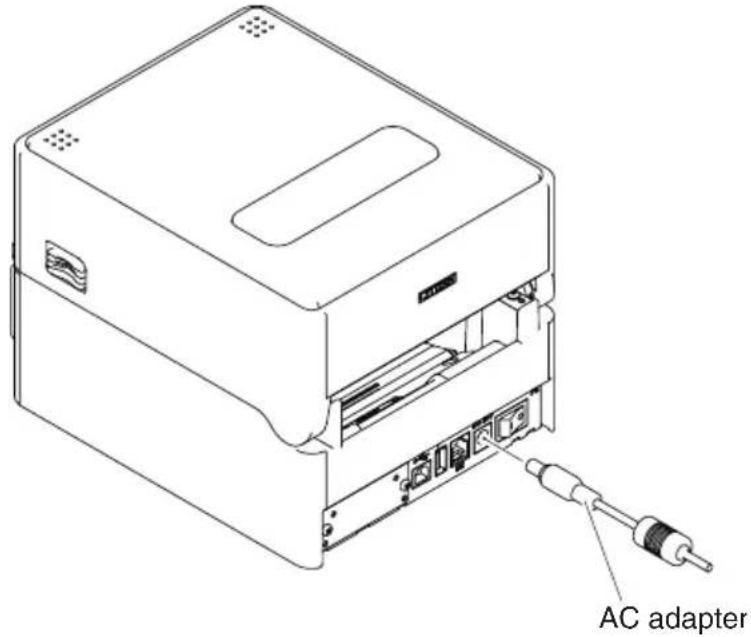
For standard models
- Turn off the power.
- Insert the DC plug on the output side of the AC adapter into the DC jack in the printer.
- Insert the plug of the AC cord into an electrical outlet.
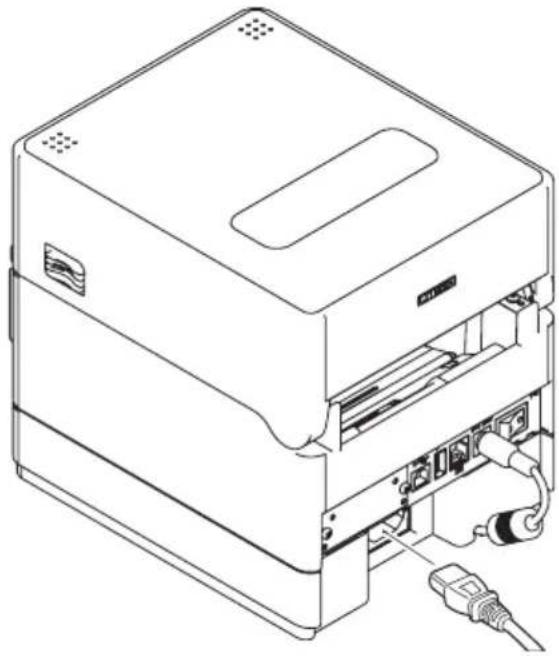
For models with stored AC adapter
- Turn off the power.
- Insert the plug of the AC cord into the AC port.
- Insert the plug of the AC cord into an electrical outlet.

CAUTION
Use only the specified AC adapter.
Always hold the AC adapter's cable connector by the connector when removing or inserting it.
- Use an AC power source that does not also supply power to equipment that generates electromagnetic noise.
Pulling on the AC power cord may damage it, cause a fire, electric shock, or break a wire.
If a lightning storm is approaching, unplug the AC power cord from the electric outlet. A lightning strike may cause a fire or electric shock.
- Keep the AC power cord away from heat generating appliances. The insulation on the AC power cord may melt and cause a fire or electric shock.
If the printer is not going to be used for a long time, unplug the AC power cord from the electronic outlet.
Place the AC power cord so that people do not trip on it.
3.2 Serial Interface Board
Data can be exchanged by serial communication.
Connecting the Interface Cable
- Turn off the power.
- Confirm the orientation of the interface cable and connect it to the port.
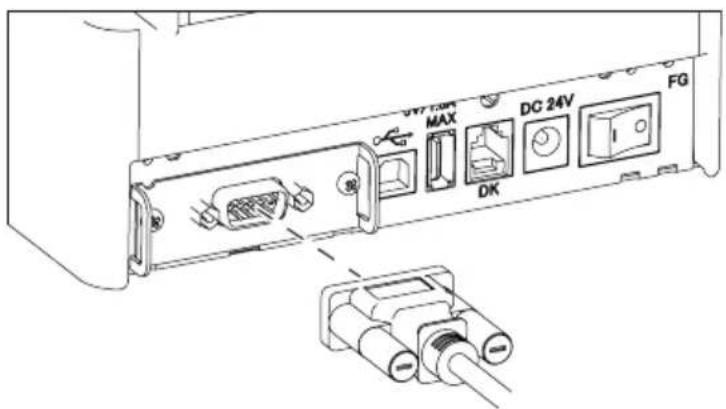
- Insert the other connector firmly into the interface port of the host computer.

CAUTION
■ When disconnecting the cable, always hold the connector.
Place the interface cable so that people do not trip on it.
- Do not connect multiple interfaces at the same time.
Use a serial cable with the connection layout shown below.
9-pin (female) - 9-pin (female) cable
| Signal | Pin | Pin | Signal | |
| RXD 2 | 2 RXD | |||
| TXD 3 | 3 TXD | |||
| DTR 4 | 4 DTR | |||
| SG | 5 5 | SG | ||
| DSR 6 | 6 DSR | |||
| RTS 7 | 7 RTS | |||
| CTS 8 | 8 CTS |
3.3 USB Interface
Data can be exchanged by USB communication.
Specifications
| Standard USB 2.0 specification | compliant |
| Communication speed Supports | 12 Mbps (Full-Speed) transfer |
Connecting the Interface Cable
- Turn off the power.
- Confirm the orientation of the interface cable and connect it to the port.
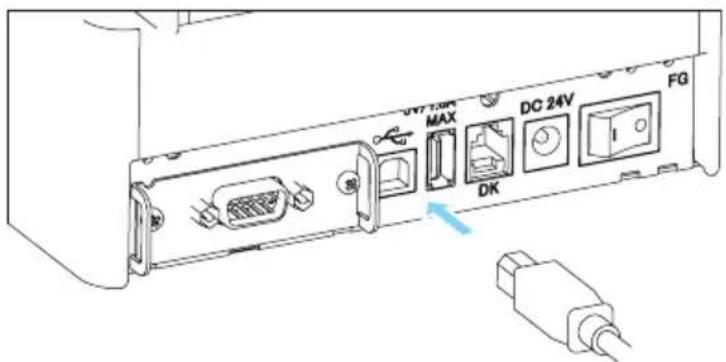
- Insert the other connector firmly into the interface port of the host computer.

CAUTION
■ When disconnecting the cable, always hold the connector.
Place the interface cable so that people do not trip on it.
- Do not connect multiple interfaces at the same time.
■ Be careful not to insert the USB cable into the cash drawer kick-out connector.
To connect more than one printer to a single computer by USB, you must change the serial number of the USB interface.
- There are models with a USB port on the interface board side. With such a model, do not connect USB cables to both the printer main unit side and interface board side.
If USB cables are connected to both, priority will be given to communication of the one connected to the port on the main unit side.
3.4 Bluetooth Interface Board
Names of parts
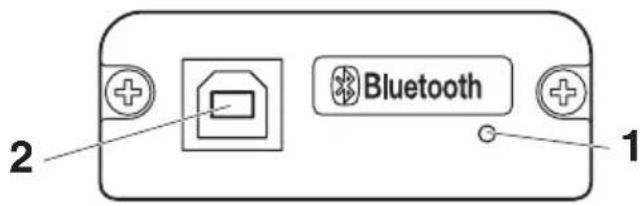
1. Status LED
The Bluetooth communication/connection/errror status is indicated by this LED.
2. USB connector
Data can be exchanged by USB communication.

CAUTION
When using this interface board as a USB interface, do not connect USB cables to both the main unit side and interface board side.
If USB cables are connected to both, priority will be given to communication of the one connected to the connector on the main unit side.
Bluetooth status LED
| Status Description LED Status | ||
| Detection standby (Discoverable) | Standing by for detection and connection | |
| Connection standby (Connectable) | Standing by for connection | |
| iOS connection | Data session unopened | |
| Communicating | iOS: data session opened Other OS: connection established and communication in progress | |
| Error Error or settings be- ing configured | Unlit | |
Pairing operation
You need to perform the operations below the first time you establish a Bluetooth connection for Bluetooth data communication.
- Detect Bluetooth devices
- Configure pairing settings
1. Detecting Bluetooth devices
Confirm that Bluetooth is enabled on the host PC before searching for Bluetooth devices.
This product will show up as "CT-S4500_XX"(XX is last 2 digits of unique BD address.) when it is detected.
Select this product from among the detected devices.
Note: You can search for devices and change the names.
When memory switch MSW13-5 is set to "No Response," nothing is displayed by device detection.
You can temporarily switch this setting to device detection (detect mode) by opening the paper cover and holding down the FEED button for two seconds. Detect mode is exited when the connection between the host PC is terminated.
2. Configuring pairing settings
Normally, selecting the printer during device detection will transition directly to pairing settings.

CAUTION
Some host PC configurations and models may not transition directly to pairing settings after the printer is selected during device detection.
The operation required to configure pairing settings depends on whether SSP (secure simple pairing) is enabled on the host PC.
If SSP is enabled on the host PC, pairing can be achieved without additional operations.
If SSP is disabled on the host PC, you will be prompted to input a passkey.
Input the passkey as described below.
Passkey
Last four digits of the address on the self test printout (Letters A through F are uppercase)
Example: If the address is 01:23:45:67:89:AB the passkey is 89AB.
If you delete sparing information from the host PC without deleting the corresponding pairing information on the printer, the printer may not show up if you detect devices again with the host PC.
To delete printer pairing information, open the paper cover and then hold down the FEED button for five seconds.
Deleting pairing information on the printer will put the printer into discovery mode.
Auto reconnection
With iOS device Bluetooth communication, a connection between a paired iOS device and the printer is not automatically restored after it is lost. However, when auto reconnection is enabled, the printer tries to reconnect with an iOS device after two-way communication is enabled and automatically restores the connection.

CAUTION
This function is enabled when shipped from the factory. (MSW13-6)
Auto reconnection can take some time to connect when the host is not an iOS device.
-
Even if the partner device is an iOS device, the conditions below can interfere with the auto reconnection function.
-
When you want Bluetooth communication to cut off after printing is complete
- When there are multiple iOS devices printing on the same printer
Under such conditions, disable auto reconnection.
Enabling and disabling auto reconnect
During self test, press the FEED button 3 times -> Auto reconnect = Valid
During self test, press the FEED button 4 times -> Auto reconnect = Invalid
At the end of self test, new setting will be printed as Auto reconnect [Valid] or [Invalid].

Refer to 4.3 Self Test
3.5 Bluetooth USB host interface board
In addition to printer control via Bluetooth communication, Bluetooth USB host interfaces can control peripheral devices connected via a USB port.
Connecting a Peripheral Device
- Turn off the power.
- Connect the cable of a peripheral device to this port.
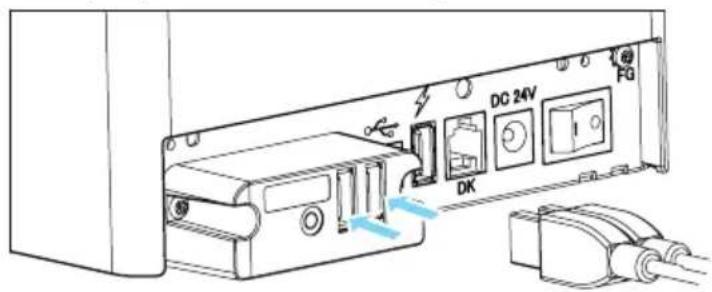

CAUTION
A peripheral device cannot be controlled if it is connected to the USB power supply port. Be sure to connect it to the USB port of the interface board.
Connecting a USB Device
The function assigned to each USB port differs.
Connect the USB device to be connected to the correct place in reference to the following figure.
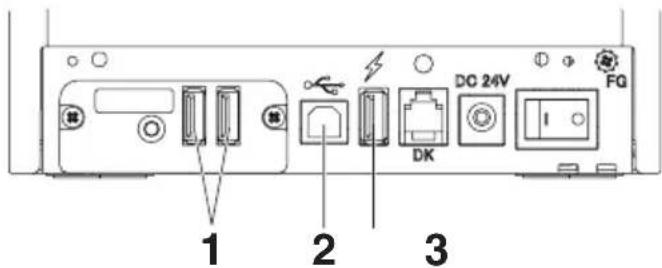
- For peripheral device control
Connect a peripheral device.
The connected peripheral device can be controlled.
- For host computer communication
Connect with a host computer.
The printer and host computer will communicate via USB.

Refer to 3.3 USB Interface
3. For supplying power
Connect a mobile device or other USB device.
Power can be supplied to a connected USB device.
- This port does not support USB data communication.

Refer to 3.7 USB Power Supply Port
Names of parts
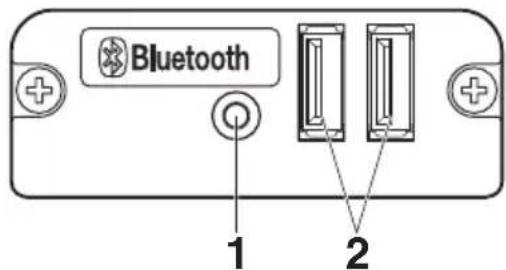
1. Panel button
Control this interface board.
2. USB 2 port
Connect a peripheral device.

CAUTION
■ Only connect peripheral devices specified by our company to the USB port.
■ Only plug in/remove peripheral devices when the printer power is turned off.
Pairing operation
You need to perform the operations below the first time you establish a Bluetooth connection for Bluetooth data communication.
- Detect Bluetooth devices
- Configure pairing settings
1. Detecting Bluetooth devices
Confirm that Bluetooth is enabled on the host PC before searching for Bluetooth devices.
This product will show up as "CT-S4500_XX"(XX is last 2 digits of unique BD address.) when it is detected.
Select this product from among the detected devices.
Note: You can search for devices and change the names.
When memory switch MSW13-5 is set to "No Response," nothing is displayed by device detection.
With these settings, pressing and holding the panel button for at least three seconds and then pressing it twice more places the product temporarily in a state where it will be found in device searching (discovery mode).
Discovery mode cancels when the product is connected to a host PC.
2. Configuring pairing settings
Normally, selecting the printer during device detection will transition directly to pairing settings.

CAUTION
Some host PC configurations and models may not transition directly to pairing settings after the printer is selected during device detection.
The operation required to configure pairing settings depends on whether SSP (secure simple pairing) is enabled on the host PC.
If SSP is enabled on the host PC, pairing can be achieved without additional operations.
If SSP is disabled on the host PC, you will be prompted to input a passkey.
Input the passkey as described below.
Passkey
Last four digits of the address on the self test printout (Letters A through F are uppercase)
Example: If the address is 01:23:45:67:89:AB the passkey is 89AB.
If you delete sparing information from the host PC without deleting the corresponding pairing information on the printer, the printer may not show up if you detect devices again with the host PC.
When deleting pairing information, press and hold the panel button for at least three seconds, and after the buzzer sounds, press it four more times.
If successful, "Erase Bonded Device" is printed.
Deleting pairing information on the printer will put the printer into discovery mode.
Auto reconnection
With iOS device Bluetooth communication, a connection between a paired iOS device and the printer is not automatically restored after it is lost. However, when auto reconnection is enabled, the printer tries to reconnect with an iOS device after two-way communication is enabled and automatically restores the connection.

CAUTION
This function is enabled when shipped from the factory. (MSW13-6)
Auto reconnection can take some time to connect when the host is not an iOS device.
Even if the partner device is an iOS device, the conditions below can interfere with the auto reconnection function.
- When you want Bluetooth communication to cut off after printing is complete
- When there are multiple iOS devices printing on the same printer
Under such conditions, disable auto reconnection.
Enabling and disabling auto reconnect
During self test, press the FEED button 3 times -> Auto reconnect = Valid
During self test, press the FEED button 4 times -> Auto reconnect = Invalid
At the end of self test, new setting will be printed as Auto reconnect [Valid] or [Invalid].

Refer to 4.3 Self Test
Panel button operation
Use the panel button on the rear of the Bluetooth board to operate this board.
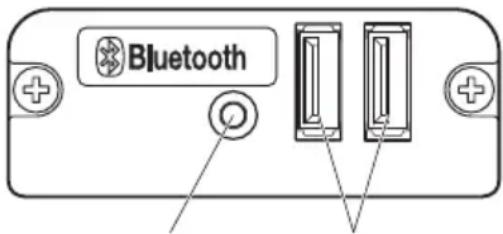
Panel button USB port
BT device search (MSW13-5) settings
- Press and hold the panel button to turn on printer power.
- Press the panel button within one second after starting the printer.
The setting changes in accordance with the number of times you press the panel button.
Two presses: Discovery possible
Three presses: No response
After these operations the printer restarts.
- Print the interface board state
After starting the printer, pressing the panel button once prints the interface board state.
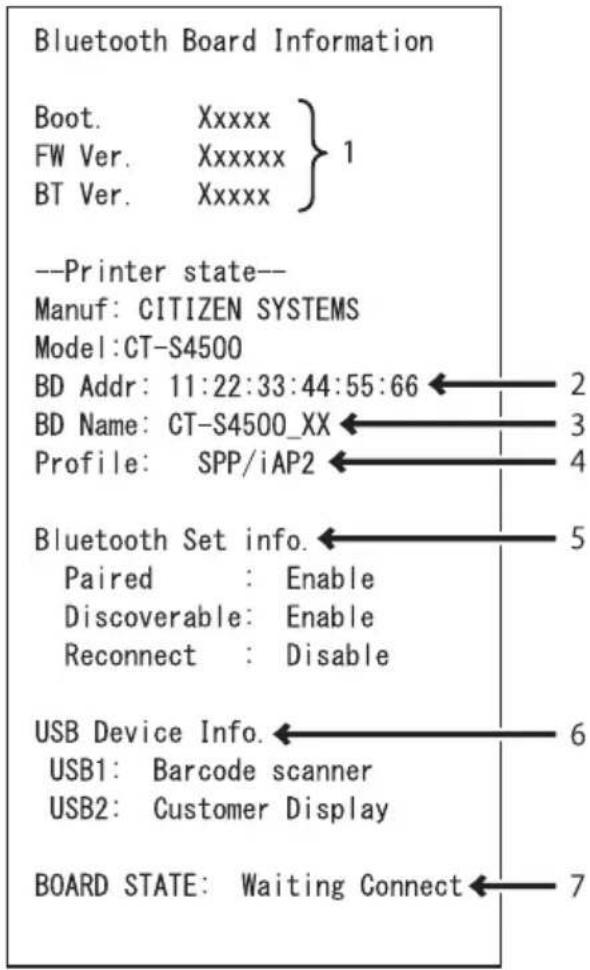
Print example
- Board firmware version
- Address of equipped Bluetooth module
- Bluetooth name
- Response profile in Bluetooth transmission
- Bluetooth setting state
- Name of connected USB device ("No connection" is displayed when there is no connection)
- Board status
3.6 Ethernet (LAN)/Wireless LAN Interface Board
This section provides an overview of the interface board. For details on this board, including explanations about the USB host function and XML peripheral device support, refer to the separate manual.
Connecting the Interface Cable
- Turn off the power.
- Confirm the orientation of the interface cable and connect it to the port.
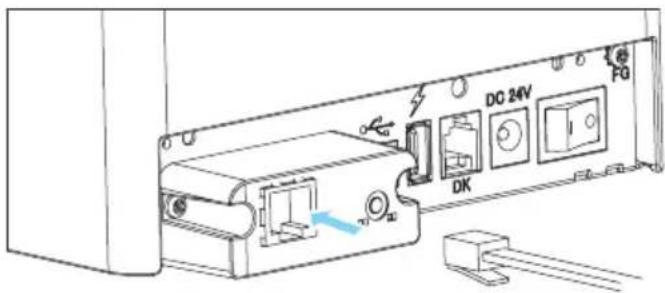
- Connect the other connector to a hub, router, or similar device.

CAUTION
■ When disconnecting the cable, always hold the connector.
Place the interface cable so that people do not trip on it.
- Do not connect multiple interfaces at the same time.
- Hold the connector of the LAN cable perpendicular and straight when connecting or disconnecting it. Doing it at an angle may cause the connector to disconnect.
Connecting a Peripheral Device
- Turn off the power.
- Connect the cable of a peripheral device to this port.
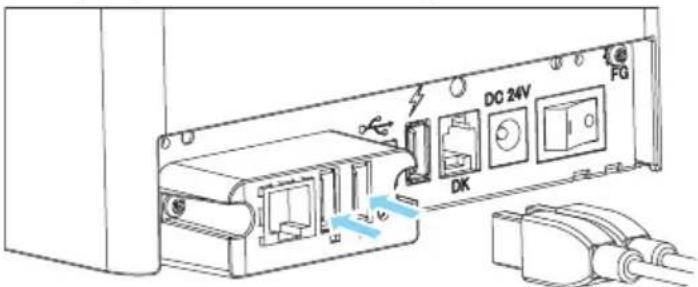

CAUTION
A peripheral device cannot be controlled if it is connected to the USB power supply port. Be sure to connect it to the USB port of the interface board.
Connecting a USB Device
The function assigned to each USB port differs.
Connect the USB device to be connected to the correct place in reference to the following figure.
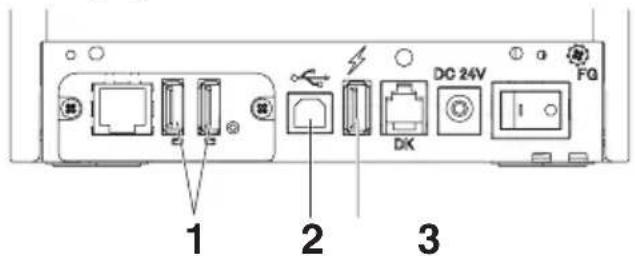
Ethernet USB host model
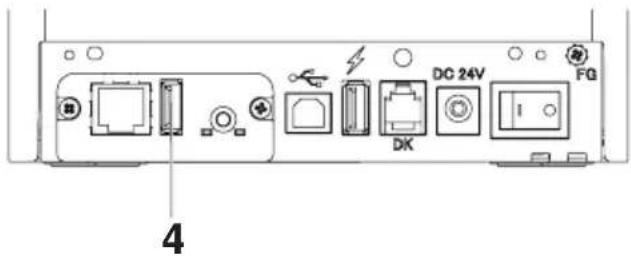
Wireless LAN
- For peripheral device control
Connect a peripheral device.
The connected peripheral device can be controlled.
- For host computer communication
Connect with a host computer.
The printer and host computer will communicate via USB.

Refer to 3.3 USB Interface
- For supplying power
Connect a mobile device or other USB device.
Power can be supplied to a connected USB device.
- This port does not support USB data communication.

Refer to 3.7 USB Power Supply Port
- For wireless LAN adapter connection
Connect a wireless LAN adapter.
Panel button operation
Board operations are performed using the panel button on the rear of the LAN board.
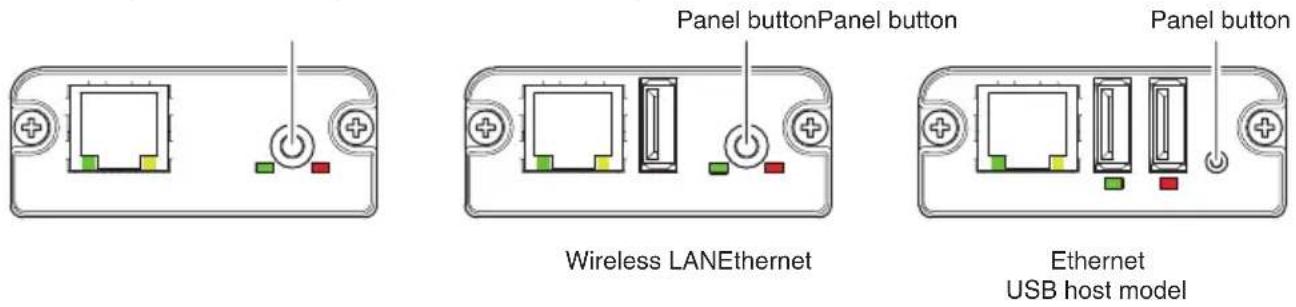
- Enabling LAN connection
Turn on the printer. Operation of this board will start about 20 seconds later.
- Printing LAN setup information
Press the panel button.
- Entering setting mode
Hold down the panel button. A buzzer* will sound once to indicate that setting mode has been entered.
- You can use setting mode to read factory settings.
-
If no operation is performed for 3 seconds in configuration mode, the mode switches back to normal mode.
-
Returning to factory settings
Enter the board setting mode, and then hold down the panel button. This returns the board to its factory settings.

CAUTION
The board will automatically restart after this operation is complete. After clearing settings, you will need to re-configure network settings.
LED Functions
The tables below explain how to interpret LED indications.
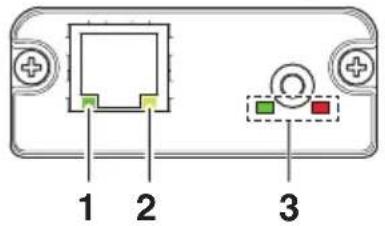
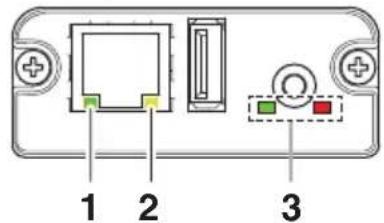
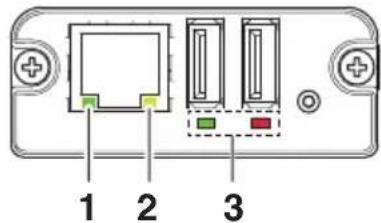
Wireless LANEthernet Ethernet
USB host model
1. Wired LAN transmission speed
| Transmission speed LED (green) | |
| 100 Mbps Lit | |
| 10 Mbps/Not connected Unlit | |
2. Wired LAN connection/transmission status
| Connection status LED (yellow) | |
| Connected Lit | |
| Not connected Unlit | |
| Data transmission in progress | Flashing |
3. Wired/Wireless LAN status
| Connection status | LED (green) | LED (red) | Description | |
| No printer connection | Unlit | — | Board is not connected with a printer. | |
| Printer connec-tion | No network con- nection | Lit | Unlit | Board is connected with a printer. |
| Connected by wired LAN | Lit | Flashing (1-second cycle) | Getting an IP address from the DHCP server over wired LAN. | |
| Wired LAN operation | Lit | Lit | Network operation being performed over wired LAN. | |
| Connected by wire- less LAN * | Flashing (2-second cycle) | Flashing (1-second cycle) | Connecting to an access point or getting an IP address from the DHCP server over wireless LAN. | |
| Wireless LAN oper-a- tion * | Flashing (2-second cycle) | Lit | Network operation being performed over wireless LAN. | |
| Resource error | Alternate flashing (1-second cycle) | Board is unable to operate normally. | ||
| System error | Alternate flashing (0.2-second cycle) | Board is unable to operate normally. | ||
*: Only when using wireless LAN
Web Manager
The interface board has a Web Manager function that can be used to connect to the board with a web browser and change board settings.
Starting up Web Manager
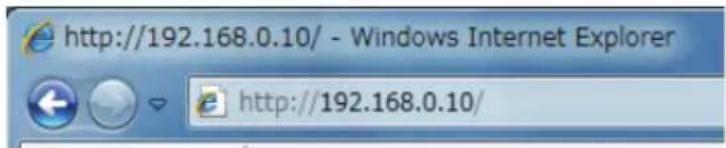
- Start up a web browser.
- In the address field, input the board's IP address and then press [Enter].
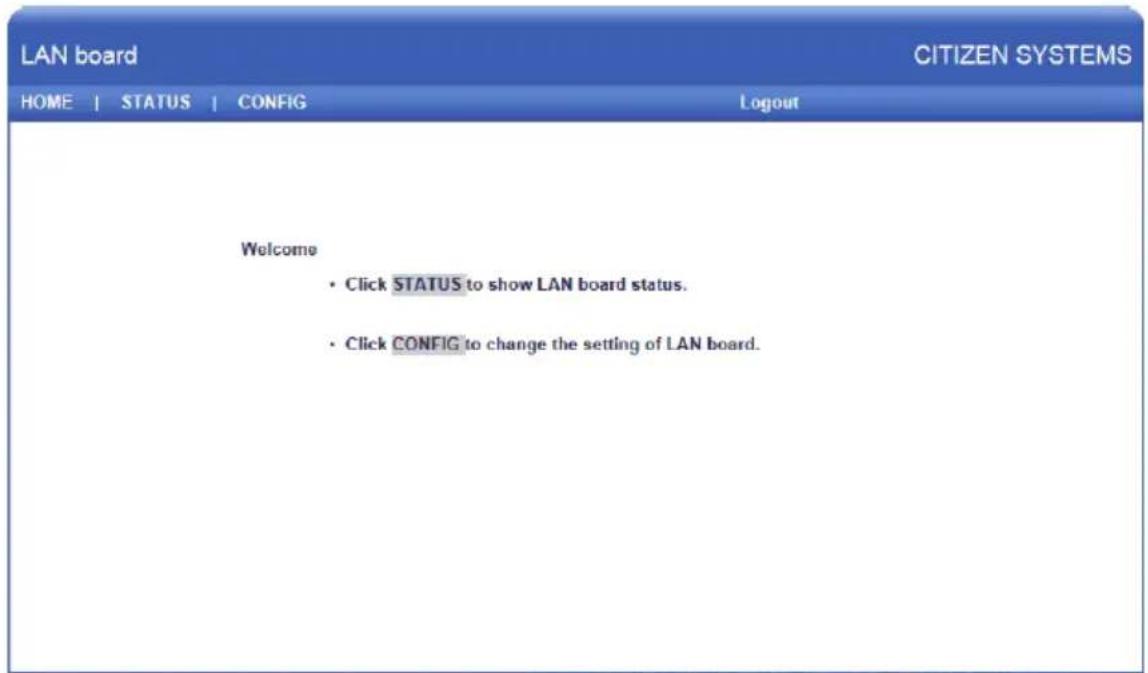
HOME Screen
This is the Web manager home screen.
The following screen is an example for a wireless LAN.
Copyright © 2012 CITIZEN SYSTEMS JAPAN CO.,LTD. All rights reserved.
Here, press the [CONFIG] button.
CONFIG Screen
This will display the Login dialog box shown below. Log in as an administrator and then configure interface board settings.
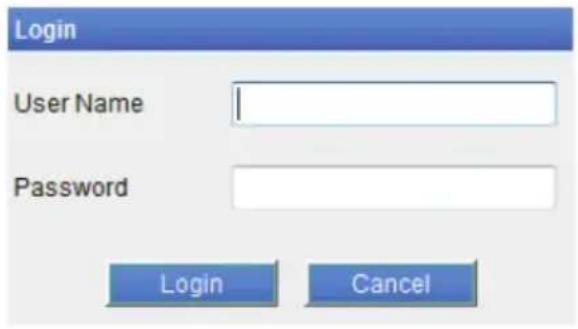
- User Name
Input a board administrator user name. (Initial setting: admin)
- Password
Input the administrator user password. (Initial setting: admin)
- [Login] button
After inputting an administrator user name and password, click the [Login] button. This displays the setting screen.
For details about settings, refer to the separate manual.
3.7 USB Power Supply Port
Power (max. 2.1 A) can be supplied to a mobile device or other USB device by connecting the cable of the USB device to the power supply port.
Connecting Mobile Device or Other Device
- Turn off the power.
- Connect the cable of a mobile device or other device to the USB power supply port.
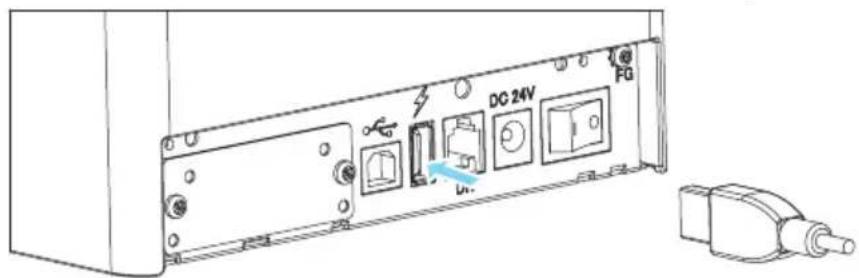
Connecting a USB Device
The function assigned to each USB port differs.
Connect the USB device to be connected to the correct place in reference to the following figure.
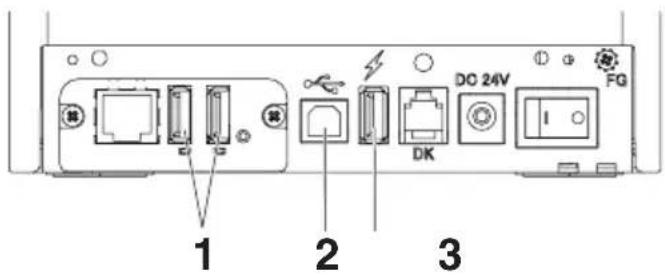
- For peripheral device control
Connect a peripheral device.
The connected peripheral device can be controlled.
- For host computer communication
Connect with a host computer.
The printer and host computer will communicate via USB.

Refer to 3.3 USB Interface
3. For supplying power
Connect a mobile device or other USB device.
Power can be supplied to a connected USB device.
- This port does not support USB data communication.

Refer to 3.7 USB Power Supply Port

CAUTION
This port does not support USB data communication.
■ Power may not be able to be supplied depending on the USB device to be used. In this case, use the device's dedicated AC adapter or battery charger.
A USB cable for power supply is not included with this product. Use a commercially available USB cable or the one that comes with the USB device.
3.8 Connecting the Cash Printer
- Turn off the power.
- Confirm the orientation of the cash drawer kick-out cable connector and connect it to the cash drawer kick-out connector at the back of the printer.
- Remove the screw for the ground wire.
- Screw the cash drawer's ground wire to the body of the printer.
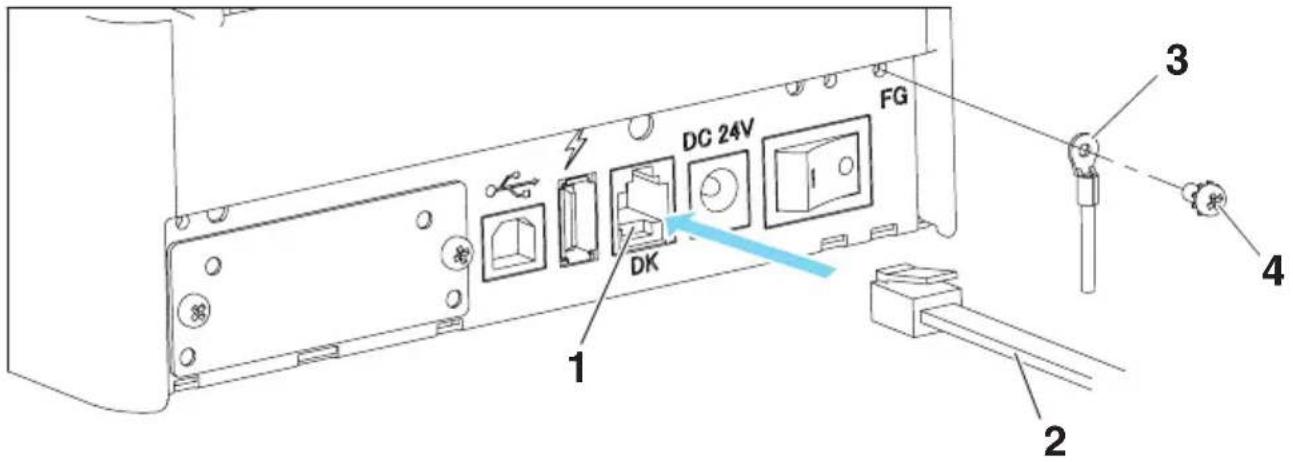
- Cash drawer kick-out connector
- Cash drawer kick-out cable connector
- Ground wire
- Screw for ground wire

CAUTION
- Connect only the cash drawer kick-out cable to this connector. (Do not connect a telephone line.)
Signals cannot be output from the cash drawer kick-out connector while printing.
Hold the connector of the drawer kick cable perpendicular and straight when connecting or disconnecting it. Doing it at an angle may cause the connector to misconnect.
(1) Connector pin configuration
| No. | Signal Function | |
| 1 | FG Frame ground | |
| 2 | DRAWER1 Cash drawer 1 drive signal | |
| 3 | DRSW Cash drawer switch input | |
| 4 | VDR Cash drawer drive power supply | |
| 5 | DRAWER2 Cash drawer 2 drive signal | |
| 6 | GND Signal ground (common ground on circuits) |
Applicable connector: RJ-11
(2) Electric characteristics
1) Drive voltage: 24 VDC
2) Drive current: Approx. 1 A max. (not to exceed 510 ms.)
3) DRSW signal: Signal levels: "L" = 0 to 0.5 V, "H" = 3 to 5 V
(3)DRSW signal
Status can be tested by commands.
(4) Drive circuit
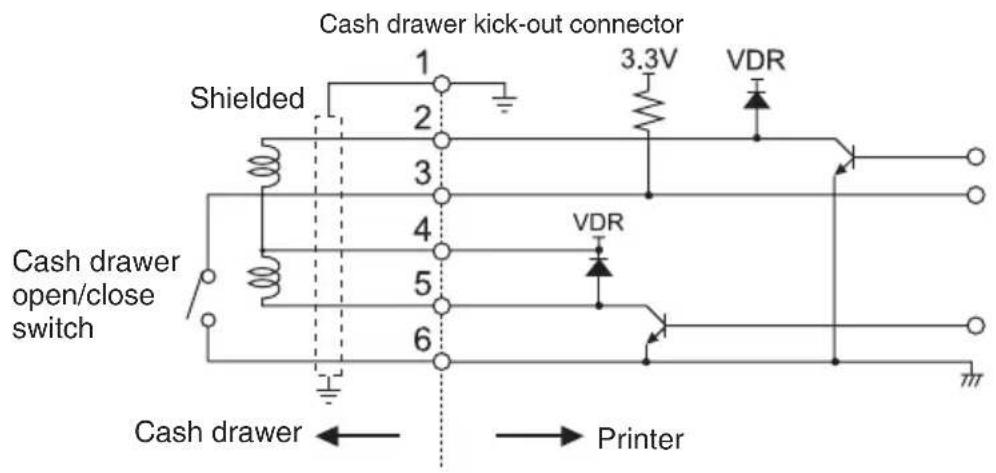

CAUTION
Cash drawers 1 and 2 cannot be operated at the same time.
The solenoid used for the cash drawer should be 24 or more. Do not allow the electric current to exceed 1 A. Excessive current could damage or burn out the circuits.
3.9 Precautions for Installing the Printer
This printer can only be positioned horizontally. It cannot be positioned vertically or on a wall.
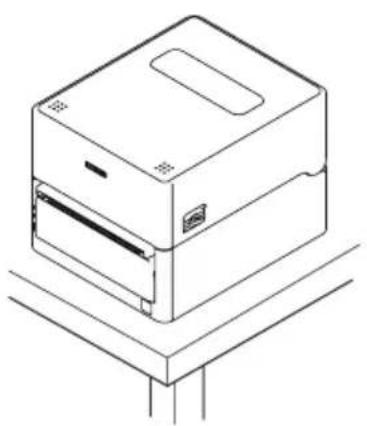
Horizontal position Vertical position
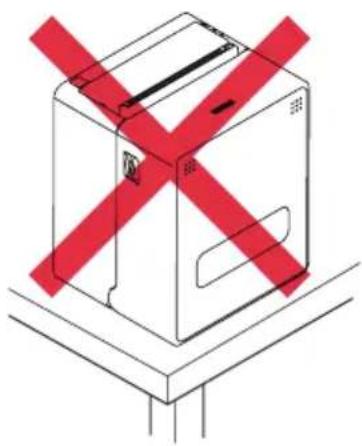

CAUTION
Do not use the printer under the following conditions.
- Avoid locations subject to vibration or instability.
Locations that are very dirty or dusty. - Avoid locations where the printer is not level.
The printer may fall and cause an injury.
The quality of printing may deteriorate. - Oriented other than as specified.
- Malfunction, failure, or electric shock may result.
3.10 Adjusting the Paper Near-end Sensor
Change the settings of the paper near-end sensor to set the position at which the near-end of the paper is detected.
1. Open the top cover.
- Adjust the sensor position by moving the paper near end sensor selector lever while gently pushing it in. The sensor position differs as follows depending on the core outer diameter of the roll paper to be used.
(Unit: mm)
| Sensor position Paper roll outer diameter when near-end is detected Maximum core outer diameter of roll paper to be used |
| 1* Approximatelyø21.0ø18.0 |
| 2 Approximatelyø24.5ø21.5 |
| 3 Approximatelyø28.0ø25.5 |
| 4 Approximatelyø31.5ø28.0 |
| 5 Approximatelyø35.0ø32.0 |
Notes:
*Sensor position when shipped from the factory. However, factory settings differ depending on the destination market.

CAUTION
■ When the media shaft will be used, the roll diameter detection function of the paper near end sensor will not function properly so disable MSW2-8 (PNE sensor).
■ When the memory switch settings are as follows, the paper near-end sensor is disabled. MSW4-4 (paper selection): Black mark paper/label media MSW4-5 (paper position detection method): Label gap detection
- When the memory switches are set as follows, the PNE sensor may not function properly due to factors such as the shape of the shaft center of the roll paper. If that happens, disable MSW2-8 (PNE sensor). MSW4-4 (paper selection): Black mark paper / label paper MSW4-5 (paper position detection method): Black mark detection
The diameter of the roll of paper that is detected is an estimate. Some variations may occur depending on the paper.
- When using the supplied sample roll paper, align the sensor position to position 5. The paper near end may not be able to be detected correctly with the default sensor position.
3.11 Roll paper partition
When using roll paper narrower than 112mm in width, move the paper partition to a suitable position.
- Turn off the power.
- Press the cover release buttons on both the right and left sides to open the top cover.
- Move the paper partition left or right while pressing the paper partition position adjustment button to align it with the paper width position on the paper width scale.
- Change the print area width while referring to "Manual Setting of Memory Switches."

Refer to 5.3 Manual Setting of Memory Switches
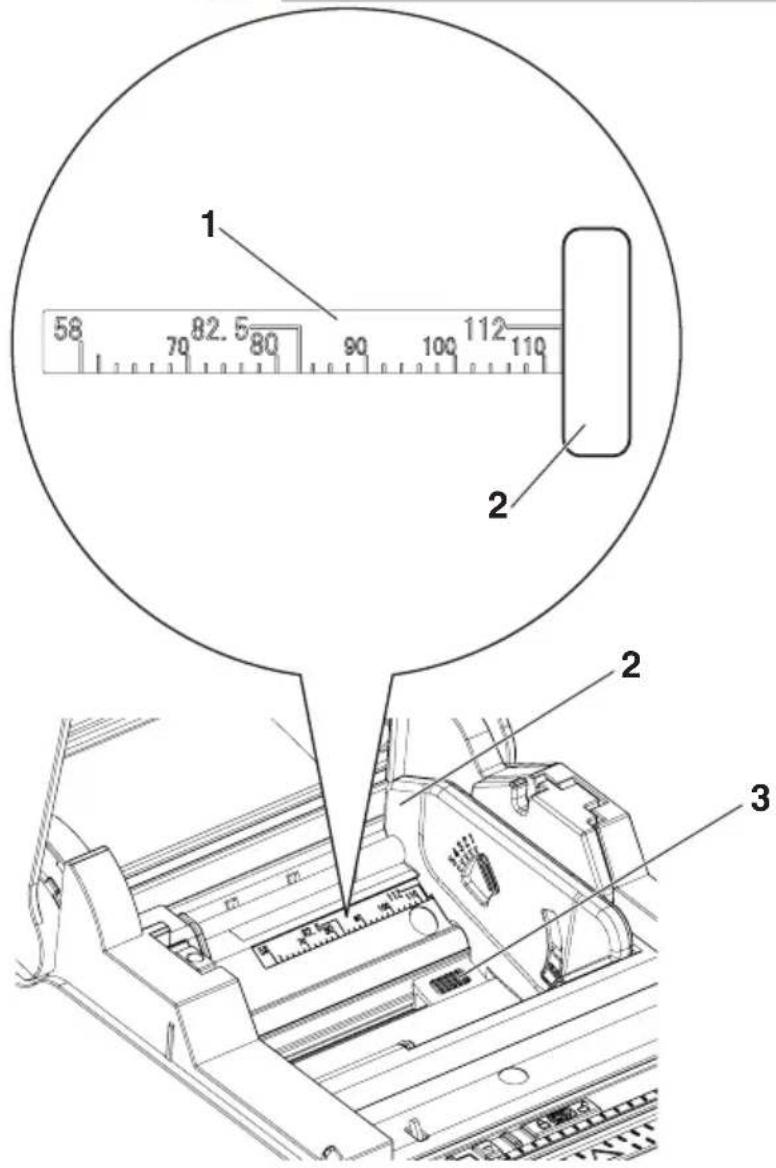
- Paper width scale (unit: mm)
- Paper partition
- Paper partition position adjustment button

CAUTION
■ When opening the top cover, be careful not to touch the entrance of the blade of the auto cutter.
The print head is very hot immediately after printing. Be careful not to touch it with your hands.
- Do not touch the print head with bare hands or metal objects.
- When narrow paper will be used for a long period of time, use the printer with only paper of that width.
If the width is changed to that for wide paper after using the printer with narrow paper for a long period of time, paper feeding and printing may not be performed properly.
Use thermal roll paper with a width of at least 80~mm . Using paper that is less than 80~mm wide is not recommended.
- Do not move the paper partition while the paper partition position adjustment button is not pressed. Doing so may cause damage.
If the paper partition position is not appropriate, improper operation and printing may occur.
3.12 Loading Paper
- Turn on the power.
- Press the cover release buttons on both the right and left sides to open the top cover.
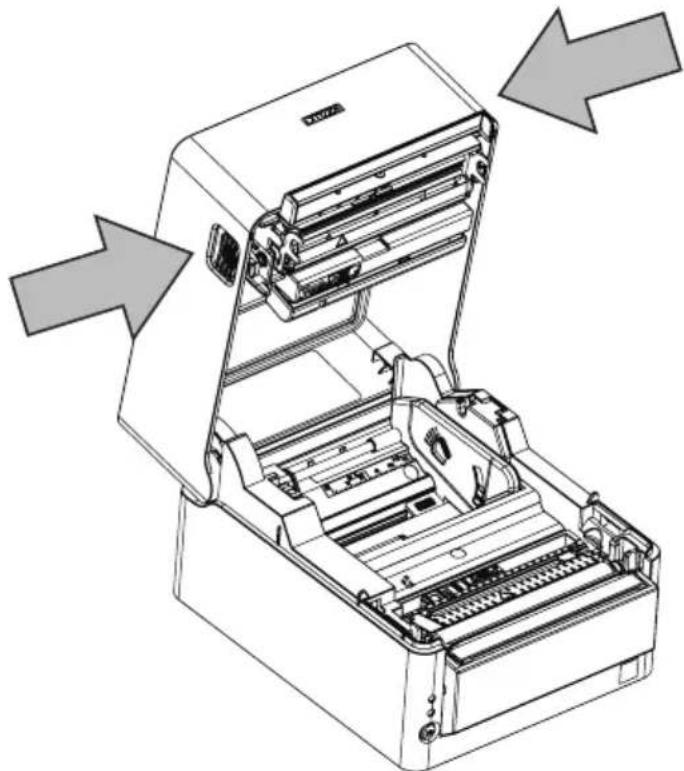
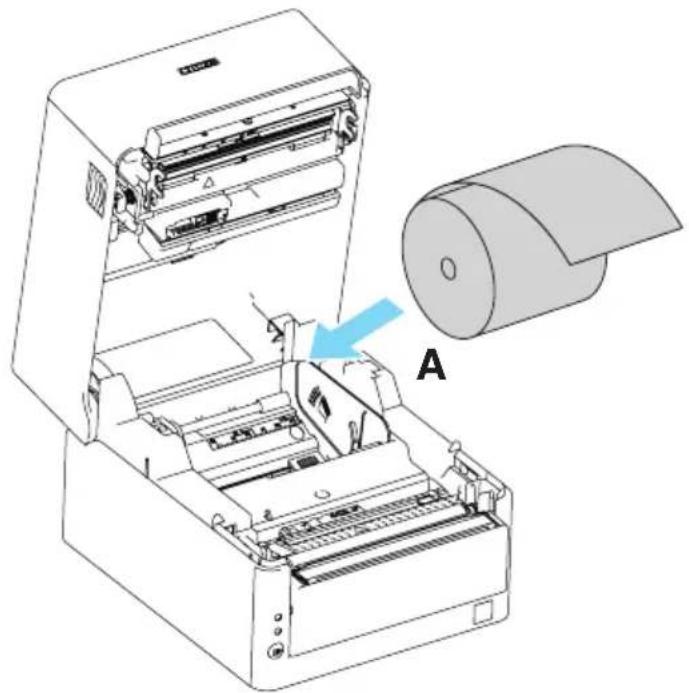
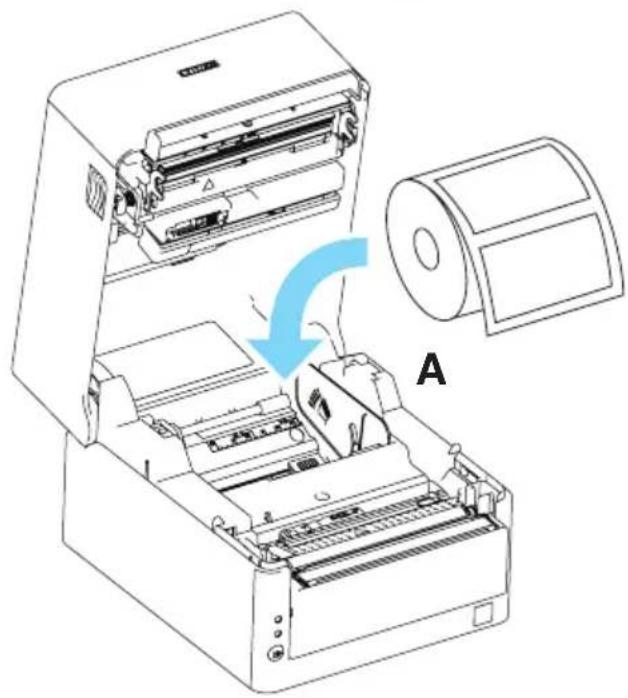
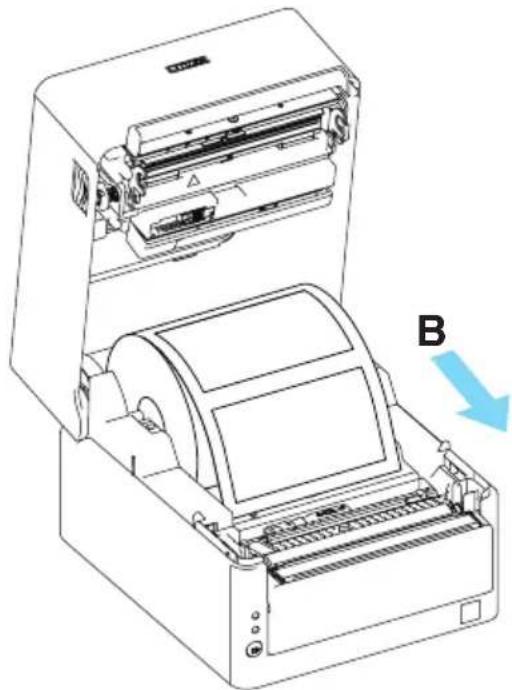
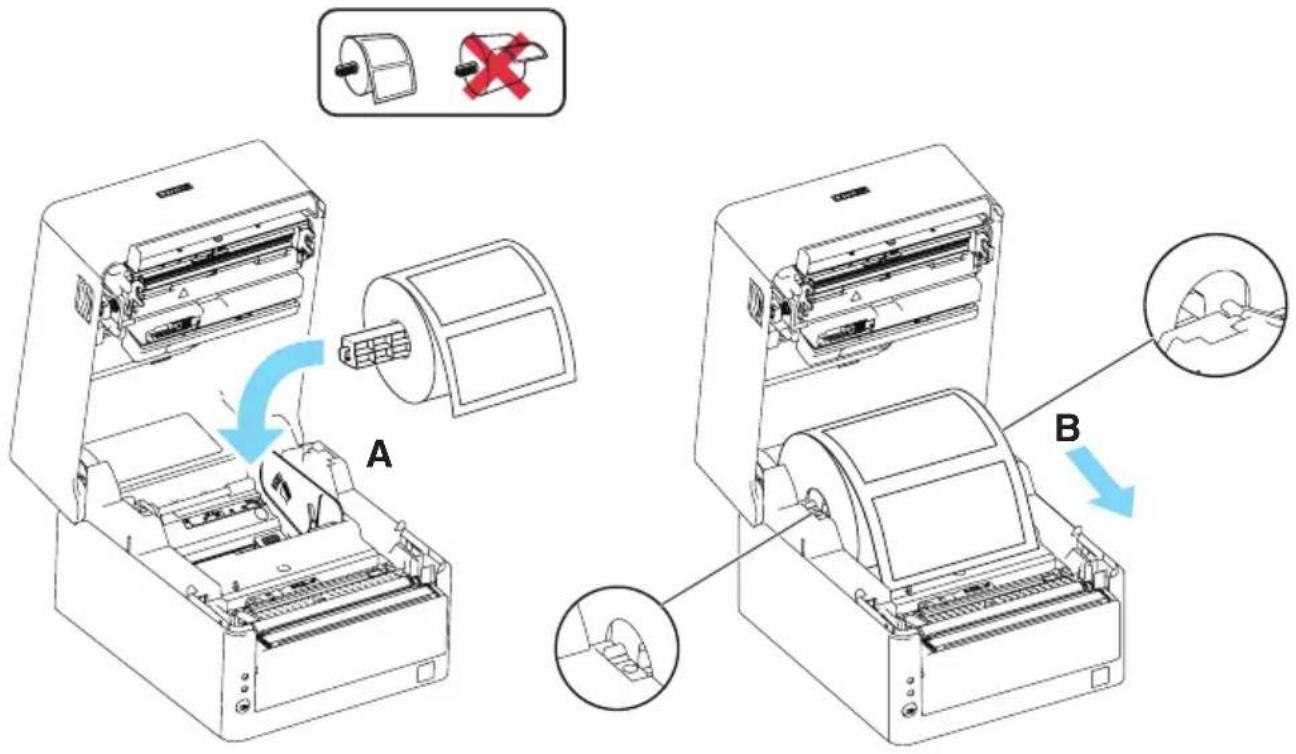
- Load the roll paper with the printable side of the paper facing outward as shown by arrow A and with no slack.
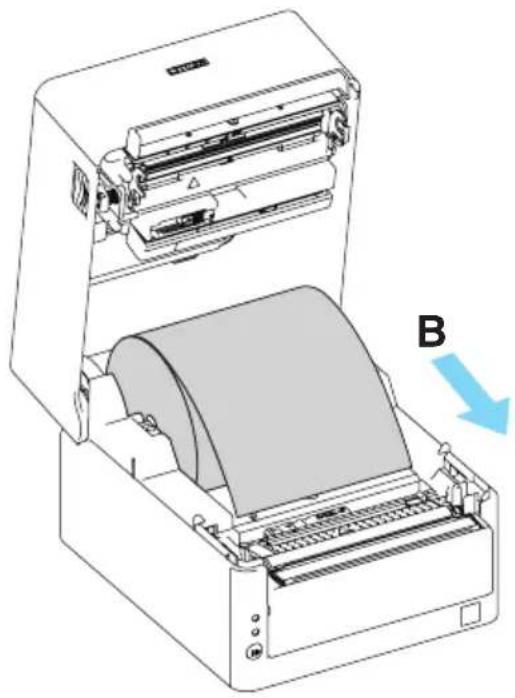
- Pull a few centimeters of paper straight out in the direction of arrow B.
Continuous
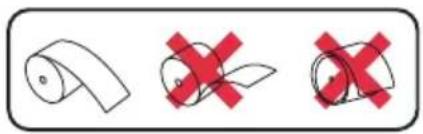
Label media
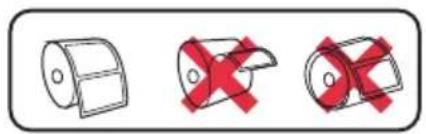
- Label media (when using a media shaft)

CAUTION
When opening the paper cover, be careful not to touch the entrance of the blade of the auto cutter.
The print head is very hot immediately after printing. Be careful not to touch it with your hands.
- Do not touch the print head with bare hands or metal objects.
Always use the specified types of paper rolls.
Confirm that the paper roll is set correctly.
If the paper is skewed and not coming straight out of the paper cover, open it and straighten the paper.
■ Be careful of paper cuts while loading the paper.

Refer to PRECAUTIONS IN HANDLING THE PRINTER
- Make sure the paper is flush with the left media guide and then adjust the position of the right media guide to match the paper width.
From the front of the printer, set in front of the edge of media by approximately 10mm


CAUTION
If force is used to push the right movable media guide against the paper, improper feeding of the paper may occur, which may have an impact on printing.
- Use something with a sharp point such as the tip of a pen to slide the head balance adjustment slider located near the thermal head left or right along the paper size scale (inches) so that the position of the notch in the slider matches the paper width.
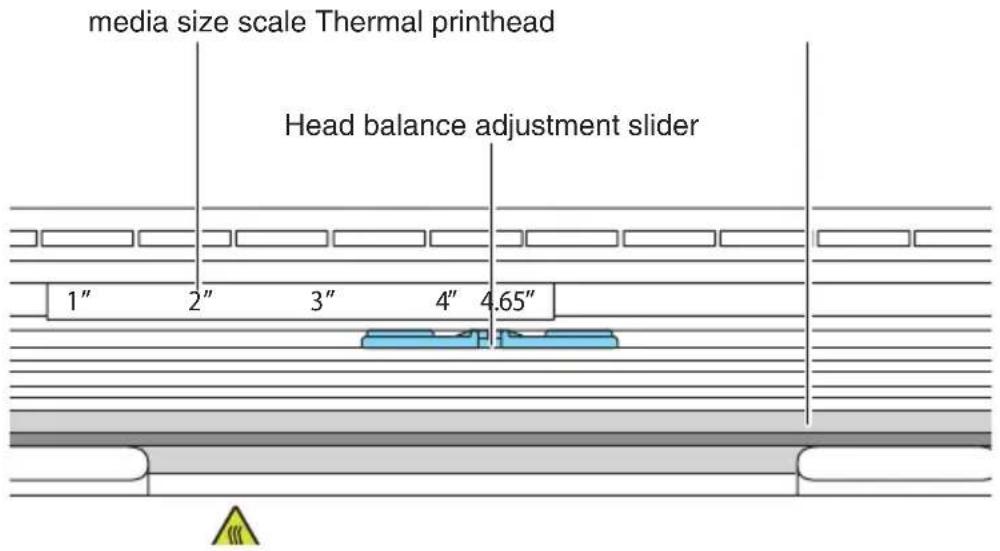

CAUTION
Use this printer with the width adjusted to at least 2 inches.
Adjust the head pressure horizontal balance carefully so as not to damage the thermal head. Damaged thermal heads will result in poor printing, paper jams, and malfunction.
■ When using paper with a width of 80~mm or more in a very hot and humid environment, we recommend setting this within the range of 3.5" to 4.65".
- Close the top cover.

CAUTION
Press the push marks on left and right sides at the top of the top cover and ensure that the top cover hooks on each side lock securely.
If the top cover is not securely locked, this may cause print errors, paper jams, and malfunction.
3.13 Adjusting Media Sensor Positions
This section describes the procedure to adjust sensors when loading media. Transmissive and reflective sensors can be used for the media sensors.
Range of Paper Sensor Adjustment
The following figure illustrates the range of media sensor adjustment.
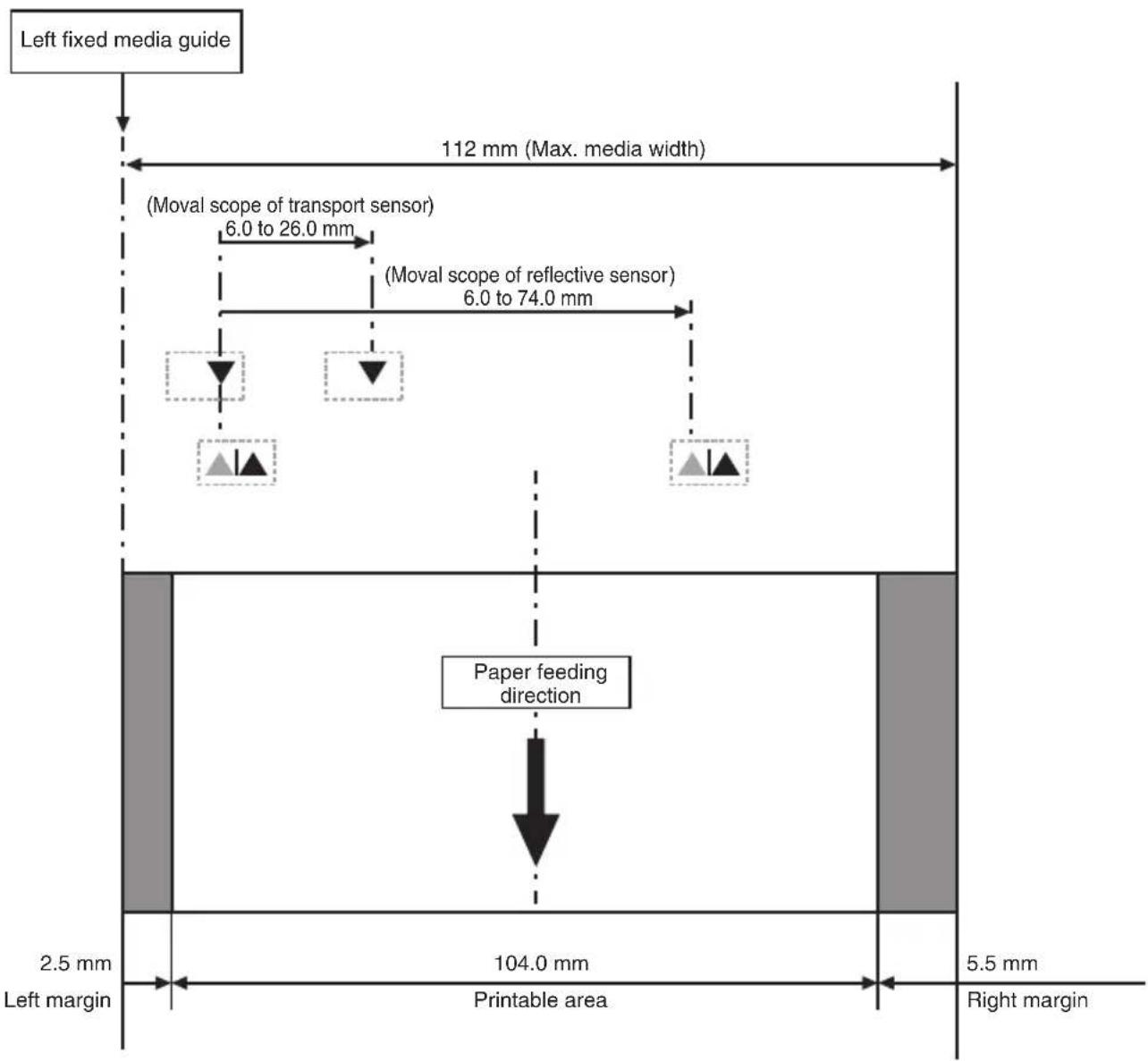
Transmissive Sensor Adjustment
- Adjust the position of the bottom sensor and upper sensor in accordance with the media width.
Move the bottom sensor and upper sensor by the same number of steps from the position of the triangle () .
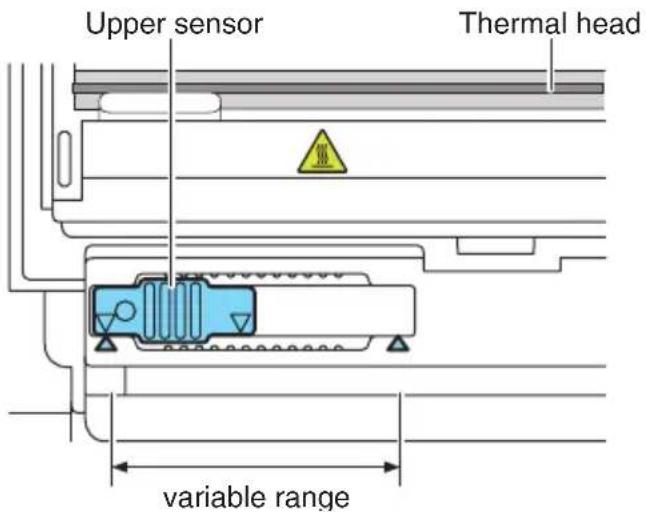
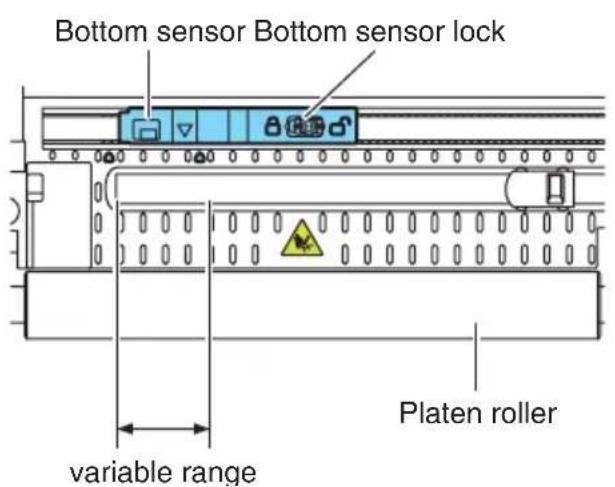
The range of bottom sensor and upper sensor horizontal adjustment is 10 steps between the triangle marks () .
Use a pen or other object with a narrow tip to unlock the bottom sensor and then reposition it. Lock the sensor in place once the new position has been determined.

CAUTION
- The bottom sensor and upper sensor must be in alignment with each other.
- Attempting to move the sensor while still locked may damage it.
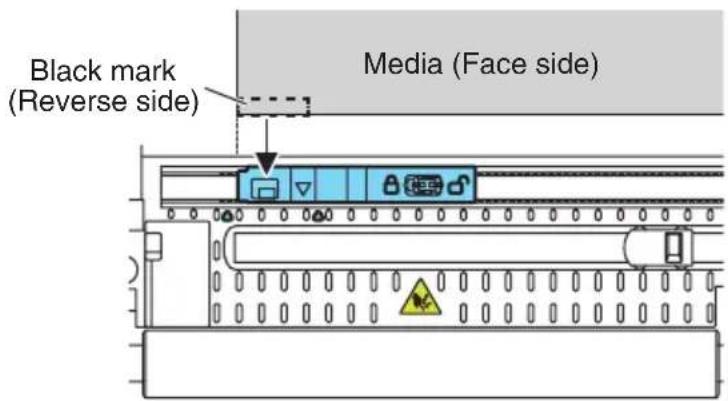
Reflective Sensor Adjustment
- Set the bottom sensor at a position where the center of the sensor window is in alignment with the center of the black mark.
3.14 Selecting a Paper Type
Paper type selection is available by the combination of memory switches MSW4-4 and MSW4-5 by the used of "Memory Switch Select Mode". In addition, the following procedure is available.
1. Enter Selecting Paper Type mode.
1) With the top cover open, turn on the printer power switch while pressing and holding the FEED key.
The buzzer sounds and the status LED flashes in green.
2) Remove your finger from the FEED key briefly, and then press the FEED key three times in succession.
Next, closing the top cover causes the buzzer to sound briefly three times. The type of paper currently selected is represented by the status display LEDs.
2. Select Paper Type.
Press the FEED key to match the paper used with the paper type displayed by the status display LED.
(Refer to the table below.)
| Paper Status LED | |
| Label media Green | |
| Press the FEED key ↓ | |
| Thermal roll paper Amber | |
| Press the FEED key ↓ | |
| Black mark paper Red | |
| Returns to label paper selection. | |
3. Save the selected Paper Type to the Printer.
Open the top cover and then close it as it is.
The paper type selected is stored in the printer memory switch as shown in the table below.
The paper type setting mode finishes and the printer restarts automatically.
| Paper type | MSW | |
| 4-4 4-5 | ||
| Thermal roll paper Thermal roll | paper - | |
| Black mark paper Black mark | paper/label media Black mark detection | |
| Label media | Black mark paper/label media | Label gap detection |
3.15 Calibrating the Paper Sensor
Calibrate the paper sensor to suit the actual paper you are using before using label paper or black mark paper.
Before executing this mode, use the paper selection mode or the MSW-4 and MSW4-5 settings to set the paper type you want to use.

Refer to 3.14 Selecting a Paper Type

Refer to 5.3 Manual Setting of Memory Switches
1. Enter Adjusting Paper Sensor mode.
1) With the top cover open, turn on the printer power switch while pressing and holding the FEED key.
The buzzer sounds and the status LED flashes in green.
2) Remove your finger from the FEED key briefly, and then press the FEED key four times in succession.
Next, closing the top cover causes the buzzer to sound briefly four times.
2. Set Paper to be adjusted to the Printer.
Setting transmissive sensor positions and media
- Align the bottom sensor and upper sensor with each other at the same position.
- Peel a label and set the media so that only the backing paper (glassine paper) reaches the platen roller and media sensor.
Set media with black marks so that a black mark does not cover the media sensor.
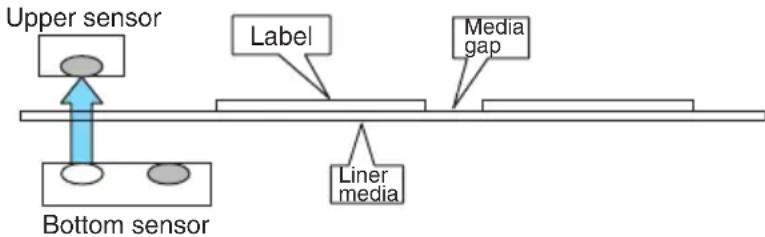
- In this status, close the top cover.
Setting reflective sensor positions and media
- Adjust the bottom sensor so that it is underneath the paper.
- Set the media so that the media covers the platen roller and media sensor.
Set the media so that a section without a black mark covers the platen roller and media sensor.
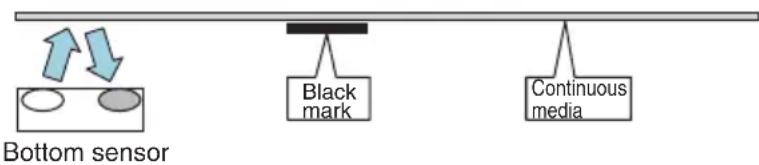
- In this status, close the top cover.
3. Adjust media sensor sensitivity and measure the paper length.
If you press the FEED key, the buzzer sounds once for a short time, the label is fed, and media sensor sensitivity adjustment and paper length measurement are performed automatically regardless of the setting of MSW4-1.
The buzzer sounds once for a long time after length measurement and then the printer restarts automatically.
The length measurement result is saved to the printer and retained in memory even if the power of the printer is turned off. The length measurement result is printed in a test print. If the media sensor sensitivity adjustment or paper length measurement fails, the buzzer sounds and a black mark / label gaps detection error occurs.
To resolve the error, you need to turn off the power of the printer, load the media that is currently set, and start the media sensor adjustment mode again.
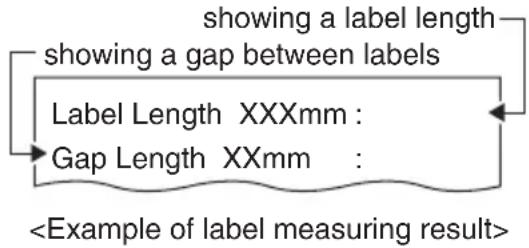
3.16 Precautions for Creating Applications and Practical Operations
If printing is done immediately after the paper is partially cut and torn off, the top of the next print out may be distorted.
For printing after cutting, we recommend to print with the first line empty.
If you are using a serial interface that has a slow data transmission speed, streaks may appear in the printouts when you are printing graphics or gradated text, which require large amounts of data.
USB interfaces may be susceptible to the effects of electromagnetic interference from the host or environment.
If this is the case, try using a cable with ferrite cores on both ends, which are very effective at eliminating EMI.
3.17 Download Site for Various Electronic Files
You can view support information and download the latest documents, drivers, utilities, etc. from the following site.
http://www.citizen-systems.co.jp/support/download/primer/ct-s4500/
4. MAINTENANCE AND TROUBLESHOOTING
4.1 Periodic Cleaning
Printing may not be performed normally if the thermal head, paper feed roller (platen roller), or sensor protection sheet are dirty, so cleaning should be performed regularly (every two or three months).
- Turn off the power.
- While pressing the cover release buttons on both sides, open the top cover.
- If immediately after printing, leave the printer for several minutes until the thermal head cools down.
- Use a cotton swab dipped in ethyl alcohol to wipe the heating surfaces and paper feed rollers of the thermal heads clean of paper dust, etc.
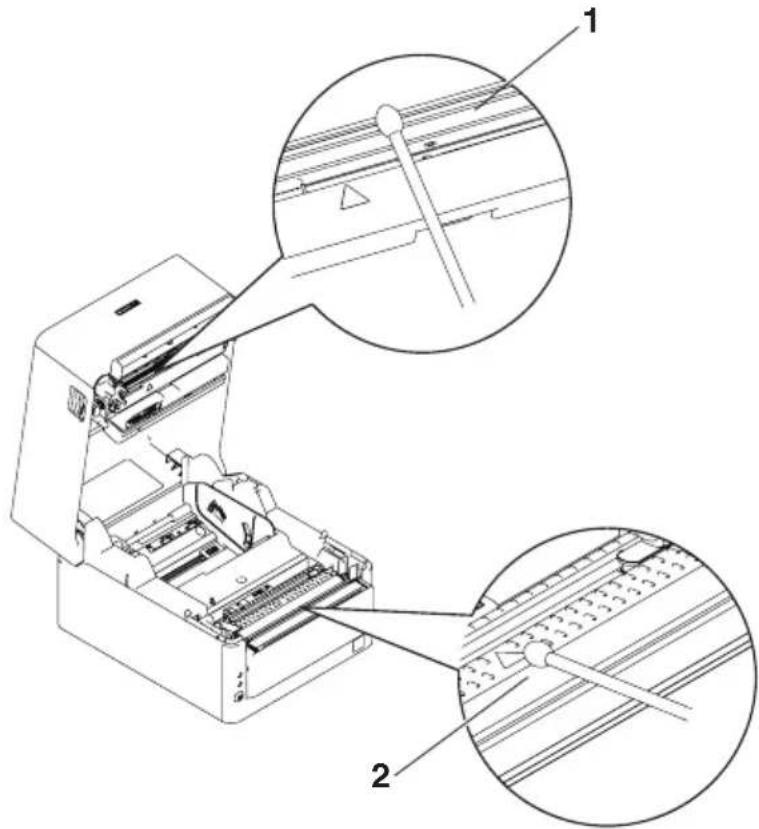
- Thermal head
- Paper feed roller (platen)

CAUTION
The thermal head is hot immediately after printing. Be careful not to touch it with your hands.
- Do not touch the heating surfaces of the thermal head with bare hands or allow metals to come into contact with it.
4.2 Clearing a Cutter Error
If the auto cutter stops during the auto cutter operation with the blade of the auto cutter in the open position due to foreign matter entering, paper jamming, etc., the Status LED flashes. When a cutter error occurs, resolve the cutter error with the following procedure.
- Turn on the power.
- While pressing the cover release button, open the top cover.
- Remove any jammed paper including any scraps of paper. (Remove the paper roll that is loaded in the holder also.)
- Reload the paper roll and close the paper cover.

CAUTION
■ When opening the paper cover, be careful not to touch the entrance of the blade of the auto cutter.
The print head is very hot immediately after printing. Be careful not to touch it with your hands.
- Do not touch the print head with bare hands or metal objects.

Refer to PRECAUTIONS IN HANDLING THE PRINTER
4.3 Self Test
You can use self test to check for printer problems.
Performing a self test operation
- While paper is loaded, press and hold the FEED button and turn on the power.
- Hold the FEED button down for about one second until the buzzer sounds. Release the button to start self test. The printer will print its model name, version, memory switch settings, and built-in fonts.
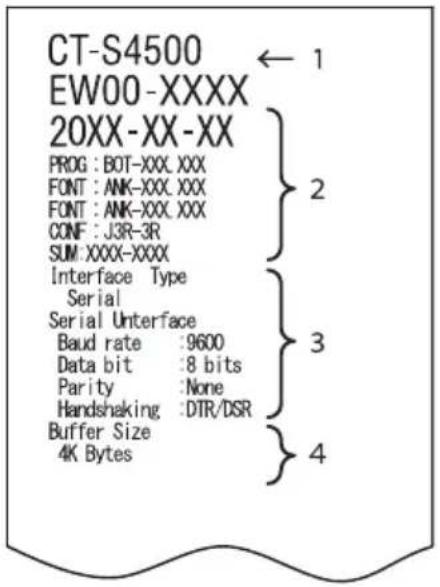
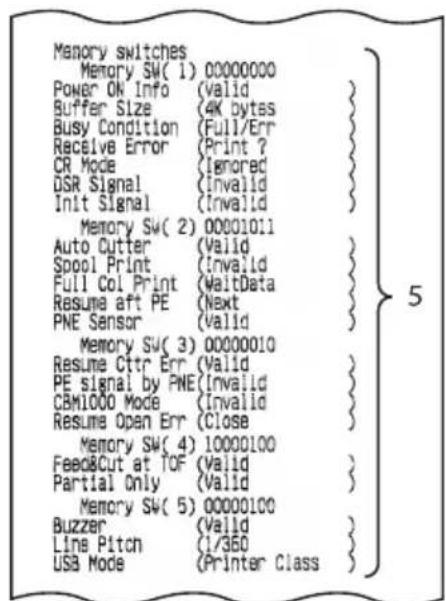
- Printer type name
- Firmware version
- Interface settings
- Buffer size
- Memory switch settings
4.4 Hexadecimal Dump Printing
Print received data in hexadecimal. If problems such as missing or duplicated data occur, this function allows you to check whether or not the printer is receiving data correctly.
How to do hexadecimal dump printing
- Load paper.
- With the top cover open, turn on the printer power while pressing and holding the FEED key, and then close the top cover.
- The printer will print "HEX dump print mode" followed by the received data printed in hexadecimal numbers and some characters.
How to stop hexadecimal dump printing
Do one of the following to stop printing.
- Press the FEED button consecutively three times
- Turn off the power
- Receive a reset command from an interface

CAUTION
The printer prints ".” if there is no character corresponding to the data.
None of the commands function during hexadecimal dump printing.
If print data does not cover a complete line, press the FEED button to advance the paper.
Print example
HEX dump print mode
61 62 63 64 65 66 67 0A 0D 0D 0D 0D abcdefg....
......D0 DO DO
4.5 Error Indications
- Paper end, paper near-end
The end of paper is detected in two stages, paper near-end and paper end.
For paper near-end, the status LED lights amber. Prepare to replace the paper.
For paper end, the status LED lights red and the buzzer sounds. Load a new paper roll. The buzzer may not sound depending on the memory switch setting.
Cover open
If the cover is opened, the status LED lights red.
The buzzer may sound depending on the memory switch setting.
Do not open the cover during printing. If the cover is accidentally opened, the status LED flashes in red and the buzzer sounds. Check the paper, pull it straight out of the printer by a couple of centimeters, and then close the cover. Printing restarts. A command must be sent to restart printing depending on the memory switch setting.
- Cutter error
If the auto cutter stops due to paper jamming, etc., the status LED flashes in red and the buzzer sounds. Remove the cause and press the FEED key. If the auto cutter still does not move and the paper cover cannot be opened, refer to "Clearing a Cutter Error."

Refer to 4.2 Clearing a Cutter Error
- Print Head Hot
Dense printing, heavy black printing, and continuous printing in a high temperature environment increase the temperature of the print head. When the print head exceeds a certain temperature, the printer stops printing and waits until the temperature of the print head decreases. At this time, the status LED flashes in red. When the temperature decreases, printing restarts automatically.
The status display for various messages is shown below.
| Status Color Status | LED Buzzer*1 | ||
| Paper near-end Amber Lit No | |||
| Paper-end Red Lit Yes*2 | |||
| Cover open*3 Red Lit No*2 | |||
| Cover open II*4 Red | ∅∅∅ | No*2 | |
| Cutter locked | Red | ∅∅∅ | Yes |
| Low-voltage error | Red | ∅∅∅ | No |
| High-voltage error Red | ∅∅∅ | No | |
| System error | Red | ∅∅∅ | No |
| Memory error | Red | ∅∅∅ | No |
| Print head hot | Amber | ∅∅∅ | No |
| Black mark/label gaps detection error | Red | ∅∅∅ | Yes |
| Wait for Macro Execution | Amber | ∅∅∅ | No |
Notes:
1: Buzzer sounds when MSW5-1 (buzzer setting) is set to ON.
2: The buzzer can be set to sound or not sound with MSW10-5 (buzzer event).
3: Indicated when a cover is opened during standby.
4: Indicated when a cover is opened during standby.
4.6 Paper Jams
Take care to avoid obstruction of the paper outlet and paper jamming around the outlet during printing.
If paper cannot get out of the printer, it can roll up on the platen inside the printer and cause an error.
If the paper wraps around the platen, open the paper cover and carefully pull the paper out.
4.7 Precautions for Performing Printing for Which Printing Speed Changes
When printing for which the printing speed changes is performed, white lines may be printed or paper may not be fed depending on the printing conditions. To prevent these problems, change the following memory switch settings.
- Enable MSW2-3 (buffering).
- Increase the baud rate of MSW7-1 (serial baud rate).
- Change MSW10-2 (print speed) to a lower level.

CAUTION
Depending on the serial interface transmission speed, ambient temperature, print data duty, and other factors, changing the above settings may not eliminate the problems.
5.1 External Views and Dimensions
Standard model
(Unit: mm)
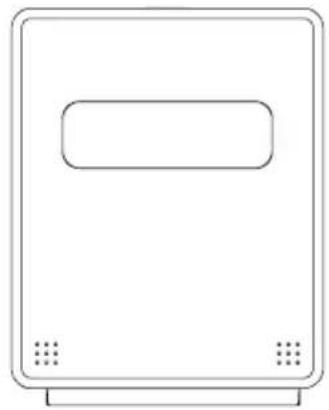
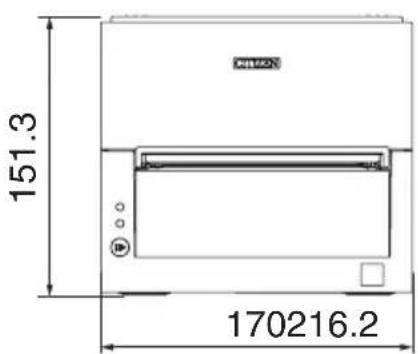
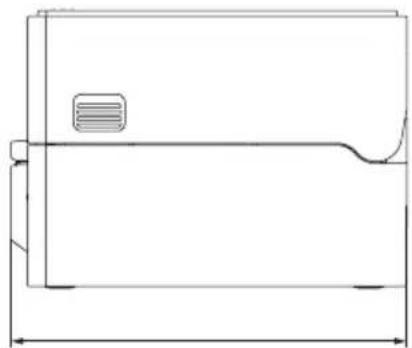
Standard AC adapter-equipped model
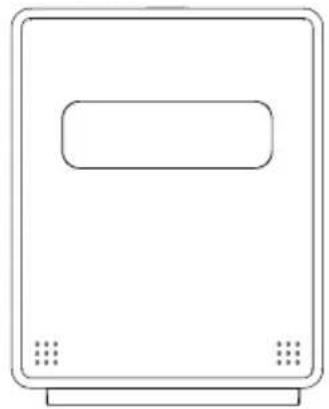
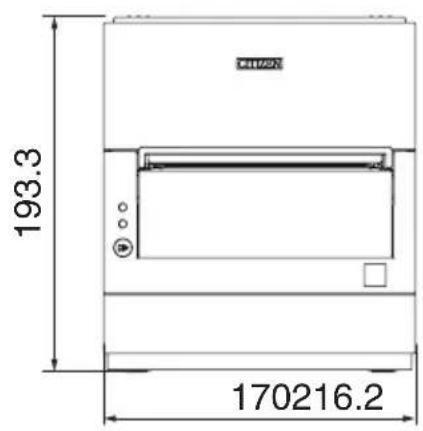
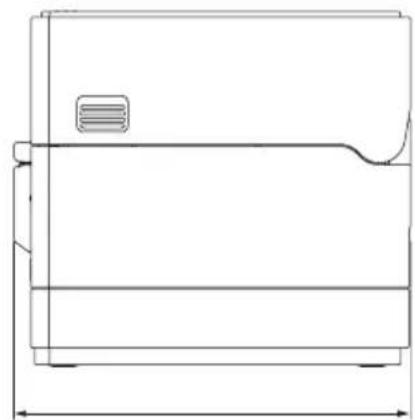
Optional interface-equipped model
Protrusion amount at back of optional interface (P)
Serial RS-232C: 1.5 mm
Ethernet, Ethernet USB host, and wireless LAN: 20 mm
Bluetooth and Bluetooth + USB host: 19 mm
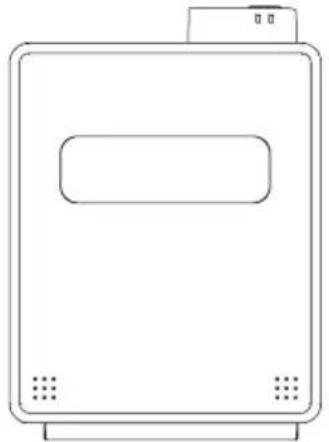
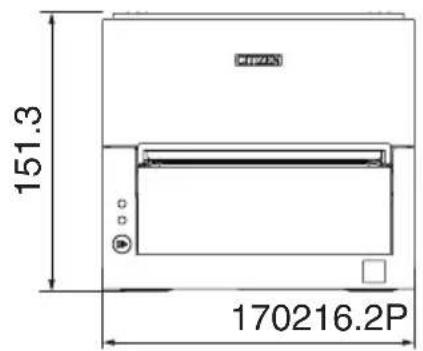
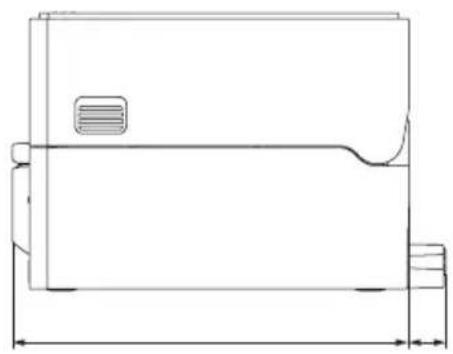
5.2 Printing Paper
Use the paper shown in the following table or paper of the same quality.
| Paper type Product | name |
| Recommended thermal roll paper | Nippon Paper TF50KS-E Oji Paper PD150R, PD160R Mitsubishi Paper Mills P220AE-1 |
| Recommended thermal label roll paper | Nippon Paper HD75 Ricoh 150LA-1P-ST |
(Unit: mm)
Thermal roll paper
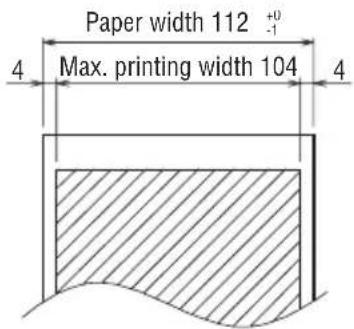
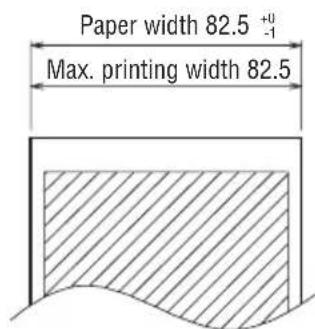
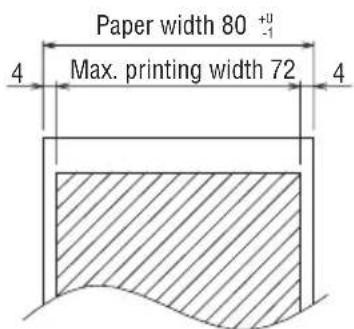
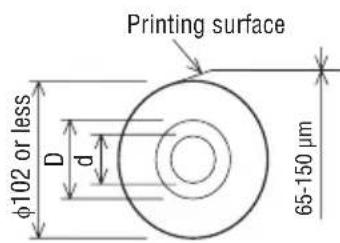
| Paper thickness (μm) 65 to | 85 85 to 150 | |
| Core inner diameter d (mm)ø | 12 toø25.4ø25 | 4 |
| Core outer diameter D (mm)ø | 18 toø32ø32 |

CAUTION
Use thermal paper that is wound as follows:
Not creased and fits tight to the core.
Not folded.
Not glued to the core.
■Rolled with the printable side out.
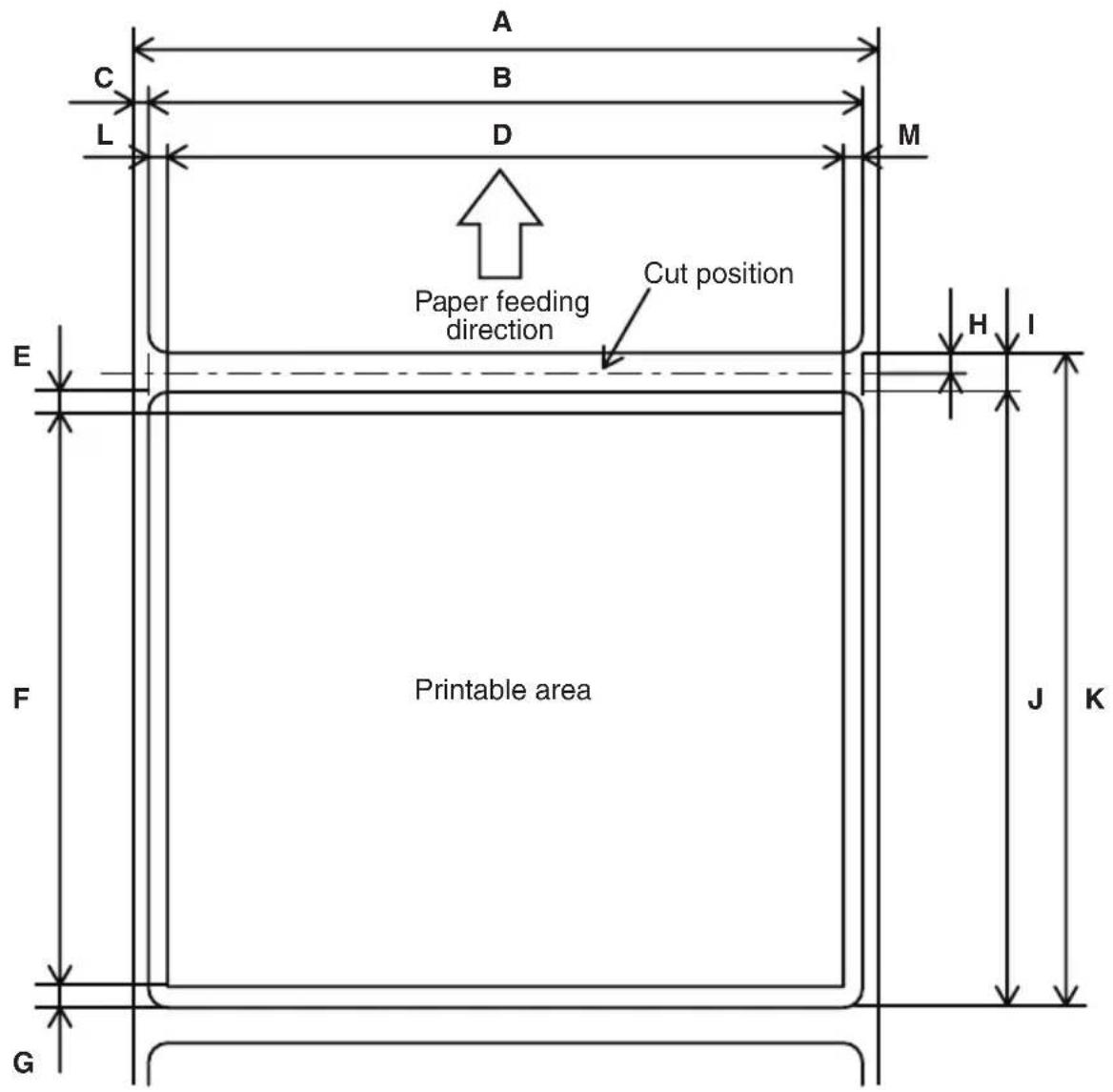
Label media
(Unit: mm)
| Mark Item Dimensions | ||
| A Label backing width 58 to 112 0/-1 | ||
| B Label width 54 to 108±0.5 | ||
| C Left edge of label 2±0.5 | ||
| D Print width 45 to 104 | ||
| E Top margin 2+2/-2 | ||
| F Print length 21 to 296 | ||
| G Bottom margin 2+2/-2 | ||
| H Cut position between labels 2 or more | ||
| I | Gap between labels | 4 to 30 |
| J | Label length | 25 to 300 |
| K Label pitch | I+J | |
| L | Left margin 2±1 | |
| M Right margin | 2±1 | |

CAUTION
Make sure the cut position is between labels.
Cut the backing paper. Do not cut label paper (tack paper).
Always re-calibrate the paper sensor whenever you change the label backing paper type.
- Do not use full-surface label media.
■Rolled with the printable side out.
For roll paper end processing, do not glue the roll paper to the core.
Also, do not fold the end.
Black mark paper
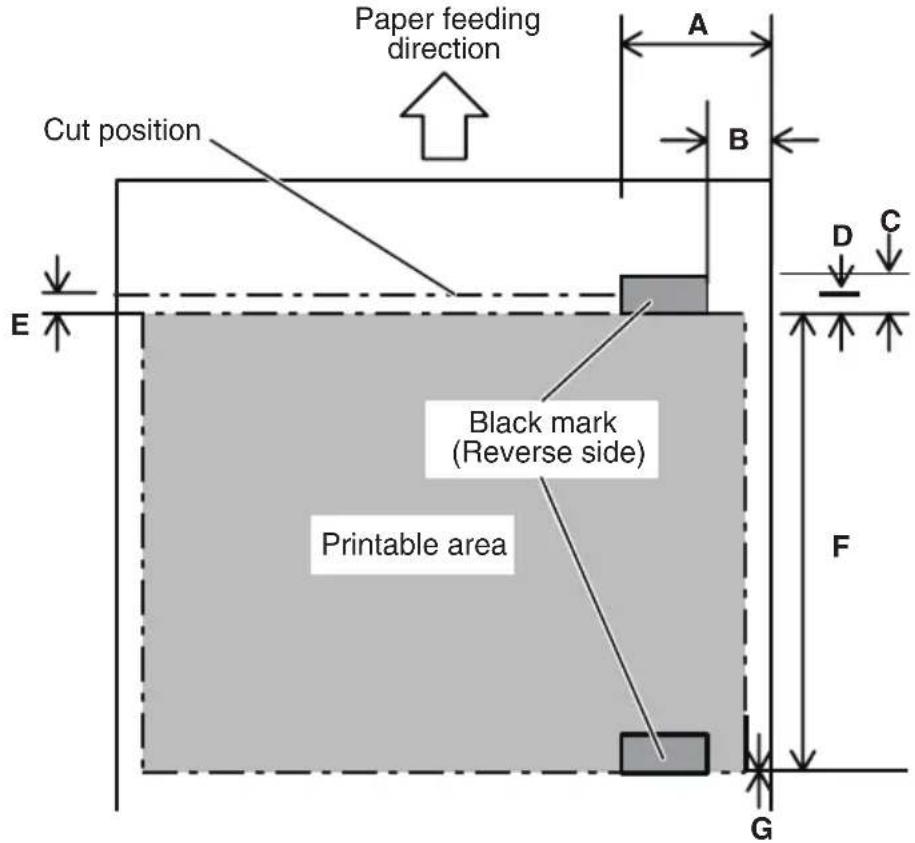
(Unit: mm)
| Mark Item | Dimensions | ||
| Minimum Maximum | |||
| A Left edge of | black mark 15 66.5 | ||
| B Right edge of | black mark 0 51.5 | ||
| A-B Black mark | width 15 - | ||
| C Black mark | height 4 17.8 | ||
| D | Cut position in black mark | Center in height direction ±2 | |
| E | Top margin | 2+2/-2 | |
| F | Black mark pitch | 30 to 300 | |
| G | Bottom margin | 0±1 | |

CAUTION
The black mark PCS value should be at least 0.90.
- Concerning the accuracy of feeding with black mark detection, allow for an error of ± 2mm from the reference print position, or for a maximum error of -5% from the value set for the print length.
The print area is as shown in the illustration above when black marks are being used. Make sure to allow for adequate margins.
The printer will perform a page skip operation if the print data runs outside of the print area.
■ When pre-printing on black mark paper, print outside of the area detected by the black mark sensor.
5.3 Manual Setting of Memory Switches
Memory switches are used to set various printer settings. Memory switches can be set manually, or by utilities or commands. This section explains how to perform manual settings.
For information on how to set the memory switches using commands, please refer to the Command Reference.
Individual setting mode
Set the memory switches individually.
Do the settings while confirming the memory switch function and settings on the printout.
- Load paper.
- With the top cover open, turn on the printer power while pressing and holding the FEED key.
- Press the FEED button twice and close the paper cover.
The printer enters the mode for setting memory switches individually.
The printer prints "Memory SW (1)" and the current setting, 0 (off) or 1 (on).
(The current settings for memory switches 7 to 13 are not printed.)
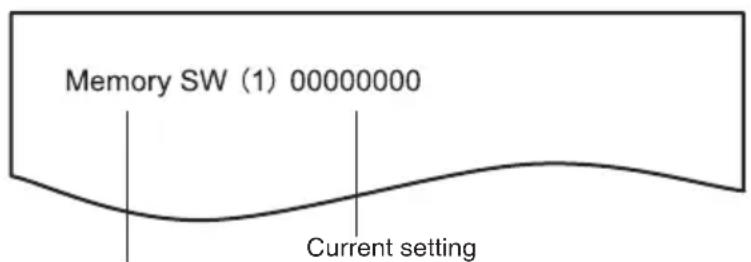
Current memory switch
4. Press the FEED button.
Each press of the FEED button cycles through the list of memory switches in the following sequence: "Memory SW (1)" > "Memory SW (2)" > ... "Memory SW (11)" or "Memory SW (13)" > "Save To Memory" > "Memory SW (1)".
Press the FEED button until the number for the memory switch you want to change is printed.
5. Press the FEED button for at least two seconds.
A setting for the memory switch is printed, through the cycle, each time the FEED button is pressed for at least two seconds.
Press the FEED button for at least two seconds to cycle through the list until the function of the memory switch you want to change is printed.
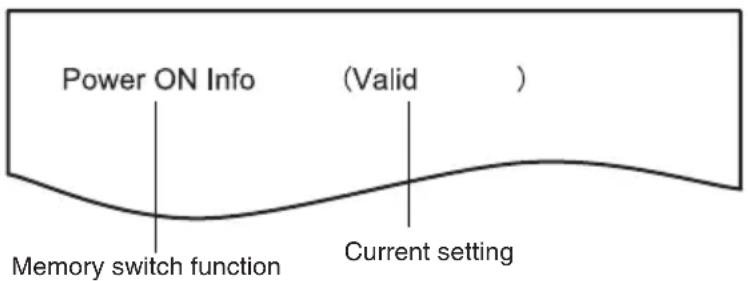
- Press the FEED button.
A setting is printed each time the FEED button is pressed in order through the cycle.
When the current settings are printed, the COVER LED lights.
Press the FEED button until the setting you want is printed.
- Press the FEED button for at least two seconds.
The selected settings are set.
The next memory switch function and settings are printed.
- Repeat steps 5 to 7 to change different functions for the current memory switch number.
- Open the paper cover and close it.
The changed memory switch settings are printed. - Repeat steps 4 to 9 to change functions for a different memory switch number.
- Press the FEED button until "Save To Memory" is printed.
- Press the FEED button for at least two seconds.
The changed memory switch settings are saved and a list of them is printed.
The printer exits individual setting mode when printing is finished.
Memory switch initialization
Set all the memory switches to the factory settings.
- Do steps 1 through 3 of the procedure to enter individual setting mode.
- Press the FEED button until "Save To Memory" is printed.
- Open the paper cover.
- Press the FEED button for at least two seconds.
All memory switches change to the factory settings.
- Close the paper cover.
The function of each memory switch is shown in the following table. (Shaded values are factory settings.)
| Switch no. Function OFF ON | |||
| MSW1-1 Power ON Info Valid Not Send | |||
| MSW1-2 Buffer Size 4 Kbytes 45 bytes | |||
| MSW1-3 Busy Condition Full/Err Full | |||
| MSW1-4 Receive Error Print“?” No Print | |||
| MSW1-5 | CR Mode Ignored | LF | |
| MSW1-6 | Reserved | Fixed — | |
| MSW1-7 | DSR Signal | Invalid | Valid |
| MSW1-8 | INIT Signal | Invalid | Valid |
| MSW2-1 | Reserved | — | Fixed |
| MSW2-2 | Auto Cutter | Invalid | Valid |
| MSW2-3 | Spool Print Invalid | Valid | |
| MSW2-4 | Full Col Print | LineFeed | WaitData |
| MSW2-5 Resume aft PE Next | Top | ||
| MSW2-6 | Reserved | Fixed — | |
| MSW2-7 | Reserved | Fixed — | |
| MSW2-8 | PNE Sensor Valid | Invalid | |
| MSW3-1 | Resume Ctrr Err | Valid | Invalid |
| MSW3-2 | PE signal by PNE | Valid | Invalid |
| MSW3-3 | Reserved | Fixed — | |
| MSW3-4 | Reserved | Fixed — | |
| MSW3-5 | Reserved | Fixed — | |
| MSW3-6 | Reserved | Fixed — | |
| MSW3-7 | CBM1000 Mode | Invalid | Valid |
| MSW3-8 | Resume Open Err Close | Command | |
| *1MSW4-1 P.Length | Auto Measure | Command | |
| *1MSW4-2 | Power on TOF | Invalid | Valid |
| *1*2MSW4-3 | Feed&Cut at TOF | Invalid | Valid |
| MSW4-4 | Paper Select | Thermal Roll BM.P/Lbl.P | |
| MSW4-5 Position detect Black mark Label | |||
| MSW4-6 | Measure at Close Invalid | Valid | |
| MSW4-7 | Reserved | Fixed — | |
| *3NSW4-8 Partial Only Invalid | |||
| MSW5-1 Buzzer | Valid | Invalid | |
| MSW5-2 | Line Pitch | 1/360 | 1/406 |
| MSW5-3 USB Mode Virtual COM | Printer Class | ||
| MSW5-4 | Reserved | Fixed — | |
| MSW5-5 | Reserved | Fixed — | |
| MSW5-6 | Reserved | Fixed — | |
| MSW5-7 | Reserved | Fixed — | |
| MSW5-8 | Reserved | Fixed — | |
| Switch no. Function OFF ON | ||
| MSW6-1 Act. For Driver Invalid Valid | ||
| MSW6-2 Character Space Invalid Valid | ||
| MSW6-3 USB Power Save Invalid Valid | ||
| MSW6-4 Reserved Fixed — | ||
| MSW6-5 Reserved Fixed — | ||
| MSW6-6 Reserved Fixed — | ||
| MSW6-7 Reserved Fixed — | ||
| MSW6-8 Reserved Fixed — |
| Switch no. | Function Initial setting | Setting value | |
| MSW7-1 | Baud Rate | 9600 bps | 1200 bps, 2400 bps, 4800 bps, 9600 bps, 19200 bps, 38400 bps, 57600 bps, 115200 bps |
| MSW7-2 Data Length | 8bits | 7bits, 8bits | |
| MSW7-3 | Stop Bit | 1bit | 1bit, 2bits |
| MSW7-4 | Parity | NONE | NONE, ODD, EVEN |
| MSW7-5 | Flow Control | DTR/DSR | DTR/DSR, XON/XOFF |
| MSW7-6 | DMA Control | Valid | Valid, Invalid |
| MSW7-7 | VCom Protocol | PC Setting | PC Setting, DTR/DSR, XON/XOFF |
| MSW8-1 | Print Width | 832 dots | 360 dots, 384 dots, 420 dots, 432 dots, 436 dots, 512 dots, 546 dots, 576 dots, 660 dots, 720 dots, 832 dots, user defined |
| MSW8-3 | Top Margin | 12 mm | 3 mm, 4 mm, 5 mm, 6 mm, 7 mm, 8 mm, 9 mm, 10 mm, 11 mm, 12 mm |
| MSW8-4 | Line Gap Reduce | Invalid | Invalid, 3/4, 2/3, 1/2, 1/3, 1/4, 1/5, ALL |
| MSW8-5 | Reduced Char V/H | 100% / 100% | 100% / 100%, 75% / 100%, 50% / 100%, 100% / 75%, 75% / 75%, 50% / 75% |
| MSW8-6 | Auto Side Shift | Invalid | Invalid, 1 dot, 2 dots, 3 dots, 4 dots, 5 dots, 6 dots, 7 dots |
| MSW9-1 | Code Page | PC437 | PC 437, Katakana, PC 850.858, PC 860, PC 863, PC 865, PC 852, PC 866, PC 857, WPC 1252, Space page, PC 864, TCVN3, TCVN3 Caps, Thai Code11 1Pass, Thai Code11 3Pass, Thai Code18 1Pass, Thai Code18 3Pass, WPC1258 |
| MSW9-2 | Int'Char Set | U.S.A | USA, France, Germany, England, Denmark, Sweden, Italy, Spain, Japan, Norway, Denmark 2, Spain 2, Latin America, Korea, Croatia, China, Vietnam |
| MSW9-4 | Kanzi code | Invalid | Disabled, JIS (Japan), SJIS: CP932 (Japan), SJIS: X0213 (Japan), GB18030 (China), KS Hangul (South Korea), EUC Hangul (South Korea), BIG5-HKSCS |
| MSW10-1 Print Density 100 % 70 %, 75 %, 80 %, 85 %, 90 %, 95 %, 100 %, 105 %, 110 %, 115 %, 120 %, 125 %, 130 %, 135 %, 140 % | |||
| MSW10-2 Print Speed Level 9 Level 5, Level 6, Level 7, Level 8, Level 9 | |||
| MSW10-4 Old Command Invalid Invalid, CBM1, CBM2 | |||
| MSW10-5 Buzzer Event Not By C. | Open | All Event/Error, Not by C.Open, Not by C.Open/PE | |
| MSW10-6 Buzzer Sound Tone 2 Tone 1, Tone 2, Tone 3, Tone 4 | |||
| MSW13-1 | Security/Target | Low/All | Low/All, Mid/All, Mid/Paired only, Hi/All, Hi/Paired only |
| MSW13-5 | BT Device Scan | Discoverable | No Response, Discoverable |
| MSW13-6 | Auto Reconnect Valid Valid | Invalid, Valid | ||
1: These settings are enabled only when MSW4-4 is set to black mark paper / label paper.
2: If MSW2-2 is disabled, the cut action is not performed regardless of the setting of MSW4-3.
*3: When black mark paper / label paper is used (MSW4-4 is ON), the media is fully cut regardless of the setting of MSW4-8. Furthermore, if the length of the label to be used is 37 mm or less,feeding and cutting is performed when the power turns on even if MSW4-2 is OFF.
5.4 Selecting and Setting the Cut Action
Use the following procedure to select and set the cut action for when a cut command is received.
Changing between forced partial and forced full is possible only with this procedure.
Changing between cutting as commanded and forced partial (forced full) is possible also with memory switch MSW4-8.
1. Switch to the cut action selection mode.
- Load the media and open the top cover.
Turn on the power switch of the printer while pressing the FEED key.
The buzzer sounds and the status LED flashes in green at this time.
- Press the FEED key once.
When you close the top cover, the buzzer sounds once for a short time, and the printer switches to the cut action selection mode.
2. Select the cut action.
Press the FEED key to select the cut action.
The cut action types are shown in the following table. The cut action can be checked from the status LED.
| Cut action Status LED | Corresponding MSW4-8 selection option | |
| Cutting as commanded Green | Disabled | |
| Press the FEED key ↓ | ||
| Partial cut only Amber Enabled (forced partial) | ||
| Press the FEED key ↓ | ||
| Full cut only Red Enabled (forced full) | ||
| Press the FEED key ↓ | ||
| Returns to cutting as commanded (green) | ||
3. Set the selected cut action.
Open and then close the top cover to save the selected cut action and end the cut action selection mode.
When the mode ends, the printer restarts automatically.

CAUTION
When using thermal label roll paper or using thermal roll paper with a thickness of 85 m or more, set the cut action to forced full.
FRANÇAIS
PRECAUTIONS GENÉRALES
Copyright © 2012 CITIZEN SYSTEMS JAPAN CO.,LTD. All rights reserved.
| N° de commutateur Fonction OFF ON | |||
| MSW1-1 Power ON Info Valid Not Send | |||
| MSW1-2 Buffer Size 4 Kbytes 45 bytes | |||
| MSW1-3 Busy Condition Full/Err Full | |||
| MSW1-4 Receive Error Print“?” No Print | |||
| MSW1-5 | CR Mode Ignored | LF | |
| MSW1-6 | Reserved | Fixed — | |
| MSW1-7 | DSR Signal | Invalid | Valid |
| MSW1-8 | INIT Signal | Invalid | Valid |
| MSW2-1 | Reserved | — | Fixed |
| MSW2-2 | Auto Cutter | Invalid | Valid |
| MSW2-3 | Spool Print Invalid | Valid | |
| MSW2-4 | Full Col Print | LineFeed | WaitData |
| MSW2-5 Resume aft PE Next | Top | ||
| MSW2-6 | Reserved | Fixed — | |
| MSW2-7 | Reserved | Fixed — | |
| MSW2-8 PNE Sensor Valid | Invalid | ||
| MSW3-1 | Resume Ctrr Err Valid | Invalid | |
| MSW3-2 | PE signal by PNE | Valid | Invalid |
| MSW3-3 | Reserved | Fixed — | |
| MSW3-4 | Reserved | Fixed — | |
| MSW3-5 | Reserved | Fixed — | |
| MSW3-6 | Reserved | Fixed — | |
| MSW3-7 | CBM1000 Mode | Invalid | Valid |
| MSW3-8 | Resume Open Err Close | Command | |
| *1MSW4-1 P.Length | Auto Measure | Command | |
| *1MSW4-2 | Power on TOF | Invalid | Valid |
| *1*2MSW4-3 | Feed&Cut at TOF | Invalid | Valid |
| MSW4-4 | Paper Select | Thermal Roll BM.P/Lbl.P | |
| MSW4-5 Position detect Black mark Label | |||
| MSW4-6 | Measure at Close Invalid | Valid | |
| MSW4-7 | Reserved | Fixed — | |
| *3NSW4-8 Partial Only Invalid | Valid | ||
| MSW5-1 Buzzer | Valid | Invalid | |
| MSW5-2 | Line Pitch 1/360 | 1/406 | |
| MSW5-3 USB Mode Virtual COM | Printer Class | ||
| MSW5-4 | Reserved | Fixed — | |
| MSW5-5 | Reserved | Fixed — | |
| MSW5-6 | Reserved | Fixed — | |
| MSW5-7 | Reserved | Fixed — | |
| MSW5-8 | Reserved | Fixed — | |
| MSW6-1 Act. For | Driver Invalid Valid | ||
| MSW6-2 Character Space Invalid Valid | |||
| MSW6-3 USB Power Save Invalid Valid | |||
| MSW6-4 Reserved Fixed — | |||
| MSW6-5 Reserved Fixed — | |||
| MSW6-6 Reserved Fixed — | |||
| MSW6-7 Reserved Fixed — | |||
| MSW6-8 Reserved Fixed — | |||
| N° de commu-tateur | Fonction Initia | setting Setting | value |
| MSW7-1 | Baud Rate | 9600 bps | 1200 bps, 2400 bps, 4800 bps, 9600 bps, 19200 bps, 38400 bps, 57600 bps, 115200 bps |
| MSW7-2 | Data Length | 8bits | 7bits, 8bits |
| MSW7-3 | Stop Bit | 1bit | 1bit, 2bits |
| MSW7-4 | Parity | NONE | NONE, ODD, EVEN |
| MSW7-5 | Flow Control | DTR/DSR | DTR/DSR, XON/XOFF |
| MSW7-6 | DMA Control | Valid | Valid, Invalid |
| MSW7-7 | VCom Protocol | PC Setting | PC Setting, DTR/DSR, XON/XOFF |
| MSW8-1 | Print Width | 832 dots | 360 dots, 384 dots, 420 dots, 432 dots, 436 dots, 512 dots, 546 dots, 576 dots, 660 dots, 720 dots, 832 dots, user defined |
| MSW8-3 | Top Margin | 12 mm | 3 mm, 4 mm, 5 mm, 6 mm, 7 mm, 8 mm, 9 mm, 10 mm, 11 mm, 12 mm |
| MSW8-4 | Line Gap Reduce | Invalid | Invalid, 3/4, 2/3, 1/2, 1/3, 1/4, 1/5, ALL |
| MSW8-5 | Reduced Char V/H | 100% / 100% | 100% / 100%, 75% / 100%, 50% / 100%, 100% / 75%, 75% / 75%, 50% / 75% |
| MSW8-6 | Auto Side Shift | Invalid | Invalid, 1 dot, 2 dots, 3 dots, 4 dots, 5 dots, 6 dots, 7 dots |
| MSW9-1 | Code Page | PC437 | PC 437, Katakana, PC 850.858, PC 860, PC 863, PC 865, PC 852, PC 866, PC 857, WPC 1252, Space page, PC 864, TCVN3, TCVN3 Caps, Thai Code11 1Pass, Thai Code11 3Pass, Thai Code18 1Pass, Thai Code18 3Pass, WPC1258 |
| MSW9-2 | Int'Char Set | U.S.A | USA, France, Germany, England, Denmark, Sweden, Italy, Spain, Japan, Norway, Denmark 2, Spain 2, Latin America, Korea, Croatia, China, Vietnam |
| MSW9-4 | Kanji code | Invalid | Disabled, JIS (Japan), SJIS: CP932 (Japan), SJIS: X0213 (Japan), GB18030 (China), KS Hangul (South Korea), EUC Hangul (South Korea), BIG5-HKSCS |
| N° de commu-tateur | Fonction Initial | setting Setting | value |
| MSW10-1 Print Density 100 % 70 %, 75 %, 80 %, 85 %, 90 %, 95 %, 100 %, 105 %, 110 %, 115 %, 120 %, 125 %, 130 %, 135 %, 140 % | |||
| MSW10-2 Print Speed Level 9 Level 5, Level 6, Level 7, Level 8, Level 9 | |||
| MSW10-4 Old Command Invalid Invalid, CBM1, CBM2 | |||
| MSW10-5 Buzzer Event Not By C. | Open | All Event/Error, Not by C.Open, Not by C.Open/PE | |
| MSW10-6 Buzzer Sound Tone 2 Tone 1, Tone 2, Tone 3, Tone 4 | |||
| MSW13-1 | Security/Target | Low/All | Low/All, Mid/All, Mid/Paired only, Hi/All, Hi/Paired only |
| MSW13-5 | BT Device Scan | Discoverable | No Response, Discoverable |
| MSW13-6 | Auto Reconnect | Valid | Invalid, Valid |
HBT: Bluetooth (USB-Host-Function) + USB
WF: WLAN+Ethernet+USB
NN: USB
- Markt
U: Nordamerika
E: Europa
I:Indien
- Gehäusefarbe
WH: Reines Weiβ
BK: Schwarz
Copyright © 2012 CITIZEN SYSTEMS JAPAN CO.,LTD. All rights reserved.
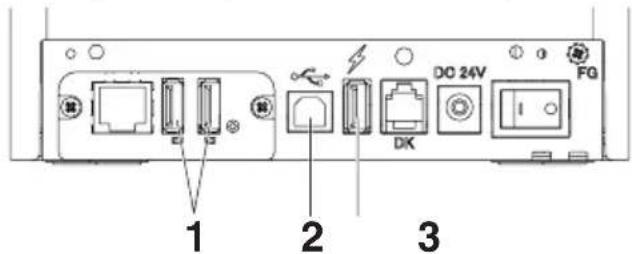
Modello host
USB Ethernet
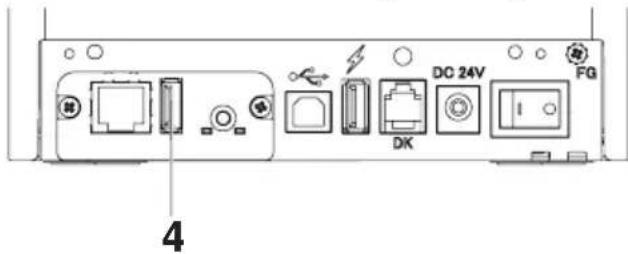
Wireless LAN
Collegare una_sched LAN wireless.
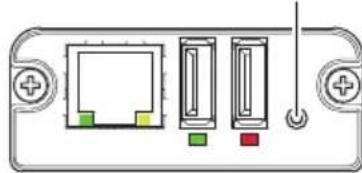
Modello host
USB Ethernet
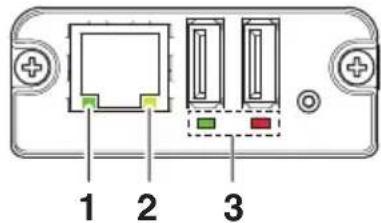
Wireless LANEthernet Modello host
USB Ethernet
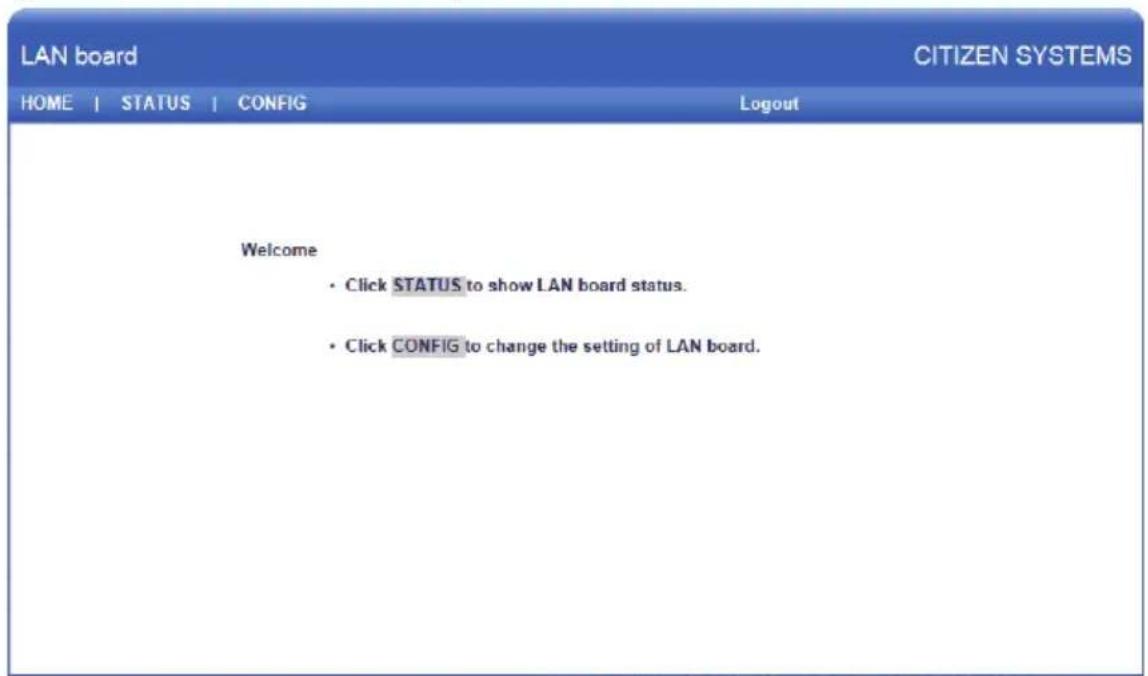
Copyright © 2012 CITIZEN SYSTEMS JAPAN CO.,LTD. All rights reserved.
In esta schermata premere il pulsante [CONFIG].
Schermata CONFIG
- Fine carta, quasi-fine carta
Ethernet, host USB Ethernet e LAN wireless: 20mm
Bluetooth host Bluetooth + USB: 19 mm
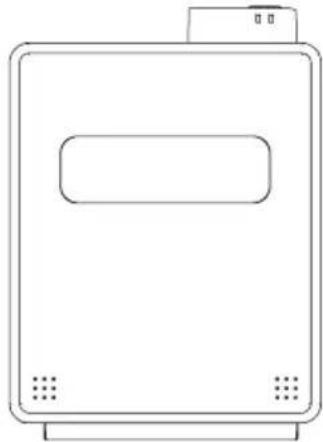
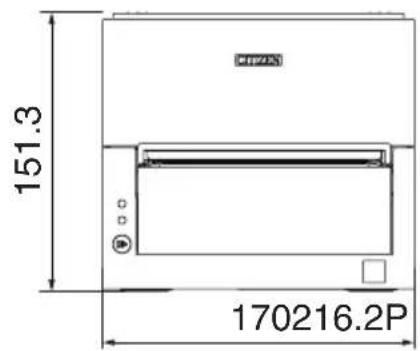
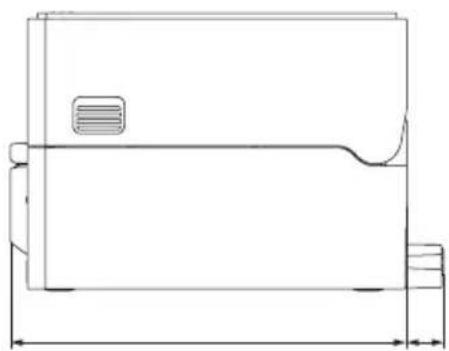
| N. switch Funzione e OFF ON | |||
| MSW1-1 Power ON Info Valid Not Send | |||
| MSW1-2 Buffer Size 4K bytes 45 bytes | |||
| MSW1-3 Busy Condition Full/Err Full | |||
| MSW1-4 Receive Error Print“?” No Print | |||
| MSW1-5 Mode Ignored LF | |||
| MSW1-6 | Reserved | Fixed — | |
| MSW1-7 | DSR Signal | Invalid | Valid |
| MSW1-8 INIT Signal Invalid | Valid | ||
| MSW2-1 | Reserved | — | Fixed |
| MSW2-2 | Auto Cutter | Invalid | Valid |
| MSW2-3 Spool Print Invalid | Valid | ||
| MSW2-4 | Full Col Print | LineFeed | WaitData |
| MSW2-5 Resume aft PE Next | Top | ||
| MSW2-6 | Reserved | Fixed — | |
| MSW2-7 | Reserved | Fixed — | |
| MSW2-8 PNE Sensor Valid | Invalid | ||
| MSW3-1 | Resume Ctrr Err Valid | Invalid | |
| MSW3-2 | PE signal by PNE | Valid | Invalid |
| MSW3-3 | Reserved | Fixed — | |
| MSW3-4 | Reserved | Fixed — | |
| MSW3-5 | Reserved | Fixed — | |
| MSW3-6 | Reserved | Fixed — | |
| MSW3-7 | CBM1000 Mode | Invalid | Valid |
| MSW3-8 | Resume Open Err Close | Command | |
| *1MSW4-1 P.Length | Auto Measure | Command | |
| *1MSW4-2 | Power on TOF | Invalid | Valid |
| *1*2MSW4-3 | Feed&Cut at TOF | Invalid | Valid |
| MSW4-4 | Paper Select | Thermal Roll BM.P/Lbl.P | |
| MSW4-5 Position detect Black mark Label | |||
| MSW4-6 | Measure at Close Invalid | Valid | |
| MSW4-7 | Reserved | Fixed — | |
| *3NSW4-8 Partial Only Invalid | Valid | ||
| MSW5-1 Buzzer | Valid | Invalid | |
| MSW5-2 | Line Pitch 1/360 | 1/406 | |
| MSW5-3 USB Mode Virtual COM | Printer Class | ||
| MSW5-4 | Reserved | Fixed — | |
| MSW5-5 | Reserved | Fixed — | |
| MSW5-6 | Reserved | Fixed — | |
| MSW5-7 | Reserved | Fixed — | |
| MSW5-8 | Reserved | Fixed — | |
| N. switch Funzione | OFF ON | ||
| MSW6-1 Act. For Driver Invalid Valid | |||
| MSW6-2 Character Space Invalid Valid | |||
| MSW6-3 USB Power Save Invalid Valid | |||
| MSW6-4 Reserved Fixed — | |||
| MSW6-5 Reserved Fixed — | |||
| MSW6-6 Reserved Fixed — | |||
| MSW6-7 Reserved Fixed — | |||
| MSW6-8 Reserved Fixed — | |||
| N. switch Funzione Initial setting | Setting value | ||
| MSW7-1 | Baud Rate | 9600 bps | 1200 bps, 2400 bps, 4800 bps, 9600 bps, 19200 bps, 38400 bps, 57600 bps, 115200 bps |
| MSW7-2 | Data Length | 8bits | 7bits, 8bits |
| MSW7-3 | Stop Bit | 1bit | 1bit, 2bits |
| MSW7-4 | Parity | NONE | NONE, ODD, EVEN |
| MSW7-5 | Flow Control | DTR/DSR | DTR/DSR, XON/XOFF |
| MSW7-6 | DMA Control | Valid | Valid, Invalid |
| MSW7-7 Vcom Protocol PC Setting PC Setting, DTR/DSR, XON/XOFF | |||
| MSW8-1 | Print Width | 832 dots | 360 dots, 384 dots, 420 dots, 432 dots, 436 dots, 512 dots, 546 dots, 576 dots, 660 dots, 720 dots, 832 dots, user defined |
| MSW8-3 | Top Margin | 12 mm | 3 mm, 4 mm, 5 mm, 6 mm, 7 mm, 8 mm, 9 mm, 10 mm, 11 mm, 12 mm |
| MSW8-4 | Line Gap Reduce | Invalid | Invalid, 3/4, 2/3, 1/2, 1/3, 1/4, 1/5, ALL |
| MSW8-5 | Reduced Char V/H | 100% / 100% | 100% / 100%, 75% / 100%, 50% / 100%, 100% / 75%, 75% / 75%, 50% / 75% |
| MSW8-6 | Auto Side Shift | Invalid | Invalid, 1 dot, 2 dots, 3 dots, 4 dots, 5 dots, 6 dots, 7 dots |
| MSW9-1 | Code Page | PC437 | PC 437, Katakana, PC 850.858, PC 860, PC 863, PC 865, PC 852, PC 866, PC 857, WPC 1252, Space page, PC 864, TCVN3, TCVN3 Caps, Thai Code11 1Pass, Thai Code11 3Pass, Thai Code18 1Pass, Thai Code18 3Pass, WPC1258 |
| MSW9-2 | Int'Char Set | U.S.A | USA, France, Germany, England, Denmark, Sweden, Italy, Spain, Japan, Norway, Denmark 2, Spain 2, Latin America, Korea, Croatia, China, Vietnam |
| MSW9-4 | Kanzi code | Invalid | Disabled, JIS (Japan), SJIS: CP932 (Japan), SJIS: X0213 (Japan), GB18030 (China), KS Hangul (South Korea), EUC Hangul (South Korea), BIG5-HKSCS |
| MSW10-1 Print Density 100 % 70 %, 75 %, 80 %, 85 %, 90 %, 95 %, 100 %, 105 %, 110 %, 115 %, 120 %, 125 %, 130 %, 135 %, 140 % | |||
| MSW10-2 Print Speed Level 9 Level 5, Level 6, Level 7, Level 8, Level 9 | |||
| MSW10-4 Old Command Invalid Invalid, CBM1, CBM2 | |||
| MSW10-5 Buzzer Event Not By C. | Open | All Event/Error, Not by C.Open, Not by C.Open/PE | |
| MSW10-6 Buzzer Sound Tone 2 | Tone 1, Tone 2, Tone 3, Tone 4 | ||
| MSW13-1 | Security/Target | Low/All | Low/All, Mid/All, Mid/Paired only, Hi/All, Hi/Paired only |
| MSW13-5 | BT Device Scan | Discoverable | No Response, Discoverable |
| MSW13-6 | Auto Reconnect | Valid | Invalid, Valid |
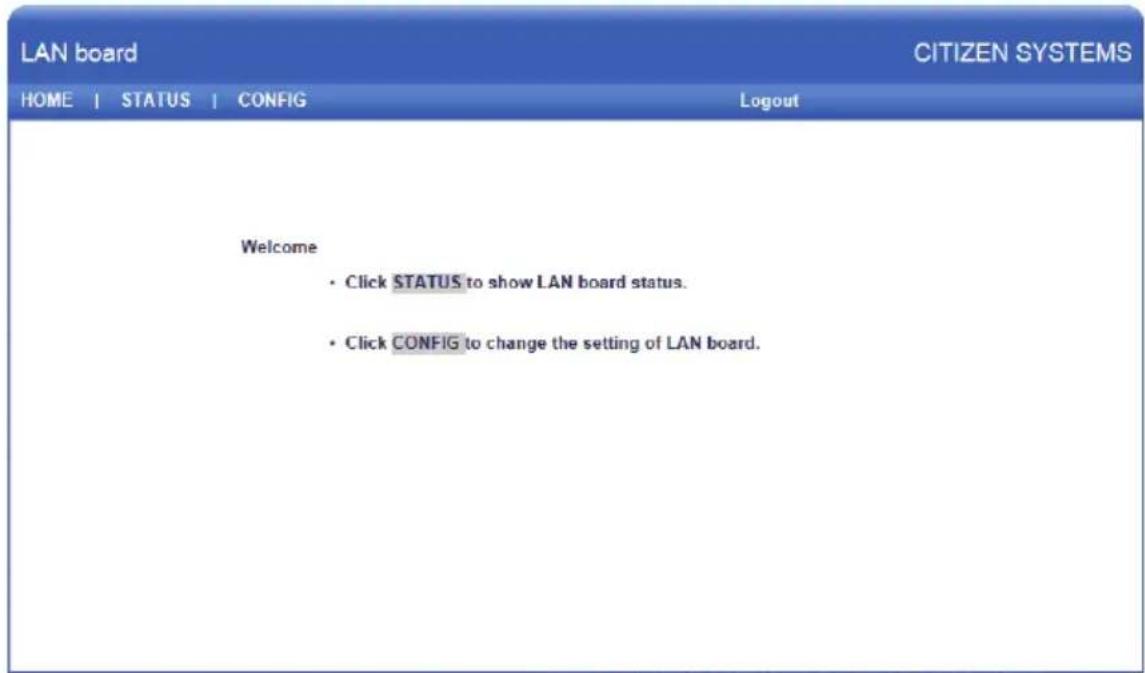
Copyright © 2012 CITIZEN SYSTEMS JAPAN CO.,LTD. All rights reserved.
Pulsequiryelboton[CONFIG].
Pantalla CONFIG
Conector applicable: RJ-11
(2) Caracteristicas electricas
| N.° de interruptor Función OFF ON | |||
| MSW1-1 Power ON Info Valid Not Send | |||
| MSW1-2 Buffer Size 4K bytes 45 bytes | |||
| MSW1-3 Busy Condition Full/Err Full | |||
| MSW1-4 Receive Error Print“?” No Print | |||
| MSW1-5 CR Mode Ignored | LF | ||
| MSW1-6 Reserved Fixed | |||
| MSW1-7 | DSR Signal | Invalid | Valid |
| MSW1-8 | INIT Signal | Invalid | Valid |
| MSW2-1 Reserved — | Fixed | ||
| MSW2-2 | Auto Cutter | Invalid | Valid |
| MSW2-3 | Spool Print Invalid | Valid | |
| MSW2-4 | Full Col Print | LineFeed | WaitData |
| MSW2-5 Resume aft PE Next | Top | ||
| MSW2-6 Reserved Fixed | |||
| MSW2-7 Reserved Fixed | |||
| MSW2-8 PNE Sensor Valid | Invalid | ||
| MSW3-1 | Resume Ctrr Err | Valid | Invalid |
| MSW3-2 | PE signal by PNE | Valid | Invalid |
| MSW3-3 Reserved Fixed | |||
| MSW3-4 Reserved Fixed | |||
| MSW3-5 Reserved Fixed | |||
| MSW3-6 Reserved Fixed | |||
| MSW3-7 | CBM1000 Mode | Invalid | Valid |
| MSW3-8 | Resume Open Err Close Command | ||
| *1MSW4-1 P.Length Auto Measure Command | |||
| *1MSW4-2 | Power on TOF | Invalid | Valid |
| *1*2MSW4-3 | Feed&Cut at TOF | Invalid | Valid |
| MSW4-4 | Paper Select | Thermal Roll BM.P/Lbl.P | |
| MSW4-5 | Position detect | Black mark | Label |
| MSW4-6 | Measure at Close Invalid Valid | ||
| MSW4-7 Reserved Fixed | |||
| *3NSW4-8 Partial Only Invalid Valid | |||
| MSW5-1 | Buzzer | Valid | Invalid |
| MSW5-2 | Line Pitch 1/360 | 1/406 | |
| MSW5-3 USB Mode Virtual COM | Printer Class | ||
| MSW5-4 Reserved Fixed | |||
| MSW5-5 Reserved Fixed | |||
| MSW5-6 Reserved Fixed | |||
| MSW5-7 Reserved Fixed | |||
| MSW5-8 Reserved Fixed | |||
| MSW6-1 Act. For Driver Invalid Valid | |||
| MSW6-2 Character Space Invalid Valid | |||
| MSW6-3 USB Power Save Mode Invalid Valid | |||
| MSW6-4 Reserved Fixed — | |||
| MSW6-5 Reserved Fixed — | |||
| MSW6-6 Reserved Fixed — | |||
| MSW6-7 Reserved Fixed — | |||
| MSW6-8 Reserved Fixed — | |||
| N.° de inter- rruptor | Función Initial | setting Setting | value |
| MSW7-1 | Baud Rate | 9600 bps | 1200 bps, 2400 bps, 4800 bps, 9600 bps, 19200 bps, 38400 bps, 57600 bps, 115200 bps |
| MSW7-2 | Data Length | 8bits | 7bits, 8bits |
| MSW7-3 | Stop Bit | 1bit | 1bit, 2bits |
| MSW7-4 | Parity | NONE | NONE, ODD, EVEN |
| MSW7-5 | Flow Control DTR/DSR DTR/DSR, XON/XOFF | ||
| MSW7-6 | DMA Control | Valid | Valid, Invalid |
| MSW7-7 | VCom Protocol | PC Setting | PC Setting, DTR/DSR, XON/XOFF |
| MSW8-1 | Print Width | 832 dots | 360 dots, 384 dots, 420 dots, 432 dots, 436 dots, 512 dots, 546 dots, 576 dots, 660 dots, 720 dots, 832 dots, user defined |
| MSW8-3 | Top Margin | 12 mm | 3 mm, 4 mm, 5 mm, 6 mm, 7 mm, 8 mm, 9 mm, 10 mm, 11 mm, 12 mm |
| MSW8-4 | Line Gap Reduce | Invalid | Invalid, 3/4, 2/3, 1/2, 1/3, 1/4, 1/5, ALL |
| MSW8-5 | Reduced Char V/H | 100% / 100% | 100% / 100%, 75% / 100%, 50% / 100%, 100% / 75%, 75% / 75%, 50% / 75% |
| MSW8-6 | Auto Side Shift | Invalid | Invalid, 1 dot, 2 dots, 3 dots, 4 dots, 5 dots, 6 dots, 7 dots |
| MSW9-1 | Code Page | PC437 | PC 437, Katakana, PC 850.858, PC 860, PC 863, PC 865, PC 852, PC 866, PC 857, WPC 1252, Space page, PC 864, TCVN3, TCVN3 Caps, Thai Code11 1Pass, Thai Code11 3Pass, Thai Code18 1Pass, Thai Code18 3Pass, WPC1258 |
| MSW9-2 | Int'Char Set | U.S.A | USA, France, Germany, England, Denmark, Sweden, Italy, Spain, Japan, Norway, Denmark 2, Spain 2, Latin America, Korea, Croatia, China, Vietnam |
| MSW9-4 | Kanji code | Invalid | Disabled, JIS (Japan), SJIS: CP932 (Japan), SJIS: X0213 (Japan), GB18030 (China), KS Hangul (South Korea), EUC Hangul (South Korea), BIG5-HKSCS |
| N.° de inter- ruptor | Función Initial | setting Setting | value |
| MSW10-1 Print Density 100 % 70 %, 75 %, 80 %, 85 %, 90 %, 95 %, 100 %, 105 %, 110 %, 115 %, 120 %, 125 %, 130 %, 135 %, 140 % | |||
| MSW10-2 Print Speed Level 9 Level 5, Level 6, Level 7, Level 8, Level 9 | |||
| MSW10-4 Old Command Invalid Invalid, CBM1, CBM2 | |||
| MSW10-5 Buzzer Event Not By C. | Open | All Event/Error, Not by C.Open, Not by C.Open/PE | |
| MSW10-6 Buzzer Sound Tone 2 Tone 1, Tone 2, Tone 3, Tone 4 | |||
| MSW13-1 | Security/Target | Low/All | Low/All, Mid/All, Mid/Paired only, Hi/All, Hi/Paired only |
| MSW13-5 | BT Device Scan | Discoverable | No Response, Discoverable |
| MSW13-6 | Auto Reconnect | Valid | Invalid, Valid |
Elizabeth House, 56-60 London Road
70329 Stuttgart
Staines-Upon-Thames, TW18 4HF
Germany
United Kingdom
Tel: +49 (0) 711 49032-0
Tel: +44 (0) 20 8893 1900
Fax: +49 (0) 711 49032-45
Fax: +44 (0) 20 8893 0080
http://www.citizen-europe.com

- LINE THERMAL PRINTER
- Ge
- Compliance Statement for European Users
- Sicherheitshinweis
- SAFETY PRECAUTIONS...WHICH SHOULD BE STRICTLY OBSERVED
- WARNING
- CAUTION
- PRECAUTIONS ON PRINTER INSTALLATION
- Do not use or store this product in a place where it will be exposed to:
- Do not handle the printer in the following ways:
- PRECAUTIONS IN HANDLING THE PRINTER
- Please observe the following precautions for power source and power cord:
- To prevent injury and printer failures from worsening, observe the following:
- ① DAILY MAINTENANCE
- THE TABLE OF CONTENTS
- GENERAL OUTLINE 15
- EXPLANATION OF PRINTER PARTS 20
- SETUP 27
- MAINTENANCE AND TROUBLESHOOTING 64
- OTHER 71
- GENERAL OUTLINE
- Features
- Unpacking
- Model Classification
- Basic Specifications
- Notes:
- EXPLANATION OF PRINTER PARTS
- Printer Appearance
- Names of parts
- Operation panel
- Rear connectors (serial interface example)
- Inner area of the top cover
- Other Built-in Functions
- SETUP
- Connecting the AC Power Cord
- Serial Interface Board
- Connecting the Interface Cable
- USB Interface
- Specifications
- Bluetooth Interface Board
- Status LED
- USB connector
- Bluetooth status LED
- Pairing operation
- Detecting Bluetooth devices
- Configuring pairing settings
- Auto reconnection
- Enabling and disabling auto reconnect
- Bluetooth USB host interface board
- Connecting a Peripheral Device
- Connecting a USB Device
- For supplying power
- Panel button
- USB 2 port
- Panel button operation
- Print example
- Ethernet (LAN)/Wireless LAN Interface Board
- LED Functions
- Wired LAN transmission speed
- Wired LAN connection/transmission status
- Wired/Wireless LAN status
- Web Manager
- Starting up Web Manager
- HOME Screen
- CONFIG Screen
- USB Power Supply Port
- Connecting Mobile Device or Other Device
- Connecting the Cash Printer
- Connector pin configuration
- Precautions for Installing the Printer
- Adjusting the Paper Near-end Sensor
- Open the top cover.
- Roll paper partition
- Loading Paper
- Adjusting Media Sensor Positions
- Range of Paper Sensor Adjustment
- Transmissive Sensor Adjustment
- Reflective Sensor Adjustment
- Selecting a Paper Type
- Enter Selecting Paper Type mode.
- Select Paper Type.
- Save the selected Paper Type to the Printer.
- Calibrating the Paper Sensor
- Enter Adjusting Paper Sensor mode.
- Set Paper to be adjusted to the Printer.
- Setting transmissive sensor positions and media
- Setting reflective sensor positions and media
- Adjust media sensor sensitivity and measure the paper length.
- Precautions for Creating Applications and Practical Operations
- Download Site for Various Electronic Files
- MAINTENANCE AND TROUBLESHOOTING
- Periodic Cleaning
- Clearing a Cutter Error
- Self Test
- Performing a self test operation
- Hexadecimal Dump Printing
- How to do hexadecimal dump printing
- How to stop hexadecimal dump printing
- Error Indications
- Paper Jams
- Precautions for Performing Printing for Which Printing Speed Changes
- External Views and Dimensions
- Printing Paper
- Thermal roll paper
- Manual Setting of Memory Switches
- Individual setting mode
- Press the FEED button.
- Press the FEED button for at least two seconds.
- Memory switch initialization
- Selecting and Setting the Cut Action
- Switch to the cut action selection mode.
- Select the cut action.
- Set the selected cut action.
- FRANÇAIS
- PRECAUTIONS GENÉRALES
- Schermata CONFIG
- Pantalla CONFIG
Brand : CITIZEN
Model : CTS4500
Category : Printer