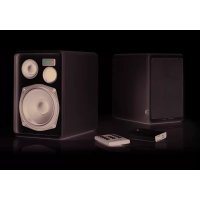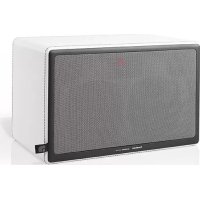
Allroom Air One - Speaker AUDIO PRO - Free user manual and instructions
Find the device manual for free Allroom Air One AUDIO PRO in PDF.

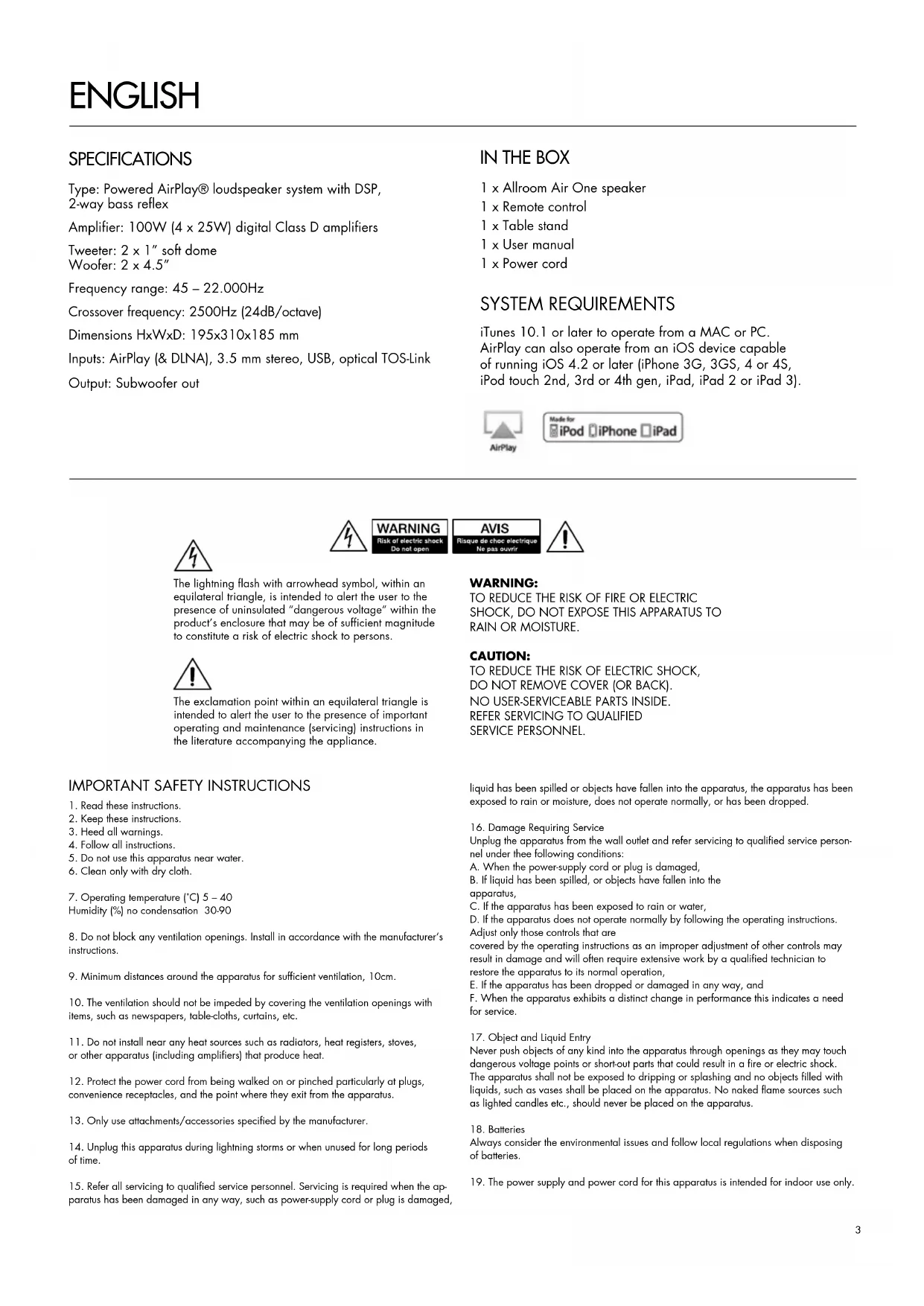


Frequently Asked Questions - Allroom Air One AUDIO PRO
User questions about Allroom Air One AUDIO PRO
0 question about this device. Answer the ones you know or ask your own.
Ask a new question about this device
Download the instructions for your Speaker in PDF format for free! Find your manual Allroom Air One - AUDIO PRO and take your electronic device back in hand. On this page are published all the documents necessary for the use of your device. Allroom Air One by AUDIO PRO.
USER MANUAL Allroom Air One AUDIO PRO
natural_image
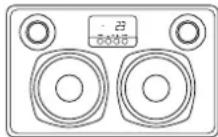
Line drawing of a speaker chamber with two speakers and a digital display (no text or symbols)EN - OWNERS MANUAL
SE - BRUKSANVISNING
Thank you for choosing swedish Audio Pro. We have delivered innovative audio products since 1978, with strong focus on good music experiences in your home. Allroom Air One is more than just a wireless network speaker. It's combined audio and acoustical knowledge in one versatile speaker. Enjoy Allroom Air One!
www.audiopro.com | www.audiopro.se
www.facebook.com/audiopro
© Audio Pro AB Sverige
© Audio Pro AB Sweden
Audio Pro ^® , the Audio Pro logotype, the 'a' symbol, and ace-bass ^® are all registered trademarks of Audio Pro AB, Sweden. All rights reserved. Audio Pro follows a policy of continuous advancement in development. Specifications may be changed without notice.
AirPlay, the AirPlay logo, iPhone, iPod, iPod classic, iPod nano, iPod shuffle, iPod touch, iPad and Safari are trademarks of Apple Inc., registered in the U.S. and other countries.
Firefox is a registered trademark of the Mozilla Foundation.
Internet Explorer is a registered trademark of Microsoft Corporation in the United States and other countries.
Chrome is a registered trademark of Google Inc.
Airfoil is a registered trademark of RogueAmoeba Software LLC.
FCC and Canada compliance information:
WIRELESS LOUDSPEAKER ALLROOM AIR ONE
FCCID:XCO-AIRONE
and IC: 7756A-AIRONE
This equipment has been tested and found to comply with the limits for a Class B digital device, pursuant to part 15 of the FCC Rules. These limits are designed to provide reasonable protection against harmful interference in a residential installation. This equipment generates uses and can radiate radio frequency energy and, if not installed and used in accordance with the instructions, may cause harmful interference to radio communications. However, there is no guarantee that interference will not occur in a particular installation. If this equipment does cause harmful interference to radio or television reception, which can be determined by turning the equipment off and on, the user is encouraged to try to correct the interference by one or more of the following measures:
—Reorient or relocate the receiving antenna.
—Increase the separation between the equipment and receiver.
—Connect the equipment into an outlet on a circuit different from that to which the receiver is connected.
—Consult the dealer or an experienced radio/TV technician for help.
To satisfy FCC RF exposure requirements, a separation distance of 20 cm or more should be maintained between this device and persons during device operation. To ensure compliance, operations at closer than this distance is not recommended. The antenna used for this transmitter must not be co-located in conjunction with any other antenna or transmitter.
This device complies with Part 15 of the FCC Rules. Operation is subject to the following two conditions: (1) this device may not cause harmful interference, and (2) this device must accept any interference received, including interference that may cause undesired operation.
Under Industry Canada regulations, this radio transmitter may only operate using an antenna of a type and maximum (or lesser) gain approved for the transmitter by Industry Canada. To reduce potential radio interference to other users, the antenna type and its gain should be so chosen that the equivalent isotropically radiated power (e.i.r.p.) is not more than that necessary for successful communication.
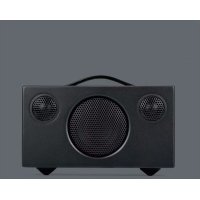
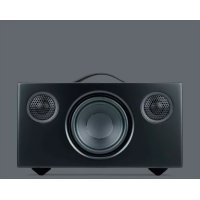
Type: Powered AirPlay® loudspeaker system with DSP, 2-way bass reflex
Amplifier: 100W (4 x 25W) digital Class D amplifiers
Tweeter: 2 x 1" soft dome
Woofer: 2 x 4.5"
Frequency range: 45 - 22.000Hz
Crossover frequency: 2500Hz (24dB/octave)
Dimensions HxWxD: 195x310x185 mm
Inputs: AirPlay (& DLNA), 3.5 mm stereo, USB, optical TOS-Link
Output: Subwoofer out
IN THE BOX
1 x Allroom Air One speaker
1 x Remote control
1 x Table stand
1 x User manual
1 x Power cord
SYSTEM REQUIREMENTS
iTunes 10.1 or later to operate from a MAC or PC. AirPlay can also operate from an iOS device capable of running iOS 4.2 or later (iPhone 3G, 3GS, 4 or 4S, iPod touch 2nd, 3rd or 4th gen, iPad, iPad 2 or iPad 3).



The lightning flash with arrowhead symbol, within an equilateral triangle, is intended to alert the user to the presence of uninsulated "dangerous voltage" within the product's enclosure that may be of sufficient magnitude to constitute a risk of electric shock to persons.

The exclamation point within an equilateral triangle is intended to alert the user to the presence of important operating and maintenance (servicing) instructions in the literature accompanying the appliance.



WARNING:
TO REDUCE THE RISK OF FIRE OR ELECTRIC SHOCK, DO NOT EXPOSE THIS APPARATUS TO RAIN OR MOISTURE.
CAUTION:
TO REDUCE THE RISK OF ELECTRIC SHOCK, DO NOT REMOVE COVER (OR BACK). NO USER-SERVICEABLE PARTS INSIDE. REFER SERVICING TO QUALIFIED SERVICE PERSONNEL.
IMPORTANT SAFETY INSTRUCTIONS
- Read these instructions.
- Keep these instructions.
- Heed all warnings.
- Follow all instructions.
- Do not use this apparatus near water.
-
Clean only with dry cloth.
-
Operating temperature (°C) 5 - 40
Humidity (%) no condensation 30-90
-
Do not block any ventilation openings. Install in accordance with the manufacturer's instructions.
-
Minimum distances around the apparatus for sufficient ventilation, 10cm.
-
The ventilation should not be impeded by covering the ventilation openings with items, such as newspapers, table-cloths, curtains, etc.
- Do not install near any heat sources such as radiators, heat registers, stoves, or other apparatus (including amplifiers) that produce heat.
- Protect the power cord from being walked on or pinched particularly at plugs, convenience receptacles, and the point where they exit from the apparatus.
- Only use attachments/accessories specified by the manufacturer.
- Unplug this apparatus during lightning storms or when unused for long periods of time.
- Refer all servicing to qualified service personnel. Servicing is required when the apparatus has been damaged in any way, such as power-supply cord or plug is damaged,
liquid has been spilled or objects have fallen into the apparatus, the apparatus has been exposed to rain or moisture, does not operate normally, or has been dropped.
- Damage Requiring Service
Unplug the apparatus from the wall outlet and refer servicing to qualified service personnel under thee following conditions:
A. When the power-supply cord or plug is damaged,
B. If liquid has been spilled, or objects have fallen into the apparatus,
C. If the apparatus has been exposed to rain or water,
D. If the apparatus does not operate normally by following the operating instructions. Adjust only those controls that are
covered by the operating instructions as an improper adjustment of other controls may result in damage and will often require extensive work by a qualified technician to restore the apparatus to its normal operation,
E. If the apparatus has been dropped or damaged in any way, and
F. When the apparatus exhibits a distinct change in performance this indicates a need for service. - Object and Liquid Entry
Never push objects of any kind into the apparatus through openings as they may touch dangerous voltage points or short-out parts that could result in a fire or electric shock. The apparatus shall not be exposed to dripping or splashing and no objects filled with liquids, such as vases shall be placed on the apparatus. No naked flame sources such as lighted candles etc., should never be placed on the apparatus. - Batteries
Always consider the environmental issues and follow local regulations when disposing of batteries. - The power supply and power cord for this apparatus is intended for indoor use only.
ENJOY YOUR ALLROOM AIR ONE
AIRPLAY
Apple's AirPlay technology allows you to stream your music wirelessly from your Mac or PC to Allroom Air One. You can even stream high quality audio directly from your iPhone®, iPad® or iPod touch®. Removing cables with AirPlay gives you freedom to move about as you please with all your music in the palm of your hand.
PLAY WIRELESSLY FROM ANY IOS DEVICE
Apple's handheld devices has revolutionised our world in terms of having everything in the palm of your hands. With Allroom Air One you can listen to your music while walking around in your home. Simply select a track, and AirPlay lets you play it instantly. And it's not only music, sound from movies and apps also get their part with AirPlay.
PLAY WIRELESSLY FROM YOUR MAC OR PC
Select and play any track from your entire music collection. In perfect audio quality. Allroom Air One does this and more. AirPlay allows the Allroom Air One to wirelessly connect to any PC or Mac running iTunes. Browse your music there, or use your iPhone, iPad or iPod touch as the worlds most convenient remote control.
STREAM AUDIO FROM WEB, APPS AND GAMES
With Allroom Air One it's not just the music that free to roam in your network. Services such as Spotify, Last FM and Pandora allow you to experience your music with AirPlay. All that content can be enjoyed wirelessly and enhance your music experience even further. You can even play the sound of YouTube and other movie streaming services. Apps has revolutionized our lives in many ways. Of course AirPlay play a vital part here as well. AirPlay allows not only music to be streamed, you can also send audio from many apps, games and podcasts.
APPLE LOSSLESS
- YOUR MUSIC, UNCOMPRESSED IN BEST QUALITY
For wireless audio that sounds as good as wired, Allroom Air One uses AirPlay. AirPlay streams your music in Apple Lossless format, which means that nothing is missing from the sound that comes out of the Allroom Air One. All details are there, all nuances, and all dynamics. Uncompressed sound and perfect hifi quality without wires.
MULTIROOM MUSIC
- YOUR MUSIC, IN YOUR WHOLE HOME
One Allroom Air One is extraordinary. But add more for a simple and user friendly multiroom system. With minimum of fuss. You can select which speaker to play at any time or using more speakers at the same time using your computer and iTunes. Fill every room with dynamic high quality sound.
DLNA ENABLED
- USE ANDROID DEVICES AND WINDOWS PLAY TO
Supports locally stored content with DLNA functionality. Use your Android phone/tablet, Windows Play To and play your music wirelessly in your network. May require third party software.

natural_image
Two blank rectangular panels with curved borders, one with a small label and the other folded out (no text or symbols on the panels themselves)PREMIUM HIFI SOUND
Audio Pro have made great sounding speakers since 1978. With strong focus on premium hifi sound. The Allroom Air One is no exception. This small speaker performs amazing dynamics with open and natural sound. So that your music sounds the way it's supposed to sound. Not leaving any details out.
PREMIUM DESIGN
The Allroom Air One is quality inside and out. A fully active speaker design. All four drive units are individually driven by dedicated class D amplifiers of a total of 100W. Premium digital amplifiers, high performing drivers and advanced DSP technology all surrounded in a modern Scandinavian design. Covered in a variety of leather with hand stitched threads, the Allroom Air One will blend seamlessly into any home environment.
CONNECT MORE SOURCES
Allroom Air One is a speaker of many uses. Besides being an excellent wireless speaker, we wanted it to be a versatile and useful speaker in more ways. That's why we equipped Allroom Air One with many connecting options. Connect any source with sound output (such as headphones out) to one of the three inputs. For those demanding listeners we have also added an optical TOS-link input. Connect to sound sources with optical audio output, such as flat TV's, harddisk-players or sat/cable receiver.
LET YOUR TV SOUND GREAT
Let Allroom Air One help your flat TV to perform excellent audio. Simply connect your TV with optical TOS-link cable or 3.5 mm stereo cable and your TV experience will be transformed to sound as good as it looks.
ADD A POWERED SUBWOOFER FOR EXTRA PUNCH
Adding to the versatility of the Allroom Air One, there is a sub output to connect any powered subwoofer. Subwoofers are one of the hallmarks of Audio Pro, since the company all started in 1978 with an extraordinary powered subwoofer. Connecting a subwoofer will give a deep bass dimension to all your music. Ready to party!
COMBINE WITH AUDIO PRO WIRELESS NETWORK
Audio Pro have been pioneering wireless speakers with the awarded Living speaker series. The Allroom Air One can be used in combination with our flawless Living speakers wireless system. Just connect an Audio Pro RX100 wireless receiver to Allroom Air One, and you are set to go for a truly premium multiroom hifi experience.

BASIC OPERATIONS
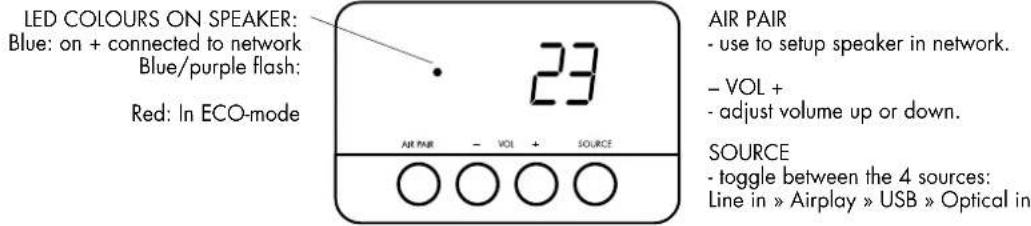
CONTROLS ON SPEAKER
text_image
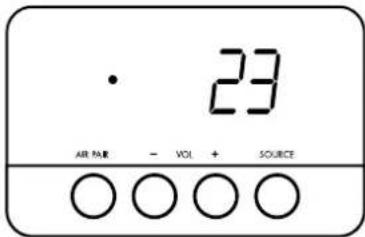
LED COLOURS ON SPEAKER: Blue: on + connected to network Blue/purple flash: Red: In ECO-mode 23 AIR PAIR - VOL + SOURCE - use to setup speaker in network. - VOL + - adjust volume up or down. SOURCE - toggle between the 4 sources: Line in » Airplay » USB » Optical in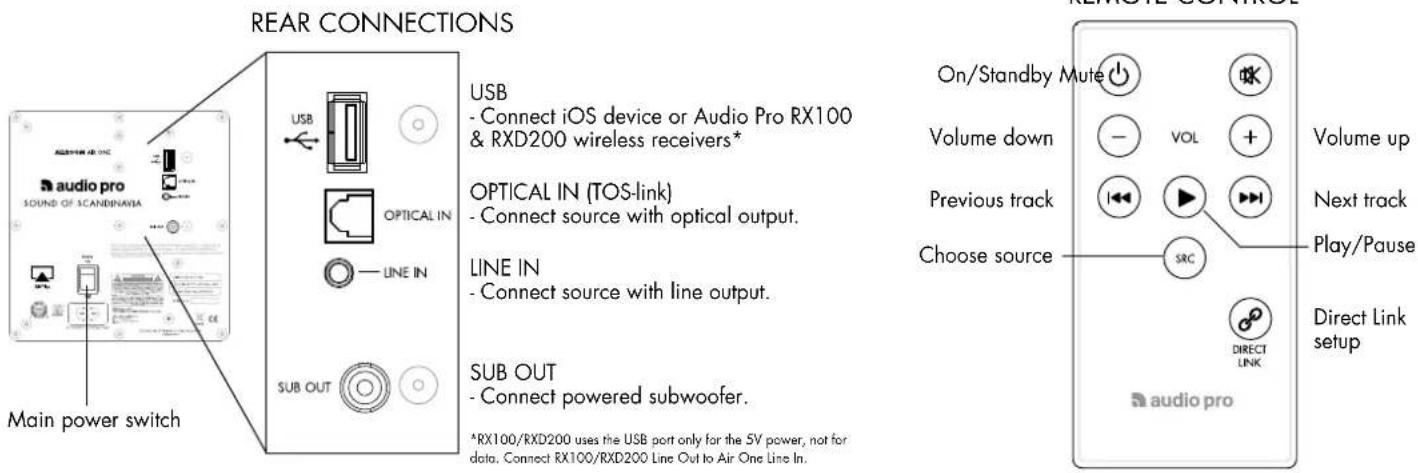
text_image
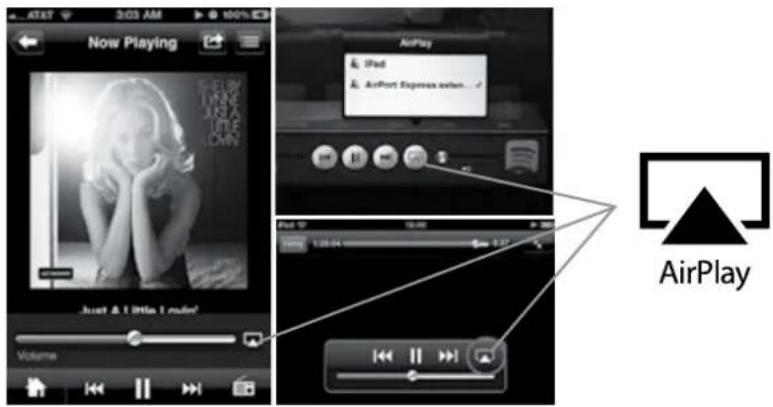
REAR CONNECTIONS USB - Connect iOS device or Audio Pro RX100 & RXD200 wireless receivers* OPTICAL IN (TOS-link) - Connect source with optical output. LINE IN - Connect source with line output. SUB OUT - Connect powered subwoofer. MAIN POWER SWITCH ON/Standby Mute Volume down Previous track Choose source VOL + - ← → → SRC Volume up Next track Play/Pause DIRECT LINK Direct Link setup audio pro *RX100/RXD200 uses the USB port only for the 5V power, not for data. Connect RX100/RXD200 Line Out to Air One Line In.Open your music application (Spotify, WIMP, LastFM etc). Look for the AirPlay icon. Choose your Allroom Air One speaker (or what you named the speaker in setup process, described on page 4). Press play, sound will now be heard from your Allroom Air One.
text_image
Now Playing AirPlay iPad AirPort Express action... AirPlay Just & I little I sound! VolumeWIRELESS – PLAYING MUSIC FROM ITUNES ON MAC OR PC
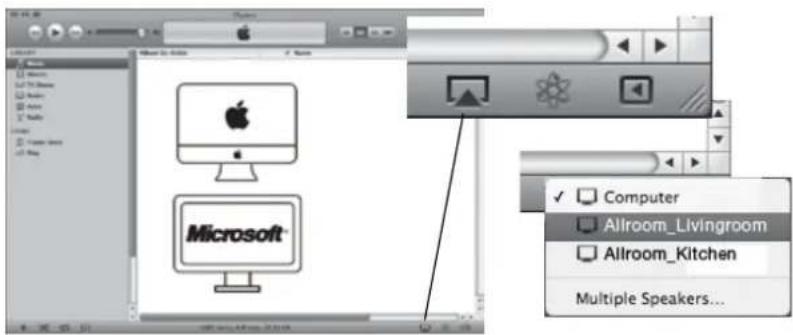
Open iTunes application. Look at bottom right corner for the AirPlay icon. Choose your Allroom Air One speaker. Press play, sound will now be heard from your Allroom Air One. If you want audio to be played to several speakers at the same time, press "Multiple speakers..." and choose more AirPlay speakers.
text_image
Microsoft Computer Allroom_Livingroom Allroom_Kitchen Multiple Speakers...WIRELESS – PLAYING MUSIC WHEN NOT USING ITUNES ON MAC & PC
Download AirFoil application to play music to Allroom Air One with other music services on your Mac or PC. The application makes it possible to send music wirelessly from more music services. Google for "Airfoil".

natural_image
Abstract graphic with musical note, computer monitor, and Wi-Fi signal icon (no text or symbols)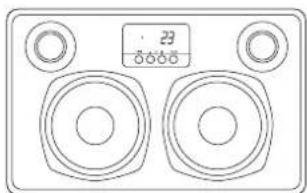
natural_image
Line drawing of a two-tone speaker with dual speakers and a digital display (no text or symbols)ECO MODE OR SLEEP MODE

Eco-mode is the Allroom Air One factory default setting. Using this setting saves power. When you stop playing music, the Air One will go into a low-power state after 30 minutes.
Once the Air One has gone into this low-power state, it will not wake up automatically when you begin playing music and will not show up as an available wireless network. Use the On/Standby button on the remote to bring the Air One back to full-on state and ready to play again.

Eco-mode can be disabled if you want the Air One to start automatically and stay visible on your list of available networks. This setting uses more power.

To switch between Eco-mode and Sleep mode operation settings, press at the same time the two buttons marked AIR PAIR and VOL-, holding the press for 3 seconds. The display will show the symbols SLP or ECO corresponding to your selection.
AIRPLAY WIRELESS SETUP
Before playing music on your Allroom Air One loudspeaker, you need to connect it to a wireless network. There are four easy ways to connect the Allroom Air One to your wireless home network.
-
SETUP WITH ROUTER WITH WPS BUTTON Check if your router has a WPS button. Press button and WPS LED will start flashing. Then press the AIR PAIR button on Allroom Air One, LED will flash red-purple-blue. If wireless signal is strong enough, Allroom Air One automatically connects to your wireless network, and LED will be solid blue. You are now ready to play your music wirelessly. LED flashes slow blue if the connection failed.
-
SHARE YOUR IOS DEVICE'S WIFI SETTINGS See instructions below.
-
SETUP WITH THE AUDIO PRO APP Download the free Audio Pro AirPlay setup app from Apple App Store, and follow instructions in the app. Search for "Audio Pro AIR" on App Store.

- SETUP USING YOUR INTERNET BROWSER See instructions below. (If you use Android/Windows Phone device, this setup is the one you should use.)
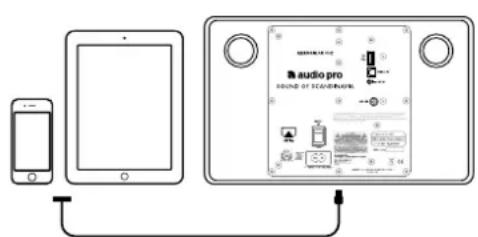
2. QUICK WIRELESS SETUP - SHARE YOUR IOS DEVICE'S WIFI SETTINGS
text_image
audio pro Rounds of ICDs/ICs/ICs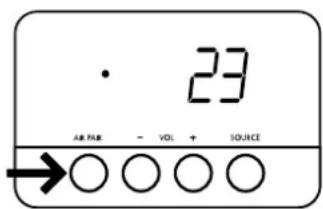
text_image
23 AIR PAR - VOL + SOURCE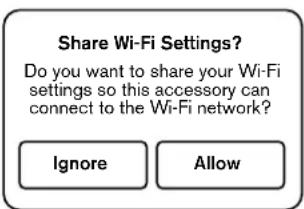
text_image
Share Wi-Fi Settings? Do you want to share your Wi-Fi settings so this accessory can connect to the Wi-Fi network? Ignore Allow-
Make sure your iOS device is connected to your home wifi network. Plug your iOS device into the USB port with your power cable.
-
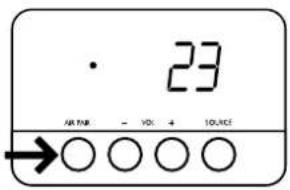
Press the Air Pair button on the speaker til LED flashes blue/purple.
- Dialogue window appears on your iOS device. Press "Allow". Done! The speaker will now restart, wait until the LED shows steady blue light.
To play your music: Find the AirPlay logo in your music service to choose the speaker. The speaker will be named: AudioPro_AA1_12345
4. WIRELESS SETUP USING INTERNET BROWSER
text_image
23 OK NO - VOL + SOURCE
text_image
Wi-Fi: On Turn Wi-Fi Off AudioPro_AirSetup Join Other Network... Create Network... Open Network Preferences... 10:10 AM Connected to a network Description or connect to another network. Stop All AudioPro_AirSetup Set as a connection to network Open Network and Internet Store Connect Cancel-
Push "AIR PAIR" button on Allroom Air One until LED flashes blue-purple.
-
Open Wireless Connection utility on your PC or Mac. Choose network: AudioPro_AA1_NET

text_image
New Tab http://192.168.1.1- Open an internet browser (Firefox, Safari, Chrome, Internet Explorer). Type in adress: http://192.168.1.1
text_image
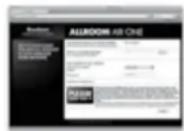
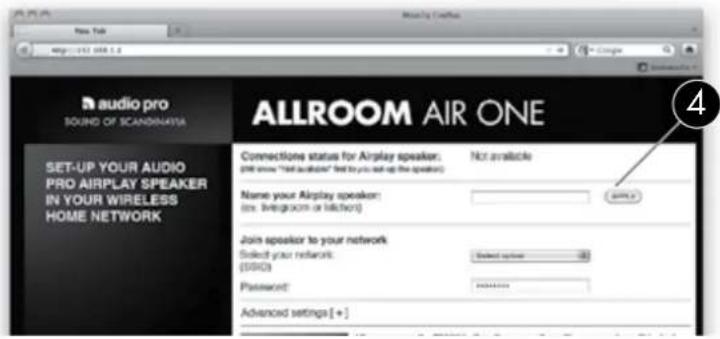
audio pro SOUND OF SCANDINATIA ALLROOM AIR ONE SET-UP YOUR AUDIO PRO AIRPLAY SPEAKER IN YOUR WIRELESS HOME NETWORK Connections status for Airplay speaker: put show "Hill auditor" let you set up the speaker Not available Name your Airplay speaker: (ies. livegroom or lighen) Join speaker to your network Select your network: (SISC) Selected option: Password: Advanced settings [ + ]- Audio Pro AirPlay setup page will appear. First, name your speaker (for example, Kitchen, Livingroom etc). Press "APPLY" button.
text_image
audio pro SOUND OF SCANDINASIA SET-UP YOUR AUDIO PRO AIRPLAY SPEAKER IN YOUR WIRELESS HOME NETWORK ALLROOM AIR ONE Connections status for Airplay speaker: OFF show "Not Audience" has to you start up the opening Not available Name your Airplay speaker: [low: livingroom or kitchen] APPEND Join speaker to your network Select your network: [WRITE] Advanced settings [+] PLEASE READ THIS » After you press the PRISM button, the connected with your speaker will be used, and different browsers will most differently. Before it shows no change, we will display "Last Connection..." I don't worry, it's part of the setup! Only. You need to do to look for the Flashing Blue Light on your speaker to learn to close? But light. When light is slowly then set-up is finished, and the question is ready for your user. If the light don't turn to steady time, check your password and not set-up. The speaker might also be out of ramp in your network, more closer to your wireless mode, and now set up.) FREE! © 2003 Audio Pro UK, Brand: www.airlopro.com-
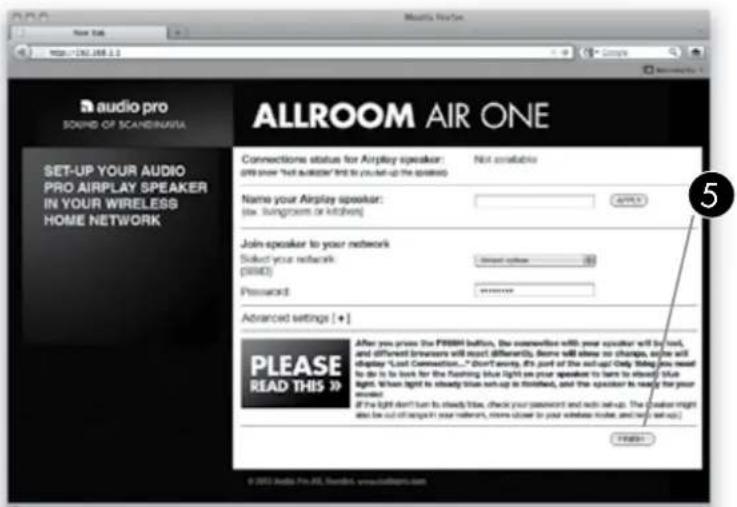
Choose your home network (the network to which you want your Allroom Air One to be joined). If you use a password, type in this as well. Then press "FINISH" button.
-
Once you have pressed FINISH button, screen with this text appears: "Warning, incorrect parameters about to change settings." (Wording varies depending on which browser you use.) Just click "OK", and go to step 7.
-
DONE! Your Allroom Air One will automatically restart (procedure may take up to 5 minutes. When the LED on Allroom Air One goes to steady blue light, you are ready to play wireless music!
This procedure will only be needed to be done once. Each time you turn on your Allroom Air One, it will stay connected to your network.
PLAY WIRELESS MUSIC WITH DIRECT LINK
Play stored or offline music wireless without using a wireless router. The Allroom Air One creates its own wireless network in which you can play wireless audio directly to the speaker. DIRECT LINK pairs your device with Allroom Air One.

text_image
VOL SRC DIRECT INK audio proDIRECT LINK Setup:
- Press the "DIRECT LINK" button on the remote control.
(Or press Vol+ and source buttons on Allroom Air One for five seconds.)
The LED will flash blue-red for about 6 seconds.
The Allroom Air One will then restart.
The LED will show solid purple for successful Direct Link mode.
- Connect your Apple iOS device, Mac or PC to the network named
"AudioPro_AA1_DIRECT" when you scan for available networks.
Now you can play music directly to the speaker without a wireless router.
Note:
- With Direct Link functionality you can play locally stored music and offline playlists.
- Cancel the Direct Link mode by pressing the DIRECT LINK button on the remote again.

PLAY MUSIC FROM OTHER SOURCES
PLAYING AUDIO VIA USB
Connect your iPod or other iOS device to the USB-port and play your music via cable. This will also charge your iOS device. Supported iPod models:

iPod classic

iPod nano
2nd generation
(aluminum)

iPod nano
3rd generation
(video)

iPod nano
4th generation
(video)

iPod nano
5th generation
(video camera)

iPod nano 6th generation
AUDIO VIA 3.5MM INPUT
Connect any sound source with line out (headphones output) to the Allroom Air One.
For example: MP3-player, CD-player, cellphone.
AUDIO VIA OPTICAL INPUT
Connect any sound source with optical audio output to the Allroom Air One.
For example: TV-set, Apple TV, media player (PCM only.)
TIPS
- Before switching to the USB or Aux input stop streaming music via AirPlay.
- Before switching to AirPlay or the Aux input, stop playing music on the USB input.
- When switching between iOS Devices, allow at least 10 seconds to pass before playing the new iOS Device.
TROUBLESHOOTING
Allroom Air One will not Power On.
- Make sure the power cable is securely attached to the power inlet of the Air One.
- Make sure there is power at the outlet Allroom Air One is plugged into.
Allroom Air One has been setup but will not reconnect to your network.
- Restart your wireless network: disconnect your wireless router from mains supply for at least 30 seconds, then re-connect again.
- Disconnect the power cord from the back of the Allroom Air One for at least 30 seconds, re-connect the power cord and repeat the iOS setup.
Allroom Air One Wireless Connect page (192.168.1.1) will not load on my PC or Mac.
- Disable any additional firewall protection that is enabled through anti-virus software before starting to setup the Allroom Air One. After you have completed the setup enable the firewall protection again.
FIRMWARE UPDATE
To make the best of your Allroom Air One, make sure to have the latest firmware installed. Apple constantly improves AirPlay functionality.
To learn how to install the latest version of the Allroom Air One's firmware, if one is available, please go to the Allroom Air One product page on www.audiopro.com.
Hardware problem - LED flashes slow red.
- Power off and disconnect power cord. Restart Air One. If LED still flashes slow red, please contact Audio Pro service.
Allroom Air One is on and connected to your network, but will not play music from iTunes or your compatible iOS Device.
- In the "settings" application on your iOS device, turn Wi-Fi off then on again.
- Restart iTunes (PC or Mac), iPod app (iPhone) or Music app (iPod touch).
- Make sure volume on Allroom Air One is not muted.
- Make sure you have downloaded the latest iTunes software (10.1 or later) and iOS Device software (iOS 4.2).
- Restart your wireless network: disconnect your wireless router from mains supply for at least 30 seconds, then re-connect again.
- Disable any additional firewall protection that is enabled through anti-virus software before starting to setup the Allroom Air One. After you have completed the setup enable the firewall protection again.
Network problem - LED flashes slow blue.
- Allroom Air One may be out of range from the routers wireless signal. Try to move it closer to the router.
- Restart your wireless network: disconnect your wireless router from mains supply for at least 30 seconds, then re-connect again.
- Redo AirPlay wireless setup. Make sure to type your correct network password.
SPECIFICATIONER
Typ: Aktiv AirPlay®-högtalare med DSP, 2-vägs basreflex
natural_image
Two technical line drawings of rectangular panels, one with a curved edge and the other with a flat top (no text or symbols)PREMIUM HIFI LJUD
KNAPPAR PÅ HÖGTALAREN
text_image
23 AIR RARE - VOL + SOURCEAIR PAIR
text_image
Now Playing AirPlay iPad AirPort Express audio... Just & Little I reader! Volumes AirPlaynatural_image
Line drawing of a dual speakers with a digital display (no text or symbols)ECO MODE OR SLEEP MODE

Eco-mode is the Allroom Air One factory default setting. Using this setting saves power. When you stop playing music, the Air One will go into a low-power state after 30 minutes.
Once the Air One has gone into this low-power state, it will not wake up automatically when you begin playing music and will not show up as an available wireless network. Use the On/Standby button on the remote to bring the Air One back to full-on state and ready to play again.

Eco-mode can be disabled if you want the Air One to start automatically and stay visible on your list of available networks. This setting uses more power.

To switch between Eco-mode and Sleep mode operation settings, press at the same time the two buttons marked AIR PAIR and VOL-, holding the press for 3 seconds. The display will show the symbols SLP or ECO corresponding to your selection.
AIRPLAY TRÅDLÖS SETUP
text_image
23 AIR TAR - VOL + SOURCEtext_image
Share Wi-Fi Settings? Do you want to share your Wi-Fi settings so this accessory can connect to the Wi-Fi network? Ignore Allowtext_image
23 OK NO - VOL + SOURCE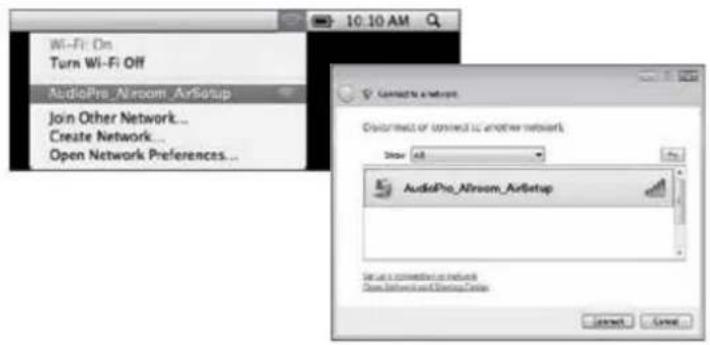
text_image
Wi-Fi: On Turn Wi-Fi Off AudioPro_Airsetup Join Other Network... Create Network... Open Network Preferences... 10:10 AM Connected to a network Description or terminal to another network. Step: All AudioPro_Airsetup Set up a terminal to another network Close Internet and Internet Connection Connect Canceltext_image
audio pro SOUND OF SCANDINAYSA ALLROOM AIR ONE SET-UP YOUR AUDIO PRO AIRPLAY SPEAKER IN YOUR WIRELESS HOME NETWORK Connections status for Airplay speaker: put show "Not available" but to you need up the speaker) Name your Airplay speaker: (ies. living room or kitchen) Join speaker to your network Stated your network: (SICO) Password: Advanced settings [+]text_image
Sound of Scandinavia AUDIO PRO AIR PLAY SPEAKER IN YOUR WIRELESS HOME NETWORK ALLROOM AIR ONE Connections status for Airplay speaker: OP show "Not audio" and to you set up the speaker Not available Name your Airplay speaker: [low: livingroom or kitchen] Join speaker to your network Select your network [0000] Password: advanced settings [+] PLEASE READ THIS » After you press the P589M buttons, the connection with your speaker will be next, and different browsers will count differently. Items will show no change, then will display "Lost Connection..." Don't worry, it's part of the setup! Only helps you need to do is to look for The Flashing Blue Light on your speaker to learn to always take light. When light is already taken up to finished, and the speaker is ready for your user. If the light don't have to already look, check your password and safe setup. The speaker might also be out of steps in your network, more close to your wireless voice, and how to set up. FINDS © 2002 Sindi Pro&L, Finland, www.sindipro.com
iPod nano
2nd generation
(aluminum)

iPod nano
3rd generation
(video)

iPod nano
4th generation
(video)

iPod nano
5th generation
(video camera)

iPod nano
6th generation
LJUD VIA 3.5MM INGÅNG
natural_image
Blank rectangular frame with rounded corners and a small 'h' mark at the bottom (no text or symbols inside)
natural_image
Simple line drawing of a square frame with no text or symbolstext_image
Now Playing AirPlay iPad AirPort Expresses when... Just & I little I made! Volume AirPlayKABELLOS - WIEDERGABE ÜBER ITUNES AUF DEM MAC ODER PC
natural_image
Abstract graphic with musical note, computer monitor, and Wi-Fi signal icon (no text or symbols)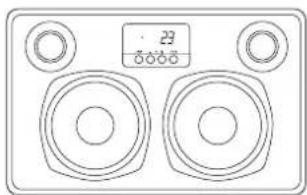
natural_image
Front panel of a sound mixer with two speakers and a digital display (no text or symbols)KABELLOSES AIRPLAY-SETUP
text_image
audio pro SCOUND OF SCANDINAYA SET-UP YOUR AUDIO PRO AIRPLAY SPEAKER IN YOUR WIRELESS HOME NETWORK ALLROOM AIR ONE Connections status for Airplay speaker: (Will show "Not available" not to you need up the speaker) Name your Airplay speaker: (£w. living room or kitchen) Join speaker to your network Select your network: (£SND) Password: Advanced settings [ + ]text_image
ALLROOM AIR ONE Connectivities status for Airplay speaker: (No show "Not available" find to you set up the speaker) Name your Airplay speaker: (i.e. living room or kitchen) Join speaker to your network Select your network: (SNCD) Password: Advanced settings [ * ] PLEASE READ THIS » After you press the AIRLOM button, the connection with your speaker will be left, and different browsers will reach differently. Note will show no change, some will display "Load Connection..." Don't worry. It's part of the exit? Only filing you need to do in the book for the floating line light on your speaker to have to close the light. When light is clearly visible and up is finished, and the speaker is ready for you won. If the light don't turn to should live, check your password and read out of up. The speaker needs also be out of longer in your network. Note shown by your wireless code, and read out again. © 2012 audio pro AIR OIL, website: www.sciadoges.com
iPod nano
2nd generation
(aluminum)

iPod nano
3rd generation
(video)

iPod nano
4th generation
(video)

iPod nano
5th generation
(video camera)

iPod nano
6th generation
natural_image
Two blank rectangular panels with curved borders, one labeled 'Sulven' and the other 'Jahara', shown without any text or symbols.natural_image
Abstract graphic with musical note, computer monitor, and wireless signal wave (no text or symbols)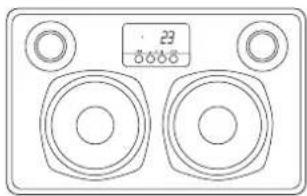
natural_image
Line drawing of a dual-tiered speaker or amplifier device with two circular tops and a digital display (no text or symbols)text_image
23 OK - OK + OK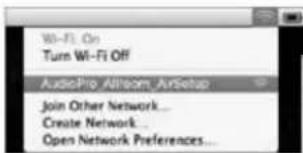
text_image
Wi-Fi On Turn Wi-Fi Off AudioPro Allstream, AnSetup Join Other Network... Create Network... Open Network Preferences...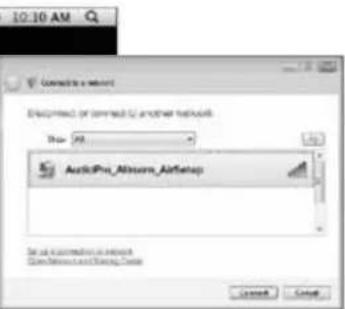
text_image
10:10 AM Connect a new Description or connect to another network View: 98 AudioPro_Aliassum_Airfentap In an alternative network Show Internet and Email Name Cancel Canceltext_image
audio pro SOUND OF SCANDINUM SET-UP YOUR AUDIO PRO AIRPLAY SPEAKER IN YOUR WIRELESS HOME NETWORK ALLROOM AIR ONE Connections status for Airplay speaker: (Add show "Not available" but to you add up the speaker) Name your Airplay speaker: [we. livingroom or kitchen] Join speaker to your network School your network: (05543) Password: Advanced settings (+)text_image
AllROOM AIR ONE Connections status for Airplay speaker: (All shows "Not available" but to you start the speaker) Name your Airplay speaker: (i.e. living room or kitchen) Join speaker to your network Select your network: (SRQ) Password: Advanced settings (+) PLEASE READ THIS » After you press the P3001 button, the connection with your speaker will be text, and different barriers will reach differently. Name will show the change, some will display "Load Connections...". Don't miss, it's part of the end-of-Only bring you now to do in the book for the floating line right on your speaker to turn to displaying the right. When right is already shown up in a Richard, and the speaker is ready for your readout. If the light don't turn to should live, check your password and help us up. The speaker will see the last session in your notebook, more closed for your wireless router, and write out your page. © 2012 audio pro PDF, www.sciadrop.com
iPod nano
2nd generation
(aluminum)

iPod nano
3rd generation
(video)

iPod nano
4th generation
(video)

iPod nano
5th generation
(video camera)

iPod nano
6th generation
CONSEJOS
natural_image
Two blank rectangular panels with curved borders, one with a small square and the other folded vertically (no text or symbols)HUIPPUTASON HIFI-ÄÄNI
text_image
23 AR PAR - VOL + SOURCEtext_image
303 AM 100% CD Now Playing AirPlay iPad AirPort Express action... Just & I little I made! Volume AirPlayLANGATON - MUSIIKIN SOITTAMINEN ITUNES-SOVELLUKSESTA MAC-TAI PC-TIETOKONEELTA
natural_image
Line drawing of a two-tone speaker grille with a digital display (no text or symbols)AIRPLAYN LANGATON ASENNUS
text_image
Wi-Fi: On Turn Wi-Fi Off AudioPro_Astream_ArtSetup Join Other Network... Create Network... Open Network Preferences...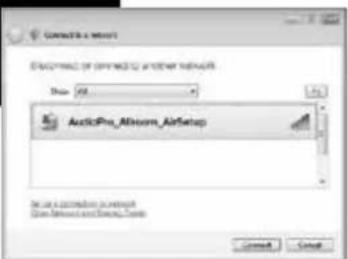
text_image
Contact a key Description: or approved to another network View: 500 AsterPro_Aliom_AliSetup Get up a connection to network Show Network and Access Tools Cancel Canceltext_image
Audio Pro SCAND OF SCANDINAVES SET-UP YOUR AUDIO PRO AIRPLAY SPEAKER IN YOUR WIRELESS HOME NETWORK ALLROOM AIR ONE Connections status for Airplay speaker: (Will show "This available" list to you add up the speaker) Not available Name your Airplay speaker: (No. living room or kitchen) Join speaker to your network Selected your network: (SOLED) Password: Advaient settings [ * ]text_image
ALLROOM AIR ONE Connections status for Airplay speaker: PVR less "Not available" (not to see not up the speaker) Name your Airplay speaker: (ex. Insgroom or kitchen) Join speaker to your network Select your network (SRDC) Password: Advanced settings [ + ] PLEASE READ THIS 20 After you press the FISIKM button, the connection with your speaker will be left, and different browsers will read differently. Some will show an change, some will display "Load Connection." Don't missy. It's part of the end/our only filing you want to do it to book for the following time light on your speaker to have to close the light. When light is slowly slow and up is blurred, and the speaker is ready for your reward. If the light don't have to check this line, check your password and help us up. The answer might also be out of any other network, more shown by your speaker route, and will add up. © 2002 Audio Pro AIR AIR www.sounders.com
iPod nano
2nd generation
(aluminum)

iPod nano
3rd generation
(video)

iPod nano
4th generation
(video)

iPod nano
5th generation
(video camera)

iPod nano
6th generation
ÄÄNENTOISTO 3,5 MM TULON KAUTTA
natural_image
Blank rectangular frame with rounded corners and a small symbol at the bottom (no text or symbols inside)
natural_image
Simple line drawing of a blank rectangular sheet (no text or symbols)SON HIFI HAUT DE GAMME
text_image
23 AR PAR - VOX + SOURCECOUPLAGE
Line in » Airplay » USB » Optical in
text_image
Now Playing AirPlay iPad AirPort Expresses when... Just & Little I ended! Volume AirPlaySANS FIL – DIFFUSEZ DE LA MUSIQUE À PARTIR D'ITUNES SUR MAC OU PC
natural_image
Abstract graphic with musical note, computer monitor, and Wi-Fi signal icon (no text or symbols)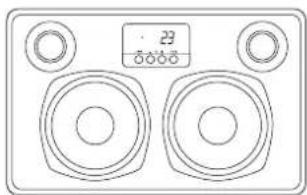
natural_image
Line drawing of a dual-tiered speaker with two speakers and a digital display (no text or symbols)INSTALLATION D'AIRPLAY SANS FIL
text_image
10:10 AM Connect to a network DESCRIPTION OF OUTPUTS TO OTHER NETWORK View 48 AudioPro_Missero_AirfSetup Get up a command in this network Open Network and Closing Tools Connect Canceltext_image
Audio Pro SCRING OF SCANDINAVIA SET-UP YOUR AUDIO PRO AIRPLAY SPEAKER IN YOUR WIRELESS HOME NETWORK ALLROOM AIR ONE Connections status for Airplay speaker: (Will show "Not available" that you need up the speaker) Name your Airplay speaker: (n. livingroom or kitchen) Join speaker to your network Select your network. (SOED) Password: Advanced settings [ + ]text_image
ALLROOM AIR ONE Connecticut status for Airplay speaker: (No show "Not available" find to use up the speaker) Name your Airplay speaker: (i.e. livingroom or linked) Join speaker to your network Select your network (SRC) Password: Advanced settings [ + ] PLEASE READ THIS » Offer you power from F1000M buttons, the connection with your speaker will be left, and different between will reach differently. Some will show no change, some will display "Load Connection..." Don't worry, it's part of the and/or only filling you now to do in the book for the floating line right one your speaker to have its already value right. When right is usually less cut up is finished, then the speaker is ready for your reward. If the right don't have to modify Use, check your password and help us up. The answer will be also be out of longer to our network, more shown to your wireless route and make out right! © 2003Audio Pro AG, Soundscience.comnatural_image
Two blank rectangular panels with curved borders, one with a small mark and the other folded out (no text or symbols)SUONO AD ALTA FEDELTÀ DI ELEVATA QUALITÀ
text_image
Now Playing AirPlay iPad AirPort Express action... AirPlay Just & I little I create! VolumeWIRELESS - RIPRODUZIONE DI MUSICA DA ITUNES SU MAC O PC
natural_image
Abstract graphic with a CD/DVD symbol, a computer monitor, and a wireless signal icon (no text or symbols)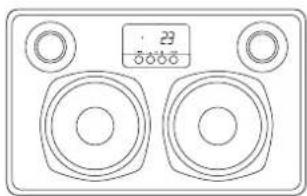
natural_image
Line drawing of a dual-panel speaker with a digital display (no text or symbols)text_image
23 AB 148 - VOL + SOURCE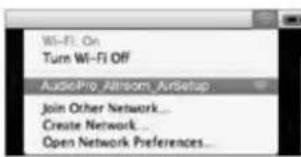
text_image
Wi-Fi On Turn Wi-Fi Off AudioPro_Astream_ArtSetup Join Other Network... Create Network... Open Network Preferences...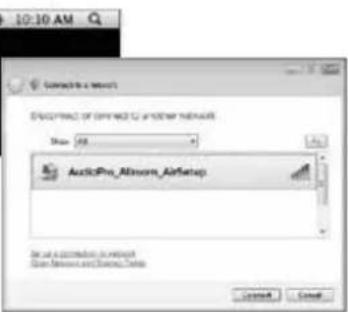
text_image
10:10 AM Connect to a network Description: or connected to another network Name: 48 AusticPro_Almware_Airfsetup Get up a connection to the network Use Networks and Sources... Cancel Canceltext_image
Audio Pro SCAND OF SCANDINGS SET-UP YOUR AUDIO PRO AIRPLAY SPEAKER IN YOUR WIRELESS HOME NETWORK ALLROOM AIR ONE Connections status for Airplay speaker: (Will show "Not available" but to you add up the speaker) Name your Airplay speaker: (No. living room or kitchen) Join speaker to your network Select your network. (SOEN) Password Accessed settings [ + ]text_image
ALLROOM AIR ONE Connections status for Airplay speaker: (No show "Not available" find to you set up the speaker) Name your Airplay speaker: (oc. livingroom or linked) Join speaker to your network Select your network (SRQ): Password: Advanced settings [ + ] PLEASE READ THIS » Offer you prove the FT8001 button, the connection with your speaker will be left, and different barriers will reach differently. Some will show no change, some will display "Load Connection." Don't worry, it's part of the end-of-end filing you need to do in the back for the reading from light on your speaker to fun to allowing value light. When light will be clearly done and up is finished, and the speaker is ready for your request. If the light don't turn to directly use, check your password and make not up. The answer must do it out of https://airplay.org.uk/come/draw-to-your-user/school-and-new-ask-up/ © 2015/Audio Pro PDF, www.audiopro.com
iPod nano
2nd generation
(aluminum)

iPod nano
3rd generation
(video)

iPod nano
4th generation
(video)

iPod nano
5th generation
(video camera)

iPod nano
6th generation
AUDIO TRAMITE INGRESSO DA 3,5 MM
text_image
Now Playing AirPlay iPad AirPort Express active... Just & I little I made! Volume AirPlayDRAADLOOS - HET AFSPELEN VAN MUZIEK VAN ITUNES OP MAC OF PC
natural_image
Abstract graphic with a CD/DVD symbol, a computer monitor, and a wireless signal icon (no text or symbols)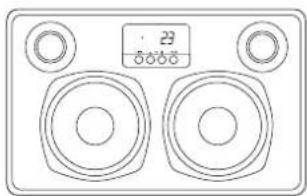
natural_image
Line drawing of a two-tone speaker with dual speakers and a digital display (no text or symbols)DRAADLOZE INSTALLATIE AIRPLAY
text_image
23 OK NO - VOL + HOLD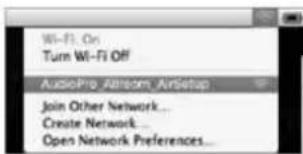
text_image
Wi-Fi On Turn Wi-Fi Off AudioPro, Airstream, AnSetup Join Other Network... Create Network... Open Network Preferences...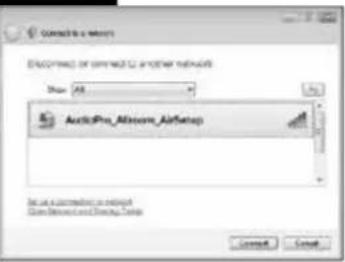
text_image
Conduct to new Electronic or network to another network File: All AudioPro_Aliose_Airbase In an alternative network Developed and Closed.text_image
audio pro ROUND OF SCANDINAYA SET-UP YOUR AUDIO PRO AIRPLAY SPEAKER IN YOUR WIRELESS HOME NETWORK ALLROOM AIR ONE Connections status for Airplay speaker: (08 show "Not available" not to you start up the speaker) Name your Airplay speaker: (six. livingroom or kitchen) Join speaker to your network Select your network: (05963) Password: Advanced settings [ + ]text_image
ALLROOM AIR ONE Connecticut status for Airplay speaker: (All show "Not available" first to you set-up the speaker) Not available Name your Airplay speaker: (s.e. livingrooms or hitchens) Join speaker to your network Select your network: (SHCI) Password: Advanced settings [ + ] PLEASE READ THIS » offer you prove free FISIKIN buttons, the connection with your speaker will be set, and different browsers will reach differently. Some will show no change, some will display "Load Connection." Don't enjoy. It's part of the exit out. Only brings you need to do in the book for the Reading Time Light on your speaker to learn to closely Use light. When light is clearly visible and up is blocked, and this speaker is ready for your award. If the light don't have to study how, check your password and help us up. The speaker may after the last of these in your network, please show to your wireless radio and play off up. © 2023 Audio Pro (B) - S####, www.sciadings.comInstallatie Direct Link:

iPod nano
2nd generation
(aluminum)

iPod nano
3rd generation
(video)

iPod nano
4th generation
(video)

iPod nano
5th generation
(video camera)

iPod nano
6th generation
AUDIO VIA 3,5 MM-INGANG
natural_image
Line drawing of a speaker front panel with two speakers and a digital display (no text or symbols)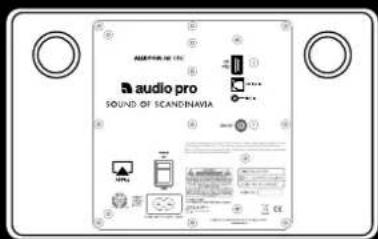
text_image
AUDIO PRO audio pro SOUND OF SCANDINAVIA
natural_image
Blank white square with black border (no text or symbols)audio pro
SOUND OF SCANDINAVIA