MP850 - Mp3 player Difrnce - Free user manual and instructions
Find the device manual for free MP850 Difrnce in PDF.



| Product type | Portable MP3 player |
| Dimensions | Approx. 7 x 3 x 1.5 cm |
| Weight | Approx. 30 g |
| Power supply | 1 AAA battery (alkaline or rechargeable Lithium) |
| Battery life | 11 to 20 hours |
| Storage capacity | 128 MB / 256 MB / 512 MB / 1 GB / 2 GB / 4 GB |
| Display | LCD 132 x 32 pixels, white backlight |
| Supported audio formats | MP3, WMA |
| Recording format | WAV |
| Main functions | MP3/WMA playback, folder navigation, voice recording, removable storage |
| Headphone output | 5 mW + 5 mW |
| Frequency response | 20 Hz - 20 kHz |
| Signal-to-noise ratio | > 70 dB |
| Interface | USB 2.0 |
| Operating temperature | 0 °C to +55 °C |
| Storage temperature | -20 °C to +55 °C |
| Operating humidity | 20 % to 90 % RH |
| Care and cleaning | Clean with a dry cloth; do not use chemical solutions |
| Safety | Do not expose to water, shocks, strong magnetic fields, or extreme temperatures |
| Spare parts and repairability | Not user-serviceable; do not disassemble |
| Package contents | Main unit, stereo headset with neck strap, user manual |
Frequently Asked Questions - MP850 Difrnce
User questions about MP850 Difrnce
0 question about this device. Answer the ones you know or ask your own.
Ask a new question about this device
Download the instructions for your Mp3 player in PDF format for free! Find your manual MP850 - Difrnce and take your electronic device back in hand. On this page are published all the documents necessary for the use of your device. MP850 by Difrnce.
USER MANUAL MP850 Difrnce
text_image
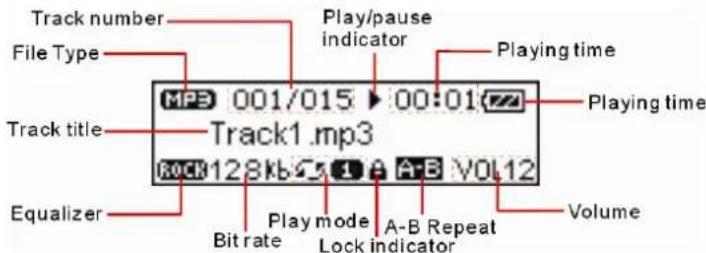
Track number File Type Track title Equalizer Play/pause indicator MP3 001/015 ▶ 00:01 Track1.mp3 Rock128kb 1 A-B VOL12 Play time Playing time Volume Bit rate Play mode Lock indicator A-B Repeat7 Standaardgebruik
- Do not subject the device to severe impact or drop it from high position.
- Do not use the player in extreme hot or cold, dusty or damp field. Do not expose it to direct sunshine.
● Back up the data frequently in case of accident data loss. - Avoid using the player in strong magnetic field.
- Keep the device away from water or other liquids. In the event that water or other liquids enter the device, power off the product immediately, take out the battery and clean the device.
- Do not use chemical solution to clean the device in order to avoid corrosion. Clean it with a dry cloth.
- We are not responsible for the damages or lost data caused by malfunction, misusing, repairing the device or battery replacement.
- Do not attempt to disassemble, repair or modify the product, or it will be out of guarantee.
- The design of the player or actual display may be different from what is shown in this manual. It should be subject to the actual display or design.
1 Key Features
● MP3&WMA Playback
- Folder Navigation Function
- Voice Recording
● Removable Storage Device
2 System Requirements
● Hardware: IBM PC & Compatible PC, Notebook with USB interface
- Operating System: Windows98/SE, Windows Me, Windows2000/XP
3 Package Content
Please check the package for the following items. If any one of them is missing, please contact the vendor:
- Main Unit
- Stereo earphone with neck Strap
- User Manual
4 Before Using
4.1 Connect to the PC and download audio files
For Windows 98/SE, you are required to install the included driver before connection. For detail information about driver installation, see the "Driver Installation" section.
The MP3 player is a plug & play device for WIN2000/XP/ME OS. You don't need to install the driver. Just connect the player to the PC and download audio files following these steps:
(1) Remove the USB cover to reveal the USB connector.
(2) Attach the USB connector of the player to the USB port of the PC.
When you open "My Computer", you see a removable disk which represents the player. Now you can use the removable disk as a normal local disk drive, copying audio files from or to the removable disk.
4.2 Removing the player from the PC safely
For Windows2000/XP:
(1) Left click the 📁 icon at the right hand corner of the taskbar.
(2) Click the pop-up mini-window with message of "Stop the USB Mass Storage Device - Drive (X)".
(3) When you are prompted to remove the device, pull out the MP3 player.
For Win98, please make sure the data transfer is completed before unplugging the MP3 player.
4.3 Installing Battery
(1) Press and push the battery cover in the direction of the arrow.
(2) Remove the cover and insert one AAA-size battery into the battery compartment.
(3) Close the cover.
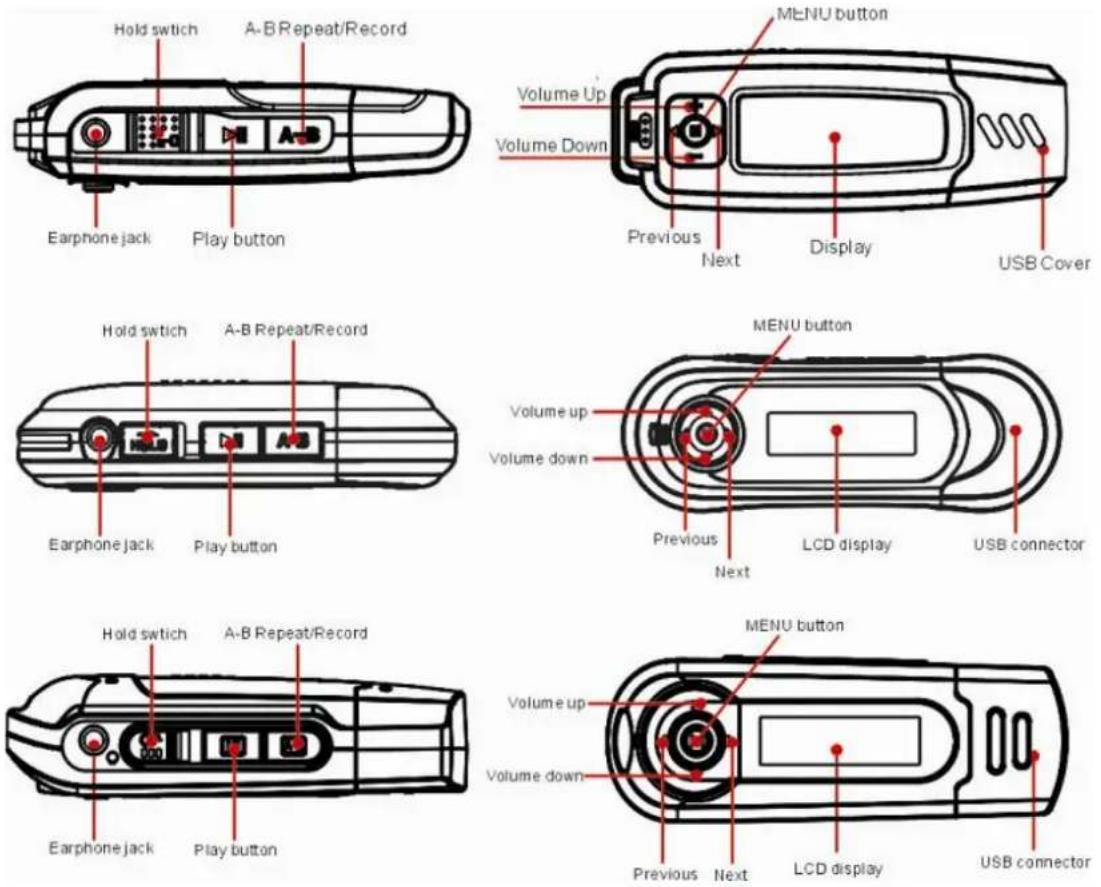
5 Keys Description
6 LCD Indication
text_image
Track number File Type Track title Equalizer Play/pause indicator MP3 001/015 ▶ 00:01 Track1.mp3 Rock128kb 1 A-B VOL12 Play time Playing time Volume Bit rate Play mode Lock indicator A-B Repeat7 Basic Operations
| Function | Operation |
| Power On/Off | Press and hold the ▶II key until you see prompt on the display. |
| Play/Pause | Press the ▶II key to play or pause. |
| Stop During playback | ck, press and hold the key for a while▶b stop the playback and return to the beginning of current track. |
| Adjust Volume | Press the Menu key up or down to increase or decrease volume. |
| Play the previous track | Press the Menu key left or right to move to the previous or next track |
| Fast Forward | Press the Menu key to the left and hold to fast forwards. |
| Rewind | Press the Menu key to the left and hold it to fast backwards. |
| Lock/Unlock keys Push the Hold switch to the right to lock keys against being pressed accidentally.Push the Hold switch to the left to enable all keys.Note: Depending on the model, the device may have not Hold Switch button. Instead, you can lock or unlock keys by holding down the MENU button and then pressing the A-B button. | |
8 Advanced Features
- Using the Menu
Press and hold the Menu key to enter the main menu.
Push the Menu key leftwards or rightwards to select the menu item and press the Menu key to confirm the selected item.
Press the ▶II key to return. Or, do not press any key it will return automatically in a few seconds.
● Using the Navigation Function
(1) In the music or voice mode, press and hold the Menu key to enter the menu.
(2) Select "Folder" and press the Menu button to confirm.
(3) Push the Menu key left or right to select folder.
(4) Press the Menu key to enter the selected folder.
(5) Push the Menu key left or right to select track that you want to play.
(6) Press the Menu key to continue and see two options: "Play now" and "Delete?". Push the Menu button to select one option and press the Menu button to continue or confirm, or press the ▶II key to cancel or return.
- A-B Repeat
To repeat specified section of the current track,
(1) Press the A-B key during playback to select the start point of the repeat.
(2) Press the A-B key again at the desired point to specify the end point of the repeat. The section between the start point and the end point begins to be played repeatedly.
(3) Press the A-B key shortly to stop A-B repeat.
- Select Play Mode
You can switch between the following play modes:
Normal –Play all tracks in order and stop after playing all
Repeat One –Keep repeating the current track
Repeat All –Play all tracks in order and repeat
Random Repeat - Keep repeating all tracks randomly
Dir normal – Play all files in the current folder and stop after playing all
Dir all repeat – Repeat all files in the current folder
Dir random repeat –Play all files in the current folder randomly.
To select the play mode:
(1) In the Music or Voice mode, press and hold the Menu key to show the main menu.
(2) Select "Setting" and press the Menu key to show the provided options.
(3) Select "Repeat mode" and press the Menu key to confirm.
(4) Push the Menu key leftwards or rightwards to select the desired repeat mode, and press the Menu key to confirm or press the ▶II key to cancel and return.
- Select preset EQ mode
You can play the tracks in different sound effect. The device provides 6 preset EQ modes: Normal, Rock, Jazz, Classic, Pop and Bass.
To set the EQ mode:
(1) In the Music or Voice mode, press and hold the Menu key to show the main menu.
(2) Select "Setting" and press the Menu key to show the provided options.
(3) Select "Equalizer" and press the Menu key to confirm.
(4) Push the Menu key leftwards or rightwards to select the desired EQ mode, and press the Menu key to confirm or press the ▶II key to cancel and return.
- Delete track
You can delete track following these steps:
(1) Press and hold the Menu key to enter the main menu.
(2) Select "Folder" and press the Menu button to enter folder navigation mode.
(3) Move the Menu button to select the track that you want to delete and press the Menu button to continue.
(4) Select "Delete?" by pushing the Menu button right and press the Menu button again to confirm.
(5) Push the Menu key leftwards to select the "Yes" option and press the Menu key again to confirm deletion, or press the ▶II key to cancel deletion.
9 Voice recording
- Record
(1) In the Music mode, press the ▶II key to stop or pause playing.
(2) Press the A-B button to start recording. During recording, you can press the ▶II key to pause/resume recording.
(3) Press the Menu button to stop and save the recording.
● Play recording file
(1) On the main menu, select the "Voice" item to enter the voice mode.
(2) Select the file that you want to play and press the ▶II key to play it.
Alternatively, you can enter the navigation mode, open the MICIN.WAV folder and select the voice file that you want play.
10 System Settings
To customize the player settings:
(1) On the main menu, select the "Setting" item and press the Menu key to enter the system setting mode.
(2) Push the Menu key leftwards or rightwards to select setting item and press the Menu key to confirm or press the ▶II key to cancel/return.
| Item | Description |
| Contrast Set the | contrast between the background and the foreground of the LCD. |
| Backlight Set the | duration of the backlight after you press any key. |
| Power Set Set | the length of time after which the player is turned off automatically when there is no activity. |
| Record Set Set | recording bit rate. The higher the bit rate, the better the recording quality. They are four settings for your selection: 32kbps, 44kbps, 64kbps, 88kbps. Move the Menu button left or right to select one of them. |
| Language Select | language in which onscreen text is displayed |
| Reset Load system setting to default | |
11 Check system information
To check system version or memory information,
(1) Press and hold the Menu button to enter the main menu.
(2) Select "Info" and press Menu key to continue. You see the software version number and the memory information is displayed.
12 Troubleshooting
| Problem | Possible Cause | Solution |
| The LCD displays nothing when the ▶II key is pressed. | 1. No battery or battery is too low.2. The keys are locked. | 1. Install or replace the battery.2. Unlock the Hold switch. |
| Press the ▶II key after turning on, while the player has no response. | The keys are locked by Hold switch | Slide the Hold switch to the unlocked position. |
| No sound when playing music or voice file. | 1. The volume is too low.2. There are problems with the audio file. | 1. Adjust the volume.2. Delete the file or play oth files. |
| The player cannot be connected to the PC. | 1. The driver is not installed or destroyed.2. The USB interface is not supported by PC's motherboard. | 1. Install or reinstall the driver shipped with the player.2. Update or replace the PC's motherboard. |
| The displayed time is changing constantly. | The bit rate of the MP3 file is changing during playback. | Try to use fixed bit rate to compress the MP3 file. |
| The PC has error when you plug and unplug the player. | The player is disconnected from the PC abruptly while transferring files. | Do not disconnect the player from the PC when transferring files. |
| Total memory displayed on the player is not in | Part of memory is used to store programs and display | |
| accordance with the marked amount. | characters. | |
| Some of MP3 files cannot be played properly. | The MP3 file is compressed by a standard, such as MPEG I Layer 1 or Layer 2 that the player does not support. | 1. Delete the unsupported MP3 files.2. Use MPEG I Layer 3 standard to compress the unsupported MP3 files. |
13 Technical Specifications
| Item | Specification |
| Capacity | 128MB/256MB/512MB/1GB/2GB/4GB |
| Battery Type AAA-size alkaline or chargeable Lithium Battery | |
| Battery Life 11-20 Hours | |
| LCD | 132X32 Pixel, White Backlight |
| Earphone Power 5mW+5Mw | |
| Output Frequency 20HZ-20KHZ | |
| Record Sample Rate 32kbps, 44kbps, 64kbps, 88kbps | |
| Audio File Format MP3, WMA | |
| Record Format WAV | |
| SNR | >70dB |
| USB Port USB2.0 | |
| Operational Temperature | 0°C ~ +55°C |
| Storage Temperature | -20°C ~ +55°C |
| Operational Relative Humidity * | 20% ~ 90% |
| Storage Relative Humidity * | 20% ~ 93% |
14 Notice
- Plug & Play is only available for WIN2000/XP. It is not supported by WIN98 and WIN98SE under which a driver needed to be installed.
- Push the Hold switch to the unlocked position to enable all keys before operation.
- Please replace the battery immediately when the display indicates low battery, or the device will be powered off automatically.
- Please unplug the player properly to avoid data losing.
- The transfer rate displayed on the PC may be different depending on the operating system. Exact transfer rate should be subject to the player's indication.
- When the recorded voice file is too large, it is normal that the response of the device may be slow.