
MP855 - Mp3 player Difrnce - Free user manual and instructions
Find the device manual for free MP855 Difrnce in PDF.


| Product Type | MP3 Player |
| Brand | Difrnce |
| Model | MP855 |
| Dimensions | 48 x 30.5 x 15 mm |
| Display | LCD, 24 x 14 mm |
| Internal Memory | 32 MB to 16 GB (integrated flash) |
| Supported Audio Formats | MP3, WMA, WAV |
| Bit Rate (MP3) | 56 - 256 kbps |
| Battery Type | Built-in Li-ion polymer, 3.7V |
| Battery Life | Approximately 8 hours |
| USB Port | USB 2.0 |
| Headphone Jack | 3.5 mm |
| Output Frequency | 20 Hz – 20 kHz |
| Signal-to-Noise Ratio | ≥85 dB |
| System Requirements | Windows XP/Vista or Mac OS X 10.0 or higher |
| File System | FAT, FAT32 |
| Playback Modes | Normal, Repeat One, Repeat All, Shuffle, Directory repeat |
| Equalizer Presets | Normal, Pop, Rock, Classic, Jazz, Bass |
| Additional Features | A-B repeat, 3D sound, contrast, backlight, auto-off, language selection, file browser, playlist |
| Controls | Menu, Play/Pause, Next/Previous, Volume, Power |
| Package Contents | MP3 Player, CD, Headphones, USB Cable, User Manual |
| Safety Instructions | Do not use while driving; avoid high volume; do not disassemble |
| Repairability | No user-serviceable parts; do not disassemble |
Frequently Asked Questions - MP855 Difrnce
User questions about MP855 Difrnce
0 question about this device. Answer the ones you know or ask your own.
Ask a new question about this device
Download the instructions for your Mp3 player in PDF format for free! Find your manual MP855 - Difrnce and take your electronic device back in hand. On this page are published all the documents necessary for the use of your device. MP855 by Difrnce.
USER MANUAL MP855 Difrnce
2 Contents of package.... 3
3 Getting started 4
3.1 Controls....4
3.2 LCD and symbols 6
3.3 Battery status....6
3.4 Connecting to PC....7
3.5 Disabling the MP3 Player from the PC....8
4 Operation....9
4.1 Switching the MP3 player on and off....9
4.2 Mode switch in the main menu....9
4.3 MUSIC mode....11
4.4 SETUP.... 11
4.5 System Tools 14
4.6 File Browse 14
5 Troubleshooting....15
6 Specifications....16
1 Safe instructions
Before using this product, please read this instructional manual carefully.
Do not use headphones while driving, cycling, or operating any motorized vehicle. This may create a traffic hazard and may be illegal in your area.
Listening to music at high volume for long periods of time can cause hearing loss. Set the volume at a comfortable level.
Do not disassemble or repair the player by yourself. This may affect the quality guarantee of the player. The player has no user-serviceable parts.
Do not use this product when conditions are excessively hot/cold (50 (122 F)/-5: (23 F)) or humid saunas, etc.
Remove the battery if you do not intend to use the player for a long time to avoid battery leakage, corrosion or damage to the player.
2 Contents of package
Please ensure that the following items are included in the box. If the package is not complete, please contact your dealer:
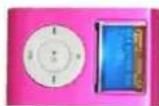
MP3 player

CD

Headphones

USB cable

User manual
3 Getting started
3.1 Controls
Familiarize yourself with the controls of your MP3 player before use.
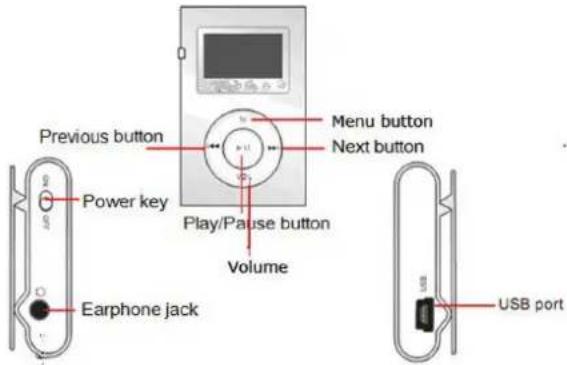
Key Functions
1 Menu: Get into main menu / return to previous menu.
2 "Last" last song / fast backward / decrease volume
3 VOL: Get into volume adjustment interface to adjust the volumn.
4 USB: USB plug.
5 Earphone jack: 3.5 mm earphone jack.
6 "PLAY" ▶Open / play / pause /stop, called "Play" key next paragraph.
7 "Next" Next song / fast forward / increase volume during volumn
adjustment interface.
8 Power key: Power on / off.
9 Display
Key operation
The keys can be operated in three different ways: with a short or long press, or they can be held down. In this handbook, a "short press" is to be assumed unless stated otherwise.
Short press: This will take effect shortly after you press the key.
Long press: This will take effect when you press the key and hold it for 1 to 2
seconds.
Press and Hold: This will take effect and repeat at certain intervals while the key is held down, such as for fast forward or rewind.
3.2 LCD and symbols
Overview of the LCD
The LCD shows a variety of information on the current track, the running time and the system settings. The symbols are explained below.

3.3 Battery status
The service life of the battery is approximately 8 hours. This may vary depending on the various operating conditions of the MP3 player and installed firmware.
The charge state of the battery is indicated by the following symbols to enable you to estimate how long the player will operate:

full

66%

33%

empty
Please replace the battery if an empty battery symbol is displayed. Use rechargeable batteries with at least 800 mAh capacity or use alkaline batteries.
3.4 Connecting to PC
Warning The MSC mode can be used in all Windows Systems(ME, 2000 XP, Vista and Mac OS 10.X).
MSC stands for Mass Storage Class. When your player is in this mode, the computer to which it is connected will enter flash drive mode and read it as a removable disk.
Operation instruction:
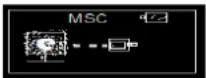
- Connect the MP3 Player to your PC. The MP3 player will be in MSC MODE. It will show the following icon:
- Select folders or files to be transferred and drag them to the removable data storage symbol of the MP3 player (download to root directory). It is possible to create different folders for the classification of your file types in the player memory beforehand and then to save the relevant files to them.
- Once the transmission is complete, click the MP3 player symbol and check whether the files were completely copied.
- Following the same procedure, you can also copy files from the MP3 player to the PC (upload).
If an error occurs during installation, remove the USB cable, restart the operating system and reconnect the USB cable to the PC.
Formatting the Flash Memory
Using the PC operating system:
Open Windows Explorer and right click on the player's removable data storage symbol. Then click on the Format option in the context menu.

Never disconnect the USB cable from your MP3 player during a data transfer or while formatting.
3.5 Disabling the MP3 Player from the PC
- Disable the digital MP3 player from the operating system correctly using the "Remove Hardware Safely" option.
- Click the task bar on the right-hand side below the symbol and select "Remove USB Mass Storage Device – Drive (X:) in the dialog window.
- A message will appear stating that the hardware can be removed.
4 Operation
4.1 Switching the MP3 player on and off
Switching the MP3 player on
Press the Power button to ON side until the player is on. OR when the power button is in the ON side, long press the PLAY key until the player is on.
Switching the MP3 player off
Press and hold the PLAY key for approximately three seconds until the player has shut down and the LCD display goes blank. OR when the power button is to the ON side, long press the PLAY key until the player is off.
4.2 Mode switch in the main menu
Recurring operating steps:
Press the MODE key of the turned-on player once to the main menu. Use the main menu to access the various operation modes and player settings: MUSIC, SETUP, System Tools, File Browse.
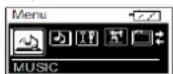
- Use the <</>> keys to select the desired option and confirm by pressing the PLAY key.
- The / keys are also used in the sub-menus to select the desired option and confirm with PLAY key.
MP855
- To return to the main menu from the sub-menus or switch to music mode, press the MENU button. Music mode (play music)
Playback, forwards/backwards, pause, stop
- Insert the headphones in the headphone jack and turn the player on.
- Press the PLAY button to play the track shown. The track information (ID3 tag) is scrolled on the display.
- Press and hold the keys during play to skip forwards or backwards within the track.
- If you briefly press the ➤ or ◀ keys, playback skips to the next or previous track respectively.
- Press the PLAY button briefly to pause playback. To resume play, press the PLAY key again.
Setting the volume
Long press "VOL" key and it will show "VOL" in the top of LCD, then short press ▶ decrease volume or to increase volume.
A/B repeat
This function allows you to repeat a specific section of a music file by setting the starting and finishing point of the section during playback.
- Briefly press the VOL key during playback to mark the beginning of the section (A).
- Briefly press the VOL key again during playback to mark the end of the desired section (B).
- The selected section will now be repeated indefinitely until you press the Mode key again.
4.3 MUSIC mode
When the player is turned on, it will enter music playing interface. Then you can listen your music.
OR when press the MENU button to appears main menu, choose MUSIC to play music, as described in chapter 4.2.
4.4 SETUP
This mode allows you to change important system settings for your MP3 player. It contains a total of 8 options: Equalizer, Repeat Mode, Contrast, Backlight, Power, Language and 3D.
Recurring operating steps:
- Select SETUP mode in the main menu, as described in chapter 4.2.
- Use the <</▶ keys to select the relevant sub-menu and confirm by pressing the PLAY key.
- Use /to select the specific value and press the PLAY button again to confirm the selection. Press the MENU key to exit the menus.
Equalizer settings
- Use / to select the desired tone (Normal, Pop, Rock, Classic, Jazz and Bass).
- Confirm by using the PLAY button again.

Repeat Mode
- Use to select the desired repeat mode (No Repeat, Repeat One, Repeat All and Random All, Dir Normal, Dir All Repeat, Dir Random All, ).
- Confirm using the MODE button again.

Repeat One: Plays back the current file repeatedly.
Repeat All: Repeatedly plays back all files in the original order.
Shuffle:Plays back all files in a random order.
Dir all normal: Repeatedly plays back all files of the current folder.
Contrast
Allows you to set the required LCD display contrast (6 levels).

Backlight (Automatic shutdown of the display)
This allows you to set whether the display is to remain on after a button is pressed and how long it stays on: Off, 5 s, 15 s and On.
MP855

Power (AutoOff of the player)
The auto off feature switches off the unit to save energy if during the term of the given time allows limit no key is pressed. The Disable setting sets the display to remain on.

Language
Use this option to select the required language for total 25 kinds: English, Finish, French German, Spanish, Italian and so on.

3D set
To set the on or off of the 3D setting.

4.5 System Tools
Select System Tools in the main menu, as described in chapter 4.2.
There are Delete, Format, Reset, File Sort, System Info in this function.
➢ Delete: to delete the data in your player. Please be caution.
➢ Format: to delete the data as doing on the PC.
➢ Reset: to reset the player.
➢ File Sort: Auto Sort and Force Sort the files in the player.
➢ System Info: to view FW and memory status of your player,
4.6 File Browse
Select File Browse in the main menu, as described in chapter 4.2.
File Browse: to browse your files. When press MENU button, it will appear a interface of Add to List or Delete. Long press MENU button to exit.
Classification: to refresh the data for the player.
Playlist: to view My List.
5 Troubleshooting
| Symptoms Cause and solution | |
| The device does not work. | Check whether the batteries are charged properly.Make sure that the player is turned on. |
| No sound comes out of the headphones. | Make sure that the volume is set above zero and that the headphones are connected correctly.Make sure that the headphones are not dirty.Faulty MP3 files will cause the player to output various sounds, even if no music can be played. Make sure that the files are complete. |
| Unknown characters shown on the display. | Make sure that you have chosen the correct language. |
| Music cannot be downloaded as usual. | Check whether the driver was installed properly (Windows 98).Check whether the USB cable is da maged and make sure that the device is connected to the USB port properly.Make sure that you have sufficient disk space available |
| No USB connection is established to the PC. | Check cable/plug connection to the PC, Windows system configuration and USB driver. Restart PC, remove and reconnect the USB cable, reinstall driver (Windows 98).If the malfunction continues, contact customer services. |
6 Specifications
| Dimension 48mm*30.5mm*15mm | |
| Internal memory 32M to 16GB(Integrated flash memory) for your choice | |
| Formats MP3, WMA, WAV | |
| Bit rate MP3: 56 ... 256 kbps | |
| Battery LI-ion polymer battery(3.7V) | |
| Display LCD (24 mm x 14 mm) | |
| USB type USB 2.0 | |
| Headphone Jack Φ3,5 insert | |
| Output frequency 20 Hz ... 20 kHz | |
| Separation ≥ 85 dB (1 kHz referenced signal) | |
| Frequency response | 3 dB (20 Hz ... 20 kHz) |
| System Requirements | Windows XP,VISTA or MAC OS X 10.0 or higher |
| File system FAT, FAT32 | |
ALL INFORMATION IS SUBJECT TO BE CHANGED WITHOUT PRIOR NOTICE!


- Safe instructions
- Contents of package
- Getting started
- Controls
- Key Functions
- Key operation
- LCD and symbols
- Overview of the LCD
- Battery status
- Connecting to PC
- Formatting the Flash Memory
- Disabling the MP3 Player from the PC
- Operation
- Switching the MP3 player on and off
- Switching the MP3 player on
- Switching the MP3 player off
- Mode switch in the main menu
- MP855
- Playback, forwards/backwards, pause, stop
- Setting the volume
- A/B repeat
- MUSIC mode
- SETUP
- Recurring operating steps:
- Equalizer settings
- Repeat Mode
- Contrast
- Backlight (Automatic shutdown of the display)
- Power (AutoOff of the player)
- Language
- 3D set
- System Tools
- File Browse
Brand : Difrnce
Model : MP855
Category : Mp3 player