50 Cesium - Smartphone ARCHOS - Free user manual and instructions
Find the device manual for free 50 Cesium ARCHOS in PDF.
User questions about 50 Cesium ARCHOS
0 question about this device. Answer the ones you know or ask your own.
Ask a new question about this device
Download the instructions for your Smartphone in PDF format for free! Find your manual 50 Cesium - ARCHOS and take your electronic device back in hand. On this page are published all the documents necessary for the use of your device. 50 Cesium by ARCHOS.
USER MANUAL 50 Cesium ARCHOS
natural_image
Color swatch bar with grayscale gradient from black to white (no text or symbols)
Table of contents
Package contents....2
Description of the phone....3
Getting started....6
Mobile data & WiFi connection....10
Outlook account & Contacts....12
Hints & tips with Windows™....14
Troubleshooting....16

For more information, please consult the FAQs on www.archos.com. Make sure to read them before considering any product return. As we are often updating and improving our products, your device's software may have a slightly different appearance or modified functionality than presented in this Quick Start Guide. Consult the declaration of conformity on:
http://www.archos.com/gb-en/support/support_tech/downloads.html
1



natural_image
Color palette bar with grayscale gradient and a small crosshair symbol at the bottom (no text or labels)Package Contents
Check your product box for the following items:
-ARCHOS 50 Cesium
-Battery
-Headset
-USB cable
-Charger
-Quick start guide
-Warranty Legal & Safety notices


The items supplied with your device and available accessories may vary depending on your region or service provider. The supplied items are designed only for your device and may not be compatible with other devices. Unapproved accessories may cause your device to malfunction.
2


text_image
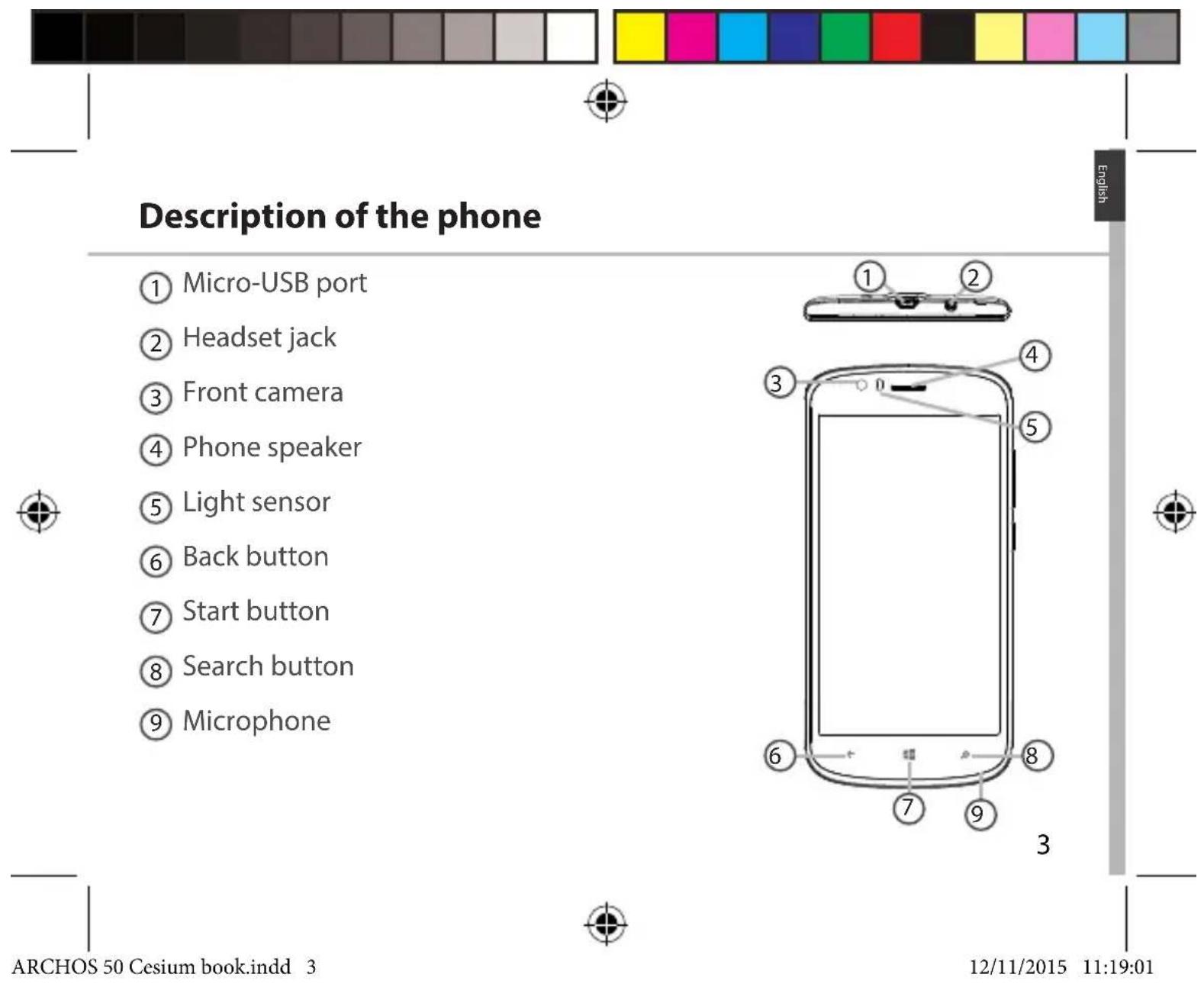
Description of the phone ① Micro-USB port ② Headset jack ③ Front camera ④ Phone speaker ⑤ Light sensor ⑥ Back button ⑦ Start button ⑧ Search button ⑨ Microphone ARCHOS 50 Cesium book.indd 3 12/11/2015 11:19:01 English
natural_image
Color palette bar with grayscale gradient and a central crosshair symbol (no text or labels)Description of the phone
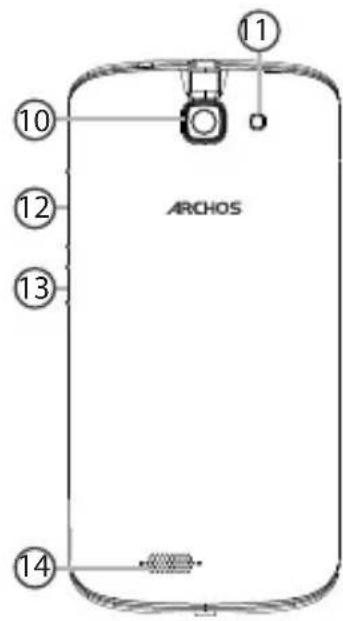
⑩ Camera
⑪ Flash light
⑫ Volume buttons
⑬ ON/OFF button
14 Loudspeaker

text_image
ARCHOS 10 12 13 14
4
ARCHOS 50 Cesium book.indd 4

12/11/2015 11:19:02

text_image
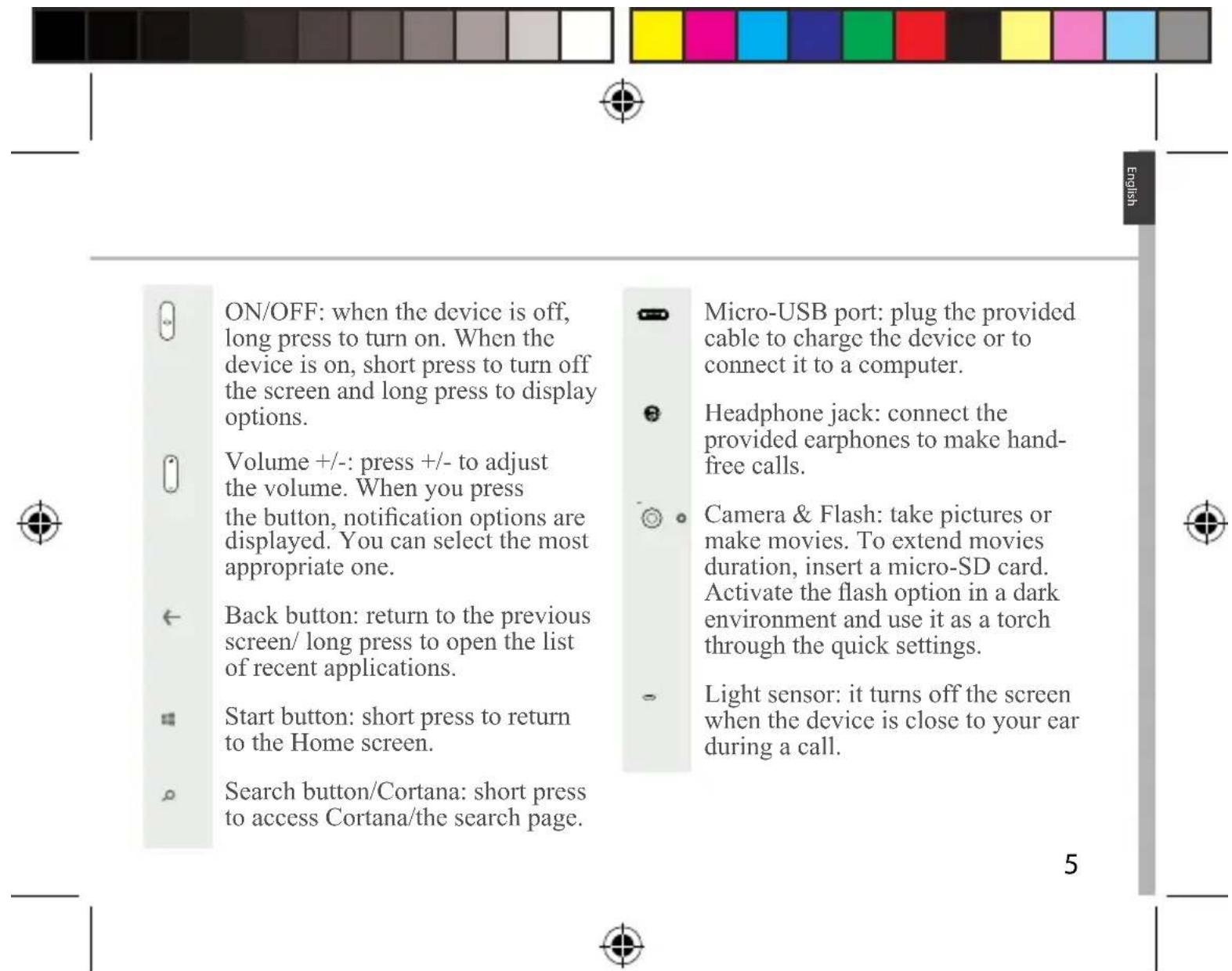
ON/OFF: when the device is off, long press to turn on. When the device is on, short press to turn off the screen and long press to display options. Volume +/-: press +/- to adjust the volume. When you press the button, notification options are displayed. You can select the most appropriate one. Back button: return to the previous screen/ long press to open the list of recent applications. Start button: short press to return to the Home screen. Search button/Cortana: short press to access Cortana/the search page. Micro-USB port: plug the provided cable to charge the device or to connect it to a computer. Headphone jack: connect the provided earphones to make hand- free calls. Camera & Flash: take pictures or make movies. To extend movies duration, insert a micro-SD card. Activate the flash option in a dark environment and use it as a torch through the quick settings. Light sensor: it turns off the screen when the device is close to your ear during a call.ARCHOS 50 Cesium book.indd 5 12/11/2015 11:19:03

natural_image
Color palette bar with grayscale gradient and a small crosshair symbol at the bottom (no text or labels)Getting started
Assembling
After you have unpacked your mobile phone box:
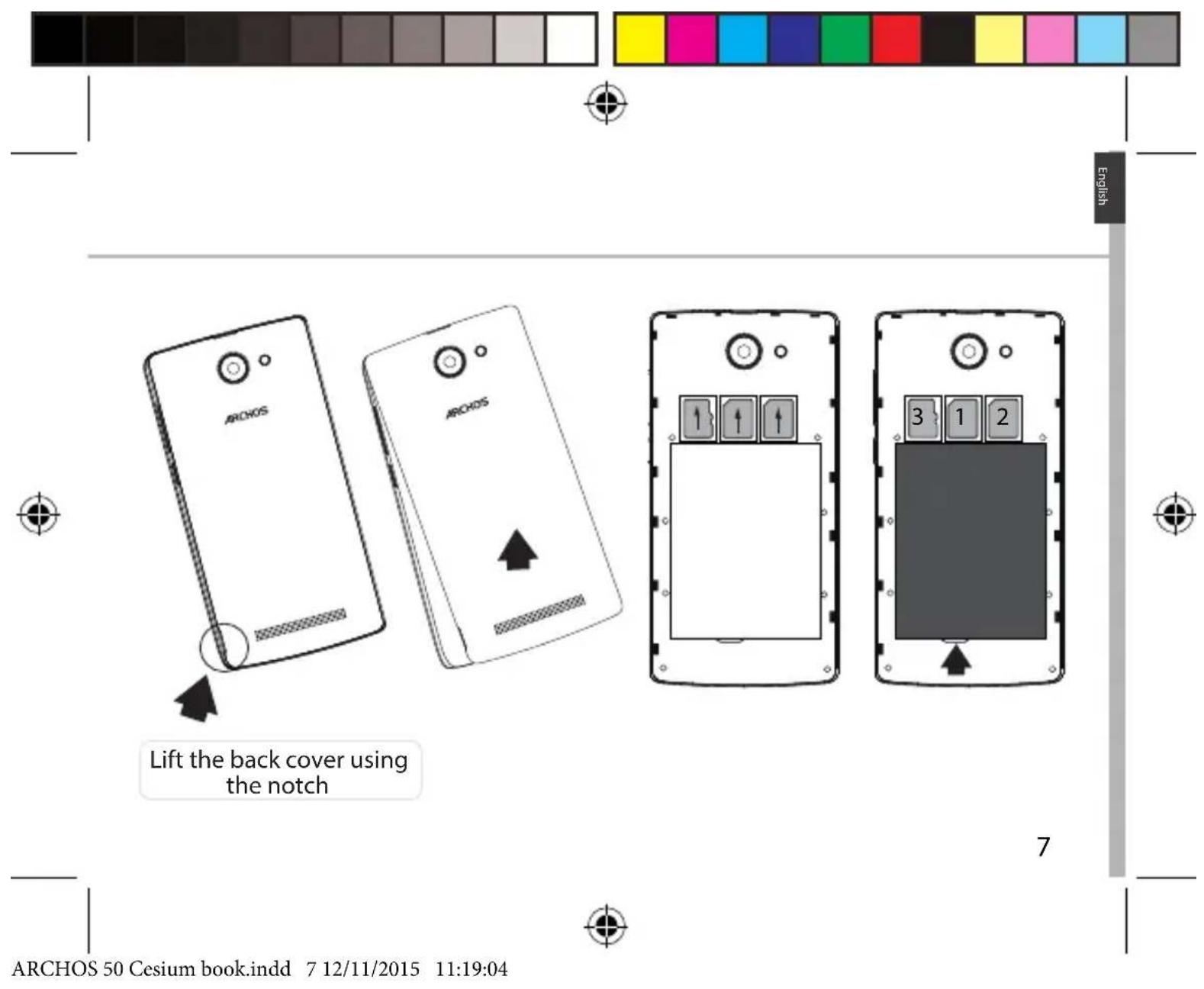
- Remove the device's back cover using the notch.
- Insert your SIM card or Memory card in the corresponding slot.
- Insert the device's battery.
- Replace the back cover.

| 4G/3G slot 1 When inserting your SIM card or 2G slot 2Micro-SD card (Maximum 32 GB) slot 3 | micro-SD card, make sure to follow the illustration, otherwise you may damage the slot or the card. |

6


text_image
ARCHOS Lift the back cover using the notch 7 ARCHOS 50 Cesium book.indd 7 12/11/2015 11:19:04
natural_image
Color palette bar with grayscale gradient and a central crosshair symbol (no text or labels)Getting started
Turning on
- Plug the charging cable in the Micro-USB port and connect it to its charger. Before using your device for the first time, charge its battery completely.
- Press and hold the ON/OFF button to turn on the device. The first time you start up your ARCHOS, the installation wizard will help you set up your device.
- Follow the instructions. If you have inserted a SIM card, you may need to enter a PIN code. Beware of typing a wrong PIN code.


8


text_image
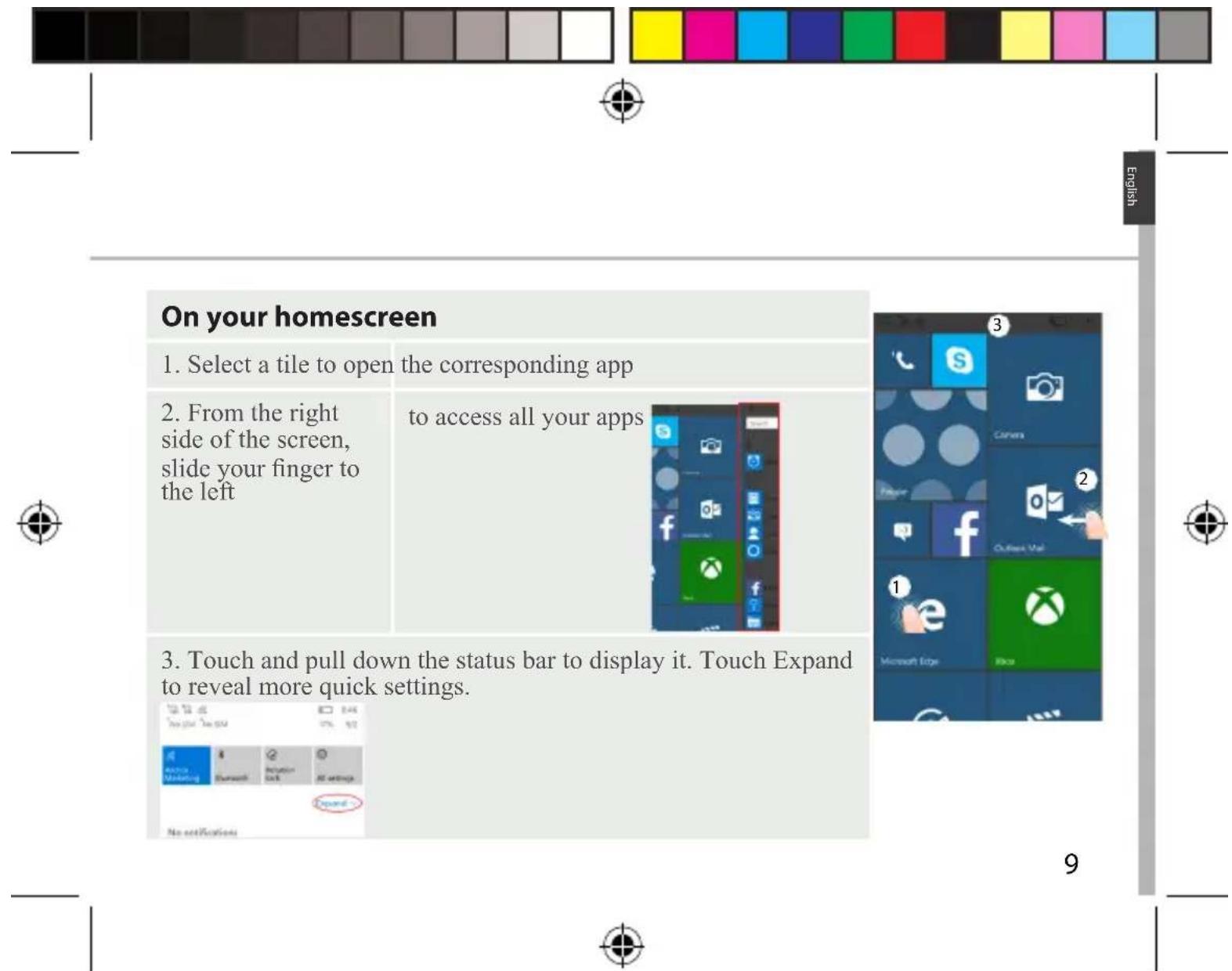
On your homescreen 1. Select a tile to open the corresponding app 2. From the right side of the screen, slide your finger to the left to access all your apps 3. Touch and pull down the status bar to display it. Touch Expand to reveal more quick settings.ARCHOS 50 Cesium book.indd 9 12/11/2015 11:19:04

natural_image
Color palette bar with grayscale gradient and a small crosshair symbol at the bottom (no text or labels)Mobile Data & WiFi connection
Mobile data connection
If your mobile phone subscription includes a mobile data option, you should be connected to the Internet without any further setup. If you are not connected, see below how to activate your mobile data. The ARCHOS will only have signal if you are in an area covered by your provider's 4G network.
Activating/Deactivating the mobile data
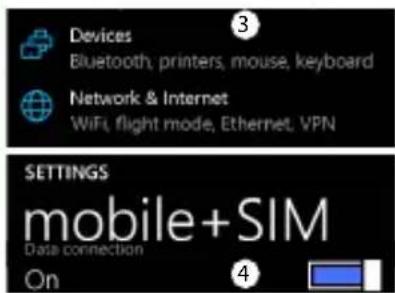
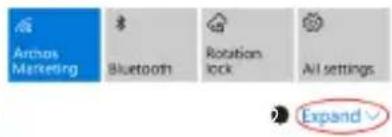
- Touch and pull down the status bar to display it.
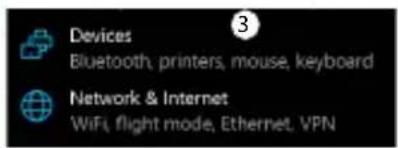
- Touch Expand to reveal all the quick settings. Select All Settings.
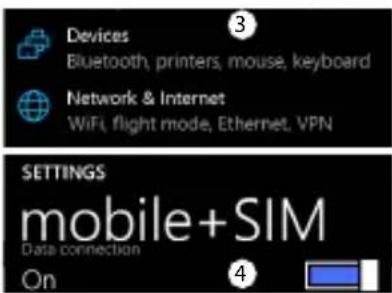
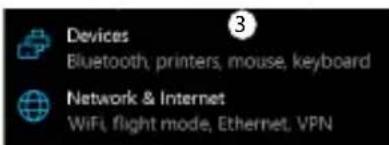
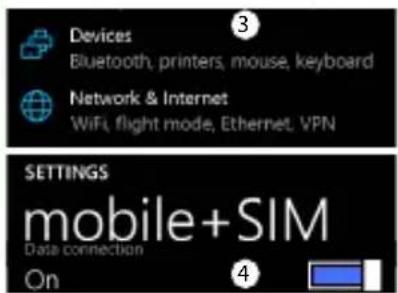
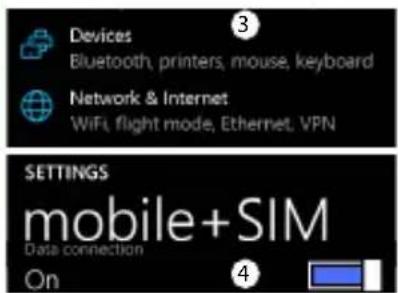
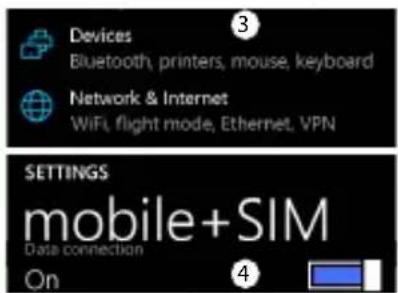
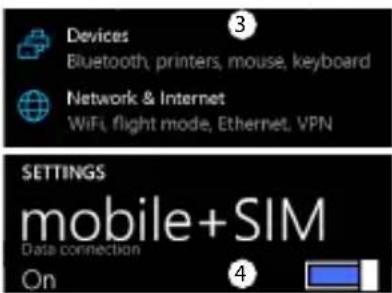
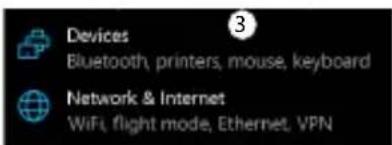
- Select Network & Internet, then Cellular & SIM.
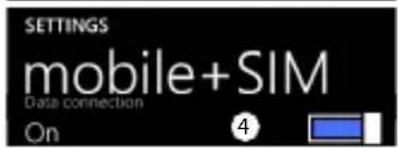
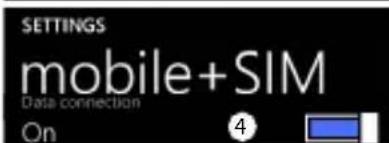
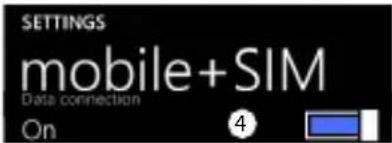
- Slide the Data connection switch to turn on/off.
text_image
Archas Marketing Bluetooth Rotation lock All settings Expand
text_image
Devices Bluetooth, printers, mouse, keyboard Network & Internet WiFi, flight mode, Ethernet, VPN
text_image
SETTINGS mobile+SIM Data connection On ④10


text_image
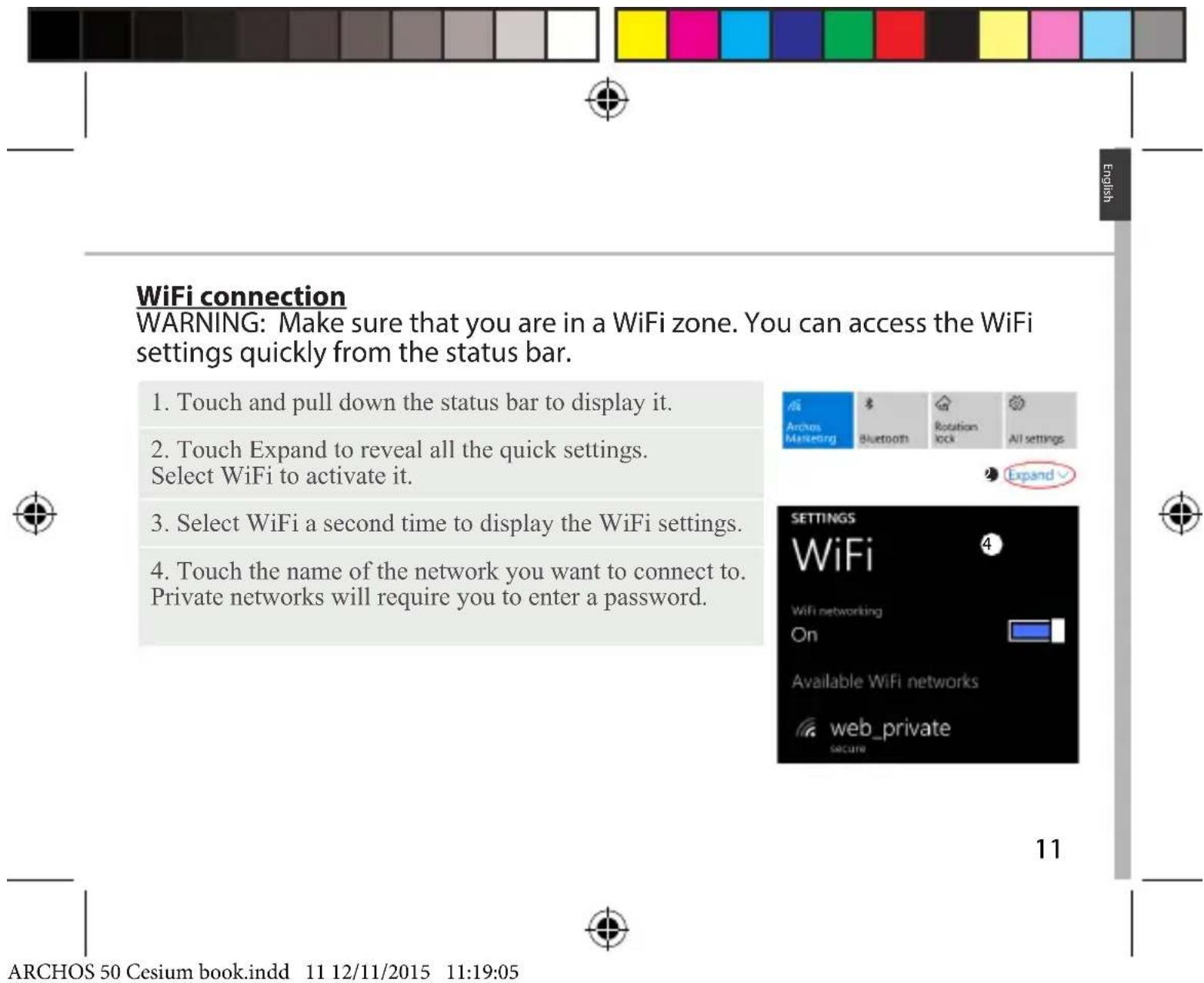
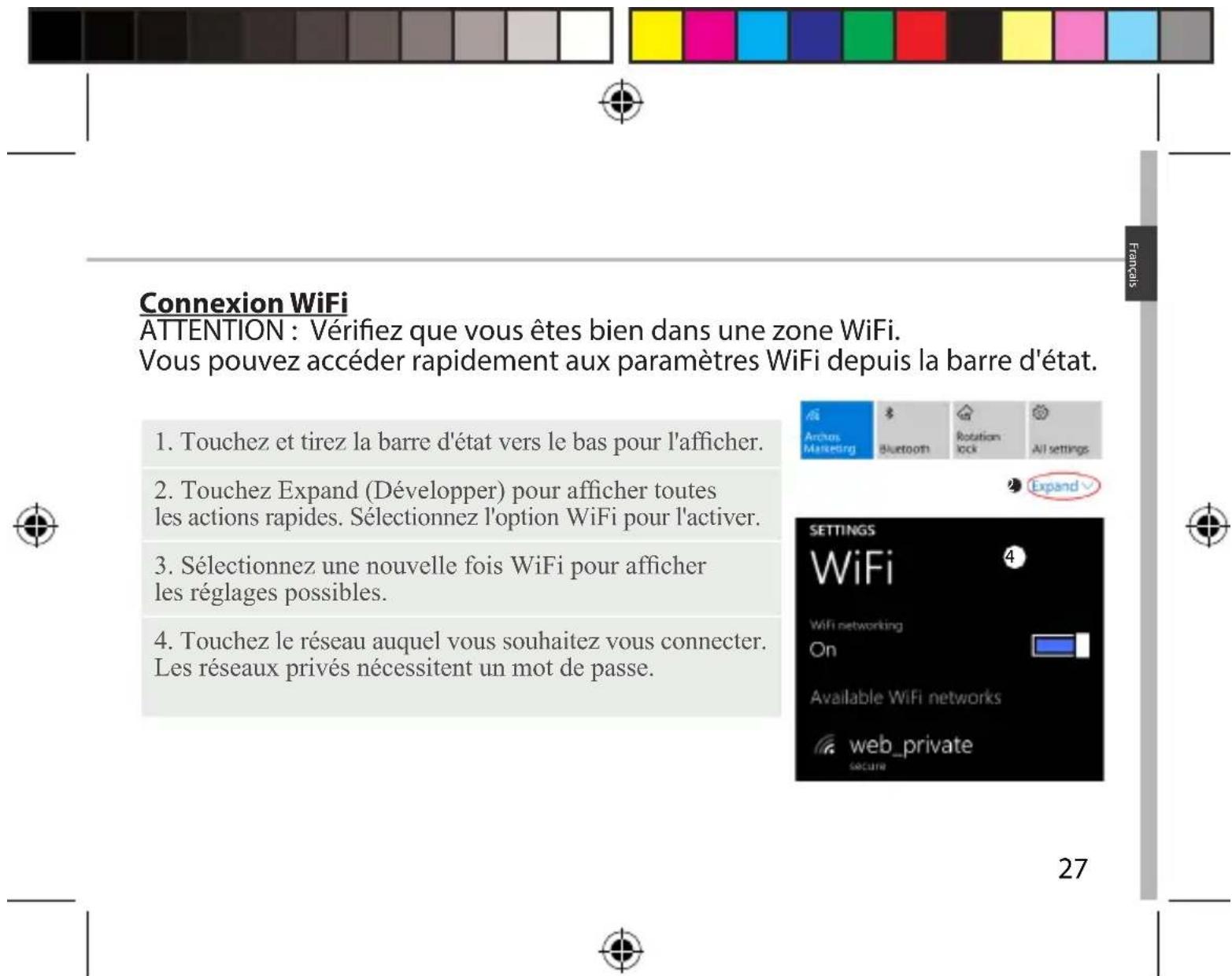
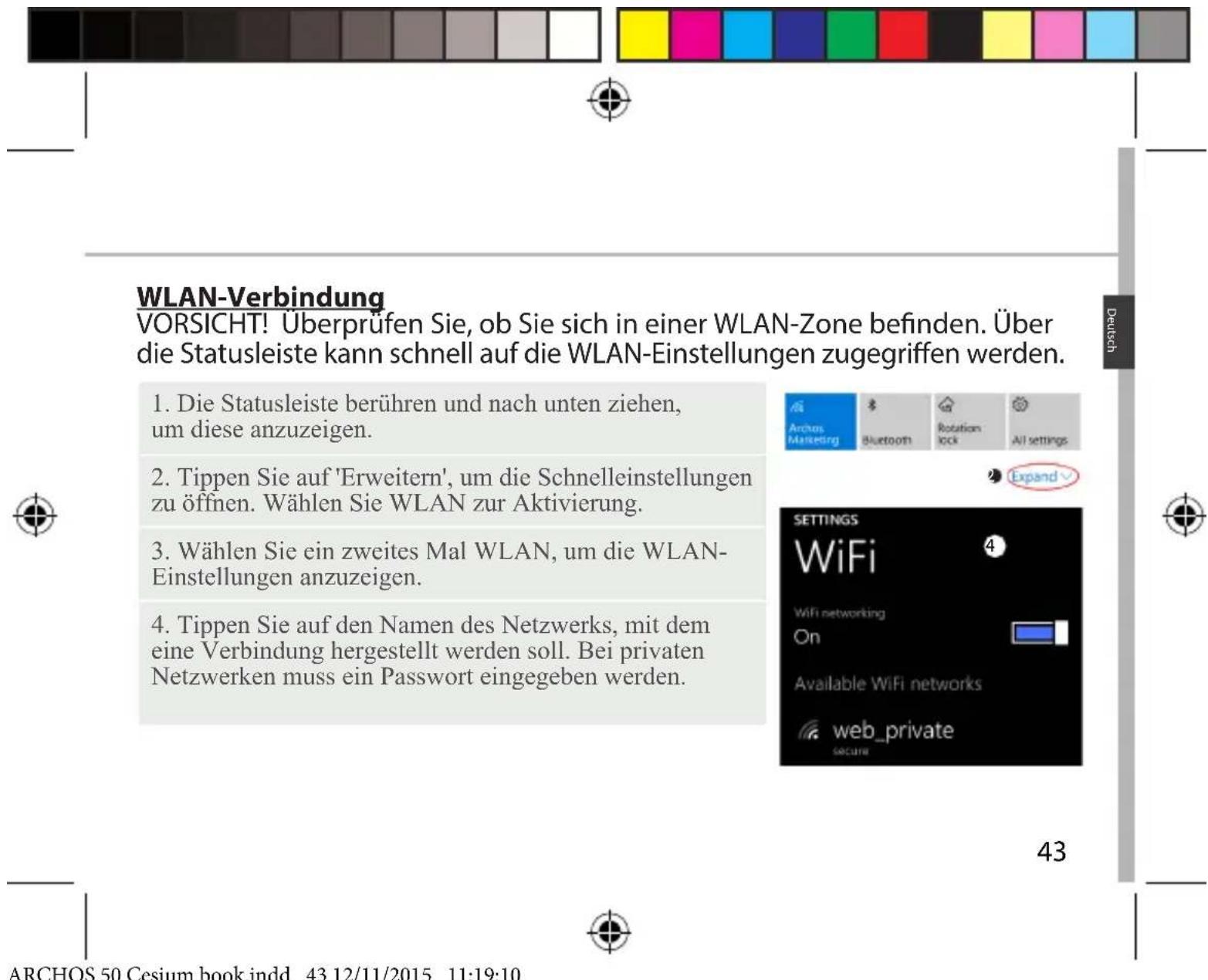
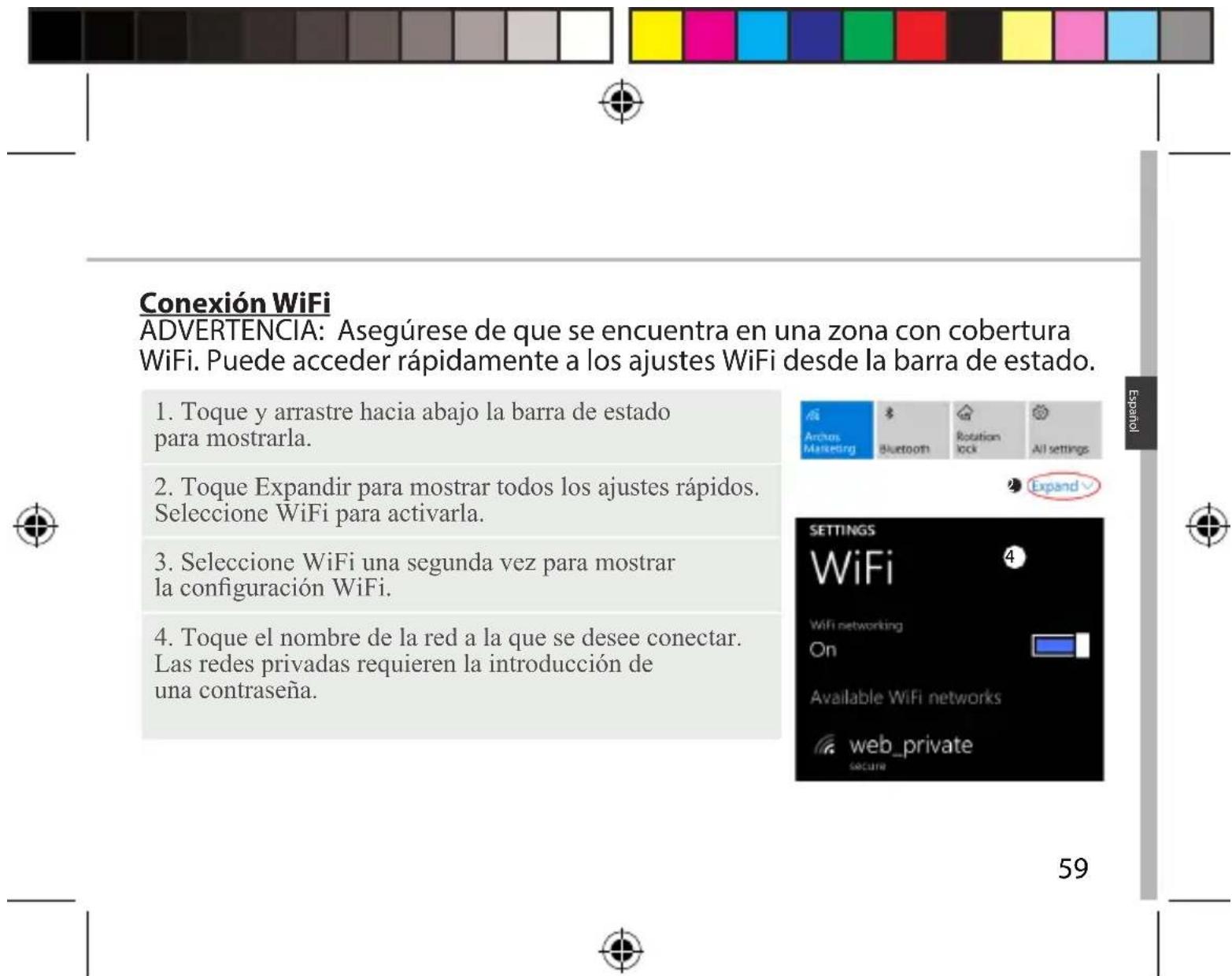
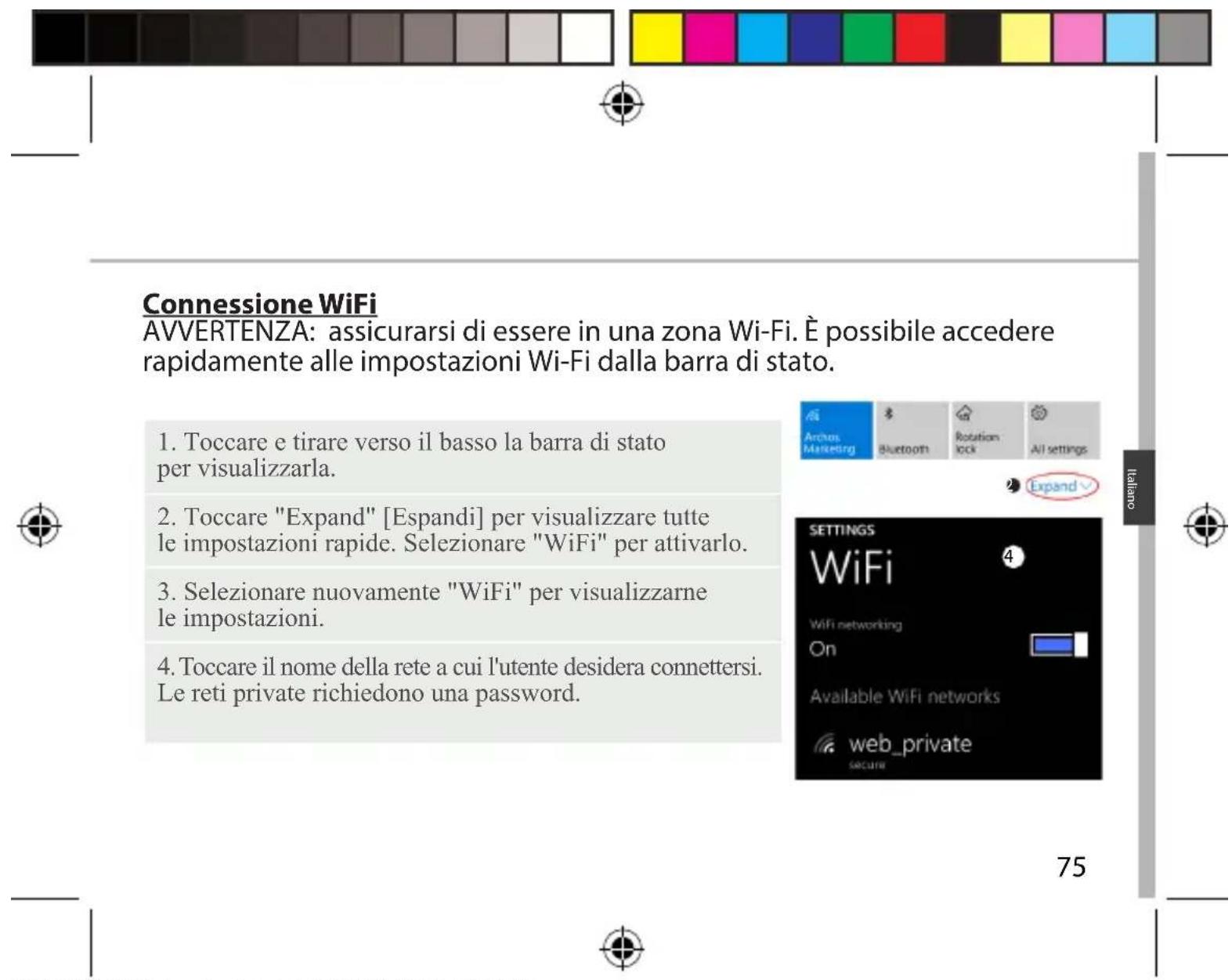
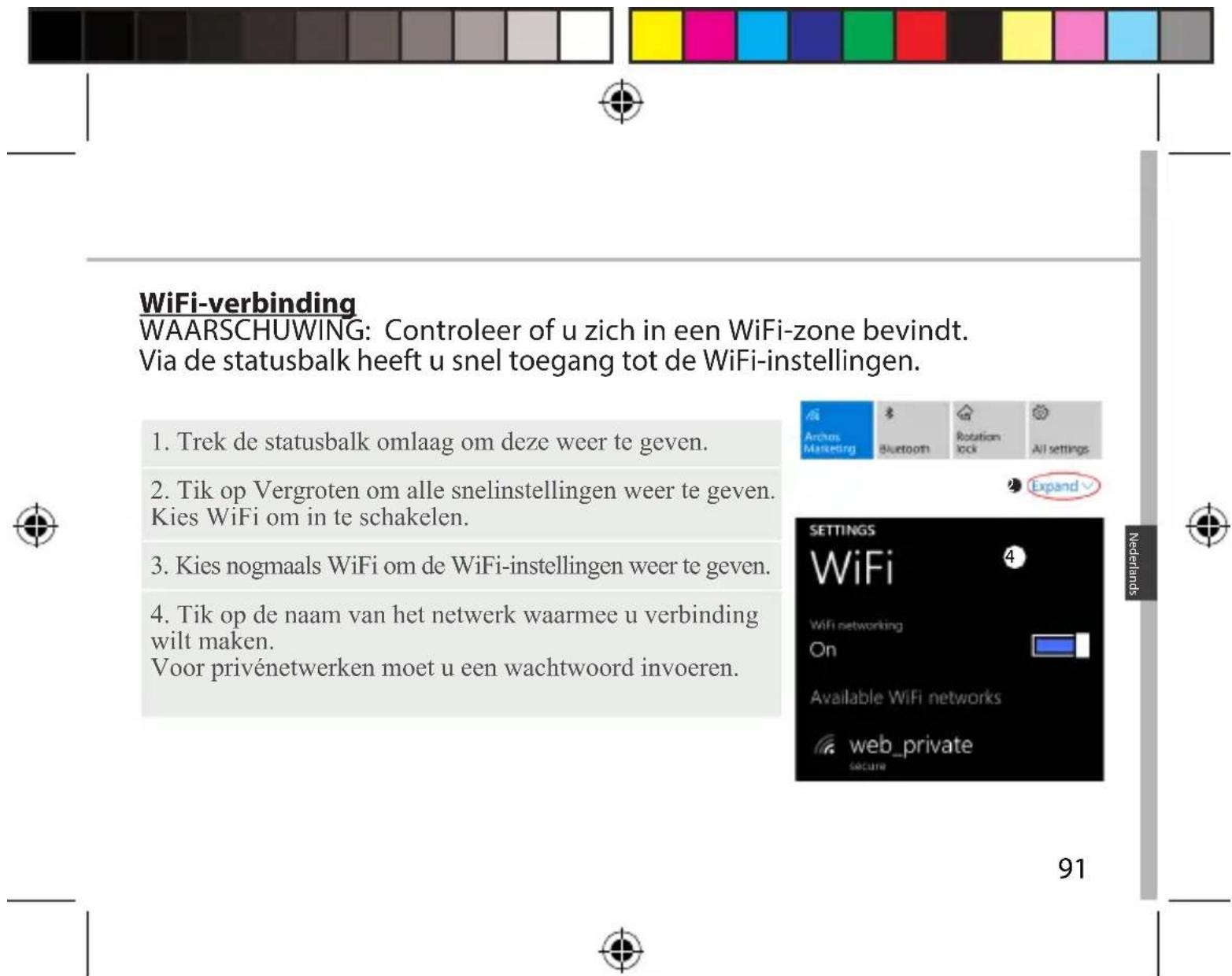
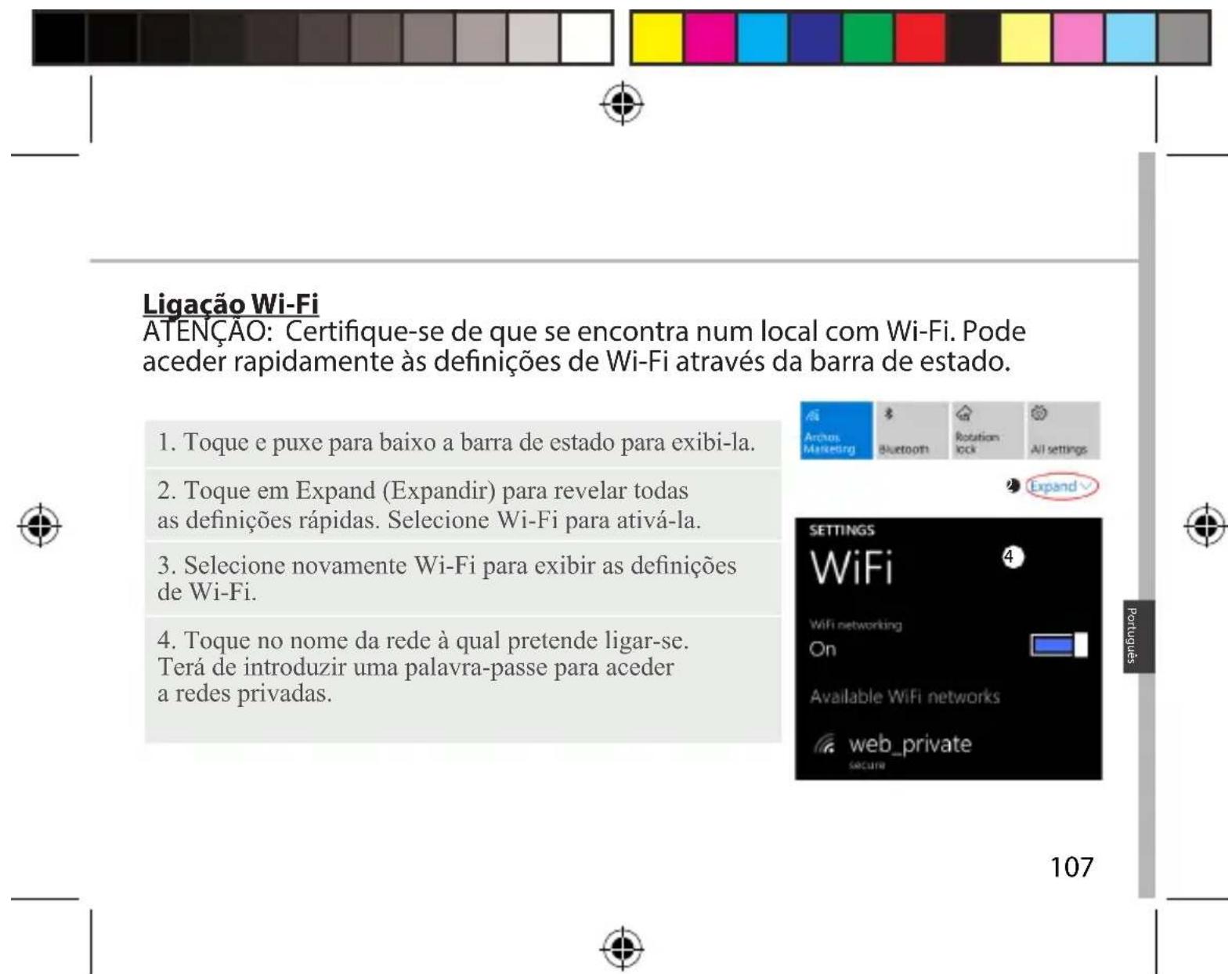
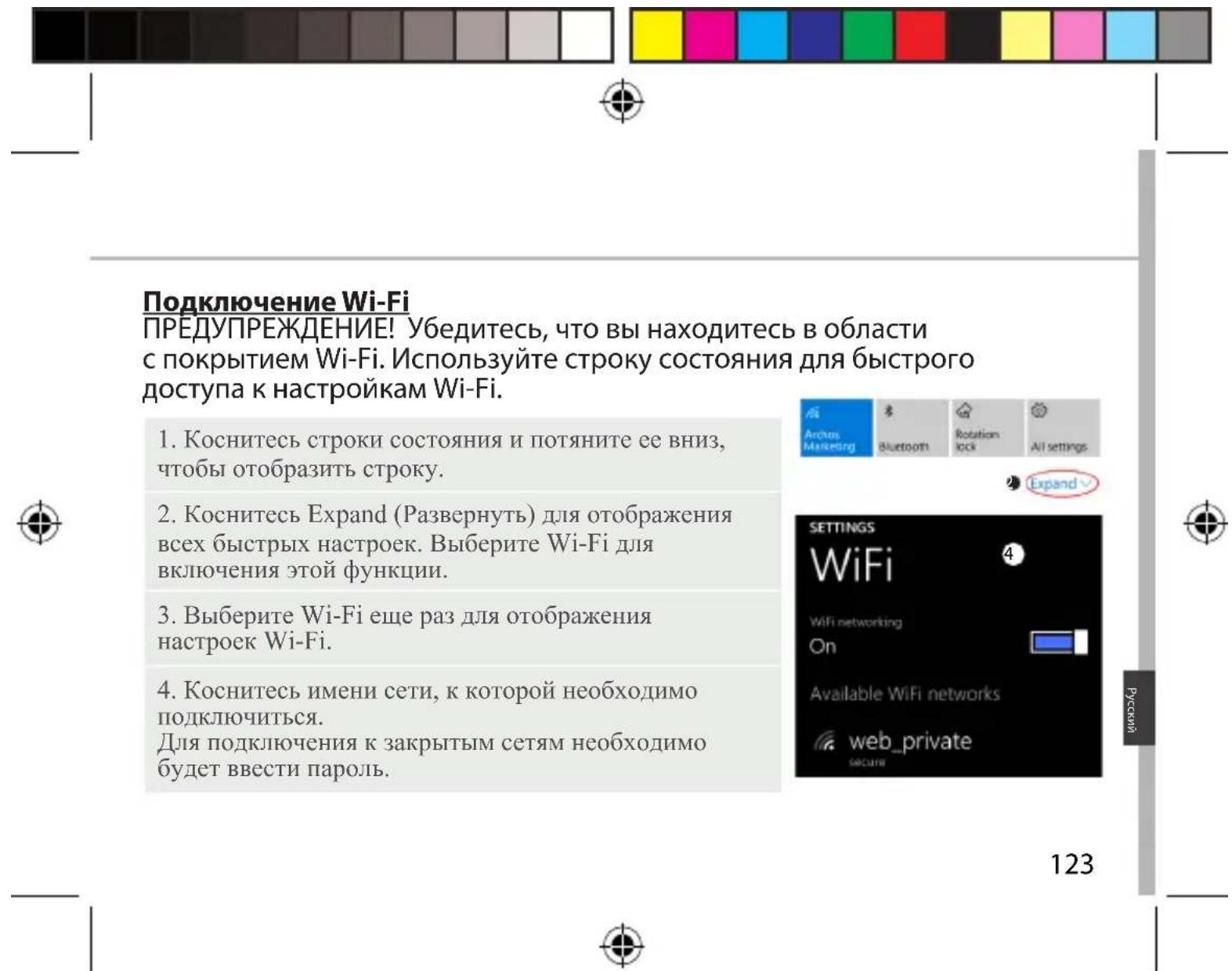
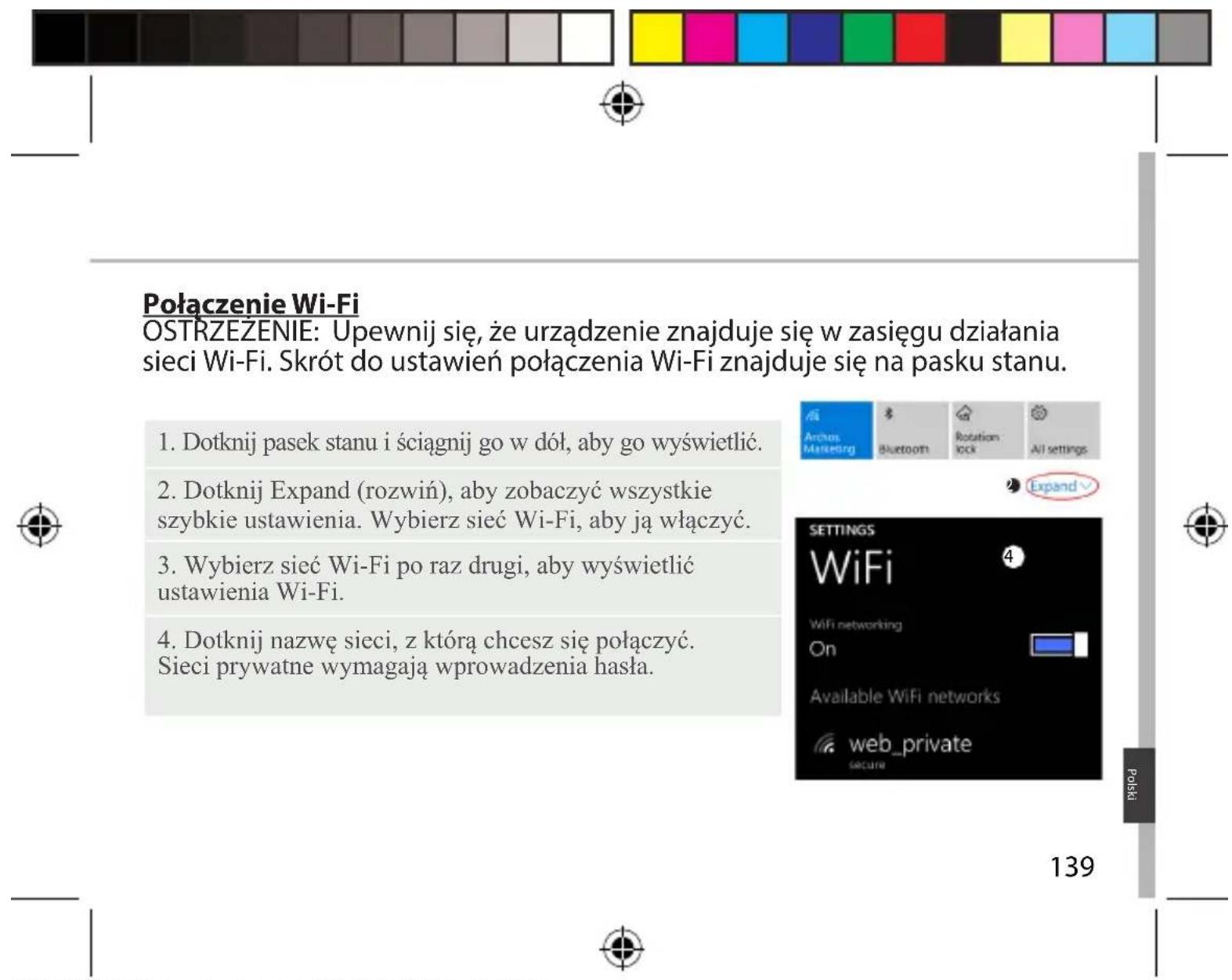
WiFi connection WARNING: Make sure that you are in a WiFi zone. You can access the WiFi settings quickly from the status bar. 1. Touch and pull down the status bar to display it. 2. Touch Expand to reveal all the quick settings. Select WiFi to activate it. 3. Select WiFi a second time to display the WiFi settings. 4. Touch the name of the network you want to connect to. Private networks will require you to enter a password.
natural_image
Color palette bar with grayscale gradient and a crosshair symbol at the bottom (no text or labels)Account & Contacts
Adding an account
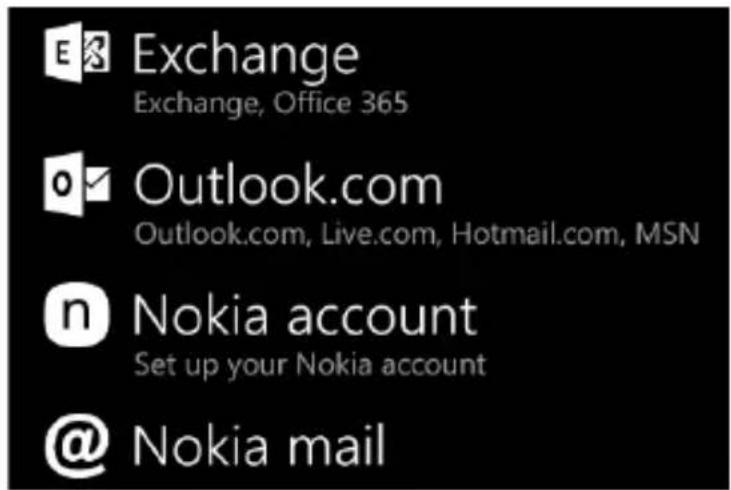
- Go to 'Settings' > 'Accounts' > 'Email & accounts' > 'add an account'.
- Select the account type to add.
- Follow the onscreen instructions to enter information about the account.

text_image
Exchange Exchange, Office 365 Outlook.com Outlook.com, Live.com, Hotmail.com, MSN Nokia account Set up your Nokia account @Nokia mail12


text_image
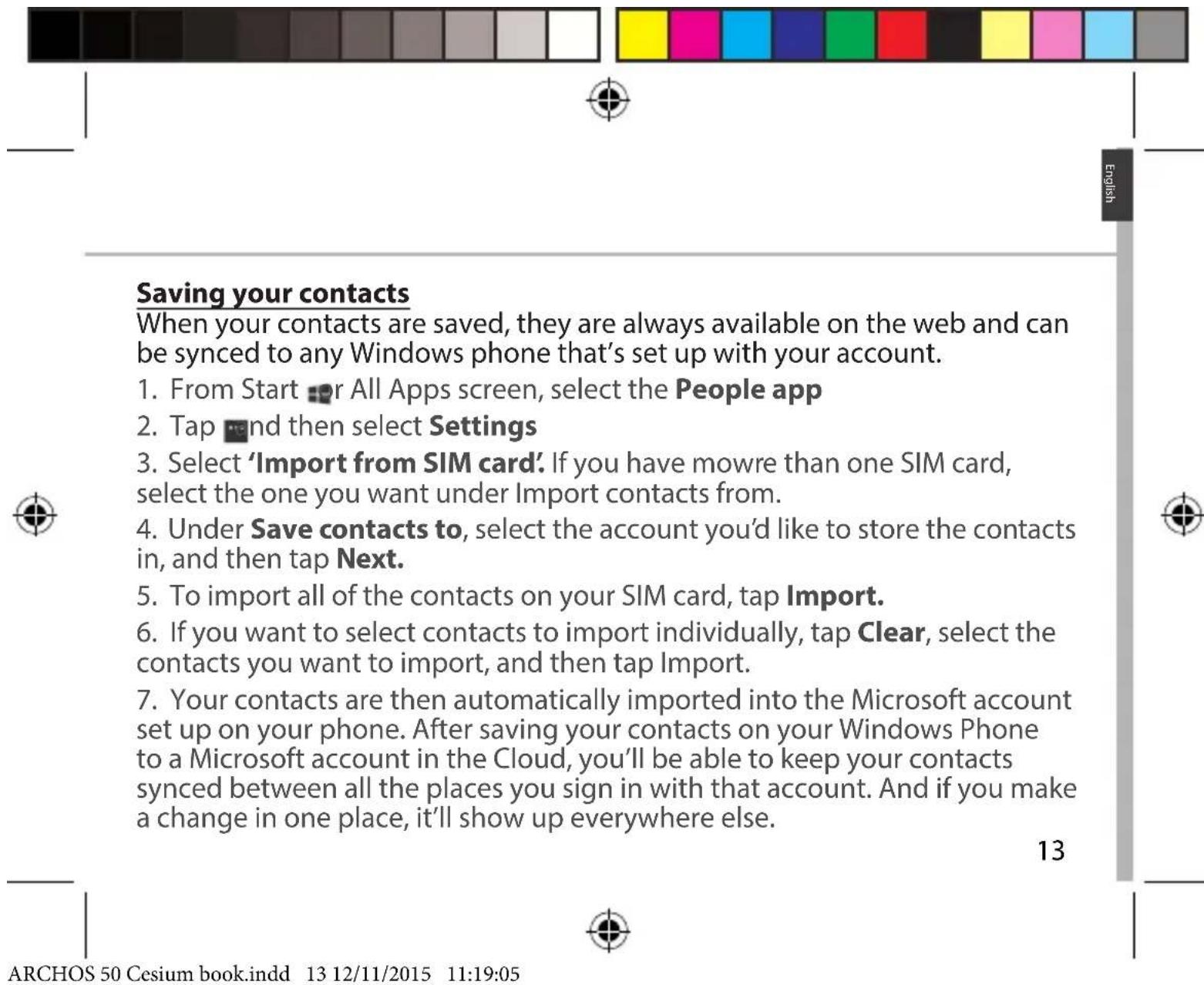
Saving your contacts When your contacts are saved, they are always available on the web and can be synced to any Windows phone that's set up with your account. 1. From Start or All Apps screen, select the People app 2. Tap and then select Settings 3. Select 'Import from SIM card'. If you have mowre than one SIM card, select the one you want under Import contacts from. 4. Under Save contacts to, select the account you'd like to store the contacts in, and then tap Next. 5. To import all of the contacts on your SIM card, tap Import. 6. If you want to select contacts to import individually, tap Clear, select the contacts you want to import, and then tap Import. 7. Your contacts are then automatically imported into the Microsoft account set up on your phone. After saving your contacts on your Windows Phone to a Microsoft account in the Cloud, you'll be able to keep your contacts synced between all the places you sign in with that account. And if you make a change in one place, it'll show up everywhere else. 13 ARCHOS 50 Cesium book.indd 13 12/11/2015 11:19:05
natural_image
Color palette bar with grayscale gradient and a central crosshair symbol (no text or labels)Hints & tips for Windows™
Making a call:
Make a call in just a few taps. On the Start screen, tap the Phone Tile, touch the Keypad icon, enter a phone number, then tap Call. To call one of your contacts, touch the Phone book, then tap Search to find the one you want. To call someone back, just tap a name or number in History.

Sending a text: Limber up those thumbs- texting is a doodle on your Windows Phone. On Start Tap Messaging, then tap New.
Enter a phone number or contact, type your message in the text box, then tap Send. To reply to a text, just tap the thread with the message that you want to answer.

Shopping the store:
Browse free and paid apps and games in the Windows Phone Store. Make sure you've signed in to your phone with your Microsoft account. On Start Start tap Store then do one of the following: Swipe left or right to see top apps, browse by category and more. Tap Search to find a specific app or game.
14


text_image
Finding your apps and pinning them to Start: Apps you've downloaded show up in the the App list. From there, you can pin your favourites to the Start screen. Note: You can pin apps, contacts and more to Start to keep them handy. Locking the touchscreen: A lock screen password can help keep your phone more secure. Go to Settings < Lock screen and slide the Password switch to the "ON" position and then create a password. You can decide to remove this option at any time by sliding the Password switch to the "OFF". 15 ARCHOS 50 Cesium book.indd 15 12/11/2015 11:19:05
natural_image
Color palette bar with grayscale gradient and a central crosshair symbol (no text or labels)Troubleshooting
My phone is frozen or cannot switch on
Check the battery contacts, remove and reinstall your battery, then turn your phone on. Check the battery power level, charge for at least 20 minutes.
My phone cannot connect to a network or "No service" is displayed
Try connecting in another location. Verify the network coverage with your operator.
Unable to make outgoing calls
Make sure your phone is connected to a network, and the network is not overloaded or unavailable.
Unable to receive incoming calls
Make sure your phone is switched on and connected to a network (check for overloaded or unavailable network).
SIM card PIN locked
Contact your network operator to obtain the PUK code (Personal Unblocking Key).
To configure a new 4G network:
On your device, tap Settings.
Select Wireless & networks > More... > Mobile networks.
Select Network settings. In Network operators, select your operator.
In Access Point Names, select the correct access point name and enter the exact connection parameters provided by your 4G provider.
16


natural_image
Color swatch bar with grayscale gradient from black to white (no text or symbols)
Table des matières
http://www.archos.com/gb-en/support/support_tech/downloads.html
17


natural_image
Color palette bar with grayscale gradient and a central crosshair symbol (no text or labels)Contenu de la boîte
natural_image
Color palette bar with grayscale gradient and a central crosshair symbol (no text or labels)natural_image
Color palette bar with grayscale gradient and a small crosshair symbol at the bottom (no text or labels)Mise en route
Montage
natural_image
Color palette bar with grayscale gradient and a central crosshair symbol (no text or labels)Mise en route
Allumage
natural_image
Color swatch bar with grayscale gradient from black to white (no text or symbols)
text_image
Anchus Marketing Bluetooth Rotation lock All settings Expand
text_image
Devices Bluetooth, printers, mouse, keyboard Network & Internet WiFi, flight mode, Ethernet, VPN SETTINGS mobile+SIM Data connection On26


natural_image
Color palette bar with grayscale gradient and a crosshair symbol (no text or labels)Comptes et contacts
Ajouter un compte
natural_image
Color palette bar with grayscale gradient and a crosshair symbol at the bottom (no text or labels)natural_image
Color palette bar with grayscale gradient and a central crosshair symbol (no text or labels)Dépannage
natural_image
Color swatch bar with grayscale gradient from black to white (no text or symbols)
Inhaltsverzeichnis
natural_image
Color palette bar with grayscale gradient and a central crosshair symbol (no text or labels)Verpackungsinhalt
natural_image
Color palette bar with grayscale gradient and a central crosshair symbol (no text or labels)natural_image
Color palette bar with grayscale gradient and a small crosshair symbol at the bottom (no text or labels)Erste Schritte
Montage
natural_image
Color palette bar with grayscale gradient and a small crosshair symbol at the bottom (no text or labels)Erste Schritte
Einschalten
natural_image
Color palette bar with grayscale gradient and a central crosshair symbol (no text or labels)text_image
Archos Marketing Bluetooth Rotation lock All settings Expand Devices Bluetooth, printers, mouse, keyboard Network & Internet WiFi, flight mode, Ethernet, VPN SETTINGS mobile+SIM Data connection On42


natural_image
Color palette bar with grayscale gradient and a crosshair symbol at the bottom (no text or labels)Konto & Kontakte
Konto hinzufügen
natural_image
Color palette bar with grayscale gradient and a crosshair symbol at the bottom (no text or labels)natural_image
Color palette bar with grayscale gradient and a central crosshair symbol (no text or labels)Fehlerbehebung
natural_image
Color swatch bar with grayscale gradient from black to white (no text or symbols)
Índice
natural_image
Color palette bar with grayscale gradient and a central crosshair symbol (no text or labels)natural_image
Color palette bar with grayscale gradient and a small crosshair symbol at the bottom (no text or labels)Primeros pasos
Montaje
natural_image
Color palette bar with grayscale gradient and a central crosshair symbol (no text or labels)Primeros pasos
Encendido
natural_image
Color swatch bar with grayscale gradient from black to white (no text or symbols)
text_image
Archives Marketing Bluetooth Rotation lock All settings Expand
text_image
Devices Bluetooth, printers, mouse, keyboard Network & Internet WiFi, flight mode, Ethernet, VPN SETTINGS mobile+SIM Data connection On58


natural_image
Color palette bar with grayscale gradient and a crosshair symbol at the bottom (no text or labels)Cuenta y contactos
natural_image
Color palette bar with grayscale gradient and a crosshair symbol at the bottom (no text or labels)natural_image
Color palette bar with grayscale gradient and a central crosshair symbol (no text or labels)natural_image
Color palette bar with grayscale gradient and a small crosshair symbol at the bottom (no text or labels)natural_image
Color palette bar with grayscale gradient and a central crosshair symbol (no text or labels)natural_image
Color palette bar with grayscale gradient and a small crosshair symbol at the bottom (no text or labels)Introduzione
Assemblaggio
natural_image
Color palette bar with grayscale gradient and a central crosshair symbol (no text or labels)Introduzione
Accensione
natural_image
Color swatch bar with grayscale gradient from black to white (no text or symbols)
text_image
Archas Marketing Bluetooth Rotation lock All settings Expand
text_image
Devices Bluetooth, printers, mouse, keyboard Network & Internet WiFi, flight mode, Ethernet, VPN
text_image
SETTINGS mobile+SIM Data connection On ④74


natural_image
Color palette bar with grayscale gradient and a crosshair symbol (no text or labels)Account e Contatti
natural_image
Color palette bar with grayscale gradient and a crosshair symbol at the bottom (no text or labels)natural_image
Two horizontal color swatches: black and gray with no text or symbols, showing a row of solid color blocks (no text or symbols)
natural_image
Color swatch bar with grayscale gradient from black to white (no text or symbols)
Inhoud
natural_image
Color palette bar with grayscale gradient and a central crosshair symbol (no text or labels)natural_image
Color palette bar with grayscale gradient and a small crosshair symbol at the bottom (no text or labels)Aan de slag
Montage
natural_image
Color palette bar with grayscale gradient and a central crosshair symbol (no text or labels)Aan de slag
Inschakelen
natural_image
Color swatch bar with grayscale gradient from black to white (no text or symbols)
Mobiele data & WiFi-verbinding
Mobiele dataverbinding
text_image
Arches Marketing Bluetooth Rotation lock All settings Expand
text_image
Devices Bluetooth, printers, mouse, keyboard Network & Internet WiFi, flight mode, Ethernet, VPN SETTINGS mobile+SIM Data connection On90


natural_image
Color palette bar with grayscale gradient and a crosshair symbol (no text or labels)Account & Contacten
natural_image
Color palette bar with grayscale gradient and a crosshair symbol at the bottom (no text or labels)Tips voor Windows™
Telefoneren:
natural_image
Color palette bar with grayscale gradient and a central crosshair symbol (no text or labels)Problemen oplossen
natural_image
Color swatch bar with grayscale gradient from black to white (no text or symbols)
Índice
natural_image
Color palette bar with grayscale gradient and a central crosshair symbol (no text or labels)Conteúdos do pacote
natural_image
Color palette bar with grayscale gradient and a central crosshair symbol (no text or labels)natural_image
Color palette bar with grayscale gradient and a small crosshair symbol at the bottom (no text or labels)Introdução
Instalação
natural_image
Color palette bar with grayscale gradient and a central crosshair symbol (no text or labels)Introdução
Ligar o telemóvel
natural_image
Color palette bar with grayscale gradient and a central crosshair symbol (no text or labels)text_image
Archas Marketing Bluetooth Rotation lock All settings Expand
text_image
Devices Bluetooth, printers, mouse, keyboard Network & Internet WiFi, flight mode, Ethernet, VPN SETTINGS mobile+SIM Data connection On106


natural_image
Color palette bar with grayscale gradient and a crosshair symbol (no text or labels)Conta e contactos
Adicionar uma conta
natural_image
Color palette bar with grayscale gradient and a crosshair symbol at the bottom (no text or labels)natural_image
Color palette bar with grayscale gradient and a central crosshair symbol (no text or labels)natural_image
Color swatch bar with grayscale gradient from black to white (no text or symbols)
Содержание
http://www.archos.com/gb-en/support/support_tech/downloads.html
113


natural_image
Color palette bar with grayscale gradient and a small crosshair symbol at the bottom (no text or labels)Содержимое упаковки
natural_image
Color palette bar with grayscale gradient and a central crosshair symbol (no text or labels)Описание телефона
natural_image
Color swatch bar with grayscale gradient from black to white (no text or symbols)
Начало работы
Сборка
natural_image
Color palette bar with grayscale gradient and a small crosshair symbol at the bottom (no text or labels)Начало работы
Включение
natural_image
Color swatch bar with grayscale gradient from black to white (no text or symbols)
text_image
Anchex Marketing Bluetooth Rotation lock All settings. Expand ↙
text_image
Devices Bluetooth, printers, mouse, keyboard Network & Internet WiFi, flight mode, Ethernet, VPN SETTINGS mobile+SIM Data connection On122


natural_image
Color swatch bar with grayscale gradient from black to white (no text or symbols)
natural_image
Color swatch bar with grayscale gradient from black to white (no text or symbols)
natural_image
Color swatch bar with grayscale gradient from black to white (no text or symbols)
natural_image
Color swatch bar with grayscale gradient from black to white (no text or symbols)
Spis treści
natural_image
Color palette bar with grayscale gradient and a small crosshair symbol at the bottom (no text or labels)natural_image
Color palette bar with grayscale gradient and a central crosshair symbol (no text or labels)Opis telefonu
natural_image
Color palette bar with grayscale gradient and a small crosshair symbol at the bottom (no text or labels)natural_image
Color palette bar with grayscale gradient and a central crosshair symbol (no text or labels)natural_image
Color swatch bar with grayscale gradient from black to white (no text or symbols)
text_image
Archives Marketing Bluetooth Rotation lock All settings Expand
text_image
Devices Bluetooth, printers, mouse, keyboard Network & Internet WiFi, flight mode, Ethernet, VPN SETTINGS mobile+SIM Data connection On138


natural_image
Color palette bar with grayscale gradient and a central crosshair symbol (no text or labels)Konto i kontakty
Dodawanie konta
natural_image
Color palette bar with grayscale gradient and a central crosshair symbol (no text or labels)natural_image
Color swatch bar with grayscale gradient from black to white (no text or symbols)
Tartalomjegyzék
natural_image
Color palette bar with grayscale gradient and a small crosshair symbol at the bottom (no text or labels)A csomag tartalma
natural_image
Color palette bar with grayscale gradient and a central crosshair symbol (no text or labels)natural_image
Color palette bar with grayscale gradient and a small crosshair symbol at the bottom (no text or labels)Első lépések
Összeszerelés
natural_image
Color palette bar with grayscale gradient and a small crosshair symbol at the bottom (no text or labels)Első lépések
Bekapcsolás
natural_image
Color swatch bar with grayscale gradient from black to white (no text or symbols)
A kezdőképernyön
text_image
Screenshot of a mobile app interface with icons for social media, news, and apps like Facebook, Instagram, and Xiaomi.text_image
Screenshot of a mobile app interface showing app icons and UI elements like 'Convers', 'Outlook Mail', and 'Microsoft Edge'153

natural_image
Color swatch bar with grayscale gradient from black to white (no text or symbols)
text_image
Archas Marketing Bluetooth Rotation lock All settings Expand
text_image
Devices Bluetooth, printers, mouse, keyboard Network & Internet WiFi, flight mode, Ethernet, VPN
text_image
SETTINGS mobile+SIM Data connection On ④


natural_image
Color palette bar with grayscale gradient and a central crosshair symbol (no text or labels)Wi-Fi kapcsolat
text_image
Archos Marketing Bluetooth Rotation lock All settings 2 Expand ▼ SETTINGS WiFi 4 WiFi networking On Available WiFi networks web_private secure
natural_image
Color swatch bar with grayscale gradient from black to white (no text or symbols)
Fiók és névjegyek
Fiók hozzáadása
natural_image
Color swatch bar with grayscale gradient from black to white (no text or symbols)
natural_image
Color palette bar with grayscale gradient and a central crosshair symbol (no text or labels)natural_image
Color palette bar with grayscale gradient and a central crosshair symbol (no text or labels)Hibaelhárítás
natural_image
Color palette bar with grayscale gradient and a central crosshair symbol (no text or labels)National restrictions
This device is intended for home and office use in all EU countries (and other countries following the EU directive 1999/5/EC) without any limitation except for the countries mentioned below:
Country Restriction Reason/remark
Bulgaria None General authorization required for outdoor use and public service
France Outdoor use
limited to 10 mW e.i.r.p. within the band 2454-2483.5 MHz
Military Radiolocation use. Refarming of the 2.4 GHz band has been ongoing in recent years to allow current relaxed regulation. Full implementation planned 2012

Italy None If used outside of own premises, general authorization is required.
Luxembourg None General authorization required for network and service supply (not for spectrum)
Norway Implemented This subsection does not apply for the geographical aera within a radius of 20 km from the centre of Ny-Alesund
161161


natural_image
Color palette bar with grayscale gradient and a crosshair symbol at the bottom (no text or labels)Russian Federation
None Only for indoor applications
Note: Frequency 2454-2483.5MHZ are restricted to indoor use in France.
Consult the declaration of conformity on http://www.archos.com/products/declaration_conformity.html
SAR
After the labortory measurement, this mobile phone SAR value is: Body 1.003 W/kg ; Head : 0.325 W/kg
Archos company declares that this device is in compliance with the essential requirements and other relevant provisions of Directive 1999/5/EC.
http://www.archos.com/support/download/conformity/CE_DOC_AC50CE.pdf
C€2200
162