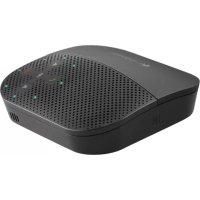
P710E - Telephone LOGITECH - Free user manual and instructions
Find the device manual for free P710E LOGITECH in PDF.



User questions about P710E LOGITECH
0 question about this device. Answer the ones you know or ask your own.
Ask a new question about this device
Download the instructions for your Telephone in PDF format for free! Find your manual P710E - LOGITECH and take your electronic device back in hand. On this page are published all the documents necessary for the use of your device. P710E by LOGITECH.
USER MANUAL P710E LOGITECH
natural_image
Black electronic device with perforated grille and ventilation slots (no visible text or symbols)
Logitech
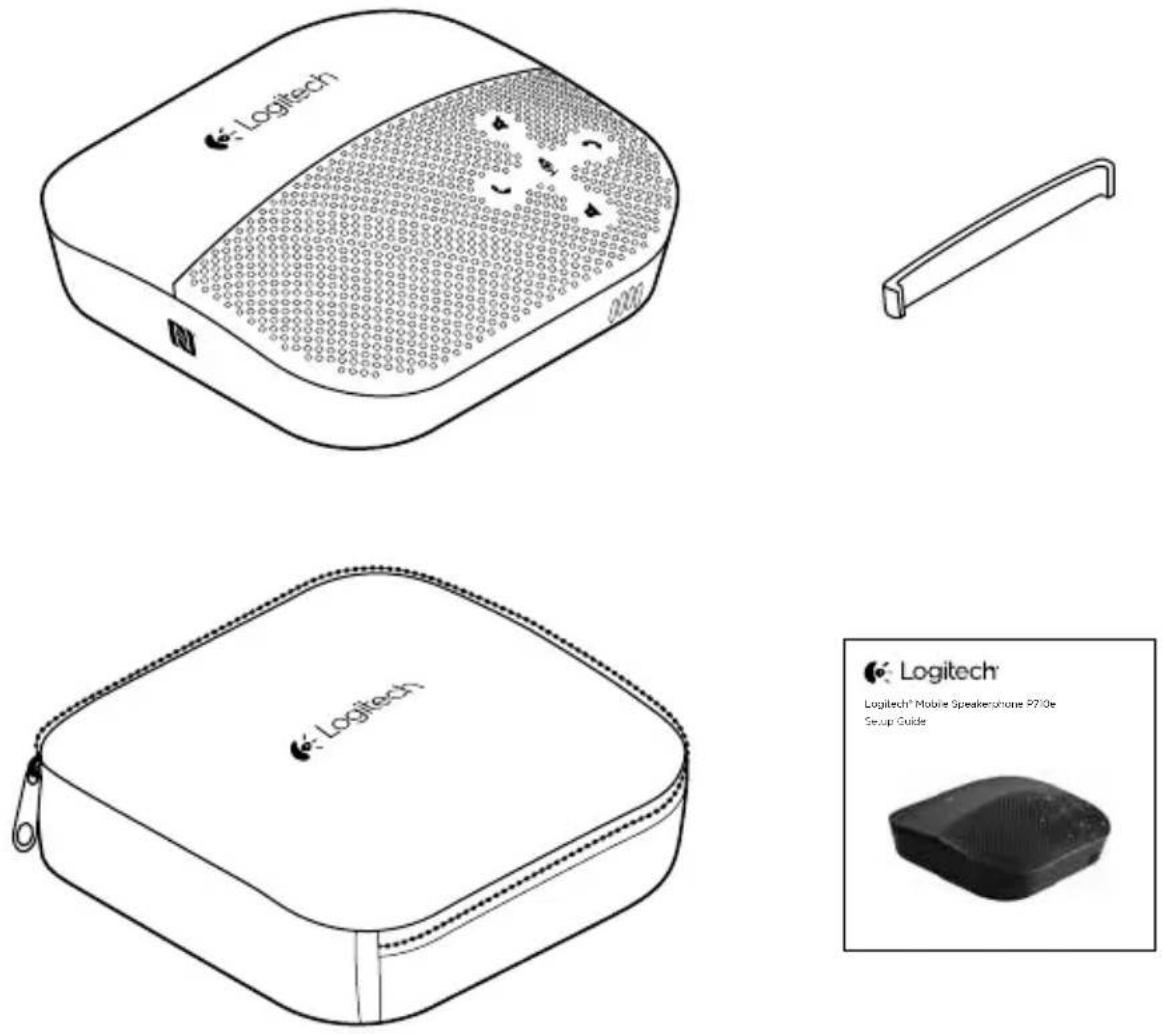
Logitech® Mobile Speakerphone P710e Se-up Guide
Contents
English. 4 Dansk 44
Deutsch 9 Norsk 49
Français 14 Suomi 54
Italiano. 19 Ελληνικά. 59
Español ..... 24 По-русски ..... 64
natural_image
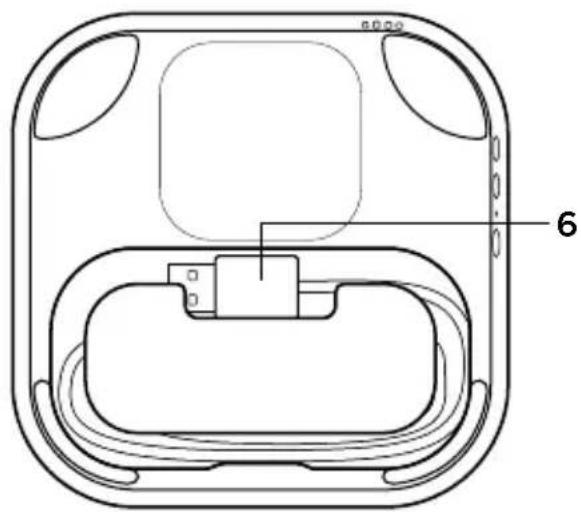
Technical line drawing of a device casing with internal components and labeled part '6' (no text or symbols beyond label)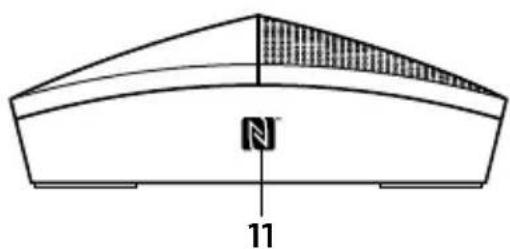
natural_image
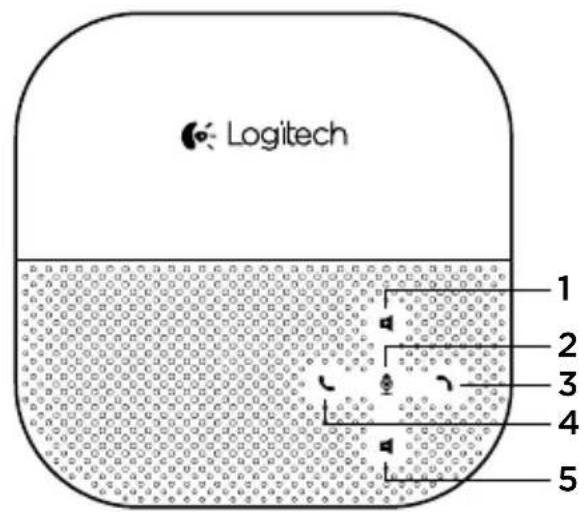
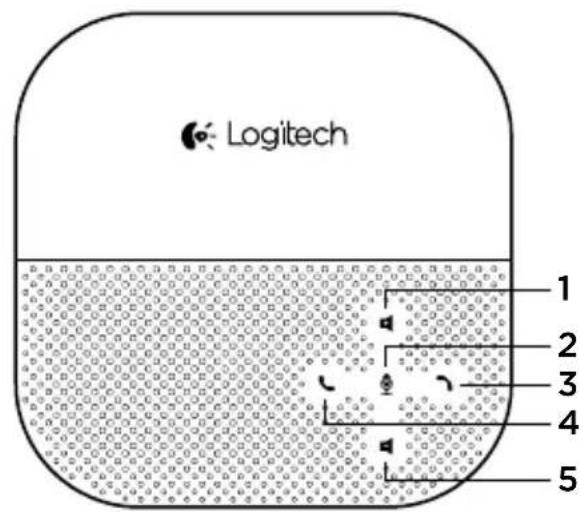
Technical diagram of a curved structural component with hatched top section and labeled number 11 (no text or symbols beyond basic labels)- Increase volume
- Microphone mute
- Call end
- Call answer
- Decrease volume
-
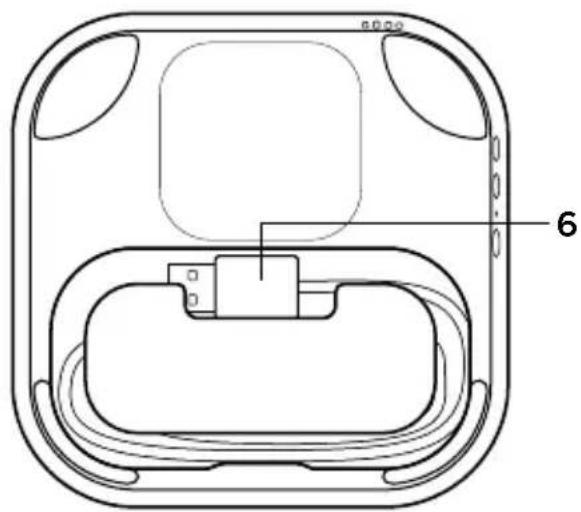
USB cable
-
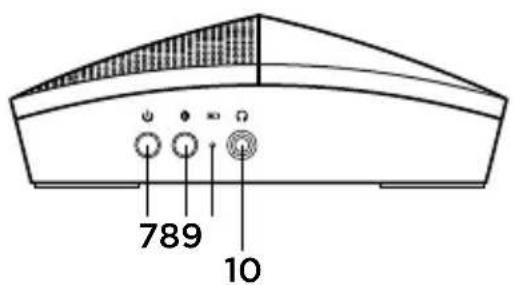
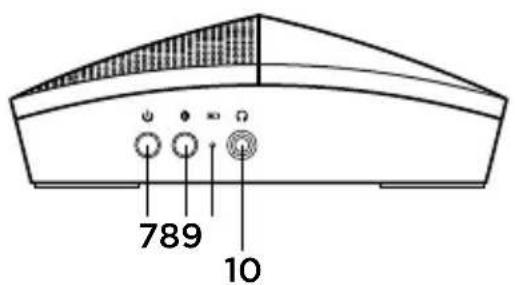
Power
- Bluetooth® pairing
- Battery indicator light
- Headphone jack
- NFC target area
4 English
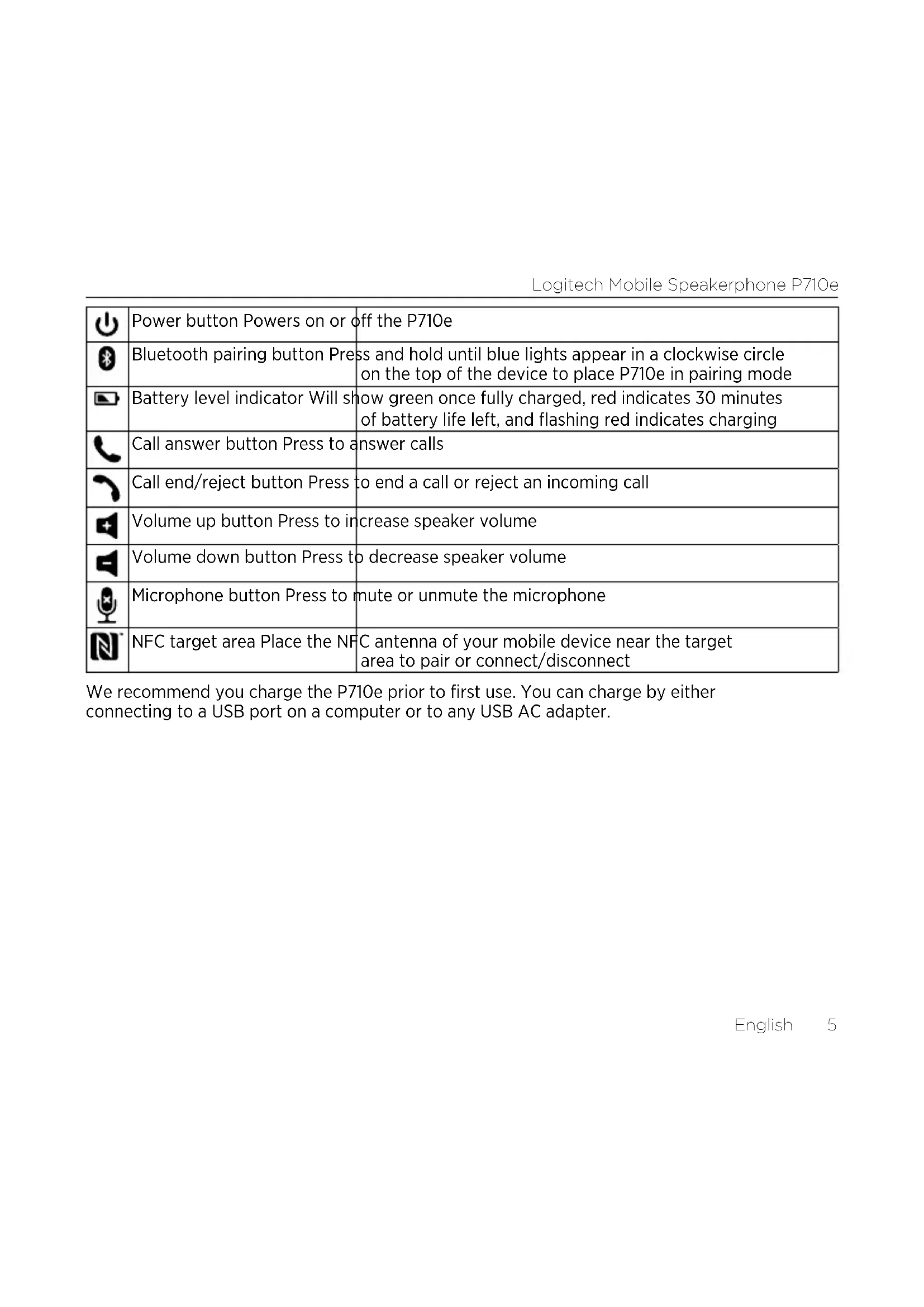
| Power button Powers on or off the P710e | |
| Bluetooth pairing button Press and hold until blue lights appear in a clockwise circle on the top of the device to place P710e in pairing mode | |
| Battery level indicator Will show green once fully charged, red indicates 30 minutes of battery life left, and flashing red indicates charging | |
| Call answer button Press to answer calls | |
| Call end/reject button Press to end a call or reject an incoming call | |
| Volume up button Press to increase speaker volume | |
| Volume down button Press to decrease speaker volume | |
| Microphone button Press to mute or unmute the microphone | |
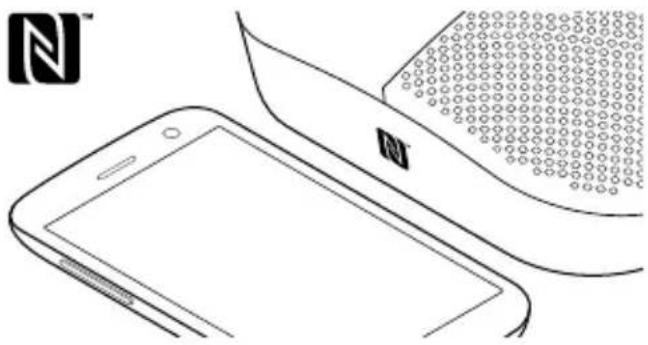
| NFC target area Place the NFC antenna of your mobile device near the target area to pair or connect/disconnect |
We recommend you charge the P710e prior to first use. You can charge by either connecting to a USB port on a computer or to any USB AC adapter.
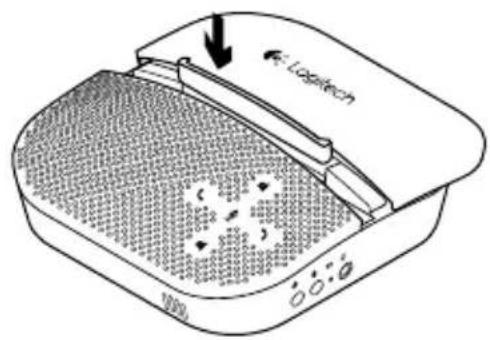
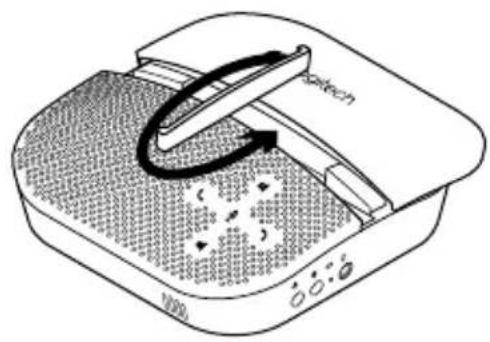
Inserts/sliding top
natural_image
Illustration of a portable washing machine with a curved arrow indicating rotation (no text or symbols)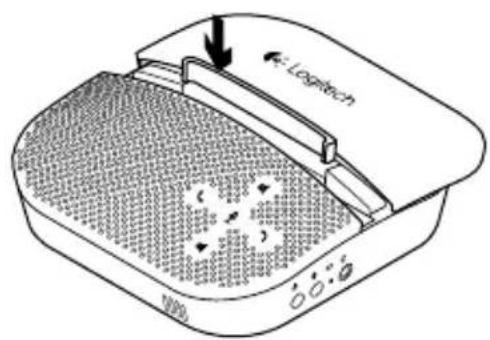
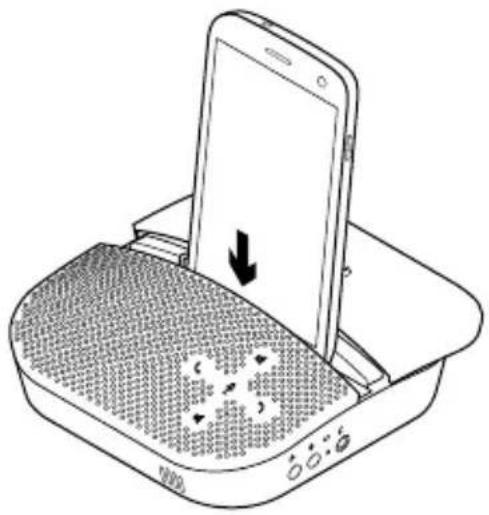
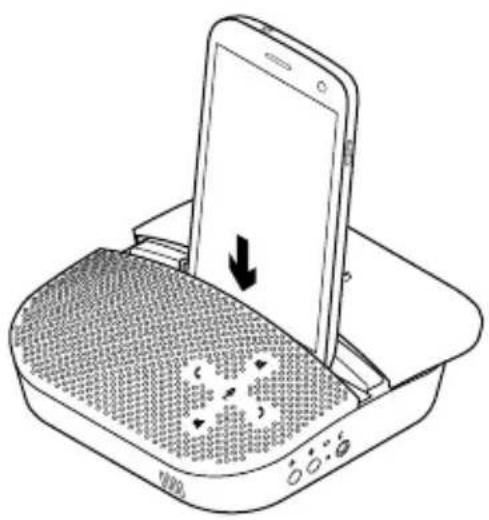
The top of the P710e can be slid back to reveal a concealed stand for your mobile device.
This stand is especially useful when using your mobile device for video conferences for greater stability of the image for those on the other end of the call.
There is an insert that can be used in the concealed stand to adjust to the size of your mobile device. The insert can be placed in two ways as illustrated.
The approximate size of mobile device that will fit in the concealed stand is:
Side 2: 0mm–8.5mm
Side 1: 8.5mm–10.5mm
natural_image
Line drawing of a smartphone being placed on a device tray, showing the screen and buttons (no text or symbols)6 English
Initial setup of device
• The very first time you use the P710e, you must connect it to a USB power source.
- Adapter not included.

Setup with a computer
- Connect the USB cable from the P710e into your PC.
- Ensure that the P710e is selected as the default audio device in your OS settings and in your application.
Setup with a Bluetooth device
- Press and hold Power button to turn ON the device. The blue lights start flashing in a clockwise circle.
- Place your mobile device in pairing mode and pair to the P710e. You may pair up to eight Bluetooth devices with only two active at the same time.
-
If you have an NFC enabled device, position it near the NFC target area on the P710e. You should see a message on your phone asking if you would like to pair to the P710e.
-
P710e must be powered on.
- Note, position your NFC enabled device near the NFC target area a second time to disconnect from the P710e. This is helpful if you're still in range of the P710e, but want to handle calls on the mobile device.
- Repeat the procedure again to reconnect.
natural_image
Line drawing of a smartphone showing front and side views, with no visible text or symbols.Troubleshooting
Bad or no audio?
- Check if USB cable is fully inserted into the computer's USB port.
- Check that your mobile device is paired with the P710e.
- Using a non-powered USB hub may degrade product performance.
- Check the volume level in both your media/voice application and your PC.
- Try restarting your media/voice application. Ensure the microphone is not muted.
- Make sure the Logitech P710e Speakerphone is the default audio device.
Windows Vista, Windows 7:
- Close all media/voice applications.
- Go to Start/Control Panel/ Sound/Playback Devices tab.
- Choose Logitech P710e.
- Click on Set Default.
- Click on the "Recording" tab.
- Choose Logitech P710e.
- Click on "Set Default".
- Restart your media/video application.
Windows 8:
- Close all media/voice applications.
- From the Start Menu, select "Desktop" tile.
- From the Charms menu, select Settings>Control Panel>Hardware and then Sound.
- Go to Sound and select the "Playback" tab.
- Choose Logitech P710e.
- Click on Set Default.
- Click on the "Recording" tab.
- Choose Logitech P710e.
- Click on "Set Default".
- Restart the media/video application.
Mac 10.6 X and above:
- Close all media/voice applications
- Open System Preferences.
- Select Sound/ Output tab, and then select Logitech P710e".
- Restart media/video application.
For additional support, please visit us at www.logitech.com/support
Produktfunktionen
natural_image
Technical line drawing of a device casing with internal components and labeled part '6' (no text or symbols beyond label)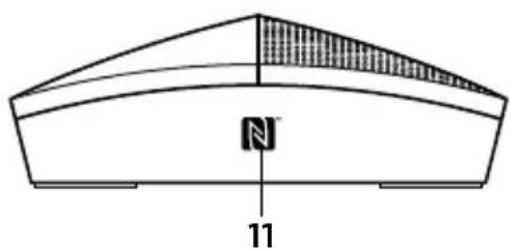
natural_image
Technical diagram of a curved structural component with hatched top section and labeled number 11 (no text or symbols beyond basic labels)natural_image
Line drawing of a portable air conditioner unit with control panel and buttons (no text or symbols)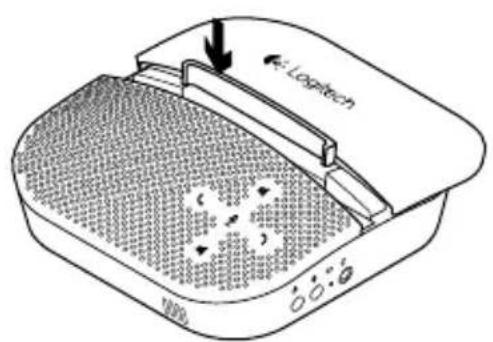
natural_image
Line drawing of a smartphone being placed on a device tray, showing the screen and speaker area (no text or symbols)natural_image
Illustration of a smartphone and a keyboard with a logo (no text or symbols on the main diagram)Fehlerbehebung
natural_image
Technical line drawing of a device casing with internal components and labeled part '6' (no text or symbols beyond label)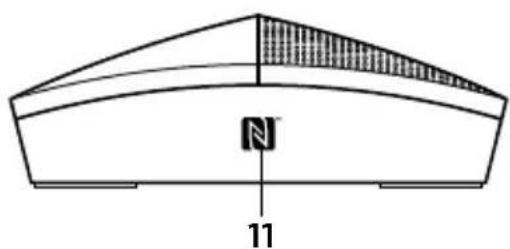
natural_image
Technical diagram of a curved structural component with hatched top section and labeled number 11 (no text or symbols beyond basic labels)natural_image
Illustration of a beige washing machine with a curved arrow indicating rotation (no text or symbols)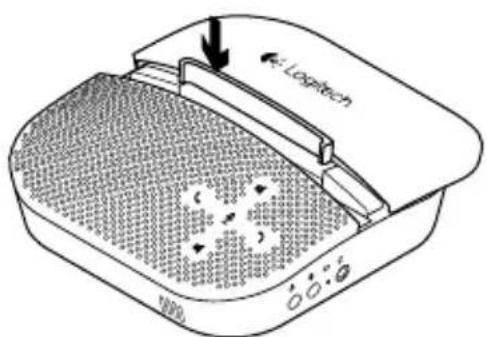
natural_image
Line drawing of a smartphone being placed into a device with a speaker grille and control buttons (no text or symbols)natural_image
Illustration of a smartphone and a textured surface with a logo (no text or symbols on the main diagram)Dépannage
natural_image
Technical line drawing of a device casing with internal components and labeled part '6' (no text or symbols beyond label)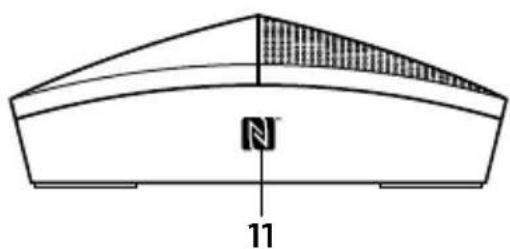
natural_image
Technical diagram of a curved structural component with hatched top section and labeled number 11 (no text or symbols beyond basic labels)natural_image
Illustration of a portable washing machine with a black strap and control buttons (no text or symbols)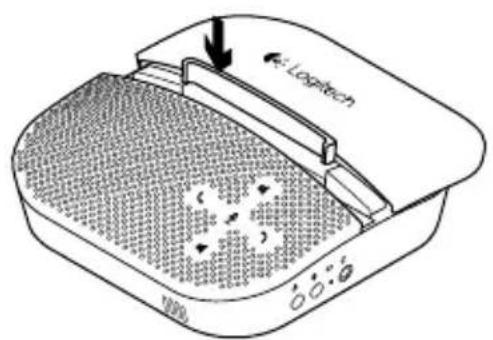
natural_image
Line drawing of a smartphone being placed on a device tray, showing the screen and speaker area (no text or symbols)natural_image
Illustration of a smartphone and a curved device with a grid-patterned surface (no text or symbols)natural_image
Technical line drawing of a device casing with internal components and labeled part '6' (no text or symbols beyond label)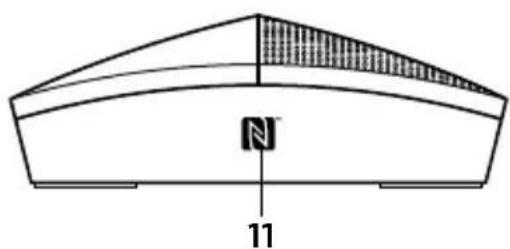
natural_image
Technical diagram of a curved structural component with hatched top section and labeled number 11 (no text or symbols beyond basic labels)natural_image
Illustration of a washing machine with a curved arrow indicating rotation (no text or symbols)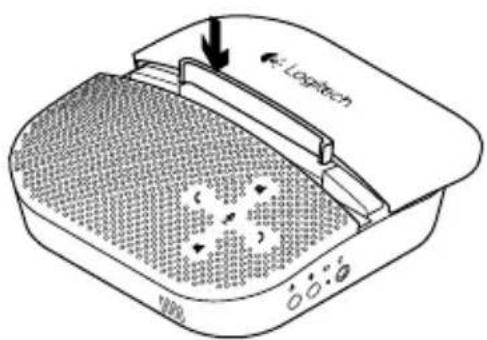
natural_image
Illustration of a smartphone being placed into a device with a downward arrow indicating compression (no text or symbols present)natural_image
Illustration of a smartphone and a curved surface with a grid pattern, no text or symbols present.natural_image
Technical line drawing of a device casing with internal components and labeled part '6' (no text or symbols beyond label)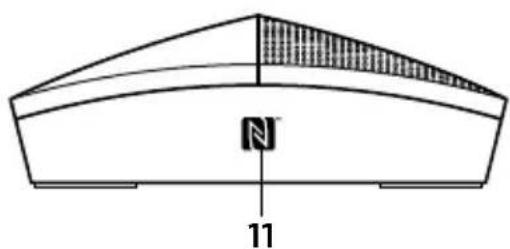
natural_image
Technical diagram of a curved structural component with hatched top section and labeled number 11 (no text or symbols beyond basic labels)- Aumentar o volume
- Microfone sem som
- Terminar chamada
- Atender chamada
- Diminuir o volume
-
Cabo USB
-
Interruptor Ligar/Desligar
- Emparelhar Bluetooth
- Luz do indicador de bateria
- Tomada dos auscultadores
- Área alvo de NFC
Logitech Mobile Speakerphone P710e
natural_image
Line drawing of a portable washing machine with control panel and buttons (no text or symbols)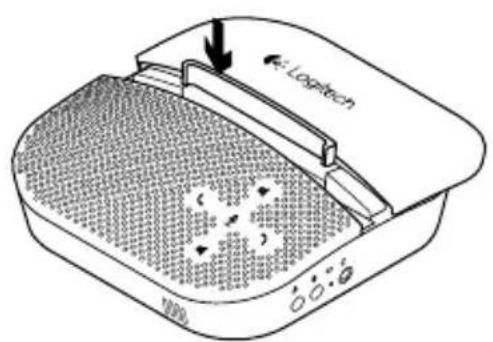
natural_image
Line drawing of a smartphone being placed on a device tray, showing the screen and base with no text or symbols.natural_image
Illustration of a smartphone and a keyboard with a logo (no text or symbols on the diagram itself)natural_image
Technical line drawing of a device casing with internal components and labeled part '6' (no text or symbols beyond label)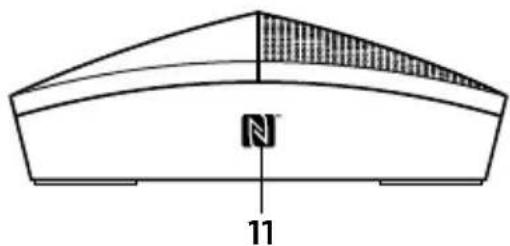
natural_image
Technical diagram of a curved structural component with hatched top section and labeled dimension '11' (no text or symbols beyond labels)natural_image
Line drawing of a portable air conditioner unit with control panel and buttons (no text or symbols)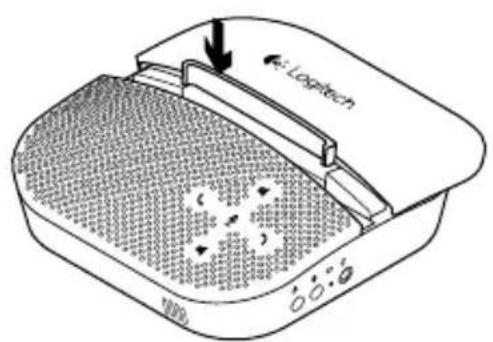
natural_image
Line drawing of a smartphone being placed on a device tray, showing the screen and control buttons (no text or symbols)natural_image
Illustration of a smartphone and a curved surface with a grid pattern, no text or symbols present.Probleemoplossing
natural_image
Technical line drawing of a device casing with internal components and labeled part '6' (no text or symbols beyond label)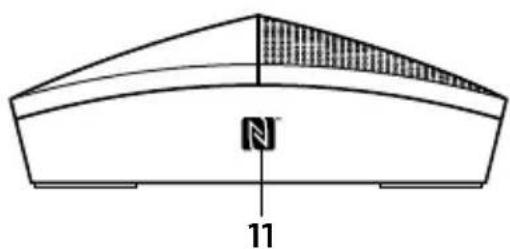
natural_image
Technical diagram of a curved structural component with hatched top section and labeled number 11 (no text or symbols beyond basic labels)natural_image
Line drawing of a portable air conditioner unit with a handle and control panel (no text or symbols)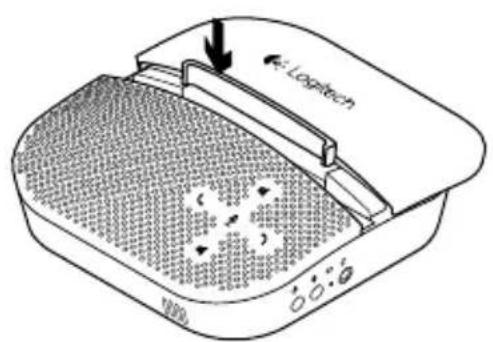
natural_image
Line drawing of a smartphone being placed on a device tray, showing the screen and speaker area (no text or symbols)natural_image
Line drawing of a smartphone with a curved screen and a logo (no text or symbols on the device itself)Felsökning
natural_image
Technical line drawing of a device casing with internal components and labeled part '6' (no text or symbols beyond label)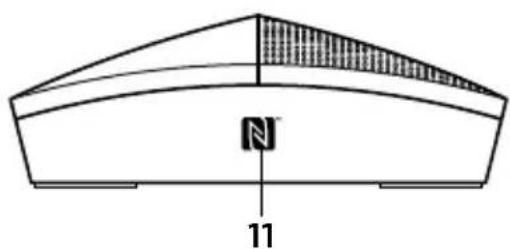
natural_image
Technical diagram of a curved structural component with hatched top section and labeled number 11 (no text or symbols beyond basic labels)natural_image
Line drawing of a portable air conditioner unit with control panel and buttons (no text or symbols)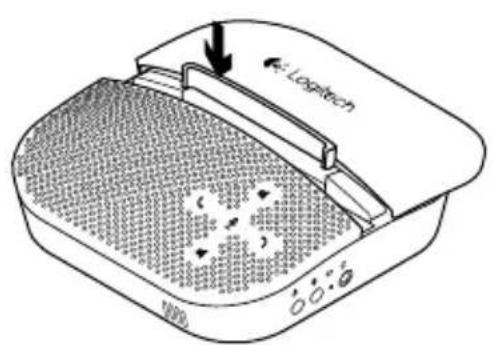
natural_image
Line drawing of a smartphone being placed on a device tray, showing the screen and keypad (no text or symbols)natural_image
Illustration of a smartphone and a keyboard with a logo (no text or symbols on the diagram itself)Problemløsning
www.logitech.com/support
Produktfunksjoner
natural_image
Technical line drawing of a device casing with internal components and labeled part '6' (no text or symbols beyond label)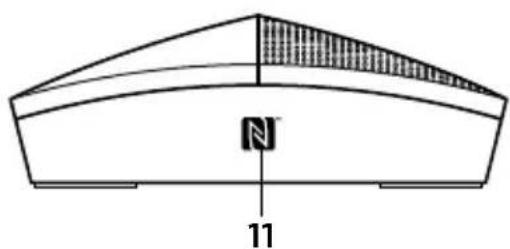
natural_image
Technical diagram of a curved structural component with hatched top section and labeled number 11 (no text or symbols beyond basic labels)- ∅k volumet
- Mikrofon av
- Avslutt en samtale
- Besvar et anrop
- Senk volumet
-
Usb-kabel
-
Av/på-knapp
- Bluetooth-forbindelse
- Batterilampe
- Uttak til hodetelefoner
- Kontaktområde for NFC
Logitech Mobile Speakerphone P710e
natural_image
Illustration of a beige washing machine with a curved arrow indicating rotation (no text or symbols)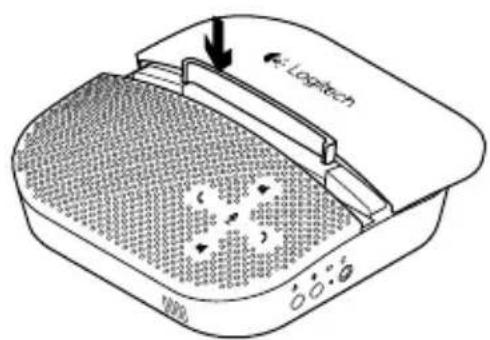
natural_image
Line drawing of a smartphone being placed on a device tray, showing the screen and keypad (no text or symbols)natural_image
Line drawing of a smartphone showing front and side views with no visible text or symbolsFeilsøking
natural_image
Technical line drawing of a device casing with internal components and labeled part '6' (no text or symbols beyond label)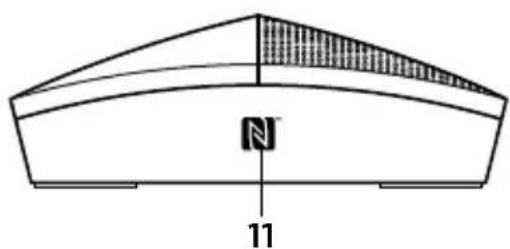
natural_image
Technical diagram of a curved structural component with hatched top section and labeled number 11 (no text or symbols beyond basic labels)natural_image
Illustration of a portable air conditioner unit with a curved arrow indicating rotation (no text or symbols)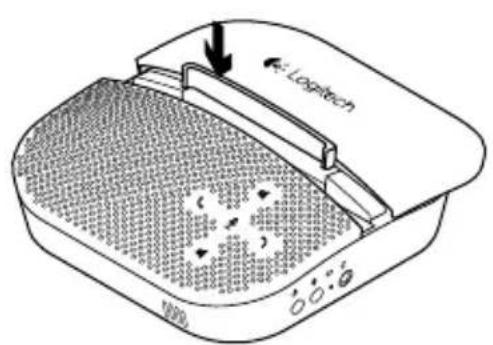
natural_image
Line drawing of a smartphone being placed on a device with a screen and buttons (no text or symbols)natural_image
Illustration of a smartphone and a curved device with a grid-patterned cover (no text or symbols)Vianmääritys
www.logitech.com/support
natural_image
Technical line drawing of a device casing with internal components and labeled part '6' (no text or symbols beyond label)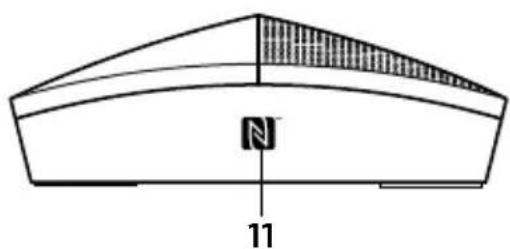
natural_image
Technical diagram of a curved structural component with a shaded triangular section and labeled number 11 (no text or symbols beyond the label)natural_image
Diagram of a portable washing machine with a black arrow indicating rotation (no text or symbols)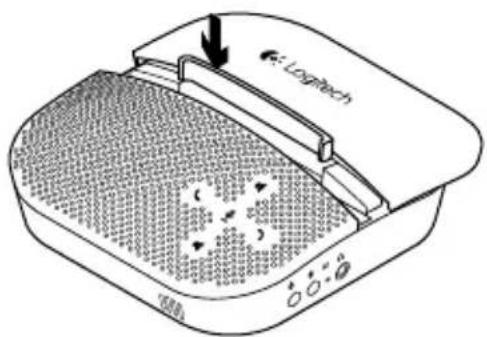
natural_image
Line drawing of a smartphone being placed on a device tray, showing a screen with a downward arrow and control buttons (no text or symbols)natural_image
Illustration of a smartphone and a textured surface with a logo (no text or symbols on the main diagram)natural_image
Technical line drawing of a device casing with internal components and labeled part '6' (no text or symbols beyond label)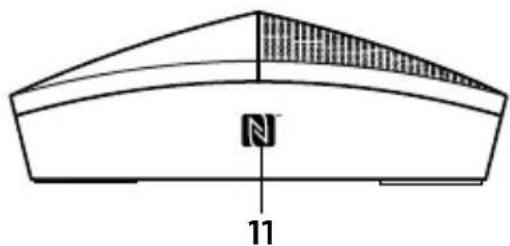
natural_image
Pure geometric diagram of a curved structure with shaded top section and labeled number 11 (no text or symbols beyond basic geometry)natural_image
Illustration of a portable washing machine with a curved arrow indicating rotation (no text or symbols)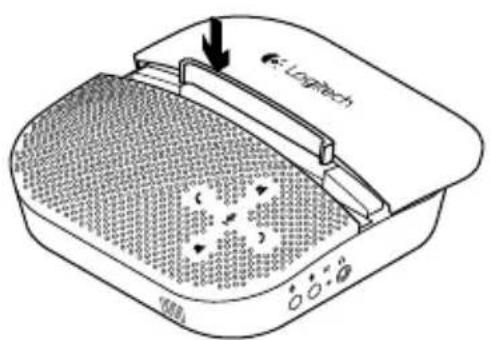
natural_image
Line drawing of a smartphone being placed on a device with a grid-patterned base and control buttons (no text or symbols)natural_image
Illustration of a smartphone and a textured surface device (no text or symbols visible)natural_image
Technical line drawing of a device casing with internal components and labeled part '6' (no text or symbols beyond label)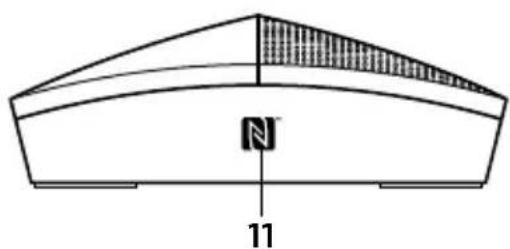
natural_image
Technical diagram of a curved structural component with hatched top section and labeled number 11 (no text or symbols beyond basic labels)natural_image
Line drawing of a portable washing machine with control panel and buttons (no text or symbols)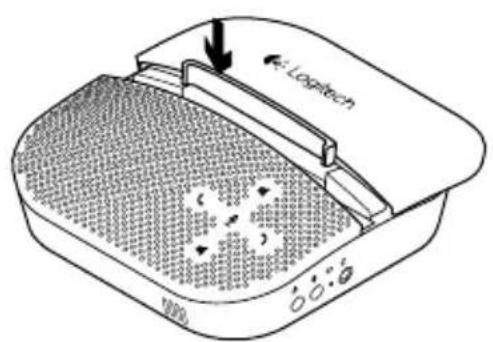
natural_image
Line drawing of a smartphone being placed on a device tray, showing the screen and keypad (no text or symbols)natural_image
Illustration of a smartphone and its screen with a logo, showing front and side views (no text or symbols on the device itself)Hibaelhárítás
natural_image
Technical line drawing of a device casing with internal components and labeled part '6' (no text or symbols beyond label)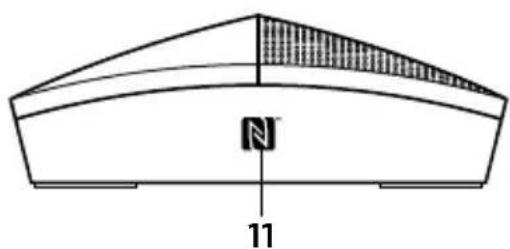
natural_image
Technical diagram of a curved structural component with hatched top section and labeled number 11 (no text or symbols beyond basic labels)natural_image
Illustration of a beige washing machine with a curved arrow indicating rotation (no text or symbols)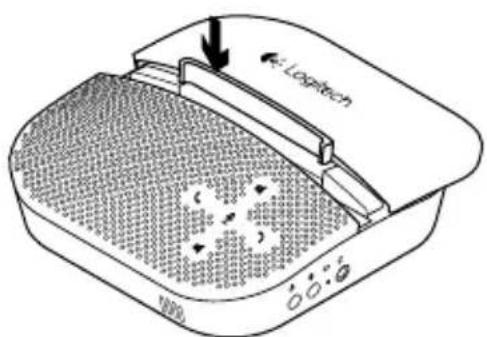
natural_image
Line drawing of a smartphone being placed on a device tray, showing a screen with a downward arrow and control buttons (no text or symbols)natural_image
Illustration of a smartphone and a curved surface with a grid pattern (no text or symbols)Odstraňování potíží
natural_image
Technical line drawing of a device casing with internal components and labeled part '6' (no text or symbols beyond label)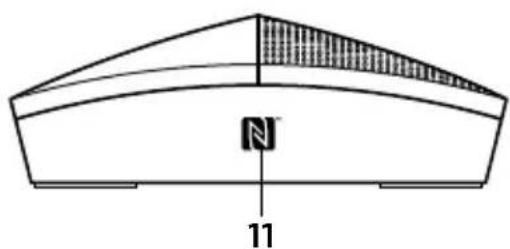
natural_image
Technical diagram of a curved structural component with hatched top section and labeled number 11 (no text or symbols beyond basic labels)natural_image
Line drawing of a portable air conditioner unit with a curved arrow indicating rotation (no text or symbols)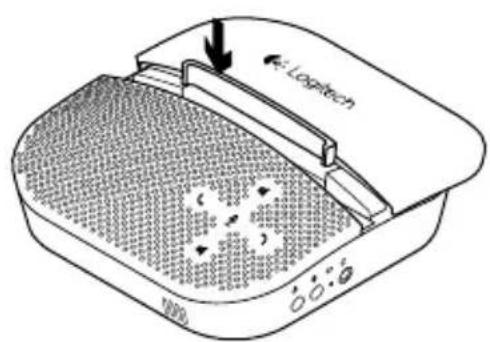
Strona 2: 0 mm–8.5 mm
Strona 1: 8,5 mm–10,5 mm
natural_image
Line drawing of a smartphone being placed on a device tray, showing the screen and keypad (no text or symbols)natural_image
Line drawing of a smartphone showing front and side views with no visible text or symbolswww.logitech.com/business
© 2015 Logitech. All rights reserved. Logitech, the Logitech logo, and other Logitech marks are owned by Logitech and may be registered. The Bluetooth word mark and logos are registered trademarks owned by Bluetooth SIG, Inc. and any use of such marks by Logitech is under license. The N Mark is a trademark or registered trademark of NFC Forum, Inc. in the United States and in other countries. All other trademarks are the property of their respective owners. Logitech assumes no responsibility for any errors that may appear in this manual. Information contained herein is subject to change without notice.
620-005271.006
- Logitech
- Contents
- English
- Inserts/sliding top
- English
- Initial setup of device
- Setup with a computer
- Setup with a Bluetooth device
- Troubleshooting
- Bad or no audio?
- Windows Vista, Windows 7:
- Windows 8:
- Mac 10.6 X and above:
- Produktfunktionen
- Fehlerbehebung
- Dépannage
- Probleemoplossing
- Felsökning
- Problemløsning
- Produktfunksjoner
- Feilsøking
- Vianmääritys
- Hibaelhárítás
- Odstraňování potíží
Brand : LOGITECH
Model : P710E
Category : Telephone