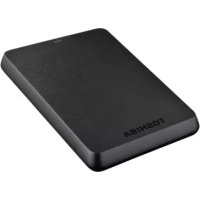
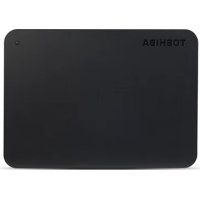
USER MANUAL StorE Basics TOSHIBA
Safety Instructions 3
System Requirements 4
Installing the drive. 4
Connecting the drive to your computer 5
Dismount and disconnect the drive 6
Further Advise 6
Frequently Asked Questions 6
Troubleshooting 7
TOSHIBASupport 8
Regulatory statements 9
Introduction
Thank you for choosing our TOSHIBA STORE.E BASICS 2.5" Hard Disk Drive.
Please read this User's Manual carefully, as it contains all relevant information for installation, usage and maintenance of the drive, as well as security and safety advice.
In case it does not behave as expected, please refer to the "Frequently Asked Questions" section at the end of this manual.
Check the Components
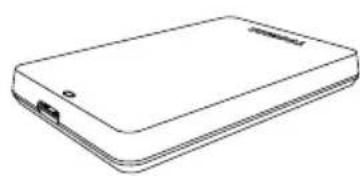
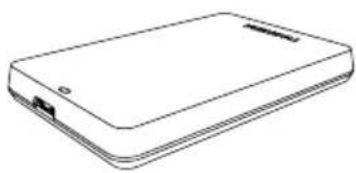
STORE.BASICS 2.5" (including User's Manual)

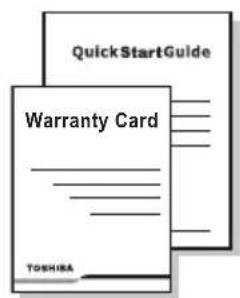
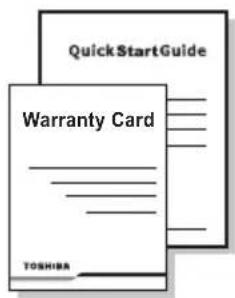
USB 3.0 Micro-B Cable Quick Start Guide and Warranty Leaflet
This User's Manual is uploaded on the drive itself. We recommend to backup the User's Manual onto a CD or your local hard disk drive, directly after the drive being installed.
Safety Instructions
In order to avoid malfunction or damage of the drive, please carefully follow the precautions listed below.

WARNING
Make sure that you backup all your data on the drive, as Toshiba is not responsible for data corruption or data loss. Toshiba will not cover any data recovery cost.
Do not
open the enclosure or drive
disassemble the drive or parts of it
place liquids near or on the drive, as it may damage the drive, cause personal injury or may result in an electrical shock or fire
■ bump, drop or jar the drive
move the drive while operating, as data damage may happen
use other connectors than USB bus powered types
- disconnect cables while operating. Please dismount the drive first!
expose the drive to temperatures outside the range of 5^ - 35^ while operating, and temperatures of -20^ - 60^ while switched off
expose the drive to wet or damp conditions
cover the drive during operation, as it may become overheated
Immediately disconnect the drive if
■ smoke or an unusual smell is coming from the drive enclosure
water has entered the drive enclosure or if it becomes wet
an object has entered the drive enclosure
the cable has been damaged (in such case replace the cable with a new one)
CAUTION
This product can become hot! Avoid prolonged contact to prevent skin irritation and/or heat injury.
If the drive behaves not as expected or you have doubts about the electrical safety, please contact immediately the TOSHIBA hotline or an authorised reseller!
System Requirements
WindowsXP/VISTA/Windows7
One free port of USB 3.0 or USB 2.0
NOTE
USB 3.0 is backward compatible with USB 2.0.
Installing the drive
Some information about bus-powered operation and the supplied USB cable:
- Your drive is bus-powered. Therefore, there is no need to connect an external power supply as all needed current will be supplied by the connected USB port(s).
Passive USB hubs or USB connectors like keyboards, mice or similar products cannot be used or connected to the drive.
Make sure that the connectors will be inserted correctly.
Never use pressure for connecting the cables. Check the polarity before connecting!
Connecting the drive to your computer
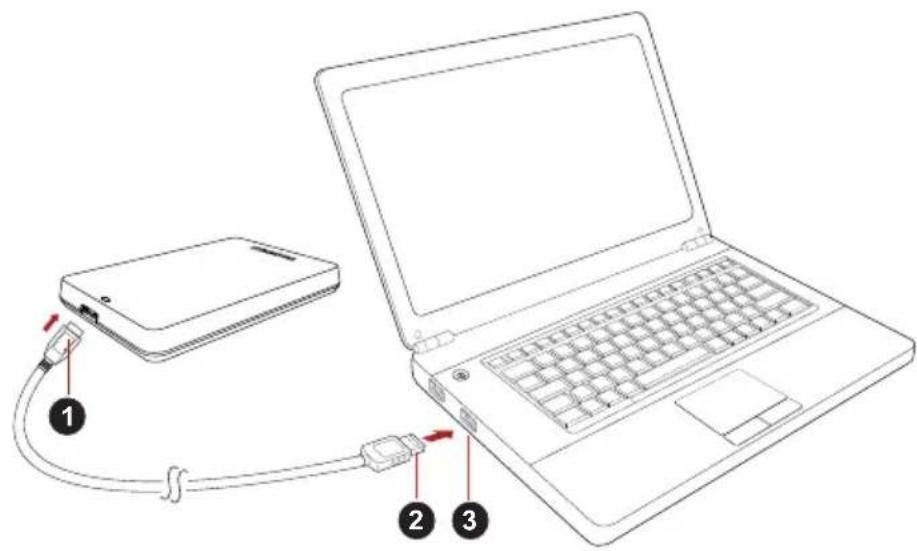
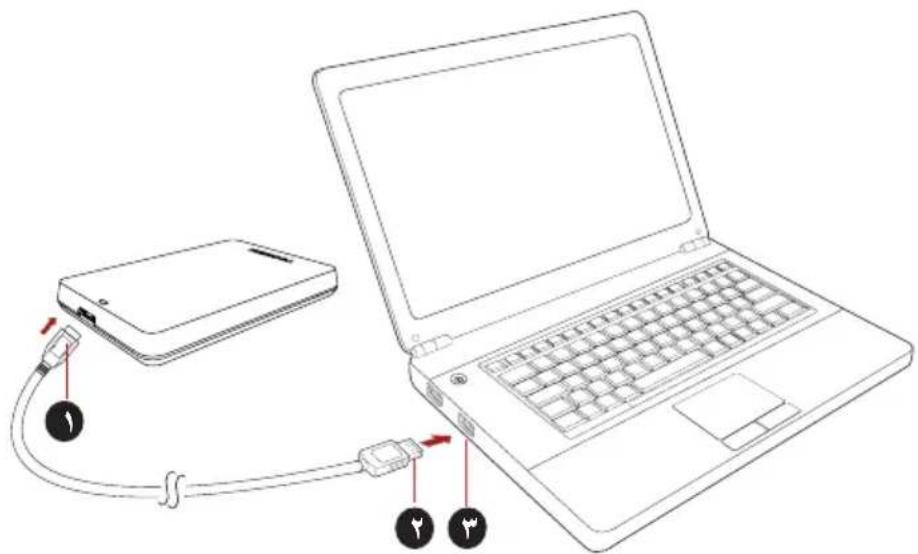
- USB 3.0 Micro-B connector 3. USB 3.0 host
backward compatible to USB 2.0
-
USB 3.0 Standard-A connector
-
With your computer powered on and fully booted up, plug the USB 3.0 Standard-A connector into a USB port of your host system, or an active USB HUB.
NOTE
You may need USB 3.0 Express Card Host Controller for your computer if the computer doesn't have USB 3.0 port. You also can connect the device to USB 2.0 port of your computer, However the transfer rate will be downgraded to that of USB 2.0.
- Now, plug the USB 3.0 micro-B connector into the corresponding port of the drive itself.
Immediately,
the Power/Data indicator light will illuminate
the drive will power up
the drive should mount and a new drive icon should appear in "My Computer"
Dismount and disconnect the drive
It is strongly recommended not to unplug the drive by just unplugging the cable connection as it may be that data is written to the drive at that time.
Such data will be lost and the drive may be damaged physically!
Please follow the steps below for a safe dismount of the drive (Windows 7).
- Click the "Hardware and Eject Media - icon"
A pop-up message box will appear listing the external devices connected to your computer.
- Select the TOSHIBA drive to eject.
After a few seconds, you will get the notification that it is now safe to remove the device.
- Click "OK" and you can unplug the drive now.
Cleaning the drive case / enclosure
Before cleaning the drive, make sure that it's physically disconnected from the computer. We suggest to use standard products for cleaning it and to make sure that possible remaining liquid on the surface will be wiped off.
Further Advise
For any further action of normal operation such as renaming the drive, backup data, or file management, we suggest to read your operation system user's manual.
Also for maintenance tasks such as defragmenting and optimisation we suggest to refer to the operating system user's manual.
We also strongly suggest having anti-virus software installed to protect your data against intended damage caused by virus or Trojan programs.
Frequently Asked Questions
Q: Do I need to format my drive after installation?
A: No, as the drive is already formatted during the manufacturing process.
Q: Do I need USB drivers for Windows Vista, XP or Windows 7?
A: No, they are already available with your operating system.
Q: Can I boot my system from the drive?
A: No, because Windows does not support booting from external hard disk drives.
Q: Why doesn't the drive need a fan?
A: The drives are designed to have optimal heat dissipation, and therefore no fan is required. This results in a near silent operation.
Q: Why is the capacity of my drive (as shown in Windows) lower than the drives actual stated capacity?
A: This difference can be explained because of the different methods of calculating the capacity.
Hard drive manufacturers calculate on the decimal system, while the operating system calculates in the binary system.
Example decimal:
[ 1GB = 1,000MB = 1,000,000KB = 1,000,000,000 ] bytes
Example binary:
[ 1GB = 1,024MB = 1,048,576KB = 1,073,741,824 bytes ]
As a result, a 120GB (decimal) hard disk appears in Windows to have just 112GB (binary).
Q: Can I use my drive to copy an operating system from one computer to another?
A: No, you must follow the operating system supplier instructions for installation. A simple copy does not work.
Q: Does Toshiba offer a data recovery services?
A: Yes, Toshiba offers a Data Recovery Service for external hard drives. Please check our website www.toshiba-europe.com/services for further information about this service.
Troubleshooting
My computer does not recognize the disk drive at all.
Make sure all of your connections are secure.
If your drive is connected via a USB hub, make sure that it has its own power supply.
If using an add-on card, make sure it is working properly and update the software/firmware. If using Windows XP, make sure you have Service Pack 1 or later.
Is it dangerous if the drive feels warm whilst in operation?
A: This is normal, and therefore not dangerous.
The drive gives me a "Device cannot start."
A: Two possible reasons. It is either a power problem and you should check the connections, or the drive has a malfunction and requires service.
I cannot see my drive in "My Computer", but it does appear in the Device Manager.
A: Follow these instructions:
- Right-click "My Computer".
- Select "Manage" in the pop-up menu.
- Select "Disk Management".
You should see a list of available storage devices.
- Check whether your drive is listed.
- Right-click the right hand box and select "Delete Partition" in the pop-up menu.
- Right-click the box and select "Create New Partition" in the pop-up menu.
- Then select "Primary Partition" in the partition wizard window. Click next.
- A drive letter will be displayed, which you can change. Click next.
- Confirm to format the drive.
As I try to format the drive, I receive the message "Could not complete format".
A: This can be caused by formatting the drive with FAT file system. Try "NTFS" file system. This should solve the problem.
TOSHIBA Support
Need help?
For the latest driver updates, User's manuals & FAQs please have a look at the TOSHIBA options & services support page:
computers.toshiba.eu/options-support
Please see computers.toshiba.eu/options-warranty for the TOSHIBA hotline numbers.
Regulatory statements
CE Compliance
CE
This product is CE marked in accordance with the requirements of the applicable EU Directives.
Responsible for CE marking is Toshiba Europe GmbH, Hammfelddamm 8, 41460 Neuss, Germany. A copy of the official Declaration of Conformity can be obtained from following website: http://epps.toshiba-tec.com.
Working Environment
The Electromagnetic Compliance (EMC) of this product has been verified typically for this product category for a so called Residential, Commercial & Light Industry Environment. Any other working environment has not been verified by Toshiba and the use of this product in these working environments is maybe restricted or cannot be recommended. Possible consequences of the use of this product in non verified working environments can be: Disturbances of other products or of this product in the nearby surrounding area with temporarily malfunction or data loss/ corruption as result. Example of non verified working environments and related advices:
Industrial environment (e. g. where 3-phase 380V mains is being used mainly): Danger of disturbances of this product due to possible strong electromagnetic fields especially near to big machinery or power units.
Medical environment: The compliance to the Medical Product Directive has not been verified by Toshiba, therefore this product cannot be used as a medical product without further verification. The use in usual office environments e.g. in hospitals should be no problem if there is no restriction by the responsible administration.
Automotive environment: Please search the owner instructions of the related vehicle for advices regarding the use of this product (category).
■ Aviation environment: Please follow the instructions of the flight personnel regarding restrictions of use.
- Outdoor use: As a typical home/office equipment this product has no special resistance against ingress of moisture and is not strong shock proofed.
- Explosive atmosphere: The use of this product in such special working environment (Ex) is not allowed.
REACH - Compliance Statement
The new European Union (EU) chemical regulation, REACH (Registration, Evaluation, Authorization and Restriction of Chemicals), entered into force on 1 June 2007.
Toshiba will meet all REACH requirements and is committed to provide our customers with information about the chemical substances in our products according to REACH regulation.
Please consult the following website
www.toshiba-europe.com/computers/info/reach for information about the presence in our articles of substances included on the candidate list according to article 59(1) of Regulation (EC) No 1907/2006 ("REACH") in a concentration above 0.1% weight by weight.
Disposal of products
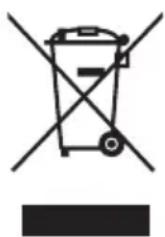
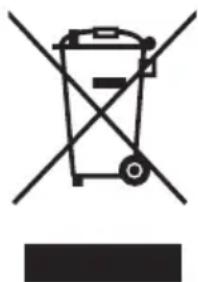
The use of the symbol indicates that this product may not be treated as household waste. By ensuring this product is disposed of correctly, you will help prevent potential negative consequences for the environment and human health, which could otherwise be caused by inappropriate waste handling of this product. For more detailed information about recycling of this product, please contact your local city office, your household waste disposal service or the shop where you purchased the product.
Notices
©2011 TOSHIBA Europe GmbH. All rights reserved.
TOSHIBA reserves the right to make technical changes. TOSHIBA assumes no liability for damages incurred directly or indirectly from errors, omissions or discrepancies between this product and the documentation.
The Toshiba name and its logos are registered trademarks of Toshiba. Other trademarks mentioned or appearing in this document are the property of their respective owners. Errors and omissions excepted.
Obsah
1 GB = 1.024 MB = 1.048.576 KB = 1.073.741.824 bytes
1 Gt = 1000 Mt = 1000000 kt = 1000000000 tavua
Binaarjärestelmä:
1 Gt = 1024 Mt = 1048576 kt = 1073741824 tavua
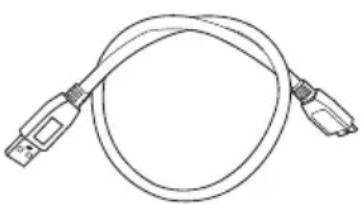
Cable USB 3.0 micro-B
1 GB = 1.024 MB = 1.048.576 KB = 1.073.741.824 bytes
A: Volg deque instructions:
Feilmeldingen Device cannot start (Kan/DD) vises.
[ 1GB = 1,000MB = 1,000,000KB = 1,000,000,000 bytes ]
Exemplo binario:
[ 1GB = 1,024MB = 1,048,576KB = 1,073,741,824 \text{ bytes} ]
Homepa ropeyenn Toshiba cm. no apecy: computers.toshiba.eu/options-warranty.
3aЯВленья O COOTBETCTBиHopMaTHNbHbIM Tpe6ObaHniaM
CoOTBcTbHe Tpe6OBaHnIe EC

Данhoe Издени IMeET МаркИрOBky CE, OTbeчaIOуTO Tpe6OBaHЯM COOTBETCTBYIOUX ДиpeKТИВ EC. OТВЕТСBEHNOCTb 3a 3Ty MAPKИрOBky Hecet KOMпань TOSHIBA Europe GmbH, Hammfelddamm 8, 41460 Neuss, Germany (Германя). C TeKCTOM oФиц�лб"HОД DeКларачи COOTBeTCTBnЯ MoxHOb O3HaKOMNTbСЯ на Be6-caITe http://epps.toshiba-tek.com
YcNoBnE3KcPnyatauN
CoOTBcTCTBn DaHNOr N3dEJIa Tpe6OBAHnM B OTHOWeHn
3NEKTPOMarHHTHOI COBMecTUMOCn IPOBepaIOCb TINOBbIM DIAHNOi KaTeOpn N3dEIn CNOCo6om PpIMeHNTeNbHO K TaK Ha3bIBaEMbIM
6bITOBbIM, KOMMepeCKm IM MeIKOPPOMblUHeHHbIM ycNObnM. IPOBepKa
Ha BO3MOxHOCTb NcONb3OBAHn B dpyrnx ycNobnX KopnpaCnei
Toshiba He npOBoAnIacb. NcONb3OBAHn DaHNOr N3dEInra B dpyrnx ycNobnX MoKeT 6bITb OrpaHnueHo IN He peKOMeHyETcR. Bo3MOxHbI
CJeDyUOuNe NocLeIcTBn PpIMeHnRA DAHNOr N3dEInra B
HeNPoBepEHbIX ycNobnX: HapUSeHnE HopMaJIbHO pa60TbI dpyrnx
HaxOJaXxCn IOBn3OCTn N3dEInn INI daHNOr N3dEInra C
NocNe dyUoUIm BbvIOdom IN3 CTPOR INI INI NOpeR/NOBeJdeHnEm
DaHHbIX. PpIMepbl HEPoBepEHbIX ycNOBn IprIMeHnR IN
COOTBcTCTByUOuine peKOMeHdaUznn:
IpnmbiHHeHHbYeUCOBnA (HaNPmep,ycIOBnA,TeB OCHOBHom nCNoJIb3yETcra Tpexpa3HbTOK HAnpJxKeHnem 380 B):OnachOCTb HApUWeHn HopMaJIbHO pa6oTbI daHHOrO n3dEInN B pe3yIbTaTe BO3MOxHOro BO3DeIcTBn CnJIbHbIX 3NeKTpOMaHHTNbIX nOJe, Oco6eHNO pIaOM c KpyINbIM MaUNHAMn IN CNIOBbIMY yCTaHOBkAMN.
MeiHcknue ycnoBna: Kopnpaunr Toshiba He npoBoHnla npOBepky DaHHoro n3deJnHa COOTBeTCTBne DnpeKtNBe O MeiunHcknx N3dEInyX, PO3TOMy DaHHoe N3deJnne HEnb3ra NcNoIb3OBaTb B MeiunHcknx ZeJnx 6e3 COOTBeTCTByUOSeI npOBepKn. NcNoIb3OBaHne B O6bIHyBIX OΦINCHbIX YcNOBnX, HApPIMep, B BoJIbHncax, He DoJHXo PpNBecTI K BO3HNKHOBeHnIO npo6IeM pRn OTCyTCTBnN OrpaHnYeHn Co CTOPOHbI OTBE TCTBeHHo aDMMHnCTpaun.
A BTOTaHcNopt: peKomeHdaaunB OTHOWeHn NCNoIb3OBAHn DaHHoro n3dennn (nn KaTeOpnn n3deJn) cmOTpnte B pyKOBoDCTBe NOIb3OBaTeJn COOTBeTCTByUoJero TpaHCnOpTHOrO cpeDCTBa.
Bo3dyuHbI TpaHcnpT: co6nOdaTe yka3aHna JETHO nepcoHa na no orpaHnueHIO nCNoJb3OBaHna N3dEIny.
Друге усанов,在 Свяразнистордату COBMECTMOCtBuO
IcnoJb3OBaHne BHe NOMEeHn: DaHHoe n3deJIne OTHOCNTcK TINOBOMy 6bITOBOMy/OoNCHOMy 06OpyIOBaHnIO K aK TaKOBoe He IMeET CpeuaJIbHOJ 3aUHTbI OT pOHHKHOBeHnBlaRn, a TaKKe OT CNJbHbIX yDapOB.
B3pbIbOONaChnay aTMoccepa: nCNoJIb3OBaHne daHHOro N3dEIny B TaKnx OcO6bIX ycNoBnX (Ex) He pa3peSeHo.
STOR.E BASICS (aannnnn nn nnnn

USB 3.0 Micro-B J.S
a aal 1111
aill 10 no aaii iai jao g aaij all ie Jao 128 piaiell 11
a
i
1 1 1 1 1 1 1 1 1 1 1 1 1 1 1 1 1 1 1 1 1 1 1 1 1 1 1


1
山
aiee jzgljzgls
a 1
USB 2.0
Jll 10 0 0 0 0 0 0 0 0 0 0 0 0 0 0 0 0
iLw
J 1
1
1
1
1
y
1
1
山
()
1 1
A
a
120 1
pil
WindowsXP/VISTA/Windows7
USB2.0 USB3.0
USB2.0 USB3.0
:2jI USB Jkllg
J 1
aagall USB 1000000000000000000000000000000000000000000000
USB UUSUB
aall llll 1
1
1
Jgill Jglln nn jy. y
J
USB3.0 4
USB 3.0 Micro-B
USB 3.0 Standard-A
USB 3.0 Jgall jy g y
USB USB Standard-A
SUIIUSB 3.0 Express Card Host Controller
Hardware and Eject Media" 1
.
TOSHIBA 1
J 1
OK" 1c jai
aie
aaii iie 1iie iie 1iie 1iie 1iie 1iie 1iie
Jaaal jSaall jaiall Jilll aas aai
a#
aai 1 jy yll jz 1j y aill lbi j 3
a
J 1
.
a a a a a a a a a a a a a a a a a a a a a a a a a a
.(trojan)
#
45
eill lcll jllly jll lll qssu 2:2
?Windows7XPWindowsVistaLullUBJ
L 1
J 1
y Windows 1
Data Recovery Service
www.toshiba-europe.com/services
ioll oie clogall jao
JSL
y
A
USB
A
add-on card)
Service 5dWindowsXP
Pack 1
a
1 1
.(jLj#e 1
j 1 j 1 j 1 j 1 j 1 j 1 j 1 j 1 j 1 j 1 j 1 j 1 j 1 j 1 j 1 j 1 j 1 j 1 j 1 j 1 j 1 j 1 j 1 j
a 1111
Device Manager My Computer
:
My Computer" 1
Manage" j
Disk Management" j
aaii jjssii jgai g
- -aaiall 2
Delete Partition" jzj 1
aaiial
Create New Partition' jzj 1000000000000000000000000000000000000000
aaiia
next 1e jai g. 100 "Primary Partition" jai
next 15
9 1
"Could not complete format"
.
FAT 1alall p 1 1 1 1 1 1 1 1 1 1 1 1 1 1 1 1 1 1 1 1 1 1 1
.
j 1
ii 1
computers.toshiba.eu/options-support
computers.toshiba.eu/options-warranty
Jusll
a#i#
CE
EU cagg jy Caihbaia Lgce aieiall lgs paleill pi TOSHIBA Europe GmbH yIggy GmG Dectives aga Hammfelddamm 8,41460 Neuses g aill (Declaration of Conformity) qll .http://epps.toshiba-tec.com:
CE
JooJI
A. (Residential, Commercial & Light Industry Environment) A. (Residential, Commercial & Light Industry Environment) A. (Residential, Commercial & Light Industry Environment) A. (Residential, Commercial & Light Industry Environment) A. (Residential, Commercial & Light Industry Environment) A. (Residential, Commercial & Light Industry Environment) A. (Residential, Commercial & Light Industry Environment) A. (Residential, Commercial & Light Industry Environment) A. (Residential, Commercial & Light Industry Environment) A. (Residuals)
11 11
Medical Product 111111111111111111111111111111111111111111111111111
aaii iiee aiee eae eae eae eae eae eae eae eae eae eae eae eae eae eae eae eae eae eae eae eae eae eae eae eae eae eae eae eae eae eae eae eae eae eae eae eae eae eae eae eae eae eae eae eae eae eae eae eae eae eae eee
y 1
y (EMC)
aaiiaaglaai jio jiejiesiiall sJ 1jll pil
Ex) aJaiy Jall a jia 11111111111111111111111
y
:
REACH
Registration 155 155 155 155 155 155 155 155 155 155 155 155 155 155 155 155 155 155 155 155 155 155 155 155 155 15
:gllll lglggo gao jy 10000000000000000000000000000000000000000000000000000000000000000000
aaii
iie jia oalok Jao y 2 iiall ldo n jol jolll daiu wj J
gio ale deluiw g uag kuy zaiall 1o no valill Jao
dui gill g y biy aill gull gell alilall gull
jai jai. jai all 1o caiiae ma waiiae yk jai jaiill ay
Jaiy jy bry jy jiy oy dale! jc ayauaill clogall
jai jiall oalall jao valill aod gdiy dy gall kall
jiaill aiiai iy biy jayi
.2010 TOSHIBA Europe GmbH
Jg 11111111111111111111111111
y 11 y jll lcll g. lssg a5 rul alssn a y jll c 8 g ll jw g w pwl . bll g g wll lc laq. glaowd sll a qil gl o 8 g jbi gill
UM_STORE.E Basics_V1_0911