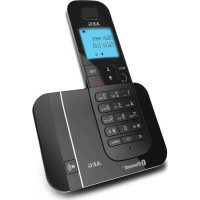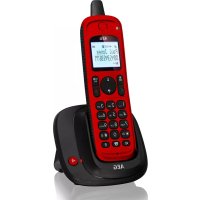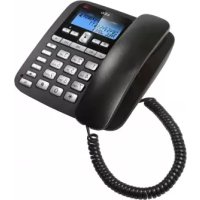
Lloyd 15 - Cordless phone AEG - Free user manual and instructions
Find the device manual for free Lloyd 15 AEG in PDF.



| Product Type | DECT Cordless Phone |
| Standard | DECT |
| Frequency | 1.88 - 1.9 GHz |
| Outdoor Range | Up to 300 m |
| Indoor Range | Up to 50 m |
| Standby Time | 100 hours |
| Talk Time | 10 hours |
| Charging Time | 15 hours |
| Battery Type | NiMH rechargeable, 400 mAh, 2 x 1.2 V AAA |
| Base Power Supply | 100-240 VAC, 50/60 Hz, output 6 VDC 450 mA |
| Directory Capacity | 100 entries |
| Call Log | 50 entries |
| Answering Machine | Up to 59 messages, max 15 min |
| Max Handsets | 5 |
| Key Features | Caller ID, call blocking, intercom, handset locator, alarm, mute mode, keypad lock |
| Cleaning | Damp cloth, no harsh chemicals |
| Operating Temperature | 0 °C to 40 °C |
| Storage Temperature | -20 °C to 60 °C |
| Warranty | 24 months |
| Base Weight | Approx. 150 g |
| Handset Weight | Approx. 120 g |
Frequently Asked Questions - Lloyd 15 AEG
User questions about Lloyd 15 AEG
0 question about this device. Answer the ones you know or ask your own.
Ask a new question about this device
Download the instructions for your Cordless phone in PDF format for free! Find your manual Lloyd 15 - AEG and take your electronic device back in hand. On this page are published all the documents necessary for the use of your device. Lloyd 15 by AEG.
USER MANUAL Lloyd 15 AEG
natural_image
Two black plastic clips with triangular bases, no text or symbols visibleP1 P2
P3
natural_image
Line drawing of two mobile phone holders with visible internal components and battery pack (no text or symbols)P4
P5
1 BECAUSE WE CARE
Thank you for purchasing this product. This product has been designed and assembled with utmost care for you and the environment. This is why we supply this product with a quick installation guide to reduce the number of paper (pages) and therefore save trees to be cut for making this paper. A full and detailed user guide with all the features described can be found on our website www.aegtelephones.eu. Please download the full user guide in case you want to make use of all the advanced features of your product. To save the environment we ask you not to print this full user guide. Thank you for supporting us to protect our environment.
2 IMPORTANT SAFETY INSTRUCTIONS
Please follow these safety instructions when using your telephone equipment to reduce risk of fire, electric shock and injury:
liquid cleaners or aerosol cleaners. Use a damp cloth for cleaning.
sunlight, and don't let it get wet or use it near water (for example, near a bath tub, kitchen sink, and swimming pool).
the risk of fire or electric shock.
conditions:
When the power supply cord or plug is damaged.
If the product fails to operate normally despite following the operating instructions.
If the product has been dropped and the cabinet has been damaged.
If the product exhibits a distinct change in performance.
base from the telephone line and the mains socket when there are storms in your area. Damage caused by lightning is not covered by the guarantee.
leak.
came with your phone or an authorized replacement recommended by the manufacturer. There is a risk of explosion if you replace the battery with an incorrect battery type. The use of other battery types or non-rechargeable batteries/primary cells can be dangerous. They may cause interference and/or damage to the unit or surroundings. The manufacturer will not be held liable for damage arising from such non-compliance.
the batteries.
Dispose of batteries safely. Do not burn, immerse them in water, disassemble, or puncture the batteries.
3 INTENDED USE
This telephone is intended to be connected to a public analogue telephone network or to an analogue extension of a compatible PBX system.
4 INSTALLING YOUR PHONE
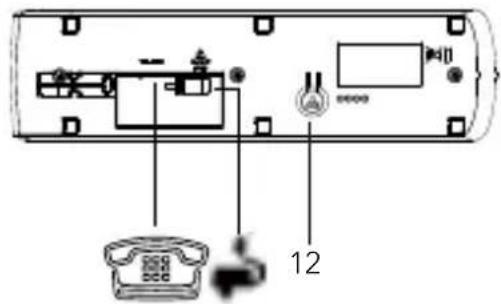
4.1 Connecting the Base Station (See P5)
station.
socket and the telephone line cord into a telephone line socket.
Warning: Always use the cables provided in the box. Use only the supplied adaptor. Using other power adapter may damage the unit.
Note: Place the base unit within easy reach of the mains power socket. Never try to lengthen the mains power cable. The base station needs mains power for normal operation and the cordless handsets will not work without it.
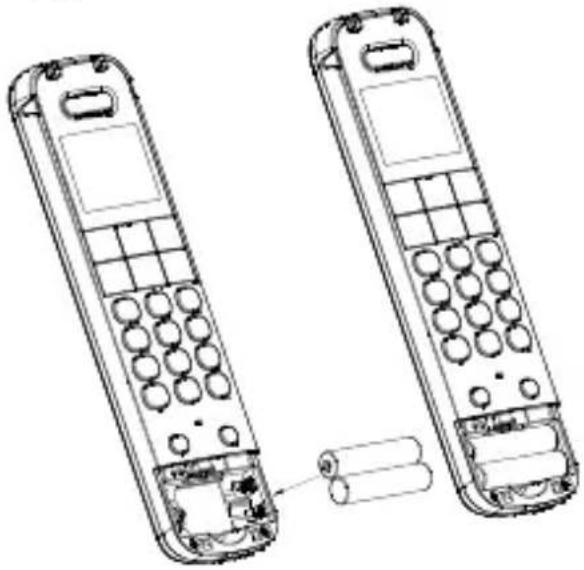
4.1 Installing and Charging the Rechargeable Batteries(see P3)
observing the correct polarity (see markings inside battery compartment).
Warning: Use only the supplied NiMH rechargeable batteries.
until it clicks into place.
the handset for the first time.
The handset will give a double beep when it is properly placed on the base and the battery charging indicator on the base lights up to indicate charging.
Note:
The handset may become warm when the batteries are being charged or during prolonged periods of use. This is normal and does not indicate a fault.
CAUTION
Risk of explosion if the battery is replaced by an incorrect type. Dispose of used batteries according to the instructions.
5 SET THE HANDSET LANGUAGE
目/OK and △/▽ to select HS SETTINGS.
目/OK and △/▽ to select LANGUAGE.
目/OK and △/▽ to select the desired language.
目/OK to confirm.
6 GET TO KNOW YOUR PHONE
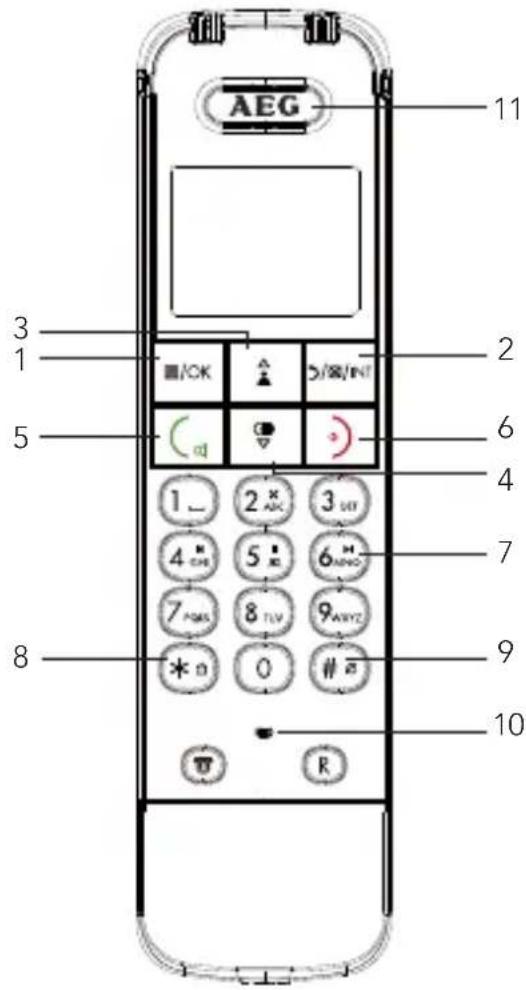
6.1 Handset Overview(see P1)
| 1 | 目/OK | selection.Phonebook/Redial List/ Call List. |
| 2 |  | idle screen.previous option, or press and hold to go back to the idle screen.character / digit, or press and hold to delete all the characters / digits.microphone. |
| 3 |  | During a call: Press to increase the volume.ringer volume. |
| 4 |  | options.ringer volume. |
| ( ) | Call List / Phonebook List: Press to make a call. | |
| speakerphone. | ||
| Call List / Phonebook List: Press to make a call with speakerphone. | ||
| speakerphone. | ||
| 6 | 0) | the idle screen. |
| previous menu, or press and hold to go back to the idle screen. | ||
| the handset. | ||
| 7 ALPHA-NUMERIC KEYPAD, *, # | disable the keypad lock. | |
| off the handset ringer. | ||
| Press and hold to insert a pause. | ||
| of the caller's number if applicable. | ||
| 8 | R | called Flash) for network services. |
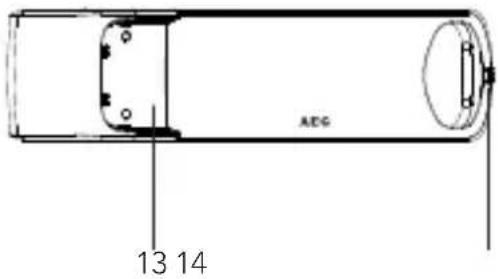
6.2 Base Station Overview(see P4)
| 12 | mode | |
| 13 | TAM INDICATOR LIGHT | ON recorded, when the TAM is being used, or when there is incoming ringing. |
| 14 | CHARGING CRADLE |
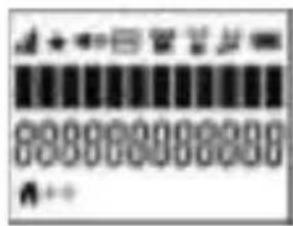
6.3 Handset LCD Display Icons and Symbols(see P2)
The LCD display gives you information on the current status of the telephone.
 | Displays when the handset is registered and within range of the base station, with more blocks indicating a stronger signal. |
 | Indicates the handset is on a call.Flashes when there is an incoming call. |
 | Indicates the handset ringer is switched off. |
 | Indicates an alarm is set. Flashes when the alarm is sounding. |
 | Indicates the keypad is locked. |
 | Indicates the battery is fully charged.Battery segments cycle during charging. |
 | Indicates the battery needs charging. Flashes when low battery power level is detected. (Note: the handset backlight will not turn on when the battery is low.) |
 | Indicates a new TAM message is playing or a new call is being viewed in the calls list. |
 | Indicates the speakerphone is turned on. |
 | Indicates you have a new voicemail message. (This is a caller display service and is not usually available from UK network providers.) |
 | Indicates the answering machine (TAM) is turned on.Flashes if there is a new TAM message. |
 | Indicates when any block mode is turned on. |
 | Press ↗/⊗/INT to start an intercom call. |
 | Press ↗/⊗/INT to go back to the previous menu or cancel the current action. |
| [ZTOO] | Press ↗to mute / unmute the microphone during a call, delete characters during predialling / editing or stop an alarm. |
6.4 Text and Digit Entry
In editing mode, a cursor is displayed to indicate the current text entry position. It is positioned at the right of the last character entered.
Writing Tips:
Once a character is selected, the cursor will move to the next position after a short pause.
You can move the cursor within the text by / to amend the text entry.
5/8/INT to delete the last character.
/INT
7 USE YOUR PHONE
7.1 Make a Call
7.1.1 Preparatory Dialing
press ☐/OK to delete the last digit.
C to dial the number.
7.1.2 Direct Dialing

7.1.3 Call from the Phonebook
目/OK then △/▽ to select PHONEBOOK. Press 目/OK to show ALL CONTACTS.
目/OK again to access phonebook.
NOTE
The first phonebook entry will be displayed. If there is no entry in the phonebook, it will show EMPTY.
C to dial the number.
7.1.4 Call from the Call List
to access the call list and press / to select.
目/OK then / to select CALL LIST.
NOTE
The first entry in the call list will be displayed. If there is no entry in the call list, it will show EMPTY.
目/OK then△/▽to select desired number.
C/ to dial the number.
7.1.5 Call from the Redial List
☑ to access the redial list and press / to select the desired redial number.
C/ to dial out to the selected redial number.
7.2 Answer a Call
If the handset is not on the charging cradle:
When the phone rings, press Ⓞ / ⚙ to answer a call.
If the handset is on the base or charger and if AUTO ANSWER is set to ON:
When the phone rings, pick up the handset to answer a call.
If you wish to switch AUTO ANSWER Off, see Set the Auto Answer.
The default setting is ON.
7.3 Adjust Earpiece and Speakerphone Volume
There are 5 levels (VOLUME 1 to VOLUME 5) to choose from for each of earpiece and speakerphone volume.
During a call:
Press / to select from VOLUME 1 to VOLUME 5. The current setting is shown. When you end the call, the setting will remain at the last selected level.
7.4 Mute a Call
You can mute the microphone so that you can talk to someone nearby without letting the caller hear you during a call.
During a call:
5/8/INT to mute the microphone and MUTED will display on the LCD. Your caller cannot hear you.
/INT
7.5 End a Call
During a call connection, press Ⓞ to end the call.
OR
Put the handset on the base or charger to end the call.
7.6 Turn the Keypad Lock ON/OFF
to turn on the keypad lock. The “* ☐” icon is displayed on the LCD.
7.7 Find the Handset (PAGING)
Paging is a useful way for finding lost handset(s).
on the base station. All the registered and available handsets will produce the paging tone and PAGING is displayed on the LCD.
(△/°)/ ①/any handset or on the base station again to stop paging.
NOTE
If there is an incoming call during paging, the phone will ring with the incoming call instead of paging.
7.8 Make an Internal Call
This feature is only applicable when there are at least two registered handsets. It allows you to make internal calls, transfer external calls from one handset to another handset and make conference calls. If the called handset is not answered within 60 seconds, the called handset will stop ringing and the calling handset will return to standby mode.
7.8.1 Call Another Handset
目/OK and the screen displays all registered handsets except the calling handset.
C on the called handset to
establish the internal call.
NOTES
2/8/INT
and it will display NOT POSSIBLE.
♂/♂/INT will connect to another handset immediately.
7.8.2 Transfer an External Call to Another Handset
During an external call:
目/OK and △/▽ to select INTERCOM.
目/OK and △/▽ to select the desired handset to intercom with.
rings.
on the called handset to establish an internal call.
①) on the calling handset or put the calling handset on the charging cradle to end the current call with the external party.
8 PRIVATE PHONEBOOK
Your phone can store up to 100 private phonebook entries with names and numbers. Each phonebook entry can have a maximum of 24 digits for the phone number and 12 characters for the name. You can also select different melodies for your phonebook entries. The entries are store alphabetically.
8.1 Store a Number Entry in the Phonebook
☐/OK and △/▽ to select PHONEBOOK. Press ☐/OK again to show All CONTACTS.
目/OK again to access phonebook.
NOTE
The first entry in the phonebook will be displayed. If there is no entry stored in the phonebook, it will show EMPTY.
目/OK to select ADD.
目/OK and enter the name.
目/OK and enter the number.
目/OK and △/▽ to select the desired melody.
目/OK to save.
8.1.1 Entering Names
Use the keypad letters to enter names, e.g. to store Tom:
Press 8_tu once to enter T.
Press 6_MNO three times to enter o.
Press 6_HNO once to enter m.
8.1.2 Dial an Entry
While in the phonebook list, press / to select the entry you want, or search alphabetically using the alphanumeric keypad.
C / to dial the selected entry.
8.2 Delete a Phonebook Entry
☐/OK and △/▽ to select PHONEBOOK. Press ☐/OK again to show All CONTACTS.
目/OK again to access phonebook.
目/OK and △/▽ to select DELETE.
目/OK to confirm.
8.3 Add a Phonebook Entry to VIP list
目/OK and △/▽ to select PHONEBOOK, then 目/OK to show ALL CONTACTS. Press 目/OK again to access the phonebook.
目/OK and △/▽ to select ADD TO VIP.
目/OK to add the entry to the VIP list. A * next to the name indicates it is now a VIP entry.
9 PHONE SETTINGS
Your phone comes with a selection of settings that you can change to personalize your phone the way you like it to work.
9.1 Date and Time Settings
9.1.1 Set the Time, Date, and Year
目/OK and △/▽ to select HS SETTINGS.
目/OK and △/▽ to select DATE & TIME.
目/OK and △/▽ to select SET TIME.
目/OK then enter the time information according to 12 HR or
24 HR format. The time will be in the format you set.
☐/OK then enter the year information. The last two digits of the year will flash for year input.
目/OK then enter the date information according to DD-MM-YY or MM-DD-YY format. The date will be in the format you set.
目/OK to confirm.
9.2 Handset Settings
9.2.1 Alarm
You can use this phone to set an alarm clock. When an alarm is set,
目/OK and △/▽ to select HS SETTINGS.
目/OK and △/▽ to select ALARM.
目/OK and / to select ON or OFF.
目/OK to confirm.
9.3 Register a Handset
Your handset is pre-registered to the base station. Up to five handsets can be registered to a single base station.
If for some reason, the handset is not registered to the base station, REGISTER will be displayed on the handset screen, register your handset following the process below.
on the base station for about five seconds, the base station is entered into registration mode.
目/OK and △/▽ to select REGISTRATION.
目/OK and you are requested to enter the 4-digit system PIN.
目/OK to confirm.
NOTE
If the handset registration is successful, the handset will automatically be allocated the next available handset number. This handset number is shown in the handset display in standby mode.
10 CALLER DISPLAY (NETWORK DEPENDENT)
10.1 Call List
This feature is available if you have subscribed to the Caller Line Identification service from your telephone company. Your phone can store up to 50 received calls with date/time information in the Call List. The number will be shown on the LCD when the phone is ringing. If the number matches with one of the entries in your Private Phonebook, the caller's name stored in the private phonebook will be displayed with the number. The handset will ring with melody associated with that phonebook entry.
The call list information might not be available for every incoming call. The callers might intentionally block their names and / or telephone numbers.
Call log display screen messages
WITHHELD The caller is blocking the telephone number. OUT OF AREA This caller's number is unavailable.
When the list is full, and a new call is received, the oldest entry will be deleted automatically.
10.2 View the Call List
Review the caller log history to find out who called, to easily return a call, or to save the caller's name and number into your phonebook. EMPTY appears if there are no records in the call list.
△ to access the call list.
OR
目/OK and △/▽ to select CALL LIST. Press 目/OK .
11 CALL BLOCKER
If you have subscribed to Caller ID service, you can use the call blocker feature to block certain calls automatically by adding numbers into the Black List (see 11.2). You can also choose to block all calls or allow only calls from numbers in the VIP list (see 5.8). Each handset can store up to a total of 100 entries shared between the phonebook (including the VIP list) and the black list.
Calls can also be blocked by the following Call Types: Withheld, Unavailable, International and Payphone. (See 11.5)
When a call is blocked, the telephone will not ring. If the answering machine is turned on, the blocked call will be answered by the answering machine.
11.1 Choose the Block Mode
block mode. You can choose to block all calls, allow only VIP entries, or only block blacklist entries. Press ☐/OK and △/▽ to show CALL BLOCKER.
目/OK and / to show SETTINGS.
目/OK to show BLOCK MODE.
目/OK and △/▽ to select OFF, BLOCK ALL, ALLOW VIP, or BLOCK BLIST.
目/OK to confirm.
normally.
If BLOCK ALL, ALLOW VIP or BLOCK BLIST are selected, it will show ALWAYS ON.
☐/OK if you want the selected block mode to be on all the time, or press △/▽to show TIMED, and then press ☐/OK and set the TIME ON and TIME OFF for the period you want the blocking to be active.
11.2 Add a Number to the Black List
目/OK and △/▽ to show CALL BLOCKER.
目/OK to show BLACK LIST.
目/OK twice to show ADD.
目/OK and then enter a Name, then 目/OK and enter the Number.
目/OK to store the number to the black list.
Note: Each Black List entry reduces the capacity of the Phonebook store.
Note: If the phonebook is full, LIST FULL appears after selecting ADD, and you will have to delete an entry from the phonebook or blacklist before you can store another blacklist entry.
11.3 View a Black List Entry
目/OK and △/▽ to show CALL BLOCKER.
目/OK to show BLACK LIST.
目/OK and △/▽ to select the desired black list entry.
目/OK and / to show VIEW.
目/OK to review the number and name of the selected Black List entry. If the number is more than 12 digits, press *to see the other digits.
11.4 Delete All Black List Entries
目/OK and △/▽ to show CALL BLOCKER.
目/OK to show BLACK LIST.
目/OK twice and then / to show DELETE ALL.
目/OK to display CONFIRM?
☐/OK to confirm. All Black List entries will be deleted and the display will show EMPTY.
11.5 Block Calls by Call Type
You can choose to block different types of incoming calls that normally do not have a caller ID number by setting the respective call type to ON.
Each Call Type (Withheld, International, Unavailable and Payphone) can be blocked independently of the others.
目/OK and △/▽ to show CALL BLOCKER.
目/OK and / to show SETTINGS.
目/OK and △/▽ to show CALL TYPE.
目/OK and △/▽ to select WITHHELD, INTERNAT'L, UNAVAILABLE, or PAYPHONE.
目/OK and / to select ON or OFF.
目/OK to confirm the setting for that type.
12 ANSWERING MACHINE (TAM)
Your phone system includes a telephone answering machine (TAM) that records unanswered calls when it is switched on. The answering system can store up to 59 messages within the maximum recording time of about 15 minutes. As well as recording incoming messages, you can record memos for other users of your phone. If the answering machine memory is full, the handset will display TAM FULL alternately with the handset name, and you will have to delete messages before more new ones can be recorded.
When the TAM is full, it will only play your Answer Only outgoing message and not allow the caller to leave a message.
12.1 Switching TAM On/Off
You can turn the answering machine on or off using the handset. When the answering machine is set to ON, the base TAM indicator will be on and the handset will display the TAM icon. Calls will be answered after the set answer delay and if it is set to Answer and Record mode, the caller can then leave you a message. When the answering system is set to OFF, calls will be answered after 14 rings and the answer only message will be played to your callers. They will not be able to leave you a message.
目/OK and △/▽ to show ANS. MACHINE.
目/OK and △/▽ to show TAM ON/OFF.
目/OK and / to choose ON or OFF.
目/OK to confirm the setting.
12.2 Play messages on TAM
When new messages are recorded, the TAM indicator on the base and TAM icon on the handset both flash.
If you have new messages, they are played first, and then saved as old messages, until they are deleted. Old messages are played again after all new messages are played completely.
目/OK and △/▽ to show ANS. MACHINE.
目/OK to show MSG PLAYBACK.
目/OK to start playing any messages through its loudspeaker.
recorded, and a ✱ symbol at the top of the screen if it is a new message.
Press / to increase or decrease the playback volume.
Press 🔔 to listen more privately from the earpiece.
Press ☐/OK and △/▽ for the options:
STOP to stop the playback.
FORWARD to skip on to the next message.
PREVIOUS to repeat the current message playing.
DELETE to delete the current message playing.
Alternatively, press the following digit keys:
5 to stop the playback.
6 to skip on to the next message.
4 to repeat the current message playing.
4,4 to skip back to the previous message.
2 to delete the current message playing.
NOTE:
You cannot delete new messages, so you will have to play them before trying to delete.
12.3 Answering Machine Settings
12.3.1 Set the Answer mode
You can select ANS & REC, the default mode, if you want to allow callers to leave a message, or ANSWER ONLY mode if you don't want callers to leave a message on the answering machine.
目/OK and △/▽ to show ANS. MACHINE.
目/OK and △/▽ to show TAM SETTINGS.
目/OK to show ANSWER MODE.
目/OK and △/▽ to select ANS & REC or ANSWER ONLY.
目/OK to confirm the setting.
12.3.2 Record your Outgoing Message (OGM)
You can record your own OGM for ANS & REC mode or ANSWER ONLY mode. When you record your own OGM, it will be used when the answering machine answers the call. If your personal OGM is deleted, the pre-set OGM will be restored automatically.
目/OK and △/▽ to show ANS. MACHINE.
目/OK and △/▽ to show TAM SETTINGS.
目/OK and △/▽ to show OGM SETTINGS.
目/OK and △/▽ to select ANS & REC or ANSWER ONLY.
目/OK and △/▽ to show RECORD MESS.
目/OK to start recording your personal OGM and RECORDING is displayed on the screen.
目/OK to stop and save your personal OGM, which will then playback automatically.
Alternatively, press ⭕/∅/INT to return to the previous screen without saving the personal OGM, and restoring the pre-set OGM automatically.
13 TECHNICAL DETAILS
| STANDARD DECT | |
| FREQUENCY RANGE 1.88 | TO 1.9 GHZ (BANDWIDTH = 20 MHZ) |
| CHANNEL BANDWIDTH | 1.728 MHZ |
| OPERATING RANGE UP TO 300M OUTDOORS; UP TO 50M INDOORS | |
| OPERATING TIME STANDBY: 100 HOURS, TALKING: 10 HOURS BATTERY CHARGE TIME:15 HOURS | |
| TEMPERATURE RANGE OPERATING 0 °C TO 40°C, STORAGE -20°C TO 60°C | |
| ELECTRICAL POWER BASE UNIT: | |
| VT04EUK06045 / VT04EEU06045INPUT 100-240VAC 50/60HZ 150MA, OUTPUT 6VDC 450MATENPAO:S003IB0600045/S003IV0600045INPUT 100-240VAC 50/60HZ 150MA, OUTPUT 6VDC 450MARJ-AS060450B001 / RJ-AS060450E002INPUT 100-240VAC 50/60HZ 150MA, OUTPUT 6VDC 450MABATTERY INFORMATIONTYPE NI-MH (RECHARGEABLE BATTERY) 400MAH, 2 X 1.2V AAA | |
14 CLEANING AND CARE
Do not clean any part of your unit with benzene, thinners or other solvent chemicals as this may cause permanent damage which is not covered by the Guarantee.
When necessary, clean it with a damp cloth.
Keep your phone system away from hot, humid conditions or strong sunlight, and don't let it get wet.
15 GUARANTEE AND SERVICE
The unit is guaranteed for 24 months from the date of purchase shown on your sales receipt. This guarantee does not cover any faults or defects caused by accidents, misuse, fair wear and tear, neglect, faults on the telephone line, lightning, tampering with the equipment, or any attempt at adjustment or repair other than through approved agents.
Please keep your sales (till) receipt this is your proof of guarantee.
15.1 While the unit is under Guarantee
electricity supply.
take your sales receipt.
15.2 After the Guarantee has expired
If the unit is no longer under Guarantee, contact us via www.aegtelephones.eu
This product works with rechargeable batteries only. If you put nonrechargeable batteries in the handset and place it on the base, the handset will be damaged and this in NOT covered under the warranty conditions.
16 CE DECLARATION
CE
This product is in compliance with the essential requirements and other relevant provisions of the R&TTE directive 1999/5/EC.
The Declaration of conformity can be found on:
www.aegtelephones.eu
17 DISPOSAL OF THE DEVICE (ENVIRONMENT)

At the end of the product lifecycle, you should not throw this product into the normal household garbage but bring the product to a collection point for the recycling of electrical and electronic equipments. The symbol on the product, user guide and/or box indicate this. Some of the product materials can be re-used if you bring them to a recycling point. By reusing some parts or raw materials from used products you make an important contribution to the protection of the environment. Please contact your local authorities in case you need more information on the collection points in your area.
Batteries must be removed before disposing of the device. Dispose of the batteries in an environmental manner according to your country regulations.
目/OK e △/▽ to select the desired language.
目/OK para confirmar.
6 CONHECER O SEU TELEFONE
6.1 Vista Geral do Telefone (ver P1)
WITHHELD (ESCONDIDO)
目/OK twice to show ADD.
© 2016 Binatone Electronics International Limited
All rights reserved Subject to availability. Rights of modification reserved. AEG is a registered trademark used under license from AB Electrolux (publ)
www.aegtelephones.eu