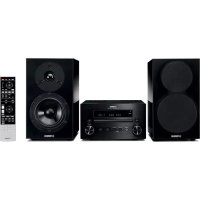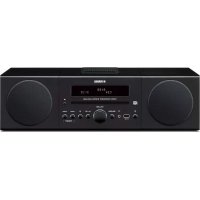
MCR042 - Audio System YAMAHA - Free user manual and instructions
Find the device manual for free MCR042 YAMAHA in PDF.



| Product type | Micro hi-fi system |
| Brand | YAMAHA |
| Model | MCR042 |
| Dimensions (main unit) | 180 × 127 × 273 mm |
| Weight (main unit) | 2.7 kg |
| Dimensions (speaker) | 129 × 126 × 251 mm |
| Weight (speaker) | 1.7 kg |
| Power supply | AC 230 V, 50 Hz |
| Power consumption | 30 W (on) / 3.0 W (normal standby) / 0.5 W (eco standby) |
| Output power | 15 W + 15 W (6 Ω, 1 kHz, 10 % THD) |
| Audio sources | CD (audio and data), iPod/iPhone/iPad (dock or USB), USB, FM, AUX (3.5 mm jack) |
| Main functions | Clock, IntelliAlarm (3 types), timer, 3-band equalizer, FM preset (30 stations), repeat/random playback |
| Supported audio formats | MP3 (8-320 kbps, 16-48 kHz), WMA (16-320 kbps, 22.05-48 kHz) |
| FM range | 87.50 - 108.00 MHz |
| Connectivity | iPod dock, front USB port, 3.5 mm headphone jack, 3.5 mm AUX input, speaker terminals |
| Included accessories | Remote control (CR2032 battery included), speaker cables (1.5 m × 2), FM antenna, dock cover |
| Care and cleaning | Dry, clean cloth; do not use chemical solvents |
| Safety | Class 1 laser (do not open, avoid exposure), do not expose to moisture, observe ventilation distances |
| Repairability | Do not attempt to repair yourself; contact authorized Yamaha after-sales service |
| Warranty | Consult Yamaha website for warranty conditions in the EEA and Switzerland |
Frequently Asked Questions - MCR042 YAMAHA
User questions about MCR042 YAMAHA
0 question about this device. Answer the ones you know or ask your own.
Ask a new question about this device
Download the instructions for your Audio System in PDF format for free! Find your manual MCR042 - YAMAHA and take your electronic device back in hand. On this page are published all the documents necessary for the use of your device. MCR042 by YAMAHA.
USER MANUAL MCR042 YAMAHA
natural_image
Exterior view of a Yamaha audio workstation (no text or symbols on the device body)OWNER'S MANUAL
MODE D'EMPLOI
BEDIENUNGSANLEITUNG
BRUKSANVISNING
1 To assure the finest performance, please read this manual carefully. Keep it in a safe place for future reference.
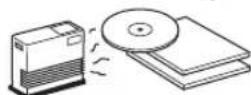
2 Install this unit in a well ventilated, cool, dry, clean place-away from direct sunlight, heat sources, vibration, dust, moisture and cold. For proper ventilation, allow the following minimum clearances.
Top: 15 cm (6 in)
Rear: 10 cm (4 in)
Sides: 10 cm (4 in)
3 Locate this unit away from other electrical appliances, motors, or transformers to avoid humming sounds.
4 Do not expose this unit to sudden temperature changes from cold to hot, and do not locate this unit in an environment with high humidity (i.e. a room with a humidifier) to prevent condensation inside this unit, which may cause an electrical shock, fire, damage to this unit, and/or personal injury.
5 Avoid installing this unit where foreign object may fall onto this unit and/or this unit may be exposed to liquid dripping or splashing. On the top of this unit, do not place:
- Other components, as they may cause damage and/or discoloration on the surface of this unit.
– Burning objects (i.e. candles), as they may cause fire, damage to this unit, and/or personal injury. - Containers with liquid in them, as they may fall and liquid may cause electrical shock to the user and/or damage to this unit.
6 Do not cover this unit with a newspaper, tablecloth, curtain, etc. in order not to obstruct heat radiation. If the temperature inside this unit rises, it may cause fire, damage to this unit, and/or personal injury.
7 Do not plug in this unit to a wall outlet until all connections are complete.
8 Do not operate this unit upside-down. It may overheat, possibly causing damage.
9 Do not use force on switches, knobs and/or cords.
10 When disconnecting the power cable from the wall outlet, grasp the plug; do not pull the cable.
11 Do not clean this unit with chemical solvents; this might damage the finish. Use a clean, dry cloth.
12 Only voltage specified on this unit must be used. Using this unit with a higher voltage than specified is dangerous and may cause fire, damage to this unit, and/or personal injury. Yamaha will not be held responsible for any damage resulting from use of this unit with a voltage other than specified.
13 To prevent damage by lightning, keep the power cable disconnected from a wall outlet or this unit during a lightning storm.
14 Do not attempt to modify or fix this unit. Contact qualified Yamaha service personnel when any service is needed. The cabinet should never be opened for any reasons.
15 When not planning to use this unit for long periods of time (i.e. vacation), disconnect the AC power plug from the wall outlet.
16 Be sure to read the "TROUBLESHOOTING" section on common operating errors before concluding that this unit is faulty.
17 Before moving this unit, press to set the system to off, and disconnect the AC power plug from the wall outlet.
18 Condensation will form when the surrounding temperature changes suddenly. Disconnect the power cable from the outlet, then leave this unit alone.
19 When using this unit for a long time, this unit may become warm. Turn the system off, then leave this unit alone for cooling.
20 Install this unit near the wall outlet and where the AC power plug can be reached easily.
21 The batteries shall not be exposed to excessive heat such as sunshine, fire or the like. When you dispose of batteries, follow your regional regulations.
- Keep the batteries in a location out of reach of children. Batteries can be dangerous if a child were to put in his or her mouth.
- If the batteries grow old, the effective operation range of the remote control decreases considerably. If this happens, replace the batteries with new one as soon as possible.
- Do not use old batteries together with new ones.
- Do not use different types of batteries (such as alkaline and manganese batteries) together. Read the packaging carefully as these different types of batteries may have the same shape and color.
- Exhausted batteries may leak. If the batteries have leaked, dispose of them immediately. Avoid touching the leaked material or letting it come into contact with clothing, etc. Clean the battery compartment thoroughly before installing new batteries.
- If you plan not to use the unit for a long period of time, remove the batteries from the unit. Otherwise, the batteries will wear out, possibly resulting in a leakage of battery liquid that may damage the unit.
- Do not throw away batteries with general house waste. Dispose of them correctly in accordance with your local regulations.
22 Excessive sound pressure from earphones and headphones can cause hearing loss.
This unit is not disconnected from the AC power source as long as it is connected to the wall outlet, even if this unit itself is turned off by ⏻ in this state, this unit is designed to consume a very small quantity of power.
WARNING
TO REDUCE THE RISK OF FIRE OR ELECTRIC SHOCK, DO NOT EXPOSE THIS UNIT TO RAIN OR MOISTURE.
CAUTION
Danger of explosion if battery is incorrectly replaced. Replace only with the same or equivalent type.
There is a chance that placing this unit too close to a CRT-based (Braun tube) TV set might impair picture color. Should this happen, move this unit away from the TV set.
LASER
Type Semiconductor laser GaAS/GaAlAs
Wave length 790 nm
Output Power 7 mW
CONTENTS
CONNECTIONS 2
Connecting the speakers and antenna 2
Connecting the power cable....2
Other connections....3
NAMES OF PARTS AND THEIR FUNCTIONS .....4
Top panel/Front panel....4
Front panel display....4
Remote control....5
ADJUSTING THE CLOCK (OPTION MENU) ......6
LISTENING TO YOUR iPod....7
Playing music from your iPod....7
Using repeat/shuffle playback (remote control only).....8
LISTENING TO CD AND USB DEVICES .....9
Listening to a CD....9
Listening to a USB device....10
Using repeat/shuffle playback (remote control only)....10
LISTENING TO FM STATIONS ....11
Selecting an FM station....11
Presetting FM stations (remote control only) .....12
Selecting preset FM stations....13
LISTENING TO EXTERNAL SOURCES ....14
USEFUL FUNCTIONS ....15
Using the Option menu 15
Using the sleep timer 15
Using the alarm function 16
Using "DTA Controller" to set the alarm 16
Setting the alarm 17
Operations while the alarm sound is playing....18
TROUBLESHOOTING ....19
NOTES ON DISCS AND USB DEVICES......22
SPECIFICATIONS......23
Features
- Play back music from external devices such as your iPod/iPhone/iPad, audio/data CDs, USB devices, or external devices via the AUX jack, and listen to the FM.
- Use your favorite music or a beep tone as an alarm. When the set time arrives, the music you select is played at the volume that you specify, giving you the ideal start to your day (IntelliAlarm function).
- You can take advantage of more sophisticated alarm functionality by using the free “DTA Controller” application for the iPod touch/iPhone/iPad (P. 16).
- You can easily store and recall 30 of your favorite FM stations.
- Bass, middle, and treble can be adjusted to your taste.
◆ About this manual
- References to the iPod appearing in this manual also include the iPhone.
- If an operation can be performed using either the buttons on the unit itself or from the remote control, the explanation will focus on operation using the remote control.
- indicates precautions for use of the unit and its feature limitations.
- indicates supplementary explanations for better use.
Supplied accessories
Remote control
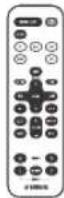
(uses a CR2032 type
Lithium battery)
Speaker cable
(1.5 m (4.9') x 2)
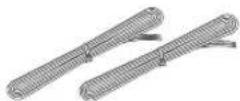
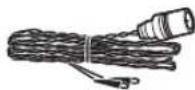
FM antenna
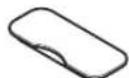
Dock cover
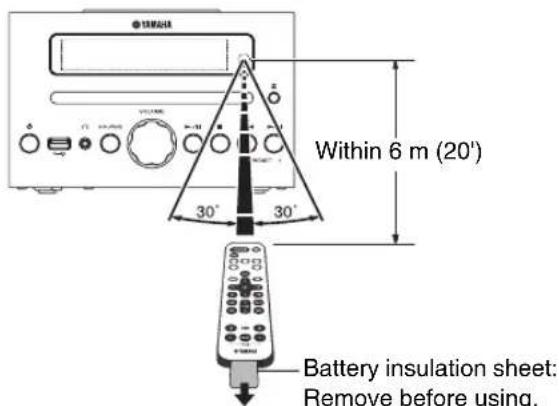
◆ How to use the remote control
◆ Replacing the battery in the remote control
While pushing the release tab in direction Ⓐ, slide out the battery holder in direction Ⓑ.

CONNECTIONS
Connecting the speakers and antenna
Connect the speakers and antenna.
If you use a commercially available outdoor antenna instead of the supplied antenna, reception may be better.
If FM reception is poor, try changing the height or direction or placement of the antenna to find a location that has better reception.
Do not connect this unit's power cable until you've finished connecting all cables.
Speakers
!
- You must peel off the insulation (covering) from the tip of the speaker cable to expose the conductor.
- Check the connections; make sure that left and right (L, R) and polarity (red: +, black: -) are connected correctly. If connections are incorrect, the sound will be unnatural and the low frequencies may be insufficient. There might not be any sound at all if connections are incorrect.
• Take care that the conductors of the speaker cable do not touch each other, and that the conductors do not touch any other metal part. Such conditions can damage this unit or the speakers. - Use only the supplied speakers. Using other speakers may result in unnatural sound.
- If you're using this unit nearby a CRT display and you notice distorted color or noise in the display, move the speakers farther away from the display.
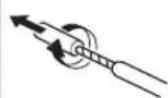
Twist the bare wires tightly so the individual strands are not splayed.
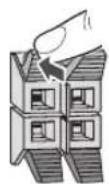
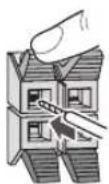
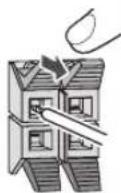
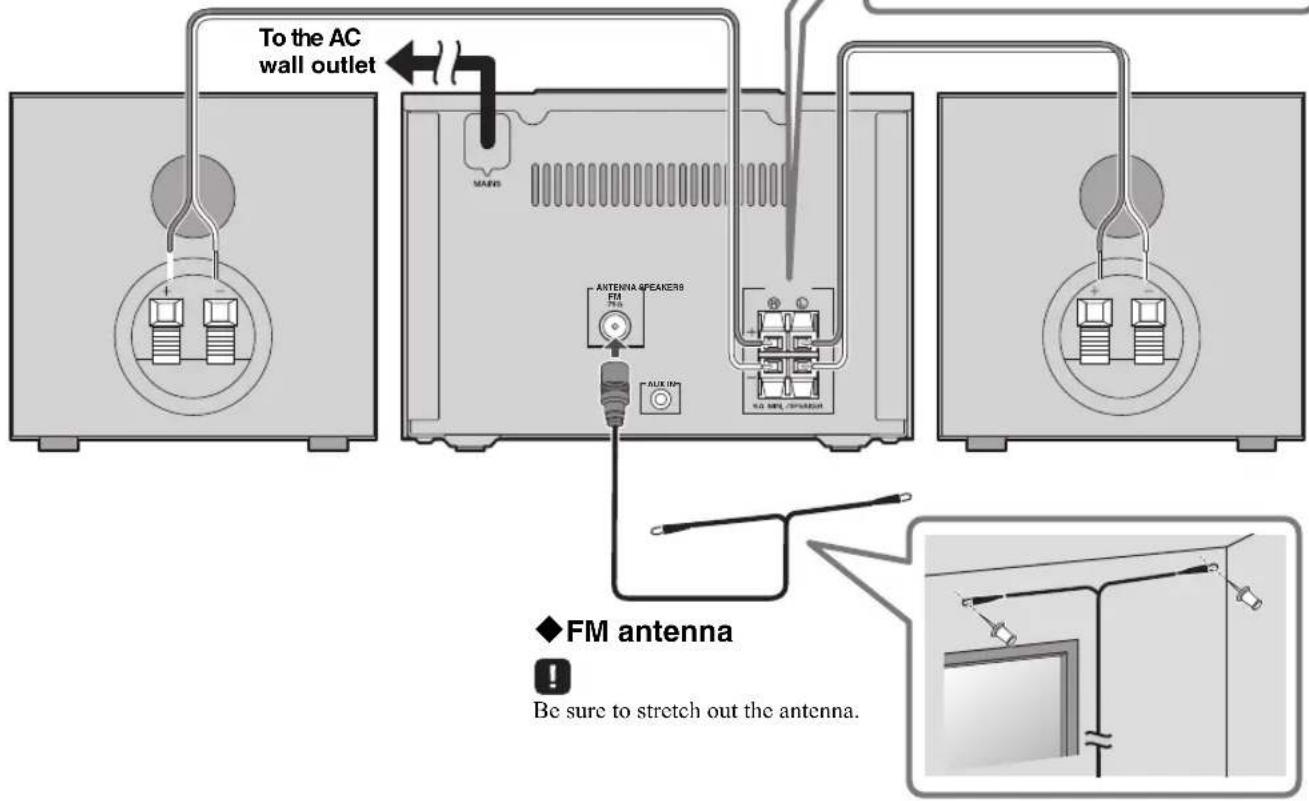
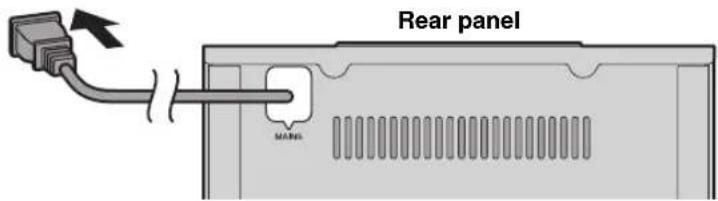
Connecting the power cable
When you've completed all connections, connect this unit's power cable to an AC outlet.
Other connections
iPod
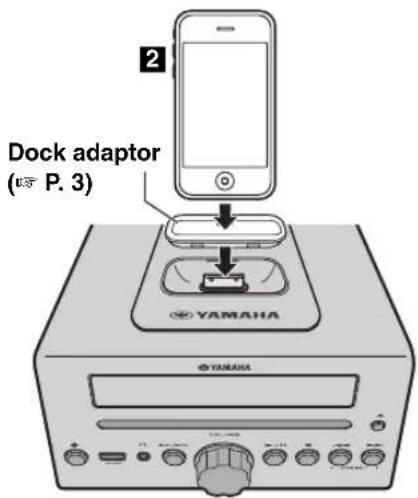
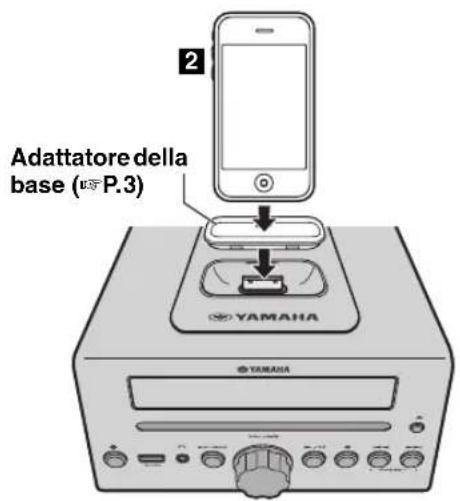
Connect your iPod to the iPod dock on the top panel. For details on compatible iPod models, refer to “SPECIFICATIONS” (P. 23).
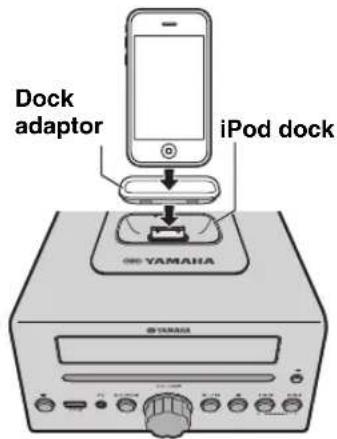
!
- Be sure to use a dock adaptor that is compatible with your iPod. If you do not use the adaptor or the adaptor is not compatible, the connection could be loose or poor, which could cause damage to the connector. For details on dock adaptor information, please visit Apple's official website.
- If an iPod in a protective case is forcibly connected, the connector may be damaged. Remove the protective case before connection.
- When the iPod is not in use, install the dock cover to protect the connector.
#
- Your iPod will be recharged while it is connected to the dock. However if USB is selected as the audio source, the iPod will not be recharged.
- Your iPod can also play back music and charge while connected to the USB port. To do this, select USB as the audio source (P. 10).
- You can remove the iPod during playback.
iPad
Connect your iPad to the front panel USB port. For details on compatible iPad models, refer to "SPECIFICATIONS" (P. 23).
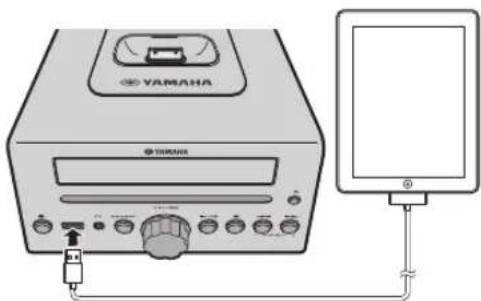
!
Make sure to use a Dock Connector to USB Cable that is supplied with your iPad.
The image is too blurry to recognize any text content.
- When you turn the system on and set the audio source to USB, the iPad connected to this unit will be recharged.
- You can remove the iPad during playback.
USB device
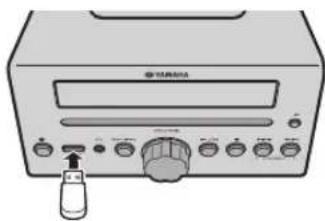
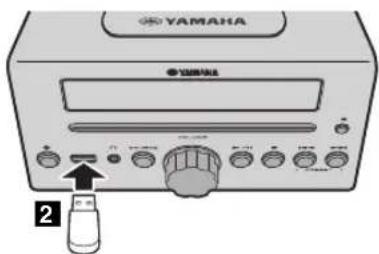
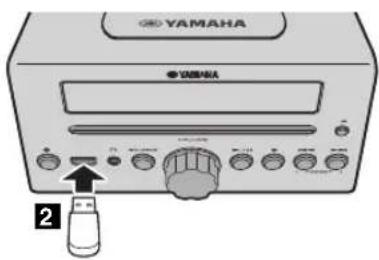
Connect your USB device to the USB port on the front panel. For details on playable files, refer to “NOTES ON DISCS AND USB DEVICES” (P. 22).
natural_image
Illustration of a vintage electronic device with a dial and control knobs (no text or symbols visible)!
Stop playback before disconnecting the USB device.
The image is too blurry to recognize any text content.
When you turn on the system and set the audio source to USB, the USB device connected to this unit will be recharged.
◆ External devices
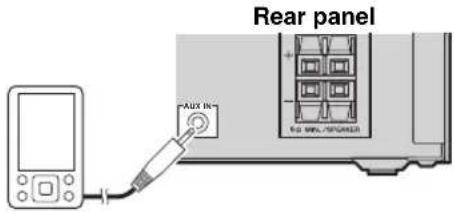
Using a commercially available 3.5 mm mini-plug cable, connect your external device to the AUX jack on the rear panel of this unit.
NAMES OF PARTS AND THEIR FUNCTIONS
Top panel/Front panel
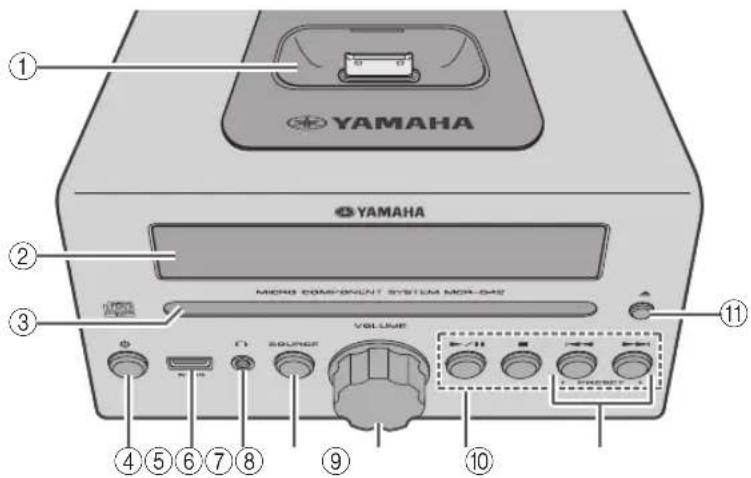
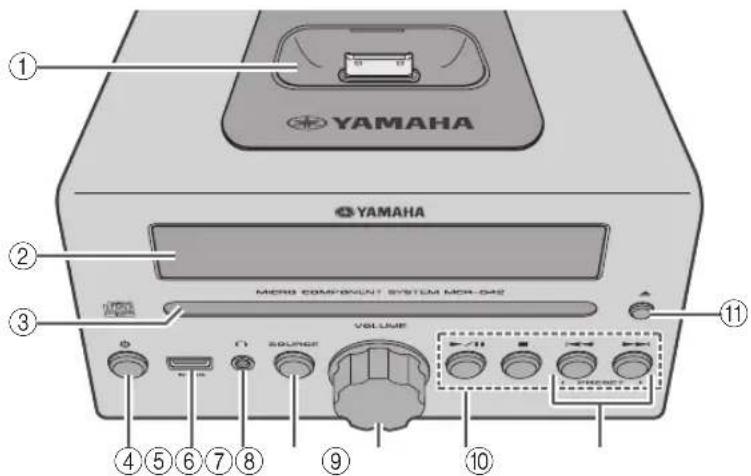
① iPod dock
Connect your iPod here (P. 3, 6, 7).
Be sure to use a dock adaptor that is compatible with your iPod (P. 3).
②Front panel display
The clock and other information is displayed here.
③Disc slot
Insert a CD here (P. 9).
④ (Power)
Press to turn the system on/off.
⑤USB port
Connect your USB device/iPod/iPhone/iPad here (P. 3, 10).
⑥ (Headphone jack)
Connect headphones here.
⑦SOURCE
Switch the audio source to be played.
Pressing this repeatedly will change the selection in the following order.
CD→Pod →USB→FM AUX back to CD
⑧VOLUME knob
Adjust the volume.
⑨Audio control buttons
Use these to operate the iPod/CD/USB device.
▶II: Play/Pause
■: Stop
|◀◀/▶▶: Skip, Search backward/forward (press and hold down)
⑩PRESET
Use these buttons to select a radio station (preset) that you've stored (P. 13).
⑪ (Eject button)
Eject the CD (cannot be operated while the option menu (P. 15) is displayed).
Front panel display
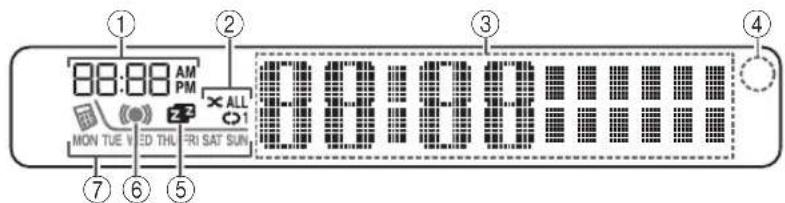
①Alarm time
This indicates the alarm time (P. 17).
②Repeat/shuffle indicator
Displays the playback mode (P. 8, 10).
③Multi-function indicator
Displays various information, including the clock time, information about the currently-playing track, and the frequency of the radio station.
④Remote control signal receiver
Make sure that this sensor is not obstructed (P. 1).
⑤Sleep indicator
Turns on if the sleep timer has been set (P. 15).
⑥Alarm indicator
Turns on if the alarm has been set (P. 17).
⑦ Weekly alarm indicator
Shows alarm information specified using the free "DTA Controller" application for the iPod touch/iPhone/iPad (P. 16).
Remote control
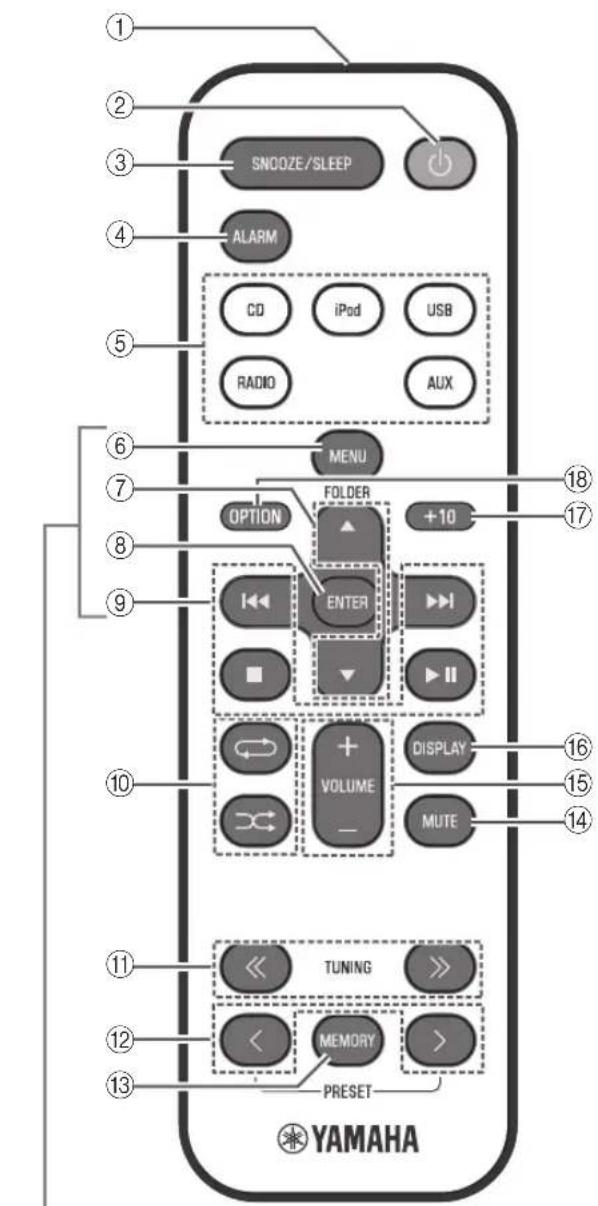
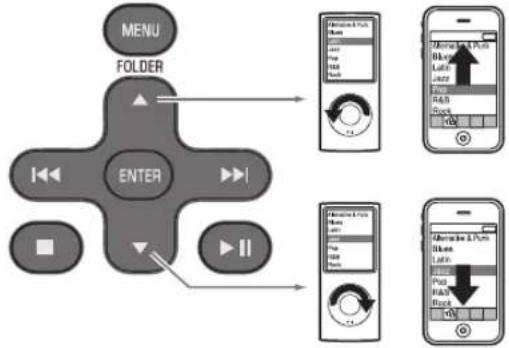
iPod control buttons
flowchart
graph TD
    A["MENU"] --> B["FOLDER"]
    B --> C["ENTER"]
    C --> D["Monitor 1"]
    C --> E["Monitor 2"]
    C --> F["Monitor 3"]
    C --> G["Monitor 4"]
    C --> H["Monitor 5"]
    C --> I["Monitor 6"]
    C --> J["Monitor 7"]
    C --> K["Monitor 8"]
    C --> L["Monitor 9"]
    C --> M["Monitor 10"]
    C --> N["Monitor 11"]
    C --> O["Monitor 12"]
    C --> P["Monitor 13"]
    C --> Q["Monitor 14"]
    C --> R["Monitor 15"]
①Remote control signal transmitter
② (Power)
Press to turn the system on/off.
③SNOOZE/SLEEP
Set the sleep timer or switch the alarm to snooze mode (P. 15, 18).
④ ALARM
Switches the alarm on/off (P. 18).
⑤Source buttons
Switch the audio source to be played. If you press one of these while the system is off, the system will automatically turn on.
⑥MENU
Switch the iPod menu item/Return to the previous menu (P. 7).
⑦ FOLDER ▲/▼
Switch the playback folder when playing music on data CDs or USB devices (P. 9, 10).
Select items or edit numerical values (P. 7, 15).
⑧ENTER
Confirm a selected item or value.
⑨Audio control buttons
Use these to operate the iPod/CD/USB device.
■: Stop
▶II: Play/Pause
◀◀/▶◀: Skip, Search backward/forward (press and hold down)
⑩ (Repeat)/ (Shuffle)
Play music on an iPod, CD or USB device in repeat/shuffle mode (P. 8, 10).
⑪TUNING «/ »
Tune the radio (P. 11, 12).
⑫PRESET
Select a FM station that you stored (P. 12, 13).
⑬MEMORY
Store a FM station (P. 12).
⑭MUTE
Mute or unmute the sound.
⑮VOLUME +/-
Adjust the volume.
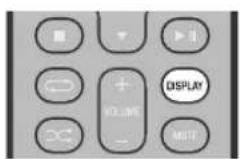
⑯DISPLAY
Switch the information shown in the front panel display (P. 6, 7, 9, 10, 11).
⑰+10
Skip ten songs ahead of the currently-playing song.
When playing a data CD or a USB device, this button skips ten songs within the current folder.
⑱OPTION
Display the option menu (P. 15).
ADJUSTING THE CLOCK (OPTION MENU)
You'll use the option menu (P. 15) to set this unit's date and time.
◆ To copy the time from your iPod
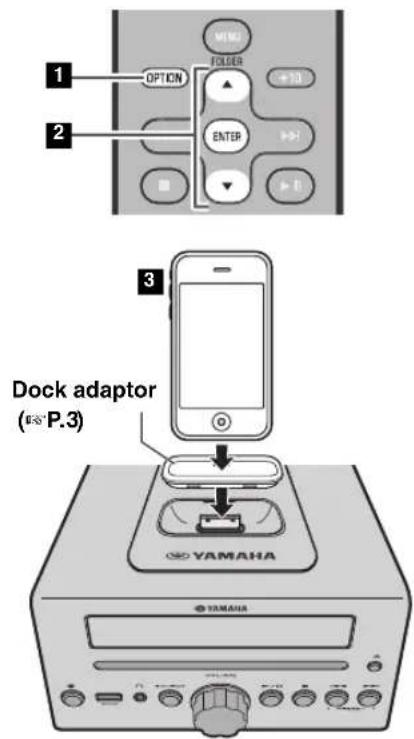
Setting the clock manually
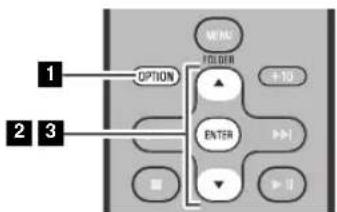
The clock is shown as below.
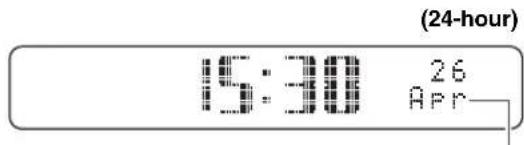
| Jan Fcb Mar | Apr | May | Jun | ||
| January | February | March | April | May | June |
| Jul Aug | Sep Oct | Nov | Dec | ||
| July | August | September | October | November | December |
Press OPTION.
The option menu will appear.
2 Press ▲/▼ to select "CLOCK SET," and then press ENTER.
The display will indicate "CLOCK YEAR," and the numerical value to be set will blink.
3 Set your iPod in the iPod dock (P. 3).
The time will be copied from your iPod to this unit.
Press ENTER to confirm the items in the order of
year → month → day → hour minute.
When clock setting has finished, the display will indicate "Completed!"

- By pressing DISPLAY you can select the time format (12-hour/24-hour).
- The time will not be copied if the iPod is already connected or if the audio source is set to USB.

The time settings will be reset if the unit remains unpowered for about one hour.
1 Press OPTION.
The option menu will appear.
2 Press ▲/▼ to select "CLOCK SET," and then press ENTER.
The display will indicate "CLOCK YEAR," and the numerical value to be set will blink.
3 Set the date and time.
Press ▲/▼ to edit each numerical value, and then press ENTER to confirm the setting.
Set the items in the order of year → month day → hour → minute.
When clock setting has finished, the display will indicate "Completed!"
The clock will be set to 0 second the moment you complete the clock settings.

- While making these settings, you can press DISPLAY to select the time format (12-hour/24-hour).
- If you decide to cancel without changing the setting, press OPTION before confirming the change.

The time settings will be reset if the unit remains unpowered for about one hour.
LISTENING TO YOUR iPod
Playing music from your iPod
- For details on compatible iPod models, refer to "SPECIFICATIONS" (P. 23).
- Your iPod can also play back music and charge while connected to the USB port. To do this, select USB as the audio source (P. 10).
1
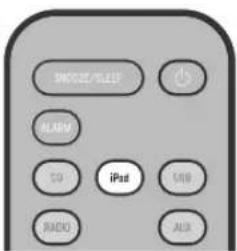
1 Press the iPod source button to switch the audio source to iPod.
2 Set your iPod in the iPod dock (P. 3).
3 Play the iPod.
Playback can be controlled with either the remote control, iPod or the front panel on this unit (P. 4, 5).

- If you've selected an audio source other than USB, performing the following operations will automatically switch the audio source to iPod and start playback even if the system is turned off. - Connect your iPod in the playback state to the iPod dock. - Play back the connected iPod.
- If USB is selected as the audio source, the iPod will not be recharged.
- You can remove the iPod during playback.
- If iPod is selected as the audio source, this unit will automatically turn the system off when 60 minutes have elapsed without a device being connected to the iPod dock nor any operation performed.
◆ iPod menu operations (remote control only)
You can use the remote control to operate your iPod.
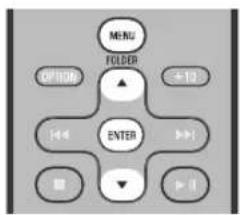
MENU: Switch menu items/Return to the previous menu
▲/▼: Move between items in the menu
ENTER: Confirm
◆ Display information (remote control only)
If you press DISPLAY on the remote control while a song is playing or paused, the information shown on the front panel display will be switched in the following order.
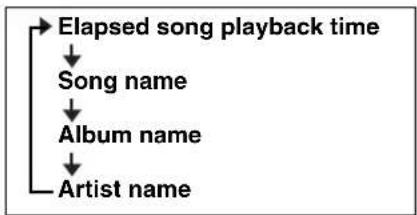
flowchart
graph TD
    A["Elapsed song playback time"] --> B["Song name"]
    B --> C["Album name"]
    C --> D["Artist name"]
Using repeat/shuffle playback (remote control only)
The playback status is shown by the repeat/shuffle indicator in the front panel display.
◆ Repeat playback
Press (repeat) repeatedly to select one of the following playback modes.
No display: Off
1: One
ALL: All
◆ Shuffle playback
Press (shuffle) repeatedly to select one of the following playback modes.
No display: Off
→: Songs
: Albums

The operation or display of repeat/shuffle may differ, depending on the type or software version of iPod used.
LISTENING TO CD AND USB DEVICES
The unit will operate as follows when playing back tracks/files on CD/USB devices.
- If the CD/USB device being played is stopped, the track that you listened will start playback from the beginning of the track the next time you play.
- If you press ■ while playback is stopped, tracks will play as follows the next time playback begins:
- Audio CD: from the first track of the CD.
- Data CD*/USB device: from the first track of the folder contains the track you listened to last time.
- This unit automatically turns off the system if no operation has been performed for 60 minutes after CD/USB device playback is stopped.
* "Data CD" is a CD that contains MP3/WMA files.

For details on playable discs and files, refer to "NOTES ON DISCS AND USB DEVICES" (P. 22).
Listening to a CD
1
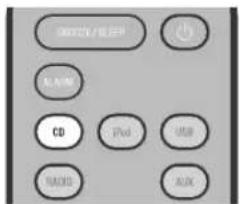
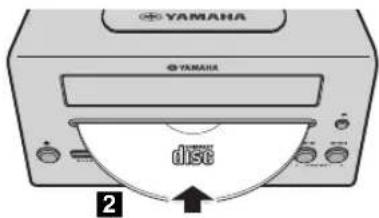
1 Press the CD source button to switch the audio source to CD.
If a CD is already inserted, playback will start.
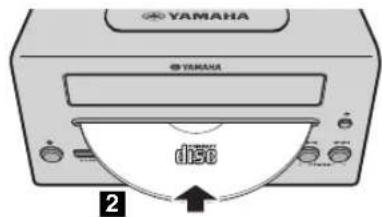
2 Insert a CD into the disc slot.
Playback starts automatically.
Playback can be controlled with either the remote control, or the front panel on this unit (P. 4, 5).

Insert the CD with the label side facing upward.

Folders and files on a data CD are played in alphabetical order.
♦ Skipping folders (remote control only)
flowchart
graph TD
    A["ENTER"] --> B["OPTION"]
    A --> C["+10"]
    A --> D["▶"]
    A --> E["▶"]
    A --> F["▶"]
    A --> G["▶"]
    A --> H["▶"]
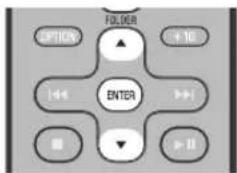
While a data CD is playing, you can use the remote control's FOLDER ▲/▼ buttons to select the folder.
◆ Display information (remote control only)
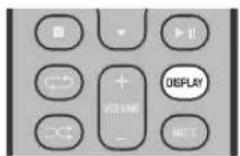
The folder number (only for a data CD) or the song/file number is shown for several seconds when starting playback or skipping tracks.
If you press DISPLAY on the remote control while a song is playing or paused, the information shown on the front panel display will be switched in the following order.
Audio CD
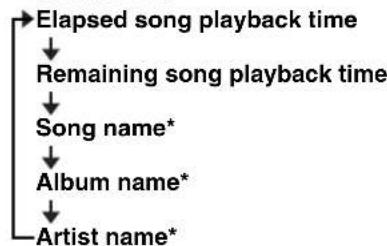
flowchart
graph TD
    A["Elapsed song playback time"] --> B["Remaining song playback time"]
    B --> C["Song name*"]
    C --> D["Album name*"]
    D --> E["Artist name*"]
Data CD
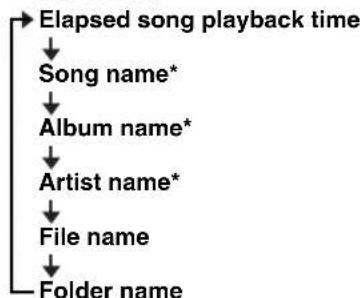
flowchart
graph TD
    A["Folder name"] --> B["File name"]
    B --> C["Artist name*"]
    C --> D["Album name*"]
    D --> E["Song name*"]
    E --> F["Elapsed song playback time"]
* Shown only if this data is included in the song.
Listening to a USB device
1
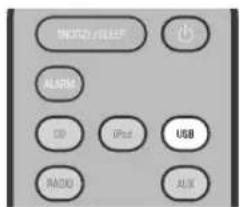
1 Press the USB source button to switch the audio source to USB.
If a USB device is already connected, playback will start.
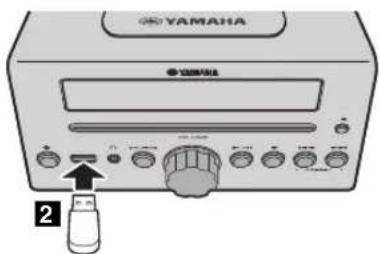
2 Connect a USB device to the USB port.
Playback starts automatically.
Playback can be controlled using either the remote control, the front panel on this unit, or the USB device (P. 4, 5).

- Folders and files will play in the order in which they were written.
- Your iPod/iPhone/iPad can also play back music and charge while connected to the USB port.

Stop playback before disconnecting the USB device.
♦ Skipping folders (remote control only)
flowchart
graph TD
    A["ENTER"] --> B["CONTENTS"]
    B --> C["CONTENTS"]
    C --> D["CONTENTS"]
    D --> E["CONTENTS"]
    E --> F["CONTENTS"]
    F --> G["CONTENTS"]
    G --> H["CONTENTS"]
    H --> I["CONTENTS"]
    I --> J["CONTENTS"]
    J --> K["CONTENTS"]
    K --> L["CONTENTS"]
    L --> M["CONTENTS"]
    M --> N["CONTENTS"]
    N --> O["CONTENTS"]
    O --> P["CONTENTS"]
    P --> Q["CONTENTS"]
    Q --> R["CONTENTS"]
    R --> S["CONTENTS"]
    S --> T["CONTENTS"]
    T --> U["CONTENTS"]
    U --> V["CONTENTS"]
    V --> W["CONTENTS"]
    W --> X["CONTENTS"]
    X --> Y["CONTENTS"]
    Y --> Z["CONTENTS"]
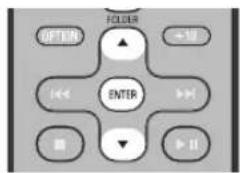
While a USB device is playing, you can use the remote control's FOLDER ▲/▼ buttons to select the folder.
◆ Display information (remote control only)
The folder/file number is shown for several seconds when starting playback or skipping tracks.
If you press DISPLAY on the remote control while a song is playing or paused, the information shown on the front panel display will be switched in the following order.
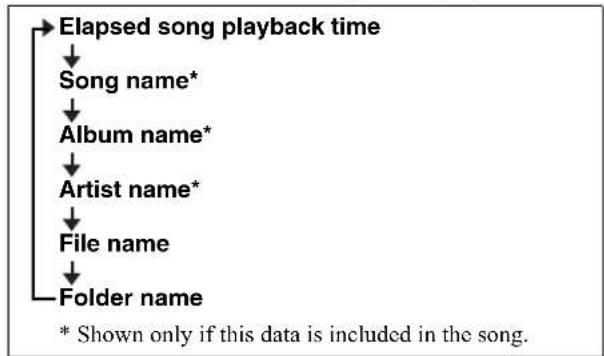
flowchart
graph TD
    A["Elapsed song playback time"] --> B["Song name*"]
    B --> C["Album name*"]
    C --> D["Artist name*"]
    D --> E["File name"]
    E --> F["Folder name"]
Using repeat/shuffle playback (remote control only)
The playback status is shown by the repeat/shuffle indicator in the front panel display.
◆ Repeat playback
Press (repeat) repeatedly to select one of the following playback modes.
No display: Repeat mode off
1: 1 track
All tracks within the folder (data CD/USB device only)

All tracks
◆ Shuffle playback
Press (shuffle) repeatedly to select one of the following playback modes.
No display: Shuffle mode off
XX: All tracks within the folder (data CD/USB device only)
ALL: All tracks
LISTENING TO FM STATIONS
Selecting an FM station
To listen to a FM station, connect the antenna as described in “Connecting the speakers and antenna” (P. 2).
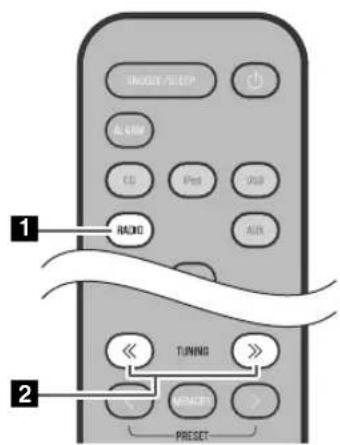
Press the RADIO source button to switch the audio source to FM.
2 Tune FM stations
Automatic tuning: Press and hold TUNING «/». Manual tuning: Press TUNING «/» repeatedly.

If you tune to a station manually while receiving FM, the sound will be monaural.
◆ Display information (remote control only)
If you press DISPLAY on the remote control, the information shown on the front panel display will be switched in the following order.
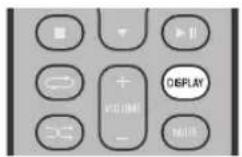
Preset number and frequency ◀ Reception status\*
* Example of reception status indication.
TUNED/STEREO: A strong FM stereo broadcast is being received.
TUNED/MONO: A monaural FM broadcast is being received (even if the FM broadcast is stereo, reception will be monaural if the signal is weak).
Not TUNED: No broadcast is being received.
Displaying Radio Data System information
If you press DISPLAY on the remote control while Radio Data System information is being received, the information shown on the front panel display will be switched in the following order.
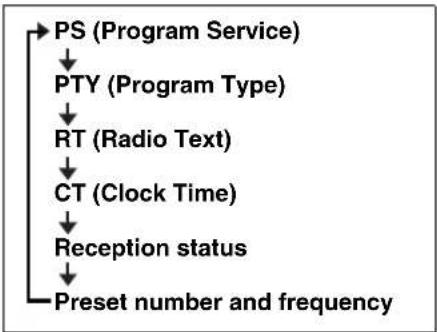
flowchart
graph TD
    A["PS (Program Service)"] --> B["PTY (Program Type)"]
    B --> C["RT (Radio Text)"]
    C --> D["CT (Clock Time)"]
    D --> E["Reception status"]
    E --> F["Preset number and frequency"]

If the signal transmission of the Radio Data System station is too weak, this unit may not be able to receive Radio Data System information completely. In particular, RT (Radio Text) information uses a lot of bandwidth, so it may be less available compared to other types of information.
Presetting FM stations (remote control only)
Use the preset function to store your favorite 30 stations.
Auto preset
This method tunes automatically, and automatically presets only the stations that have good reception.
12
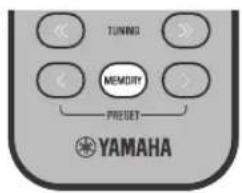
AUTO PRESET Press MEMORY
◆ Manual preset
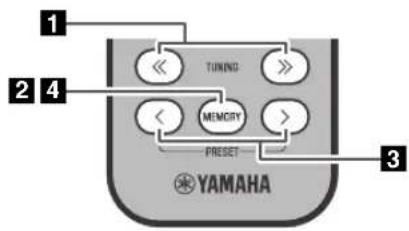
PRESET MEMORY FMQ1 87.50MHz
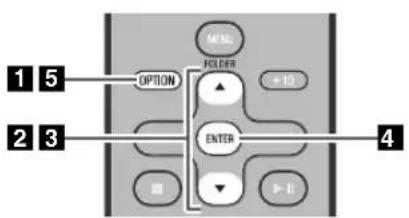
◆ Deleting a stored preset (Option menu)
flowchart
graph TD
    A["1"] --> B["OPTION"]
    C["2"] --> D["ENTER"]
    E["3"] --> D
    F["4"] --> D
    G["5"] --> H["MEN. FOLDER +10"]
    I["6"] --> J["▶ U"]
1 Press and hold down MEMORY.
"AUTO PRESET" will appear and "Press MEMORY" will blink.
2 Press MEMORY.
Auto preset will begin.
When presetting has finished, the display will indicate "Completed!"

When you perform auto preset, all stored stations are cleared and the new stations are stored.

If you want to stop auto preset before it is completed, press ■
1 Press TUNING « / » to tune a station that you want to preset.
2 Press MEMORY.
The display will indicate "PRESET MEMORY," and the preset number will blink.
3 Press PRESET to select the preset number that you want to store.

- The lowest preset number that has not been stored will be selected first.
- If you want to cancel the presetting, press
- If you select a preset number in which a station has already been stored, it will be overwritten by the new station.
4 Press MEMORY.
When presetting has finished, the display will indicate "Completed!"
1 Press OPTION.
The option menu will appear.
2 Press ▲/▼ to select PRESET DELETE, and then press ENTER.
3 Press ▲/▼ to select the preset number that you want to delete.

If you want to cancel the deleting, press OPTION.
4 Press ENTER to complete the operation.
When deleting has finished, the display will indicate "Deleted!".
5 Press OPTION to exit the option menu.
Selecting preset FM stations
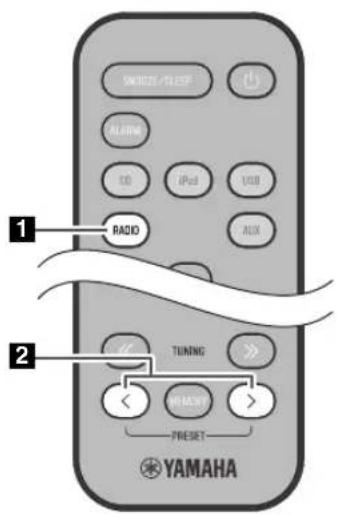
1 Press the RADIO source button to switch the audio source to FM.
2 Press PRESET </> to select the FM station that you want to hear.

You can only select presets that have been stored.
LISTENING TO EXTERNAL SOURCES
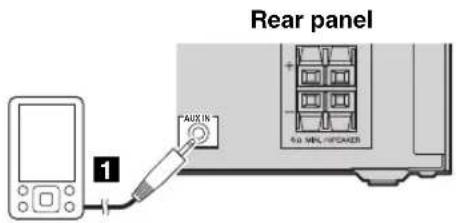
Using a commercially available 3.5 mm mini- plug cable, connect your external device to the AUX jack on the rear panel of this unit.

- Turn off the system before connecting the audio cable.
- Turn down the volume of the unit and your external audio device before connection.
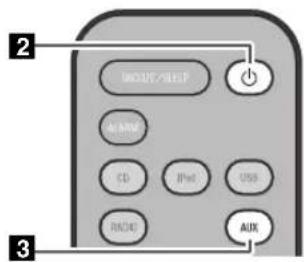
2 Press to turn the system on.
3 Press the AUX source button to switch the audio source to AUX.
4 Start playback on the connected external audio device.
USEFUL FUNCTIONS
Using the Option menu
When you press OPTION, the option menu will appear in the front panel display, allowing you to make the following settings.
!
▲ (eject button) cannot be operated while the option menu is displayed.
| Option menu Setting or range See page | ||
| PRESET DELETE | Deletes a stored preset (shown only if the audio source is FM). | 12 |
| DIMMER | Adjusts the brightness of the front panel display (*1: bright, 2: medium, 3: dim). | - |
| EQ LOW | Adjusts the tonal character (low frequencies) (-10 - 0* - +10 dB). | - |
| EQ MID | Adjusts the tonal character (mid frequencies) (-10 - 0* - +10 dB). | - |
| EQ HIGH | Adjusts the tonal character (high frequencies) (-10 - 0* - +10 dB). | - |
| BALANCE | Adjusts the volume balance of the left and right speakers (L+10 - CENTER* - R+10). | - |
| POWER SAVING | Switches the system-off stateNORMAL: Show the clockAn iPod can be charged in the iPod Dock, and the alarm will operateECO*: No clock display(power saving mode) An iPod can be charged in the iPod Dock, butthe alarm will not operate | - |
| AUTO POWER OFF | You can specify the time after which the system will turn off automatically.If no operation occurs for the duration you specify, the system will turn off automatically(TIME 12H*: 12 hours, TIME 8H: 8 hours, TIME 4H: 4 hours, OFF: the system will not turn off). | - |
| CLOCK SET | Sets the date and time. | 6 |
| ALARM SET | Sets the alarm. | 17 |
* Default setting
◆ Procedure for settings
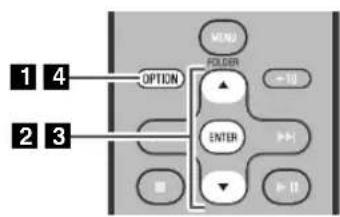
1 Press OPTION.
The option menu will appear.
2 Press ▲/▼ to select the menu item that you want to set, and then press ENTER.
3 Press ▲/▼ to edit the setting, and then press ENTER to confirm the setting.
If you want to continue making other settings, repeat the procedure from step 2.
4 Press OPTION to exit the option menu.

If you decide to cancel without changing the setting, press OPTION before confirming the change.
Using the sleep timer
When the specified time has elapsed, the system will turn off automatically.
Press repeatedly
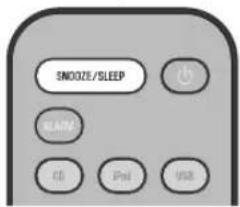
Press SNOOZE/SLEEP repeatedly to specify the time after which the system will turn off.
You can specify 30, 60, 90, 120 or OFF.
When you select a time, the sleep timer is turned on, and the sleep indicator (z ^2 ) is shown in the front panel display.

If you press SNOOZE/SLEEP while the sleep timer is activated, the sleep timer setting will be canceled.
Using the alarm function
The unit includes an alarm function (IntelliAlarm) that plays back audio sources or a set of beep (internal alarm sound) at the set time using a variety of different methods. The alarm function has the following features.
◆ 3 types of alarms
Select from 3 alarm types, combining music and beep sounds.
| SOURCE+BEEP | The selected audio source and the beep sound are played at the set time. Source playback begins to fade in 3 minutes before the set time and the volume gradually increases to the set volume. Then, at the set time, the beep sound is activated. |
| SOURCE | The selected audio source is played at the set time. The volume fades in gradually and increases to the set volume. |
| BEEP The beep sound is played at the set time. | |
◆ Various audio sources
You can choose from iPod, audio CD, data CD, USB device, or FM. The following playback methods can also be selected depending on the audio source:
| Source | Playback method | Function |
| iPod | Playlist* | A specific playlist stored on the iPod is played back repeatedly. To play a playlist, create a playlist with the name “ALARM Yamaha DTA” in advance.When entering the playlist name, use single-byte spaces to separate words, and enter single-byte characters, taking care that uppercase/lowercase letters are used correctly. |
| Resume | If the “ALARM Yamaha DTA” playlist cannot be found within the iPod, the unit resumes play from the last track you played. | |
| Audio CD | Selected track The selected track is played repeatedly. | |
| Resume The track you listened to last time is played back. | ||
| Data CD/USB device | Folder The selected folder is played repeatedly. | |
| Resume The track you listened to last time is played back. | ||
| FM | Preset station The selected preset station is played. | |
| Resume The FM station you listened to last time is played back. | ||
* For information on creating a playlist, refer to the instructions for your iPod or iTunes.
◆Snooze
The snooze function can be enabled to replay the alarm after 5 minutes (P. 18).
Using "DTA Controller" to set the alarm
By using the free “DTA Controller” application for the iPod touch/iPhone/iPad, you can make detailed alarm settings that cannot be made using this unit by itself. For each day of the week, you can specify the alarm time (Weekly Alarm), and adjust the IntelliAlarm as desired.

The front panel display shows information for the Weekly Alarm you've set.
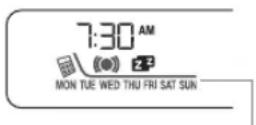
MON TUE WED THU FRI SAT SUN
Monday
Tuesday
Wednesday
Thursday
Friday
Saturday
Sunday
For details, refer to the description of "DTA Controller" in the product webpage.
Setting the alarm
Setting the alarm time and alarm type (Option menu)

The alarm will not function when the unit is in power saving (P. 15). To use the alarm function, set the Option menu item POWER SAVING to NORMAL.
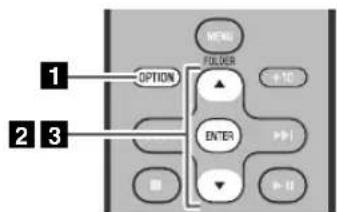
1 Press OPTION.
The option menu will appear.
2 Press ▲/▼ to select "ALARM SET", and then press ENTER.
The alarm indicator ( [()] ) and numerical value you're setting will blink.
3 Set the alarm.
Set items ①-⑤ described below.
Press ▲/▼ to select a numerical value, and press ENTER to confirm it.
| Items | Setting or range |
| 1 ALARM SELECT | * This can be selected after you’ve used the “DTA Controller” to set the alarm (P. 16).If you’re not using the “DTA Controller”, proceed to 2.ONE DAY: An alarm that sounds only once at the specified time.WEEKLY: An alarm whose time can be specified for each day of the week (settable only using “DTA Controller”).If you’ve chosen WEEKLY, this completes the alarm setting. |
| 2 ALARM TIME | Make settings in the order of hours → minutes. |
| 3 ALARM TYPE | Select from SOURCE+BEEP, SOURCE or BEEP. For details, refer to “3 types of alarms” (P. 16).If you selected BEEP, proceed to item 5. |
| 4 SOURCE(If you selected SOURCE+BEEP or SOURCE as the alarm type) | iPod: Play back music from your iPod (refer to “Various audio sources” (P. 16)).CD: Play back music from a CD.Specify the track number (data CD: folder number) (RESUME, 1-99).USB: Play back music from a USB device.Specify the folder number (RESUME, 1-999).FM: Play a FM station.Specify the preset number (RESUME, 1-30).!If the selected source cannot be played back at the time set for the alarm (e.g., the iPod is not connected), the beep sound is played back.If you choose RESUME when specifying the track/folder/preset number, the last-played track/folder/station will be played (resume playback). |
| 5 VOLUME | Specifies the volume (5-60) of the alarm. |
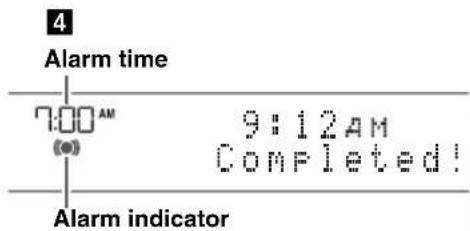
4 Complete the settings.
When you set the VOLUME for item ⑤, the display will indicate "Completed!" and your settings will be confirmed.
The alarm will be turned on and the alarm indicator ([I ●il] light.

If you press OPTION or turn off the system while making alarm settings, the settings will be cancelled.
USEFUL FUNCTIONS
◆ Switching the alarm on/off
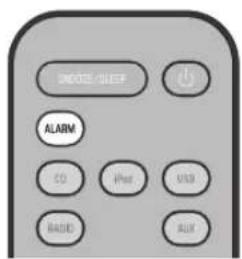
Press ALARM to turn the alarm on/off.
When the alarm is on, the alarm indicator ([●] light, and the alarm time will be shown. If you press ALARM again, the alarm indicator ([●] the alarm will turn off.

If the Option menu item POWER SAVING is set to ECO, the alarm will not function (P. 15).
Operations while the alarm sound is playing
When the set time arrives, the selected alarm sound will play. During playback, the following operations are available.
◆ To pause the alarm (Snooze)
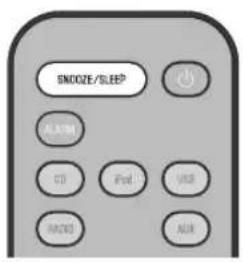
Press SNOOZE/SLEEP.
Snooze will stop the alarm and play it again 5 minutes later.

- If SOURCE + BEEP is set as the alarm type, you can press SNOOZE/SLEEP once to stop the beep sound, and twice to stop the audio source. Five minutes after the audio source is stopped, it will start fading in again and the beep sound will resume.
- Buttons on the unit other than the ⏻ will also function as the snooze button.
◆ To turn the alarm off
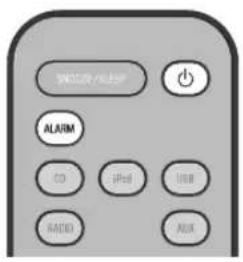
Press ALARM or ⏻

- You can also stop the alarm by holding down SNOOZE/SLEEP.
- If you don't stop the alarm, it will stop automatically after 60 minutes and the system will turn off.
- The alarm setting will be saved even if the alarm is turned off. If the alarm is turned on again by pressing ALARM, the alarm will sound with the previous alarm settings.
TROUBLESHOOTING
If there is a problem with the unit, check the following list first. If you cannot resolve the problem with the suggested solutions or if the problem is not listed below, turn off and unplug the system, and consult the nearest authorized Yamaha dealer or service center.
General
| Problem Cause Solution | ||
| The speakers make no sound. The | volume might be set to the minimum level, or muted. | Adjust the volume level. |
| The source may be incorrect. Select the correct source. | ||
| The speakers may not be connected securely. | Check the connections (P. 2). | |
| Headphones are connected. | Remove the headphones. | |
| The volume of a connected external device is not loud enough. | Raise the volume of the external device. | |
| Sound suddenly turns off. | The sleep timer may be set (P. 15). | Turn the system on and play the source again. |
| The automatic system-off function may have operated. | When the time specified for AUTO POWER OFF in the option menu has elapsed (P. 15) or when 60 minutes have elapsed without any operation being performed after stopping USB device or CD playback, the unit will turn the system off automatically. | |
| Sound is cracked/distorted or there is abnormal noise. | Input source volume is excessive, or volume of this unit is excessive (especially Bass). | Adjust volume with VOLUME, or use the option menu (P. 15) to adjust the bass range. If an external device is playing back, lower the volume of the external device. |
| The unit does not operate properly. | The unit may have received a strong electrical shock such as lightning or excessive static electricity, or power supply may have dropped. | Restart the system by holding down the for about 10 seconds. |
| The system turns on but immediately shuts off. | ||
| A digital or high-frequency equipment produces noises. | The unit may be placed too close to the digital or high-frequency equipment. | Place the unit farther away from the equipment. |
| The clock setting has been cleared. | The unit was left for about one hour with the power cable disconnected from the wall outlet. | Plug the power cable into the wall outlet firmly, and set the clock again (P. 6). |
| The iPod does not play back at the alarm time even if the alarm source is set to iPod. | The iPod is not set in the iPod dock. | Set the iPod in the iPod dock (P. 3). |
| Alarm does not sound. | The unit is set to power saving mode. | In the option menu, set POWER SAVING to NORMAL (P. 15). |
| The front panel display indicates “ALARM not work” and can’t set the alarm. | ||
| The unit turns the system off unexpectedly. | The automatic system-off function may have operated. | When the time specified for AUTO POWER OFF in the option menu has elapsed (P. 15) or when 60 minutes have elapsed without any operation being performed after stopping USB device or CD playback, the unit will turn the system off automatically. |
iPod
| Problem Cause Solution | ||
| No sound. | The iPod is not set in the iPod dock firmly. | Remove the iPod from the unit, and then set it in the iPod dock again ( u P. 3). |
| The headphones of the iPod are connected. Remove the Headphones. | ||
| The iPod software version has not been updated. | Download the latest iTunes software to update the iPod software version to the latest. | |
| The iPod does not charge up. | The iPod is not set in the iPod dock firmly. | Remove the iPod from the unit, and then set it in the iPod dock again ( u P. 3). |
| USB is selected as the audio source. Select something other than USB as the audio source. | ||
| The front panel display indicates “iPod Unknown” when you connect the iPod. | The iPod being used is not supported by the unit. | Use a supported iPod ( u P. 23). |
Disc playback
| Problem Cause Solution | ||
| Disc cannot be inserted. Another disc is already inserted. Unload the disc with . | ▲ | |
| You are attempting to insert a disc that cannot be used by this unit. | ||
| Some button operations do not work. | The disc loaded into the unit may not be compatible. | Use a disc supported by the unit (P. 22). |
| Playback does not start immediately after pressing ▶II (stops immediately). | The disc may be dirty. | Wipe the disc clean (P. 22). |
| The disc loaded into the unit may not be compatible. | Use a disc supported by the unit (P. 22). | |
| If the unit was moved from a cold to warm place, condensation may have formed on the disc reading lens. | Wait for an hour or two until the unit adjusts to the room temperature, and try again. | |
| The front panel display indicates “no operation”, and a disc cannot be inserted or unloaded. | The option menu is displayed. Alternatively, the alarm is playing. | Press OPTION to exit the option menu. Alternatively, press ALARM to stop the alarm. |
| When you insert a disk, the front panel display indicates “CD No Disc” or “CD Unknown.” | The disc loaded into the unit may not be compatible. | Use a disc supported by the unit (P. 22). |
| The disc may be dirty. | Wipe the disc clean (P. 22). | |
| The disc does not contain playable files. | Use a disc contains playable files (P. 22). | |
| The disc was inserted upside down. | Insert the disc with the label facing upward. | |
USB device playback
| Problem Cause Solution | ||
| MP3/WMA file in the USB device does not play. | The USB device is not recognized. Turn the system off and reconnect the USB device to the unit.If the solutions above do not resolve the problem, the USB device is not playable on the unit (P. 22). | |
| The USB device does not contain playable files. | Use a USB device contains playable files (P. 22). | |
| When you connect a USB device, the front panel display indicates “USB OverCurrent,” and then the front panel display goes blank. | An incompatible USB device was connected to the unit. Alternatively, the USB device is not connect firmly to the unit. | Turn the system off and reconnect the USB device to the unit.If it does not resolve the problem, the USB device is not playable on the unit (P. 22). |
FM reception
| Problem Cause Solution | ||
| Too much noise. | The antenna may be connected improperly. | Make sure the antenna is connected properly (P. 2) or use a commercially available outdoor antenna. |
| The antenna is too close to the unit or to an electronic device. | Position the antenna as far away as possible from the unit or the electronic device. | |
| Too much noise during stereo broadcast. | The radio station you selected may be far from your area, or the radio wave reception is weak in your area. | Try manual tuning to improve the signal quality (P. 11) or use a commercially available outdoor antenna. |
| Even with an outdoor antenna, radio wave reception is weak. (Sound is distorted.) | Multipath reflection or other radio interferences may have occurred. | Change the height, direction, or placement of the antenna (P. 2). |
Remote control
| Problem Cause Solution | ||
| The remote control does not work properly. | The remote control may be operated outside its operation range. | For information on the remote control operation range, refer to “How to use the remote control” (P. 1). |
| The remote control signal receiver on the unit ( r P. 4) may be exposed to direct sunlight or lighting (inverted fluorescent lamps). | Change the lighting or orientation of the unit. | |
| The battery may be worn out. | Replace the battery with a new one ( r P. 1). | |
| There are obstacles between the remote control signal receiver on the unit ( r P. 4) and the remote control. | Remove the obstacles. |
NOTES ON DISCS AND USB DEVICES
CD information
This unit is designed for use with audio CD, CD-R*, and CD-RW* with the logos followings.




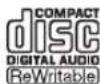

* ISO 9660 format CD-R/RW

This unit can play back discs bearing any of the logo marks above. A disc logo mark is printed on the disc and the disc jacket.

- Do not load any other type of disc into this unit. Doing so may damage this unit.
- CD-R/RW cannot be played back unless finalized.
- Some discs cannot be played back depending on the disc characteristics or recording conditions.
- Do not use any non-standard shaped discs such as a heart-shaped disc.
- Do not use discs with many scratches on their surface.
- Do not load a cracked, warped, or glued disc.
- Do not use 8-cm discs.
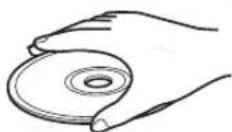
Handling a disc
- Do not touch the surface of the disc. Hold a disc by its edge (and the center hole).
- Do not use a pencil or pointed marker to write on the disc.
- Do not put a tape, seal, glue, etc., on a disc.
- Do not use a protective cover to prevent scratches.
- Do not load more than one disc into this unit at one time. This can cause damage to both this unit and the discs.
- Do not insert any foreign objects into the disc slot.
- Do not expose a disc to direct sunlight, high temperature, high humidity, or a lot of dust.
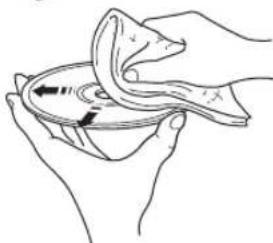
- If a disc becomes dirty, wipe it with a clean, dry cloth from the center out to the edge. Do not use record cleaner or paint thinner.
• To avoid malfunction, do not use a commercially available lens cleaner.
Caution
natural_image
Line drawing of hands holding a circular object with a cloth, no text or symbols presentUSB device information
This unit supports USB mass storage class devices (e.g., flash memories or portable audio players) using FAT16 or FAT32 format.

- Some devices may not work properly even if they meet the requirements.
- Do not connect devices other than USB mass storage class devices (such as USB chargers or USB hubs), PCs, card readers, an external HDD, etc.
- Yamaha will not be held responsible for any damage to or data loss on the USB device occurring while the device is connected to this unit.
- Playability of and power supply to all kind of USB devices are not guaranteed.
- USB devices with encryption cannot be used.
About MP3 or WMA files

• The unit can play back:
| File Bitrate (kbps) | Sampling frequency (kHz) | |
| MP3 8-320** | 16-48 | |
| WMA 16-320** | 22.05-48 | |
** Both constant and variable bitrates are supported.
- The maximum numbers of files/folders that can be played on the unit are as follows.
| Data CD USB | ||
| Maximum total number of file 512 9999 | ||
| Maximum folder number 255 999 | ||
| Maximum file number per folder | 511 | 255 |
• Copyright-protected files cannot be played back.
SPECIFICATIONS
◆PLAYER SECTION
iPod (Digital connection) [As of July, 2012]
- Compatible iPod models .... iPod touch (1st, 2nd, 3rd and 4th generations) iPod nano (2nd, 3rd, 4th, 5th and 6th generations)
- Compatible iPhone models ...... iPhone 4S, iPhone 4, iPhone 3GS, iPhone 3G, iPhone
- Compatible iPad models ....... iPad (3rd generation), iPad 2, iPad An iPod may not be detected by the unit or some features may not be compatible, depending on the model or software version of the iPod.
CD
• Media.....CD, CD-R/RW
• Audio format ....Audio CD, MP3, WMA
USB
• Audio format .... MP3, WMA
AUX
- Input connector.... 3.5 mm (1/8 in) STEREO mini jack
◆AMPLIFIER SECTION
• Maximum output power......15 W + 15 W (6 Ω 1 kHz, 10 % THD)
- Headphones
....3.5 mm (1/8 in) STEREO mini jack (Impedance 16 to 32 Ω)
- Equalizer characteristics
EQ Low (Bass)/EQ Mid (Middle)/EQ High (Treble) .... ±10 dB
iPod, iPhone, iPad
“Made for iPod”, “Made for iPhone” and “Made for iPad” mean that an electronic accessory has been designed to connect specifically to iPod, iPhone or iPad, respectively, and has been certified by the developer to meet Apple performance standards.
Apple is not responsible for the operation of this device or its compliance with safety and regulatory standards. Please note that the use of this accessory with iPod, iPhone or iPad may affect wireless performance.
iPad, iPhone, iPod, iPod classic, iPod nano, iPod touch and iTunes are trademarks of Apple Inc., registered in the U.S. and other countries.
LASER SAFETY
This unit employs a laser. Due to possible eye injury, only a qualified service person should remove the cover or attempt to service this device.
DANGER
This unit emits visible laser radiation when open. Avoid direct eye exposure to beam. When this unit is plugged into the wall outlet, do not place your eyes close to the opening of the disc slot and other openings to look into inside.
◆TUNER SECTION
Tuning range
• FM 87.50 to 108.00 MHz
◆SPEAKER SECTION
- Type .... Full range bass reflex non magnetic shielding type
- Driver....11 cm (4-1/2") cone type ×1
- Frequency response .... 50 Hz to 20 kHz (-10 dB)
- Dimensions (W × H × D)
.....129 (5-1/8") × 126(5") × 251 (9-7/8") mm
• Weight....1.7 kg (3.7 lbs.)
GENERAL
• Power supply ...... AC 230 V, 50 Hz
• Power consumption 30 W
- System off consumption
.... 3.0 W or less (NORMAL)/0.5 W or less (ECO)
- Dimensions (W × H × D)
.....180 (7-1/8") × 127 (5") × 273 (10-3/4") mm
- Weight....2.7 kg (6.0 lbs.)
Specifications are subject to change without notice.
Information for Users on Collection and Disposal of Old Equipment and Used Batteries
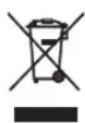
These symbols on the products, packaging, and/or accompanying documents mean that used electrical and electronic products and batteries should not be mixed with general household waste.

For proper treatment, recovery and recycling of old products and used batteries, please take them to applicable collection points, in accordance with your national legislation and the Directives 2002/96/EC and 2006/66/EC.

By disposing of these products and batteries correctly, you will help to save valuable resources and prevent any potential negative effects on human health and the environment which could otherwise arise from inappropriate waste handling.
For more information about collection and recycling of old products and batteries, please contact your local municipality, your waste disposal service or the point of sale where you purchased the items.
[Information on Disposal in other Countries outside the European Union]
These symbols are only valid in the European Union. If you wish to discard these items, please contact your local authorities or dealer and ask for the correct method of disposal.
Note for the battery symbol (bottom two symbol examples):
This symbol might be used in combination with a chemical symbol. In this case it complies with the requirement set by the Directive for the chemical involved.
ATTENTION: VEUILLEZ LIRE CE QUI SUIT AVANT D'UTILISER L'APPAREIL.
FONCTIONS UTILES....14
natural_image
Illustration of a vintage electronic device with ports and a USB port (no text or symbols visible)!
◆ Diverses sources audio
natural_image
Line drawing of hands holding a cloth over a circular object with an arrow indicating motion (no text or symbols)Informations relatives aux appareils USB
- Supports.... CD, CD-R/RW
- Format audio ....CD audio, MP3, WMA
USB
- Format audio .... MP3, WMA
AUX
!
natural_image
Illustration of a beige electronic device with a control panel and indicator lights (no visible text or symbols)!
natural_image
Line drawing of hands holding a cloth over a plate with a paper towel (no text or symbols)DELARNAS NAMN OCH FUNKTIONER......4
Toppanel/frontpanel 4
Frontpanelens teckenfönster....4
Fjärrkontroll 5
JUSTERA KLOCKAN (OPTION-MENYN)......6
LYSSNA PÅ iPod....7
LYSSNA PÅ RADIO....11
Välja en radiostation....11
LYSSNA PÅ EXTERNA KÄLLOR....14
ANVÄNDBARA FUNKTIONER....15
Andra anslutningar
iPod
natural_image
Illustration of a vintage electronic device with control knobs and a dial (no text or symbols visible)!
DELARNAS NAMN OCH FUNKTIONER
Toppanel/frontpanel
①iPod-docka
LYSSNA PÅ EXTERNA KÄLLOR
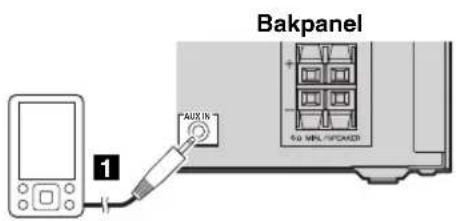
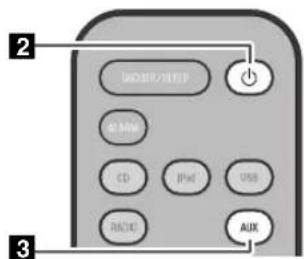
Anslut din externa enhet med en 3,5 mm minikontakt till AUX-uttaget på denna enhets bakpanel.

natural_image
Line drawing of hands holding a circular object with a cloth, no text or symbols presentnatural_image
Illustration of a portable electronic device with control knobs and a dial (no text or symbols visible)!
MON TUE WED THU FRI SAT SUN
natural_image
Line drawing of hands holding a piece of paper or cloth, with no visible text or symbolsPanel superior / Panel frontal....4
Pantalla del panel frontal....4
Mando a distancia....5
AJUSTE DEL RELOJ (MENÚ DE OPCIONES)......6
ESCUCHAR EL iPod ....7
natural_image
Illustration of a Ternika device with control knobs and a dial indicator (no text or symbols on the device body)!
Pulse ALARM o

natural_image
Line drawing of hands holding a cloth over a curved object, no text or symbols presentEN USB-APPARATEN....22
SPECIFICATIES....23
Kenmerken
natural_image
Illustration of a portable electronic device with control knobs and a dial (no text or symbols visible)!
①Wektijd
natural_image
Illustration of hands holding a circular object with a cloth, no text or symbols presentnatural_image
Illustration of a vintage electronic device with a dial and control knobs (no text or symbols visible)!
MON TUE WED THU FRI SAT SUN
Понедельник
Вторник
Среда
Четверг
Пятница
Суббота
Воскресенье
The image is too blurry to recognize any text content.
natural_image
Line drawing of hands holding a piece of paper or cloth, with no visible text or symbolsIf the socket outlets in the home are not suitable for the plug supplied with this appliance, it should be cut off and an appropriate 3 pin plug fitted. For details, refer to the instructions described below.
!
The plug severed from the mains lead must be destroyed, as a plug with bared flexible cord is hazardous if engaged in a live socket outlet.
■Special Instructions for U.K. Model
IMPORTANT
THE WIRES IN MAINS LEAD ARE COLOURED IN ACCORDANCE WITH THE FOLLOWING CODE:
Blue: NEUTRAL
Brown: LIVE
As the colours of the wires in the mains lead of this apparatus may not correspond with the coloured markings identifying the terminals in your plug, proceed as follows:
The wire which is coloured BLUE must be connected to the terminal which is marked with the letter N or coloured BLACK. The wire which is coloured BROWN must be connected to the terminal which is marked with the letter L or coloured RED.
Make sure that neither core is connected to the earth terminal of the three pin plug.
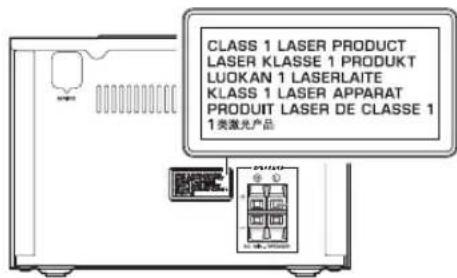
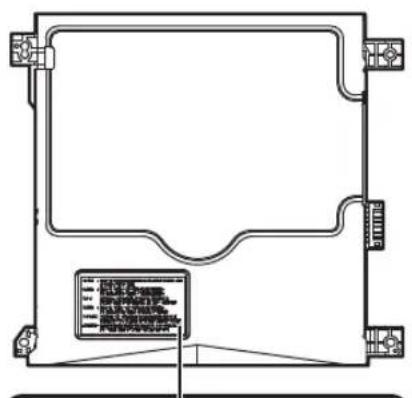
| The laser component in this product is capable of emitting radiation exceeding the limit for Class 1. |
| Le laser de cet appareil peut émettre un rayonnement dépassant les limites de la classe 1. |
| Die Laser-Komponente in diesem Produkt kann eine Strahlung abgeben, die den Grenzwert der Klasse 1 übersteigt. |
| Laserkomponenten i denna apparat kan avge en strålning som överskrider gränsvärdet för klass 1. |
| Il laser contenuto in questo prodotto è in grado di emettere radiazioni cecedenti i limiti fissati per la Classe 1. |
| El componente láser de este producto es capaz de emitir radiación que sobrepasa el límite establecido para la clase 1. |
| De laser component in dit product is in staat stralen te produceren die de limiet voor Klasse 1 overstijgen. |
| Лазерный компонент данного изделия может выделять радиацию, превышающую ограниченный уровень радиации для Класса 1. |
natural_image
Technical line drawing of a mechanical or electronic component with no visible text, numbers, or symbols.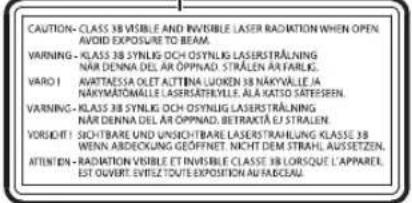
Important Notice: Guarantee Information for customers in EEA\* and Switzerland
English
For detailed guarantee information about this Yamaha product, and Pan-EEA* and Switzerland warranty service, please either visit the website address below (Printable file is available at our website) or contact the Yamaha representative office for your country. * EEA: European Economic Area