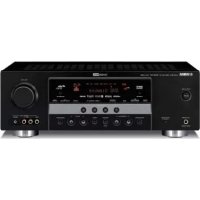
RXV563 - Recepteur YAMAHA - Free user manual and instructions

Find the device manual for free RXV563 YAMAHA in PDF.

Page 4
Manual assistant
Powered by ChatGPT
Waiting for your message
Product information

Brand : YAMAHA

Model : RXV563

Category : Recepteur

Download the instructions for your Recepteur in PDF format for free! Find your manual RXV563 - YAMAHA and take your electronic device back in hand. On this page are published all the documents necessary for the use of your device. RXV563 by YAMAHA.
USER MANUAL RXV563 YAMAHA

2008 All rights reserved.

Printed in China WN25560

Radio Shack/Realistic

RX-V563_G-cv.fm Page 1 Wednesday, January 16, 2008 8:57 AM Black process 45.0° 240.0 LPICAUTION: READ THIS BEFORE OPERATING YOUR UNIT.

1 To assure the finest performance, please read this manual

carefully. Keep it in a safe place for future reference.

2 Install this sound system in a well ventilated, cool, dry, clean

place – away from direct sunlight, heat sources, vibration,

dust, moisture, and/or cold. Allow ventilation space of at least

30 cm on the top, 20 cm on the left and right, and 20 cm on

the back of this unit.

3 Locate this unit away from other electrical appliances, motors,

or transformers to avoid humming sounds.

4 Do not expose this unit to sudden temperature changes from

cold to hot, and do not locate this unit in a environment with

high humidity (i.e. a room with a humidifier) to prevent

condensation inside this unit, which may cause an electrical

shock, fire, damage to this unit, and/or personal injury.

5 Avoid installing this unit where foreign object may fall onto

this unit and/or this unit may be exposed to liquid dripping or

splashing. On the top of this unit, do not place:

– other components, as they may cause damage and/or

discoloration on the surface of this unit.

– burning objects (i.e. candles), as they may cause fire,

damage to this unit, and/or personal injury.

– containers with liquid in them, as they may fall and liquid

may cause electrical shock to the user and/or damage to

6 Do not cover this unit with a newspaper, tablecloth, curtain,

etc. in order not to obstruct heat radiation. If the temperature

inside this unit rises, it may cause fire, damage to this unit,

and/or personal injury.

7 Do not plug in this unit to a wall outlet until all connections

8 Do not operate this unit upside-down. It may overheat,

possibly causing damage.

9 Do not use force on switches, knobs and/or cords.

10 When disconnecting the power cable from the wall outlet,

grasp the plug; do not pull the cord.

11 Do not clean this unit with chemical solvents; this might

damage the finish. Use a clean, dry cloth.

12 Only voltage specified on this unit must be used. Using this

unit with a higher voltage than specified is dangerous and may

cause fire, damage to this unit, and/or personal injury. Yamaha

will not be held responsible for any damage resulting from use

of this unit with a voltage other than specified.

13 To prevent damage by lightning, keep the power cord and

outdoor antennas disconnected from a wall outlet or the unit

during a lightning storm.

14 Do not attempt to modify or fix this unit. Contact qualified

Yamaha service personnel when any service is needed. The

cabinet should never be opened for any reasons.

15 When not planning to use this unit for long periods of time

(i.e. vacation), disconnect the AC power plug from the wall

16 Install this unit near the AC outlet and where the AC power

plug can be reached easily.

17 Be sure to read the “Troubleshooting” section on common

operating errors before concluding that this unit is faulty.

18 Before moving this unit, press CSYSTEM OFF to set this

unit in the standby mode, and disconnect the AC power plug

from the wall outlet.

19 VOLTAGE SELECTOR (Asia and General models only)

The VOLTAGE SELECTOR on the rear panel of this unit

must be set for your local main voltage BEFORE plugging

into the AC wall outlet. Voltages are:

Asia model 220/230–240 V AC, 50/60 Hz

General model 110/120/220/230–240 V AC, 50/60 Hz

20 The batteries shall not be exposed to excessive heat such as

sunshine, fire or like.

21 Excessive sound pressure from earphones and headphones can

■ For U.K. customers

If the socket outlets in the home are not suitable for the

plug supplied with this appliance, it should be cut off and

an appropriate 3 pin plug fitted. For details, refer to the

instructions described below.

The plug severed from the mains lead must be destroyed, as a

plug with bared flexible cord is hazardous if engaged in a live

■ Special Instructions for U.K. Model

Caution: Read this before operating your unit.

WARNING TO REDUCE THE RISK OF FIRE OR ELECTRIC SHOCK, DO NOT EXPOSE THIS UNIT TO RAIN OR MOISTURE.

This unit is not disconnected from the AC power

source as long as it is connected to the wall outlet, even

if this unit itself is turned off by

state is called the standby mode. In this state, this unit

is designed to consume a very small quantity of power.

IMPORTANT THE WIRES IN MAINS LEAD ARE COLOURED IN ACCORDANCE WITH THE FOLLOWING CODE:

Blue: NEUTRAL Brown: LIVE As the colours of the wires in the mains lead of this apparatus

may not correspond with the coloured markings identifying

the terminals in your plug, proceed as follows:

The wire which is coloured BLUE must be connected to the

terminal which is marked with the letter N or coloured

BLACK. The wire which is coloured BROWN must be

connected to the terminal which is marked with the letter L or

Making sure that neither core is connected to the earth

terminal of the three pin plug.

This symbol mark is according to the

EU directive 2002/96/EC.

This symbol mark means that electrical

and electronic equipment, at their end-

of-life, should be disposed of separately

from your household waste.

Please act according to your local rules

and do not dispose of your old products

with your normal household waste.1 En

Preparation: Check the items 4

Step 1: Set up your speakers 5

Step 2: Connect your DVD player and other

Step 3: Press SCENE 1 button 7

What do you want to do with this unit? 8

Connecting speakers 11

Information on jacks and cable plugs 13

Information on HDMI™ 14

Audio and video signal flow 15

Connecting video components 16

Connecting other components 17

Connecting audio components 19

Connecting a Yamaha iPod™ universal dock or

Bluetooth™ adapter 20

Using REMOTE IN/OUT jacks 20

Using the VIDEO AUX jacks on the front panel .... 21

Connecting the FM and AM antennas 21

Connecting the power cable 22

Turning on and off the power 23

Front panel display 24

Optimizing the speaker setting

for your listening room 26

Using AUTO SETUP 26

Using remote control on the SCENE feature 34

Selecting the MULTI CH INPUT component 36

Displaying the current status of this unit

on a video monitor 37

Using your headphones 37

Muting the audio output 37

Playing video sources in the background

of an audio source 38

Displaying the input source information 38

Using the sleep timer 39

Sound field programs 40

Sound field program descriptions 40

Using audio features 43

Enjoying high quality sound 43

Adjusting the tonal quality 43

Adjusting the speaker level 43

Selecting the night listening mode 44

Manual preset tuning 46

Selecting preset stations 47

Exchanging preset station 47

Radio Data System tuning

(Europe and Russia models only) 48

Displaying the Radio Data System information 48

Selecting the Radio Data System program type

Using the enhanced other networks (EON) data

Using a USB memory device or a USB portable

Pairing the Bluetooth™ adapter and your

Remote control features71

Setting remote control codes 73

Connecting Zone 2 74

(at the end of this manual)

List of remote control codes iii

INTRODUCTION PREPARATION BASIC OPERATION ADVANCED OPERATION ADDITIONAL INFORMATION APPENDIX About this manual • y indicates a tip for your operation.• Some operations can be performed by using either the buttons on the front panel or the ones on the remote control. In case the button names differ between the front panel and the remote control, the button name on the remote control is given in parentheses.• This manual is printed prior to production. Design and specifications are subject to change in part as a result of improvements, etc. In case of differences between the manual and product, the product has priority. •“MSPEAKERS” or “3DVD” (example) indicates the name of the parts on the front panel or the remote control. Refer to the attached sheet or the pages at the end of this manual for the information about each position of the parts. • The symbol “☞ ” with page number(s) indicates the corresponding reference page(s).Features

Built-in 7-channel power amplifier

◆ Minimum RMS output power

[U.S.A. and Canada models]

(1 kHz, 0.9% THD, 8 Ω)

(1 kHz, 0.9% THD, 6 Ω)

SCENE select function

◆ Preset SCENE templates for various situations

◆ SCENE template customizing capability

Decoders and DSP circuits

◆ Proprietary Yamaha technology for the creation of

multi-channel surround sound

◆ Compressed Music Enhancer mode

◆ FM/AM tuning capability

◆ Radio Data System capability (Europe model only)

HDMI (High-Definition Multimedia Interface)

◆ HDMI interface for standard, enhanced or high-definition

video (includes 1080p video signal transmission) as well as

multi-channel digital audio

◆ DOCK terminal to connect a Yamaha iPod universal dock

(such as YDS-10, sold separately) or Bluetooth adapter (such

as YBA-10, sold separately).

◆ USB port to connect a USB memory device or a USB portable

◆ MP3, WMA and WAV capability

◆ YPAO (Yamaha Parametric Room Acoustic Optimizer) for

automatic speaker setup

◆ 192-kHz/24-bit D/A converter

◆ DIRECT mode for high quality sound for all sources

◆ 6 additional input jacks for discrete multi-channel input

◆ OSD (on-screen display) menus that allow you to optimize

this unit to suit your individual audiovisual system

◆ Component video input/output capability

(3 COMPONENT VIDEO INs and 1 MONITOR OUT)

◆ Optical and coaxial digital audio signal jacks

◆ Cinema and music night listening modes

◆ iPod controlling capability

◆ Remote control with preset remote control codes

◆ Zone 2 custom installation facility

◆ Bi-amplification connection capability

Manufactured under license from Dolby Laboratories.

“Dolby”, “Pro Logic”, and the double-D symbol are trademarks

of Dolby Laboratories.

“SILENT CINEMA” is a trademark of Yamaha Corporation.

“iPod” is a trademark of Apple, Inc., registered in the U.S. and

DTS-ES | NEO:6 | 96/24. Product “DTS” and “DTS-ES | NEO:6”

are registered trademarks of DTS, Inc.

“96/24” is a trademark of DTS, Inc.

Bluetooth is a registered trademark of the Bluetooth SIG and is

used by Yamaha in accordance with a license agreement.

“HDMI”, the “HDMI” logo and “High-Definition Multimedia

Interface” are trademarks or registered trademarks of HDMI Licensing LLC.

FeaturesGetting started 3 En

■ Supplied accessories

Check that you received all of the following parts.

❏ Batteries (2) (AAA, R03, UM-4)

❏ Optimizer microphone

(Asia and General models only)

■ Installing batteries in the remote control

1 Take off the battery compartment cover.

2 Insert the two supplied batteries

(AAA, R03, UM-4) according to the polarity

markings (+ and –) on the inside of the

battery compartment.

3 Snap the battery compartment cover back

into place. • Change all of the batteries if you notice that the operation range of the remote control decreases.• Do not use an old battery and a new one together.• Do not use different types of batteries (such as alkaline and manganese batteries) together. Read the packaging carefully as these different types of batteries may have the same shape and color.• If the batteries have leaked, dispose of them immediately. Avoid touching the leaked material or letting it come into contact with clothing, etc. Clean the battery compartment thoroughly before installing new batteries.• Do not throw away batteries with general house waste; dispose of them correctly in accordance with your local regulations.• If the remote control is without batteries for more than 2 minutes, or if exhausted batteries remain in the remote control, the contents of the memory may be cleared. When the memory is cleared, insert new batteries and set up the remote control code. Getting started

The VOLTAGE SELECTOR on the rear panel of this

unit must be set for your local voltage BEFORE

plugging the power cable into the AC wall outlet.

Improper setting of the VOLTAGE SELECTOR may

cause damage to this unit and create a potential fire

Rotate the VOLTAGE SELECTOR clockwise or

counterclockwise to the correct position using a

straight slot screwdriver.

Voltages are as follows:

Asia model 220/230–240 V AC, 50/60 Hz

2Quick start guide 4 En

The following steps describe the easiest way to enjoy

DVD movie playback in your home theater.

Prepare the following items.

❏ Center speaker x 1

❏ Surround speaker x 4

Select magnetically shielded speakers. The

minimum required speakers are two front speakers.

The priority of the requirement of other speakers is

1. Two surround speakers

3. One (or two) surround back speaker(s)

❏ Active subwoofer x 1

Select an active subwoofer equipped with an RCA

Select DVD player equipped with coaxial digital

Select a TV monitor, video monitor or projector

equipped with a composite video input jack.

Select an RCA composite video cable.

❏ Digital coaxial audio cable x 1

Quick start guide Front right speakerSubwooferSurround left speakerFront left speakerSurround right speakerCenter speakerDVD playerVideo monitorSurround back right speakerSurround back left speaker Enjoy DVD playback!

Step 1: Set up your speakers

Step 2: Connect your DVD player

and other components

Step 3: Press SCENE 1 button

INTRODUCTION Place your speakers in the room and connect them to this

1 Place your speakers and subwoofer in the

2 Connect speaker cables to each speaker.

Cables are colored or shaped differently, perhaps with

a stripe, groove or ridge. Connect the striped

(grooved, etc.) cable to the “+” (red) terminals of

your speaker. Connect the plain cable to the “–”

3 Connect each speaker cable to the

corresponding speaker terminal of this unit.

1 Make sure that this unit and the subwoofer are

unplugged from the AC wall outlets.

2 Twist the exposed wires of the speaker cables

together to prevent short circuits.

3 Do not let the bare speaker wires touch each other.

4 Do not let the bare speaker wires touch any metal

Be sure to connect the left channel (L), right channel

(R), “+” (red) and “–” (black) properly.

Front and center speakers

Surround and surround back speakers

4 Connect the subwoofer cable to the input

jack of the subwoofer and the SUBWOOFER OUTPUT jack of this unit.

Step 1: Set up your speakers

LRSURROUNDLRFRONT BLR FRONT ACENTER LR SURROUND BACK/BI-AMP SINGLESWITCHEDMONITOR OUT L R DTV/CBL DVRDVD MD/

SUBWOOFER OUTPUT jack

1 Connect the digital coaxial audio cable to the

digital coaxial audio output jack of your DVD

player and the DVD DIGITAL INPUT COAXIAL

2 Connect the video cable to the composite

video output jack of your DVD player and the

DVD VIDEO jack of this unit.

3 Connect the video cable to the video input

jack of your video monitor and the VIDEO MONITOR OUT jack of this unit.

4 Connect the power plug of this unit and other

components into the AC wall outlet.

This unit is equipped with AC OUTLET(S) for the power supply

of the other components (except Korea model). See page 22 for

Step 2: Connect your DVD player

and other components

LR SURROUND LR FRONT B LR FRONT ACENTER LR SURROUND BACK/BI-AMPSINGLESWITCHEDMONITOR OUT L R DTV/CBL DVRDVD MD/

CD-R OUT (REC) IN (PLAY)

OUT IN DTV/CBL DVRDVD OUT OUT

DTV/CBL CDDVD OPTICAL COAXIAL DIGITAL INPUT VIDEO Make sure that this unit and the DVD

player are unplugged from the AC wall

Digital coaxial audio

■ For further connections

• Using the other kind of speaker

combinations ☞ P. 11

• Connecting video components ☞ P. 16

• Connecting a DVD player ☞ P. 17

• Connecting a DVD recorder ☞ P. 18

• Connecting a set-top box ☞ P. 18

• Connecting a CD player

and a CD recorder/MD recorder ☞ P. 19

• Connecting a multi-format player

or an external decoder ☞ P. 19

• Connecting a Yamaha iPod/Bluetooth dock

• Connecting the REMOTE IN/OUT jacks

• Using the VIDEO AUX jacks on the front

• Connecting an FM/AM antenna ☞ P. 21

• Using the USB jack on the front panel

1 Turn on the video monitor and then set the

input source selector of the video monitor to

This unit is turned on. “DVD Viewing” appears in the

front panel display, and this unit automatically

optimize own status for the DVD playback.

The indicator on the selected SCENE button lights up while

this unit is in the SCENE mode.

3 Start playback of the desired DVD on your

L VOLUME to adjust the volume.

When you change the input source or sound field program, the

SCENE mode is deactivated, and the indicator on the selected

SCENE button turns off.

■ About SCENE function

Just by pressing one SCENE button, you can turn on this

unit and recall your favorite input source and sound field

program according to the SCENE template that has been

assigned to the SCENE button. The SCENE templates are

built combinations of input sources and sound field

If you connect a Yamaha product that has capability of the

SCENE control signals, this unit can automatically activate the

component and start playback. Refer to the instruction manual of

the DVD player for further information.

■ Using the other SCENE buttons

You must connect a cable TV or a satellite tuner to this unit in

advance. See page 16 for details.

You need to connect the supplied FM and AM antennas to this

unit in advance. See page 21 for details.

You must tune into the desired radio station. See pages 45 to 47

for the tuning information.

To achieve the best possible reception, orient the connected

AM loop antenna, or adjust the position of the end of the

If you cannot find the desired situation, you can select and change

the assigned SCENE template for the SCENE buttons. See

page 30 for details.

Step 3: Press SCENE 1 button

– sound field program: Movie Dramatic

For when you want to enjoy a movie from the

connected DVD player.

– sound field program: 2ch Stereo

For when you want to listen to a music disc

from the connected DVD player.

– input source: DTV/CBL

– sound field program: STRAIGHT For when you want to watch a TV program.

– sound field program: 7ch Enhancer

For when you want to listen to a music program

from the FM radio station.

NotesQuick start guide 8 En

■ After using this unit...

A MAIN ZONE ON/OFF on the front

panel to set this unit to the standby mode.

This unit is set to the standby mode. In the standby mode,

this unit consumes a small amount of power in order to

receive infrared signals from the remote control. To turn

on this unit from the standby mode, press

A MAIN ZONE ON/OFF (or GPOWER). See page 23 for details.

What do you want to do with this

■ Using various input sources

• Basic controls of this unit ☞ P. 35

• Enjoying FM/AM radio programs ☞ P. 45

• Using your USB portable device

with this unit ☞ P. 51

• Using your iPod with this unit ☞ P. 53

• Using your Bluetooth components

with this unit ☞ P. 55

■ Using various sound features

• Using various sound field programs

• Using the direct mode for the high

quality sound ☞ P. 43

• Customizing the sound field programs

■ Adjusting the parameters of this unit

• Automatically optimizing the speaker

■ Additional features

2 DIGITAL INPUT jacks 13

(Asia and General models only)

8 REMOTE IN/OUT jacks 20

This is a control expansion jack for custom

E ANTENNA terminals 21

F AC OUTLET(S) 2210 En Connections The speaker layout below shows the speaker setting we recommend. You can use it to enjoy CINEMA DSP and

multi-channel audio sources.

Front left and right speakers (FL and FR)

The front speakers are used for the main source sound plus effect sounds. Place these speakers at an equal distance from the

ideal listening position. The distance of each speaker from each side of the video monitor should be the same.

The center speaker is for the center channel sounds (dialog, vocals, etc.). If for some reason it is not practical to use a

center speaker, you can do without it. Best results, however, are obtained with the full system.

Surround left and right speakers (SL and SR)

The surround speakers are used for effect and surround sounds.

Surround back left and right speakers (SBL and SBR)

The surround back speakers supplement the surround speakers and provide more realistic front-to-back transitions.

The use of a subwoofer with a built-in amplifier, such as the Yamaha Active Servo Processing Subwoofer System, is

effective not only for reinforcing bass frequencies from any or all channels, but also for high fidelity sound reproduction

of the LFE (low-frequency effect) channel included in Dolby Digital and DTS sources. The position of the subwoofer is

not so critical, because low bass sounds are not highly directional. But it is better to place the subwoofer near the front

speakers. Turn it slightly toward the center of the room to reduce wall reflections.

FR FL SBR SBL SL SR C SW

SBR SBL FL FR C SL SR SR

PREPARATION Be sure to connect the left channel (L), right channel (R), “+” (red) and “–” (black) properly. If the connections are faulty,

this unit cannot reproduce the input sources accurately.

• Before connecting the speakers, make sure that the AC power plug is disconnected from the AC wall outlet.

• Do not let the bare speaker wires touch each other or let them touch any metal part of this unit. This could damage

this unit and/or the speakers. If the speaker wires are short-circuited, “CHECK SP WIRES” appears in the front

panel display when you turn on this unit.

• Use the magnetically shielded speakers. If this type of speaker still creates interference with the monitor, place the

speakers away from the monitor.

LR SURROUND LR FRONT B LR FRONT ACENTER LR SURROUND BACK/BI-AMPSINGLESWITCHEDMONITOR OUT L R DTV/CBL DVRDVD MD/

When you use single surround

back speaker, connect the

speaker to the left SURROUND BACK terminal (SINGLE).

Connect the alternative front speaker system

Surround back speakers12 En Connections ■ Before connecting to the SPEAKERS

A speaker cord is actually a pair of insulated cables

running side by side. Cables are colored or shaped

differently, perhaps with a stripe, groove or ridges.

Connect the striped (grooved, etc.) cable to the “+” (red)

terminals of this unit and your speaker. Connect the plain

cable to the “–” (black) terminals.

Remove approximately 10 mm (3/8”) of insulation

from the end of each speaker cable and then

twist the bare wires of the cable together to

prevent short circuits.

■ Connecting to the FRONT A terminals

2 Insert the bare end of the speaker wire into

the hole on the terminal.

3 Tighten the knob to secure the wire.

Connecting the banana plug

(except Europe, Russia, Korea, and Asia models)

The banana plug is a single-pole electrical connector

widely used to terminate speaker cables. First, tighten the

knob and then insert the banana plug connector into the

end of the corresponding terminal.

■ Using bi-amplification connections

This unit allows you to make bi-amplification connections

to one speaker system. Check if your speakers support

To make the bi-amplification connections, use the FRONT

and SURROUND BACK terminals as shown below. To

activate the bi-amplification connections, set “BI-AMP”

to “ON” in “Advanced setup” (see page 77).

• When you make the conventional connection, make sure that

the shorting bars are put into the terminals appropriately. Refer

to the instruction manuals of the speakers for details.

• When you use bi-amplification connections, you can not use

surround back speakers. 10 mm (3/8”) 1

3 Red: positive (+)Black: negative (–)Banana plug Caution

Remove the shorting bars or bridges to separate the

LPF (low pass filter) and HPF (high pass filter)

PREPARATION Connect one of the type of the audio jack(s) and/or video jack(s) that your input components are equipped with.

This unit has three types of audio jacks. Connection

depends on the availability of audio jacks on your other

For conventional analog audio signals transmitted via left

and right analog audio cables. Connect red plugs to the

right jacks and white plugs to the left jacks.

DIGITAL AUDIO COAXIAL jack

For digital audio signals transmitted via a coaxial digital

DIGITAL AUDIO OPTICAL jacks

For digital audio signals transmitted via optical digital

• You can use the digital jacks to input PCM, Dolby Digital and

DTS bitstreams. Optical input jacks are compatible with digital

signals with up to 96 kHz of sampling frequency.

• This unit handles digital and analog signals independently. Thus

audio signals input at the digital jacks are not output at the

analog AUDIO OUT (REC) jacks.

This unit has three types of video jacks. Connection

depends on the availability of input jacks on your video

For conventional composite video signals transmitted via

composite video cables.

For S-video signals, separated into the luminance (Y) and

chrominance (C) video signals transmitted on separate

wires of S-video cables.

COMPONENT VIDEO jacks

For component signals, separated into the luminance (Y)

and chrominance (P B, PR) video signals transmitted on separate wires of component video cables.

The OSD signal is not output at the DVR OUT (REC) jacks.

Information on jacks and cable plugs

VIDEO S VIDEOCOMPONENT VIDEO P R P B Y PBPR Y S V COAXIAL DIGITAL AUDIOAUDIO OPTICAL DIGITAL AUDIO R L C O R L Left and right

Audio jacks and cable plugs Video jacks and cable plugs

(Red)(White) (Orange) (Yellow) (Red) (Blue) (Green)

PR PB Y PR PB Y Video signal flow for MONITOR OUT Output

(see page 67)14 En Connections ■ HDMI compatibility with this unit

• When CPPM copy-protected DVD audio is played back, video

and audio signals may not be output depending on the type of

• This unit is not compatible with HDCP-incompatible HDMI or

• You can check the potential problem about the HDMI

■ HDMI jack and cable plug

• We recommend using an HDMI cable shorter than 5 meters (16

feet) with the HDMI logo printed on it.

• Use a conversion cable (HDMI jack

↔ DVI-D jack) to connect

this unit to other DVI components.

• Do not disconnect or connect the cable or turn off the power of

the HDMI components connected to the HDMI OUT jack of

this unit while data is being transferred. Doing so may disrupt

playback or cause noise.

• Audio signals input at input jacks other than the HDMI IN DVD

or HDMI IN DTV/CBL jack of this unit cannot be digitally

output at the HDMI OUT jack.

• If you turn off the power of the video monitor connected to the

HDMI OUT jack via a DVI connection, this unit may fail to

establish the connection to the component.

Information on HDMI™

2ch Linear PCM 2ch, 32-192 kHz,

This unit’s HDMI interface is based on the following

• HDMI Version 1.2a (High-Definition Multimedia

Interface Specification Version 1.2a) licensed by

HDMI Licensing, LLC.

• HDCP (High-bandwidth Digital Content Protection

System) licensed by Digital Content Protection,

• 2-channel as well as multi-channel PCM, Dolby Digital and

DTS signals input at the HDMI IN DVD or HDMI IN DTV/CBL jack can be output at the HDMI OUT jack only

when “SUPPORT AUDIO” is set to “Other” (see page 64).

• Audio signals input at the HDMI IN jacks are not output at the

AUDIO output and DIGITAL OUTPUT jacks.

• When the all video signals are input at the HDMI,

COMPONENT VIDEO, S VIDEO and VIDEO jacks, the

priority order of the input signals is as follows:

• When some digital video signals are input at the HDMI IN DVD or HDMI IN DTV/CBL jack, the video conversion

function does not work.

• Digital video signals input at the HDMI IN DVD or HDMI IN DTV/CBL jack cannot be output from analog video output

Audio and video signal flow

You can choose to play back HDMI audio signals on this unit or

on another HDMI component connected to the HDMI OUT jack

of this unit. Use the “SUPPORT AUDIO” parameter in “SOUND MENU” to select the component to play back HDMI audio

signals (see page 64).

• Some video monitors connected to this unit via a DVI

connection fail to recognize the HDMI audio/video signals

being input if they are in the standby mode. In this case, the

HDMI indicator flashes irregularly.

• When you connect your TV monitor or projector via HDMI

connection, the OSD does not appear. In such cases, connect the

TV monitor or projector via component, S-video or video

HDMI IN DTV/CBL jack to display the video images on the

video monitor connected to the HDMI OUT jack.

Connecting video components

Make sure that this unit and other

components are unplugged from the

indicates recommended connections

indicates alternative connections

(One for the video connection,

and one for the audio connection)17 En Connections English

• When “VIDEO CONV.” is set to “OFF” (see page 67), be sure

to make the same type of video connections as those made for

your TV (see page 16). For example, if you connected your TV

to the VIDEO MONITOR OUT jack of this unit, connect your

other components to the VIDEO jacks.

• When “VIDEO CONV.” is set to “ON” (see page 67), the

converted video signals are output only at the MONITOR OUT

jacks. To record a source, make the same type of video

connections between each component.

• To make a digital connection to a component other than the

default component assigned to DIGITAL INPUT jack, select

the corresponding setting for “OPTICAL IN” or “COAXIAL IN” in “I/O ASSIGNMENT” (see page 65).

• If you connect your DVD player to both the DIGITAL INPUT

(OPTICAL) and the DIGITAL INPUT (COAXIAL) jacks,

priority is given to the signals input at the DIGITAL INPUT

■ Connecting a DVD player

Connecting other components

Make sure that this unit and other

components are unplugged from the

AC wall outlets. MONITOR OUT LRDTV/CBL DVRDVD MD/

LR C V S PR PB Y DVD player

indicates recommended connections

indicates alternative connections

(One for the video connection,

and one for the audio connection)

■ Connecting a DVD recorder, PVR or VCR

PVR or VCR MONITOR OUT LRDTV/CBL DVRDVD MD/

CD-R OUT (REC) IN (PLAY)

OUT IN DTV/CBL DVRDVD OUT OUT

DTV/CBLOPTICAL O V L R S PR PB Y Satellite receiver, cable TV

receiver or HDTV decoder

HDMI out Component video out

indicates recommended

indicates alternative connections

(One for the video connection,

and one for the audio connection)19 En Connections English

PREPARATION Connect the audio components as follows.

■ Connecting a CD player and a CD

recorder/MD recorder • When you connect your CD player via analog and digital connection, priority is given to the signal input at the DIGITAL INPUT jack.• To make a digital connection to a component other than the default component assigned to each DIGITAL INPUT jack, select the corresponding setting in “I/O ASSIGNMENT” (see page 65). ■ Connecting a multi-format player or an external decoder

This unit is equipped with 6 additional input jacks (left and right FRONT, CENTER, left and right SURROUND and

SUBWOOFER) for discrete multi-channel input from a multi-format player, external decoder, sound processor or

If you set “INPUT CH” to “8ch” in “MULTI CH SET” (see page 67), you can use the input jacks assigned as “FRONT”

in “MULTI CH SET” (see page 67) together with the MULTI CH INPUT jacks to input 8-channel signals.

Connect the output jacks on your multi-format player or external decoder to the MULTI CH INPUT jacks. Be sure to

match the left and right outputs to the left and right input jacks for the front and surround channels.

• When you select the component connected to the MULTI CH INPUT jacks as the input source (see page 36), this unit automatically turns off the digital sound field processor, and you cannot select sound field programs. • This unit does not redirect signals input at the MULTI CH INPUT jacks to accommodate for missing speakers. We recommend that you connect at least a 5.1-channel speaker system before using this feature. *1

The analog audio input jacks assigned as “FRONT” in “MULTI CH SET” (see page 67).

Connecting audio components

Make sure that this unit and other

components are unplugged from the

Notes indicates recommended connectionsindicates alternative connections Notes

MD/CD-R DIGITAL OUTPUT L R O O R L L R CD playerCD recorder or MD recorderAudio outOptical outAudio inAudio outOptical inSB(8CH)FRONT(6CH)CENTERSURROUND SUB WOOFER L R L R SB(8CH)FRONT(6CH)CENTERSURROUND SUB WOOFER L R MULTI CH INPUTMULTI CH INPUTL R LRL R LRL R *1 Subwoofer outMulti-format player/External decoder (5.1-channel output)Center outSurround outFront outMulti-format player/External decoder (7.1-channel output)Front outSubwoofer outCenter outSurround back outSurround out20 En Connections This unit is equipped with the DOCK terminal on the rear

panel that allows you to connect a Yamaha iPod universal

dock (such as YDS-10, sold separately) or Bluetooth

adapter (such as YBA-10, sold separately). Connect a

Yamaha iPod universal dock or Bluetooth adapter to the

DOCK terminal on the rear panel of this unit using its

When the components are the Yamaha products and have

the capability of the transmission of the remote control

signals, connect the REMOTE IN jack and REMOTE OUT jack to the remote control input and output jack with

the monaural analog mini cable as follows.

• If the components have the capability of the SCENE control

signals, this unit can automatically activate the corresponding

components and start the playback when you use one of the

SCENE buttons. Refer to the owner’s manuals for details about

the capability of the SCENE control signals of the components.

• If the component connected to the REMOTE OUT jack is not

the Yamaha product, set “SCENE IR” in the advanced setup

menu to “OFF” (see page 77).

Connecting a Yamaha iPod™

universal dock or Bluetooth™

Make sure that this unit and other

components are unplugged from the

R SURROUND BA C DTV/CBL DVR Y AM GND ANTENNADOCK DOCK Yamaha iPod universal dock

Using REMOTE IN/OUT jacks

OUT+12V 15mA MAX.IN DVD REMOTE IN1

OUT IN REMOTE Yamaha

PREPARATION Use the VIDEO AUX jacks on the front panel to connect a

game console or a video camera to this unit.

• To reproduce the source signals input at these jacks, select

“V-AUX” as the input source.

• When audio signals are input at the AUDIO jacks and the

DOCK terminal on the rear panel, the priority order of the input

signal is as follows:

2. AUDIO Both FM and AM indoor antennas are supplied with this

unit. Connect each antenna correctly to the designated

terminals. In general, these antennas should provide

sufficient signal strength.

See page 22 for connection information of the supplied AM loop

• The AM loop antenna should be placed away from this unit.

• The AM loop antenna should always be connected, even if an

outdoor AM antenna is connected to this unit.

• A properly installed outdoor antenna provides clearer reception

than an indoor one. If you experience poor reception quality,

install an outdoor antenna. Consult the nearest authorized

Yamaha dealer or service center about outdoor antennas.

Be sure to turn down the volume of this unit and other

components before making connections.

Notes SPEAKERSPHONESSILENT CINEMA ON/OFFA/B/OFF l PRESET/TUNING/CH h

Connecting the FM and AM

CENTE R O SUB WOOFER P UT AM GND FM

For maximum safety and minimum interference, connect the

GND terminal to a good earth ground. A good earth

ground is a metal stake driven into moist earth.

Use a 5 to 10 m (16 to 33

ft) vinyl-covered wire

extended outdoors from a

window.22 En Connections Connecting the wire of the AM loop antenna

The wire of the AM loop antenna does not have any polarity

and you can connect either end of the wire to AM or GND

Assembling the supplied AM loop antenna

The types of the supplied AM loop antenna is different

depending on the models.

Once all connections are complete, plug the power cable

into the AC wall outlet.

■ AC OUTLET(S) (SWITCHED)

Australia model 1 outlet

Other models 2 outlets

Use these outlet(s) to supply power to any connected

components. Connect the power cable of your other

components to these outlet(s). Power to these outlet(s) is

supplied when this unit is turned on. However, power to

these outlet(s) is cut off when this unit is set to the standby

mode. For information on the maximum power or the total

power consumption of the components that can be

connected to these outlet(s), see “Specifications” on

A MAIN ZONE ON/OFF (or

to turn on this unit.

When you turn on this unit, there will be a 4 to 5-second delay

before this unit can reproduce sound.

■ Set this unit to the standby mode

A MAIN ZONE ON/OFF (or

H STANDBY) to set this unit to the standby

In the standby mode, this unit consumes a small amount of

power in order to receive infrared signals from the remote

You can set the main zone and zone 2 to the standby mode

simultaneously by pressing CSYSTEM OFF.

Turning on and off the power24 En Connections 1 HDMI indicator

Lights up when the signal of the selected input source is

input at the HDMI IN jacks (see page 14).

• Lights up when you station your iPod in a Yamaha

iPod universal dock (such as YDS-10, sold separately)

connected to the DOCK terminal of this unit (see

page 20) and V-AUX is selected as the input source.

• Flashes while the connected Yamaha Bluetooth adapter

(such as YBA-10, sold separately) and the Bluetooth

component is in the paring (see page 55) or the

Bluetooth adapter is searching the Bluetooth

component (see page 55).

• Lights up while the connected Yamaha Bluetooth

adapter is connected to the Bluetooth component (see

3 ENHANCER indicator

Lights up when the Compressed Music Enhancer mode is

selected (see page 40).

4 Input source indicators

The corresponding cursor lights up to show the currently

selected input source.

Lights up when you run “AUTO SETUP” and when the

speaker settings set in “AUTO SETUP” are used without

any modifications (see page 26).

Lights up when this unit is in the FM or AM tuning mode

(see pages 45 to 47).

Lights up when a DTS 96/24 signal is input to this unit.

8 MUTE indicator and VOLUME level indicator

• The MUTE indicator flashes while the MUTE function

is on (see page 37).

• Indicates the current volume level.

Lights up when this unit is reproducing PCM (Pulse Code

Modulation) digital audio signals.

0 Decoder indicators

The respective indicator lights up when any of the

decoders of this unit function.

A Headphone indicator

Lights up when headphones are connected (see page 37).

Light up according to the set of front speakers activated

SP A: The FRONT A speakers are activated.

SP B: The FRONT B speakers are activated.

Lights up when Zone 2 is turned on (see page 75).

LFE LL C R SL SB SR SBRSBL

DIGITAL PLUS G HFECB DA09

1234567825 En ConnectionsEnglishPREPARATIOND CINEMA DSP indicatorLights up when you select a sound field program (see page 41).VIRTUAL indicatorLights up when Virtual CINEMA DSP is active (see page 41).SILENT CINEMA indicatorLights up when headphones are connected and a sound field program is selected (see page 41).E Multi-information displayShows the name of the current sound field program and other information when adjusting or changing settings.F SLEEP indicatorLights up while the sleep timer is on (see page 39).G Radio Data System indicators(Europe and Russia models only)PTY HOLDLights up while searching for the Radio Data System stations in the PTY SEEK mode.PS, PTY, RT and CTLight up according to the selected Radio Data System display mode. EON Lights up when the EON data service is being received.H Input channel and speaker indicatorsInput channel indicators• Indicate the channel components of the current digital input signal.• Light up or flash according to the settings of the speakers when this unit is in the automatic setup procedure (see page 26) or the speaker level setting procedure in the “SP LEVEL” (see page 61). ■ Using the remote control The remote control transmits a directional infrared ray.Be sure to aim the remote control directly at the remote control sensor on this unit during operation.1 Infrared windowOutputs infrared control signals. Aim this window at the component you want to operate. y To set the remote control codes for other components, see page 73.• Do not spill water or other liquids on the remote control.• Do not drop the remote control.• Do not leave or store the remote control in the following types of conditions:– places of high humidity, such as near a bath– places of high temperature, such as near a heater or stove– places of extremely low temperatures– dusty placesInput channel indicators

LFE LL C R SL SB SR SBRSBL LFE indicatorNotes30º 30ºApproximately 6 m (20 ft)Optimizing the speaker setting for your listening room 26 En

This unit employs the YPAO (Yamaha Parametric Room Acoustic Optimizer) technology which lets you avoid

troublesome listening-based speaker setup and achieves highly accurate sound adjustments automatically. The supplied

optimizer microphone collects and this unit analyzes the sound your speakers produce in your actual listening

• Be advised that it is normal for loud test tones to be output

during the “AUTO SETUP” procedure.

• To achieve the best results, make sure the room is as quiet as

possible while the “AUTO SETUP” procedure is in progress. If

there is too much ambient noise, the results may not be

You can run “AUTO SETUP” using the system menu that appears

in the OSD or in the front panel display. This manual uses the

OSD illustrations to explain the “AUTO SETUP” procedure.

1 Make sure of the following check points.

Before starting the automatic setup, check the following

❏ Speakers are connected appropriately.

❏ Headphones are disconnected from this unit.

❏ This unit and the video monitor are turned on.

❏ This unit is selected as the video input source of

❏ The connected subwoofer is turned on and the

volume level is set to about half way (or slightly

❏ The crossover frequency controls of the

connected subwoofer is set to the maximum.

❏ FRONT A speakers are selected as the front

speaker system (see page 35).

❏ The room is sufficiently quiet.

2 Connect the supplied optimizer microphone

to the OPTIMIZER MIC jack on the front

The following display appears in the OSD.

3 Place the optimizer microphone at your

normal listening position on a flat level

surface with the microphone heading

It is recommended that you use a tripod (etc.) to affix the

optimizer microphone at the same height as your ears would be

when you are seated in your listening position. You can use the

attached screw of a tripod (etc.) to fix the optimizer microphone

to the tripod (etc.).

Optimizing the speaker setting for your listening room

Using AUTO SETUP Notes

Optimizing the speaker setting for your listening room

4 Make sure that “SETUP” is set to “AUTO”

and the pointer is pointing at “START”.

You can also select the following setup methods. In this

k to select “SETUP”, press

select the one of the following choises and then select

Choices: AUTO, RELOAD, UNDO, DEFAULT

• Select “AUTO” to automatically run the entire

“AUTO SETUP” procedure.

• Select “RELOAD” to reload the last “AUTO SETUP” settings and override the previous

• Select “UNDO” to undo the last “AUTO SETUP”

settings and restore the previous settings.

• Select “DEFAULT” to reset the “AUTO SETUP”

parameters to the initial factory settings.

“RELOAD” or “UNDO” is available only when you have

previously run “AUTO SETUP” and confirmed the results.

n to select “START” and then press

ENTER to start the setup procedure.

The following message appears in the OSD.

ENTER to start the setup

This unit starts the auto setup procedure. Loud test

tones are output from each speaker during the auto

setup procedure. Once all items are set, the result

display appears in the OSD.

• During the auto setup procedure, do not perform any

operation on this unit.

• We recommend getting out of the room while this unit is in

the auto setup procedure. It takes approximately 3 minutes

for this unit to complete the auto setup procedure.

This unit performs the following checks:

Speaker wiring/volume level WIRING/LEVEL Checks which speakers are connected and the

polarity of each speaker. Also checks and adjusts the

volume level of each speaker.

Speaker distance DISTANCE Checks the distance of each speaker from the

listening position and adjusts the timing of each

Speaker size SIZE Checks the frequency response of each speaker and

sets the appropriate low-frequency crossover for each

Before proceeding next operation

Once you perform the next operation, this unit starts the

automatic setup procedure. For more accurate

measurements, keep quiet and move to the wall where

speakers are not around. We recommend that you leave

the listening room during the automatic setup

Notes28 En Optimizing the speaker setting for your listening room The display changes as follows.

The results displayed under “RESULT” are as follows.

Number of speakers SP Displays the number of speakers connected to this unit in

the following order:

Front/Back/Subwoofer

Speaker distance DIST Displays the speaker distance from the listening position

in the following order:

Closest speaker distance/Farthest speaker distance

Speaker level LVL Displays the speaker output level in the following order:

Lowest speaker output level/Highest speaker output level

• If “E-9:INTERNAL ERROR” appears during the testing

procedure, restart from step 4.

• If you selected “RELOAD” in step 4, no test tones are output.

• If an error occurs during the “AUTO SETUP” procedure, the

setup procedure is canceled and an error screen appears. For

details, see “If an error screen appears” on page 29.

• When this unit detects potential problems during the “AUTO SETUP” procedure, “WARNING” and the number of warning

messages appears (see page 29).

setup results in detail.

l / h repeatedly to toggle between

the setup result displays.

If you are not satisfied with the results or want to manually

adjust each parameter, run “MANUAL SETUP” (see

The distances displayed in the “DISTANCE” results may be

longer than the actual distance depending on the

characteristics of your speakers.

ENTER to return to the result

Notes AUTO SETUPSETUP;;;;;;;AUTO. STARTAutomaticProcessingof all item[ ]/[ ]:Up/Down[ENTER]:Start p

p AUTO SETUPRESULTSP : 3/2/0.1DIST: 3.2/3.5mLVL : -2/+2dB. SET CANCEL[ ]/[ ]:Up/Down[ENTER]:Enter > INITIALIZING. WIRING/LEVELDISTANCESIZE WAITING;;;;;;;;;;;;;[]:Exit [ AUTO SETUP Note

Results of the speaker

connection and wiring

Results of the speaker

Results of the speaker

Results of the speaker

• Select “SET” to confirm the “AUTO SETUP”

• Select “CANCEL” to cancel the “AUTO SETUP”

ENTER to confirm your selection.

The top “SET MENU” display appears in the OSD.

K MENU to exit from “SET MENU”.

13 Disconnect the optimizer microphone from

The optimizer microphone is sensitive to heat. Keep it

away from direct sunlight and do not place it on top

If you change speakers, speaker positions, or the layout of your

listening environment, run “AUTO SETUP” again to recalibrate

The following display is an example where “E-8:USER CANCEL” appears in the OSD.

Choices: RETRY, EXIT

• Select “RETRY” to retry the “AUTO SETUP”

• Select “EXIT” to exit from the “AUTO SETUP”

■ If “WARNING” appears

When this unit detects potential problems during the

“AUTO SETUP” procedure, “WARNING” appears in the

result display. Check the warning messages to correct your

Warnings differ from errors in that warnings do not cancel the

“AUTO SETUP” procedure.

1 Make sure the pointer is pointing at

“WARNING” and then press

display the detailed information about the

The number on the right of “WARNING” indicates

l / h repeatedly to toggle between

the warning displays.

• For details about each warning message, see the “AUTO SETUP” section in “Troubleshooting” on page 82.

• When the corresponding warning message is not

applicable to a speaker, “– – –” is displayed instead. 3 Press

ENTER to return to the result

p ERROR. E-8:USER CANCELCan't detectsignal at MICRETRY EXIT[ ]/[ ]:Select[ENTER]:Enter >

Note AUTO SETUP. WARNING(2)RESULTSP : 3/2/0.1DIST: 3.2/3.5mLVL : -2/+2dBSET CANCEL[ ]/[ ]:Up/Down[ENTER]:Detail > WARNINGW-1:OUT OF PHASEReverse channelAAAAFLAAAAA---AAACENTERAAAASLAAAAA---AAAASBLAAAA---[ ]/[ ]:Select[ENTER]:ReturnSELECTING THE SCENE TEMPLATES 30 En

This unit is equipped with 16 preset SCENE templates for

various situations of using this unit. As the initial factory

setting, the following SCENE templates are assigned to

If you want to use other SCENE templates, you can select

the desired SCENE templates from the SCENE template

library and assign the templates to the selected SCENE

buttons on the front panel and the remote control.

1 Press and hold the desired TSCENE (or

5SCENE) button for 3 seconds.

The indicator on the selected SCENE button on the

front panel starts to flash, and the name of the

currently assigned SCENE template appears in the

front panel display.

2 Press RINPUT l / h (or press 4AMP and

then press 7l / h) to select the desired

3 Press the TSCENE (or 5SCENE) button

again to confirm the selection.

The selected SCENE template is assigned to the

button. Once the desired SCENE templates are assigned to the corresponding SCENE buttons, you may need to set the input source of the SCENE template on the remote control. See page 34 for details. Selecting the SCENE templates

Selecting the desired SCENE

or Front panelRemote control DVD Viewing

■ Which SCENE template would you like to select?

When iPod is connected to the Yamaha iPod universal dock or a Bluetooth component is connected to the Bluetooth adapter, this unit

plays back the audio sources input at the DOCK terminal.

You can create your original SCENE templates by editing the preset SCENE templates. See page 33 for details.

DOCK CD DVD DVR Video sources

Which component do you

Which source do you like to

USB USB memory device

audio player32 En Selecting the SCENE templates ■ Preset SCENE templates descriptions

The illustrations of the SCENE button in the following table indicate the assigned SCENE buttons in the default setting.

When the connected DVD player or CD player has the capability of the SCENE control signals and is connected to the REMOTE OUT jack of this unit, this unit operates the DVD player or CD player worked with the SCENE features.

contents on the DVD player.

Select this SCENE template when you play back movies on

Select this SCENE template when you enjoy the music live

video on your DVD player.

DVR MOVIE Movie Dramatic

Select this SCENE template when you play back movies on

your digital video recorder.

Disc Hi-fi Listening

DIRECT Select this SCENE template when you enjoy the high fidelity

sound of the music discs on your DVD player.

Select this SCENE template when you play back music discs

Select this SCENE template when you play back music

sources on your DVD player as the background music.

DIRECT Select this SCENE template when you enjoy the high fidelity

sound of the music discs on your CD player.

Select this SCENE template when you play back music discs

on your CD player as the background music.

Select this SCENE template when you play back music source

Select this SCENE template when you enjoy FM or AM radio

Select this SCENE template when you play back music on

your iPod stationed in a Yamaha iPod universal dock or

Bluetooth component that is connected to the Bluetooth

Select this SCENE template when you play back music on

your USB memory device or a USB portable audio player.

DTV/CBL STRAIGHT Select this SCENE template when you enjoy general

programs on your TV.

DTV/CBL ENTERTAINMENT TV Sports

Select this SCENE template when you enjoy sports programs

SCENE button. You can refer to the preset 16 SCENE

1 Turn on the video monitor connected to this

2 Press and hold the desired 5SCENE button

The SCENE template customizing screen appears on

When the SCENE template you want to customize is not

assigned to any of the 5SCENE buttons, press 4AMP

and then press 7l / h repeatedly to recall the desired

SCENE template on the menu screen.

3 Press 4AMP and then

l / h to select the desired value

of the selected parameter.

You can adjust the following parameters for a SCENE

• MODE: The active sound field programs,

4 Press the 5SCENE button again to confirm

An asterisk mark (*) appears by the name of the original SCENE

• Once the desired SCENE templates are assigned to the

corresponding 5SCENE buttons, you may need to set the

input source of the SCENE template on the remote control. See

page 34 for details.

• You can create a customized SCENE template for each

5SCENE button, and if you create another customized

SCENE template, this unit overwrites the old customized

SCENE template with the new one.

• The newly created template is only available for the assigned

■ Renaming the SCENE templates

Select the name of the SCENE template at step 3

of “Customizing the preset SCENE templates”

and then press 7ENTER.

• Press 7k / n to select the desired character.

7l / h to place “_” (underscore) under the

space or the desired character.

• Press 8RETURN to cancel the new name.

• Press 7ENTER to confirm the new name.

Creating your original SCENE

134 En Selecting the SCENE templates ■ Controlling the input source

components in the SCENE mode

You can operate both this unit and the input source

component by using the remote control. You must set the

appropriate remote control code for each input source in

advance (see page 73).

1 Press the desired 5SCENE button on the

2 Press the desired buttons in the * area below

to control the input source component of the

selected SCENE template.

These buttons control the input source component. See page 72

for details of the function of each button.

■ Setting input source of the customized

SCENE template on the remote control

If you customize the input source of the selected SCENE

template, you must set the input source of the SCENE

template on the remote control to operate the input source

component correctly.

Press and hold the 5SCENE button and the

desired input selector button (

Press the 5SCENE button again to operate the input source

Using remote control on the SCENE feature

USB C D A B FREQ/TEXT EON MODE - PTY SEEK - START SCENE buttons

*PLAYBACK 35 En EnglishBASIC OPERATION 1 Turn on the video monitor connected to this unit. 2 Press MSPEAKERS repeatedly to select the front speakers you want to use.The respective speaker indicators lights up in the front panel display. 3 Press RINPUT l / h repeatedly (or press one of the input selector buttons ( 3 )) to select the desired input source.The name of the currently selected input source appears in the front panel display for a few seconds. 4 Start playback on the selected component or select a broadcast station.• Refer to the operating instructions for the source component.• See page 45 for details about FM/AM tuning instructions. 5 Rotate LVOLUME (or press

LVOLUME +/–) to adjust the volume to the desired output level. 6 Press OPROGRAM l / h repeatedly (or

press 4AMP and then APROG l / h repeatedly) to select the desired sound field program.The name of the selected sound field program appears in the front panel display.See page 40 for details about sound field programs.• Choose a sound field program based on your listening preference, not merely on the name of the program.• When you select an input source, this unit automatically selects the last sound field program used with the corresponding input source.• Sound field programs cannot be selected when the component connected to the MULTI CH INPUT jacks is selected as the input source (see page 36).• When PCM signals with a sampling frequency higher than 48 kHz are input, this unit is automatically set to the “STRAIGHT” mode (see page 41).• To display information about the currently selected input source in the OSD, see page 38 for details. ■ A quick guide to contents

Playback CautionExtreme caution should be exercised when you play back CDs encoded in DTS. If you play back a CD encoded in DTS on a DTS-incompatible CD player, you will only hear some unwanted noise that may damage your speakers. Check whether your CD player supports CDs encoded in DTS. Also, check the sound output level of your CD player before you play back a CD encoded in DTS. Basic operations

USB MULTI CH DVR V-AUXDTV/CBLDVD CDMD/CD-RTUNER INPUT:DVD Currently selected input sourceAvailable input sourcesNotesWhen you want to... See

page Enjoy high quality sound 43Adjust the tonal quality of the front speakers 43Adjust the parameters of sound field programs 42Enjoy the sources with a wide dynamic range at night 44Use headphones 37Select a decoder to play back sources with 41Automatically set this unit to the standby mode 39 Movie Dramatic Currently selected surround field program36 En Playback This unit comes with a variety of input jacks. Use this

feature (audio input jack select) to switch between input

jacks when more than one input jack is assigned to as the

• We recommend setting the audio input jack select to “AUTO”

• You can adjust the default audio input jack select of this unit by

using “AUDIO SELECT” in “OPTION MENU” (see page 68).

Press SAUDIO SELECT (or press 4AMP and

then EAUDIO SEL) repeatedly to select the

desired audio input jack select setting.

This feature is not available when no digital input jacks

(OPTICAL, COAXIAL and HDMI) are assigned. In addition,

HDMI is not available as an audio input jack select setting when

the HDMI IN DVD and HDMI IN DTV/CBL jacks are not used.

Use “I/O ASSIGNMENT” in “INPUT MENU” to reassign the

respective input jack (see page 65).

Use this feature to select the component connected to the

MULTI CH INPUT jacks (see page 19) as the input

Press RINPUT l / h repeatedly (or press

4AMP and then DMULTI CH IN) to select

“MULTI CH” appears in the front panel display.

Use “MULTI CH SET” menu in “INPUT MENU” to set the

parameters for MULTI CH INPUT (see page 67).

The input signals are amplified and output directly without sound

processing. Therefore, you cannot activate sound field programs,

the night listening mode, etc. while MULTI CH is selected as the

AUTO Automatically selects input signals in the following order: (1) HDMI (2) Digital signals (3) Analog signals HDMI Selects only HDMI signals. When HDMI signals are not input, no sound is output. COAX/OPT Selects only digital signals. When no signals are input, no sound is output. ANALOG Selects only analog signals. If no analog signals are input, no sound is output. Note

BASIC OPERATION You can display the operating information of this unit on a

1 Turn on the video monitor connected to this

The current status screen appears in the OSD.

You can select the amount of time that the current status is

displayed in the OSD by using the “OSD-AMP” parameter in

“OPTION MENU” (see page 68).

The OSD signal is not output at the DVR VIDEO OUT jacks and

will not be recorded.

Connect a pair of headphones with a stereo

analog audio cable plug to the PHONES jack on

When you select a sound field program, SILENT CINEMA mode

is automatically activated (see page 41).

• When you connect headphones, no signals are output at the

• All Dolby Digital and DTS audio signals are mixed down to the

left and right headphone channels.

Press IMUTE to mute the audio output. Press

IMUTE again to resume the audio output.

• You can also rotate LVOLUME or press LVOLUME +/– to

resume the audio output.

• You can adjust the muting level by using the “MUTE TYPE”

parameter in “SOUND MENU” (see page 63).

• The MUTE indicator flashes in the front panel display when the

audio output is muted and disappears from the front panel

display when the audio output is resumed.

Displaying the current status of

this unit on a video monitor

Note [DISPLAY]:STATUSOFF NIGHT:CINEMA(MID)A.SEL:HDMIINPUT:DVDMovieSpaciousMOVIEDVDMovieViewingSTATUSVOL:-40dB Using your headphones

Muting the audio output38 En Playback You can combine a video image from a video source with

sound from an audio source. For example, you can enjoy

listening to classical music while viewing beautiful

scenery from the video source on the video monitor.

Press the input selector buttons (

video source and then an audio source.

• You can also select “MULTI CH” as the audio source (see

• Set the “BGV” parameter in the “MULTI CH SET” menu to the

desired setting to select the default background video input

source of the MULTI CH INPUT sources (see page 67).

You can display the format, sampling frequency, channel,

bit rate and flag data of the current input signal.

1 Press 4AMP and then KMENU.

The top “SET MENU” display appears in the OSD.

2 Press 7n repeatedly to select “SIGNAL INFO” and then press 7ENTER.

The audio information about the input source appears

3 Press 7l / h to toggle between the audio

and video information displays.

4 Press KMENU again to exit from “SET MENU”.

“–––” appears when this unit cannot display the corresponding

“–––” appears when this unit cannot display the corresponding

HDMI error and message

Playing video sources in the

background of an audio source

Displaying the input source

FORMAT Signal format. When this unit cannot detect a digital signal, it automatically switches to analog input. SAMPLING The number of samples per second taken from a continuous signal to make a discrete signal. CHANNEL The number of source channels in the input signal (front/surround/LFE). For example, a multi-channel soundtrack with 3 front channels, 2 surround channels and LFE, is displayed as “3/2/0.1”. BITRATE The number of bits passing a given point per second. FLAG Flag data encoded in DTS, Dolby Digital, or PCM signals that cue this unit to automatically switch decoders. Note

Information Descriptions

HDMI SIGNAL Type of the source video signals and the video signals output at the HDMI OUT jack of this unit. HDMI RES. Resolution of the HDMI signals input or output at the HDMI IN/OUT jacks of this unit. HDMI ERROR (Only when error is detected)Error message for HDMI sources or connected HDMI devices. See “HDMI error and message” for details. Note

DEVICE OVER The number of the connected HDMI components is over the limit. HDCP ERROR HDCP authentication failed. OUT OF RES. The connected monitor is not compatible with the resolution of the input video signal.39 En Playback English

BASIC OPERATION Use this feature to automatically set the main zone to the

standby mode after a certain amount of time.

Press 4AMP and then press RSLEEP

repeatedly to set the amount of time.

Each time you press RSLEEP, the front panel display

changes as shown below.

The SLEEP indicator flashes while you are switching the

amount of time for the sleep timer. Once the sleep timer is

set, the SLEEP indicator lights up in the front panel

display, and the display returns to the selected sound field

RSLEEP repeatedly until “SLEEP OFF” appears in the front

• The sleep timer setting can also be canceled by pressing

AMAIN ZONE ON/OFF (or HSTANDBY) to set the main

zone to the standby mode.

Using the sleep timer

SLEEP 120min SLEEP 90min

SLEEP 60minSLEEP 30minSLEEP OFFSOUND FIELD PROGRAMS 40 En

This unit is equipped with a variety of precise digital

decoders that allow you to enjoy multi-channel playback

from almost any stereo or multi-channel sound source.

Press OPROGRAM l / h (or press 4AMP and

then press APROG l / h repeatedly).

The name of the selected sound field program appears in

the front panel display.

• When you select an input source, this unit automatically selects

the last sound field program used with the corresponding input

• Sound field programs cannot be selected when the component

connected to the MULTI CH INPUT jacks is selected as the

input source (see page 36).

• When PCM signals with a sampling frequency higher than 48

kHz are input, this unit is automatically set to the “STRAIGHT”

Choose a sound field program based on your listening preference,

not merely on the name of the program itself.

The sound field programs of this unit are recreations of real-world acoustic environments made from precise measurements taken in the

actual concert hall, music venue, movie theater, etc. Thus, you may notice variations in the strength of the reflections coming from each

Sound field programs

Sound field program descriptions

Category Program Features MUSIC Pop/Rock CINEMA DSP processing. This program presents an image of pop, rock, or jazz live concert. The sound field reproduces the spaciousness of a massive pavilion with an emphasis on the vividness of vocals on the stage and solo instruments and the beats of rhythm instruments. Hall

CINEMA DSP processing. This sound field is suitable for classic and orchestral music. The

program uses data collected in a large concert hall in Munich. You can enjoy delicate and beautiful reverberation and a majestic atmosphere. Jazz

CINEMA DSP processing. The sound field is suitable for jazz and fusion music. It uses data collected in a famous jazz club in New York. You can enjoy clear reverberation.ENTERTAINMENT Game CINEMA DSP processing. You can enjoy dynamic and thrilling sound effects as you play games. The program lets you feel the depth and three-dimensional surrounding sounds of the field where you are playing, and offers cinema-like surrounding sound effects for the scenes of movies. TV Sports CINEMA DSP processing. You can enjoy sports relays broadcast in stereo and variety shows with a live sound environment. For sports relays, the voices of commentators and announcers come clearly from the center; the cheers and atmosphere in the stadium spread around within a comfortable range, and you can feel like as if you are in the stadium.MOVIE Movie Spacious CINEMA DSP processing. The sound field is suitable for movies with an emphasis on spectacular sound effects, and is a perfect fit with a wide screen. The program reproduces a wide dynamic range from minimum sound effects to powerful sounds. Movie Dramatic CINEMA DSP processing. This sound field is also suitable for movies with an emphasis on three-dimensional sound effects. It restrains reverberation to an moderate extent, but reproduces sound effects and background music in a soft, three-dimensional manner with clarity and center orientation of voices as pivots.STEREO 2ch Stereo

Downmixes multi-channel sources to 2 channel or plays back 2-channel sources as they are.

7ch Stereo CINEMA DSP processing. Using this program increases the listening position range. This is a sound field suitable for background music at parties.MUSIC ENHANCER 2ch Enhancer

7ch Enhancer Select these programs to play back compression artifacts (such as the MP3 format) in 2-channel or 7-channel stereo. This program enhances your listening experience by regenerating the missing harmonics in a compression artifact. Note41 En

Sound field programs

■ Enjoying 2-channel sources using the

Signals input from 2-channel sources can also be played

back on multi-channels.

Press 4AMP and then press OSUR. DECODE

repeatedly to select a decoder.

You can select from the following decoders depending on

the type of source you are playing and your personal

■ Using sound field programs without

surround speakers (Virtual CINEMA DSP)

Virtual CINEMA DSP allows you to enjoy the CINEMA DSP programs without surround speakers by creating

If you set “SUR. L/R SP” to “NONE” (see page 60),

Virtual CINEMA DSP is automatically activated

whenever you select a CINEMA DSP program (see

Virtual CINEMA DSP will not be activated even when “SUR.

L/R SP” is set to “NONE” (see page 60) in the following cases:

– when “7ch Stereo” (see page 40) is selected.

– when headphones are connected to the PHONES jack.

■ Enjoying multi-channel sources and

sound field programs with headphones

SILENT CINEMA allows you to enjoy multi-channel

music or movie sound, including Dolby Digital and DTS

sources, through ordinary headphones. SILENT CINEMA

is automatically activated whenever you connect

headphones to the PHONES jack while listening to

CINEMA DSP sound field programs (except for 7ch) (see

page 40). When activated, the SILENT CINEMA

indicator lights up in the front panel display.

■ Enjoying unprocessed input sources

(Straight decoding mode)

When this unit is in the “STRAIGHT” mode,

multi-channel sources are decoded straight into the

appropriate channels without any additional effect

processing. 2-channel stereo sources are output from only

the front left and right speakers.

Press PSTRAIGHT (or press 4AMP and then

press BSTRAIGHT) to select “STRAIGHT”.

To deactivate the “STRAIGHT” mode, press

PSTRAIGHT (or press 4AMP and then

BSTRAIGHT) again so that “STRAIGHT” disappears

from the front panel display.

DTS processing for movie sources

DTS processing for music sources

Sound field programs

■ Editing sound fields parameters

You can enjoy good quality sound with the factory default

parameters. Although you do not have to change the initial

settings, you can change some of the parameters to better

suit the input source or your listening room.

1 While listening to a source, press 4AMP

in “OPTION MENU” is set to “ON” (see page 68).

Initial settings are indicated in bold under each parameter.

For Pop/Rock, Hall, Jazz, Game, TV Sports,

Movie Spacious and Movie Dramatic:

DSP level DSP LEVEL Function: Adjusts the effect level.

Choices: MIN, MID, MAX For 2ch Enhancer and 7ch Enhancer

Effect level EFFECT LEVEL Function: Adjusts the effect level.

Choices: LOW, HIGH For Pro Logic II Music and Pro Logic IIx Music:

Panorama PANORAMA Function: Sends stereo signals to the surround

speakers as well as the front speakers for

a wraparound effect.

Choices: OFF, ON Dimension DIMENSION Function: Gradually adjusts the sound field either

towards the front or towards the rear.

Control range: –3 (towards the rear) to +3 (towards the

front), initial setting is STD (standard).

Center width CT WIDTH Function: Adjusts the center image from all three

front speakers to varying degrees. A

larger value adjusts the center image

towards the front left and right speakers.

Control range: 0 (center channel sound is output only

from center speaker) to 7 (center channel

sound is output only from front left and

right speakers), initial setting is 3.

Center image C.IMAGE Function: Adjusts the front left and right channel

output relative to the center channel

more or less dominant as necessary.

Control range: 0.0 to 1.0, initial setting is 0.3.

NoteUSING AUDIO FEATURES 43 En

BASIC OPERATION Use the DIRECT mode to enjoy the high quality sounds of

the selected source. When the DIRECT mode is activated,

this unit plays back the selected source with the least

Press QDIRECT (or press 4AMP and then

“DIRECT”. • “TONE CONTROL” and “SOUND MENU” (see page 59) settings (except for speaker level settings) are not effective.• The front panel display automatically dims. y While DIRECT mode is activated, the front panel display turns on momentarily when an operation is performed. Use this feature to adjust the balance of bass and treble for

the front left and right speaker channels.

y Speaker and headphone adjustments are stored independently. 1 Press NTONE CONTROL repeatedly to

select the high-frequency response

(TREBLE) or the low-frequency response

2 Press OPROGRAM l / h repeatedly to

adjust the high-frequency response

(TREBLE) or the low-frequency response

(BASS). • If you increase or decrease the high-frequency or the low-frequency sound to an extreme level, the tonal quality of the surround speakers may not match.• TONE CONTROL is not effective when this unit is in the DIRECT mode, or when MULTI CH is selected as the input source. You can adjust the output level of each speaker while

listening to a music source. This is also possible when

playing sources input at the MULTI CH INPUT jacks. This operation will override the level adjustments made in “AUTO SETUP” (see page 26) and “SP LEVEL” (see page 61). 1 Press 4AMP and then press 6LEVEL on

the remote control and then 7k / n to select

the speaker you want to adjust.

y • Instead of “SB L” and “SB R”, “SUR.B” is displayed if “SUR.B L/R SP” is set to either “SMLx1” or “LRGx1” (see page 60).• The available speaker channels differ depending on the setting of the speakers.• When the video monitor is turned on, the “SP LEVEL” adjustment menu appears in the video monitor. 2 Press 7l / h to adjust the speaker output

•Press 7h to increase the value.

•Press 7l to decrease the value.

• Control range: –10 dB to +10 dB

3 Press 6LEVEL to turn off the speaker level

Using audio features

Enjoying high quality sound

Adjusting the tonal quality

Adjusting the speaker level

Note Display Adjusted speaker FRONT L Front left speaker FRONT R Front right speaker CENTER Center speaker SWFR Subwoofer SUR. L Surround left speaker SUR. R Surround right speaker SB L Surround back left speaker SB R Surround back right speaker44 En Using audio features The night listening modes are designed to improve

listenability at lower volumes or at night.

1 Press 4AMP and then PNIGHT repeatedly

to select “NIGHT:CINEMA” or

Choices: NIGHT:CINEMA, NIGHT:MUSIC, OFF

• Select “NIGHT:CINEMA” when watching films to

reduce the dynamic range of film soundtracks and

make dialog easier to hear at lower volumes.

• Select “NIGHT:MUSIC” when listening to music

sources to preserve ease-of-listening for all sounds.

• Select “OFF” if you do not want to use this feature.

When a night listening mode is selected, the NIGHT

indicator lights up in the front panel display.

2 Press 7l / h to adjust the effect level while

“NIGHT:CINEMA” or “NIGHT:MUSIC” is

displayed in the front panel display.

Choices: MIN, MID, MAX

• Select “MIN” for minimum compression.

• Select “MID” for standard compression.

• Select “MAX” for maximum compression.

“NIGHT:CINEMA” and “NIGHT:MUSIC” adjustments are

stored independently.

• You cannot use the night listening modes in the following cases:

– when the DIRECT mode (see page 43) is selected.

– when the component connected to the MULTI CH INPUT

jacks is selected as the input source (see page 36).

– when headphones are connected to the PHONES jack.

• The night listening modes may vary in effectiveness depending

on the input source and surround sound settings you use.

Selecting the night listening mode

Effect.Lvl:MIDFM/AM TUNING 45 En

BASIC OPERATION There are 2 tuning methods: automatic and manual. Automatic tuning is effective when station signals are strong and

there is no interference. If the signal from the station you want to select is weak, tune into it manually. You can also use

the automatic and manual preset tuning features to store up to 40 stations.

Automatic tuning is effective when station signals are

strong and there is no interference.

1 Press RINPUT l / h repeatedly so that

“TUNER” is displayed in the front panel

E BAND to select the reception band

3 Press ITUNING AUTO/MAN’L so that the

AUTO indicator lights up in the front panel

If a colon (:) appears in the front panel display,

automatic tuning is not possible. Press

DPRESET/TUNING to turn the colon (:) off.

4 Press GPRESET/TUNING/CH l / h once

to begin automatic tuning.

When this unit is tuned into a station, the TUNED

indicator lights up and the frequency of the received

station is shown in the front panel display.

If the signal received from the station you want to select is

weak, tune into it manually. Manually tuning into an FM station automatically switches the tuner to monaural reception to increase the signal quality. 1 Press RINPUT l / h repeatedly so that

“TUNER” is displayed in the front panel

E BAND to select the reception band

3 Press ITUNING AUTO/MAN’L so that the

AUTO indicator disappears from the front

If a colon (:) appears in the front panel display,

manual tuning is not possible. Press

DPRESET/TUNING to turn the colon (:) off.

4 Press GPRESET/TUNING/CH l / h to

tune into the desired station manually.

y Hold down the button to continue searching. FM/AM tuning

AFM 88.90MHz No colon (:)46 En FM/AM tuning You can use the automatic preset tuning feature to store

FM stations with strong signals up to 40 (A1 to E8: 8

preset station numbers in each of the 5 preset station

groups) of those stations in order. You can then recall any

preset station easily by selecting the preset station number.

1 Press RINPUT l / h repeatedly so that

“TUNER” is displayed in the front panel

E BAND to select “FM” as the

3 Press and hold HMEMORY for more than 3

The preset station number as well as the MEMORY

and AUTO indicators flashes. After approximately 5

seconds, automatic presetting starts from the current

frequency and proceeds toward the higher

When automatic preset tuning is completed, the front

panel display shows the frequency of the last preset

You can select the preset station group and the preset station

number where the first received station will be stored by pressing

F A/B/C/D/E and then GPRESET/TUNING/CH l / h.

• Any stored station data existing under a preset station number is

cleared when you store a new station under the same preset

• Only FM stations with sufficient signal strength are stored

automatically by automatic preset tuning. If the station you

want to store is weak in signal strength, tune into it manually

and store it as described in “Manual preset tuning” on this page.

• Only Radio Data System broadcasting station are stored

automatically by automatic preset tuning (Europe and Russia

You can also store up to 40 stations (A1 to E8: 8 preset

station numbers in each of the 5 preset station groups)

1 Tune into a station automatically or manually.

See page 45 for tuning instructions.

The MEMORY indicator flashes in the front panel

display for approximately 30 seconds.

GPRESET/TUNING/CH l / h repeatedly

to select a preset station group (A1 to E8)

while the MEMORY indicator is flashing.

Check that the colon (:) appears in the front panel

4 Press HMEMORY while the MEMORY

indicator is flashing.

The station band and frequency appear in the front

panel display with the preset station group and

number you have selected.

• Any stored station data existing under a preset station number is

cleared when you store a new station under the same preset

• The reception mode (stereo or monaural) is stored along with

the station frequency.

Automatic preset tuning

AUTO MEMORY A1:FM 88.90MHz FlashesFlashes Manual preset tuning

Notes MEMORY A3:FM 88.90MHz Preset stationgroup andnumberFlashesColon (:)TUNED A1:FM 88.90MHz The displayed station has been stored as A1.47 En FM/AM tuning English

BASIC OPERATION You can tune into any desired station simply by selecting

the preset station group and number under which it was

When performing this operation with the remote control, press

TUNER to select “TUNER” as the input source.

1 Press FA/B/C/D/E (or 7A/B/C/D/E l / h)

repeatedly to select the desired preset

station group (A to E).

The preset station group letter appears in the front

panel display and changes each time you press the

PRESET/CH k / n) to select the desired

preset station number (1 to 8).

The preset station group and number appear in the

front panel display along with the station band and

You can select the desired preset station number (1 to 8) directly

by pressing the numeric buttons on the remote control.

You can exchange the assignments of two preset stations

with each other. The example below describes the

procedure to exchange preset station “E1” with “A5”.

1 Select preset station “E1” using FA/B/C/D/E

and GPRESET/TUNING/CH l / h.

more than 3 seconds.

“E1” and the MEMORY indicator flash in the front

3 Select preset station “A5” using

FA/B/C/D/E and GPRESET/TUNING/CH

“A5” and the MEMORY indicator flash in the front

D PRESET/TUNING again.

“EXCHANGE E1–A5” appears in the front panel

display and the assignments of the two preset stations

Selecting preset stations

Exchanging preset station MEMORY E1:FM 88.90MHz FlashesFlashesMEMORY A5:FM 88.90MHz FlashesFlashesRADIO DATA SYSTEM TUNING (EUROPE AND RUSSIA MODELS ONLY) 48 En

Radio Data System is a data transmission system used by FM stations in many countries. This unit can receive various

Radio Data System data such as PS (program service), PTY (program type), RT (radio text), CT (clock time), and EON

(enhanced other networks) when receiving Radio Data System broadcasting stations.

Use this feature to display the 4 types of the Radio Data

System information: PS (program service), PTY (program

type), RT (radio text) and CT (clock time). The

corresponding indicators light up in the front panel

• You can select one of the Radio Data System display modes

only when the corresponding Radio Data System indicator

lights up in the front panel display. It may take a while for this

unit to receive all of the Radio Data System data from the

• You can select only the available Radio Data System display

modes being offered by the station.

• If the signals being received are not strong enough, this unit

may not be able to utilize the Radio Data System data. In

particular, the “RT” mode requires a large amount of data and

may not be available even when the other Radio Data System

display modes are available.

• In case of poor reception conditions, press

I TUNING AUTO/MAN’L on the front panel so that the AUTO indicator

disappears from the front panel display.

• If the signal strength is weakened by external interference while

this unit is receiving the Radio Data System data, the reception

may be cut off unexpectedly and “...WAIT” appears in the front

• When the “RT” mode is selected, this unit can display the

program information by a maximum of 64 alphanumeric

characters, including the umlaut symbol. Unavailable characters

are displayed with the “_” (underscore).

• If the reception is cut off when the “CT” mode is selected, “CT WAIT” appears in the front panel display.

1 Tune into the desired Radio Data System

broadcasting station.

• We recommend using the automatic preset tuning

to tune into the Radio Data System broadcasting

stations (see page 46).

• You can also use PTY SEEK mode to tune into the

desired Radio Data System broadcasting station

from the preset ones.

INFO on the remote control

repeatedly to select the desired Radio Data

System display mode.

• Select “PS” to display the name of the Radio Data

System program currently being received.

• Select “PTY” to display the type of the Radio Data

System program currently being received.

• Select “RT” to display the information on the

Radio Data System program currently being

• Select “CT” to display the current time.

Radio Data System tuning

(Europe and Russia models only)

Notes CTRTPTYPSFrequency display

01EN_03_Basic_RX-V563_G.fm Page 48 Monday, May 26, 2008 10:48 PM Black process 45.0° 240.0 LPI49 En Radio Data System tuning (Europe and Russia models only) English

BASIC OPERATION Use this feature to select the desired radio program by

program type from the all preset Radio Data System

broadcasting stations.

Use the automatic preset tuning feature to preset Radio Data

System broadcasting stations (see page 46).

TUNER on the remote control to

select “TUNER” as the input source.

2 Press 0PTY SEEK MODE on the remote

control to set this unit to the PTY SEEK

The name of the program type or “NEWS” flashes in

the front panel display.

To cancel the PTY SEEK mode, press 0PTY SEEK MODE on the remote control again.

3 Press 7PRESET/CH k / n on the remote

control to select the desired program type.

The name of the selected program type appears in the

front panel display.

Selecting the Radio Data System

program type (PTY SEEK mode) Flashes

NEWS Program type Descriptions

AFFAIRS Current affairs

M.O.R. M Middle-of-the-road music

LIGHT M Light classics

CLASSICS Serious classics

OTHER M Other music Lights up POP M50 En Radio Data System tuning (Europe and Russia models only) 4 Press 0PTY SEEK START on the remote

control to start searching for all the available

Radio Data System preset stations.

The name of the selected program type flashes and

the PTY HOLD indicator lights up in the front panel

display while this unit is searching for stations.

To stop searching for stations, press 0PTY SEEK START on the remote control again.• This unit stops searching for stations when a station broadcasting the selected program type is found. • If the station found is not the one you desire, press 0PTY SEEK START again to resume searching for another station broadcasting the same program type. Use this feature to receive the EON (enhanced other

networks) data service of the Radio Data System station

network. Once you select one of the 4 Radio Data System

program types (NEWS, AFFAIRS, INFO, or SPORT), this

unit automatically searches for all the available preset

stations that are scheduled to broadcast the EON data

service of the selected program type for a certain duration

of time. When the scheduled EON data service starts, this

unit automatically switches to the local station

broadcasting the EON data service and then switches back

to the national station once the EON data service ends. • You can use this feature only when the EON data service is available.• The EON indicator lights up in the front panel display only when the EON data service is being received from a Radio Data System station. 1 Tune into the desired Radio Data System

broadcasting station.

2 Make sure the EON indicator is lit in the front

If the EON indicator is not lit in the front panel

display, select another Radio Data System program so

that the EON indicator lights up.

3 Press 0EON on the remote control

repeatedly to select one of the 4 Radio Data

System program types (NEWS, AFFAIRS,

The name of the selected program type appears in the

front panel display.

To cancel the EON feature, press 0EON on the remote control repeatedly until the name of the program type disappears and “EON OFF” appears in the front panel display. Notes

POP M PTY HOLDFlashes Lights up Using the enhanced other

networks (EON) data service

EON NEWS Lights upUSING A USB MEMORY DEVICE OR A USB PORTABLE AUDIO PLAYER 51 En

BASIC OPERATION Use this feature to enjoy WAV (PCM format only), MP3 and WMA files saved on your USB memory device or USB

portable audio player connected to the USB port on the front panel of this unit.

■ Supported USB devices

This unit supports USB mass storage class devices (except

USB hard disk drives) using FAT16 or FAT32 format.

• Only the first partition (32 GB or less) is displayed in the OSD.

You cannot select files in other partitions.

• Up to 8 levels of directory hierarchy and 500 music files per

directory are recognized.

• Some devices may not work properly even if they meet the

• Some WAV, MP3 and WMA files may not be playable or may

be noisy when played.

■ Connecting a USB memory device or a

USB potable audio player

Connect a USB jack of a USB memory device or

USB portable audio player to the USB port on the

front panel of this unit.

Follow the procedures below to enjoy the music stored in

your USB device or a USB portable audio player.

R INPUT l / h repeatedly (or press

3USB) to select USB.

The cursor on the left of the USB indicator lights up

in the front panel display, and the contents previously

played is automatically played.

2 Press MDISPLAY to display the top USB file

The USB file list appears in the OSD.

•“i” in the right corner of each menu line indicates that

there is a submenu available in the next menu level.

• When this unit is in the top directory, “Root” appears

Using a USB memory device or a USB portable audio player

USB Root52 En Using a USB memory device or a USB portable audio player 3 Press

k / n / l / h on the remote control

to select the desired file.

k / n to select the desired file/folder.

h to enter the selected

l to return to the previous folder level.

4 Press 7ENTER to play the selected file.

b / a to skip backward/forward and

h / s to start/stop playback independently from the menu

• You can set the settings for repeat and shuffle mode by using the

“USB PLAY STYLE” parameters in “OPTION MENU” (see

• You can select the display mode in the front panel display by

using “FL SCROLL” in “OPTION MENU” (see page 68).

■ The function of the play information

[1] Name of the artist

[2] Name of the album

[3] Name of the song

When the elapsed time exceed “99:59”, “--:--” appeared

instead of the time.

[6] (all repeat), (single repeat) icons

When “REPEAT” of the “USB PLAY STYLE” in “OPTION MENU” (see page 70) is set to “OFF”, no icon appears in the

top right corner while files or folders are being played.

When “SHUFFLE” of the “USB PLAY STYLE” in

“OPTION MENU” (see page 70) is set to “OFF”, no icon

appears in the top right corner while files or holders are being

BASIC OPERATION Once you have stationed your iPod in a Yamaha iPod universal dock (such as YDS-10, sold separately) connected to the

DOCK terminal of this unit (see page 20), you can enjoy playback of your iPod using the supplied remote control. You

can also use the Compressed Music Enhancer mode of this unit to improve the sound quality of the compression artifacts

(such as the MP3 format) stored on your iPod (see page 20). • Only iPod (Click and Wheel), iPod nano, and iPod mini are supported. • Some features may not be compatible depending on the model or the software version of your iPod.

• For a complete list of status messages that appear in the front panel display and in the OSD, see the “iPod” section in “Troubleshooting” on page 85. • Once your iPod is stationed in a Yamaha iPod universal dock, this unit begins signal transmission with your iPod.

• Once the connection between your iPod and this unit is complete, “iPod connected” appears in the front panel display and the DOCK indicator lights up in the front panel display. • Only the analog audio and video signals of your iPod are input at the DOCK terminal, and the analog audio signals can be output at the analog AUDIO OUT (REC) jacks for recording. You can control your iPod when “V-AUX” is selected as the input source. The operations of your iPod can be done with

the aid of the OSD of this unit (menu browse mode) or without it (simple remote mode).

■ Remote control operation ■ Controlling iPod in the simple remote

You can perform the basic operations of your iPod (play,

stop, skip, etc.) using the supplied remote control without

the aid of the OSD of this unit.

y • You can view the photos or video clips stored on your iPod (some models only).• Operations can be also done with the controls on your iPod. Using iPod™

You can perform the advanced operations of your iPod

using the supplied remote control when you connect this

unit and a monitor using the S VIDEO or VIDEO

connection. You can browse the songs stored on your iPod

in the OSD. Further, you can change or adjust settings for

your iPod to suit your personal preferences.

y • The name of the song being played also appears in the front panel display according to the “FL SCROLL” parameter in “OPTION MENU” (see page 68).• You can select the amount of time the iPod menu and play information is displayed in the OSD by using the “OSD-SOURCE” in “OPTION MENU” (see page 68) • Operations cannot be done with the controls on your iPod.• The Yamaha logo appears in the display window of your iPod.• There are some characters that cannot be displayed in the front panel display or in the OSD of this unit. Those characters are replaced with underscores “_”.• The “Settings” parameters can be changed or adjusted only in the OSD. Press 7ENTER repeatedly to toggle between the “Settings” parameter settings.• You cannot browse the photos or video clips stored on your iPod in the OSD. Use the simple remote mode to enjoy watching the photos or video clips stored on your iPod. 1 Press 3V-AUX/DOCK and then

The following display appears in the OSD.

menu and then press 7ENTER to begin

playback of the selected song.

Choices: Playlists (playlists), Artists (artists), Albums

(albums), Songs (songs), Genres (genres),

Composers (composers), Settings (settings)

Use this feature to set this unit to play songs or albums in

Choices: Off, Songs, Albums

• Select “Off ” to deactivate this feature.

• Select “Songs” to set this unit to play songs in random

• Select “Albums” to set this unit to play albums in

y When “Shuffle” is set to a setting other than “Off ”, “ ” appears in the top right corner while songs or albums are being shuffled. Repeat Repeat

Use this feature to set this unit to repeat one song or a

Choices: Off, One, All

• Select “Off ” to deactivate this feature.

• Select “One” to set this unit to repeat one song.

• Select “All” to set this unit to repeat a sequence of

y When “Repeat” is set to a setting other than “Off”, “ ” or “ ” appears in the top right corner while one song or a sequence of songs are being repeated. ■ The function of the play information

[2] Track number/total tracks

[7] Shuffle and repeat icons

[8] (playback), (pausing), (search

forward) and (search backward)

[9] Name of the album

0:51-7:44

BASIC OPERATION You can connect a Yamaha Bluetooth adapter (such as YBA-10, sold separately) to the DOCK terminal of this unit and

enjoy the music contents stored in your Bluetooth component (such as a portable music player) without wiring between

this unit and the Bluetooth component. You need to perform “pairing” the connected Bluetooth adapter and your

Bluetooth component in advance.

Pairing must be performed when using a Bluetooth

component with the Bluetooth adapter connected to this

unit for the first time or if the pairing data has been

deleted. “Pairing” refers to the operation of registering a

Bluetooth component for Bluetooth communications.

y • You only need the pairing operation for the first time that you use the Bluetooth component with the Bluetooth adapter. • Pairing requires operations on this unit and on the other component with which Bluetooth communications are to be established. If necessary, refer to the other component’s operating instructions.

There are two pairing methods: pairing by using “START PAIRING” in “SET MENU” and quick pairing.

■ Pairing by using “SET MENU”

Use this feature to perform pairing with the video monitor.

Select “START PAIRING” in “INPUT MENU”. See

page 69 for details.

l / h repeatedly (or press

3V-AUX/DOCK) to select “V-AUX” as the

2 Turn on the Bluetooth component you want

3 Press and hold EBAND (or 6BAND) for 3

seconds to start pairing.

Once the Bluetooth adapter starts pairing,

“Searching...” appears for a moment. While the

Bluetooth adapter is in the pairing mode, DOCK

indicator flashes in the front panel display.

To cancel the pairing, press EBAND (or 6BAND) again. If the Bluetooth adapter is not connected to the DOCK terminal of this unit, “No BT adapter” appears in the front panel display. 4 Check that the Bluetooth component detects

the Bluetooth adapter.

If the Bluetooth component detects the Bluetooth

adapter, “YBA-10 YAMAHA” (example) appears in

the Bluetooth device list.

5 Select the Bluetooth adapter in the Bluetooth

device list and then enter the pass key

“0000” on the Bluetooth component.

When the pairing procedure is successful,

“Completed” appears in the front panel display. The Yamaha Bluetooth adapter can be paired with up to eight Bluetooth components. When pairing is conducted successfully with a ninth component and the pairing data is registered, the pairing data for the least recently used other component is cleared. 1 Press RINPUT

l / h repeatedly (or press

3V-AUX/DOCK) to select “V-AUX” as the

2 Start playback of your Bluetooth component.

When the connected Bluetooth adapter detects the

Bluetooth component, “BT connected” and the

DOCK indicator appears in the front panel display.

• When you press 7ENTER, the connected Bluetooth adapter searches and connect to the last connected Bluetooth component. If the Bluetooth adapter cannot find the Bluetooth component, “Not found” appears in the front panel display.• To disconnect the Bluetooth adapter from the Bluetooth component, press 8RETURN.

Using Bluetooth™ components

Pairing the Bluetooth™ adapter

and your Bluetooth™ component To ensure security, a time limit of 8 minutes is set for the pairing operation. You are recommended to read and fully understand all the instructions before starting. Note

Recording adjustments and other operations are performed from the recording components. Refer to the operating

instructions for those components.

• When this unit is set to the standby mode, you cannot record between other components connected to this unit.

• TONE CONTROL (see page 43) and VOLUME settings, speaker levels (see page 43) and the sound field programs (see page 40) do

not affect recorded material.

• The source connected to the MULTI CH INPUT jacks of this unit cannot be recorded.

• Digital signals input at the DIGITAL INPUT jacks are not output at the analog AUDIO OUT (REC) jacks for recording. Therefore, if

your source component is connected to provide only digital signals, you cannot record the source.

• S-video and composite video signals pass independently through the video circuits of this unit. Therefore, when recording or dubbing

video signals input from a video source component that provides only an S-video or a composite video signal, you can record only an

S-video or a composite video signal on your DVD recorder.

• A given input source is not output on the same OUT (REC) channel.

• The analog audio signals input at the DOCK terminal can be output at the analog AUDIO OUT (REC) jacks for recording.

• Once you have connected a recording component to this unit, keep the component turned on while using this unit. If the component is

turned off, this unit may distort the sound from other components.

• Check the copyright laws in your country to record from CDs, radio, etc. Recording of copyrighted material may infringe copyright

Do a test recording before you start an actual recording.

1 Turn on all the connected components.

l / h repeatedly (or press

one of the input selector buttons (3)) to

select the source component you want to

3 Start playback on the selected source

component or select a broadcast station.

4 Start recording on the recording component.

If you play back a video source that uses scrambled or encoded signals to prevent it from being dubbed, the picture

itself may be disturbed due to those signals.SET MENU 57 En

ADVANCED OPERATION You can use the following parameters in “SET MENU” to adjust a variety of system settings and customize the way this

unit operates. Change the initial settings (indicated in bold under each parameter) to reflect the needs of your listening

■ Auto setup AUTO SETUP Use this feature to automatically adjust speaker and system parameters (see page 26).

■ Manual setup MANUAL SETUP Use this feature to manually adjust speaker and system parameters.

Sound menu 1 SOUND MENU Input menu 2 INPUT MENU SET MENU Parameter Features Page

A)SPEAKER SET Selects the size of each speaker, the speakers for low-frequency signal output, and the crossover frequency, and the location of the front speakers connected to the FRONT B terminals. 59

B)SP LEVEL Adjusts the output level of each speaker. 61

C)SP DISTANCE Adjusts the delay time of each speaker. 62

D)CENTER GEQ Adjusts the tonal quality of the center speaker. 62

E)LFE LEVEL Adjusts the output level of the LFE channel for Dolby Digital or DTS signals. 62

F)DYNAMIC RANGE Adjusts the dynamic range of Dolby Digital or DTS signals. 63

G)AUDIO SET Adjusts the muting level, audio delay, maximum volume level and initial volume level. 63

H)HDMI SET Selects whether to play back HDMI audio signals on this unit or on another HDMI component connected to the HDMI OUT jack. 64

I)EXTD SUR. Use this feature to enjoy 6.1/7.1-channel playback for multi-channel sources using the Dolby Pro Logic IIx, Dolby Digital EX, or DTS-ES decoders by using the connected surround back speakers. 64

Parameter Features Page

A)I/O ASSIGNMENT Assigns the input/output jacks of this unit according to the component to be used. 65

B)INPUT RENAME Changes the name of the input source. 66

C)VOLUME TRIM Adjusts the output volume of each input source. 66

D)DECODER MODE Selects the decoder mode for the sources connected to the DIGITAL INPUT jacks on the rear panel of this unit. 66

E)MULTI CH SET Selects the video source played in the background of the sources input from the MULTI CH INPUT jacks. 6758 En SET MENU Option menu 3 OPTION MENU

■ Signal information SIGNAL INFO Use this feature to check audio signal information (see page 38).

Use the remote control to access and adjust each

You can change the “SET MENU” parameters while this unit is

The top “SET MENU” display appears in the OSD.

k / n to select “MANUAL SETUP”.

ENTER to enter “MANUAL SETUP”.

The “MANUAL SETUP” display appears in the

and change the parameter.

k / n to select the desired menu or

ENTER to enter the selected menu or to

RETURN to return to the previous menu

K MENU to exit from “SET MENU”.

Parameter Features Page

A)DISPLAY SET Adjusts the brightness of the front panel display and the way in which the iPod information is displayed. 67

B)MEMORY GUARD Locks sound field program parameters and other “SET MENU” settings. 68

C)AUDIO SELECT Designates the default audio input jack select setting for the input sources connected to the DIGITAL INPUT jacks when you turn on the power of this unit. 68

D)PARAM. INI Initializes the parameters of a group of sound field programs. 69

E)BLUETOOTH SET Pair the connected Yamaha Bluetooth adapter (such as YBA-10, sold separately) with a Bluetooth component (see page 55). 69

ADVANCED OPERATION Use this menu to manually adjust any speaker settings or

compensate for video signal processing delays when using

LCD monitors or projectors.

■ Speaker settings A)SPEAKER SET Use this feature to manually adjust any speaker settings.

FRONT B speaker setting FRONT B Use this feature to select the location of the front speakers

connected to the FRONT B terminals.

Choices: FRONT, ZONE B

• Select “FRONT” to turn on or off SPEAKERS A and B

when the speakers connected to the FRONT B

terminals are set in the main zone.

• Select “ZONE B” if the speakers connected to the

FRONT B terminals are set in another zone. If

SPEAKERS A is turned off and SPEAKERS B is

turned on, all the speakers including the subwoofer in

the main zone are muted and this unit outputs sound at

the FRONT B terminals only.

• If you connect headphones to the PHONES jack of this unit, the

sound is output from both headphones and the FRONT B

terminals when “FRONT B” is set to “ZONE B”.

• If a DSP program is selected when “FRONT B” is set to

“ZONE B”, this unit automatically enters the Virtual CINEMA DSP mode (see page 41).

Front speakers FRONT SP Choices: SMALL, LARGE When the front speakers are large

Select “LARGE” (large).

When the front speakers are small

Select “SMALL” (small).

When “LFE/BASS OUT” is set to “FRONT” (see page 60), you

can select only “LARGE” in “FRONT SP”. If the value of

“FRONT SP” is set to a setting other than “LARGE” in advance,

this unit automatically changes the value to “LARGE”.

Center speaker CENTER SP Choices: NONE, SML, LRG When the center speaker is large

Select “LRG” (large).

When the center speaker is small

Select “SML” (small).

When you do not use the center speaker

Select “NONE” (none). The center channel signals are

directed to the front left and right speakers.

1 SOUND MENU Notes ;MANUAL SETUP1 SOUND MENU 1/2. A)SPEAKER SETB)SP LEVELC)SP DISTANCED)CENTER GEQE)LFE LEVEL[ ]/[ ]:Up/Down p

Woofer section of a speaker is 16 cm (6.5 in) or larger:

Woofer section of a speaker is smaller than 16 cm

Note 1 SOUND MENUA)SPEAKER SETFRONT SPSMALL >LARGE1 SOUND MENUA)SPEAKER SETCENTER SPNONE >SML LRG60 En

SET MENU Surround left/right speakers SUR. L/R SP Choices: NONE, SML, LRG When the surround speakers are large

Select “LRG” (large).

When the surround speakers are small

Select “SML” (small).

When you do not use the surround speakers

Select “NONE” (none). This unit is set to the Virtual

CINEMA DSP mode (see page 41).

Surround back left/right speakers

When the surround back left and right

Select “LRGx2” (large x 2).

When the single surround back speaker is

Select “LRGx1” (large x 1).

When the surround back left and right

Select “SMLx2” (small x 2).

When the single surround back speaker is

Select “SMLx1” (small x 1).

When you do not use the surround back

Select “NONE” (none). The surround back channel

signals are directed to the surround left and right

LFE Bass out LFE/BASS OUT Use this feature to select the speakers that output the LFE

(low-frequency effect) and the low-frequency signals.

Choices: SWFR, FRNT, BOTH When a subwoofer is connected to this unit

and you want to get natural bass sound

Select “SWFR” (subwoofer). The LFE signals as well

as the low-frequency signals of other speakers set to

“SML” (or “SMALL”) are directed to the subwoofer.

When a subwoofer is connected to this unit

and you want to get rich bass sound

Select “BOTH” (both). The low-frequency signals of

any source are output from the subwoofer. The LFE

signals as well as the low-frequency signals of other

speakers set to “SML” (or “SMALL”) are directed to

the subwoofer. The low-frequency signals of the front

left and right channels are directed to the front left and

right speakers and the subwoofer regardless of the

“FRONT SP” setting (see page 59).

When you do not use a subwoofer

Select “FRNT” (front). The LFE signals, the low-

frequency signals of the front left and right channels,

and the low-frequency signals of other speakers set to

“SML” (or “SMALL”) are all directed to the front left

and right speakers regardless of the “FRONT SP”

setting (see page 59).

1 SOUND MENU A)SPEAKER SET LFE/BASS OUT SWFR FRNT>BOTH61 En SET MENU English

ADVANCED OPERATION Crossover CROSS OVER Use this feature to select the crossover frequency of all the

speakers set to “SML” (or “SMALL”) in “SPEAKER SET” (see page 59). All frequencies below the selected

frequency will be sent to the subwoofer or front speakers

depending on the setting of “LFE/BASS OUT” in

“SPEAKER SET” (see page 59).

Choices: 40Hz, 60Hz, 80Hz, 90Hz, 100Hz, 110Hz,

Subwoofer phase SUBWOOFER PHASE Use this feature to switch the phase of your subwoofer if

bass sounds are lacking or unclear.

Choices: NORMAL, REVERSE

• Select “NORMAL” if you do not want to reverse the

phase of your subwoofer.

• Select “REVERSE” to reverse the phase of your

■ Speaker level B)SP LEVEL Use this feature to manually adjust the output level of each

Control range: –10 to +10 dB Control step: 1 dB Initial setting: 0 dB

• The available speaker channels differ depending on the setting

• Instead of “SBL” and “SBR”, “SUR.B” is displayed if “SUR.B L/R SP” is set to either “SMLx1” or “LRGx1” (see page 60). 1 SOUND MENUA)SPEAKER SETCROSSOVERFREQ;;;80Hz1 SOUND MENUA)SPEAKER SETSUBWOOFER PHASE>NORMAL REVERSE SP LEVEL Adjusted speaker

FR.L Front left speaker

FR.R Front right speaker

SUR.R Surround right speaker

SBL Surround back left speaker

SBR Surround back right speaker

Notes 1 SOUND MENUB)SP LEVEL 1/2 - __________ +

. FR.L FR.R CNTR SWFR 1 SOUND MENUB)SP LEVEL 2/2 - __________ +

.SUR.LSUR.R SBL SBR62 En SET MENU

■ Speaker distance C)SP DISTANCE Use this feature to manually adjust the distance of each

speaker and the delay applied to the respective channel.

Ideally, each speaker should be the same distance from the

main listening position. However, this is not possible in

most home situations. Thus, a certain amount of delay

must be applied to the sound from each speaker so that all

sounds will arrive at the listening position at the same

Unit UNIT Choices: meters (m), feet (ft)

[U.S.A. and Canada models]: feet (ft)

[Other models]: meters (m)

• Select “meters” to adjust speaker distances in meters.

• Select “feet” to adjust speaker distances in feet.

Control range: 0.30 to 24.00 m (1.0 to 80.0 ft)

• The available speaker channels differ depending on the setting

• Instead of “SB L” and “SB R”, “SUR.B” is displayed if

“SUR.B L/R SP” is set to either “SMLx1” or “LRGx1” (see

■ Center speaker equalizer D)CENTER GEQ Use this feature to adjust the built-in 5-frequency band

(100Hz, 300Hz, 1kHz, 3kHz and 10kHz) graphic

equalizer for the center channel so that the tonal quality of

the center speaker matches that of the front speakers. You

can make adjustments while listening to the currently

selected source component or a test tone.

Control range: –6.0 to +6.0 dB Control step: 0.5 dB Initial setting: 0 dB Test tone

TEST Use this feature to make adjustments for “CENTER GEQ”

while listening to a test tone.

• Select “OFF” to stop test tones and output the currently

selected source component.

• Select “ON” to output test tones from the center and

front left speakers.

■ Low-frequency effect level E)LFE LEVEL Use this feature to adjust the output level of the LFE (low-

frequency effect) channel according to the capacity of

your subwoofer or headphones. The LFE channel carries

low-frequency special effects which are only added to

certain scenes. This setting is effective when the input

signal contains the LFE channel.

Control range: –20 to 0 dB Control step: 1 dB Speaker

SPEAKER Adjusts the speaker LFE level.

Headphone HEADPHONE Adjusts the headphone LFE level.

Depending on the settings of “LFE/BASS OUT” (see page 60),

some signals may not be output at the SUBWOOFER OUTPUT

SP DISTANCE Adjusted speaker

FRONT L Front left speaker

FRONT R Front right speaker

CENTER Center speaker

SUR. L Surround left speaker

SUR. R Surround right speaker

SB L Surround back left speaker

SB R Surround back right speaker

Notes 1 SOUND MENUC)SP DISTANCE 1/2. UNIT;;;;;;metersFRONT L;;;;3.00mFRONT R;;;;3.00mCENTER;;;;;2.60mSWFR;;;;;;;3.00m[ ]/[ ]:Up/Down[ ]/[ ]:Adjust p

■ Dynamic range F)DYNAMIC RANGE Use this feature to select the amount of dynamic range

compression to be applied to your speakers or

headphones. This setting is effective only when this unit is

decoding Dolby Digital and DTS signals.

SPEAKER Adjusts the speaker compression.

Headphone HEADPHONE Adjusts the headphone compression.

Choices: MIN, STD, MAX

• Select “MIN” (minimum) if you regularly listen at low

• Select “STD” (standard) for general use.

• Select “MAX” (maximum) to preserve the greatest

amount of dynamic range.

■ Audio settings G)AUDIO SET Use this feature to adjust the overall audio settings of this

Mute type MUTE TYPE Use this feature to adjust how much the mute function

reduces the output volume (see page 37).

Choices: FULL, –20dB

• Select “FULL” to completely mute all the audio

• Select “–20dB” to reduce the current volume by 20 dB.

Audio delay A.DELAY Use this feature to delay the sound output and synchronize

it with the video image. This may be necessary when

using certain LCD monitors or projectors.

Control range: 0 to 160 ms

Maximum volume MAX VOL.

Use this feature to set the maximum volume level. This

feature is useful to avoid the unexpected loud sound by

mistake. For example, the original volume range is –80 dB

to +16 dB. However, when “MAX VOL.” is set to –5 dB,

the volume range becomes –80 dB to –5 dB.

Control range: –30 dB to +10 dB, +16 dB Control step: 5 dB The “MAX VOL.” setting takes priority over the “INIT.VOL.”

setting. For example, if “INIT.VOL.” is set to –20 dB and “MAX VOL.” is set to –30 dB, the volume level is automatically set to

–30 dB when you turn on the power of this unit next time.

Initial volume INIT.VOL.

Use this feature to set the volume level when the power of

this unit is turned on.

Choices: OFF, MUTE, –80 dB to +16 dB Control step: 1 dB The “MAX VOL.” setting takes priority over the “INIT.VOL.”

setting. F)DYNAMIC RANGE. SPEAKER;;;;;;MAXHEADPHONE;;;;MAX[ ]/[ ]:Up/Down p

■ HDMI set H)HDMI SET Use this feature to select the component to play back

Support audio SUPPORT AUDIO Use this feature to select whether to play back HDMI

audio signals on this unit or on another HDMI component

connected to the HDMI OUT jack on the rear panel of this

• This unit transmits audio and video signals input at the HDMI

input jacks to the HDMI out jack only when this unit is turned

on even if “SUPPORT AUDIO” is set to “Other”.

• Available audio/video signals depend on the specification of the

connected video monitor. Refer to the instruction manual of

each connected component.

■ Extended surround I)EXTD SUR.

Extended decoder select mode

Use this feature to designate the extended decoder mode

for the input sources connected to the DIGITAL INPUT

jacks when you turn on the power of this unit.

• Select “AUTO” if you want this unit to automatically

detect the digital audio input signal and activate the

appropriate decoder.

• Select “LAST” if you want this unit to automatically

select the last decoder mode set for “EXTD SUR.”.

Extended decoder specifying

Use this feature to enjoy 6.1/7.1-channel playback for

multi-channel sources using the Dolby Pro Logic IIx,

Dolby Digital EX, or DTS-ES decoders by using the

connected surround back speakers.

Plays back HDMI audio signals on this unit. The

HDMI audio signals input at the HDMI input

jacks of this unit are not output to the HDMI

component connected to the HDMI OUT jack on

the rear panel of this unit.

Plays back HDMI audio signals on another

HDMI component connected to the HDMI OUT

AUTO Activates the optimum decoder to play back

signals in 6.1/7.1 channels when this unit

recognizes a signal flag being input.

Plays back Dolby Digital or DTS signals in

7.1 channels using the Pro Logic IIx movie

Plays back Dolby Digital or DTS signals in

6.1/7.1 channels using the Pro Logic IIx

EX/ES Plays back Dolby Digital or DTS signals in

6.1/7.1 channels using the Dolby Digital EX

OFF Does not use any decoders to create 6.1/7.1

decoder mode or rename the input source.

■ Input and output assignment

A)INPUT ASSIGNMENT Use this feature to assign the input jacks according to the

component to be used if the initial settings of this unit do

not correspond to your needs. Change the following

parameters to reassign the respective jacks and effectively

connect more components.

Once the input jacks are reassigned, you can select the

corresponding component by using RINPUT l / h (or

the input selector buttons (3)).

V-AUX, DVR For OPTICAL INPUT jacks 2 and 3

V-AUX, DVR You cannot select a specific item more than once.

■ Input rename B)INPUT RENAME Use this feature to change the name of the input source

that appears in the OSD and in the front panel display.

1 Press one of the input selector buttons (

source you want to change the name of.

remote control to place the “_” (underscore)

under the space or the character you want to

k / n to select the character you

want to use and then press

• You can use up to 8 characters for each input.

n to change the character in the following order,

k to go in the reverse order:

A to Z, a space, 0 to 9, a space, a to z, a space, symbols (#,

4 Repeat steps 1 through 3 to rename each

ENTER to exit from “INPUT RENAME”.

■ Volume trim C)VOLUME TRIM Use this feature to adjust the output volume of each

source. This is useful if you want to balance the level of

each input source to avoid sudden changes in volume

when switching between input sources.

Choices: CD, MD/CD-R, TUNER, DVD,

DTV/CBL, V-AUX, DVR, DOCK, USB,

MULTI CH Control range: –6.0 to +6.0 dB Control step: 1.0 dB Initial setting: 0.0 dB You can only adjust the value for DOCK when your iPod is

stationed in the Yamaha Universal Dock connected to this unit.

■ Decoder mode D)DECODER MODE Decoder select mode

Use this feature to designate the default decoder mode for

the input sources connected to the DIGITAL INPUT jacks

when you turn on the power of this unit.

• Select “AUTO” if you want this unit to automatically

detect the type of input signals and select the

appropriate decoder mode.

• Select “LAST” if you want this unit to automatically

select the last decoder mode used the connected input

DTS decoder prioritize setting

• Select “AUTO” if you want this unit to automatically

detect input signal types and select the appropriate

■ Multi channel input setup

E)MULTI CH SET Background Video BGV Use this feature to select the video source played in the

background of the sources input at the MULTI CH INPUT

Choices: DVD, DTV/CBL, V-AUX, DVR, LAST

Select “LAST” to set this unit to automatically select the last

selected video source as the background video source.

Input channels INPUT CH Use this setting to select the number of channels input

from an external decoder (see page 19).

Choices: 6CH, 8CH If the connected component outputs discrete

6-channel audio signals.

If the connected component outputs discrete

8-channel audio signals.

Select “8CH”. Also set “FRONT” (see below) to the

analog audio jacks at which the front left and right

channel signals output from the connected component

Front left and right channels input jack FRONT If you selected “8CH” in “INPUT CH”, you can select the

analog audio jacks at which the front left and right channel

signals output from the connected external decoder is

■ Display settings A)DISPLAY SET Dimmer DIMMER Use this feature to adjust the brightness of the front panel

Control range: –4 to 0

l to make the front panel display dimmer.

h to make the front panel display brighter.

Video conversion VIDEO CONV.

Use this feature to set whether to convert the video signals

input at the VIDEO and S VIDEO jacks.

• Select “ON” to convert composite and S-video signals

interchangeably, or to convert composite and S-video

to component video signals.

• Select “OFF” not to convert any signals.

• This unit does not convert 480 line video signals and 576 line

video signals interchangeably.

• The converted video signals are only output at the MONITOR OUT jacks. When recording a video source, you must make the

same type of video connections between each component.

• When composite video or S-video signals from a VCR are

converted to component video signals, the picture quality may

suffer depending on your VCR.

• Unconventional signals input at the composite video or S-video

jacks cannot be converted or may be output abnormally. In such

cases, set “VIDEO CONV.” to “OFF”.

• When non-standard video signals (such as video signals from a

game console) are input, this unit may not convert the signals

even if you set “VIDEO CONV.” to “ON”.

Note E)MULTI CH SETBGV;;;;;;;;;LASTINPUT CH;;;;;6CH[ ]/[ ]:Select p

SET MENU Front panel display scroll FL SCROLL Use this feature to set whether to display the information

(such as a song title or a channel name) in the front panel

display in a continuous manner or by the first 14

alphanumeric characters after scrolling all characters once

when “DOCK” is selected as the input source.

• Select “CONT” to display the operation status in the

front panel display in a continuous manner.

• Select “ONCE” to display the operation status in the

front panel display by the first 14 alphanumeric

characters after scrolling all characters once.

OSD shift OSD SHIFT Use this feature to adjust the vertical position of the OSD.

Control range: –5 (dowmward) to +5 (upward)

l to lower the position of the OSD.

h to raise the position of the OSD.

Source feature OSD display time

OSD-SOURCE Use this feature to set the amount of time to display the

iPod menu in the OSD after you perform a certain

Choices: ON, 10s, 30s

• Select “ON” to display the OSD unceasingly during an

• Select “10s” to turn off the OSD 10 seconds after you

perform a certain operation.

• Select “30s” to turn off the OSD 30 seconds after you

perform a certain operation.

Amplifier function OSD display time

OSD-AMP Use this feature to set the amount of time to display the

status after you perform a certain operation.

Choices: ON, 10s, 30s

• Select “ON” to display the OSD constantly during an

• Select “10s” to turn off the OSD 10 seconds after you

perform a certain operation.

• Select “30s” to turn off the OSD 30 seconds after you

perform a certain operation.

■ Memory guard B)MEMORY GUARD Use this feature to prevent accidental changes to DSP

program parameter values and other system settings.

• Select “OFF” to turn off the “MEMORY GUARD”

• Select “ON” to protect:

– sound field program parameters

– all “SET MENU” items

– all speaker levels

– SCENE template parameters

When “MEMORY GUARD” is set to “ON”, you cannot select

and adjust any other “SET MENU” items.

■ Audio select C)AUDIO SELECT Use this feature to designate the default audio input jack

select setting for the input sources when you turn on the

• Select “AUTO” if you want this unit to automatically

detect the type of input signals and select the

appropriate input mode.

• Select “LAST” if you want this unit to automatically

programs to the initial factory settings.

• Select “NO” to cancel the parameter initialization and

return to the previous menu screen.

• Select “YES” and press

ENTER to set all the sound

field parameters to the initial factory settings.

• You cannot automatically revert to the previous parameter

settings once you initialize the sound field program parameters.

• You cannot separately initialize individual sound field

• You cannot initialize any sound field program groups when

“MEMORY GUARD” is set to “ON”.

■ Bluetooth setting E)BLUETOOTH SET Use this feature to start pairing the connected Yamaha

Bluetooth adapter (such as YBA-10, sold separately) with

your Bluetooth component. For details about the pairing,

refer to “Pairing the Bluetooth™ adapter and your

Bluetooth™ component” on page 55.

ENTER to start pairing.

The connected Bluetooth adapter starts searching

Bluetooth components. “Searching...” appears in the

2 Check that the Bluetooth component detects

the Bluetooth adapter.

If the Bluetooth component the Bluetooth adapter,

“YBA-10 YAMAHA” (example) appears in the

Bluetooth device list.

3 Select the Bluetooth adapter in the Bluetooth

device list and then enter the pass key

“0000” on the Bluetooth component.

Once this unit completes the pairing successfully,

“Pairing completed” appears.

RETURN to exit from “START PAIRING”.

• If the connected Bluetooth adapter cannot find any Bluetooth

components, “Not found” appears.

• If a Bluetooth adapter is not connected to this unit, “No BT

Notes D)PARAM. INI>NO YES[ ]/[ ]:Select[ENTER]:Return p

[ 3 OPTION MENU To ensure security, a time limit of 8 minutes is set for

the pairing operation. You are recommended to read

and fully understand all the instructions before starting.

Notes 3 OPTION MENUE)BLUETOOTH SET. START PAIRING[ENTER]:Enter70 En SET MENU

■ USB playback styles F)USB PLAY STYLE Use this feature to adjust the playback style according to

your preference. You can shuffle files in a random order or

repeat one specific file or a sequence of files.

Repeat REPEAT Use this feature to set this unit to repeat one file or a

Choices: OFF, SINGLE, ALL

• Select “OFF” to deactivate this feature.

• Select “SINGLE” to set this unit to repeat one file.

• Select “ALL” to set this unit to repeat a sequence of

Shuffle SHUFFLE Use this feature to set this unit to play files or folders in a

• Select “OFF” to deactivate this feature.

• Select “ON” to set this unit to play files or folders in a

random order. F)USB PLAY STYLE. REPEATOFFSHUFFLEOFF[ ]/[ ]:Up/Down[ ]/[ ]:Select p

ADVANCED OPERATION In addition to controlling this unit, the remote control can also operate other audiovisual components made by Yamaha

and other manufacturers. To control your TV or other components, you must set up the appropriate remote control code

for each input source (see page 73).

AMP to control this unit.

*1 These buttons always control this unit. *2 These buttons control this unit only when 4 AMP is pressed.

■ Controlling a TV Press

DTV/CBL to control your TV. To control your

TV, you must set the appropriate remote control code for

DTV/CBL (see page 73).

*1 These buttons always control your TV regardless of whether you press 3 DTV/CBL or not. *2 These buttons control your TV only when 3 DTV/CBL is pressed. For details, see the “Digital TV/Cable TV” column on page 72. y You can control more than one TV by setting the appropriate remote control code for any input source selector buttons other than 3 DTV/CBL. In such a case, you can control the buttons highlighted above (*1 and *2) when you press the input source selector button. Remote control features

Remote control Digital TV/Cable TV TV POWER Turns on or off the power.

TV CH +/– Changes the channel number.

Increases or decreases the volume

Remote control features

■ Controlling other components

Press one of the input selector buttons (3) or A to D

buttons to control other components. You must set the

appropriate remote control code for each input source in

advance (see page 73). The following table shows the

function of each control button used to control other

components assigned to each input selector button. Be

advised that some buttons may not correctly operate the

• The remote control has 13 modes (input areas) to control

components so that the remote control can operate up to 13

different components.

• When you press one of the optional component control area

buttons (A to D), you can control the desired component

without changing the input source of this unit.

This button is operational only when the original remote control supplied with the component has a POWER button.

These buttons operate your DVD recorder only when you set the appropriate remote control code for DVR (see page 73).

Cable TV LD player CD player

[2] TITLE Title Band

Up VCR channel up Up

a Skip forward Skip forward Skip forward *2 Skip forward Skip forward Skip forward

s Stop Stop Stop *2 Stop Stop Stop

Notes73 En Remote control features English

ADVANCED OPERATION You can control other components by setting the

appropriate remote control codes. For a complete list of

available remote control codes, refer to “List of remote

control codes” at the end of this manual.

Remote control code default settings

You may not be able to operate your Yamaha component even if a

Yamaha remote control code is preset as listed above. In this case,

try setting another Yamaha remote control code.

1 While pressing and holding one of the input

) on the remote control to

select the input area you want to set up,

AV POWER for more than 3

enter the four-digit remote control code for

the component to be used.

When the setting succeeds, “RemoteSetup OK”

appears; however, when it does not, “RemoteSetup

NG” appears in the front panel display.

• If the manufacturer of your component has more than one code,

try each of them until you find the correct one.

• If you do not press any buttons within 30 seconds in step 2, the

setup process is canceled. If this happens, repeat the setup

Setting remote control codes

secondsUsing multi-zone configuration 74 En

This unit allows you to configure a multi-zone audio system. The Zone 2 feature allows you to set this unit to reproduce

separate input sources in the main zone and the second zone (Zone 2). You can control this unit from the second zone

using the supplied remote control.

You need the following additional equipment to use the multi-zone functions of this unit:

• An infrared signal receiver in the second zone.

• An infrared signal emitter in the main zone. This emitter transmits the infrared signals from the remote control via the

infrared signal receiver in the second zone to a CD player or a DVD player, etc. in the main zone.

• An amplifier and speakers in the second zone.

• Since there are many possible ways to connect and use this unit in a multi-zone configuration, we recommend that you consult with

your nearest authorized Yamaha dealer or service center about the Zone 2 connections that best meet your requirements.

• Some Yamaha models are able to connect directly to the REMOTE jacks of this unit. If you own these products, you may not need to use an infrared signal emitter. Up to 6 Yamaha components can be connected as shown below. ■ Using the external amplifier

Connect the amplifier/receiver in the second zone and other components to this unit as follows. To avoid unexpected noise, DO NOT USE the Zone 2 feature with CDs encoded in DTS. Using multi-zone configuration

Only analog signals are sent to the second zone. Any source you want to listen to in the second zone must be

connected to the analog AUDIO IN jacks of this unit.

OUTOUT IN REMOTE IN REMOTE OUT IN REMOTEREMOTEThis unitYamaha componentYamaha componentInfrared signal receiverInfrared signal emitterDVD playerAmplifierRemote controlInfrared signal receiverSecond zone(Zone 2)Main zoneThis unitFrom the ZONE 2 OUT jacksFrom the REMOTE OUT jacksFrom the REMOTE IN jacks75 En Using multi-zone configuration English

ADVANCED OPERATION You can select and control Zone 2 by using the control

buttons on the front panel or on the remote control. The

available operations are as follows:

• Selecting the input source of Zone 2.

• Tuning into FM or AM when “TUNER” is selected as

the input source of Zone 2 (see page 45).

• Enjoying music stored on your iPod stationed in a

Yamaha iPod universal dock (such as YDS-10 sold

separately) connected to the DOCK terminal of this

unit when “V-AUX” is selected as the input source

• Enjoying music stored on your Bluetooth component

being performed “paring” operation with a Yamaha

Bluetooth adapter (such as YBA-10 sold separately)

connected to the DOCK terminal of this unit when “V-

AUX” is selected as the input source

(see page 55). You must complete each step while the ZONE2 indicator is flashing in the front panel display. Otherwise, the Zone 2 mode is automatically canceled and this unit returns to the normal operation mode. In this case, repeat the Zone 2 selection procedure. ■ Controlling Zone 2 with the front panel

K ZONE CONTROL to turn on Zone 2.

Activating the Zone 2 operation mode

K ZONE CONTROL to control Zone 2.

The ZONE2 indicator flashes in the front panel display for

approximately 10 seconds.

Press RINPUT l / h to select the desired input

source while the ZONE2 indicator is flashing in

the front panel display.

• Select “TUNER” as the input source to use the TUNER

features in Zone 2. For details about the TUNER

operations, see “FM/AM tuning” on page 45.

• Select “V-AUX” as the input source to use iPod

features in Zone 2. For details about the iPod

operations, see “Using iPod™” on page 53.

• Select “V-AUX” as the input source to use Bluetooth

component features in Zone 2. For details about the

Bluetooth component operations, see “Using

Bluetooth™ components” on page 55.

Set Zone 2 to the standby mode

B ZONE 2 ON/OFF to set Zone 2 to the

Press CSYSTEM OFF to set the main zone and Zone 2 to the

standby mode simultaneously.

■ Controlling Zone 2 with the remote

While pressing and holding

While pressing and holding

desired input source of Zone 2.

Setting Zone 2 to the standby mode

While pressing and holding

H STANDBY to set ZONE 2 to the standby

Operate the following operations after activating the Zone 2

ADVANCED OPERATION This unit has additional menus that are displayed in the

front panel display. The advanced setup menu offers

additional operations to adjust and customize the way this

unit operates. Change the initial settings (indicated in bold

under each parameter) to reflect the needs of your

listening environment.

P STRAIGHT are effective while you are using the advanced

• No other operations can be made while you are using the

advanced setup menu.

• The advanced setup menu is only available in the front panel

C SYSTEM OFF to set this unit to the

A MAIN ZONE ON/OFF to turn

This unit turns on, and the advanced setup menu

appears in the front panel display.

The name of the selected parameter appears in the

front panel display.

4 Press PSTRAIGHT repeatedly to change

the selected parameter setting.

A MAIN ZONE ON/OFF to confirm

your selection and set this unit to the

The settings you made are reflected next time you turn on this

• Select “ON” if you want to activate the bi-amplifier

function. “SUR.B L/R SP” is set to “NONE”

automatically, and this unit outputs the front channel

audio signals at the SURROUND BACK/BI-AMP

• Select “OFF” if you want to deactivate the bi-amplifier

■ SCENE IR code setting SCENE IR Use this feature to output the remote control signals at the

REMOTE OUT jack automatically when this unit is in the

• Select “ON” when the component connected to the

REMOTE OUT jack is the Yamaha component and has

the capability of the SCENE control signals. This unit

automatically sends the remote control signals to the

• Select “OFF” when the component connected to the

REMOTE OUT jack is not the Yamaha component and

does not have the capability of the SCENE control

If noises are output when you operate the SCENE function, set

“SCENE IR” to “OFF”.

■ Tuner frequency step TU

(Asia and General models only)

Use this feature to set the tuner frequency step according

to the frequency spacing in your area.

Choices: AM10/FM100, AM9/FM50

• Select “AM10/FM100” for North, Central and South

• Select “AM9/FM50” for all other areas.

• Select “RESET” to reset the parameters of this unit.

• This setting completely resets all the parameters of this unit

including the “SET MENU” parameters. However, the

advanced setup menu parameters will not be initialized.

• The initial factory settings are activated next time you turn on

NotesTroubleshooting 78 En

Refer to the table below when this unit does not function properly. If the problem you are experiencing is not listed below

or if the instruction below does not help, turn off this unit, disconnect the power cable, and contact the nearest authorized

Yamaha dealer or service center.

page This unit fails to turn on or enters the standby mode soon after the power is turned on.The power cable is not connected or the plug is not completely inserted.Connect the power cable firmly. — The protection circuitry has been activated.Make sure that all speaker wire connections on this unit and on all speakers are secure and that the wire for each connection does not touch anything other than its respective connection. 11 This unit has been exposed to a strong external electric shock (such as lightning or strong static electricity).Set this unit to the standby mode, disconnect the power cable, plug it back in after 30 seconds and then use it normally. — No sound. Incorrect input or output cable connections.Connect the cables properly. If the problem persists, the cables may be defective. 13-19 No appropriate Audio input jack select has been set.Set an appropriate Audio input jack select. 36 Audio input jack select is set to “HDMI”, “COAX/OPT” or “ANALOG”.Set Audio input jack select to “AUTO”. 36 Audio input jack select is set to “ANALOG” while playing a source encoded in Dolby Digital or DTS.Set Audio input jack select to “AUTO” or “COAX/OPT”. 36 No appropriate input source has been selected.Select an appropriate input source with RINPUT

l / h (or the input selector buttons(3)).

35 Speaker connections are not secure. Secure the connections. 11 The front speakers to be used have not been selected properly. Select the front speakers with MSPEAKERS.

35 The volume is turned down. Turn up the volume. — The sound is muted.Press IMUTE or L VOLUME +/– to resume audio output and then adjust the volume. 37 Signals this unit cannot reproduce are being input from a source component, such as a CD-ROM.Play a source whose signals can be reproduced by this unit. — The HDMI components connected to this unit do not support the HDCP copy protection standards.Connect HDMI components that support the HDCP copy protection standards. 14 “SUPPORT AUDIO” is set to “Other” and “HDMI” audio signals are not being played back on this unit. Set “SUPPORT AUDIO” to “RX-V563” in “MANUAL SETUP”. 6479 En

The protection circuitry has been activated

because of a short circuit, etc.

Check that the speaker wires are not touching each

other and then turn this unit back on.

The sleep timer has turned off this unit. Turn on this unit, and play the source again.

L VOLUME +/– to resume audio

Incorrect cable connections. Connect the cables properly. If the problem persists,

the cables may be defective.

Incorrect settings in “SP LEVEL”. Adjust the “SP LEVEL” settings.

When playing a monaural source with a

CINEMA DSP program, the source signal

is directed to the center channel, and the

front and surround speakers output effect

This is not malfunction.

“CENTER SP” in “SPEAKER SET” is set

Set “CENTER SP” to “SML” or “LRG”.

One of the sound field programs (except

for 7ch Stereo) has been selected.

Try another sound field program.

“SUR. L/R SP” in “SPEAKER SET” is

Set “SUR. L/R SP” to “SML” or “LRG”.

This unit is in the “STRAIGHT” mode

and a monaural source is being played

disappears from the front panel display.

“SUR. L/R SP” in “SPEAKER SET” is

set to “NONE” and “SUR.B L/R SP” is

automatically set to “NONE”.

Set “SUR. L/R SP” and “SUR. B L/R SP” to a setting

“SUR.B L/R SP” in “SPEAKER SET” is

Set “SUR.B L/R SP” to a setting other than “NONE”.

“FRONT B” in “SPEAKER SET” is set to

Set “FRONT B” to “FRONT”.

“LFE/BASS OUT” in “SPEAKER SET”

is set to “FRNT” when a Dolby Digital or

DTS signal is being played.

Set “LFE/BASS OUT” to “SWFR” or “BOTH”.

“LFE/BASS OUT” in “SPEAKER SET”

is set to “SWFR” or “FRNT” when a 2-

channel source is being played.

Set “LFE/BASS OUT” to “SWFR” or “BOTH”.

The source does not contain low-

frequency bass signals.

This is not malfunction.

played. (Dolby Digital

display does not light

The connected component is not set to

output Dolby Digital or DTS digital

Make an appropriate setting following the operating

instructions for your component.

Audio input jack select is set to

Incorrect cable connections. Connect the audio cables firmly. If the problem

persists, the cables may be defective.

cannot be increased,

You are attempting to set the volume level

higher than the maximum volume level.

Adjust “MAX VOL.” setting.

The component connected to the AUDIO OUT (REC) jacks of this unit is turned

Turn on the power of the component.

It is not possible to record the sound effect

with a recording component.

This is not malfunction.

The source component is not connected to

the analog AUDIO IN jacks of this unit.

Connect the source component to the analog AUDIO IN jacks.

other settings of this

“MEMORY GUARD” in “OPTION MENU” is set to “ON”.

Set “MEMORY GUARD” to “OFF”.

The internal microcomputer has been

frozen by an external electric shock (such

as lightning or excessive static electricity)

or by a power supply with low voltage.

Disconnect the power cable from the AC wall outlet

and then plug it in again after about 30 seconds.

The HDMI component does not accept the

multi-channel audio signals.

Convert the multi-channel audio signals to the 2-

channel audio signals at the source component such

appears in the front

Speaker cables are short-circuited. Make sure all speaker cables are connected correctly.

frequency equipment.

This unit is too close to the digital or high-

frequency equipment.

Move this unit further away from such equipment.

The video source uses scrambled or

encoded signals to prevent dubbing.

This in not malfunction.

The internal temperature is too high and

the overheat protection circuitry has been

Wait about 1 hour for this unit to cool down and then

Some digital signals are input via HDMI

Turn off the power of the component connected to

FM FM stereo reception is

The characteristics of FM stereo

broadcasts may cause this problem

when the transmitter is too far away or

the antenna input is poor.

Check the antenna connections.

Try using a high-quality directional FM

There is distortion, and

clear reception cannot

be obtained even with a

There is multi-path interference. Adjust the antenna position to eliminate

multi-path interference.

cannot be tuned into

The signal is too weak. Use a high-quality directional FM antenna.

stations can no longer

This unit has been disconnected for a

Set preset stations.

AM The desired station

cannot be tuned into

The signal is weak or the antenna

connections are loose.

Tighten the AM loop antenna connections

and orient it for the best reception.

Use the manual tuning method.

There are continuous

crackling and hissing

Noise can result from lightning,

fluorescent lamps, motors, thermostats

and other electrical equipment.

Use an outdoor antenna and a ground wire.

This will help somewhat, but it is difficult to

eliminate all noise.

There are buzzing and

A TV set is being used nearby. Move this unit away from the TV set.

Optimizer microphone is not connected. Connect the supplied optimizer microphone

to the OPTIMIZER MIC jack on the front

Headphones are connected. Unplug the headphones.

E-1:NO FRONT SP Front L/R channel signals are not detected. Check the front L/R speaker connections.

E-2:NO SUR.SP A surround channel signal is not detected. Check the surround speaker connections.

E-3:SBR->SBL Only a right surround back channel signal is

Connect the surround back speaker to the

LEFT SURROUND BACK SPEAKERS

terminal if you only have one surround

E-4:NOISY Background noise is too loud. Try running “AUTO SETUP” in a quiet

Turn off noisy electric equipment like air

conditioners or move them away from the

optimizer microphone.

Surround back speakers are connected,

though surround L/R speakers are not.

Connect surround speakers when you use

surround back speakers.

E-6:NO MIC The optimizer microphone was unplugged

during the “AUTO SETUP” procedure.

Connect the supplied optimizer microphone

to OPTIMIZER MIC jack on the front

E-7:NO SIGNAL The optimizer microphone does not detect

Check the microphone setting.

Check the speaker connections and

E-8:USER CANCEL The “AUTO SETUP” procedure was

cancelled due to user activity.

Run “AUTO SETUP” again.

E-9:INTERNAL ERROR An internal error occurred. Run “AUTO SETUP” again.

ADDITIONAL INFORMATION After AUTO SETUP

• If the “ERROR” or “WARNING” screens appears, check the cause of the problem, then run “AUTO SETUP” again.

• If a warning message “W-1”, “W-2”, or “W-3” appears, corrections are made, but they may not be optimal.

• If an error message “E-9” occurs repeatedly, please contact a qualified Yamaha service center.

Warning message Cause Remedy

W-1:OUT OF PHASE Speaker polarity is not correct. This

message may appear depending on the

speakers even when the speakers are

connected correctly.

Check the speaker connections for proper

The distance between the nearest speaker

and the furthest speaker is out of adjustable

Bring the speaker closer to the listening

W-3:LEVEL ERROR The difference of volume level among

speakers is excessive. (No level correction

If “SWFR:TOO LOUD” or “SWFR:TOO LOW” appears, adjust the output volume of

Readjust the speaker installation so that all

speakers are set in locations with similar

Check the speaker connections.

Use speakers of similar quality.

directories in the USB

The music files and directories are placed

in locations other than the FAT area.

Place music files and directories in the FAT area.

You are attempting to browse directory

hierarchies of over 8 levels or a directory

with more than 500 files.

Modify the data structure on your USB device.

cannot be recognized.

The connected USB device is other than a

USB mass storage class USB memory

device or USB portable audio player.

This unit can recognize only a USB mass storage

class USB memory device (except USB hard disk

drives) or USB portable audio player. Also note that it

cannot recognize certain USB devices even when they

are devices as described above.

Some devices may become easier to recognize when

they are inserted before turning this unit on.

This unit recognized the USB device as an

Turn this unit off then on again.

Your USB memory device or USB

portable audio player has been

disconnected from the USB port of this

Check the connection between this unit and your

USB memory device or USB portable audio player.

There is a problem with the signal path

from your USB memory device or USB

portable audio player to this unit.

Turn off this unit and reconnect your USB memory

device or USB portable audio player to the USB port

Try resetting your USB memory device or USB

portable audio player.

This unit cannot access your USB

memory device or USB portable audio

Try another USB memory device or USB portable

There is a problem with the signal path

from your USB memory device or USB

portable audio player to this unit.

Turn off this unit and reconnect your USB memory

device or USB portable audio player to the USB port

Try resetting your USB memory device or USB

portable audio player.

No varied data is detected. Try another USB memory device or USB portable

In case of a transmission error without a status message appearing in the front panel and in the OSD, check the connection to your iPod

This unit is in the middle of recognizing

the connection with your iPod.

This unit is in the middle of acquiring

song lists from your iPod.

There is a problem with the signal path

from your iPod to this unit.

Turn off this unit and reconnect the Yamaha iPod

universal dock to the DOCK terminal of this unit.

Try resetting your iPod.

The iPod being used is not supported by

Only iPod (Click and Wheel), iPod nano, and iPod

Your iPod is properly stationed in a

Yamaha iPod universal dock (YDS-10,

sold separately) connected to the DOCK

terminal of this unit, and the connection

between your iPod and this unit is

Your iPod was removed from a Yamaha

iPod universal dock (YDS-10, sold

separately) connected to the DOCK

terminal of this unit.

Station your iPod back in a Yamaha iPod universal

dock (YDS-10, sold separately) connected to the

DOCK terminal of this unit.

This unit cannot play back the songs

currently stored on your iPod.

Check that the songs currently stored on your iPod

Store some other playable music files on your iPod.

The Bluetooth adapter and the Bluetooth

component is in the middle of the pairing.

The Bluetooth adapter and the Bluetooth

component is in the middle of establishing

The paring is completed.

The Bluetooth adapter cannot find the

Bluetooth component.

The paring is canceled.

The connection between the Yamaha

Bluetooth adapter (such as YBA-10, sold

separately) and the Bluetooth component

The Bluetooth component is disconnected

from the Yamaha Bluetooth adapter (such

as YBA-10, sold separately).

The Bluetooth adapter is not connected to

Connect the Yamaha Bluetooth adapter (such as

YBA-10, sold separately) to the DOCK terminal.

2087 En Troubleshooting English

ADDITIONAL INFORMATION

■ Resetting the system

Use this feature to reset all the parameters of this unit to

the initial factory settings.

C SYSTEM OFF on the front panel to

set this unit to the standby mode.

A MAIN ZONE ON/OFF to turn

The advanced setup menu appears in the front panel

O PROGRAM l / h to select “INIT.”.

P STRAIGHT repeatedly to select

Select “CANCEL” to cancel the initialization

procedure without making any changes.

A MAIN ZONE ON/OFF to confirm

your selection and set this unit to the

• This procedure completely resets all the parameters of this unit

including the “SET MENU” parameters. However, the

advanced setup menu parameters will not be initialized.

• The initial factory settings are activated next time you turn on

To cancel the initialization procedure at any time without making

P STRAIGHT repeatedly to select

Wrong distance or angle. The remote control functions within a maximum

range of 6 m (20 ft) and no more than 30 degrees off-

axis from the front panel.

Direct sunlight or lighting (from an

inverter type of fluorescent lamp, etc.) is

striking the remote control sensor of this

Reposition this unit.

The batteries are weak. Replace all batteries.

The remote control code is not correctly

Set the remote control code correctly using “List of

remote control codes” at the end of this manual.

Try setting another code for the same manufacturer

using “List of remote control codes” at the end of this

Even if the remote control code is

correctly set, there are some models that

do not respond to the remote control.

■ Bi-amplification connection

A bi-amplification connection uses two amplifiers for a

speaker. One amplifier is connected to the woofer section

of a loudspeaker while the other is connected to the

combined mid and tweeter section. With this arrangement

each amplifier operates over a restricted frequency range.

This restricted range presents each amplifier with a much

simpler job and each amplifier is less likely to influence

the sound in some way. The internal crossover of the

speaker consists of a LPF (low pass filter) and a HPF (high

pass filter). As its name implies, the LPF passes

frequencies below a cutoff and rejects frequencies above

the cutoff frequency. Likewise, the HPF passes

frequencies above its cutoff.

■ CINEMA DSP Since the Dolby Surround and DTS systems were

originally designed for use in movie theaters, their effect

is best felt in a theater having many speakers designed for

acoustic effects. Since home conditions, such as room

size, wall material, number of speakers, and so on, can

differ so widely, it is inevitable that there are differences in

the sound heard. Based on a wealth of actually measured

data, Yamaha CINEMA DSP uses Yamaha original sound

field technology to combine Dolby Pro Logic, Dolby

Digital and DTS systems to provide the audiovisual

experience of a movie theater in the listening room of your

■ Component video signal

With the component video signal system, the video signal

is separated into the Y signal for the luminance and the PB

and P R signals for the chrominance. Color can be reproduced more faithfully with this system because each

of these signals is independent. The component signal is

also called the “color difference signal” because the

luminance signal is subtracted from the color signal. A

monitor with component input jacks is required in order to

output component signals.

■ Composite video signal

With the composite video signal system, the video signal

is composed of three basic elements of a video picture:

color, brightness and synchronization data. A composite

video jack on a video component transmits these three

Dolby Digital is a digital surround sound system that gives

you completely independent multi-channel audio. With 3

front channels (front L/R and center), and 2 surround

stereo channels, Dolby Digital provides 5 full-range audio

channels. With an additional channel especially for bass

effects, called LFE (Low Frequency Effect), the system

has a total of 5.1-channels (LFE is counted as 0.1

channel). By using 2-channel stereo for the surround

speakers, more accurate moving sound effects and

surround sound environment are possible than with Dolby

Surround. The wide dynamic range from maximum to

minimum volume reproduced by the 5 full-range channels

and the precise sound orientation generated using digital

sound processing provide listeners with unprecedented

excitement and realism. With this unit, any sound

environment from monaural up to a 5.1-channel

configuration can be freely selected for your enjoyment.

■ Dolby Digital EX Dolby Digital EX creates 6 full-bandwidth output

channels from 5.1-channel sources. This is done using a

matrix decoder that derives 3 surround channels from the

2 in the original recording. For the best results, Dolby

Digital EX should be used with movie sound tracks

recorded with Dolby Digital Surround EX. With this

additional channel, you can experience more dynamic and

realistic moving sound especially with scenes with

“fly-over” and “fly-around” effects.

■ Dolby Pro Logic II Dolby Pro Logic II is an improved technique used to

decode vast numbers of existing Dolby Surround sources.

This new technology enables a discrete 5-channel

playback with 2 front left and right channels, 1 center

channel, and 2 surround left and right channels instead of

only 1 surround channel for conventional Pro Logic

technology. There are three modes available: “Music

mode” for music sources, “Movie mode” for movie

sources and “Game mode” for game sources.

■ Dolby Pro Logic IIx

Dolby Pro Logic IIx is a new technology enabling discrete

multi-channel playback from 2-channel or multi-channel

sources. There are three modes available: “Music mode”

for music sources, “Movie mode” for movie sources (for

2-channel sources only) and “Game mode” for game

Dolby Surround uses a 4-channel analog recording system

to reproduce realistic and dynamic sound effects: 2 front

left and right channels (stereo), a center channel for dialog

(monaural), and a surround channel for special sound

effects (monaural). The surround channel reproduces

sound within a narrow frequency range. Dolby Surround is

widely used with nearly all video tapes and laser discs,

and in many TV and cable broadcasts as well. The Dolby

Pro Logic decoder built into this unit employs a digital

signal processing system that automatically stabilizes the

volume on each channel to enhance moving sound effects

DTS 96/24 offers an unprecedented level of audio quality

for multi-channel sound on DVD video, and is fully

backward-compatible with all DTS decoders. “96” refers

to a 96 kHz sampling rate compared to the typical 48 kHz

sampling rate. “24” refers to 24-bit word length. DTS 96/

24 offers sound quality transparent to the original 96/24

master, and 96/24 5.1-channel sound with full-quality full-

motion video for music programs and motion picture

soundtracks on DVD video.

■ DTS Digital Surround

DTS digital surround was developed to replace the analog

soundtracks of movies with a 6.1-channel digital sound

track, and is now rapidly gaining popularity in movie

theaters around the world. DTS, Inc. has developed a

home theater system so that you can enjoy the depth of

sound and natural spatial representation of DTS digital

surround in your home. This system produces practically

distortion-free 6.1-channel sound (technically, front left

and right, center, surround left and right, and LFE 0.1

(subwoofer) channels for a total of 5.1 channels). This unit

incorporates a DTS-ES decoder that enables 6.1-channel

reproduction by adding the surround back channel to the

existing 5.1-channel format.

■ HDMI HDMI (High-Definition Multimedia Interface) is the first

industry-supported, uncompressed, all-digital audio/video

interface. Providing an interface between any source (such

as a set-top box or AV receiver) and an audio/video

monitor (such as a digital television), HDMI supports

standard, enhanced or high-definition video as well as

multi-channel digital audio using a single cable. HDMI

transmits all ATSC HDTV standards and supports 8-

channel digital audio, with bandwidth to spare to

accommodate future enhancements and requirements.

When used in combination with HDCP (High-bandwidth

Digital Content Protection), HDMI provides a secure

audio/video interface that meets the security requirements

of content providers and system operators. For further

information on HDMI, visit the HDMI website at

“http://www.hdmi.org/”.

This channel reproduces low-frequency signals. The

frequency range of this channel is from 20 Hz to 120 Hz.

This channel is counted as 0.1 because it only enforces a

low-frequency range compared to the full-range

reproduced by the other 5/6 channels in Dolby Digital or

DTS 5.1/6.1-channel systems.

One of the audio compression methods used by MPEG. It

employs the irreversible compression method, which

achieves a high compression rate by thinning out the data

of hardly audible part to the human ears. It is said to be

capable of compressing the data quantity by about 1/11

(128 kbps) while maintaining a similar audio quality to

Neo:6 decodes the conventional 2-channel sources for 6-

channel playback by the specific decoder. It enables

playback with the full-range channels with higher

separation just like digital discrete signal playback. There

are two modes available: “Music mode” for music sources

and “Cinema mode” for movie sources.

Linear PCM is a signal format under which an analog

audio signal is digitized, recorded and transmitted without

using any compression. This is used as a method of

recording CDs and DVD audio. The PCM system uses a

technique for sampling the size of the analog signal per

very small unit of time. Standing for “Pulse Code

Modulation”, the analog signal is encoded as pulses and

then modulated for recording.90 En

■ Sampling frequency and number of

When digitizing an analog audio signal, the number of

times the signal is sampled per second is called the

sampling frequency, while the degree of fineness when

converting the sound level into a numeric value is called

the number of quantized bits. The range of rates that can

be played back is determined based on the sampling rate,

while the dynamic range representing the sound level

difference is determined by the number of quantized bits.

In principle, the higher the sampling frequency, the wider

the range of frequencies that can be played back, and the

higher the number of quantized bits, the more finely the

sound level can be reproduced.

■ SILENT CINEMA Yamaha has developed a natural, realistic sound effect

DSP algorithm for headphones. Parameters for

headphones have been set for each sound field so that

accurate representations of all the sound field programs

can be enjoyed on headphones.

With the S-video signal system, the video signal normally

transmitted using a pin cable is separated and transmitted

as the Y signal for the luminance and the C signal for the

chrominance through the S-video cable. Using the S VIDEO jack eliminates video signal transmission loss and

allows recording and playback of even more beautiful

■ Virtual CINEMA DSP Yamaha has developed a Virtual CINEMA DSP algorithm

that allows you to enjoy DSP sound field surround effects

even without any surround speakers by using virtual

surround speakers. It is even possible to enjoy Virtual

CINEMA DSP using a minimal two-speaker system that

does not include a center speaker.

■ WAV Windows standard audio file format, which defines the

method of recording the digital data obtained by

converting audio signals. It does not specify the

compression (coding) method so a desired compression

method can be used with it. By default, it is compatible

with the PCM method (no compression) and some

compression methods including the ADPCM method.

■ WMA An audio compression method developed by Microsoft

Corporation. It employs the irreversible compression

method, which achieves a high compression rate by

thinning out the data of hardly audible part to the human

ears. It is said to be capable of compressing the data

quantity by about 1/22 (64 kbps) while maintaining a

similar audio quality to music CD.Specifications 91 En

ADDITIONAL INFORMATION AUDIO SECTION

• Minimum RMS Output Power for Front, Center, Surround,

[U.S.A. and Canada models]

1 kHz, 0.9% THD, 8 Ω 90 W

1 kHz, 0.9% THD, 6 Ω 90 W

• Maximum Power for Front, Center, Surround, Surround Back

[Asia, General, China, and Korea models]

1 kHz, 10% THD, 6 Ω 115 W

[U.S.A. and Canada models]

(IHF, 8/6/4/2 Ω) 90/110/130/150 W

(IHF, 6/4/2 Ω) 100/110/125 W

• Dynamic Headroom [U.S.A. and Canada models]

• Maximum Input Signal

CD, etc. Effect On, 1 kHz, 0.5% THD 2.0 V or more

• Frequency Response

CD, etc. to Front L/R 10 Hz to 100 kHz, –3 dB

• Total Harmonic Distortion

[U.S.A. and Canada models]

(1 kHz, 50 W, Front L/R, 8 Ω ) 0.06% or less

(1 kHz, 50 W, Front L/R, 6 Ω ) 0.06% or less

• Residual Noise (IHF-A Network)

Front L/R 150 µV or less

• Channel Separation (1 kHz/10 kHz)

CD, etc. (5.1 kΩ shorted) to Front L/R

• Tone Control (Front L/R)

BASS Boost/Cut ±10 dB/100 Hz

TREBLE Boost/Cut ±10 dB/20 kHz

• Headphone Jack Rated Output/Impedance 400 mV/470 Ω

• Input Sensitivity/Input Impedance

[U.S.A., Canada, Korea and General models] NTSC

• Signal to Noise Ratio 50 dB or more

• Maximum Input Level 1.5 Vp-p or more

• Frequency Response (MONITOR OUT)

Component Signal 5 Hz to 60 MHz, –3 dB FM SECTION

[U.S.A. and Canada models] 87.5 to 107.9 MHz

[Asia and General models] 87.5/87.50 to 108.0/108.00 MHz

[Other models] 87.50 to 108.00 MHz

• 50 dB Quieting Sensitivity (IHF, 100% mod.)

Mono 2.8 µV (20.2 dBf)

• Signal to Noise Ratio (IHF)

Mono/Stereo 73 dB/70 dB

• Harmonic Distortion (1 kHz)

Mono/Stereo 0.5%/0.5%

• Antenna Input (unbalanced) 75 Ω

[U.S.A. and Canada models] 530 to 1710 kHz

[Asia and General models] 530/531 to 1710/1611 kHz

[Other models] 531 to 1611 kHz

[Other models] 240 W

• Standby Power Consumption 0.8 W or less

• Maximum Power Consumption [Asia and General models only]

[Asia, General, China, Europe and Russia models]

* Specifications are subject to change without notice.

2 INPUT MENU, Manual setup 57

2ch Enhancer, Sound field program .... 40

2ch Stereo, Sound field program 40

3 OPTION MENU, Manual setup 58

7ch Enhancer, Sound field program .... 40

7ch Stereo, Sound field program 40

A.DELAY, Audio settings 63

AFFAIRS, Radio Data System

AM antenna connection 21

Amplifier function OSD display time,

Audio components, Connection 19

Audio signal flow 15

Automatic tuning, FM/AM tuning 45

BI-AMP, Advanced setup 77

C)VOLUME TRIM, Input menu 66

CD player, Connection 19

CD recorder, Connection 19

CENTER SP, Speaker settings 59

Center speaker equalizer,

Center speaker, Speaker settings 59

CLASSICS, Radio Data System

Clock time, Radio Data System

COAXIAL IN (1), Input assignment

COAXIAL INPUT assignment,

Connection, AM antenna connection

Connection, Audio components 19

Connection, CD player 19

Connection, CD recorder 19

Connection, DVD player 17

Connection, DVD recorder 18

Connection, external decoder 19

Connection, FM antenna 21

Connection, MD recorder 19

Connection, Multi-format player 19

Connection, Power cable 22

Connection, set-top boxes 18

Connection, Video components 16

Yamaha iPod universal dock 20

Controlling other components,

DTS decoder prioritize setting,

DVD player connection 17

DVD recorder connection 18

Dynamic range, Sound menu 63

EDUCATE, Radio Data System

Effect level, Sound field parameter 42

Enhanced other networks data service,

ADDITIONAL INFORMATION Exchange, Preset station,

Extended surround, Sound menu 64

External decoder connection 19

■ F F)DYNAMIC RANGE,

Factory presets, Advanced setup 77

FL SCROLL, Display settings 68

FM antenna connection 21

FRONT B speaker setting,

Front speakers, Speaker settings 59

FRONT, Multi-channel input setup 67

■ G G)AUDIO SET, Sound menu 63

Games, Sound field program 40

■ H H) HDMI SET, Sound menu 64

Hall, Sound field program 40

HDMI set, Sound menu 64

HEADPHONE, Dynamic range 63

Headphone, Dynamic range 63

Low-frequency effect level 62

Low-frequency effect level 62

Headphones indicator 24

High quality sound 43

INFO, Radio Data System

Infrared window, Remote control 25

Input channel and speaker indicators

■ J Jazz, Sound field program 40

■ L LFE/BASS OUT, Speaker settings 60

LFE/Bass out, Speaker settings 60

Low-frequency effect level,

MANUAL SETUP, SET MENU 57

Manual setup, SET MENU 57

Manual tuning, FM/AM tuning 45

MAX VOL., Audio settings 63

Maximum volume, Audio settings 63

MD recorder, Connection 19

Sound field program 40

Sound field program 40

component selection 36

MULTI CH INPUT jacks 19

Multi channel input setup,

Multi-channel source

Multi-format player connection 19

Number of speakers 28

OPTICAL IN (3), Input assignment .... 65

OPTICAL INPUT assignment,

Input assignment 65

Output assignment 65

OPTIMIZER MIC jack, Auto setup .... 26

Optimizer microphone 26

Optimizer microphone, Auto setup 26

Optimizing speaker setting 26

Option menu, Manual setup 58

OSD-SOURCE, Display settings 68

Other components controlling

by remote control 72

Other components controlling,

Playing video sources

in the background 38

Pop/Rock, Sound field program 40

Power cable, Connection 22

Preset SCENE templates 32

Preset station exchange,

Preset station selection,

PRESET, Advanced setup 77

Program service, Radio Data System

PTY HOLD indicator 25

REMOTE IN/OUT jacks 20

Resetting the system 87

SCENE IR code setting,

Selection, Preset station,

Selection, Radio Data System

Set-top box connection 18

SIZE, Auto setup 27

Sound field programs

Sound menu, Manual setup 57

Source feature OSD display time,

SP, Auto setup result 28

Speaker distance 27, 28

Speaker distance, Auto setup 27

Speaker distance, Auto setup result 28

Speaker distance, Sound menu 62

Speaker distances, Speaker distance

Speaker level adjustment 43

SPEAKER, Dynamic range 63

Speaker, Dynamic range 63

Low-frequency effect level 62

Speaker, Low-frequency effect level

Support audio, HDMI set 64

SUR. L/R SP, Speaker settings 60

Surround back left/right speakers,

Surround left/right speakers,

■ T Test tone, Center speaker equalizer 62

TEST, Center speaker equalizer 62

Tonal quality adjustment 43

TU, Advanced setup 77

Tuner (FM/AM), Troubleshooting 81

Tuner frequency step,

Turning off the power 23

Turning on the power 23

TV Sports, Sound field program 40

■ U Unable to play, iPod controlling status

Auto setup error message 82

USB memory device using,

USB portable audio player using 51

USB playback operation 51

USB playback styles 70

VIDEO AUX jacks, Front panel 21

Video components, Connection 16

VIDEO CONV., Display settings 67

Video signal flow 15

Video sources in the background 38

Virtual CINEMA DSP 41

(example) indicates the name of the

parts on the front panel or the remote

control. Refer to the attached sheet

or the pages at the end of this manual

for the information about each

position of the parts.95 En

Limited Guarantee for European Economic Area (EEA) and Switzerland

Thank you for having chosen a Yamaha product. In the unlikely event that your Yamaha product needs guarantee service, please contact the dealer from

whom it was purchased. If you experience any difficulty, please contact Yamaha representative office in your country. You can find full details on our

website (http://www.yamaha-hifi.com/ or http://www.yamaha-uk.com/ for U.K. resident).

The product is guaranteed to be free from defects in workmanship or materials for a period of two years from the date of the original purchase. Yamaha

undertakes, subject to the conditions listed below, to have the faulty product or any part(s) repaired, or replaced at Yamaha’s discretion, without any charge

for parts or labour. Yamaha reserves the right to replace a product with that of a similar kind and/or value and condition, where a model has been

discontinued or is considered uneconomic to repair.

1. The original invoice or sales receipt (showing date of purchase, product code and dealer’s name) MUST accompany the defective product, along with a

statement detailing the fault. In the absence of this clear proof of purchase, Yamaha reserves the right to refuse to provide free of charge service and the

product may be returned at the customer’s expense.

2. The product MUST have been purchased from an AUTHORISED Yamaha dealer within the European Economic Area (EEA) or Switzerland.

3. The product must not have been the subject of any modifications or alterations, unless authorised in writing by Yamaha.

4. The following are excluded from this guarantee:

a. Periodic maintenance and repair or replacement of parts due to normal wear and tear.

b. Damage resulting from:

(1) Repairs performed by the customer himself or by an unauthorised third party.

(2) Inadequate packaging or mishandling, when the product is in transit from the customer. Please note that it is the customer’s responsibility to

ensure the product is adequately packaged when returning the product for repair.

(3) Misuse, including but not limited to (a) failure to use the product for its normal purpose or in accordance with Yamaha’s instructions on the proper

use, maintenance and storage, and (b) installation or use of the product in a manner inconsistent with the technical or safety standards in force in

the country where it is used.

(4) Accidents, lightning, water, fire, improper ventilation, battery leakage or any cause beyond Yamaha’s control.

(5) Defects of the system into which this product is incorporated and/or incompatibility with third party products.

(6) Use of a product imported into the EEA and/or Switzerland, not by Yamaha, where that product does not conform to the technical or safety

standards of the country of use and/or to the standard specification of a product sold by Yamaha in the EEA and/or Switzerland.

(7) Non AV (Audio Visual) related products.

(Products subject to “Yamaha AV Guarantee Statement” are defined in our website at http://www.yamaha-hifi.com/ or

http://www.yamaha-uk.com/ for U.K. resident.)

5. Where the guarantee differs between the country of purchase and the country of use of the product, the guarantee of the country of use shall apply.

6. Yamaha may not be held responsible for any losses or damages, whether direct, consequential or otherwise, save for the repair or replacement of the

7. Please backup any custom settings or data, as Yamaha may not be held responsible for any alteration or loss to such settings or data.

8. This guarantee does not affect the consumer’s statutory rights under applicable national laws in force or the consumer’s rights against the dealer arising

from their sales/purchase contract.ATTENTION: VEUILLEZ LIRE CE QUI SUIT AVANT D’UTILISER L’APPAREIL.

❏ Piles (2) (AAA, R03, UM-4)

OUT IN DTV/CBL DVRDVD OUT OUT

• Raccordement aux prises REMOTE IN/OUT

☞ P. 39Raccordements 9 Fr

8 Prises REMOTE IN/OUT 20

FR FL SBR SBL SL SR C SW

SBR SBL FL FR C SL SR SR

OUT IN DTV/CBL DVRDVD OUT OUT

CENTE R O SUB WOOFER P UT AM GND FM

LFE LL C R SL SB SR SBRSBL

SLEEP 60minSLEEP 30minSLEEP OFFCORRECTIONS DE CHAMP SONORE 40 Fr

02FR_03_Basic_RX-V563_G.fm Page 48 Wednesday, May 21, 2008 3:33 PM Black process 45.0° 240.0 LPI49 Fr

[8] (lecture), (pause), (recherche avant)

0:51-7:44

Unité UNIT Choix: meters (m), feet (ft)

Choix: MIN, STD, MAX

Anomalies Causes possibles Actions correctives

Anomalies Causes possibles Actions correctives

Anomalies Causes possibles Actions correctives

Anomalies Causes possibles Actions correctives

(IHF, 8/6/4/2 Ω) 90/110/130/150 W

(IHF, 6/4/2 Ω) 100/110/125 W

• Commande de tonalité (Enceintes avant G et D)

BASS, accentuation/coupure ±10 dB/100 Hz

TREBLE, accentuation/coupure ±10 dB/20 kHz

• Sortie/Impédance nominale à la prise de casque 400 mV/470 Ω

L.P.F. (Grave) 24 dB/oct.

7ch Enhancer, Correction de champ

Antenne AM, Raccordement 21

Prises REMOTE IN/OUT 20

Raccordement, Antenne FM 21

Raccordement, Station universelle

USB memory device using, USB

portable audio player using 51

USB playback operation 51

USB, Guide de dépannage 84

W-2:DISTANCE ERROR, Message

d’erreur de réglage auto 83

W-3:LEVEL ERROR, Message

OUT IN DTV/CBL DVRDVD OUT OUT

DVD-Player AV-Receiver

FR FL SBR SBL SL SR C SW

SBR SBL FL FR C SL SR SR

• HDCP (High-bandwidth Digital Content Protection

OUT IN DTV/CBL DVRDVD OUT OUT

DTV/CBLOPTICAL O V L R S PR PB Y Satellitenreceiver, Kabel-TV-Receiver

CENTE R O SUB WOOFER P UT AM GND FM

LFE LL C R SL SB SR SBRSBL

0:51-7:44

(IHF, 8/6/4/2 Ω) 90/110/130/150 W

(IHF, 6/4/2 Ω) 100/110/125 W

TREBLE Boost/Cut ±10 dB/20 kHz

Unable to play, iPod

OUT IN DTV/CBL DVRDVD OUT OUT

anpassad installation.

FR FL SBR SBL SL SR C SW

SBR SBL FL FR C SL SR SR

• HDCP (High-bandwidth Digital Content Protection

OUT IN DTV/CBL DVRDVD OUT OUT

CENTE R O SUB WOOFER P UT AM GND FM

A MAIN ZONE ON/OFF (eller

A MAIN ZONE ON/OFF (eller

LFE LL C R SL SB SR SBRSBL

A MAIN ZONE ON/OFF (eller

SLEEP 60minSLEEP 30minSLEEP OFFLJUDFÄLTSPROGRAM 40 Sv

Playlists (spellistor), Artists (artister),

0:51-7:44

Välj “LRGx1” (stor x 1).

Enhet UNIT Alternativ: meters (m), feet (ft)

Alternativ: ON, 10s, 30s

Alternativ: ON, 10s, 30s

ENTER Mata in Mata in Stopp

(IHF, 8/6/4/2 Ω) 90/110/130/150 W

(IHF, 6/4/2 Ω) 100/110/125 W

(Enhanced Other Networks; EON) 50

OUT IN DTV/CBL DVRDVD OUT OUT

A MAIN ZONE ON/OFF (of op

FR FL SBR SBL SL SR C SW

SBR SBL FL FR C SL SR SR

• HDCP (High-bandwidth Digital Content Protection

Wanneer “VIDEO CONV.” is ingesteld op “OFF”

PVR of videorecorder MONITOR OUT LRDTV/CBL DVRDVD MD/

CD-R OUT (REC) IN (PLAY)

OUT IN DTV/CBL DVRDVD OUT OUT

dock of Bluetooth adapter

OUT IN REMOTE Yamaha component

CENTE R O SUB WOOFER P UT AM GND FM

A MAIN ZONE ON/OFF (of

LFE LL C R SL SB SR SBRSBL

A MAIN ZONE ON/OFF (of

SLEEP 60minSLEEP 30minSLEEP OFFGELUIDSVELDPROGRAMMA’S 40 Nl

Voor Pop/Rock, Hall, Jazz, Game, TV Sports,

Keuzes: MIN, MID, MAX

(Enhanced Other Networks; EON)

Albums (albums), Songs (songs),

Keuzes: Off, Songs, Albums

Keuzes: Off, One, All

0:51-7:44

“FRONT B” is ingesteld op “ZONE B”.

Selecteer “LRG” (groot).

Selecteer “LRG” (groot).

Selecteer “SWFR” (subwoofer). Zowel de LFE

indien “SUR.B L/R SP” is ingesteld op “SMLx1” of “LRGx1”

Eenheid UNIT Keuzes: meters (m), feet (ft)

indien “SUR.B L/R SP” is ingesteld op “SMLx1” of “LRGx1”

Keuzes: MIN, STD, MAX

Keuzes: ON, 10s, 30s

Keuzes: ON, 10s, 30s

Keuzes: OFF, SINGLE, ALL

s Stop Stop Stop *2 Stop Stop Stop

de component in kwestie in.

Zet “CENTER SP” op “SML” of “LRG”.

Zet “SUR. L/R SP” op “SML” of “LRG”.

Zet “LFE/BASS OUT” op “SWFR” of “BOTH”.

Zet “LFE/BASS OUT” op “SWFR” of “BOTH”.

(De Dolby Digital of DTS

oververhittingsbeveiliging is in werking

E-8:USER CANCEL De “AUTO SETUP” procedure is

1 kHz, 10% THV, 6 Ω 115 W

• Dynamisch vermogen

[Modellen voor de V.S. en Canada]

(IHF, 8/6/4/2 Ω) 90/110/130/150 W

(IHF, 6/4/2 Ω) 100/110/125 W

CLASSICS, Radio Data System

EDUCATE, Radio Data System

Handmatige setup, SET MENU 57

Linker/rechter surround

PTY HOLD indicator 25

Unable to play, iPod bediening

OUT IN DTV/CBL DVRDVD OUT OUT

FR FL SBR SBL SL SR C SW

SBR SBL FL FR C SL SR SR

• HDCP (High-bandwidth Digital Content

Protection System), лицензированный Digital

Content Protection, LLC.

DIGITAL INPUT (OPTICAL) и DIGITAL INPUT

OUT IN DTV/CBL DVRDVD OUT OUT

DTV/CBLOPTICAL O V L R S PR PB Y

CENTE R O SUB WOOFER P UT AM GND FM

LFE LL C R SL SB SR SBRSBL

0:51-7:44

“SUR. L/R SP” в “SPEAKER SET”

MANUAL SETUP, SET MENU ... 57

G I H J K L M N O P Q R

01EN_07_code_RX-V563_G.fm Page ii Thursday, May 22, 2008 10:20 AM Black process 45.0° 240.0 LPIiii

List of remote control codes

Liste des codes de commande

Philips 2019, 2026, 2046,

Panasonic 2015, 2016, 2017,

Radio Shack/Realistic

RX-V563_G-cv.fm Page 1 Thursday, May 22, 2008 12:29 PM Black process 45.0° 240.0 LPIThe circled numbers and alphabets correspond to those in the Owner’s Manual.

G I H J K L M N O P Q R

RC_RX-V563_GET.fm Page i Thursday, May 22, 2008 12:49 PM Black process 45.0° 240.0 LPI