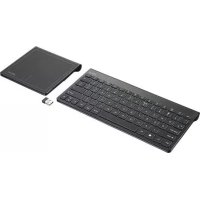
Skid 19405 - Keyboard TRUST - Free user manual and instructions
Find the device manual for free Skid 19405 TRUST in PDF.



| Product Type | Wireless Keyboard with Touchpad |
| Brand | Trust |
| Model | Skid 19405 |
| Power Supply | 2 AAA batteries (1.5 V) |
| Connectivity | USB 2.4 GHz Receiver |
| Wireless Range | Approximately 10 meters |
| Compatible Operating Systems | Windows 8, 7, Vista, XP |
| Multimedia Keys | Play/Pause, Mute, Volume +/-, Search, etc. |
| Built-in Touchpad | Yes, with multi-finger gestures |
| Function Keys | F1-F12 via Fn key |
| Windows 8 Shortcuts | Start, Share, Settings, Charms Bar |
| Low Battery Indicator | Yes |
| Dimensions (approx.) | 440 x 140 x 25 mm |
| Weight (approx.) | 500 g |
| Maintenance | Clean with a soft, dry cloth |
| Safety | Keep away from liquids and moisture |
| Spare Parts | Batteries, USB receiver |
| Repairability | Easy battery replacement, standard receiver |
| Warranty | 2 years (typical) |
Frequently Asked Questions - Skid 19405 TRUST
User questions about Skid 19405 TRUST
0 question about this device. Answer the ones you know or ask your own.
Ask a new question about this device
Download the instructions for your Keyboard in PDF format for free! Find your manual Skid 19405 - TRUST and take your electronic device back in hand. On this page are published all the documents necessary for the use of your device. Skid 19405 by TRUST.
USER MANUAL Skid 19405 TRUST
www.trust.com/19404/faq
Trust
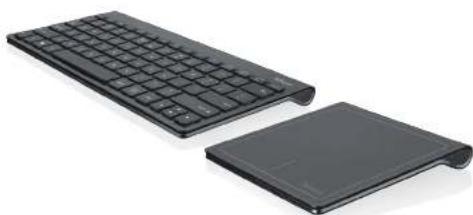
Quick Installation Guide
Wireless Keyboard & Touchpad for Windows 8
Wireless Keyboard & Touchpad - USER'S MANUAL
| Index | ||
| Language | page | |
| English | 2 | |
| Deutsch | 5 | |
| François | 8 | |
| Italiano | 11 | |
| Espanol | 14 | |
| Português | 17 | |
| Nederland | 20 | |
| Dansk | 23 | |
| Suomi | 26 | |
| Norsk | 29 | |
| Svenska | 32 | |
| Polski | 35 | |
| Česky | 38 | |
| Slovenčina | 41 | |
| Magyar | 44 | |
| Romānă | 47 | |
| Бulgariatskii | 50 | |
| Руccskii | 53 | |
| Ельгійді | 56 | |
| Türkce | 59 | |
| Hrvatski | 62 | |
| Slovenski | 65 | |
| С рись | 71 | |
| Brasilheiro | 68 | |
Wireless Keyboard & Touchpad - USER'S MANUAL
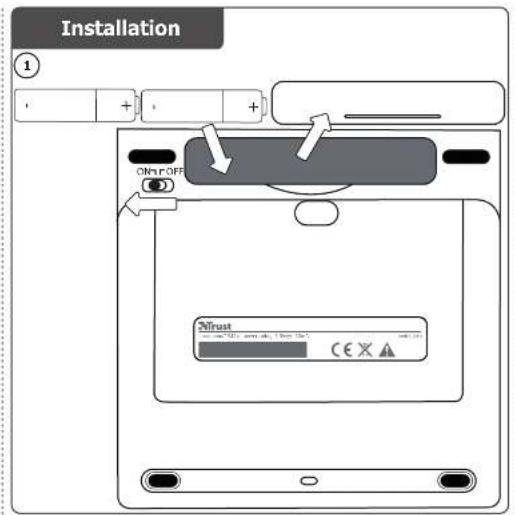
Installation
- Remove touchpad battery cover
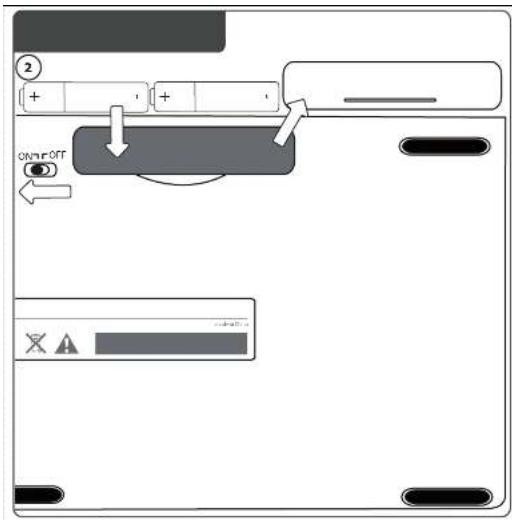
- Place the batteries in the touchpad
- Power on the touchpad
- Remove keyboard battery cover
- Place the batteries in the keyboard
- Power on the keyboard
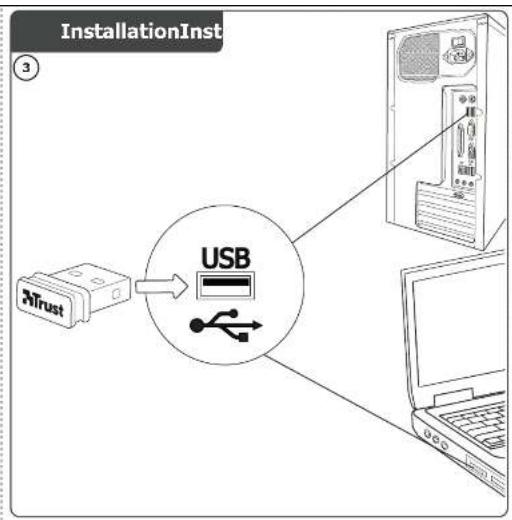
- Plug in USB receiver into laptop or PC
Touchpad gesture controls
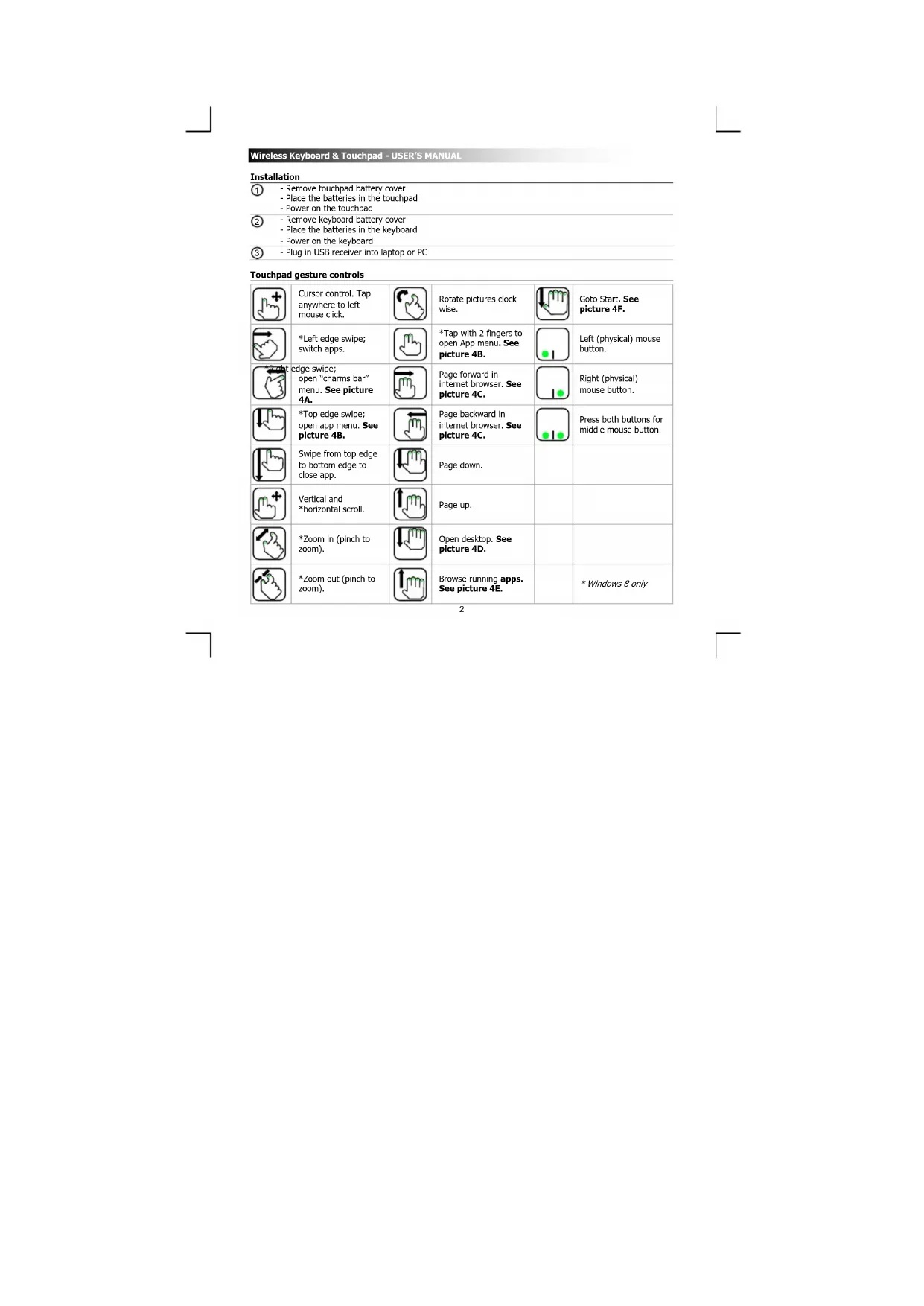
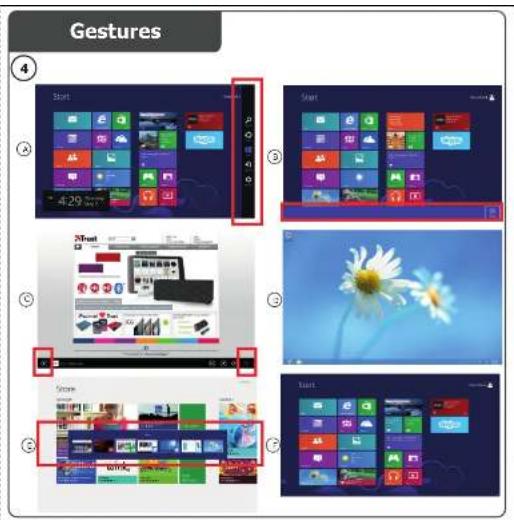
| Cursor control. Tap anywhere to left mouse click. | Rotate pictures clock wise. | Goto Start. See picture 4F. | |||
| *Left edge swipe; switch apps. | *Tap with 2 fingers to open App menu. See picture 4B. | Left (physical) mouse button. | |||
| *Right edge swipe; open " charms bar" menu. See picture 4A. | Page forward in internet browser. See picture 4C. | Right (physical) mouse button. | |||
| *Top edge swipe; open app menu. See picture 4B. | Page backward in Internet browser. See picture 4C. | Press both buttons for middle mouse button. | |||
| Swipe from top edge to bottom edge to close app. | Page down. | ||||
| Vertical and *horizontal scroll. | Page up. | ||||
| *Zoom in (pinch to zoom). | Open desktop. See picture 4D. | ||||
| *Zoom out (pinch to zoom). | Browse running apps. See picture 4E. | * Windows 8 only |
Wireless Keyboard & Touchpad - USER'S MANUAL
For all gestures to work properly in Windows 8 make sure all latest Windows and App Store updates are installed.
Keyboard media keys & indicator
| Windows 8 Windows 7, Vista and XP | ||
| Play / Pause Play / Pause | ||
| Mute | Mute | |
| Volume - Volume - | ||
| Volume + Volume + | ||
| Search (apps) - | ||
| Devices | - | |
| Share | - | |
| Settings | - | |
| Windows start Windows start | ||
| Battery empty Indicator Battery empty Indicator | ||
Function keys F1~F12 and ins(ert) key in blue can be used by pressing the 'fn' + special key.
Wireless Keyboard & Touchpad - USER'S MANUAL
Trouble shooting
| Problem | Solution |
| Keyboard or touchpad doesn't work | - Check if batteries are placed correctly. See step 1 and 2.- Replace the batteries. |
| Not all typed characters are showing on the screen touchpad doesn't respond smoothly | - Move the keyboard/touchpad closer to your laptop or PC.- Replace the batteries.- If you are using the product around large metal surfaces, remove the metal surface or move you product away from the metal surface.- Move the keyboard/touchpad away from other wireless devices (like Wireless network routers). |
| The keyboard shows different characters on my device | - Change the keyboard language settings of Windows. |
| The media keys are not working | - When using an alternative music player, the media keys may not work. |
If your problem is not solved, please contact the helpdesk at www.trust.com/19404/faq.
Wireless Keyboard & Touchpad - USER'S MANUAL
Installation
Wireless Keyboard & Touchpad - USER'S MANUAL
Vianmaarityts
Gester for styrepute
Ahioh, hagyovernmental and political leaders in Hungary, including the party of the opposition to the 1978 coup, the party of the opposition to the 1982 coup, and the party of the opposition to the 1984 coup.
Billentyüzet media bilentyüi es jerzok
MylbTMMeHnHbIe KNaBnHm HnHnKaTOp KNaBnAtypbI
8.2019 16:30pm, 17th August 2019 (Monday)
E-mail: gao@yuglama.com
gucellemelerin yapilmis olugunda emin olun.
Brand : TRUST
Model : Skid 19405
Category : Keyboard