EasyManual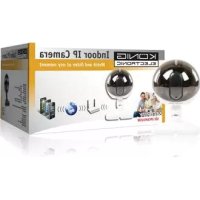
SECIPCAM105W - Surveillance Camera KONIG - Free user manual and instructions
Find the device manual for free SECIPCAM105W KONIG in PDF.


User questions about SECIPCAM105W KONIG
0 question about this device. Answer the ones you know or ask your own.
Ask a new question about this device
Download the instructions for your Surveillance Camera in PDF format for free! Find your manual SECIPCAM105W - KONIG and take your electronic device back in hand. On this page are published all the documents necessary for the use of your device. SECIPCAM105W by KONIG.
USER MANUAL SECIPCAM105W KONIG
MANUAL (p. 2)
IP camera
MODE D'EMPLOI (p. 24)
Camera IP
MANUALE (p. 46) Telecamera IP
HASZNÁLATI UTMUTATO (o. 68.)
IP kamera
MANUAL DE USO (p. 57)
Cármara IP
- Watch over your properties with this genuine Plug & Play IP camera. Easy and simple to install, works without the need for any form of configuration. The free uCare Cam app allows you to watch and listen to live footage on your Smartphone or other mobile devices, anytime and anywhere. The free uCare Cam app is available on Google Play and the Apple App Store. Advanced features provide you e-mail or app notification when motion is detected. Photo and/or video footage can be played back at any moment. Also suitable for use as a baby monitor due to the 2-way audio function.
We recommend that you read this manual before installing/using this product. - Keep this manual in a safe place for future reference.
System requirements:
Device running Android 4.0 and up or iOS 5.0 and up.
- Router with Wi-Fi.
Installation of the App on your mobile device
1
Download the "uCare Cam" app from Google Play or the Apple app store
Android Device
Google Play Store "uCare Cam" Download Link
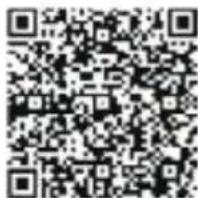
iOS Device
App Store "uCare Cam" Download Link
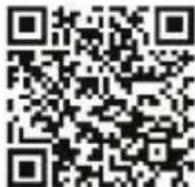
2
After the software installation is complete, click the icon to run the app.
Default "uCare Cam" password: 0000
Manager's Name: admin
Manager's Password: 0000


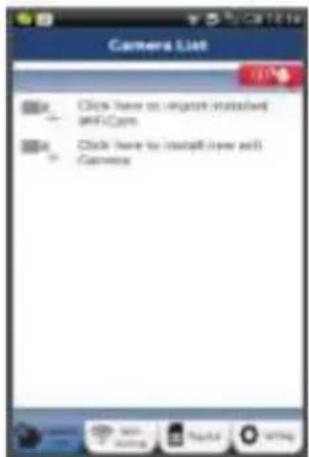
Figure 1
"Camera List Window"
There are two options to continue the easy set up of your IP camera.
Install your IP camera by ROUTER MODE
1
Power On
Plug the power adapter DC connector into the DC input port of the IP camera and then plug the power adapter into a wall outlet. The status LED on the IP camera will turn green for about 15 seconds.
2
Programme Loading
The status LED will flash red for about 15 seconds.
3
Router Link Mode
Wait until the status LED colour alternates between red and green.
Note:
If the LED does not turn red and green, then press the WPS/Reset button for more than 10 seconds to restart the IP camera.
When the green status LED lights up and holds, and then the red status LED flashes twice, after which it changes into green, the IP camera has entered the RESET state. At this moment you can release the button and then wait until the status LED alternates between red and green.
ANDROID (for Apple go to: Step 8)
Set the IP camera to connect to the Wi-Fi Router
4
Open the "uCare Cam" App and select:

Click here to install the new Wi-Fi Camera

In the screen of the Camera List Window (see figure 1).

In the following screen select the tab:


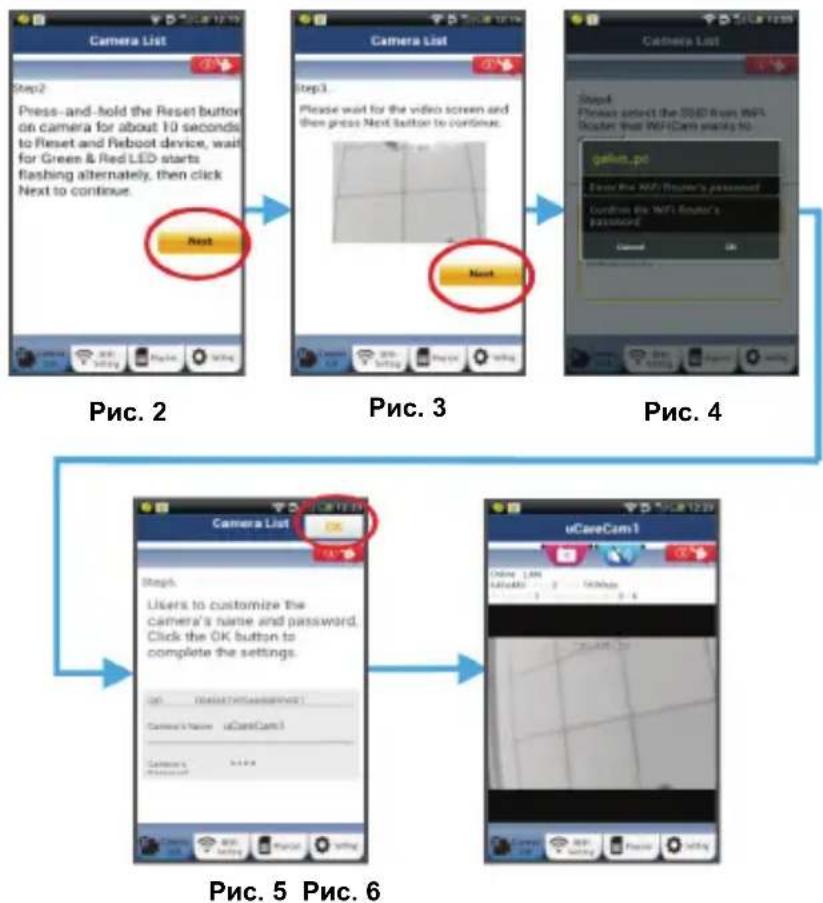
then select the tab: to enter the next step (see Figure 2).

Follow the instructions in the Camera List window step by step (see Figure 3 and Figure 4). Please enter a personal camera name and password (default 0000). You are encouraged to change the default password after setup for security purposes.

Click the tab

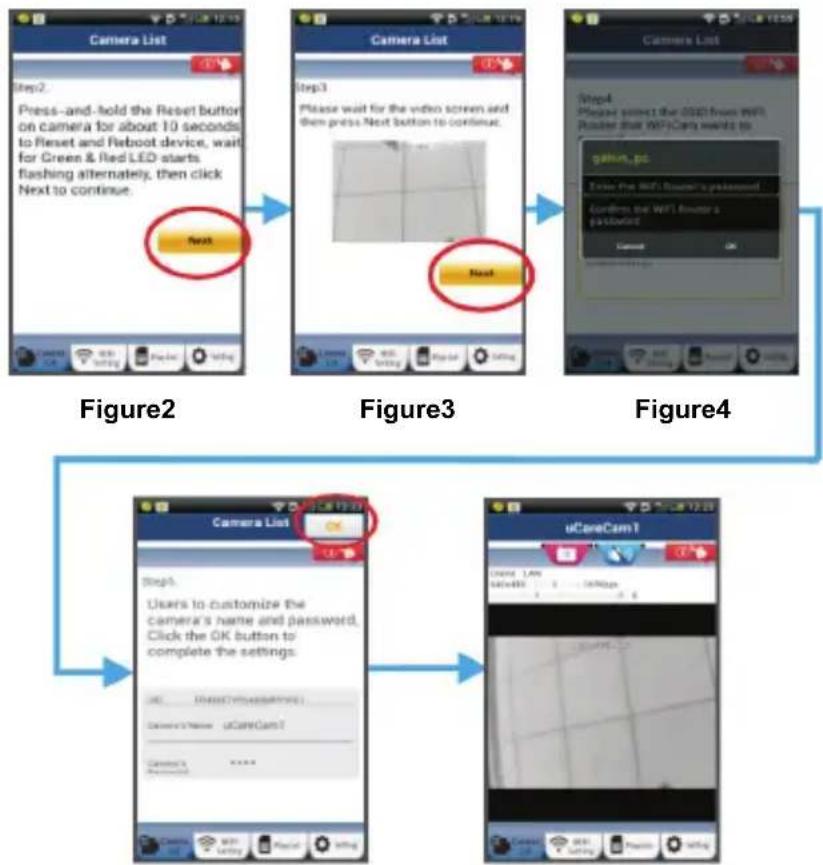
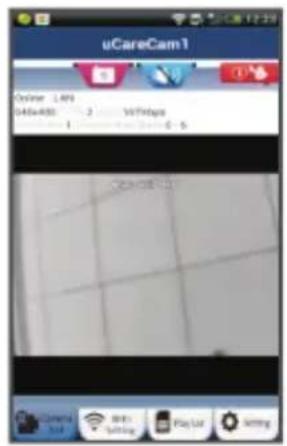
(see Figure 5). The uCare Cam will automatically enter the viewing window (see Figure 6) and the IP camera status LED will turn orange.
Figure5 Figure6
APPLE
Set the IP camera to connect to the Wi-Fi router
8
Open up "Settings" on your iOS device and select "Wi-Fi" and let it search for a network. The network will be "Wi-Fi-cam-p2p". Select "Wi-Fi-cam-p2p" to connect.
9
Now, open the "uCare Cam" app and select the tab at the bottom of the screen that says "Wi-Fi Connect".
10
Select "Router mode", then "Next". Enter the Wi-Fi router SSID and password for your home router.
11
After the IP camera receives this information, it will restart. Please wait for it to start up and connect to your Wi-Fi router. When it successfully connects, the status LED colour will turn orange. It may take up to 5 minutes.
12
Then select the camera name in the "uCare Cam" app to connect. Note: If the status LED colour does not turn orange, please check your Wi-Fi router and make sure the IP camera is within the signal area of your Wi-Fi router. Then try this setup again.
Install your IP camera by WPS connection mode
If your Wi-Fi router has a WPS (Wi-Fi Protected Setup) button, you can use it to set up the IP camera. (Must enable WPA/WPA2 encryption in Router). On the Wi-Fi router, you will see a button labelled "WPS". It may also be called "QSS" or "AOSS"
1
Setup Wi-Fi - WPS mode
Open the "uCare Cam" app

and select "Wi-Fi Setting" or "Wi-Fi Connect" at the bottom of the screen.
Select the tab:
then select the tab:
Next
WPS Setup mode
to enter Step 2 (see Figure 8).
2
Enter WPS mode
Power on your IP camera. The status LED on the IP camera will be green for about 15 seconds.
3
Programme Loading
The status LED will flash red for about 15 seconds.
Press the WPS button on your IP camera
Wait until the status LED flashes between red and green, then press and hold the WPS/RESET button on your IP camera for about 2 seconds to enter WPS mode. The status LED will be flashing green.

Enter WPS mode on the Wi-Fi router
Press the WPS button on the Wi-Fi router

Selecting the Wi-Fi router
Select the Wi-Fi router of your choice in the screen (see Figure 9).
Then select the tab:
Next
to enter next step (see Figure 10).
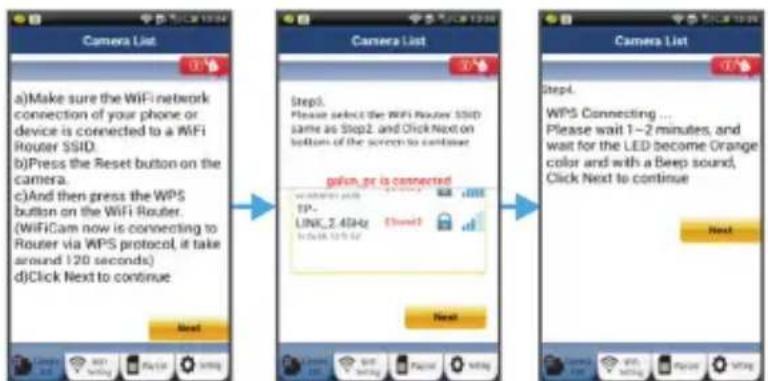
Figure9
Figure10 Figure8

IP camera connects with Wi-Fi router
Wait about 1-2 minutes. If the IP camera is successfully connected to the Wi-Fi router, the status LED will become orange.
Otherwise the status LED will become a flashing red light. If the setup is not successful, please go back to Step 1 and try again.

If successful, select the tab:

(see Figure 11), and follow the instructions.
Please enter a camera name and password for security and

select the Tab: (see Figure 13).
The IP camera will automatically enter the viewing screen (see Figure 14).
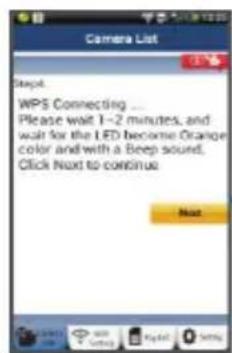
Figure11
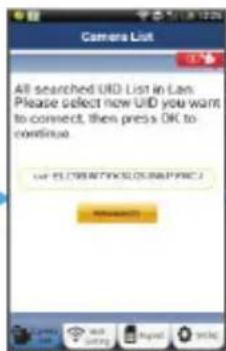
Figure12
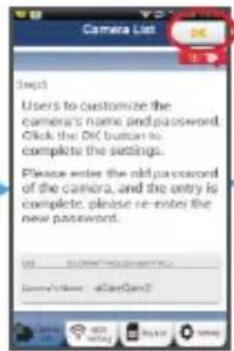
Figure13 Figure14
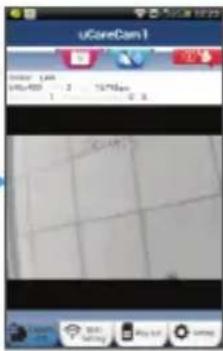
Start up the IP camera after the Wi-Fi connection has been completed
1
Power On
Plug the power adapter DC connector into the DC input port of the IP camera and then plug the power adapter into a wall outlet. The status LED on the IP camera will turn green for about 15 seconds.
2
Programme Loading
The status LED will flash red for about 15 seconds.
3
Searching Wi-Fi Router
The status LED will flash green until the Wi-Fi router is found (up to 5 minutes). Once the router is found, the status LED will become orange.
If the IP camera cannot connect to the Wi-Fi router, please check the Wi-Fi router status or re-install.
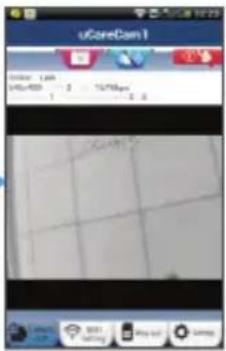
In the app, select the camera name that is shown in the Camera List, and the viewing window will open(see Figure 15).
Add already installed IP camera to the app
ANDROID (for Apple go to: Step 5)
1
Open the "uCare Cam" app and select:

Click here to import installed Wi-Fi Camera
In the Camera List Window screen (see figure 16) for adding an IP camera.
2
Select the tab:
Your device will now enter the QR code mode.
Note: you need to have a QR code scanner installed on your device.
3
Locate the QR code on the backside of the IP camera and scan the QR code.
After scanning the QR code, the UID (Unique ID code) appears in the screen of your device (see Figure 17).

Enter a personal camera name and password and select the tab:
(see Figure 17).
The new camera will be added to the list
(see Figure 18).
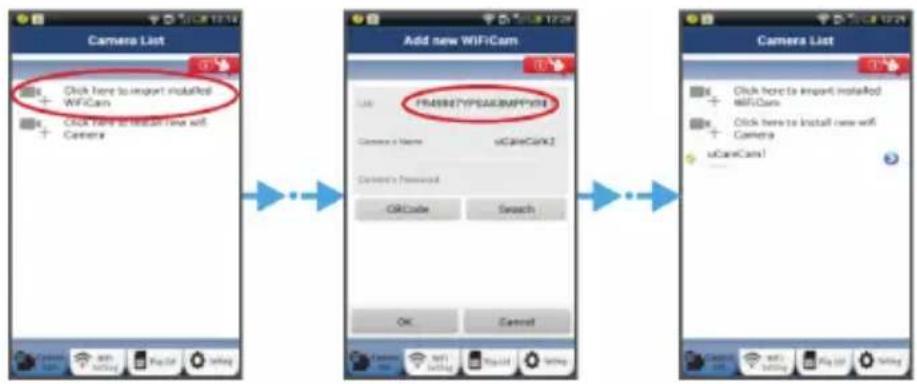
Figure16 Figure 17 Figure 18
APPLE

Open the App "uCare Cam".


Select, in the camera list window, the "+" sign on the right top of the screen.

Select option "Scan camera QR code".
Note: you need to have a QR code scanner installed on your device.

Locate the QR code on the backside of the IP camera and scan the QR code.

The UID (Unique ID code) will show up after scanning the QR code.
Enter a personal camera name and select "DONE" on the top right side of the screen.
For further explanation of the app, the IP camera and the FAQ, please check the FULL manual (English only) on the CD supplied with this product.
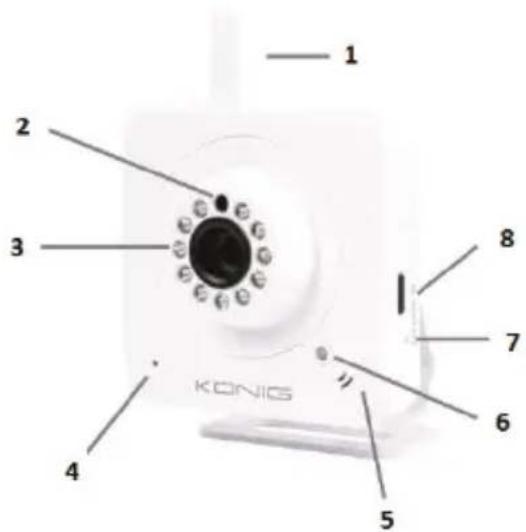
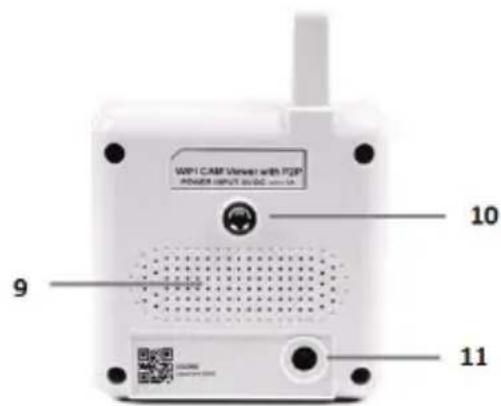
Product description:
SEC-IPCAM100B (W)
- Wi-Fi antenna
- Light intensity sensor
- IR LED
- No function
- Microphone
- LED indicator
- WPS/Reset button
- Micro SD card slot
- Loudspeaker
- Connection for camera mount
11.5V DC input
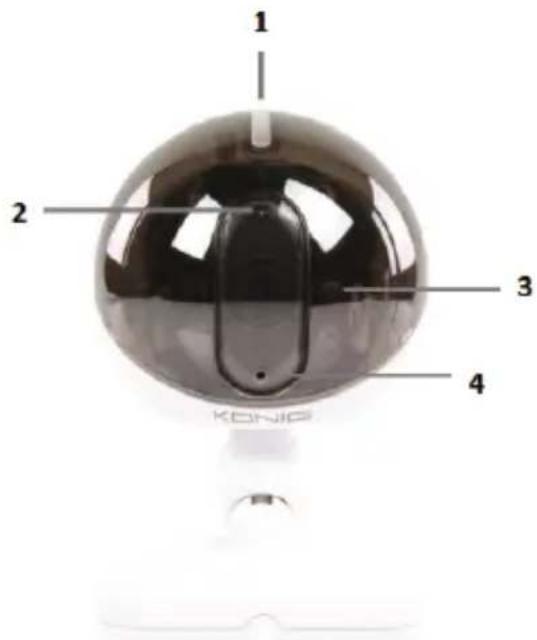
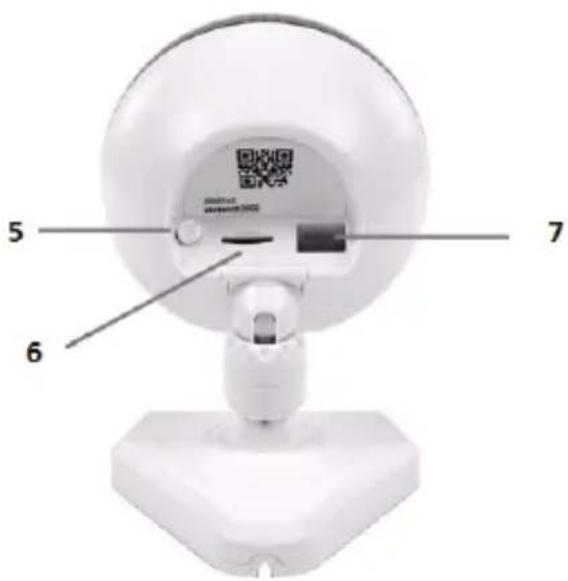
SEC-IPCAM105B (W)
- LED indicator
- Light intensity sensor
- IR LED
- Microphone
- WPS/Reset button
- Micro SD card slot
- 5V DC input
Safety precautions:

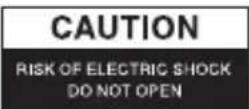

To reduce risk of electric shock, this product should ONLY be opened by an authorised technician when service is required. Disconnect the product from mains and other equipment if a problem should occur. Do not expose the product to water or moisture.
Maintenance:
Clean only with a dry cloth. Do not use cleaning solvents or abrasives.
Warranty:
Any changes and/or modifications to the product will void the warranty. We cannot accept any liability for damage caused by incorrect use of this product.
Disclaimer:
Designs and specifications are subject to change without notice. All logos, brands and product names are trademarks or registered trademarks of their respective holders and are hereby recognized as such.
Disposal:
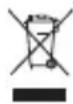
- This product is designated for separate collection at an appropriate collection point. Do not dispose of this product with household waste.
- For more information, contact the retailer or the local authority responsible for waste management.
This product has been manufactured and supplied in compliance with all relevant regulations and directives, valid for all member states of the European Union. It also complies with all applicable specifications and regulations in the country of sales.
Formal documentation is available upon request. This includes, but is not limited to: Declaration of Conformity (and product identity), Material Safety Data Sheet and product test report.
Please contact our customer service desk for support:
via website: http://www.nedis.com/en-us/contact/contact-form.htm#news
via e-mail: service@nedis.com
via telephone: +31 (0)73-5993965 (during office hours)
NEDIS B.V., De Tweeling 28, 5215 MC 's-Hertogenbosch, THE NETHERLANDS
DEUTSCH
Einführung:
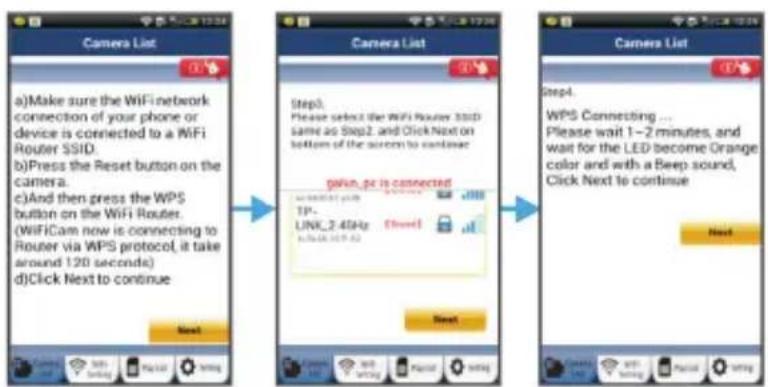
Image 9
Image 10 Image 8

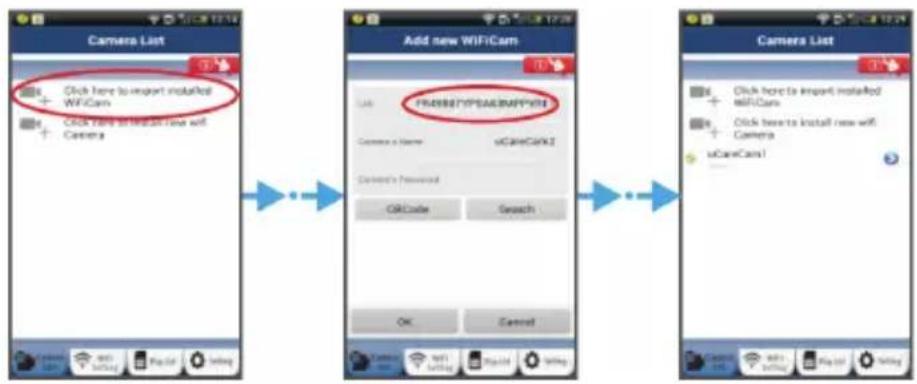
Image 16 Image 17 Image 18
APPLE

A Anything's done.
A thing's done.
A thing's done.
A thing's done.
10
Selection are il router Wi-Fi
Söka after Wi-Fi-router
Nume administrator: admin
Parola administrator: 0000


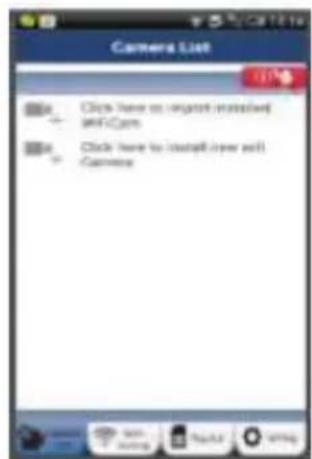
Figura 1
"Fereastra listare camera"
Exista doua modalitatei prin care puteti continua setarea rapida a camerei dumneavoastra IP.
Instalati camera IP in modul ROUTER
1
Pornidea
Instalati camera IP in modul de connectare WPS
PntnoTe to koumu WPS tnc kaepac IP
AvoicTe Tny eapouyn "uCare Cam".


AnoTo Tnapato AioTac Kapeac, EIIAEgTe To OuMoO +" Otnv Navw DExia yovia Tns oovns.

ETIIAEET "Scan camera QR code".
Administratorcode: 0000


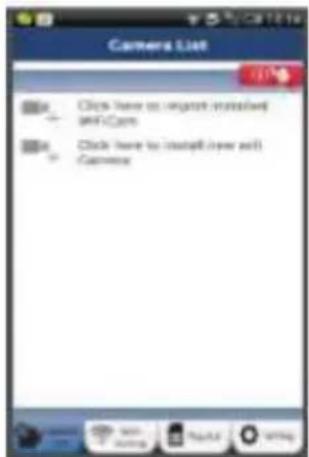
Fig. 1
"Kameralistevindue"
Sog after Wi-Fi-routeren
Status LED-indikatoren blinker gront, indtil Wi-Fi-routeren er fundet (dette tager op til 5 minutter).
TObblpeenKcneDyUeMyuary (cm.pnc.2).
Next
CneyuTe noaorOBm IHctpyKzmaB OkHe «Cncoc Kamep» (cm. pnc. 3 n pnc. 4). Ykaxnte mra kamepbnnapoJb (no ymonuHnO — 0000).
Iocne yctaHOBKn IoRbntc coOObSeHnE O Heo6xoDmOCTn N3MeHeHn NapOJa B cTepx 6e3onachoctn.
7
JekhybHa BknaKe

(cm.pnc.5).B npnIOxHm uCare Cam aTOMaTnueckn OTo6pa3ntcra OKHO npocMOTpa (cm.pnc.6),acBToDnOHDhIn HnDnKaTOP COCTOHNr 3aIopNTcra opAHKeBBIM.

APPLE
HactpoKa IP-kaMepbI dnn noKnluoyenK MapuTy3aTopy Wi-Fi
8
Ha iOS-yctpoicTbe OTkpoite «Settings» n BbIepeTe nyHKT «Wi-Fi», yTo6bl ocyuaceTBnBnCK cetn. Bydet obnapykeHa cetb «Wi-Fi-cam-p2p», BbI6paTb cetb «Wi-Fi-cam-p2p», yTo6bl ycTaHOBnTB C Hei coeDInHeHne.
9
OTkpOte npINOxKeHne uCare Cam n HaxMnte Ha BknaKy «Wi-Fi Connect» B HIXHeuactn 3KpaHa.
10
Bb6epnte «Router mode», a 3aTeM haxmte «Next». BBeIte Ha3BaHne cetn (SSID) n napoIb, nCnoIb3yemble dIra DomauHne cetn Wi-Fi.
11
Pocne BBOdaaHbIX npoH3oJed nepe3arpy3ka IP-kamepbl. Heo6xoImo doKdaTbc 3aBepHHe nape3arpy3kn, noCne Yero KaMepa noknOHTcK MapupytnaTopy Wi-Fi. B Cnyae ycneuHoro noknOHeHnCBeToNDnHb INDnKaTOp COCToHn 3aopntcR opAHBeBIM. Poocecc nepe3arpy3kn n oNkNoUeHn K cETn MoKeT 3aHrTb Do 5 MNHyT.
12
B npIIOxKeHn uCare Cam Bbl6epnte KaMepy, c KOToPoH Heo6xoJIMO yCTaHOBtB coeINHeHne.
PnmeHne: EcnBcTeOnnHbI INDkaTOp COCTOHNr He 3aRopeNc opAHKeBIM, cNeyET npOBepntb MapuTytn3aTOp Wi-Fi n y6eNTbc, YTO IP-Kamepa HaxoNTcB npeDenax eropabooero dnaana30Ha. Nocne 3tOro nobTopnte npouecc yctahOBKn.
YcTaHOBka IP-kaMepbI B pexnme WPS-coeHHHeHna
Ecn mappytn3atop Wi-Fi noidepknbaet texhnoTNO WPS (Wi-Fi Protected Setup), yctahOBka IP-kaMepbIMoKET npobOntbcB pexnme WPS-coeHHeH. (IЯ 3ToRo cIeDyET BKnIOHTb B MappytnaTope peKIM mNΦpOBAHnWPA/WPA2.) Ha Kopnyce mappytnaTopa dONxHa haoNTbcKa KHOJa «WPS» (илг xe «QSS» пбо «AOSS»).
1
HactpoKa cTe Wi-Fi B pexnme WPS OTPpoTe npuOxKeHne uCare Cam

HaxmTe Ha BknaKy «Wi-Fi Setting» nIu «Wi-Fi Connect» B HxKHe uacTn 3kpHa.
HaxmTe Ha BknaIky
Next
a 3aTeM Ha BknaKy
WPS Setup mode
YTO6bI nepeTn K Wary 2 (cm. pnc. 8).
2
BkIoueHne peknma WPS
BknHouHte IP-kaMepy. CBeToDnOHNi HnDnKaTOp COCToHnHa KOpnyce IP-KaMepbI 3aropntc 3eNeHbIM Ha 15 ceKyHd.
3
3arpy3ka nporpapMMbl
CBeToIIOHbI INDkaTOp COCTOHHa 3aOpntcKaPchbIM Ha 15 cekyHd.
4
HakmTe KhoNky WPSHa Kopnyce IP-kaMepbl
Ioxntecb, KOrda CBeToNDHbIM HdNKaTOp COCTOHNHaUHT NOOpeEHO MIRAtb KpaChbIM n 3eNEbIM. BKnIOHTe pexnM WPS, haxab KhoNkY «WPS/c6poca» u ydePknBaer ee 2 cekyHdbI. CBeToNDHbIM HdNKaTOp COCTOHN6 ByET MIRAtb 3eNEbIM.
5
BknueHne peknma WPS Ha MapwpTu3aTope Wi-Fi
Hakmte KhoNky WPSHa MappyTu3aTope Wi-Fi.
6
Bb6op Mapwpytn3atopa Wi-Fi
Bb6epnte Mapuyn3atop Wi-Fi B dnaIarOBom OkHe (cm. pnc. 9).
a 3aTeM Ha BknaKy
Next
TTO6bI nepeiTu K cneDuOeMy wary (cm. pnc. 10).
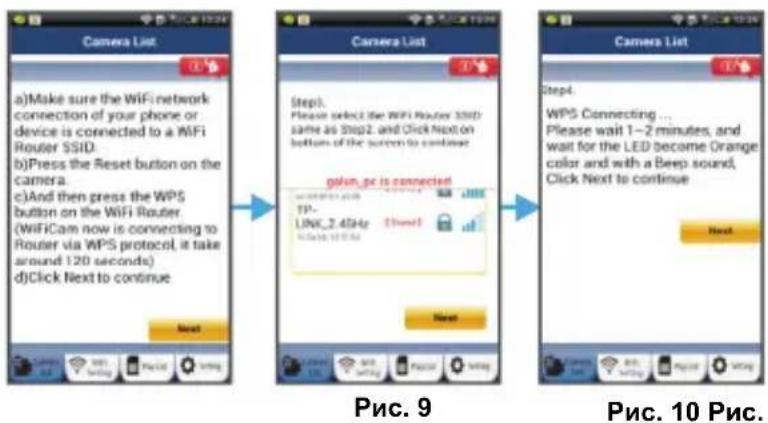
7
IopknioueHHe IP-kaMepbK MapwpyTu3aTopy Wi-Fi
IpoKdnte 1-2 MnHytbl. B clyuae ycneHoro noKnHoueHna IP-kamepbk MapspTu3aTopy Wi-Fi cbetoNoHbIn Hndnkatop coctoHna 3arOpHTcra opahXeBbIM CBETOM.
Ecnn IP-kaMepa He cMOXeT NOKJIIOHTbcra K MapspTy3aTopy Wi-Fi, CBeToNDnHbI INdikatop COCTOHN 6yJeT MIRATb KpaChbIM. Ppi OTCyTCTBNI NOkJIIOUeHnRA NOBTOpTe npoueeC yCTaHOBKn eue pa3, HauHHa c 7ara 1.
8
EcnnoNIOKNoeHne yCTaHOBnEO,HaXMITE Ha BknaKy
Next
(cm.pnc.11) n cneDyIe IHCTpyKUmaH Ha 3kpaHe.
Ykaknte mMa Kamepbi npoJIb (B cIeJx 6e3onacHocTn) n
9
HaKMTe Ha BklaIky (cm.pnc.13).
B npinlojkeHn ABToMaTnueckn OTo6pa3ntcK OKnO npocMoTpa (cm. pnc. 14).

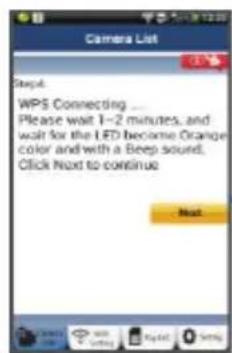
Pnc.11
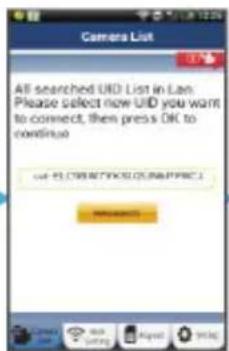
Pnc. 12
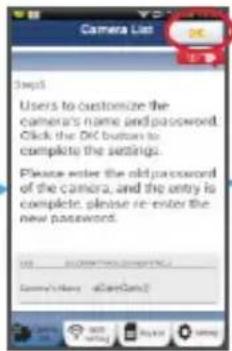
Pnc.13 Pnc.14
3anyck IP-kamepbI npu yctaHOBHeHHOM coeHHeHH Wi-Fi
1
BkIoueHne
BcTaBbTe uTKepe 6noka nHTaHn B pa3bem nHTaHn Ha IP-kaMepe N noDKNIOUHTe 6nok nHTaHn K 3JIeKTPocetn. CBeToNDnHDh INDnKaTOp COCTOraHn Ha Kopnyce IP-kaMepebl 3arOpNTc 3eneHbIM Ha 15 cekyHd.
2
3arpy3ka nporpapMMbI
CBeToIIOHbI INHdkaTOp COCTOHN 3arOpNTcKpaChbIM Ha 15 cekyHd.