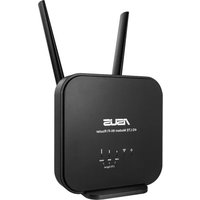
RTN11 - Wireless Router ASUS - Free user manual and instructions
Find the device manual for free RTN11 ASUS in PDF.

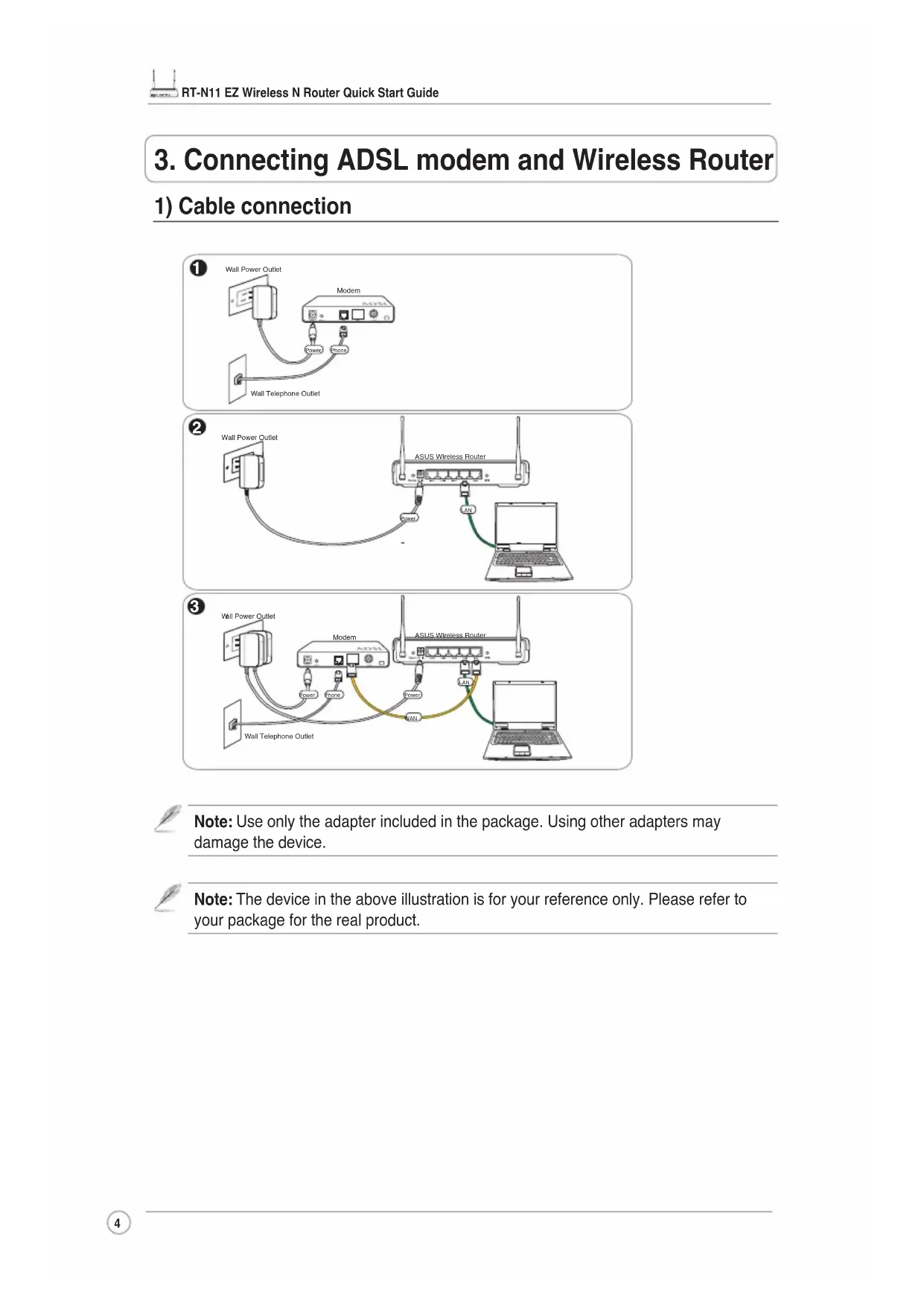


| Product Type | Wireless Router |
| Brand | ASUS |
| Model | RT-N11 |
| Dimensions (L x W x H) | 179 x 119 x 37 mm |
| Weight | 310 g |
| Power Supply | AC adapter 5 V DC, 1.2 A |
| Network Standards | IEEE 802.11b/g/n, 802.3, 802.3u, 802.1x, 802.11i, 802.11e, IPv4 |
| Operating Frequency | 2.4 - 2.483 GHz |
| Ethernet Ports | 1 WAN 10/100 port, 4 LAN 10/100 RJ-45 ports |
| Antennas | 2 external detachable antennas |
| WPS Button | Yes (physical button and PIN code) |
| LEDs | Power, AIR (Wi-Fi), WAN, 4x LAN |
| Wireless Security | WEP 64/128-bit, WPA/WPA2 Personal and Enterprise, WPA-Auto (TKIP/AES), WPA2-Auto (TKIP/AES), Radius 802.1x |
| Firewall | NAT, SPI, WAN Ping control, Domain access control, URL filter, MAC filter, Inbound/Outbound filtering, DoS detection |
| VPN | Pass-through IPSec, PPTP, L2TP |
| Quality of Service (QoS) | WMM (Wi-Fi Multimedia), customizable rules |
| Advanced Network | Up to 4 multiple SSID/BSSID, VLANs |
| Network Management | SNMP, IGMP, UPnP, DHCP server/client, DNS Proxy, NTP, DDNS, Port Trigger, Virtual Server, Virtual DMZ, WDS |
| Operating Temperature | 0 to 40 °C |
| Operating Humidity | 10 to 90 % |
| Maintenance and Cleaning | Unplug the device and clean with a soft dry cloth. Do not use abrasive or liquid products. |
| Spare Parts and Repairability | AC adapter, external antennas available. For any repairs, contact ASUS technical support. |
Frequently Asked Questions - RTN11 ASUS
User questions about RTN11 ASUS
0 question about this device. Answer the ones you know or ask your own.
Ask a new question about this device
Download the instructions for your Wireless Router in PDF format for free! Find your manual RTN11 - ASUS and take your electronic device back in hand. On this page are published all the documents necessary for the use of your device. RTN11 by ASUS.
USER MANUAL RTN11 ASUS
Company address: 15 Li-Te Road, Beitou, Taipei 11259
Telephone: +886-2-2894-3447
Fax: +886-2-2890-7798
Company address: 44370 Nobel Drive, Fremont, CA 94538, USA
General (fax): +1-510-608-4555
Web site address: http://usa.asus.com
Technical support
General support: +1-502-995-0883
Support (fax): +1-502-933-8713
Online support: http://vip.asus.com/eservice/techserv.aspx
ASUS COMPUTER GmbH (Germany & Austria)
Company address: Harkortstr. 21-23, 40880 Ratingen, Germany
General (tel): +49-02102-95990
General (fax): +49-02102-959911
Web site address: http://www.asuscom.de
Online contact: http://www.asuscom.de/sales
Technical support
Components: +49-02102-95990
Fax: +49-02102-959911
Online support: http://vip.asus.com/eservice/techserv.aspx?SLanguage=de-de
Global service center: http://support.asus.com/service/service.aspx?SLanguage en-us
FAQ: http://support.asus.com/faq/faq.aspx?SLanguage en-us
Online technical support: http://support.asus.com/techserv/techserv.aspx?SLanguage=en-us
1. Package contents
- RT-N11 wireless router x 1
Power adapter x 1 - Docking stand x 1
- Utility CD x 1
- RJ45 cable x 1
- Quick Start Guide x 1
2. Specification summary
| Network Standard | Compatible with 802.11b/g/n, IEEE802.3, IEEE802.3u, IEEE802.1x, IEEE802.11i, IEEE802.11e, IPv4, CSMA/CA, CSMA/CD, ICMP |
| Operating Frequency | 2.4G ~ 2.483GHz |
| Operation Channel | 11 for N. America, 14 Japan, 13 Europe (ETSI) |
| Ethernet Port | WAN x 1, LAN x 4 RJ45 for 10/100 BaseT |
| Antenna | 2 External Detachable Antennas |
| WPS Button | Support WPS (Wi-Fi Protection Setup) Push Button and PIN Code Setup |
| LED | Power x 1, AIR x 1, WAN x 1, LAN x 4 |
| Security | 64/128-bit WEP, WPA-Personal, WPA2-Personal, WPA-Enterprise, WPA2-Enterprise, WPA-Auto (TKIP/AES), WPA2-Auto (TKIP/AES), Radius with 802.1x |
| Firewall & Access Control | NAT Firewall, SPI (Stateful Package Inspection) Firewall, WAN Ping Control, Domain Access Control, URL Filter, MAC Filter, Inbound/Outbound Packet Filter, DoS Detection |
| VPN Support | IPSec / PPTP / L2TP Pass-Through |
| Quality of Service | WMM (Wi-Fi multimedia) Customizable QoS rules |
| Advanced Network | Support up to 4 Multiple BSSIDs/ESSIDs, VLANs |
| Network Management | Support SNMP, IGMP, UPnP, DHCP, DNS Proxy, NTP Client, DDNS, Port Trigger, Virtual Server, Virtual DMZ, VPN Pass-Through, WDS |
| Power Supply | AC Input: 100V~240V (50~60HZ); DC Output: +5V with max. 1.2A current Note: Use only the adapter included in the package. Using other adapters may damage the device. |
| Temperature | Operating: 0~40°C Storage: -10~70 °C |
| Humidity | Operating: 10-90% Storage: 0~90% |
| Dimension | 179 x 119 x 37 (L x W x H) mm |
| Weight | 310g |
- All specifications are subject to change without notice.
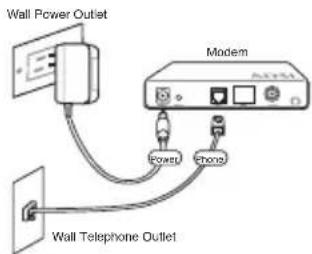
3. Connecting ADSL modem and Wireless Router
1) Cable connection
1
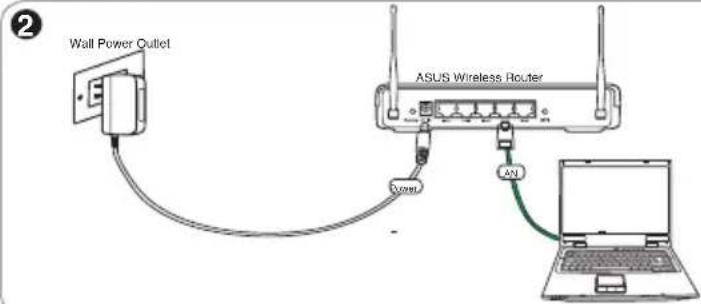
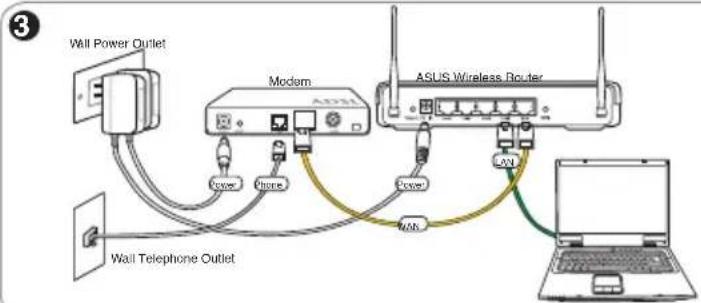

Note: Use only the adapter included in the package. Using other adapters may damage the device.

Note: The device in the above illustration is for your reference only. Please refer to your package for the real product.
2) Status indicators
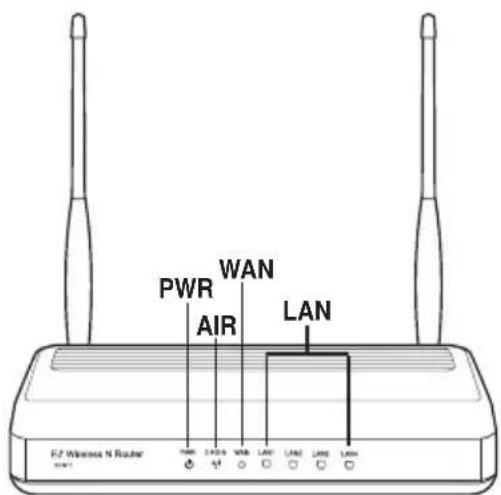
PWR (Power)
Off No power
On System ready
Flashing-slow Reset to default mode
Flashing-quick WPS mode
AIR (Wireless Network)
Off No power
On Wireless system ready
Flashing Transmitting or receiving data (wireless)
WAN (Wide Area Network)
Off No power or no physical connection
On Has physical connection to an Ethernet network
Flashing Transmitting or receiving data (through Ethernet cable)
LAN 1-4 (Local Area Network)
Off No power or no physical connection
On Has physical connection to an Ethernet network
Flashing Transmitting or receiving data (through Ethernet cable)
4. Getting started
The ASUS RT-N11 Wireless Router meets various working scenarios with proper configuration. The default settings of the wireless router may change to meet your individual needs. Thus, before using the wireless router, check the basic settings to ensure that they all work in your environment.

Note: Wired connection for initial configuration is recommended to avoid possible setup problems due to wireless uncertainty.
1) Wired connectionired connection
An Ethernet cable is bundled with your RT-N11 package. The wireless router has an integrated auto-crossover function. You can either use a straight-through or a crossover cable for wired connection. Plug one end of the cable to the LAN port on the rear panel of the router and the other end to the Ethernet port on your PC.
2) Wireless connection
For establishing wireless connection, you need an IEEE 802.11b/g/n compatible WLAN card. Refer to the user manual of your wireless router for the wireless connection procedures. By default, theSSID of the wireless router is "default" (in lower case), encryption is disabled and open system authentication is used.
3) Setting IP address for wired or wireless client
To access the RT-N11 Wireless Router, you must have the correct TCP/IP settings on your wired or wireless clients. Set the IP addresses of the clients within the same subnet of RT-N11.
Getting an IP address automatically
The RT-N11 Wireless Router integrates DHCP server functions, thus, your PC gets an IP address automatically.

Note: Before rebooting your PC, switch ON the wireless router and ensure that the router is ready.
Setting up the IP address manually
To manually set the IP address, you need to know the default settings of the Wireless Router:
IP address: 192.168.1.1
- Subnet Mask: 255.255.255.0
To set up the connection with a manually assigned IP address, the address of your PC and the wireless router must be within the same subnet:
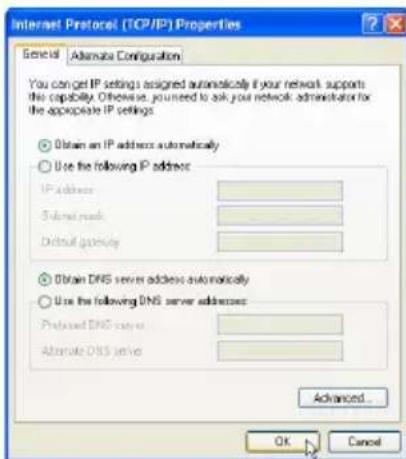
- IP address: 192.168.1.xxx (xxx can be any number between 2 and 254. Ensure that the IP address is not used by another device.)
- Subnet Mask: 255.255.255.0
Gateway: 192.168.1.1
DNS: 192.168.1.1, or assign a known DNS server in your network.
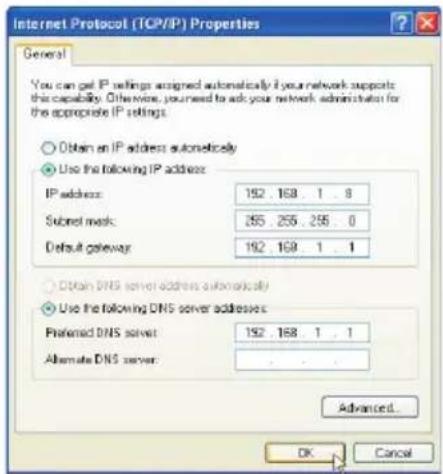
4) Configuring the Wireless Router
Follow the steps below to enter the Web configuration interface of RT-N11.
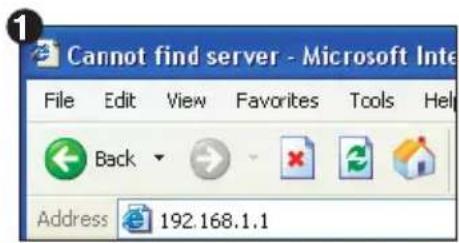
Enter the following address in your web browser: http://192.168.1.1
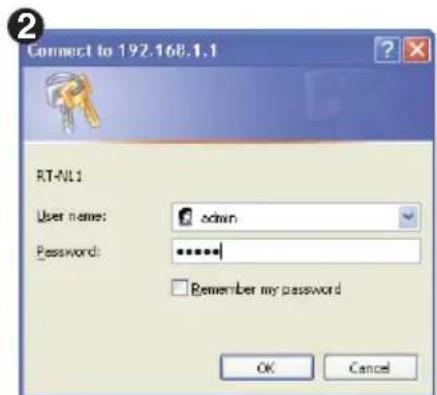
Defaults
User name: admin Password: admin
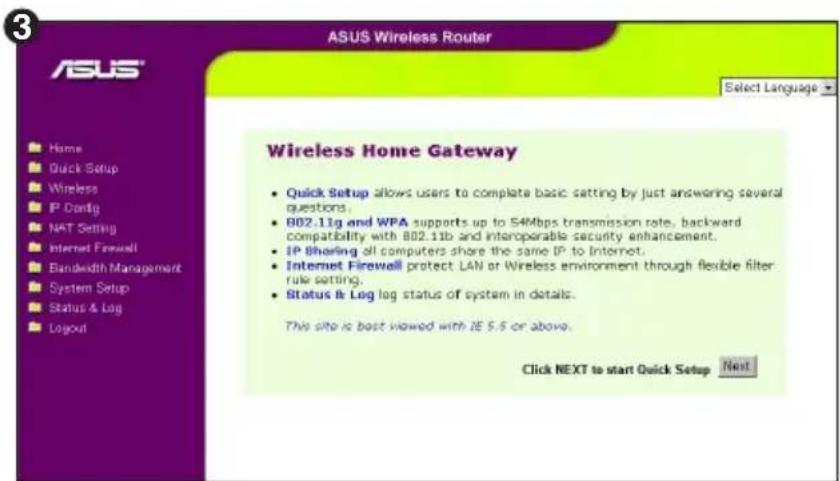
After logging in, you can see the ASUS Wireless Router home page. The homepage displays quick links to configure the main features of the Wireless Router.
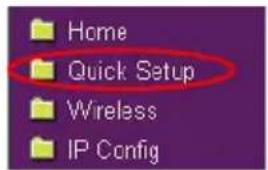
5) Quick setup
To start quick setup, click Next to enter the Quick Setup page. Follow the instructions below to set up the ASUS Wireless Router.
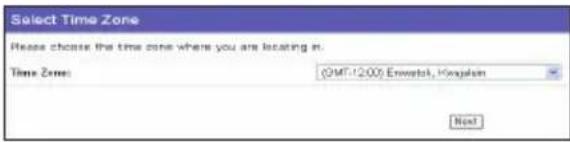
- Select your time zone and click Next.
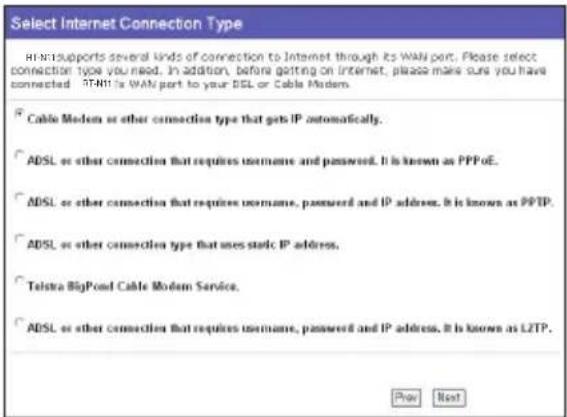
- The ASUS Wireless Router supports six types of ISP services: cable, PPPoE, PPTP, static WAN IP, Telstra BigPond, and L2TP. Select your connection type and click Next to continue.
Cable or dynamic IP user
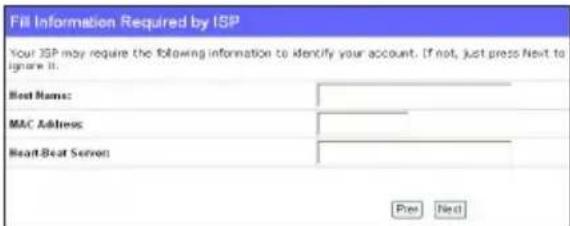
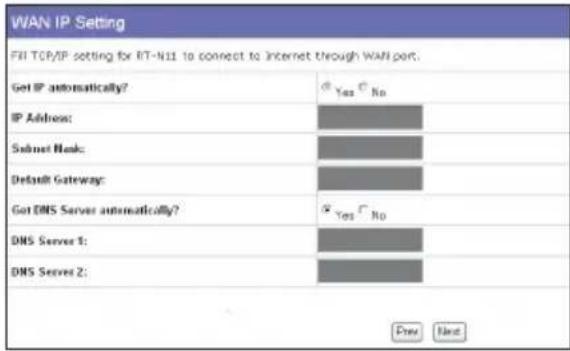
If you are using services provided by cable ISP, selecCable Modem or other connection that gets IP automaticallyf your ISP provides you with the host name, the MAC address, and the heart-beat server address, fill these information into the boxes on the setting page; if not, clickNext to skip this step.
PPPoE user
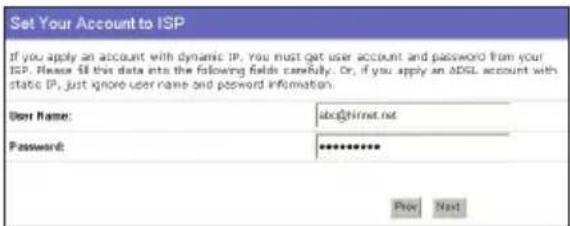
If you are using PPPoE services, select ADSL connection that requires username and password. You need to key in the username and password provided by your ISP. Click Next to continue.
PPTP or L2TP user
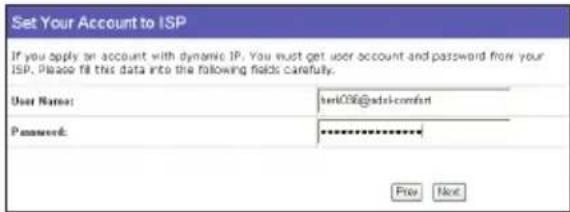
If you are using PPTP services, select ADSL connection that requires username, password and IP address in the username and password provided by your ISP into the fields. Click Next to continue. For L2TP users, follow the same instructions above.
Static IP user
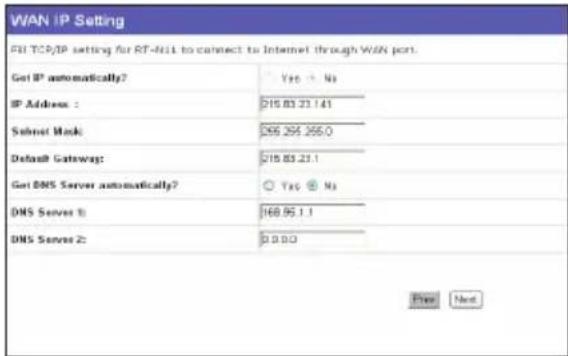
If you are using ADSL or other connection type that uses static IP address, seleADSL or other connection type that uses static IP address Key in the IP address, subnet mask, and default gateway provided by your ISP. You can specify DNS servers, or get DNS information automatically.
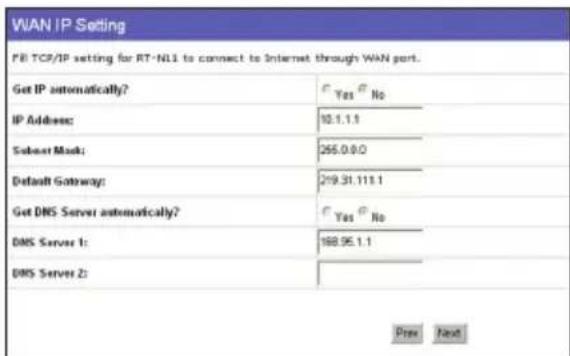
- After the connection type setting is completed, set up your wireless interface. Specify to your wireless router an SSID (Service Set Identifier), which is a unique identifier attached to packets sent over WLAN. This identifier emulates a password when a device attempts to communicate with your wireless router via WLAN.
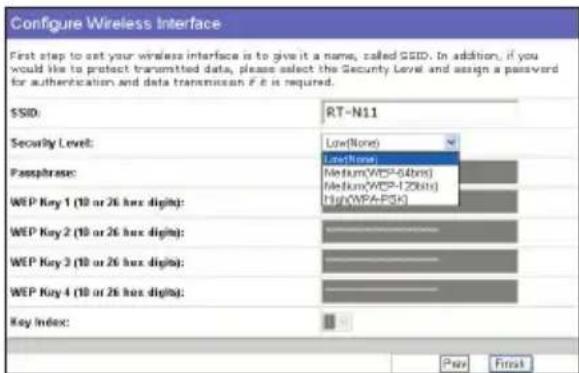
If you want to protect transmitted data, select any of the Security Level below to enable encryption methods:
Medium: Only users with the same WEP key settings can connect to your wireless router and transmit data using 64bits or 128bits WEP key encryption. Configure the settings as Open System/WEP instead of Shared Key/WEP.
High: Only users with the same WPA pre-shared key settings can connect to your wireless router and transmit data using TKIP encryption.
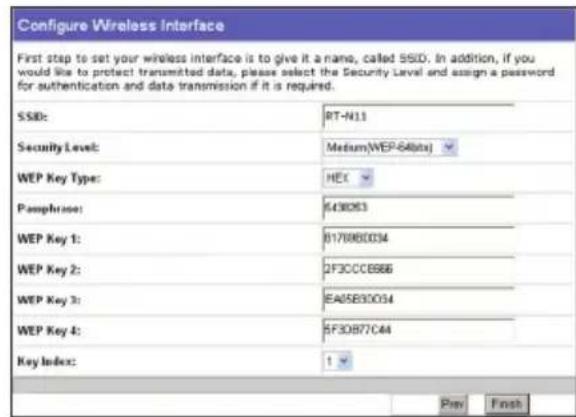
- Key in four sets of WEP keys in the WEP Key fields (10 hexadecimal digits for WEP 64bits, 26 hexadecimal digits for WEP 128bits). For system-generated keys, enter a Passphrase. Take note of the Passphrase and WEP keys, then click Finish.
For example, if we select WEP 64bits encryption mode and key in 11111 as the Passphrase, the WEP Keys are generated automatically.
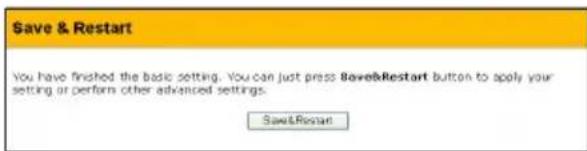
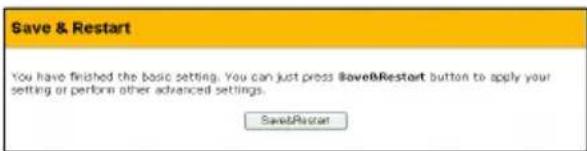
- Click Save&Restart to restart the wireless router and activate the new settings.
- To connect the wireless router from a wireless client, you can use Windows® Wireless Zero Configuration service to set up the connection. If you use ASUS Wireless Card on your computer, you can use the One Touch Wizard utility supplied in WLAN Card support CD for wireless connection.
Configuring ASUS WLAN Card with One Touch Wizard
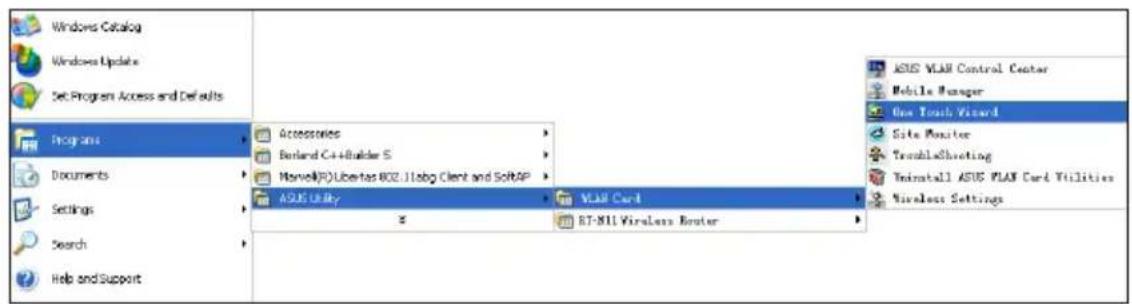
If you installed ASUS wireless card together with its utilities and drives on your PC, click Start -> Programs -> ASUS Utility-> WLAN Card -> One Touch Wizard to launch the One Touch Wizard utility.
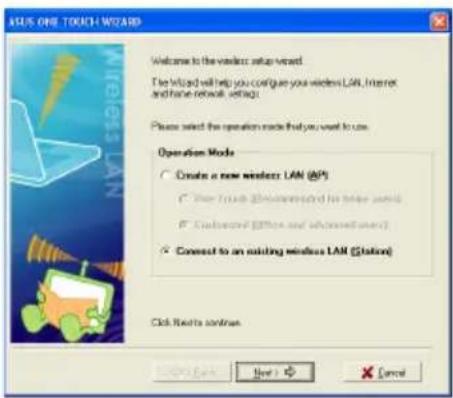
1) Select Connect to an existing wireless LAN (Station) radio button and click Next to continue.
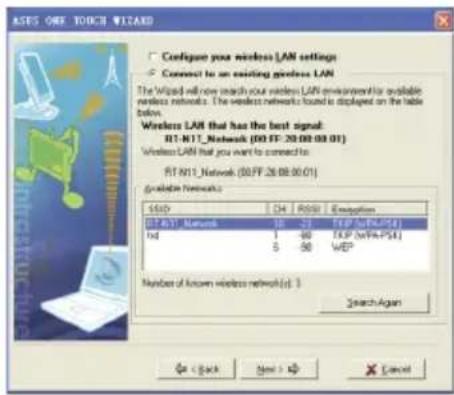
2) One Touch Wizard searches and displays the available APs in theAvailable Networks list. Select RT-N11 and press Next to continue.
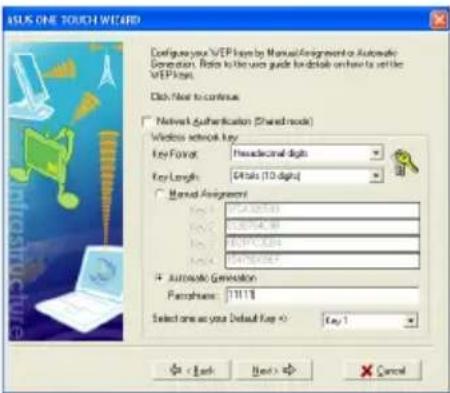
3) Set the same authentication and encryption of your WLAN card with those at RT-N11. In the previous steps the Key Length is 64 bits, and the Passphrase is 11111. Click Next to continue.
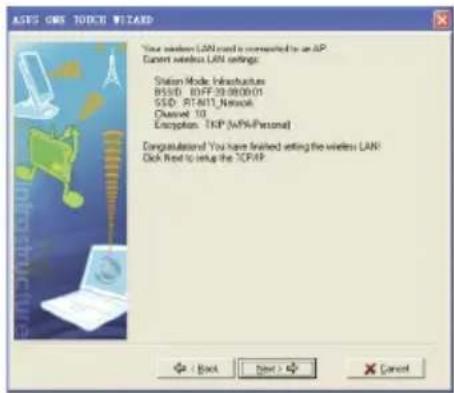
4) It takes several seconds for the wireless card to associate with RT-N11. PresNext to set up the TCP/IP for your WLAN Card.
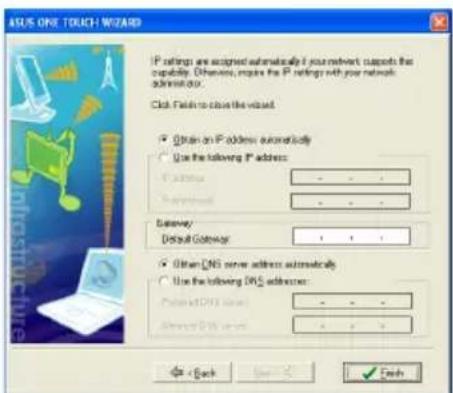
5) Set up the IP address of the WLAN Card according to your network condition. After the setup is complete, click Finish to exit the One Touch Wizard.
Configuring WLAN card with Windows® WZC service
If you use non-ASUS wireless card, you can set up the wireless connection with Windows Wireless Zero Configuration (WZC) service.
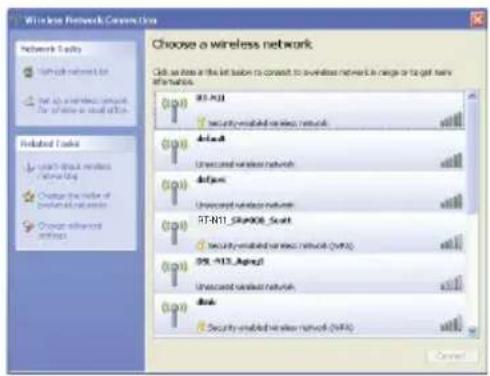
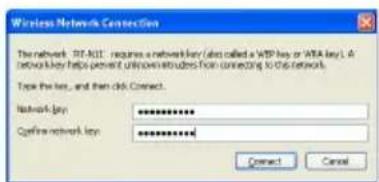
1) Double-click the wireless network icon on the task bar to view available networks. Select your wireless router and click Connect.
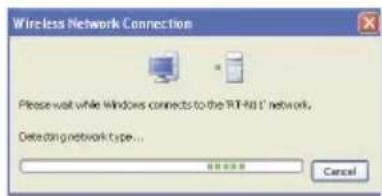
2) Key in the 10-digit keys you have set on the wireless router and click Connect. The connection is complete within several seconds.
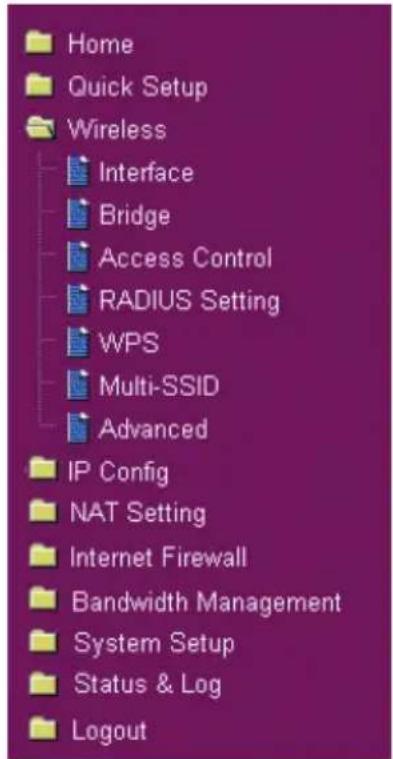
Configuring advanced features
To view and adjust other settings of the Wireless Router, enter the Web configuration page of RT-N11. Click the items on the menu to open a submenu and follow the instructions to set up the router. Tips show up when you move your cursor over each item.
ASUS
WAN (wide area network)
LAN 1-4 (Local Area Network)
Hotline: +33 (0)1.64.73.30.45 (Notebook)(Notebook)
LAN 1-4 (Local Area Network)
Adresse: Harkort Str. 21-23, 40880 Ratingen, Germany
Telefon: +49-2102-95990
Fax: +49-2102-959911
Website: http://www.asus.de
LAN 1-4 (Local Area Network)
http://support.asus.com/service/service.aspx?SLanguage en-us
Σuxvεεερωτησεις:
http://support.asus.com/faq/faq.aspx?SLanguage en-us
Assistenza Int.le: http://support.asus.com/service/service.aspx?SLanguage=en-us
FAQ: http://support.asus.com/faq/faq.aspx?SLanguage en-us
Supporto Tecnico Online: http://support.asus.com/techserv/techserv.aspx?SLanguage en-us
ASUS ITALY S.r.l (Italia)
AIR (Wireless Network)
LAN 1-4 (Local Area Network)
Select Internet Connection Type
RNI supports several kinds of connection to Internet through its WAN port. Please select connection type you need. In addition, before getting on Internet, please make sure you have connections. MT-11a WAN port to your DSL or Cable modem.
Cable Modem or other connection type that gets IP automatically.
ADSL or other connection that requires remote and password. It is known as PPPoE.
ABSL or other connection that requires useamnes, panned and IP address. It is known as PPTP.
ADSL or other connection type that uses static IP addresses.
TaTisra BigPond Cable Modem Service.
ADSL or other connection that requires user name, password and IP address. It is known as L2TP.
Fill TCP/IP setting for RT-NIT to connect to Internet through WAN port.
Get IF automatically?
IP Address:
Suppose Mask
Default Gateway:
Get DNS Service automaticsBy?
DNS Server 1:
DNS Server 2:
No
m - 1 0 ;
YesNo
1 + u7 = 7019
Pw
Utente PPPoE
First step to set your wireless interface is to give it a name, called SSID. In addition, if you would like to protect transmitted data, please select the Security Level and assign a password for authentication and data transmission if it is required.
| SSID: | RT-N11 |
| Security Level: | Medium(WEP-54bits) |
| WEP Key Type: | HEX |
| Passphrase: | 6480K3 |
| WEP Key 1: | B178980034 |
| WEP Key 2: | 2F3C0C8B8 |
| WEP Key 3: | E405E30034 |
| WEP Key 4: | 5F30B77C44 |
| Key Index: | 1 |
http://support.asus.com/service/service.aspx?SLanguage en-us
Company address: 15 Li-Te Road, Beitou, Taipei 11259
Telephone: +886-2-2894-3447
Fax: +886-2-2890-7798
Company address: 44370 Nobel Drive, Fremont, CA 94538, USA
General (fax): +1-510-608-4555
Web site address: http://usa.asus.com
Technical support
General support: +1-502-995-0883
Support (fax): +1-502-933-8713
Online support: http://vip.asus.com/eservice/techserv.aspx
ASUS COMPUTER GmbH (Germany & Austria)
Company address: Harkortstr. 21-23, 40880 Ratingen, Germany
General (tel): +49-02102-95990
General (fax): +49-02102-959911
Web site address: http://www.asuscom.de
Online contact: http://www.asuscom.de/sales
Technical support
Components: +49-02102-95990
Fax: +49-02102-959911
Online support: http://vip.asus.com/eservice/techserv.aspx?SLanguage=de-de
Global service center: http://support.asus.com/service/service.aspx?SLanguage=en-us
FAQ: http://support.asus.com/faq/faq.aspx?SLanguage=en-us
Online technical support: http://support.asus.com/techserv/techserv.aspx?SLanguage=en-us
1. Contenso del Paquete
- RouterinalambricoRT-N11x1
- Adaptador de corriente x 1
- Soporte de connexion x 1
CD de'utilidades x 1
Cable RJ45 x 1
Guía Rápida x 1