BRX-610BL - Home cinema amp YAMAHA - Free user manual and instructions
Find the device manual for free BRX-610BL YAMAHA in PDF.



| Product Type | Home Theater Amplifier / Blu-ray Player |
| Brand | YAMAHA |
| Model | BRX-610BL |
| Dimensions (W × H × D) | 435 × 80 × 362 mm |
| Weight | 4.5 kg |
| Power Supply | 220-240 V AC, 50/60 Hz |
| Power Consumption | 72 W (operation), < 0.5 W (standby) |
| Output Power (amplifier) | 80 W per channel (1 kHz, 10% THD, 6 Ω) front/center/surround, 100 W subwoofer (100 Hz, 10% THD, 4 Ω) |
| Compatible Disc Formats | BD-ROM/BD-R/BD-RE, DVD-ROM/DVD±R/DVD±RW, CD-ROM/CD-R/CD-RW, AVCHD, data discs (MP3, WMA, WAV, JPEG, WMV) |
| Connectivity | HDMI (ARC), composite video output, coaxial + optical digital audio input, AUX input (RCA), PORTABLE input (3.5 mm mini-jack), 2 USB ports, Ethernet (LAN), FM antenna, 5.1 speaker terminals |
| Network | DLNA, Internet connection (BD-Live, YouTube) |
| Main Functions | Blu-ray 3D playback, DVD, CD, FM radio, iPod/iPhone via USB, HDMI control, network playback, BONUSVIEW/BD-Live functions, programming, bookmarks, music slideshow |
| Audio Output | Linear PCM, Dolby Digital, Dolby Digital Plus, Dolby TrueHD, DTS, DTS-HD |
| Care and Cleaning | Use a clean, dry cloth; do not use chemical solvents |
| Safety | Do not expose to humidity, do not open the casing, do not block ventilation openings, Class 1 laser |
| Spare Parts and Repairability | Repairs exclusively by a qualified Yamaha technician; spare parts available from after-sales service |
Frequently Asked Questions - BRX-610BL YAMAHA
User questions about BRX-610BL YAMAHA
0 question about this device. Answer the ones you know or ask your own.
Ask a new question about this device
Download the instructions for your Home cinema amp in PDF format for free! Find your manual BRX-610BL - YAMAHA and take your electronic device back in hand. On this page are published all the documents necessary for the use of your device. BRX-610BL by YAMAHA.
USER MANUAL BRX-610BL YAMAHA
Blu-ray Disc Receiver
Ampli-Tuner Blu-ray Disc
BRX-610
Owner's Manual
Mode d'emploi
Bedienungsanleitung
Bruksanvisning
If the socket outlets in the home are not suitable for the plug supplied with this appliance, it should be cut off and an appropriate 3 pin plug fitted. For details, refer to the instructions described below.
Note
The plug severed from the mains lead must be destroyed, as a plug with bared flexible cord is hazardous if engaged in a live socket outlet.
Special Instructions for U.K. Model
IMPORTANT
THE WIRES IN MAINS LEAD ARE COLOURED IN ACCORDANCE WITH THE FOLLOWING CODE:
Blue: NEUTRAL
Brown: LIVE
As the colours of the wires in the mains lead of this apparatus may not correspond with the coloured markings identifying the terminals in your plug, proceed as follows: The wire which is coloured BLUE must be connected to the terminal which is marked with the letter N or coloured BLACK. The wire which is coloured BROWN must be connected to the terminal which is marked with the letter L or coloured RED.
Make sure that neither core is connected to the earth terminal of the three pin plug.
CAUTION: READ THIS BEFORE OPERATING YOUR UNIT.
1 To assure the finest performance, please read this manual carefully. Keep it in a safe place for future reference.
2 Install this sound system in a well ventilated, cool, dry, clean place - away from direct sunlight, heat sources, vibration, dust, moisture, and/or cold. For proper ventilation, allow the following minimum clearances.
Top: 10cm
Rear: 10cm
Sides: 10cm
3 Locate this unit away from other electrical appliances, motors, or transformers to avoid humming sounds.
4 Do not expose this unit to sudden temperature changes from cold to hot, and do not locate this unit in an environment with high humidity (i.e. a room with a humidifier) to prevent condensation inside this unit, which may cause an electrical shock, fire, damage to this unit, and/or personal injury.
5 Avoid installing this unit where foreign object may fall onto this unit and/or this unit may be exposed to liquid dripping or splashing. On the top of this unit, do not place:
- Other components, as they may cause damage and/or discoloration on the surface of this unit.
- Burning objects (i.e. candles), as they may cause fire, damage to this unit, and/or personal injury.
- Containers with liquid in them, as they may fall and liquid may cause electrical shock to the user and/or damage to this unit.
6 Do not cover this unit with a newspaper, tablecloth, curtain, etc. in order not to obstruct heat radiation. If the temperature inside this unit rises, it may cause fire, damage to this unit, and/or personal injury.
7 Do not plug in this unit to a wall outlet until all connections are complete.
8 Do not operate this unit upside-down. It may overheat, possibly causing damage.
9 Do not use force on switches, knobs and/or cords.
10 When disconnecting the power cable from the wall outlet, grasp the plug; do not pull the cable.
11 Do not clean this unit with chemical solvents; this might damage the finish. Use a clean, dry cloth.
12 Only voltage specified on this unit must be used. Using this unit with a higher voltage than specified is dangerous and may cause fire, damage to this unit, and/or personal injury. Yamaha will not be held responsible for any damage resulting from use of this unit with a voltage other than specified.
13 To prevent damage by lightning, keep the power cable and outdoor antennas disconnected from a wall outlet or this unit during a lightning storm.
14 Do not attempt to modify or fix this unit. Contact qualified Yamaha service personnel when any service is needed. The cabinet should never be opened for any reasons.
15 When not planning to use this unit for long periods of time (i.e. vacation), disconnect the AC power plug from the wall outlet.
16 Be sure to read the "TROUBLESHOOTING" section on common operating errors before concluding that this unit is faulty.
17 Before moving this unit, press to set this unit to the standby mode, and disconnect the AC power plug from the wall outlet.
18 Condensation will form when the surrounding temperature changes suddenly. Disconnect the power cable from the outlet, then leave this unit alone.
19 When using this unit for a long time, this unit may become warm. Turn the power off, then leave this unit alone for cooling.
20 Install this unit near the AC outlet and where the AC power plug can be reached easily.
21 The batteries shall not be exposed to excessive heat such as sunshine, fire or the like.
This unit is not disconnected from the AC power source as long as it is connected to the wall outlet, even if this unit itself is turned off by . This state is called the standby mode. In this state, this unit is designed to consume a very small quantity of power.
WARNING
TO REDUCE THE RISK OF FIRE OR ELECTRIC SHOCK, DO NOT EXPOSE THIS UNIT TO RAIN OR MOISTURE.
LASER SAFETY
This unit employs a laser. Due to possible eye injury, only a qualified service person should remove the cover or attempt to service this device.
DANGER
This unit emits visible laser radiation when open. Avoid direct eye exposure to beam. When this unit is plugged into the wall outlet, do not place your eyes close to the opening of the disc tray and other openings to look into inside.
WARNING
DO NOT TOUCH THIS UNIT WHEN IT IS USED CONTINUOUSLY AT HIGH VOLUME BECAUSE THE BOTTOM OF THIS UNIT MAY BECOME HOT. IT MAY LEAD TO INJURIES SUCH AS BURNS, ETC.
CONTENTS
INTRODUCTION
WHAT YOU CAN DO WITH THIS UNIT......2
SUPPLIED PARTS 2
ABOUT DISCS AND FILES. 3
Types of discs/files that can be used with this unit ... 3
Loading a disc 4
Disc precautions. 4
Notice for watching 3D video images 4
PART NAMES AND FUNCTIONS. 5
Front panel. 5
Remote control. 6
Rear panel 9
Installing the batteries in the remote control 10
Using the remote control 10
PREPARATIONS
CONNECTION. 11
5.1-channel speaker layout 11
Connecting speakers 11
Connecting the FM antenna. 12
Connecting iPod. 12
Connecting to a TV. 13
Connecting a satellite/cable TV tuner. 14
Connecting audio devices (such as a CD or MD player) 14
Connecting a portable digital music player other than iPod. 14
NETWORK AND USB CONNECTION. 15
Connecting to the NETWORK terminal. 15
Connecting to the USB port. 15
OTHER CONNECTION. 16
Connecting the power cable. 16
OPERATIONS
INITIAL WIZARD/EASY SETUP. 17
Setting with the Initial Wizard/Easy Setup. 17
BASIC OPERATION. 18
Playing back photo/music/video 20
Using network content 22
Using network services 22
Operation for iPod 23
Operation for CDs. 23
Enjoying BONUSVIEW™ and BD-Live™ 27
LISTENING TO FM RADIO STATIONS 28
Tuning to radio stations 28
Preseting radio stations 28
Selecting preset radio stations (Preset tuning) 28
Deleting preset stations 29
Displaying Radio Data System information. 29
USING USEFUL FUNCTIONS 30
Setting the sleep timer 30
Operating this unit by TV remote control (the HDMI control function) 30
SETTINGS
SETUP MENU. 32
Operation for SETUP menu 34
General Setting 35
Display Setting 37
Audio Setting 39
About the video output formats 40
SOFTWARE UPGRADE 41
Upgrading the software. 41
ADDITIONAL INFORMATION
TROUBLESHOOTING 42
General 42
Radio reception. 44
iPod 44
USB 45
Disc playback 46
Remote control 47
Network 47
Messages on the screen. 49
Others. 49
GLOSSARY. 50
SPECIFICATIONS. 51
About this manual
- This manual describes how to operate this unit using a remote control except when it is not available. Some of these operations are also available using the front panel buttons.
- Notes contain important information about safety and operating instructions. indicates a tip for your operation.
- "iPod" described in this manual may also refer to "iPhone".
- This manual is printed prior to production. Design and specifications are subject to change in part as a result of improvements, etc. In case of differences between the manual and the product, the product has priority.
The icons used in this manual
Icons are used to indicate available buttons/functions for a particular format.
BD:BD-Video
DVD : DVD-Video, DVD-VR, DVD+VR
CD: Audio CD
VIDEO:AVCHD,WMV
MUSIC: MP3, WMA, WAV
PHOTO : JPEG
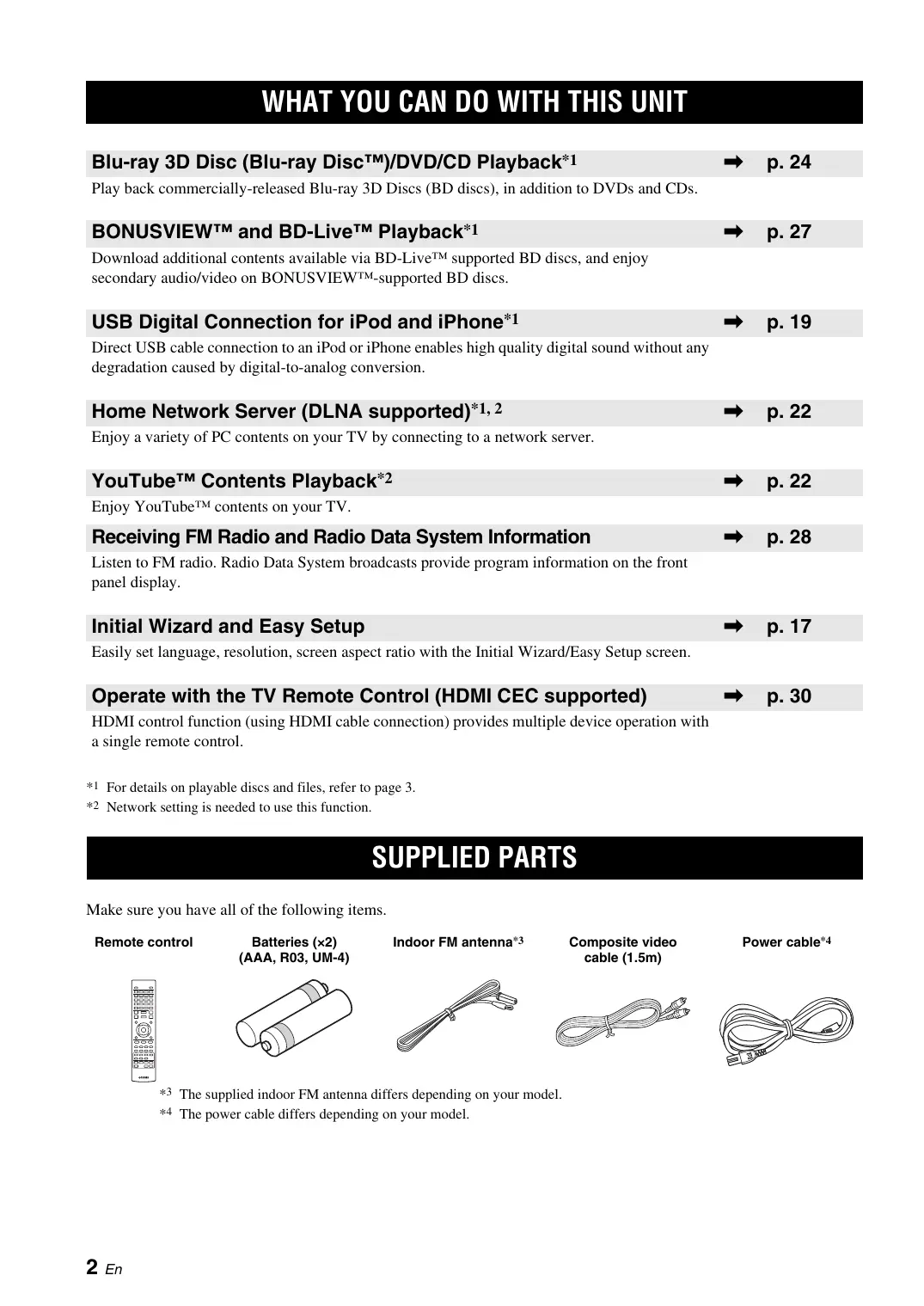
WHAT YOU CAN DO WITH THIS UNIT
Blu-ray 3D Disc (Blu-ray Disc^TM )/DVD/CD Playback*1
Play back commercially-released Blu-ray 3D Discs (BD discs), in addition to DVDs and CDs.
BONUSVIEW™ and BD-Live™ Playback*1 p. 27
Download additional contents available via BD-LivETM supported BD discs, and enjoy secondary audio/video on BONUSVIEWTM-supported BD discs.
USB Digital Connection for iPod and iPhone*1 p. 19
Direct USB cable connection to an iPod or iPhone enables high quality digital sound without any degradation caused by digital-to-analog conversion.
Home Network Server (DLNA supported)*1,2 p. 22
Enjoy a variety of PC contents on your TV by connecting to a network server.
YouTube™ Contents Playback*2 p. 22
Enjoy YouTube™ contents on your TV.
Receiving FM Radio and Radio Data System Information p. 28
Listen to FM radio. Radio Data System broadcasts provide program information on the front panel display.
Initial Wizard and Easy Setup p. 17
Easily set language, resolution, screen aspect ratio with the Initial Wizard/Easy Setup screen.
Operate with the TV Remote Control (HDMI CEC supported) p. 30
HDMI control function (using HDMI cable connection) provides multiple device operation with a single remote control.
1 For details on playable discs and files, refer to page 3.
2 Network setting is needed to use this function.
SUPPLIED PARTS
Make sure you have all of the following items.
Remote control
Batteries (× 2) AAA,R03,UM-4)

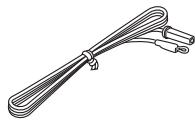
Indoor FM antenna*3
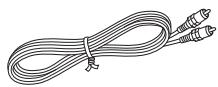
Composite video cable (1.5m)
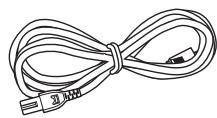
Power cable*4
3 The supplied indoor FM antenna differs depending on your model.
4 The power cable differs depending on your model.
ABOUT DISCS AND FILES
Types of discs/files that can be used with this unit
- 12cm and 8cm discs can be played back in this unit. Do not use an 8cm to 12cm adapter.
- Use discs that conform to compatible standards as indicated by the presence of official logos on the disc label. Playback of discs not complying with these standards is not guaranteed. In addition, the image quality or sound quality is not guaranteed even if the discs can be played back.
| Disc Type | Recording Format | Data Format |
| BD-ROM/BD-R/ BD-RE | BD-Video | -- |
| DVD-ROM | DVD-Video | -- |
| DVD-R/DVD-R DL/DVD-RW | DVD-Video/DVD-VR/AVCHD/Data Disc | WMV/MP3/WAV/WMA/JPEG |
| DVD+R/DVD+RLD/DVD+RW | DVD-Video/DVD+VR/AVCHD/Data Disc | WMV/MP3/WAV/WMA/JPEG |
| CD-ROM | CDDA/HDCD | -- |
| CD-R/CD-RW | CDDA/Data Disc | WMV/MP3/WAV/WMA/JPEG |
| USB | -- | WMV/MP3/WAV/WMA/JPEG |
| Network | -- | WMV/MP3/WAM/WAV/JPEG |
| Region management information | ||
| Destination | BD-Video | DVD-Video |
| U.S.A. and Canada | Region code “A” or “ALL” | Region number “1” or “ALL” |
| 1 ALL | ||
| Asia | Region code “A” or “ALL” | Region number “3” or “ALL” |
| 3 ALL | ||
| Central and South America | Region code “A” or “ALL” | Region number “4” or “ALL” |
| 4 ALL | ||
| Region management information | ||
| Destination | BD-Video | DVD-Video |
| Europe | Region code “B” or “ALL” | Region number “2” or “ALL” |
| 2 ALL | ||
| Australia | Region code “B” or “ALL” | Region number “4” or “ALL” |
| 4 ALL | ||
| Russia | Region code “C” or “ALL” | Region number “5” or “ALL” |
| 5 ALL | ||
| China | Region code “C” or “ALL” | Region number “6” or “ALL” |
| 6 ALL | ||
- BD/DVD video players and discs have region codes, which dictate the regions in which a disc can be played.
- BD/DVD Video operations and functions may be different from the explanations in this manual and some operations may be prohibited due to disc manufacturer's settings.
- If a menu screen or operating instructions are displayed during playback of a disc, follow the operating procedure displayed.
Notes
- Playback for some of the discs in the left side column tables may not be possible depending on the disc.
- Finalize all recording media that is played back in this unit.
- "Finalize" refers to a recorder processing a recorded disc so that it will play in other players/recorders as well as this unit. Only finalized discs will play back in this unit. (This unit does not have a function to finalize discs.)
- Playback of all files on the disc, USB memory device and network is not guaranteed.
- A copyright protected file cannot be played back via a USB memory device and network.
MP3/WMA audio file requirement
- Sampling frequency: within 32 - 48 kHz (MP3/WMA), LPCM 44.1 kHz/16 bit/Stereo (WAV)
- Bitrate: within 8 - 320 kbps (MP3), 32 - 192 kbps (WMA)
WMV file requirement
- WMV9, maximum resolution is 1,920 × 1,080 .
Loading a disc
- Insert the disc with the label facing up.
- In case of the disc recorded on both sides, face down the side you want to play back.
Notes
- Playback may begin automatically, depending on the disc and setting of this unit.
- The menu may be displayed first, depending on the disc.
- The disc load time may vary depending on the disc.
Disc precautions
- Do not touch the surface of the disc. Hold a disc by its edge (and the center hole).
- Do not use a pencil or pointed marker to write on the disc.
- Do not put a tape, seal, glue, etc., on a disc.
- Do not use a protective cover to prevent scratches.
- Do not load more than one disc into this unit at one time. This can cause damage to both this unit and the discs.
- Do not insert any foreign objects into the disc slot.
- Do not load a cracked, warped, or glued disc.
- Do not expose a disc to direct sunlight, high temperature, high humidity, or a lot of dust.
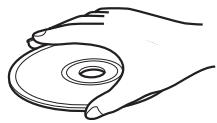
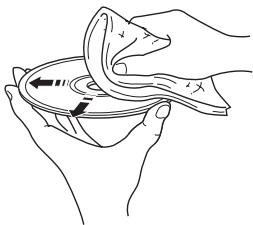
- If a disc becomes dirty, wipe it with a clean, dry cloth from the center out to the edge. Do not use record cleaner or paint thinner.
- To avoid malfunction, do not use a commercially available lens cleaner.

Caution

Notice for watching 3D video images
- Some people may experience discomfort (such as eye strain, fatigue, or nausea) while watching 3D video images. We recommend that all viewers take regular breaks while watching 3D video images.
- If you experience any discomfort, stop watching the 3D video images until the discomfort subsides. Consult a doctor if you experience severe discomfort.
- Read the owner's manuals (BD disc and TV) and/or the caution messages that appear on the TV carefully.
- The vision of young children (especially those under six years old) is still under development. Consult your doctor (such as a pediatrician or eye doctor) before allowing young children to watch 3D video images.
- Adults should supervise young children to ensure they follow the recommendations described above.
Front panel
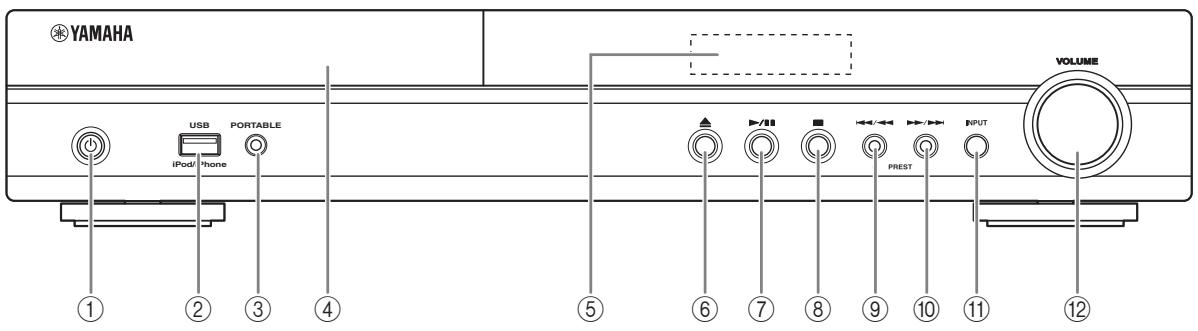
① (On/Standby):
Turns this unit on/Sets to standby mode.

This unit has an automatic standby function.
- When the source is set to Disc/USB/Network, this unit automatically switches to standby mode if it is left turned on for 1 hour without playback or any other operation being performed.
- When the source is NOT set to Disc/USB/Network, this unit automatically switches to standby mode if it is left turned on for between 1 to 8 hours without playback or any other operation being performed according to the setting in SETUP menu (p. 35).
② iPod/iPhone/USB port (p. 12, 15):
Connect your iPod or USB memory device.
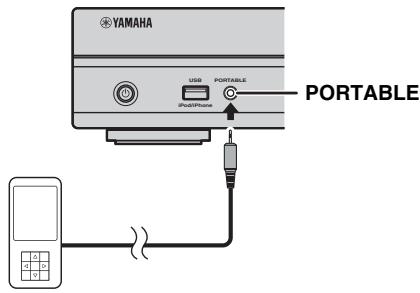
③ PORTABLE (p. 14):
Connect a portable digital music player other than iPod.
④ Disc tray door
⑤ Front panel display
(6) (Eject):
Opens/Closes the disc tray.
(Play/Pause):
Starts/Pauses playback.
(Stop)
(Search backward/Skip backward):
Press to skip backward, and press and hold to search backward.
PRESET<:
Press to select a preset station.
(10) / (Search forward/Skip forward):
Press to skip forward, and press and hold to search forward.
PRESET>:
Press to select a preset station.
⑪ INPUT:
Selects the input source.
VOLUME:
Turns the volume up/down.
Remote control
Note
will appear on the top left corner of the screen when the pressed button is not available.
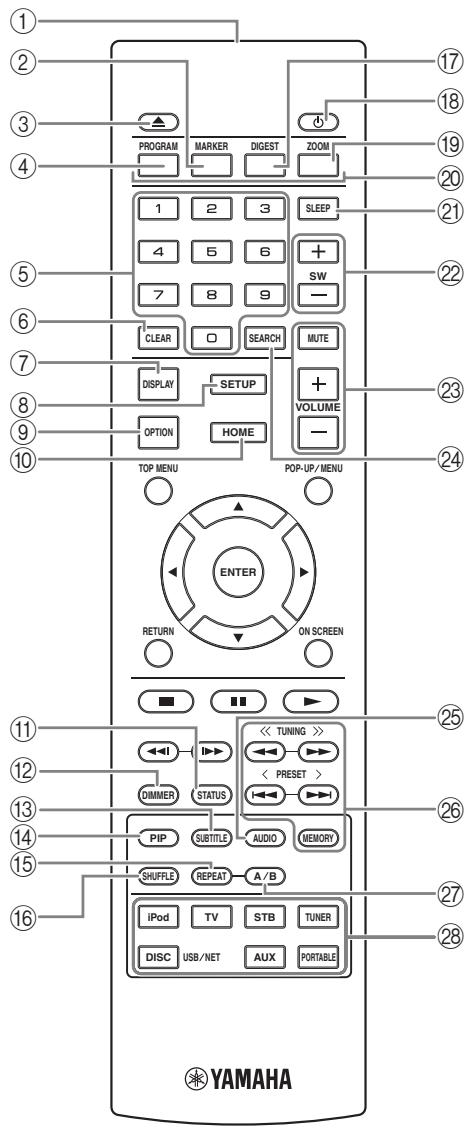
① Infrared signal transmitter (p. 10)
② MARKER DVD VIDEO: Sets Bookmark at a specified point of a movie (p. 26). After Bookmark is set, press DIGEST to select the set point you want to jump to. You can set up to 12 Bookmarks.
③ Opens/Closes the disc tray.
④ PROGRAM DVD CD : Sets the order of playback (p. 26). You can set up to 15 tracks of an audio disc or titles/chapters of a DVD-Video disc.
⑤ Numeric buttons: Enters numbers, or during playback, jumps to the track/chapter corresponding to the number you input. These buttons may not be available depending on the disc type and playback condition.
(6) CLEAR: Clears entered number/set item.
⑦ DISPLAY: Switches the information shown on the front panel display (p. 23, 29).
⑧ SETUP: Displays SETUP menu screen (p. 32).
OPTION: Enters option menu mode (p. 29).
10 HOME: Displays HOME menu screen (p. 20).
① STATUS: Displays the playback information on the screen (p. 25).
DIMMER: Changes brightness of the front panel display. Choose brightness from normal (bright), mid dim, or dim by pressing this button repeatedly.
SUBTITLE BD DVD VIDEO: Changes subtitle languages (p. 50) if available. You can also select this item from On Screen menu (p. 24).
⑭ PIP BD: Turns on/off the Picture in Picture (p. 27). PIP Mark (DIP) is displayed on the screen when this function is available. You can also select this item from On Screen menu (p. 24).
Note
PIP Mark is displayed only when [PIP Mark] is set to [On] (p. 36).
PHOTO: Selects repeat mode. Repeat mode shown below will change each time you press the button (p. 23, 25).
: Repeats the title being played back.
CH:Repeats the chapter being played back.
: Repeats the folder being played back.
All: Repeats all tracks/files on the disc/folder.
: Repeats the track/file being played back.
16 SHUFFLE DVD CD VIDEO MUSIC PHOTO: Selects shuffle play mode (p. 23, 24).
⑰ DIGEST PHOTO : Shows 12 photo thumbnails. When thumbnails are displayed, you can proceed to the next/ previous page with ( \left| \left| \left| \left| \left| \left| \left| \left| \left| \left| \left| \left| \left| \left| \left| \left| \left| \left| \left| \left| \left| \left| \left| \left| \left| \left| \left| \left| \left| \left| \left| \left| \left| \left| | \left| \left| \left| \left| \left| \left| \left| \left| \left| \left| \left| \left| \left| \left| \left| \left| \left| \left| \left| \left| \left| \left| \left| \left| \left| \left| \left| \left| \left| \left| \left| \left| \left| 1\right\rangle = 1\right\rangle = 1\right\rangle = 1\right\rangle = 1\right\rangle = 1\right\rangle = 1\right\rangle = 1\right\rangle = 1\right\rangle = 1\right\rangle = 1\right\rangle = 1\right\rangle = 1\right\rangle = 1\right\rangle = 1\right\rangle = 0\right\rangle = 0\right\rangle = 0\right\rangle = 0\right\rangle = 0\right\rangle = 0\right\rangle = 0\right\rangle = 0\right\rangle = 0\right\rangle = 0\right\rangle = 0.153649875649875649875649875649875649875649875649875649875649875649875649875649875649875649875649875649875649
DVD Video : DisplaysBookmark select bar (p. 26).
18 :Turns this unit on or sets it to standby mode.
19 ZOOM DVD VIDEO PHOTO:Zooms in/out.The size of the screen will change each time you press the button (zoom in/out:3 steps each).
Color buttons BD: Use these buttons according to on-screen instructions.
② SLEEP: Sets to sleep mode (p. 30).
Subwoofer volume control buttons BD DVD CDVIDEO MUSIC:Controls the subwoofer volume level (p.12).
Volume control buttons: Controls the volume level. Press MUTE to turn off the volume. Press again to resume the volume.
24 SEARCH BD DVD CD VIDEO MUSIC: Jumps to a specified point during playback. For details on this function, refer to "Using search" (p. 26). You can also select this item from Status menu (p. 25).
25 AUDIO BD DVD: Changes the audio language or format. You can also select from On Screen menu (p. 24).
26 FM control buttons
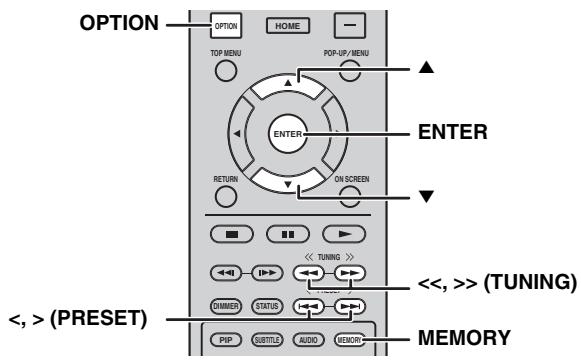
TUNING << / >> : Starts manual tuning. Press and hold to start automatic tuning (p. 28).
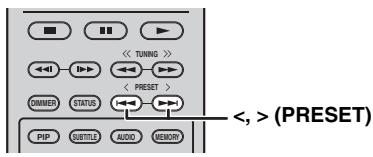
PRESET < / > : Selects preset station (p. 28).
MEMORY: Starts preset tuning and stores preset stations (p. 28).
27 A/B BD DVD CD VIDEO MUSIC: Plays back a specific part you want to repeat.
1 Press A/B at the scene where you want to set the start point. [A-] is displayed on the screen.
2 Press A/B again at the scene where you want to set the end point. [A-B] is displayed on the screen. Repeat playback starts.
3 To cancel the repeat playback, press A/B. [A-B] disappears and the repeat playback is finished.
Note
This function cannot be performed depending on the specifications of the disc.
28 Input select buttons: Selects the input source (p. 18, 28).
Continued to the next page.
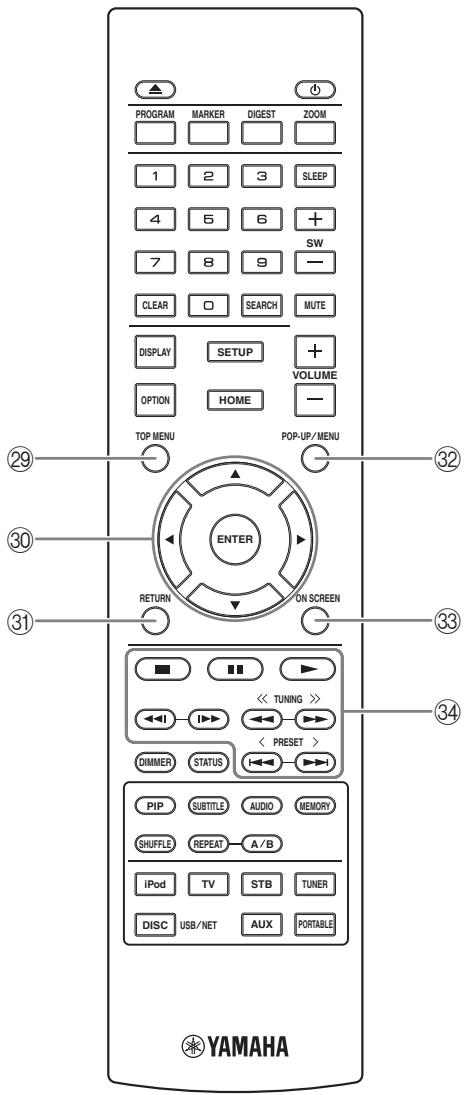
TOP MENU BD DVD: Displays the top menu screen (p. 51) if the disc contains a menu. Select the desired item using / / and ENTER.
Note
Specific operations may be different depending on the disc. Follow the instructions of each menu screen.
30 Cursor buttons ( / / ) : Moves to select the focused item.
ENTER: Confirms the focused menu/item.
③ RETURN: Returns to the previous menu or screen, etc.
③ ② POP-UP/MENU BD DVD : Displays pop-up menu. The menu contents displayed vary depending on the disc. For details on how to see and operate the pop-up menu, refer to the manual for the disc. The top menu screen may be displayed by pressing POP-UP/MENU depending on the disc.
念 ON SCREEN: Displays On Screen menu (p. 24).
34 Control buttons
Plays back contents.
: Stops playback. To stop playback completely, press this button twice.
: Pauses playback.
BD DVD CD VIDEO MUSIC:
: Skips backward/forward.
/1 > : Press for instant search/replay. Instant search skips the content 30 seconds. Instant replay replays the content from 10 seconds before.
/ : Searches backward/forward. The search speed will change each time you press the button (search backward/forward: 5 steps each). Press to resume normal playback.
PHOTO:
/ : Changes the speed of a slide show (slower/ faster: 3 steps).
Note
Depending on the disc, this unit resumes playback from the point where the unit was previously stopped. To play back from the beginning, press and then press .
Rear panel
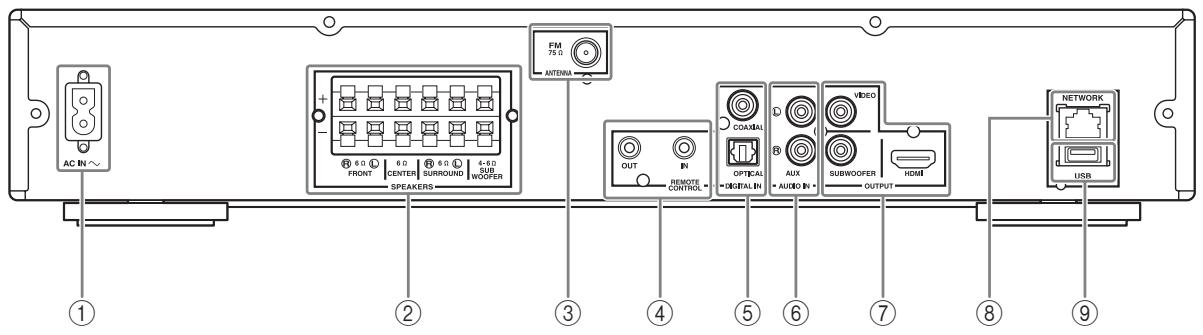
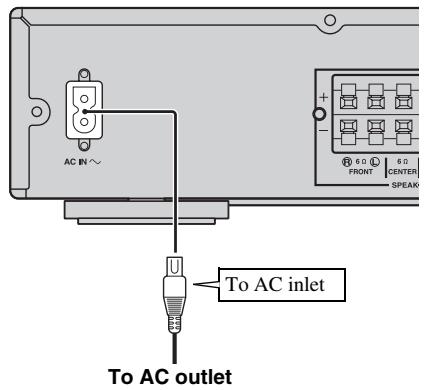
① AC IN jack (p. 16):
Connect the supplied power cable.
② SPEAKERS terminals (p. 11):
Connect speakers.
③ ANTENNA jack (p. 12):
Connect an FM antenna.
④ REMOTE CONTROL (IN/OUT) jacks (U.S.A. and Canada models only):
Connect other components for remote control.
⑥ DIGITAL IN (COAXIAL/OPTICAL) jacks (p. 13, 14):
Connect your satellite or cable TV tuner to the COAXIAL jack. The OPTICAL jack is for the audio signal from your TV when your TV is not ARC (Audio Return Channel) supported.
⑥ AUDIO IN (AUX) jacks (p. 14):
Connect other audio devices such as a CD or MD player.
⑦ OUTPUT (VIDEO/SUBWOOFER/HDMI) jacks (p. 12, 13):
The VIDEO jack outputs analog video signal. Use the SUBWOOFER jack when you are using an active subwoofer speaker (built-in amplifier). Use the HDMI jack to connect to your TV.
⑧ NETWORK (LAN) jack (p. 15):
Connect your hub or broadband router.
⑨ USB jack (p. 15):
Connect a USB memory device.
Installing the batteries in the remote control
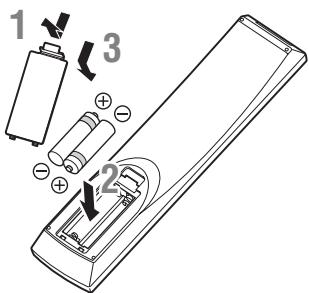
Notes on batteries
- Change both batteries when the operation range of the remote control decreases.
- Use AAA, R03, UM-4 batteries.
- Make sure that the polarities are correct. Refer to the illustration inside the battery compartment.
- Remove the batteries if the remote control is not to be used for an extended period of time.
- Do not use old batteries together with new ones.
- Do not use different types of batteries (such as alkaline and manganese batteries) together. Read the packaging carefully as these different types of batteries may have the same shape and color.
- If the batteries have leaked, dispose of them immediately. Avoid touching the leaked material or letting it come into contact with clothing, etc. Clean the battery compartment thoroughly before installing new batteries.
- Do not throw away batteries with general house waste; dispose of them correctly in accordance with your local regulations.
- Keep batteries away from children. If a battery is accidentally swallowed, contact your doctor immediately.
- When not planning to use the remote control for long periods of time, remove the batteries from the remote control.
- Do not charge or disassemble the supplied batteries.
Using the remote control
The remote control transmits a directional infrared beam. Be sure to aim the remote control directly at the remote control sensor on the front panel of this unit during operation.
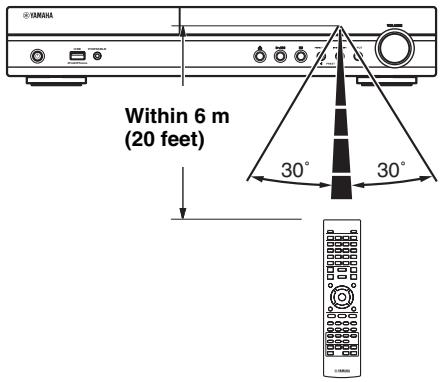
Notes
- The area between the remote control and this unit must be clear of large obstacles.
- Do not spill water or other liquids on this remote control.
- Do not drop the remote control.
-
Do not leave or store the remote control in the following types of conditions:
-
high humidity, such as near a bath
-
high temperature, such as near a heater or a stove
extremely low temperatures
-dusty places. -
Do not expose the remote control sensor to strong lighting, in particular, an inverter type fluorescent lamp; otherwise, the remote control may not work properly. If necessary, position the system away from direct lighting.
5.1-channel speaker layout
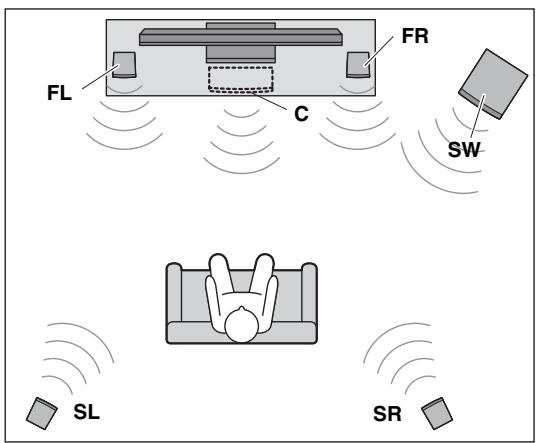
Front speakers (FR and FL):
For the front channel sound (stereo sound) and effect sound.
Center speaker (C):
For the center channel sound (dialogue, vocals, etc.).
Surround speakers (SR and SL):
For effect and vocal sound from surround channel. The surround back channel sound is output from the surround speakers when a disc which has 7.1- or 6.1-channel sounds is played back.
Subwoofer (SW):
For low-frequency effect (LFE) sound and bass sound from front and surround channels.
Connecting speakers
Connect speakers to the unit.
When you are using a subwoofer speaker, check if it is active (built-in amplifier, with power cable) or passive (not built-in amplifier, without power cable). The cable used for connecting a subwoofer differs depending on the subwoofer type.
After connecting the speakers, setting according to the speaker type (size, number of available speakers, etc.) is required. See page 39 for speaker setting.
Notes
- Disconnect the power plug before connecting speakers.
- When connecting speakers, use speakers having more than 6 impedance for the front, center and surround speakers, and 4 to 6 impedance for a passive subwoofer. For an active subwoofer (built-in amplifier), you need not be concerned about impedance.
- When connecting an active subwoofer (built-in amplifier), be sure turn it off before connecting to the unit.
- Be careful that the core of the speaker cable does not touch anything or come into contact with the metal areas of the unit. This may damage the unit or the speakers.
Necessary cables (not supplied)
When the subwoofer is passive:
- Speaker cables × 6

When the subwoofer is active:
- Speaker cables × 5

- Monaural pin cable (for subwoofer) × 1

The rear panel of this unit
(when the subwoofer is passive)
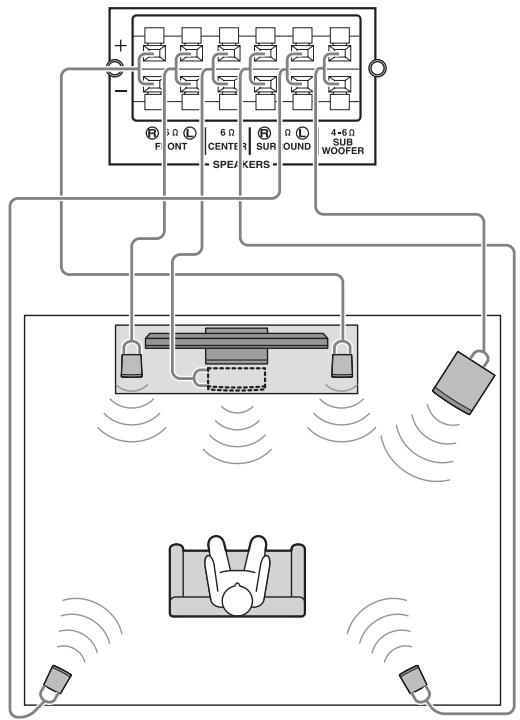
Connecting speaker cables
Each speaker has two speaker cables. One is for connecting the - (negative) terminal of the unit and the speaker, and the other is for the + (positive) terminal. The cables are different colors, so they do not get mixed up. Connect the black side to the - (negative) terminal and the other side to the + (positive) terminal.
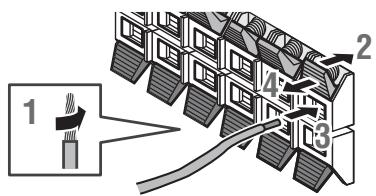
1 Remove approximately 10mm of insulation from the end of the speaker cable and twist the bare wire firmly.
2 Press the tab on the speaker terminal down.
3 Insert the bare wire of the speaker cable into the terminal.
4 Lift the tab to secure the speaker cable.
Connecting an active subwoofer
When connecting an active subwoofer (built-in amplifier), use a monaural pin cable. Before connecting an active subwoofer, turn it off.
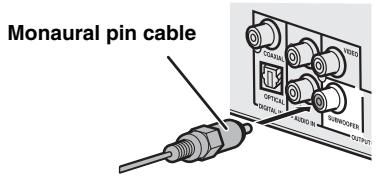
About subwoofer speaker
- Use the speaker terminal to connect a passive subwoofer speaker. Use the SUBWOOFER output jack to connect an active subwoofer speaker (built-in amplifier).
- You can adjust the subwoofer volume level by using this unit's remote control. For an active subwoofer speaker (built-in amplifier), you can also use the control on the subwoofer to adjust volume level. Use these functions to decrease the volume level if strange noise or sound is output from the subwoofer.
- If you are not using a subwoofer speaker, select SETUP menu [Audio Setting] [Speaker Setting] [Configuration] [SW] [Disable].
Connecting the FM antenna
You can enjoy listening to FM radio stations by connecting the supplied indoor FM antenna.
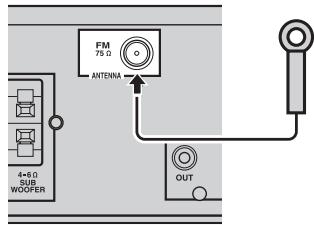
Note
If there is a problem of weak radio wave reception in your area or you want to improve radio reception, we recommend that you use commercially available outdoor antennas. For details, consult the nearest authorized Yamaha dealer or service center.
Connecting iPod
You can enjoy music stored in your iPod by connecting it to this unit.
Note
This unit is compatible with iPod classic, iPod nano (2nd, 3rd, 4th, 5th and 6th generation), iPod touch (1st, 2nd, 3rd, and 4th generation), iPhone, iPhone 3G/3GS, and iPhone 4.
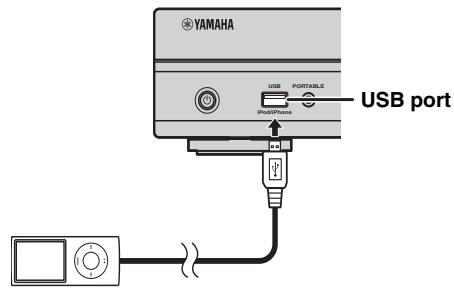
Notes
- Make sure the USB cable is connected securely between your iPod and this unit.
- Connect your iPod to the front USB port of this unit. The rear USB port is not compatible with your iPod.
Connecting to a TV
Make sure you refer the following illustration carefully so that connections between this unit and your TV are properly made.
CAUTION
Do not connect the power cable of this unit until all connections are completed.
Connect your TV using an HDMI cable (commercially available). The digital video signal is output from this unit to your TV. If your TV's HDMI terminal is ARC (audio return channel) supported, steps 2 to 3 are not necessary since digital audio signal is output from the TV to the unit through the HDMI cable.
Connect your TV using an optical cable (commercially available) to play back TV digital audio through this unit.
3 If an HDMI connection is unavailable, connect your TV using a video pin cable. Analog video signal is output from this unit to your TV.
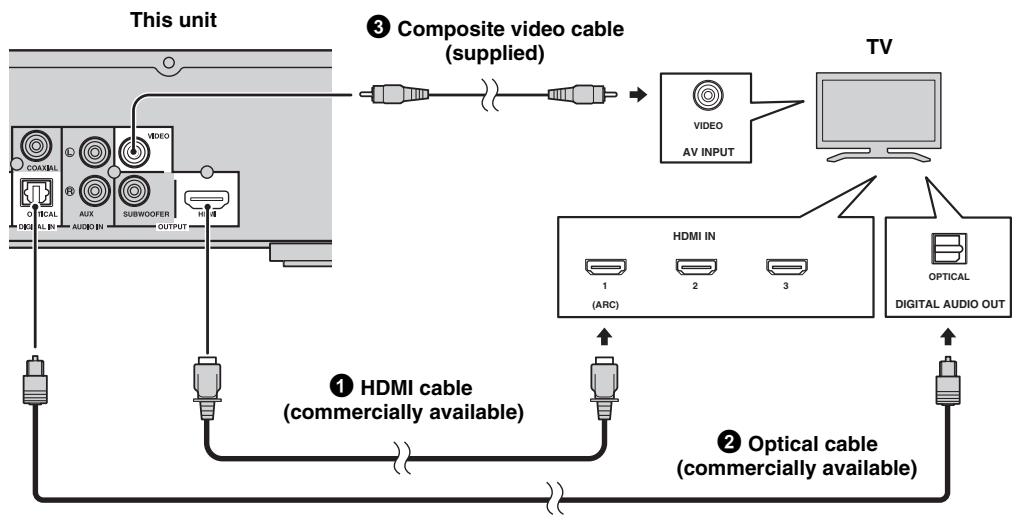
HDMI connection
- You can enjoy high quality digital picture and sound through the HDMI terminals.
- Firmly connect an HDMI cable (commercially available) to the HDMI terminal of this unit.
- Use HIGH SPEED HDMI cables that have the HDMI logo (p. 52).
中
- When you use the HDMI control function, refer to "Operating this unit by TV remote control (the HDMI control function)" (p. 30) and "[HDMI Control]" (p. 35).
- For information on the output mode of the HDMI terminal, refer to "HDMI" (p. 39).
- When no picture is displayed, refer to "TROUBLESHOOTING" (p. 42).
■ Connection for the playback of Blu-ray 3D discs
You need the following equipment and connections to enjoy BD 3D discs on this unit:
- a TV that has 3D functionality.
- a TV and this unit must be connected with HDMI cables.
- a BD disc should contain 3D images.
About audio return channel (ARC) supported TV
- You can connect an HDMI cable to the audio return channel supported terminal (the terminal with "ARC" indicated) on the TV. In this case, you do not need to connect an optical cable.
- You need to activate the HDMI control function of this unit so as to activate audio return channel (ARC) (p. 35).
What is audio return channel (ARC)?
This function allows digital audio signal to be output from a TV to this unit through an HDMI cable, without using an optical cable.
中
If your TV is not ARC supported, connect the TV and this unit via the OPTICAL jack on the unit.
Video connection
- Firmsly connect the composite video cable (supplied) to the VIDEO jack.
- Refer to page 40 for information on the video output formats.
Notes
- If you play back the image via VCR, the image may deteriorate due to the copy guard function.
- To enjoy BD 3D discs on this unit, you need to connect a TV and this unit using HDMI cables (commercially available).
Connecting a satellite/cable TV tuner
You can connect a satellite or cable TV tuner that is not HDMI supported using a digital audio pin cable.
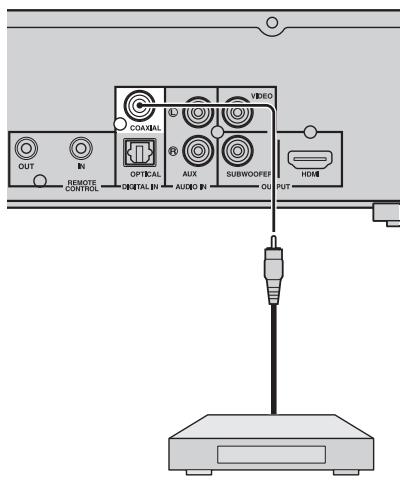

To connect a satellite or cable tuner to TV, you need extra video pin cables (commercially available).
Connecting audio devices (such as a CD or MD player)
You can connect audio devices (such as a CD player, MD player, etc.) to the unit.
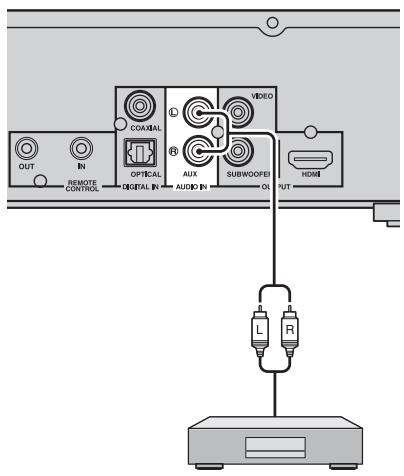
Connecting a portable digital music player other than iPod
You can connect a portable digital music player other than iPod to the front panel of this unit.
NETWORK AND USB CONNECTION
Connecting to the NETWORK terminal
- PC contents can be played back by connecting this unit to the network.
- You can enjoy a variety of contents with interactive functions by connecting to the internet when playing BD-Live compatible discs. Refer to page 27 for information on BD-Live functions.
Notes
- Firmly connect a network cable (commercially available) to the NETWORK terminal.
- Use only an STP (shielded twisted pair) network cable.
- When using the internet, a broadband internet connection as shown below is required.
- Connect the other connector of the network cable to the hub/broadband router.
- When using a broadband internet connection, a contract with an internet service provider is required. For more details, contact your nearest internet service provider.
- Refer to the operation manual of the equipment you have as the connected equipment and connection method may differ depending on your internet environment.
- Use a network cable/rodier supporting 10BASE-T/100BASE-TX.
Connecting to the USB port
- You can connect a USB memory device (2 GB or greater and formatted with FAT 32/16) for BD Local Storage to the USB port on the rear panel (or front panel) of this unit to save the BD-Live data (p. 27) or to upgrade the software of this unit (p. 41).
- Firmsly connect a USB memory device (commercially available) to the USB port.
CAUTION
- Do not remove the USB memory device or unplug the power cable while the operations for BD-Live or software upgrade are being performed.
- Do not use a USB extension cable when connecting a USB memory device to the USB port of this unit. Using a USB extension cable may prevent the unit from performing correctly.
Notes
- Yamaha cannot guarantee that all brands' USB memory devices will operate with this unit.
- For more notes on using USB memory devices, refer to page 18.
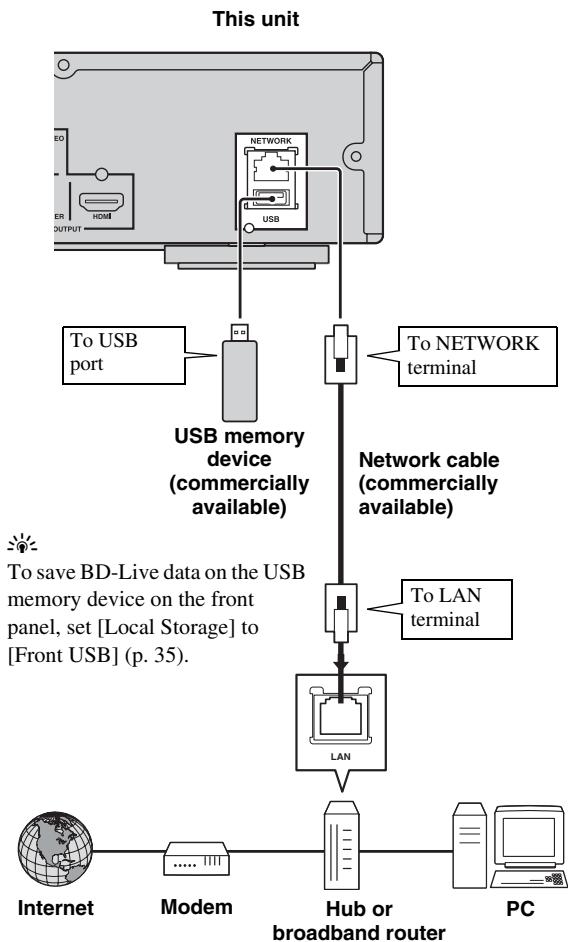
After connecting
- When you set the Network setting manually, refer to "Network" (p. 36).
- To play back the PC contents on your network, refer to "Using network content" (p. 22).
Connecting the power cable
After all connections are completed, plug the supplied power cable into the AC IN on the rear of this unit. Then plug into AC outlet.
Note
TO PREVENT RISK OF ELECTRIC SHOCK, DO NOT TOUCH THE UN-INSULATED PARTS OF ANY CABLES WHILE THE POWER CABLE IS CONNECTED.
INITIAL WIZARD/EASY SETUP
Setting with the Initial Wizard/Easy Setup
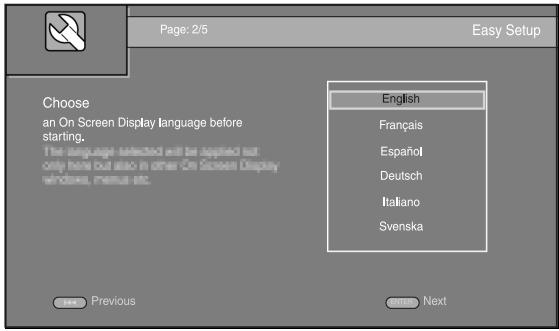
Initial Wizard/Easy Setup allows you to set language, resolution, and screen aspect ratio easily. Initial Wizard screen is displayed when you turn this unit on for the first time after purchase or upgrade. Same setting can be performed from SETUP menu [System] [Easy Setup] (p. 32).
1 When Easy Setup screen is displayed, press ENTER to start Easy Setup.
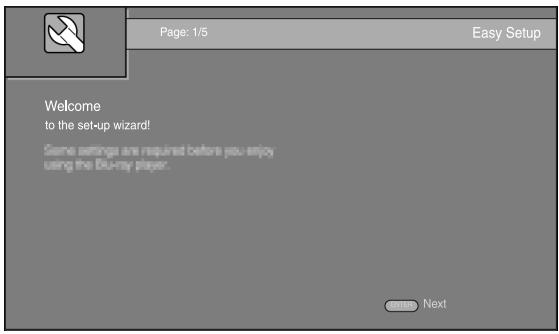
2 Press / to select the language you want to display on the screen, then press ENTER.
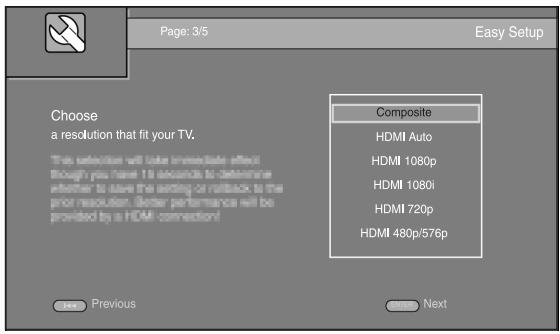
3 Press / to select the resolution, then press ENTER. For details on setting items, refer to “[Video Out Select]” (p. 37).
Note
When you connect your TV and this unit via the VIDEO jack, select [Composite].
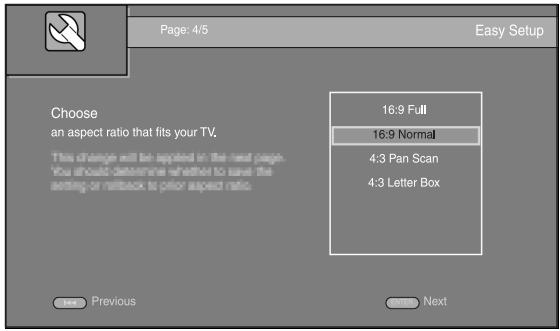
4 Press / to select the screen aspect ratio, then press ENTER. For details on setting items, refer to "[TV Screen]" (p. 37).
Easy Setup is completed.
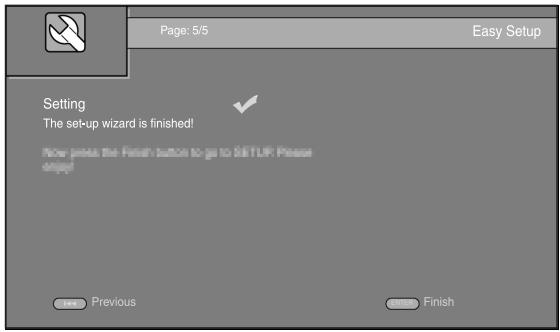
5 Press ENTER to exit Easy Setup.
Notes
- When no picture is displayed after Initial Wizard/Easy Setup is completed, refer to "TROUBLESHOOTING" (p. 42).
- A warning message concerning 3D video playback appears when this unit is turned on. Press ENTER to dismiss the message or CLEAR to disable it (p. 35).
BASIC OPERATION
Follow the procedures below to play back the source.
| 1 Set the source | 2 Switch the input | 3 Refer to the following pages for more operations | |
| Disc | p. 20, 23 | DISC | |
| USB*1 | Front Rear YAMAHA p. 15, 20 | DISC | TOP MENU TOP-UP/MEIUN ENTER ON SCREEN (PLLING) (RESIST) (PRESET) MEMBER STATUS |
| Network (PC contents and YouTube) | p. 15, 22 | DISC |
*1 · Some devices may not work properly even if they meet the requirements.
- Playability of and power supply to all kind of USB devices are not guaranteed.
- The reading time may exceed 30 seconds depending on the number of files/folders.
- Yamaha and suppliers accept no liability for the loss of data saved on the USB devices connected to this unit. As a precaution, it is recommended that the files are made backup copies.
| 1 Set the source | 2 Switch the input | 3 Refer to the following pages for more operations | |
| iPod*1 | p. 12, 23 | iPod | < img src=""> |
| AUX | To AUX p. 14 | AUX | For details on operation, refer to the instruction manual supplied with the connected device. |
| STB | To COAXIAL p. 14 | STB | |
| Portable | To output TV sounds, refer to page 13 for connection. | PORTABLE | |
| TV | To receive FM radio stations, refer to page 28. | ||
| FM | To receive FM radio stations, refer to page 28. | ||
*1 Some features may not be available depending on the model or the software version of your iPod.
Playing back photo/music/video
HOME and MEDIA menus allow you to browse and play multi-media files on data discs, USB memory devices and your network.
Note
For details on playable discs and files, refer to page 3.
Basic operation
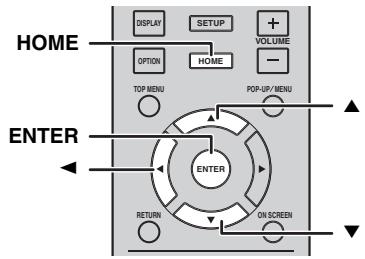
/ : Moves the focus.
: Returns to the parent folder.
HOME: Moves to/exits HOME menu screen.
ENTER: Confirms the folder/file.
Icons on the top of MEDIA menu
: Plays back the disc on the tray, or displays contents in the data disc.
: Displays contents in the USB memory device connected to the USB port.
: Searches for a DLNA (p. 22) server on the network.
: Displays contents on the connected DLNA server.
Common operations for playing back files in a selected folder
Example: Selecting a movie file on a USB memory device
Note
Stop the playback of the video before you move to MEDIA menu screen.
1 Press HOME to move to HOME menu screen.
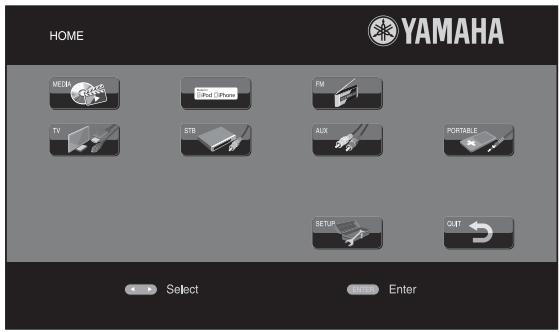

HOME menu screen may differ depending on the model.
2 Press / / to select [MEDIA], then press ENTER.
MEDIA screen appears.
![YAMAHA BRX-610BL - Press / / to select [MEDIA], then press ENTER. - 1](/content/2019/12/3540/images/72ff7d59a680a19a3612e82b64822dad89861580dd9dbdacdcd6621584944e87.jpg)
3 Select the item which contains the file you want to play back, then press ENTER.
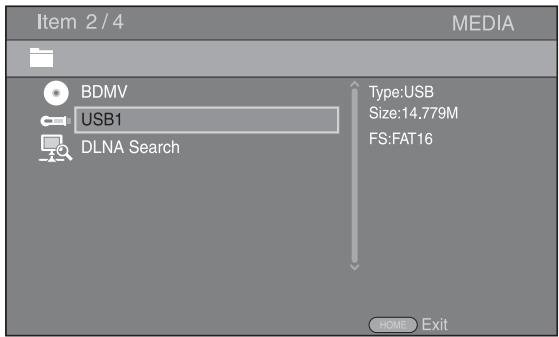
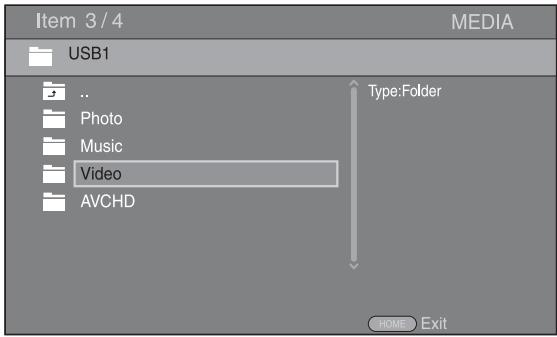
4 Select the Photo, Music, Video or AVCHD folder you want to play back, then press ENTER.
To return to the parent folder, press or select
Note
Note that the only the file type selected on this step will be displayed in the following step. For example, if you selected the Photo folder in this step, only photo files are displayed after this step. When you want to play back other than photo, return to this step and select file type again.
5 Select the folder(s) containing the file you want to play back.
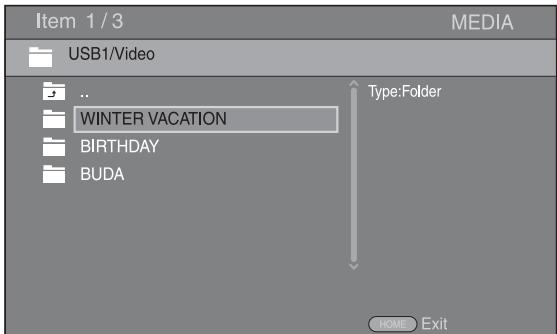
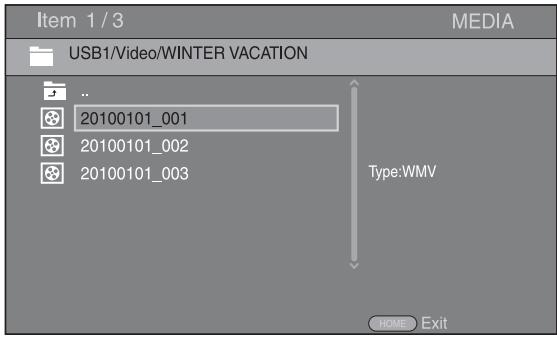
6 Select the file you want to play back, then press ENTER.
When a video file is selected, playback starts. When a music file is selected, Status menu is displayed and playback starts.
When a photo file is selected, slide show starts.
To enjoy a slide show with music, press HOME to return to HOME menu screen while music is played back, and select the photo file.
Note
The displayed file may not be played back depending on the content.
Operations for viewing photos
While viewing photos, the buttons on the remote control work as shown below.
: Stops a slide show and returns to the file browser.
: Pauses a slide show.
Plays a slide show.
:Moves to a next photo.
:Moves to a previous photo.
: Makes a slide show faster in 3 steps.
: Makes a slide show slower in 3 steps.
: Inverts a photo.
Reflects a photo.
: Rotates a photo counterclockwise.
Rotates a photo clockwise.
ZOOM: Zooms in/out a photo (zoom in/out: 3 steps each). / / : Pans in zoom mode when a photo is larger than the screen.
DIGEST: Switches to thumbnail mode (p. 6). When thumbnails are displayed, you can proceed to the next/ previous page with / 1 .
Using network content
About DLNA
This unit is a DLNA certified digital media player. You can manage photo, music and video contents stored on DLNA servers on your home network.
DLNA (Digital Living Network Alliance) provides easy sharing of digital media through network in the home, and you can enjoy digital contents stored on your DLNA-server-software-installed PC or other DLNA compatible device with your TV via this unit. To connect this unit to your DLNA servers, some settings for the DLNA server or device are required. For details, refer to your DLNA server software or DLNA device.
Playing back shared contents
Note
To play back files on your PC, install a DLNA server software, such as Windows Media Player 12, and share files you want to play back.
1 Turn on the PC with DLNA server software installed or the DLNA device connected to your home network.
2 Press HOME to display HOME menu screen, then select [MEDIA] to move to MEDIA menu. The DLNA servers connected to the network are listed on the screen.
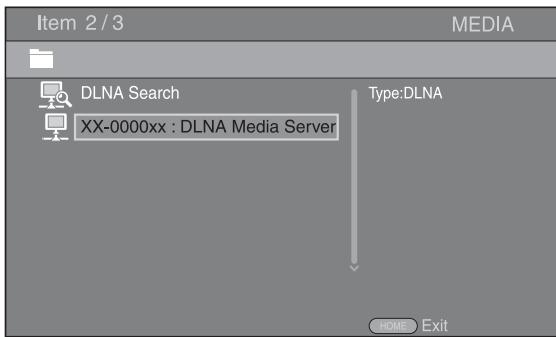
Notes
- If your DLNA server is not listed, select [DLNA Search] to find it.
- Depending on the DLNA server, this unit may need to be permitted from the server.
- To play the file on the DLNA server, this unit and the server must be connected to the same access point.
- The file requirements may not always be compatible. There may be some restrictions depending on file features and DLNA sever capability.
3 Select the file you want to play back.
Notes
- The playback and operating quality may be affected by your home network condition.
- The files from removable media, such as USB memory devices or DVD-drive on your media server, may not be shared properly.
Using network services
You can instantly watch the videos that the following network services provide.
-YouTube
■ Notices for network services
- Access to content provided by third parties requires a high speed internet connection and may also require account registration and a paid subscription.
- Third party content services may be changed, suspended, interrupted, or discontinued at any time without notice, and Yamaha disclaims any liability in connection with such occurrences.
- Some content may only be available for specific countries and may be presented in specific languages.
- Yamaha does not represent or warrant that content services will continue to be provided or available for a particular period of time, and any such warranty, express or implied, is disclaimed.
Playing videos from YouTube™
You can watch movies from YouTube over the internet using this unit.
The services may be changed without notice.
1 Press HOME to display HOME menu screen.
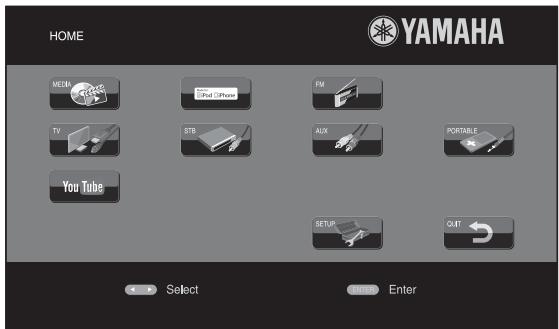

HOME menu screen may differ depending on the model.
2 Press / / / to select [YouTube], then press ENTER.

To return to HOME menu screen, press RETURN.
Operation for iPod
You can operate playback of your iPod by using the buttons on the remote control.
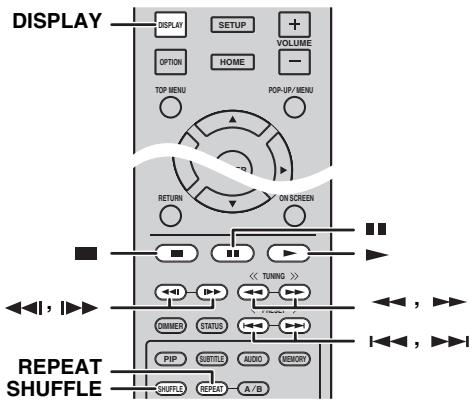
Note
Some features may not be compatible depending on the model or the software version of your iPod.
Playback controls
1 Press any buttons below during playback.
: Stops playback.
: Pauses playback.
: Skips forward.
: Skips backward.
To start/resume playback, press
#
Press DISPLAY to display information below on the front panel display during playback.
Song name
- Artist name
- Album name
Note
There are some characters that cannot be displayed on the front panel display of this unit.
Shuffle play
You can play back in random sequence.
1 Press SHUFFLE repeatedly for shuffle play. Each press cycles as follows:

*1 You cannot set ALBUMS when you use an iPod touch and iPhone.
Repeat play
You can repeat playback as you want.
1 Press REPEAT repeatedly for repeat play. Each press cycles as follows:

Operation for CDs
You can also operate playback of music for CDs.
Playback controls
1 Press any buttons below during playback.
: Stops playback.
: Pauses playback.
: Skips forward.
: Skips backward.
: Searches forward.
: Searches backward.
1▶: Press for instant search. Instant search skips the music 30 seconds.
: Press for instant replay. Instant replay replays the music from 10 seconds before.
To start/resume playback, press
中
You can also use the Numeric buttons to enter the number of the song directly. To clear the entry, press CLEAR.
Shuffle play
You can play back in random sequence.
1 Press SHUFFLE repeatedly for shuffle play. Each press toggles as follows:

Repeat play
You can repeat playback as you want.
1 Press REPEAT repeatedly for repeat play. Each press cycles as follows:

This chapter explains playback of commercially available BD/DVD/CD discs, and recorded DVD-RW/R discs.
Note
For the basic playback operation, refer to page 6.
On Screen menu
To display On Screen menu, press ON SCREEN. After that, press / / to select an item, then press ENTER to operate the desired function.
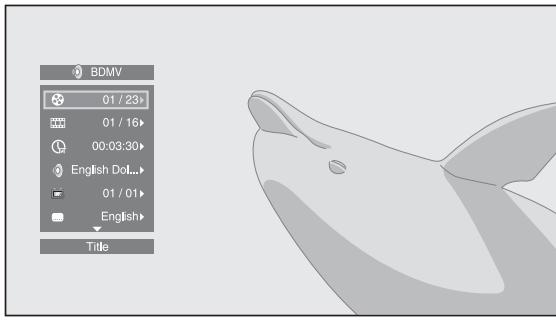
On Screen menu contains following items.
Title BD DVD VIDEO: Shows the title number being played back. You can skip to the desired title by selecting it from this item.
Chapter BD DVD VIDEO: Shows the chapter number being played back. You can skip to the desired chapter by selecting it from this item.
Track/File CD VIDEO MUSIC PHOTO: Shows track/file number being played back. You can skip to the desired track/file by selecting it from this item.
Time BD DVD CD VIDEO MUSIC: Shows the playback time. Select display type from the following:
- Elapsed playback time of the title, chapter, disc, track or file.
- Remaining playback time of the title, chapter, disc, track or file.
Mode/Play Mode
DVD CD VIDEO MUSIC PHOTO: Shows current playback mode. You can select playback mode from the following:
CD
- Normal: Normal playback.
Shuffle: Random playback without repetition. - Random: Random playback with repetition.
DVD
Normal
Shuffle CH (chapter)
Shuffle TT (title)
Shuffle All
- Random CH (chapter)
- Random TT (title)
- Random All
VIDEO MUSIC PHOTO
Normal
Shuffle F (folder)
- Random F (folder)
Audio BD DVD VIDEO: Shows audio language/ signal of a BD/DVD disc currently selected. You can select the desired type of audio.
Angle BD DVD : Shows the currently-selected angle number. If the video is recorded with multiple angles, you can change the angle.
#
When the Angle Mark ( ) is set to [On] (p. 36), is displayed on the screen when this function is available.
Subtitle BD DVD VIDEO: Shows the currently-selected subtitle language when the subtitle is provided.
Subtitle Style BD: Shows the currently-selected subtitle style. This function is available only for Video-file external subtitle. You can select the desired text style of subtitle.
Bitrate BD DVD CD VIDEO MUSIC: Shows bitrate of the audio/video signal.
Second Video BD:Turns the PIP on/off (p.6).
Second Audio BD:Turns the secondary audio on/off.
Ins Search
BD DVD CD VIDEO MUSIC: Skips 30 seconds.
Ins Replay
BD DVD CD VIDEO MUSIC:Replays the content from 10 seconds before.
Slide Show PHOTO :
Shows slide show speed. You can select the slide show speed from Slow/Medium/Fast.
Transition PHOTO: Shows how photo appears on the screen. You can select the transition type.
Status menu
This shows various settings, such as subtitles, angle settings and the title/chapter/track number currently played back. To display Status menu, press STATUS. Status menu contains following menus.
BD DVDVIDEO
Example: Icons when playing a BD disc
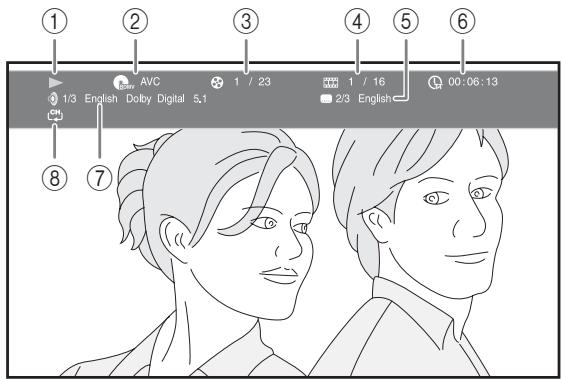
(Playback status)
② BDMV (Disc type/video file icon)
(3) (Title number being played): You can jump to specified title with SEARCH button (p. 7).
(Chapter number being played): You can jump to specified chapter with SEARCH button (p. 7).
⑤ (Subtitle currently selected): You can change the subtitle language with SUBTITLE button (p. 6).
(Elapsed playback time): You can jump to specified point with SEARCH button (p. 7).
(Audio currently selected): You can change the audio language or format with AUDIO button (p. 7).
(Repeat mode): Shows current repeat mode (p. 6).
CD
MUSIC
Example: Icons when playing a music file
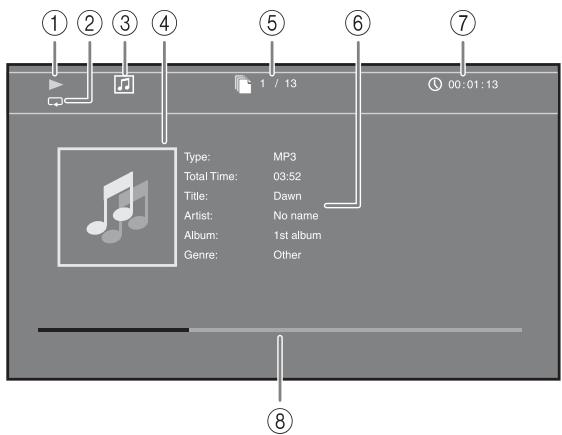
①▶(Playback status)
(Repeat mode): Shows current repeat mode (p. 6).
③ (Disc type/music file icon)
(4) (Artwork) MUSIC: Displays artwork if the file contains it.
(5) Track/file number being played: You can jump to specified track with SEARCH button (p. 7).
(6) (Information) MUSIC: Displays music information if the file contains them.
(Elapsed playback time): You can jump to specified point with SEARCH button (p. 7).
(8) (Progress bar) MUSIC: Shows progress status of current song.
PHOTO
Example: Icons when viewing a photo file

(Playback status)
(2) (Photo file icon)
(3) (File number being displayed)
(4) (Repeat mode): Shows current repeat mode (p. 6).
⑤ (Slide show speed)
UsingBookmark
This allows you to set Bookmark at the specified point of the video. After Bookmark is set, you can move to the point you set using this function. You can set up to 12 Bookmarks.
DVDVIDEO
Example: Setting Bookmark when playing back a movie.
1 Press MARKER during playing back the movie to set Bookmark. Bookmark number and the status are displayed.

2 After Bookmark is set, press DIGEST to display Bookmark select bar.

3 Press to select theBookmark you want to play back, then press ENTER. Press CLEAR to delete the selectedBookmark.
Note
When playback is finished (e.g., ejecting the disc, pressing twice), Bookmarks are automatically deleted.
Program play
This allows you to program playback order of audio disc tracks or DVD chapters.
You can program up to 15 tracks/chapters.
DVD CD
Example: Programming the playback order of CD tracks
1 Press PROGRAM during playback to display PROGRAM screen.
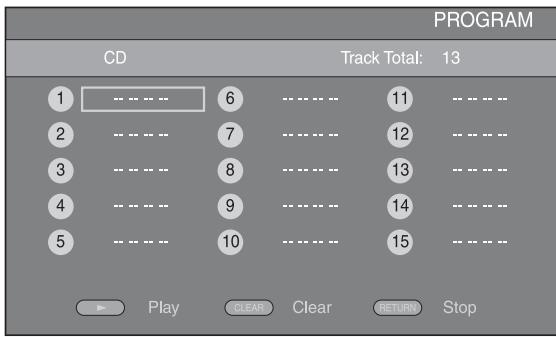
2 Press ENTER to program playback order.
For audio disc, press / to select a desired track, then press ENTER.
For DVD-Video discs, select a desired title (shown as TT) and chapter (shown as CH) instead of a track.
To clear a set track, select the track you want to clear, then press CLEAR.
Press RETURN to cancel the Program play.
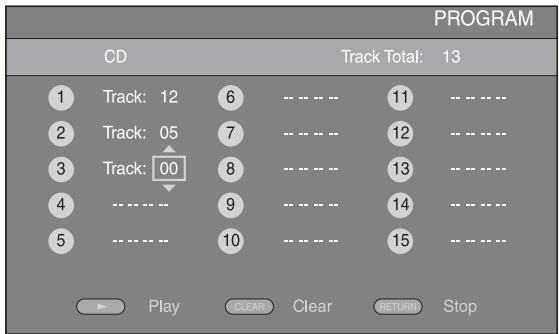
3 After programming is finished, press to set and start program playback.
4 To cancel program play, stop playback completely by pressing twice.
Using search
This allows you to jump to the specified point during playback.
1 Press SEARCH during playback. Status bar appears.
2 Press / / to select one of the item below, then press ENTER.
BD DVD :
- Title number (shown as )
Chapter number (shown as - Elapsed title time (shown as _pt )
- Elapsed chapter time (shown as 1ch )
CD :
- Track number (shown as )
- Elapsed track time (shown as 1TRACK )
- Elapsed disc time (shown as _DISC )
VIDEO MUSIC:
- File number (shown as
- Elapsed file time (shown as ①)
3 Press / or number buttons to set/adjust the value of the focused item, and press ENTER to jump to the specified point.
4 To close the status bar, press STATUS.
Enjoying BONUSVIEW™ and BD-Live™
This unit supports BONUSVIEW (p. 50) (BD-ROM Profile 1 Version 1.1) and BD-Live (p. 50) (BD-ROM Profile 2) playback functions.
Note
Functions and playback method vary depending on the disc. Refer to the guidance on the disc or the supplied user's manual.
Using Picture in Picture function (secondary audio/video playback)
BD-Video that includes secondary audio and video compatible with Picture in Picture can be played back with secondary audio and video simultaneously as a small video in the corner.
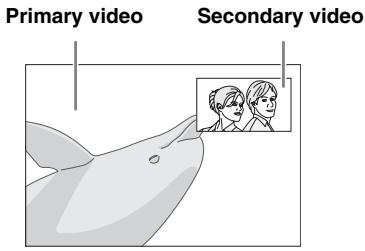
1 While PIP Mark (D) or Secondary Audio Mark (E) is displayed, press PIP to turn the Picture in Picture function on/off.
Notes
- To listen to secondary audio from a TV connected with an HDMI cable, make sure that the Audio Output setting (HDMI) is set to [PCM] (p. 39).
- Depending on the disc, to listen to secondary audio, you may need to set secondary audio to on from the top menu of the disc (p. 8).
- The secondary audio and video for Picture in Picture may automatically play back and be removed depending on the content. Also, playable areas may be restricted.
Using the feature of BD-LiveTM
1 Set the Network setting (p. 36).
2 Connect the USB memory device to this unit (p. 15).
- BD-Live data is saved in a USB memory device connected to this unit.
- Connect a USB memory device (2 GB or greater and formatted with FAT 32/16) supporting USB 2.0 High Speed (480 Mbit/s) to the USB port that you select on Local Storage (p. 35). The default setting is the USB port on the rear panel.
- A "BUDA" folder is created automatically in the USB memory device when necessary.
- If there is insufficient storage space, the data will not be copied/downloaded. Delete unneeded data or use a new USB memory device.
- Some time may be required for the data to load (read/write).
3 Play back the disc.
4 Run BD-Live according to the instructions on the disc.
Notes
- Regarding playback method of BD-Live contents, etc., perform the operations in accordance with the instructions in the BD disc manual.
- To enjoy BD-Live functions, perform the network connection (p. 15) and Network settings (p. 36).
Refer to "[BD-Live Connection]" (p. 36) regarding the setup to restrict access to BD-Live contents. - The time required to download the provided programs into the USB memory device connected to this unit varies depending on the internet connection speeds and the data volume of the programs.
- BD-Live programs provided through the internet may not be able to display the connection depending on the status (upgrading) of the provider. In such cases, take out the disc and try again.
- If the BD-Live screen does not appear for a while after you select the BD-Live function in the BD disc menu, the USB memory device may not have enough free space. In such cases, eject the disc from this unit, and then erase the data in the USB memory device selecting [Format] in [Local Storage] (p. 35).
LISTENING TO FM RADIO STATIONS
Tuning to radio stations
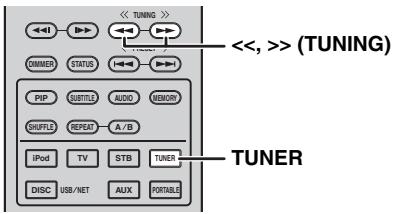
1 Press TUNER.
2 Press and hold << / >> (TUNING). Automatic tuning starts.
If the signal received from the station you want to select is weak, you can also tune into radio stations manually by pressing << / >> (TUNING) repeatedly. In this case, the sound will be monaural.
Presetting radio stations
You can store your favorite FM stations with the preset function.
中
Automatic preset tuning
1 Press and hold MEMORY for more than 3 seconds in FM mode.
2 Press ENTER. Start the automatic preset.
Note
When you perform the automatic preset, all stored stations are cleared and the new stations are stored.
Manual preset tuning
1 Select a favorite radio station by pressing << / >> (TUNING).
2 Press MEMORY.
3 Select the preset number you want to store to by pressing / or < / > (PRESET).
4 Press ENTER. The manual preset is complete.
- You can preset up to 30 FM stations.
- To cancel the manual preset while choosing a preset number, press MEMORY again.
- You can delete a preset station by pressing OPTION ENTER to select [PRESET DEL] (p. 29).
Selecting preset radio stations (Preset tuning)
中
1 Select the preset radio station in FM mode by pressing < / > (PRESET).
You can also use the Numeric buttons on the remote control or < / > (PRESET) on the front panel of this unit to select the preset radio station.
Deleting preset stations
You can delete a preset station by using the option menu ([PRESET DEL]).
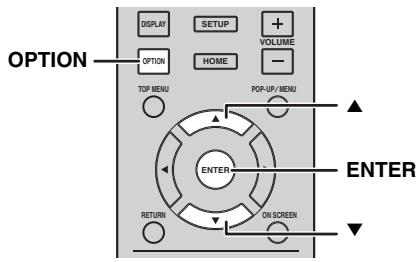
1 Press OPTION.
2 Press ENTER.
3 Select the preset number you want to delete by pressing /
4 Press ENTER.*
5 Press OPTION to exit option menu.
*To delete additional preset number, repeat steps 2 to 4.

[PRESET DEL] is displayed on the front panel display only when the input source is set to FM.
Displaying Radio Data System information
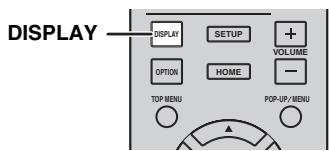
1 Press DISPLAY repeatedly while listening.
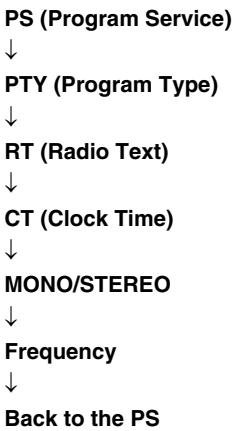
Note
If the signal transmission of the Radio Data System station is too weak, this unit may not be able to receive Radio Data System information completely. In particular, RT (Radio Text) information uses a lot of bandwidth, so it may be less available compared to other types of information.
USING USEFUL FUNCTIONS
Setting the sleep timer
You can set the sleep timer by using the remote control. The sleep timer sets this unit to standby mode after the specified time elapses.
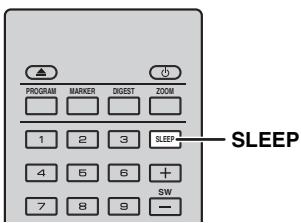
1 Press SLEEP repeatedly.

Operating this unit by TV remote control (the HDMI control function)
You can use the TV remote control to operate this unit if your TV supports the HDMI control function and is connected to this unit's HDMI terminal.
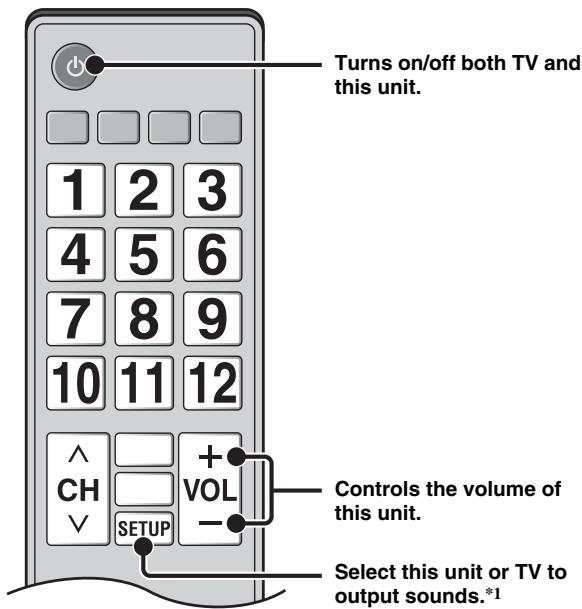
Remote control of TV (Example)
You can also enjoy the following function.
- When you start playback of DVD/BD discs other than CD discs on this unit or display HOME/SETUP menu screen, the input selector of the TV is switched to this unit automatically (One Touch Play).
*1 When you select this unit to output TV sounds by using the TV remote control, the unit automatically selects TV as the input source, and sound can be enjoyed from the speakers connected to the unit.
Notes
- This unit may be operated by using cursor buttons of TV remote control for some TVs.
- Even if your TV supports the HDMI control function, some functions may not be available. For details, refer to the manual supplied with your TV.
- HDMI control function may not work properly depending on the TV.
- Functions other than ones shown above may work depending on the TV.
- In order to make the HDMI control function available, set up settings for the HDMI control function on ALL components (this unit, TV, and other components). Certain operation may also be required.
Each function may be set independently to activate/deactivate depending on the TV. - Refer to the operation manuals supplied with the TV for details regarding setup.
Setting the HDMI control function
1 Turn on all components connected to the TV with HDMI.
2 Check all components connected with HDMI and enable the HDMI control function on each component.
For this unit, set [HDMI Control] to [On] (p. 35). For external components, refer to the manual supplied with each component.
-
The default setting of [HDMI Control] is set to [Off] for this unit.
The example of TV settings -
From a setup menu on your TV, select "Link setting" "HDMI control setting" (example), then set a setting such as "HDMI control function" to "ON" (example).
- Setting such as "Speaker priority" should be set to "AV amplifier".
3 Turn off the TV and then turn on it again.
Registering HDMI components to TV
1 Select this unit as the input source of the TV.
2 Select Disc/USB/Network as the input source of this unit.
3 Check that the image from this unit is correctly displayed on the TV.
4 Check that the HDMI control function works (turn on this unit or adjust the volume level using the TV remote control).
#
For some HDMI components, you only need to set the HDMI control function. Registering HDMI components to TV is not required in this case.
If the HDMI control function is not working
Check the following:
- The TV is connected to the HDMI terminal of this unit. The HDMI control function is set to [On] in SETUP menu (p. 35).
- The HDMI control function is enabled on the TV. (Also check the relative settings such as power interlock function or speaker priority.)
The HDMI control function is not working even checking the above
- Turn off this unit and the TV, and then turn them back on again.
- Unplug the AC power supply cable of this unit, the TV and external components connected to the TV with HDMI.
Plug them in again after about 30 seconds.
Changing the connection method and connected components
When the connected components and jacks are changed, reset this unit with following procedures.
1 Turn off the HDMI control function of the TV and this unit, turn off all connected devices, and change the connections.
2 Perform the step 1 to 3 of "Setting the HDMI control function" (p. 30).
SETUP MENU
The SETUP menu enables various audio/visual settings and adjustments for functions using the remote control unit.
| Menu/Submenu | Item | Function | Page | |
| General Setting | System | Screen Saver | Sets screen saver to On/Off. | 35 |
| Auto Power Off | Disc/USB/Net: Sets auto power off mode to On/Off. Other Inputs: Sets auto power off mode to on by hours or Off. | 35 | ||
| Disc Auto Playback | Sets this unit to start disc playback automatically. | 35 | ||
| HDMI Control | Sets this unit to receive control signal from the remote control of your TV. | 35 | ||
| Load Default | Reset all settings to the default setting except Security setting. | 35 | ||
| Upgrade | Performs upgrade of this unit. | 35 | ||
| Easy Setup | Sets language, resolution, screen aspect ratio. | 35 | ||
| Local Storage | Displays status of Local Storage, formats Local Storage and selects the front/rear USB port for Local Storage. | 35 | ||
| 3D Playback Message | Displays a warning message concerning 3D video playback when this unit is turned on. | 35 | ||
| Language | OSD | Selects the language for On Screen Display. | 35 | |
| Menu | Prioritizes the language for disc menu. | 35 | ||
| Audio | Prioritizes the language for audio. | 35 | ||
| Subtitle | Prioritizes the language for subtitle. | 35 | ||
| Playback | Closed Caption | Sets the closed caption to On/Off. | 36 | |
| Angle Mark | Sets to display the Angle Mark when a BD/DVD disc with multiple angles is played back. | 36 | ||
| PIP Mark | Sets to display the PIP Mark when a BD/DVD disc with Picture in Picture is played back. | 36 | ||
| Secondary Audio Mark | Sets to display the Secondary Audio Mark when a BD/DVD disc with secondary audio is played back. | 36 | ||
| Last Memory | Sets this unit to remember the last playback position of a disc when it is set to standby mode or the disc tray is opened. | 36 | ||
| Security | Change Password | Changes password for Parental Control and Country Code. | 36 | |
| Parental Control | Sets the Parental Control depending on the disc content. | 36 | ||
| Country Code | Sets your Country Code. | 36 | ||
| Network | Internet Connection | Sets the internet connection to Enable/Disable. | 36 | |
| Information | Displays network information screen. | 36 | ||
| Connection Test | Performs the network connection test. | 36 | ||
| IP Setting | Sets the IP setting to Auto/Manual. | 36 | ||
| BD-Live Connection | Sets the BD-Live connection to Permitted/Partial Permitted/Prohibited. | 36 | ||
| DLNA | Sets the DLNA to Enable/Disable. | 36 | ||
| Proxy Setting | Sets the proxy setting. | 36 | ||
| Display Setting | TV | 3D Output | Selects 3D or 2D videos. | 37 |
| TV Screen | Sets the screen aspect ratio of the connected TV, and adjust the video output. | 37 | ||
| Video Out Select | Selects the resolution of video output. | 37 | ||
| TV System | Selects the TV System from NTSC/PAL/Multi. | 37 | ||
| Color Space | Selects Color Space from YCbCr 4:4:4/YCbCr 4:2:2/ Full RGB/RGB. | 37 | ||
| HDMI Deep Color | Selects HDMI Deep Color from 30 bits/36 bits/Off. | 37 | ||
| HDMI 1080p 24Hz | Sets HDMI 1080p 24Hz to Auto/Off. | 38 | ||
| Lip Sync | Adjusts the lag between video and audio, such as when the mouth movement is out of sync with the voice. | 38 | ||
| Video Process | Video Mode | Adjusts the visual image. | 38 | |
| Color Adjust | Adjusts Brightness/Saturation/Hue for each color. | 38 | ||
| Noise Reduction | Sets the level of Noise Reduction. | 38 | ||
| De-interlacing Mode | Sets how to detect the video signal. | 38 | ||
| Audio Setting | Audio Output | HDMI | Selects the output mode of HDMI terminal from Bitstream/ PCM/Off. | 39 |
| DRC | Sets the DRC (Dynamic Range Compression). | 39 | ||
| Speaker Setting | Configuration | Sets the audio output from the 5.1 ch surround speaker terminals. | 39 | |
| 2ch Downmix | Sets the audio output from SPEAKERS FRONT L/R terminals. | 39 | ||
| Test Tone | Outputs the test tone for speaker setup. | 39 | ||
| Subwoofer Size | Sets the subwoofer speaker size. | 39 | ||
| Post Process | UpMix | Multi-channelizes the 2-channel audio signal. | 39 | |
| System Information | Displays software version and MAC address (p. 50). | 39 | ||
Operation for SETUP menu
You need to display SETUP menu screen to perform settings for this unit. The following is the explanation for basic operations of SETUP menu.
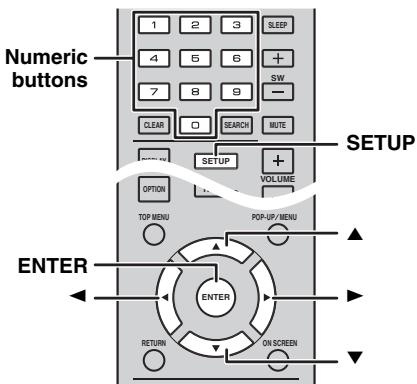
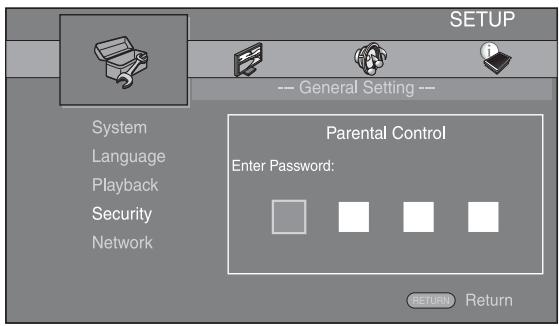
Example: Setting [Parental Control]
Notes
- Some items cannot be set when the input source is set to other than Disc/USB/Network. In this case, set the input source to Disc/USB/Network.
- Some items cannot be set during playback. In this case, press twice to stop playback completely before setting.
1 Press SETUP to display SETUP menu screen. Press to select [General Setting], then press ENTER or .
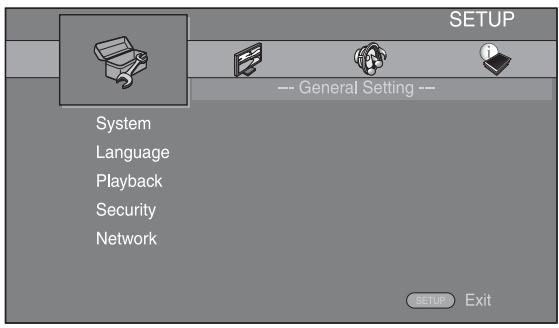
2 Select a Submenu.
Press / to select [Security], then press ENTER or cursor.
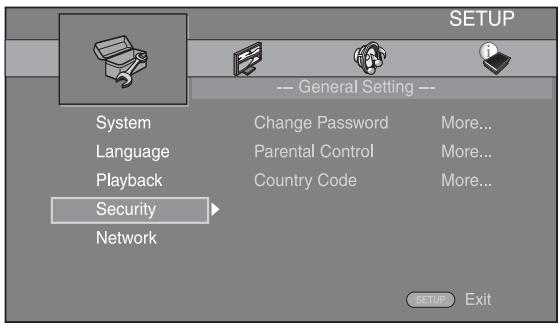
3 Select a menu item.
Press / to select [Parental Control], then press ENTER or cursor .
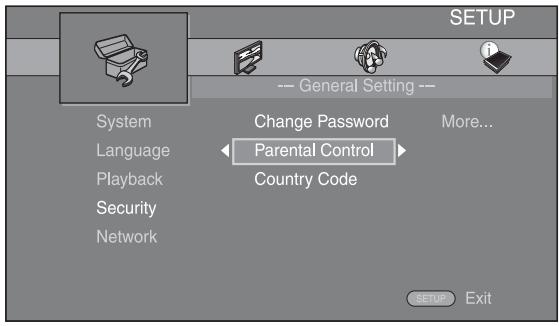
4 Enter your password with Numeric buttons.
- The default password is 0000.
- You cannot move to the next setting screen until you have input the correct password.
- To change the password, refer to "[Change Password]" (p. 36).
5 Select a next item.
Press / to select the Parental Control Level for BD/DVD discs, then press ENTER.
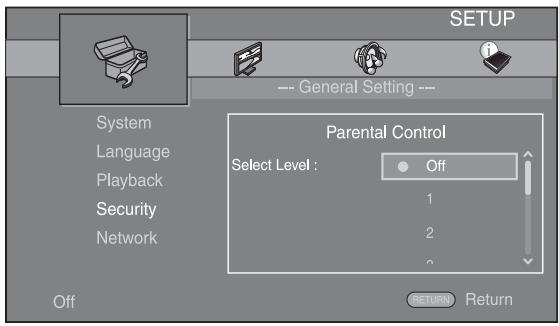
6 Exit the menu screen.
Press to return to the previous menu.
General Setting
The default settings are marked with .
System
[Screen Saver]
You can set the screen saver to [On]/[Off].
When set to [On], this unit will switch to screen saver mode if there is no operation for 3 minutes.
On*, Off
[Auto Power Off]
You can set auto power off mode to [On]/[Off] when the input is selected to Disc/USB/Network. When other inputs are selected, auto power off mode can be set by hours or to [Off].
Disc/USB/Net: On*, Off
Other Inputs: 1 hour, 2 hours, 4 hours, 8 hours*, Off
[Disc Auto Playback]
You can set [Disc Auto Playback] to [On]/[Off]. When set to [On], a disc will play back automatically after loading.
On*, Off
[HDMI Control]
You can set this unit to receive control signal from a TV compatible with the HDMI control function via an HDMI cable (p. 13).
On, Off*
中
For details on the HDMI control function, refer to page 30.
Note
When set to [On], power consumption during standby mode increases due to the HDMI control function.
[Load Default]
You can reset all settings of this unit to default setting except Security setting (p. 36). For details on default settings, refer to pages 32-39.
[Upgrade]
You can upgrade the software manually from [USB Storage] or [Network]. For details on software upgrade, refer to "SOFTWARE UPGRADE" (p. 41).
[Easy Setup]
You can perform Easy Setup (p. 17).
[Local Storage]
You can display Local Storage information, format Local Storage, and select [Front USB]/[Rear USB] to save the BD-Live data.
To format (empty) the "BUDA" folder in the USB memory device, select [Information] and press ENTER when [Format] is focused on the screen.
Front USB, Rear USB*
中
Local Storage is used as an auxiliary memory when a BD disc is played back.
[3DPlaybackMessage]
You can turn on or off a warning message concerning 3D video playback that appears on the TV when this unit is turned on.
On*, Off
Language
[OSD]
You can select the language for On Screen Display which is the messages or menu displayed on the screen such as SETUP menu.
English*, François, Espanol, Deutsch, Italiano,
Svenska, Nederlandse, Pycckn, 中文
[Menu]
You can prioritize the language for disc menu.
English*, François, 中文, Espanol, Deutsch, Italiano, Nederlandse, Portuguese, Danish, Svenska, Finnish, Norwegian, Pycckni, Korean, Japanese, More
[Audio]
You can prioritize the audio language for BD/DVD playback. For details on setting items, refer to "[Menu]" (p. 35).
[Subtitle]
You can prioritize the language for Subtitle.
English, François, 中文, Espanol, Deutsch, Italiano, Nederlandse, Portuguese, Danish, Svenska, Finnish, Norwegian, Pycckni, Korean, Japanese, More, Off*
Playback
[Closed Caption]
You can set to display the closed caption (p. 50) when a BD/DVD disc with closed caption is played back.
On, Off*
[Angle Mark]
You can set to display the Angle Mark ( ) when a BD/ DVD disc with multiple angles is played back.
On*, Off
[PIP Mark]
You can set to display the PIP Mark (DPIP) when a BD disc with picture in picture (p. 27) is played back.
On*, Off
[Secondary Audio Mark]
You can set to display the Secondary Audio Mark ( 44 ) when a BD disc with secondary audio is played back.
On*, Off
[Last Memory]
You can set whether this unit remembers the last playback position of a disc when it is set to standby mode or the disc tray is opened.
On*, Off
Note
Some discs are not compatible with this function.
Security
[Change Password]
You can set the password for changing the Parental Control Level and Country Code. Refer to "[Parental Control]" (p. 36) and "[Country Code]" (p. 36).
Notes
The default password is 0000.
- If you forget the password, refer to "TROUBLESHOOTING" (p. 42) and set all the Security settings to their default settings.
[Parental Control]
In some BD/DVD discs, a control level for disc viewing is set depending on the age of the viewer. You can set the Parental Control shown on the screen depending on the disc content.
The password (refer to "[Change Password]" on page 36) needs to be entered before the Parental Control Levels is set.
After you set the Parental Control, when you play back a disc with level higher than current Parental Control Level, or you want to change the Parental Control Level, a dialog box will pop up to ask you to enter the password.
Off*, 1 to 8
[Country Code]
You can set the Country Code you live in. The password (refer to " [Change Password]" on page 36) needs to be entered before the Country Code is set. This setting may be used for rating of the Parental Control and disc playback.
Network
[Internet Connection]
You can set to [Enable] when you use BD-Live (p. 27), DLNA (p. 22) and software upgrade from the network (p. 41).
Enable*, Disable
[Information]
You can display network information screen. On this screen, you can view the information of Interface (Ethernet), Address Type, IP Address, Subnet Mask, Default Gateway, and DNS.
[Connection Test]
You can perform an internet connection test. If the test is failed, please check [IP Setting] (p. 36) and perform the test again.
[IP Setting]
You can configure the network settings.
Auto* Select to automatically configure the network settings of this unit with the DHCP server.
Manual Select to configure the network settings (IP Address, Subnet Mask, Default Gateway, and DNS) manually.
![YAMAHA BRX-610BL - [IP Setting] - 1](/content/2019/12/3540/images/ea4f02d4e8f22886f7b656a423eb0237278c8f06bfc9204dcd946a57819f69a3.jpg)
-
Numeric buttons Enters characters.
-
/ Moves the highlight.
- CLEAR Deleted a character.
- ENTER Saves the settings and exits from the menu.
[BD-Live Connection]
You can set access restriction to BD-Live contents.
Permitted Allows all BD-Live discs to connect the network.
Partial Allows only discs with owner certification.
Permitted*
Prohibited Prohibits all BD-Live discs to connect the network.
[DLNA]
You can set the DLNA (p. 22) to [Enable]/[Disable]. When you do not use the DLNA function, set to [Disable].
Enable*, Disable
[Proxy Setting]
You can set Proxy Setting. Set to [Disable] for normal use. Set to [Enable] to set the proxy setting.
Enable Enables proxy host and proxy port setting.
Disable* Sets proxy server to disable. Select this item when proxy server is not used.
Proxy Host Sets proxy host.
Proxy Port Sets proxy port.
Display Setting
The default settings are marked with .
TV
[3D Output]
You can select 3D or 2D video output from this unit.
Auto*
This unit automatically selects 3D or 2D videos.
Off
This unit always selects 2D videos.
Note
Even if you set [3D Output] to [Auto] and play back a BD 3D disc, this unit selects 2D images depending on the connection and the setting of TV, etc (p. 13).
[TV Screen]
You can set the screen aspect ratio of the connected TV, and adjust the video output.
If you switch your TV (i.e. because you have bought a new one) and the screen aspect ratio of the connected TV changes, you will have to change the TV Screen setting.
16:9 Full
Select this when this unit is connected to a TV with a 16:9 screen. When a 4:3 aspect ratio video is played back, the video is displayed as shown below.
16:9 Normal
Select this when this unit is connected to a TV with a 16:9 screen. When a 4:3 aspect ratio video is played back, the video is displayed as shown below.
4:3 Pan Scan
Select this when this unit is connected to a TV with a 4:3 screen. When a 16:9 aspect ratio video is played back, the video is displayed as shown below.
4:3 Letterbox
Select this when this unit is connected to a TV with a 4:3 screen. When a 16:9 aspect ratio video is played back, the video is displayed as shown below.
| Original image size | On 16:9 (wide screen) TV | |
| 16:9 Full | 16:9 Normal | |
| 4:3 | ||
| Original image size | On 4:3 TV | |
| 4:3 Pan Scan | 4:3 Letterbox | |
| 16:9 | ||
[Video Out Select]
You can select the video output resolution from [Composite], [HDMI Auto], [HDMI 1080p], [HDMI 1080i], [HDMI 720p], [HDMI 480p/576p], and [HDMI 480i/576i]. When set to [HDMI Auto], resolution is set to the maximum resolution according to the connected TV. For more details on output formats, refer to "About the video output formats" (p. 40).
Composite, HDMI Auto*, HDMI 1080p, HDMI 1080i, HDMI 720p, HDMI 480p/576p, HDMI 480i/576i
Notes
- When you connect your TV and this unit via the VIDEO jack, select [Composite], [HDMI 480p/576p], or [HDMI 480i/576i].
- To output HD audio (such as Dolby TrueHD or DTS-HD) from the HDMI terminal, set [Video Out Select] to [HDMI Auto] or more than [HDMI 720p].
[TV System]
You can select [TV System] from [PAL], [NTSC] and [Multi]. Set the same TV System as your TV set. For more details on output formats, refer to "About the video output formats" (p. 40).
NTSC, PAL*, Multi (Asia, China, Europe and Russia models)
NTSC*, PAL, Multi (U.S.A. and Canada models)
[Color Space]
You can select the Color Space (p. 50) output from HDMI. This function is available when this unit is connected with an HDMI cable.
YCbCr 4:4* Sets Color Space to YCbCr 4:4:4.
YCbCr 4:2:2 Sets Color Space to YCbCr 4:2:2.
Full RGB
When RGB is set and white and black on the screen are too faint, select this item. This setting is effective when a connected component supports RGB 0-255 range.
RGB Outputs video signal at normal signal range.
Note
This function is only available on TVs that support this function.
[HDMI Deep Color]
When your TV is compatible with Deep Color (p. 50), set this item according to your TV. This function is available when this unit is connected with an HDMI cable.
30 bits, 36 bits, Off*
[HDMI 1080p 24Hz]
This outputs the BD-Video encoded in 24Hz frame rate in HDMI 1080p 24Hz . Smoother video playback may be available with this function. This function is available when your TV supports this function, and this unit is connected with an HDMI cable. For more details on output formats, refer to "About the video output formats" (p. 40).
Auto*, Off
Note
This setting is disabled when output resolution is other than 1080p.
[Lip Sync]
You can set/adjust the Lip Sync (p. 50) function.
Auto* This unit adjusts the Lip Sync function automatically.
Manual You can adjust the Lip Sync function manually. You can set the delay of the audio for 2D and 3D contents independently.
2D
3D
Off This unit does not adjust the Lip Sync function.
Video Process
[Video Mode]
You can select [Video Mode] below.
Standard* The image is most natural and well-balanced. This mode suits for normal use.
Vivid The image is more vivid and sharp.
Cinema The image suits for watching movie in dark room.
Custom You can adjust the visual image manually. Press / to select the parameter, then press to adjust the figure.
Brightness
Adjusts the overall brightness of the image.
Saturation
Adjusts the richness of the color in the projected image.
Hue
Adjusts the tint of the projected image.
Contrast
Adjusts the bright areas (white levels) in the image.
Sharpness
Adjusts the sharpness of objects in the video.
CTI
Smooths out the edges of color images. Color images are rendered more distinct.
The default settings are 0.
[Color Adjust]
You can adjust Brightness/Saturation/Hue for each color (Red/Green/Blue/Yellow/Cyan/Magenta). To use this function, set [Video Mode] to [Custom]. For details on the setting items, refer to "[Video Mode]" (p. 38).
The default settings are 0.
[Noise Reduction]
You can set the Noise Reduction to a level of 0 to 3. 0 is off, and 3 is the maximum level.
0*,1,2,3
[De-interlacing Mode]
You can select how to detect the video signal. Set to [Auto] for normal use. When horizontal stripping noise appears on the screen, set this to [Film]/[Video] to remove the noise.
Auto*, Film, Video
Audio Setting
The default settings are marked with .
Audio Output
[HDMI]
You can select the output mode of the HDMI terminal.
Bitstream, PCM, Off
Notes
- To output sound from the speakers, select [Off].
- Sound from your iPod or the audio signal input to the DIGITAL IN (COAXIAL and OPTICAL) jacks of this unit, cannot be output to a TV from this unit through the HDMI cable.
- To output HD audio (such as Dolby TrueHD or DTS-HD) from the HDMI terminal, set [Video Out Select] to [HDMI Auto] or more than [HDMI 720p] (p. 37).
[DRC]
You can set the DRC (Dynamic Range Compression) (p. 50) to [On]/[Off]/[Auto]. When set to [Auto], DRC is automatically turned on for a source with DRC information in Dolby TrueHD format. DRC makes the strong sound such as plosive sound lower, and conversations more audible. It is useful when you watch movies in the night.
Off*, On, Auto
■ Speaker Setting
[Configuration]
You can set the output of 5.1 ch surround depending on the connected speakers.
1 Press / to select a speaker you want to configure, then press ENTER.
2 Adjust the figures below. Note that some of items are not displayed depend on the selected speaker.
Size When the woofer section of a speaker is 16cm (6-1/2 in) or larger, select [Large]. When smaller than 16cm (6-1/2 in), select [Small].
Large, Small*
Trim Adjusts the selected speaker's level (volume level).
-6 to +6 dB (in 0.5 dB step)
The default setting is 0 dB.
Delay Separately adjusts the timing at which each speaker produces audio so that sounds from the speakers reach the listening position at the same time.
0.5 to 10m (in 0.5m step)
The default setting is 3m
Disable When selected speaker is not in use, select [Yes].
Yes, No*
3 Press RETURN to go back to speaker selection.
[2ch Downmix]
You can select down mix method to 2-ch from [Stereo] or [Lt/Rt].
Stereo*, Lt/Rt
[Test Tone]
You can check if the speaker setting is correct by outputting the test tone.
[Subwoofer Size]
You can select the size for your subwoofer speaker to be [Small] or [Large]. When your subwoofer driver diameter is more than 20~cm or when you feel low-frequency and bass sound is weak, select [Large].
Small*, Large
Post Process
[UpMix]
You can multi-channelize the 2-channel audio signal (effective on speaker output). To multi-channelize, select [Dolby PLII] or [DTS NEO:6]. You can select [Cinema] or [Music] when [DTS NEO:6] is selected. Also you can select [Movie] or [Music] when [Dolby PLII] is selected.
Off*, Dolby PLII, DTS NEO:6
System Information
Software version and MAC address (p. 50) are displayed.
About the video output formats
When [TV System] is set to [NTSC]
| Resolution | Composite | HDMI Auto | HDMI 480i/576i | HDMI 480p/576p | HDMI 720p | HDMI 1080i | HDMI 1080p | ||
| 24Hz | Others | ||||||||
| HDMI | Playback BD | 480p | Max | 480i | 480p | 720p 60 Hz | 1080i 60 Hz | 1080p 24 Hz | 1080p 60 Hz |
| others | 1080p 60 Hz | ||||||||
| VIDEO | Playback BD | 480i | OFF | 480i | 480i | OFF | |||
| others | |||||||||
When [TV System] is set to [PAL]
| Resolution | Composite | HDMI Auto | HDMI 480i/576i | HDMI 480p/576p | HDMI 720p | HDMI 1080i | HDMI 1080p | ||
| 24Hz | Others | ||||||||
| HDMI | Playback BD | 576p | Max | 576i | 576p | 720p 50 Hz | 1080i 50 Hz | 1080p 24 Hz | 1080p 50 Hz |
| others | 1080p 50 Hz | ||||||||
| VIDEO | Playback BD | 576i | OFF | 576i | 576i | OFF | |||
| others | |||||||||
When [TV System] is set to [Multi]
When [TV System] is set to [Multi], video signal is output at the same frequency as the source. Refer to the tables above for details on the frequency setting of the TV and resolution of the output video signal.
While a menu screen such as SETUP menu is displayed, video signal is output at the same frequency as the source.
Notes
- "Max" in the table means that resolution is set to the maximum resolution supported by the connected TV.
- [HDMI 1080p 24Hz ] setting is disabled when output resolution is other than [HDMI 1080p].
- No signals are output from the VIDEO jack when output resolution is set to [HDMI Auto], [HDMI 720p], [HDMI 1080i], or [HDMI 1080p].
- When [TV System] is set to [NTSC] and video source is not 60Hz , the video output signal is converted to 60Hz .
- When [TV System] is set to [PAL] and video source is not 50Hz , the video output signal is converted to 50Hz .
SOFTWARE UPGRADE
Some of the newly released BD discs cannot be played back unless you upgrade this unit software to the latest version. We recommend upgrading the software of this unit with software upgrade so that the unit is operated based on the latest software.
To check for the availability of a software upgrade, visit
http://download.yamaha.com/
Note
Do not remove the USB memory device, set this unit to standby mode or unplug the power cable/LAN cable while the software upgrade is being performed.
Upgrading the software
1 Prepare for the software upgrade.
When you upgrade the software from [Network]:
Confirm that this unit is connected to the network.
When you upgrade the software from [USB Storage]:
① Save the upgrade file package to the appropriate folder on the USB memory device. For more details, refer to the procedure document attached with the upgrade file package.
② Connect the USB memory device.
If the software upgrade is started automatically when the USB memory is connected, skip step 2 below.
2 Select the upgrade method and start upgrade from SETUP menu.
① Press SETUP to display SETUP menu screen.
② Select [General Setting] [System] [Upgrade].
③ Select the item which contains the upgrade file package from [USB Storage]/[Network].
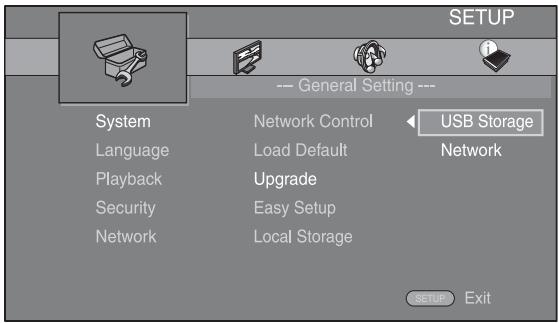
3 Start upgrade by following the on-screen messages.
TROUBLESHOOTING
Refer to the table below when this unit does not function properly. If the problem you are experiencing is not listed below or if the instruction below does not help, turn off this unit, disconnect the power cable, and contact the nearest authorized Yamaha dealer or service center.
General
| Problem | Cause | Remedy | Page |
| No power. | Press Ⓞ on the front panel to turn on the power. | 5 | |
| This unit fails to turn on or enters standby mode soon after the power is turned on. | The power cable is not connected or the plug is not completely inserted. | Connect the power cable firmly. | 16 |
| This unit has been exposed to a strong external electric shock (such as lightning or strong static electricity). | Set this unit to standby mode, disconnect the power cable, plug it back in after 30 seconds and then use it normally. | — | |
| This unit does not operate properly. | This unit needs to be restarted. | Press and hold Ⓞ on the front panel for around 5 seconds to restart this unit. To completely restart, unplug the power cable from the AC outlet for 5 to 10 seconds, plug the power cable to the AC outlet again, and then turn on this unit. | 5 |
| The disc cannot be played back. | The Initial Wizard is not set. | Set the Initial Wizard when you turn this unit on for the first time after purchase or upgrade. | 17 |
| No sound. | No appropriate input source has been selected. | Select an appropriate input source with INPUT on the front panel (or the Input select buttons on the remote control). | 5 |
| Speaker connections are not secure. | Secure the connections. | 11 | |
| The mute function is on. | Cancel the mute function. | 7 | |
| The volume is turned down. | Turn up the volume. | 7 | |
| Signals this unit cannot reproduce are being input from a source component, such as a CD-ROM. | Play a source whose signals can be reproduced by this unit. | 3 | |
| [HDMI Control] is set to [Off]. | When connecting ARC (Audio Return Channel) supported TV and this unit using an HDMI cable only, set [HDMI Control] to [On]. | 35 | |
| Audio devices are connected to the DIGITAL IN jacks of the unit. | There is no dedicated digital audio output terminal on the unit. The audio signals input to the DIGITAL IN jacks cannot be output from this unit to the TV. | — | |
| No sound from the speakers. | [HDMI] for audio output in SETUP menu is not set to [Off]. | Set [HDMI] to [Off]. | 39 |
| No sound or too small sound from a specific channel. | The output level of the channel is low. | Increase the output level of the channel. | 39 |
| Speaker setting is inappropriate. | Adjust speakers by setting [Configuration] under [Speaker Setting] in SETUP menu. | 39 | |
| No picture. | Incorrect cable connections. | Make sure that the cables are connected correctly. | 13 |
| Make sure that the connected TV is set to the correct input. | 13 | ||
| Connect this unit to the TV with VIDEO jack using the supplied video pin cable. - If picture is still not displayed with this unit connected to the VIDEO jack, press and hold ▶/■ and ▲ on the front panel simultaneously for around 5 seconds when no disc is inserted and playback is stopped to switch NTSC/PAL. | 13 | ||
| TV system is set incorrectly. | Press and hold ▲/■ and ▲ on the front panel simultaneously for around 5 seconds when no disc is inserted and playback is stopped to switch NTSC/PAL. Set resolution properly again when connecting through HDMI (p. 37). | — | |
| The power is suddenly turned off. | The sleep timer is set. | This is not malfunction. Turn on this unit and play the source again. | 30 |
| [Auto Power Off] is set to [On]. | Set [Auto Power Off] to [Off]. | 35 | |
| Sound is heard from the speaker on one side only. | Incorrect cable connections. | Connect the cables properly. If the problem persists, the cables may be defective. | 11 |
| There is noise interference from digital or radio frequency equipment. | This unit is too close to the digital or high-frequency equipment. | Move this unit farther away from such equipment. | — |
| This unit makes a snapping sound when starting playback or loading a disc. | These sounds are not malfunctions of this unit but are normal operating conditions. | — | |
| No sound from the subwoofer. | The subwoofer is not connected properly. | Check that the subwoofer is connected properly. | 11 |
| The level of subwoofer is low. | Increase the subwoofer level with the SW (subwoofer) + button. | 7 | |
| Sound from the subwoofer connected to the SUBWOOFER pre-out jack is distorted. | The subwoofer output level from the unit is too high. | Decrease the subwoofer output level with the SW (subwoofer) - button, then increase the subwoofer level with the control on the subwoofer itself. | 7 |
| The system settings change automatically. | When [HDMI Control] is set to [On], operations of the TV (for example, changing channels, etc.) changes the system settings. | Set [HDMI Control] to [Off] or set the system again by using its remote control. | 35 |
| The HDMI control function does not work properly. | [HDMI Control] is set to [Off]. | Set [HDMI Control] to [On]. | 35 |
| The HDMI control function is disabled on your TV. | Refer to the manual supplied with your TV and check the setting. | — | |
| The automatic lipsync is not effective even [Lip Sync] is set to [Auto]. | The TV does not support the automatic lipsync. | Set [Lip Sync] to [Manual] and then manually adjust the audio output delay. | 38 |
Radio reception
| Problem | Cause | Remedy | Page |
| FM stereo reception is noisy. | The antenna is connected improperly. | Check the antenna connections. | 11 |
| The characteristics of FM stereo broadcasts cause this problem when the transmitter is too far away or the antenna input is poor. | Try using a high-quality directional FM antenna. | — | |
| Switch to monaural mode. | 28 | ||
| The desired station cannot be tuned into with the automatic tuning method. | The signal is too weak. | Use a high-quality directional FM antenna. | — |
| Use the manual tuning method. | 28 | ||
| The preset selecting function does not work. | The preset (memory) has been erased. | Preset radio stations again. | 28 |
| There is distortion, and clear reception cannot be obtained even with a good FM antenna or an outdoor antenna. | Multipath reflection or other radio interference has occurred. | Change the height, direction, or placement of the antenna. | — |
iPod
Note
In case of a transmission error without a status message appearing on the front panel display of this unit, check the connection to your iPod (refer to page 12).
| Status message | Cause | Remedy | Page |
| READING | This unit is in the middle of recognizing the connection with the iPod. | If the message continues to appear in the front panel display and playback does not start, connect the iPod again. | — |
| UNKNOWN | There is a problem with the signal path from the iPod to this unit. | Connect the iPod again. | 12 |
| The iPod being used is not supported by this unit. | Only iPod classic, iPod nano (2nd, 3rd, 4th, 5th and 6th generation), iPod touch (1st, 2nd, 3rd, and 4th generation), iPhone, iPhone 3G/3GS and iPhone 4 are supported. | 12 | |
| The iPod software is out of date. | Update the iPod software version to the latest. | — | |
| STOP | The play back of the iPod is finished. For example, all the songs in the selected album have finished being played back. | ||
| NO iPod | The iPod was disconnected from this unit. | Connect the iPod and this unit by a USB cable correctly. | 12 |
| Problem | Cause | Remedy | Page |
| No sound. | The power of this unit is off. | Connect the power cable correctly. | 12 |
| The iPod software version has not been updated. | Download the latest iTunes software to update the iPod software version to the latest. | — | |
| The iPod is in the process of connecting with this unit. | Please wait for a while. | — | |
| No sound. | The iPod is not connected correctly. | Connect the iPod and this unit by a USB cable correctly. | 12 |
| The iPod sounds, but you cannot operate it with this unit or the remote control. | |||
| No sound of your iPod from the TV. | No sound of your iPod can be output from this unit to the TV through the HDMI cable. | Use the speakers of this unit. | — |
| This unit cannot be operated by the remote control. | The iPod is not supported by this unit. | Only iPod classic, iPod nano (2nd, 3rd, 4th, 5th and 6th generation), iPod touch (1st, 2nd, 3rd, and 4th generation), iPhone, iPhone 3G/3GS and iPhone 4 are supported. | 12 |
| The iPod is not connected correctly. | Connect the iPod and this unit by a USB cable correctly. | 12 | |
| The iPod software version is out of date. | Update the iPod software version to the latest. If the problem cannot be solved, even with the latest software, reset the iPod. | — | |
| You cannot operate from the iPod. | The iPod is not connected correctly. | Connect the iPod and this unit by a USB cable correctly. | 12 |
| The playback information is not displayed on the front panel display. | The iPod you set is not compatible with the playback information display. | Only iPod classic, iPod nano (2nd, 3rd, 4th, 5th and 6th generation), iPod touch (1st, 2nd, 3rd, and 4th generation), iPhone, iPhone 3G/3GS and iPhone 4 are supported. | 12 |
| The iPod does not charge up. | The iPod is not connected correctly. | Connect the iPod and this unit by a USB cable correctly. | 12 |
| The iPod is not supported by this unit. | Only iPod classic, iPod nano (2nd, 3rd, 4th, 5th and 6th generation), iPod touch (1st, 2nd, 3rd, and 4th generation), iPhone, iPhone 3G/3GS and iPhone 4 are supported. | 12 |
USB
Note
In case of a transmission error without a status message appearing on the front panel of this unit, check the connection to the USB device (refer to page 15).
| Status message | Cause | Remedy | Page |
| USB ERROR | The connected USB device is not playable on this unit. | Disconnect the USB device. Change input source other than USB and select USB as input source again. Then connect playable USB device again. | 15 |
| The USB device is connected at an angle. |
| Problem | Cause | Remedy | Page |
| The file in the USB device does not play. | The USB device is not recognized. | Connect the USB device again. | 15 |
| Connect an AC adapter if supplied with the device. | — | ||
| Incorrect USB device connections. | Connect the USB device again. | 15 | |
| The file format is not compatible with this unit. | Replace the file with a correctly recorded file playable with this unit. | 3 | |
| If the solutions above do not resolve the problem, the USB device is not playable on this unit. | Try another USB device. | — |
Disc playback
General
| Problem | Cause | Remedy | Page |
| No sound or distorted sound. | The sampling rate of an audio or video file is not compatible with this unit. | Check that the sampling rate and bit rate of an audio or video file are compatible with this unit. | 3 |
| Audio may not be output depending on the audio recording status, such as when audio other than an audio signal or non-standard audio is recorded for the audio content. | 3 | ||
| There is no sound during still mode, slow motion playback, fast forward and fast reverse. | — | ||
| Disc playback does not start. | The disc is not finalized. | The CD-R/RW, DVD+R/RW/R DL, and DVD-R/RW/R DL must be finalized. | 3 |
| Disc is loaded upside-down. | Remove the disc and then load the disc with the labeled side facing up. | — | |
| The disc is defective. | Try playing back another disc. If this solves the problem, the disc you want to play back is defective. | — | |
| The format of the file is not compatible with this unit. | Check that the format of the file is compatible with this unit. | 3 | |
| Some button operations do not work. | The disc loaded into this unit is not compatible. | Use a disc supported by this unit. | 3 |
| Playback does not start immediately after pressing▶/■ on this unit or▶on the remote control. | The disc is dirty. | Remove the disc and then wipe the disc clean. | 4 |
| The disc loaded into this unit is not compatible. | Use a disc supported by this unit. | 3 | |
| If this unit was moved from a cold to warm place, condensation has formed on the disc reading lens. | Wait for an hour or two until this unit adjusts to the room temperature, and try again. | — | |
| [No Disc] appears in the display even though a disc is in the disc tray. | The disc loaded into this unit is not compatible. | Use a disc supported by this unit. | 3 |
| The disc is dirty. | Remove the disc and then wipe the disc clean. | 4 | |
| Disc is loaded upside-down. | Remove the disc and then load the disc with the labeled side facing up. | — | |
| Audio is not output, or images are not played back properly. | The disc is a copyright-protected disc. | The audio may not be output or the images may not be played back properly for some discs in which copyright-protected contents are recorded. | — |
Picture
| Problem | Cause | Remedy | Page |
| Screen freezes and operation buttons do not work. | Press , then restart playback. | — | |
| This unit needs to be restarted. | Turn off the power and turn on the power again. | — | |
| Press and hold ⊙ on the front panel for around 5 seconds to restart this unit. | — | ||
| Video is not output with the desired resolution. | Resolution is set incorrectly. | Set to the desired resolution. | 37 |
| Wide-screen video appears vertically stretched, or black bands appear at the top and bottom of the screen. Or 4:3 video appears horizontally stretched. | Aspect ratio of your TV is set incorrectly. | Change the aspect ratio of your TV. | 37 |
| Square noise (mosaic) appears on the screen. | Blocks in images may be visible in scenes with rapid movement due to the characteristics of digital image compression technology. | — | |
| The playback screen will be disturbed if DVD video is recorded to a VCR, or played back through a VCR. | The disc is a copyright-protected disc. | This unit complies with analog copy protection. Some discs contain a copy prohibiting signal. If you try to play back such discs through a VCR, or record to a VCR and play back the signal, the copy protection will prevent normal playback. | — |
Remote control
| Problem | Cause | Remedy | Page |
| The remote control does not work nor function properly. | The remote control is operated outside its operation range. | For information on the remote control operation range, refer to “Using the remote control”. | 10 |
| The remote control sensor on this unit is exposed to direct sunlight or lighting. | Change the lighting or orientation of this unit. | — | |
| The battery is worn out. | Replace the battery with new one. | 10 | |
| There are obstacles between the sensor of this unit and the remote control. | Remove the obstacles. | — |
Network
| Problem | Cause | Remedy | Page |
| Cannot connect to the Internet. | Incorrect cable connections. | Connect the Network cable properly. | 15 |
| The connected equipment is turned off. | Turn on the connected equipment, such as the broadband router or modem. | — | |
| Connections of the broadband router and/ or modem are incorrect. | Connect the broadband router and/or modem correctly. | — | |
| The network setting is incorrect. | Set the proper value(s) in the network setting. Refer to “Network”. | 36 |
TROUBLESHOOTING
| Problem | Cause | Remedy | Page |
| Cannot download BD-Live contents. | Incorrect cable connections. | Connect the Network cable properly. | 15 |
| Incorrect USB device connections. | Connect the USB memory device properly. Check that the USB memory device is connected to the USB port of this unit. | 15 | |
| The BD disc does not support BD-Live. | Check if the BD disc supports BD-Live. | — | |
| The network setting is incorrect. | Check the setting for [Internet Connection]. | 36 | |
| The USB memory device is not compatible. | Connect the USB memory device formatted in FAT16 or FAT32. | 15 | |
| There is insufficient free space on the USB memory device. | It is recommended to connect the USB memory device with at least 2 GB of free space. If there is not enough free space, format the USB memory device. | 35 | |
| Refer to the supplied user's manual of the disc or consult the disc manufacturer. | — | ||
| Cannot detect the DLNA server. | Incorrect cable connections. | Connect the network cable properly. | 15 |
| The connected equipment is turned off. | Turn on the connected equipment, such as the broadband router or the server. | — | |
| The access point of this unit and the server are not the same. | Confirm this unit and the server are connected to the same access point. | — | |
| The network setting is incorrect. | Set the proper value(s) in the network setting. Refer to “Network”. | 36 | |
| The DLNA server does not permit this unit. | Depending on the DLNA server, this unit may need to be permitted from the server. | — | |
| Cannot play the file on the home network server. | The file is not supported by this unit. | Make sure the file is playable. | 3 |
| The DLNA setting is incorrect. | Check your DLNA server's setting. | 36 | |
| The playback and operating quality may be affected by your home network condition. | — |
Messages on the screen
The following messages appear on the TV screen in case the disc you tried to play back is not appropriate or the operation is not correct.
| Error message | Cause | Remedy | Page |
| Unsupported File | The file is not supported by this unit. | Refer to “Types of discs/files that can be used with this unit”. | 3 |
| Wrong region code! | The disc is an incompatible region code. | Refer to “Region management information”. | 3 |
| Network has Failed. | This unit cannot be connected to the network. | Check connection and Network setting. | 1536 |
| Network is OK, proxy has Failed. | This unit cannot be connected to the proxy server. | Refer to “[Proxy Setting]”. | 36 |
| BD-Live connection is prohibited in SETUP menu. | BD-Live connection is prohibited. | Refer to “[BD-Live Connection]”. | 36 |
| No valid upgrade file is found! | The upgrade file cannot be found. | Check if the upgrade file is in the appropriate folder. | — |
| Upgrade has failed for some reason! | Upgrade is failed. | Check if the upgrade file is corrupted or unreadable. | — |
Others
| Problem | Cause | Remedy | Page |
| Password is forgotten. | When no disc is inserted and playback is stopped, press and hold ■ and ▲ on the front panel simultaneously for around 5 seconds to set all the Security settings (p. 36) of this unit to their default settings. After the power is turned off automatically, press Ⓞ to turn on the power again. | — |
GLOSSARY
AVCHD
AVCHD is a new format (standard) for high definition video cameras that can be used to record and play high-resolution HD images.
BD-LiveTM
BD-Live is a BD standard that utilizes a network connection, enabling this unit to go online to download promotional videos and other data.
BDMV
BDMV (Blu-ray Disc Movie, BD-MV) refers to one of the application formats used for BD-ROM which is one of the Blu-ray Disc specifications. BDMV is a recording format equivalent to DVD-Video of the DVD specification.
Blu-ray 3DTM
Blu-ray 3D enables you to view full high definition 3D images.
BONUSVIEWTM
BONUSVIEW compatible discs let you simultaneously enjoy video sub-channel for two screens, audio sub-channel and sub-titles. A small screen appears within the main screen during playback (Picture in Picture).
Closed caption
Closed captions are kind of subtitle, and the difference between subtitles and captions is that subtitles are intended for hearing persons and captions are for the hearing impaired. Subtitles rarely show all of the audio. For example, captions show sound effects (e.g., "phone ringing" and "footsteps"), while subtitles do not. Before you select this setting, please ensure that the disc contains closed caption information.
Color Space
Color Space is a color range that can be represented. RGB is a color space based on the RGB color model (red, green and blue) and is typically used for PC monitors. YCbCr is a color space based on a luminance signal (Y) and two color difference signals (Cb and Cr).
Deep Color
Deep Color refers to the use of various color depths in displays, up from the 24-bit depths in previous versions of the HDMI specification. This extra bit depth allows HDTVs and other displays go from millions of colors to billions of colors and eliminate on-screen color banding for smooth tonal transitions and subtle gradations between colors. The increased contrast ratio can represent many times more shades of gray between black and white. Also Deep Color increases the number of available colors within the boundaries defined by the RGB or YCbCr color space.
Dolby Digital
A sound system developed by Dolby Laboratories Inc. that gives movie theater ambience to audio output when the product is connected to a Dolby Digital processor or amplifier.
Dolby Digital Plus
A sound system developed as an extension to Dolby Digital. This audio coding technology supports 7.1 multi-channel surround sound.
Dolby TrueHD
Dolby TrueHD is a lossless coding technology that supports up to 8 channels of multi-channel surround sound for the next generation optical discs. The reproduced sound is true to the original source bit-forbit.
DRC (Dynamic Range Control)
DRC lets you adjust the range between the loudest and softest sounds (dynamic range) for playback at average volume. Use this when it is hard to hear dialog, or during times when playback may disturb neighbors.
DTS
This is a digital sound system developed by DTS, Inc. for use in cinemas.
DTS-HD High Resolution Audio
DTS-HD High Resolution Audio is a new technology developed for the next generation high definition optical disc format.
HDMI
HDMI (High-Definition Multimedia Interface) is an interface that supports both video and audio on a single digital connection. The HDMI connection carries standard to high definition video signals and multi-channel audio signals to AV components such as HDMI equipped TVs, in digital form without degradation.
Letterbox (LB 4:3)
A screen size with black bars on the top and bottom of the image to allow viewing of wide-screen (16:9) material on a connected 4:3 TV.
Linear PCM Sound
Linear PCM is a signal recording format used for Audio CDs and on some DVD and Blu-ray discs. The sound on Audio CDs is recorded at 44.1kHz with 16 bits. (Sound is recorded between 48kHz with 16 bits and 96kHz with 24 bits on DVD discs and between 48kHz with 16 bits and 192kHz with 24 bits on BD discs.)
Lip Sync
Lip Sync, an abbreviation for lip synchronization, is a technical term that involves both a problem and a capability of maintaining audio and video signals synchronized during post-production and transmission. Whereas the audio and video latency requires complex end-user adjustments, HDMI incorporates an automatic audio and videoSyncing capability that allows devices to perform this synchronization automatically and accurately without user interaction.
Mac address
The Mac address is a unique value assigned to a network device for identification purposes.
Pan Scan (PS 4:3)
A screen size that cuts off the sides of the image to allow viewing of wide-screen (16:9) material on a connected 4:3 TV.
Subtitles
These are the lines of text appearing at the bottom of the screen which translate or transcribe the dialog. They are recorded on many DVD and BD discs.
Top menu
In a BD-Video/DVD-Video, this is the menu for selecting things like the chapter to be played back and the subtitle language. In some DVD-Videos, the top menu may be called the "Title Menu".
x.v.Color
x.v.Color reproduces a greater range of color than before, showing almost all of the colors that the human eye can detect.
SPECIFICATIONS
PLAYER SECTION
iPod/iPhone
Supported iPod/iPhone . iPod classic, iPod nano (2nd, 3rd, 4th, 5th and 6th generation), iPod touch (1st, 2nd, 3rd, and 4th generation), iPhone, iPhone 3G/3GS, iPhone 4
disc and file formats
- For supported disc and file formats, refer to page 3.
AUX
- Input connector AUX............RCA PORTABLE..........Stereo L/R: 3.5 mm stereo mini
AMPLIFIER SECTION
Maximum output power Front L/R .80 W per channel (1 kHz, 10% THD, 6 Center. .80 W (1 kHz, 10% THD, 6 Surround L/R .80 W per channel (1 kHz, 10% THD, 6 Subwoofer. .100 W (100 Hz, 10% THD, 4
Input sensitivity/Input impedance AUX. 200 mV/47 kΩ PORTABLE. 100 mV/47 kΩ
- Total harmonic distortion AUX 1 kHz/10 W. 0.05%
TUNER SECTION
- Tuning range [Canada model] 87.5 to 107.9 MHz [Other models] 87.50 to 108.00 MHz
INPUT/OUTPUT
HDMI output. Type A connector × 1 480i/576i, 480p/576p, 720p, 1080i, 1080p/24Hz, Deep Color, x.v.Color, 3D, ARC (Audio Return Channel) support
Video output. 1 Vp-p (75 Ω)
- Digital input. Optical × 1 , Coaxial × 1 Supported format: LPCM 2 ch (up to 48kHz ), Dolby Digital, DTS
- USB ............ Type A connector × 2
- Ethernet 100 BASE-TX
- Other output equipment............................................Remote IN/OUT × 1 (U.S.A. and Canada models only)
GENERAL
- Power Supply [U.S.A. and Canada models] AC 120 V, 60 Hz [Europe model] AC 220-240 V, 50/60 Hz [Asia model] AC 220-240 V, 50/60 Hz [China model] AC 220 V, 50 Hz [Russia model] AC 220-240 V, 50 Hz
Power consumption 72 W - Standby Power consumption. 0.5 W or less
- Dimensions (W × H × , including protrusions) 435 × 80 × 362 ~mm (17 1/8 × 3 1/8 × 14 1/4 in)
Weight. 4.5 kg (9.9 lbs.)
Specifications are subject to change without notice.
Copyright
- iPhone, iPod, iPod classic, iPod nano, and iPod touch are trademarks of Apple Inc., registered in the U.S. and other countries.
"Made for iPod," and "Made for iPhone" mean that an electronic accessory has been designed to connect specifically to iPod, or iPhone, respectively, and has been certified by the developer to meet Apple performance standards.
Apple is not responsible for the operation of this device or its compliance with safety and regulatory standards. Please note that the use of this accessory with iPod and iPhone may affect wireless performance.
- Audio-visual material may consist of copyrighted works which must not be recorded without the authority of the owner of the copyright. Refer to relevant laws in your country.
- This product incorporates copyright protection technology that is protected by U.S. patents and other intellectual property rights. Use of this copyright protection technology must be authorized by Rovi Corporation, and is intended for home and other limited viewing uses only unless otherwise authorized by Rovi Corporation. Reverse engineering or disassembly is prohibited.
- This product is licensed under the AVC patent portfolio license and VC-1 patent portfolio license for the personal and non-commercial use of a consumer to (i) encode video in compliance with the AVC Standard and VC-1 Standard ("AVC/VC-1 Video") and/or (ii) decode AVC/VC-1 Video that was encoded by a consumer engaged in a personal and non-commercial activity and/or was obtained from a video provider licensed to provide AVC/VC-1 Video. No license is granted or shall be implied for any other use. Additional information may be obtained from MPEG LA, LLC. See http://www.mpegla.com.
- Windows Media Player is a registered trademark or trademark of Microsoft corporation in the United States and/or other countries.
YouTube and the YouTube logo are trademarks of Google. Inc.
DVD is a trademark of DVD Format/Logo Licensing Corporation.

- Manufactured under license from Dolby Laboratories. Dolby, Pro Logic and the double-D symbol are trademarks of Dolby Laboratories.

DOLBY
DIGITAL PLUS

DOLBY
TRUEHD
- Manufactured under license under U.S. Patent Nos: 5,956,674; 5,974,380; 6,226,616; 6,487,535; 7,392,195; 7,272,567; 7,333,929; 7,212,872 & other U.S. and worldwide patents issued & pending. DTS-HD, the Symbol, & DTS-HD and the Symbol together are registered trademarks & DTS-HD Master Audio | Essential is a trademark of DTS, Inc. Product includes software. © DTS, Inc. All Rights Reserved.

dtsHD
Master Audio | Essential
- Blu-ray Disc^TM , Blu-ray ^TM , Blu-ray 3D^TM , BD-Live ^TM , BONUSVIEW ^TM , and the logos are trademarks of the Blu-ray Disc Association.



BONUS VIEW
- HDMI, the HDMI logo and High-Definition Multimedia Interface are trademarks or registered trademarks of HDMI Licensing LLC.
HOMI
HIGH-DEFINITION MULTIMEDIA INTERFACE
- "x.v.Color" and "x.v.Color" logo are trademarks.
x.v.Color
- "AVCHD" and the "AVCHD" logo are trademarks of Panasonic Corporation and Sony Corporation.
AVCHD TM
- Java and all Java-based trademarks and logos are trademarks or registered trademarks of Sun Microsystems, Inc. in the United States and/or other countries.

- DLNA and DLNA CERTIFIED are trademarks and/or service marks of Digital Living Network Alliance.

dlna CERTIFIED
Information for Users on Collection and Disposal of Old Equipment and Used Batteries

These symbols on the products, packaging, and/or accompanying documents mean that used electrical and electronic products and batteries should not be mixed with general household waste.
For proper treatment, recovery and recycling of old products and used batteries, please take them to applicable collection points, in accordance with your national legislation and the Directives 2002/96/EC and 2006/66/EC.

By disposing of these products and batteries correctly, you will help to save valuable resources and prevent any potential negative effects on human health and the environment which could otherwise arise from inappropriate waste handling.

For more information about collection and recycling of old products and batteries, please contact your local municipality, your waste disposal service or the point of sale where you purchased the items.

[Information on Disposal in other Countries outside the European Union]
These symbols are only valid in the European Union. If you wish to discard these items, please contact your local authorities or dealer and ask for the correct method of disposal.
Note for the battery symbol (bottom two symbol examples):
This symbol might be used in combination with a chemical symbol. In this case it complies with the requirement set by the Directive for the chemical involved.
ATTENTION : VEUILLEZ LIRE CE QUI SUIT AVANT
D'UTILISER L'APPAREIL.
ACCESSIONS FOURNIS 2

Piles (x2) (AAA, R03, UM-4)
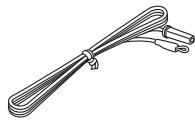
Antenne FM interieure*3
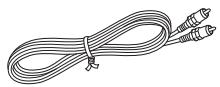
Cable video composite (1,5 m)
② Port iPod/iPhone/USB (p. 12, 15):
Enceinte centrale (C):
[Connection Internet]
[Connection BD-Live]
30 bits, 36 bits, Non*
[HDMI 1080p 24Hz]
DRC (Dynamic Range Compression)
⑤ DIGITAL IN (COAXIAL/OPTICAL)-Buchsen (S. 13, 14):
dhts-HD Master Audio Essential
INSTALLATIONSGUIDE/SNABBINSTALLATION
Normal
Shuffle F (mapp)
- Random F (mapp)
Proxy Host Staller in proxy-vard.
Proxy Port Staller in proxy-port.
Displayinstallingar
Uppgradera programvaran
1 Forbered programvaru-uppgradering.
② Porta iPod/iPhone/USB (p. 12, 15):
10 / | (Ricerca in avanti/Salto in avanti):
(4) Prese REMOTE CONTROL (IN/OUT)
⑤ Prese DIGITAL IN (COAXIAL/OPTICAL)
(p. 13, 14):
⑥ Prese AUDIO IN (AUX) (p. 14):
30 bits, 36 bits, Spento*
[HDMI 1080p 24Hz]
Bitstream, PCM, Spento*
Note
Spento*, Dolby PLII, DTS NEO:6
Altavoz central (C):
De software upgraden 41
AANVULLENDE INFORMATIE
PROBLEM OPLOSSEN. 42
Algemeen 42
Radio-ontvangst 44
iPod 44
USB 45
Wat is Audio Return Channel (ARC)?
Front USB, Rear USB*
中
[De-interlacing Mode]
Wanner [TV-system] ingesteld is op [NTSC]
| Resolutie | Compositiet | HDMI Auto | HDMI 480i/576i | HDMI 480p/576p | HDMI 720p | HDMI 1080i | HDMI 1080p | ||
| 24 Hz | Overige | ||||||||
| HDMI | BD afspelen | 480p | Max. | 480i | 480p | 720p 60 Hz | 1080i 60 Hz | 1080p 24 Hz | 1080p 60 Hz |
| overige | 1080p 60 Hz | ||||||||
| VIDEO | BD afspelen | 480i | OFF | 480i | 480i | OFF | |||
| overige | |||||||||
Wanner [TV-system] ingesteld is op [PAL]
| Resolutie | Composiet | HDMI Auto | HDMI 480i/576i | HDMI 480p/576p | HDMI 720p | HDMI 1080i | HDMI 1080p | ||
| 24 Hz | Overige | ||||||||
| HDMI | BD afsplen | 576p | Max. | 576i | 576p | 720p 50 Hz | 1080i 50 Hz | 1080p 24 Hz | 1080p 50 Hz |
| overige | 1080p 50 Hz | ||||||||
| VIDEO | BD afsplen | 576i | OFF | 576i | 576i | OFF | |||
| overige | |||||||||
Wanner [TV-system] ingesteld is op [Multi]
De software upgraden
Wanner u de software upgradet via [USB Storage]:

Master Audio | Essential
Master Audio | Essential
- Blu-ray Disc^TM , Blu-ray ^TM , Blu-ray 3D^TM , BD-Live ^TM , BONUSVIEW ^TM en de betreffende logo's zijn handelsmerken van Blu-ray Disc Association.



BONUS VIEW
Information about software
This product uses the following software.
For information (copyright, etc) about each software, read the original sentences stated below.
■ About Linux, Busybox, SquashFS, LIRC, U-boot
GNU GENERAL PUBLIC LICENSE
Version 2, June 1991
Copyright (C) 1989, 1991 Free Software Foundation, Inc.
51 Franklin St, Fifth Floor, Boston, MA 02110-1301 USA
Everyone is permitted to copy and distribute verbatim copies of this license document, but changing it is not allowed.
Preamble
The licenses for most software are designed to take away your freedom to share and change it. By contrast, the GNU General Public License is intended to guarantee your freedom to share and change free software--to make sure the software is free for all its users. This General Public License applies to most of the Free Software Foundation's software and to any other program whose authors commit to using it. (Some other Free Software Foundation software is covered by the GNU Library General Public License instead.) You can apply it to your programs, too.
When we speak of free software, we are referring to freedom, not price. Our General Public Licenses are designed to make sure that you have the freedom to distribute copies of free software (and charge for this service if you wish), that you receive source code or can get it if you want it, that you can change the software or use pieces of it in new free programs; and that you know you can do these things.
To protect your rights, we need to make restrictions that forbid anyone to deny you these rights or to ask you to surrender the rights. These restrictions translate to certain responsibilities for you if you distribute copies of the software, or if you modify it. For example, if you distribute copies of such a program, whether gratis or for a fee, you must give the recipients all the rights that you have. You must make sure that they, too, receive or can get the source code. And you must show them these terms so they know their rights.
We protect your rights with two steps: (1) copyright the software, and (2) offer you this license which gives you legal permission to copy, distribute and/or modify the software. Also, for each author's protection and ours, we want to make certain that everyone understands that there is no warranty for this free software. If the software is modified by someone else and passed on, we want its recipients to know that what they have is not the original, so that any problems introduced by others will not reflect on the original authors' reputations.
Finally, any free program is threatened constantly by software patents. We wish to avoid the danger that redistributors of a free program will individually obtain patent licenses, in effect making the program proprietary. To prevent this, we have made it clear that any patent must be licensed for everyone's free use or not licensed at all. The precise terms and conditions for copying, distribution and modification follow.
GNU GENERAL PUBLIC LICENSE
TERMS AND CONDITIONS FOR COPYING, DISTRIBUTION AND MODIFICATION
- This License applies to any program or other work which contains a notice placed by the copyright holder saying it may be distributed under the terms of this General Public License. The "Program", below, refers to any such program or work, and a "work based on the Program" means either the Program or any derivative work under copyright law: that is to say, a work containing the Program or a portion of it, either verbatim or with modifications and/or translated into another language. (Hereinafter, translation is included without limitation in the term "modification".) Each licensee is addressed as "you".
Activities other than copying, distribution and modification are not covered by this License; they are outside its scope. The act of running the Program is not restricted, and the output from the Program is covered only if its contents constitute a work based on the Program (independent of having been made by running the Program). Whether that is true depends on what the Program does.
- You may copy and distribute verbatim copies of the Program's source code as you receive it, in any medium, provided that you conspicuously and appropriately publish on each copy an appropriate copyright notice and disclaimer of warranty; keep intact all the notices that refer to this License and to the absence of any warranty; and give any other recipients of the Program a copy of this License along with the Program.
You may charge a fee for the physical act of transferring a copy, and you may at your option offer warranty protection in exchange for a fee.
- You may modify your copy or copies of the Program or any portion of it, thus forming a work based on the Program, and copy and distribute such modifications or work under the terms of Section 1 above, provided that you also meet all of these conditions:
a) You must cause the modified files to carry prominent notices stating that you changed the files and the date of any change.
b) You must cause any work that you distribute or publish, that in whole or in part contains or is derived from the Program or any part thereof, to be licensed as a whole at no charge to all third parties under the terms of this License.
c) If the modified program normally reads commands interactively when run, you must cause it, when started running for such interactive use in the most ordinary way, to print or display an announcement including an appropriate copyright notice and a notice that there is no warranty (or else, saying that you provide a warranty) and that users may redistribute the program under these conditions, and telling the user how to view a copy of this License. (Exception: if the Program itself is interactive but does not normally print such an announcement, your work based on the Program is not required to print an announcement.)
These requirements apply to the modified work as a whole. If identifiable sections of that work are not derived from the Program, and can be reasonably considered independent and separate works in themselves, then this License, and its terms, do not apply to those sections when you distribute them as separate works. But when you distribute the same sections as part of a whole which is a work based on the Program, the distribution of the whole must be on the terms of this License, whose permissions for other licensees extend to the entire whole, and thus to each and every part regardless of who wrote it.
Thus, it is not the intent of this section to claim rights or contest your rights to work written entirely by you; rather, the intent is to exercise the right to control the distribution of derivative or collective works based on the Program. In addition, mere aggregation of another work not based on the Program with the Program (or with a work based on the Program) on a volume of a storage or distribution medium does not bring the other work under the scope of this License.
- You may copy and distribute the Program (or a work based on it, under Section 2) in object code or executable form under the terms of Sections 1 and 2 above provided that you also do one of the following:
a) Accompany it with the complete corresponding machine-readable source code, which must be distributed under the terms of Sections 1 and 2 above on a medium customarily used for software interchange; or,
b) Accompany it with a written offer, valid for at least three years, to give any third party, for a charge no more than your cost of physically performing source distribution, a complete machine-readable copy of the corresponding source code, to be distributed under the terms of Sections 1 and 2 above on a medium customarily used for software interchange; or,
c) Accompany it with the information you received as to the offer to distribute corresponding source code. (This alternative is allowed only for noncommercial distribution and only if you received the program in object code or executable form with such an offer, in accord with Subsection b above.)
The source code for a work means the preferred form of the work for making modifications to it. For an executable work, complete source code means all the source code for all modules it contains, plus any associated interface definition files, plus the scripts used to control compilation and installation of the executable. However, as a special exception, the source code distributed need not include anything that is normally distributed (in either source or binary form) with the major components (compiler, kernel, and so on) of the operating system on which the executable runs, unless that component itself accompanies the executable.
If distribution of executable or object code is made by offering access to copy from a designated place, then offering equivalent access to copy the source code from the same place counts as distribution of the source code, even though third parties are not compelled to copy the source along with the object code.
- You may not copy, modify, sublicense, or distribute the Program except as expressly provided under this License. Any attempt otherwise to copy, modify, sublicense or distribute the Program is void, and will automatically terminate your rights under this License. However, parties who have received copies, or rights, from you under this License will not have their licenses terminated so long as such parties remain in full compliance.
- You are not required to accept this License, since you have not signed it. However, nothing else grants you permission to modify or distribute the Program or its derivative works. These actions are prohibited by law if you do not accept this License. Therefore, by modifying or distributing the Program (or any work based on the Program), you indicate your acceptance of this License to do so, and all its terms and conditions for copying, distributing or modifying the Program or works based on it.
- Each time you redistribute the Program (or any work based on the Program), the recipient automatically receives a license from the original licensor to copy, distribute or modify the Program subject to these terms and conditions. You may not impose any further restrictions on the recipients' exercise of the rights granted herein. You are not responsible for enforcing compliance by third parties to this License.
- If, as a consequence of a court judgment or allegation of patent infringement or for any other reason (not limited to patent issues), conditions are imposed on you (whether by court order, agreement or otherwise) that contradict the conditions of this License, they do not excuse you from the conditions of this License. If you cannot distribute so as to satisfy simultaneously your obligations under this License and any other pertinent obligations, then as a consequence you may not distribute the Program at all. For example, if a patent license would not permit royalty-free redistribution of the Program by all those who receive copies directly or indirectly through you, then the only way you could satisfy both it and this License would be to refrain entirely from distribution of the Program.
If any portion of this section is held invalid or unenforceable under any particular circumstance, the balance of the section is intended to apply and the section as a whole is intended to apply in other circumstances.
It is not the purpose of this section to induce you to infringe any patents or other property right claims or to contest validity of any such claims; this section has the sole purpose of protecting the integrity of the free software distribution system, which is implemented by public license practices. Many people have made generous contributions to the wide range of software distributed through that system in reliance on consistent application of that system; it is up to the author/donor to decide if he or she is willing to distribute software through any other system and a licensee cannot impose that choice.
This section is intended to make thoroughly clear what is believed to be a consequence of the rest of this License.
- If the distribution and/or use of the Program is restricted in certain countries either by patents or by copyrighted interfaces, the original copyright holder who places the Program under this License may add an explicit geographical distribution limitation excluding those countries, so that distribution is permitted only in or among countries not thus excluded. In such case, this License incorporates the limitation as if written in the body of this License.
- The Free Software Foundation may publish revised and/or new versions of the General Public License from time to time. Such new versions will be similar in spirit to the present version, but may differ in detail to address new problems or concerns.
Each version is given a distinguishing version number. If the Program specifies a version number of this License which applies to it and "any later version", you have the option of following the terms and conditions either of that version or of any later version published by the Free Software Foundation. If the Program does not specify a version number of this License, you may choose any version ever published by the Free Software Foundation.
- If you wish to incorporate parts of the Program into other free programs whose distribution conditions are different, write to the author to ask for permission. For software which is copyrighted by the Free Software Foundation, write to the Free Software Foundation; we sometimes make exceptions for this. Our decision will be guided by the two goals of preserving the free status of all derivatives of our free software and of promoting the sharing and reuse of software generally.
NO WARRANTY
- BECAUSE THE PROGRAM IS LICENSED FREE OF CHARGE, THERE IS NO WARRANTY FOR THE PROGRAM, TO THE EXTENT PERMITTED BY APPLICABLE LAW. EXCEPT WHEN OTHERWISE STATED IN WRITING THE COPYRIGHT HOLDERS AND/OR OTHER PARTIES PROVIDE THE PROGRAM "AS IS" WITHOUT WARRANTY OF ANY KIND, Either EXPRESSED OR IMPLIED, INCLUDING, BUT NOT LIMITED TO, THE IMPLIED WARRANTY OF MERCHANTABILITY AND FITNESS FOR A PARTICULAR PURPOSE. THE ENTIRE RISK AS TO THE QUALITY AND PERFORMANCE OF THE PROGRAM IS WITH YOU. SHOULD THE PROGRAM PROVE DEFECTIVE, YOU ASSUME THE COST OF ALL NECESSARY SERVICING, REPAIR OR CORRECTION.
- IN NO EVENT UNLESS REQUIRED BY APPLICABLE LAW OR AGREED TO IN WRITING WILL ANY COPYRIGHT HOLDER, OR ANY OTHER PARTY WHO MAY MODIFY AND/OR REDISTRIBUTE THE PROGRAM AS PERMITTED ABOVE, BE LIABLE TO YOU FOR DAMAGES, INCLUDING ANY GENERAL, SPECIAL, INCIDENTAL OR CONSEQUENTIAL DAMAGES ASING OUT OF THE USE OR INABILITY TO USE THE PROGRAM (INCLUDING BUT NOT LIMITED TO LOSS OF DATA OR DATA BEING RENDERED INACCURATE OR LOSSES SUSTAINED BY YOU OR THIRD PARTIES OR A FAILURE OF THE PROGRAM TO OPERATE WITH ANY OTHER PROGRAMS), EVEN IF SUCH HOLDER OR OTHER PARTY HAS BEEN ADVISED OF THE POSSIBILITY OF SUCH DAMAGES.
END OF TERMS AND CONDITIONS
How to Apply These Terms to Your New Programs
If you develop a new program, and you want it to be of the greatest possible use to the public, the best way to achieve this is to make it free software which everyone can redistribute and change under these terms.
To do so, attach the following notices to the program. It is safest to attach them to the start of each source file to most effectively convey the exclusion of warranty; and each file should have at least the "copyright" line and a pointer to where the full notice is found.
This program is free software; you can redistribute it and/or modify it under the terms of the GNU General Public License as published by the Free Software Foundation; either version 2 of the License, or (at your option) any later version.
This program is distributed in the hope that it will be useful, but WITHOUT ANY WARRANTY; without even the implied warranty of MERCHANTABILITY or FITNESS FOR A PARTICULAR PURPOSE. See the GNU General Public License for more details.
You should have received a copy of the GNU General Public License along with this program; if not, write to the Free Software Foundation, Inc., 51 Franklin St, Fifth Floor, Boston, MA 02110-1301 USA
Also add information on how to contact you by electronic and paper mail. If the program is interactive, make it output a short notice like this when it starts in an interactive mode:
Gnomovision version 69, Copyright (C) year name of author Gnomovision comes with ABSOLUTELY NO WARRANTY; for details type 'show w'. This is free software, and you are welcome to redistribute it under certain conditions; type 'show c' for details.
The hypothetical commands 'show w' and 'show c' should show the appropriate parts of the General Public License. Of course, the commands you use may be called something other than 'show w' and 'show c'; they could even be mouse-clicks or menu items--whatever suits your program.
You should also get your employer (if you work as a programmer) or your school, if any, to sign a "copyright disclaimer" for the program, if necessary. Here is a sample; alter the names:
Yoyodyne, Inc., hereby disclaims all copyright interest in the program
'Gnomovision' (which makes passes at compilers) written by James Hacker.
Ty Coon, President of Vice
This General Public License does not permit incorporating your program into proprietary programs. If your program is a subroutine library, you may consider it more useful to permit linking proprietary applications with the library. If this is what you want to do, use the GNU Library General Public License instead of this License..
About glibc, libmtp, libusb, libusb-compat, DirectFB
GNU LESSER GENERAL PUBLIC LICENSE
Version 2.1, February 1999
Copyright (C) 1991, 1999 Free Software Foundation, Inc.
59 Temple Place, Suite 330, Boston, MA 02111-1307 USA
Everyone is permitted to copy and distribute verbatim copies of this license document, but changing it is not allowed.
[This is the first released version of the Lesser GPL. It also counts as the successor of the GNU Library Public License, version 2, hence the version number 2.1.]
Preamble
The licenses for most software are designed to take away your freedom to share and change it. By contrast, the GNU General Public Licenses are intended to guarantee your freedom to share and change free software--to make sure the software is free for all its users.
This license, the Lesser General Public License, applies to some specially designated software packages--typically libraries--of the Free Software Foundation and other authors who decide to use it. You can use it too, but we suggest you first think carefully about whether this license or the ordinary General Public License is the better strategy to use in any particular case, based on the explanations below.
When we speak of free software, we are referring to freedom of use, not price. Our General Public Licenses are designed to make sure that you have the freedom to distribute copies of free software (and charge for this service if you wish); that you receive source code or can get it if you want it; that you can change the software and use pieces of it in new free programs; and that you are informed that you can do these things.
To protect your rights, we need to make restrictions that forbid distributors to deny you these rights or to ask you to surrender these rights. These restrictions translate to certain responsibilities for you if you distribute copies of the library or if you modify it. For example, if you distribute copies of the library, whether gratis or for a fee, you must give the recipients all the rights that we gave you. You must make sure that they, too, receive or can get the source code. If you link other code with the library, you must provide complete object files to the recipients, so that they can relink them with the library after making changes to the library and recompiling it. And you must show them these terms so they know their rights.
We protect your rights with a two-step method: (1) we copyright the library, and (2) we offer you this license, which gives you legal permission to copy, distribute and/or modify the library.
To protect each distributor, we want to make it very clear that there is no warranty for the free library. Also, if the library is modified by someone else and passed on, the recipients should know that what they have is not the original version, so that the original author's reputation will not be affected by problems that might be introduced by others.
Finally, software patents pose a constant threat to the existence of any free program.
We wish to make sure that a company cannot effectively restrict the users of a free program by obtaining a restrictive license from a patent holder. Therefore, we insist that any patent license obtained for a version of the library must be consistent with the full freedom of use specified in this license.
Most GNU software, including some libraries, is covered by the ordinary GNU General Public License. This license, the GNU Lesser General Public License, applies to certain designated libraries, and is quite different from the ordinary General Public License. We use this license for certain libraries in order to permit linking those libraries into non-free programs.
When a program is linked with a library, whether statically or using a shared library, the combination of the two is legally speaking a combined work, a derivative of the original library. The ordinary General Public License therefore permits such linking only if the entire combination fits its criteria of freedom. The Lesser General Public License permits more lax criteria for linking other code with the library.
We call this license the "Lesser" General Public License because it does Less to protect the user's freedom than the ordinary General Public License. It also provides other free software developers Less of an advantage over competing non-free programs. These disadvantages are the reason we use the ordinary General Public License for many libraries. However, the Lesser license provides advantages in certain special circumstances.
For example, on rare occasions, there may be a special need to encourage the widest possible use of a certain library, so that it becomes a de-facto standard. To achieve this, non-free programs must be allowed to use the library. A more frequent case is that a free library does the same job as widely used non-free libraries. In this case, there is little to gain by limiting the free library to free software only, so we use the Lesser General Public License.
In other cases, permission to use a particular library in non-free programs enables a greater number of people to use a large body of free software. For example, permission to use the GNU C Library in non-free programs enables many more people to use the whole GNU operating system, as well as its variant, the GNU/Linux operating system. Although the Lesser General Public License is Less protective of the users' freedom, it does ensure that the user of a program that is linked with the Library has the freedom and the wherewithal to run that program using a modified version of the Library.
The precise terms and conditions for copying, distribution and modification follow. Pay close attention to the difference between a "work based on the library" and a "work that uses the library". The former contains code derived from the library, whereas the latter must be combined with the library in order to run.
GNU LESSER GENERAL PUBLIC LICENSE
TERMS AND CONDITIONS FOR COPYING, DISTRIBUTION AND MODIFICATION
- This License Agreement applies to any software library or other program which contains a notice placed by the copyright holder or other authorized party saying it may be distributed under the terms of this Lesser General Public License (also called "this License"). Each licensee is addressed as "you".
A "library" means a collection of software functions and/or data prepared so as to be conveniently linked with application programs (which use some of those functions and data) to form executables.
The "Library", below, refers to any such software library or work which has been distributed under these terms. A "work based on the Library" means either the Library or any derivative work under copyright law: that is to say, a work containing the Library or a portion of it, either verbatim or with modifications and/or translated straightforwardly into another language. (Hereinafter, translation is included without limitation in the term "modification".)
"Source code" for a work means the preferred form of the work for making modifications to it. For a library, complete source code means all the source code for all modules it contains, plus any associated interface definition files, plus the scripts used to control compilation and installation of the library.
Activities other than copying, distribution and modification are not covered by this License; they are outside its scope. The act of running a program using the Library is not restricted, and output from such a program is covered only if its contents constitute a work based on the Library (independent of the use of the Library in a tool for writing it). Whether that is true depends on what the Library does and what the program that uses the Library does.
- You may copy and distribute verbatim copies of the Library's complete source code as you receive it, in any medium, provided that you conspicuously and appropriately publish on each copy an appropriate copyright notice and disclaimer of warranty; keep intact all the notices that refer to this License and to the absence of any warranty; and distribute a copy of this License along with the Library.
You may charge a fee for the physical act of transferring a copy, and you may at your option offer warranty protection in exchange for a fee.
- You may modify your copy or copies of the Library or any portion of it, thus forming a work based on the Library, and copy and distribute such modifications or work under the terms of Section 1 above, provided that you also meet all of these conditions:
a) The modified work must itself be a software library.
b) You must cause the files modified to carry prominent notices stating that you changed the files and the date of any change.
c) You must cause the whole of the work to be licensed at no charge to all third parties under the terms of this License.
d) If a facility in the modified Library refers to a function or a table of data to be supplied by an application program that uses the facility, other than as an argument passed when the facility is invoked, then you must make a good faith effort to ensure that, in the event an application does not supply such function or table, the facility still operates, and performs whatever part of its purpose remains meaningful.
(For example, a function in a library to compute square roots has a purpose that is entirely well-defined independent of the application. Therefore, Subsection 2d requires that any application-supplied function or table used by this function must be optional: if the application does not supply it, the square root function must still compute square roots.)
These requirements apply to the modified work as a whole. If identifiable sections of that work are not derived from the Library, and can be reasonably considered independent and separate works in themselves, then this License, and its terms, do not apply to those sections when you distribute them as separate works. But when you distribute the same sections as part of a whole which is a work based on the Library, the distribution of the whole must be on the terms of this License, whose permissions for other licensees extend to the entire whole, and thus to each and every part regardless of who wrote it.
Thus, it is not the intent of this section to claim rights or contest your rights to work written entirely by you; rather, the intent is to exercise the right to control the distribution of derivative or collective works based on the Library. In addition, mere aggregation of another work not based on the Library with the Library (or with a work based on the Library) on a volume of a storage or distribution medium does not bring the other work under the scope of this License.
- You may opt to apply the terms of the ordinary GNU General Public License instead of this License to a given copy of the Library. To do this, you must alter all the notices that refer to this License, so that they refer to the ordinary GNU General Public License, version 2, instead of to this License. (If a newer version than version 2 of the ordinary GNU General Public License has appeared, then you can specify that version instead if you wish.) Do not make any other change in these notices.
Once this change is made in a given copy, it is irreversible for that copy, so the ordinary GNU General Public License applies to all subsequent copies and derivative works made from that copy.
This option is useful when you wish to copy part of the code of the Library into a program that is not a library.
- You may copy and distribute the Library (or a portion or derivative of it, under Section 2) in object code or executable form under the terms of Sections 1 and 2 above provided that you accompany it with the complete corresponding machine-readable source code, which must be distributed under the terms of Sections 1 and 2 above on a medium customarily used for software interchange.
If distribution of object code is made by offering access to copy from a designated place, then offering equivalent access to copy the source code from the same place satisfies the requirement to distribute the source code, even though third parties are not compelled to copy the source along with the object code.
- A program that contains no derivative of any portion of the Library, but is designed to work with the Library by being compiled or linked with it, is called a "work that uses the Library". Such a work, in isolation, is not a derivative work of the Library, and therefore falls outside the scope of this License.
However, linking a "work that uses the Library" with the Library creates an executable that is a derivative of the Library (because it contains portions of the Library), rather than a "work that uses the library". The executable is therefore covered by this License. Section 6 states terms for distribution of such executables.
When a "work that uses the Library" uses material from a header file that is part of the Library, the object code for the work may be a derivative work of the Library even though the source code is not. Whether this is true is especially significant if the work can be linked without the Library, or if the work is itself a library. The threshold for this to be true is not precisely defined by law.
If such an object file uses only numerical parameters, data structure layouts and accessors, and small macros and small inline functions (ten lines or less in length), then the use of the object file is unrestricted, regardless of whether it is legally a derivative work. (Executables containing this object code plus portions of the Library will still fall under Section 6.)
Otherwise, if the work is a derivative of the Library, you may distribute the object code for the work under the terms of Section 6. Any executables containing that work also fall under Section 6, whether or not they are linked directly with the Library itself.
- As an exception to the Sections above, you may also combine or link a 'work that uses the Library' with the Library to produce a work containing portions of the Library, and distribute that work under terms of your choice, provided that the terms permit modification of the work for the customer's own use and reverse engineering for debugging such modifications.
You must give prominent notice with each copy of the work that the Library is used in it and that the Library and its use are covered by this License. You must supply a copy of this License. If the work during execution displays copyright notices, you must include the copyright notice for the Library among them, as well as a reference directing the user to the copy of this License. Also, you must do one of these things:
a) Accompany the work with the complete corresponding machine-readable source code for the Library including whatever changes were used in the work (which must be distributed under Sections 1 and 2 above); and, if the work is an executable linked with the Library, with the complete machine-readable "work that uses the Library", as object code and/or source code, so that the user can modify the Library and then relink to produce a modified executable containing the modified Library. (It is understood that the user who changes the contents of definitions files in the Library will not necessarily be able to recompile the application to use the modified definitions.)
b) Use a suitable shared library mechanism for linking with the Library. A suitable mechanism is one that (1) uses at run time a copy of the library already present on the user's computer system, rather than copying library functions into the executable, and (2) will operate properly with a modified version of the library, if the user installs one, as long as the modified version is interface-compatible with the version that the work was made with.
c) Accompany the work with a written offer, valid for at least three years, to give the same user the materials specified in Subsection 6a, above, for a charge no more than the cost of performing this distribution.
d) If distribution of the work is made by offering access to copy from a designated place, offer equivalent access to copy the above specified materials from the same place.
e) Verify that the user has already received a copy of these materials or that you have already sent this user a copy.
For an executable, the required form of the "work that uses the Library" must include any data and utility programs needed for reproducing the executable from it. However, as a special exception, the materials to be distributed need not include anything that is normally distributed (in either source or binary form) with the major components (compiler, kernel, and so on) of the operating system on which the executable runs, unless that component itself accompanies the executable.
It may happen that this requirement contradicts the license restrictions of other proprietary libraries that do not normally accompany the operating system. Such a contradiction means you cannot use both them and the Library together in an executable that you distribute.
- You may place library facilities that are a work based on the Library side-by-side in a single library together with other library facilities not covered by this License, and distribute such a combined library, provided that the separate distribution of the work based on the Library and of the other library facilities is otherwise permitted, and provided that you do these two things:
a) Accompany the combined library with a copy of the same work based on the Library, uncombined with any other library facilities. This must be distributed under the terms of the Sections above.
b) Give prominent notice with the combined library of the fact that part of it is a work based on the Library, and explaining where to find the accompanying uncombined form of the same work.
-
You may not copy, modify, sublicense, link with, or distribute the Library except as expressly provided under this License. Any attempt otherwise to copy, modify, sublicense, link with, or distribute the Library is void, and will automatically terminate your rights under this License. However, parties who have received copies, or rights, from you under this License will not have their licenses terminated so long as such parties remain in full compliance.
-
You are not required to accept this License, since you have not signed it. However, nothing else grants you permission to modify or distribute the Library or its derivative works. These actions are prohibited by law if you do not accept this License. Therefore, by modifying or distributing the Library (or any work based on the Library), you indicate your acceptance of this License to do so, and all its terms and conditions for copying, distributing or modifying the Library or works based on it.
- Each time you redistribute the Library (or any work based on the Library), the recipient automatically receives a license from the original licensor to copy, distribute, link with or modify the Library subject to these terms and conditions. You may not impose any further restrictions on the recipients' exercise of the rights granted herein. You are not responsible for enforcing compliance by third parties with this License.
- If, as a consequence of a court judgment or allegation of patent infringement or for any other reason (not limited to patent issues), conditions are imposed on you (whether by court order, agreement or otherwise) that contradict the conditions of this License, they do not excuse you from the conditions of this License. If you cannot distribute so as to satisfy simultaneously your obligations under this License and any other pertinent obligations, then as a consequence you may not distribute the Library at all. For example, if a patent license would not permit royalty-free redistribution of the Library by all those who receive copies directly or indirectly through you, then the only way you could satisfy both it and this License would be to refrain entirely from distribution of the Library.
If any portion of this section is held invalid or unenforceable under any particular circumstance, the balance of the section is intended to apply, and the section as a whole is intended to apply in other circumstances.
It is not the purpose of this section to induce you to infringe any patents or other property right claims or to contest validity of any such claims; this section has the sole purpose of protecting the integrity of the free software distribution system which is implemented by public license practices. Many people have made generous contributions to the wide range of software distributed through that system in reliance on consistent application of that system; it is up to the author/donor to decide if he or she is willing to distribute software through any other system and a licensee cannot impose that choice.
This section is intended to make thoroughly clear what is believed to be a consequence of the rest of this License.
- If the distribution and/or use of the Library is restricted in certain countries either by patents or by copyrighted interfaces, the original copyright holder who places the Library under this License may add an explicit geographical distribution limitation excluding those countries, so that distribution is permitted only in or among countries not thus excluded. In such case, this License incorporates the limitation as if written in the body of this License.
- The Free Software Foundation may publish revised and/or new versions of the Lesser General Public License from time to time. Such new versions will be similar in spirit to the present version, but may differ in detail to address new problems or concerns.
Each version is given a distinguishing version number. If the Library specifies a version number of this License which applies to it and "any later version", you have the option of following the terms and conditions either of that version or of any later version published by the Free Software Foundation. If the Library does not specify a license version number, you may choose any version ever published by the Free Software Foundation.
- If you wish to incorporate parts of the Library into other free programs whose distribution conditions are incompatible with these, write to the author to ask for permission. For software which is copyrighted by the Free Software Foundation, write to the Free Software Foundation; we sometimes make exceptions for this. Our decision will be guided by the two goals of preserving the free status of all derivatives of our free software and of promoting the sharing and reuse of software generally.
NO WARRANTY
- BECAUSE THE LIBRARY IS LICENSED FREE OF CHARGE, THERE IS NO WARRANTY FOR THE LIBRARY, TO THE EXTENT PERMITTED BY APPLICABLE LAW. EXCEPT WHEN OTHERWISE STATED IN WRITING THE COPYRIGHT HOLDERS AND/OR OTHER PARTIES PROVIDE THE LIBRARY "AS IS" WITHOUT WARRANTY OF ANY KIND, Either EXPRESSED OR IMPLIED, INCLUDING, BUT NOT LIMITED TO, THE IMPLIED WARRANTY OF MERCHANTABILITY AND FITNESS FOR A PARTICULAR PURPOSE. THE ENTIRE RISK AS TO THE QUALITY AND PERFORMANCE OF THE LIBRARY IS WITH YOU. SHOULD THE LIBRARY PROVE DEFECTIVE, YOU ASSUME THE COST OF ALL NECESSARY SERVICING, REPAIR OR CORRECTION.
- IN NO EVENT UNLESS REQUIRED BY APPLICABLE LAW OR AGREED TO IN WRITING WILL ANY COPYRIGHT HOLDER, OR ANY OTHER PARTY WHO MAY MODIFY AND/OR REDISTRIBUTE THE LIBRARY AS PERMITTED ABOVE, BE LIABLE TO YOU FOR DAMAGES, INCLUDING ANY GENERAL, SPECIAL, INCIDENTAL OR CONSEQUENTIAL DAMAGES ARISING OUT OF THE USE OR INABILITY TO USE THE LIBRARY (INCLUDING BUT NOT LIMITED TO LOSS OF DATA OR DATA BEING RENDERED INACCURATE OR LOSSES SUSTAINED BY YOU OR THIRD PARTIES OR A FAILURE OF THE LIBRARY TO OPERATE WITH ANY OTHER SOFTWARE), EVEN IF SUCH HOLDER OR OTHER PARTY HAS BEEN ADVISED OF THE POSSIBILITY OF SUCH DAMAGES.
END OF TERMS AND CONDITIONS
How to Apply These Terms to Your New Libraries
If you develop a new library, and you want it to be of the greatest possible use to the public, we recommend making it free software that everyone can redistribute and change. You can do so by permitting redistribution under these terms (or, alternatively, under the terms of the ordinary General Public License).
To apply these terms, attach the following notices to the library. It is safest to attach them to the start of each source file to most effectively convey the exclusion of warranty; and each file should have at least the "copyright" line and a pointer to where the full notice is found.
This library is free software; you can redistribute it and/or modify it under the terms of the GNU Lesser General Public License as published by the Free Software Foundation; either version 2 of the License, or (at your option) any later version.
This library is distributed in the hope that it will be useful, but WITHOUT ANY WARRANTY; without even the implied warranty of MERCHANTABILITY or FITNESS FOR A PARTICULAR PURPOSE. See the GNU Lesser General Public License for more details.
You should have received a copy of the GNU Lesser General Public License along with this library; if not, write to the Free Software Foundation, Inc., 59 Temple Place, Suite 330, Boston, MA 02111-1307 USA
Also add information on how to contact you by electronic and paper mail. You should also get your employer (if you work as a programmer) or your school, if any, to sign a "copyright disclaimer" for the library, if necessary. Here is a sample; alter the names:
Yoyodyne, Inc., hereby disclaims all copyright interest in the library 'Frob' (a library for tweaking knobs) written by James Random Hacker.
That's all there is to it!
About Fusion
DirectFB Fusion kernel module: introduction and API by Niels Roest
Copyright (C) 2009 Niels Roest
This documentation is free software; you can redistribute it and/or modify it under the terms of the GNU General Public License as published by
the Free Software Foundation; either version 2 of the License, or (at your option) any later version.
This program is distributed in the hope that it will be useful, but WITHOUT ANY WARRANTY; without even the implied warranty of
MERCHANTABILITY or FITNESS FOR A PARTICULAR PURPOSE. See the GNU General Public License for more details.
You should have received a copy of the GNU General Public License along with this program; if not, write to the Free Software Foundation, Inc.,
59 Temple Place, Suite 330, Boston, MA 02111-1307 USA
For more details see the ?le COPYING in the source distribution of Linux.
About openssl
Copyright (C) 1998-2008 The OpensSL Project. All rights reserved.
Redistribution and use in source and binary forms, with or without modification, are permitted provided that the following conditions are met:
- Redistributions of source code must retain the above copyright notice, this list of conditions and the following disclaimer.
-
- Redistributions in binary form must reproduce the above copyright notice, this list of conditions and the following disclaimer in the documentation and/or other materials provided with the distribution.
- All advertising materials mentioning features or use of this software must display the following acknowledgment: "This product includes software developed by the OpensSL Project for use in the OpensSL Toolkit. (http://www.openssl.org/)
- The names "OpenSSL Toolkit" and "OpenSSL Project" must not be used to endorse or promote products derived from this software without prior written permission. For written permission, please contact openssl-core@openssl.org.
-
Products derived from this software may not be called "OpenSSL" nor may "OpenSSL" appear in their names without prior written permission of the OpenSSL Project.
-
Redistributions of any form whatsoever must retain the following acknowledgment:
'This product includes software developed by the OpenSSL Project for use in the OpenSSL Toolkit (http://www.opendsll.org/)
THIS SOFTWARE IS PROVIDED BY THE OpenssL PROJECT "AS IS" AND ANY EXPRESSED OR IMPLIED WARRANTY, INCLUDING, BUT NOT LIMITED TO, THE IMPLIED WARRANTYES OF MERCHANTABILITY AND FITNESS FOR A PARTICULAR PURPOSE ARE DISCLAIMED. IN NO EVENT SHALL THE OpenssL PROJECT OR ITS CONTRIBUTORS BE LIABLE FOR ANY DIRECT, INDIRECT, INCIDENTAL, SPECIAL, EXEMPLARY, OR CONSEQUENTIAL DAMAGES (INCLUDING, BUT NOT LIMITED TO, PROCEDURE OF SUBSTITUTE GOODS OR SERVICES; LOSS OF USE, DATA, OR PROFITS; OR BUSINESS INTERCEPTION) HOWEVER CAUSED AND ON ANY THEORY OF LIABILITY, WHETHER IN CONTRACT, STRICT LIABILITY, OR TORT (INCLUDING NEGLIGENCE OR OTHERWISE) ASING IN ANY WAY OUT OF THE USE OF THIS SOFTWARE, EVEN IF ADVISEDOF THE POSSIBILITY OF SUCH DAMAGE.
This product includes cryptographic software written by Eric Young (eay@cryptsoft.com). This product includes software written by Tim Hudson (tjh@cryptsoft.com).
Original SSLay License
Copyright (C) 1995-1998 Eric Young (eay@cryptsoft.com) All rights reserved.
This package is an SSL implementation written by Eric Young (eay@cryptsoft.com). The implementation was written so as to conform with Netscape SSL.
This library is free for commercial and non-commercial use as long as the following conditions are ahead to. The following conditions apply to all code found in this distribution, be it the RC4, RSA, lhash, DES, etc., code; not just the SSL code. The SSL documentation included with this distribution is covered by the same copyright terms except that the holder is Tim Hudson (tjh@cryptsoft.com).
Copyright remains Eric Young's, and as such any Copyright notices in the code are not to be removed. If this package is used in a product, Eric Young should be given attribution as the author of the parts of the library used. This can be in the form of a textual message at program startup or in documentation (online or textual) provided with the package.
Redistribution and use in source and binary forms, with or without modification, are permitted provided that the following conditions are met:
- Redistributions of source code must retain the copyright notice, this list of conditions and the following disclaimer.
- Redistributions in binary form must reproduce the above copyright notice, this list of conditions and the following disclaimer in the documentation and/or other materials provided with the distribution.
- All advertising materials mentioning features or use of this software must display the following acknowledgement:
"This product includes cryptographic software written by Eric Young (eay@cryptsoft.com)." The word 'cryptographic' can be left out if the routines from the library being used are not cryptographic related :-).
- If you include any Windows specific code (or a derivative thereof) from the apps directory (application code) you must include an acknowledgement:
"This product includes software written by Tim Hudson (tjh@cryptsoft.com)" THIS SOFTWARE IS PROVIDED BY ERIC YOUNG "AS IS" AND ANY EXPRESS OR IMPLIED WARRANTYES, INCLUDING, BUT NOT LIMITED TO, THE IMPLIED WARRANTYES OF MERCHANTABILITY AND FITNESS FOR A PARTICULAR PURPOSE ARE DISCLAIMED. IN NO EVENT SHALL THE AUTHOR OR COLLABORATORS BE LIABLE FOR ANY DIRECT, INDIRECT, INCIDENTAL, SPECIAL, EXEMPLARY, OR CONSEQUENTIAL DAMAGES (INCLUDING, BUT NOT LIMITED TO, PROCEDURE OF SUBSTITUTE GOODS OR SERVICES; LOSS OF USE, DATA, OR PROFITS; OR BUSINESS INTERRUPTION) HOWEVER CAUSED AND ON ANY THEORY OF LIABILITY, WHETHER IN CONTRACT, STRICT LIABILITY, OR TORT (INCLUDING NEGLIGENCE OR OTHERWISE) ARISING IN ANY WAY OUT OF THE USE OF THIS SOFTWARE, EVEN IF ADVISED OF THE POSSIBILITY OF SUCH DAMAGE.
The licence and distribution terms for any publicly available version or derivative of this code cannot be changed. i.e. this code cannot simply be copied and put under another distribution licence [including the GNU Public Licence.]
About zlib
Copyright notice:
(C) 1995-2004 Jean-loup Gailly and Mark Adler
This software is provided 'as-is', without any express or implied warranty. In no event will the authors be held liable for any damages arising from the use of this software. Permission is granted to anyone to use this software for any purpose, including commercial applications, and to alter it and redistribute it freely, subject to the following restrictions:
- The origin of this software must not be misrepresented; you must not claim that you wrote the original software. If you use this software in a product, an acknowledgment in the product documentation would be appreciated but is not required.
- Altered source versions must be plainly marked as such, and must not be misrepresented as being the original software.
- This notice may not be removed or altered from any source distribution. Jean-loup Gailly Mark Adler
jloup@gzip.org madler@alumni.caltech.edu
If you use the zlib library in a product, we would appreciate not receiving lengthy legal documents to sign. The sources are provided for free but without warranty of any kind. The library has been entirely written by Jean-loup Gailly and Mark Adler; it does not include third-party code.
If you redistribute modified sources, we would appreciate that you include in the file ChangeLog history information documenting your changes. Please read the FAQ for more information on the distribution of modified source versions.
About FreeType
The FreeType Project LICENSE
2006-Jan-27
Copyright 1996-2002, 2006 by
David Turner, Robert Wilhelm, and Werner Lemberg
Introduction
The FreeType Project is distributed in several archive packages; some of them may contain, in addition to the FreeType font engine, various tools and contributions which rely on, or relate to, the FreeType Project.
This license applies to all files found in such packages, and which do not fall under their own explicit license. The license affects thus the FreeType font engine, the test programs, documentation and makefiles, at the very least.
This license was inspired by the BSD, Artistic, and IJG (Independent JPEG Group) licenses, which all encourage inclusion and use of free software in commercial and freeware products alike. As a consequence, its main points are that:
o We don't promise that this software works. However, we will be interested in any kind of bug reports. ('as is' distribution)
o You can use this software for whatever you want, in parts or full form, without having to pay us. ('royalty-free' usage)
o You may not pretend that you wrote this software. If you use it, or only parts of it, in a program, you must acknowledge somewhere in your documentation that you have used the FreeType code. ('credits')
We specifically permit and encourage the inclusion of this software, with or without modifications, in commercial products. We disclaim all warranties covering The FreeType Project and assume no liability related to The FreeType Project.
Finally, many people asked us for a preferred form for a credit/disclaimer to use in compliance with this license. We thus encourage you to use the following text:
Portions of this software are copyright (C)
Please replace < year> with the value from the FreeType version you actually use.
Legal Terms
0. Definitions
Throughout this license, the terms 'package', 'FreeType Project', and 'FreeType archive' refer to the set of files originally distributed by the authors (David Turner, Robert Wilhelm, and Werner Lemberg) as the 'FreeType Project', be they named as alpha, beta or final release.
'You' refers to the licensee, or person using the project, where 'using' is a generic term including compiling the project's source code as well as linking it to form a 'program' or 'executable'. This program is referred to as 'a program using the FreeType engine'. This license applies to all files distributed in the original FreeType Project, including all source code, binaries and documentation, unless otherwise stated in the file in its original, unmodified form as distributed in the original archive. If you are unsure whether or not a particular file is covered by this license, you must contact us to verify this.
The FreeType Project is copyright (C) 1996-2000 by David Turner, Robert Wilhelm, and Werner Lemberg. All rights reserved except as specified below.
1. No Warranty
THE FREETYPE TYPE PROJECT IS PROVIDED 'AS IS' WITHOUT WARRANTY OF ANY KIND, EITHER EXPRESS OR IMPLIED, INCLUDING, BUT NOT LIMITED TO, WARRANTYIES OF MERCHANTABILITY AND FITNESS FOR A PARTICULAR PURPOSE. IN NO EVENT WILL ANY OF THE AUTHORS OR COPYRIGHT HOLDERS BE LIABLE FOR ANY DAMAGES CAUSED BY THE USE OR THE INABILITY TO USE, OF THE FREETYPE TYPE PROJECT.
2. Redistribution
This license grants a worldwide, royalty-free, perpetual and irrevocable right and license to use, execute, perform, compile, display, copy, create derivative works of, distribute and sublicense the FrecType Project (in both source and object code forms) and derivative works thereof for any purpose; and to authorize others to exercise some or all of the rights granted herein, subject to the following conditions:
o Redistribution of source code must retain this license file ('FTL.TXT') unaltered; any additions, deletions or changes to the original files must be clearly indicated in accompanying documentation. The copyright notices of the unaltered, original files must be preserved in all copies of source files.
o Redistribution in binary form must provide a disclaimer that states that the software is based in part of the work of the FreeType Team, in the distribution documentation. We also encourage you to put an URL to the FreeType web page in your documentation, though this isn't mandatory.
These conditions apply to any software derived from or based on the FreeType Project, not just the unmodified files. If you use our work, you must acknowledge us. However, no fee need be paid to us.
3. Advertising
Neither the FreeType authors and contributors nor you shall use the name of the other for commercial, advertising, or promotional purposes without specific prior written permission.
We suggest, but do not require, that you use one or more of the following phrases to refer to this software in your documentation or advertising materials: 'FreeType Project', 'FreeType Engine', 'FreeType library', or 'FreeType Distribution'.
As you have not signed this license, you are not required to accept it. However, as the FreeType Project is copyrighted material, only this license, or another one contracted with the authors, grants you the right to use, distribute, and modify it. Therefore, by using, distributing, or modifying the FreeType Project, you indicate that you understand and accept all the terms of this license.
4. Contacts
There are two mailing lists related to FreeBSD: o freetype@nongnu.org
Discusses general use and applications of FreeType, as well as future and wanted additions to the library and distribution. If you are looking for support, start in this list if you haven't found anything to help you in the documentation.
o freetype-devel@nongnu.org
Discusses bugs, as well as engine internals, design issues, specific licenses, porting, etc.
Our home page can be found at
http://www.freetype.org
About Expat
Copyright (C) 1998, 1999, 2000 Thai Open Source Software Center Ltd and Clark Cooper
Copyright (C) 2001, 2002, 2003, 2004, 2005, 2006 Expat maintainers.
Permission is hereby granted, free of charge, to any person obtaining a copy of this software and associated documentation files (the "Software"), to deal in the Software without restriction, including without limitation the rights to use, copy, modify, merge, publish, distribute, sublicense, and/or sell copies of the Software, and to permit persons to whom the Software is furnished to do so, subject to the following conditions:
The above copyright notice and this permission notice shall be included in all copies or substantial portions of the Software.
THE SOFTWARE IS PROVIDED "AS IS", WITHOUT WARRANTY OF ANY KIND, EXPRESS OR IMPLIED, INCLUDING BUT NOT LIMITED TO THE WARRANTY OF MERCHANTABILITY, FITNESS FOR A PARTICULAR PURPOSE AND NONINFRINGEMENT. IN NO EVENT SHALL THE AUTHORS OR COPYRIGHT HOLDERS BE LIABLE FOR ANY CLAIM, DAMAGES OR OTHER LIABILITY, WHETHER IN AN ACTION OF CONTRACT, TORT OR OTHERWISE, ARISING FROM, OUT OF OR IN CONNECTION WITH THE SOFTWARE OR THE USE OR OTHER DEALINGS IN THE SOFTWARE.
About cURL
COPYRIGHT AND PERMISSION NOTICE
Copyright (C) 1996 - 2009, Daniel Stenberg, daniel@haxx.se.
All rights reserved.
Permission to use, copy, modify, and distribute this software for any purpose with or without fee is hereby granted, provided that the above copyright notice and this permission notice appear in all copies.
THE SOFTWARE IS PROVIDED "AS IS", WITHOUT WARRANTY OF ANY KIND, EXPRESS OR IMPLIED, INCLUDING BUT NOT LIMITED TO THE WARRANTY OF MERCHANTABILITY, FITNESS FOR A PARTICULAR PURPOSE AND NONINFRINGEMENT OF THIRD PARTY RIGHTS. IN NO EVENT SHALL THE AUTHORS OR COPYRIGHT HOLDERS BE LIABLE FOR ANY CLAIM, DAMAGES OR OTHER LIABILITY, WHETHER IN AN ACTION OF CONTRACT, TORT OR OTHERWISE, ARISING FROM, OUT OF OR IN CONNECTION WITH THE SOFTWARE OR THE USE OR OTHER DEALINGS IN THE SOFTWARE.
Except as contained in this notice, the name of a copyright holder shall not be used in advertising or otherwise to promote the sale, use or other dealings in this Software without prior written authorization of the copyright holder.
About Independent JPEG group
The Independent JPEG Group's JPEG software
README for release 7 of 27-Jun-2009
This distribution contains the seventh public release of the Independent JPEG Group's free JPEG software. You are welcome to redistribute this software and to use it for any purpose, subject to the conditions under LEGAL ISSUES, below.
This software is the work of Tom Lane, Guido Vollbeding, Philip Gladstone, Bill Allombert, Jim Boucher, Lee Crocker, Bob Friesenhahn, Ben Jackson, Julian Minguillon, Luis Ortiz, George Phillips, Davide Rossi, Ge' Weijers, and other members of the Independent JPEG Group.
IJG is not affiliated with the official ISO JPEG standards committee.
This file contains the following sections:
OVERVIEW General description of JPEG and the IJG software.
LEGAL ISSUES Copyright, lack of warranty, terms of distribution.
REFERENCES Where to learn more about JPEG.
ARCHIVE LOCATIONS
ACKNOWLEDGMENTS
FILE FORMAT WARS
TDO
Other documentation files in the distribution are:
User documentation:
install.txt How to configure and install the IJG software.
usage.txt Usage instructions for cjpeg, djpeg, jpegtran, rdjpgcom, and wrjpgcom.
*.1 Unix-style man pages for programs (same info as usage.txt).
wizard.txt Advanced usage instructions for JPEG wizards only.
change.log Version-to-version change highlights.
Programmer and internal documentation:
libjpeg.txt How to use the JPEG library in your own programs.
example.c Sample code for calling the JPEG library.
structure.txt Overview of the JPEG library's internal structure.
filelist.txt Road map of IJG files.
coderules.txt Coding style rules --- please read if you contribute code.
Please read at least the files install.txt and usage.txt. Some information can also be found in the JPEG FAQ (Frequently Asked Questions) article. See ARCHIVE LOCATIONS below to find out where to obtain the FAQ article.
If you want to understand how the JPEG code works, we suggest reading one or more of the REFERENCES, then looking at the documentation files (in roughly the order listed) before diving into the code.
OVERVIEW
This package contains C software to implement JPEG image encoding, decoding, and transcoding. JPEG (pronounced "jay-peg") is a standardized compression method for full-color and gray-scale images.
This software implements JPEG baseline, extended-sequential, and progressive compression processes. Provision is made for supporting all variants of these processes, although some uncommon parameter settings aren't implemented yet. We have made no provision for supporting the hierarchical or lossless processes defined in the standard.
We provide a set of library routines for reading and writing JPEG image files, plus two sample applications "cjpeg" and "djpeg", which use the library to perform conversion between JPEG and some other popular image file formats. The library is intended to be reused in other applications.
In order to support file conversion and viewing software, we have included
considerable functionality beyond the bare JPEG coding/decoding capability; for example, the color quantization modules are not strictly part of JPEG decoding, but they are essential for output to colormapped file formats or colormapped displays.
These extra functions can be compiled out of the library if not required for a particular application.
We have also included "jpegtran", a utility for lossless transcoding between different JPEG processes, and "rdjpgcom" and "wrjpgcom", two simple applications for inserting and extracting textual comments in JFIF files.
The emphasis in designing this software has been on achieving portability and flexibility, while also making it fast enough to be useful. In particular, the software is not intended to be read as a tutorial on JPEG. (See the REFERENCES section for introductory material.) Rather, it is intended to be reliable, portable, industrial-strength code. We do not claim to have achieved that goal in every aspect of the software, but we strive for it.
We welcome the use of this software as a component of commercial products. No royalty is required, but we do ask for an acknowledgement in product documentation, as described under LEGAL ISSUES.
LEGAL ISSUES
In plain English
-
We don't promise that this software works. (But if you find any bugs, please let us know!)
-
You can use this software for whatever you want. You don't have to pay us.
-
You may not pretend that you wrote this software. If you use it in a program, you must acknowledge somewhere in your documentation that you've used the IJG code. In legalese:
The authors make NO WARRANTY or representation, either express or implied, with respect to this software, its quality, accuracy, merchantability, or fitness for a particular purpose. This software is provided "AS IS", and you, its user, assume the entire risk as to its quality and accuracy.
This software is copyright (C) 1991-2009, Thomas G. Lane, Guido Vollbeding. All Rights Reserved except as specified below.
Permission is hereby granted to use, copy, modify, and distribute this software (or portions thereof) for any purpose, without fee, subject to these conditions:
(1) If any part of the source code for this software is distributed, then this README file must be included, with this copyright and no-warranty notice unaltered; and any additions, deletions, or changes to the original files must be clearly indicated in accompanying documentation.
(2) If only executable code is distributed, then the accompanying documentation must state that "this software is based in part on the work of the Independent JPEG Group".
(3) Permission for use of this software is granted only if the user accepts full responsibility for any undesirable consequences; the authors accept NO LIABILITY for damages of any kind.
These conditions apply to any software derived from or based on the IJG code, not just to the unmodified library. If you use our work, you ought to acknowledge us.
Permission is NOT granted for the use of any IUG author's name or company name in advertising or publicity relating to this software or products derived from it. This software may be referred to only as "the Independent JPEG Group's software".
We specifically permit and encourage the use of this software as the basis of commercial products, provided that all warranty or liability claims are assumed by the product vendor.
ansi2knr.c is included in this distribution by permission of L. Peter Deutsch, sole proprietor of its copyright holder, Aladdin Enterprises of Menlo Park, CA.ansi2knr.c is NOT covered by the above copyright and conditions, but instead by the usual distribution terms of the Free Software Foundation; principally, that you must include source code if you redistribute it. (See the file ANSI2knr.c for full details.) However, sinceansi2knr.c is not needed as part of any program generated from the IJG code, this does not limit you more than the foregoing paragraphs do.
The Unix configuration script "configure" was produced with GNU Autoconf. It is copyright by the Free Software Foundation but is freely distributable. The same holds for its supporting scripts (config.guess, config.sub, ltmain.sh). Another support script, install-sh, is copyright by X Consortium but is also freely distributable.
The IJG distribution formerly included code to read and write GIF files. To avoid
entanglement with the Unisys LZW patent, GIF reading support has been removed
altogether, and the GIF writer has been simplified to produce "uncompressed GIFs"
This technique does not use the LZW algorithm; the resulting GIF files are larger than usual, but are readable by all standard GIF decoders.
We are required to state that
The Graphics Interchange Format(c) is the Copyright property of
CompuServe Incorporated. GIF(sm) is a Service Mark property of
CompuServe Incorporated."
REFERENCES
We recommend reading one or more of these references before trying to understand the innards of the JPEG software.
The best short technical introduction to the JPEG compression algorithm is
Wallace, Gregory K. "The JPEG Still Picture Compression Standard",
Communications of the ACM, April 1991 (vol. 34 no. 4), pp. 30-44.
(Adjacent articles in that issue discuss MPEG motion picture compression, applications of JPEG, and related topics.) If you don't have the CACM issue handy, a PostScript file containing a revised version of Wallace's article is available at http://www.ig.org/files/wallace.ps.gz. The file (actually a preprint for an article that appeared in IEEE Trans. Consumer Electronics) omits the sample images that appeared in CACM, but it includes corrections and some added material. Note: the Wallace article is copyright ACM and IEEE, and it may not be used for commercial purposes.
A somewhat less technical, more leisurely introduction to JPEG can be found in "The Data Compression Book" by Mark Nelson and Jean-loup Gailly, published by M&T Books (New York), 2nd ed. 1996, ISBN 1-55851-434-1. This book provides good explanations and example C code for a multitude of compression methods including JPEG. It is an excellent source if you are comfortable reading C code but don't know much about data compression in general. The book's JPEG sample code is far from industrial-strength, but when you are ready to look at a full implementation, you've got one here...
The best currently available description of JPEG is the textbook "JPEG Still Image Data Compression Standard" by William B. Pennebaker and Joan L. Mitchell, published by Van Nostrand Reinhold, 1993, ISBN 0-442-01272-1. Price US(59.95, 638 pp. The book includes the complete text of the ISO JPEG standards (DIS 10918-1 and draft DIS 10918-2).
Although this is by far the most detailed and comprehensive exposition of JPEG publicly available, we point out that it is still missing an explanation of the most essential properties and algorithms of the underlying DCT technology.
If you think that you know about DCT-based JPEG after reading this book, then you are in delusion. The real fundamentals and corresponding potential of DCT-based JPEG are not publicly known so far, and that is the reason for all the mistaken developments taking place in the image coding domain.
The original JPEG standard is divided into two parts, Part 1 being the actual specification, while Part 2 covers compliance testing methods. Part 1 is titled "Digital Compression and Coding of Continuous-tone Still Images, Part 1: Requirements and guidelines" and has document numbers ISO/IEC IS 10918-1, ITU-T T.81. Part 2 is titled "Digital Compression and Coding of Continuous-tone Still Images, Part 2:
Compliance testing" and has document numbers ISO/IEC IS 10918-2, ITU-T T.83. The JPEG standard does not specify all details of an interchangeable file format. For the omitted details we follow the "JFIF" conventions, revision 1.02. A copy of the JFIF spec is available from:
Literature Department
C-Cube Microsystems, Inc.
1778 McCarthy Blvd.
Milpitas, CA 95035
phone (408) 944-6300, fax (408) 944-6314
A PostScript version of this document is available at http://www.ijg.org/files/jffif.ps.gz. There is also a plain text version at http://www.ijg.org/files/jffif.txt.gz, but it is missing the figures.
The TIFF 6.0 file format specification can be obtained by FTP from ftp://ftp.sgi.com/ graphics/tiff/TIFF6.ps.gz. The JPEG incorporation scheme found in the TIFF 6.0 spec of 3-June-92 has a number of serious problems. IJG does not recommend use of the TIFF 6.0 design (TIFF Compression tag 6). Instead, we recommend the JPEG design proposed by TIFF Technical Note #2 (Compression tag 7). Copies of this Note can be obtained from http://www.ijg.org/files/. It is expected that the next revision of the TIFF spec will replace the 6.0 JPEG design with the Note's design. Although IJG's own code does not support TIFp/JPEG, the free libtiff library uses our library to implement TIFp/JPEG per the Note.
ARCHIVE LOCATIONS
The "official" archive site for this software is www.ijg.org. The most recent released version can always be found there in directory "files". This particular version will be archived as http://www.ijg.org/files/Jpegsrc.v7.tar.gz, and in Windows-compatible "zip" archive format as http://www.ijg.org/files/Jpegsr7.zip.
The JPEG FAQ (Frequently Asked Questions) article is a source of some general information about JPEG. It is available on the World Wide Web at http://www.faqs.org/faqs/jpeg-faq/ and other news answers archive sites, including the official
news_answers archive at rtfm.mit.edu: ftp://rtfm.mit.edu/pub/usenet/news_answers/jpeg-faq/. If you don't have Web or FTP access, send e-mail to mailserver@rtfm.mit.edu with body
send usenet/newsAnswers.jpeg-faq/part1
send usenet/newsAnswers.jpeg-faq/part2
ACKNOWLEDGMENTS
Thank to Juergen Bruder of the Georg-Cantor-Organization at the Martin-Luther
University Halle for providing me with a copy of the common DCT algorithm article, only to find out that I had come to the same result in a more direct and comprehensible way with a more generative approach.
Thank to Istvan Sebestyen and Joan L. Mitchell for inviting me to the ITU JPEG (Study Group 16) meeting in Geneva, Switzerland.
Thank to Thomas Wiegand and Gary Sullivan for inviting me to the Joint Video Team (MPEG & ITU) meeting in Geneva, Switzerland.
Thank to John Korejwa and Massimo Ballerini for inviting me to fruitful consultations in Boston, MA and Milan, Italy.
Thank to Hendrik Elstner, Roland Fassauer, and Simone Zuck for corresponding business development.
Thank to Nico Zschach and Dirk Stelling of the technical support team at the Digital Images company in Halle for providing me with extra equipment for configuration tests.
Thank to Richard F. Lyon (then of Foveon Inc.) for fruitful communication about JPEG configuration in Sigma Photo Pro software.
Last but not least special thank to Thomas G. Lane for the original design and development of this singular software package.
FILE FORMAT WARS
The ISO JPEG standards committee actually promotes different formats like JPEG-2000 or JPEG-XR which are incompatible with original DCT-based JPEG and which are based on faulty technologies. IJG therefore does not and will not support such momentary mistakes (see REFERENCES). We have little or no sympathy for the promotion of these formats. Indeed, one of the original reasons for developing this free software was to help force convergence on common, interoperable format standards for JPEG files. Don't use an incompatible file format! (In any case, our decoder will remain capable of reading existing JPEG image files indefinitely.)
TODO
v7 is basically just a necessary interim release, paving the way for a major breakthrough in image coding technology with the next v8 package which is scheduled for release in the year 2010.
Please send bug reports, offers of help, etc. to jpeg-info@jpegclub.org.
■ About International Components for Unicode
ICU License - ICU 1.8.1 and later
COPYRIGHT AND PERMISSION NOTICE
Copyright (C) 1995-2003 International Business Machines Corporation and others All rights reserved.
Permission is hereby granted, free of charge, to any person obtaining a copy of this software and associated documentation files (the "Software"), to deal in the Software without restriction, including without limitation the rights to use, copy, modify, merge, publish, distribute, and/or sell copies of the Software, and to permit persons to whom the Software is furnished to do so, provided that the above copyright notice(s) and this permission notice appear in all copies of the Software and that both the above copyright notice(s) and this permission notice appear in supporting documentation.
THE SOFTWARE IS PROVIDED "AS IS", WITHOUT WARRANTY OF ANY KIND, EXPRESS OR IMPLIED, INCLUDING BUT NOT LIMITED TO THE WARRANTY OF MERCHANTABILITY, FITNESS FOR A PARTICULAR PURPOSE AND NONINFRINGEMENT OF THIRD PARTY RIGHTS. IN NO EVENT SHALL THE COPYRIGHT HOLDER OR HOLDERS INCLUDED IN THIS NOTICE BE LIABLE FOR ANY CLAIM, OR ANY SPECIAL INDIRECT OR CONSEQUENTIAL DAMAGES, OR ANY DAMAGES WHATSOVER RESULTING FROM LOSS OF USE, DATA OR PROFITS, WHETHER IN AN ACTION OF CONTRACT, NEGLIGENCE OR OTHER TORTIOUS ACTION, ARISING OUT OF OR IN CONNECTION WITH THE USE OR PERFORMANCE OF THIS SOFTWARE.
Except as contained in this notice, the name of a copyright holder shall not be used in advertising or otherwise to promote the sale, use or other dealings in this Software without prior written authorization of the copyright holder.
All trademarks and registered trademarks mentioned herein are the property of their respective owners.
About libpng
This copy of the libpng notices is provided for your convenience. In case of any discrepancy between this copy and the notices in the file png.h that is included in the libpng distribution, the latter shall prevail.
COPYRIGHT NOTICE, DISCLAIMER, and LICENSE:
If you modify libpng you may insert additional notices immediately following this sentence.
This code is released under the libpng license.
libpng versions 1.2.6, August 15, 2004, through 1.2.45, July 7, 2011, are Copyright (C) 2004, 2006-2009 Glenn Randers-Pehrson, and are distributed according to the same disclaimer and license as libpng-1.2.5 with the following individual added to the list of Contributing Authors
Cosmin Truta
libpng versions 1.0.7, July 1, 2000, through 1.2.5 - October 3, 2002, are Copyright (C) 2000-2002 Glenn Randers-Pehrson, and are distributed according to the same disclaimer and license as libpng-1.0.6 with the following individuals added to the list of Contributing Authors
Simon-Pierre Cadieux
Eric S. Raymond
Gilles Vollant
and with the following additions to the disclaimer:
There is no warranty against interference with your enjoyment of the library or against infringement. There is no warranty that our efforts or the library will fulfill any of your particular purposes or needs. This library is provided with all faults, and the entire risk of satisfactory quality, performance, accuracy, and effort is with the user.
libpng versions 0.97, January 1998, through 1.0.6, March 20, 2000, are Copyright (C) 1998, 1999 Glenn Randers-Pehrson, and are distributed according to the same disclaimer and license as libpng-0.96, with the following individuals added to the list of Contributing Authors:
Tom Lane
Glenn Randers-Pehrson
Willem van Schaik
libpng versions 0.89, June 1996, through 0.96, May 1997, are Copyright (C) 1996, 1997 Andreas Dilger Distributed according to the same disclaimer and license as libpng-0.88, with the following individuals added to the list of Contributing Authors:
John Bowler
Kevin Bracey
Sam Bushell
Magnus Holmgren
Greg Roelofs
Tom Tanner
libpng versions 0.5, May 1995, through 0.88, January 1996, are Copyright (C) 1995,
1996 Guy Eric Schalnat, Group 42, Inc.
For the purposes of this copyright and license, "Contributing Authors" is defined as the following set of individuals:
Andreas Dilger
Dave Martindale
Guy Eric Schalnat
Paul Schmidt
Tim Wegner
The PNG Reference Library is supplied "AS IS". The Contributing Authors and Group 42, Inc. claim all warranties, expressed or implied, including, without limitation, the warranties of merchantability and of fitness for any purpose. The Contributing Authors and Group 42, Inc. assume no liability for direct, indirect, incidental, special, exemplary, or consequential damages, which may result from the use of the PNG Reference Library, even if advised of the possibility of such damage. Permission is hereby granted to use, copy, modify, and distribute this source code, or portions thereof, for any purpose, without fee, subject to the following restrictions:
-
The origin of this source code must not be misrepresented.
-
Altered versions must be plainly marked as such and must not be misrepresented as being the original source.
-
This Copyright notice may not be removed or altered from any source or altered source distribution.
The Contributing Authors and Group 42, Inc. specifically permit, without fee, and encourage the use of this source code as a component to supporting the PNG file format in commercial products. If you use this source code in a product, acknowledgment is not required but would be appreciated.
A "png_get_copyright" function is available, for convenient use in "about" boxes and the like:
printf("%s",png_get)."copyright(NULL));
Also, the PNG logo (in PNG format, of course) is supplied in the files "pngbar.png" and "pngbar.jpg (88x31) and "pngnow.png" (98x31).
Libpng is OSI Certified Open Source Software. OSI Certified Open Source is a certification mark of the Open Source Initiative.
Glenn Randers-Pehrson
Glennnpr at users.sourceforge.net July 7, 2011
About tinyxml
www.sourceforge.net/projects/tinyxml
Original code (2.0 and earlier)copyright (C) 2000-2006 Lee Thomason (www.grinningizard.com)
This software is provided 'as-is', without any express or implied warranty. In no event will the authors be held liable for any damages arising from the use of this software. Permission is granted to anyone to use this software for any purpose, including commercial applications, and to alter it and redistribute it freely, subject to the following restrictions:
-
The origin of this software must not be misrepresented; you must not claim that you wrote the original software. If you use this software in a product, an acknowledgment in the product documentation would be appreciated but is not required.
-
Altered source versions must be plainly marked as such, and must not be misrepresented as being the original software.
-
This notice may not be removed or altered from any source distribution.
About dtoa and strtod
The author of this software is David M. Gay.
Copyright (C) 1991, 2000, 2001 by Lucent Technologies.
Permission to use, copy, modify, and distribute this software for any purpose without fee is hereby granted, provided that this entire notice is included in all copies of any software which is or includes a copy or modification of this software and in all copies of the supporting documentation for such software.
THIS SOFTWARE IS BEING PROVIDED "AS IS", WITHOUT ANY EXPRESS OR IMPLIED WARRANTY. IN PARTICULAR, NEITHER THE AUTHOR NOR LUCENT MAKES ANY REPRESENTATION OR WARRANTY OF ANY KIND CONCERNING THE MERCHANTABILITY OF THIS SOFTWARE OR ITS FITNESS FOR ANY PARTICULAR PURPOSE.
About gSOAP
gSOAP Public License Version 1.3b
The gSOAP public license is derived from the Mozilla Public License (MPL1.1). The sections that were deleted
from the original MPL1.1 text are 1.0.1, 2.1.(c),(d), 2.2.(c),(d), 8.2.(b), 10, and 11. Section 3.8 was added. The
modified sections are 2.1.(b), 2.2.(b), 3.2 (simplified), 3.5 (deleted the last sentence), and 3.6 (simplified).
This license applies to the gSOAP software package, with the exception of the wsd12h source code located in
soap/wsdll, all code generated by wsd12h, the UDDI source code gsoap/uddi2, and the Web server sample
source code samples/webserver. To use all of the software commercially, a commercial license has to be obtained
from www.genivia.com.
1 DEFINITIONS.
1.0.1.
1.1. "Contributor" means each entity that creates or contributes to the creation of Modifications.
1.2. "Contributor Version" means the combination of the Original Code, prior Modifications used by a Contributor, and the Modifications made by that particular Contributor.
1.3. "Covered Code" means the Original Code, or Modifications or the combination of the Original Code, and Modifications, in each case including portions thereof.
1.4. "Electronic Distribution Mechanism" means a mechanism generally accepted in the software development community for the electronic transfer of data.
1.5. "Executable" means Covered Code in any form other than Source Code.
1.6. "Initial Developer" means the individual or entity identified as the Initial Developer in the Source Code notice required by Exhibit A.
1.7. "Larger Work" means a work which combines Covered Code or portions thereof with code not governed by the terms of this License.
1.8. "License" means this document.
1.8.1. "Licensable" means having the right to grant, to the maximum extent possible, whether at the time of the initial grant or subsequently acquired, any and all of the rights conveyed herein.
1.9. "Modifications" means any addition to or deletion from the substance or structure of either the Original Code or any previous Modifications. When Covered Code is released as a series of files, a Modification is: A.
Any addition to or deletion from the contents of a file containing Original Code or previous Modifications. B.
Any new file that contains any part of the Original Code, or previous Modifications.
1.10. "Original Code" means Source Code of computer software code which is described in the Source Code notice required by Exhibit A as Original Code, and which, at the time of its release under this License is not already Covered Code governed by this License.
1.10.1. "Patent Claims" means any patent claim(s), now owned or hereafter acquired, including without limitation, method, process, and apparatus claims, in any patent Licensable by grantor.
http://www.cs.fsu.edu/\~engelenLICENSE.html
1.11. "Source Code" means the preferred form of the Covered Code for making modifications to it, including all modules it contains, plus any associated interface definition files, scripts used to control compilation and installation of an Executable, or source code differential comparisons against either the Original Code or another well known, available Covered Code of the Contributor's choice. The Source Code can be in a compressed or archival form, provided the appropriate decompression or de-archiving software is widely available for no charge.
1.12. "You" (or "Your") means an individual or a legal entity exercising rights under, and complying with all of the terms of, this License or a future version of this License issued under Section 6.1. For legal entities, "You" includes any entity which controls, is controlled by, or is under common control with You. For purposes of this definition, "control" means (a) the power, direct or indirect, to cause the direction or management of such entity, whether by contract or otherwise, or (b) ownership of more than fifty percent (50%) of the outstanding shares or beneficial ownership of such entity. 2 SOURCE CODE LICENSE.
2.1. The Initial Developer Grant. The Initial Developer hereby grants You a worldwide, royalty-free, non-exclusive license, subject to third party intellectual property claims:
(a)
under intellectual property rights (other than patent or trademark) Licensable by Initial Developer to use, reproduce, modify, display, perform, sublicense and distribute the Original Code (or portions thereof) with or without Modifications, and/or as part of a Larger Work; and
(b)
under patents now or hereafter owned or controlled by Initial Developer, to make, have made, use and sell ("offer to sell and import") the Original Code, Modifications, or portions thereof, but solely to the extent that any such patent is reasonably necessary to enable You to utilize, alone or in combination with other software, the Original Code, Modifications, or any combination or portions thereof.
(c)
(d)
2.2.Contributor Grant
Subject to third party intellectual property claims, each Contributor hereby grants You a world-wide, royalty-free, non-exclusive license
(a)
under intellectual property rights (other than patent or trademark) Licensable by Contributor, to use, reproduce, modify, display, perform, sub license and distribute the Modifications created by such Contributor (or portions thereof) either on an unmodified basis, with other Modifications, as Covered Code and/or as part of a Larger Work; and (b)
under patents now or hereafter owned or controlled by Contributor, to make, have made, use and sell ("offer to sell and import") the Contributor Version (or portions thereof), but solely to the extent that any such patent is reasonably necessary to enable You to utilize, alone or in combination with other software, the Contributor Version (or portions thereof).
(c)
(d)
3 DISTRIBUTION OBLIGATIONS.
3.1. Application of License.
The Modifications which You create or to which You contribute are governed by the terms of this License, including without limitation Section 2.2. The Source Code version of Covered Code may be distributed only under the terms of this License or a future version of this License released under Section 6.1, and You must include a copy of this License with every copy of the Source Code You distribute. You may not offer or impose any terms on any Source Code version that alters or restricts the applicable version of this License or the recipients' rights hereunder. However, You may include an additional document offering the additional rights described in Section 3.5.
3.2. Availability of Source Code.
Any Modification created by You will be provided to the Initial Developer in Source Code form and are subject to the terms of the License.
3.3.Description of Modifications.
You must cause all Covered Code to which You contribute to contain a file documenting the changes You made to create that Covered Code and the date of any change. You must include a prominent statement that the Modification is derived, directly or indirectly, from Original Code provided by the Initial Developer and including the name of the Initial Developer in (a) the Source Code, and (b) in any notice in an Executable version or related documentation in which You describe the origin or ownership of the Covered Code.
3.4. Intellectual Property Matters.
(a) Third Party Claims.
If Contributor has knowledge that a license under a third party's intellectual property rights is required to exercise the rights granted by such Contributor under Sections 2.1
or 2.2, Contributor must include a text file with the Source Code distribution titled
"LEGAL" which describes the claim and the party making the claim in sufficient detail that a recipient will know whom to contact. If Contributor obtains such knowledge after the Modification is made available as described in Section 3.2, Contributor shall promptly modify the LEGAL file in all copies Contributor makes available thereafter and shall take other steps (such as notifying appropriate mailing lists or newsgroups) reasonably calculated to inform those who received the Covered Code that new knowledge has been obtained.
(b) Contributor APIs.
If Contributor's Modifications include an application programming interface and Contributor has knowledge of patent licenses which are reasonably necessary to implement that API, Contributor must also include this information in the LEGAL file. (c) Representations.
Contributor represents that, except as disclosed pursuant to Section 3.4(a) above, Contributor believes that Contributor's Modifications are Contributor's original creation(s) and/or Contributor has sufficient rights to grant the rights conveyed by this License.
3.5. Required Notices.
You must duplicate the notice in Exhibit A in each file of the Source Code. If it is not possible to put such notice in a particular Source Code file due to its structure, then You must include such notice in a location (such as a relevant directory) where a user would be likely to look for such a notice. If You created one or more Modification(s) You may add your name as a Contributor to the notice described in Exhibit A. You must also duplicate this License in any documentation for the Source Code where You describe recipients' rights or ownership rights relating to Covered Code. You may choose to offer, and to charge a fee for, warranty, support, indemnity or liability obligations to one or more recipients of Covered Code. However, You may do so only on Your own behalf, and not on behalf of the Initial Developer or any Contributor. 3.6. Distribution of Executable Versions.
You may distribute Covered Code in Executable form only if the requirements of Section 3.1-3.5 have been met for that Covered Code. You may distribute the Executable version of Covered Code or ownership rights under a license of Your choice, which may contain terms different from this License, provided that You are in compliance with the terms of this License and that the license for the Executable version does not attempt to limit or alter the recipient's rights in the Source Code version from the rights set forth in this License. If You distribute the Executable version under a different license You must make it absolutely clear that any terms which differ from this License are offered by You alone, not by the Initial Developer or any Contributor. If you distribute executable versions containing Covered Code as part of a product, you must reproduce the notice in Exhibit B in the documentation and/or other materials provided with the product.
3.7. Larger Works.
You may create a Larger Work by combining Covered Code with other code not governed by the terms of this License and distribute the Larger Work as a single product. In such a case, You must make sure the requirements of this License are fulfilled for the Covered Code.
3.8. Restrictions.
You may not remove any product identification, copyright, proprietary notices or labels from gSOAP.
4 INABILITY TO COMPLY DUE TO STATUTE OR REGULATION.
If it is impossible for You to comply with any of the terms of this License with respect to some or all of the Covered Code due to statute, judicial order, or regulation then You must: (a) comply with the terms of this License to the maximum extent possible; and (b) describe the limitations and the code they affect. Such description must be included in the LEGAL file described in Section 3.4 and must be included with all distributions of the Source Code. Except to the extent prohibited by statute or regulation, such description must be sufficiently detailed for a recipient of ordinary skill to be able to understand it.
5 APPLICATION OF THIS LICENSE.
This License applies to code to which the Initial Developer has attached the notice in Exhibit A and to related Covered Code.
6 VERSIONS OF THE LICENSE.
6.1. New Versions.
Grantor may publish revised and/or new versions of the License from time to time. Each version will be given a distinguishing version number.
6.2. Effect of New Versions.
Once Covered Code has been published under a particular version of the License, You may always continue to use it under the terms of that version. You may also choose to use such Covered Code under the terms of any subsequent version of the License.
6.3. Derivative Works.
If You create or use a modified version of this License (which you may only do in order to apply it to code which is not already Covered Code governed by this License), You must (a) rename Your license so that the phrase "gSOAP" or any confusingly similar phrase do not appear in your license (except to note that your license differs from this License) and (b) otherwise make it clear that Your version of the license contains terms which differ from the gSOAP Public License. (Filling in the name of the Initial
Developer, Original Code or Contributor in the notice described in Exhibit A shall not of themselves be deemed to be modifications of this License.)
7 DISCLAIMER OF WARRANTY
COVERED CODE IS PROVIDED UNDER THIS LICENSE ON AN "AS IS" BASIS, WITHOUT WARRANTY OF ANY KIND, WHETHER EXPRESS, IMPLIED OR STATUTORY, INCLUDING, WITHOUT LIMITATION, THE IMPLIED WARRANTY OF MERCHANTABILITY, OF FITNESS FOR A PARTICULAR PURPOSE, NONINFRINGEMENT OF THIRD PARTY INTELLECTUAL PROPERTY RIGHTS, AND ANY WARRANTY THAT MAY ARISE BY REASON OF TRADE USAGE, CUSTOM, OR COURSE OF DEALING. WITHOUT LIMITING THE FOREGOING, YOU ACKNOWLEDGE THAT THE SOFTWARE IS PROVIDED "AS IS" AND THAT THE AUTHORS DO NOT WARRANTY THE SOFTWARE WILL RUN UNINTERRUPTED OR ERROR FREE. LIMITED LIABILITY THE ENTIRE RISK AS TO RESULTS AND PERFORMANCE OF THE SOFTWARE IS ASSUMED BY YOU. UNDER NO CIRCUMSTANCES WILL THE AUTHORS BE LIABLE FOR ANY SPECIAL, INDIRECT, INCIDENTAL, EXEMPLARY OR CONSEQUENTIAL DAMAGES OF ANY KIND OR NATURE WHATSOEVER, WHETHER BASED ON CONTRACT, WARRANTY, TORT (INCLUDING NEGLIGENCE), STRICT LIABILITY OR OTHERWISE, ARISING OUT OF OR IN ANY WAY RELATED TO THE SOFTWARE, EVEN IF THE AUTHORS HAVE BEEN ADVISED ON THE POSSIBILITY OF SUCH DAMAGE OR IF SUCH DAMAGE COULD HAVE BEEN REASONABLY FORESEEN, AND NOTWITHSTANDING ANY FAILURE OF ESSENTIAL PURPOSE OF ANY EXCLUSIVE REMEDY PROVIDED. SUCH LIMITATION ON DAMAGES INCLUDES, BUT IS NOT LIMITED TO, DAMAGES FOR LOSS OF GOODWILL, LOST PROFITS, LOSS OF DATA OR SOFTWARE, WORK STOPPAGE, COMPUTER FAILURE OR MALFUNCTION OR IMPAIRMENT OF OTHER GOODS. IN NO EVENT WILL THE AUTHORS BE LIABLE FOR THE COSTS OF PROCUREMENT OF SUBSTITUTE SOFTWARE OR SERVICES. YOU ACKNOWLEDGE THAT THIS SOFTWARE IS NOT DESIGNED FOR USE IN ONLINE EQUIPMENT IN HAZARDOUS ENVIRONMENTS SUCH AS OPERATION OF NUCLEAR FACILITIES, AIRCRAFT NAVIGATION OR CONTROL, OR LIFE-CRITICAL APPLICATIONS. THE AUTHORS EXPRESSLY DISCLAIM ANY LIABILITY RESULTING FROM USE OF THE SOFTWARE IN ANY SUCH ONLINE EQUIPMENT IN HAZARDOUS ENVIRONMENTS AND ACCEPTS NO LIABILITY IN RESPECT OF ANY ACTIONS OR CLAIMS BASED ON THE USE OF THE SOFTWARE IN ANY SUCH ON-LINE EQUIPMENT IN HAZARDOUS ENVIRONMENTS BY YOU. FOR PURPOSES OF THIS PARAGRAPH, THE TERM "LIFE-CRITICAL APPLICATION" MEANS AN APPLICATION IN WHICH THE FUNCTIONING OR MALFUNCTIONING OF THE SOFTWARE MAY RESULT DIRECTLY OR INDIRECTLY IN PHYSICAL INJURY OR LOSS OF HUMAN LIFE. THIS DISCLAIMER OF WARRANTY CONSTITUTES AN ESSENTIAL PART OF THIS LICENSE. NO USE OF ANY COVERED CODE IS AUTHORIZED HEREUNDER EXCEPT UNDER THIS DISCLAIMER. 8 TERMINATION.
8.1.
This License and the rights granted hereunder will terminate automatically if You fail to comply with terms herein and fail to cure such breach within 30 days of becoming aware of the breach. All subclasses to the Covered Code which are properly granted shall survive any termination of this License. Provisions which, by their nature, must remain in effect beyond the termination of this License shall survive.
8.2.
8.3.
If You assert a patent infringement claim against Participant alleging that such Participant's Contributor Version directly or indirectly infringes any patent where such claim is resolved (such as by license or settlement) prior to the initiation of patent infringement litigation, then the reasonable value of the licenses granted by such Participant under Sections 2.1 or 2.2 shall be taken into account in determining the amount or value of any payment or license.
8.4.
In the event of termination under Sections 8.1 or 8.2 above, all end user license agreements (excluding distributors and resellers) which have been validly granted by You or any distributor hereunder prior to termination shall survive termination.
9 LIMITATION OF LIABILITY.
UNDER NO CIRCUMSTANCES AND UNDER NO LEGAL THEORY, WHETHER TORT (INCLUDING NEGLIGENCE), CONTRACT, OR OTHERWISE, SHALL YOU, THE INITIAL DEVELOPER, ANY OTHER COLNITOR, OR ANY DISTRIBUTOR OF COVERED CODE, OR ANY SUPPLIER OF ANY OF SUCH PARTIES, BE LIABLE TO ANY PERSON FOR ANY INDIRECT, SPECIAL, INCIDENTAL, OR CONSEQUENTIAL DAMAGES OF ANY CHARACTER INCLUDING, WITHOUT LIMITATION, DAMAGES FOR LOSS OF GOODWILL, WORK STOPPAGE, COMPUTER FAILURE OR MALFUNCTION, OR ANY AND ALL OTHER COMMERCIAL DAMAGES OR LOSSES, EVEN IF SUCH PARTY SHALL HAVE BEEN INFORMED OF THE POSSIBILITY OF SUCH DAMAGES. THIS LIMITATION OF LIABILITY SHALL NOT APPLY TO LIABILITY FOR DEATH OR PERSONAL INJURY RESULTING FROM SUCH PARTY'S NEGLIGENCE TO THE EXTENT APPLICABLE LAW PROHIBITS SUCH LIMITATION. SOME JURISDICTIONS DO NOT ALLOW THE EXCLUSION OR LIMITATION OF INCIDENTAL OR CONSEQUENTIAL DAMAGES, SO THIS EXCLUSION AND LIMITATION MAY NOT APPLY TO YOU. 10 U.S. GOVERNMENT END USERS.
11 MISCELLANEOUS.
12 RESPONSIBILITY FOR CLAIMS.
As between Initial Developer and the Contributors, each party is responsible for claims and damages arising, directly or indirectly, out of its utilization of rights under this License and You agree to work with Initial Developer and Contributors to distribute such responsibility on an equitable basis. Nothing herein is intended or shall be deemed to constitute any admission of liability. EXHIBIT A.
"The contents of this file are subject to the gSOAP Public License Version 1.3 (the "License"); you may not use this file except in compliance with the License. You may obtain a copy of the License athttp://www.cs.fsu.edu/ engelen/soaplicense.html Software distributed under the License is distributed on an "AS IS" basis, WITHOUT WARRANTY OF ANY KIND, either express or implied. See the License for the specific language governing rights and limitations under the License. The Original Code of the gSOAP Software is: stdsoap.h, stdsoap2.h, stdsoap.c, stdsoap2.c, stdsoap.cpp, stdsoap2.cpp, soapcpp2.h, soapcpp2.c, soapcpp2_LEX.l, soapcpp2_yacc.y, error2.h, error2.c, symbol2.c, init2.c, soapdoc2.html, and soapdoc2.pdf, httpget.h, httpget.c, stl.h, stldeque.h, stlist.h, stvector.h, stlset.h. The Initial Developer of the Original Code is Robert A. van Engelen. Portions created by Robert A. van Engelen are Copyright (C) 2001-2004 Robert A. van Engelen, Genivia inc. All Rights Reserved. Contributor(s):
[Note: The text of this Exhibit A may differ slightly from the text of the notices in the Source Code files of the Original code. You should use the text of this Exhibit A rather than the text found in the Original Code SourceCodefor Your Modifications.] EXHIBIT B. "Part of the software embedded in this product is gSOAP software. Portions created by gSOAP are Copyright (C) 2001-2009 Robert A. van Engelen, Genivia inc. All Rights Reserved. THE SOFTWARE IN THIS PRODUCT WAS IN PART PROVIDED BY GENIVIA INC AND ANY EXPRESS OR IMPLIED WARRANTYES, INCLUDING, BUT NOT LIMITED TO, THE IMPLIED WARRANTYES OF MERCHANTABILITY AND FITNESS FOR A PARTICULAR PURPOSE ARE DISCLAIMED. IN NO EVENT SHALL THE AUTHOR BE LIABLE FOR ANY DIRECT, INDIRECT, INCIDENTAL, SPECIAL, EXEMPLARY, OR CONSEQUENTIAL DAMAGES (INCLUDING, BUT NOT LIMITED TO, PROCEDURE OF SUBSTITUTE GOODSOR SERVICES;LOSS OF USE,DATA,OR PROFITS;OR BUSINESS INTERTruption) HOWEVER CAUSED AND ON ANY THEORY OF LIABILITY, WHETHER IN CONTRACT, STRICT LIABILITY, OR TORT (INCLUDING NEGLIGENCE OR OTHERWISE) ASRISING IN ANY WAY OUT OF THE USE OF THIS SOFTWARE, EVEN IF ADVISED OF THE POSSIBILITY OF SUCH DAMAGE." http://www.cs.fsu.edu/\~engelen/licenses.html
About fonts
Fonts are (c) Bitstream (see below). DejaVu changes are in public domain. Glyphs imported from Arev fonts are (c) Tavmjong Bah (see below)
Bitstream Vera Fonts Copyright
Copyright (c) 2003 by Bitstream, Inc. All Rights Reserved. Bitstream Vera is a trademark of Bitstream, Inc.
Permission is hereby granted, free of charge, to any person obtaining a copy of the fonts accompanying this license ("Fonts") and associated documentation files (the "Font Software"), to reproduce and distribute the Font Software, including without limitation the rights to use, copy, merge, publish, distribute, and/or sell copies of the Font Software, and to permit persons to whom the Font Software is furnished to do so, subject to the following conditions:
The above copyright and trademark notices and this permission notice shall be included in all copies of one or more of the Font Software typesfaces.
The Font Software may be modified, altered, or added to, and in particular the designs of glyphs or characters in the Fonts may be modified and additional glyphs or characters may be added to the Fonts, only if the fonts are renamed to names not containing either the words "Bitsstream" or the word "Vera".
This License becomes null and void to the extent applicable to Fonts or Font Software that has been modified and is distributed under the "Bitstream Vera" names.
The Font Software may be sold as part of a larger software package but no copy of one or more of the Font Software typefaces may be sold by itself.
THE FONT SOFTWARE IS PROVIDED "AS IS", WITHOUT WARRANTY OF ANY KIND, EXPRESS OR IMPLIED, INCLUDING BUT NOT LIMITED TO ANY WARRANTY OF MERCHANTABILITY, FITNESS FOR A PARTICULAR PURPOSE AND NONINFRINGEMENT OF COPYRIGHT, PATENT, TRADEMARK, OR OTHER RIGHT. IN NO EVENT SHALL BITSTREAM OR THE GNOME FOUNDATION BE LIABLE FOR ANY CLAIM, DAMAGES OR OTHER LIABILITY, INCLUDING ANY GENERAL, SPECIAL, INDIRECT, INCIDENTAL, OR CONSEQUENTIAL DAMAGES, WHETHER IN AN ACTION OF CONTRACT, TORT OR OTHERWISE, ASING FROM, OUT OF THE USE OR INABILITY TO USE THE FONT SOFTWARE OR FROM OTHER DEALINGS IN THE FONT SOFTWARE.
Except as contained in this notice, the names of Gnome, the Gnome Foundation, and Bitstream Inc., shall not be used in advertising or otherwise to promote the sale, use or other dealings in this Font Software without prior written authorization from the Gnome Foundation or Bitstream Inc., respectively. For further information, contact: fonts at gnome dot org.
Arev Fonts Copyright
Permission is hereby granted, free of charge, to any person obtaining a copy of the fonts accompanying this license ("Fonts") and associated documentation files (the "Font Software"), to reproduce and distribute the modifications to the Bitstream Vera Font Software, including without limitation the rights to use, copy, merge, publish, distribute, and/or sell copies of the Font Software, and to permit persons to whom the Font Software is furnished to do so, subject to the following conditions:
The above copyright and trademark notices and this permission notice shall be included in all copies of one or more of the Font Software typesfaces.
The Font Software may be modified, altered, or added to, and in particular the designs of glyphs or characters in the Fonts may be modified and additional glyphs or characters may be added to the Fonts, only if the fonts are renamed to names not containing either the words "Tavmjong Bah" or the word "Arev".
This License becomes null and void to the extent applicable to Fonts or Font Software that has been modified and is distributed under the "Tavmjong Bah Arev" names.
The Font Software may be sold as part of a larger software package but no copy of one or more of the Font Software typefaces may be sold by itself.
THE FONT SOFTWARE IS PROVIDED "AS IS", WITHOUT WARRANTY OF ANY KIND, EXPRESS OR IMPLIED, INCLUDING BUT NOT LIMITED TO ANY WARRANTY OF MERCHANTABILITY, FITNESS FOR A PARTICULAR PURPOSE AND NONINFRINGEMENT OF COPYRIGHT, PATENT, TRADEMARK, OR OTHER RIGHT. IN NO EVENT SHALL TAVMJONG BAH BE LIABLE FOR ANY CLAIM, DAMAGES OR OTHER LIABILITY, INCLUDING ANY GENERAL, SPECIAL, INDIRECT, INCIDENTAL, OR CONSEQUENTIAL DAMAGES, WHETHER IN AN ACTION OF CONTRACT, TORT OR OTHERWISE, ARISING FROM, OUT OF THE USE OR INABILITY TO USE THE FONT SOFTWARE OR FROM OTHER DEALINGS IN THE FONT SOFTWARE.
Except as contained in this notice, the name of Tavmjong Bah shall not be used in advertising or otherwise to promote the sale, use or other dealings in this Font Software without prior written authorization from Tavmjong Bah. For further information, contact: tavmjong @ free.fr.
| Important Notice: Guarantee Information for customers in EEA* and Switzerland | English |
| For detailed guarantee information about this Yamaha product, and Pan-EEA* and Switzerland warranty service, please either visit the website address below (Printable file is available at our website) or contact the Yamaha representative office for your country. * EEA: European Economic Area | |
| Remarque importante: informations de garantie pour les clients de l'EEE et la Suisse | François |
| Pour des informations plus détaillées sur la garantie de ce produit Yamaha et sur le service de garantie applicable dans l'ensemble de l'EEE ainsi qu'en Suisse, consultez notre site Web à l'adresse ci-dessous (le fichier imprimable est disponible sur notre site Web) ou contactez directement Yamaha dans votre pays de résidence. * EEE : Espace Economique Européen | |
| Wichtiger Hinweis: Garantie-Information für Kunden in der EWR* und der Schweiz | Deutsch |
| Für{nahere Garantie-Information über ceses Produkt von Yamaha, sowie über den Pan-EWR*- und Schweizer Garantieservice, besuchen Sieitte entweder die folgend angegebene Internetadresse (eine druckfähige Version befindet sich auch auf unserer Website), oder wenden Sie sich an den für Ihr Land zuständigen Yamaha-Vertrieb. *EWR: Europäischer Wirtschaftsrämun | |
| Viktigt: Garantiinformation für kunder i EES-området* och Schweiz | Svenska |
| Für detailjerad information omenna Yamahaproduktsamter garantiservice i hela EES-området* och Schweiz kan du antingen besöka nedanstående webbaddress (en utskriftsvänlig fil finns på webplatsen) erller kontakta Yamaha officiella representant i ditt land. * EES: Europeiska Ekonomiska Samarbetsområdet | |
| Avviso importante: informazioni sulla garanzia per i clienti residenti nell'EEA* e in Svizzera | Italiano |
| Per informazioni dettagliate sulla garanzia relativa a quello prodotto Yamaha e l'assistenza in garanzia nei paesi EEA* e in Svizzera, potete consulutare il site Web all'indirizzo riportato di seguito (è disponibile il file in formato stampabile) oppure contattare l'ufficio di rappresentanza locale della Yamaha. * EEA: Area Economica Europea | |
| Avviso importante: información sobre la garantía para los clienteles del EEE* y Suiza | Español |
| Para una información detallada sobre este produits Yamaha y sobre el soporte de garantía en la zona EEE* y Suiza, visite la direction web que se incluye más bajo (la version del archivo para imprintir esta disponible en nuestro situ web) o pángase en contacto con el representante de Yamaha en su País. * EEE: Espacio Económico Europeo | |
| Belangrijke meededeling: Garantie-informatie voor klanten in de EER* en Zwitserland | Nederland |
| Voor gedetailleerde garantie-informatie over dit Yamaha-product en de garantieservice in heel de EER* en Zwitserland, gaat u maar de onderstaande website (u vind een afdrukbaar bestand op once website) of neemt u contact op met de vertegenwoordiging van Yamaha in uw land. * EER: Europese Economische Ruimte | |
http://europe.yamaha.com/warranty/