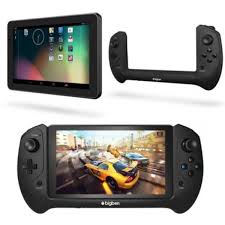
GAMETAB-ONE - Gaming tablet BIGBEN - Free user manual and instructions
Find the device manual for free GAMETAB-ONE BIGBEN in PDF.


User questions about GAMETAB-ONE BIGBEN
0 question about this device. Answer the ones you know or ask your own.
Ask a new question about this device
Download the instructions for your Gaming tablet in PDF format for free! Find your manual GAMETAB-ONE - BIGBEN and take your electronic device back in hand. On this page are published all the documents necessary for the use of your device. GAMETAB-ONE by BIGBEN.
USER MANUAL GAMETAB-ONE BIGBEN
Thank you for purchasing the Bigben Interactive GAMETAB-ONE™. Please keep this instruction manual for future reference. If you require any assistance or help please contact www/bigben.eu/support.
WARRANTY:
This product bearing the Bigben Interactive trademark, is guaranteed by the manufacturer for a period of 1 year from the date of purchase, and will, during this period be replaced with the same or a similar model, at our option, free of charge, if there is a defect due to faulty material, or workmanship. This guarantee does not cover defects arising from accidental damage, misuse or wear and tear, and is available only to the original purchaser of the product. This does not affect your statutory rights.
CONTENTS:
- Product features
- Product contents
- Specifications
- Charging
- Overview
- Fitting your controller
- Powering on
- Settings
- Settings changes
- Transferring data
- Camera
- HDMI output
- Internet Browser
14.Email
15.Customisme home page - Music
- Photos and video
- Deleting Apps
- Backup and reset
- Using the controller
- Troubleshooting
- Disposal and Safety information
- Contact Information
1. Product features:
Full featured Android tablet, enhanced for games
Additional controller for precision gaming
- HDMI video output for full screen game support, internet browsing and media viewing
Wi-Fi and Bluetooth connectivity
Expandable storage via Micro SD
Multifornat compatiblity for video, audio and photo fil
2. Product contents
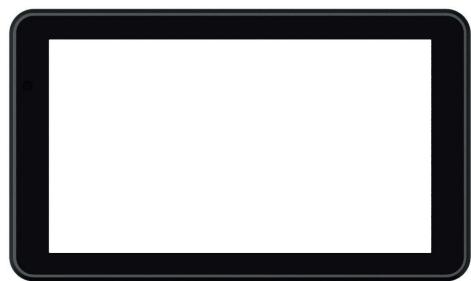
- GAMETAB-ONE™ 7 inch tablet
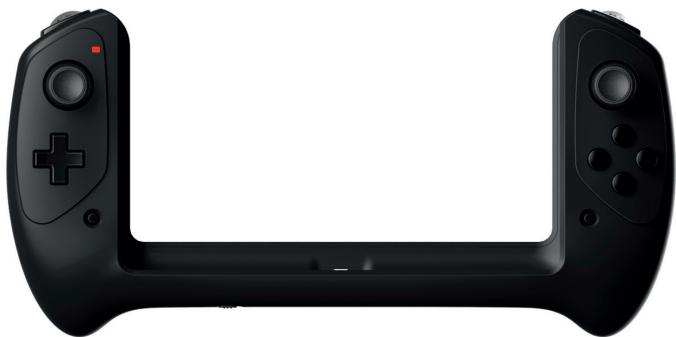
Controller
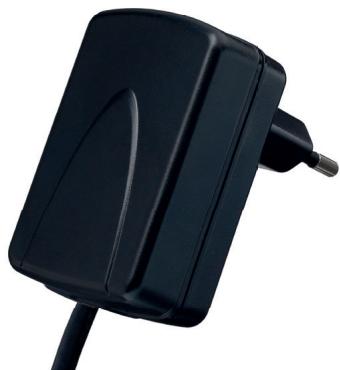
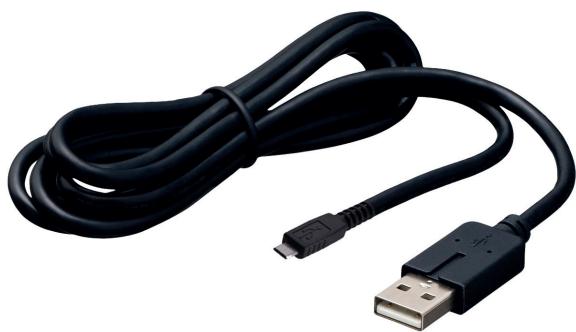
5V AC adaptor - USB to micro USB cable for data transfer
- Set up guide
3. Specifications of the GAMETAB-ONE:
Android 4.2 operating system
- Quad Core Cortex-A9 processor frequency 1.8 GHz
Quad Mali 400 Graphic processor
RAM memory: 2Gb DDR3 Dual Channel
Storage capacity: 16Gb
- Micro memory card reader SD/SDHC up to 64Gb
- Communication: Bluetooth® 4.0, WiFi 802.11 b/g/n
Dual cameras
Motion sensors
HDMI 1080p mini port
- Integrated loud speaker and microphone
4. Charging
Before using the GAMETAB-ONE™, please ensure that the internal battery is fully charged.
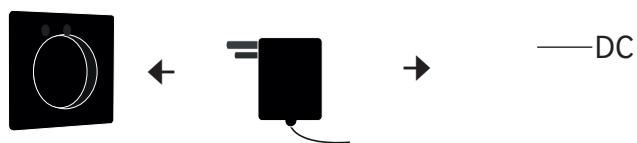
- Connect the supplied AC adaptor to the power input connection on the edge of the tablet.
The screen will then indicate that the tablet is charging. - Charging should be completed within 2-3 hours.
5. Overview
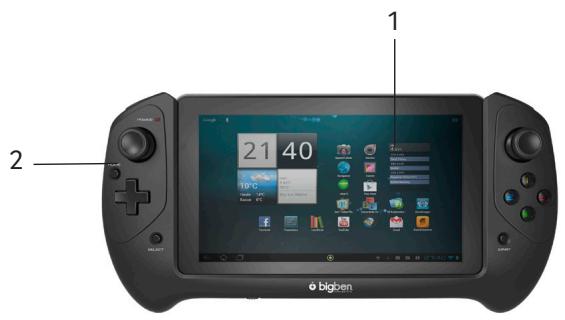
FRONT VIEW:
- Touch Screen
- Front-facing camera
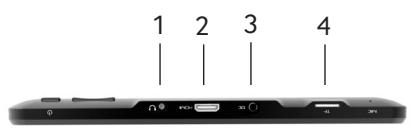
VIEW FROM ABOVE:
1.3.5mmearphone socket
2. Mini HDMI socket
3. Power socket (DC)
4. Micro SD card slot
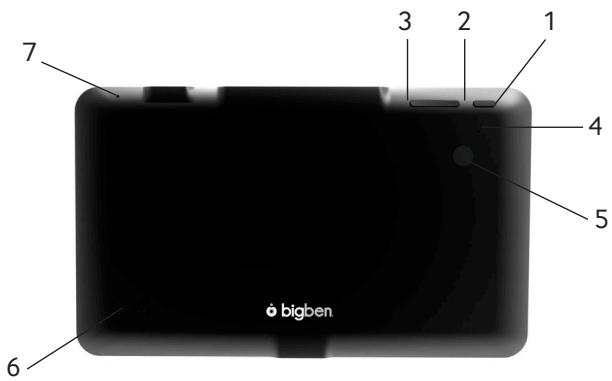
VIEW FROM THE FRONT:
- Power button
- Volume -
- Volume +
- RESET button
- Rear-facing camera
- Built-in speaker
- Microphone

VIEW FROM BELOW:
- Micro USB connector (for Data only)
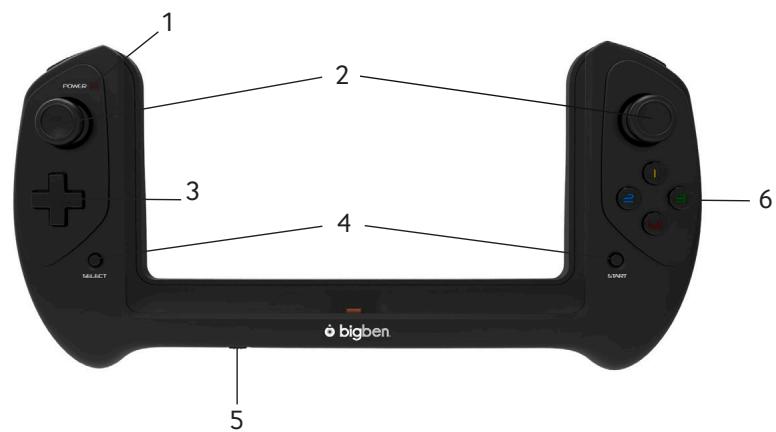
1 Power indicator light
2 Analogue joysticks
3 D-pad
4 START and SELECT buttons
5 Power switch
6 Action buttons (1 / 2 / 3 / 4)
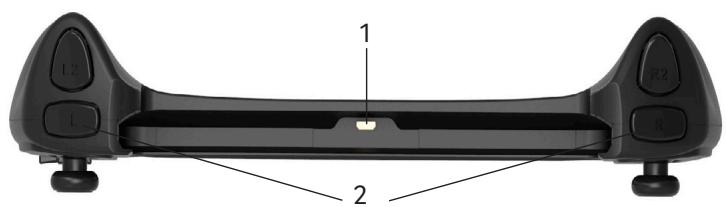
1 Micro USB connector
2 Action buttons (L / L2 / R / R2)
6. fitting your controller
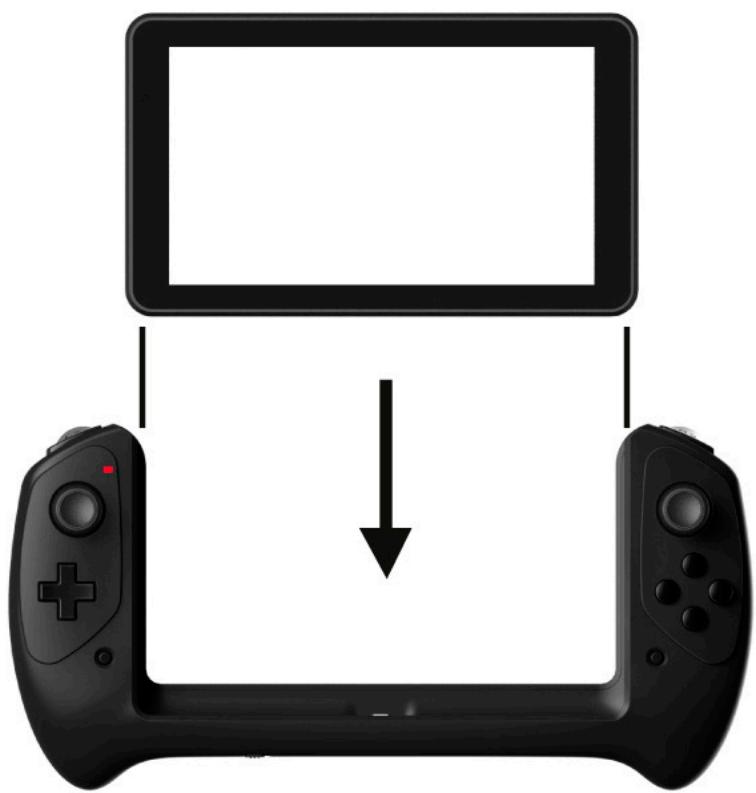
To use your controller with the GAMETAB-ONE™, simply slide the tablet into the slot from the top. The tablet will then connect to the USB connection on the bottom edge and fit firmly in place. Switch on the controller using power switch on the bottom edge.. The controller will automatically be recognised by the tablet and the Power LED on the top left will be ON.
Note: The controller is specifically designed for the GAMETAB-ONE™. Do not try to use it with any other tablet.
7. Powering on
To switch on your GAMETAB-ONE™, simply press and hold the power button on the top edge. When loading is complete you will see the welcome screen. Follow the onscreen instructions to familiarise yourself with the system. On any future power on you will see the lock screen. Drag the 'locked symbol to the right side to unlock the screen. When the screen is unlocked you will see the home screen. You can configure your tablet from here by entering the settings option. This will allow you to set your language, Wi-Fi settings and set up your Google account. You MUST set up a Google account in order to use Google Play to download apps and games. This will also involve creating a Gmail account. If you already have a Google account, you can retrieve it and use it on your GAMETAB-ONE™ by inputting your Gmail address and password. Once this is set up, you are ready to play. See 'Settings changes' for more information.
To power off and put into standby mode simply press and release the power button.
To power off completely, press and hold the power button and select the 'Power Off' option on the screen.
8. Settings
The GAMETAB-ONE™ uses the Android operating system. It will be familiar to you if you are using this system with other devices like a smartphone. Your home screen displays a range of options.
-
Navigation bar: featured at the bottom of the page. This area has the following on screen buttons.
-
Back: Press it to go back to the previous screen.
- Home screen: Press it to go directly to the home screen.
- Recent applications: Press it to see all opened applications
- Gaming: Press it to set up the controller with your games.
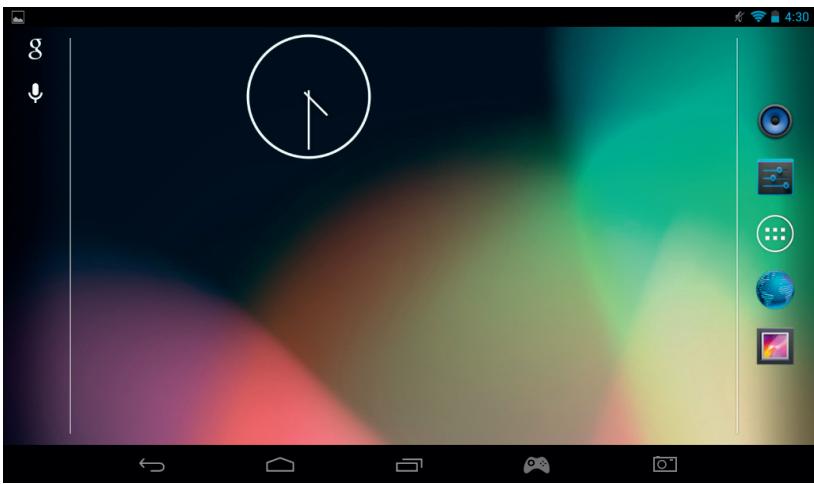
You will also find a group of icons on the home page. These icons are used to access the most used features on your tablet. These icons include Music, Gallery, Internet Browser, Settings and Applications\widgets.
- Applications / Widgets icon
By pressing this icon, you will have an access to all the available applications and widgets installed on your GAMETAB-ONE™
- Applications (Apps): an application is software that you can launch directly from the apps list or from your home screen.
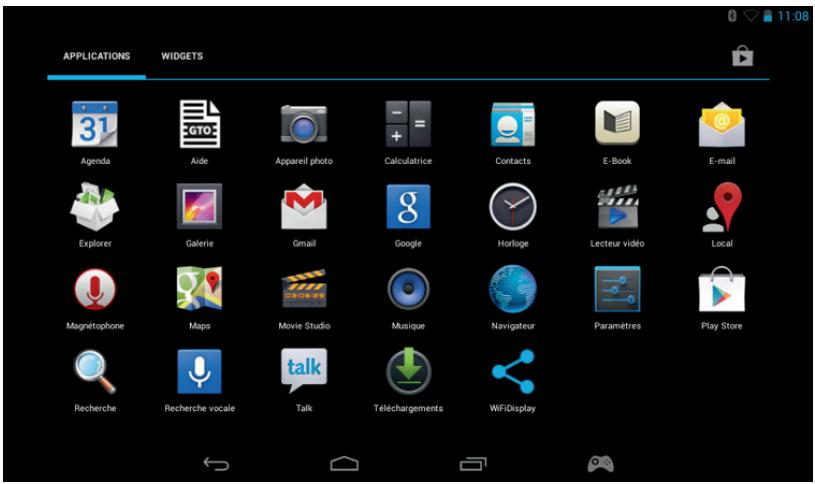
- Widgets: a widget provides you with a shortcut to certain apps or provides easy access information, such as a clock or the weather.
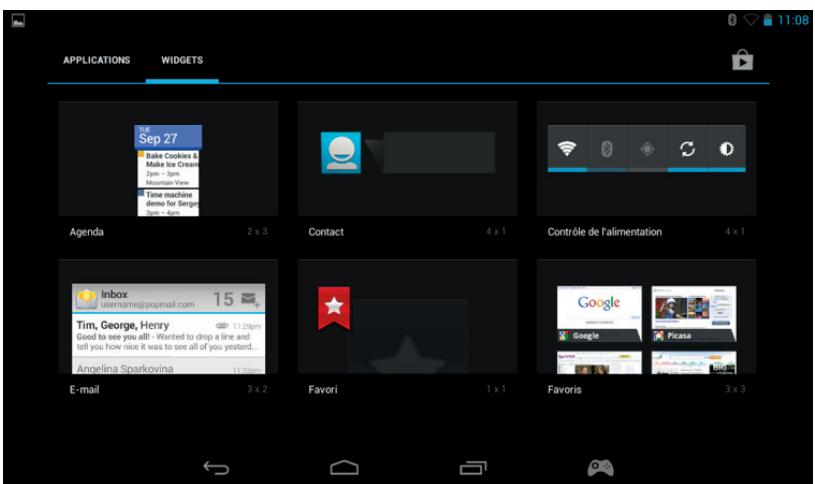
Note: You can put every application or widget on your home screen. Simply press and hold the item you want from the apps or widget pages and then place it where you want. Also note that you can cycle left and right on the home page to access 5 different pages for icons and widgets.
- Status information
You will find important status information in the top right corner of your screen. This includes the time, battery level, Wi-Fi status and Bluetooth status. If you slide your finger down the screen from the top right, you can access a range of settings shortcuts from a pull down menu including screen brightness, Wi-Fi and Bluetooth set up.
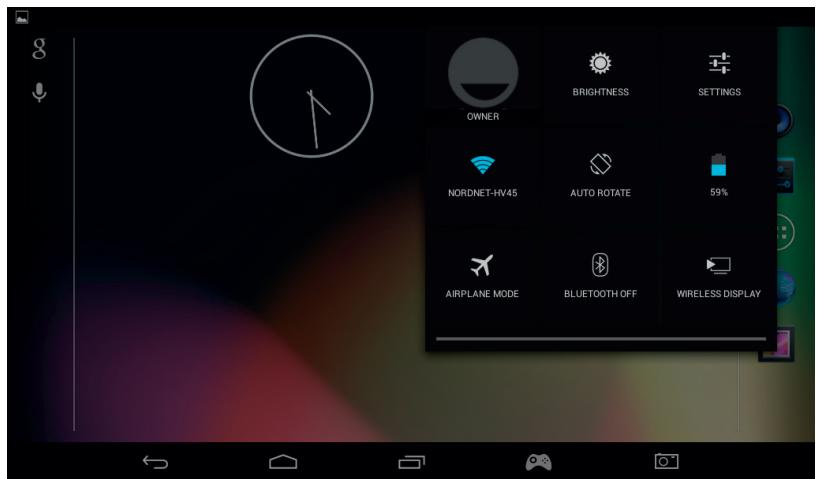
In the top left of the screen you will see your notifications. Icons will appear here if you receive emails, app updates etc. Slide your finger down from the top left of the screen to see these notifications in more detail from the pull down menu.
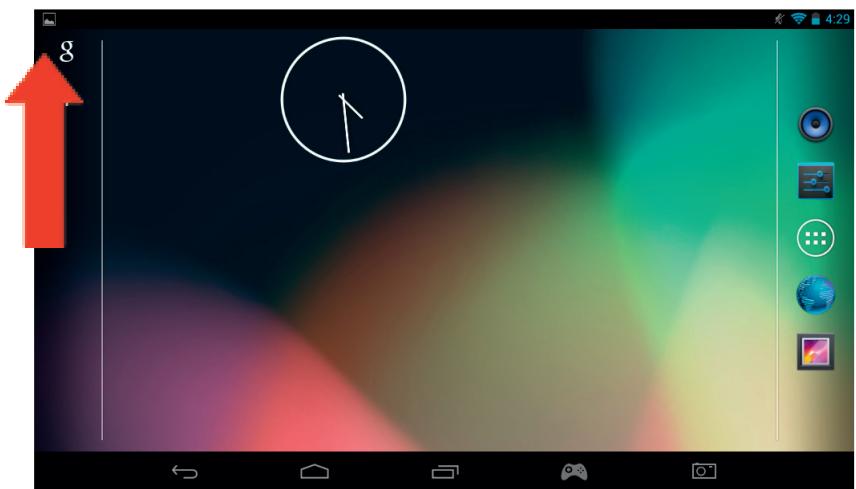
9. Settings changes
The settings option allows you to make various changes and connections on your GAMETAB-ONE™
a) Language
You can select your preferred language using this setting option. To change the language used on your tablet, use the following steps:
- Press on the settings icon on the home page


Language & input
-
Press on the Language & input
-
Press on the Language option. Default is always English.
- Select the language you want by scrolling through the list.
Now your GAMETAB-ONE™ will use the selected language.
You can also specify the default KEYBOARD & INPUT METHODS from this page. Press on the Default option to select the keyboard type you want. The keyboard will be set up correctly according to your selected language, but you can change it for another preference if you wish.
b) Wi-Fi
To get an Internet connection on your GAMETAB-ONE™, a Wi-Fi Connection is required. To setup your connection, use the following steps:
- Press on the settings icon on the home page
- Slide the Wi-Fi switch on the right so it is in the ON position.
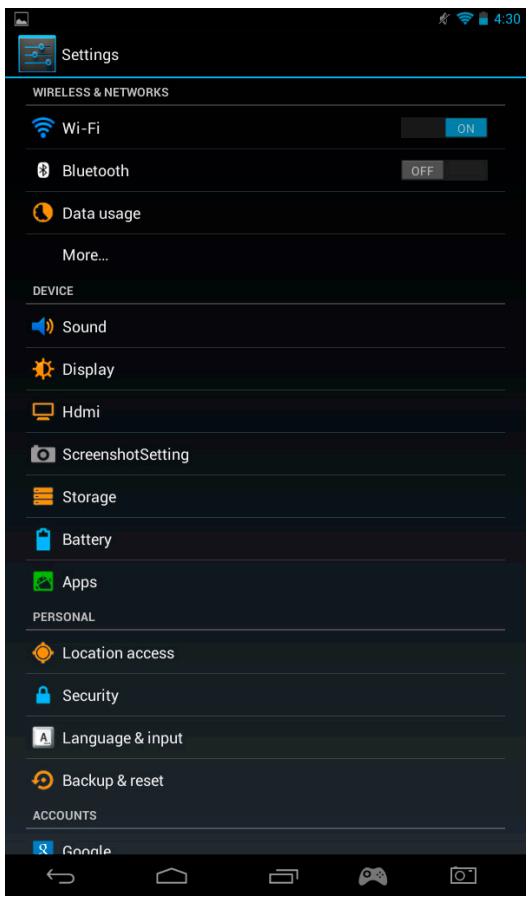
Wait a moment while your GAMETAB-ONE™ scans your environment to display all the Wi-Fi networks available.
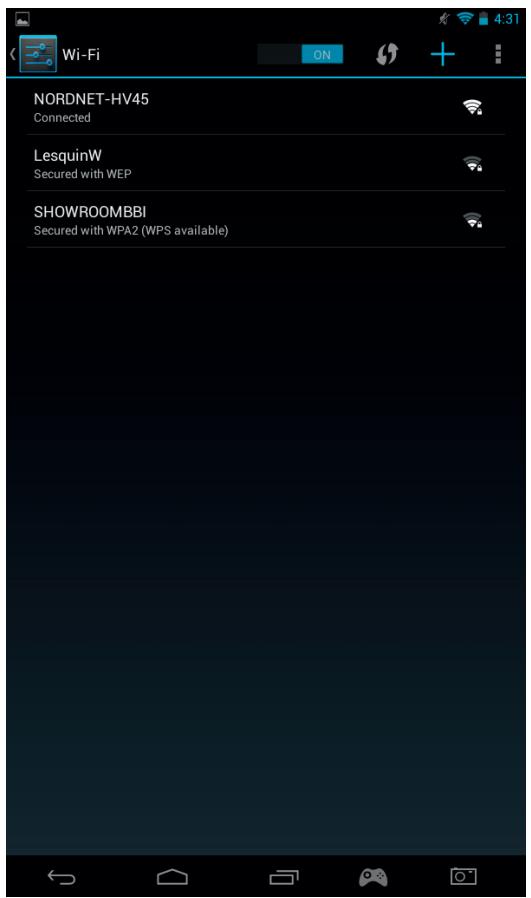
- Select the desired Wi-Fi network.
- The GAMETAB-ONE™ will directly connect if no security password is requested. If a password is required, a window will open and you will need to enter the correct code for your protected network. Follow the onscreen instructions to complete the set up.
Note: WPS method is the simplest way to connect to a Wi-Fi network. WPS available will be shown after the network name
if this option is available
You will also need to press the WPS button on your device to activate this method.
Please refer to the instructions on your Wi-Fi router or repeater for more details.
c) Google Mail account & Google Play
To download games and Apps, a Google Mail account is necessary. This account will be used for Gmail, Google Play and other services. To create a Google Mail account, you can use the Google Play or Gmail applications.

- Press on the Applications⁺/widgets icon
- Press the Google Play or Gmail applications
- The screen will give you 2 options: 'Existing' or 'New'
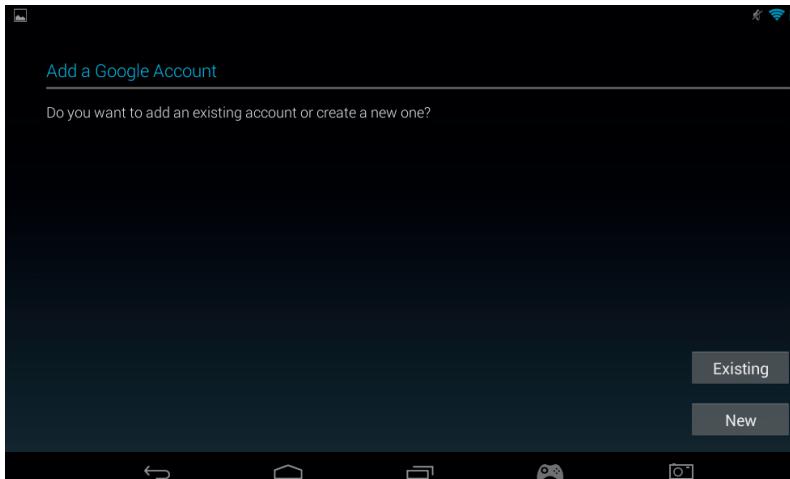
- If you already have an existing GMail account, select 'Existing' and type your information.
- If you do not have an existing Gmail account use the following steps:
- Press on 'New'
- Follow the on screen instructions to set up your new account.
- Once finished, you can use your Google Mail account to set up other Apps linked to your account
(Google Play / Gmail / Agenda / ...)
Now you are able to get new Apps and Games from Google Play.
- Launch the Google Play application
- On the screen 'Add a Google Account', select 'Existing' and enter your details.
- When it's done, you will arrive on the Google Play home page.
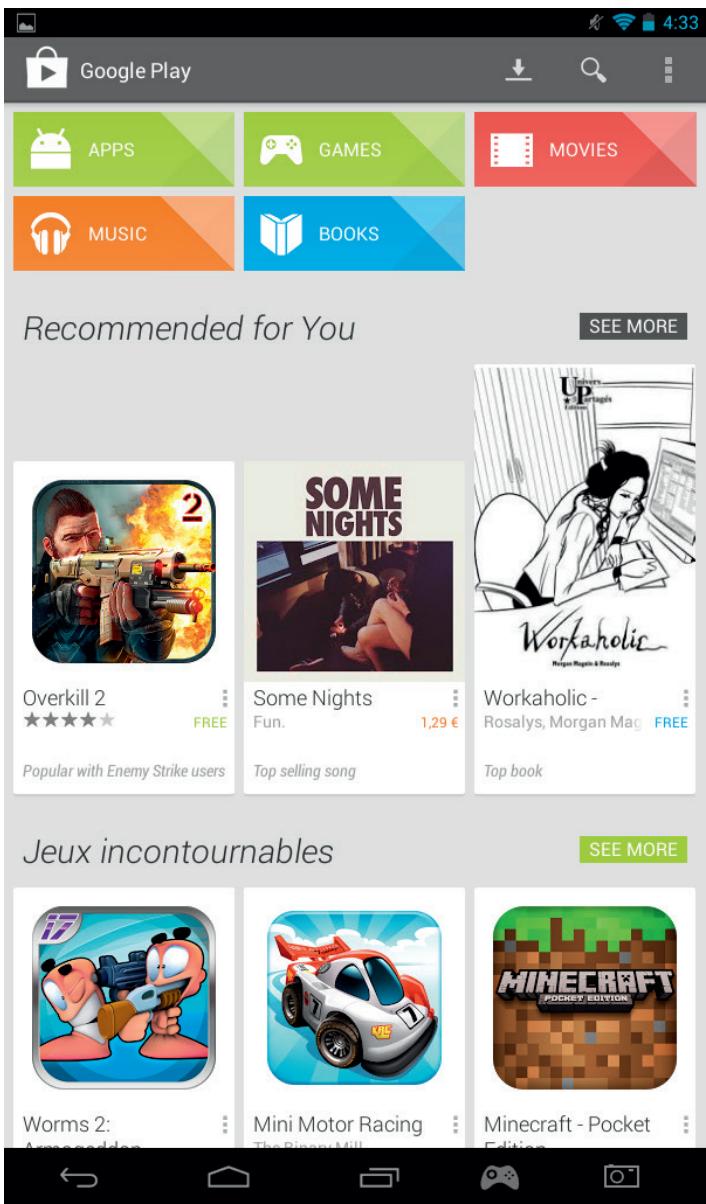
- The content is filtered by categories:
o APPS
o GAMES
MOVIES
o MUSIC
BOOKS
o MAGAZINES
Each category allows you to download some content for free or for a small fee. If you have to pay, the price will be displayed below the app icon. You will need to add your credit card details to your account to do this and also use a password each time you purchase something.
To download an app, use the following steps:
Press on the desired category
- Press on the required App from the list displayed
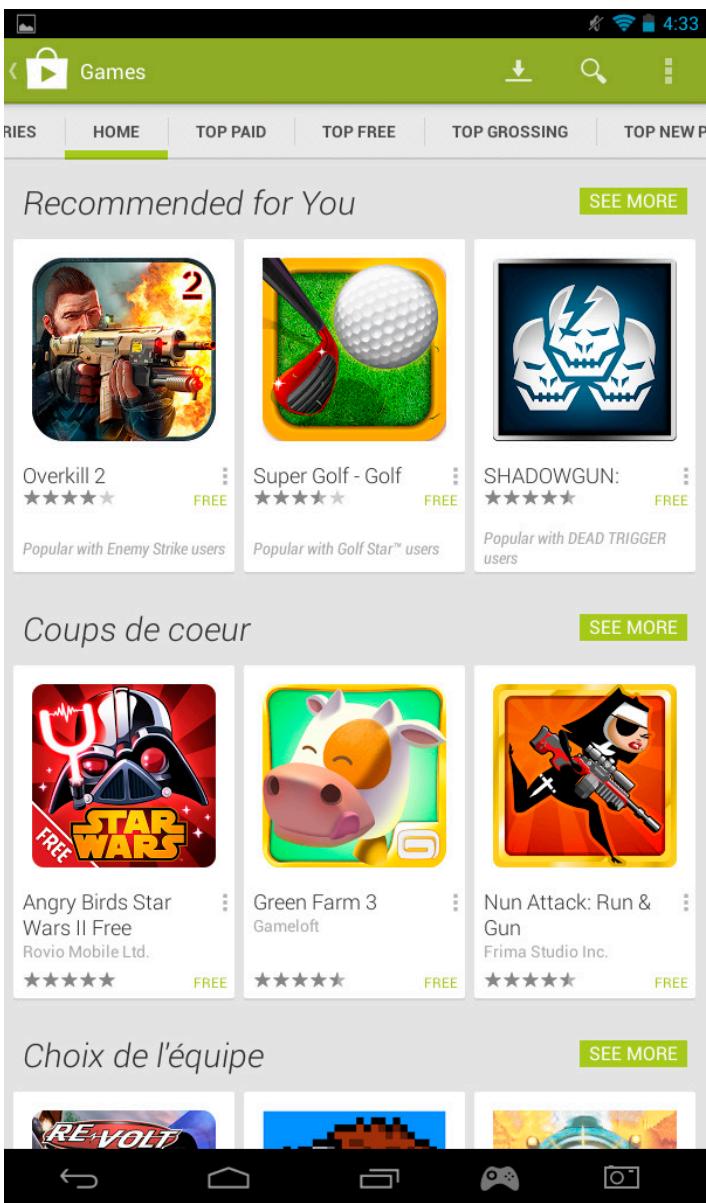
- Press on 'Install' or on the 'Price' to download and install the App. A confirmation is needed to confirm your choice.
- Once downloaded the app will install. You can select 'open' to start your app or it can found in the Apps area on your GAMETAB-ONE™, or on the home page. Select the app to launch it from any of these pages.
d) Data storage
Your GAMETAB-ONE™ has a storage capacity of 16GB. This capacity is extendable up to 80GB (if you add a 64Gb Micro SD card).
You can check the capacity usage at any moment using the Android Settings. To check the storage capacity, use the following steps:

Press on the settings icon
- Press on the 'Storage' option

The storage capacity and the usage will be displayed. The usage will be filtered by the type of content and with an associated colour.
Note 1: you can press on the different categories to get a direct access to your contents.
Note 2: Some contents may require some additional Apps to be readable on the GAMETAB-ONE™, i.e. PDF documents will require a PDF reader.
e) Date and Time
To set the date and time use the following steps:

- Press on the settings icon on the home page
- Un-tick the automatic date, time and time zone options
- Set the time zone to your region
- Set the date to the correct day, month and year
- You can also change the date and time format.
- Once his is done you can then tick the automatic date, time and time zone options so the time stays in sync with the internet.
10. Transfer Data
To transfer data into your GAMETAB-ONE™, you can use any of the following methods:
- Via USB cable
- Via Bluetooth
- Via SD card
Note: The maximum size that can be copied is 4GB. Your GAMETAB-ONE™ uses a FAT32 format for the storage.
a) Transferring with USB
To transfer files from a computer, use the following steps:
- Connect the supplied Micro USB cable to the USB port on the GAMETAB-ONE™ and to your computer
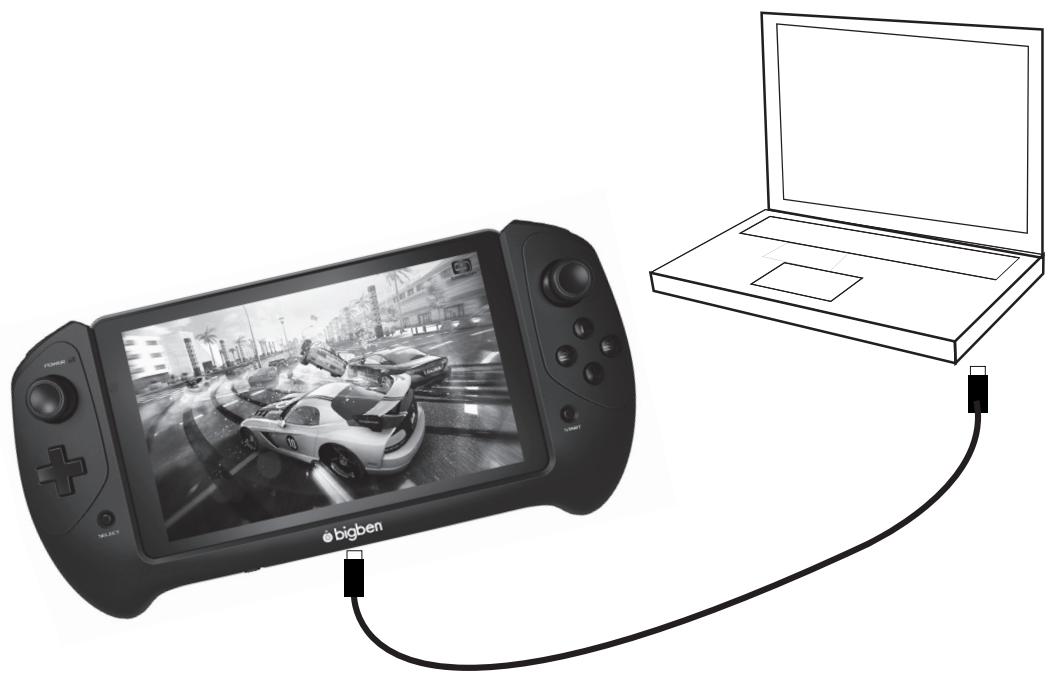
- The screen will advise that USB is connected. Press the 'Turn on USB storage' option to connect.
- An External device will then be detected by your computer.
- Copy and paste your selected files into the correct folders.
The content used by the Android system is arranged in different folders. These are the different folders for your media:
DCIM: contain pictures and movies taken with the built-in camera.
Music
Movies
- Download
You can access these folders using the 'Explorer'
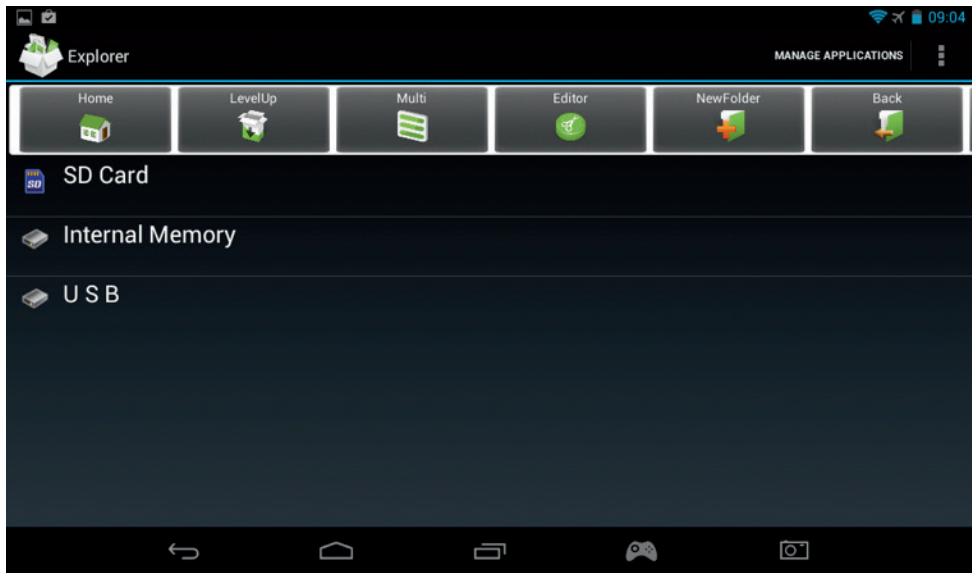
The 'Explorer' app will let have an access to your content.
Simply press on the desired location to see the data.
SD Card: for your content on the Micro SD card, if you put one into your GAMETAB- ONE™
- Internal Memory: for your content on the GAMETAB-ONE™
- USB: for your content on any storage device plugged on the Micro USB socket.
You can create a folder thanks to the 'New Folder' option.
The 'Editor' function has the following actions:
- Copy
- Delete
- Move
- Paste
- Rename
- Send
- Create shortcut
Photos and videos can also be viewed via the Gallery App from the home page
Music can be accessed via the Music app from the home page
b) Transferring with Bluetooth
The GAMETAB-ONE™ is compatible with the Bluetooth 4.0 technology.
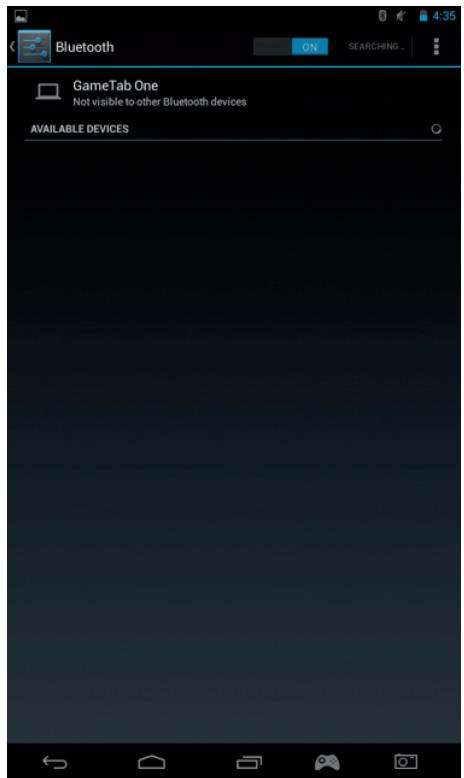
To setup your Bluetooth connection, use the following
- Press on the settings icon on the home page .
- Slide the Bluetooth switch to the right in the ON position.
- Press on the Bluetooth option
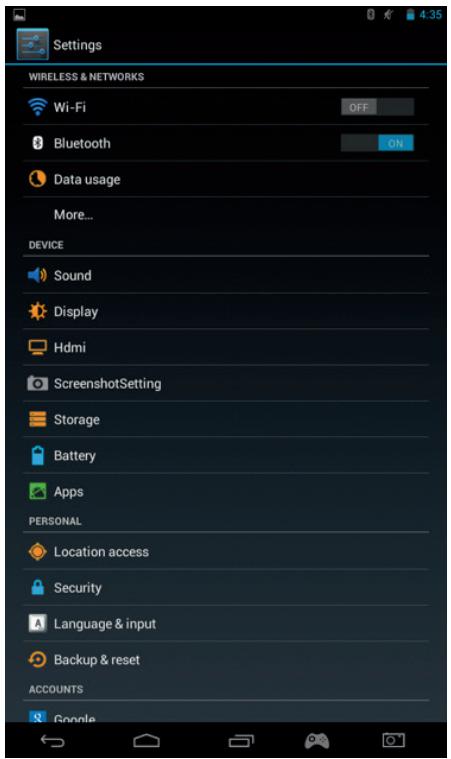
- To add a device, press on 'SEARCH FOR DEVICES'
- A list of the available devices will be displayed. Select your chosen device and follow the instructions on the screen. A passkey may be displayed on the GAMETAB-ONE™ screen and on the screen of the other device. You will need to select 'Pair' on both devices to compete the connection.
- Now go back to the home page and select the apps icon.
- Select the file manager \explorer.
- Select the folder for your required file.
- Press and hold the file until an options menu appears.
- Select the 'share' or 'send' option.
- Select the 'Bluetooth' option
- Select the receiving device to start sending the file. The receiving device will get a notification that a file is trying to be sent. Select the 'accept option' and the file will be sent.
- The file will now appear in the Bluetooth folder on the receiving device. You can then copy it to your preferred location.
c) Transferring with an SD card
- To transfer files using an SD, firstly copy your required files onto the SD card from your computer.
- Insert the SD card into the GAMETAB-ONE™. Make sure that the blank side is facing towards the back of the tablet.
The slot is sprung so make sure that you push it fully into position so it locks.
- Press the apps icon on the home page.
- Select the file manager \ explorer.
- Select the SD card option to view the files on the card.
- Press and hold the file until you get an options menu appear.
- Select the copy option and then press the home option in the file manager \ explorer.
- Select the folder you wish to copy to.
- Select the 'paste' option to copy the file. Your file will now copy to that folder.
To remove the SD card, firstly un-mount the card from the settings menu. To so this go to settings\storage\un-mount SD card. - When this is done, push on the top of the card to release it from the locking mechanism. Be careful when removing it so you don't lose it.
11. Camera
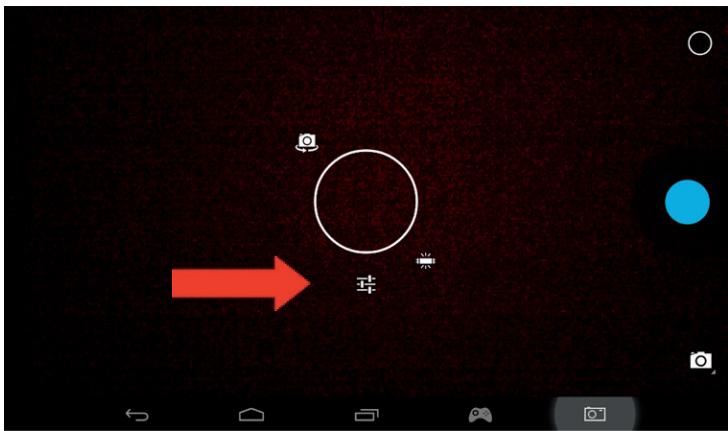
The GAMETAB-ONE™ has a front and rear camera.
To use the camera, press the Apps icon on the home page and then select the camera app.
You can select the desired camera using the following icon.
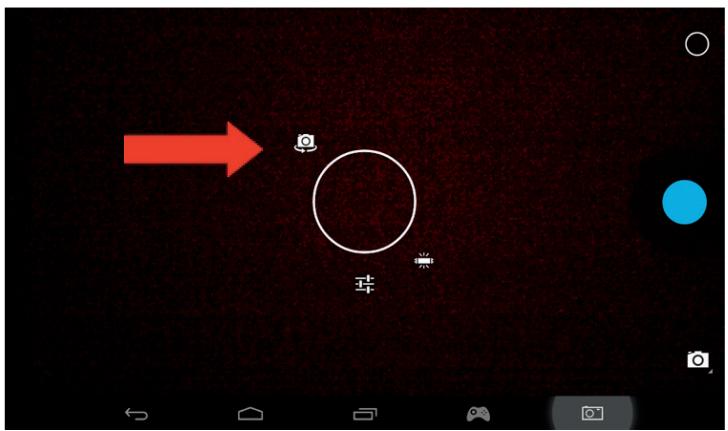
You can switch between the pictures and the movies using this icon
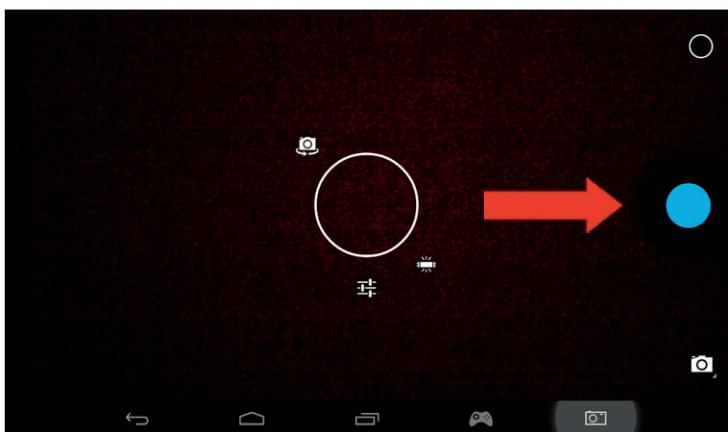
Other settings, such as lighting and file size can be adjusted using this icon.
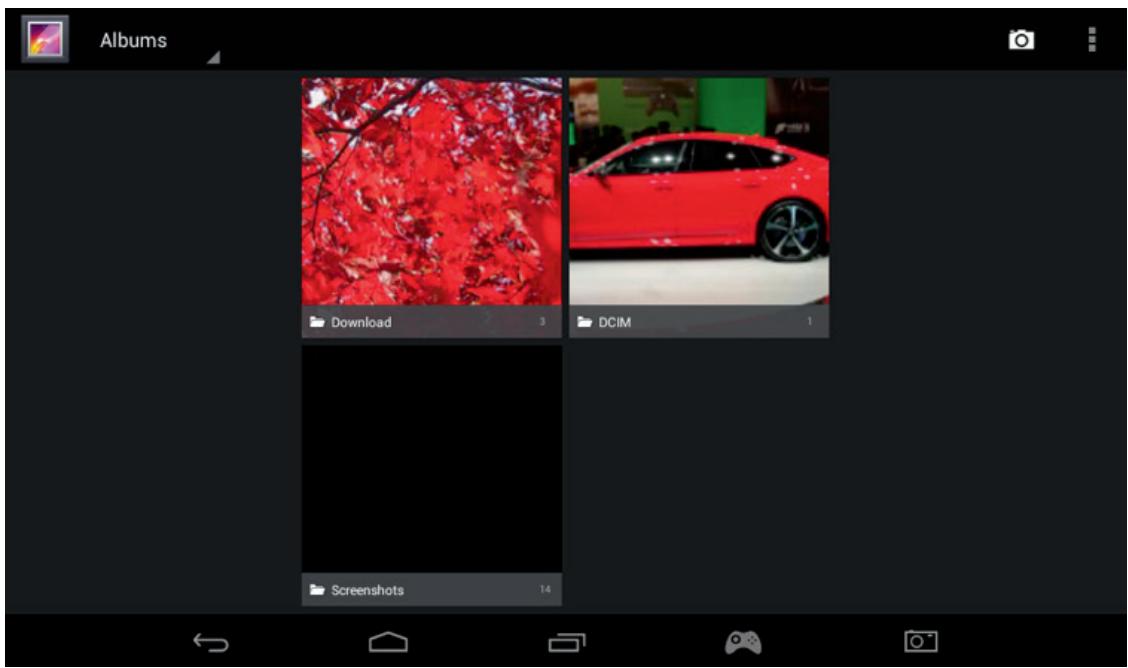
To see your pictures and movies, you can use the 'Gallery' option on your home page: The files are located in the DCIM folder.
12. HDMI Output
The GAMETAB-ONE™ has a Mini HDMI output. The screen of your tablet can be duplicated on your HDTV with a resolution up to 1080p if you connect the appropriate HDMI cable between your GAMETAB-ONE™ and your TV. This cable is sold separately. Simply attach the Mini HDMI plug to the HDMI socket on the tablet and attach the full size HDMI connector to your TV.
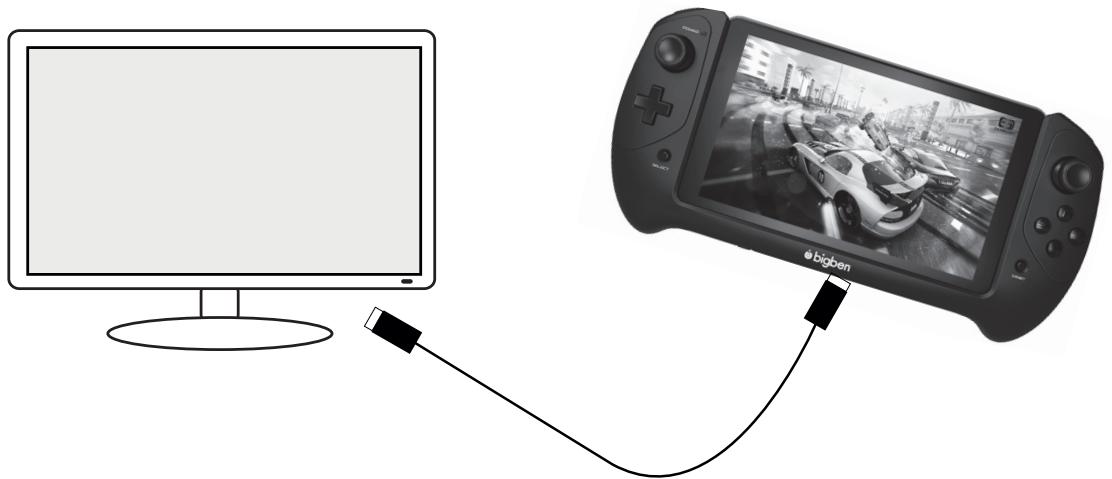
Ensure that the INPUT SOURCE of your TV is set to the connection the HDMI cable you have just attached. i.e. HDMI 1, HDMI 2 etc.
The output settings are also adjustable. These settings allow you to change the resolution to be perfectly suited to your TV.
To adjust the resolution, use the following steps:
- Press on the settings icon on the home page
- Select HDMI from the list
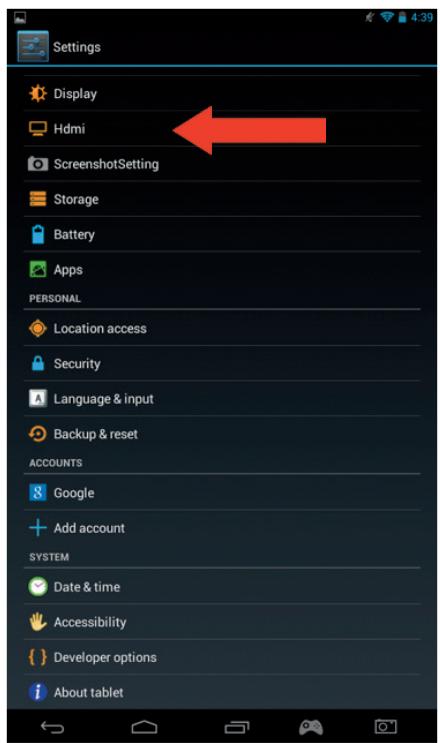
- Make sure that there is a tick next to the 'Turn on HDMI' option
- Select the 'HDMI resolution' option and then chose your preferred setting.
- If you experience any problems on the screen, try a lower resolution.
"To have an optimum performance, it is not advised to use the HDMI function simultaneously with the AC adapter"
13. Internet browser
The Android system has an integrated Internet browser. Press on the browser icon on the home page to start the application and to access on Internet.

Make sure that you are connected to the internet via Wi-Fi and described in section 2.
Once launched, press on the search bar to browse the internet as usual using the onscreen keyboard.
Your Internet browser is able to open multiple pages during your browsing session. Press on the additional tab to open a new page.
Note: This can slow the performance of the tablet.


Browse fast on your tablet with Chrome

You can save the address of your preferred websites using the favourites option. To do this, simply press on the' add favourite' icon.


Browse fast on your tablet with Chrome

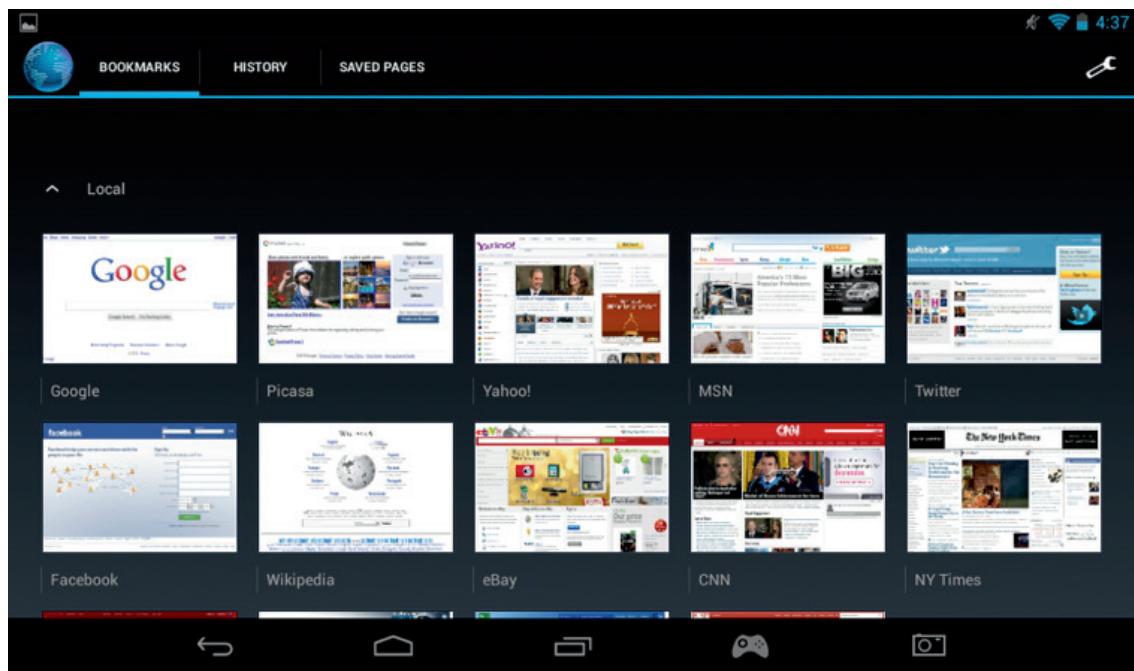
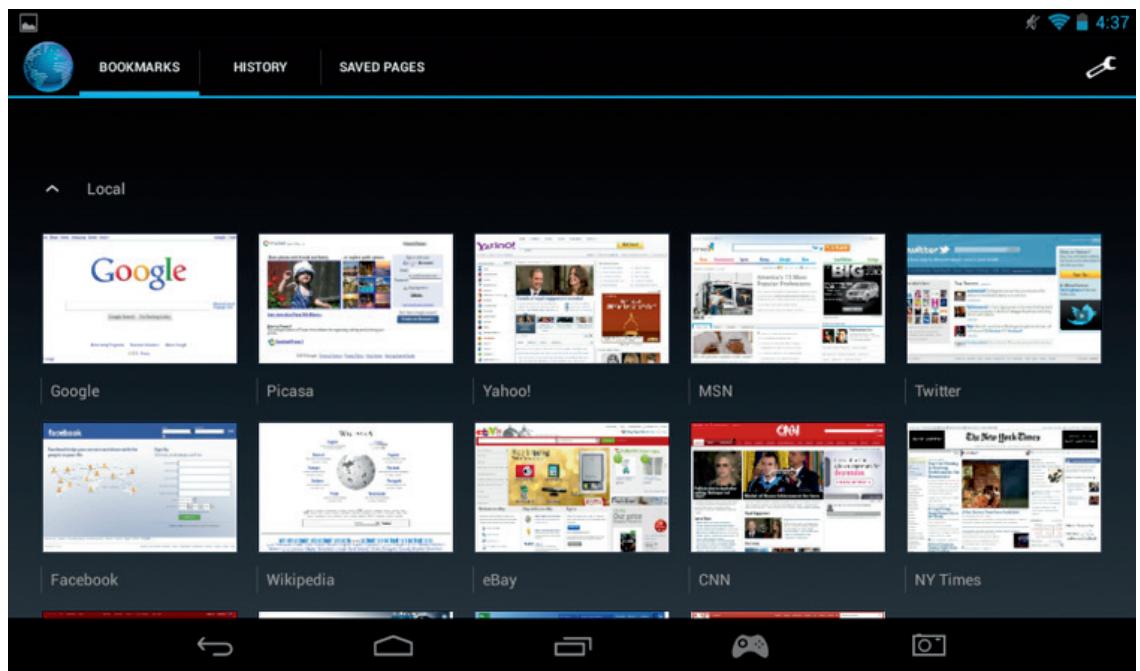
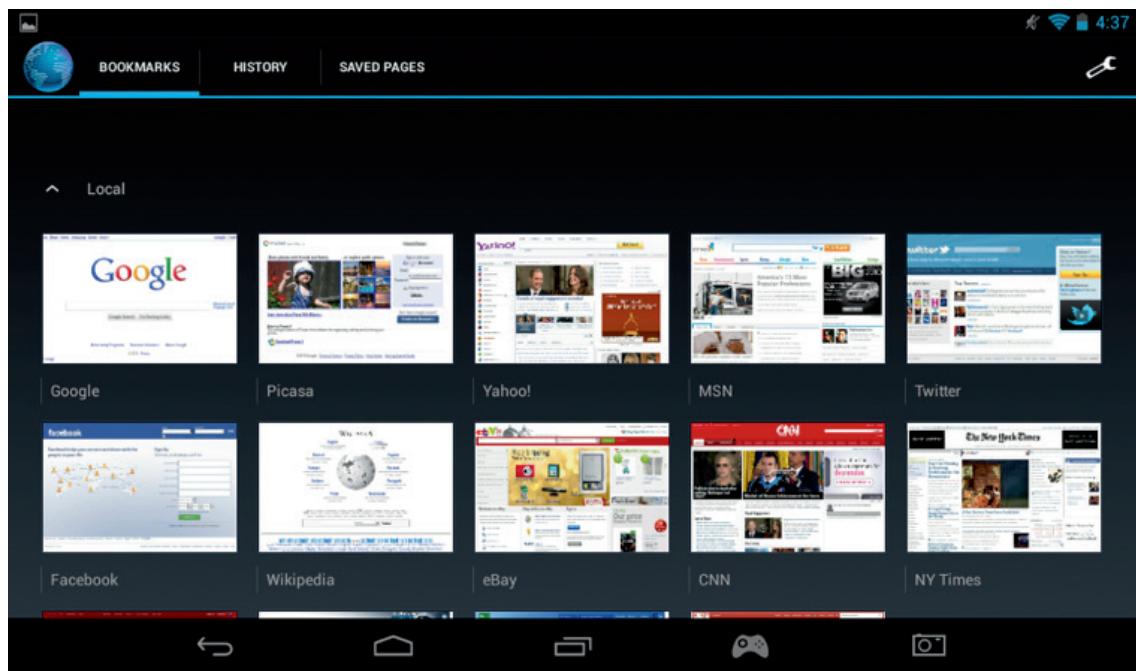
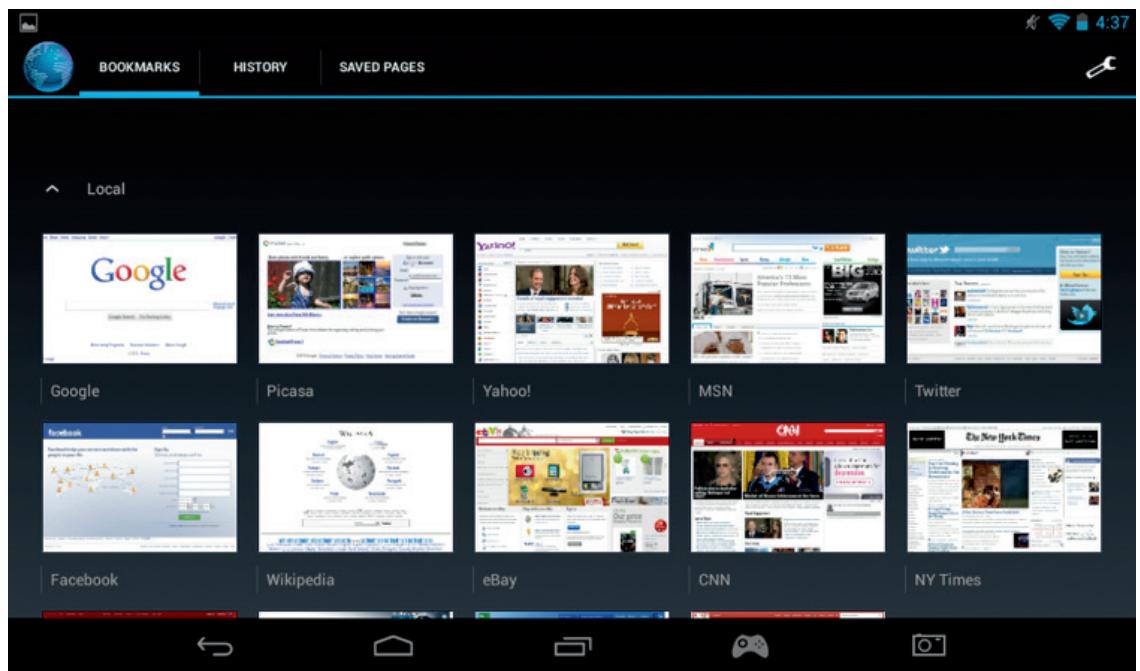
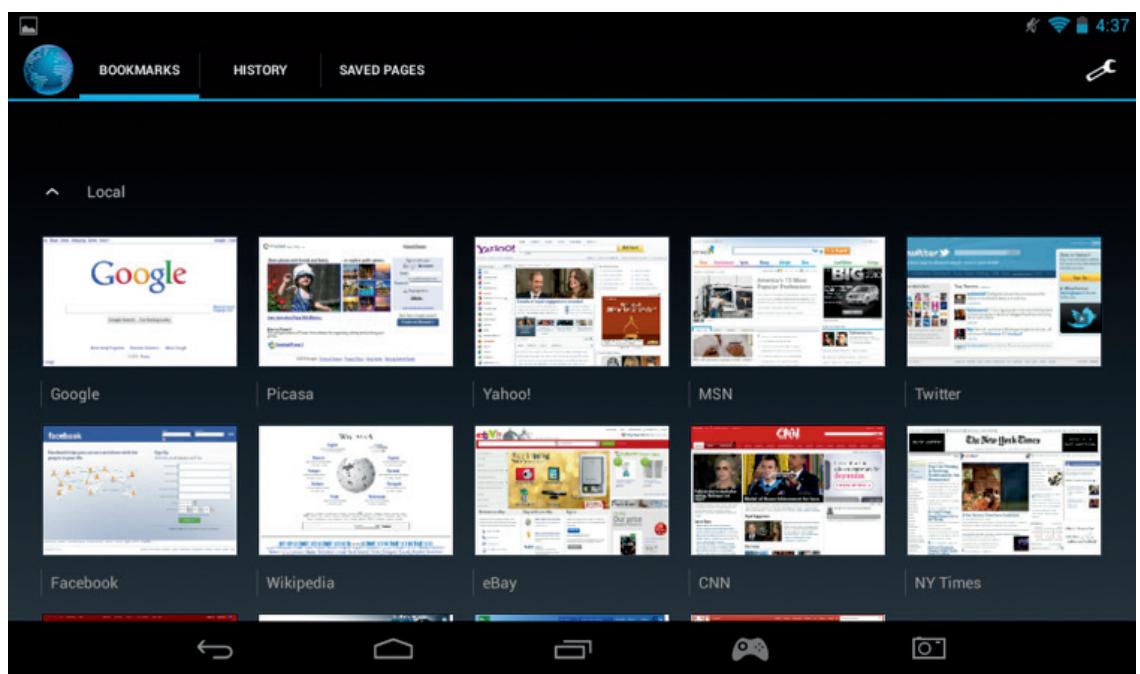
To view your favourites, press on the 'Bookmarks' icon and select your saved page.


Browse fast on your tablet with Chrome

Note: Some other Internet browsers are available for download from Google Play.
14.Email
The Android system is able to manage various Email accounts.
Gmail is the default email account as described earlier.
To use Gmail, simply press on the Gmail icon with the apps page. You can send, receive and view emails in the usual way.
If you wish to add an existing email account to your GAMETAB-ONE™ Use the following steps:
- Press on the settings icon on the home page
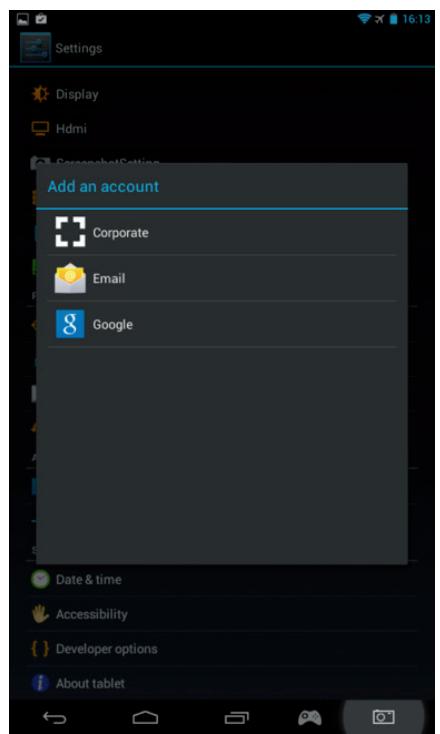
- Select the ^+ Add account' option.

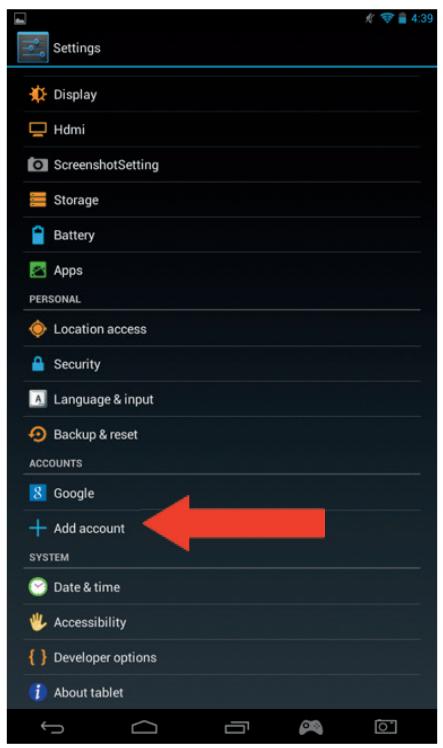
- Select the type of account you want to add. For standard web mail accounts use the 'Email' option. For business accounts select the 'Corporate' option.
- The screen will ask you to enter your Email address and your password.
- Type your information and press on 'Next' to set up the account.
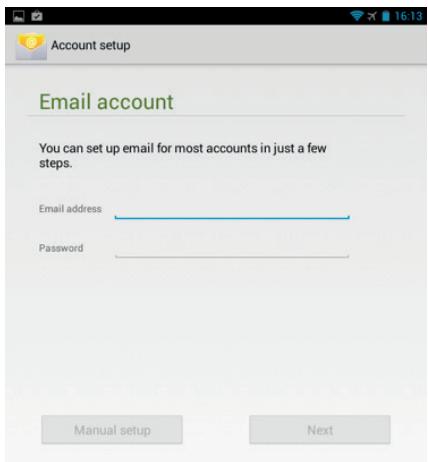
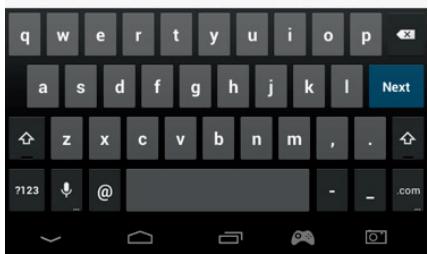
If your account details are correct, your email will now be set up.
- Go back to the home page and select the Apps icon.
- Select the 'Email' icon to view your account.
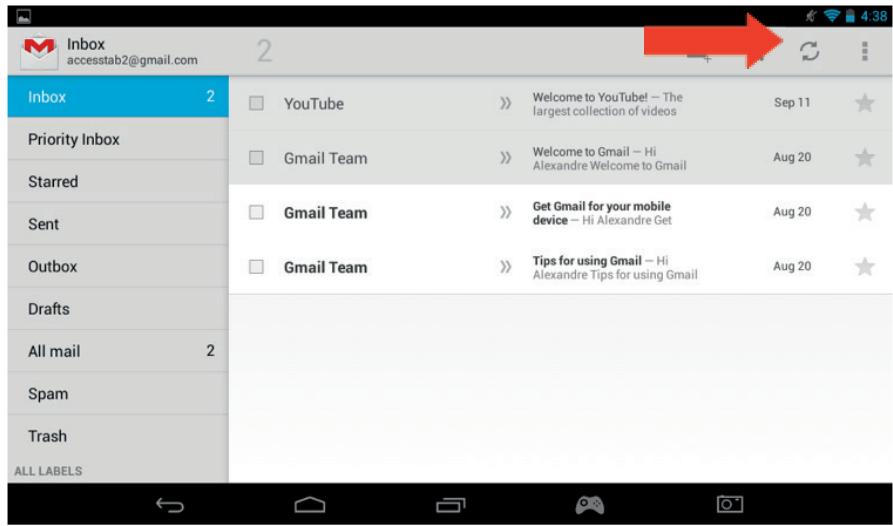
- Any new emails will be displayed on the page. You can check for new emails by pressing the refresh icon
- You can customise your email settings by pressing the settings icon in the top right corner of the screen.
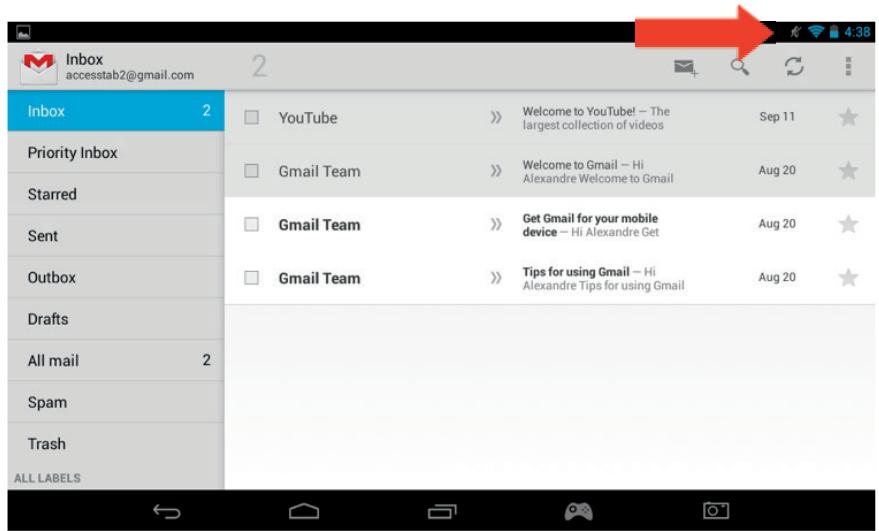
If you have set up more than one account, you can switch between them or combine them using he option in the top left of the screen
15. Customise the home page
a) Wallpapers
To change your wallpaper, use the following steps:
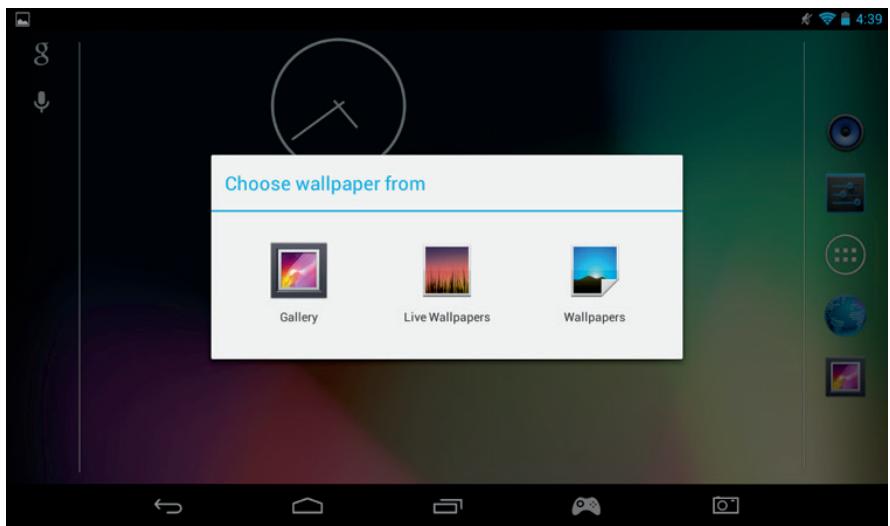
- Press and hold on an open space on your homepage.
- Select the type wallpaper type you want from the 3 options
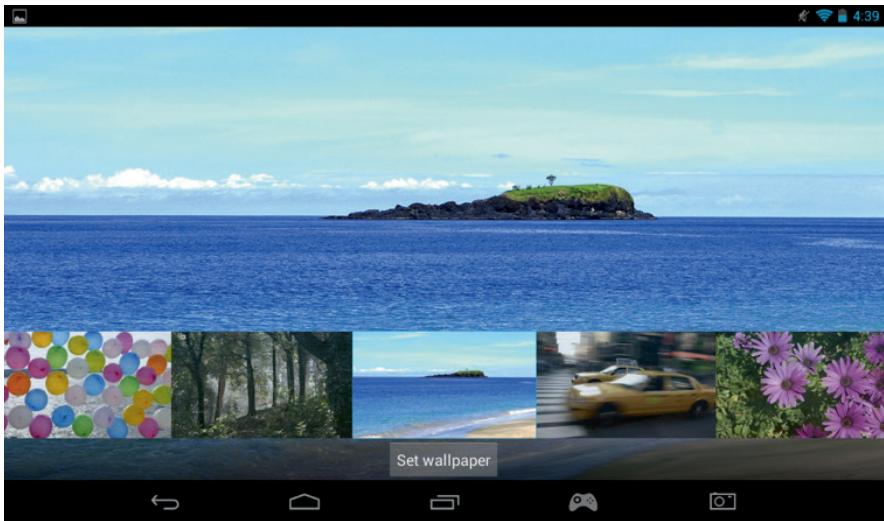
- Select the desired wallpaper and press on 'Set wallpaper'
- Your wallpaper will now be set on your home page.
b) Home screen organization
You can arrange the home screen of your tablet to your own preference. The Apps can be moved to any place. Press and hold any app to pick it up and then move it to your desired location.
You can also create folders to place Apps inside. Simply move one App on another one to create the folder. The folder can be moved like the Apps as you want.
Note: You can rename each folder you create. The content will be displayed underneath the folder. To change the name select it and then select the name. You can then rename it.
To remove any Apps from your home page, press and hold the App and then slide it towards the left side of the screen or the top if the screen (depending on the orientation of your screen. You will see and X appear. Once you put the app icon over this X, it will turn red and it will be removed from the home screen.
16. Music
Your GAMETAB-ONE can play a variety of different music files, including MP3, WMA and FLAC. All music files should be stored in the music folder on your device. To play your music, press on the Music icon on the home page. The music player will display all of the music loaded on your GAMETAB-ONE™.
To play a track, simply select it from the list and it will start to play.
Use the onscreen controls to play, pause, fast forward and track skip.
17. Photos and Video
Your GAMETAB-ONE™ can view pictures in JPEG and BMP format and videos in a range of formats including MP4, WMV and AVI. To view your photos or videos, press the on the Gallery icon on the home page. The gallery will display all of the photos and videos stored on your device. This includes any images taken with the internal camera. These files can be stored in a variety of folders and the gallery will separate them accordingly.
To view any file, press on the folder and then select the file you wish to view. You can swipe left or right on the screen to scroll through each of your photos.
For video, use the onscreen controls to play, pause and fast forward.
18. Deleting Apps
If you wish to delete any unwanted apps to make space use the following steps:
- Press on the settings icon on the home page
- Select apps from the list
- Select the app you want to delete
- Select 'Uninstall' from the options
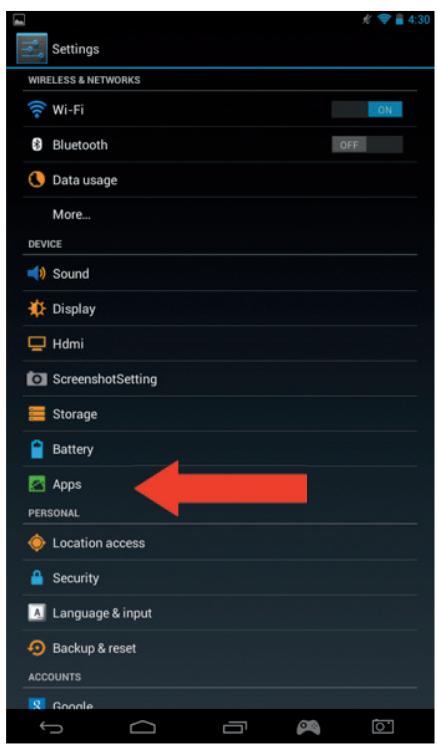
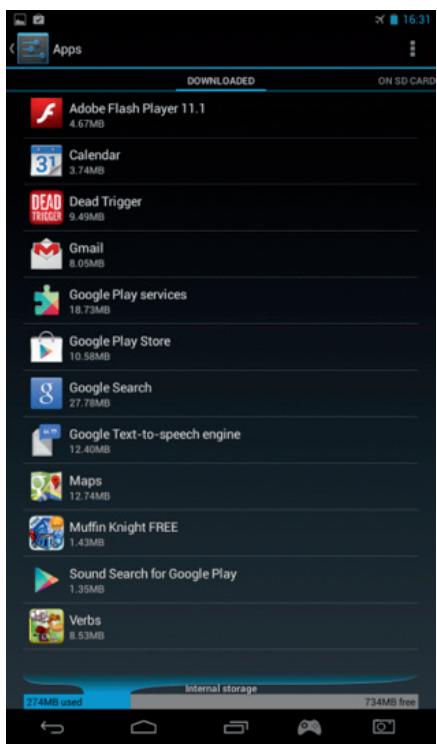
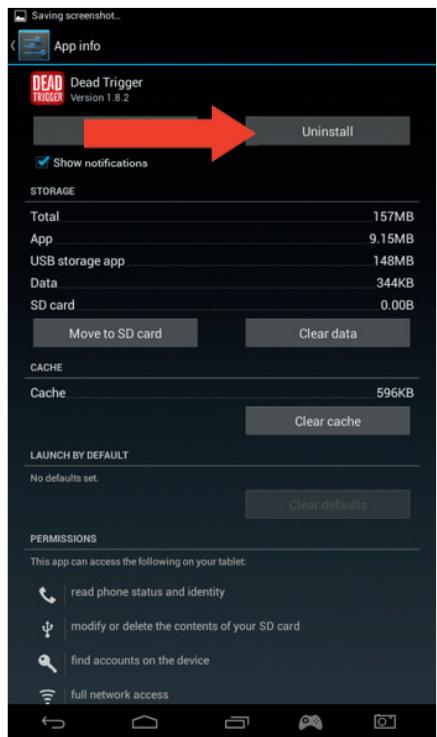
- Your app will now be removed providing you with more storage space.
19. Backup & Reset
The Android system of your GAMETAB-ONE™ allows you to back up your data including Apps, Wi-Fi passwords and other settings to the Google servers.
To save information, use the following steps:
- Press on the settings icon on the home page
- Press on 'Backup & reset' option

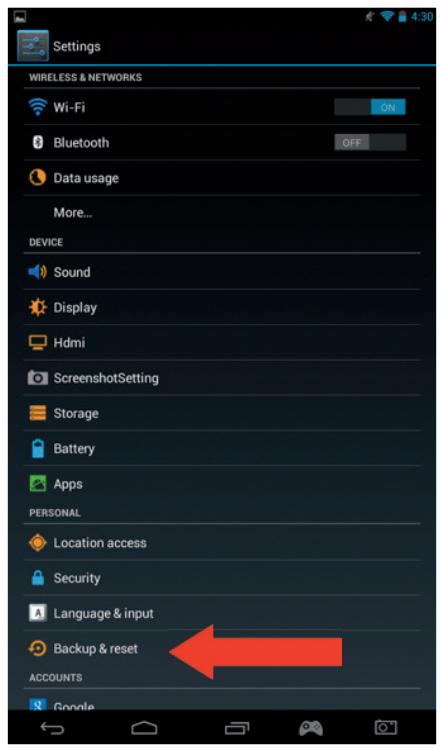
- A tick should appear next to this option to confirm it is set.
If you need to restore any data for your account, ensure that the 'Automatic restore' option is also ticked. - If, for any reason, you need to reset the Factory data, press on 'Factory data reset'
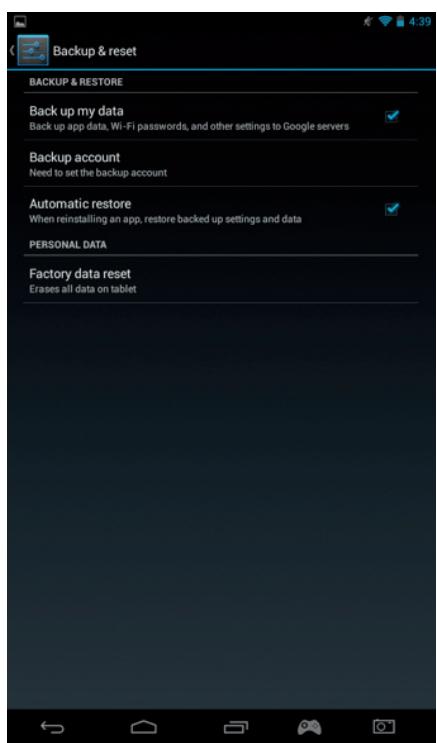
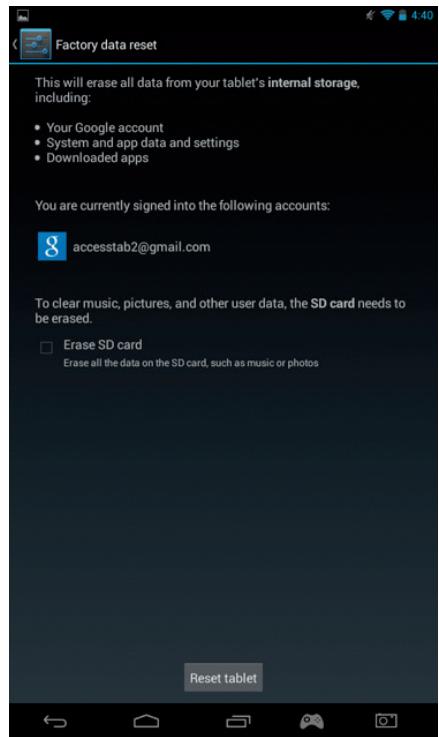
NOTE: This action will erase all data from your tablet's internal storage. Your tablet will then reset and start like it is new.
When you reinstall your apps again, your app settings and data should be restored assuming that you used the exact same Google account and that the app supports the back-up feature.
Note that this feature DOES NOT backup your photos, music, videos etc. It is recommended that you back this data up to your computer via USB or SD card.
If in the unlikely event you experience any crashes or lock ups, there is a reset switch on the rear of the GAMETAB-ONE™. Insert a thin object into the hole to perform a reset. The GAMETAB-ONE™ will power off and restart. This reset WILL NOT delete any software from your device.
20. Using the controller
The GAMETAB-ONE™ controller can be used with any game that uses 'on screen virtual controls'. The virtual controls that appear on the game screen can be individually mapped to the real buttons and joysticks on the controller.
To do this simply follow these instructions.
- While in a game, press the screen map control located in the navigation area at the bottom of the screen. You will see that it looks like a game controller.

- The screen map menu will now open up and a number of circles will appear representing the buttons and control sticks of the controller.
- Use your finger to slide the circles onto the virtual controls displayed on your game. Each circle will have a number or L, L2, R, R2 written on it so you know which button it represents.
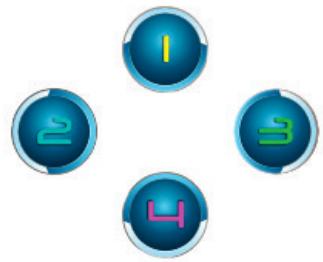
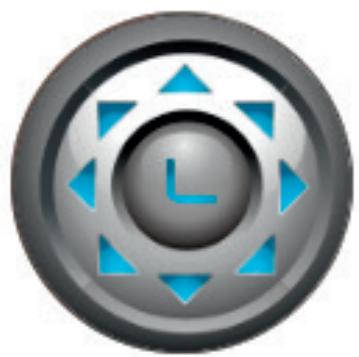
- The joystick controls use the larger circles. The left stick is the silver circle with the L in the centre. Move this to cover the virtual control stick on the left side of the screen on your selected game. Make sure the circle matches the size of the virtual control as close as possible. To change the size, press the 'Smaller' or 'Bigger' options from the menu.
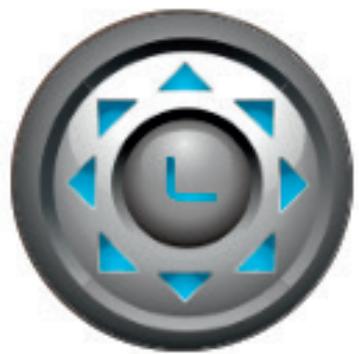
-
The right stick is the blue circle with the R in the centre or small white arrows.
-
If your game allows you to touch anywhere on the screen to look around, select 'Mode 1' from the menu so the arrows appear around the circle. This icon can then be positioned in the centre of the screen and the right stick can now be used as the look \ aim control.
- If your game uses a 2nd virtual stick on the right side of the screen to look around, select 'Mode 2 from the menu soan R appears in the circle. Make sure the circle matches the size of the virtual control as close as possible. To change the size, press the 'Smaller' or 'Bigger' options from the menu.
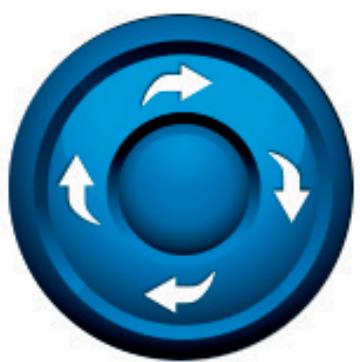
- You can also adjust the sensitivity of the right stick using the star icons at the bottom of the menu. 1 star is the least sensitive and 5 stars are the most sensitive. Adjust this to find your preferred setting. 5 stars is the default setting.
- The direction pad can also be mapped using the circle icon with the four small circles with the triangles.
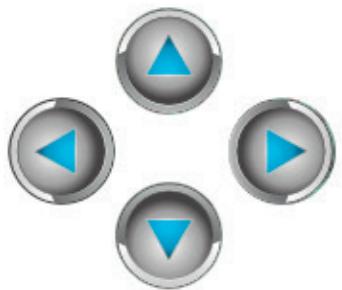
- Once you are happy with your settings, press the 'Save \ Hide' option from the menu. The mapping controls and menu will now disappear and you can play your game. Your mapping controls will be saved in memory.
Note: Now your settings are saved, when you will play the game again it will be not necessary to remap the controls.

- If you need to reset the controls back to default, simply select the Clean \ Close option from the menu.
Note that the virtual on screen controls may disappear from the game screen during the mapping set up. If this occurs, simply save and start again so you can fully complete you mapping. You will probably need to touch the screen again to make the virtual controls appear again.
IMPORTANT: Some games will require that you play through a tutorial stage before you get access to all of the on-screen virtual controls.
If you experience any control issues with the joysticks, deselect them from the mapping menu by selecting them and removing the tick. This may solve your issue.
21. Troubleshooting
The GAMETAB-ONE™ switches off during use.
- The battery level could be low, plug the AC adaptor for charging.
- Ensure that the sleep mode, (in the display settings), is not set to a short time period (i.e. 15 seconds).
The GAMETAB-ONE™ does not switch on
- Press and hold the power button for 5 seconds.
- Connect the AC adaptor and press and hold the power button for 5 seconds. If the battery is fully discharged then it could take several minutes before you can use the tablet.
I have connected the AC Adaptor but the GAMETAB-ONE™ is not charging.
- Ensure that you have correctly connected the AC adaptor into the DC socket.
- The battery is fully discharged. It can take several minutes before you can use the tablet.
The image on my TV is not good when I am using a HDMI cable.
- Try to change the resolution of the HDMI output in the HDMI settings. If the selected resolution is not appropriate for your TV screen - see paragraph 12. HDMI Output.
The applications are slower than usual.
- Ensure that you close all of your previous APPS used. Press on the 'recent applications' button, in the Navigation bar, and remove them from the list.
- Switch off your GAMETAB-ONE™ completely and switch it back on. Your tablet needs to be restarted occasionally to keep the best performance as possible.
The touch screen of the GAMETAB-ONE™ is less sensitive.
- Ensure that the screen and your fingers are clean.
The GAMETAB-ONE™ shows some error messages during use.
- Ensure that your Internet connection is ON and you are connected to the correct Wi-Fi network. Use another device to check your Internet connection.
The GAMETAB-ONE™ cannot be connected to the Wi-Fi.
- Ensure that your Internet connection is ON and you are connected to the correct Wi-Fi network. Use another device to check your Internet connection.
- Ensure that you use the correct security key for your Wi-Fi network. Go into the Wi-Fi settings, press on the desired connection and select the option 'Forget'. Select it again and type your security key.
The GAMETAB-ONE™ has no response.
- Press the reset button on the back to switch off the GAMETAB-ONE™. If the problem continues, please contact the technical helpline.
The stability of the system could be compromised by some third-party applications, uninstall them and restart your GAMETAB-ONE™
For further instructions, please contact our technical helpline. See details in the 'Technical Helpline Information' section.
22. Disposal, Declarations & Safety
Disposal of Old Electrical & Electronic Equipment
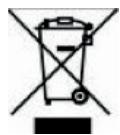
This symbol on the product or on its packaging indicates that this product shall not be treated as household waste. Instead it should be taken to an applicable collection point for the recycling of electrical and electronic equipment. By ensuring that this equipment is disposed of correctly you will help prevent potential negative consequences for the environment and human health, which could otherwise be caused by inappropriate waste handling of this product. The recycling of materials will help to conserve natural resources. For more information please contact your local council or waste disposal service.
Important Safeguards & Precautions
- Do not expose to dust, direct sunlight, wet weather conditions, high humidity, high temperatures or mechanical shock.
- Do not expose the unit, to splashing, dripping rain or moisture. Do not immerse in liquid.
- Do not disassemble; there are no serviceable parts inside.
- Do not use if the equipment is damaged.
- Never carry the unit by its cables.
- For external cleaning, use a soft, clean, cloth only. Use of detergents may damage the cabinet finish.
-
Do not dispose of batteries in fire or leave them near a heat source such as a radiator.
-
You should take a break at least every 5 to 10 minutes if your eyes feel tired or dry or if you experience discomfort of any kind.
- You are advised to take one 15 minute break per hour when playing for extended periods of time.
EC Declaration
This product complies with the R&TTE Directive 1999/5/EC.
CE
This product complies with the requirements of Directive 1995/5/EC of the European Parliament and Commission from 9 March 1999 governing Radio and Telecommunications Equipment and mutual recognition conformity.
TECHNICAL HELPLINE INFORMATION
The Technical Helpline is a live one-to-one service
UK: 0905 710 0015 - Hours: 10:00am till 5:00pm, Monday to Friday
(All calls are charged at 30 pence per minute. All callers must be over 16 years of age. Permission must be obtained from the person paying the bill. Parental supervision is recommended).
Eire: 154 056 3001 - Hours: 10:00am till 5:00pm, Monday to Friday
(All calls are charged at 60 euro cents per minute. All callers must be over 16 years of age. Permission must be obtained from the person paying the bill. Parental supervision is recommended).
To ensure that your call is handled quickly and effectively please ensure that you have the model number and any other relevant information regarding your product.
Calls may be recorded for training purposes.
INTRODUCTION
BB8136 GAMETAB-ONE™
Browse fast on your tablet with Chrome

Browse fast on your tablet with Chrome

- The joystick controls use the larger circles. The left stick is the silver circle with the L in the centre. Move this to cover the virtual control stick on the left side of the screen on your selected game. Make sure the circle matches the size of the virtual control as close as possible. To change the size, press the 'Smaller' or 'Bigger' options from the menu.
Avenue Ernest Solvay
1480 Tubize, Belgium
Email: bigben-info@bigben-interactive.be
www/bigben.eu

APPEL NON SURTAXE
BB8136 GAMETAB-ONETM
1. Product features:
To switch on your GAMETAB-ONE™, simply press and hold the power button on the top edge. When loading is complete you will see the welcome screen. Follow the onscreen instructions to familiarise yourself with the system. On any future power on you will see the lock screen. Drag the 'locked symbol to the right side to unlock the screen. When the screen is unlocked you will see the home screen. You can configure your tablet from here by entering the settings option. This will allow you to set your language, Wi-Fi settings and set up your Google account. You MUST set up a Google account in order to use Google Play to download apps and games. This will also involve creating a Gmail account. If you already have a Google account, you can retrieve it and use it on your Game Tab One by inputting your Gmail address and password. Once this is set up, you are ready to play. See 'Settings changes' for more information.
To power off and put into standby mode simply press and release the power button.
To power off completely, press and hold the power button and select the 'Power Off' option on the screen.
8. Einstellungen
Browse fast on your tablet with Chrome

Browse fast on your tablet with Chrome

Browse fast on your tablet with Chrome

www/bigben-interactive.de
Browse fast on your tablet with Chrome

Browse fast on your tablet with Chrome

Browse fast on your tablet with Chrome

C/Hernan Cortes 12, 1^ Iqz
28004 Madrid
sat@bigbeninteractive.es
INTRODUCTION
BB8136 GAMETAB-ONE™
Browse fast on your tablet with Chrome

Browse fast on your tablet with Chrome

Browse fast on your tablet with Chrome

Browse fast on your tablet with Chrome

Browse fast on your tablet with Chrome

Browse fast on your tablet with Chrome

Note: Poderás encontrarthersbrowsers para download no Google Play