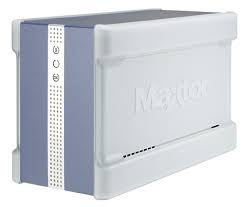
SHARED STORAGE II - Network Storage (NAS) MAXTOR - Free user manual and instructions
Find the device manual for free SHARED STORAGE II MAXTOR in PDF.


| Product Type | Network Storage (NAS) |
| Brand | Maxtor |
| Model | Shared Storage II |
| Dimensions (approx.) | 200 x 120 x 50 mm |
| Weight (approx.) | 1 kg |
| Storage Capacity | 500 GB (internal hard drive) |
| Network Interface | Ethernet 10/100/1000 |
| Power Supply | AC adapter 12 V, 3 A |
| Main Functions | Network file sharing, centralized backup, remote access via web interface |
| Supported Operating Systems | Windows, macOS |
| Included Software | Maxtor EasyManage (installation and management) |
| Maintenance and Cleaning | Wipe the device with a soft, dry cloth. Do not use liquid or abrasive products. |
| Security | Administrator password protection, creation of user accounts with access rights |
| Spare Parts and Repairability | Product not user-serviceable. No spare parts available. Contact customer service for repairs. |
| General Information | Limited 1-year warranty (subject to conditions). Support at www.maxtor.fr. Downloadable manual. |
Frequently Asked Questions - SHARED STORAGE II MAXTOR
User questions about SHARED STORAGE II MAXTOR
0 question about this device. Answer the ones you know or ask your own.
Ask a new question about this device
Download the instructions for your Network Storage (NAS) in PDF format for free! Find your manual SHARED STORAGE II - MAXTOR and take your electronic device back in hand. On this page are published all the documents necessary for the use of your device. SHARED STORAGE II by MAXTOR.
USER MANUAL SHARED STORAGE II MAXTOR
natural_image
Diagram showing connection between a server and a router (no text or symbols present)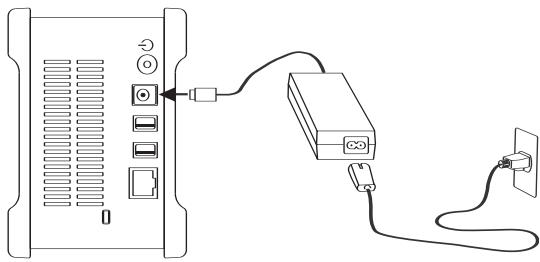
natural_image
Diagram of a server rack connected to an attached device via cable (no text or symbols)Step 1. Connect Your Drive
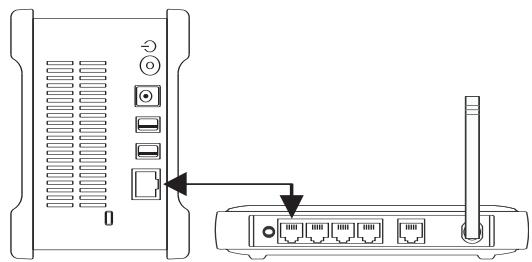
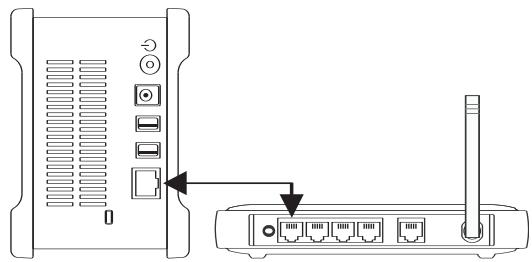
Connect the Ethernet Cable
- Plug one end of the supplied Ethernet cable into your network, router or switch.
- Plug the other end of the Ethernet cable into the Ethernet port on your Shared Storage II drive.
Connecting the Power
- Plug the round female connector from the power adapter into the drive's power connector.
- Plug the two-pin female connector on the power cord into the power adapter.
- Plug the standard electrical plug from the power adapter into your power source.
text_image
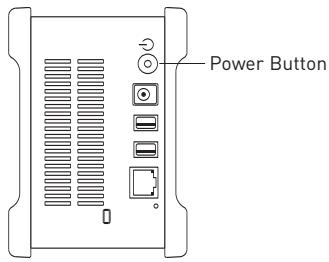
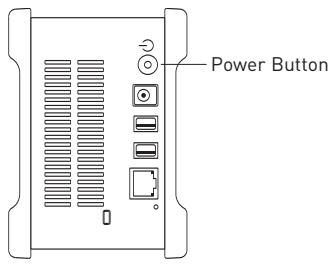
Power ButtonStep 2. Power up Your Drive
- Press the round black button on the back panel of your Maxtor Shared Storage II drive. The green LED (light) with illuminate in the center of the power button.
- Your drive will now start. The start up process can take up to one minute to complete.
Note: Refer to the Maxtor Shared Storage II User's Guide for more information on the power/status LED definitions.
text_image
Installation Software Maxtor Shared Storage®1 Maxtor Maxtor Maxtor Maxtor Maxtor Maxtor Maxtor Maxtor Maxtor Maxtor Maxtor Maxtor Maxtor Maxtor Maxtor Maxtor Maxtor Maxtor Maxtor Maxtor Maxtor Maxtor Maxtor Maxtor Maxtor Maxtor Maxtor Maxtor Maxtor Maxtor Maxtor Maxtor Maxtor MaxtorStep 3. Set up Your Drive
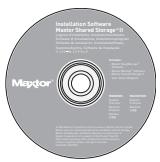
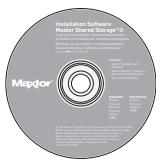
- Insert the Maxtor Shared Storage II Installation Software CD. Select a language and click OK.
- From the main menu, click Install Software.
- Click Yes when prompted to continue. The software will prepare to install.
- From the Welcome screen, click Next. Follow the on-screen prompts to complete the installation.
- When the installation is complete, click Finish to restart your PC.
- Upon restart, Maxtor EasyManager searches for Shared Storage drives on your network. When found, you will see the Network ID number and IP address for the located drive(s). For example: MSS-000338 (192.168.0.5).
Note: If a message appears stating that "No shared Storage drives were found" select the Click here button for more information and a link for troubleshooting tips. - Once detected, a window displays informing you that your Shared Storage II drive has no security password set for the administrative function. To set a password for the drive, click Manage. This will launch the Web User Interface (Web UI). Follow the on-screen prompts in your browser to configure your Shared Storage drive.
- When finished, close your browser to return to the EasyManager's Settings screen, and then click the Home button.
- When the Home screen appears, click on the Create a user account button.
- Choose an account type (Public Account or Private Account / Home or Business), provide the necessary information and click Create. The EasyManage™ software will now create the new user account and the appropriate folders for the account. When finished, a desktop shortcut will appear for this user's share.
natural_image
Diagram showing connection between a server and a router, with no text or symbols present.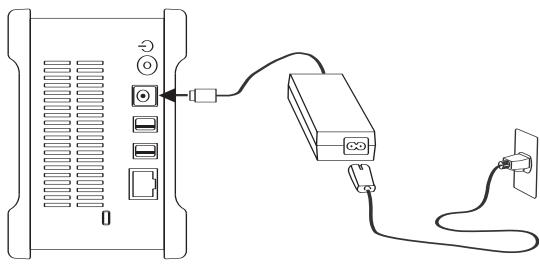
natural_image
Diagram showing connection between a server rack and an electronic device via cable (no text or symbols)Step 1. Connect Your Drive
Connect the Ethernet Cable
- Plug one end of the supplied Ethernet cable into your network, router or switch.
- Plug the other end of the Ethernet cable into the Ethernet port on your Shared Storage II drive.
Connecting the Power
- Plug the round female connector from the power adapter into the drive's power connector.
- Plug the two-pin female connector on the power cord into the power adapter.
- Plug the standard electrical plug from the power adapter into your power source.
text_image
Power ButtonStep 2. Power up Your Drive
- Press the round black button on the back panel of your Maxtor Shared Storage II drive. The green LED (light) with illuminate in the center of the power button.
- Your drive will now start. The start up process can take up to one minute to complete.
Note: Refer to the Maxtor Shared Storage II User's Guide for more information on the power/status LED definitions.
text_image
Installation Software Maxtor Shared Storage™ 1. 2016年版式安装软件,安装后使用型号为 Software Version 2. 2016年版式安装软件,安装后使用型号为 Maxtor C:\Program Files\Maxtor\Maxor\Maxor\Maxor\Maxor\Maxor\Maxor\Maxor\Maxor\Maxor\Maxor\Maxor\Maxor\Maxor\Maxor\Maxor\Maxor\Maxor\Maxor\Maxor\Maxor\Maxor\Maxor\Maxor\Maxor\Maxor\Maxor\Maxor\Maxor\Maxor\Maxor\Maxor\Maxor\Maxor\Maxor Model: Microsoft Windows Version: Microsoft Windows Product: Microsoft Windows Rating: 100% Price: $15.00 Balance: $15.00 Capacity: 380W Capacity: 380W Capacity: 380W Capacity: 380W Capacity: 380W Capacity: 380W Capacity: 380W Capacity: 380W Capacity: 380W Capacity: 380W Capacity: 380W Capacity: 380W Capacity: 380W Capacity: $15.00 Capacity: $15.00 Capacity: $15.00 Capacity: $15.00 Capacity: $15.00 Capacity: $15.00 Capacity: $15.00 Capacity: $15.00 Capacity: $15.00 Capacity: $15.00 Capacity: $15.00 Capacity: $15.00Step 3. Set up Your Drive
-
Insert the Maxtor Shared Storage II Installation Software CD and double-click the Install CD icon. Double-click the Maxtor EasyManage Package.
-
From the Welcome screen, click Continue.
-
Review the License Agreement and click Continue to proceed. To accept the terms of the license agreement click Agree.
-
Select a destination to install the EasyManage software and then click Install.
-
You will be notified that the installation requires a system restart. Click Continue installation.
-
When the installation is complete, click Restart.
-
Upon restart, double-click EasyManage located on your desktop. EasyManage searches for Shared Storage Drives on your network. When found, you will see the Network ID number and IP address for the located drive(s). For example: MSS-000338 (192.168.0.5). Highlight the Shared Storage Drive you wish to configure and click Select Drive.
Note: If no Shared Storage Drives were found, click Help for more information and troubleshooting tips.
-
The EasyManage - Shared Storage Administrator Password window will appear, allowing you to set administrative security on the Shared Storage II drive. Click Yes to launch the Web User Interface and set an administrative password.
-
When finished, close your browser to return to the EasyManage screen.
-
When the main menu appears, click on the Plus (+) icon of the EasyManage screen to create a new user account.
-
Choose an account type (Public Account or Private Account) and click Next.
-
Select a Folder Type (Home, Business or None). The EasyManage software will now create your new user account and the appropriate folders for the account.
-
Enter a Name for the new account and click Create.
Note: Maxtor EasyManage software must be installed on each Macintosh computer in order for each user to take advantage of a Personal folder.
natural_image
Diagram showing connection between a server and a router (no text or symbols present)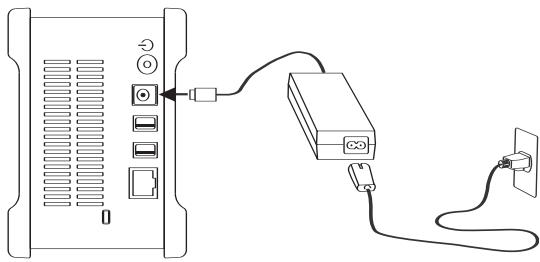
natural_image
Diagram of a server rack connected to an attached device via cable (no text or symbols)natural_image
Diagram showing connection between a server and a router, with no text or symbols present.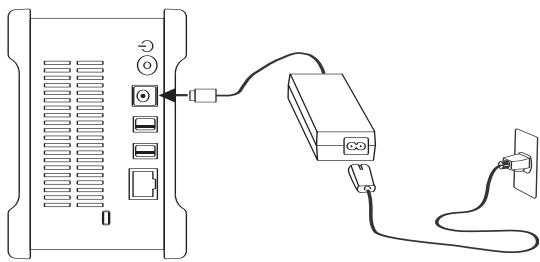
natural_image
Diagram showing connection between a server rack and a connected device with cable (no text or symbols)natural_image
Diagram showing connection between a server and a router (no text or symbols present)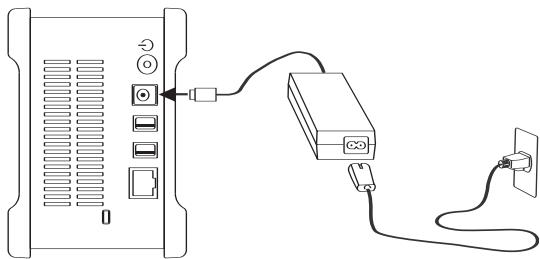
natural_image
Diagram showing connection between a server rack and an electronic device via cable (no text or symbols)natural_image
Diagram showing connection between a server and a router, with no text or symbols present.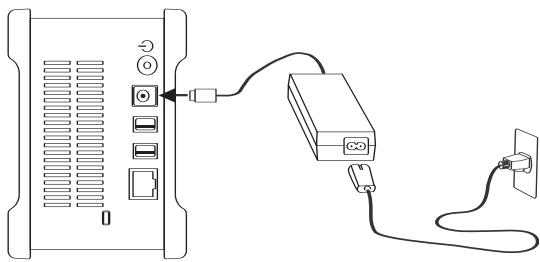
natural_image
Diagram showing connection between a server rack and an attached device with cable (no text or symbols)natural_image
Diagram showing connection between a server and a router, with ports and connectors (no text or labels)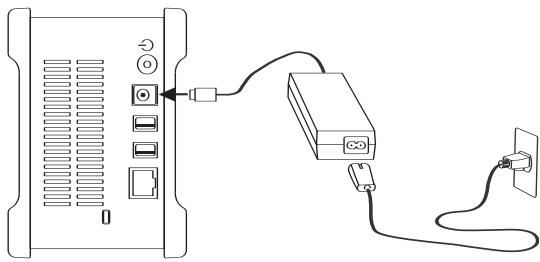
natural_image
Line drawing of a server rack connected to an attached device via cable (no text or symbols)natural_image
Diagram showing connection between a server and a router, with no text or symbols present.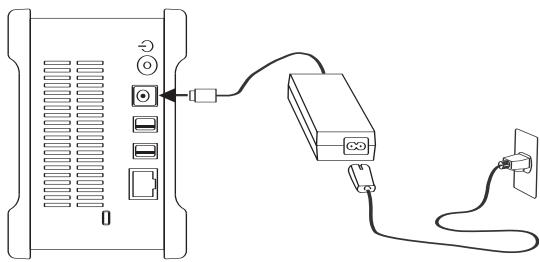
natural_image
Diagram showing connection between a server rack and a connected device with cable (no text or symbols)natural_image
Diagram showing connection between a server and a router (no text or symbols present)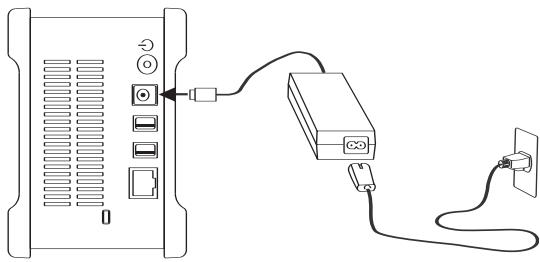
natural_image
Diagram of a server rack connected to an attached device via cable (no text or symbols)natural_image
Diagram showing connection between a server and a router, with no text or symbols present.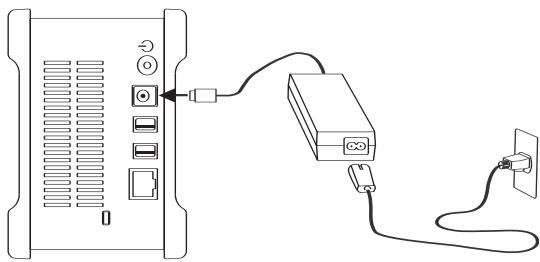
natural_image
Diagram showing connection between a server rack and a connected device with cable (no text or symbols)natural_image
Diagram showing connection between a server and a router (no text or symbols present)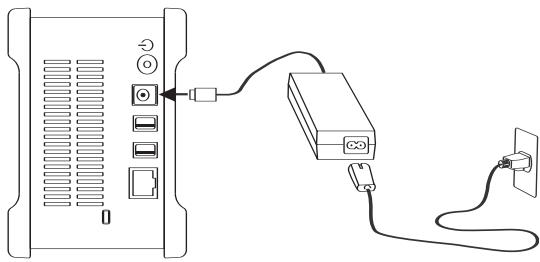
natural_image
Diagram of a server rack connected to an attached device via cable (no text or symbols)natural_image
Diagram showing connection between a server and a router, with no text or symbols present.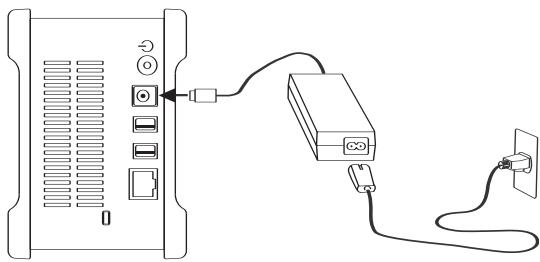
natural_image
Diagram showing connection between a server rack and a connected device with cable (no text or symbols)natural_image
Diagram showing connection between a server and a router (no text or symbols present)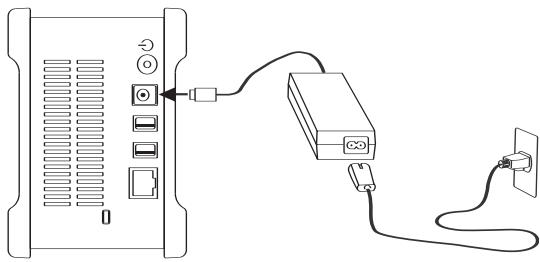
natural_image
Line drawing of a server rack connected to an attached device via cable (no text or symbols)text_image
Installation Software Maxtor Shared Storage®1 Maxtor Maxtor 2000-2005 Version: 1.0.0.2005 Description: Microsoft Windows Capacity: 72.0 GB System: Windows NT Capacity: 72.0 GB System: Windows NT Capacity: 72.0 GB Capacity: 72.0 GB Capacity: 72.0 GB Capacity: 72.0 GB Capacity: 72.0 GB Capacity: 72.0 GB Capacity: 72.0 GB Capacity: 72.0 GB Capacity: 72.0 GB Capacity: 72.0 GB Capacity: 72.0 GB Capacity: 72.0 GBTrin 3. Konfigurer drevet
natural_image
Diagram showing connection between a server and a router, with no text or symbols present.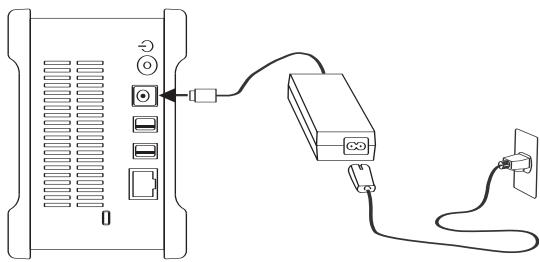
natural_image
Diagram showing connection between a server rack and a connected device with cable (no text or symbols)natural_image
Diagram showing connection between a server and a router (no text or symbols present)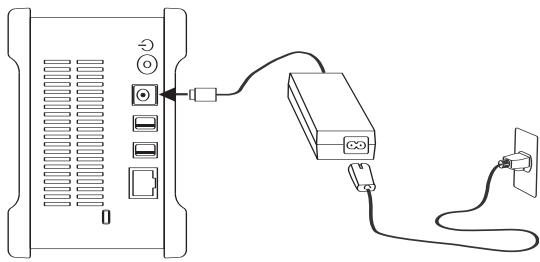
natural_image
Diagram of a server rack connected to an attached device via cable (no text or symbols)natural_image
Diagram showing connection between a server and a router, with no text or symbols present.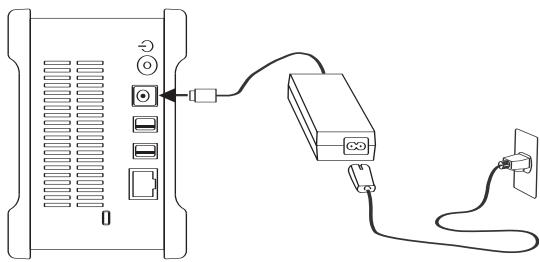
natural_image
Diagram showing connection between a server rack and a connected device with cable (no text or symbols)natural_image
Diagram showing connection between a server and a router (no text or symbols present)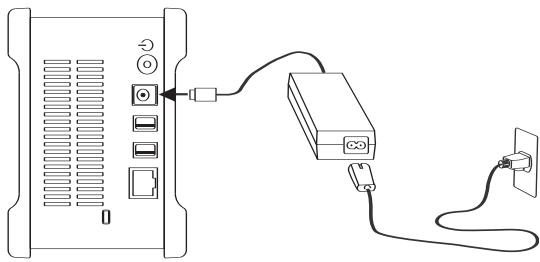
natural_image
Diagram of a server rack connected to an attached device via cable (no text or symbols)text_image
Virtapainikenatural_image
Diagram showing connection between a server tower and a router (no text or symbols present)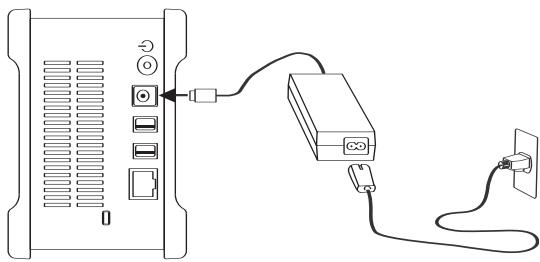
natural_image
Diagram showing connection between a server rack and a connected device with cable (no text or symbols)text_image
Virtapainikenatural_image
Diagram showing connection between a server and a router, with ports and connectors (no text or symbols)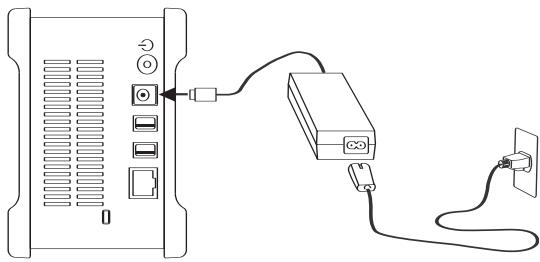
natural_image
Diagram showing connection between a server rack and an electronic device via cable (no text or symbols)natural_image
Diagram showing connection between a server tower and a router (no text or symbols present)
natural_image
Diagram showing connection between a server rack and a connected device with cable (no text or symbols)natural_image
Diagram showing connection between a server and a router (no text or symbols present)
natural_image
Line drawing of a server rack connected to an attached device via cable (no text or symbols)natural_image
Diagram showing connection between a server and a router, with no text or symbols present.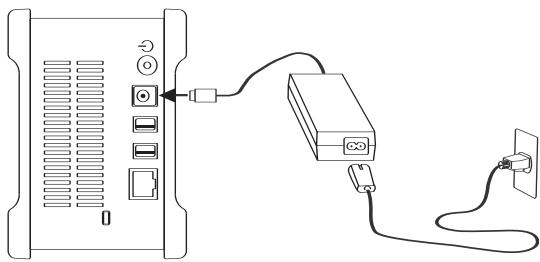
natural_image
Diagram showing connection between a server rack and a connected device with cable (no text or symbols)Limited Warranty Statement
Maxtor's warranty obligations are limited to the terms set forth below.
Please note that Maxtor reserves the right to update from time to time the warranty terms provided for new purchases of Maxtor products, and to establish the effective date of those updated warranty terms. Please refer to www.maxtor.com for the then current form of Limited Warranty Statement for Maxtor brand products.
Please note that Maxtor products are distributed outside the United States and Canada through local authorized distributors and resellers ("Resellers"). These Resellers generally offer a consumer warranty, and associated warranty services, to consumer purchasers. Maxtor recommends that consumers in these jurisdictions first contact the Reseller from whom they purchased the Maxtor product for all issues with regard to product defects and the applicable product warranty.
Maxtor warrants to the original consumer purchaser ("you") that new Maxtor disk drive products ("New Products") will be free from defects in material and workmanship for the Standard Warranty Period for the relevant New Product. The Standard Warranty Period for the various New Products marketed by Maxtor and for the geographies in which they are sold is detailed on www.maxtor.com.
The warranty period on replacements for New Products is the remainder of the warranty on the original New Product or 90 days from the date of shipment of the replacement product, whichever is longer.
In addition to the New Products, Maxtor may from time to time sell refurbished disk drive products which are not new and which have been reconditioned to Maxtor's standards for refurbished products ("Refurbished Products"). Unless a warranty period ("Refurbished Warranty Period") is designated by Maxtor for the specific Refurbished Product either on www.maxtor.com or on the product packaging (as applied by Maxtor), Refurbished Products are provided strictly on an "AS IS" basis and Maxtor disclaims any and all warranties or conditions whatsoever for Refurbished Products.
To the extent that Maxtor so designates a warranty period for the Refurbished Product, Maxtor warrants to the original consumer purchaser that the Refurbished Product will be free from defects in material and workmanship for the associated Refurbished Warranty Period.
New Products and Refurbished Products are together referred to as "Products." The start of the Standard Warranty Period or Refurbished Warranty Period (together referred to as the "Warranty Period"), as the case may be, is the documented date of your purchase of the Product from Maxtor or Maxtor's authorized reseller. In the absence of a documented purchase date, the start of the Warranty Period will be deemed the date of original shipment by Maxtor from its point of new or refurbish manufacture, as the case may be, to Maxtor's customer.
The Products are manufactured from parts and components that are new or equivalent to new in accordance with industry standards.
If you discover a defect in material or workmanship during the Warranty Period, and Maxtor agrees that the defect exists, Maxtor will, at its option, repair or replace the Product at no charge to you, provided it is returned during the applicable Warranty Period, with transportation charges prepaid, to the facility designated by Maxtor. The Product must be properly packaged in Maxtor or Maxtor-approved packaging, with the Return Material Authorization clearly displayed on the outside of the packaging, to obtain warranty service. Products that fail within the first 30 days after purchase will be replaced with a new Product. Maxtor may require proper proof of purchase documentation prior to issuing the replacement Product.
If Maxtor elects to repair a Product, Maxtor owns all parts removed from the repaired Product. Maxtor uses new and reconditioned parts made by various manufacturers in conjunction with warranty repairs and replacement Products. Repair parts or replacement Products may, at Maxtor's option, include an equal or better model or features.
Maxtor has no responsibility whatsoever with regard to any content or data on returned Products.
To request warranty service and before returning a Product to Maxtor, please contact the Maxtor Service Center. Refer to the Maxtor Installation Guide or www.maxtor.com for your online guide to find the appropriate telephone number for obtaining customer assistance within your jurisdiction and the proper address for shipping authorized returns. Once the Maxtor Service Center determines that a repair is required, Maxtor will issue an RMA number. A copy of your receipt or bill of sale bearing the name and location of Maxtor's authorized reseller and the Maxtor serial number and model number of the Product in which the defect has been reported may be required as a proof of your purchase for warranty service. Note that, as an alternative, Maxtor offers an online warranty return option for certain Products through www.maxtor.com.
You are responsible for saving or backing up data contained in any Product returned to Maxtor in conjunction with warranty or any other services. Maxtor shall have no responsibility for such data whatsoever and shall have no liability arising out of any damage to, or loss or disclosure of, such data.
This limited warranty applies only to the Maxtor products that can be identified by the original, unaltered Maxtor trademark, trade name or logo affixed to them. Maxtor does not warrant any product that is not manufactured by, for, or with permission from Maxtor, or which is not otherwise distributed by Maxtor under the Maxtor brand.
This warranty does not cover any of the following conditions:
- Abuse, unreasonable use, mistreatment, or neglect
- Unusual physical or electrical stress or power fluctuations
- Damage caused during installation of the Product
- Damage or capacity/performance/operational resetting caused by the equipment or system with which the Product is used
- Damage caused by modification or repair not made or authorized by Maxtor
- Products whose Maxtor Serial Number and/or Material Number label have been removed, torn or defaced
- Damage caused by use of non-Maxtor packaging
- Damage caused by improper or improperly used packaging
– Damage caused by lack of ESD protection
– Products that are determined to be stolen.
Further, this limited warranty is void if the Product cover, or any label or seal on the Product, is removed or damaged.
Maxtor owns all parts removed from the repaired Products. Maxtor uses new and reconditioned parts in performing warranty repairs and building replacement products.
FAILURE TO COMPLETE AND RETURN ANY MAXTOR PRODUCT REGISTRATION FORM WILL NOT DIMINISH YOUR WARRANTY RIGHTS. Certain Products include software or firmware as a component ("Software"). Maxtor or its suppliers retain all rights of ownership in such Software and any use of the Software is subject to the license agreement provided by Maxtor accompanying such Software. If no license is provided by Maxtor, you are granted the limited right to use the Software as required for the operation of the Product and no other rights are granted whatsoever. Certain Software is licensed under the GNU General Public License Agreement ("GPL Software"). EXCEPT AS OTHERWISE PROVIDED BY MAXTOR IN A WRITTEN LICENSE AGREEMENT, SOFTWARE IS OFFERED "AS IS" AND MAXTOR GRANTS NO WARRANTIES OF ANY KIND, EXPRESS OR IMPLIED, BY STATUTE, COMMUNICATIONS OR OTHERWISE WITH REGARD TO THE SOFTWARE. MAXTOR SPECIFICALLY DISCLAIMS ANY IMPLIED WARRANTIES OF MERCHANTABILITY, FITNESS FOR A PARTICULAR PURPOSE OR NONINFRINGEMENT WITH RESPECT TO THE SOFTWARE. Please note that Maxtor makes the source code for the GPL software available through www.maxtor.com.
TO THE MAXIMUM EXTENT PERMITTED BY LAW, THIS WARRANTY AND THE REMEDIES SET FORTH ABOVE ARE EXCLUSIVE AND IN LIEU OF ALL OTHERS, WHETHER ORAL OR WRITTEN, EXPRESSED, IMPLIED OR STATUTORY. OTHER THAN AS EXPRESSLY SET FORTH HEREIN, MAXTOR SPECIFICALLY DISCLAIMS TO THE MAXIMUM EXTENT PERMITTED BY LAW ANY AND ALL REPRESENTATIONS, WARRANTIES AND CONDITIONS AS TO THE PRODUCTS, SERVICES, OR ANY OTHER MATTER WHATSOEVER. IN PARTICULAR, BUT WITHOUT LIMITING THE GENERALITY OF THE FOREGOING, MAXTOR SPECIFICALLY DISCLAIMS ANY AND ALL IMPLIED OR DEEMED WARRANTIES AND CONDITIONS OF SATISFACTORY QUALITY, MERCHANTABILITY, FITNESS FOR A PARTICULAR PURPOSE, PERFORMANCE IN A SKILLFUL AND WORKMANLIKE MANNER, AND NON-INFRINGEMENT OF THIRD PARTY RIGHTS OR ANY OTHER WARRANTY ARISING FROM A COURSE OF DEALING OR USAGE OF TRADE. THIS LIMITED WARRANTY DOES NOT APPLY TO, AND MAXTOR MAKES NO WARRANTY TO YOU WITH REGARD TO, PRODUCTS ORIGINALLY SOLD AS AN INTEGRATED COMPONENT OF A SYSTEM NOT SUPPLIED BY MAXTOR, OR PRODUCTS PROVIDED UNDER A THIRD PARTY LEASING OR SERVICE ARRANGEMENT. No Maxtor distributor, reseller, dealer, agent or employee is authorized to make any modification, extension or addition to this warranty.
MAXTOR IS NOT RESPONSIBLE OR LIABLE FOR ANY INDIRECT, UNFORESEEABLE, SPECIAL, INCIDENTAL OR CONSEQUENTIAL DAMAGES HOWEVER CAUSED AND WHETHER OR NOT MAXTOR WAS ADVISED OF THE POSSIBILITY OF SUCH DAMAGES, INCLUDING BUT NOT LIMITED TO, COSTS OF PROCUREMENT OF SUBSTITUTE GOODS, LOSS OF DATA OR PROGRAMS, LOST PROFITS, DOWNTIME, GOODWILL, DAMAGE OR REPLACEMENT OF EQUIPMENT AND PROPERTY, AND ANY COSTS OF RECOVERING, PROGRAMMING OR REPRODUCING ANY PROGRAM OR DATA STORED IN OR USED WITH MAXTOR PRODUCTS OR ANY OTHER DAMAGES ARISING OUT OF THE PURCHASE, USE OR PERFORMANCE OF THE PRODUCT. Maxtor is not, and cannot be, responsible for any losses or damages arising out of any loss of, or any inability to access, data as a result from the failure of a Product, and accordingly you bear this risk. The allocation of risk under this limitation of liability is reflected in the purchase price of the Product. This limitation of liability, however, will not apply to claims for death or personal injury caused by the negligence of Maxtor or its associated companies, officers, representatives or agents.
Some jurisdictions do not allow the exclusion or limitation of incidental or consequential damages or exclusions of implied or deemed conditions or warranties, so the above limitations or exclusions may not apply to you. This warranty gives you specific legal rights, and you may also have other rights that vary from jurisdiction to jurisdiction. By way of example, if a Product is purchased from Maxtor or Maxtor's authorized reseller by you in Europe, Africa or the Middle East, you may have additional warranty rights which are explained at www.maxtor.com.
Please note that you are expressly not permitted to use the Products in conjunction with the operation of nuclear facilities, aircraft navigation, aircraft communication, aircraft flight control, aircraft air traffic control systems, weapons devices or systems, or in any devices or systems in which a malfunction (including, without limitation, software related delay or failure) would result in foreseeable risk of injury or death to the operator of the device or system, or to others.
This Statement of Limited Warranty shall be exclusively interpreted in accordance with the English language with the meaning of its terms. Should any provisions of this Limited Warranty be declared invalid by any court of competent jurisdiction, the balance of this Limited Warranty will remain in full force and effect. In addition, should a translation of this Limited Warranty deviate from the English language version, only the English language version shall apply and be binding.