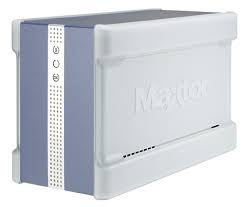
CENTRAL AXIS BUSINESS - Storage Server MAXTOR - Free user manual and instructions
Find the device manual for free CENTRAL AXIS BUSINESS MAXTOR in PDF.


| Product Type | Network Storage Server (NAS) |
| Brand | MAXTOR |
| Model | CENTRAL AXIS BUSINESS |
| Connectivity | Ethernet 10/100/1000 Mbps |
| Number of Disk Bays | 2 bays (disks included) |
| Power Supply | External AC Adapter |
| Main Functions | Network backup, remote Internet access, file sharing, user account management |
| Supported Operating System | Windows and Mac OS |
| Included Software | Maxtor Manager (CD-ROM) |
| Remote Access | Compatible with Seagate Global Access |
| Security | Administrator password, user account management |
| Maintenance | Hard drive replacement possible (see manual) |
| Technical Support | Call center and website www.maxtor.com |
| Certification | FCC Class B |
| Package Contents | Server, Ethernet cable, power adapter, CD-ROM, manual |
| Dimensions (approx.) | 200 x 120 x 150 mm |
| Weight (approx.) | 1.4 kg |
Frequently Asked Questions - CENTRAL AXIS BUSINESS MAXTOR
User questions about CENTRAL AXIS BUSINESS MAXTOR
0 question about this device. Answer the ones you know or ask your own.
Ask a new question about this device
Download the instructions for your Storage Server in PDF format for free! Find your manual CENTRAL AXIS BUSINESS - MAXTOR and take your electronic device back in hand. On this page are published all the documents necessary for the use of your device. CENTRAL AXIS BUSINESS by MAXTOR.
USER MANUAL CENTRAL AXIS BUSINESS MAXTOR
Dual-drive network storage server
By choosing the Central Axis™ network storage server, you have chosen a simple, cost-effective way to back up the data on the computers on your small network. Please review the following information to set up and begin using your new storage server.
Getting Started For Windows XP, Vista or Macintosh (OS X 10.4.11 or later)
Part 1: Plug it in.
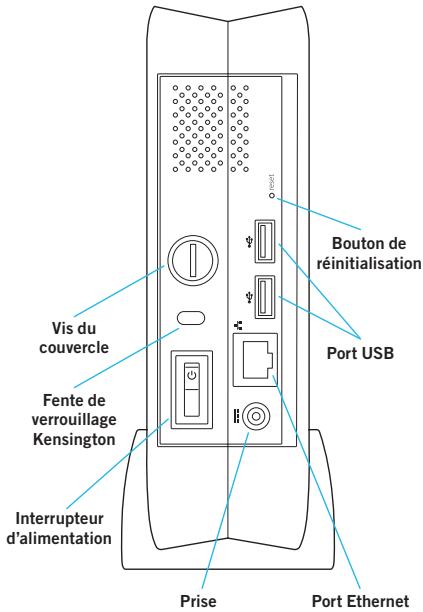
- Connect one end of the supplied Ethernet cable to an Ethernet port on your router or switch.
- Connect the other end of the Ethernet cable to the Ethernet port on your Central Axis storage server.
- Connect the round plug of the power supply to the Central Axis storage server power jack.
- Connect the standard electrical plug of the power supply to your AC power source.
Part 2: Turn it on.
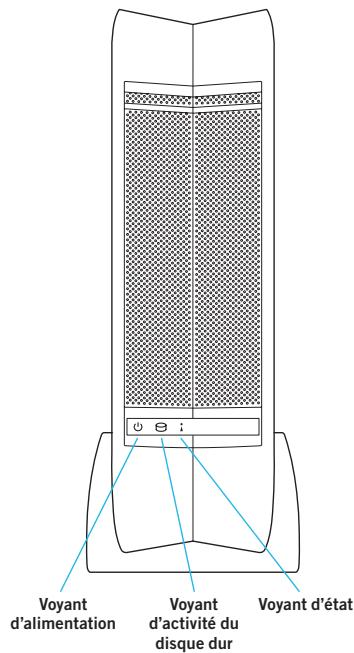
- Press the power button on the back of your Central Axis storage server. On the front panel, the power light on the left illuminates and the status light on the right flashes. The hard disk activity light in the centre flashes intermittently.
- Wait for the status light to shine steadily.
To install software and set up the Central Axis storage server on a PC, go to page 5. To install software and set up the Central Axis storage server on a Macintosh, go to page 8.
Maxtor Manager Help
For assistance with the Maxtor Manager application on your desktop, click the ? Help icon on any window for detailed information, or refer to the user guides found on the Maxtor Central Axis software CD.
User Guides
The Guides folder on the Central Axis software CD includes the following user manuals in PDF format:
Maxtor Central Axis User Guide for Windows
Maxtor Central Axis User Guide for Macintosh
Maxtor Central Axis Admin User Guide
Seagate Global Access User Guide
Windows XP or Vista Installation and Setup
Part 3: Install the software.
- Insert the Maxtor Central Axis CD into your computer. The Welcome screen opens automatically.
Note: If the Welcome screen doesn't open, browse to the CD and double-click the Launch.exe file.
- Follow the on-screen instructions to install the software.
- When the software installation is complete, a Maxtor Manager icon appears on your desktop:

Maxtor
Manager
- Double-click the Maxtor Manager icon. The Maxtor Manager application opens on your desktop and searches for Central Axis devices on your network. When your Central Axis storage server is found, its Host Name, IP address and MAC address are displayed.
Note: If the message "No Central Axis storage server drives were found" appears, visit our support web site at http://support.seagate.com and click TROUBLESHOOTING for tips.
Part 4: Set up the Central Axis storage server.
Here's what you'll do to set up your Central Axis storage server:
- Set up your Central Axis storage server and create an administrator password.
- Set up a user account.
- Create a free Seagate Global Access account on the Seagate Global Access web site.
- Link your Seagate Global Access account and your Central Axis account.
Set Up the Central Axis Storage Server and Create an Administrator Password:
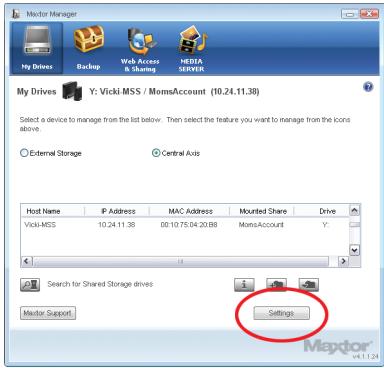
Step 1: In the Maxtor Manager application, click Settings in the My Drives window:
Step 2: In the Settings for Maxtor Central Axis window, click Maxtor Central Axis Admin Web Page.
Note: To set up Web Access and Sharing for the data in an account, the account must be private.
Step 3: Go through the Setup pages that follow and provide the information needed to set up your Central Axis storage server, including creating an admin password on the second Setup page.
After you complete the setup wizard, you're prompted to log in.
- Your username is admin.
- Your password is the admin password you just created.
Set Up a Central Axis User Account:
Step 1: In the Maxtor Manager application, click the Create a User Account button in the My Drives window:
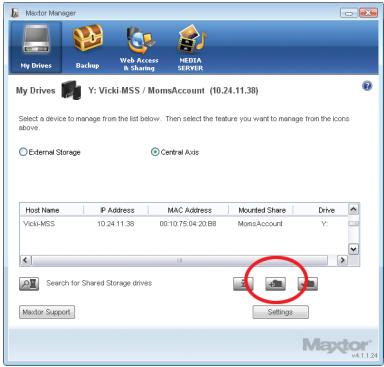
Step 2: In the Create a User Account window that follows, fill in the fields to create a new user account.
Create a Seagate Global Access Account:
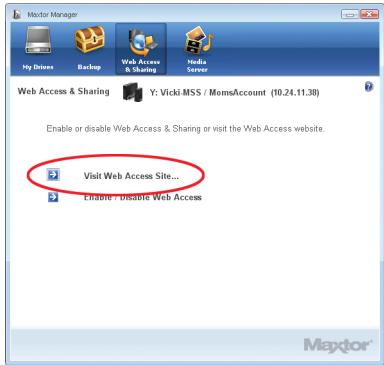
Step 1: In the Maxtor Manager application, click Web Access & Sharing at the top to go to the Web Access & Sharing window. Click Visit Web Access Site:
Step 2: On the Seagate Global Access Sign In page, enter your email address below Don't Have an Account? and click Send.
Step 3: Open your email and follow the instructions to complete the Global Access account registration.
Link your Seagate Global Access Account and your Central Axis Account:
Step 1: In the Web Access & Sharing window, click Enable/Disable Web Access:
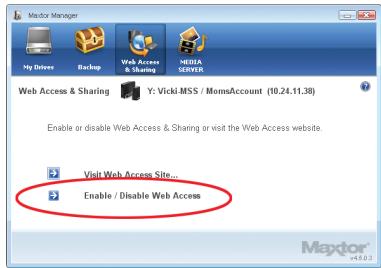
Step 2: Follow the on-screen instructions to enter your local Central Axis account information and then your Seagate Global Access account information.
Note: Should the diagnostics in the Central Axis admin interface determine that a hard drive inside the storage server has failed, a single drive can be replaced by following the instructions available in the user documentation on the included CD and on www.maxtor.com in the support section.
Macintosh Installation and Setup (OS X 10.4.11 or later)
Part 3: Install the software.
- Insert the Central Axis CD into your computer, open the CD, and double-click the Maxtor Central Axis Manager installer.
- Follow the on-screen instructions to install the software.
- When the software installation is complete, a Maxtor Central Axis Manager icon appears on your desktop:

Maxtor Central Axis Manager
- Double-click the Maxtor Manager icon.
- Enter your Mac OS X password in the
Authentication window. The Maxtor Manager
application opens on your desktop and
searches for Central Axis devices on your
network. When your Central Axis storage server
is found, its ID and IP address are displayed. Note: If the message "No Central Axis storage server drives were found" appears, visit our support
web site at http://support.seagate.com and click
TROUBLESHOOTING for tips.
Part 4: Set up the Central Axis storage server.
Here's what you'll do to set up your Central Axis storage server:
- Set up your Central Axis storage server and create an administrator password.
- Set up a user account.
- Create a free Seagate Global Access account on the Seagate Global Access web site.
Link your Seagate Global Access account and your Central Axis account.
Set Up the Central Axis Storage Server and Create an Administrator Password:
Step 1: In the Maxtor Manager application, click Settings in the main window, then in the Advanced tab of the Settings window, click Central Axis Administration.
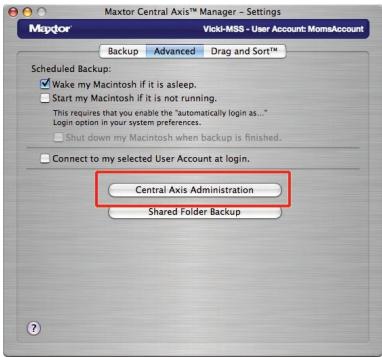
Step 2: Go through the three Setup pages to set up your Central Axis storage server, including creating an admin password on the second Setup page. After you complete the setup wizard, you're prompted to log in.
- Your username is admin.
- Your password is the admin password you just created.
Set Up a Central Axis User Account:
Step 1: In the Maxtor Manager application, click the Create a User Account button in the main window.
Step 2: In the Create a User Account window, set up a user account:
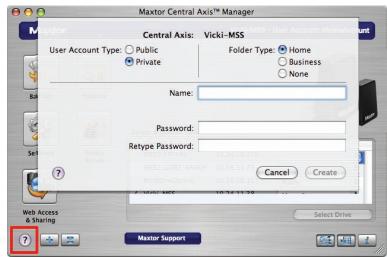
Click the?Help button or view the Maxtor Central Axis User Guide for Macintosh found on the Central Axis software CD for detailed information on creating a user account.
Note: To set up Web Access and Sharing for the data in an account, the account has to be private.
Create a Seagate Global Access Account:
Step 1: In the Maxtor Manager application, click the Web Access & Sharing icon.
Step 2: In the Web Access & Sharing sheet, click Visit Web Access web site:
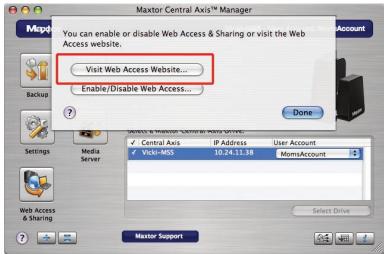
Step 3: On the Seagate Global Access Sign In page, enter your email address below Don't Have an Account? and click Send.
Step 4: Open your email and follow the instructions to complete the Global Access account registration.
Link your Seagate Global Access Account and your Central Axis Account:
Step 1: In the Maxtor Manager application, click the Web Access & Sharing icon.
Step 2: In the Web Access & Sharing sheet, click Enable/Disable Web Access:
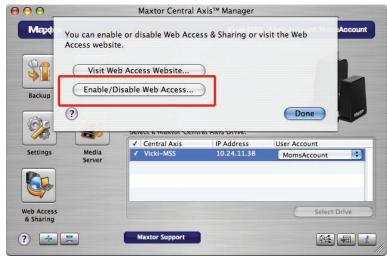
Step 3: Follow the on-screen instructions to enter your local Central Axis account information and then your Seagate Global Access account information.
Note: Should the diagnostics in the Central Axis admin interface determine that a hard drive inside the storage server has failed, a single drive can be replaced by following the instructions available in the user documentation on the included CD and on www.maxtor.com in the support section.
Support
We're Here to Help
Technical Support will answer technical and troubleshooting questions regarding your Maxtor Central Axis storage server during normal call centre business hours. Before calling, note your system configuration and Maxtor Central Axis model number. These numbers can be used to get help from Seagate Support, register your drive and look up information on the Seagate web site. Please visit www.maxtor.com to obtain the latest comprehensive support information, including:
Knowledge Base
Troubleshooting information, FAQs and technical documentation.
Software Downloads
Installation software, utilities and diagnostics.
Product Index
Current and legacy Maxtor products.
Warranty Services
Product returns (RMS), warranty status and warranty information.
Product Support
Installation assistance, product specifications and user manuals.
FCC Declaration of Conformance
This device complies with Part 15 of the FCC (US Federal Communications Commission) Rules. Operation is subject to the following two conditions: (1) this device may not cause harmful interference, and (2) this device must accept any interference received, including interference that may cause undesired operation.
Class B
This equipment has been tested and found to comply with the limits for a Class B digital device, pursuant to Part 15 of the FCC Rules. These limits are designed to provide reasonable protection against harmful interference in residential installation. This equipment generates, uses, and can radiate radio frequency energy and, if not installed and used in accordance with the instructions, may cause harmful interference to radio communications. However, there is no guarantee that interference will not occur in a particular installation. If this equipment does cause harmful interference to radio or television
reception, which can be determined by turning the equipment off and on, the user is encouraged to try to correct the interference by one or more of the following measures:
- Reorient or relocate the receiving antenna.
- Increase the separation between the equipment and receiver.
- Connect the equipment to an outlet on a circuit different from that to which the receiver is connected.
- Consult the dealer or an experienced radio/TV technician for help.
Caution: Any changes or modifications made to this equipment may void the user's authority to operate this equipment.
Schéma du produit
Bienvenue
Seagate Global Access
Seagate Global Access
Create an account Seagate Global Access.
Copyright © 2008 Seagate Technology LLC. All rights reserved. Maxtor and the Maxtor stylised logo are registered trademarks of Seagate Technology LLC or one of its affiliated companies in the United States and/or other countries. Central Axis is either a trademark or registered trademark of Seagate Technology LLC or one of its affiliated companies in the United States and/or other countries. All other trademarks or registered trademarks are the property of their respective owners. When referring to hard drive capacity, one gigabyte, or GB, equals one billion bytes and one terabyte, or TB, equals one trillion bytes. Your computer's operating system may use a different standard of measurement and report a lower capacity. In addition, some of the listed capacity is used for formatting and other functions, and thus will not be available for data storage. Quantitative usage examples for various applications are for illustrative purposes. Actual quantities will vary based on various factors, including file size, file format, features and application software. Seagate reserves the right to change, without notice, product offerings or specifications. Seagate Technology, 920 Disc Drive, Scotts Valley, CA 95066 U.S.A. PN: 100506419 07/08