CONNECT 236 - Audio/video switch MARMITEK - Free user manual and instructions
Find the device manual for free CONNECT 236 MARMITEK in PDF.


User questions about CONNECT 236 MARMITEK
0 question about this device. Answer the ones you know or ask your own.
Ask a new question about this device
Download the instructions for your Audio/video switch in PDF format for free! Find your manual CONNECT 236 - MARMITEK and take your electronic device back in hand. On this page are published all the documents necessary for the use of your device. CONNECT 236 by MARMITEK.
USER MANUAL CONNECT 236 MARMITEK
- To prevent short circuits, this product should only be used inside and only in dry spaces. Do not expose the components to rain or moisture. Do not use the product close to a bath, swimming pool etc.
- Do not expose the components of your systems to extremely high temperatures or bright light sources.
- In case of improper usage or if you have altered and repaired the product yourself, all guarantees expire. Marmitek does not accept responsibility in the case of improper usage of the product or when the product is used for purposes other than specified. Marmitek does not accept responsibility for additional damage other than covered by the legal product responsibility.
- This product is not a toy. Keep out of reach of children.
- Do not open the product (battery panel excepted): the device may contain live parts. The product should only be repaired or serviced by a qualified expert.
- Keep batteries out of the reach of children. Dispose of batteries as chemical waste. Never use old and new batteries or different types of batteries together. Remove the batteries when you are not using the system for a longer period of time. Check the polarity (+/-) of the batteries when inserting them in the product. Wrong positioning can cause an explosion.
- Only connect the adapter to the mains after checking whether the mains voltage is the same as the values on the identification tags. Never connect an adapter when it is damaged. In that case, contact your supplier.
Introduction
Thank you for buying this Marmitek Connect 236. Marmitek products are made with care and are of a high quality. Please read this user manual carefully and follow all the instructions.
Accessories
After unpacking the carton, make sure that, next to the Scart switcher, all of the following accessories are supplied.

Front View and Back View
The Connect 236 has a total of six Input Channels. Input 6 is located on the front panel and input 1 to 5 are located on the back panel.
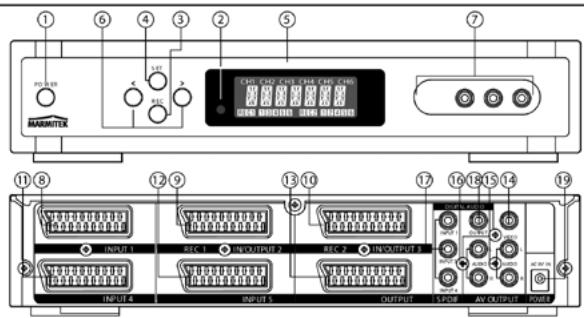
- Power switch button
To turn the Scart switcher on and off; - Remote Control Sensor
To receive the wireless remote control signals; - REC button
To change the RECORD function; - SET button
To confirm when changing your settings; - LCD Display
To display the Scart switcher status; - < / > button
To change the input 1-6 (or program your settings) - Input 6 (External video input jacks)
To connect the device's Video and Audio jack to the Scart switcher; - Scart Input 1
To connect the device's Scart jack to the Scart switcher; - Scart Input/Output 2
To connect the device's Scart jack to the Scart switcher; - Scart Input/Output 3
To connect the device's Scart jack to the Scart switcher; - Scart Input 4
To connect the device's Scart jack to the Scart switcher; - Scart Input 5
To connect the device's Scart jack to the Scart switcher; -
Scart Output
To connect the device's Scart jack to the Scart switcher; -
Video Output To connect the device's Video jacks to the Scart switcher;
- Audio Output 1 To connect the device's Audio jack to the Scart switcher.
- Audio Output 2 To connect the device's Audio jack to the Scart switcher.
- Coaxial 1,3,4 Input (Digital Audio) To connect the device's Coaxial jack to the Scart switcher;
- Coaxial Output(Digital Audio) To connect the device's Coaxial jack to the Scart switcher;
- Power To connect the AC Power adapter to the Scart switcher.
Name and Functions
LCD display and Remote Control
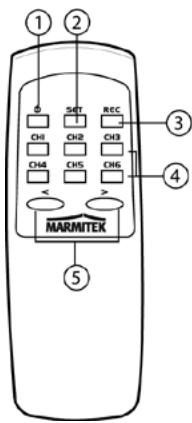
You can select each Input Channel by using the numerical button on the Remote Control.
The "O" button is located on the Remote Control, which allows the Connect 236 to be switched on and off.
- Power switch button To turn the Scart switcher on and off.
- SET button To confirm when using the NAME and REC function
- REC button To change the REC function;
- CH1-CH6 button To select the CH1-CH6 directly
- < / > buttons To change between Input 1 to 6
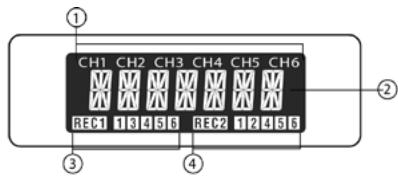
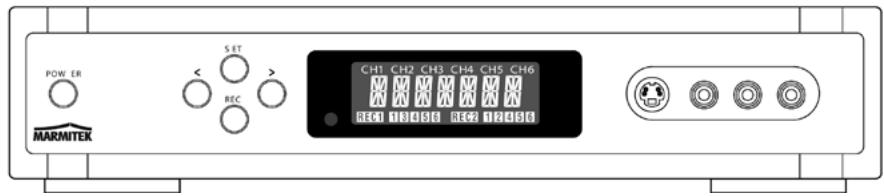
- CH1-CH6 input indicator
- Multi display, showing you the name of the device selected
- REC 1 status
- REC 2 status
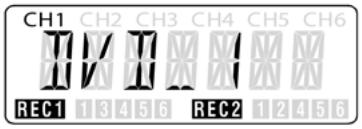
Channel 1 Device name is DVD Player
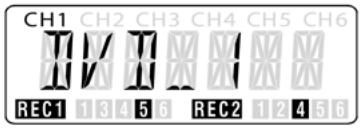
REC 1 (Ch2) Locking with Ch5
REC 2 (Ch3) Locking with Ch4
Currently watching the Channel 1
Setup Instructions
Connecting the AC Power adapter
Make connections as shown in the diagram below.
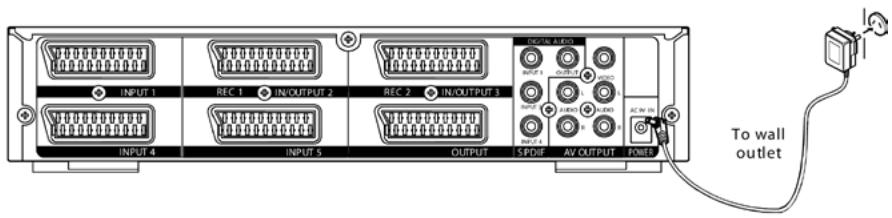
Connecting the AC Power adapter
- Connect the AC Power adapter plug to the AC9V IN located on the rear panel of the Connect 236.
- Connect the AC Power adapter into a suitable wall outlet.
IMPORTANT: The AC Power adapter must be the correct type. Do not use an AC Power adapter other than the type indicated.
Battery installation
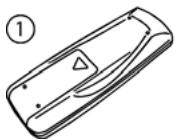
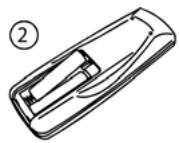
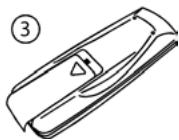
- Open the battery cover
Push and slide the battery cover open. - Insert the battery Insert two AAA size batteries, observe the correct polarity.
- Closing the cover Close the battery cover until a click is heard.
System connections
Note:
- To prevent any possible problems, always disconnect the power plug or switch Off the POWER button of the Connect 236 before connecting or disconnecting the cables.
- When connecting the cables, always insert the pin plugs correctly into the connecting jacks. Insufficient insertion may result in no-sound problems or generation of noise.
Connecting through a Scart, Composite video and Audio
Make connections as the diagram shown below. When connecting the related devices, refer to the related instruction manual.
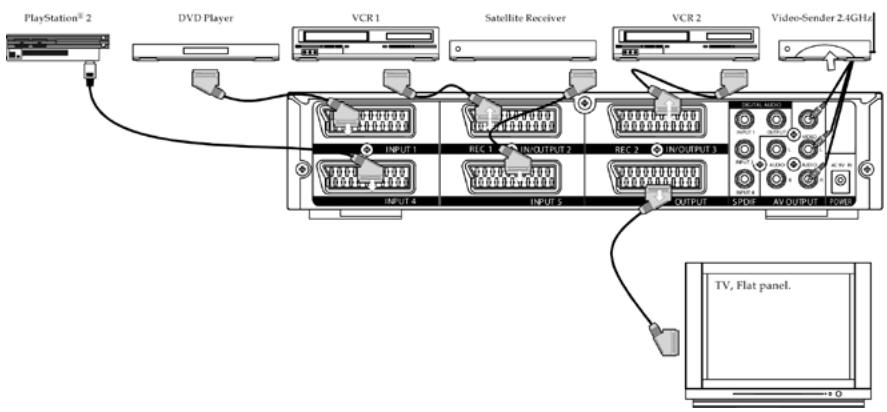
Connecting directly to a TV
- Plug the Scart cable into the corresponding input on your TV.
- Plug the other end of Scart cable into the Connect 236 Scart output.
- Plug your DVD Player, VCR, Satellite Receiver and Game Console, etc. into any of 5 Scart inputs on the back of the scart switcher.
| OUTPUT | ||||
| SCART (RGB) | SCART (COMPOSITE VIDEO) | COMPOSITE VIDEO | ||
| INPUT | SCART (RGB) | YES | YES | YES |
| SCART (COMPOSITE VIDEO) | NO | YES | YES | |
| COMPOSITE VIDEO (Ch6) | NO | YES | YES | |
QUICK START
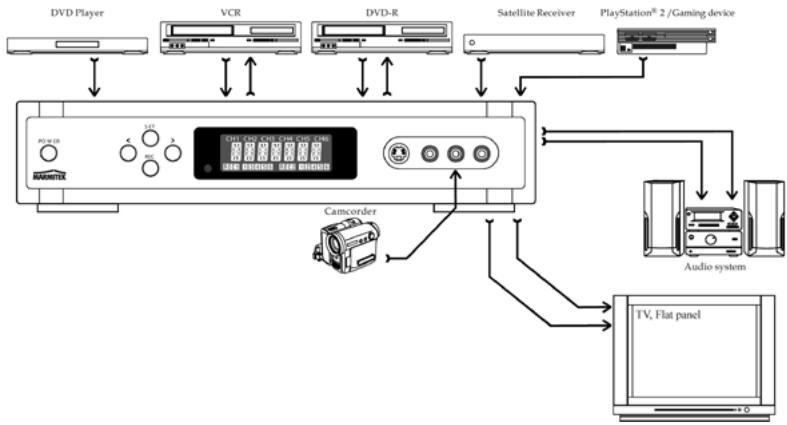
Example of a typical setup
The Connect 236 has been designed to connect up to six separate AV devices and output their Audio/Video signal on the TV / Hi-Fi. Each device can be selected independently of each other. Once a device has been connected, there is no need to remove any of the cables when selecting an input.
1. Press the Power button to On
The back light of the LCD will fade in and the Connect 236 Scart switcher enters the operation mode.
Press the button again and the back light of the LCD will fade out and the Connect 236 Scart switcher will switch off.
2. Press the < or > button to select a Channel
The LCD shows CH1, CH2, CH3, CH4, CH5 or CH6.
Power button standby
A small amount of the power is retained to support the memory and remote control sensor function when the POWER is switched off. This is known as the standby mode. POWER may be switched On/Off by the Remote Control.
Note: The above device connections are for reference only. Any suitable devices may be connected to the Input Channels.
Programming the input channel
For easy identification of the AV device connected to the Connect 236, it is possible to name each of the six inputs on the Input Channel Display.
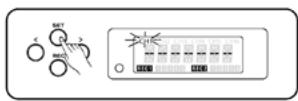
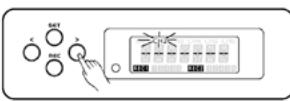
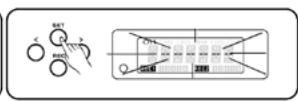
Press and hold the "SET" button for 2 seconds, the "CH1" on the LCD will begin to flash.
Press the "<" or "> " button to select the desired Input channel (1-6).
Press the "SET" button, the "-----" will be flashing.
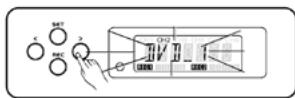
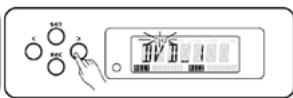
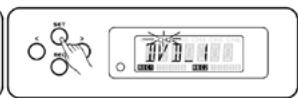
Press the << or >> button, the LCD will show the first available name: "DVD_1".
Press "<" or "> " button to cycle through all the available names. When the desired name is displayed press the "SET" button. The name will be stored.
Available names:
| Dis play | Description | Dis play | Description | Dis play | Description |
| ----- | Empty | PS | Sony PlayStation | V[3] | Video CD |
| JV1_1 | DVD Player | PS_2 | Sony PlayStation 2 | PC | Computer |
| JV1_2 | DVD Player | PS_3 | Sony PlayStation 3 | IPD[4] | I-Pod |
| JV1_R | DVD with recording facility | XBOX | Microsoft XBOX | MP4 | Mp4 |
| VC(R)_1 | Video Recorder | XBOX360 | Microsoft XBOX 360 | RUX | Auxiliary facility |
| VC(R)_2 | Video Recorder | N.64 | Nintendo 64 | ||
| SAT-1 | Satellite Decoder / Sky | GCUE | Game cube | ||
| SAT-2 | Satellite Decoder / Sky | GAMES | Games Console | ||
| JV3 | Freeview / Digital TV Reciver | TV/CBL | Cable TV | ||
| PV3 | Freeview with HD built in etc. | CAMERA | Camera / Camcorder | ||
Note:
- Repeat the procedure above each time you wish to rename.
- During the setting, the mode will return to the previous stage if there is no input for 10 sec.
- If you want to clear the names on the Connect 236, press and hold << and >> on the Connect 236 for 5 seconds, and all the programmed names will be cleared.
- You can also use the Remote Control for renaming.
Before setting the record function
Multi-function A/V switching is possible with 5 input terminals and 2 input/output terminals enabling:
- locking function prevents switching over the device erroneously during recording.
- the recording of one signal on two different recorders at the same time.
- the recording of two different signals on two different recorders at the same time.
Recording Set Up.
- Channel 2 and Channel 3 are assigned for RECORD. Connect your record device to Channel 2/3.
- You can define the name of your RECORD Device, refer to "Programming the input channel" for how to assign the device name.

Setting the record function
Set the REC function as below:
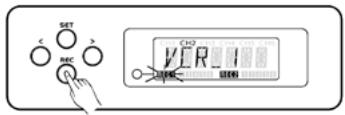
Press and hold the "REC" button 2 sec, and the "REC 1" symbol will flash, the record device name is shown in the LCD if you have assigned one: example: CH2=VCR_1
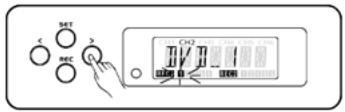
Press the "<" or "> " button to select the channel for the input source signal, the device name is shown in the LCD if you have assigned one; example: CH1= DVD_1

Press the "REC" button to confirm the source channel and finish the setting for "REC1". The "REC 2" symbol will flash, the record device name is shown in the LCD if you assigned one; example: CH3 = DVD_R
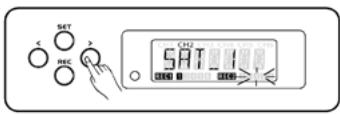
Press the "<" or ">=" button to select the channel for the input source signal, the device name is shown in the LCD if you assigned one; example: CH4=SAT_1
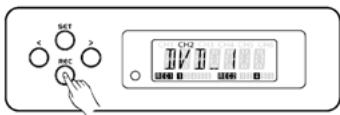
Pressing the "REC" button will confirm the source channel and finish setting up for "REC 2"
Note:
- During the setting, the mode will return to the previous stage if there is no input for 10 sec.
- Unplugging the AC Power adapter, will clear all of the REC settings.
- In REC mode, the "</" "> " buttons still will change the channel.
- You can also use the Remote Control for changing the channel.
- You can't select channel 2 for REC 1
- You can't select channel 3 for REC 2
How to clear the record function
Clear the REC function as below:
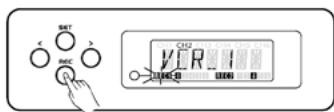
Press and hold the "REC" button 2 sec, the "REC 1" symbol will flash, the record device name is shown in the LCD if you assigned one example: CH2=VCR_1
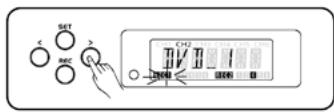
Press the << or >> button to select channel "CH2" for "REC 1".
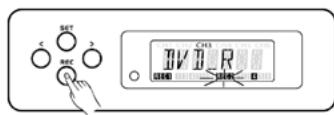
Press the "REC" button. The "REC 2" symbol will flash, the record device name is shown in the LCD if you assigned one. Example: CH3=DVD_R
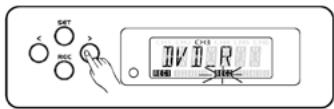
Press the << or >> button to select channel "CH3" for "REC 2".
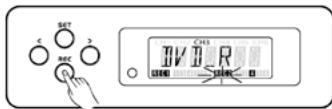
Press the "REC" button, the Control 236 will return to the operation mode.
Note:
- During the setting, the mode will return to the previous stage if there is no input for 10 sec.
- Unplugging the AC Power adapter will clear the REC settings.
- In REC mode, the "</" >" buttons still will change the channel.
- You can also use the Remote Control for changing the channel.
FREQUENTLY ASKED QUESTIONS
No picture
Check to verify that;
- your Scart Cable is properly connected to your system and the Connect 236.
- your Scart Cable is properly plugged into your TV from the Connect 236 Output.
- you have selected the correct input channel.
- your TV is on the appropriate video input.
- your TV and Connect 236 are turned on.
No sound
- Check the connecting cables.
- Check the volume setting of the TV.
- Check whether the audio signal is transmitted by the cable used (S-VIDEO cables or partially pinned Scart cables do not transmit audio).
- Check to verify that your TV and system are turned on.
The image is very grainy/there is background interference
- Switch off equipment which is not being used. Sometimes equipment transmits a very strong signal, which can cause interference.
- Check the quality of the cables used.
TECHNICAL DATA
General
Power requirements: AC 9V 500mA
Power consumption: 2W
Dimensions: 285mm X 260 mm X 55 mm
Mass: 2Kg
Inputs/Outputs
Inputs on the front: Ch6= 1 x RCA Video, 2 x RCA Audio (L+R)
Inputs on the back: CH1-5 = 5 x Scart, 3 x Coaxial RCA audio
Outputs on the back: OUTPUT, CH2, CH3 = 3 x Scart, 1 x RCA Video, 4 x RCA
Audio (2× L + R) 1 x RCA Coaxial audio
Product modifications may take place without prior notice
ALSO AVAILABLE
1. Wireless audio and video
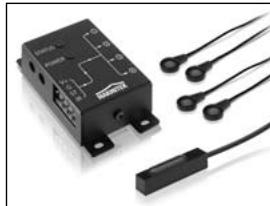
You can connect a product from the Marmitek GigaVideo series to the OUTPUT or REC1/REC2 connection of the Connect 236 to transmit the audio and video signal wirelessly throughout the entire house. This means you can also transmit the signal to a TV in another room and watch the signals from every device connected to the Connect 236. The built-in infrared return channel of the GigaVideo series
also means you can control the equipment and the Connect 236 remotely, even through walls and ceilings!
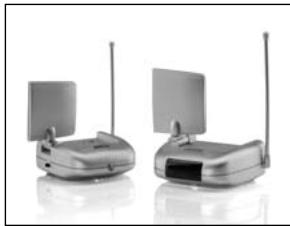
2. Control your Connect 236 and A/V equipment that is out of sight.
Marmitek offers a range of products to control your equipment in a closed cabinet or from a different room, both wired and wireless.
For these so called infrared extensions, more information can be found at: www.marmitek.com.
3. Audio and video via the coax
The Marmitek MegaVideo products give you the possibility to add the OUTPUT or REC1/REC2 signal of your Connect 236 as an extra channel to your coax cable. You can watch the signal of every device connected everywhere in the house where there is a coax connection. The built-in infrared return channel of model
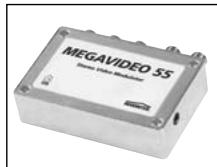
Megavideo55 also means you can control the equipment and the Connect 236 remotely, even through walls and ceilings!
4. No extra remote control
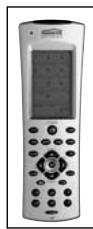
When wanting to control your devices from multiple places or wanting to use only one remote control for all devices, you can use the Marmitek EasyControl 6, 8 or the Marmitek EasyTouch 35 to learn the commands of your Connect 236 remote control. These remote controls replace almost all the controls you now use.
5. S-video to composite video adapter
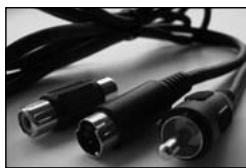
If the Out connections of devices connected (e.g. a laptop) do not correspond with the In connections of your Connect 236, in many cases the Marmitek S-video to Composite Video Adapter can be used.
For the SCART INPUT/OUTPUT connectors, many different SCART converters can be obtained.
More information can be found on our web site: www.marmitek.com
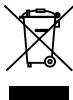
Environmental Information for Customers in the European Union
European Directive 2002/96/EC requires that the equipment bearing this symbol on the product and/or its packaging must not be disposed of with unsorted municipal waste. The symbol indicates that this product should be disposed of separately from regular household waste streams. It is your responsibility to dispose
of this and other electric and electronic equipment via designated collection facilities appointed by the government or local authorities. Correct disposal and recycling will help prevent potential negative consequences to the environment and human health. For more detailed information about the disposal of your old equipment, please contact your local authorities, waste disposal service, or the shop where you purchased the product.
SICHERHEITSHINWEISE
| Dis play | Description | Dis play | Description | Display | Description |
| ----- | Empty | PS | Sony PlayStation | VC | Video CD |
| JV_1 | DVD Player | PS_2 | Sony PlayStation 2 | PC | Computer |
| JV_2 | DVD Player | PS_3 | Sony PlayStation 3 | IPO | I-Pod |
| JV_3 | DVD with recording facility | XBOX | Microsoft XBOX | MP4 | Mp4 |
| VCR_1 | Video Recorder | XBOX360 | Microsoft XBOX 360 | RUX | Auxiliary facility |
| VCR_2 | Video Recorder | N.64 | Nintendo 64 | ||
| SRT-1 | Satellite Decoder / Sky | G.CUBE | Gamecube | ||
| SRT-2 | Satellite Decoder / Sky | GAME5 | Games Console | ||
| JV3 | Freeview / Digital TV Receiver | TV/TCRL | Cable TV | ||
| PV3 | Freeview with HD built in etc. | [CMERA] | Camera / Camcorder | ||
Hinweis:
| Dis play | Description | Dis play | Description | Dis play | Description |
| ----- | Empty | PS | Sony PlayStation | V[3] | Video CD |
| JV1_1 | DVD Player | PS_2 | Sony PlayStation 2 | PC | Computer |
| JV1_2 | DVD Player | PS_3 | Sony PlayStation 3 | IPD[4] | I-Pod |
| JV1_R | DVD with recording facility | XBOX | Microsoft XBOX | MP4 | Mp4 |
| VC(R)_1 | Video Recorder | XBOX360 | Microsoft XBOX 360 | RUX | Auxiliary facility |
| VC(R)_2 | Video Recorder | N.64 | Nintendo 64 | ||
| SAT-1 | Satellite Decoder / Sky | GCUE | Game cube | ||
| SAT-2 | Satellite Decoder / Sky | GAMES | Games Console | ||
| JV3 | Freeview / Digital TV Reciver | TV/CBL | Cable TV | ||
| PV3 | Freeview with HD built in etc. | CAMERA | Camera / Camcorder | ||
Note:
Dimensions: 285mm X 260 mm X 55 mm
Masse: 2 Kg
Entrées / sorties
OPTIONS ADDITIONNELLES
1. Audio et video sans fil
| Dis play | Description | Dis play | Description | Dis play | Description |
| ----- | Empty | PS | Sony Playstation | VC | Video CD |
| IV_1 | DVD Player | PS_2 | Sony Playstation 2 | PC | Computer |
| IV_2 | DVD Player | PS_3 | Sony Playstation 3 | IPD | I-Pod |
| VIR | DVD with recording facility | XBOX | Microsoft XBOX | MP4 | Mp4 |
| V(R_1) | Video Recorder | XBOX360 | Microsoft XBOX 360 | RUX | Auxiliary facility |
| VCR_2 | Video Recorder | N.64 | Nintendo 64 | ||
| 5RT-1 | Satellite Decoder / Sky | GCUJE | Game cube | ||
| 5RT-2 | Satellite Decoder / Sky | GFME5 | Games Console | ||
| IV | Freeview / Digital TV Reciver | TV/CBL | Cable TV | ||
| PV | Freeview with HD built inetc. | CAMERA | Camera / Camcorder | ||
Nota:
VEILIGHEIDSWAARSCHUWINGEN
| Dis play | Description | Dis play | Description | Dis play | Description |
| ----- | Empty | PS | Sony Playstation | VCJ | Video CD |
| IVI_1 | DVD Player | PS_2 | Sony Playstation 2 | PC | Computer |
| IVI_2 | DVD Player | PS_3 | Sony Playstation 3 | IPD | I-Pod |
| VIR | DVD with recording facility | XBOX | Microsoft XBOX | MP4 | Mp4 |
| VCR_1 | Video Recorder | XBOX360 | Microsoft XBOX 360 | RUX | Auxiliary facility |
| VCR_2 | Video Recorder | N.64 | Nintendo 64 | ||
| SAT-1 | Satellite Decoder / Sky | GCUJE | Game cube | ||
| SAT-2 | Satellite Decoder / Sky | GIMES | Games Console | ||
| IVI | Freeview / Digital TV Reciver | TV/CBL | Cable TV | ||
| PV | Freeview with HD built inetc. | CAMERA | Camera / Camcorder | ||
Opmerking:
DECLARATION OF CONFORMITY
Hereby, Marmitek BV, declares that this Connect236 is in compliance with the essential requirements and other relevant provisions of the following Directives:
DIRECTIVE 2004/108/EC OF THE EUROPEAN PARLIAMENT AND OF THE COUNCIL of 15 December 2004 on the approximation of the laws of the Member States relating to electromagnetic compatibility
Council Directive 73/23/EEC of 19 February 1973 on the harmonization of the laws of Member States relating to electrical equipment designed for use within certain voltage limits
Hiermit erklart Marmitek BV die Übereinstimmung des Gerätes Connect236 den grundlegenden Anforderungen und den anderen relevanten Festlegungen der Richtlinien:
RICHTLINIE 2004/108/EG DES EUROPÄISCHEN PARLAMENTS UND DES RATES vom 15. Dezember 2004 zur Angleichung der Rechtsvorschriften der Mitgliedstatesen über die elektronische Verträgekeit
Richtlinie 73/23/EWG des Rates vom 19. Februar 1973 zur Angleichung der Rechtsvorschriften der Mitgliedstaaten betreffend elektrische Betriebsmittel zur Verwendung innerhalb bestimmter Spannungsgrenzen
Par la presente Marmitek BV déclare que l'appareil Connect236 est conforme aux exigences essentielles et aux autres dispositions pertinentes de la directives:
DIRECTIVE 2004/108/CE DU PARLEMENT EUROPEEN ET DU CONSEIL du 15 décembre 2004 relative au approchement des législations des États membres concernant la compatibilité electromagnétique
Directive 73/23/CEE du Conseil, du 19 février 1973, concernant le rapprochement des législations des États membres relatives au matériel électrique destiné à être employé dans certaines limites de tension
DECLARATION OF CONFORMITY
Marmitek BV declara que este Connect236 cumple con las exigencias esenciales y con las cuales reglas relevantes de la directriz:
DIRECTIVA 2004/108/CE DEL PARLAMENTO EUROPEO Y DEL CONSEJO de 15 de días de 2004 relativa a la aproxima de las legislaciones de los Estados miembrlos en materia de compatibiliad electromagnética
Directiva 73/23/CEE del Consejo, de 19 de febrero de 1973, relativa a la aproximación de las legislaciones de los Estados Miembros sobre el material electrico destinado a utiliser con determinados limites de tensión
Con ciò, Marmitek BV, dichiara che il Connect236 è conforme ai requisiti essenziali ed altre disposizioni relative alla Direttiva :
DIRITTIVA 2004/108/CE DEL PARLAMENTO EUROPEO E DEL CONSIGlio del 15 dicembre 2004 concennte il ravicinamento delle legislazioni degli Stati membri relative alla compatibilità elettromagnetica
Direttiva 73/23/CEE del Consiglio, del 19 febbraio 1973, concernente il rav vincamento delle legislazioni degli Stati Membri relative al materiale elettrico destinato ad essere adoperato entro taluni limiti di tensione
Bij deze verklaart Marmitek BV, dat deze Connect236 voldoet aan de essentiele eisen en aan de overige relevante bepalingen van Richtlijnen:
RICHTLIJN 2004/108/EG VAN HET EUROPEES PARLEMENT EN DE RAAD van 15 deember 2004 betreffende de onderlinge aanpassing van de wetgevingen van de lidstates inzake elektromagnetische compatibiliteit
Richtlijn 73/23/EEG van de Raad van 19 februar 1973 betreffende de onderlinge aanpassing van de wettelijkke voorschriften der Lid-Staten inzake elektrisch materiaal bestemd voor gebruik binnen bepaalde spanningsgrenzen
MARMITEK BV - P.O. BOX 4257 - 5604 EG EINDHOVEN - NETHERLANDS
C E
Copyrights
Marmitek is a trademark of Marmidenko B.V. Connect236 is a trademark of Marmitek B.V. All rights reserved.
Copyright and all other proprietary rights in the content (including but not limited to model numbers, software, audio, video, text and photographs) rests with Marmitek B.V. Any use of the Content, but without limitation, distribution, reproduction, modification, display or transmission without the prior written consent of Marmitek is strictly prohibited. All copyright and other proprietary notices shall be retained on all reproductions.