
AKP07EU - Computer accessory TARGUS - Free user manual and instructions
Find the device manual for free AKP07EU TARGUS in PDF.



User questions about AKP07EU TARGUS
0 question about this device. Answer the ones you know or ask your own.
Ask a new question about this device
Download the instructions for your Computer accessory in PDF format for free! Find your manual AKP07EU - TARGUS and take your electronic device back in hand. On this page are published all the documents necessary for the use of your device. AKP07EU by TARGUS.
USER MANUAL AKP07EU TARGUS
Wireless Stow-N-Go™ Keypad

USERGUIDE
TABLE OF CONTENTS
GB-ENGLISH
TARGUS WIRELESS STOW-N-GO KEYPAD 5
BG-BbJIIGAPCKN(E3NK)
БЕЗИЧА KЛАВИТYPА TARGUS STOW-N-GO 16
CZ-CESTINA
BEZDRÁTOVÁ KLÁVESNICE TARGUS STOW-N-GO 27
DE - DEUTSCH
KABELLOSER STOW-N-GO ZIFFERNBLOCK VON TARGUS 38
DK - DANSK
TARGUS TRÄDLØST STOW-N-GO NUMERISK ASTATUR. 49
EE - EESTI
TARGUS TRAADITA STOW-N-GO KLAVIATUUR 60
ES - ESPÁNOL
TECLADO INALÁMBRICA TARGUS 71
FI-SUOMI
TARGUS LANGATON STOW-N-GO NÄPPÄIMISTÖ 82
FR - FRANÇAIS
CLAVIER SANS FIL STOW-N-GO A TARGUS 93
GR - EAMHNIKA
AΣYPMATO ΠΛHKPTΟΛΟΓΟ TARGUS STOW-N-GO 104
HR - HRVATSKI
TARGUS BEZICNA STOW-N-GO TIPKOVNICA 115
HU - MAGYAR
TARGUS DROTNELKULI STOW-N-GO BILLENTYUZET 126
IT - ITALIANO
TARGUS WIRELESS STOW-N-GO KEYPAD 137
LT-LIETUVISKAI
TARGUS BEVIELE STOW-N-GO PAGALBINÉ KLAVIATURA 148
LV-LATVIE'SU
TARGUS BEZVADU STOW-N-GO KLAVIATURA 159
NL - NEDERLANDS
TARGUS WIRELESS STOW-N-GO KEYPAD 170
NO-NORSK
TARGUS TRADLØST STOW-N-GOTASTATUR 181
PL - POLSKI
BEZPRZEWODOWA KLAWIATURA NUMERYCZNA TARGUS STOWN-GO 192
PT - PORTUGUES
TARGUS WIRELESS STOW-N-GO KEYPAD 203
RO - ROMÁNÁ
TASTATURA FÄR FIR TARGUS STOW-N-GO 214
RU-PYCKNI
BECIPOBOIDHAR KJABNATYPATARGUSSTOW-N-GO 225
SE - SVENSKA
TARGUS TRÄDLÖS STOW-N-GOTANGENTBORD. 236
SI-SLOVENSKO
BREZZICNA TIPKOVNICA TARGUS STOW-N-GO 247
SK-SLOVENCINA
BEZDROTOVÁ KLÁVESNICA TARGUS STOW-N-GO 258
TR - TÜRKÇE
TARGUS KABLOSUZ STOW-N-GOTUS TAKIMI 269
TARGUS WIRELESS STOW-N-GOTM KEYPAD
Introduction
Congratulations on your purchase of a Targus Wireless Stow-N-Go Keypad. The keypad is designed with a built-in cavity to store the USB receiver, eliminating the potential misplacement of the receiver and to provide ease of traveling with the keypad.
Contents
In addition to this user guide, this package contains:
- Wireless keypad
- USB receiver
- 1 AA battery
System Requirements
Hardware
PC with an Intel® Pentium® processor or equivalent
- USB 1.1 or 2.0 interface
Operating System
- Windows® 2000/XP
Windows VistaTM
Installing the Batteries
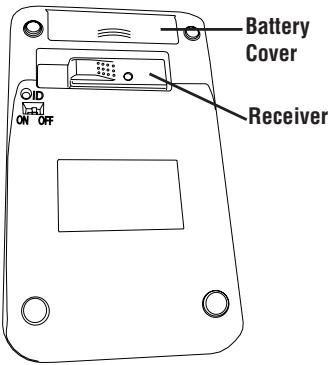
Keypad - back view
1 Remove the battery cover from the back of the keypad.
2 Insert the supplied batteries, making sure that the positive (+) and negative (-) ends of each battery match the polarity indicators inside the battery housing.

WARNING: WHEN REPLACING THE BATTERIES, YOU MAY USE ALKALINE OR OTHER HEAVY-DUTY NIMH BATTERIES. NEVER COMBINE AN ALKALINE WITH A NIMH BATTERY IN A DEVICE.
AVOID MIXING NEW AND USED BATTERIES IN A DEVICE.
3 Slide the battery cover back into position until it "clicks" firmly into place.
Connecting the Receiver and Installing the Default Drivers
To connect the receiver:
1 Remove the receiver from the back of the keypad.
2 Plug the USB receiver into an available USB port on your computer.
For Windows® 2000/XP/Vista, the "Found New Hardware" or "Auto-detect of a HID device" message will appear to indicate the installation of the default driver.

NOTE: YOU MAY NEED TO ESTABLISH A COMMUNICATION LINK BETWEEN THE KEYPAD AND THE RECEIVER. SEE "ESTABLISHING A COMMUNICATIONS LINK".
Turning the Keypad On and Off
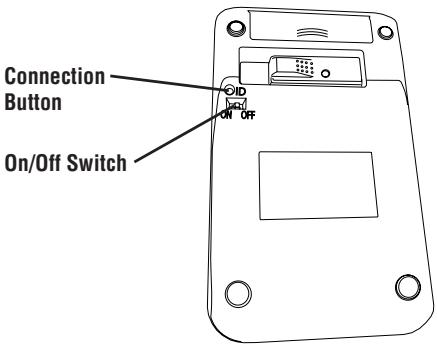
- To power on the battery, use the on/off switch located on the back of the keypad.
- To power off the battery, use the on/off switch located on the back of the keypad. This feature should be used when traveling to prevent power loss.
- To turn on the keypad, press the NumLock key, located directly above the number seven key.
- The keypad goes into sleep mode after 4 minutes of non-operation. To wake the keypad, press the NumLock key.
Establishing a Communications Link
After your computer detects the USB receiver and the default driver software is installed, you may need to establish a communications link between the receiver and the keypad before you can use it.
1 Plug the receiver into your computer's USB port and turn on the keypad.

NOTE: MAKE SURE THAT YOUR COMPUTER AND KEYPAD ARE TURNOED ON AND YOUR COMPUTER HAS DETECTED THE USB RECEIVER BEFORE YOU ESTABLISH A COMMUNICATIONS LINK.
The LED on the receiver will flash for 60 seconds to indicate ID search mode.
2 During this time, press and release the connection button on the back of the calculator/Keypad.
When a communications link is established, the LED on the receiver will stop flashing.
You are now ready to use the keypad.
Using the Keypad
Definition of the Keypad Keys:
| . Del | NumLock on - inserts a decimal point NumLock off - deletes a number |
| 0 Ins | NumLock on - enters “0” on the display NumLock off - emulates the Insert key |
| 00 , | NumLock on - enters “00” NumLock off - inserts a comma (, ) |
| 1 End | NumLock on - enters “1” on the display NumLock off - emulates the End key |
| 2 ↓ | NumLock on - enters “2” on the display NumLock off - moves the cursor down one line of text |
| 3 PgDn | NumLock on - enters “3” on the display NumLock off - emulates the Page Down key |
| 4 ← | NumLock on - enters “4” on the display NumLock off - moves one character to the left of the cursor position |
| 5 | NumLock on - enters “5” on the display NumLock off - No function |
| 6 → | NumLock on - enters “6” on the display NumLock off - moves one character to the right of the cursor position |
| 7 Home | NumLock on - enters “7” on the display NumLock off - emulates the Home key |
| 8 ↑ | NumLock on - enters “8” on the display NumLock off - moves the cursor up one line of text |
| 9 PgUp | NumLock on - enters “9” on the display NumLock off - emulates the Page Up key |
| Num Lock | NumLock on NumLock off |
| TAB | Emulates the TAB key |
| Launch Excel Program | |
| +- ×÷ | Turn on Calculator |
| Default Internet browser |

NOTE: THE NUMLOCK KEY ON YOUR COMPUTER WILL NOT AFFECT THE NUMLOCK STATUS OF THE KEYPAD.
Operating Hints
For optimal performance and RF reception:
- Place the receiver at least 20cm away from all electrical devices, such as your monitor, speakers or external storage devices.
Power Management
- To extend the life of your batteries, power off the battery with the on/off switch located on the back of the keypad while traveling or when you're not using it.
- The keypad's power saving mode feature activates after 4 minutes of non-operation. To activate the keypad, press the NumLock key.
Troubleshooting
What do I do if the keypad does not work?
- Make sure that the polarity of the batteries is correct. The positive (+) and negative (-) ends of each battery must match the positive (+) and negative (-) connections in the battery housing.
- Check that the receiver's USB connector is firmly attached to the USB port on your computer.
- Verify that the device drivers are installed.
- Make sure you have established a communication link. See "Establishing a Communications Link".
When I use the keypad, other wireless devices work more slowly or fail temporarily - what should I do?
- The keypad may cause interference with any cordless, radio-based device that operates at 2.4 GHz, such as a telephone, baby monitor, or toy. To reduce interference, move the keypad's receiver and the base unit of the affected device as far away from each other as possible.
- You can also reset the keypad's identification code. To do this, see "Establishing a Commun-ications Link".
What do I do if the response time of the keypad is slow or it intermittently stops working?
Try one or more of the following:
-
Increase the distance between the receiver and the rest of your computer equipment.
-
Increase the distance between the receiver and the base units of other wireless devices.
- Turn off any wireless devices and their base units that are near the keypad's receiver.
- If you are using the keypad on a metal surface, move it and the receiver to a non-metal surface. Metals, such as iron, aluminum or copper, shield the radio frequency transmission and may slow down the keypad's response time or cause the keypad to fail temporarily.
- Replace the batteries.
Specifications
| Operation Frequency | 2.4 GHz | |
| Operating Distance | Up to 10m | |
| Operating Voltage | Keypad | 2.4V |
| Receiver: | 5V | |
| Operating Current | Keypad | 10mA maximum |
| Receiver: | 16mA maximum | |
| Suspend Mode | Keypad | Below 300 uA |
| Dimensions | Keypad | 155 x 92 x 26 mm |
| Receiver: | 58 x 16 x 10 mm | |
| Weight | Keypad | 111g |
| Receiver: | 14g |
Microsoft, Windows, and Windows Vista are either registered trademarks or trademarks of Microsoft Corporation in the United States and/or other countries. All trademarks and registered trademarks are the property of their respective owners. All rights reserved. Features and specifications are subject to change without notice. © 2008. Targus Group International, Inc. and Targus, Inc., Anaheim, CA 92806 USA
БЕЗИЧHA KЛАВИATYPATARGUS STOW-N-GOTM
BbBeHeHne
Поздравления 3а 3akуnavhaNETo Ha 6e3xИчнATERKлавиatype Targus Stow-N-Go.TЯ e czbdaJaHa CBpadeH OTbOp 3a cxbxpaHene Ha USB npneMnK,3a da eIIMmHnpa HnppabuHnHO p3nOlaHae Ha npneMnKa n da OcInpyu ydo6CTBO npn nbTyBaHe.
CbDbpXaHne
Ocben pbkoBODCTBOTO Ha nOTpe6nte, B naKeTa ce CbIbpxat:
-Бezхина Клавиатура
- USB npneMnIK
- 1 6aTepey AA
CnCTeMHN n3nCKBaHn
Xapnyep
- Komtrob p procecop Intel® Pentium® и ananoruyeH
- INHTepfchc USB 1.1 nnn 2.0
Операционна систema
- Windows® 2000/XP
- Windows Vista™
3a Da ydIbIxNte EKcIIOaTaUOHHn XINBOT Ha 6BaTePInTE, TpIbBA da rN I3KJIIOvBaTe OT HAMIPAuNca CEOT3aHATA CTPaHa HA KJIaBNaTpya TpeBKMIOvBaTeI 3a BkJ./I3KJI., KOrato NbTyBaTe NII He N3NoJ3BaTe KJIaBNaTpya.
- PeximbT ha eheprocectBaHe ha KnaBnAtypata ce aKTNbPa 4 MNHyTn CneI nocJeHnTa onepaun.3a da aKTNbPate KnaBnAtypata,HaTNCHE Te KnaBnSha NumLock.
OTctpaHbAHe Ha HEn3npaBHOCTn
Kakbo Tp86Ba ce HnpaBn, KOrato KnabNaTpyata He pa60Tu?
- YBepete ce, ye 6atepuinte ca nocTaBeHn npabuHIO. PonoXnteHnIAT (+) n OTPuataIeH (-) noJIoc Ha BCaKa OT 6atepuinte TpaBa da CbBnaIat c noOxnteHaT ( + ) n OTPuataIHa (-) Bpb3Kn B KOpNyca Ha OTdeJeHHeTo.
- Поберете дами Конекторьт на USВ приемнika с постavenлъно в USВ пота на компотьра.
- Поберете дали са Инсталлари ДраиВерпт ha yctpoiCTBOTO.
- Ybepete ce, ye e yctahOBeHa KOMyHnKaUIOHHa Bpb3ka. BuxTe "YctahOBraBaHe Ha KOMyHnKaUIOHHa Bpb3ka"
Пии n3nOJI3BaHe Na KJIaBnAtypaTa OCTaHJInte 6e3XuHInyCTpoIcTbPa pa60TЯT no-6abHO nIN BpEmHo OTKa3BaT. KaKBO Tpr6Ba Da ce HapabN?
KnaBnAtypata Moze da npuHn CmUeHn B dpyr 6e3xunH, OCHOBaauin ce Ha paDIOOBtKa, yCTPOINCTBa, paOteuHa YcTeToA2.4 GHz, KaTO TelefoHn, yCTPOINCTBa 3a Ha6bIouHe Hn Ba6bEta IIN INrpauchk. 3a Da HamaInTe CmUeHnTa, PpeMeCTe TpneMHnka Ha KnaBnAtypata n 6a30BnMoDyU Ha 3aceRHaTOTcYCTPOINCTBO Bb3MOXHO hain-daneue eDHN OT dpyr.
- Moxte cIto da Hynipate IeHTnФkaUHnHa KOD ha KlaBnAtypata. 3a da HanpaBnte TOBa, BIXTe "YCTAHOBraHe Ha KOMyHnKaUOHHa Bp3Ka".
KaKBO TpI6Ba Da 6bIe HappaBHe, aKO BpeMeTo 3a OTroBOp Ha KJIaBnAtypaTe e PPOdIJIxNITeJIHO IIN IIpi HAIInuHc H npEkbCBAHnIO BpeMe Ha paBoTa?
OnntaTe da n3nblHnTe eoHOOTcneHnTe:
-
YBeleniye Ta3CTOHHNTo MEXJy npHemnHa N OCTaHaIaTa YacT OT KOMNHObPHoTO O6OpyDbaHe.
-
YBeJIHHeTe pa3CTOJHHeTO MEXdI npIeMHNka I 6a3OBtE MoJyI Ha oCTaHaJIte 6e3XnUHN yCTpOInCTBa.
-ИЗКПЮЧЕ 6e3xИЧИТЕ yCтpoICTВa И 6a3OВИТЕ мОДУПИ, habираши СЕВБЛЗОСТdoПриЕМнИКА на КЛавитура.TA. - Ako m3no3BaTe KJabnAtypa Bbpyx MeTAlHa nIOCKOCT, e Heo6XoIMNo Da npemectite npemHnka Ha HEmtAlHa nobbpxHOCT. MetaInTe, KaTo JeJIz3O, anyMnHn nn Mei, ekpaHnat npedabaHTo Ha paIIOueCTOTata N MOrat Da yIbJXkATBpeMeTO 3a OTOBOP Ha KJabNaTypaTa IIN da npinHnT BpeMeHEN OTKa3.
CmeheTe 6atepuHte.
Cpeunfkauni
Pa60tha yecToTa 2.4GHz
Pa6oTHo pa3CTOaHnHe 10m
Pa6oTHo HnpeKeHne KnaBnAtypa 2.4V
Приемнк: 5V
PabTeH Tok KlaBnAtypa MaKcMym 10mA
Definition of Tastatures Taster:
TARGUS WIRELESS STOW-N-GOTM KEYPAD
Introduccion
TARGUS WIRELESS STOW-N-GOTM KEYPAD
Introduzione
TARGUS BEVIELE STOW-N-GOTM PAGALBINÉ KLAVIATURA
l'zanga
TARGUS WIRELESS STOW-N-GOTM KEYPAD
Inleiding
Tworzenie违法犯罪 Torture, abduction, and torture Torture, abduction, and torture Torture, abduction, and torture
TARGUS WIRELESS STOW-N-GOTM KEYPAD
Introdução
ParabénsPGA.
Contudo
Receptor: maxim 16mA
Mod hibernare tastatura Sub 300 uA
Dimensiuni tastatur 155 x 92 x 26 mm
Receptor: 58 × 16 × 10 ~mm
Greutate tastaturä 111g
Receptor: 14g
Characteristica si specifica cotile produsulii pot fi modifi cate fara aviz preabil. Toate marcile commerciale si inregistrare sunt detinue de proprietarii relativi. Toate drepturile rezervate. © 2008, Targus Group International, Inc. si Targus (UK), Inc.
БЕСПОНБДНАЙ KЛАВИТУРА TARGUS STOW-N-GOTM
BVeDHeNc
ПоздравлиемВасnoskyнковбес四项НКлавиatypebTargusStow-N-Go.KлавиatypemaMeetOTcEKДЯхан�USB-peсивера.Бbl moxeTe6paTBKlavиatypec cobBЛIO6yI NOe3kU,pecsBepHnKoГa He notepreTcJ.
KOMNKeT NOCTaBKn
B KOMnneKt n3dJeJINBAxOuNT:
YCTaHOBKa KaHaJa Cbra3N
Iocne toro kak Bau KOMnbIoTep 6bnapxnt USBpecnBep n yctaHOBT CTaHapTbI dpaibep, IraTorO yTO6bl Haatb EKcNlpyatauIO yCTpoCTBa,Bam,BO3MOxHo,Notpe6yETcRA yCTaHOBT KaHaJI CBA3n MExdypecNBepom KlaBnaTpyo.
1 Поdkночиpe pecnBep K nopTy USB n BklnoHTe KnaBnaTpy.

PIMMEHAHNE:PEPEDYCTAHOBKOINBZ3NUYBEDITECb,HTO KOMMbOTEP INKJIABNIATPA BKLIQUYEHbI,IKOMMbOTEP O6HAPYKUNUSB-PECUBEP.

Optimal performers vve RF alimi icin:
Visit our Website at www.targus.com/emea
Features and specifications subject to change without notice.
© 2008 Targus Group International, Inc. and Targus Group (UK) Ltd.