PA248U5W - Computer accessory TARGUS - Free user manual and instructions
Find the device manual for free PA248U5W TARGUS in PDF.


| Product Type | Universal Docking Station |
| Model | PA248U5W |
| Brand | Targus |
| Dimensions (L x W x H) | 7.5 x 3.3 x 1.0 inches (19.0 x 8.4 x 2.5 cm) |
| Weight | 0.75 lbs (340 g) |
| Power Supply | AC adapter (included), 65W |
| Host Connection | USB-C (supports Thunderbolt 3/4) |
| Video Ports | 1x HDMI 2.0, 1x DisplayPort 1.4 |
| Max Video Resolution | 4K @ 60Hz (single display) |
| USB Ports | 2x USB-A 3.2 Gen 1, 1x USB-C 3.2 Gen 1 (data only), 1x USB-C PD 3.0 (host) |
| Ethernet | Gigabit Ethernet (RJ-45) |
| Audio | 1x 3.5mm combo audio jack |
| SD Card Slot | Yes, SD card reader |
| Charging (Host) | Up to 60W Power Delivery to laptop |
| Operating Systems Supported | Windows 10/11, macOS 10.15+, Chrome OS |
| Customer Care | Wipe with soft dry cloth; avoid liquids |
| Safety | CE, FCC, RoHS certified |
| Spare Parts & Repairability | Contact Targus support for replacement AC adapter or cables |
| Warranty | 3-year limited warranty |
| Package Contents | Docking station, AC adapter, USB-C cable, Quick Start Guide |
Frequently Asked Questions - PA248U5W TARGUS
User questions about PA248U5W TARGUS
0 question about this device. Answer the ones you know or ask your own.
Ask a new question about this device
Download the instructions for your Computer accessory in PDF format for free! Find your manual PA248U5W - TARGUS and take your electronic device back in hand. On this page are published all the documents necessary for the use of your device. PA248U5W by TARGUS.
USER MANUAL PA248U5W TARGUS
1 YEAR LIMITED WARRANTY: We pride ourselves on the quality of our products. For complete warranty details and a list of our worldwide offices, please visit www.targus.com. Features and specifications are subject to change without notice. Microsoft, Windows and Windows Vista are registered trademarks or trademarks of Microsoft Corporation in the United States and/or other countries. Mac is a trademark of Apple Inc., registered in the U.S. and other countries. All trademarks and registered trademarks are the property of their respective owners. ©2010 Targus Group International, Inc. All rights reserved.


User Guide
Targus Laptop ChillMat™
Introduction
Thank you for your purchase of the Targus Laptop Chill Mat. The Laptop Chill Mat features two USB powered fans positioned to provide optimal cooling to your laptop.
Features
- 2 USB powered fans
System Requirements
• USB 1.1/2.0 compliant port
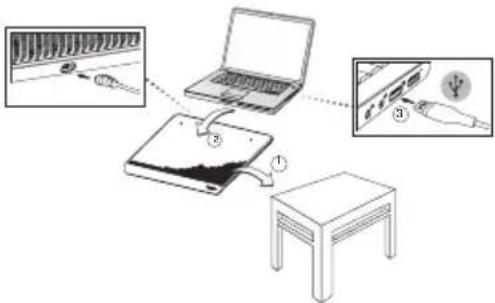
To Use the Chill Mat
- Place the Chill Mat on a surface, such as a table or desktop.
- Position your laptop on top of the Chill Mat.
- Connect the USB cable to the Chill Mat.
- Connect the other end of the USB cable into an available USB port on your laptop.
Targus Laptop ChillIMat™
Laptop
(not included)

WARNING: KEEP ALL ITEMS, SUCH AS LOOSE CLOTHING AND JEWELRY, AND LONG HAIR AWAY FROM THE FANS TO AVOID POSSIBLE PERSONAL INJURY OR DAMAGE TO THE CHILL MAT OR YOUR LAPTOP.
Targus Laptop ChillMat™
Targus Laptop ChillIMat™
Technical Support
For technical questions, please visit:
US Internet: www.targus.com/support.asp
Australia Internet: www.targus.com/au
Email: infoaust@targus.com
Telephone: 1800-641-645
New Zealand Telephone: 0800-633-222
Product Registration
Targus recommends that you register your Targus accessory shortly after purchasing it. Go to:
http://www.targus.com/registration.asp
You will need to provide your full name, email address, country of residence and product information.
Warranty
Targus warrants this product to be free from defects in materials and workmanship for one year. If your Targus accessory is found to be defective within that time, we will promptly repair or replace it. This warranty does not cover accidental damage, wear and tear, or consequential or incidental loss. Under no conditions is Targus liable for loss of, or damage to devices; nor loss of, or damage to, programs, records, or data; nor any consequential or incidental damages, even if Targus has been informed of their possibility. This warranty does not affect your statutory rights.
Microsoft, Windows, and Windows Vista are either registered trademarks or trademarks of Microsoft Corporation in the United States and/or other countries. All trademarks and registered trademarks are the property of their respective owners. All rights reserved. Features and specifications are subject to change without notice. © 2010. Targus Group International, Inc. and Targus, Inc., Anaheim, CA 92806 USA
