
NAVIGATOR 905BT - Gps GENIUS - Free user manual and instructions
Find the device manual for free NAVIGATOR 905BT GENIUS in PDF.



User questions about NAVIGATOR 905BT GENIUS
0 question about this device. Answer the ones you know or ask your own.
Ask a new question about this device
Download the instructions for your Gps in PDF format for free! Find your manual NAVIGATOR 905BT - GENIUS and take your electronic device back in hand. On this page are published all the documents necessary for the use of your device. NAVIGATOR 905BT by GENIUS.
USER MANUAL NAVIGATOR 905BT GENIUS
Federal Communications Commission (FCC) Notice
This device complies with Part 15 of the FCC Rules. Operation is subject to the following two conditions: (1) this device may not cause harmful interference, and (2) this device must accept any interference received, including interference that may cause undesired operation.
This equipment has been tested and found to comply with the limits of a Class B digital device, pursuant to Part 15 of the FCC Rules. These limits are designed to provide reasonable protection against harmful interference in a residential installation.
This equipment generates, uses and can radiate radio frequency energy and, if not installed and used in accordance with the instructions, may cause harmful interference to radio communications. However, there is no guarantee that interference will not occur in particular installations, if this equipment does cause harmful interference to radio or television reception, which can be determined by turning the equipment off and on, the user is encouraged to try to correct the interference by one or more of the following measures:
- Reorient / Relocate the receiving antenna.
- Increase the separation between the equipment and receiver.
- Connect the equipment into an outlet on a circuit different from that the receiver is connected.
- Consult the dealer or an experienced radio / TV technician for help.
CAUTION: Changes or modifications not expressly approved by the manufacturer responsible for compliance could void the user's authority to operate the equipment.
Disclaimer
The following does not apply to any country where such provisions are inconsistent with local law: KYE Systems Corp. makes no warranties with respect to this documentation, whether expressed or implied. All material is provided "as is". This includes, but is not limited to, any implied warranties of merchantability and fitness is for a particular purpose. The information covered in this document is subject to change without notice.
KYE Systems Corp. assumes no responsibility for any errors that may appear in this document.
All brand names mentioned in this manual are trademarks or registered trademarks of their respective companies.
Copyright © 2007 KYE Systems Corp. All rights reserved.
English
Introduction
Navigator 905BT is designed for a PC or notebook enabled with a Bluetooth device. It provides a convenient feature to attach your mouse when taking your notebook to office meetings. It also includes 60 day free trial software from Norton Symantec for the best virus security.
Hardware Installation
- Install two AA batteries in the mouse.
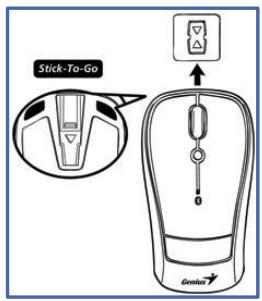
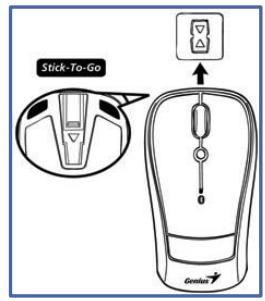
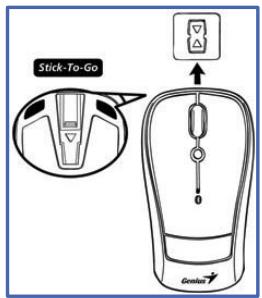
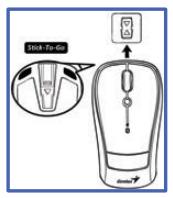
- Stick-N-Go: attach the 'Click Mount' on your notebook in a convenient position first, then you can attach the mouse on your notebook as shown to avoid dropping your mouse.
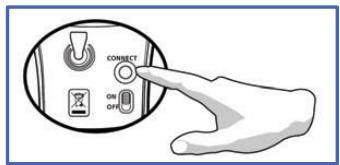
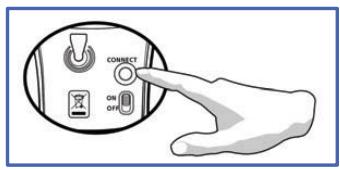
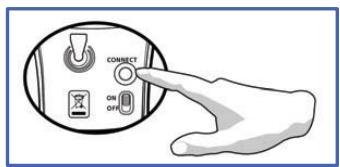
- Make sure that you have switched on the power switch underneath the mouse.
Software Installation
- Make sure the mouse is connected to the computer.
- Put the CD driver into the CD drive.
- Choose and double click 'Mouse Driver' and follow the instructions to complete the 4D/8D installation.
English
Factory Settings
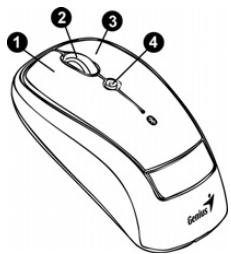
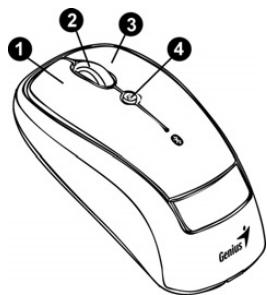
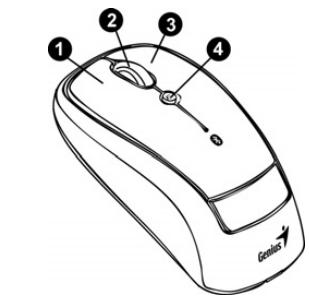
- Left Button: Provides traditional mouse functions like click, double click and drag.
- Magic-Roller: Press the "Magic-Roller" to surf the Internet and Windows documents.
- Right Button: Provides traditional mouse click functions.
- Flying Scroll: Press and hold on to the button and move the mouse for multi-direction browsing; provide more fun and convenience to office users in scrolling up, down, left. Right or diagonals.
Pairing Process in Vista and Windows XP SP2
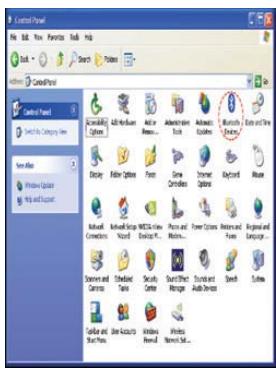
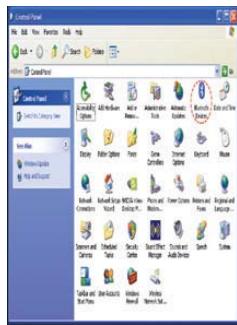
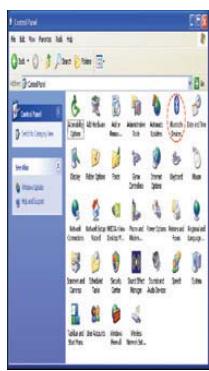
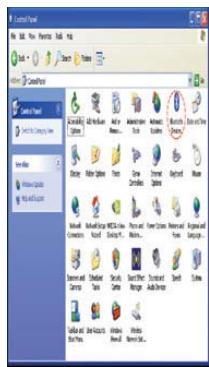
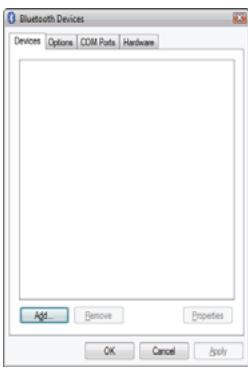
- Open the Windows control panel, then select "Bluetooth devices".
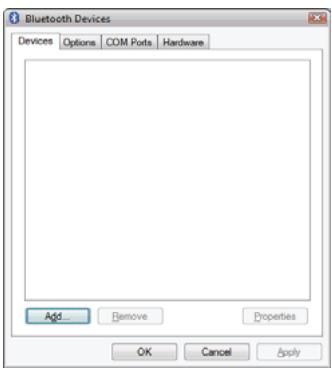
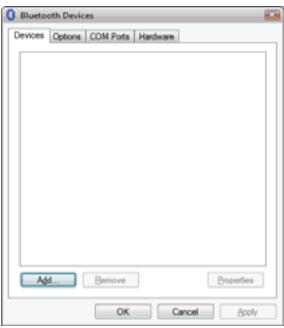
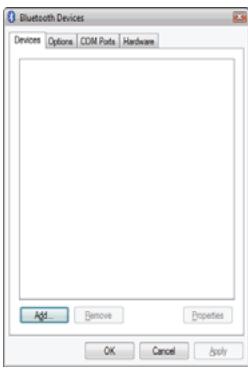
- Click “Add....”
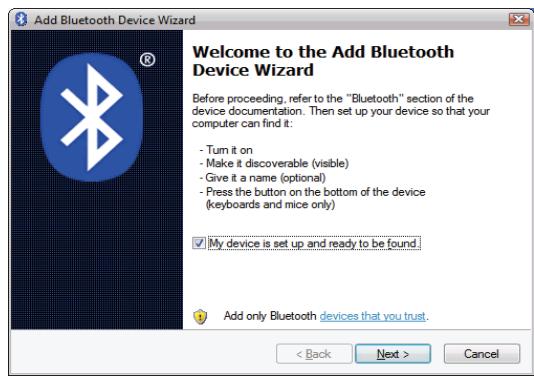
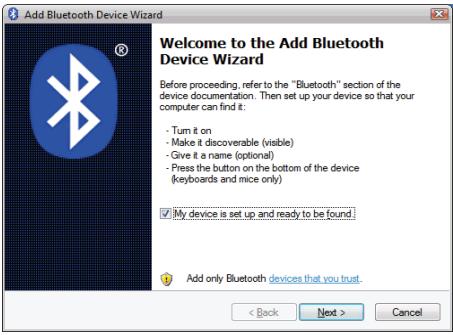
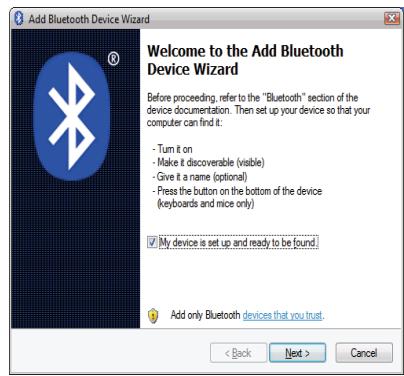
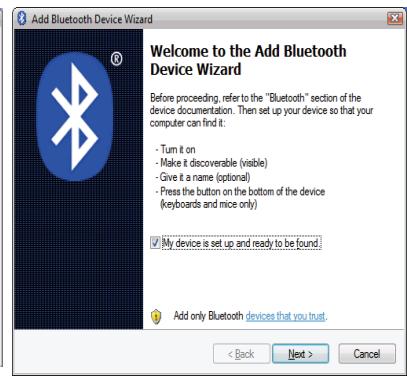
- Select "My device is setup and ready to be found", then click "Next".
English
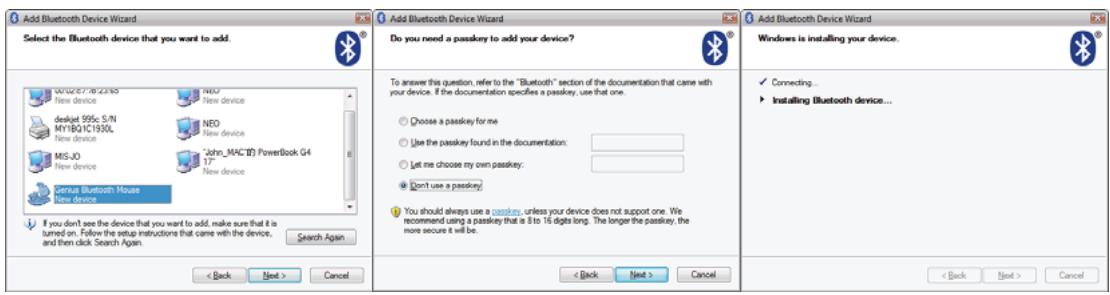
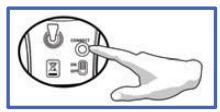
- Press and hold the "CONNECT" button under the mouse.
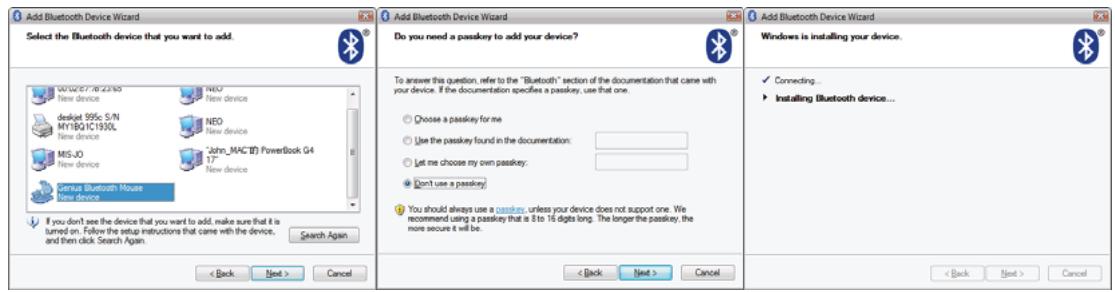
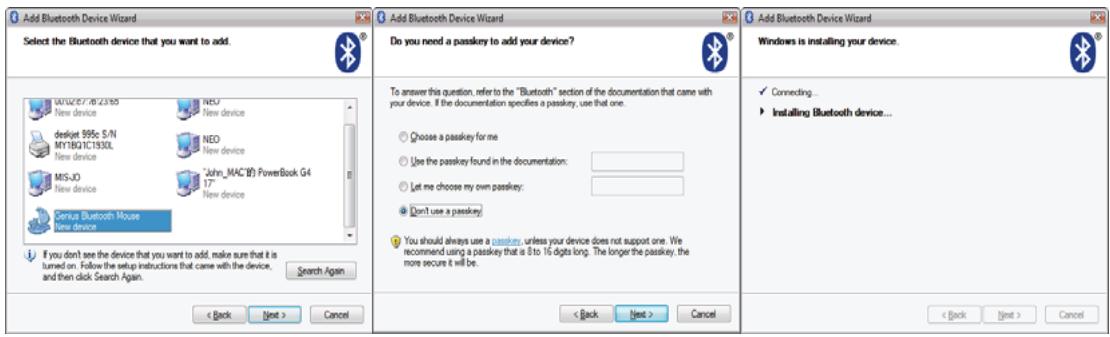
- In "Peripherals (Keyboards, mice, joysticks)", select Genius Bluetooth Mouse and click "Next".
- Select “Don’t use a passkey” and click “Next”.
- Windows will start to connect the Genius Bluetooth Mouse automatically. Press the finish button after the connection process is completed.
Once the connection between the Genius Bluetooth Mouse and your computer is established, the connection will be kept permanently. That means the connection will re-establish automatically each time you run Windows.
English
Pairing Process in Mac OS X 10.2.8 or later
- Press and hold the "CONNECT" button under the mouse.
- Click the Bluetooth icon on the task bar and select "Setup Bluetooth device".
- Click "Continue" when the "Bluetooth Setup Assistant" appears.
- Choose "Mouse" and press "Continue" to the next step.
- When Bluetooth finds the “Genius Bluetooth Mouse”, please press “Continue” to the next step.
- Click “Continue” when the “Passkey exchange with your mouse” appears.
- The connection is now successful and you can use your Genius Bluetooth Mouse.
Now you can use the Genius Bluetooth Mouse wirelessly with a Bluetooth enabled Apple computer. Afterwards, the connection of the Genius Bluetooth mouse will re-establish automatically each time Mac OS X runs.
Pycckn
BVeIeHne
YcTpoIcTBo Navigator 905BT IpeIHa3HaueHo IJIa KOMIIbIOTePoB HHOy6yKOB c IOpIePJKoB Bluetooth. OHO IIO3BOJIAET YIO6HO IIOIKJIIOaTB MBIIB K HOy6yKy Ha pa3JIINHbIX COBEIIaHNyx. KpOME TOGO, B KOMIIJEKT IIOCTaBKN BXODIT 6ecIIaTHa TcTObaB aHTNBUPcHoi IIporpaMMbI Norton Symantec cpoKOM Ha 60 dHei.
YctaHOBka yctpoiCTBa
-
Hαχмnte Na KHOIIky, OTKpoIte BερхHIOIO KpbIIKKy N yCTaHOBnTe B MbIIb IBe 6aTapeiKN TIIopa3Mepa AA.
-
ПрocToTa n yIoo6CTBO: IIpHKpeIITe 3aIeJIky Ha HOyT6yK B JIObOM yIO6HOM MeCTe H 3aKpeIIJaIte c ee IOMOIIbIO MbIb IIprn TpaHCIOptHPOBKe.
-
Bключnte пптанne на дншемыши.
HacrtpoiKa npoRpaMMHOrO obecIeueHnA
Hardwareinstallation
- Abra o paine de contrôle do Windows, e selezione "Bluetooth devices".
- Clique “Add....”
- SeLECTION “My device is setup and ready to be found”, então clique “Next”.
Brasil
Koppelen in Mac OS X 10.2.8 of later
3aybITbIK npaMeTpJep
- CoJI JIaK 6aTbIpMa: IIepty, Koc IIeptim JIacay JIe HJbJIbITbII anIapy cHIAKTBi TiHTyipDiH aIeTTerI JeTeJIepiH KaMTaMaCbI3 eTeIi.
Kazak
-
"Снкырлы ayhaКиа": ИntepHeTпeн Windows KyжаТарьИдa Ke3eK КылЖу YшiH "снкырлы ayHaКиа" 6aТьIPмасьИ 6acbIbI3.
-
On k6aTbIpMa: TiHTyipin əJeTteri Ihepy KeTeJIepiH KaMTamacbI3 eTeIi.
-
Flying Scroll: Tymeikti 6acb, yctan typbib3 JHe tiHTyipdi 6iphe 6aftta IIIOJy YIIH KJIJKbITbIHb3; KOfapbl, ToMeH, COJFa, OHFa Hemece IHaROHaJIbI Tpye KUripTy KeHcdeIi KOJaHyIbIJaP YIIH aHaFyplbIM KOJaJIbI.
Vista JkHe Windows XP SP2 KjHepiHne KjIITay
- Windows 6ackapy yCTeJIiH aIIbIbI3 Ia, "Bluetooth KypbIJFbIJIapBi" TapMaFbIH TaHJaHbI3.
- "Yctey..." əmipin iepriHiz.
- "MeHH KpybIJIbIM opHaTbIJIbI JxHe i3JeY yHIn daHbIH" TaHdaHbI3 Da, "KeJIeci" 6aTbIpMaCbH 6acbIHbI3.
Kazak
- TiHTyip TaPMaFbIHJaFbI “KOCbIJY” 6aTbIPMaCbIH 6acbII YcTaI TpybIHbI3.
- "IIIeTTiK KUpbIJIbIJIap (IepHeTaKTaJIap, TiHTyipJIep, TApTeJIep)" Ti3iIMHeH Genius Bluetooth TiHTyipi HycKaCSbIH TaHJaHbI3 Ja, "KeJIeci" 6aTbIPMaCbIH 6acbIHbI3.
- "KaTbIHaC KJIITiH IaIJaIaH6ay" HycKacbIH TaHJaHbI3 Ia, "KeJIeci" 6aTbIPmacbIH 6acbIbI3.
- Windows JyIeci Genius Bluetooth TiHTyipiH e3IirHeN Koca 6acTaIbI. KoCbIJy yIipici aKaTaNHaHH KeiH JaIbIH 6aTbIPMaCbIH 6acBHy3.
Genius Bluetooth tiHTyipi MeH KOMIbIOTepDiH apacBnDa KocblIM opHaTbIJaHaH KeiH KocblIM YHeMi caKaJaDbI. Byi ci3 Windows JyIeciH ap Ke3 icKe KocKaH caBbH KocblIM 03diIiHeH KaTaNpHaTbIJaDbI DeReHdi 6iJIipeDi.
Kazak
Mac OS X 10.2.8 Кучесидце нееме заразанчыкаларьнда КУПТAY
- TiHTyip TapMaFbIHJaFbI “KOCbIJY” 6aTbIpMaCbIH 6acbIIN YcTaII TpybIHbI3.
- TaicbipmaJap ycteJIiHderi Bluetooth 6eJIiIeCIn IieprTin3 Ie, "Bluetooth Kypblfbcih OpHaTy" HycKaCbIH TaHJaHbI3.
- "Bluetooth opHaTy KemeKiiiCi" Tepe3eci NaJa 6oJIFaH Ke3Je "KaJIrAcTbIpy" 6aTbIpMaCbIn 6acbIHbI3.
- "TiHTyip" TaPmaFbIH TaHJaHbI3 Ja, KeJIeci KaJaAMFa ety yIiH "KaJFaCTbIpy" 6aTbIPmacbIH 6acbIHbI3.
- Bluetooth“GeniusBluetoothTiHTyipiH”TaNkaHHaN KeiHKeJIeciKaIaMfA eTy yIiH“KajIfactbIpy" 6aTbIPMaCbIH 6acbIHbI3.
- "TiHTyipMeH KaTbIHac KiJIITiH aJIMacy" Tepe3eci IaIda 6oJIFaHJa, "KaJIFaCTbIPy" 6aTbIPMaCbIH 6acbIHbI3.
- KocbIbIM cəTTi aKaTaNbI, eHJI ci3 Genius Bluetooth TiHTyipiH NaIJaIHa aJaacbI3.
Ehdi ci3 Genius Bluetooth tiHTyipiH Bluetooth icke KocbIHaH Apple KOMIIbIOTepiHne cblMcB3 PaaJaIaHa aJIacbI3. OcblaH KeHH Genius Bluetooth TiHTyipiHiKocbJIbIMbI ci3 Mac OS X Jkyecin ap Ke3 icke KocKaH caBbH e3diirHeH KaHTa opHaTbIbIIT OTbIPAdbI.
a
Navigator 905BT.
Bluetooth Jg j g Jg Jg Jg Jg Jg Jg Jg Jg Jg Jg Jg Jg Jg Jg Jg Jg Jg Jg Jg Jg Jg Jg Jg Jg Jg Jg Jg Jg Jg Jg Jg Jg Jg Jg Jg Jg Jg Jg Jg Jg Jg Jg Jg Jg Jg Jg Jg Jg Jg Jg J g J g J g J g J g J g J g J g J g J g J g J g J g J g J g J g J g J g J g J g J g J g J g J g J g J g J g J g J g J g J g J g J g J g J g J g
J 1
.aa AA g n nn b
2
.2
.3
3
e
.1
.2
.3
1
g j 2
.3
glal 4
1 jll 1
1 jll 1
1 jll 1
1 jll 1
office 100
.
Windows & Vista Jusl jy jgjx XP SP2
Windows 1.1 .()"Bluetooth devices
(....) "Add...." 2 My device is setup and ready to be .3 (4e jj JJ J J J J J J J J J J J J J J J J J J J J J J J J J J J J J J J J J J J J J J J J J J J J J J J J
A
“Connect” 4
.(wgl)
"Peripherals (Keyboards, mice, 5
Genius Bluetooth Mouse ‘joysticks”)
.()“Next”
"Next" "Don't use a passkey".6
()
Windows 7
Genius Bluetooth Mouse
Juaaill iIac poai Ie y
Genius Bluetooth Mouse by
Jn Jnnn nn nnnnnnnnnnnnnnnnnnnnnnnnnnnnnnnnnnnnnnnnnnnnnnnnnnnnnnnnnnnnnnnnnnnnnnnnnnnnnnnnnnnnnnnnnnnnnnnnnnnnnnnnnnnnnnn
J 1
. Windows
A
J Mac OS X 10.2.8 Jg
“Connect” 1
bi一
.2
"Setup 3
.() Bluetooth device"
J (a) "Continue" 4
d! ) "Bluetooth Setup Assistant"
.
c bgl (wgl) "Mouse" .5
“Continue”
"Genius Bluetooth 6
(“Continue” Mouse
Jlll 1
Lodic (4) "Continue" 6
"Passkey exchange with your mouse"
wglalj 1 jn jn JnJn .7
. Genius Bluetooth Mouse
.8
Genius Bluetooth Mouse
. (Apple)
Genius wogla Jusl 1
Mac 15
.OS X