USB VOICE OVER IP TELEPHONE - VoIP Phone VIVANCO - Free user manual and instructions
Find the device manual for free USB VOICE OVER IP TELEPHONE VIVANCO in PDF.



User questions about USB VOICE OVER IP TELEPHONE VIVANCO
0 question about this device. Answer the ones you know or ask your own.
Ask a new question about this device
Download the instructions for your VoIP Phone in PDF format for free! Find your manual USB VOICE OVER IP TELEPHONE - VIVANCO and take your electronic device back in hand. On this page are published all the documents necessary for the use of your device. USB VOICE OVER IP TELEPHONE by VIVANCO.
USER MANUAL USB VOICE OVER IP TELEPHONE VIVANCO
Vivanco GmbH hereby declares that this product fulfils the basic requirements and other stipulations of EEC Directives 89/336/EEC and 73/23/EEC.
D-22926 Ahrensburg / Germany
Phone +49 (0) 4102 / 231 – 0
Fax +49 (0) 4102 / 231 – 160
VoIP Web Phone User's manual
GB VoIP Web Phone Set - User's manual
1. Getting Started 20
1.1 VoIP Web Phone installation 20
2. Using the VoIP Web Phone 21
2.1 Description of keypads 21
2.1.1 Skype Call Button 22
2.1.2. Answer/Call Button 22
2.1.3 Numeric Buttons 23
2.1.4 Up/Down Button + Speaker Volume control 23
2.1.5 Utility Button 23
2.1.5.1 Website Hotkey 23
2.1.5.2 Ring Tone selection 24
2.1.5.3 Device Setup 26
2.1.5.4 Pre-Set Website 27
2.1.6 Call Ending Button 27
3. Making / receiving Skype calls 28
4.Assigning PC Audio to PC Speakers 30
3.1 Answering phone calls 28
3.2 Making Phone Calls--Calling Stored Contact 28
3.3 Making Phone Calls—Using Skype speed dial 28
3.4 Making Phone Calls—Using Skype out service 29
5. System Requirement 32
6. Package 32
7. Technical Specification 32
8. Hotline 33
GB
VoIP Web Phone Set - User's manual
1. Getting Started
This section provides the Step-By-Step instructions you will need for installing VoIP Web Phone for Skype.
1.1 Installing the VoIP Web Phone Setup application:
- Turn on your computer.
- First of all download the free Skype software from www.skype.com.
- Do not connect the VoIP Web Phone to the computer at this moment.
- Insert the installation CD into your CD-ROM drive, then the installation CD menu should appear.
- Click the "VoIP Web Phone Setup" icon on the installation menu and follow the instructions.
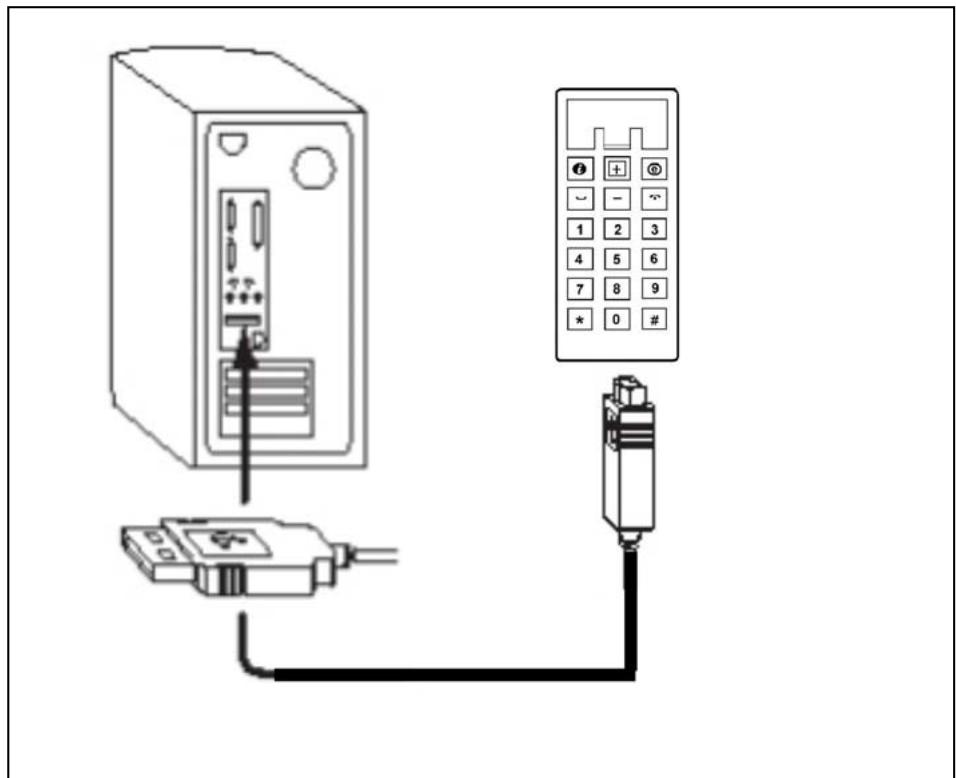
- Restart your computer and plug in the VoIP Web Phone into the computer USB jack. (See below)
2. Using the VoIP Web Phone:
This section provides you the basic functions of the VoIP Web Phone.
2.1 Description of keypads
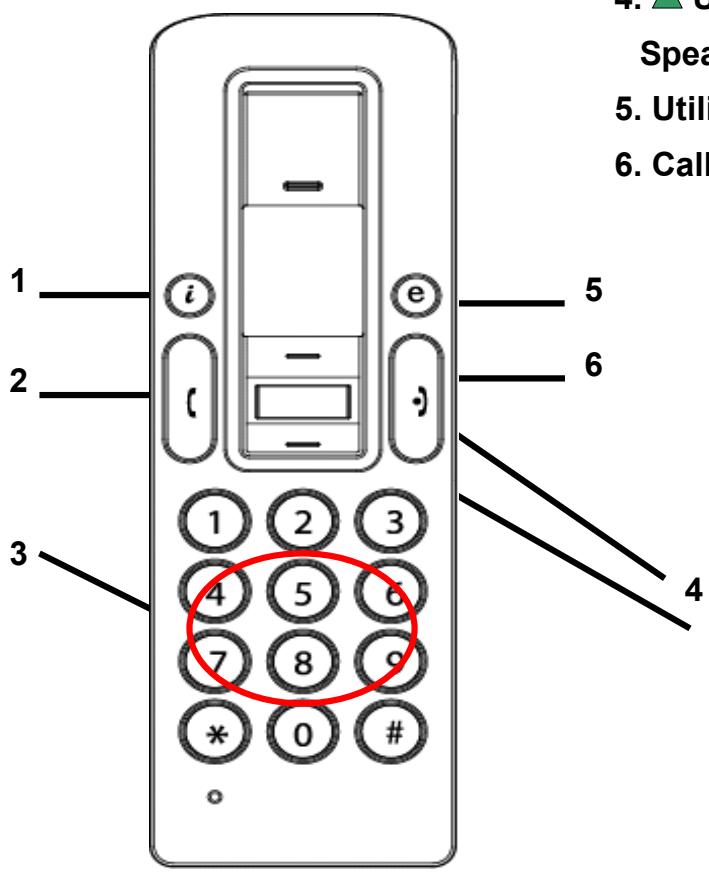
- Skype Call Button
- Answer/Call Button
- Numeric Keys
- Up/Down +
Speaker Volume Control
- Utility Key Selection
- Call Ending Button
GB
VoIP Web Phone Set - User's manual
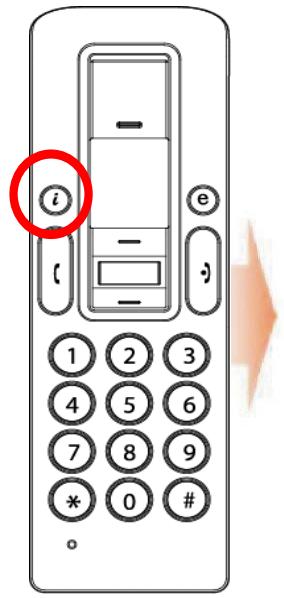
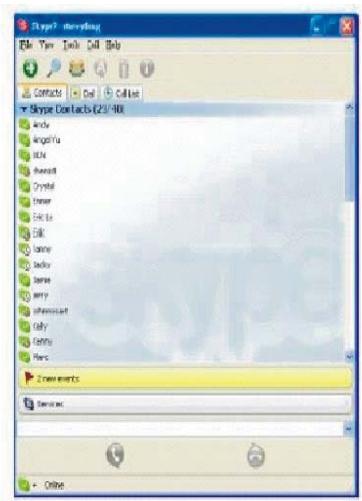
2.1.1 Skype Call Button:
When the Skype icon is hidden, press once to activate the Skype program. Press again after Skype Program is opened to make selection from Skype tab screen.
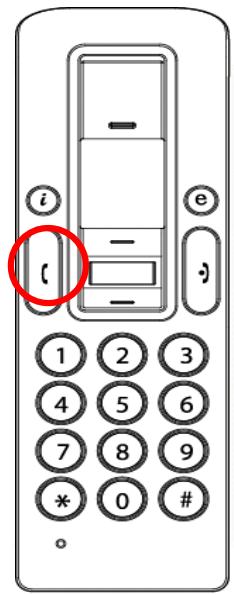
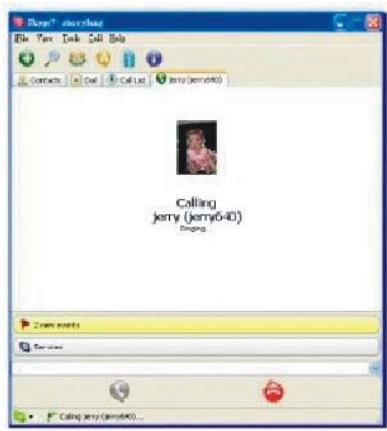
2.1.2. Answer/Call Button:
When a call comes in, press this button to answer the call. When you have selected a contact or completed dialing, press this button to call out.

GB
VoIP Web Phone Set - User's manual
2.1.3 Numeric Buttons:
You may use these keys for dialing by inputting the phone number for Skype out service. Also, you may program the speed dialing code for speed dial service in Skype program. (see section 3.3 for detail)
2.1.4 Up/Down Button + Speaker Volume control:
Use these buttons to move upward or downward in your contact list and to highlight a contact. You may also use this button to make your selection in other screens. Also, you may adjust the speaker volume by using this bottom while you are on the phone.
2.1.5 Utility Button:
Use this button to active the utility user interface. When press the "e" key, the Utility Icon will appear:
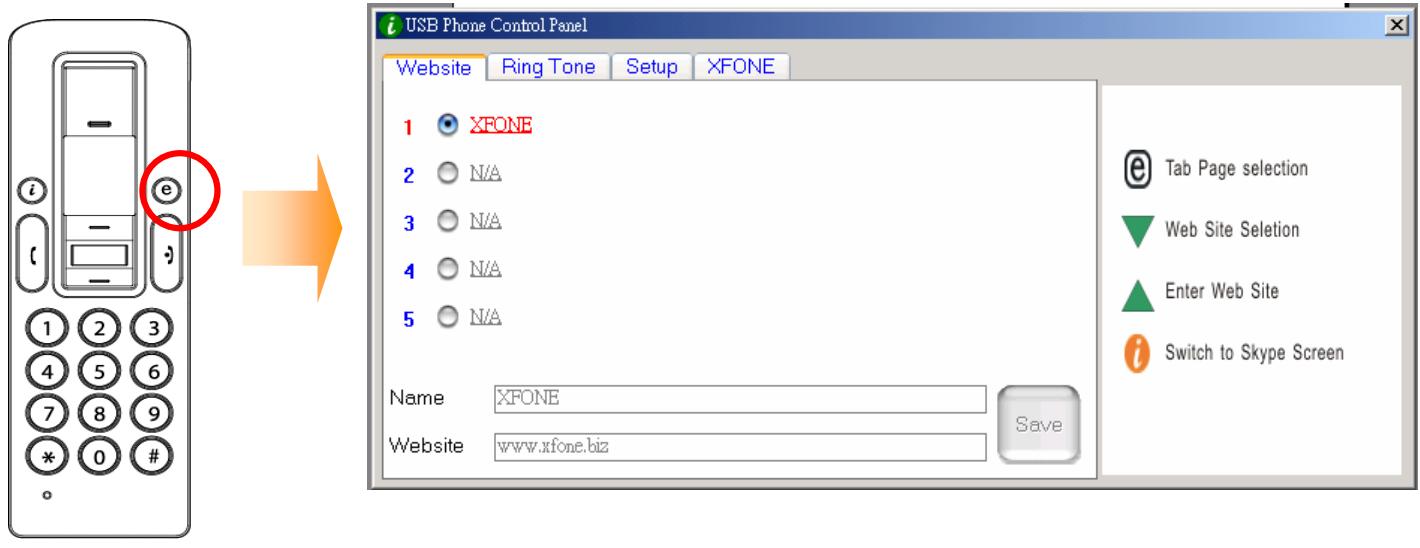
2.1.5.1 Website Hotkey
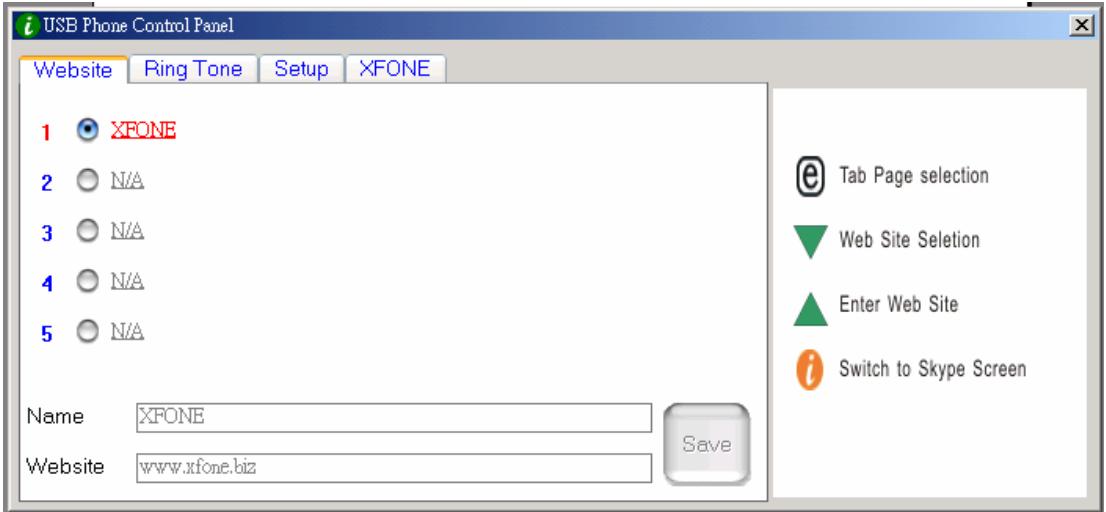
You may set your favor website address here to have easy and quick access into the designate website. Follow the simple steps of programming your favor websites as below.
GB VoIP Web Phone Set - User's manual
a) Set your favor website by entering the "Name" and "Website" address in the designated column and click "Save".
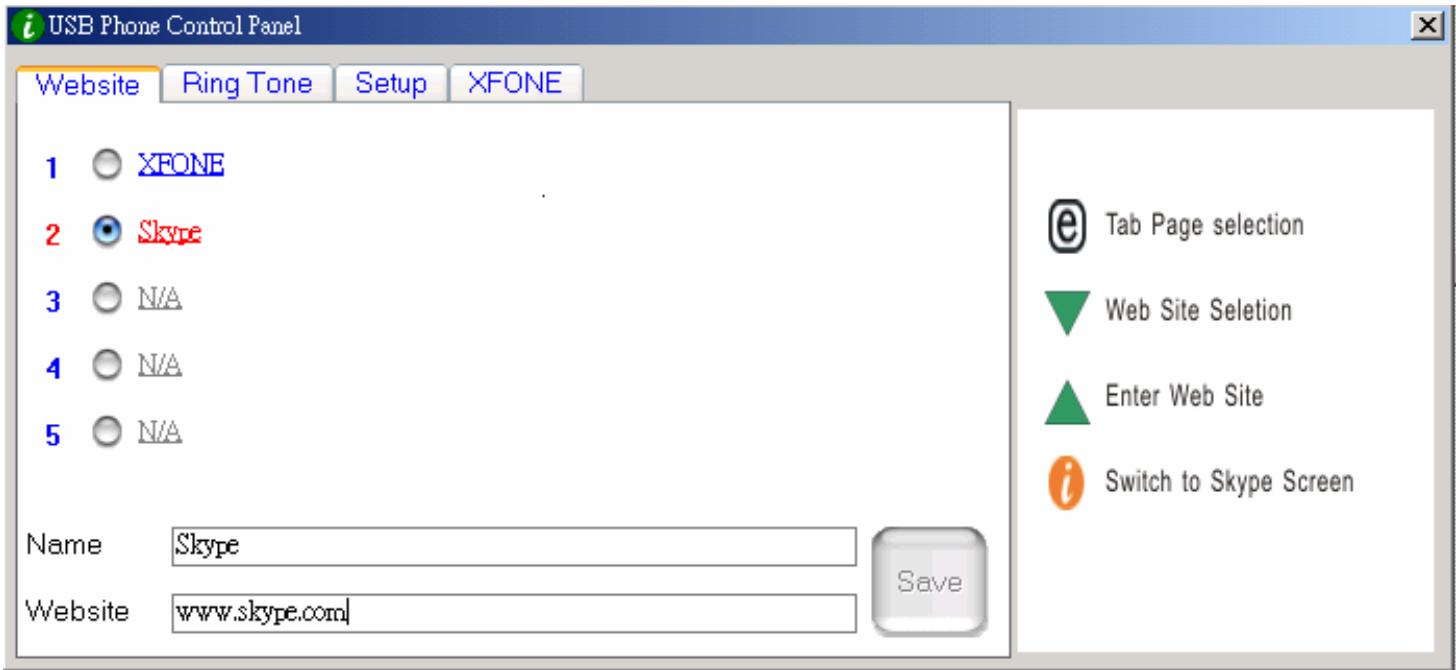
b. Using the “ ” keypad to move to the pre-set website column...
c. Press the “ ” keypad to enter the selected website.
d. OR, press the number key listed. (eg. Press "2" for Skype web site)
e. The designated website will open on other window.
2.1.5.2 Ring Tone selection:
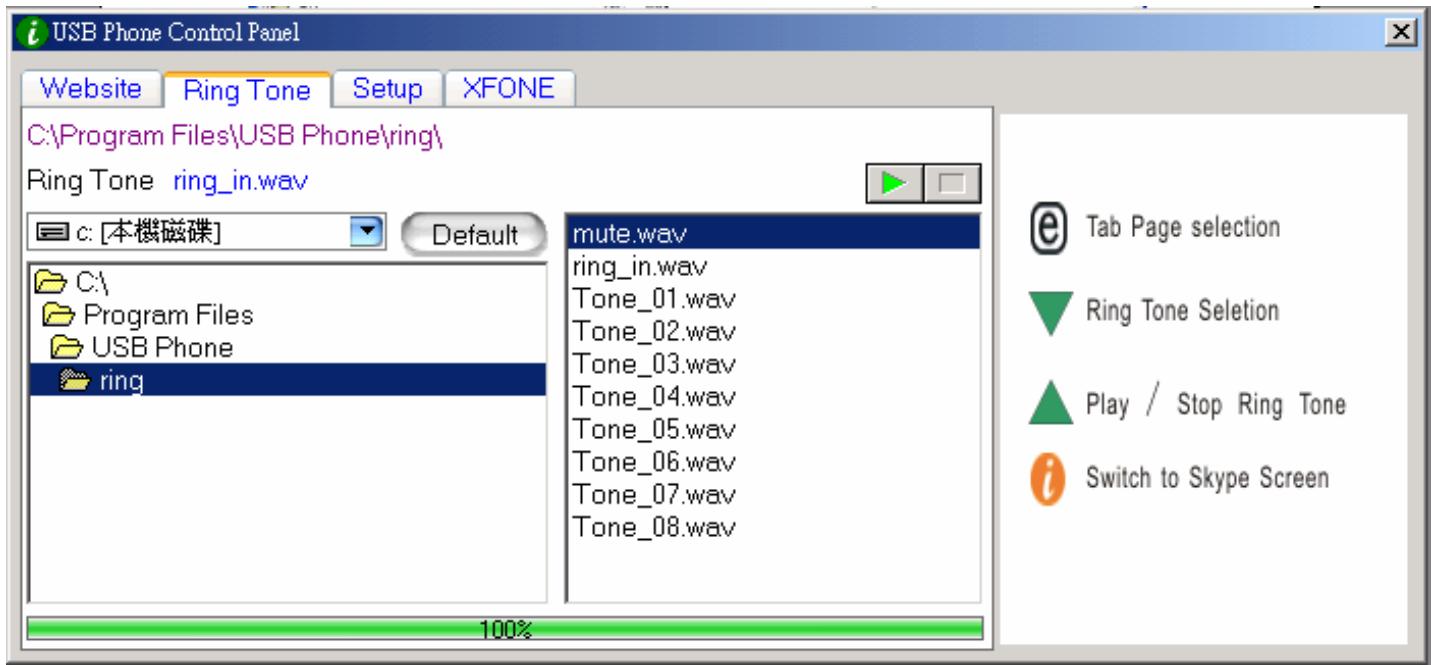
You may select your favor songs (.WAV formate) as your incoming call alert. Simply save your WAV files into the designated directory folders. Following the “HINT” in the right hand side to complete the setups.
A. How to select pre-set ring tones:
i) After properly installed the USB Phone driver, there will be 8 pre-sets ring tones to choose from. Use the “ ” keypad to select your favor ring tone. (See above Picture)
GB
VoIP Web Phone Set - User's manual
ii) If you wish to listen to the ring tone you selected, press the “ ” keypad once the ring tone is selected.
B. How to add new ring tons.
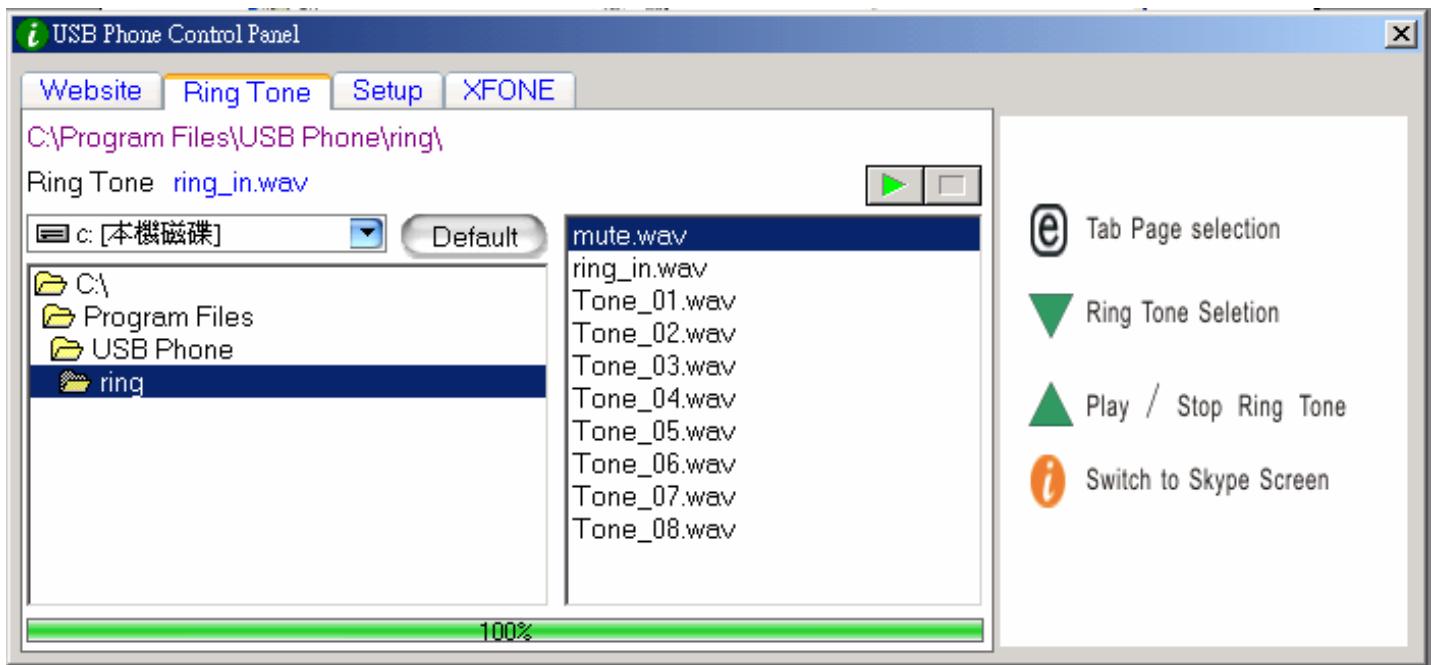
i) Create .wav file using related software.
ii) Simply drag the .wav file in to the directory.
GB
VoIP Web Phone Set - User's manual
2.1.5.3 Device Setup
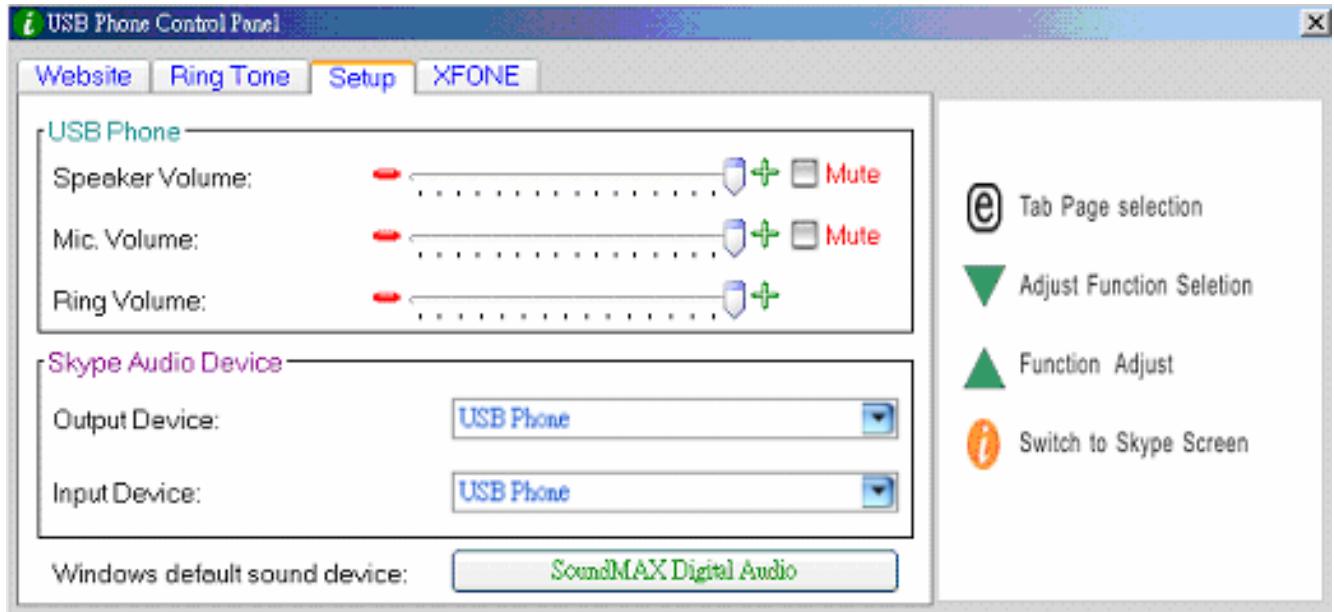
You may change your phone set up in this section. Follow the Hint on the right hand site to complete the setups.
USB Phone Volume Adjustment
a. Using the “ ” to select the sound device you wish to modify.
b. Press the “ ” to increase the volume of the speaker and Microphone.
Skype Audio Devices:
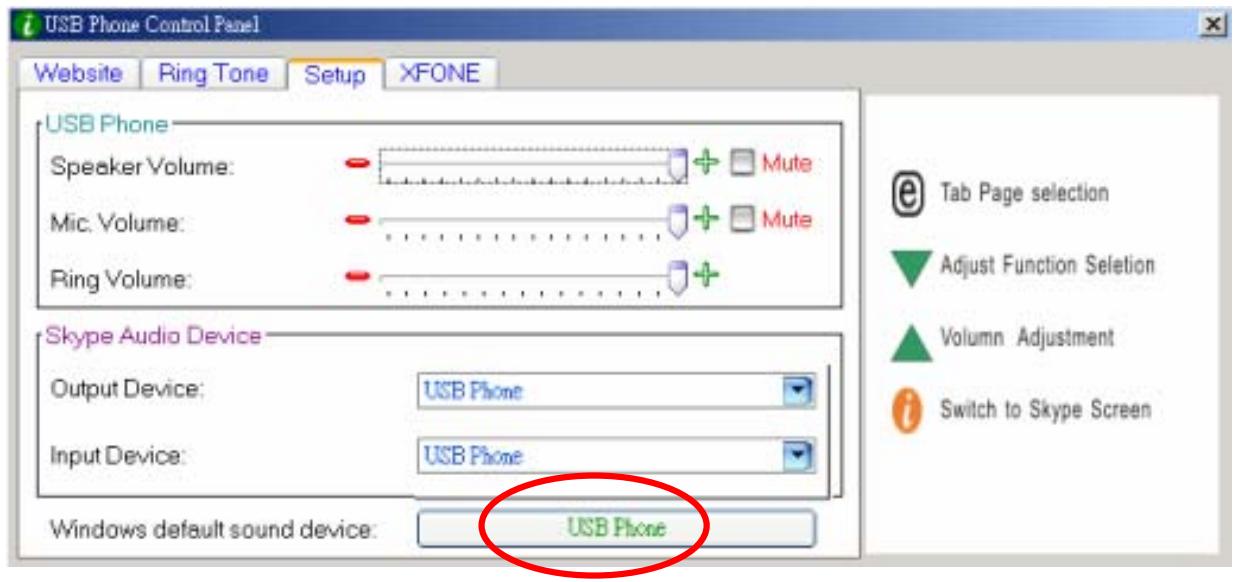
Please set both output and input device in the Skype Audio Device section to "USB Phone" to get the proper USB Phone function.
If you connect your speaker with your computer units, please change the "Windows default sound device" to your system sound card.
GB
VoIP Web Phone Set - User's manual
2.1.5.4 Pre-Set Website
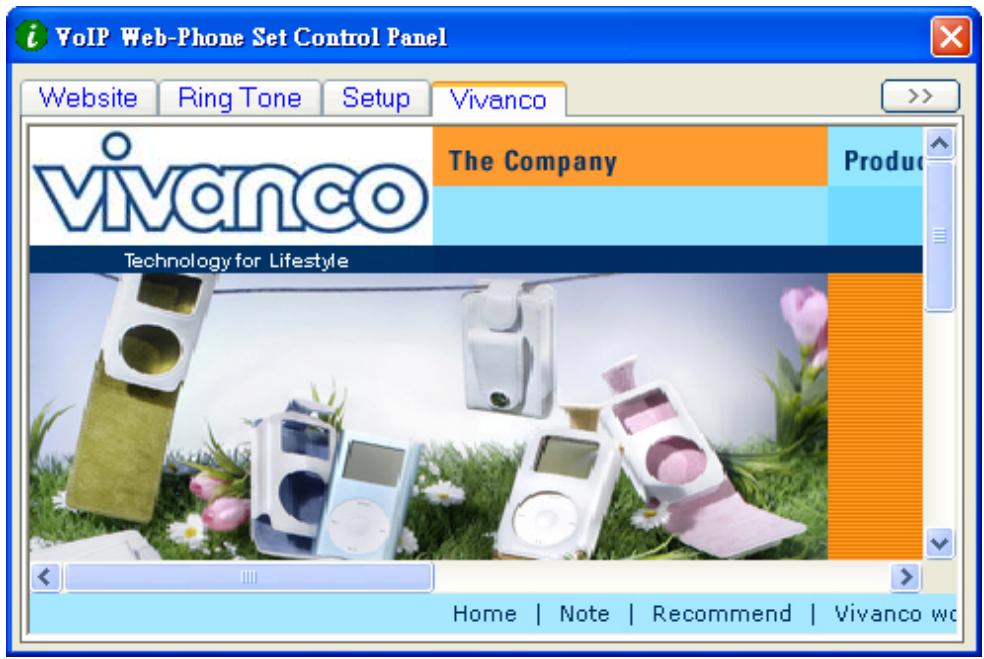
You will see a pre-set website in this page.
2.1.6 Call Ending Button
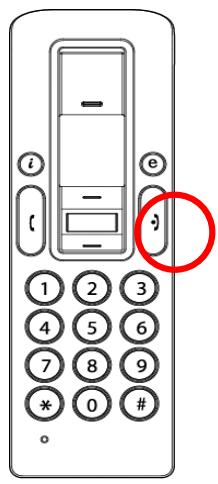
At the end of conversation, press this button to hang up. Also, press this key to delete the number dialed when the wrong digit of number is entered in Skype out service.
GB
VoIP Web Phone Set - User's manual
3. Making phone calls:
To make/receive a skype call from the VoIP Web Phone, please read this section.
3.1 Answering phone calls
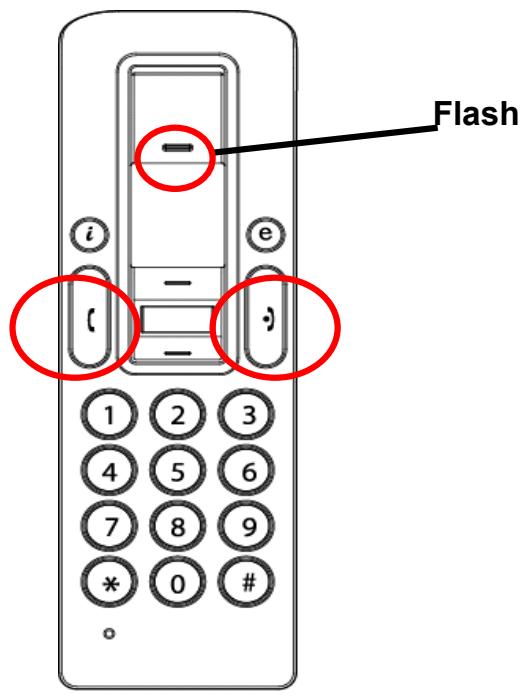
When a call is coming in, the Skype Phone begins to ring and the Skype indicator begins to flash. Press the Answer/Call button to answer the call and begin conversation. When the conversation ends, press the red Off/Cancel button to hang up. Then the Skype indicator is extinguished, it indicates that the phone call is ended.
3.2 Making Phone Calls--Calling Stored Contact
If you have stored contact information in the Skype contact list, you may use this list for calling friends as using contact list in your cell phone.
- Press Skype call button to activate Skype program and contact list.
- Press Up/down and contact selection button to select desire contact person.
- Press call button to make phone calls.
3.3 Making Phone Calls—Using Skype speed dial
This function is the most convenient and the most useful dialing method offered by the Skype. Just
GB VoIP Web Phone Set - User's manual
like pressing on a pre-set key on your cell phone to call a friend or relative, you may enjoy the same function in Skype Program and the VoIP Web Phone. By assigning a 1- or 2-digit speed dialing code in the Skype Program, you may press the pre-set 1- or 2-digit codes on the USB phone set to call your contacts directly. Even longer numbers for SkypeOut such as local numbers, cell phone numbers, or international numbers can be simplified to a 1- or 2-digit speed dialing code for easy calling.
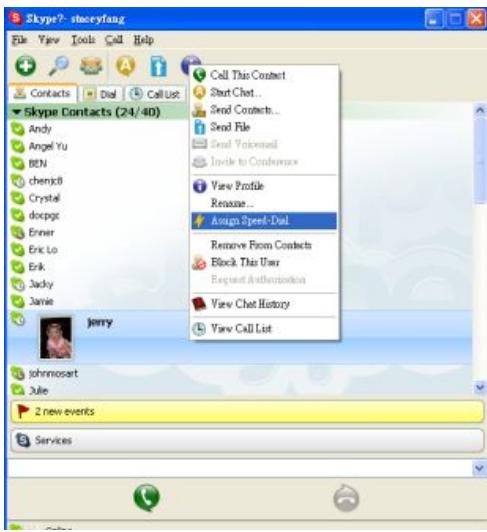
- Open Skype window, select "Contact" tab with your mouse. Move the cursor to the contact or SkypeOut number that is to be programmed for speed-dial, then right-click and select "Assign Speed-Dial".
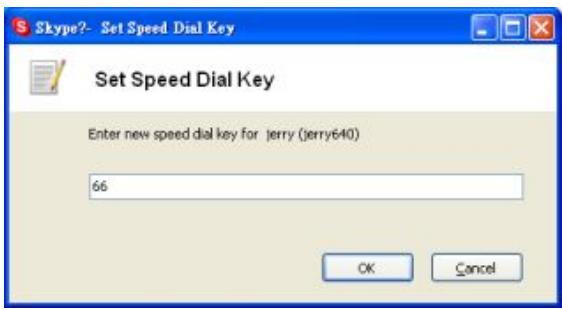
- When the setup dialog box pops up, enter one set of numeric code; maximum length is 2 digits.
After setup is completed, whenever such contact is highlighted in the future, the speed dialing code will appear. Remember this code; when calling this contact in the future, just dial this 1- or 2-digit code on the VoIP Web Phone and press "Call" the call will be made that easy!
3.4 Making Phone Calls—Using Skype out service
Skype is a free Internet phone service, and is very convenient when both parties are using the
GB VoIP Web Phone Set - User's manual
software for conversation on the Internet. You can still enjoy low cost phone services with SkypeOut to make local calls, mobile phone calls, long distance calls, and international long distance calls. To use Skype Out, please apply for an account and purchase credits online at Skype Out website first. With purchased credits for Skype out, you may use your VoIP Web Phone to call any phone number in the world.
To make a SkypeOut call, you must enter the number in the following way (even for local calls): “+” and “country code” and “number”. You can also use “00” or “011” before the country code.
Examples for dialing methods (using the country code “1” for calling USA):
1) Press + 1 555 555 1234 (Remark: Press the “0” and hold for 2 sec. It will change to “+”)
or
2) Press 00 1 555 555 1234
or
3) Press 011 1 555 555 1234
WARNING:
Skype software does not support calls to any emergency number nor emergency service (e.g. 211, 911, 999 etc). To perform calls of this type please make sure to use a landline telephone or a cellular/mobile phone.
4. Assigning PC Audio to PC Speakers
Skype handset has a built-in audio chip, which is equivalent to an external sound card device. Therefore, when the handset is connected to a PC, the Windows operation system will recognize it as default audio output device and replace the original audio output device. This facilitates plug-and-play of the USB handset, but it may interfere with the music or video files used to be played through your speakers or stereo headset that are connected to the original sound card in your PC once the USB handset is plugged in. To allow music and sound effect be played through the original speakers, you must reset audio output device of your PC.
GB
VoIP Web Phone Set - User's manual
- Please click utility key “@” to call out “SET UP” function
- Check the Windows default sound device, if it is USB Phone, then press this button to call out windows "Sounds and Audio Devices Properties"
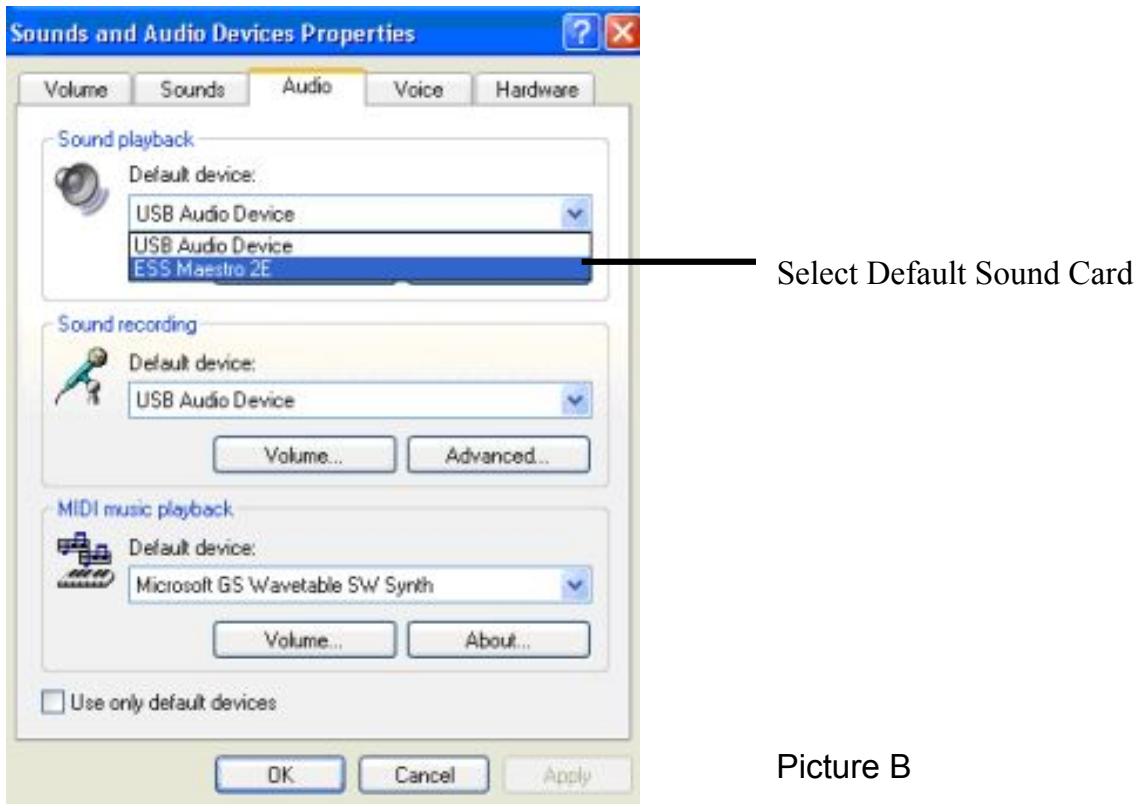
- After the "Sounds and Audio Devices Properties" window is opened, select "Audio" tab, and you will see that the default device for sound playback is "USB Audio Device". (See below Picture A)
- If you wish to have proper sound out from your original speaker, select your system's build in sound card. (See below Picture B)
Picture A
GB
VoIP Web Phone Set - User's manual
5. System Requirement
System Requirement for Skype VoIP Web Phone:
- Win 2000 / Win XP operation system
- 400MHz CPU or above.
128MB RAM or above.
Minimum 15 MB Hard Disk Drive Space. - Internet connection. (Any broadband connection or 56Kbps dial up modem)
6. Package
You will find the package contains:
USB Skype VoIP Web Phone
- USB Webcam
- Driver CD x 1 pc
- USB recharge cord x 1 pc
- Quick Installationguide
7. Technical Specification
| VoIP Web Phone Electrical Specifications : | |
| USB connector | USB A-Male connector. |
| USB wire | 2 .5 Meter. Round-Type |
| Operation Voltage | 4.5V ~ 5.5V |
| Dynamic Receiver | Impedance 8 Ohm +/- 10% |
| Max. Output Power 500mW | |
| Condenser Microphone | Direction Omidirection |
| Sensitivity -42 +/- 3 dB | |
| Frequency Response 20 ~ 20,000 Hz | |
GB
VoIP Web Phone Set - User's manual
8. Hotline
D Tel.: 0180-5404910
Mail: hotline@vivanco.de
GB Mail: consumer@vivanco.co.uk
F Mail: hotline@vivanco-france.fr
E Email: vivanco@vivanco.es
Web: http://www.vivanco.it
NL Mail: info@vivanco.nl
Vivanco GmbH
Ewige Weide 15
D-22926 Ahrensburg / Germany
Phone +49 (0) 4102 / 231 - 0
Fax +49 (0) 4102 / 231 – 160
Designs and specifications are subject to change without notice! All brandnames are registered trademarks of their respective owner.
D-22926 Ahrensburg / Germany
Phone +49 (0) 4102 / 231 - 0
Fax +49 (0) 4102 / 231 – 160
D-22926 Ahrensburg / Germany
Phone +49 (0) 4102 / 231 – 0
Fax +49 (0) 4102 / 231 – 160
D-22926 Ahrensburg / Germany
Phone +49 (0) 4102 / 231 – 0
Fax +49 (0) 4102 / 231 – 160
D-22926 Ahrensburg / Germany
Phone +49 (0) 4102 / 231 - 0
Fax +49 (0) 4102 / 231 – 160