11-0832 - Binoculars BUSHNELL - Free user manual and instructions
Find the device manual for free 11-0832 BUSHNELL in PDF.


User questions about 11-0832 BUSHNELL
0 question about this device. Answer the ones you know or ask your own.
Ask a new question about this device
Download the instructions for your Binoculars in PDF format for free! Find your manual 11-0832 - BUSHNELL and take your electronic device back in hand. On this page are published all the documents necessary for the use of your device. 11-0832 by BUSHNELL.
USER MANUAL 11-0832 BUSHNELL
- Insert 2 AAA alkaline batteries in compartment on the bottom of the Imageview. If you will be taking a large number of photos at high quality settings, you may want to install an SD (Secure Digital) memory card with 32MB or greater capacity (not included). Insert the card in the slot located between the binocular eyepieces, with the "corner notch" on the left as indicated, until it clicks into place.
TURN ON THE CAMERA AND DISPLAY
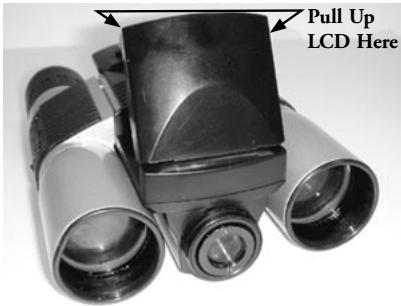
- Raise the end of the LCD display closest to the binocular focusing knob by pulling up on the sides of the display. Hold the ON/OFF button until the red power indicator light comes on. (If you have installed new batteries, you will see the "Clock Set" screen. Follow the directions in the manual under SETUP>Clock Set). The display will light briefly, then go out to save battery power. Press the DISPLAY button under the LCD to reactivate the display.
ADJUST THE BINOCULAR FOR COMFORTABLE VIEWING
- Adjust the center focus knob while viewing a distant object through the binocular, until it appears sharp. Move the left and right sides of the binocular closer together or farther apart until you see a single circular image. Rotate the right eyepiece as needed (diopter adjustment) if the image does not appear equally sharp for both eyes.
CHECK CAMERA SETTINGS
- With the display on, press the small MENU button (center of 5-way switch), then use the "down" arrow key to check the camera settings. For the best quality photos under most conditions, these settings are recommended: EV: 0.0 (for average lighting conditions and subjects)
Resolution: 2048x1536 (largest photo files, highest quality)
White Bal: Auto
Meter: Average (unless main subject is much lighter or darker than background-see METER under "Changing Camera Settings" for options)
Image Quality: Best
Setup: set "Auto Off" time, "Sound" (beep on/off), and "Date Stamp" to your personal preferences. None of the setup items affect the quality of photos.
TAKE A PHOTO
- Holding the Imageview as steadily as possible with both hands, confirm that the image appears sharp on the LCD display. (If not, you are probably too close. Unlike the binocular optics, the camera focus is preset and is designed only for distant subjects that are 30 feet or more away from the camera). Lightly press the SNAP button to take the photo. The display will let you review the photo for a few seconds after you take it. If the exposure or color is bad, try adjusting the EV, Meter, and/or White Balance settings as described in the manual and reshoot.
REVIEWING AND DELETING PHOTOS
- Press the VIEW button to see a playback of your stored photos. Use the left/right arrow keys on the 5-way switch to step through the photos. To erase a photo from memory, pressing the MENU button four times in a row will delete it by: (1) Turning on the play menu, (2) Selecting DELETE, (3) Selecting DELETE ONE=OK, and (4) Confirming you wish to delete the photo.
DOWNLOADING PHOTOS TO YOUR COMPUTER
- If you are using Windows 98, be sure to install the driver first from the CD-ROM as directed in "Software Installation". If you do not already have photo software you prefer to use, install Roxio® PhotoSuite 5 from the CD. Connect the supplied USB cable between the Imageview and your computer. Open Windows Explorer. Under "My Computer" the Imageview will appear as a new "Removable Disk". Your photos are .jpg files inside the folders found in this "Disk". Open the folders, then select and drag (or copy/paste) the photo files to a folder on your hard drive. You are then ready to open and work with the photos using PhotoSuite or the photo software of your choice, and may then delete the old photos from the Imageview memory. After you finish downloading, right click on the "Removable Disk" icon in Windows Explorer and select "Eject" before disconnecting the Imageview. If you get an error message, use "Add/Remove Hardware" in the Windows Control Panel instead-it will direct you how to "Unplug or Eject Hardware".
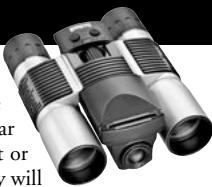
Congratulations on your purchase of a Bushnell ImageView binocular. Before using the product, please read these instructions and take time to familiarize yourself with the different parts and features of the product.
BINOCULAR INSTRUCTIONS
INSTALLING BATTERIES
Remove battery cover and insert batteries as directed in battery compartment. Replace battery cover.
TURING THE CAMERA ON AND OFF
Raise the LCD display by pulling up on the sides of the display at the finger indents (see fig.2). Press and hold the "ON/OFF" button until power turns on, as indicated by the red light on the back of the camera. The LCD screen will turn on and display the Bushnell logo, then turn off to conserve battery life. If you have installed new batteries,
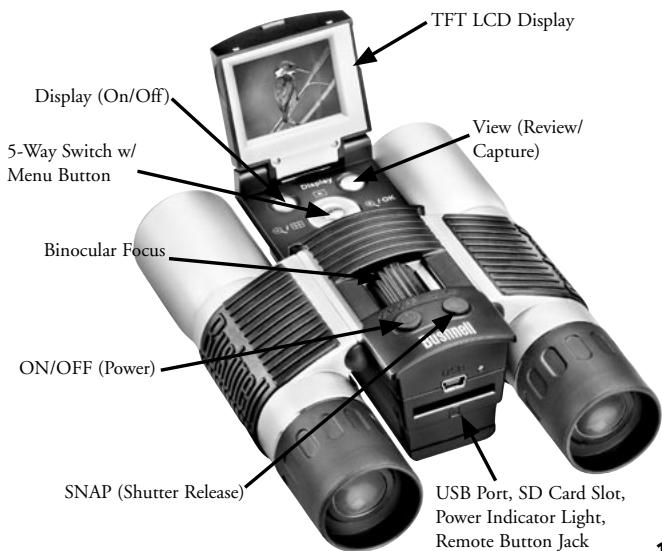
you will see the "Clock Set" screen. Follow the directions on pg. 6 (SETUP>Clock Set) to set the date and time. Pushing the "Display" button will reactive the LCD. The camera is ready to shoot, and considered to be in Capture mode.
To turn the unit off, press and hold the "ON/OFF" button until you hear two beeps and the red light goes off. The camera will turn itself off automatically to save batteries if none of the buttons have been pressed for two minutes (this default time may be changed, see "Changing Camera Settings").
TAKING A PICTURE
With the camera turned on, just press the "SNAP" button and the image you are seeing in the binocular or on the LCD will be stored in the camera's memory. You will hear a single beep to confirm the photo was taken. The LCD will momentarily black out while the photo is being stored, then display the photo you have taken for a few seconds. The LCD then returns to showing a "live" image.
CHANGING CAMERA SETTINGS
While the camera is in Capture mode (LCD displays live image), press the "MENU" button in the middle of the 5-way switch. This opens the menu that will allow you to change the settings of the camera. Use the up/down arrows on the 5-way to step through the available menu items. To change the value of a setting, press "MENU" again (the current value will be highlighted), then use the left/right
arrows to change the value as desired. Press "MENU" to confirm and return to the settings menu. The following settings are provided:
-
EV (Exposure Value) lets you set desired amount of over (+) or under (-) exposure to override the auto exposure. If you review a photo you just took, and it appears too dark or light, try adjusting the EV setting and reshoot. For example, snow scenes may require a "+" EV setting if you want the snow to be reproduced bright white as it appears to the eye.
-
Settings: -2, -1.5, -1.0, -0.5, 0, +0.5, +1, +1.5, +2
-
RESOLUTION sets the desired quality of the pictures. Use the highest setting if you plan to enlarge photos or will need the best quality. The lower settings are suitable for viewing on a PC. Use them if quantity is a priority over quality, or you don't wish to resize large photos later for email or web use.
-
Settings (pixels): 2048 × 1536,1600 × 1200,1280 × 1024,800 × 600
-
WHITE BAL (White Balance) sets correct rendition of colors under different types of lighting. "Auto" usually works well, but if colors look unnatural, try setting this to match the source of light.
-
Settings: Auto, Daylight, Cloudy, Fluorescent, Tungsten (incandescent bulbs)
-
METER allows you to set what part of the frame (image) the light meter analyzes to determine exposure.
-
Settings: Average (exposure based on entire frame), Weight (overall scene, but weighted to favor exposure of a centered subject), Center (exposure based entirely on central subject, ignores rest of frame-useful for strongly backlit subjects)
-
IMAGE QUALITY affects overall photo quality and maximum # of photos that can be stored in the internal memory, by changing the amount of file compression. The actual photo capacity you get will vary with the content of the photos.
-
Settings: "Best" is highest quality (least compression), and lets you store up to 22 photos in the internal memory, "Better" will store up to 41 photos, and "Standard" allows a maximum capacity of about 113 photos. You can expand memory capacity with an SD card to enable storing more photos at higher quality settings.
-
SETUP controls miscellaneous settings such as time/date stamp, auto off time, etc. Use the 4-way arrow and menu buttons to navigate through, select, and change these settings as instructed previously under "Changing camera settings". The setup submenu and selections include:
-
LANGUAGE: (Menu Screens): English, French, Spanish, Italian, German, Chinese
- AUTO OFF: Disable, 1 minute, 2 minutes, or 3 minutes
- CLOCK SET: To change the date & time (after pressing "MENU" to access), select "SET" (press MENU, then left arrow), then use the left/right arrow keys to step through the date/ time segments and use the up/down arrow keys to change the settings. When all settings are complete, press MENU twice to confirm and exit the clock setting.
- SOUND: Turns confirmation/warning beeps On or Off
- DATE STAMP: Off, YY/MM/DD (Year/Month/Day is imprinted on photos), MM/DD/TT (Month/Day/Time imprinted)
-
EXIT: Exits SETUP submenu and returns to the main setting menu.
-
EXIT returns you to the Capture mode, ready to take a new photo.
TO USE SPECIAL CAPTURE MODES
With the camera on and displaying the "live" image (ready to take a new photo), press the right side of the silver 5-way button to use these features, indicated by an icon (symbol) in the upper right corner of the display:
SelfTimer: (clock icon) Provides 10 second delay before the photo is taken after SNAP is pressed. Useful for reducing vibration or shake that may occur from pushing the SNAP button when camera is tripod mounted. You may also use the supplied remote shutter button to avoid jarring the camera. It plugs in next to the USB port and does not require using the self timer (no delay).
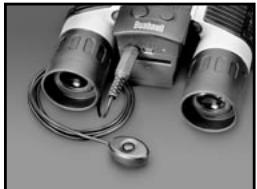
Sequential Shooting: (multiple frames icon) Take a series of 3 photos at 1-second intervals. Great for sports or action shots.
Normal: (no icon in upper right corner) One photo at a time is taken, with no delay.
REVIEWING PHOTOS STORED IN MEMORY
Press the "View" button (turn on the display first if needed). This will change the camera to the Review mode. The default is viewing one frame at a time (full screen), beginning with the last (most recent) photo taken. You may now step through the pictures in the memory by using the "Left" and "Right" arrow buttons on the silver 5 way switch under the LCD. The numbers at the top left show the number of the current photo / number of total photos stored. The resolution setting used for each photo is also seen.
You can zoom in and out on a picture as you review it by using the "Up and Down" arrow buttons on the 5-way switch. This allows you to zoom in by up to 4x magnification to check sharpness or details in your photo. The additional amount of magnification is shown under the photo number on the left upper corner of the LCD.
Once zoomed in on a picture, you are also able to navigate around the picture by pressing the display button. A yellow 4-way symbol appears in the corner of the LCD next to the magnification number, you then use the 4-way switch to move up, down, left or right as desired.
To see thumbnails of multiple pictures stored in the memory while in Review mode, push the "Display" Button. You may see up to 9 pictures at a time. You move through the thumbnails by using the Up, Down, Left and Right arrows on the 4-way switch. Press "Display" again to see a selected (highlighted) thumbnail as a full frame photo.
To exit from the Review mode, again press the "View" button. You are then back in Capture mode.
DELETING/PROTECTING PHOTOS AND FORMATTING A NEW SD CARD:
With the camera in the Review mode (press the View button if necessary), press the "MENU" button in the middle of the 5-way switch. This opens the menu that will allow you to perform the following actions: (use the 5-way switch and menu button as previously instructed to make choices from this menu, select or change settings, and return to the main menu)
DELETE: Erases photos from the internal memory, or from the SD card if you have inserted one before beginning to shoot photos. You may choose:
- One: deletes the currently displayed photo only-after pressing MENU to delete a photo, use the left/right arrow key to display the next photo you want to delete and repeat the process
- All: deletes all photos held in the internal memory or SD card
- Cancel: select if you decide not to delete a photo after entering this menu
FORMAT: Formats a new or previously used SD card to enable storing photo files. Select OK and press MENU after inserting a card for the first time. Be sure the card has been inserted with the notched corner on the left as indicated below the card slot. Note that formatting a card will erase any photos previously stored on the card. Note: "MMC" cards are not compatible and should not be used.
PROTECT: Protects the currently displayed photo from accidental erasure. Pressing the MENU button will toggle between PROTECTED and UNPROTECTED. Once protected, a photo must be unprotected using this menu item before it can be deleted.
SETUP: Provides same options as SETUP in the previous "Record" mode menu-those items can also be accessed while in Review mode to change time/date stamp, beep on/off,etc.
EXIT: Returns to the regular Review mode (stored photos are displayed).
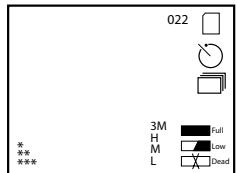
LCD DISPLAY SYMBOLS (ICONS VISIBLE IN CAPTURE OR REVIEW MODE AS INDICATED)
CAPTURE
~一~~一~ 1) Battery Meter: Displays battery level
2) Total Photos: Displays the total number of photos currently stored in internal or SD card memory.
3M 3) Resolution Setting: 3M^ .. 2048× 1536 "H" .. 1600× 1200 "M" .. 1280× 1024 "L" .. 800× 600
4) Image Quality: *** "Best," ** "Better," * "Standard
5) Capture Mode: Normal (no icon), self timer (clock icon), sequential (multiple frame icon).
6) SD card: Displayed when a card is inserted.
REVIEW
1) Photo number / Total Photos: Displays number of review photo / Total photos currently stored
2) Image Resolution: Indicates resolution of review photo
LED/SOUND INDICATIONS
LED (Red)
1) Power On indication: steady light
2) Operation indication: blinks to confirm image capture after "Snap". LED goes out while photo is being stored in memory, comes on again when storage operation is complete.
3) Self Timer indication: blinks once per second during timer countdown.
Audible alerts (beeps)
1) Power on: 2 short beeps; Power off: 2 short beeps;
2) Operation confirmation: 1 short beep.
3) Saving photo completed: 1 short beep.
4) Memory full (download, then delete photos to reuse memory): 3 short beeps.
5) Low battery warning: 3 long beeps.
SYSTEM REQUIREMENTS (FOR INCLUDED PHOTOSUITE SOFTWARE):
Minimum:
- Pentium® III 500 MHz
- Windows® 98SE / Me / 2000 / XP
- 64 MB RAM
SVGA video card (2MB Video RAM)
800x600 screen display
16-bit High color
200 MB Hard Disk space available - CD-ROM drive
8 USB port
Recommended:
128 MB RAM
1024 x 768 screen display or higher
24-bit True color or higher
- Internet access
- Photo quality color printer
SOFTWARE INSTALLATION:
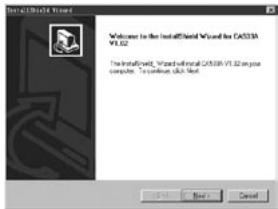
A. DRIVER SOFTWARE INSTALLATION (ONLY NECESSARY FOR WINDOWS 98/98SE)
If the CD-ROM does not automatically launch the install screen, double click "SETUP.EXE" in the CD-ROM file directory to start the installation.
Press [Next] to continue
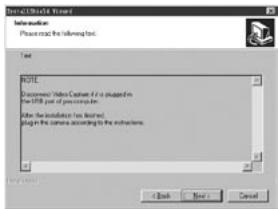
As noted, be sure the camera is not plugged into your computer's USB port before proceeding with the installation.
Then press [Next] to continue.
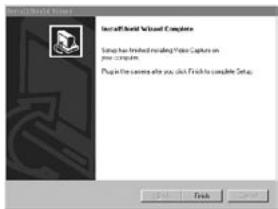
When the driver installation has completed, press [Finish] to end
CONNECTION TO THE COMPUTER
- Be sure the computer has finished installing the hardware driver.
- Plug the small connector at one end of the supplied USB cable into the port above the SD card slot on the back of the camera (see fig.3). Plug the flat end of the USB cable directly into an available USB port on your computer (avoid the use of USB hubs).
- The computer will identify the camera automatically.
B. PHOTO SUITE 5 INSTALLATION
From the opening CD-ROM screen, select "Photo Suite 5.0", then follow the on-screen directions, beginning with selecting your preferred language for the installation dialogue boxes that follow. Be sure to read the Release Notes completely, noting any tips or potential issues relevant to your operating system. For PhotoSuite technical support, go to www.roxio.com and click "Support", or call (408) 367-3100.
If you plan to use other photo editing software, it is not necessary to install PhotoSuite. You may use method A below to transfer photos from the Imageview to your internal hard drive, then open them as .jpg files with the software of your choice.
DOWNLOADING PHOTOS
Either of two methods may be used:
A. TRANSFER ALL PHOTOS TO YOUR INTERNAL HARD DRIVE (RECOMMENDED)
Connect the camera to your computer as directed in "Connection to the computer" (be sure the driver was installed first if you use Windows 98). Open Windows Explorer or "My Computer". The Imageview will be shown as a new "Removable Disk" with an assigned letter such as "E". Double click this new disk icon and then open the "DCIM" folder inside, then any subfolder inside that. You will now see your photos-they are named "Dsc_ followed by a number indicating the order they were taken. Clicking any single photo once should show a small preview. Use "Edit>Select All" or click a
single photo and copy, then paste or simply drag them to the folder of your choice (for example, "My Pictures") on your local hard drive. Once transferred, the photos may be opened, viewed, edited and resaved using the included PhotoSuite software or any compatible photo editing program. Or you can just email a photo or insert it as a .jpg file in any document "as is". After transferring, you are free to disconnect the camera and delete the photos you downloaded to your PC (you may want to open one or more from your internal hard drive to confirm they were transferred successfully).
B. OPENING PHOTO FILES DIRECTLY IN PHOTOSUITE FROM THE CONNECTED CAMERA (OPTIONAL)
With the Imageview plugged in to your computer's USB port, start PhotoSuite. From the File menu, select "Open Photo". Using the "Look in" pull down menu at the top of the Open window, select "My Computer". Then select the "Removable Disk" which represents the connected Imageview. Double click, or select "Open". Then open the folders found in the "Removable Disk" until you see a series of thumbnail photos with the file names (e.g., Dsc_001) below. Select one of the photos and double click or select "Open". The photo will open in the editing screen of PhotoSuite. Edit the photo if desired (use the Help menu in PhotoSuite if necessary), then click "Done". To save a copy of the edited photo to your hard drive, rather than back to the Imageview's memory, answer "Save Changes?" with "Yes", but then answer "Replace Existing File?" with "No", and use the Save As dialog box ("Save In" pulldown as you did earlier to "Look In") to navigate to a folder on your "C" drive or other desired storage location.
BINOCULAR INSTRUCTIONS
Your Bushnell binocular is a precision instrument designed to provide many years of pleasurable viewing. This portion of the booklet will help you achieve optimum performance by explaining how you can adjust the binocular to your eyes, and how to care for this instrument. Read the instructions carefully before using your binocular.
EYE ADJUSTMENTS (Figure 1)
How to Adjust For Distance Between Your Eyes
The distance between the eyes, called "interpupillary distance," varies from person to person. To achieve perfect alignment of lens to eye, follow these simple steps.
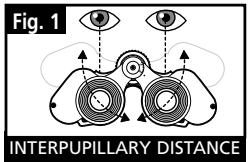
- Hold your binocular in the normal viewing position.
- Grasp each barrel firmly. Move the barrels closer together or further apart until you see a single circular field. Always re-set your binocular to this position before using.
How to Adjust For Individual Eye Strength
As individual eyesight varies from one person to another, Bushnell binoculars have a diopter setting feature which allows you to fine-tune the binocular to your vision. Follow the focusing instructions below for your binocular.
FOCUSING
- Adjust interpupillary distance. (Figure 1)
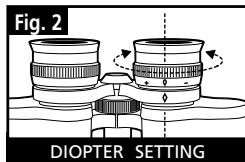
- Set the "diopter setting" (Figure 2) to zero and view a distant object.
- Keep both eyes open at all times.
- Using a lens cover or your hand, cover the objective (front) lens of the same side of the binocular that has the "diopter setting." This is usually the right side.
- Using the center focus wheel, focus on a distant object with fine detail (e.g., brick wall, tree branches, etc.) until it appears as sharp as possible.
- Uncover the objective lens on the diopter side, cover the other objective lens, then view the same object.
- Using the "diopter setting" adjustment ring, focus the same object being viewed. Caution should be used as over turning or forcing the diopter eyepiece can cause damage or cause the eyepiece to break away from the chassis.
- Your binocular should be adjusted for your eyes. Focus at any far or near distances can now be attained simply by turning the center focus wheel. Make a note of the diopter setting for your eyes for future reference.
EYECUPS (Figure 3)
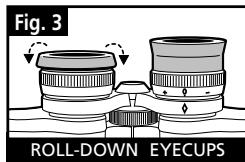
Your Bushnell binocular is fitted with rubber roll-down eyecups designed for your comfort and to exclude extraneous light. If you wear sun/eyeglasses, roll down the eyecups. This will bring your eyes closer to the binocular lens thus providing improved field of view.
INSTRUCTIONS FOR CARE OF BINOCULARS
Your Bushnell binocular will provide years of trouble-free service if it receives the normal care you would give any fine optical instrument. Non-waterproof models should not be exposed to excessive moisture.
- If your binocular has roll-down, flexible eyecups, store it with the eyecups up. This avoids excessive stress and wear on the eyecups in the down position.
- Avoid banging and dropping.
- Store in a cool, dry place.
- CAUTION: Looking directly at the sun with your binocular may be very harmful to your eyes.
- Never expose your ImageView binocular to any type of excessive of liquid or fluid, as the binocular is not water/fogproof.
- Take the batteries out of yourImageView if you are not going to use it for a long period of time. (Make sure you download any pictures from your camera before you remove the batteries from the camera.)
CLEANING
- Blow away any dust or debris on the lens (or use a soft lens brush).
- To remove dirt or finger prints, clean with a soft cotton cloth rubbing in a circular motion. Use of a coarse cloth or unnecessary rubbing may scratch the lens surface and eventually cause permanent damage. A "microfiber" cleaning cloth (available at most photo dealers) is ideal for the routine cleaning of your optics.
- For a more thorough cleaning, photographic lens tissue and photographic-type lens cleaning fluid or isopropyl alcohol may be used. Always apply the fluid to the cleaning cloth – never directly on the lens.
WARRANTY / REPAIR
TWO-YEAR LIMITED WARRANTY
Your Bushnell® product is warranted to be free of defects in materials and workmanship for two years after the date of purchase. In the event of a defect under this warranty, we will, at our option, repair or replace the product, provided that you return the product postage prepaid. This warranty does not cover damages caused by misuse, improper handling, installation, or maintenance provided by someone other than a Bushnell Authorized Service Department.
Any return made under this warranty must be accompanied by the items listed below:
1) A check/money order in the amount of $10.00 to cover the cost of postage and handling
2) Name and address for product return
3) An explanation of the defect
4) Proof of Date Purchased
5) Product should be well packed in a sturdy outside shipping carton, to prevent damage in transit, with return postage prepaid to the address listed below:
IN U.S.A. SEND TO:
Bushnell Performance Optics
Attn.: Repairs
8500 Marshall Drive
Lenexa, Kansas 66214
IN CANADA SEND TO:
Bushnell Performance Optics
Attn.: Repairs
25A East Pearce Street, Unit 1
Richmond Hill, Ontario L4B 2M9
For products purchased outside the United States or Canada please contact your local dealer for applicable warranty information. In Europe you may also contact Bushnell at: BUSHNELL Performance Optics GmbH
European Service Centre
MORSESTRASSE 4
D-50769 KOLN
GERMANY
Tel: +49 (0) 221 709 939 3
Fax: +49 (0) 221 709 939 8
This warranty gives you specific legal rights.
You may have other rights which vary from country to country.
©2004 Bushnell Performance Optics
Bushnell
IMAGEVIEW
FRANÇAIS
INSTALLATION DES PILES ET DE LA CARTE SD (OPTIONNELLE)
INDICATIONS PAR DEL/SON
DEL (rouge)
25A East Pearce Street, Unit 1
Richmond Hill, Ontario L4B 2M9
European Service Centre
MORSESTRASSE 4
D-50769 Cologne
Allemagne
Tel: +49 (0) 221 709 939 3
Fax: +49 (0) 221 709 939 8
©2004 Bushnell Performance Optics
Bushnell

ESPÁÑOL
GUIA RAPIDA DEL IMAGEVIEW 11-0832 DE BUSHNELL
INSTALAR LAS PILAS Y LA TARJETA SD (OPCIONAL)
CÓMOSDESCARGANLASFOTOGRAFÍAS
25A East Pearce Street, Unit 1
Richmond Hill, Ontario L4B 2M9
European Service Centre
MORSESTRASSE 4
D-50769 KOLN
ALEMANIA
Tel: +49 (0) 221 709 939 3
Fax: +49 (0) 221 709 939 8
©2004 Bushnell Performance Optics
Bushnell

DEUTSCH
BATTERIEN UND (ALS OPTION) DIE SD KARTE EINLEGEN
25A East Pearce Street, Unit 1
Richmond Hill, Ontario L4B 2M9
European Service Centre
MORSESTRASSE 4
D-50769 KOLN
Deutschland
Tel: +49 (0) 221 709 939 3
Fax: +49 (0) 221 709 939 8
©2004 Bushnell Performance Optics
Bushnell

ITALIANO
25A East Pearce Street, Unit 1
Richmond Hill, Ontario L4B 2M9
European Service Centre
MORSESTRASSE 4
D-50769-Cologne
Germania
Tel: +49 (0) 221 709 939 3
Fax: +49 (0) 221 709 939 8
©2004 Bushnell Performance Optics
Bushnell

PORTUGUES
GUIA DE CONSULTA RÁPIDA: BUSHNELL IMAGEVIEW 11-0832
LIGUE A CÂMARA E O DISPLAY
NO MODO PREVIEW OU PLAY,CONFORME INDICADO)
PREVIEW (VISUALIZACAO)
25A East Pearce Street, Unit 1
Richmond Hill, Ontario L4B 2M9
European Service Centre
MORSESTRASSE 4
D-50769 KOLN
Alemanha
Tel: +49 (0) 2217099393
Fax: +49 (0) 221 709 939 8
©2004 Bushnell Performance OpticS
Bushman
www.bushnell.com
©2004 Bushnell Performance Optics