
SRP-285N - Thermal printer CITIZEN - Free user manual and instructions
Find the device manual for free SRP-285N CITIZEN in PDF.



| Product type | Scientific calculator |
| Power supply | Dual power: alkaline battery G13/LR44 and solar cell |
| Display | 2-line screen: input line (up to 76 digits) and result line (10 digits + exponent) |
| Calculation modes | MAIN, STAT (1-VAR, 2-VAR), Base-n (DEC, BIN, OCT, HEX), CPLX (complex numbers), VLE (linear equations), QE (quadratic equations) |
| Mathematical functions | Trigonometry, logarithms, exponentials, fractions, percentages, factorials, permutations, combinations, unit conversions, physical constants |
| Memory | 10 variables (A, B, C, X, Y, M, X1, X2, PROG1, PROG2) + independent memory (M+) and replay function (254 characters) |
| Statistics | 1- and 2-variable statistics, linear regression, probability distribution, processing capacity |
| Auto power-off | After 6 to 12 minutes of inactivity |
| Reset | Via [2nd] [RESET] sequence or reset button on the back |
| Contrast | Adjustable with [MODE] then [▼] or [▲] |
| Maintenance | Clean with a soft dry cloth. Do not use solvents. Protect from moisture and extreme temperatures. |
| Battery replacement | Remove the cover, replace the old battery (G13/LR44) respecting polarity, then press the reset hole. |
| Accuracy | Display: up to 10 digits; internal calculation: up to 24 digits |
| Calculation ranges | Numbers from -1×10^100 to 1×10^100, exponent ±99 |
| Recycling | Do not dispose of with household waste. Comply with WEEE regulations (EU). |
Frequently Asked Questions - SRP-285N CITIZEN
User questions about SRP-285N CITIZEN
0 question about this device. Answer the ones you know or ask your own.
Ask a new question about this device
Download the instructions for your Thermal printer in PDF format for free! Find your manual SRP-285N - CITIZEN and take your electronic device back in hand. On this page are published all the documents necessary for the use of your device. SRP-285N by CITIZEN.
USER MANUAL SRP-285N CITIZEN
SCIENTIFIC CALCULATOR
SRP-280N/SRP-285N
Instruction Manual
Turning On And Off. 3
Battery Replacement 3
Auto Power-Off Function. 3
Reset Operation. 3
Contrast Adjustment. 4
Display Readout 4
Before starting calculation. 5
Changing a mode 5
Selecting an item from display menus. 5
Using " 2nd " Keys . 5
Cursor 5
Making corrections during input. 6
Replay function 6
Error Position Display Function. 6
Memory Calculation. 6
Order Of Operations 7
Accuracy And Capacity 8
Error Conditions 10
Mode 0 - MAIN 11
Arithmetic Calculations 11
Display formats. 11
Parentheses Calculation 11
Percentage Calculation 12
Continuous calculation function. 12
Answer Function 12
Logarithm And Antilogarithm 12
Fraction Calculation 12
Angle Unit Conversion 13
Trigonometric / Inverse-Tri. Functions 14
Hyperbolic / Inverse-Hyp. Functions 14
Coordinates Transformation 14
Probability 14
Other Functions (x^-1,,^2,x^2,) 15
Unit Conversions. 15
Physical Constants. 15
Mode 1 - STAT. 16
Single-Variable / Two-Variable Statistics ....16
Process capability. 17
Probability distribution 17
Linear regression 18
Correcting data. 18
Mode 2 - Base-n. 19
Bases conversions 19
Negative expression. 19
Basic arithmetic operations for bases. 20
Logical operation 20
Mode 3 - CPLX. 20
Mode 4 - VLE 20
Mode 5 - QE 20
E-2
General Guide
Turning On And Off
To turn the calculator on, press [ON]; To turn the calculator off, press [2nd][OFF].
Battery Replacement
SRP-280N is powered by one alkaline battery (G13/LR44). SRP-285N is dual power system which is powered by one alkaline battery (G13/LR44) and a solar cell. If the display becomes dim and difficult to read (especially when lighting is dim for SRP-285N), the battery should be replaced as soon as possible.
To replace battery :
1) Remove the screw and the battery compartment cover.
2) Remove the old battery and insert a new one with polarity in correct directions, then replace the cover.
3) After changing battery, please use a pointed object to press the reset hole in the rating label area located at the rear of this unit.
Auto Power-Off Function
This calculator automatically turns it off when not operated for approximately 6-12 minutes. It can be reactivated by pressing [ON] key and the display, memory, settings are retained.
Reset Operation
If the calculator is on but you get unexpected results, press [2nd] [RESET] in sequence. A message appears on the display to confirm whether you want to reset the calculator and clear memory contents.
RESET: N Y
Move the cursor to "Y" by [▶], then press [ENTER] to clear all variables, programs, pending operations, statistical data, answers, all previous entries, and memory. To abort the reset operation without clearing the calculator, please choose "N".
If the calculator is lock and further key operations becomes impossible, please use a pointed object to press the reset hole to release the condition. It will return all settings to default settings.
Contrast Adjustment
Pressing the [▼] or [▲] following [MODE] key can make the contrast of the screen lighter or darker. Holding either key down will make the display become respectively lighter or darker.
Display Readout
The display comprises the entry line, the result line, and indicators.
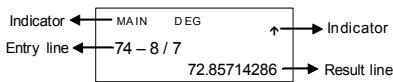
Entry line The calculator displays an entry of up to 76 digits. Entries begin on the left; those with more than 11 digits scroll to the left. Press [▶] and [▲] to move the cursor through an entry. Press [2nd] [▲] or [2nd] [▲] to move the cursor immediately to the beginning or end of the entry.
Result line It displays a result of up to 10 digits, as well as a decimal, a negative sign, a " x10 " indicator, and a 2-digits positive or negative exponent. Results that exceed the digit limit are displayed in scientific notation.
Indicators The following indicators appear on the display to indicate you the current status of the calculator.
E-4
| Indicator | Meaning |
| M | Independent memory |
| - | Result is negative |
| 2nd | 2nd set of function keys is active. |
| MODE | Mode selection is active |
| MAIN | Main mode is active |
| STAT | Statistics mode is active |
| Base-n | Base-n mode is active |
| VLE | Variable linear equation mode is active |
| QE | Quadratic equation mode is active |
| CPLX | Complex number mode is active |
| DEGRAD | Angle mode : DEGrees, GRADs, or RADs |
| ENGSCI | ENGINEERING or SCIencific notation |
| TAB | Number of decimal places displayed is fixed |
| HYP | Hyperbolic-trig function will be calculated |
| BUSY | While an operation is executing |
There are digits to the left or right of the display
There are earlier or later results that can be displayed
Before starting calculation
Changing a mode
Pressing [MODE] can enter mode menus. You can choose one of six operating modes, including "0" MAIN ", "1" STAT ", "2" Base-n ", "3"CPLX ", "4)VLE ", "5" QE".
Give " 2)Base-n " as an example :
Method 1: Scroll through the menus using [] or [] until "2)Base-n" is shown, then enter the desired mode by pressing [ENTER].
Method 2: Key in directly the number of the mode, [2], to enter the desired mode immediately.
Selecting an item from display menus
Many functions and settings are available on menus. A menu is a list of options displayed across the entry line.
Give " Pressing [ DRG ] key displays the menu for choosing the angle setting under MAIN mode " as an example :
Method: Press [DRG] to display the menu, and then move the cursor [< ] or [>] to an item you want. Press [ENTER] while the item is underlined.
For menu items followed by an argument value, you can press [ENTER] while the item is underlined or enter directly the corresponding argument value.
Using "2nd" Keys
When you press [2nd], the "2nd" indicator shown in the display is to tell you that you will be selecting the second function of the next key you press. If you press [2nd] by mistake, simply press [2nd] again to remove the "2nd" indicator.
Cursor
Pressing [ ] or [ ] key can move the cursor to the left or the right. Hold down any of those keys to move the cursor at high speed.
Pressing [▼] or [▲] can scroll the display up or down while there are previous entries hidden the display. You can reuse or edit a previous entry when it is on the entry line.
Making corrections during input
To delete a character at the cursor, make the character underlined by using [] or [] to move the cursor, and then press [DEL] to delete the character.
To replace a character, make the character underlined by using [] or [] to move the cursor, and then enter a new entry to replace the character.
To insert a character, move the cursor to the position of the character where you want to insert, it will be inserted in the front of the character after pressing [2nd] [INS] and entering a new character.
(Note): The blinking cursor "▲" means the calculator is in insert mode. On the contrary, the blinking cursor is displayed as " " and it means the calculator is in overwrite mode.
To clear all characters, clear all input character by [CL] key.
Replay function
- This function stores the latest operation executed. After execution is complete, pressing [▼] or [▲] key will display the operation from the beginning or the end. You can continue moving the cursor by [▶] or [▲] to edit it. To delete a digit, press [DEL]. (or, in overwrite mode, just type over the digit). See Example 1.
- The replay function can keep input digits up to 254 characters. After execution is complete or during entering, you can press either [▲] or [▶] to display previous input steps and edit values or commands for subsequent execution. See Example 2.
(Note): The replay function isn't cleared even when [CL] is pressed or power is turned off, so contents can be recalled even after [CL] is pressed. However, replay function is cleared when mode or operation is switched.
Error Position Display Function
- When a mathematically illegal calculation is performed, error position display function will tell you with the cursor where the error is. Press [▶] or [▲] to move the cursor and then give it a correct entry. You can also clear an error by pressing [CL] and then re-entered the values and expression from the beginning. See Example 3.
Memory Calculation
- Press [M+] to add a result to running memory. Press [2nd] [M-] to subtract the value from running memory. To recall the value in running memory, press [MRC]. To clear running memory, press [MRC] twice. See Example 4.
E-6
- The calculator has ten memory variables for repeated use: A, B, C, X, Y, M, X1, X2, PROG1 and PROG2. You can store a real number in variables A, B, C, X, Y, M, X1, X2 and an expression in PROG1 and PROG2. See Example 5.
- [P/V RCL] recalls all variables.
- [SAVE] lets you store values to variables.
- [2nd] [RECALL] recalls the value of variable.
- [2nd] [CL-VAR] clears all variables except PROG1, PROG2.
- [2nd] [CL-PROG] clears the contents of PROG1, PROG2.
(Note): Besides pressing [SAVE] key to store a value, you can also assign values to memory variable M by [M+] or [2nd] [M-] . However, anything currently stored in variable M will be deleted and replaced by the newly assigned value.
Order Of Operations
Each calculation is performed in the following order of precedence :
1) Expression inside parentheses.
2) Coordinates transformation, and Type B functions which are required pressing the function key before entering, for example, sin, cos, tan, sin -1 , cos -1 , tan -1 , sinh, cosh, tanh, sinh -1 , cosh -1 , tanh -1 , log, In, 10 x , e , NEG, NOT, X('), Y(')
3) Type A functions which are required entering values before pressing the function key, for example, x^2 , 0 , 1 , x^-1 , % , r, g.
4) Exponentiation () , [x]x
5) Fractions
6) Abbreviated multiplication format in front of variables, , RANDM, RANDMI.
7) (-)
8) Abbreviated multiplication format in the front of Type B functions, 23 , Alog2, etc.
9) nPr, nCr
10) x, ÷
11) +, -
12) AND, NAND
13) OR, XOR, XNOR
14) Conversion (a^ / c^d / e,F D, DMS) When functions with the same priority are used in series, execution is performed from right to left. e^x 120 e^x (120) otherwise, execution is from left to right.
E-7
- Compound functions are executed from right to left.
- Anything contained within parentheses receives the highest priority.
Accuracy And Capacity
Output digits : Up to 10 digits
Calculating digits : Up to 24 digits
In general, every reasonable calculation is displayed up to 10 digits mantissa, or 10-digits mantissa plus 2-digits exponent up to 10^± 99 .
Numbers used as input must be within the range of the given function as follow:
| Functions | Input range |
| sin x \( \cos x \) tan x | Deg : \( \left| x\right| < {4.5} \times {10}^{10}\mathrm{{deg}} \) Rad : \( \left| x\right| < {2.5} \times {10}^{8}\pi \) rad Grad : \( \left| x\right| < 5 \times {10}^{10} \) grad however, for tan x Deg : \( \left| x\right| \neq {90}\left( {{2n} + 1}\right) \) Rad : \( \left| x\right| \neq \frac{\pi }{2}\left( {{2n} + 1}\right) \) Grad : \( \left| x\right| \neq {100}\left( {{2n} + 1}\right) \) ,(n is an integer) |
| \( {\sin }^{-1}\mathrm{x},{\cos }^{-1}\mathrm{x} \) | \( \left| x\right| \leq 1 \) |
| \( {\tan }^{-1}x \) | \( \left| x\right| < 1 \times {10}^{100} \) |
| \( \sinh x,\cosh x \) | \( \left| x\right| \leq {230.2585092} \) |
| \( \operatorname{tanh}x \) | \( \left| x\right| < 1 \times {10}^{100} \) |
| \( \sinh - 1\mathrm{x} \) | \( \left| x\right| < 5 \times {10}^{99} \) |
| \( {\cosh }^{-1}x \) | \( 1 \leq x < 5 \times {10}^{99} \) |
| \( {\tanh }^{-1}x \) | \( \left| x\right| < 1 \) |
| \( \log x,\ln x \) | \( 1 \times {10}^{-{99}} \leq x < 1 \times {10}^{100} \) |
| \( {10}^{x} \) | \( - 1 \times {10}^{100} < x < {100} \) |
| \( {\mathrm{e}}^{\mathrm{x}} \) | \( - 1 \times {10}^{100} < x \leq {230.2585092} \) |
| \( \sqrt{x} \) | \( 0 \leq x < 1 \times {10}^{100} \) |
| \( {\mathrm{x}}^{2} \) | \( \left| x\right| < 1 \times {10}^{50} \) |
| \( {\mathrm{x}}^{-1} \) | \( \left| x\right| < 1 \times {10}^{100},x \neq 0 \) |
| \( x! \) | \( 0 \leq x \leq {69},x \) is an integer. |
| P(x,y) | √x2+y2<1 x 10100 |
| R(r,θ) | 0≤r<1 x 10100Deg: |θ|<4.5 x 10¹⁰degRad: |θ|<2.5 x 10⁸π radGrad: |θ|<5 x 10¹⁰gradhowever, for tan θDeg: |θ|≠90 (2n+1)Rad: |θ|≠π/2 (2n+1)Grad: |θ|≠100 (2n+1), (n is an integer) |
| ▷DMS | |DD|, MM, SS.SS < 1 x 10100,0≤MM, SS.SS|x|<10100 |
| xy | x>0: -1 x 10100<y log x<100x=0:y>0x<0:y=n, 1/(2n+1), n is an integer.but -1 x 10100<y log |x|<100 |
| x√y | y>0: x≠0, -1 x 10100<1/x log y<100y=0:x>0y<0:x=2n+1, 1/n, n is an integer. (n≠0)but -1 x 10100<1/x log |y|<100 |
| nPr, nCr | 0≤r≤n, n≤10100, n,r are integers. |
| STAT | |x|<1 x 10100, |y|<1 x 101001-VAR: n≤40, 2-VAR: n≤40FREQ. = n, 0≤n<10100:n is an integer in1-VAR mode.σx, σy, x, y, a, b, r: n≠0;Sx, Sy: n, n≠0, 1 |
| Base-n | DEC : - 2147483648 ≤ x ≤ 2147483647 |
| BIN : 100000000000000000000000000000000 ≤ x ≤ 11111111111111111111111111 (for negative) | |
| 0 ≤ x ≤ 011111111111111111111111111111 (for zero, positive) | |
| OCT : 20000000000 ≤ x ≤ 37777777777 (for negative) | |
| 0 ≤ x ≤ 17777777777 (for zero or positive) | |
| HEX : 80000000 ≤ x ≤ FFFFFFFF (for negative) | |
| 0 ≤ x ≤ 7FFFFFFF (for zero or positive) |
Error Conditions
Error message will appear on the display and further calculation becomes impossible when any of the following conditions occur.
DOMAIN Er (1) When specifying an argument to a function outside the valid range.
(2) FREQ value (in 1-VAR stats) < 0 or non-integer.
(3) When USL value < LSL value
DIVIDE BY 0 You attempted to divide by 0.
OVERFLOW Er When result of function calculations exceeds the range specified.
STAT Er When in MAIN, CPLX, VLE, or QE mode, press [DATA] or [STATVAR].
SYNTAX Er (1) Input errors are made.
(2) When improper arguments are used in commands or functions that require arguments.
NO SOL There is no solution or infinite to the MULTI SOLS simultaneous equation under VLE mode.
NO REAL SOL There is no real solution to quadratic equation under QE mode.
LENGTH Er An entry exceeds 84 digits after implied multiplication with auto-correction.
OUT OF SPEC You input a negative C_PU or C_PL value, where
$$ C _ {P U} = \frac {U S L - \bar {X}}{3 \sigma}, \quad C _ {P L} = \frac {\bar {X} - L S L}{3 \sigma} $$
To release the above errors, please press [CL] key.
Mode 0 - MAIN
Arithmetic Calculations
- Arithmetic operations are performed by pressing the keys in the same sequence as in the expression. See Example 6.
- For negative values, press [(-)] before entering the value. See Example 7.
- For mixed arithmetic operations, multiplication and division are given priority over addition and subtraction. See Example 8.
- Results greater than 10^10 or less than 10^-9 are displayed in exponential form. See Example 9.
Display formats
- Decimal places formats are selected by pressing [2nd] [TAB] to display the menu. To set decimal places to n (F0123456789), enter a n value directly or press [ENTER] key while the item is underlined. (The default setting is floating point notation F and the n value is •). See Example 10.
- Even if the number of decimal places is specified, internal calculation for a mantissa is performed up to 24 digits, and the display value is stored in 10 digits. To round off those values to the specified number of decimal places, press [2nd] [RND]. See Example 11~12.
- Number display formats are selected by pressing [2nd] [SCI/ENG] to display the menu. The items on the menu are FLO (for floating point), SCI (for scientific), and ENG (for engineering). Press [< ] or [> ] until the desired formats is underlined, and then press [ENTER]. See Example 13.
(Note): The engineering format is similar to the scientific format, except the mantissa can have up to three digits left of the decimal, instead of only one, and the exponent is always a multiple of three. It is useful for engineers to convert units based on multiples of 10^-3 .
- You can enter a number in mantissa and exponent form by [EXP] key. See Example 14.
Parentheses Calculation
- Operations inside parentheses are always executed first. The calculator can use up to 13 levels of consecutive parentheses in a single calculation. See Example 15.
-
Closed parentheses occurring immediately before operation of the [ENTER] key may be omitted, no matter how many are required. See Example 16.
-
A multiplication sign " x " occurring immediately before an open parenthesis can omitted. See Example 17.
(Note): The calculator can auto-correct abbreviated multiplication in front of all functions, except memory variables, left parenthesis, type B functions.
Henceforth, abbreviated type will not be used in this manual. See Example 18.
- The correct result cannot be derived by entering [ ( ] 2 [ + ] 3 [ ) ] [EXP] 2. Be sure to enter [ x ] 1 between the [ ) ] and [EXP] in the below example. See Example 19.
Percentage Calculation
- [2nd] [%] divides the number in the display by 100. You can use this key sequence to calculate percentages, add-ons, discounts, and percentages ratios. See Example 20-21.
Continuous calculation function
- The calculator enables you to repeat the last operation executed by pressing [ENTER] key for further calculation. See Example 22.
- Even if calculations are concluded with the [ENTER] key, the result obtained can be used for further calculation. See Example 23.
Answer Function
Answer function stores the most recently calculated result. It is retained even after the power is turned off. Once a numeric value or numeric expression is entered and [ENTER] is pressed, the result is stored by this function. See Example 24.
(Note): Even if execution of a calculation results in an error, however, Answer memory retains its current value.
Logarithm And Antilogarithm
- The calculator can calculate common and natural logarithms and anti-logarithms using [log], [In], [2nd] [10^x] , and [2nd] [e^x] . See Example 25~27.
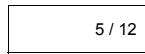
Fraction Calculation
Fraction value display is as follow :
| 5 / 12 |
Display of 512
| 56 ∪ 5 /12 |
Display of 56 5/12
- To enter a mixed number, enter the integer part, press [a^b / c] , enter the numerator, press [a^b / c] , and enter the denominator; To enter an improper fraction, enter the numerator, press [a^b / c] , and enter the denominator. See Example 28.
- During a fraction calculation, if the figure is reducible, a figure is reduced to the lowest terms after pressing a function command key ([+], [-], [x] or [÷]) or the [] key. By pressing [2nd] [a^b / _e^d] , the displayed value will be converted to the improper fraction and vice versa. See Example 29.
- To convert between a decimal and fractional result, press [2nd] [F D] and [ENTER]. See Example 30.
- Calculations containing both fractions and decimals are calculated in decimal format. See Example 31.
Angle Unit Conversion
- The angle units (DEG, RAD, GRAD) is set by pressing [DRG] to display the angle menu. The relation among the three angle units is :
$$ 1 8 0 ^ {\circ} = \pi \mathrm {r a d} = 2 0 0 \mathrm {g r a d} $$
Angle conversations ( See Example 32. ) :
- Change the default angle settings to the units you want to convert to.
- Enter the value of the unit to convert.
- Press [DMS] to display the menu. The units you can select are (degrees), (minutes), (seconds), r (radians), g (gradians) or DMS (Degrees-Minutes-Seconds).
- Choose the units you are converting from.
- Press [ENTER] twice.
To convert an angle to DMS notation, select "▶DMS" which converts an entry to DMS notations, i.e., where 1^30'0'' represents 1 degrees, 30 minutes, 0 seconds. See Example 33.
To convert a DMS notation to decimal, select degrees), (minutes), (seconds). See Example 34.
Trigonometric / Inverse-Tri. Functions
The calculator provides standard trigonometric functions and inverse trigonometric functions - sin, cos, tan, ^-1 , ^-1 and ^-1 . See Example 35-37.
(Note): When using those keys, make sure the calculator is set for the angle unit you want.
Hyperbolic / Inverse-Hyp. Functions
The calculator uses [2nd] [HYP] to calculate the hyperbolic functions and inverse-hyperbolic functions - sinh, cosh, tanh, sinh ^-1 , cosh ^-1 and tanh ^-1 . See Example 38-39.
(Note): When using those keys, make sure the calculator is set for the angle unit you want.
Coordinates Transformation
Pressing [2nd] [R▶P] displays a menu to convert rectangular coordinates to polar coordinates or vice versa. See Example 40~41.
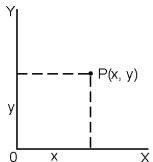
Rectangular Coordinates
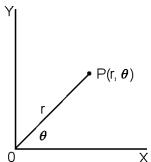
Polar Coordinates
$$ x + y i = r (\cos \theta + i \sin \theta) $$
(Note): When using those key, make sure the calculator is set for the angle unit you want.
Probability
- Pressing [PRB] displays the probability menu. See Example 42~46. With the following functions:
nPr Calculate the number of possible permutations of n item taken r at a time.
nCr Calculates the number of possible combinations of n items taken r at a time.
1 Calculate the factorial of a specified positive integer n, where n ≤ 69 .
RANDOM Generates a random number between 0 and 1.
RANDMI Generates a random integer value between two specified integers, A and B, where A ≤ random value ≤ B
Other Functions (x^-1,,,x^2,)
- The calculator also provides reciprocal [x^-1] , square root [] , universal root [] , square [x^2] and exponentiation ( ) functions. See Example 47-50.
Unit Conversions
-
The calculator has a built-in unit conversion feature that enables you to convert numbers from metric to English units and vice versa. See Example 51.
-
Enter the number you want to convert.
- Press [2nd] [CONV] to display the menu. There are 7 menus, covering distance, area, temperature, capacity, weight, energy, and pressure.
- Use the [][] to scroll through the list of units until a appropriate units menu is shown, then [ENTER].
- Pressing [▶] or [▲] can convert the number to another unit.
Physical Constants
- You can use a number of physical constants in your calculations. See table below:
E-15
| Symbol | Meaning | Value |
| c | Speed of light in vacuum | 299792458 m / s |
| g | Acceleration of gravity | 9.80665 m.s-2 |
| G | Gravitational constant | 6.6725985 x 10⁻¹¹N.m2kg-2 |
| Vm | molar volume of ideal gas | 0.0224141 m3mol-1 |
| NA | Avagadro's number | 6.022136736 x 10⁻²³mol-1 |
| e | Elementary charge | 1.6021773349 x 10⁻¹⁹C |
| me | Electron mass | 9.109389754 x 10⁻³¹kg |
| mP | Proton mass | 1.672623110 x 10⁻²⁷kg |
| h | Plank's constant | 6.626075540 x 10⁻³⁴J.s |
| k | Boltzmann's constant | 1.38065812 x 10⁻²³J.K-1 |
| R | Gas constant | 8.3145107 J/mol·k |
| F | Faraday constant | 96485.30929 C / mol |
| mn | Neutron constant | 1.67492861 x 10⁻²⁷kg |
| μ | Atomic mass constant | 1.66054021 x 10⁻²⁷kg |
| ε0 | Dielectric permittivity | 8.854187818 x 10⁻¹²F/m |
| μ0 | Magnetic permittivity | 1.256637061 x 10⁻⁶H / m |
| φ0 | Flux quantum | 2.0678346161 x 10⁻¹⁵Vs |
| a0 | Bohr radius | 5.2917724924 x 10⁻¹¹m |
| μB | Bohr magneton | 9.274015431 x 10⁻²⁴Am2 |
| μN | Neutron magnetic moment | 5.050786617 x 10⁻²⁷J / T |
To insert a constant at the cursor position ( See Example 52.):
- Press [CONST] to display the physical constants menu.
- Press [▶] until the constant you want is underlined.
- Press [ENTER].
Mode 1 - STAT
There are three menu operations in statistics menu: 1-VAR ( for analyzing data in a single dataset), 2-VAR ( for analyzing paired data from two datasets ) and D-CL ( for clearing all datasets). See Example 38.
Single-Variable / Two-Variable Statistics
Step :
- From the statistics menu, choose 1-VAR or 2-VAR and press [ENTER].
- Press [DATA] and there are three menus: DATA-INPUT, LIMIT-SET, DISTR. Please select DATA-INPUT and press [ENTER].
- Enter an x - value and press [ ].
- Enter the frequency (FREQ) of the x - value (in 1-VAR mode) or the corresponding y - value (in 2-VAR mode) and press [▼].
- To enter more data, repeat from step 3.
- Press [2nd] [STATVAR] and scroll through the statistical result menus by [ ] or [] to find out statistical variables you want. (See table below)
E-16
| Variable | Meaning |
| n | Number of the x values or x-y pairs entered. |
| X or Y | Mean of the x values or y values |
| Xmax or Ymax | Maximum of the x values or y values |
| Xmin or Ymin | Minimum of the x values or y values |
| Sx or Sy | Sample standard deviation of x values or y values. Sx = √Σ(x-x2/n-1), Sy = √Σ(y-y2/n-1) |
| σx or σy | Population standard deviation of x values or y values σx = √Σ(x-x2/n - σy = √Σ(y-y2/n) |
| Σx or Σy | Sum of all x values or y values |
x^2 or y^2 Sum of all x^2 values or y^2 values
x y Sum of (x y) for all x - y pairs
Process capability
Step: (See Example 53~54.)
- Press [DATA] and there are three menus: DATA-INPUT, LIMIT-SET, DISTR. Please select LIMIT-SET and press [ENTER].
- Enter an upper spec. limit value (X USL or Y USL), then press [▼].
- Enter a lower spec. limit value (X LSL or Y LSL), then press [ENTER].
- Enter the datasets you want under DATA-INPUT mode.
- Press [2nd] [STATVAR] and scroll through the statistical results menu by [▶] or [▲] to find out process capability variables you want. (See table below)
Variable
Meaning
Cax or Cay
Capability accuracy of the x values or y values
$$ C _ {a x} = \frac {\left| \frac {\left(x _ {U S L} + x _ {L S L} - \bar {x}\right)}{2} \right|}{\frac {x _ {U S L} - x _ {L S L}}{2}}, C _ {a y} = \frac {\left| \frac {\left(y _ {U S L} + y _ {L S L} - \bar {y}\right)}{2} \right|}{\frac {y _ {U S L} - y _ {L S L}}{2}} $$
Cpx or Cpy
Potential capability precision of the x values or y values,
$$ C _ {p x} = \frac {x _ {U S L} - x _ {L S L}}{6 \sigma}, C _ {p y} = \frac {y _ {U S L} - y _ {L S L}}{6 \sigma} $$
CpKx or Cpky
Minimum (C_PU, C_PL) of the x values or y values, where C_PU is upper spec. limit of capability precision and C_PL is lower spec. limit of capability precision
$$ C _ {p k x} = \operatorname {M i n} \left(C _ {P U X}, C _ {P L X}\right) = C _ {p x} \left(1 - C _ {a x}\right) $$
$$ C _ {p k y} = \operatorname {M i n} \left(C _ {P U Y}, C _ {P L Y}\right) = C _ {p y} \left(1 - C _ {a y}\right) $$
(Note): When calculating process capability in 2-VAR mode, the x_n and y_n are independent with each other.
Probability distribution
Step:(SeeExample55.)
- Based on the datasets in 1-VAR mode, press [DATA] and there are three menu : DATA-INPUT, LIMIT-SET, DISTR. Please choose DISTR and press [ ENTER].
- Enter a a_x value, then press [ENTER].
- Press [STATVAR] and scroll through the statistical results menu by [ ] or [ ] to find out probability distribution variables you want. (See table below)
E-17
| Variable | Meaning |
| t | Test value t = ax - x̄ / σ |
| P(t) | Represent the cumulative fraction of the standard normal distribution that is less than the value t |
| R(t) | Represent the cumulative fraction of the standard normal distribution that lies between the value t and 0. R(t) = 1 - (t) |
| Q(t) | Represent the cumulative fraction of the standard normal distribution that is greater than the value t Q(t) = |0.5 - (t)| |
Linear regression
Step: (See Example 56.)
- Based on the datasets in 2-VAR mode, press [STATVAR] and scroll through the statistical results menu by [ ] or [ ] to find out a, b, or r.
- To predict a value for x (or y ) given a value for y (or x ), select the x' (or y' variable, press [ENTER], enter the given value, and press [ENTER] again. (See table below)
| Variable | Meaning |
| a | Linear regression y-intercept a = ∑y-b ∑x/n |
b Linear regression slope b = (n xy - x y)(n x^2 - ( x)^2)
Correlation coefficient r = (n x y - x y)(n x^2 - ( x)^2)(n y^2 - ( y)^2)
x' Predicted x values given a, b, and y values x' = - ab
y' Predicted y value given a, b, and x value. y' = a + bx
Correcting data
Step: (See Example 57.)
- Press [DATA].
- To change x - values or the frequency of the x - value in 1-VAR mode (or the corresponding y - value in 2-VAR mode), please choose DATA-INPUT. To change upper spec.
limit value, or lower spec. limit value, please choose LIMIT-SET. To change ax, please choose DISTR.
- Press [▼] to scroll through the data you have entered.
- To change an entry, display it and enter the new data. The new data you enter overwrites the old entry. Press [▼] or [ENTER] to save the change.
(Note): Even you exit STAT mode, all data in 1-VAR and 2-VAR mode are still retained unless you clear all data by selecting D-CL mode.
Mode 2 - Base-n
Bases conversions
The number system (10, 16, 2, 8) is set by pressing [2nd] [dhbo] to display the menu, making one of the items underlined followed [ENTER]. A corresponding symbol - "d", "h", "b", "o" appears on the display. (The default setting is d : decimal base). See Example 58.
(Note) : The total range of numbers handled in this mode is 0, 1, 2, 3, 4, 5, 6, 7, 8, 9, /A, IB, IC, ID, IE, IF. If values not valid for the particular number system are used, attach the corresponding designator (d,h,b,o) , or an error message will appear.
Binary base ():0,1
Octal base (o):0,1,2,3,4,5,6,7
Decimal base (d):0,1,2,3,4,5,6,7,8,9
Hexadecimal base ():0,1,2,3,4,5,6,7,8,9,/A,IB,IC,ID,IE, IF
Pressing [ ] can use block function to display a result in octal or binary base which exceeds 8 digits. The system is designed to display up to 4 blocks. See Example 59.
Negative expression
- In binary, octal, and hexadecimal bases, the calculator represents negative numbers using complement notation. The complement is the result of subtracting that number from 100000000000000000000000000000000 in that number's base by pressing [NEG] key in non-decimal bases. See Example 60.
Basic arithmetic operations for bases
- The unit enables you to calculate in number base other than decimal. The calculator can add, subtract, multiply, and divide binary, octal, and hexadecimal numbers. See Example 61.
Logical operation
Logical operations are performed through logical products (AND), negative logical (NAND), logical sums (OR), exclusive logical sums (XOR), negation (NOT), and negation of exclusive logical sums (XNOR). See Example 62.
Mode 3 - CPLX
- Complex mode enables you to add, subtract, multiply, and divide complex numbers. See Example 63. The results of a complex operation are displayed as follow:
Real value
Im Imaginary value
ab Absolute value
ar Argument value
Mode 4 - VLE
Variable linear equations (VLE) mode can solve a set of simultaneous equations with two unknowns as follows:
$$ a x + b y = c $$
d x + e y = f , where x and y are unknown.
- In VLE mode, you just enter each coefficient (a, b, c, d, e, f) in the correct order, and the calculator automatically solves for x , y . See Example 64.
Mode 5 - QE
Quadratic equations (QE) mode can solve a equations as follows :
a x^2 + b x + c = 0 , where x is unknown.
- In QE mode, you just enter each coefficient (a, b, c) in the correct order, and the calculator automatically solves for all x values. See Example 65.
Guia General 3
Base octal (o):0,1,2,3,4,5,6,7
Base decimal (d):0,1,2,3,4,5,6,7,8,9
Hexadecimal base (h): 0, 1, 2, 3, 4, 5, 6, 7, 8, 9, /A, IB, IC, ID, IE, IF
Base decimal (d):0,1,2,3,4,5,6,7,8,9
BaseHexadecimal ():0,1,2,3,4,5,6,7,8,9,/A,IB,IC,ID,IE, IF
Lineare Regression 19
Hexadezmale Basis (h): 0, 1, 2, 3, 4, 5, 6, 7, 8, 9, /A, IB, IC, ID, IE, IF
Utiliser les Touches " 2nd "
Base octale (o):0,1,2,3,4,5,6,7
Base decimale ():0,1,2,3,4,5,6,7,8,9
Base hexadecimale (h): 0, 1, 2, 3, 4, 5, 6, 7, 8, 9, /A, IB, IC, ID, IE, IF
Nella modalita MAIN, CPLX, VLE o QE, premei [DATA] o [STATVAR]
SYNTAX Er
$$ 1 8 0 ^ {\circ} = \pi \text {r a d} = 2 0 0 \text {g r a d} $$
Base decimale ():0,1,2,3,4,5,6,7,8,9
Base esadecimale (h): 0, 1, 2, 3, 4, 5, 6, 7, 8, 9, IA, IB, IC, ID, IE, IF
Decimalegetalbasis (d):0,1,2,3,4,5,6,7,8,9
Hexadecimalegetalbasis(h):0,1,2,3,4,5,6,7,8,9/A,IB,IC,ID,IE,IF
AEndring at tilstanden (mode) 5
Vaelg en valgmulighed i displaymenuerne. 5
Anvendelse af " 2nd "tasterne. 5
Markoren 5
Foretag rettelser under indtastningen. 6
Gentagelsesfunktionen 6
Linear regression. 18
Rettelse af data 19
Mode 2 - Base-n. 19
Talsystemkonverteringer 19
Negativeudtryk. 19
Grundlaaggende aritmetiske operationer for talsysteme.. 20
Logiske operationer. 20
Mode 3 - CPLX. 20
Mode 4 - MAIN. 20
Mode 5 - QE. 20
Da-2
Generel vejledning
Tænd og sluk
Tryk pa [ON] for atænde lommeregneren. Tryk pa [2nd] [OFF] for at slukke lommeregneren.
a y-intercept for linear regression
$$ a = \frac {\sum y - b}{n} \frac {\sum x}{n} $$
b Haelningskoefficient for linear regression
$$ b = \frac {(n \sum x y - \sum x \sum y)}{(n \sum x ^ {2} - (\sum x) ^ {2})} $$
r Korrelationskoefficient
$$ r = \frac {(n \Sigma x y - \Sigma x \Sigma y)}{\sqrt {(n \Sigma x ^ {2} - (\Sigma x) ^ {2}) (n \Sigma y ^ {2} - (\Sigma y) ^ {2})}} $$
Oktal base (o):0,1,2,3,4,5,6,7
Decimal base ():0,1,2,3,4,5,6,7,8,9
Hexadecimal base (h): 0, 1, 2, 3, 4, 5, 6, 7, 8, 9, /A, IB, IC, ID, IE, IF.
Bépxy Hnd INI BnH3Y NOD BnIMoN CTPOKINMeetc pe3yNbTaT, BO3MOXhbl DnI pOHTEHN
Peped Naayajom BbUcJHEni
I3meHeHne pexIma pa6oTb KaIbkyIaTopa
HaJMeIte KnaBnUH [MODE], YTObI B13BaTbpeKIM MeHIO. BblMOKETe BbOpaTb OdnH m3 uceCTn ONEpaHOnHHx peKIMOB, BKJIocay "0) MAIN", "1)STAT", "2)Base-n", "3)CPLX", "4)VLE", "5)QE".
PacCMOTpIM Ha npImepe pexkma " 2)Base-n":
Cnocob 1: NcnoIb3y4 kNaBmU [ ]uN [ ]HaxOIM M B MeHO "2)Base-n", 3aTe HauKaTHeM KNaBmU [ ENTER ] BBOdIM bByoapHbNpeKHM bPa60Ty.
Cnococ 2: Ytobb HemeDJIeHNO BECTN peKIM B pa6OTy, HenocpeIcTBHeHO hAKImaem HA KlaBnA tyeHOMep Jxelaemorpo keximma. [2].
BbI6op nyHKTOB n3 MeHIO dncnJeA
MhorneФункими uctahobkn OoctynbH b MeHO. MeHO -30 nepechHu BbBpaBbAbxOnuOIN, OTo6PbaKbBbBbC b TcPoKE BBOa.
PacCMOTPM HA npIMepe [DRG].Hakatne KnaBmM MAIN OTObpaaet MeIOI JIy BbOpa yCTaHOBOK YrIIOB B OCHOBHM pEXKIME:
Cnocob: HaxmITE KnaBnUy [DRG], YTObI BbIBcTn MeHIO, 3aTeM nepeDBeBnAte KypcOp [ ] INN [ ] K HxhOMy nyHKTy. Korda BbCBeTITcN HxKbI NpHKT, HaxmITE KnaBnUy BBOda [ ENTER].
Длп pyнков对接угмета, поka рунк BTбчевен на дсплес.pyнк MT Велочичы aprymteHaToОБрахьн ha npedbyduyem 3kape.
IcnoIb3OBAHne KnaBnI " 2nd " Btoporop ernctpa
Korda Bbl haxmTe KnaBnuy [2nd]," 2nd "noaBtnc Ha dncnlee, coo3laq, Tc0 6ydt Bb6pHaФynuizn BtporO prrctpa HaxatoT KnaBnue. Ecnn Bbl no ooi6ke Haxan KnaBnuy [2nd], npocTo haxmTe eue p34 KnaBnuy [2nd], nHdNkatop " 2nd "uc3e3et.
Kypcop
Hakattem KnaBnI [ ] nnn [ ] KypocpeNBraTcR BNEBO nnn BnpaHo. HnepeBbHoe Hakatme NIOBI 3TNX KnaBnU yBENNI CKOPOCTbe NEpEBKHeNIA Kypocpa.
HaxaTneM KnaBn [▼] INI [▲] MOxHo nepeDbIratb BvDmMyo Yachb EkpaHBAePbX INIINBHN3, BbIOJa H NaCInneh BeuIMbE B HactOaI MmoTe DaHbIe. Bbl MoKTe BHOb bNcIOJb3OBaTb INI peDaKTIpOBaT PbIbIyUe 3aIcN KOrda OH NTOb6paeKHeB B CTPOKe BBODa.
IcnpabJIeHnI npBbOe HOpMaun
YtObbl ydarnltb 3nAkhc n NOMOuBko KypCopa, nepeBdrnaRg KypCOP HaxkATmEM KnaBnI [ ] mN [ ] , BlyeNITE hNyHbIe 3nAkhc, a 3atEm HxNAMite KnaBnUy [ DEL ]. Kpome 3tOrO, hnepeBbHoe HxNATME KnaBnIu [ DEL ] ydaanReT 3nAkh c BnPaBO, YtObbl ydarnltb 3nAkhc BnEo OT KypCopa, kKaDbIy pa3 HxKImaTe KnaBnUy [ DEL ].
YTO6bI BCTaBnTb 3NaK, npeBdINbTe KypcOp K MeCy, rge Bbl XOTIne OUCJeCTBtB BOD, 3NaK 6yDcET BCTaBHeN nepeB bdyenHeHbM 3NaKOM HaxaTneM KlaBnI [2nd] [INS] n, COOTBeTcBHeHo, BBDEHeN MOBOrO 3HaKa.
r COOTHOWeHHe KO3ΦΦnUeHToB BELNuH
$$ r = \frac {(n \sum x y - \sum x \sum y)}{\sqrt {(n \sum x ^ {2} - (\sum x) ^ {2}) (n \sum y ^ {2} - (\sum y) ^ {2})}} $$
x' OnpedeneHeneBenHHbXdJIaDaHHbX BeHHnA b,a,bY3haeHH.
$$ x ^ {\prime} = \frac {y - a}{b} $$
y' OnpedeneHeneBenuHnbl yIaDaaHbX bENuHn a,b n x3naHEn.
$$ \mathbf {y} ^ {\prime} = \mathbf {a} + \mathbf {b x} $$
KoppeKTIpOBKa daHHbIX
Uzywanie klawisza " 2nd "
Penekanan tambol [▼]ederal [▲] federal government of Malaysia, which is the capital of Malaysia. The government is located in Kuala Lumpur, Malaysia, and has a population of 12 million.
Error message will appear on the display and further calculation becomes impossible when any of the following conditions occur.
DOMAIN Er
Fraction value display is as follow :
Basis desimal ():0,1,2,3,4,5,6,7,8,9
Basis heksadesimal (h): 0, 1, 2, 3, 4, 5, 6, 7, 8, 9, /A, IB, IC, ID, IE, IF
If you want to dispose this product, do not mix with general household waste. There is a separate collection systems for used electronics products in accordance with legislation under the WEEE Directive (Directive 2002/96/EC) and is effective only within European Union.
Ge
Information for Users on Collection and Disposal of used Batteries.
The symbol in this information sheet means that used batteries should not be mixed with general household waste.
For proper treatment, recovery and recycling of used batteries, please take them to applicable collection points.
For more information about collection and recycling of batteries, please contact your local municipality,your waste disposal service or the point of sale where you purchased the items.
Information on Disposal in other Countries outside the European Union.
This symbol is only valid in the European Union. If you wish to discard used batteries, please contact your local authorities or dealer and ask for the correct method of disposal.
Design and specifications are subject to change without notice.
- SCIENTIFIC CALCULATOR
- SRP-280N/SRP-285N
- Before starting calculation. 5
- Mode 0 - MAIN 11
- Mode 1 - STAT. 16
- Mode 2 - Base-n. 19
- Mode 3 - CPLX. 20
- E-2
- General Guide
- Turning On And Off
- Battery Replacement
- Auto Power-Off Function
- Reset Operation
- Contrast Adjustment
- Display Readout
- Before starting calculation
- Changing a mode
- Selecting an item from display menus
- Using "2nd" Keys
- Cursor
- Making corrections during input
- Replay function
- Error Position Display Function
- Memory Calculation
- Order Of Operations
- Accuracy And Capacity
- Error Conditions
- Mode 0 - MAIN
- Arithmetic Calculations
- Display formats
- Parentheses Calculation
- Percentage Calculation
- Continuous calculation function
- Answer Function
- Logarithm And Antilogarithm
- Fraction Calculation
- Angle Unit Conversion
- Trigonometric / Inverse-Tri. Functions
- Hyperbolic / Inverse-Hyp. Functions
- Coordinates Transformation
- Probability
- Other Functions (x-1,,,x^2,)
- Unit Conversions
- Physical Constants
- Mode 1 - STAT
- Single-Variable / Two-Variable Statistics
- Step :
- Process capability
- Variable
- Meaning
- Probability distribution
- E-17
- Linear regression
- Correcting data
- Mode 2 - Base-n
- Bases conversions
- Negative expression
- Basic arithmetic operations for bases
- Logical operation
- Mode 3 - CPLX
- Mode 4 - VLE
- Mode 5 - QE
- Guia General 3
- Utiliser les Touches " 2nd "
- Mode 4 - MAIN. 20
- Mode 5 - QE. 20
- Da-2
- Generel vejledning
- Tænd og sluk
- Peped Naayajom BbUcJHEni
- I3meHeHne pexIma pa6oTb KaIbkyIaTopa
- BbI6op nyHKTOB n3 MeHIO dncnJeA
- IcnoIb3OBAHne KnaBnI " 2nd " Btoporop ernctpa
- Kypcop
- IcnpabJIeHnI npBbOe HOpMaun
- KoppeKTIpOBKa daHHbIX
- Uzywanie klawisza " 2nd "
- DOMAIN Er
- Ge
Brand : CITIZEN
Model : SRP-285N
Category : Thermal printer