
CL-E321 - Thermal printer CITIZEN - Free user manual and instructions
Find the device manual for free CL-E321 CITIZEN in PDF.

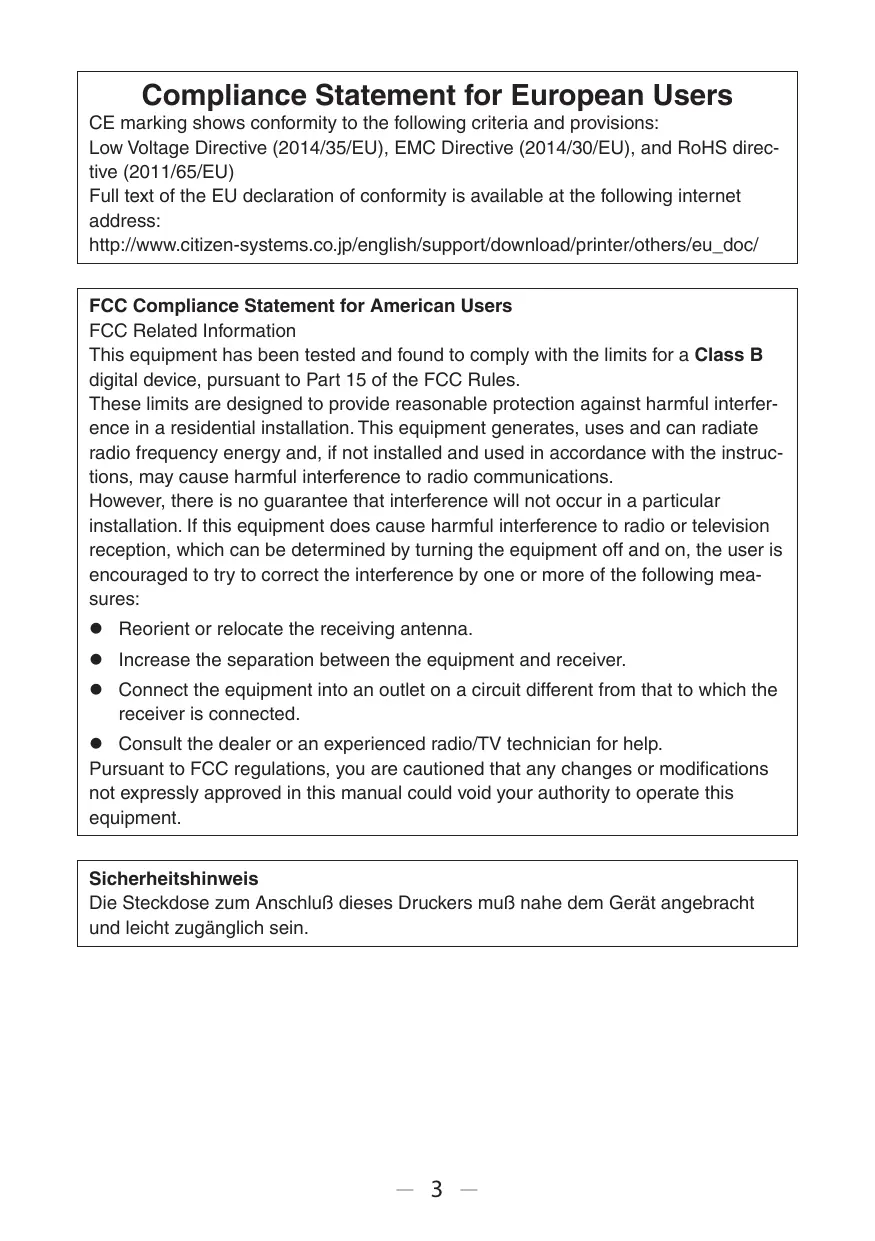

| Product type | Thermal printer |
| Brand | CITIZEN |
| Model | CL-E321 |
| Printing technology | Direct thermal |
| Resolution | 300 dpi (12 dots/mm) |
| Print speed | Up to 152 mm/s |
| Maximum print width | 104 mm |
| Maximum print length | 3000 mm |
| Interfaces | USB 2.0, Ethernet 10/100, RS-232 |
| Power supply | 100-240 V AC, 50/60 Hz |
| Power consumption | 100 W operating, 10 W standby |
| Dimensions (L x W x H) | 230 x 180 x 170 mm |
| Weight | 2.5 kg |
| Roll capacity | Max outer diameter 127 mm, width 25-110 mm |
| Media types | Thermal paper with or without marking |
| Duty cycle | 10,000 labels per day |
| Head maintenance | Clean regularly with a cotton swab and isopropyl alcohol |
| Safety | Disconnect before any intervention |
| Spare parts | Print head, platen roller, PCB |
| Certifications | CE, FCC, WEEE, CAN ICES-3(B)/NMB-3(B) |
Frequently Asked Questions - CL-E321 CITIZEN
User questions about CL-E321 CITIZEN
0 question about this device. Answer the ones you know or ask your own.
Ask a new question about this device
Download the instructions for your Thermal printer in PDF format for free! Find your manual CL-E321 - CITIZEN and take your electronic device back in hand. On this page are published all the documents necessary for the use of your device. CL-E321 by CITIZEN.
USER MANUAL CL-E321 CITIZEN
LINE THERMAL PRINTER
MODEL CL-E321/CL-E331
User's Manual
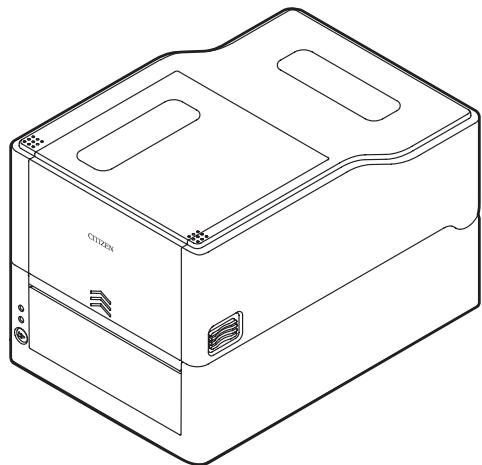
natural_image
Line drawing of a rectangular electronic device labeled 'CITIZION' (no additional text or symbols)If you want to dispose of this product, do not mix it with general household waste. There is a separate collection systems for used electronics products in accordance with legislation under the WEEE Directive (Directive 2002/96/EC) and is effective only within European Union.
Ge
natural_image
Symbol of a trash bin crossed with no text or numbers, representing waste sorting or disposal (no text present)Compliance Statement for European Users
CE marking shows conformity to the following criteria and provisions:
Low Voltage Directive (2014/35/EU), EMC Directive (2014/30/EU), and RoHS directive (2011/65/EU)
Full text of the EU declaration of conformity is available at the following internet address:
http://www.citizen-systems.co.jp/english/support/download/printer/others/eu_doc/
FCC Compliance Statement for American Users
FCC Related Information
This equipment has been tested and found to comply with the limits for a Class B digital device, pursuant to Part 15 of the FCC Rules.
These limits are designed to provide reasonable protection against harmful interference in a residential installation. This equipment generates, uses and can radiate radio frequency energy and, if not installed and used in accordance with the instructions, may cause harmful interference to radio communications.
However, there is no guarantee that interference will not occur in a particular installation. If this equipment does cause harmful interference to radio or television reception, which can be determined by turning the equipment off and on, the user is encouraged to try to correct the interference by one or more of the following measures:
● Reorient or relocate the receiving antenna.
- Increase the separation between the equipment and receiver.
- Connect the equipment into an outlet on a circuit different from that to which the receiver is connected.
- Consult the dealer or an experienced radio/TV technician for help.
Pursuant to FCC regulations, you are cautioned that any changes or modifications not expressly approved in this manual could void your authority to operate this equipment.
Sicherheitshinweis
EMI Compliance Statement for Canadian Users
This Class B Information Technology Equipment (ITE) complies with Canadian CAN ICES-3(B)/NMB-3(B).
This equipment generates and uses radio frequency energy and if not installed and used properly, that is, in strict accordance with the manufacturer's instructions, may cause interference to radio and television reception. This Information Technology Equipment (ITE) does not exceed the Class B limits for radio noise emissions from digital apparatus set out in the Radio Interference Regulations of the Canadian Department of Communications. This equipment is designed to provide reasonable protection against such interference in a residential installation.
However, there is no guarantee that interference will not occur in a particular installation. If this equipment does cause interference to radio or television reception, which can be determined by turning the equipment off and on, the user is encouraged to try to correct the interference by one or more of the following measures:
● Reorient or relocate the receiving antenna.
- Increase the separation between the equipment and receiver.
- Connect the equipment into an outlet on a circuit different from that to which the receiver is connected.
- Consult the dealer or an experienced radio/TV technician for help.
- Before using this product, be sure to read through this manual. After having read this manual, keep it in a safe, readily accessible place for future reference.
● The information contained herein is subject to change without prior notice. - Reproduction or transfer of part or all of this document in any means is prohibited without permission from Citizen Systems.
- Note that Citizen Systems is not responsible for any operation results regardless of omissions, errors, or misprints in this manual.
- Note that Citizen Systems is not responsible for any trouble caused as a result of using options or consumables that are not specified in this manual.
- Except explained elsewhere in this manual, do not attempt to service, disassemble, or repair this product.
- Citizen Systems Japan Co., Ltd. shall not be liable for damages caused by improper or incorrect usage or by the usage environment.
- Data is basically for temporary use and not stored for an extended period of time or permanently. Please note that Citizen Systems is not responsible for damage or lost profit resulting from the loss of data caused by accidents, repairs, tests or other occurrences.
- If you find omissions, errors, or have questions, please contact your Citizen Systems dealer.
● CITIZEN is a registered trademark of Citizen Watch Co., Ltd.
- QR Code is a registered trademark of DENSO WAVE INCORPORATED.
- Datamax® is a registered trademark of Honeywell International Inc.
● Maxi Code is a registered trademark of UPS.
- Zebra®, ZPL2®, and EPL2™ are registered trademarks of Zebra Technologies, Inc. in the U.S.
- PDF417 is a trademark or registered trademark of Motorola, Inc. in the U.S. and other countries.
- TrueType™ is a trademark of Apple Inc.
● All other trademarks are the property of their respective owners.
- Citizen Systems use these trademarks in accordance with the license of relevant owners.
Copyright© CITIZEN SYSTEMS JAPAN CO., LTD. 2018
SAFETY PRECAUTIONS...WHICH SHOULD BE STRICTLY OBSERVED
Before using this product for the first time, carefully read these SAFETY PRECAUTIONS. Improper handling may result in accidents (fire, electric shock or injury). In order to prevent injury to operators, third parties, or damage to property, special warning symbols are used in the User's Manual to indicate important items to be strictly observed.
- After having read this Manual, keep it in a safe, readily accessible place for future reference.
- Some of the descriptions contained in this manual may not be relevant to some printer models.
The following describes the degree of hazard and damage that could occur if the printer is improperly operated by ignoring the instructions indicated by the warning symbols. Be sure to read this information carefully.

WARNING
Neglecting precautions indicated by this symbol may result in fatal or serious injury.

CAUTION
Neglecting precautions indicated by this symbol may result in injury or damage to property.

This symbol is used to alert your attention to important items.
Warnings

WARNING
■ Do not perform any of the following actions as they may result in damage or malfunction of the device, overheating, the generation of smoke, fire, or electric shock. If the device is damaged or defective, turn off the power, disconnect the power plug from the electrical outlet, and contact your retailer.
- Do not step on, drop, hit, or otherwise subject the device to significant force or impact.
- Do not use the device in environments of poor ventilation or in a manner that blocks device vents.
- Do not use the device in environments, such as laboratories, where chemical reactions occur or environments exposed to air that contains salt or toxic gases.
- Use the device in environments at specified power supply voltage and frequency (100 to 240 V and 50/60 Hz).
- Do not connect or disconnect the power cord or an interface cable by holding the cable itself. Do not pull or carry the device while cables are under load.
- Do not drop or insert small objects such as clips or push-pins into the device.
- Do not connect too many power cords to a single electrical outlet.
- Do not spill tea, coffee, juice, or other beverages onto the device. Do not subject the device to insecticides. If liquid is spilled onto the device, turn off the power, disconnect the power plug from the electrical outlet, and contact your retailer.
- Do not disassemble or modify the device.
- Do not use non-specified AC adapters.
- Use only the included power cord. Do not use the included power cord with other devices.
- Do not use deformed or damaged power cords.
- Do not unnecessary process power cords.
- Do not print while the top ribbon cover is open. An injury may occur due to hair or clothing being caught in the ribbon.
■ Exposed wire due to damaged power cords or melted sheaths may cause current leakage, malfunction, or electric shock. Contact your retailer if the power cord becomes damaged.
- Do not place objects around the power plug.
General Precautions
Observe these precautions to ensure proper use of the device. Make sure to read these precautions.

CAUTION
- Do not touch the area around the thermal head during or right after the printing process. This area will be hot and may cause burns.
- Do not drop or insert small objects such as clips or pins into the printer. Doing so may result in failure.
- Exercise caution when carrying or transporting the device. Dropping the device may damage other objects or cause injury.
- Make sure to open the printer cover fully when it needs to be opened. Failure to do so may result in the printer closing unexpectedly, which may cause injury.
- Exercise caution when the printer cover is open. Contact with edges may result in injury.
- Do not open the printer cover while the printer is printing.
- Do not print while the top ribbon cover is open. A failure may occur if the ribbon is touched or a foreign object is dropped on it.
- Do not use thinner, trichlene, benzene, ketone-based solvents, or cleaning cloths with chemicals to clean the case surface.
- Do not use the device in environments exposed to significant levels of oil, metal shavings, waste, and dust.
- Do not spill liquids onto the device or expose the device to spray chemicals.
- Do not step on, drop, hit, or otherwise subject the device to significant force or impact.
- Make sure to use the control panel correctly. Pressing buttons randomly may cause malfunction and even failure. Do not use sharp objects including tips of pens to operate the control panel.
- If some abnormality occurs during use, immediately stop using the device and disconnect the power plug from the electrical outlet.
- Do not disassemble the device for repairs in case of failure. Always contact the dealer for repairs.
- The auto cutter has internal blades near the media discharge port. Never insert hands inside the media discharge port whether the printer is operating or not.
- There is a risk of the thermal head being damaged by static electricity. Take measures to prevent the charging of static electricity in advance, and do not directly touch the thermal head heating element and connector terminal parts when handling the printer.
Installation Precautions

CAUTION
- Do not use or store the device in environments exposed to excessive heat, moisture, direct sunlight, near heaters, extremely high or low altitudes, excessive humidity, or excessive dust.
- Do not use the device in environments, such as laboratories, where chemical reactions occur.
- Do not use the device in environments exposed to air that contains salt or toxic gases.
- Place printers on level, stable surfaces in environments with good ventilation. (Do not place the printer such that the vents are against walls.)
- Do not place objects on top of the device.
- Using the device near radios or televisions or plugging the power cord into the same electrical outlet as used by such devices may cause reception interference.
- Use the device in environments at specified power supply voltage and frequency.
- Use only the included power cord. Do not use the included power cord with other devices.
- Do not place objects or step on power cords.
- Do not pull or attempt to carry the device by the power cord or an interface cable.
- Do not connect too many power cords to a single electrical outlet.
- Do not bundle the power cord.
- Hold the power cord by the power plug to connect and disconnect to/from electrical outlets.
- Ensure connectors are properly connected. In particular, reversing the polarity may damage internal parts.
- Turn the power switch off before connecting or disconnecting interface cables.
- Do not run long signal lines or make connections with noisy devices to the extent possible. If necessary, use shielded twisted pair cables for signal lines and take any other necessary steps to ensure signal integrity.
- Place the device near an electrical outlet and ensure that the power plug can be unplugged easily so that the power to the device can be cut quickly if necessary.
- Use electrical outlets with ground terminal screws. Using electrical outlets without ground terminals may result in injury due to static electricity.
- Do not install the printer in a location where there is vibration or in an unstable location.
PRECAUTIONS IN HANDLING THE PRINTER

CAUTION
Caution label is attached in the position shown in the following figure. Carefully read the handling precautions before using the printer.
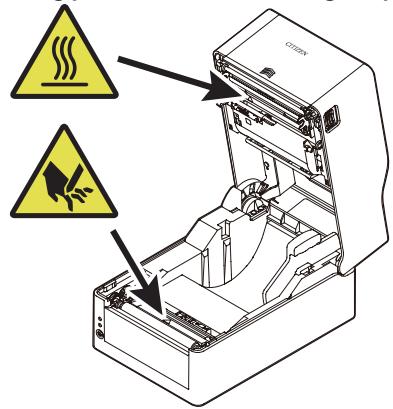
These labels indicate that the head becomes hot, so touching it may cause burns, and touching the auto cutter and manual cutter when opening the paper cover may cause cuts on hands.
THE TABLE OF CONTENTS
1. GENERAL OUTLINE ....13
1.1 Features .... 13
1.2 Unpacking 15
1.3 Model Classification ...... 16
2. Part Names and Function ......18
2.1 Front of Printer....18
2.2 Operation panel....20
2.3 FEED Key Operation 21
2.4 Rear of Printer 22
2.5 Inside of Printer 24
3. SETUP......27
3.1 Printing Preparation Process....27
3.2 Loading Paper 28
3.3 Loading a Ribbon 35
3.4 Adjusting Media Sensor Positions 49
3.5 Connecting the AC Adapter....51
3.6 Connecting the Printer to a Host Computer 52
3.7 Install the Printer Driver....54
4. Configuring Printer Settings Using the Specialized Utility.....55
4.1 List of Settings....56
4.2 Obtaining the LabelPrinterUtility....62
4.3 Using the LabelPrinterUtility 62
5. Configuring Ethernet Network Settings
Using Network Seeker....63
5.1 Starting Network Seeker 63
5.2 Changing Settings....64
6. Configuring Printer Settings Using a Browser ....66
6.1 LinkServer user roles 66
6.2 LinkServer menu configuration....67
6.3 LinkServer connection procedure....68
7. Configuring the Printer Using the Operation Panel .....70
7.1 Sensor Adjustment Mode....72
7.2 Test print mode....74
7.3 Configuration Print Mode....76
7.4 Emulation switching mode....77
7.5 HEX Dump Mode .... 78
7.6 Initialization Mode....79
8. Online Configuration Mode......81
9. Clearing Jobs Stored in the Printer 82
10. Maintenance....83
10.1 Plastic Surface of Printer and Platen....84
10.2 Thermal head 84
11. Appendices ....85
11.1 Troubleshooting 85
11.2 Basic Specifications 86
11.3 Usage Conditions....96
11.4 Storage Conditions....97
11.5 Interfaces....97
1. GENERAL OUTLINE
Thank you for purchasing the Citizen Systems Line Thermal Printer CL-E321 / CL-E331. This printer is a line thermal printer employing the direct-thermal method and thermal-transfer method that was developed for labels, tags, tickets, and many other applications.
1.1 Features
< Compact and Stylish Design >
- Boasting the smallest footprint in the industry, this printer was designed to be compact to free users from placement restrictions.
● The stylish design enables the device to be used in different environments.
● Exterior color options include black and pure white. - This printer is compact yet allows you to use a 300 m per roll, large-diameter ink ribbon.
< High-speed, High-quality Printing >
- This printer employs the direct-thermal method and thermal-transfer method by utilizing a thermal head, and includes a 32-bit RISC CPU with a maximum operating frequency of 216 MHz and thermal history control to provide high-speed, high-quality performance up to 8 IPS with the CL-E321 model and up to 6 IPS with the CL-E331 model.
- Adjustable media/black line sensors are provided as standard so that the detection position can be adjustable horizontally. This enables sensors to be placed at detection positions suitable for different types of media.
< Interface >
- Standard interfaces include a 9-pin, DSUB RS232C interface, full-speed USB 2.0 port, and an Ethernet port that supports 100BASE-TX and 10BASE-T. These interfaces enable high-speed connections to many peripheral devices.
- Manual media cutters are installed at the top and bottom of the media discharge port to cut media after being printed for better usability in many different environments.
- The operation panel has been designed to have a different color than the main exterior color for better visibility and stress-free operation.
● Thermal heads and platen rollers can be easily replaced without the use of tools.
< Easy to Use >
- The ribbon loading section has a structure that facilitates easy loading of a ribbon thanks to the adoption of an up/down opening mechanism.
- Use the LabelPrinterUtility developed by Citizen to configure printer settings from a host computer.
- The built-in LinkServer™ printer tool can be used over Ethernet connections to change settings and perform other operations.
- The printer includes mechanisms to allow you to easily adjust the head balance and ribbon left/right balance.
● Models equipped with an auto cutter are also available.
- Models that allow you to store the AC adapter at the bottom of the printer are also available.
1.2 Unpacking
Make sure the following items are included with your printer.
| NAME | Exterior appearance |
| Printer | CL-E321X***NX (standard model) |
 | |
| CL-E321X***NS (model with AC adapter storage case) | |
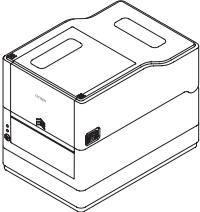 | |
| CL-E321X***BC (model with cutter) | |
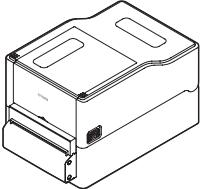 | |
| AC adapter | 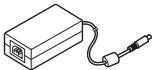 |
| * All models except models with an AC adapter storage case | |
| AC cord | 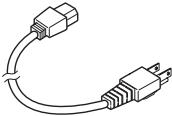 |
| Media shaft | 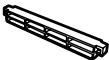 |
| Media shaft guide | 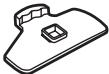 |
| Ribbon shaft (x2) | 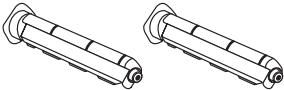 |
| Ribbon take-up core | 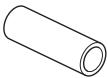 |
| USB cable | 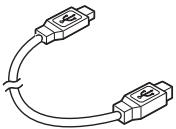 |
| CD-ROM |  |
| Quick Start Guide Safety Instructions |  |
1.3 Model Classification
Model numbers indicate printer features according to the following system.

- Model name
CL-E321: 203 DPI
CL-E331: 300 DPI
-
Fixed value
-
Market
A: Asia
C: China
E: Europe
U: North America
- Body case color
B: Black
W: Pure white
- Interface
N: USB port, wired LAN, and serial port
- Cutter
N: None
BC: Available
- AC adapter storage case
X: Not available
S: Available
Certain combinations may not be available. Please contact us for inquiries on desired configurations.
2. Part Names and Function
2.1 Front of Printer
CL-E321X***NX (standard model)
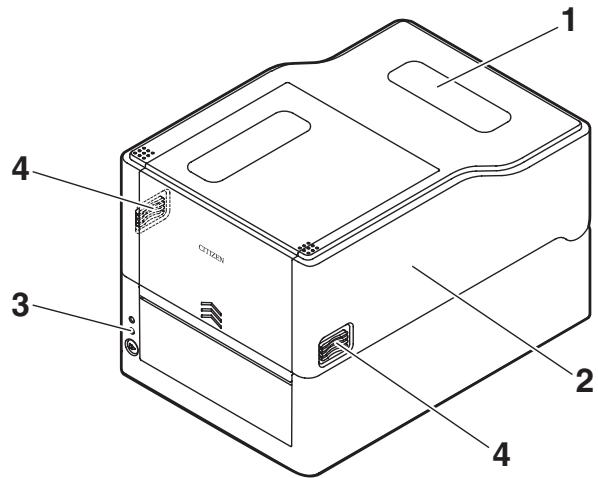
CL-E321X***NS (model with AC adapter storage case)
* The figure illustrates the standard model with AC adapter case.
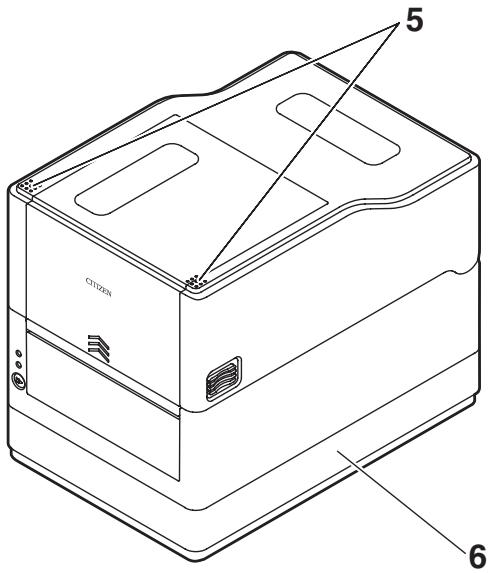
CL-E321X***BC (model with cutter)
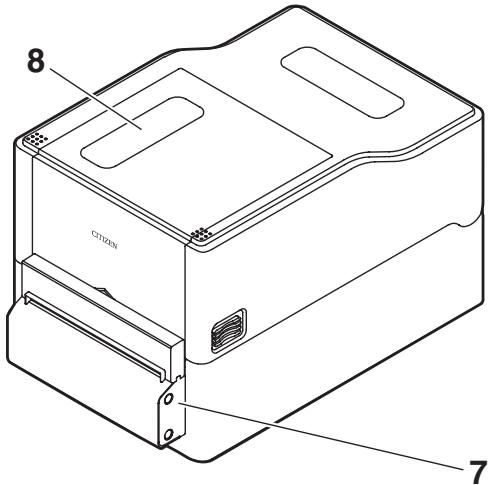
- Media window
Enables users to check the media level.
- Top cover
Opens upward so users can replace or set media.
- Operation panel
Includes 2 LEDs and 1 key.
Enables users to perform different printer operations and check printer status.

Refer to 2.2 Operation panel
- Cover release buttons
The cover is opened by pressing the buttons on both the right and left sides.
-
Push marks
-
AC adapter case
-
Auto cutter
-
Ribbon window
Allows you to check the amount of ribbon that is remaining.
2.2 Operation panel
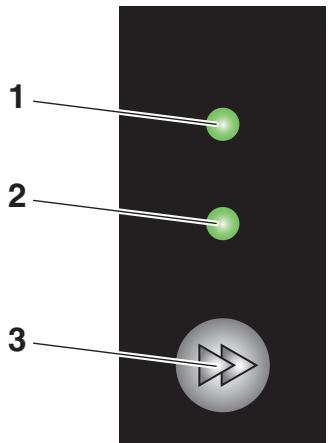
The operation panel includes 2 LEDs and 1 key.
1. Power LED
Turns on when the power is turned on and turns off when the power is turned off.
2. Status LED
Turns on or flashes in green, red, and amber depending on the printer status.
| Color | Lights/ flashes | Status |
| Green | On | Printer is online |
| Flashes | Receiving data | |
| Amber | On | Startup |
| Red, green, amber | Flashes | Error or alarm |
| - | Off | Paused |
3. FEED key
- Feeds media when pressed while the printer is waiting to receive data.
- Pressing and holding this key for at least 3 seconds changes the operation mode to the online configuration mode.

Refer to 8. Online Configuration Mode
- Turning on the power to the printer while pressing and holding the FEED key with the cover closed changes starts the printer in the special function mode.

Refer to 7. Configuring the Printer Using the Operation Panel
Other key operation varies depending on the currently selected mode. Refer to "FEED Key Operation" for more information.
2.3 FEED Key Operation
Online state (status LED is solid green)
(1) Press the FEED key while the printer is not receiving data to feed media.
- If label media is specified, the printer automatically stops after detecting the beginning of media. If continuous media is specified, the printer stops after a certain amount of feed operation.
- If Tear off mode is selected in the Function Select setting, the printer feeds media to the tear-off position.
- For models with a cutter, the printer will feed media to the cut position and then cut the media.
(2) Press and hold the FEED key for at least 3 seconds while the printer is not receiving data to change the operation mode to the online configuration mode.

Refer to 8. Online Configuration Mode
Printing (status LED is solid or flashing in green)
Press the FEED key while the printer is printing or receiving data to pause the printer.
- The status LED turns off, and the printer pauses.
- If the FEED key is pressed while the printer is printing, the printer will finish printing the current label and then stop.
Press the FEED key again to resume printing operation for the remaining labels in the print job.
Paused (status LED is off)
Press and hold the FEED key to change to the clear job mode.

Refer to 9. Clearing Jobs Stored in the Printer
Error/alarm has occurred (status LED flashes in red, green, or amber)
Press the FEED key to clear the error or alarm.
2.4 Rear of Printer
CL-E321X***NX (standard model)
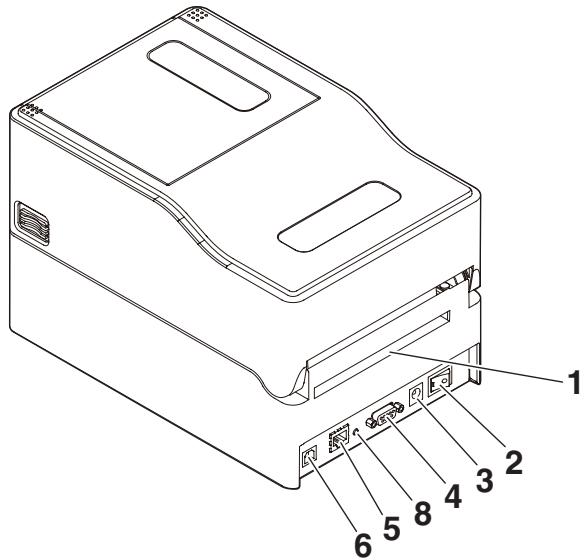
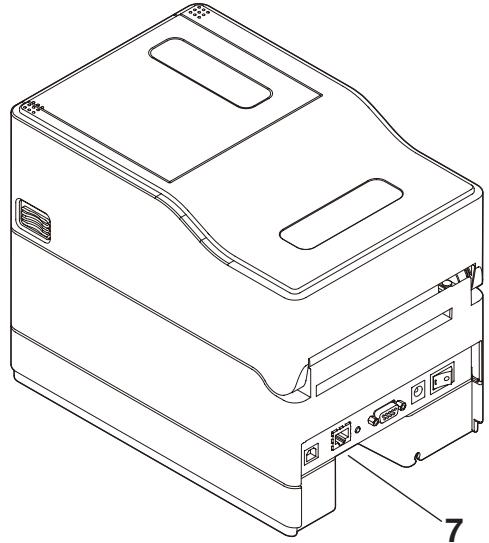
CL-E321X***NS (model with AC adapter storage case)
natural_image
Line drawing of a computer tower case with labeled ports and connectors (no text or symbols present)CL-E321X***BC (model with cutter)
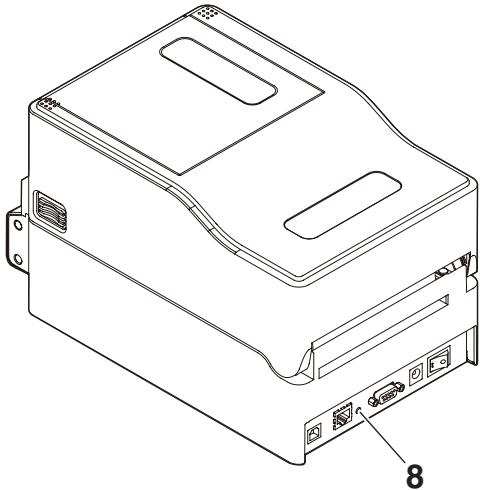
natural_image
Line drawing of a computer case chassis with labeled ports and connectors (no text or symbols beyond labels)- External media feed port This port is used to feed media into the printer.
- Power switch Turns the printer power supply on and off.
- DC jack Connects to the included AC adapter.
- D-SUB 9pin serial interface
- Ethernet Interface
- USB interface
- AC port
- Ethernet panel button This button prints and initializes network settings.

CAUTION
Do not connect a USB cable to the Ethernet interface. Doing so may damage connectors/interfaces.
2.5 Inside of Printer
CL-E321X***NX (standard model)
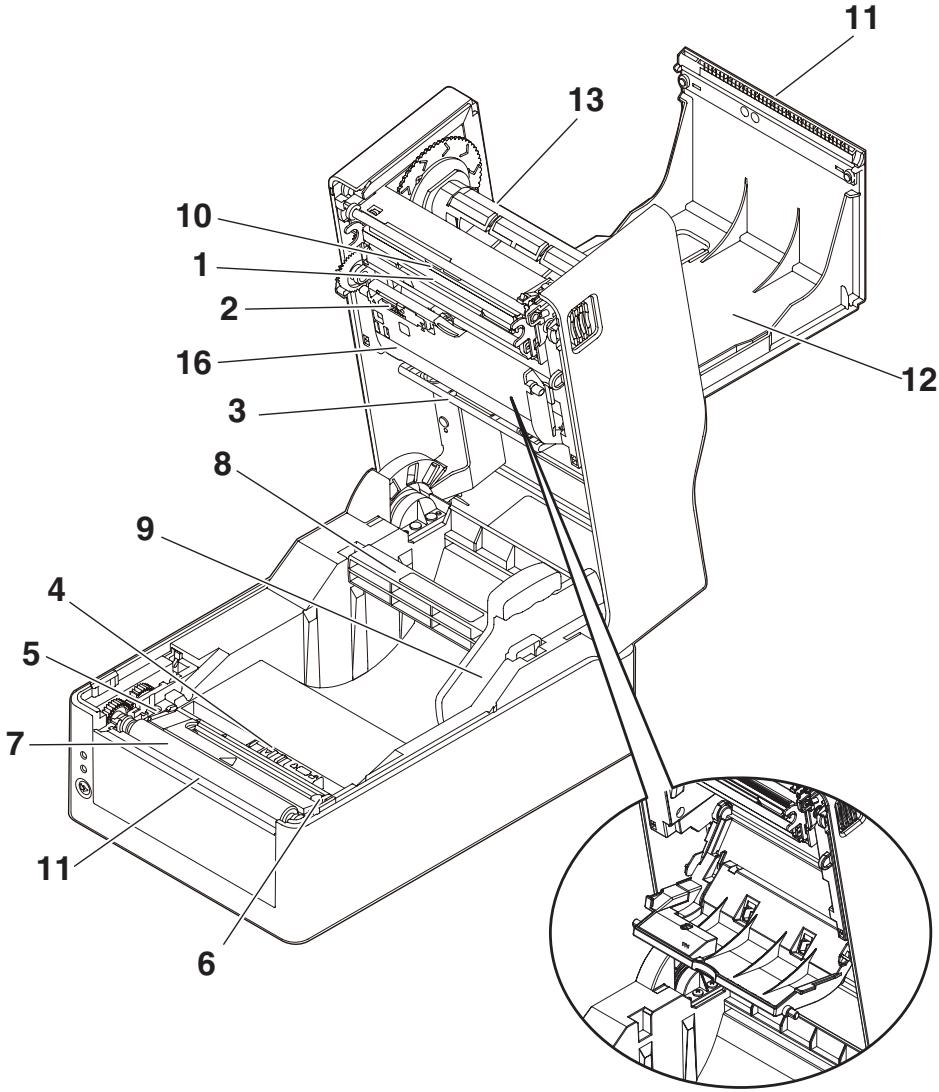
State with bottom ribbon cover open
CL-E321X***BC (model with cutter)
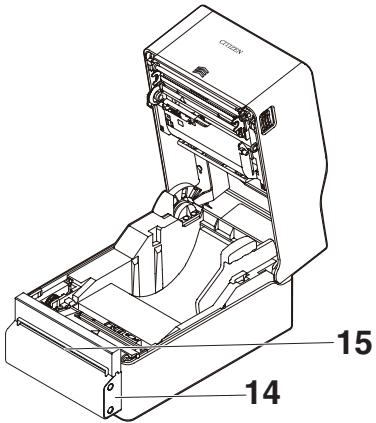
- Thermal head Prints characters and graphic data on paper (paper rolls).
- Upper sensor This sensor detects the media position.
- Media damper When using roll media, absorbs tension generated by media feed operations to prevent print errors.
- Bottom sensor This sensor detects the media position. Devices are equipped with lock mechanisms.
- Fixed left-side media guide
- Adjustable right-side media guide
- Platen roller This roller transports media.
- Media shaft
- Media shaft guide
- Head balance adjustment slider
- Manual cutter (Upper/Bottom)
-
Top ribbon cover Open this to replace or install the ribbon.
-
Ribbon shaft
Pass the shaft through the core of the ribbon to install the ribbon in the printer.
-
Auto cutter
-
Media discharge port
-
Bottom ribbon cover
Open this to replace or install the ribbon.
3.1 Printing Preparation Process
The printer must be set up according to the following process before printing can be performed.
Refer to the description of each section for detailed information on each step of the process.
- Unpack and check the package contents

Refer to 1.2 Unpacking
- Physical installation
- Loading Media

Refer to 3.2 Loading Paper
- Loading a Ribbon

Refer to 3.3 Loading a Ribbon
- Adjusting Media Sensor Positions

Refer to 3.4 Adjusting Media Sensor Positions
- Connecting the AC Adapter

Refer to 3.5 Connecting the AC Adapter
- Connecting the Printer to a Host Computer

Refer to 3.6 Connecting the Printer to a Host Computer
- Operation Check

Refer to 7.2 Test print mode
- Installing the Printer Driver onto the Host Computer

Refer to 3.7 Install the Printer Driver
- Installing the Configuration Application onto the Host Computer

Refer to 4.2 Obtaining the LabelPrinterUtility
- Printing
Perform a test print from the printer driver installed on the host computer.
3.2 Loading Paper
- Press the cover release buttons on both the right and left sides to open the top cover.

CAUTION
Note the following precautions when the top cover is open.
- Do not touch the thermal head.
- Insert the media shaft through the core of the media roll and then install the media shaft guide.
- The media shaft is designed to accommodate both 1-inch and 1.5-inch media roll cores by flipping it upside down. The media shaft has markings indicating which side supports the different core sizes. Select the media shaft orientation in accordance with the size of the media roll core.
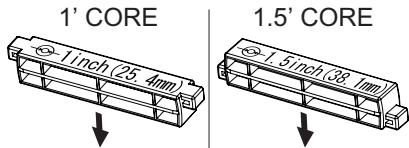

CAUTION
- Use media rolls that have the print surface on the outer side. Do not use media rolls that have the print surface on the inner side. Labels may peel when such media roll is back-fed.
-
If the media shaft is not installed correctly, the top cover or bottom of the printer will prevent media from feeding properly and cause paper jams.
-
Set the media so that the media shaft guide is on the right side of the media when looking at the front of the printer.
-
Press the media shaft guide onto the media roll so that the center of the media aligns with the center of the media shaft and then set the media into the printer.
-
Assemble the media shaft and media shaft guide.
- Insert the media shaft through the core of the media roll and then set the assembly into the printer.
- Set the media in the printer and slide the media to the left from the perspective of looking at the front of the printer. Insert the media shaft guide into the paper at this position.
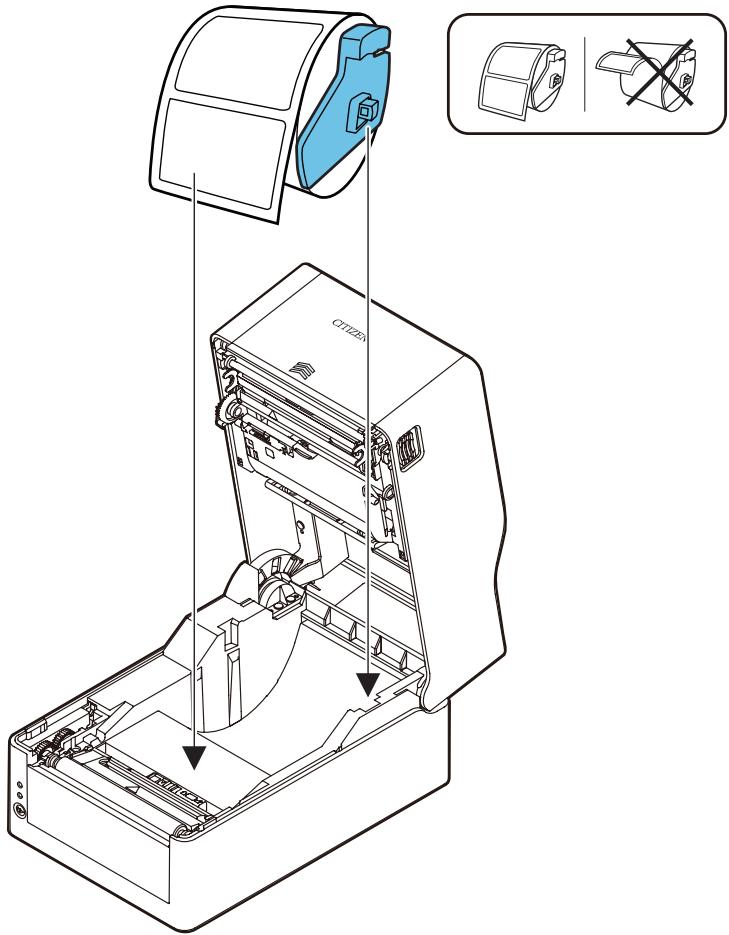

CAUTION
Too much abutment force by media shaft guide may cause improper feeding of media, which may negatively impact print quality.
- If using a model with a cutter (CL-E321X***BC), pass the media through the cutter slit.
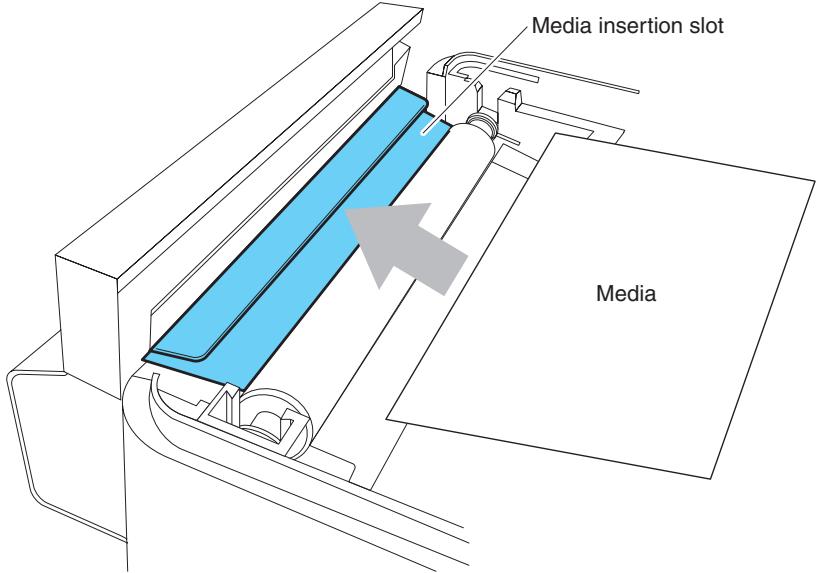

CAUTION
Insert media into the slit correctly. Failure to do so may result in improper feeding of media, which may cause paper jams.
- Make sure the media is in abutment with the left media guide and then adjust the position of the right media guide in accordance with the media width.
From the front of the printer, set in front of the edge of media by approximately 10 mm.
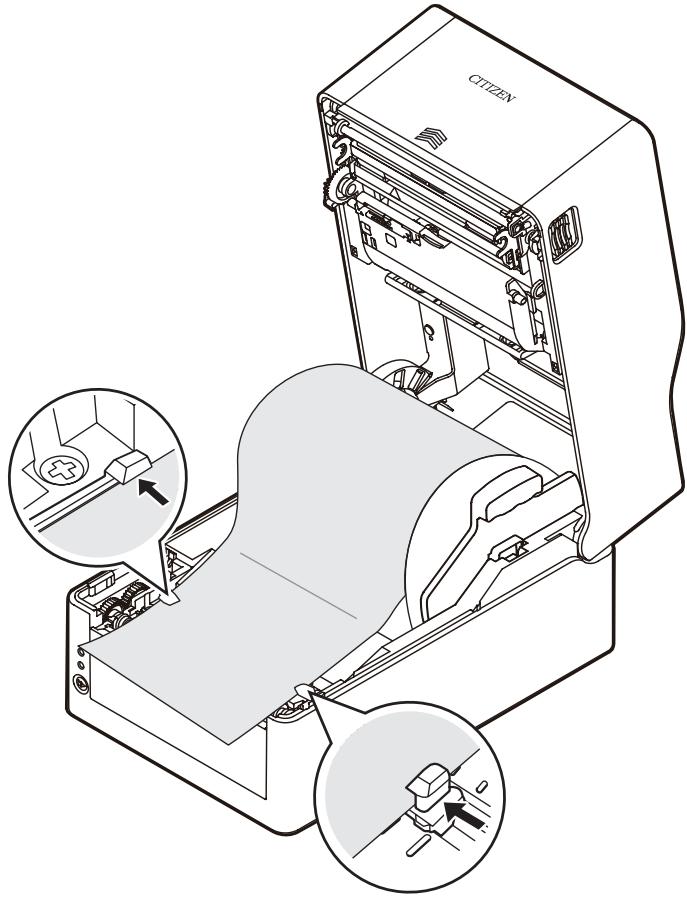

CAUTION
Too much abutment force of the right movable paper guide may cause improper feeding of media, which may negatively impact print quality.
- Slide the head balance adjustment slider located near the thermal head along the media size scale (inch) so that the position of the notch in the slider matches the media width.
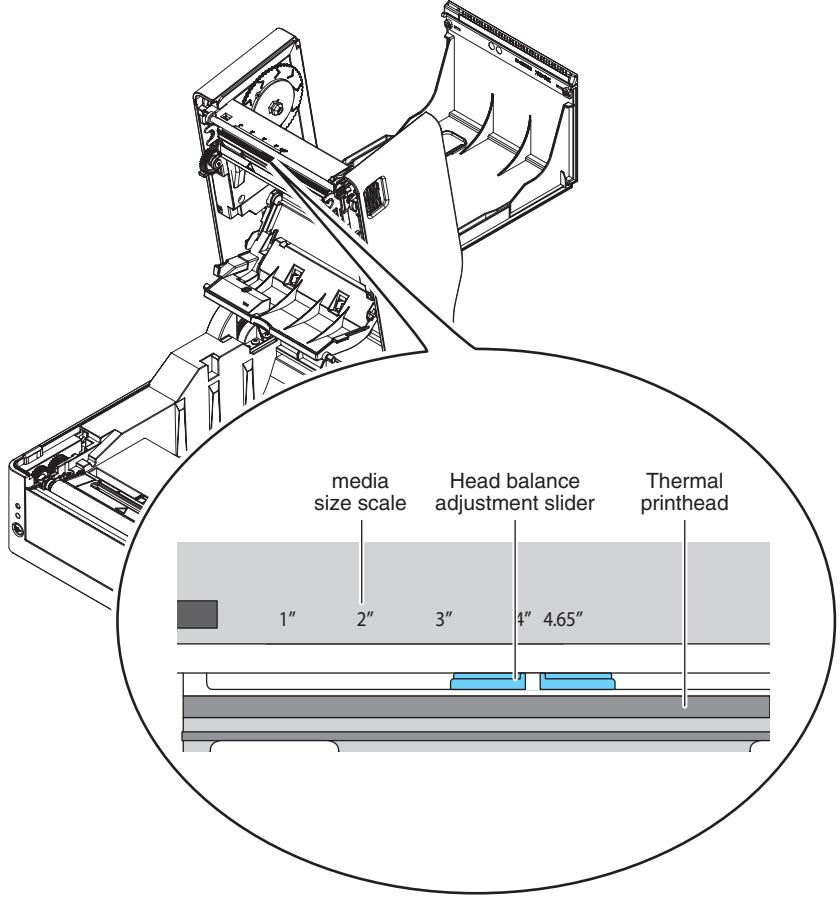

CAUTION
- Adjust the head pressure horizontal balance carefully so as not to damage the thermal head. Damaged thermal heads will result in poor printing, paper jams, and malfunction.
-
If using media in thermal-transfer printing with a width of 2 inches or less, we recommend setting the head balance adjustment slider to 2.5" (between 2" and 3").
-
Close the top cover.

CAUTION
Press the push marks on left and right sides at the top of the top cover and ensure that the top cover hooks on each side lock securely.
If the top cover is not securely locked, this may cause print errors, paper jams, and malfunction.

CAUTION
Continuous label media cannot be used with the model that has a cutter. Using such media may cause the label media adhesive to accumulate on the cutter blade, which could result in a failure.
Refer to the following specification table for information on the types of media compatible with this printer.
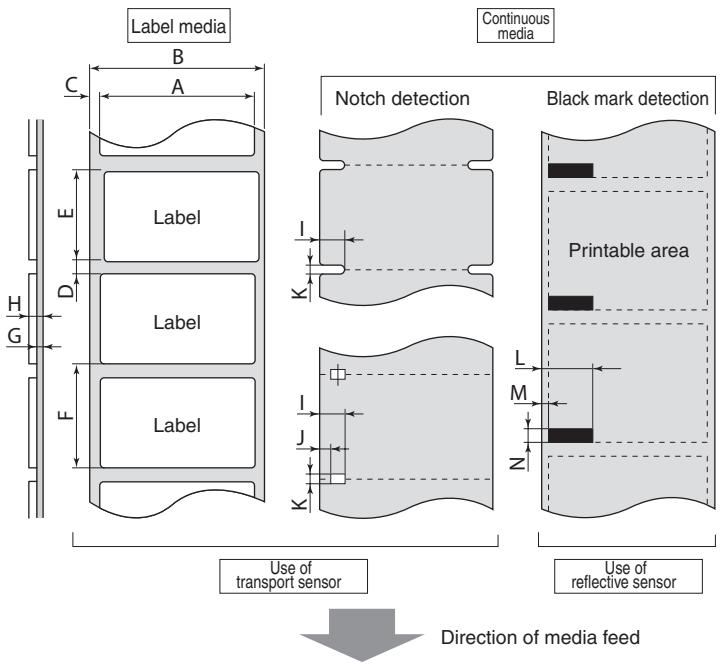
| Minimum value | Maximum value | ||||
| mm | inch | mm | inch | ||
| A | Label width | 21.50 | 0.83 | 118.00 | 4.65 |
| B | Backing paper width | 25.40 | 1.00 | 118.00 | 4.65 |
| C | Left edge position of label | 0 | 0 | 2.54 | 0.10 |
| D | Label gap length | 2.54 | 0.10 | 2,539.75 (CL-E321)1,270.00 (CL-E331) | 99.99 (CL-E321)50.00 (CL-E331) |
| E | Label length | 6.35 | 0.25 | 2,539.75 (CL-E321)1,270.00 (CL-E331) | 99.99 (CL-E321)50.00 (CL-E331) |
| F | Label pitch | 8.89 | 0.35 | 2,539.75 (CL-E321)1,270.00 (CL-E331) | 99.99 (CL-E321)50.00 (CL-E331) |
| G | Backing paper thickness | 0.06 | 0.0025 | 0.125 | 0.0049 |
| H | Total media thickness | 0.06 | 0.0025 | 0.19 | 0.0075 |
| I | Notch right edge position | 8.3 | 0.32 | 60.80 | 2.39 |
| J | Notch left edge position | 0 | 0 | 57.20 | 2.25 |
| K | Notch length | 2.54 | 0.10 | 17.80 | 0.70 |
| L | Black line right edge position | 15.00 | 0.59 | 66.50 | 2.62 |
| M | Black line left edge position | 0 | 0 | 51.50 | 2.02 |
| N | Black line length | 3.18 | 0.125 | 17.80 | 0.70 |
- Use the transmissive sensor when using media that has both gaps between labels and black lines.
- Use the transmissive sensor when using fanfold media.
- If the label pitch is 1 inch or less, configure an accurate label pitch with the [Small Media Adjustment] setting.
- Use carbon-based ink with an OD value of at least 1.5 to print black lines.
- The stop position and cut position may change depending on the width or type of media that is used.
Adjust these positions using the Paper Position setting.
3.3 Loading a Ribbon
How to Load a Ribbon
1. Load the ribbon and ribbon take-up core onto the two ribbon shafts.
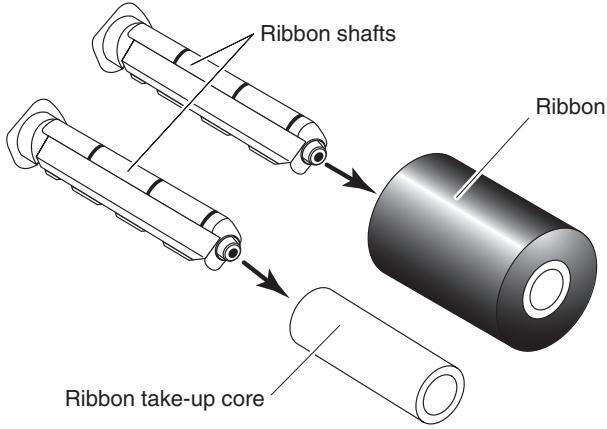

CAUTION
- Fully insert the ribbon shafts all the way into the ribbon and ribbon take-up core.
- Use of ribbon with a width that is at least 5 mm wider than the width of the media to be used is recommended.
- If using media with a width of 2 inches or less, we recommend using a 60-mm or wider ribbon.
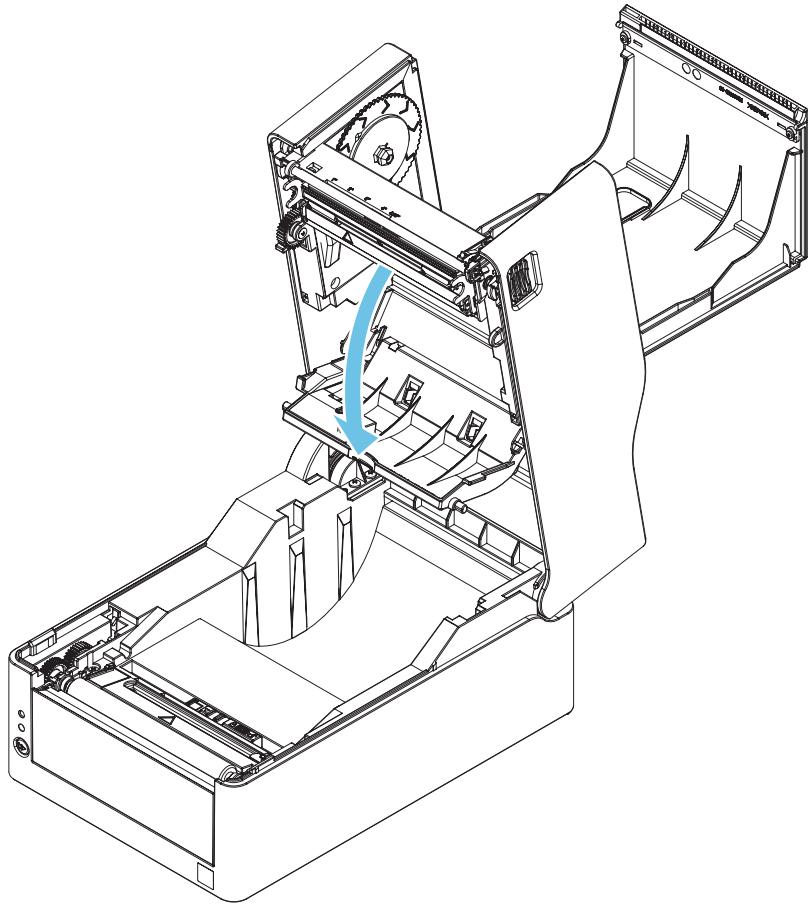
2. Open the top cover.
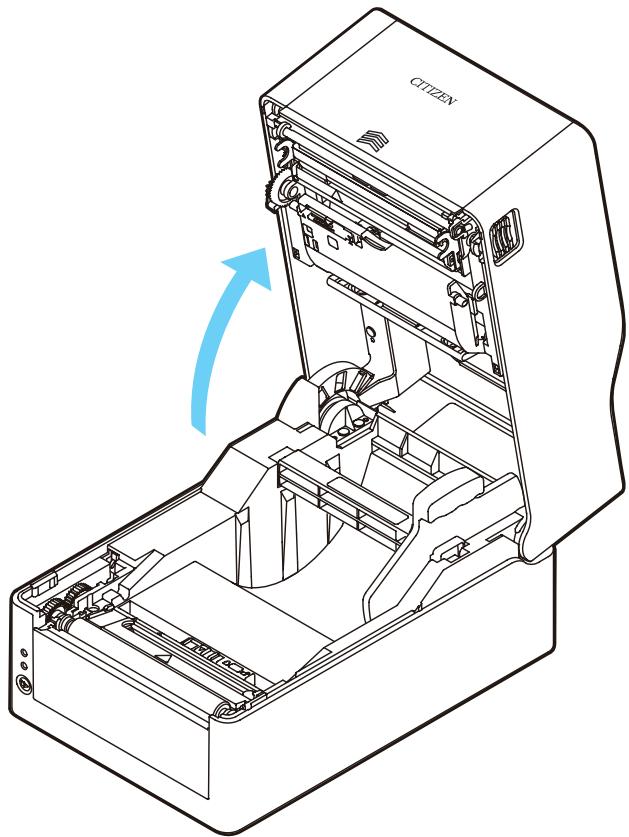
natural_image
Technical line drawing of a citizen device with open casing and internal components, showing a blue directional arrow (no text or symbols)- Open the top ribbon cover.
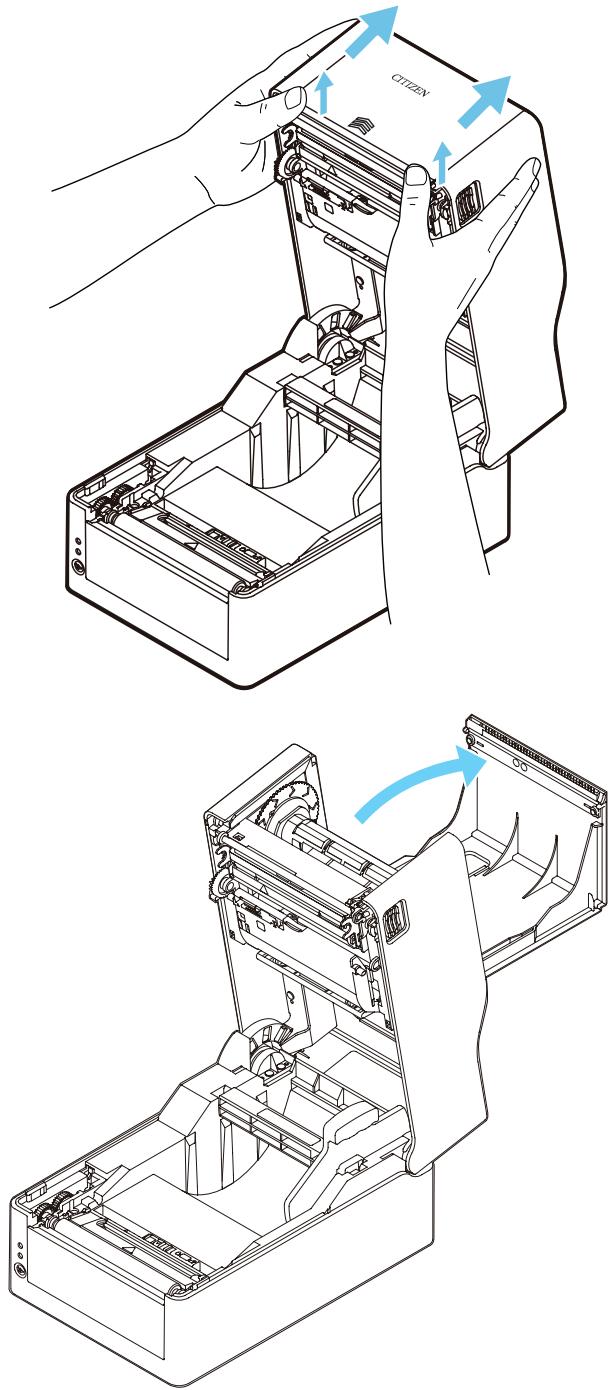
4. Open the bottom ribbon cover.
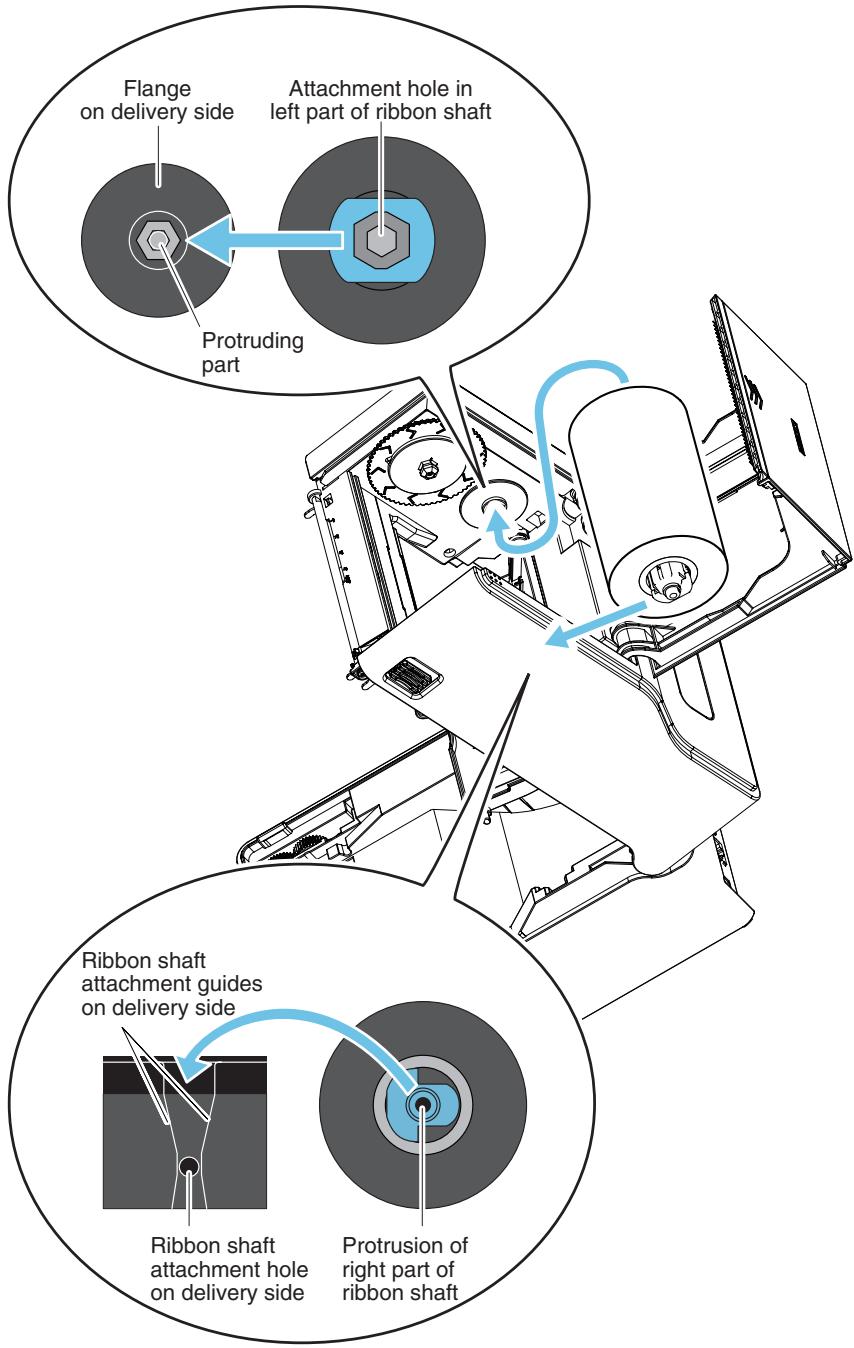
natural_image
Technical line drawing of a mechanical device with internal components and a blue arrow indicating a motion or assembly (no text or symbols present)- Set the ribbon shaft with the loaded ribbon on the delivery side of the ribbon drive part. Insert the right part of the ribbon shaft along the attachment guides and into the attachment hole while pressing the left part of the ribbon shaft against the protruding part of the flange.
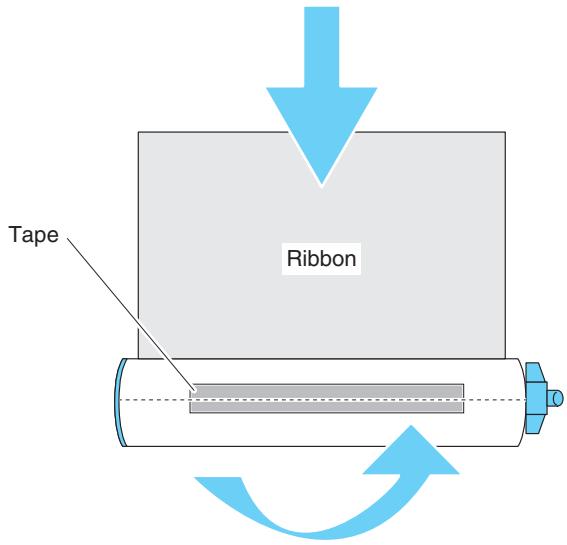
- Use tape or the like to fix the end of the ribbon that you pulled out from the bottom ribbon cover side to the ribbon shaft with the loaded ribbon take-up core and wind the ribbon.
7. Set the ribbon shaft with the loaded ribbon take-up core on the take-up side of the ribbon drive part.
In the same way as with the delivery side, insert the right part of the ribbon shaft along the attachment guides and into the attachment hole while pressing the left part of the ribbon shaft against the protruding part of the flange.
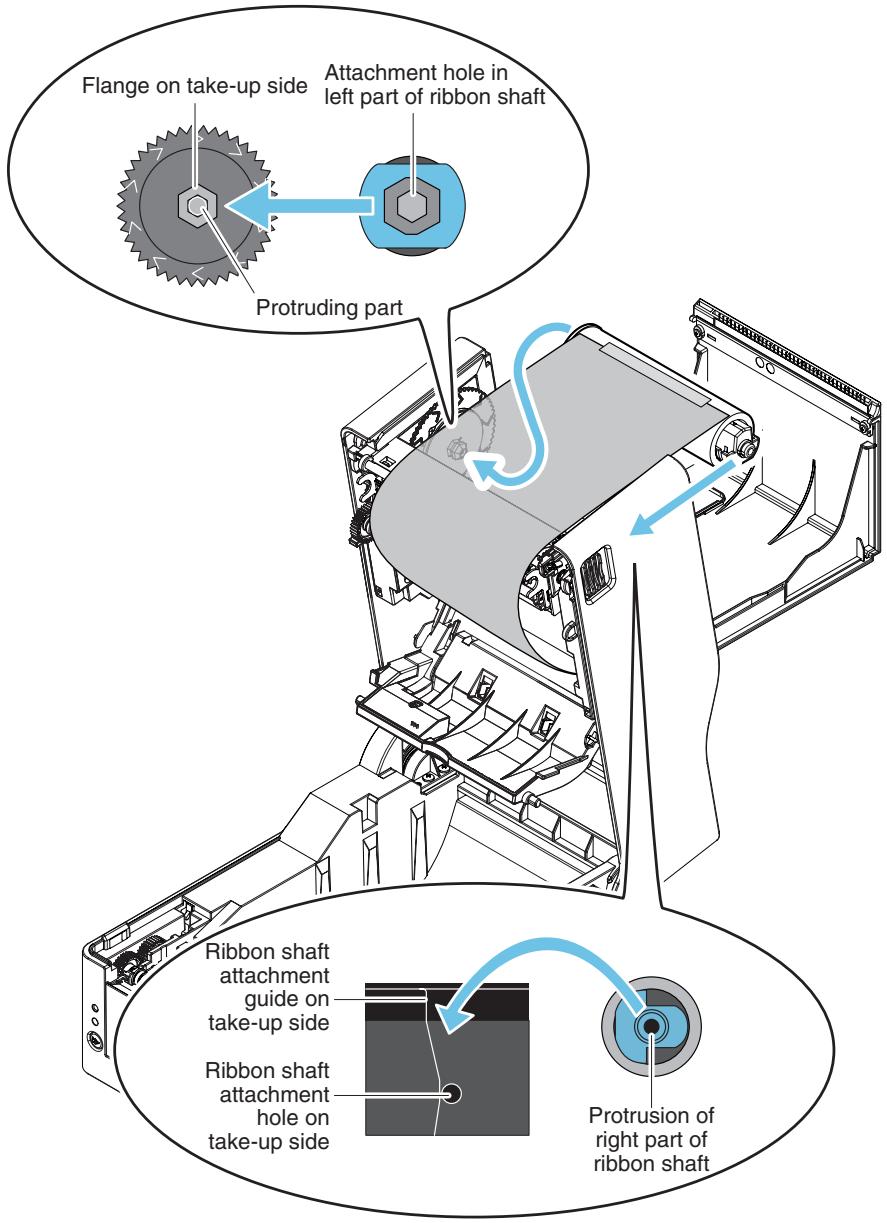
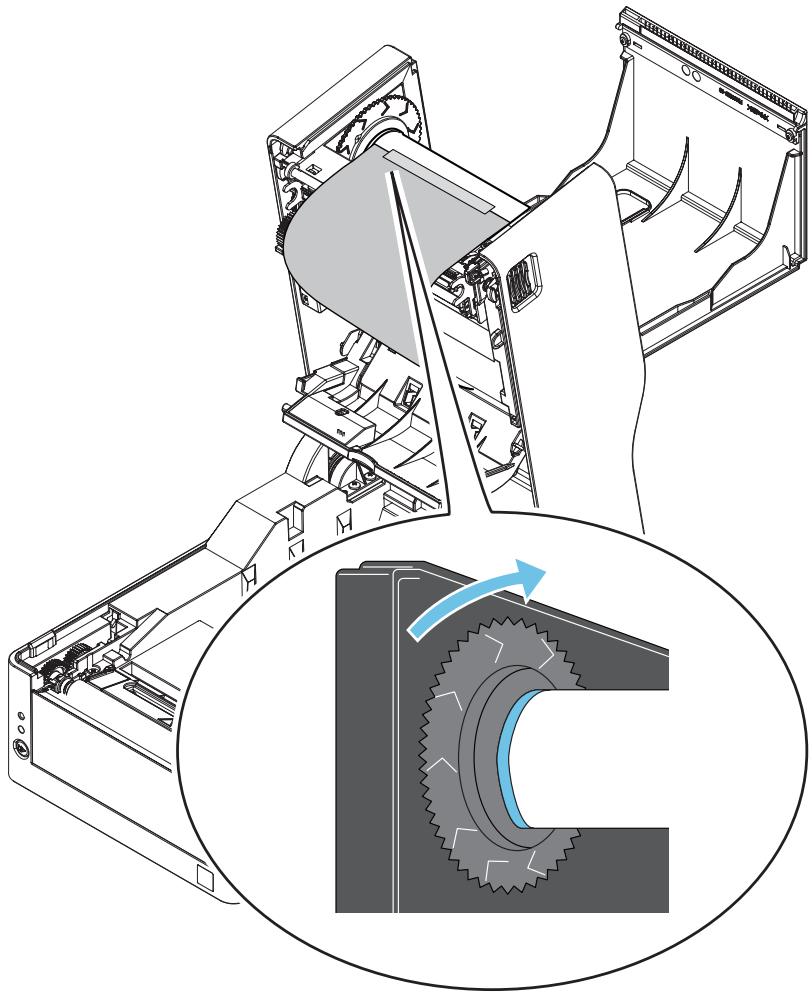
- Once you have set the ribbon shafts, turn the flange on the take-up side in the “>” direction to take up the ribbon slack.
natural_image
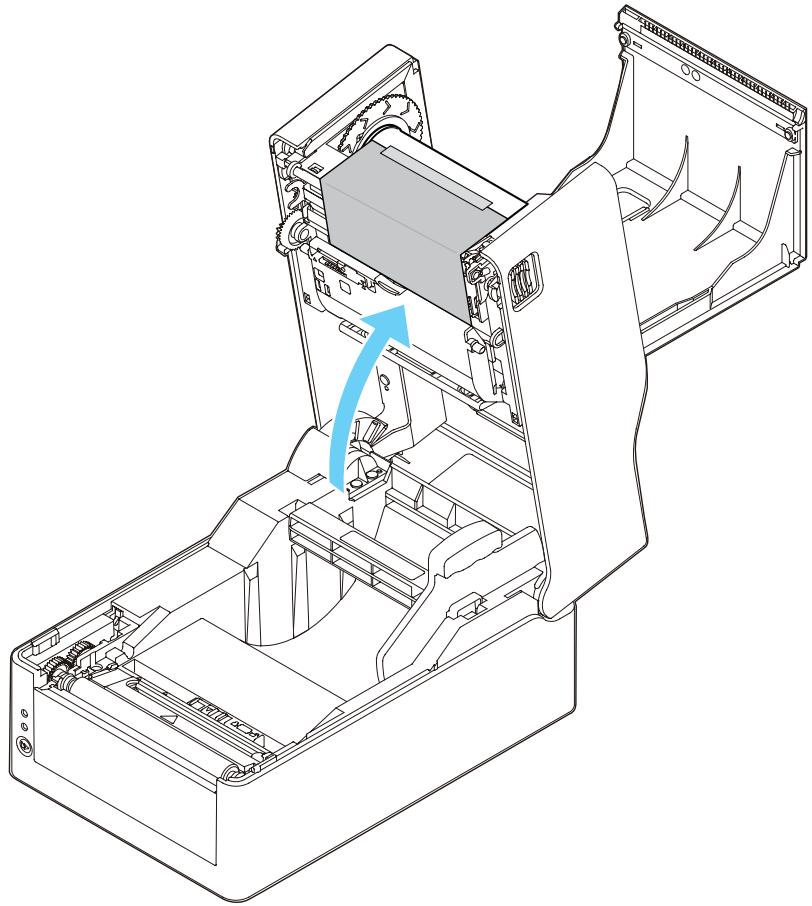
Technical illustration of a mechanical device with gear and internal components, showing a close-up of the gear mechanism (no text or symbols present)9. Close the bottom ribbon cover.
natural_image
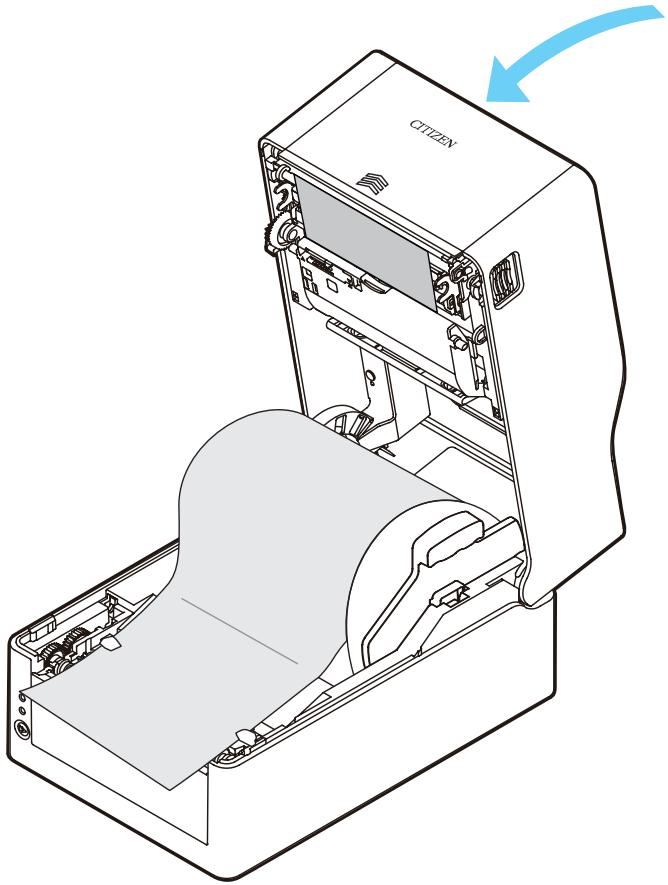
Technical line drawing of a mechanical device interior showing internal components and a blue arrow indicating a directional flow (no text or symbols present)- Close the top ribbon cover.
natural_image
Technical line drawing of a citizen's electronic device with open casing and internal components (no text or symbols)11. Close the top cover.

natural_image
Line drawing of a server chassis with labeled components and two blue arrows pointing to the top portion (no text or symbols beyond 'CITIZEN' label)
CAUTION
- When closing the top cover, push in the parts indicated by arrows with both hands until you hear the clicking sound of the left and right hooks engaging.
If the hooks are not sufficiently engaged, the print quality may be affected. If wrinkles occur in the ribbon, press the Feeds key until there are no wrinkles.
If there are still wrinkles in the ribbon, perform the procedure described in “Adjusting the Left/Right Balance of the Ribbon”. - Use ribbon that has the ink surface on the outer side. Ribbon that has the ink surface on the inner side cannot be used.
If ribbon that has the ink surface on the inner side is used, the print quality may deteriorate.
Adjusting the Left/Right Balance of the Ribbon
If the left/right balance of the ribbon needs to be adjusted, adjust it by moving the ribbon left/right balance adjustment knob.
If wrinkles are occurring in the ribbon, make the adjustment described in the following procedure.
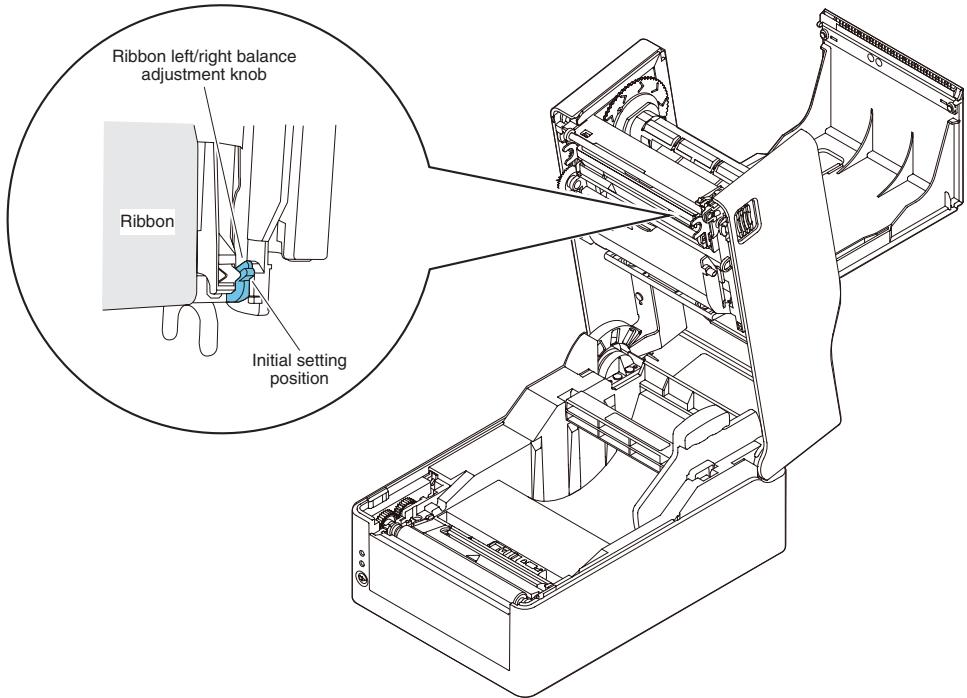
- Check on which of the left and right sides that slack occurs when looking from the front of the ribbon.

CAUTION
If this cannot be determined easily when the ribbon is in a stationary state, perform printing and check the part where the wrinkles actually occur.
- Loosen the screw fixing the ribbon left/right balance adjustment knob.
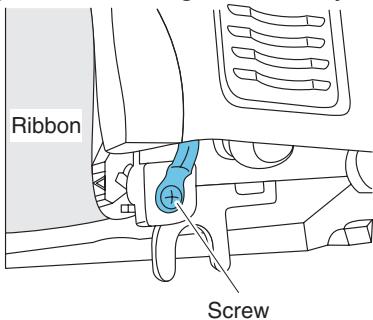
- If there is slack on the left side, turn the ribbon left/right balance adjustment knob toward the front.
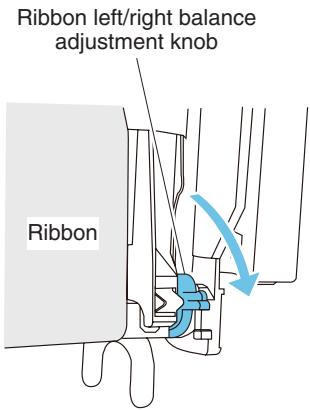
The right side of the ribbon guide shaft will lower down toward the thermal head.
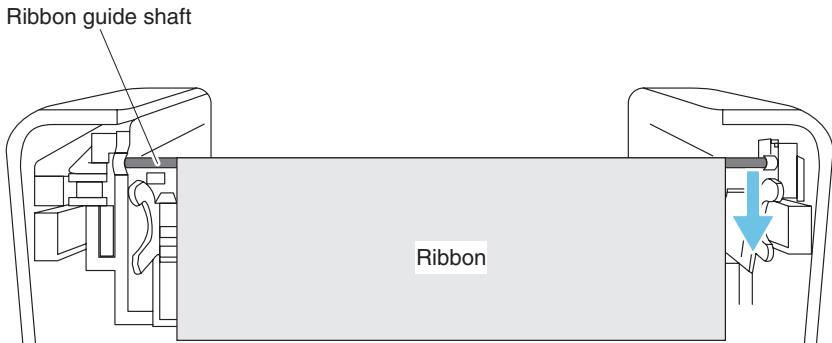
Once you have determined the adjustment position, tighten the screw. Perform a test print in self-print mode and check that wrinkles do not occur.
- If there is slack on the right side, turn the ribbon left/right balance adjustment knob toward the back.
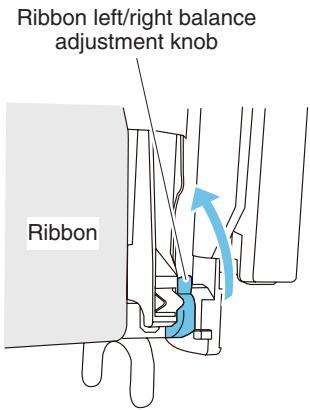
The right side of the ribbon guide shaft will rise up in the opposite direction to the thermal head.
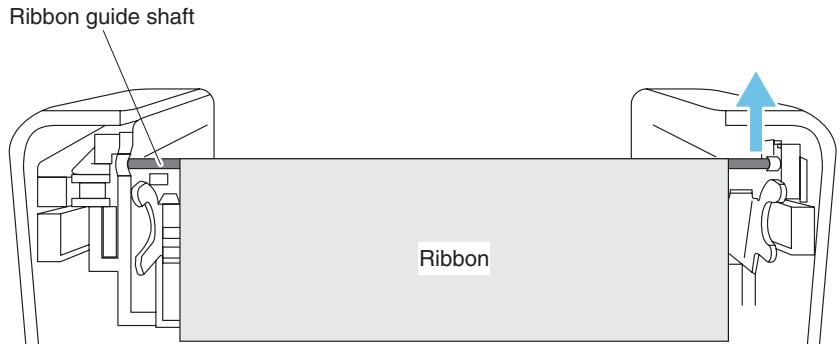
Once you have determined the adjustment position, tighten the screw. Perform a test print in self-print mode and check that wrinkles do not occur.
3.4 Adjusting Media Sensor Positions
This section describes the procedure to adjust sensors when loading media. Transmissive and reflective sensors can be used for the media sensors.
The printer comes from the factory equipped with a transmissive sensor. The media sensor must be replaced with a reflective sensor for certain types of media.

Refer to 7.1 Sensor Adjustment Mode
Range of Paper Sensor Adjustment
The following figure illustrates the range of media sensor adjustment.
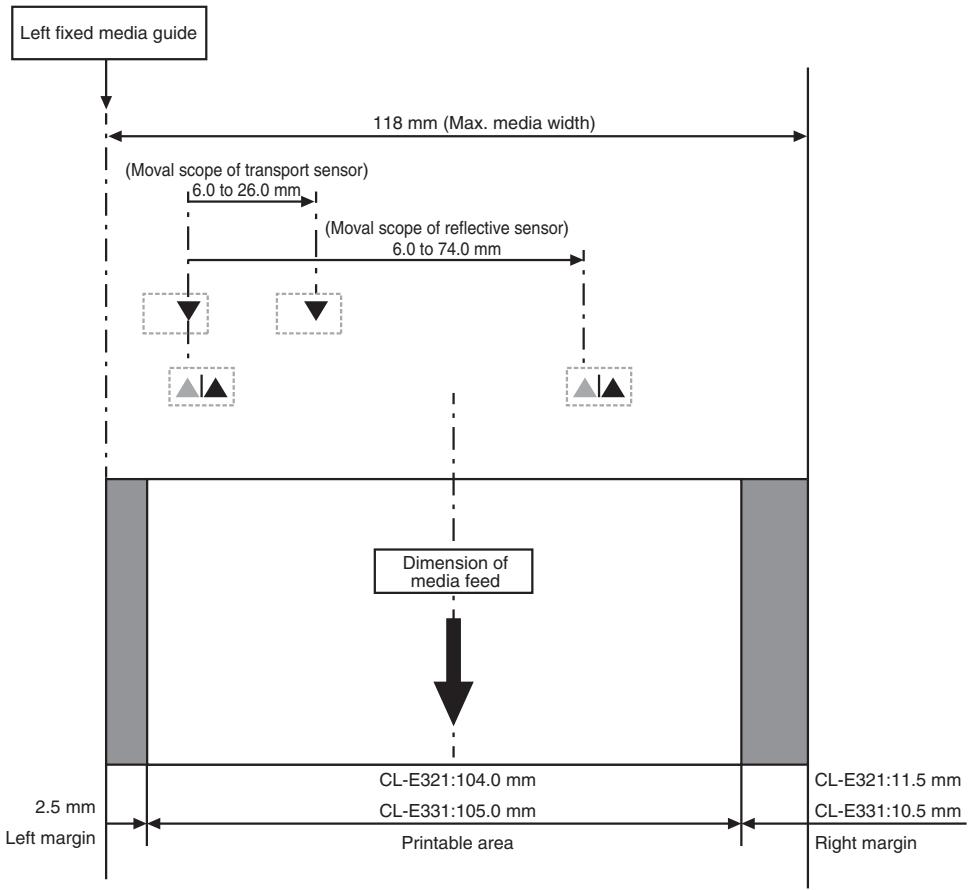
flowchart
graph TD
    A["Left fixed media guide"] --> B["118 mm (Max. media width)"]
    B --> C["(Moval scope of transport sensor) 6.0 to 26.0 mm"]
    B --> D["(Moval scope of reflective sensor) 6.0 to 74.0 mm"]
    C --> E["Dimension of media feed"]
    D --> E
    E --> F["CL-E321:104.0 mm"]
    E --> G["CL-E331:105.0 mm"]
    F --> H["Printable area"]
    G --> H
    H --> I["Right margin"]
    style A fill:#f9f,stroke:#333
    style I fill:#ccf,stroke:#333
Transmissive Sensor Adjustment
- Adjust the position of the bottom sensor and upper sensor in accordance with the media width.
Move the bottom sensor and upper sensor by the same number of steps from the position of the triangle (▲).
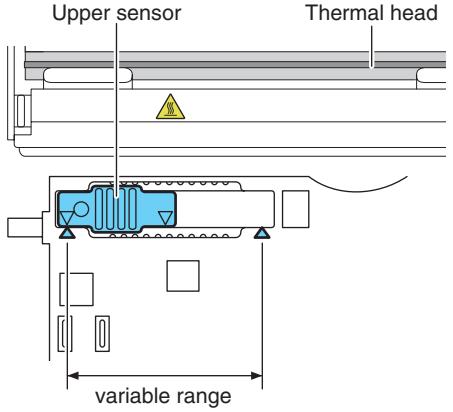
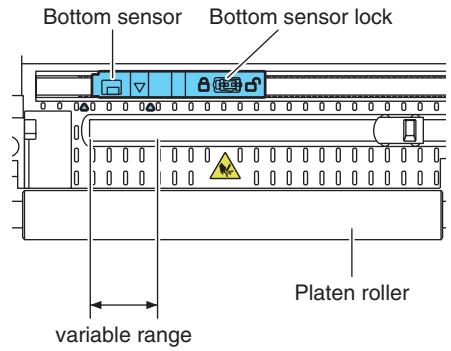
The range of bottom sensor and upper sensor horizontal adjustment is 10 steps between the triangle marks (▲).
Use a pen or other object with a narrow tip to unlock the bottom sensor and then reposition it.
Lock the sensor in place once the new position has been determined.

CAUTION
- The bottom sensor and upper sensor must be in alignment with each other.
- Attempting to move the sensor while still locked may damage it.
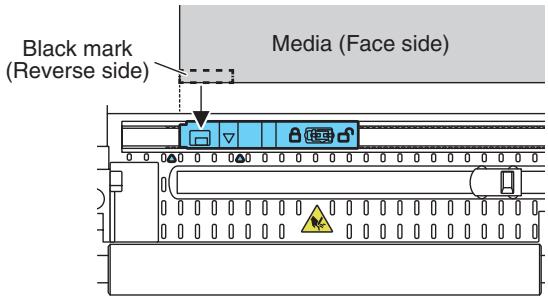
Reflective Sensor Adjustment
- Set the bottom sensor at a position so that the center of the sensor window is in alignment with the center of the black line.
3.5 Connecting the AC Adapter

CAUTION
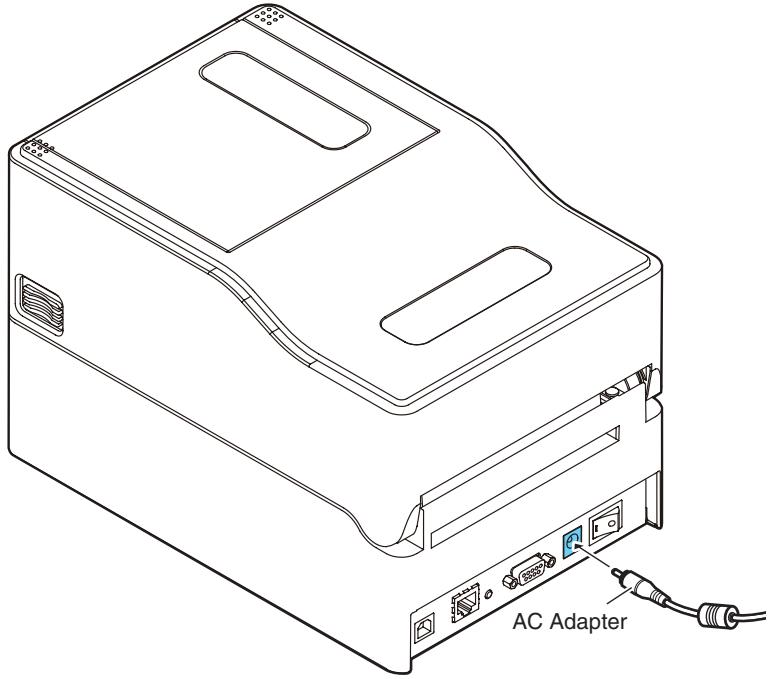
- Use the dedicated AC adapter designed for this device.
- Make sure the power switch on the printer is turned off before connecting the AC adapter.
-
Insert the AC adapter connector completely into the DC jack.
-
Insert the DC plug on the output side of the AC adapter into the DC jack in the printer.
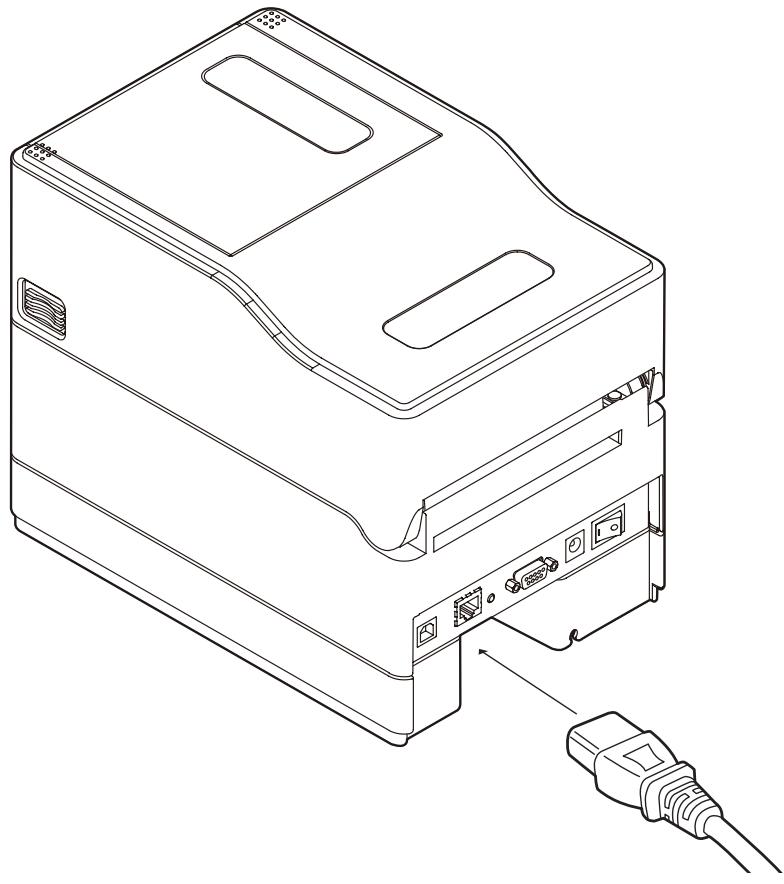
- Insert the plug of the AC cord into an electrical outlet.
- Insert the plug of the AC cord into the AC port.
natural_image
Line drawing of a computer tower case with an attached USB cable (no text or symbols)3.6 Connecting the Printer to a Host Computer
This printer is equipped with print data interfaces including a USB port, an Ethernet port, and a serial port.
Use the following procedure to connect this printer to a host computer.

CAUTION
Interface cables are required to connect the printer to a host computer.
- Turn off the power to the printer and host computer.
- Insert the cable into the appropriate interface port at the back of the printer.
Tighten any locking screws to secure the cable.

- Insert the other end of the cable into the appropriate interface port in the host computer.
Tighten any locking screws to secure the cable.
Using an Ethernet connection
Configure network settings as necessary.

Refer to 5. Configuring Ethernet Network Settings Using Network Seeker

CAUTION
- To check the current Ethernet settings, press the Ethernet panel button located next to the Ethernet interface to printout the settings.
- To initialize Ethernet settings, press and hold the Ethernet panel button for at least 3 seconds. Once the buzzer emits a short tone, press and hold the Ethernet panel button again within 3 seconds for at least 3 seconds.
3.7 Install the Printer Driver
Install the printer driver onto the host computer.
Printer drivers are available for download from the Citizen Systems support website.
The latest documentation, drivers, utilities, and other support information are also available from this website.
http://www.citizen-systems.co.jp/support/download/printer/label/index_en.html
Once a printer driver has been downloaded, follow the on-screen instructions to install the driver.
4. Configuring Printer Settings Using the Specialized Utility
Use the LabelPrinterUtility configuration application to change printer settings.
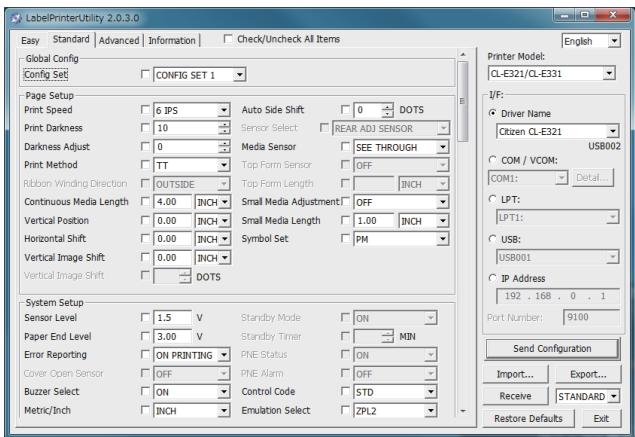
Refer to the following sections for more information on obtaining and using LabelPrinterUtility.

Refer to 4.2 Obtaining the LabelPrinterUtility

Refer to 4.3 Using the LabelPrinterUtility
4.1 List of Settings
This section describes the procedures to configure printer settings using the Label-PrinterUtility.
The following table lists the settings configurable with LabelPrinterUtility.
*1 Contains menus of option interface settings that can be configured for this printer.
| Home menu | Sub menu | Default | Configurable range | Notes |
| Page Setup | Print Speed | 6 IPS | CL-E321: 2 to 8 IPSCL-E331: 2 to 6 IPS | Sets the print speed |
| Print Darkness | 10 | 00 to 30 | Adjusts the print density | |
| Darkness Adjust | 00 | -10 to 10 | Fine adjustment of the density command | |
| Print Method | TT | TTDT | Selects thermal-transfer (ribbon) or direct-thermal media | |
| Continuous Media Length | 4.00 inch101.6 mm | CL-E321:(Datamax)0.25 to 99.99 inch6.4 to 2539.7 mm(Zebra)0.25 to 100.00 inch6.4 to 2540.0 mmCL-E331:0.25 to 50.00 inch6.4 to 1,270.0 mm | Sets the length of continuous mediaThe lower row shows millimeter values when using the printer in mm mode | |
| Vertical Position | 0.00 inch0.0 mm | -1.00 to 1.00 inch-25.4 to 25.4 mm | Adjusts the printing start position | |
| Horizontal Shift | 0.00 inch0.0 mm | -1.00 to 1.00 inch-25.4 to 25.4 mm | Adjusts the horizontal image position | |
| Vertical Image | (Datamax)0.00 inch0.0 mm | 0.00 to 32.00 inch0.0 to 812.8 mm | Adjusts the start position for creating images | |
| (Zebra)000 dots | -120 to 120 dots | |||
| Auto Side Shift | 0 dots | 0 to 15 dots | Shifts the horizontal print position by the specified number of dots for each sheet/label. This is useful when significant load is placed on the portion of the thermal head, such as when printing vertical borders. | |
| Media Sensor | See Through | See ThroughReflectNone | Selects the type of label sensor type | |
| Small Media Adjustment | Off | OnOff | Setting for small label support | |
| Small Media Length | 1.00 inch25.4 mm | 0.25 to 1.00 inch6.4 to 25.4 mm | Sets the length for small label media | |
| Symbol Set | PM | 50 options | Sets the character set | |
| System Setup | Sensor Level | 1.5 V | 0.0 V to 3.3 V | Sets the sensor threshold |
| Paper End Level | 3.00 V | 0.01 V to 3.30 V | Sets the paper end level | |
| Error Reporting | On Printing | On PrintingImmediate | Error reporting setting | |
| Buzzer Select | Exec/Err | Exec/ErrAllErrorKeyNone | Sets the conditions at which the buzzer is triggered | |
| Metric/Inch | Inch | Inchmm | Sets the unit of measure | |
| Max Media Length | 10.00 inch254.0 mm | CL-E321:(Datamax)0.25 to 99.99 inch6.4 to 2539.7 mm(Zebra)0.25 to 100.00 inch6.4 to 2540.0 mmCL-E331:1.00 to 50.00 inch25.4 to 1,270.0 mm | Sets the maximum length of label media | |
| Settings Lock | Off | OnOff | Prevents changes via setting commands | |
| Keyboard Lock | Off | OnOff | Prevents changes via key operation | |
| Control Code | STD | STDALTALT-2 | Changes the command mode for DMX mode (only when Datamax® emulation is selected) | |
| Media Power Up | Off | OnOff | Sets the media length measuring function when the power is turned on (only when Zebra® emulation mode is selected on international models) | |
| CI Lock | Off | OnOff | Prevents changes via CI commands (only when Zebra® emulation mode is selected on international models) | |
| Emulation Select | DM4(Datamax®)ZPI2 (Zebra®) | DM4DMIDPPZPI2 | Datamax®/Zebra® compatibility selectionDM4 Datamax® 400DMI Datamax® IClassTMDPP Datamax® Prodigy Plus®ZPI2 Zebra® ZPL2 ® | |
| Emulation Auto Detect | Full Auto | OnOffFull Auto | Sets the emulation sensing function (international models only) | |
| After Print - 1 | AutoConfigure | On | OnOff | Enables/disables the auto configuration of optional equipment.On - Enables auto configuration (when a cutter is installed, mode is automatically configured regardless of the Function Select setting)Off - Disables auto configuration.Turn this setting Off and select operation with Function Select when you do not want to use the cutter if installed. |
| Function Select | Tear | OffTearCut On(only valid for models with cutters) | Selects the operation mode when AutoConfigure is Off. Each option has a specified media stop position.Enables operation of the applicable device when selected. | |
| Cutter Action *Only valid for models with cutters | Backfeed | BackfeedThrough | Cutter action settingPrints only when AutoConfigure for a model with a cutter is On or when [Backfeed] is selected for the Function Select setting.The [Backfeed] option performs a back-feed after each cut operation.The [Through] option continues the print operation at the trailing edge of each sheet/label from the first sheet/label to the n-1 sheet/label when the number of copies is set to n. A back-feed operation is then performed at the trailing edge of the last sheet/label or when printing a single sheet/label. | |
| After Print - 2 | Paper Position | 0.00 inch0.00 mm | STD0.00 to 2.00 inch0.0 to 50.8 mmCut/Tear-1.00 to 1.00 inch-25.4 to 25.4 mm | Adjusts the stop position.This setting is dependent on the Metric/Inch setting.Each device has an initial stop position as configured with the settings previously described. This setting sets a relative value from these other settings. |
| Feed Key Action | Feeds Media | Repeat Last SetRepeat Last OneFeeds Media | Changes the operation of the FEED keyRepeat Last SetReprints a set of labels.This setting is ignored when Ze-bra®* emulation mode is selected.Repeat Last OneReprints the last page only.Prints only 1 sheet/label from the current number when using counts.Feeds MediaFunctions as the FEED key.Disables reprinting. | |
| Interface - 1*1 | RS-232C Baud Rate | 9600 | 115200576003840019200960048002400 | Sets the baud rate of the serial interface |
| RS-232C Parity | None | NoneOddEven | Sets the communication parity of the serial interface | |
| RS-232CLength | 8 bits | 8 bits7 bits | Sets the data length for the serial interface | |
| RS-232CStop bit | 1 bit | 1 bit2 bits | Sets the stop bits for the serial interface | |
| RS-232C X-ON | Yes | YesNo | Enables/disables X-ON flow control for the serial interface | |
| USB Device Class | Printer | PrinterVCOM | Sets the USB device class | |
| USB VCOMProtocol | Auto | AutoDTRX-ON | Sets the USB VCOM protocol (flow control) | |
| IPv4 Address | 169.254.001.010 | 000.000.000.000 to 255.255.255.255 | Sets the IPv4 network address | |
| IPv4 Subnet Mask | 255.255.000.000 | 000.000.000.000 to 255.255.255.255 | Sets the IPv4 subnet mask | |
| IPv4 Gateway | 000.000.000.000 | 000.000.000.000 to 255.255.255.255 | Sets the IPv4 gateway | |
| IPv4 DHCP | On | OnOff | Enables/disables IPv4 DHCP | |
| Host Name | CL-E321:CL-321/300Print ServerCL-E331:CL-331/303Print Server | Any length from 0 to 31 characters long using single-byte letters (uppercase and lowercase), numbers, and symbols | Name to assign to the device to identify the printer | |
| Port Number | 9100 | 1024 - 65535 | Print port number | |
| Interface - 2 *1 | Timeout | 60 | 0 - 300 | Timeout time (in seconds) for connection with host machineWhen the set number of seconds elapses without data being received from the host in the state in which a session is established, a timeout occurs and the session is disconnected. If this is set to 0, there will be no timeout. |
| Action at timeout | Close all | Close allMove next | Pending session processing when timeoutSets whether to disconnect all other sessions or to enable sending and receiving when there are two or more sessions established and a timeout occurs for the session that was established first | |
| Transmits buffered data | Disable | DisableEnable | Transmission data processing when host machine not connected | |
| IPv6 | On | OnOff | Enables/disables IPv6 | |
| FixedIPv6 Address | On | OnOff | Enables/disables IPv6 static network address | |
| IPv6 Address | 0.0.0.0.0.0.0.0.0.0.0.0.0.0 | 0.0.0.0.0.0.0.0.0.0.0.0.0.0 - 255.255.255.255.255.255.255.255.255.255.255.255.255.255.255.255.255.255.255.255.255.255.255.255.255.255 | Sets a IPv6 network addressExample: If the network address you wish to set is 2001:0db8:0000:0123:4567:89ab:cdef:feed, specify the value for each network address field in decimal notation separated by periods as shown below.32.1.13.184.0.0.1.35.69.103.137.171.205.239.254.237 | |
| IPv6 Prefix Length | 64 | 1 - 128 | IPv6 prefix length setting (in bits) | |
| IPv6 Gateway | 0.0.0.0.0.0.0.0.0.0.0.0.0.0 | 0.0.0.0.0.0.0.0.0.0.0.0.0.0 - 255.255.255.255.255.255.255.255.255.255.2 | IPv6 gateway address settingFor how to specify an address, refer to the Notes column in “IPv6 Address”. |
| Home menu | Sub menu | Default | Configurable range | Notes |
| Global Configu-ration | - | Config Set 1 | Config Set 1Config Set 2Config Set 3 | Configuration number setting |
| Machine Infor-mation | Model Number *2 | - | CL-E321 | Displays the model number. *Ap-pears as “CL-E331” for the CL-E331 model. |
| Serial Number | - | RH****** | Displays the serial number | |
| Boot Version *2 | - | *.* | Displays the boot version | |
| ROM Version *2 | - | ********** | Displays the ROM version | |
| ROM Date *2 | - | **/**/** | Displays the ROM creation date | |
| ROM Check-Sum *2 | - | **** | Displays the ROM checksum | |
| Print Counter | - | ****.*** km | Displays the print counter | |
| Service Counter | - | ****.*** km | Displays the service counter | |
| Cut Counter | - | ********** | Displays the cut counter only for models with cutters | |
| Sensor Monitor *2 | - | *.* V | Displays the sensor level | |
| MAC Address | - | **.**.**.**.**.** | Displays the MAC address |
*2 This cannot be obtained with LabelPrinterUtility. To check the value, print the list of settings.

Refer to 7.3 Configuration Print Mode
4.2 Obtaining the LabelPrinterUtility
- Access the following URL from a PC to download the LabelPrinterUtility. http://www.citizen-systems.co.jp/support/download/printer/label/index_en.html
- Save the downloaded LabelPrinterUtility.exe to the desired folder.
4.3 Using the LabelPrinterUtility
- Start LabelPrinterUtility.exe.
Refer to the user manual for more information on using the application.
5. Configuring Ethernet Network Settings Using Network Seeker
You can check and change the settings of the wired LAN interface board by using CITIZEN Network Seeker, which is utility software that runs in Windows.
5.1 Starting Network Seeker
After obtaining the program “NetSeeker.exe” from the CD-ROM or our website, double click the program. A dialog box appears.
Start a search for printers by clicking the Seek button.
![CITIZEN Network Seeker Seek Edit config CITIZEN Network Seeker Ver. 1.0 Serial Number Mac Address Device Name ROM Version IP Address Host Name 10100022 000DAC100016 DQ00-03XX 169.254.1.10 PRN001 Config: DEV = VER = DQ00-03XX MAC = 000DAC100016 ENET_SPD = 0 DHCP = 1 IP = 169.254.1.10 SUBNET_MASK = 255.255.0.0 GATEWAY = 0.0.0.0 Client condition Idle Stop Timeout 5 [Sec] Status: Start finding. Detect UpdateInfo. 8](/content/2024/11/219945/images/c573d646b04728b7de253fcecd327c5deecd6d440b06bff6df111709aacf2a61.jpg)
- "Seek" button
Start a search for Ethernet interface boards on the network.
Waits for a response during the time configured with [Communication timeout].
- "Edit config" button
Change the settings of the selected board.
- Board information list
Single click to select a board and double click to change settings.
- Board information
Single click to select a board and double click to change settings.
- Configuration display section
View the settings of the selected board.
- Client condition display
When “Busy” is displayed, operations to search, change settings, and so on are prohibited.
If you click "Stop", the "Busy" status is cleared forcibly.
- Communication timeout
You can configure the time-out duration for searches and other operations.
- Status log
View the status of the utility.
5.2 Changing Settings
You can configure an Ethernet interface board by selecting it at the main dialog box, and then clicking “Edit config”.
● These are unalterable parameters.
These parameters are for display purposes only.
![Edit Config *Please edit parameters then click OK. Unalterable parameters Device name: CL-E300 ROM version: EG000L0A MAC address: 000DACFF0306 Serial number: --- Manufacturer: Network parameters Host name: CL-E321/300 Print Server Line speed: Auto-detect IP address from DHCP: Enable IP address: 169.254.1.10 Subnet mask: 255.255.0.0 Gateway IP address: 0.0.0.0 Print parameters PRINT_PORT: 9100 PRINT_RCV_TMO: 60 [Sec.] OK Cancel](/content/2024/11/219945/images/99b3202d9d193622b0235409c560b41b2c49e824b34c5eb328b52136898fc366.jpg)
- Device name
- MAC address
- Manufacturer
- ROM version
- Serial number
- These are changeable parameters. Users can change these parameters.
![Edit Config *Please edit parameters then click OK. Unalterable parameters Device name: CL-E300 ROM version: EQ000L0A MAC address: 000DACFF0306 Serial number: --- Manufacturer: Network parameters Host name: CL-E321/300 Print Server Line speed: Auto-detect IP address from DHCP: Enable IP address: 169.254.1.10 Subnet mask: 255.255.0.0 Gateway IP address: 0.0.0.0 Print parameters PRNT_PORT: 9100 PRNT_RCV_TMO: 60 [Sec.] OK Cancel](/content/2024/11/219945/images/5d425d0437ddf14ab0a3a583c93db7576b364dbf24f6df2ddf6e14ec98190766.jpg)
- Host name
- Line speed
- IP address from DHCP
- IP address
- Gateway IP address
- Subnet mask
6. Configuring Printer Settings Using a Browser
Printer and network settings can be configured using a Web browser via the printer's built-in LinkServer function.
6.1 LinkServer user roles
LinkServer has the following three user roles available: User, Operator, and Administrator The menus that appear for each user role can be changed to restrict operational access to LinkServer.
The Home screen for the user role appears when first connecting.
6.2 LinkServer menu configuration
The following figure illustrates the LinkServer menu configuration.
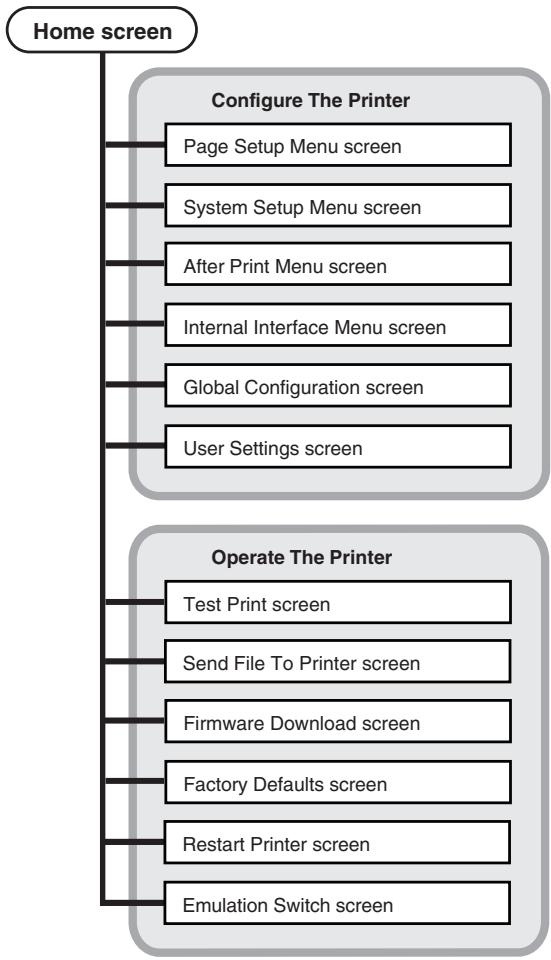
flowchart
graph TD
    A["Home screen"] --> B["Configure The Printer"]
    B --> C["Page Setup Menu screen"]
    B --> D["System Setup Menu screen"]
    B --> E["After Print Menu screen"]
    B --> F["Internal Interface Menu screen"]
    B --> G["Global Configuration screen"]
    B --> H["User Settings screen"]

    I["Operate The Printer"] --> J["Test Print screen"]
    I --> K["Send File To Printer screen"]
    I --> L["Firmware Download screen"]
    I --> M["Factory Defaults screen"]
    I --> N["Restart Printer screen"]
    I --> O["Emulation Switch screen"]
6.3 LinkServer connection procedure
1. Open a Web browser and enter the IP address of the desired printer into the address bar (area circled in red).
The example illustrates the entry of "http://169.254.1.10".

Link Server™
Printer Information
Model Number
CL-E321
IP Address
169.254.001.010
Status
Ready
Machine Information - Serial number, Print counter
Access Level
LOG IN
CITIZEN
Front Panel Status

Copyright © Citizen Systems Japan Co. Ltd. 2014
2. Press the [LOG IN] to display the authentication window.

Link Server™
Printer Information
Model Number
IP Address
Status
Machine Information
Access Level
LOG IN
CL-E321
Windows Security
The server 169.254.1.10 is asking for your user name and password. The server reports that it is from Link Server.
Warning: Your user name and password will be sent using basic authentication on a connection that isn't secure.

Front Panel Status

Line ady
( x - 2x) t - xy^2 = ( x - 2x) f^ t
m = 311
The Ground Truth image displays a single, solid horizontal line. According to Rule 2 (UNDERSCORE & LINE RULES), this is a stylistic or background line, not a placeholder underscore. Therefore, the OCR result must ignore it and output nothing or only meaningful text. The provided OCR content is "____", which consists of four underscores. This is an incorrect interpretation of the line as a placeholder, violating the rule that stylistic lines must be ignored. The OCR has hallucinated underscores where none should exist based on the GT's visual context. Hence, the OCR result is inconsistent with the Ground Truth.
m = 311
m = 311
m = 311
m = 311
m = 311
m = 311
m = 311
m = 311
m = 311
m = 311
m = 311
m = 311
s
The Ground Truth image displays a single, solid horizontal line. According to Rule 2 (UNDERSCORE & LINE RULES), this is a stylistic or background line, not a placeholder underscore. Therefore, the OCR result must ignore it and output nothing or only meaningful text. The provided OCR content is "____", which consists of four underscores. This is an incorrect interpretation of the line as a placeholder, violating the rule that stylistic lines must be ignored. The OCR has hallucinated underscores where none should exist based on the GT's visual context. Hence, the OCR result is inconsistent with the Ground Truth.
m = 311
The Ground Truth image displays a single, solid horizontal line. According to Rule 2 (UNDERSCORE & LINE RULES), this is a stylistic or background line, not a placeholder underscore. Therefore, the OCR result must ignore it and output nothing or only meaningful text. The provided OCR content is "____", which consists of four underscores. This is an incorrect interpretation of the line as a placeholder, violating the rule that stylistic lines must be ignored. The OCR has hallucinated underscores where none should exist based on the GT's visual context. Hence, the OCR result is inconsistent with the Ground Truth.
The Ground Truth image displays a single, solid horizontal line. According to Rule 2 (UNDERSCORE & LINE RULES), this is a stylistic or background line, not a placeholder underscore. Therefore, the OCR result must ignore it and output nothing or only meaningful text. The provided OCR content is "____", which consists of four underscores. This is an incorrect interpretation of the line as a placeholder, violating the rule that stylistic lines must be ignored. The OCR has hallucinated underscores where none should exist based on the GT's visual context. Hence, the OCR result is inconsistent with the Ground Truth.
m = 311
The Ground Truth image displays a single, solid horizontal line. According to Rule 2 (UNDERSCORE & LINE RULES), this is a stylistic or background line, not a placeholder underscore. Therefore, the OCR result must ignore it and output nothing or only meaningful text. The provided OCR content is "____", which consists of four underscores. This is an incorrect interpretation of the line as a placeholder, violating the rule that stylistic lines must be ignored. The OCR has hallucinated underscores where none should exist based on the GT's visual context. Hence, the OCR result is inconsistent with the Ground Truth.
OB
:
-
1
-
Car
ice
d
Copyright © Citizen Systems Japan Co. Ltd. 2014
3. Enter your user name and password.
The default authentication credentials for the Operator role are as follows.
- User name: Operator
- Password: Operator
The default authentication credentials for the Administrator role are as follows.
- User name: Admin
- Password: Admin
The user name and password for the Operator and Administrator roles can be changed in the User Settings menu. User names and passwords can contain up to 20 single-byte, alpha-numeric characters and symbols.
After successful authentication, the Home screen for the Operator or Administrator role appears.
Administrator Home Screen
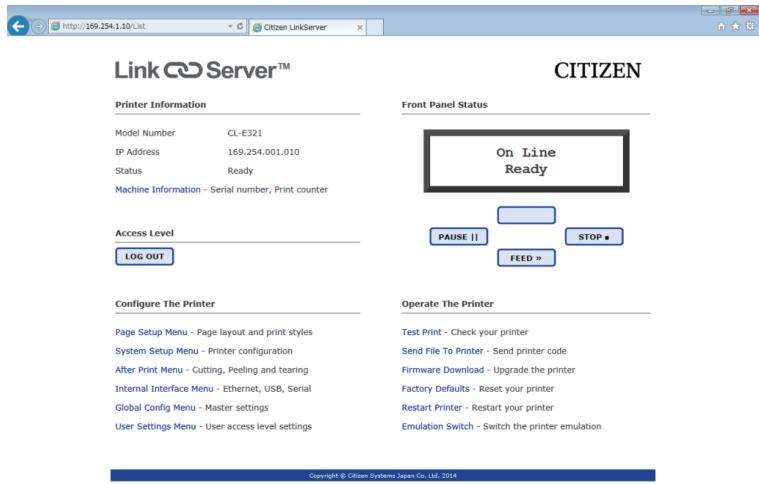
The menus that appear for the User and Operator roles can be changed from the User Settings menu.
4. Press the Menu button on the Home screen to perform printer operations.
• Printer Information: Displays printer information.
- Configure The Printer: Provides access to the same settings as configured with LabelPrinterUtility.
- Operate The Printer: Used to operate the printer.
5. Once you are finished, press the [LOG OUT] button to log out.
The Home screen for the User role appears again after logging out.
7. Configuring the Printer Using the Operation Panel
The following operations can be performed from the control panel after changing the printer operation mode to the special mode.
- Adjust media sensors
• Print test samples
• Print the settings configuration
• Change emulation modes - HEX dump mode
- Initialize the printer
*This device is not equipped with the [Menu Configuration Mode] featured in other models.
1. With the top cover closed, turn on the power to the printer while pressing and holding the FEED key.
The printer changes to the special mode.
The buzzer emits 3 short tones and the status LED flashes alternately in green and red.
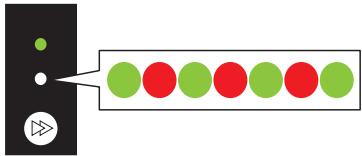
2. Press the FEED key to select the desired operation mode.
| Mode | Buzzer | Status LED | |
| Color | Interval | ||
| Special function mode | 3 short tones | Alternately in green and red | Flashes quickly |
 | |||
| Press the FEED key ↓ | |||
| Sensor Adjustment Mode | 1 short tones | Green | Flashes |
 | |||
| Press the FEED key ↓ | |||
| Test print mode | 2 short tones | Green | Flashes quickly |
 | |||
| Press the FEED key ↓ | |||
| Configuration print mode | 3 short tones | Amber | Flashes |
| Press the FEED key ↓ | |||
| Emulation switching mode | 4 short tones | Amber | Flashes quickly |
 | |||
| Press the FEED key ↓ | |||
| HEX dump mode | 5 short tones | Red | Flashes |
 | |||
| Press the FEED key ↓ | |||
| Initialization mode | 6 short tones | Red | Flashes quickly |
 | |||
| Press the FEED key ↓ | |||
| Returns to the sensor adjustment mode. | |||
- Once the desired operation mode has been selected, press and hold the FEED key for at least 3 seconds.
- Release the FEED key once the buzzer emits a long tone.
The printer is now in the desired operation mode.
- After finishing use of operation modes, press and hold the FEED for at least 3 seconds to return to the normal startup mode.
After you have finished configuring each mode, restart the printer.
- To return to the normal startup mode without selecting an operation mode after changing to the special function mode, press and hold the FEED key for at least 3 seconds.
- If you continue to press and hold the FEED key for at least 3 seconds after the buzzer emits a long tone, the buzzer will emit 4 short tones, and then printer restarts.
● The printer restarts, and changes to normal mode.
7.1 Sensor Adjustment Mode
Use this mode to adjust media sensors (upper or lower) in accordance with the media used.
Set the sensor position and media before starting this adjustment procedure.
Setting transmissive sensor positions and media
- Align the bottom sensor and upper sensor with each other at the same position.

Refer to Transmissive Sensor Adjustment
- Peel a label and set the media so that only the backing paper (glassine paper) reaches the platen roller and media sensor.
If the media has black lines, do not set the media so that a black line is between the sensors.
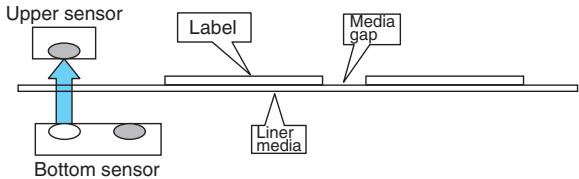
flowchart
graph TD
    A["Upper sensor"] --> B["Bottom sensor"]
    B --> C["Label"]
    C --> D["Media gap"]
    C --> E["Liner media"]
- Adjust the sensors.

Refer to Sensor adjustment
Setting reflective sensor positions and media
- Adjust the reflective sensor so that it is underneath the media.
- Set the media so that the media covers the platen roller and media sensor.
Set that media so that black lines or gaps between labels do not cover the sensor.
- Using continuous media and label media without gaps between labels Set the media so that a section without a black line (or label face stock for label media) does not cover the platen roller and media sensor.
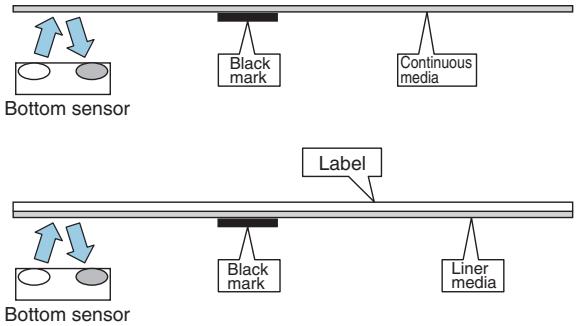
flowchart
graph TD
    A["Bottom sensor"] --> B["Black mark"]
    A --> C["Continuous media"]
    D["Bottom sensor"] --> E["Black mark"]
    D --> F["Liner media"]
    G["Label"] --> H["Black mark"]
• Using label media with gaps
Peel a label and set the media so that only the backing paper (glassine paper) reaches the platen roller and media sensor.
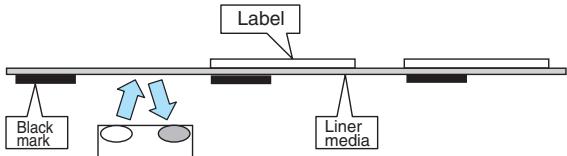
flowchart
graph LR
    A["Label"] --> B["Black mark"]
    A --> C["Liner media"]
    B --> D["Arrow indicating direction"]
    C --> D
    style A fill:#f9f,stroke:#333
    style B fill:#ccf,stroke:#333
    style C fill:#cfc,stroke:#333
    style D fill:#fcc,stroke:#333
Bottom sensor
3. Adjust the sensors.

Refer to Sensor adjustment
Sensor adjustment
- Turn on the power to the printer while pressing and holding the FEED key to start the printer in special function mode.
- Press the FEED key once to select sensor adjustment mode.
The buzzer emits 1 short tone.
The status LED also flashes in green.
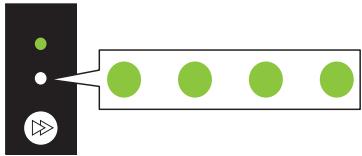
natural_image
Diagram showing a black rectangular block with three green circular elements and a triangular symbol pointing to it, connected by an arrow (no text or labels)- Press and hold the FEED key for at least 3 seconds.
- Release the FEED key once the buzzer emits a long tone and then press the FEED key again.
The printer is now in sensor adjustment mode.
- Press the FEED key to select either transmissive sensor or reflective sensor.
Each press of the FEED key toggles between transmissive sensor and reflective sensor options.
| Sensor | Buzzer | Status LED | |
| Color | Interval | ||
| Transmissive sensor | 1 short tones | Green | Flashes |
 | |||
| Press the FEED key ↓ | |||
| Reflective sensor | 2 short tones | Green | Flashes quickly |
 | |||
- Press and hold the FEED key for at least 3 seconds.
7. Release the FEED key once the buzzer emits a long tone.
The sensor adjustment process starts.
- Once sensors have been adjusted, the buzzer emits 1 short tone, and the printer restarts.
- The buzzer emits 1 long tone if sensor adjustment fails. If this happens, check the sensor and media positions.
- To cancel sensor adjustment, continue pressing and holding the FEED key for at least 3 seconds at step 7.
The buzzer emits 4 short tones, and the printer restarts.
7.2 Test print mode
This mode prints the test sample.
This printer can print test samples to label media and continuous media.
Printing test samples is a quick way to check print quality.
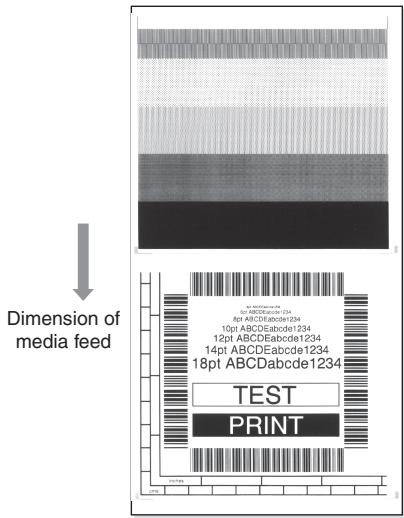
Load media and then perform the following procedure.
- Turn on the power to the printer while pressing and holding the FEED key to start the printer in special function mode.
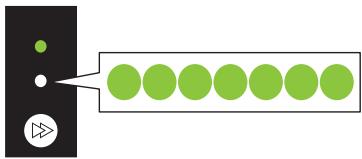
- Press the FEED key twice to select test print mode.
The buzzer emits 2 short tone.
The status LED also flashes quickly in green.
flowchart
graph LR
    A["Input"] --> B["Processing"]
    B --> C["Output"]
- Press and hold the FEED key for at least 3 seconds.
- Release the FEED key once the buzzer emits a long tone.
The printer is now in test print mode.
- Press the FEED key to select the media.
Each press of the FEED key toggles between label media and continuous media.
| Media | Buzzer | Status LED | |
| Color | Interval | ||
| Label media | 1 short tones | Green | Flashes |
 | |||
| Press the FEED key ↓ | |||
| Continuous | 2 short tones | Green | Flashes quickly |
 | |||
- Press and hold the FEED key for at least 3 seconds.
- Release the FEED key once the buzzer emits a long tone.
The test print process starts.
- Once the test sample has been printed, press the FEED key to print another test sample without a feed operation.
- Once the test sample has been printed, turn the power to the printer off and on again to reset the printer in the normal startup mode.
- To cancel test printing, continue pressing and holding the FEED key for at least 3 seconds without releasing your finger at step 7.
The buzzer emits 4 short tones, and the printer restarts.

CAUTION
Normal mode printing can also be performed when the printer is in test print mode. Note that pressing the FEED key while the printer is in test print mode will not feed media. Instead, it will print a test sample.
7.3 Configuration Print Mode
This mode is used to print the printer settings configuration when using continuous media mode. Printing the current settings configuration is a quick way to check the current configuration.
Example of printed settings configuration
Machine Information
| Model Number | : | CL-E321 |
| Serial Number | : | RH****** |
| Boot Version | : | 0.0 |
| ROM Version | : | ******* |
| ROM Date(DD//MM//YY) | : | ***/** |
| ROMCheck Sum | : | **** |
| Print Counter | : | 0001.234km |
| Service Counter | : | 0001.234km |
| Cut Counter | : | 0 |
| Sensor Monitor | : | 1.50V |
| MAC Address | : | ff:ff:ff:ff:ff:ff |
Current Menu Setting
| [Global Config Menu] | |
| Config Set | : 1 |
| [PageSetup Menu] | |
| Print Speed | : 6 IPS |
| Print Dash | : 10 |
| Position | : | Feeds Media |
| Feed Key Action | : |
| [Interface Menu] | ||
| RS-232C Baud rate | : | 9600 bps |
| RS-232C Parity | : | None |
| RS-232C Length | : | 8 bit |
| RS-232C Stop bit | : | 1 bit |
| RS-232C X-ON | : | Yes |
| USB Device Class | : | Printer |
| USB VCOM Protocol | : | Auto |
| IPv4 Address | : | 000.000.000.000 |
| IPv4 Subnet Mask | : | 000.000.000.000 |
| IPv4 Gateway | : | 000.000.000.000 |
| IPv4 DHCP | : | On |
| IPv6 | : | On |
Load media and then perform the following procedure.
- Turn on the power to the printer while pressing and holding the FEED key to start the printer in special function mode.
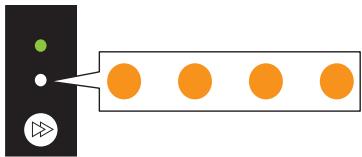
- Press the FEED key 3 times to select configuration print mode.
The buzzer emits 3 short tone.
The status LED also flashes in amber.
natural_image
Diagram showing a black rectangular block with green and white dots, connected to five orange circular elements (no text or symbols)- Press and hold the FEED key for at least 3 seconds.
- Release the FEED key once the buzzer emits a long tone.
The printer is now in settings print mode.
- Press and hold the FEED key for at least 3 seconds.
- Release the FEED key once the buzzer emits a long tone.
The configuration print process starts.
Once the configuration has been printed, the printer will be in the online state.
- To print configurations that include default settings, continue pressing and holding the FEED for at least 3 seconds without releasing your finger at step 6.
- Release the FEED key once the buzzer emits a long tone and then press the FEED key again.
The process to print a configuration that includes default settings starts.
Once the configuration has been printed, the printer will be in the online state.
- To cancel configuration printing, continue pressing and holding the FEED key for at least 3 seconds without releasing your finger at step 7.
The buzzer emits 4 short tones, and the printer restarts.
7.4 Emulation switching mode
This mode is used to change the command set used.
The default setting is [DMX mode].
- Turn on the power to the printer while pressing and holding the FEED key to start the printer in special function mode.
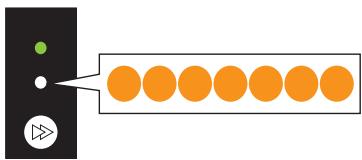
- Press the FEED key 4 times to select emulation switching mode.
The buzzer emits 4 short tone.
The status LED also flashes quickly in amber.
- Press and hold the FEED key for at least 3 seconds.
- Release the FEED key once the buzzer emits a long tone.
The printer is now in emulation switching mode.
5. Press the FEED key to select an emulation switching mode.
Each press of the FEED key cycles through the emulation mode options of DMX mode, ZPL mode, and EPL mode.
| Emulation mode | Buzzer | Status LED | |
| Color | Interval | ||
| DMX mode | 1 short tones | Green | Flashes |
 | |||
| Press the FEED key ↓ | |||
| ZPL mode | 2 short tones | Green | Flashes quickly |
 | |||
| Press the FEED key ↓ | |||
| EPL mode | 3 short tones | Amber | Flashes |
 | |||
| Press the FEED key ↓ | |||
| Returns to DMX mode. | |||
6. Press and hold the FEED key for at least 3 seconds.
7. Release the FEED key once the buzzer emits a long tone and then press the FEED key again.
The selected emulation mode is set, and the printer restarts.
- To cancel setting the emulation mode, continue pressing and holding the FEED key for at least 3 seconds without releasing your finger at step 7.
The buzzer emits 4 short tones, and the printer restarts.
7.5 HEX Dump Mode
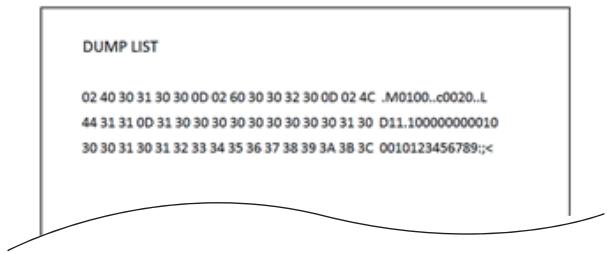
This mode is used to print a hex dump list (data received by the printer represented in hex values) for confirmation of the data content.
Example of dump list printing
Load media and then perform the following procedure.
1. Turn on the power to the printer while pressing and holding the FEED key to start the printer in special function mode.
2. Press the FEED key 5 times to select HEX dump mode.
The buzzer emits 5 short tone.
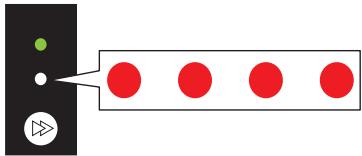
The status LED also flashes in red.
flowchart
graph LR
    A["Input"] --> B["Process"]
    B --> C["Output"]
3. Press and hold the FEED key for at least 3 seconds.
4. Release the FEED key once the buzzer emits a long tone.
The printer is now in HEX dump mode.
5. Press the FEED key to select the media.
Each press of the FEED key toggles between label media and continuous media.
| Media | Buzzer | Status LED | |
| Color | Interval | ||
| Label media | 1 short tones | Green | Flashes |
 | |||
| Press the FEED key ↓ | |||
| Continuous | 2 short tones | Green | Flashes quickly |
6. Press and hold the FEED key for at least 3 seconds.
7. Release the FEED key once the buzzer emits a long tone and then press the FEED key again.
The hex dump list print process starts.
8. Once the HEX dump list has been printed, turn the power to the printer off and on again to reset the printer in the normal startup mode.
- To cancel HEX dump mode, continue pressing and holding the FEED key for at least 3 seconds without releasing your finger at step 7.
The buzzer emits 4 short tones, and the printer restarts.
7.6 Initialization Mode
This mode is used to initialize printer settings and the user memory area.
1. Turn on the power to the printer while pressing and holding the FEED key to start the printer in special function mode.
2. Press the FEED key 6 times to select initialization mode.
The buzzer emits 6 short tone.
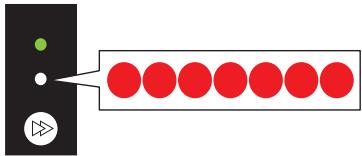
The status LED also flashes quickly in red.
3. Press and hold the FEED key for at least 3 seconds.
4. Release the FEED key once the buzzer emits a long tone.
The printer is now in initialization mode.
5. Press the FEED key to select initialization of settings or initialization of the user memory area.
Each press of the FEED key toggles between settings initialization and user memory area initialization.
| Initialization option | Buzzer | Status LED | |
| Color | Interval | ||
| Settings initialization | 1 short tones | Green | Flashes |
| Press the FEED key ↓ | |||
| User memory area initial-ization | 2 short tones | Green | Flashes quickly |
6. Press and hold the FEED key for at least 3 seconds.
7. Release the FEED key once the buzzer emits a long tone and then press the FEED key again.
Once the selected initialization process completes, the printer restarts.
- To cancel setting the initialization mode, continue pressing and holding the FEED key for at least 3 seconds without releasing your finger at step 7.
The buzzer emits 4 short tones, and the printer restarts.
8. Online Configuration Mode
1. Press and hold the FEED key for at least 3 seconds while the printer is online and not receiving data.
The printer is now in online configuration mode.
The buzzer emits 3 short tones and the status LED flashes alternately in green and red.
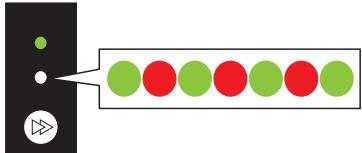
2. Press the FEED key to select media sensor mode.
| Media sensor mode | Buzzer | Status LED | |
| Color | Interval | ||
| Transmissive sensor mode | 1 short tones | Green | Flashes |
 | |||
| Press the FEED key ↓ | |||
| Reflective sensor mode | 2 short tones | Green | Flashes quickly |
 | |||
| Press the FEED key ↓ | |||
| Continuous media mode | 3 short tones | Amber | Flashes |
 | |||
| Press the FEED key ↓ | |||
| Thermal-transfer printing mode | 4 short tones | Amber | Flashes quickly |
 | |||
| Press the FEED key ↓ | |||
| Direct-thermal printing mode | 5 short tones | Red | Flashes |
 | |||
| Press the FEED key ↓ | |||
| Returns to the transmissive sensor mode. | |||
3. Press and hold the FEED key for at least 3 seconds.
4. Release the FEED key once the buzzer emits a long tone.
The selected media sensor mode is set.
- To cancel online configuration mode, continue pressing and holding the FEED key for at least 3 seconds without releasing your finger at step 4.
The buzzer emits 4 short tones, and the printer restarts.
9. Clearing Jobs Stored in the Printer
Jobs stored in the printer can be cleared when the printer is paused.
- Press the FEED key if the printer is printing or receiving data.
The printer is now paused.
- Press and hold the FEED key for at least 3 seconds.
The buzzer emits 1 short tone.
- Release the FEED key.
One job has been cleared.
Alternatively, continue to press and hold the FEED key for at least 3 second without releasing your finger until the buzzer emits 2 short tones.
- Release the FEED key once the buzzer emits 2 short tones.
All jobs have been cleared.
10. Maintenance
Perform printer maintenance on a regular basis to ensure that the printer is always in good working condition.
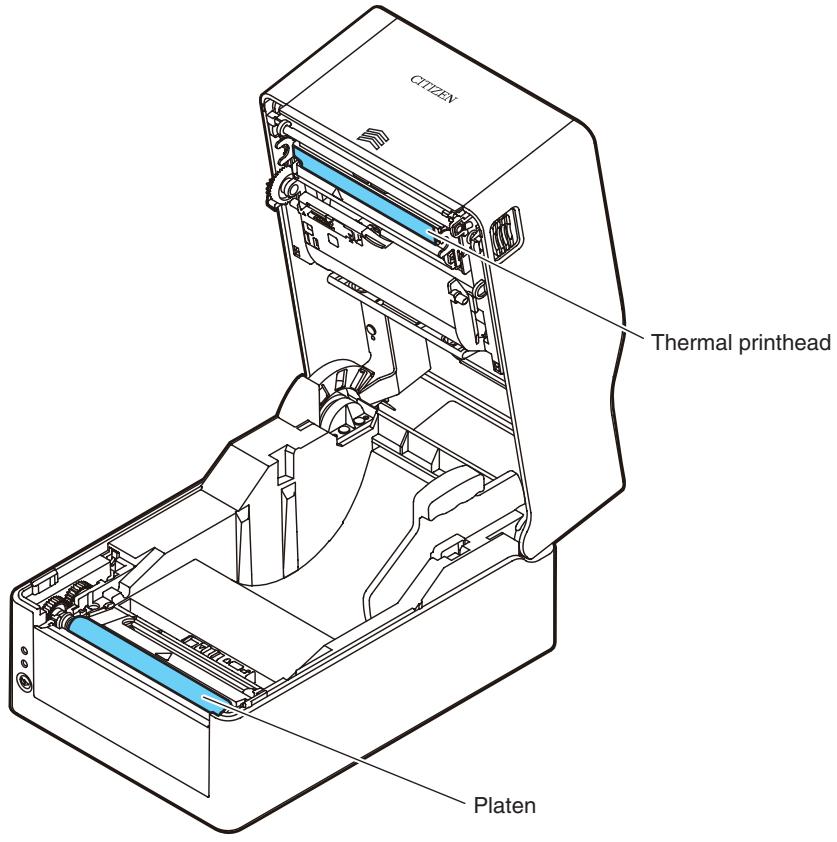

CAUTION
Excluding ethyl alcohol, do not use solvents such as benzene, acetone, thinner, or others to clean the printer. Doing so may cause the printer surface or other parts to deform.
10.1 Plastic Surface of Printer and Platen
- Use a soft cloth or cotton swab dipped with a small amount of ethyl alcohol to wipe off dust and dirt.

CAUTION
Using an excessive amount of ethyl alcohol to clean the platen may cause surface deformation, which would result in unstable feed operation.
10.2 Thermal head
● Use a cotton swab dipped with a small amount of ethyl alcohol.

CAUTION
- The thermal head is hot immediately after printing. Do not touch the thermal head at this time.
- Do not touch the thermal head with bare hands or do not allow metals to come into contact with the thermal head.
11. Appendices
11.1 Troubleshooting
The status LED and buzzer are used to confirm error status when errors occur in the printer.
| Status LED | Buzzer | Error | Error description (in bold) and resolution |
| Flashes in red | 2 short tones | Head Up Error | Top cover is not closed correctly.• Close the top cover correctly. |
| Flashes in red | 3 short tones | End of Media Error | Printer has run out of media.Media is not set correctly.• Open the top cover and load media or set the media correctly. |
| Flashes in red | 4 short tones | Media Load ErrorMedia Jam Error | Label gaps or black lines cannot be detected.• Check the media sensor positions.• Readjust the media sensors.• Make sure the selection of transmissive sensor, reflective sensor, or continuous media matches the type of media used.Media cannot be transported.• Open the top cover, remove any media blocking transport, and set the media again. |
| Flashes in red | 5 short tones | End of Ribbon Error | Printer has run out of ribbon.• Open the cover and replace the ribbon.Ribbon is not loaded correctly.• Open the cover and load the ribbon again. |
| Flashes in red | 6 short tones | Cutter Error(models with cutters) | Cutter is not operating.• Open the top cover and remove any media or other object blocking cutter operation.• If the cutter does not operate after removing foreign objects, the cutter may not be connected or installed correctly or may have failed. Contact your retailer.Home position cannot be detected.• The auto cutter may have failed. Contact your retailer. |
| Flashes in amber | Repetitions of long tones | Head Low Temperature Error | The thermal head is at a low temperature (approximately -10°C).• Use the printer in proper environments of at least 0°C. The thermal head is not connected.• Check the cable connection with the thermal head. |
| Flashes in amber | None | Head High Temperature AlarmMotor High Temperature Alarm | The thermal head or feed motor is at a high temperature.• Printing stops if the thermal head reaches approximately 70°C or more while printing. Printing resumes automatically once the temperature falls to approximately 60°C or lower.• Printing stops if the feed motor reaches approximately 95°C or more while operating. Printing resumes automatically once the temperature falls to approximately 85 °C or lower. |
| Flashes alternately in red and green | Repetitions of long tones | RS-232C Communication Error | Parity errorFraming errorReceive buffer is fullTransmission buffer is full• Check the communication settings. |
| Flashes alternately in red and amber | Repetitions of long tones | Hardware Error | A hardware error has been detected.• Immediately turn off the power to the printer and contact your retailer. |
This product does not have a broken head element check function so if there are vertical white lines that you suspect are caused by a broken head element, clean the thermal head and then perform a print check in the sample print mode.
If the white line problem is not resolved, the head element may be broken.
11.2 Basic Specifications
Printing
| Item | Description | |
| Print method | Direct-thermal / thermal-transfer printing | |
| Resolution | CL-E321 | Main scanning line density: 203 dots/inch (8 dots/mm) |
| Sub-scanning line density: 203 dots/inch (8 dots/mm) | ||
| Head dots: 864 dots (effective dots: 832) | ||
| CL-E331 | Main scanning line density: 300 dots/inch (11.8 dots/mm) | |
| Sub-scanning line density: 300 dots/inch (11.8 dots/mm) | ||
| Head dots: 1248 dots (effective dots: 1240) | ||
| Max. print width | CL-E321 | 104 mm / 4.1 inch |
| CL-E331 | 105 mm / 4.1 inch | |
| Max. print length | CL-E321 | (Datamax) 2539.7 mm/99.99 inch(Zebra) 2540.0 mm/100.00 inch |
| CL-E331 | 1,270.0 mm / 50.00 inch | |
| Print density | Print density is adjustable with software | |
Print speed
| Item | Description | |
| Print speed setting | CL-E321 | 2 to 8 inches per second in 1-inch increments (7 to 8 inches per second possible at normal temperature using a print density of 10 and the recommended media and ribbon) |
| CL-E331 | 2 to 6 inch per second in 1-inch increments | |
Print mode
| Item | Description |
| Batch mode | Normal printing (single or multiple sheets) |
| Tear off mode | Back-feeds to the tear-off position after printing is complete. (Labels may peel when roll media is back-fed.) |
| Cut mode | Prints while cutting after every specified number of sheets/labels. Two types of cut mode operations are available.• Back-feed• Cut-through(Cut-through pauses printing to cut the previous label when it reaches the cut position. Printing resumes after the cut operation, but a gap may be formed at the location where printing was paused.) |
Media
| Item | Description | |
| Media types | Roll, fanfold media(Continuous label media, die-cut media, continuous tag media, and continuous ticket media) | |
| Roll media orientation | Outer surface | |
| Recommended media | Thermal-transfer: Label media (Lintec LR1111)Direct-thermal media: Label media (Ricoh 150LA-1),Tag media (Ricoh 130LHB) | |
| Max. media width | 118.0 mm / 4.65 inch | |
| Min. media width | 25.4 mm / 1.00 inch | |
| Min. label width | 21.5 mm / 0.85 inch | |
| Min. media pitch*1 | 8.89 mm / 0.35 inch*2 | |
| Max. media thickness | 0.19 mm / 0.0075 inch | |
| Max. media length | CL-E321 | (Datamax) 2539.7 mm/99.99 inch(Zebra) 2540.0 mm/100.00 inch |
| CL-E331 | 1,270.0 mm / 50.00 inch | |
| Min. media length*1 | 6.35 mm / 0.25 inch*2 | |
| Min. media thickness | 0.0635 mm / 0.0025 inch | |
| Loaded roll diameter | Max. external diameter: 127 mm / 5 inch | |
| Media core: 25.4 or 38.1 mm / 1 or 1.5 inch | ||
*1 To use media with a pitch of less than 1 inch, enable the [Small Media Adjustment] setting.
*2 For models with a cutter, the cutter operation will not be performed if the media length is less than 25.4mm (1 inch).
Ribbon
| Item | Description |
| Ribbon wind direction | Outer winding (ink surface facing outward) |
| Recommended ribbon | B110A (Ricoh) |
| Max. ribbon width | 114.0 mm / 4.50 inch |
| Min. ribbon width | 35.0 mm / 1.38 inch |
| Max. ribbon length | 300.0 m / 984 feet |
| Max. roll diameter | 68.0 mm / 2.68 inch |
| Core inner diameter | 25.4 ±0.254 mm / 1.00 ±0.01 inch |
| Core outer diameter | 33.4 ±0.50 mm / 1.31 ±0.02 inch |
| Ribbon end tape length | Max. 80 mm / 3.15 inch |
| Ribbon end detection | Ink ribbon end detection by ribbon encoder sensor |
Barcodes
| Item | Description | |
| Datamax® emulation | One-dimensional | ·Code 3 of 9 ·UPC-A ·UPC-E ·EAN-13 (JAN-13) ·EAN-8 (JAN-8) ·Interleaved 2 of 5 ·Code 128 ·HIBC (Code 3 of 9 using Modulus 43) ·Codabar (NW-7) ·Int 2 of 5 (Interleaved 2 of 5 using Modulus 10) ·Plessey ·Case Code ·UPC2DIG Add ·UPC5DIG Add ·Code 93 ·Telepen ·ZIP ·UCC/EAN128 ·UCC/EAN128(for K-MART) ·UCC/EAN128 Random Weight ·FIM |
| Two-dimensional | ·Maxi Code ·PDF-417 ·Data Matrix ·QR Code ·Aztec ·GS1 Databar Omnidirectional (RSS-14) ·GS1 Databar Truncated (RSS-14 Truncated) ·GS1 Databar Stacked (RSS-14 Stacked) ·GS1 Databar Stacked Omnidirectional (RSS-14 Stacked Omnidirectional) ·GS1 Databar Limited (RSS Limited) ·GS1 Databar Expanded (RSS Expanded) | |
| Zebra® emulation | One-dimensional | ·Code 11 ·Interleaved 2 of 5 ·Code 39 ·EAN-8 ·UPC-E ·Code93 ·Code128 ·EAN-13 ·Industrial 2 of 5 ·Standard 2 of 5 ·ANSI COD-ABAR ·LOGMARS ·MSI ·Plessey ·UPC/EAN Extensions ·UPC-A ·POSTNET ·Planet |
| Two-dimensional | ·Code49 ·PDF-417 ·CODA BLOCK ·Maxi Code ·Micro PDF-417 ·Data Matrix ·QR Code ·TLC39 ·Aztec ·GS1 Databar Omnidirectional (RSS-14) ·GS1 Databar Truncated (RSS-14 Truncated) ·GS1 Databar Stacked (RSS-14 Stacked) ·GS1 Databar Stacked Omnidirectional (RSS-14 Stacked Omnidirectional) ·GS1 Databar Limited (RSS Limited) ·GS1 Databar Expanded (RSS Expanded) | |
Fonts
| Item | Description |
| Datamax® emulation | 7 types of fixed-pitch fontsOCR-A*3 and OCR-B*3Proportional fontsCG Triumvirate smooth fontCG Triumvirate bold smooth fontCL-E321: 6, 8, 10, 12, 14, 18, 24, 30, 36, and 48 pointsCL-E331: 4, 5, 6, 8, 10, 12, 14, 18, 24, 30, 36, and 48 pointsCharacter sets: Compliant with code page 850TrueTypeTM rasterizer |
| Zebra® emulation | 5 types of fixed-pitch fontsOCR-A*3 and OCR-B*3Proportional fontsCG Triumvirate Condensed BoldTrueTypeTM rasterizer |
*3 Depending on the reader, OCR font recognition may be poor.
Symbol Sets
| Item | Description |
| Single-byte sets | ·PC866U Ukrainian*4 ·PC Cyrillic ·ISO 60 Danish/Norwegian ·Desk Top ·ISO 8859/1 Latin 1 ·ISO 8859/2 Latin 2 ·ISO 8859/9 Latin 5 ·ISO 8859/10 Latin 6 ·ISO 8859/7 Latin/Greek ·ISO 8859/15 Latin 9 ·ISO 8859/5 Latin/Cyrillic ·ISO 69: French ·ISO 21: German ·ISO 15: Italian ·Legal, Math-8 ·Macintosh ·Math ·PC-858 Multilingual ·Microsoft Publishing ·PC-8 ·PC-437 USA ·PC-8 D/N ·PC-437N ·PC-852 Latin/Greek ·PC-862 Latin/Hebrew ·Pi Font ·PC-850 Multilingual ·PC-864 ·Latin/Arabic ·PC-8 TK ·PC-437T ·PC-1004 ·PC-775 Baltic ·Non-UGL ·Generic Pi Font ·Roman-8 ·Roman-9 ·ISO 17: Spanish ·ISO 11: Swedish ·Symbol ·PS Text ·ISO 4: United Kingdom ·ISO 6: ASCII ·Ventura International ·Ventura Math ·Ventura US ·Windows 3.1 Latin 1 ·Wingdings ·Windows 3.1 Latin 2 ·Windows 3.1 Baltic (Latv, Lith) ·Windows 3.0 Latin 1 ·Windows Latin/Cyrillic ·Windows 3.1 Latin 5 |
| Double-byte sets | ·EUC ·JIS ·Shift JIS ·Unicode ·KS Code ·GB Code |
*4 "PC866U Ukraina" is supported only in Datamax® emulation.
Control Languages
Supports the Datamax® language and Zebra® language
Digital Processing Components
| Item | Description |
| CPU | 32-bit RISC CPU (max. operation frequency of 216 MHz) |
| ROM | 16 MBytes of flash ROM (user area: 4 MBytes) |
| RAM | 32 MBytes of SDRAM (user area: 4 MBytes) |
Media detection sensors
| Item | Description |
| Transmissive sensor | Detects label gaps, tag notches, and out of media state |
| Reflective sensor | Detects black lines on back of media and out of media state |
| Ribbon encoder sensor | Ink ribbon end detection |
Communication interfaces
| Item | Description |
| USB | Full-speed USB 2.0 (12 Mbps), Type B connector |
| Ethernet | 100BASE-TX / 10BASE-T, RJ45 connector |
| Serial | RS232C, 9-pin D-SUB female connectorBaud rates: 2400, 4800, 9600, 19200, 38400, 57600, and 115200 bps |
Indicators and switches
| Item | Description |
| LED | Power on (green), status/errors/alarms (green, red, and amber) |
| Buzzer | Alarms, warnings, and other indications |
| Operation keys | 1 (Performs feed and other operations) |
| Head-up detection switch | Detects head-up states |
| Ethernet panel button | Prints and initializes Ethernet settings |
| Power switch | Turning the Power On/Off |
Power supply
AC adapter (CEC Level VI-compliant)
Input: 100 to 240 VAC, 50/60 Hz
Output: 24 VDC, 2.5 A
Supported Standards
• VCCI: CISPR32 Class B
• UL: 60950-1st, 2nd Edition
• CSA: No. 950
• FCC: 47 CFR Part 15, Subpart B, Class B
EN: 60950-1
• EN: 55032:2012 Class B
EN: 55024:2010
• EN: 61000-3-2:2014
• EN: 61000-3-3:2013
• EU: RoHS (2011/65/EC)
• Energy Star: Energy Equipment, Version2.0
• CCC: GB4943.1-2011, GB/T9254-2008, and GB17625.1-2012
• KC-Mark / BIS / CoC Mexico / S-mark SIN(AC Adapter) / RCM
| Item | Description |
| Head | When the recommended paper is used under our given printing conditions: Wear resistance 50 km (damage due to foreign matter being caught in the head is not applicable) |
| Platen | 100 km |
| Auto cutter | Min. 300,000 cuts (60 μm ≤ paper thickness < 150 μm)Min. 100,000 cuts (150 μm ≤ paper thickness ≤ 190 μm) |
Environmental conditions

Refer to 11.3 Usage Conditions

Refer to 11.4 Storage Conditions
Electrostatic Voltage
EN61000-4-2:2009-compliant
AC Power Consumption
| Item | Description |
| CL-E321 | 100 V/50 Hz: 1.7 W standby,70 W during operation(Thermal-transfer, USB, print speed of 8 IPS, print density of 10, and printing rate of 12.5%)220 V/50 Hz: 1.7 W standby,66 W during operation(Thermal-transfer, USB, print speed of 8 IPS, print density of 10, and printing rate of 12.5%) |
| CL-E331 | 100 V/50 Hz: 1.7 W standby,66 W during operation(Thermal-transfer, USB, print speed of 6 IPS, print density of 10, and printing rate of 12.5%)220 V/50 Hz: 1.7 W standby,63 W during operation(Thermal-transfer, USB, print speed of 6 IPS, print density of 10, and printing rate of 12.5%) |
External Dimensions

Refer to External Dimensions*5
Weight
• Standard model: 2.6 kg (excluding media, ribbon, AC adapter, and power cord)
• Model with cutter: 2.9 kg (excluding media, ribbon, AC adapter, and power cord)
- Model with AC adapter storage case: 3.3 kg (excluding media, ribbon, and power cord)
Accessories
- AC adapter
- AC cord
- Media shaft
• Media shaft guide - Ribbon shaft (x2)
- Ribbon take-up core
- USB cable
- CD-ROM
• Quick Start Guide/Safety Instructions
Factor Options (the default setting)
- Cutter unit
• Model with AC adapter storage case
External Dimensions\*5
CL-E321X***NX (standard model)
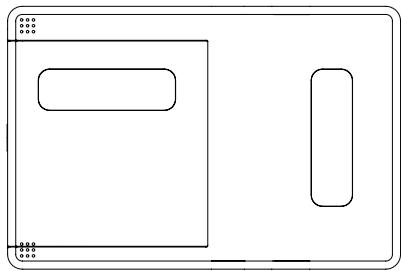
natural_image
Pure electrical circuit lines without any symbols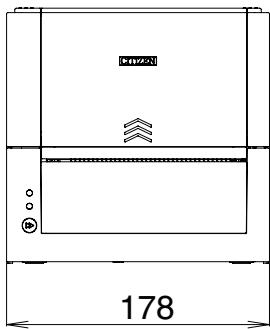
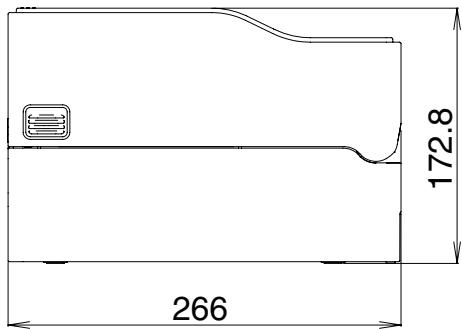
CL-E321X***NS (model with AC adapter storage case)
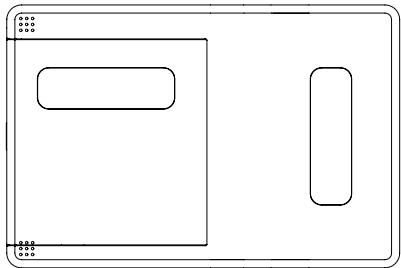
natural_image
Pure electrical circuit lines without any symbols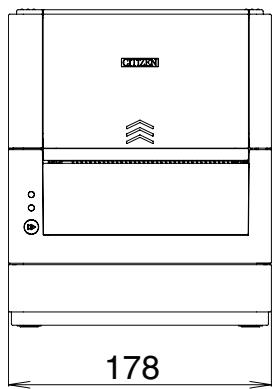
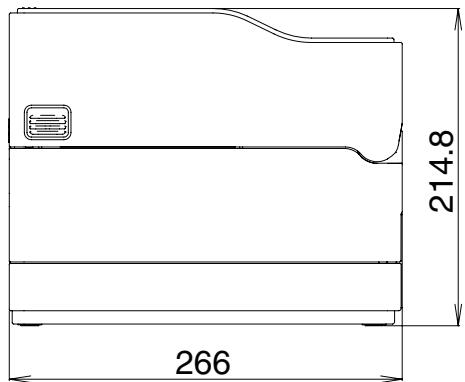
CL-E321X***BC (model with cutter)
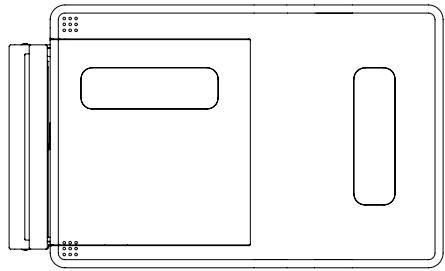
natural_image
Pure technical line drawing of a rectangular device with internal components and mounting brackets (no text or symbols)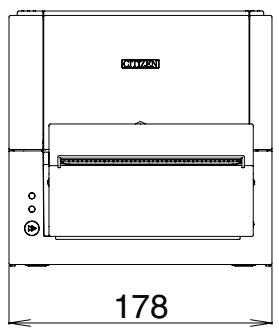
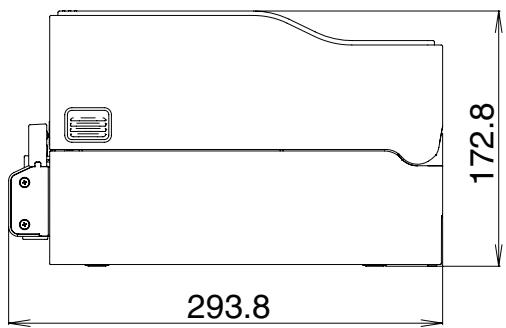
*5 Dimensions are design values. Actual dimensions may vary due to variance in manufacturing processes.
11.3 Usage Conditions
(1) Safe operating temperature: 0 to 40°C
(2) Safe printing temperature: 5 to 35°C
(3) Humidity: 30 to 80% RH (no condensation)
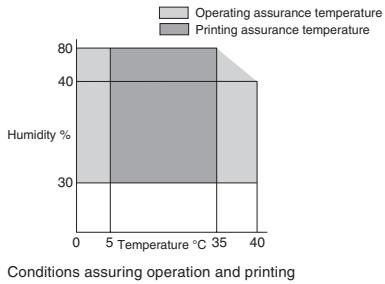
bar_stacked
| Temperature (°C) | Operating assurance temperature (%) | Printing assurance temperature (%) | |---|---|---| | 0-5 | 30 | 70 | | 5-35 | 40 | 60 | | 35-40 | 40 | 20 | Conditions assuring operation and printing Humidity %11.4 Storage Conditions
(1) Temperature: -20 to 60°C (excluding record sheet)
(2) Humidity: 5 to 85% RH (excluding record sheet, no condensation)
*However, for storage at high temperature and humid environments, the combination of 40^ and 85% RH (no condensation) is taken as the worst value.
11.5 Interfaces
USB Interface
Specifications
| Standard | Compliant with Universal Serial Bus Specification 2.0 |
| Transmission speed | Supports Full-speed 12 Mbps transfer |
| Receive buffer | 16 kB receive buffer |
| Connector | USB Type B connector |
Signal Line/Pin Assignment
| Signal code | Signal | Pin No. | Function |
| VBUS | USB power | 1 | USB power (+5 V) |
| D- | Negative signal line | 2 | Negative signal line |
| D+ | Positive signal line | 3 | Positive signal line |
| GND | GND | 4 | GND |
Ethernet Interface
Supported Protocols
| Supported Protocols | ARP, IP, and TCP |
| Transport layer protocols | TCP and UDP |
| Application layer protocols | DHCP, HTTP, SNMP, and Raw Socket Port |
Raw Socket Port
Performs bidirectional communication of print data and printer status.
| Port No. | 9100 (user-configurable) |
| Direction of port communication | Bidirectional |
| Max. socket connections | 8 |
| Printable connections | 1 (other sockets are reserved) |
| Timeout | Default: 60 secondsConfigurable between 0 and 300 seconds.Value of 0 disables timeouts. |
HTTP Server
The Web monitoring function can be used to configure printer and network settings. Refer to the pages describing the Web monitor for more information.

Refer to 6. Configuring Printer Settings Using a Browser
| Port No. | 80 |
| Max. simultaneous connections | 4 |
| HTTP version | HTTP/1.1 |
DHCP
Automatically retrieves IP address information from a DHCP server within 60 seconds after the power is turned on.
If IP address information cannot be retrieved automatically, a fixed IP address (default is 169.254.1.10) is applied.
SNMP Agent
| SNMP Version | SNMPv2 (Trap function not supported) |
| Port No. | 161 |
| Supported MIBs | HOST-RESOURCES-MIB and Citizen-MIB (Private) |
| Community name | public |
Connector Connections
| Pin No. | Signal | Function |
| 1 | TX+ | Transmit (positive) |
| 2 | TX- | Transmit (negative) |
| 3 | RX+ | Receive (positive) |
| 4 | N.C. | - |
| 5 | N.C. | - |
| 6 | RX- | Receive (negative) |
| 7 | N.C. | - |
| 8 | N.C. | - |
Compatible connectors
Printer: RJ-45 connector
LED operation
The following table describes port LED operation.
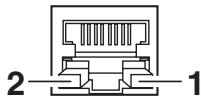
natural_image
Pure electrical connector diagram without any text or symbols1. Network communication speed indicator
| Communication speed | LED (Green) |
| 100 Mbps | On |
| 10 Mbps/disconnected | Flashes |
- Network status indicator
| Status | LED (amber) |
| Connecting | On |
| Disconnected | Off |
| Exchanging data | Flashes |
Serial Interface
Interface Specifications
| Transfer method | Start-stop synchronization method, full-duplex communication |
| Signal level | RS-232C |
| Baud rates | 2400, 4800, 9600, 19200, 38400, 57600, and 115200 bps |
| Data length | 7 bits or 8 bits |
| Stop bits | 1 bits or 2 bits |
| Parity | Even, odd, or none |
| Interface | 9-pin D-SUB female connector |
Signal Line/Pin Assignment
| Signal code | Signal | Pin No. | Function |
| INIT | Reset | 1 | Reset printer signal line |
| RXD | Receive data | 2 | Signal line used by printer to receive data from external devices |
| TXD | Transmit data | 3 | Signal line used by printer to send data to external devices |
| DTR | Data terminal ready | 4 | Signal line used by printer to notify external devices that printer is ready to communicate |
| SGND | Signal line ground | 5 | Signal line ground reference |
| DSR | Data set ready | 6 | Signal line used by external devices to notify printer that they are ready to communicate |
| RTS | Request to send | 7 | Signal line used by printer to notify external devices that the printer is read to receive data |
| CTS | Clear to send | 8 | Signal line used by external devices to notify printer that they are ready to receive data |
| VCC | +5 V | 9 | (Factory use only) |
XON / XOFF Protocol
a Conditions for XON code output
- Communication is possible after the power is turned on.
- Scenario in which the receive buffer has less than 128 bytes available causing output of the XOFF code followed by the receive buffer then having at least 1,024 bytes available.
b Conditions for XOFF code output
- Scenario in which the receive buffer has less than 128 bytes available.
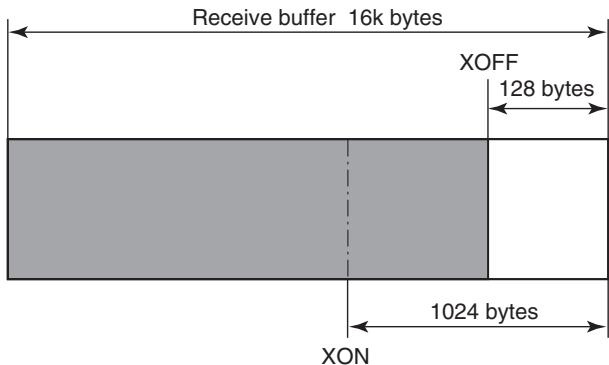
DTR Protocol
a Conditions when DTR signal state changes to Ready (High)
Scenario in which the receive buffer has at least 128 bytes available.
Note that once the receive buffer has less than 1,024 bytes available causing the DTR signal to change to the Busy (Low) state, the DTR signal state remains in the Busy (Low) state until the receive buffer has at least 1,024 bytes available.
b Conditions when DTR signal state changes to Busy (Low)
Scenario in which the receive buffer has less than 128 bytes available.
CITIZEN SYSTEMS AMERICA CORPORATION
363 Van Ness Way, Suite 404 Torrance, CA 90501. USA
Tel: (310) 781-1460 Fax:(310) 781-9152
http://www.citizen-systems.com
CITIZEN SYSTEMS EUROPE GmbH
Elizabeth House, 56-60 London Road
70329 Stuttgart
Staines-Upon-Thames, TW18 4HF
Germany
United Kingdom
Tel: +49 (0) 711 49032-0
Tel: +44 (0) 20 8893 1900
Fax:+49(0)71149032-45
Fax: +44 (0) 20 8893 0080
http://www.citizen-europe.com
- LINE THERMAL PRINTER
- MODEL CL-E321/CL-E331
- User's Manual
- Ge
- Compliance Statement for European Users
- FCC Compliance Statement for American Users
- FCC Related Information
- Sicherheitshinweis
- EMI Compliance Statement for Canadian Users
- SAFETY PRECAUTIONS...WHICH SHOULD BE STRICTLY OBSERVED
- WARNING
- CAUTION
- Warnings
- General Precautions
- Installation Precautions
- PRECAUTIONS IN HANDLING THE PRINTER
- THE TABLE OF CONTENTS
- GENERAL OUTLINE ....13
- Part Names and Function ......18
- SETUP......27
- Configuring Printer Settings Using the Specialized Utility.....55
- Configuring Ethernet Network Settings
- Using Network Seeker....63
- Configuring Printer Settings Using a Browser ....66
- Configuring the Printer Using the Operation Panel .....70
- Online Configuration Mode......81
- Clearing Jobs Stored in the Printer 82
- Maintenance....83
- Appendices ....85
- GENERAL OUTLINE
- Features
- < Compact and Stylish Design >
- < High-speed, High-quality Printing >
- < Interface >
- < Easy to Use >
- Unpacking
- Model Classification
- Part Names and Function
- Front of Printer
- Operation panel
- Power LED
- Status LED
- FEED key
- Refer to 7. Configuring the Printer Using the Operation Panel
- FEED Key Operation
- Online state (status LED is solid green)
- Refer to 8. Online Configuration Mode
- Printing (status LED is solid or flashing in green)
- Paused (status LED is off)
- Refer to 9. Clearing Jobs Stored in the Printer
- Error/alarm has occurred (status LED flashes in red, green, or amber)
- Rear of Printer
- Inside of Printer
- Printing Preparation Process
- Loading Paper
- Loading a Ribbon
- How to Load a Ribbon
- Load the ribbon and ribbon take-up core onto the two ribbon shafts.
- Open the top cover.
- Open the bottom ribbon cover.
- Set the ribbon shaft with the loaded ribbon take-up core on the take-up side of the ribbon drive part.
- Close the bottom ribbon cover.
- Close the top cover.
- Adjusting the Left/Right Balance of the Ribbon
- Adjusting Media Sensor Positions
- Range of Paper Sensor Adjustment
- Transmissive Sensor Adjustment
- Reflective Sensor Adjustment
- Connecting the AC Adapter
- Connecting the Printer to a Host Computer
- Using an Ethernet connection
- Install the Printer Driver
- Configuring Printer Settings Using the Specialized Utility
- List of Settings
- Obtaining the LabelPrinterUtility
- Using the LabelPrinterUtility
- Configuring Ethernet Network Settings Using Network Seeker
- Starting Network Seeker
- Changing Settings
- Configuring Printer Settings Using a Browser
- LinkServer user roles
- LinkServer menu configuration
- LinkServer connection procedure
- Open a Web browser and enter the IP address of the desired printer into the address bar (area circled in red).
- Link Server™
- CITIZEN
- Press the [LOG IN] to display the authentication window.
- Enter your user name and password.
- Press the Menu button on the Home screen to perform printer operations.
- Once you are finished, press the [LOG OUT] button to log out.
- Configuring the Printer Using the Operation Panel
- With the top cover closed, turn on the power to the printer while pressing and holding the FEED key.
- Press the FEED key to select the desired operation mode.
- Sensor Adjustment Mode
- Setting transmissive sensor positions and media
- Setting reflective sensor positions and media
- Adjust the sensors.
- Sensor adjustment
- Release the FEED key once the buzzer emits a long tone.
- - To cancel sensor adjustment, continue pressing and holding the FEED key for at least 3 seconds at step 7.
- Test print mode
- Configuration Print Mode
- Emulation switching mode
- Press the FEED key to select an emulation switching mode.
- Press and hold the FEED key for at least 3 seconds.
- Release the FEED key once the buzzer emits a long tone and then press the FEED key again.
- - To cancel setting the emulation mode, continue pressing and holding the FEED key for at least 3 seconds without releasing your finger at step 7.
- HEX Dump Mode
- Turn on the power to the printer while pressing and holding the FEED key to start the printer in special function mode.
- Press the FEED key 5 times to select HEX dump mode.
- Press and hold the FEED key for at least 3 seconds.
- Release the FEED key once the buzzer emits a long tone.
- Press the FEED key to select the media.
- Once the HEX dump list has been printed, turn the power to the printer off and on again to reset the printer in the normal startup mode.
- - To cancel HEX dump mode, continue pressing and holding the FEED key for at least 3 seconds without releasing your finger at step 7.
- Initialization Mode
- Press the FEED key 6 times to select initialization mode.
- Press the FEED key to select initialization of settings or initialization of the user memory area.
- - To cancel setting the initialization mode, continue pressing and holding the FEED key for at least 3 seconds without releasing your finger at step 7.
- Online Configuration Mode
- Press and hold the FEED key for at least 3 seconds while the printer is online and not receiving data.
- Press the FEED key to select media sensor mode.
- - To cancel online configuration mode, continue pressing and holding the FEED key for at least 3 seconds without releasing your finger at step 4.
- Clearing Jobs Stored in the Printer
- Maintenance
- Plastic Surface of Printer and Platen
- Thermal head
- Appendices
- Troubleshooting
- Basic Specifications
- Control Languages
- Power supply
- Supported Standards
- Environmental conditions
- Electrostatic Voltage
- AC Power Consumption
- External Dimensions
- Weight
- Accessories
- Factor Options (the default setting)
- External Dimensions\*5
- Usage Conditions
- Storage Conditions
- Interfaces
- USB Interface
- Ethernet Interface
- Raw Socket Port
- HTTP Server
- DHCP
- SNMP Agent
- Connector Connections
- Network communication speed indicator
- Serial Interface
- XON / XOFF Protocol
- a Conditions for XON code output
- b Conditions for XOFF code output
- DTR Protocol
- CITIZEN SYSTEMS AMERICA CORPORATION
- CITIZEN SYSTEMS EUROPE GmbH
Brand : CITIZEN
Model : CL-E321
Category : Thermal printer