
SRP-265N - Thermal printer CITIZEN - Free user manual and instructions
Find the device manual for free SRP-265N CITIZEN in PDF.



| Brand | CITIZEN |
| Model | SRP-265N |
| Product type | Scientific calculator |
| Power source | 2 alkaline G13 (LR44) 1.5V batteries |
| Display | LCD 10 digits (mantissa) + 2 digits (exponent) |
| Dimensions (approx.) | 80 x 150 x 15 mm |
| Weight (approx.) | 100 g |
| Main functions | Arithmetic, trigonometric, logarithmic, exponential, hyperbolic, statistical calculations, programming, unit conversion, physical constants |
| Memory | Main memory (M), constant memory (Ka, Kb), program up to 40 steps |
| Parentheses levels | Up to 6 levels |
| Precision | 10 floating-point digits |
| Angle modes | Degrees (DEG), Radians (RAD), Gradians (GRAD) |
| Built-in physical constants | 15 constants (speed of light, Planck constant, etc.) |
| Unit conversion | 13 conversions (length, area, volume, mass, pressure, energy, temperature) |
| Auto power off | After approximately 9 minutes of inactivity |
| Battery replacement | Remove the screws on the back, open the case, replace the batteries, close |
| Maintenance and cleaning | Wipe with a dry cloth. Do not use solvents. |
| Operating temperature | 0°C to 40°C (estimate) |
Frequently Asked Questions - SRP-265N CITIZEN
User questions about SRP-265N CITIZEN
0 question about this device. Answer the ones you know or ask your own.
Ask a new question about this device
Download the instructions for your Thermal printer in PDF format for free! Find your manual SRP-265N - CITIZEN and take your electronic device back in hand. On this page are published all the documents necessary for the use of your device. SRP-265N by CITIZEN.
USER MANUAL SRP-265N CITIZEN
Design and specifications are subject to change without notice.
PROGRAMMING KEYS (USE IN THE PGM MODE ONLY) 6
STATISTICAL KEYS (USE IN THE STAT MODE ONLY) 6
THE DISPLAY 7
ORDER OF OPERATIONS 8
ACCURACY AND CAPACITY 8
OVERFLOW / ERROR CONDITIONS 9
POWER SUPPLY 10
NORMAL CALCULATIONS 10
Basic Calculation (Including Parenthesis Calculations) 10
Constant Calculations 10
Memory Calculations 11
FUNCTION CALCULATIONS 11
Sexagesimal Decimal conversion 11
Fraction Calculation 12
Trigonometric / Inverse - Tri. Functions 12
Hyperbolic Functions and Inverse - Hyp. Functions 12
Common And Natural Logarithms / Exponentiations 13
Power, Root, Reciprocals, Factorials 13
Unit Conversion 13
Physics Constants 14
STANDARD DEVIATIONS 14
PROGRAMMING 15
-E1-
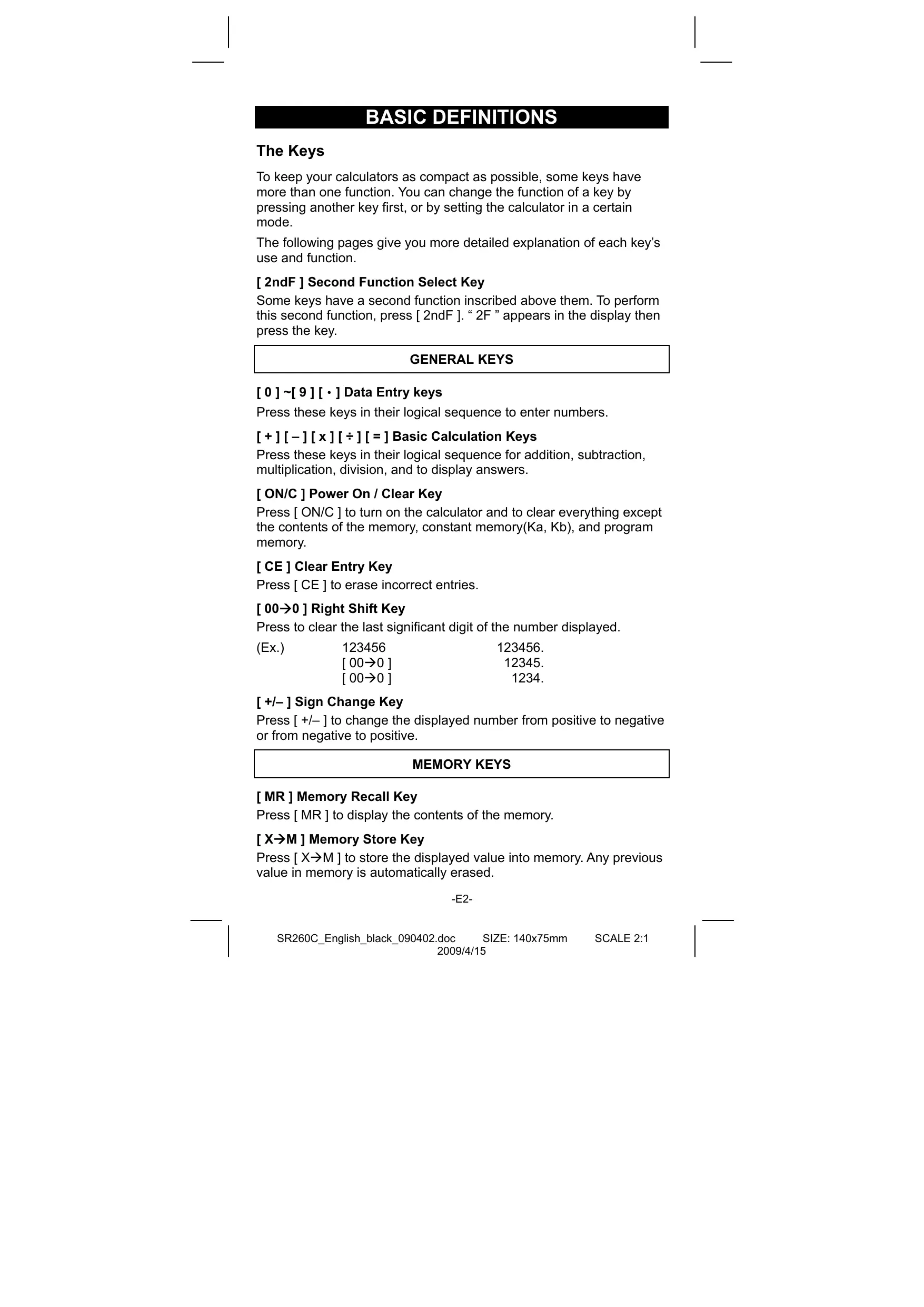
BASIC DEFINITIONS
The Keys
To keep your calculators as compact as possible, some keys have more than one function. You can change the function of a key by pressing another key first, or by setting the calculator in a certain mode.
The following pages give you more detailed explanation of each key's use and function.
[2ndF] Second Function Select Key
Some keys have a second function inscribed above them. To perform this second function, press [2ndF]. “2F” appears in the display then press the key.
GENERAL KEYS
[0]~[9][·] Data Entry keys
Press these keys in their logical sequence to enter numbers.
[ + ] [ - ] [ x ] [ ÷ ] [ = ] Basic Calculation Keys
Press these keys in their logical sequence for addition, subtraction, multiplication, division, and to display answers.
[ON/C] Power On / Clear Key
Press [ON/C] to turn on the calculator and to clear everything except the contents of the memory, constant memory(Ka, Kb), and program memory.
[CE] Clear Entry Key
Press [CE] to erase incorrect entries.
[00→0] Right Shift Key
Press to clear the last significant digit of the number displayed.
(Ex.)
123456
123456.
[00→0]
12345.
[00→0]
1234.
[+/-] Sign Change Key
Press [+/-] to change the displayed number from positive to negative or from negative to positive.
MEMORY KEYS
[MR] Memory Recall Key
Press [MR] to display the contents of the memory.
[X→M] Memory Store Key
Press [X M] to store the displayed value into memory. Any previous value in memory is automatically erased.
-E2-
[M+] Memory Plus Key
Press [M+] to total the current calculation and add the result to the value already in memory.
[2ndF] [Ka x K ], [2ndF] [Kb x K ] Constant (Ka, Kb) Memory Store Key
Press to enter the displayed value into constant memory Ka or Kb.
[Ka x→K], [Kb x→K] Memory Recall Key
Press to display the contents of a constant memory.
Note :
- Constant memories Ka and Kb can have a value of 0
- If you press [K a^X K] or [K b^X K] after entering a number or marking a calculation, the displayed value is multiplied by the value in K a or K b .
SPECIAL KEYS
[(),[]) Parenthesis Keys
Press to override the calculation's default order of operation by using parentheses. You can use up to 6 levels of parentheses in a single calculation.
[EXP] Exponent Key
To enter a number in scientific notation, first enter the numbers for the mantissa, press [EXP], and then enter the numbers for the exponent.
[2ndF] [π] Key
Press [2ndF] [] to display the value of , which is the ratio of circle's circumference to its diameter (approximately 3.141592654).
[2ndF] [X Y] Register Exchange Key
Press [2ndF] [X Y] to exchange the displayed value (X-register) with the contents of the working register (Y-register).
| (Ex.) | 123 [+] 456 [=] | 579. |
| [2ndF] [X↔Y] | 456. | |
| [2ndF] [X↔Y] | 579. |
[2ndF] [FIX] Decimal Point Set Key
Use to set the number of digits displayed after the decimal point in either final or intermediate results. The calculator continues to use its full range for internal calculations and only rounds the number in the display.
- [2ndF] [FIX] [0]~[6] — Sets the number of digits to be displayed to the right of decimal point.
- [2ndF] [FIX] [7], [8], [9], [·] — Selects floating point format.
| (Ex.) | 5 [÷] 9 [=] | 0.555555556 |
| [2ndF] [FIX] [2] | 0.56 | |
| [2ndF] [FIX] [5] | 0.55556 |
-E3-
[2ndF][FIX][·] 0.55555556
Note : [ 2ndF ] [ FIX ] is inactive immediately after and during numerical input.
[SCI] Scientific Key
Converts the displayed number into a power of ten and back.
| (Ex.): 12.3456 [ x ] 10 [ = ] | 123.456 | ||
| [ SCI ] | 1.23456 | 02 | |
| [ SCI ] | 123.456 | ||
| [ SCI ] | 1.23456 | 02 | |
[ DRG ] Angle unit conversion key
Press to change the angle unit as DEG (Degrees), RAD (Radian), or GRAD (Gradient).
UNIT CONVERSION KEY
This calculator has 13 unit conversion keys as follows. Each key has two conversion features. For example, pressing [A B] before [in cm] can convert a number in inches to centimeters; Pressing [2ndF] [A B] before [in cm] can convert a number in centimeters to inches.
Key Meanings
| [in←cm] | inch←centimeter |
| [feet←m] | feet←meter |
| [feet2←m2] | feet2←meter2 |
| [B.gal←l] | Britain. gallon←liter |
| [gal←l] | gallon←liter |
| [Pint←l] | Pint←liter |
| [Tr.oz←g] | Troy ounce←gram |
| [oz←g] | ounce←gram |
| [lb←kg] | libra←kilogram |
| [atm←kpa] | atmospheric pressure←kilopascal |
| [cal←KJ] | calorie←Kilo-Joule |
| [°F←°C] | Fahrenheit←Celsius |
| [mmHg←kpa] | mmHg←kilopascal |
FUNCTION KEYS
[2ndF] [0,1] [2ndF][ 0,1] Sexagesimal Notation/Decimal Notation Conversion Keys
To change from sexagesimal (base 60) notation (degree, minute, second) to decimal notation (degree) press [2ndF] [0, ] . To change from decimal notation to sexagesimal notation, enter the number in decimal form and then press [2ndF] [ 0, ] .
[ sin ], [ cos ], [ tan ] Sine, Cosine, Tangent Keys
Calculate the trigonometric functions of the displayed value.
-E4-
[2ndF] [sin ^-1 ], [2ndF] [cos ^-1 ], [2ndF] [tan ^-1 ] Inverse Sine, Inverse Cosine, Inverse Tangent Keys
Calculate the inverse trigonometric functions of the displayed value.
[2ndF] [HYP] [sin], [2ndF] [HYP] [cos], [2ndF] [HYP] [tan] Hyperbolic Keys
Calculate the hyperbolic functions of the displayed value.
[2ndF] [HYP] [2ndF] [sin ^-1 ], [2ndF] [HYP] [2ndF] [cos ^-1 ], [2ndF] [HYP] [2ndF] [tan ^-1 ] Inverse Hyperbolic Keys Calculate inverse hyperbolic functions of the displayed value.
[ log ], [ 2ndF ] [ 10^× ] Common Logarithm And Common Antilogarithm Keys
Calculate the common logarithm of the displayed value. To calculate the common antilogarithm of the displayed value, press [2ndF] [10 ^x ].
[ In ], [ 2ndF ] [ e^x ] Natural Logarithm And Natural Antilogarithm Keys
To calculate the neutral logarithm of the displayed value, press [In]. To calculate the natural antilogarithm of the displayed value, press [2ndF] [e ^× ].
[], [x^2] Square Root And Square Keys
Press [] to find the square root of the displayed value. To square the displayed value, press [x^2] .
[2ndF] [[3]~~]] Cubic Root Key
Press [2ndF] [[3]-] to find the cubic root of the displayed value.
[2ndF] [1/x] Reciprocal Key
Press [2ndF] [1/x] to calculate the reciprocal of the displayed value.
[2ndF] [x!] Factorial Key
To find the factorial of the displayed value, press [2ndF] [x!]
[x y] Power Key
Press any number [x],[x^y] , any number [y] , and [=] raise x to the y power.
[2ndF] [√x] Root Key
Press any number [x] [2ndF] [√x], any number [y], and [=] to display the yth root of x.
Pressing by [a^b / c] can enter a fraction or convert a fraction to a decimal number. Pressing by [2ndF] [ d / e] can convert a mixed number to an improper fraction and vice versa.
[CONST] Physics Constant Key
This calculator enables you to perform calculations with 15 built-in
-E5-
physics constants. Just pressing [CONST] key continuously can show the following symbols and values.
| Symbol | Meaning | Value |
| c | Speed of light | 299792458 m / s |
| g | Acceleration of gravity | 9.80665 m s-2 |
| G | Gravitational constant | 6.6725985 x 10⁻¹¹N m2kg-2 |
| Vm | Molar volume of ideal gas | 0.0224141 m3mol-1 |
| NA | Avagadro's number | 6.022136736 x 10²³mol-1 |
| R | Molar gas constant | 8.3145107 J/K mol |
| e | Elementary charge | 1.6021773349 x 10⁻¹⁹C |
| me | Electron mass | 9.109389754 x 10⁻³¹kg |
| mp | Proton mass | 1.67262311 x 10⁻²⁷kg |
| mn | Neutron mass | 1.67492861 x 10⁻²⁷kg |
| u | Unified atomic mass | 1.66054021 x 10⁻²⁷kg |
| h | Plank constant | 6.62607554 x 10⁻³⁴J.S |
| k | Boltzmann constant | 1.38065812 x 10⁻²³J.K-1 |
| μ0 | Magnetic permittivity | 1.2566370614 x 10-06Hm-1 |
| ε0 | Dielectric permittivity | 8.854187817 x 10⁻¹²Fm-1 |
PROGRAMMING KEYS (USE IN THE PGM MODE ONLY)
[2ndF] [PGM]—Program Mode Set and Clear Key
Set the calculator to the learn program mode. PGM appears on the display and the previous contents of program memory are cleared.
When you finish entering the program, press [2ndF] [PGM]. The program you just entered is stored in the program memory. PGM disappears and the calculator exits the program mode.
[RUN]—Compute Key
Runs the recorded program.
[2ndF] [[X]]—Specify Variable Key
Lets you have the calculator wait for an entry during a program.
[2ndF] [HALT]—Temporarily Halt Calculation Key
Temporarily halts a program so you can view the intermediate results or interrupt calculation.
STATISTICAL KEYS (USE IN THE STAT MODE ONLY)
[2ndF] [STAT] Statistical Mode Select Key
Sets the calculator to statistical calculation mode. STAT appears in the display.
[2ndF] [CAD] Statistical Register Clear Key
Cleared statistical calculation registers.
-E6-
[ DATA ], [ DEL ] Data Entry and Delete Key
In the STAT mode, enter data by pressing the desired numbers, then [DATA]. If you enter incorrect data and do not notice your mistake until you press [DATA], enter the same incorrect data and then press [DEL] to delete that incorrect data.
[x] Arithmetic Mean Key
Calculates the arithmetic mean () of the data.
[2ndF] [σ] Population Standard Deviation Key
Calculates the population standard deviation of the data.
[S] Sample Standard Deviation Key
Calculates the sample standard deviation of the data.
[2ndF] [ x^2] Sum of Square Value Key
Calculates the sum of the square value ( x^2) of the data.
[2ndF] [∑x] Sum of Value Key
Calculates the sum of the value ( x) of the data.
[n] Number of Data Key
Displays the number of data (n) entries.
The Display
Indicators showed on the display to indicate you the current status of the calculator.
- Floating point displays up to 10 digits.
- The mantissa section displays up to 8 digits. the exponent section displays up to ± 99 .
STAT : Indicates the statistical mode.
M : Indicates that a value is stored in memory.
- : Appears to the left of the mantissa or exponent to indicate that the respective value is negative.
E : Indicates an error.
PGM : Indicates the program learn mode.
CONST : Indicates the constant mode.
GRAD : Indicates the gradient units have been selected.
RAD : Indicates that radian units have been selected.
DEG :indicates that degree units have been selected.
BUSY : While an operation is executing.
: Indicates the deviation value
2F : Appears when the second function has been selected.
HYP : Appears when the hyperbolic function has been selected.
( : Appears when you press [ ( ]. It shows the present level of nesting.
-E7-
(n)
: Appears when you press [SHIFT] [[X]] in the program learn mode and when program execution halts to let you enter a variable. The number in brackets shows the number of the place of the variable, and goes from 1 - 40.
ORDER OF OPERATIONS
Each calculation is performed in the following order of precedence:
1) Functions required inputting values before pressing the function key, for example, cos, sin, tan, cos -1 , sin -1 , tan -1 , log, In, x², 1/x, , [3]x! , % 0 , 0 , 0 and 13 units conversion.
2) Operation in parenthesis
3) Functions required pressing the function key before entering, for example, [EXP] key.
4) Fractions
5) + / -
6) y , x^y
7) x, ÷
8) +, -
ACCURACY AND CAPACITY
| Functions | Input range |
| sin x, cos x, tan x | Deg: |x| < 1 x 10¹¹deg Rad: |x| < 1745329252 rad Grad: |x| < 1.111111111 x 10¹¹grad however, for tan x Deg: |x| ≠ 90 (2n+1) Rad: |x| ≠ π/2 (2n+1) Grad: |x| ≠ 100 (2n+1) (n is an integer) |
| sin-1x, cos-1x | |x| ≤ 1 |
| tan-1x | |x| < 1 x 10100 |
| sinh x, cosh x | |x| ≤ 230.2585092 |
| tanh x | |x| < 1 x 10100 |
| sinh-1x | |x| < 5 x 1099 |
| cosh-1x | 1 ≤ x < 5 x 1099 |
| tanh-1x | |x| < 1 |
| log x, ln x | 1 x 10-99 ≤ x < 1 x 10100 |
| 10x | |x| < 100 |
-E8-
| ex | | x | ≤ 230.2585092 |
| √x | 0 ≤ x < 1 x 10100 |
| x² | |x| < 1 x 10-50 |
| 1/x | 1 x 10-99 ≤ |x| < 1 x 10100, x ≠ 0 |
| 3√x | |x| < 1 x 10100 |
| x! | 0 ≤ x ≤ 69, x is an integer. |
| →0,, , 0,, → | |x| < 1 x 10100 |
| x^y | x > 0: -1 x 10100 < y log x < 100 x = 0: y > 0 x < 0: y=n, 1/(2n+1), n is an integer. but -1 x 10100 < y log |x| < 100 |
| √x | x > 0: y ≠ 0, -1 x 10100 < 1/y log x < 100 x = 0: y > 0 x<0: y=2n+1, l/n, n is an integer.(n≠0) but -1 x 10100 < 1/y log |x| 100 |
| a b/c | Input: Total of integer, numerator and denominator must be within 10 digits (includes division marks) Result: Result displayed as fraction for integer when integer, numerator and denominator are less than 1 x 10¹⁰ |
| STAT | |x| < 1 x 1050, |Σx| < 1 x 10100 0 ≤ Σx2 < 1 x 10100, 0 ≤ n < 1 x 10100 x: n ≠ 0; s: n > 1; σ: n > 0 |
OVERFLOW / ERROR CONDITIONS
A symbol “E” is indicated on the display when any of the following conditions occur and further calculation becomes impossible. Just press [ON/C] to release those overflow or error indicator and the subsequent calculation can then be performed.
- An intermediate or final calculation result exceeds 1 × 10^100 (including memory calculations).
- You try to divide by zero.
- The number of low priority storage levels exceeds 6 in a parentheses calculation or nesting parentheses exceed 7 in one level. (Even if the number of levels is within 6, an error might occur if you are using memories Ka or Kb, or program memories.)
- You try to use [ 2ndF ] [ Ka ^X→K ] or [ 2ndF ] [ Kb ^X→K ] while memories Ka and Kb are being used for low-priority calculation storage.
-E9-
- You make a calculation that is out of the range for functional and statistical calculations.
- You try to store over 40 steps in a program.
To clear calculation after an overflow condition, press [ON/C].
POWER SUPPLY
To turn the calculator on, press [ ON/C ]; To turn the calculator off, press [ OFF ]. This calculator automatically turns it off when not operated for approximately 9 minutes. It can be reactivated by pressing [ ON/C ] key and the display, memory, settings are retained.
The calculator is powered by two alkaline batteries (G13 or LR44). When the display dims, replace the batteries. Be careful not to be injured when you replace the battery.
- Unscrew the screws on the back of the calculator.
- Insert a flat bladed screwdriver into the slot between the upper and lower case then carefully twist it to separate the case.
- Remove both batteries and dispose of them properly. Never allow children to play with batteries.
- Wipe off the new batteries with a dry cloth to maintain good contact.
- Insert the two new batteries with their flat sides (plus terminals) up.
- Align the upper and lower cases then snap them to close together.
- Tighten the screws.
NORMAL CALCULATIONS
Basic Calculation (Including Parenthesis Calculations)
| (Ex.): -3.5 + 8 ÷ 2 = 0.5 | |
| 3.5 [ +/-] [ + ] 8 [ ÷ ] 2 [ = ] | DEG 0.5 |
| (Ex.): (5-2 x 1.5) x 3 + 0.8 x (-4) = ? | |
| [(5[-]2[x]1.5[])[x]3[+]0.8[x]4[+/-][=] | DEG 2.8 |
| (Ex.): 2 x [7 + 6 x (5 + 4)] = 122 | |
| 2[x][(7[+]6[x][(5[+]4[=] | DEG 122. |
(Note): It is unnecessary to press the [ ] key before the [ = ] key.
Constant Calculations
| (Ex.): 3 + 2.3 = 5.3 6 + 2.3 = 8.3 | ||
| 3 [+] 2.3 [=] | DEG | 5.3 |
| 6 [=] | DEG | 8.3 |
-E10-
| (Ex.): 7 - 5.6 = 1.4 -4.5 - 5.6 = -10.1 | ||
| 7 [−] 5.6 [=] | DEG | 1.4 |
| 4.5 [+/-] [=] | DEG | -10.1 |
| (Ex.): 12 x 2.3 = 27.6 12 x (-9) = -108 | ||
| 12 [x] 2.3 [=] | DEG | 27.6 |
| 9 [+/-] [=] | DEG | -108. |
| (Ex.): 74 ÷ 2.5 = 29.6 85.2 ÷ 2.5 = 34.08 | ||
| 74 [÷] 2.5 [=] | DEG | 29.6 |
| 85.2 [=] | DEG | 34.08 |
Memory Calculations
- Do not set the function mode to “STAT” when performing memory calculation.
- A new number entered into memory by pressing [X M] repalces any number previously stored.
- To clear the memory's contents, press [0] [X→M] or [ON/C] [X→M] in sequence.
- M appears when a number which is not equal to “ 0 ” is stored in memory.
- When you press [X M] after pressing [MR], the displayed number is changed as the contents of the memory.
| (Ex.):(3-5)+(56÷7)+(74-8×7)=24 | ||
| 0 [X→M] | DEG | 0. |
| 3[-]5 [M+] | M | DEG -2. |
| 56 [÷]7 [M+] | M | DEG 8. |
| 74[-]8[x]7 [M+] | M | DEG 18. |
| [MR] | M | DEG 24. |
| 0 [X→M] | DEG | 0. |
FUNCTION CALCULATIONS
Sexagesimal Decimal conversion
| (Ex.): 12° 45' 30" = 12.75833333 | |
| 12 [·] 4530 [2ndF ] [0,]"→] | DEG 12.75833333 |
| (Ex.): 2.12345 = 2° 7' 24.42" | |
-E11-
| 2.12345 [2ndF] [→0,"] | DEG 2.072442 |
Before performing the following calculation, check to see that your calculator is fixed at 2 decimal disaply format.
Fraction Calculation
- By pressing [2ndF] [ d / e] , the displayed value will be converted to the improper fraction.
| (Ex.): 2/3 + 7 3/5 = 124/15 | |
| 2 [ab/c] 3 [+] 7 [ab/c] 3 [ab/c] 5 [=] | DEG 8 ∪ 4 |- 15 |
| [2ndF] [→d/e] | DEG 124 |- 15 |
- When a press of [a b / c] key after the [=] key or a fraction performed with a decimal, the answer is displayed as a decimal.
| (Ex.): 5 4/9 + 3 3/4 = 9 7/16 = 9.19 | |
| 5 [ab/c] 4 [ab/c] 9 [+] 3 [ab/c] 3 | DEG |
| [ab/c] 4 [=] | 9 ∪ 7 - 36 |
| [ab/c] | DEG |
| 9.19 | |
Trigonometric / Inverse - Tri. Functions
| (Ex.): 3 sin 30° = 1.50 | |
| 3 [x] 30 [sin ] [=] | DEG 1.50 |
| (Ex.): cos (2π/3 rad) = -0.5 | |
| 2 [x] [2ndF] [π] [÷] 3 [=] [cos] | RAD -0.50 |
| (Ex.): sin-10.5 = 30 (deg) | |
| 0.5 [2ndF] [sin-1] | DEG 30.00 |
| (Ex.): cos-1(1/√2) = 0.79 (rad) | |
| 2 [√] [2ndF] [1/x] [2ndF] [cos-1] | RAD 0.79 |
Hyperbolic Functions and Inverse - Hyp. Functions
| (Ex.): cosh 1.5 + sinh 1.5 = 4.48 | |
| 1.5 [2ndF] [HYP] [cos] [+ ] | DEG . |
| 1.5 [2ndF] [HYP] [sin] [=] | 4.48 |
| (Ex.): sinh-17 = 2.64 | |
-E12-
| 7 [2ndF] [HYP] [2ndF] [sin-1] | DEG 2.64 |
Common And Natural Logarithms / Exponentiations
| (Ex.): In7 + log100 = 3.95 | |
| 7 [In] [+] 100 [log] [=] | DEG 3.95 |
| (Ex.): 102 = 100.00 | |
| 2 [2ndF] [10x] [=] | DEG 100.00 |
| (Ex.): e5 - e-2 = ? | |
| 5 [2ndF] [ex] [-] 2 [+/-] [2ndF] [ex] [=] | DEG 148.28 |
Power, Root, Reciprocals, Factorials
| (Ex.): √2 + √3 × √5 = 5.29 | |
| 2 [√] [+] 3 [√] [x] 5 [√] [=] | DEG 5.29 |
| (Ex.): 3√5 + 3√-27 = -1.29 | |
| 5 [2ndF] [3√] [+] 27 [+/-] [2ndF] [3√] [=] | DEG -1.29 |
| (Ex.): 75 = 16807 | |
| 7 [xy] 5 [=] | DEG 16807.00 |
| (Ex.): 5√32 = 2 | |
| 32 [2ndF] [y√x] 5 [=] | DEG 2.00 |
| (Ex.): 1/1-1/3-4=12.00 | |
| 3 [2ndF] [1/x] [−] 4 [2ndF] [1/x] [=] [2ndF] [1/x] | DEG 12.00 |
| (Ex.): 123 + 302 = 1023.00 | |
| 123 [+] 30 [x2] [=] | DEG 1023.00 |
| (Ex.): 8! = 1 x 2 x 3 x ....... x 7 x 8 = 40320.00 | |
| 8 [2ndF] [x!] | DEG 40320.00 |
Unit Conversion
| (Ex.): 12 in = 30.48 cm | |
| 12 [A→B] [2ndF] [in ↔cm] | DEG 30.48 |
| (Ex.): 98 cm = 38.58 in | |
-E13-
| 98 [2ndF] [A←B] [2ndF] [in←cm] | DEG 38.58 |
Note : All operating procedures for unit conversion key,
[feet m], [feet ^2 ^2 ], [B.gal I], [gal I]
[ Pint I ], [ Tr.oz g ], [ oz g ], [ Ib kg ],
[ atm kpa ], [ cal KJ ], [ ^ F ^ C ] and
[ mmHg kpa] are the same as the above example.
Physics Constants
| (Ex.): 5 x G = 3.34 x 10⁻¹⁰ | |
| 5 [x] [CONST] [CONST] [CONST] | CONST DEG 6.67 -11 G |
| [=] | DEG 3.34 -10 |
STANDARD DEVIATIONS
- Press [2ndF] [STAT] to set the calculator to the statistical calculation mode.
- Press [2ndF] [CAD] to clear statistical memory before you start a new calculation.
- Instead of entering directly each data, when often several item of data have the same value, you can enter the value and the number of occurrences.
| (Ex.): Enter the following data to calculate n, Σx, Σx2, x̄, S, σ, where data 1 = 2, data 2~4 = 5, data 5~6 = 9 | ||
| [2ndF] [STAT] | STAT | DEG |
| 0. | ||
| [2ndF] [CAD] | STAT | DEG |
| 0. | ||
| 2 [DATA] 5 [DATA] 5 [DATA] 5 [DATA] 9 [DATA] 9 [DATA] - or - 2 [DATA] 5 [x] 3 [DATA] 9 [x] 2 [DATA] | STAT | DEG |
| 6. | ||
| [n] | STAT | DEG |
| 6. | ||
| [2ndF] [Σx2] | STAT | DEG |
| 241. | ||
| [2ndF] [Σx] | STAT | DEG |
| 35. | ||
| [¯x] | STAT | DEG |
| 5.8333333333 | ||
| [S] | STAT | DEG |
| 2.714160398 | ||
| [2ndF] [σ] | STAT | DEG |
| 2.477678125 | ||
Note:
-E14-
The sample standard deviation S is defined as: x^2 - ( x)^2n - 1
The population standard deviation is defined as: x^2 - ( x)^2n
The arithmetical mean x is defined as: xn
- To delete an incorrect entry, press [DEL].
PROGRAMMING
With your programmable scientific calculator, complex repeated calculations are no longer time-consuming chores. All you have to do is tell the calculator what you want to do in a way it can understand (in other words, program it).
Your calculator can store one procedure with up to 40 steps. These "steps" can be either steps (like mathematical functions) or characters (like numbers). Each function counts as one steps. It remembers the procedure even after you turn off the calculator. You can have more than one variable in your calculation.
Your calculator learns mathematical procedures or programs in the program (PGM) mode. To set the calculator to the program mode, press [2ndF] [PGM]. PGM appears on the display.
Now enter your procedure as if you were just going to calculate it once —except—press [2ndF] [X] before entering variable data. You get your first answer while you are still in the PGM mode.
Note: If you press [2ndF] [X] then [·] or a number, and then [EXP], [+/-] , [·] or [CE], both the number and the first function following the number are treated as one variable—they are not written into the program as steps.
Remember, you can enter a maximum of 40 steps. If you try to enter a 41st step, the calculator dispalys E. Press [ON/C] to clear the error.
To stop storing a program, press [2ndF] [PGM] again. PGM disappears and the calculator leaves the program mode. Press [RUN] to begin repeating the same mathematical procedure with different variables.
When you press [RUN], you can begin entering different variables. Just enter each variable in the order in which it occurs in the formula and press [RUN] after each variable. The answers appear on the display.
Stored programs are automatically erased when you press [ 2ndF ] [ PGM ]. So, unless you want to enter a new program, do not select the program mode.
You can program your calculator to give you interim values in your formula also. While programming the calculation (in PGM mode), press [ = ] when you reach the point where you want the interim value
-E15-
displayed. Then press [ 2ndF ] [ HALT ] and continue entering your formula in the usual way.
When you run the program, press [RUN] after the calculator dispalys an interim value to resume the program. You can use the same method to program your calculator to run two or more formulas. One after another.
| (Ex.) Find the total amount of principal and interest on a $5,000 loan (x) at 6% annual interest (y) compounded annually over a period of 7 years (z)? Formula: total amount = x (1 + y)z | |
| (Ex.):(1) x = $5,000 y = 6 % z = 7 years | (2) x = $1,000 y = 10 % z = 5 years |
| [2ndF][PGM] | PGM DEG 0. |
| [2ndF][[X]] | PGM DEG [1] |
| 5000 | PGM DEG 5000. |
| [x][(1[+] [2ndF][[X]] | PGM DEG [2] |
| 6 | PGM DEG 6. |
| [÷]100() [xy][2ndF][[X]] | PGM DEG [3] |
| 7 | PGM DEG 7. |
| [=] | PGM DEG 7518.151295 |
| [2ndF][PGM] | DEG 0. |
| [RUN] | DEG [1] |
| 1000 | DEG 1000. |
| [RUN] | DEG [2] |
| 10 | DEG 10. |
| [RUN] | DEG [3] |
| 5 | DEG 5. |
| [RUN] | DEG 1610.51 |
-E16-
Description :

$$ \bigtriangleup \to Y $$
$$ R _ {4} = \frac {R _ {1} \bullet R _ {2}}{R _ {1} + R _ {2} + R _ {3}} $$
$$ R _ {5} = \frac {R _ {2} \bullet R _ {3}}{R _ {1} + R _ {2} + R _ {3}} $$
$$ R _ {6} = \frac {R _ {3} \bullet R _ {1}}{R _ {1} + R _ {2} + R _ {3}} $$
$$ R _ {2} = 4 7 (\Omega) $$
$$ R _ {3} = 8 2 (\Omega) $$
(2) R_1 = 10()
$$ R _ {2} = 2 0 (\Omega) $$
$$ R _ {3} = 3 0 (\Omega) $$
| 12 [2ndF] [KaX→K] | DEG | ||
| 12. | |||
| 47 [2ndF] [KbX→K] | DEG | ||
| 47. | |||
| 82 [X→M] | M | DEG | 82. |
| [2ndF] [PGM] | M | PGM DEG | 0. |
| [KaX→K] [KbX→K] | M | PGM DEG | 564. |
| [÷] [( ] [KaX→K] [+] | M | PGM DEG | 4. |
| [KbX→K] [+] [MR] [ ]) [=] | |||
| [2ndF] [HALT] | M | PGM DEG | 4. |
| [MR] [KbX→K] | M | PGM DEG | 3854. |
| [=] | M | PGM DEG | 27.33333333 |
| [2ndF] [HALT] | M | PGM DEG | 27.33333333 |
| [MR] [KaX→K] | M | PGM DEG | 984. |
| [=] | M | PGM DEG | 6.978723404 |
| [2ndF] [PGM] | M | DEG | 0. |
| 10 [2ndF] [KaX→K] 20 [2ndF] | M | DEG | 30. |
| [KbX→K] 30 [X→M] | |||
| [ON/C] [RUN] | M | DEG | 3.333333333 |
| [RUN] | M | DEG | 10. |
-E17-
| [RUN] | M DEG 5. | R6 |
-E18-
SR260C_English.black_090402.doc SIZE:140x75mm
2009/4/15
CONTENIDOS
DEFINICIONES BASICAS 2
El teclado 2
TECLAS GENERALES 2
TECLAS DE MEMORIA 2
TECLAS ESPECIALES 3
TECLA DE CONVERSION DE UNIDAD 4
TECLAS CON FUNCIONES ESPECIFICAS 4
TECLAS DE PROGRAMACION (USE SOLAMENTE EN MODO DE
PROGRAMACION) 6
TECLAS PARA ESTADISTICAS (USE SOLAMENTE EN MODO STAT) 6
LA PANTALLA 7
SR260C Spanish 090402.doc
2009/4/14
SIZE: 140x75mm
SCALE 1:1
DEFINICIONES BASICAS
El teclado
[2ndF][FIX][5] 0.55556
[2ndF][FIX][·] 0.55555556
Nota : [ 2ndF ] [ FIX ] permanecer inactiva durante e inmediamente
[2ndF][HYP][2ndF][sin-1], [2ndF][HYP][2ndF][cos-1],
[2ndF][HYP][2ndF][tan-1]Teclas hiperbólicas inversas
[2ndF][1/x]Tecla reciproca
Presione [2ndF] [1/x] para calcular la reciproca del valormostatido.
[2ndF] [x!] Tecla factorial
Presione [2ndF] [x!] para calcular la factorial del valoramente.
[x] Tecla de potencia
[RUN]—Tecla decomputed
SR260C Spanish 090402.doc
2009/4/14
SIZE: 140x75mm
SCALE 1:1
| (ej.): 2/3+7/5=124/15 | |
| 2 [ab/c] 3 [+] 7 [ab/c] 3 [ab/c] 5 [=] | DEG 8 4 15 |
| [2ndF][→d/e] | DEG 124 15 |
SR260C_Portuguese_090402.doc SIZE:140x75mm SCALE 1:1
2009/4/14
| [2ndF][FIX][5] | 0.55556 |
| [2ndF][FIX][·] | 0.555555556 |
[2ndF] [HYP] [sin], [2ndF] [HYP] [cos], [2ndF] [HYP] [tan] Teclas Hesperbolas
[2ndF][HYP][2ndF][sin-1],[2ndF][HYP][2ndF]
[cos-], [2ndF] [HYP] [2ndF] [tan-] Teclas Hiperbolicas Inversas
SR260C Portuguese 090402.doc SIZE:140x75mm SCALE 1:1
2009/4/14
SR260C_Portuguese_090402.doc SIZE:140x75mm SCALE 1:1
2009/4/14
SR260C Portuguese 090402.doc SIZE:140x75mm SCALE 1:1
2009/4/14
| (Ex.): 5 4/9 + 3 3/4 = 9 7/16 = 9.19 | |
| 5 [a b/C] 4 [a b/C] 9 [+] 3 [a b/C] 3 [a b/C] 4 [=] | DEG 9 7 36 |
| [a b/C] | DEG 9.19 |
SR260C Portuguese 090402.doc SIZE:140x75mm SCALE 1:1
2009/4/14
SR260C Portuguese 090402.doc SIZE:140x75mm SCALE 1:1
2009/4/14
PROGRAMACAO
SR260C Portuguese 090402.doc SIZE:140x75mm SCALE 1:1
2009/4/14
| Descrição: aR2R3bR4R5cR6R7R8R9R10 | ||
| (Ex): (1) R1=12 (Ω) (2) R1=10 (Ω) R2=47 (Ω) R2=20 (Ω) R3=82 (Ω) R3=30 (Ω) | ||
| 12 [2ndF] [KaX→K] | DEG 12. | |
| 47 [2ndF] [KbX→K] | DEG 47. | |
| 82 [X→M] | M DEG 82. | |
| [2ndF] [PGM] | M PGM DEG 0. | |
| [KaX→K] [KbX→K] | M PGM DEG 564. | R1×R2 |
| [+] [( ] [KaX→K] [+] [KbX→K] [+] [MR]() [=] | M PGM DEG 4. | R4 |
| [2ndF] [HALT] | M PGM DEG 4. | |
| [MR] [KbX→K] | M PGM DEG 3854. | R2×R3 |
| [=] | M PGM DEG 27.33333333 | R5 |
| [2ndF] [HALT] | M PGM DEG 27.33333333 | |
| [MR] [KaX→K] | M PGM DEG 984. | R3×R1 |
| [=] | M PGM DEG 6.978723404 | R6 |
| [2ndF] [PGM] | M DEG 0. | |
-P18-
SR260C Portuguese 090402.doc SIZE:140x75mm SCALE 1:1
2009/4/14
| 10 [2ndF] [KaX→K] 20 [2ndF] [KbX→K] 30 [X→M] | M | DEG | 30. |
| [ON/C] [RUN] | M | DEG | R4 |
| 3.333333333 | |||
| [RUN] | M | DEG | R5 |
| 10. | |||
| [RUN] | M | DEG | R6 |
| 5. |
-P19-
SR260C Portuguese 090402.doc SIZE:140x75mm SCALE 1:1
2009/4/14
Inhaltsverzeichnis
GRUNDLegendes 2
Die Tastatur 2
Die Taste [2ndF] [π]
[2ndF][HYP][sin],[2ndF][HYP][cos],[2ndF][HYP] [tan]Hyperbeltasten
[2ndF][HYP][2ndF][sin-1], [2ndF][HYP][2ndF]
[^-1] , [2ndF] , [HYP] , [2ndF] , [tan^-1] , Hyperbelfunktionen
[2ndF][3√]Kubikwurzel
[2ndF] [1/x] Reziproker Wert
[2ndF][X]-Variablelentaste
[2ndF] [CAD] Registerloschstate
[2ndF][ x^2 ] Quadratsumme
| Beschreibung: a R2 W R3 b a R4 R5 b c R6 R1 = 12 (Ω) R2 = 47 (Ω) R3 = 82 (Ω) | △ → Y R4 = R1 • R2 / R1 + R2 + R3 R5 = R2 • R3 / R1 + R2 + R3 R6 = R3 • R1 / R1 + R2 + R3 | ||
| (Ex): (1) R1 = 12 (Ω) (2) R1 = 10 (Ω) | |||
| R2 = 20 (Ω) | |||
| R3 = 30 (Ω) | |||
| 12 [2ndF] [KaX→K] | DEG | ||
| 12. | |||
| 47 [2ndF] [KbX→K] | DEG | ||
| 47. | |||
| 82 [X→M] | M DEG | ||
| 82. | |||
| [2ndF] [PGM] | M PGM DEG | ||
| 0. | |||
-G18-
| [KaX→K][KbX→K] | M PGM DEG 564. | R1× R2 | |
| [+] [( ] [KaX→K][+] [KbX→K][+] [MR][?] [=] | M PGM DEG 4. | R4 | |
| [2ndF][HALT] | M PGM DEG 4. | ||
| [MR][KbX→K] | M PGM DEG 3854. | R2× R3 | |
| [=] | M PGM DEG 27.33333333 | R5 | |
| [2ndF][HALT] | M PGM DEG 27.33333333 | ||
| [MR][KaX→K] | M PGM DEG 984. | R3× R1 | |
| [=] | M PGM DEG 6.978723404 | R6 | |
| [2ndF][PGM] | M DEG 0. | ||
| 10 [2ndF][KaX→K]20 [2ndF][KbX→K]30 [X→M] | M DEG 30. | ||
| [ON/C][RUN] | M DEG 3.333333333 | R4 | |
| [RUN] | M DEG 10. | R5 | |
| [RUN] | M DEG 5. | R6 | |
-G19-
Sommaire
DEFINITIONS FONDAMENTALES 2
Les Touches 2
LES TOUCHES GENERALES 2
TOUCHES DE MEMOIRE 2
TOUCHES SPECIALES 3
TOUCHE DE CONVERSION D'UNITE 4
TOUCHES DE FONCTION 4
TOUCHES PROGRAMMANTES (S'UTILISE UNIQUEMENT EN
MODE PGM) 6
TOUCHES STATISTIQUES (S'EMPLOYE UNIQUEMENT EN
MODE SD) 7
L'AFFICHAGE 7
ORDRE DES OPÉRATIONS 8
PRECISION DE CAPACITÉ 8
SURCHARGE / CONDITIONS D'ERREUR 10
SOURCE D'ALIMENTATION 10
CALCULS NORMAUX 11
[ON/C] Touches Allumage/Effaçage ON/Clear
[2ndF] [KaX→K], [2ndF] [KbX→K] Touche de Stockage en Mémoire Constante (Ka, Kb)
| (Ex.) | 5 [÷] 9 [= ] | 0.555555556 |
| [2ndF][FIX][2] | 0.56 | |
| [2ndF][FIX][5] | 0.55556 | |
| [2ndF][FIX][*] | 0.55555556 |
[2ndF][HYP][sin],[2ndF][HYP][cos],[2ndF][HYP] [tan] Touches d'Hyperbole
[2ndF] [1/x] Touche Inverse
[2ndF] [x!] Factorial Touche
To find the factorial of the displayed value, Appuyez [2ndF] [x!]
[x^y] Touche Puisssance
[2ndF][√x] Touche Racine
[a b] [2ndF] [→d] Touche de Fraction
SOURCE D'ALIMENTATION
| [2ndF][→d/e] | DEG 124 15 |
| (Ex.): 5 4/9 + 3 3/4 = 9 7/16 = 9.19 | |
| 5 [a b/C] 4 [a b/C] 9 [+] 3 [a b/C] 3 [a b/C] 4 [= ] | DEG 9 7 36 |
| [a b/C] | DEG 9.19 |
| (Ex.): 12 in = 30.48 cm | |
| 12 [A→B] [2ndF] [in←cm] | DEG 30.48 |
| (Ex.): 98 cm = 38.58 in | |
| 98 [2ndF] [A←B] [2ndF] [in←cm] | DEG 38.58 |
| (Ex.) Find the total amount of principal and interest on a 5,000 loan (x) at 6% annual interest (y) compounded annually over a period of 7 years (z)?Formula: total amount = x (1 + y)z | |
| (Ex.):(1) x =5,000 (2) y = 6 % z = 7 année | x = $1,000y = 10 %z = 5 année |
| [2ndF][PGM] | PGM DEG0. |
| [2ndF][[X]] | PGM DEG[1] |
| 5000 | PGM DEG5000. |
| [x][(+]1[+] [2ndF][[X]] | PGM DEG[2] |
| 6 | PGM DEG6. |
| [+]100[?] [x^y][2ndF][[X]] | PGM DEG[3] |
| 7 | PGM DEG7. |
| [=] | PGM DEG7518.151295 |
| [2ndF][PGM] | DEG0. |
| [RUN] | DEG[1] |
| 1000 | DEG1000. |
-F17-
| [RUN] | DEG [2] |
| 10 | DEG 10. |
| [RUN] | DEG [3] |
| 5 | DEG 5. |
| [RUN] | DEG 1610.51 |
| Description: a R2 W R3 b a R4 R5 c R6 | △ → Y R4 = R1 • R2 / R1 + R2 + R3 R5 = R2 • R3 / R1 + R2 + R3 R6 = R3 • R1 / R1 + R2 + R3 | ||
| (Ex): (1) R1 = 12 (Ω) R2 = 47 (Ω) R3 = 82 (Ω) | (2) R1 = 10 (Ω) R2 = 20 (Ω) R3 = 30 (Ω) | ||
| 12 [2ndF] [KaX→K] | DEG | ||
| 12. | |||
| 47 [2ndF] [KbX→K] | DEG | ||
| 47. | |||
| 82 [X→M] | M | DEG | 82. |
| 82. | |||
| [2ndF] [PGM] | M | PGM DEG | 0. |
| [KaX→K] [KbX→K] | M | PGM DEG | 564. |
| PGM DEG | 4. | ||
| [+] [( ] [KaX→K] [+] [KbX→K] [+] [MR] () [=] | M | PGM DEG | 4. |
| [2ndF] [HALT] | M | PGM DEG | 3854. |
| [MR] [KbX→K] | M | PGM DEG | 27.333333333 |
| PGM DEG | R5 | ||
| [=] | M | PGM DEG | R2 |
| PGM DEG | x R3 | ||
-F18-
| [2ndF] [HALT] | M PGM DEG 27.33333333 | |
| [MR] [KaX→K] | M PGM DEG 984. | R3×R1 |
| [=] | M PGM DEG 6.978723404 | R6 |
| [2ndF] [PGM] | M DEG 0. | |
| 10 [2ndF] [KaX→K] 20 [2ndF] [KbX→K] 30 [X→M] | M DEG 30. | |
| [ON/C] [RUN] | M DEG 3.333333333 | R4 |
| [RUN] | M DEG 10. | R5 |
| [RUN] | M DEG 5. | R6 |
-F19-
Indice
| (Ex.) | 5 [÷] 9 [=] | 0.555555556 |
| [2ndF][FIX][2] | 0.56 | |
| [2ndF][FIX][5] | 0.55556 | |
| [2ndF][FIX][·] | 0.555555556 |
[2ndF] [HYP] [sin], [2ndF] [HYP] [cos], [2ndF] [HYP] [tan] Tasti Iperbolici
[2ndF] [HYP] [2ndF] [sin ^-1 ], [2ndF] [HYP] [2ndF] [cos ^-1 ], [2ndF] [HYP] [2ndF] [tan ^-1 ] Tasti Iperbolici Inversi
[2ndF] [1/x] Tasto Reciproco
| (Es.): 2/3 + 7 3/5 = 124/15 | |
| 2 [ab/c] 3 [+] 7 [ab/c] 3 [ab/c] 5 [=] | DEG 8 ∪ 4 |- 15 |
| [2ndF] [→d/e] | DEG 124 |- 15 |
| (Es.): 5 4/9 + 3 3/4 = 9 7/16 = 9.19 | |
| 5 [ab/c] 4 [ab/c] 9 [+] 3 [ab/c] 3 [ab/c] 4 [=] | DEG 9 ∪ 7 - 36 |
| [ab/c] | DEG 9.19 |
| (Es.): e5-e-2=? | |
| 5 [2ndF][ex][-] 2 [+/-] [2ndF] [e x ][=] | DEG 148.28 |
| (Es.): 5 x G = 3.34 x 10⁻¹⁰ |
-It 14-
| 5[x][CONST][CONST][CONST] | CONST DEG 6.67 -11 G |
| [=] | DEG 3.34 -10 |
DEVIAZIONI STANDARD
De inverse hyperbolische toetsen: [2ndF] [HYP] [2ndF] [sin ^-1 ], [2ndF] [HYP] [2ndF] [cos ^-1 ] en [2ndF] [HYP] [2ndF] [tan ^-1 ]
| (Bv.): 2/3 + 7 3/5 = 124/15 | |
| 2 [ab/c] 3 [+] 7 [ab/c] 3 [ab/c] 5 [=] | DEG 8 ∪ 4 ∪ 15 |
| [2ndF] [→d/e] | DEG 124 ∪ 15 |
| (Bv.): 5 4/9 + 3 3/4 = 9 7/16 = 9.19 | |
| 5 [ab/c] 4 [ab/c] 9 [+] 3 [ab/c] 3 | DEG |
| [ab/c] 4 [= ] | 9 ∪ 7 ∪ 36 |
| [ab/c] | DEG |
| 9.19 | |
Trigonometrische / Inverse trigonometrische functies
| (Bv.): 3 sin 30° = 1.50 | |
| 3 [x] 30 [sin ] [=] | DEG 1.50 |
| (Bv.): cos (2π/3 rad) = -0.5 | |
| 2 [x] [2ndF] [π] [÷] 3 [=] [cos] | RAD -0.50 | |
| (Bv.): sin-10.5 = 30 (deg) | ||
| 0.5 [2ndF] [sin-1] | DEG 30.00 | |
| (Bv.): cos-1(1/√2) = 0.79 (rad) | ||
| 2 [√] [2ndF] [1/x] [2ndF] [cos-1] | RAD 0.79 | |
| (Bv.): cosh 1.5 + sinh 1.5 = 4.48 | |
| 1.5 [2ndF] [HYP] [cos] [+ ] | DEG |
| 1.5 [2ndF] [HYP] [sin] [=] | 4.48 |
| (Bv.): sinh-17 = 2.64 | |
| 7 [2ndF] [HYP] [2ndF] [sin-1] | DEG |
| 2.64 | |
| (Bv.): 12 in = 30.48 cm | |
| 12 [A→B] [2ndF] [in ↔cm] | DEG 30.48 |
| (Bv.): 98 cm = 38.58 in | |
| 98 [2ndF] [A←B] [2ndF] [in ↔cm] | DEG 38.58 |
Opmerking: De overige toetsen voor de conversie van eenheden, [feet m ], [feet ^2 ^2 ], [B.gal I ], [gal I ] [Pint I ], [Tr.oz g ], [oz g ], [Ib kg ], [atm kpa ], [cal KJ ], [F °C] en [mmHg kpa] worden opdezelfde manier gezruikt als getoond worden in het bovenstaande voorbeeld.
Constanten
| (Bv.): 5 x G = 3.34 x 10⁻¹⁰ | |
| 5 [x] [CONST] [CONST] [CONST] | CONST DEG |
| 6.67 -11 | |
| [=] | DEG |
| 3.34 -10 | |
STANDAARDDAFWIJKINGEN
OPERATIONSRÆKKEFØLGE 8
NØJAGTIGHED OG KAPACITET 8
OVERLØB / FEJLTILSTANDE 9
STRØMFORSYNING 10
[2ndF][FIX][2] 0.56
[2ndF][FIX][5] 0.55556
[2ndF][FIX][·] 0.55555556
[2ndF] [HYP] [sin], [2ndF] [HYP] [cos], [2ndF] [HYP] [tan] Hyperbolske taster
[2ndF] [HYP] [2ndF] [sin ^-1 ], [2ndF] [HYP] [2ndF] [cos ^-1 ], [2ndF] [HYP] [2ndF] [tan ^-1 ] Inverse hyperbolske taster
[2ndF] [σ] Populationsstandardafvigelse
Beregner populationsstandardsfvgelsen for dataene.
OPERATIONSRÆKKEFØLGE
| (Eks.): 2/3 + 7 3/5 = 124/15 | |
| 2 [ab/c] 3 [+] 7 [ab/c] 3 [ab/c] 5 [=] | DEG 8 ∪ 4 ↑ 15 |
| [2ndF] [→d/e] | DEG 124 ↓ 15 |
| (Eks.): 5 4/9 + 3 3/4 = 9 7/16 = 9.19 | |
| 5 [ab/c] 4 [ab/c] 9 [+] 3 [ab/c] 3 | DEG |
| [ab/c] 4 [=] | 9 ∪ 7 ∪ 36 |
| [ab/c] | DEG |
| 9.19 | |
Trigonometriske / inverse trigonometriske Funktioner
| (Eks.): 3 sin 30 °= 1.50 | ||
| 3 [x] 30 [sin ] [=] | DEG | 1.50 |
| (Eks.): cos (2π/3 rad) = -0.5 | ||
| 2 [x] [2ndF] [π] [÷] 3 [=] [cos] | RAD | -0.50 |
| (Eks.): sin-10.5 = 30 (deg) | ||
| 0.5 [2ndF] [sin-1] | DEG | 30.00 |
-Da12-
| (Eks.): cos-1(1/√2)=0.79 (rad) | ||
| 2 [√] [2ndF] [1/X] [2ndF] [cos-1] | RAD | 0.79 |
OCHOBHbIE ONPeDEJIeHnI 2
KnaBn 2
KJIABINI OBIEERO HA3HAUEHIN 2
KJIABUNBBODA B PAMrTb 2
CNEUJIbHbIE KIABUNI 3
KJIABUNI3AMEHbI EINHUL N3MEPEHNI 4
ФУHKUHOHAJIbHbIEKJIABUISHI 5
KJABUNIINIPOPTPAMMIMOBAHNIA(TOJIbKO B PEXKIME PGM)6
KJIABUNI CTATNCTU CECTKINX PACETOB (TOJIbKO B PEKM)
STAT) 7
ДиСПЛЕй 8
IOPRAOK BbINOJIHHeNJaONEPAuN 8
TOUHOCTb PACETOB IN DONYCTUMBIE PPEDEJIbI 3HAUEHIN
9 DEPEDOTHEHME/OLIMSKA 10
ПИТАНЕ 11
06blyHbIE PACyETbl 11
OchOBhble BbUncnEHHa (BkIIOypa pacYeTb ICNcNoJb3OBaHneM
cko6ok) 11
PacYeTbICNCIOB3OBAHHeM KOHCTaHT 12
PacYeBICNCNoB3OBAHHem nAmrTn 12
PACyETbI C PIPMEHEHnEM FYHKUHOHAJIbHbIX KJABuI.13
IpebeoD wecntndecraTeepnHbIX Yncen B DecraTnHbIe 13
PacYeTbICnOJIb3OBaHHeM dpo6eI 13
TpuroHOMeTpueckne n o6paTHbIe TpuroHOMeTpueckne cyHKcIMn
13
TnepboNueckne n obpaThbIe rnep6. yHKnu.. 14
DecaTnHbIe HHaTpaNbHbIe IorapuΦMbI / Bo3BeJeHne B cTepeHb
14
Ctenenb, Kopeh KBaapathbI, opaTHa BEJUNHa, paTOpn14
3aMeHa eDHHu n3MpeHn 15
Φn3nueckne KOHCTaHTbl. 15
CTAHAPTHOEOTKIOHEHNE 15
ПОГРAMMМЮВАНЕ 16
OCHOBHbIe ONPeDEJIeHnY
KnaBn
Дя npdAniaн KaIbKyIaTOpу MAKcHMaIbHoI KOMnakTHOCTN HeKOTOpbM KnabIaMam PnIpyCaHa 0oJee cHem OdaФyHKuIa. FyHKmII KnablSiMe MoKHO N3MeHrTa, HaxIMaR ChaJaIa DpyHyO KnabUaIu IJInepeBOra KaIbKyIaTOpB O nOpEdeHHeHb pEKMM.
Ntke prnbeDeho noloe noDpo6Hoe onoHcanee FyHKpI pa3bIX KnaBHeu npriMepeBu XpNIPEMeHHUE.
[2ndF] Bb6op Btropo fynkun
HekToptbMn KnaBnuAam npnncAna Btopa HK nJa ee npmHeHHaKmTe [2NdF].Korda Na dcNnee noarntc "2F" , HaKMMeHyKHYo KnaBtiu.
KnaBnns o6eRo Ha3NaeHn
[0]~[9][·]KlaBnH BVOda nΦp
Дагь Вдога цdрнхима Te 3TN KJIABHbB H KyHHOI nOcNEDOBATEBHLBOCTN.
[+][-][x][÷][=] ApnФмETMueckne DeiCTBna
Hakatne 3TNX KNABIW H BOE6XODIMOM NOCNEOBOATENBHOCTN NO3BOJANE BbINONHtB CNOXEHE, BbUHTAHHe, yMHOXEHe N DEHeHe, a TaKoe BBeCTn Pe3yntBat Ha cINPNHe.
[ON/C] BkIIOUeHHe NITaHnI / C6poc
Knabniha [ON/C] cnkynt DnBKnHcyHnKaIbKnyIpaTOb 6pOca Bcex DaHHbIX,3a NckNIOHcHmCoepeKJIMOTo PAMrTn, BBeDeHNbIX B nAMrTb KOHCTaHT (Ka,Kb) aNzIcHnCBHXbB nAMrTn npORpAM.
[CE]C6poc uΦpyb
KnabuHa [CE] nCOnb3yetcraDnB6pOca Oun6oHBO BBeDeHNO uNbPb
[00→0] C6poc nocneDneuΦpbI nepez3aŋtoi
3Ta KnaBnua CnyKHT Dnla CbOpa NocPdHeNu cHpbl 1eOcHcHEnH YAChTcHcNA.
(Пуимер) 123456
[00→0]
123456.
[00→0]
12345
1234
[+/-] NipepeMeHa 3HaKa
HAKMME[+/-],YTObIbI M3NHeMHITb 3Hk BbICBcEHHOH Ho HcINPee
YNCNA C NIOCA AH MNYC INH hAO6OpT.
KJABUNBBODA B PAMrTb
[MR]BbI3OBn3namrTn
Hakab KnaBniu [MR], MOxHO BbCBeTnHa DaNcPiee CoepXHMoe namATi.
-R2-
[X→M] BbOaB namrTa
Hakmte KnaBnuy [X→M].TTObI BBeCTN B namrB bYbcEHHoe Ha nCnIee YcNcO. Tekuuee 3HaHeHne naMrTi 6ydt ABTOMaTHeCKN 3aMeHEHO HOBtM.
[M+]BBoD B nAmrTb C nIIOCOM
HakMMTE KnabuH [M+]ДЯн ЗаверMuHbYBbNCHeHmI nPbIaBEBW CmmByK 3HaHcEHIO, ZANCAHOBMY B aamRTN.
[2ndF][KaX+K], [2ndF][KbX+K] KnabiniamaTn KOHCTANT (Ka,Kb)
37Kny KaBnIy CNeJyET HAcTaB, YTO6bI BBeCTN BNaMaTb 3HaYeHnA KOHCTAHKa NmII Kc
[KaX→K], [KbX→K] Bb3OB u3 nAMrTn 3HaueHn KOHCTaHT
37KnyBanuHcyneHakbT,HTo6BblBCBtNTbHaDcNpIe 3aIcapnHbIe bNAMATIHHAHEAHYKOHCTAH.
Приимechание
KoHCTaHTbI Ka N Kb MOrTy pInHIMMaTb 3HaueHMe, paBHOe O
-Пинхалгатиknakамш[KaXK]ил[KbXK]nocneвьдачпсилздэрбенин,ысbereунhoeандсппeeчсоуbetd emyhoхен ha benuynHa Ka nKnB.
CNEUANbHbIE KJABIN
[(.)]Cko6kn
CkO6Kn p03B0nHrOt nMEnHt bnpaDOK ocUeCTBHeHna pacTeOB. B ODHn npOcEype BbYncIeHm MoKHO npIMeHNb Do 6 ypOBHe CckObK.
[EXP]3KcnoHeHTa
TcBbI BBEChTHCNO, npCTABENHHeO H bAYHIO 3aHNC, BBEDITE MAHTNCCY, HAKMNTE KNAIBUY [EXP], a3ATEM BBEDITE NOPADK.
KlaBnHn [2ndF][π]
Hakatte Knaibn [2ndF] [π] no3BONNET BcBETNTb 3aHuEHe Ncna π, (OTHOUHHe DmNbIb OkpyKHOCTN K dAmETpy, pnpblnntelbHo 3.141592654).
[2ndF][X Y]KnaBnIn 3aMeHbIpeRncTPOB
Hakatne Knaibni [2ndF][X+Y] nO3BnErl 3aMeHnIb BbICBeHeHHe Hb NcHnnee 3aHHeHn (perNCTp X) Ha 3aHHeNe,
XpansheeeesBp
(Приимер) 123 [+] 456 [=] 579.
[2ndF][X Y] 456.
[2ndF][X Y] 579.
[2ndF][FIX]YncJIO3naKOBnocJIe3aIyToI
37a KlaBnIa CnyKHT DnA UyCTAHOBKn YUcNsBa BvCBeYMaEBmIx 3HAKOB nOcne 3aIaTOB N bpOMeJyTOH OM IIN OKOHaTebIbom HpezIbTaTe. BByNCENHb 6bUT npO3BOdITcB N bONHom OcbYeTHe
PpOIN3oIeT JINb B YNCne, BbICBeHbAeMOM Ha DnCJIee.
[2ndF][FIX][0]-[6]—YCTAHOBKa YHCnA BbCBeHbAeMbX 3ahokBnOncE3aIaTOr.
- [2ndF][FIX][7],[8],[9],[·]—Выбор рекима падаюшев зяразов.
| (Приимер) | 5 [÷] 9 [= ] | 0.555555556 |
| [2ndF][FIX][2] | 0.56 | |
| [2ndF][FIX][5] | 0.55556 | |
| [2ndF][FIX][·] | 0.555555556 |
Птмемаунке:Клавиши [2ndF] [FIX]HEAKTINBHA HENOCPECTBEHNOncI BO BVPMA BBODA WICNOBBX DAHNBHIX.
[SCI] Haychbnye pexum
KoBepnpyet BbCBeueHHe Na DCINPee YNCIO B CTENeHB YNCNA 10 Haa6Opor.
| (Приимер): | 12.3456 [x] 10 [= ] | 123.456 |
| [SCI] | 1.23456 02 | |
| [SCI] | 123.456 | |
| [SCI] | 1.23456 02 |
[DRG]3aMeHaMepyIIOB
3Ta knaBnla cnyknt for bbl6op a meyroB: DEG (rpaDycb), RAD (paHAnb) nmi GRAD (deaeTnhye rpaDycb).
KJIABNII 3AMEHbI EDINHc N3MEPEHNI
Danhny kablkyIop nMeet 13 knabniue nIy 3aMeHbI eHNHnIu n3mepeHH. KaKdA n3 NTX knabniue cnykmtI dny 3aMeHH bdyx eHNHnIu n3mepeHH. HanpImep, HauNtae [A B], a 3atem [in cm] npBBeTe K 3aMeHe DIOIMOB Ha cAHTMeTpbl; HauNtae [2ndF] [A B], a 3atem [in cm] npBBeTe K 3aMeHe DIOIMOB Ha cAHTMeTpbl.
KnaBnwa
3Nauchenne
| [in←cm] | Дюйсы←Сантуметрbl | |
| [feet←m] | Футсы←Метрbl | |
| [feet2←m2] | Футсы2←Метрbl2 | |
| [B.gal←I] | галлоны (бprit.)←Плтсы | |
| [gal←I] | галлоны←Плтсы | |
| [Pint←I] | ПиNTы←Плтсы | |
| [Tr.oz←g] | Тюйскпе унuzи←ГраMMы | |
| [oz←g] | Унuzи←ГраMMы | |
| [lb←kg] | ФуNTы←КИлогразмьы | |
| [atm←kpa] | atmosфераы←КИлог生态系统 | |
| [cal←KJ] | Калори←КИлогожуи | |
| [′T←C] | радусьи foamареньчы←радусьи foamльси foamльси foamльси foamльси foamльси foamльси foamльси foamльси foamльси foamльси foamльси foamльси foamльси foamльси foamльси foamльси foamльси foamльси foamльси foamльси foamльби foamльси foamльси foamльси foamльси foamльси foamльси foamльси foamльси foamльси foamльси foamльси foamльси foamльси foamльси foamльси foamльси foamльси foamльси foamльси foamльcи foamльси foamльcи foamльcи foamльcи foamльcи foamльcи foamльcи foamльcи foamльcи foamльcи foamльcи foamльcи foamльcи foamльcи foamльcи foamльcи foamльcи foamльcи foamльcи foamльcи foamльcи foamльси foamльcи foamльcи foamльcи foamльcи foamльcи foamльcи foamльcи foamльcи foamльcи foamльcи foamльcи foamльcи foamльcи foamльcи foamльcи foamльcи foamльcи foamльси foamльcи foamльси foamльcи foamльcи foamльcи foamльcи foamльcи foamльcи foamльcи foamльcи foamльcи foamльcи foamльcи foamльcи foamльcи foamльcи foamльcи foamльcи foamльси foamльcи foamльcи foamльси foamльcи foamльcи foamльcи foamльcи foamльcи foamльcи foamльcи foamльcи foamльcи foamльcи foamльcи foamльcи foamльcи foamльcи foamльcи foamльcи foamльси foamльси foamльcи foamльcи foamльcи foamльcи foamльcи foamльcи foamльcи foamльcи foamльcи foamльcи foamльcи foamльcи foamльcи foamльcи foamльcи foamльcи foamльcи foamльcи foamльси foamльси foamльcи foamльси foamльcи foamльcи foamльcи foamльcи foamльcи foamльcи foamльcи foamльcи foamльcи foamльcи foamльcи foamльcи foamльcи foamльcи foamльcи foamльси foamльcи foamльcи foamльcи foamльси foamльcи foamльcи foamльcи foamльcи foamльcи foamльcи foamльcи foamльcи foamльcи foamльcи foamльcи foamльcи foamльcи foamльcи foamльcи foamльси foamльcи foamльси foamльcи foamльси foamльcи foamльcи foamльcи foamльcи foamльcи foamльcи foamльcи foamльcи foamльcи foamльcи foamльcи foamльcи foamльcи foamльcи foamльcи foamльси foamльси foamльcи foamльcи foamльси foamльcи foamльcи foamльcи foamльcи foamльcи foamльcи foamльcи foamльcи foamльcи foamльcи foamльcи foamльcи foamльcи foamльcи foamльcи foamльси foamльси foamльси foamльcи foamльcи foamльcи foamльcи foamльcи foamльcи foamльcи foamльcи foamльcи foamльcи foamльcи foamльcи foamльcи foamльcи foamльcи foamльcи foamльcи foamльси foamльси foamльси foamльc石化液化石油气 | Футсы←Метрbl |
ФУHKLIOHOHAJIbHbIe KJIABUISHI
[2ndF][01n→], [2ndF] [→01n] KnaBmni nepeBoDa 电eTndecraTeprnHbX uCen B DecraTnHbIe H aOboPOT
Длп похда OT WeeTnDEcaTeRupHOrO CnCneHnA (C OCHOBaHMe6 60) (rpaDcbl, MHNyTbI, CekHydbl) K ChUcNEHNO DeCtTnHOMY (rpadcybl), HaxMЛte KnaBmN [2ndF] [01] . Длп похда OT DecaTnHOrO ChnCneHn K WeeTnDEcaTeRupHOMY, BVeDnTE YnCNo B DecaTnHOnФОмЕ И NaKMaTte KnaBmN [2ndF] [01] .
[sin],[cos],[tan]KnaBnHc nHyc,KocnHyc,TaHreHc
CnykatIpaaceta TpiroHOHometpueecknx FyHKn BVEeEHORO cnca.
[2ndF][sin-1],[2ndF][cos-1],[2ndF][tan-1]O6paTHbI CNHyC,06paTHbIKocnHyc,O6paTHbTahReHC
Cnykat dans paeta obaTbIx TpnoHOMeTpuecknx FyHKLI BBEDeHHORO YcNCA.
[2ndF] [HYP] [sin], [2ndF] [HYP] [cos], [2ndF] [HYP] [tan] Knabmii rnepebnuecknx fynkui
CnykaT dIpa paueeta nnepeboiunecknx yHKm BBeEHHOro Yncna.
[2ndF][HYP][2ndF][sin-1],[2ndF][HYP][2ndF] [cos-1], [2ndF][HYP][2ndF][tan-1] Knabinski oboPATbix rnnep6oInecknx fynkui
Cnykata npaetaya opehblx rnpepoohneckx yHKnB BBEDEHORO UcNCA.
[log],[2ndF][10 KnaBnUn DecaTnHbIX NorapHMOB N DecaTHHybIX aHTnIorapHMOB
Knabuissa [ Log ] cnjxit dnn BbHcneHn deCtHOro norapIMBA BBeDeHORO YcNcA.Дгь bByHCNEHn DecTnHOrO aHTNOrapIMBA BBeDeHORO YcNcA hXmMt [ 2ndF ] [10]
[In], [2ndF] [e] Knabinyi haTypepbHbIX nOrapnФMOB nHaTpyaIbHbIX aHTmIoRapnФMOB
ДлгБьИССЕнEHATypaIbHOrONotarpФMa BBeDEHORo YHcNAm HaxMITE[In].ДлгБьИССЕнEHATypaIbHOrOANTnIorapФMa BBeDEHORO YHcNAm HaxMITE KnaBIIuI[N2dF][eX]
[ [\sqrt{]}, [x^2] ] KnaBnSiKopHЯ KBaIpaTHOrO n KBaIpaTa
YtObbl BByCNNtB KOpEnb KBaDpaTHbI N3 BBeDEHORO YHCnA, HAKMITE KNaBmU [√].ДЯ BO3BDeEHN BBeDEHORO YMCNA B KBAdPAT HAKMITE KNaBmU [x²].
[2ndF][3√]KnaBnwa KoprHy6nueckoro
YTObI BbIcNJIb KOpHeB Ky6Hueckn I3 BBeDeHHOrO YNCla, HAKMITE KnaBn [2ndF][3√].
[2ndF][1/x]KlaBnHa o6paTHoB eBnHbI
Длг Вьнсменя Величны, образно ВedlyehHOMучFly,нжмite Калими [2ndF] [1/x].
[2ndF][x!]KnabnuaΦakTopnana
Диьвicncheniya KaTOpNANA BBeDeHnHO YCnCna HaxMITE KNaBnIa [2NdF][x]
[x]Knabnua cTeeneH
Длг ВОЗБЕDEнИЧИСпа XВ CTENEиь Y BVEДITE ChAнАЧАЧИСно X, 3aTeM HAXMITE [x'y], BVEДITE NOKAZATEЛь CTENEи Y И HAXMITE KKNABUY = ].
[2ndF][√x]KnaBnua KOpHra
ДлЯ Вьчистеня Корня CTENENI y n3 YCnla X BBeNTe YCnLo x, NaKMTe KJIaBnIu [2ndF] [√x], BBeNTe NOKa3aTeNb y n NaKMTe KJIaBnIu[ =].
[a b/c], [2ndF] [→d/e] Knabnuδ np6n
Hakimma KnaBnhy [abC], MoXHO BBeCTn Dpo6b nI INepeBecTn Dpo6b B DEcTnHuoe YUcNo. HAKIMMA KnaBnHy [2ndF] [ d_E] MOxHO peBecTe CMeuHaHoO YUcNo B HenpabInbHyIO Dpo6b N ha6oPOT.
[CONST]Φn3nueckne KOHCTaHTbI
KanbkyIaTOpNo3BONrETpOIM3BOOnITbBlyCNLeHnC nIObn3BOaHmI3HaENyI 15 BCTPoeHHbXΦ3NueCeKnx KOHCTaNT. NIOCTOBHbIM HaxatMe KnaBun [CONST] MoxHO BbICBeTntB cNeDyUoIe CIMBOJbI u 3HaENyI.
CmB0J3HaueHne
BelenuHa
[2ndF][CAD]KlaBnua c6poca cTaTnCTnuecknx pernctpoB
HakatneT 30T KnabuN pno3BodNT c6poc CTaTmCTUeckHX perntpo namTt.
[DATA], [DEL] KnaBnwa BBOda n CtnpaHnJaHHbIX
B pexime STAT BVD, daHbix oocyteCTBnEETC nocneDobatehblm hakatmem He6xodmbly unpobbx knaBwne, a 3aTe m knabwni [DATA]. Ecnbl BBeBn Oun6oohoe YcNLO n 3amEtNI 30 yKe nocne Haxattna KnaBwua [DATA], BBeNTe NOBtropHO to Ke camoe HenpaBnOHeu cNLO, a3aTe m HaxMITE knabWy [DEL] dner cbpoca oun6oohoro cnla.
[x]Knabnwa cpeHero apnΦmetuueckoro
CnykntIyBbHcNJIeHn CpeHero apmFMeTnueeCKOrO () HeckoJIbKxUHeJI.
[2ndF][σ]Knabmwa cTaHapThoO tKIOHeHHI nOnyIaun
Cnyknt dna paueeta ctaandapthoro otknlohenn nonynlaa dahbx.
[S]KnaBnla ctaHapThoro OTKnOHeHHaBb6Opkn
Cnyknt dIpa paueTa cTaNdapTHoro OTKIOHEny Bb6OpKn.
[2ndF] [ x^2 ] KlaBnHa cymMbI KbApTaTOB
-R7-
CnykntIyBbHcJIeHnCyMMbKbAbaTobBeNCHN(∑x²)
[2ndF][∑x] Knabuwa cymmbi
CnykntIaBByuHcneHnYcMbblBeNvHn(∑x).
[n] Knablma KOnlueCTBa BBeDeHHbIX YHcCen
Toka3bIbaeKoJIuYeCTBO BBeDeHHbIX YIcEi (n).
DNCN
Ha nncnnee BbIcBeyHbAOTcpa3nHbIe INdkaTOpbl, noka3bBaIOUne TEkyuM CTATYC KaJIbKyIaTOpa:
BpeKMeI pIaBaOuee 3aTnTo BbICBeHbAeTcdo10 3aKaOB nocle 3aTnTo.
- MaHTnCCa YnCSa MoKet 6bTb DnHNoI Do 8 3NaKOB. POKa3aTeNb CTeNEH He MoKet IpeBbICuTb ± 99
STAT :Ioka3bIbaeTpeXIM cTaTnCTnuecknx paCteTOB.
M :ПоказываET,чTo 3нauчене 3aиcaHoВ namrTи.
CneBa OT MaHTnCCbI INI NOKa3aTeJIa CTeNEHIN OKAp3bIbAeT, YTO 3TO 3NaHeMe OTPuAteJIbHOe.
E : Yka3bIbAeT Ha oUIn6Ky.
PGM : Yka3bIbAeT peKIM BBeDeHn npOrpaMMbl.
CONST:Yka3bIbae t peKIM pa60TbIC KOHCTaHTaM.
GRAD : Yka3bBaet Ha Bb6Op DecaTnHbIX rpaYcoB.
RAD : Yka3bIbaeT Ha BbIbOp paHaHOB.
DEG : Yka3bIbAeT Ha BaIb6p rpaIycOB.
BUSY : Yka3bIbaeT Ha BblONHeHne 3aHaHn.
σ : Yka3bIbaeT Ha OTKNoHEHne.
2F :Yka3bIbaeT Ha Bbl6op BtOpoi yHKm.
HYP : Yka3bIaBaeT Ha BbIbOp rInep6oJIueckO fHyKcIM.
( 10aBnraTc npn haxatn [().Yka3bIbaet ypoBehcko6ok.
(n) : Погьяетс рпн Нжати [SHIFT] [X] в ржиме Вда поррамм, a тахке BO врема пюoctанови Былоченп рограмьк, когда калькунлартор ождаду Вда посязно. Усань с ckobkaх (1-40) уkasьваet место посязно.
TOPRAOK BbINONHEHNO ONEPALIM
PaCyteBbIbOJIHЯIOCTB TaKoI NOcJIeDObaTeIbHOCTI:
OCHOBHbIe BByHCJIeHnI (BkIOUa paCyeTbIC nCnONb3OBaHNEM cKo60K)
| (Приимер): -3.5 +8÷2=0.5 | ||
| 3.5 [ +/-] [ + ] 8 [ + ] 2 [ = ] | DEG | 0.5 |
| (Приимер): (5-2×1.5) x 3 + 0.8 x (-4) = ? | ||
| [() 5 [−] 2 [x] 1.5 [ ]) [x] 3 [+] 0.8 [x] 4 [+/-] [= ] | DEG | 2.8 |
| (Приимер): 2 x [7+6 x (5+4)] = 122 | ||
-R11-
| 2[x][][+]7[+]6[x][][+]5[+]4 [=] | DEG 122. |
(Приимеани): Ппеб Накатием Клавиши [ = ] Heobxodmo Нахаь [ ])
PacyeTbIC NcNoJIb3OBAHnEM KOHCTaHT
| (Призег): 3 + 2.3 = 5.3 6 + 2.3 = 8.3 | ||
| 3 [+] 2.3 [=] | DEG | 5.3 |
| 6 [=] | DEG | 8.3 |
| (Призег): 7 - 5.6 = 1.4 -4.5 - 5.6 = -10.1 | ||
| 7 [−] 5.6 [=] | DEG | 1.4 |
| 4.5 [+/-] [=] | DEG | -10.1 |
| (Призег): 12 x 2.3 = 27.6 12x (−9) = −108 | ||
| 12 [x] 2.3 [=] | DEG | 27.6 |
| 9 [+/-] [=] | DEG | -108. |
| (Призег): 74 ± 2.5 = 29.6 85.2 ± 2.5 = 34.08 | ||
| 74 [+] 2.5 [=] | DEG | 29.6 |
| 85.2 [=] | DEG | 34.08 |
PacetybICNIOJIb3OBAHHeM namrTH
Пг БИСЕСЕНДС ИССОЛБЗОВАНИМ ПАМТУНЕ ПЕВБODITE Калыктуров Б ржимм "STAT".
- HoBue NcHIO, BDOIMHO B nAMTb HkAATHEM KNABHI [X→M], 3aMeHReT PnKHeE 3hAeHHeE, 3aJNCaHoe B nAMTNI PAHeE.
YbOBeBbYcHNTbN aMbTb,HAKMmTE NOcNEOBaTeBbHO KNaBbIMu [0][X→M]nHKnKbAImu[ON/C][X→M].
EcmnB nAMrAe3nACaHO HcNLO,He paBHOHynIO,To HA nHnDkatope BbCbeYBaetcM.
ПгпнakатиКларш【MR】,атетх【M→X】,ьсьсчььаиме
На ИдочьчИЧСОИЗМЕHRETСА,разнон силбСВБСВСВМТNT.
| \( (Ex.):(3-5)+(56÷7)+(74-8×7)=24 \) | ||
| 0 [X→M] | DEG 0. | |
| 3 [-] 5 [M+] | M DEG -2. | |
| 56 [÷] 7 [M+] | M DEG 8. | |
| 74 [-] 8 [x] 7 [M+] | M DEG 18. | |
| [MR] | M DEG 24. | |
| 0 [X→M] | DEG 0. | |
-R12-
PACUETbIC IPNIMEHEHEMФУHKUHOHAJIbHbIX KJABINI
IpebeoD wectndecrteprnhbix uceen B decaTnHbIe
| (Приимер): 12° 45' 30" = 12.75833333 | |
| 12 [·] 4530 [2ndF] [0, n → ] | DEG 12.7583333 |
| (Приимер): 2.12345 = 2° 7' 24.42" | |
| 2.12345 [2ndF] [→0, n ] | DEG 2.072442 |
PpeKd YEm npOoMDHb HIXeCEDeyUOuIe BByHCNEHnYbEaTcB bBbOpoe pekima fMkCnpOBaHHO DecrTuHOn 3aIaTOc C dByMa 3hAKAMNocne 3aTIOHO.
PacetbI c nCnoJIb3OBAHm dpo6e
Haxatne klaibn [2ndF] [^d / e] npebpaaet BbicbeHHoe YncloB HnepaBnblbHyu DpO6b.
| (Приимер): 2/3+73/5=124/15 | |
| 2{ab/c}3[+]7{ab/c}3{ab/c}5[=] | DEG8 4 15 |
| [2ndF][→d/e] | DEG124 15 |
- Пин джатин Клавшин [a b/c] посе знaka [=], a takke рп робedingин DeCTBn C deTchHbIMn Дрбаму pe3yIbTaT 6dET БИССЕЧЕВ B VIDE DEcTCHHOnDpoBI.
| (Приимер): 5 4/9 + 3 3/4 = 9 7/16 = 9.19 | |
| 5 [a b/C] 4 [a b/C] 9 [+] 3 [a b/C] 3 [a b/C] 4 [= ] | DEG 9 7 36 |
| [a b/C] | DEG 9.19 |
TpuroHometpnueckne n o6paTHbIe TpuroHometpnueckne yHKcun
| (Приимер): 3 sin 30° = 1.50 | |
| 3 [x] 30 [sin] [= ] | DEG 1.50 |
-R13-
| (Приимер): cos ( 2π/3 rad) = -0.5 | |
| 2 [x] [2ndF] [π] [÷] 3 [=] [cos ] | RAD -0.50 |
| (Приимер): sin-10.5 = 30 (deg) | |
| 0.5 [2ndF] [sin-1] | DEG 30.00 |
| (Приимер): cos-1( 1/√2 ) = 0.79 (rad) | |
| 2 [√] [2ndF] [1/x] [2ndF] [cos-1] | RAD 0.79 |
Tnep6oJIneckne n o6paTHbIe Tnep6. yHKnU
| (Приимер): cosh 1.5 + sinh 1.5 = 4.48 | |
| 1.5 [2ndF] [HYP] [cos] [+] | DEG |
| 1.5 [2ndF] [HYP] [sin] [= ] | 4.48 |
| (Приимер): sinh -1 7 = 2.64 | |
| 7 [2ndF] [HYP] [2ndF] [sin -1] | DEG |
| 2.64 | |
IecaTnHbIe HnatypaIbHbIe IorapnΦMbI/ Bo3BeDeHne B CTeneHb
| (Приимер): In7 + log100 = 3.95 | |
| 7 [In] [+] 100 [log] [= ] | DEG 3.95 |
| (Приимер): 102 = 100.00 | |
| 2 [2ndF] [10x] [= ] | DEG 100.00 |
| (Приимер): e5 - e-2 = ? | |
| 5 [2ndF] [ex] [−] 2 [+/-] [2ndF] [ex] [= ] | DEG 148.28 |
CTeneHb, KopeHb KBaDpaTHbI, ObaTHa BeINuHa, fakTopnA
| (Приимер): √2 + √3 × √5 = 5.29 | |
| 2 [√] [+] 3 [√] [x] 5 [√] [= ] | DEG 5.29 |
| (Приимер): 3√5 + 3√7 = -1.29 | |
| 5 [2ndF] [3√] [+] 27 [+/-] [2ndF] [3√] [= ] | DEG -1.29 |
| (Приимер): 7^5 = 16807 | |
-R14-
| 7 [x y] 5 [=] | DEG 16807.00 |
| (Пrimер): 5√32=2 | |
| 32 [2ndF][√x] 5 [=] | DEG 2.00 |
| (Пrimер): 1/1-1/4=12.00 | |
| 3 [2ndF][1/x][-] 4 [2ndF][1/x] [=][2ndF][1/x] | DEG 12.00 |
| (Пrimер): 123 + 30² = 1023.00 | |
| 123 [+] 30 [x²] [=] | DEG 1023.00 |
| (Пrimер): 8 != 1 x 2 x 3 x ....... x 7 x 8 = 40320.00 | |
| 8 [2ndF][x!] | DEG 40320.00 |
3aMeHa eDInHnI n3MepeHn
| (Приимер): 12 дюймов = 30.48 сm | |
| 12 [A→B] [2ndF] [in←cm] | DEG 30.48 |
| (Приимер): 98 сm = 38.58 дюймов | |
| 98 [2ndF] [A←B] [2ndF] [in←cm] | DEG 38.58 |
PnmuHHe: DeIcTBnIe CnCpIb3OBoAHmE KnaBIMe nepeBOda eHNuN MEmepHn [feet m], [feet 2 m^2 ] , [B.gal 1] [gal 1] [Pint 1] , [Tr.oz g], [oz g], [lb kg], [atm kpa], [cal KJ], [F C] n [mmHg kpa] anaONuHbI npVBeDHHbIM B npMmepe.
ФИЗМЕСКЕ KOHCTAHTbI
| (Приимер): 5 x G = 3.34 x 10 \( {}^{-{10}} \) | |
| \( 5\left\lbrack x\right\rbrack \left\lbrack \mathrm{{CONST}}\right\rbrack \left\lbrack \mathrm{{CONST}}\right\rbrack \) [CONST] | CONST DEG 6.67 -11 |
| [ = ] | DEG 3.34 -10 |
CTAHAPTHOEOTKJIOHEHNE
Hakmite [2ndF] [STAT], Φιθόβλ πηρεδεντη καλήκυγποτ B pεχμι θατιστήνεκχις paacetohε.
- HaxmMITE [2ndF] [CAD, TOnb6blBvHcHNTbCTaSTtHCTHcckYIO nAMrTb nepeD hauNOM HOBx BblcHNEHNI.
EcNt Tpe6yETc BBeCTn UcCNOB MaCCNB, COCTOJIIM N3 HECKOBKHX OINHAKOBbIX YIeCEN, MOKHO OJHOKPAHTO BBeCTN UcCNO, a3aTeM BBeCTn UcPpO, POKa3bBaOuSyO, CKoJIbKO pa3 BCTpeHaetcA DAHHeO CUCN0 B BOvDMOM MACCNBIE.
| (Празимер): Вてдите с让消费者 виборкданьддяп разchetов n, Σx, Σx2, x, S, σ, гд e виборka 1 = 2, виборka 2~4 = 5, виборka 5~6 = 9 | ||
| [2ndF] [STAT] | STAT DEG 0. | |
| [2ndF] [CAD] | STAT DEG 0. | |
| 2 [DATA] 5 [DATA] 5 [DATA] 5 [DATA] 9 [DATA] 9 [DATA] - по - | STAT DEG 6. | |
| 2 [DATA] 5[x] 3 [DATA] 9[x] 2 [DATA] | ||
| [n] | STAT DEG 6. | |
| [2ndF] [Σx2] | STAT DEG 241. | |
| [2ndF] [Σx] | STAT DEG 35. | |
| [ x ] | STAT DEG 5.8333333333 | |
| [S] | STAT DEG 2.714160398 | |
| [2ndF] [σ] | STAT DEG σ 2.477678125 | |
Приимechanical:
CTaHdapTHoe OTKJIOHeHne Bb6opKn S: x^2 - ( x)^2n n-1
CTaHdapTHoe OTKIOHeHne nOyIaIe n
CpeHee apnФmetMueeckoe x : xn
- UTO6bI CTepeTb OUsH6OuHO BVeDeHbIe DaHbIe, HaxMnTe [DEL].
ПОТРAMMЮВАНЕ
DaHbI npOrpAMMpyEmbHnayHbKaNbKyJrTO pBePbATN CNOxHbIe, cAHTO NOBTOPOUcNEaPacHeTb B PnINTHOE 3aHJeTne.Bce, YTOOT BAC TpeyETc,-CKa3aTb KAbKbKyJrTOpA,TOpKnOH OdoJIeKcCedA Tb, HbIMn CIOBaAMn, HYKHO Eo 3aNpORpAMMPOBaTb.
-R16-
MaKcImaJIbHaB BeIiHuNHa InpOrpAmMbI, KOTOpUy CnOcO6eH
BbIOnIOHbT BdAnHbKbKyIpyToP-40 6aHT. IpoD "6aHT"NoHmJaTeCt
DeIcHTBa (HaIprMep, MATematuecksA yHykua) uIN BVoD
ZuIphOBx DAnhBx (UcSeI).KaXDaIy FynKuIa-3TO oDN H6aHT.
KaIbKyIaTOp COxpaHIT BnAMrTi npOrpAMMy, DaJKe nocne
BbIKNUeHHeR. B pAcetax MoXHO IcNpIb3ObaTb 6OJe Yem OOnHy
pepeMeHHyio.
Bb moKeTe 3aIcapb T b naMraTb KaIbkyIaTopa npOeUpy BbNcIeHn HnnpoRMPMy, nepeIaB pexm nporpamMPOBaHnA (PGM).ДгпpeXeOJaB pexm nporpamMBOBaHnKMaTte KnaBIM [2ndF] [PGM].Ha duCnIee npoBHTca HnDkaTop PGM.
Tepeh Bb MOxETe pNCTUYTb BBOyD pOueDpyB bYNCNEHn -Tak, kAK ecnn Bb Byc oBupaInc BpOn38ctn ODHkPaTbIe BByNCNEHnA 3a ODNIM NCKIOHEnEM: PEPB DBOOM nepeMeHNbXb HAnKMAIte KNABIuIN [2ndF] [X].PepBb pe3yJbTaB Bb ONyHTe, KOrDa KaJIbKynTop BCE ue Ie HAXoDITcB BpeKIme nporpaAMMPOBAHnPGM.
Пrimпьшдз : Пгн Нжлары [ 2nd ] [ X ], 3аатм [ ] Илипь Вьоу мслесс nocредулшим Нжлары [ EXP ], [ +/- ], [ ]) пи [ CE ], И сию, И поета Функлдз, се dendушадуся зачсом, калълтор bocspinnHMaK KAK оduhy nepemehnyо —они Б удт задисны B nporpaMMy kak OTdeltbHyбайт.
POMNHTe:MAKcMAMJIbHOe YCNOI aHOBr InpGAMMbIpaHB0 46baNT. Ecnn Bbl nonbtaTeecb BBeCTn 418 baNT,Ha dncnnee 6ydet BbCEbeHeO E.Hakmnte KNaBIMI ON/C] dInr c6pOcaOn6Kn
Дязавершени зпсиnpогамMbн hyжмтКлавиш [2ndF] [PGM] eue pa3.НадиьPGM nCeHet,икалькулгВйдетИЗ рекима npогамміровanity. HжмтКлавиш [RUN ]дя Nobotopenernia 3aпсанноюпоцудypы Вчicne�н c pa3лчньIMn nepemehnblIM.
Iocne HaxaTnKhoNk [RUN] moXHO hauHnTaB BVeDeHne
pepeMeHHbIX. BBeDIne pepeMeHHbIe B TOM nopRJaKe, B KaKOM OHN BCTpeaOTcB ypaBHeMn, Hakimma KnaBmHi [RUN] nocNe BVeDeHn KaKDoN pepeMeHHo. Ha DncPiee 0dyt BScBecuBaTbC8 OteBtbl.
3aIINCAHHbIe B nAMrTn nporpAmMbI b6ydt ABTOMATNUeCKN CteptbI npHn Haxatm NkabuSeH [2ndF] n [PGM]. TaK YTO He BbOpaHne pexkima nporpamMPOBAnHa, eCIn y BaC HET HamepeHn BBeCTn HOByIO npORpAMMy.
KaIbKyIaTOp MOxHIO 3anpOrpaMMIOBaTaTak,HTO6bI OH NOK3bIbAN pnpMeXyTOUHepezYbTAtBbYbcNcEHNI. PIIb BDOe npORpaMMbI paCeTob (B pexIMe PGM), HAKMITE KNAIBW [ = ] B TOM MecTe, Ie JEXaJIeTbHO YBuIDte npMeXyTOUHepezYbTAt. 3aTEM HAKMITE
-R17-
KlambuH [2ndF][HALT] n npoDJIkaIte BBOJITb nporpaMMy paCetOB, KAK oBlyNo.
Korda nporpamma 37auneta, To Kaekdb paar noc BbceuBauHHn pnoemkytoHoro pey3ntata cneayet NkabTu [RUN] dna npoJolneHema bHyncenHm. MoKHO zanporpaMMPOBaTb kaiKbYnTAP TAKM O6pa30M, YTObOH npOnBDOIN pachTebl nocDaeBATEbNO DO yBuM OPfymAA.
| (Празимер) Величеспты осноBNю суMMу и пожисты по заиму в размера 5,000 (x) до 6% roданьх (y) в точеме 7 лет (z)Формuya: total amount = x (1 + y)2 | |
| (Празимер): (1) x =5,000 | (2) x = $1,000 |
| y = 6 % | y = 10 % |
| z = 7 лет | z = 5 лет |
| [2ndF] [PGM] | PGM DEG 0. |
| [2ndF] [X] | PGM DEG [1] |
| 5000 | PGM DEG 5000. |
| [x] [() 1 [+] [2ndF] [X] | PGM DEG [2] |
| 6 | PGM DEG 6. |
| [+] 100 [ ]) [x y] [2ndF] [X] | PGM DEG [3] |
| 7 | PGM DEG 7. |
| [= ] | PGM DEG 7518.151295 |
| [2ndF] [PGM] | DEG 0. |
| [RUN] | DEG [1] |
| 1000 | DEG 1000. |
| [RUN] | DEG [2] |
| 10 | DEG 10. |
| [RUN] | DEG [3] |
| 5 | DEG 5. |
| [RUN] | DEG 1610.51 |
-R18-
| Описиме: | |||
| aR2R1R3R4R5bR6 | △→Y | ||
| R4=R1•R2/R1+R2+R3 | |||
| R5=R2•R3/R1+R2+R3 | |||
| R6=R3•R1/R1+R2+R3 | |||
| (Приимер): (1) R1=12(Ω) (2) R1=10(Ω) | |||
| R2=47(Ω) R3=82(Ω) | R2=20(Ω) | ||
| R3=30(Ω) | |||
| 12 [2ndF] [KaX→K] | DEG | ||
| 12. | |||
| 47 [2ndF] [KbX→K] | DEG | ||
| 47. | |||
| 82 [X→M] | M | DEG | |
| 82. | |||
| [2ndF] [PGM] | M | PGM DEG | |
| M | 0. | ||
| [KaX→K] [KbX→K] | M | PGM DEG | R1×R2 |
| M | 564. | ||
| [+] [( ] [KaX→K] [+] [KbX→K] [+] [MR()][=] | M | PGM DEG | R4 |
| M | PGM DEG | ||
| [2ndF] [HALT] | M | PGM DEG | |
| M | 3854. | ||
| [MR] [KbX→K] | M | PGM DEG | R2×R3 |
| M | 27.333333333 | ||
| [=] | M | PGM DEG | R5 |
| [2ndF] [HALT] | M | PGM DEG | |
| M | 27.333333333 | ||
| [MR] [KaX→K] | M | PGM DEG | R3×R1 |
| M | 984. | ||
| [=] | M | PGM DEG | R6 |
| [2ndF] [PGM] | M | 6.978723404 | |
| M | 0. | ||
| 10 [2ndF] [KaX→K] 20 [2ndF] [KbX→K] 30 [X→M] | M | DEG | |
| M | 30. | ||
-R19-
| [ON/C][RUN] | M DEG 3.333333333 | R4 |
| [RUN] | M DEG 10. | R5 |
| [RUN] | M DEG 5. | R6 |
-R20-
Zawartosć
DEFINICJE PODSTAWOWE 2
Klawisze 2
[2ndF] [Ka × K], [2ndF] [Kb × K] Klawisz danejić stalych (Ka, Kb)
[2ndF][FIX][2] 0.56
[2ndF][FIX][5] 0.55556
[2ndF][FIX][·] 0.55555556
[2ndF] [sin-1], [2ndF] [cos-1], [2ndF] [tan-1] Arcsinus, arccosinus, arctangens
[2ndF][HYP][2ndF][sin-1], [2ndF][HYP][2ndF]
[ [\cos^{-1}[\mathrm{2ndF}][\mathrm{HYP}][\mathrm{2ndF}][\tan^{-1}]] ] Klawiszne odwortnych fungchi hyperboliczynch
[2ndF] [1/x] Klawisz odwrotnosci liczby
[a b/c], [2ndF] [→d/e] Klawisz ulamka
| (Przyklad): 5 4/9 + 3 3/4 = 9 7/16 = 9.19 | |
| 5 [a b/C] 4 [a b/C] 9 [+] 3 [a b/C] 3 [a b/C] 4 [= ] | DEG 9 7 36 |
| [a b/C] | DEG 9.19 |
SIZE: 140x75mm
2009/4/14
SCALE 1:1
C-Type (Scientific) 135 × 75 ~mm
WEEE MARK
En If you want to dispose this product, do not mix with general household waste. There is a separate collection systems for used electronics products in accordance with legislation under the WEEE Directive (Directive 2002/96/EC) and is effective only within European Union.
Wenn Sie这点 Produkt entsorgen wollen, dann tun Sie这点itte nicht zusammen mit dem Haushaltsmull. Es gibt im Rahmen der WEEE-Direktive innerhalb der Europäischen Union (Direktive 2002/96/EC) gesetzliche Bestimmungen für separate Sammelsysteme für gebrauchtete elektronische Geräte und Produkte.
Si vous souhaitez vous débarrasser de cet apparilé, ne le mettez pas à la poubelle avec vos ordures menagères. Il existe un système de récapération distinct pour lesieux apparilés électroniques conformément à la législation WEEE sur le recyclage des déchets des équipements électriques et électroniques (Directive 2002/96/EC) qui est uniquement valable dans les pays de l'Union europeenne. Les apparilés et les machines électriques et électroniques contennent souvent des matières dangereuses pour l'homme et l'environnement si vous les utilisés et vous en débarrassés de façon inappropriée.
S p Si除去reshacere de este producto, no lo mezzle con residuos domesticos decae rgeral. Existe unsysteme de recogida selectiva de aparatos electricos usados, segun establece la legislacion prevista por la Directiva 2002/96/CE sobre residuos de aparatos electricos y electronicos (RAEE), vige nicaamente en la Union Europea.
Se desiderate gettare via"Thiso prodotto,non mescolatelo ai rifiuti generici da casa. Esiste unsystema di raccolta separato per i prodotti elettronici usati in conformità alla legisrazione RAEE (Direttiva 2002/96/CE),valida solo all'interno dell'Unione Europea.
Du Depoenderit product nicht bij het gewone huishoudelijk afval wannere u het wilt verwinderen. Erbestaat ingevolve de WEE-Richtlijn (Richtlijn 2002/96/EG) een speciaal wettelijk voorgeschren verzamelsysteme voor gebruike elektronische producten, welk alleen geldt binnen de Europese Unie.
Dá Hvis du vil skilke dig af med dette produkt, mam du icke smide det udSAMme med dit almindelige hushholdingsaffald. Der findes et separat insdamlingsystem for udjente elektroniske produceri i overensstemmelse mad lovginven den UWEE-direktivet (direktiv 2002/96/EC), som kon er gaeldende i den Europaiske Union.
Por Se quiser deitar para this produit, não o misture com oixo comum. De como com a leiisagao que decorre da Direactiva RREE - Residuos de Equipamentos Elétricos e Eletrónicos (2002/96/CE), existe umsysteme de recolha separado para os equipamentos electrónicos fora de uso, em vigor apenas na Unión Europeia.
Pol Jezieli zamierzasz pozyc sie tego produktu, ne wyrzucaj go razem ze zwykymi domowymi odopdami. Wedlug dyrektywy WEEE (Dyrektywa 2002/96/EC) obwia zujecej w Unii Europejskiej da uzywanych produktow elektronicznych nalezysstosuwac oddzielne spojoby utlizacja.

JM74932-00F
Information for Users on Collection and Disposal of used Batteries.
The symbol in this information sheet means that used batteries should not be mixed with general household waste.
For proper treatment, recovery and recycling of used batteries, please take them to applicable collection points.
For more information about collection and recycling of batteries, please contact your local municipality, your waste disposal service or the point of sale where you purchased the items.

Information on Disposal in other Countries outside the European Union.
This symbol is only valid in the European Union.
If you wish to discard used batteries, please contact your local authorities or dealer and ask for the correct method of disposal.
- THE DISPLAY 7
- ORDER OF OPERATIONS 8
- ACCURACY AND CAPACITY 8
- OVERFLOW / ERROR CONDITIONS 9
- POWER SUPPLY 10
- NORMAL CALCULATIONS 10
- FUNCTION CALCULATIONS 11
- STANDARD DEVIATIONS 14
- PROGRAMMING 15
- BASIC DEFINITIONS
- The Keys
- [2ndF] Second Function Select Key
- GENERAL KEYS
- [0]~[9][·] Data Entry keys
- [ + ] [ - ] [ x ] [ ÷ ] [ = ] Basic Calculation Keys
- [ON/C] Power On / Clear Key
- [CE] Clear Entry Key
- [00→0] Right Shift Key
- [+/-] Sign Change Key
- MEMORY KEYS
- [MR] Memory Recall Key
- [X→M] Memory Store Key
- [M+] Memory Plus Key
- [2ndF] [Ka x→ K ], [2ndF] [Kb x→ K ] Constant (Ka, Kb) Memory Store Key
- [Ka x→K], [Kb x→K] Memory Recall Key
- SPECIAL KEYS
- [(),[]) Parenthesis Keys
- [EXP] Exponent Key
- [2ndF] [π] Key
- [2ndF] [X ↔ Y] Register Exchange Key
- [2ndF] [FIX] Decimal Point Set Key
- [SCI] Scientific Key
- [ DRG ] Angle unit conversion key
- UNIT CONVERSION KEY
- FUNCTION KEYS
- [2ndF] [0,1]→ [2ndF][→ 0,1] Sexagesimal Notation/Decimal Notation Conversion Keys
- PROGRAMMING KEYS (USE IN THE PGM MODE ONLY)
- [2ndF] [PGM]—Program Mode Set and Clear Key
- [RUN]—Compute Key
- [2ndF] [[X]]—Specify Variable Key
- [2ndF] [HALT]—Temporarily Halt Calculation Key
- STATISTICAL KEYS (USE IN THE STAT MODE ONLY)
- [2ndF] [STAT] Statistical Mode Select Key
- [2ndF] [CAD] Statistical Register Clear Key
- [ DATA ], [ DEL ] Data Entry and Delete Key
- [x] Arithmetic Mean Key
- [2ndF] [σ] Population Standard Deviation Key
- [S] Sample Standard Deviation Key
- [2ndF] [ x2] Sum of Square Value Key
- [2ndF] [∑x] Sum of Value Key
- [n] Number of Data Key
- The Display
- ORDER OF OPERATIONS
- OVERFLOW / ERROR CONDITIONS
- POWER SUPPLY
- NORMAL CALCULATIONS
- Memory Calculations
- FUNCTION CALCULATIONS
- Fraction Calculation
- Trigonometric / Inverse - Tri. Functions
- Hyperbolic Functions and Inverse - Hyp. Functions
- STANDARD DEVIATIONS
- PROGRAMMING
- CONTENIDOS
- DEFINICIONES BASICAS
- El teclado
- [RUN]—Tecla decomputed
- PROGRAMACAO
- Inhaltsverzeichnis
- Die Taste [2ndF] [π]
- Sommaire
- [ON/C] Touches Allumage/Effaçage ON/Clear
- [a b] [2ndF] [→d] Touche de Fraction
- SOURCE D'ALIMENTATION
- Indice
- DEVIAZIONI STANDARD
- De inverse hyperbolische toetsen: [2ndF] [HYP] [2ndF] [sin -1 ], [2ndF] [HYP] [2ndF] [cos -1 ] en [2ndF] [HYP] [2ndF] [tan -1 ]
- STANDAARDDAFWIJKINGEN
- OPERATIONSRÆKKEFØLGE 8
- NØJAGTIGHED OG KAPACITET 8
- OVERLØB / FEJLTILSTANDE 9
- STRØMFORSYNING 10
- [2ndF] [σ] Populationsstandardafvigelse
- OPERATIONSRÆKKEFØLGE
- OCHOBHbIe ONPeDEJIeHnY
- KnaBn
- [2ndF] Bb6op Btropo fynkun
- KnaBnns o6eRo Ha3NaeHn
- [0]~[9][·]KlaBnH BVOda nΦp
- [+][-][x][÷][=] ApnФмETMueckne DeiCTBna
- [ON/C] BkIIOUeHHe NITaHnI / C6poc
- [CE]C6poc uΦpyb
- [00→0] C6poc nocneDneuΦpbI nepez3aŋtoi
- [+/-] NipepeMeHa 3HaKa
- KJABUNBBODA B PAMrTb
- [MR]BbI3OBn3namrTn
- [X→M] BbOaB namrTa
- [M+]BBoD B nAmrTb C nIIOCOM
- [2ndF][KaX+K], [2ndF][KbX+K] KnabiniamaTn KOHCTANT (Ka,Kb)
- [KaX→K], [KbX→K] Bb3OB u3 nAMrTn 3HaueHn KOHCTaHT
- Приимechание
- CNEUANbHbIE KJABIN
- [(.)]Cko6kn
- [EXP]3KcnoHeHTa
- KlaBnHn [2ndF][π]
- [2ndF][X ↔ Y]KnaBnIn 3aMeHbIpeRncTPOB
- XpansheeeesBp
- [2ndF][FIX]YncJIO3naKOBnocJIe3aIyToI
- [SCI] Haychbnye pexum
- [DRG]3aMeHaMepyIIOB
- KJIABNII 3AMEHbI EDINHc N3MEPEHNI
- KnaBnwa
- 3Nauchenne
- ФУHKLIOHOHAJIbHbIe KJIABUISHI
- DNCN
- TOPRAOK BbINONHEHNO ONEPALIM
- PacetybICNIOJIb3OBAHHeM namrTH
- PACUETbIC IPNIMEHEHEMФУHKUHOHAJIbHbIX KJABINI
- PacetbI c nCnoJIb3OBAHm dpo6e
- TpuroHometpnueckne n o6paTHbIe TpuroHometpnueckne yHKcun
- CTAHAPTHOEOTKJIOHEHNE
- ПОТРAMMЮВАНЕ
- Zawartosć
- [2ndF] [Ka × K], [2ndF] [Kb × K] Klawisz danejić stalych (Ka, Kb)
- [a b/c], [2ndF] [→d/e] Klawisz ulamka
- C-Type (Scientific) 135 × 75 ~mm
- WEEE MARK
Brand : CITIZEN
Model : SRP-265N
Category : Thermal printer