
PURE-FI ANYWHERE 2 - Bluetooth speaker LOGITECH - Free user manual and instructions
Find the device manual for free PURE-FI ANYWHERE 2 LOGITECH in PDF.


| Product type | Portable speaker with dock for iPod/iPhone and Bluetooth connectivity |
| Power | 100-240V AC adapter, built-in rechargeable lithium-ion battery |
| Battery life | Approximately 10 hours |
| Connectivity | Dock for iPod/iPhone, auxiliary input (3.5mm jack), Bluetooth |
| Remote control | Wireless, includes CR2025 lithium coin cell battery |
| Audio technology | Stereo XL for expanded sound field |
| Included accessories | Carrying case, universal dock adapters, international AC adapter |
| Cleaning | Use a dry cloth only |
| Safety | Do not expose to water or moisture, do not block vents, do not place near heat sources |
| Repairs | Must be performed by qualified technician |
| Warranty | 2-year limited warranty |
Frequently Asked Questions - PURE-FI ANYWHERE 2 LOGITECH
User questions about PURE-FI ANYWHERE 2 LOGITECH
0 question about this device. Answer the ones you know or ask your own.
Ask a new question about this device
Download the instructions for your Bluetooth speaker in PDF format for free! Find your manual PURE-FI ANYWHERE 2 - LOGITECH and take your electronic device back in hand. On this page are published all the documents necessary for the use of your device. PURE-FI ANYWHERE 2 by LOGITECH.
USER MANUAL PURE-FI ANYWHERE 2 LOGITECH
IMPORTANT SAFETY INSTRUCTIONS
CAUTION: ELECTRIC SHOCK HAZARD
- Read these instructions.
- Keep these instructions. Heed all warnings.
- Follow all instructions.
- Do not use this apparatus near water. Clean only with a dry cloth.
- Do not block any ventilation openings. Install in accordance with the manufacturer's instructions.
- Do not push objects into apparatus vents or slots because fire or electric shock hazards could result.
- Maintain a minimum distance of at least 6 inches around the apparatus for sufficient ventilation.
- Ventilation should not be impeded by covering the ventilation openings with items such as newspapers, tablecloths, curtains, etc.
- No naked (open) flame sources, such as lighted candles, should be placed on or near the apparatus.
- Place the apparatus in a stable location so it will not fall, causing product damage or bodily harm.
- Do not install near any heat sources such as radiators, heat registers, stoves, or other apparatus (including amplifiers) that produce heat.
- Operate the apparatus only from a low-level audio line output.
- Protect the power cord from being walked on or pinched particularly at plugs, convenience receptacles, and the point where they exit from the apparatus. Only use attachments/accessories specified by the manufacturer.
- Unplug this apparatus during lightning storms or when unused for long periods of time.
- Refer all servicing to qualified service personnel. Servicing is required when the apparatus has been damaged in any way, such as power-supply cord or plug is damaged, liquid has been spilled or objects have fallen into the apparatus, the apparatus has been exposed to rain or moisture, does not operate normally, or has been dropped.
- The apparatus shall be disconnected from the mains by placing the power/standby switch in the standby position and unplugging the power cord of the apparatus from the AC mains receptacle.
- The socket-outlet shall be installed near the equipment and shall be easily accessible.
WARNING: TO REDUCE THE RISK OF FIRE OR ELECTRIC SHOCK, DO NOT EXPOSE THIS APPARATUS TO RAIN OR MOISTURE.
EXPLANATION OF SYMBOLS:

Placed on the product to mean...
Caution, refer to accompanying documentation before proceeding. This symbol would then be located in the manual section adjacent to the marking that refers to the area of concern.

Placed on the product to mean...
Warning, access to this area is restricted. Failure to comply could result in an electrical shock hazard.

Thank you for purchasing a Logitech® Pure-Fi Anywhere™ 2.
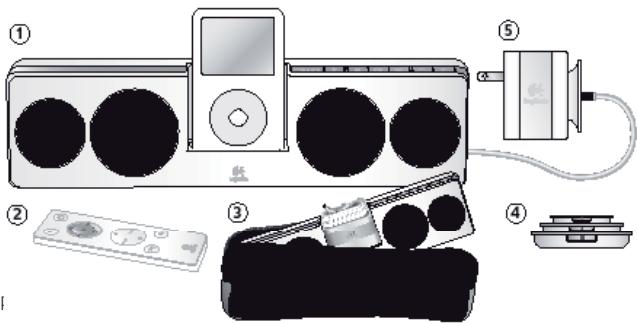
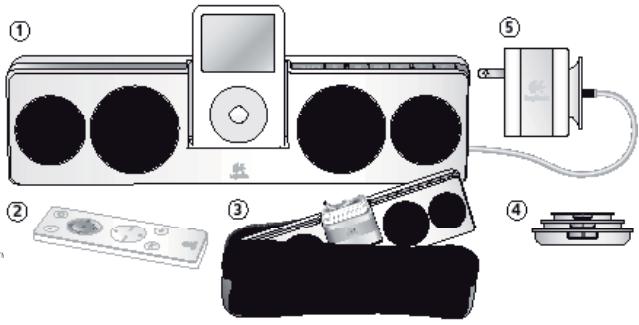
In The Box
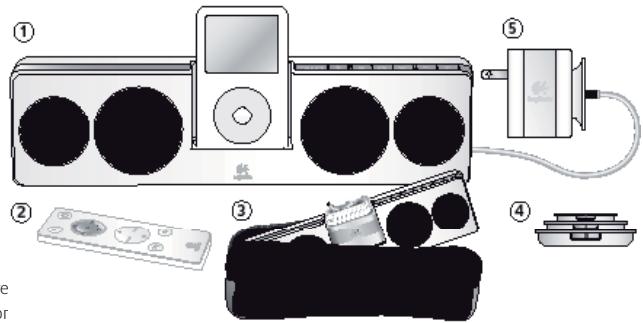
- Logitech Pure-Fi Anywhere™ 2 sp
- Wireless remote
- Protective travel case
- Universal Dock adapters
- International voltage AC adapter (100 - 240V)
Universal Dock adapters are identified by Number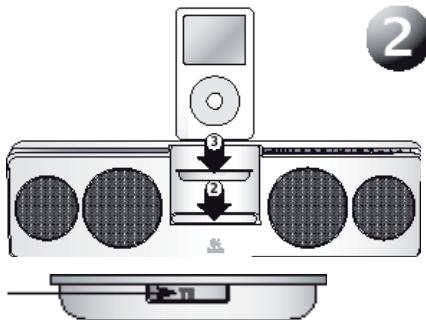
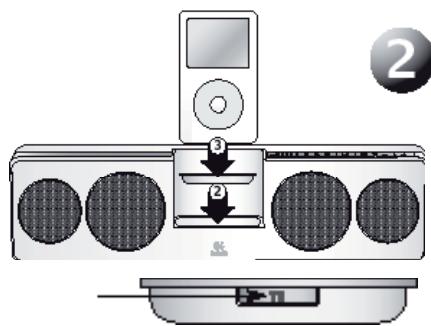
Attach a Universal Dock adapter
- Select the Universal Dock adapter for your iPod or iPhone. Use the chart below to choose the correct adapter. If your iPod or iPhone is not listed, an adapter should have been included when you purchased it.
- Plug the Universal Dock adapter into your Logitech Pure-Fi Anywhere™ 2.
- Plug your iPod or iPhone into the Universal Dock.
| Pud mini | Rud (4th Gen.) | Red with color display | Red mono | Red with video | Red mono (dual mode) | Phone | Red mono with video | Pod mini | Red touch |
| 4GB, 5GB | 20GB, 12G | 20GB, 30GB, 12G | 1GB, 2GB, 4GB | 3GB | 1G, 2GB, 4GB, 8GB | 12 GB, 5GB | 12 GB, 5GB | 8GB | 14 GB, 5GB |
| 8GB | 70GB, 60GB | 10GB, 80GB | 10YOG |

Charging Your Speakers and iPod/iPhone
Your Logitech Pure-Fi Anywhere™ 2 speakers include an internal
rechargeable battery. It must be charged before you can use it for
the first time. The battery will last approximately 10 hours on a single charge.
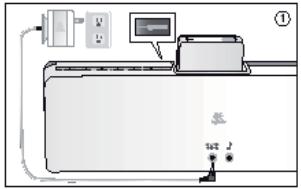
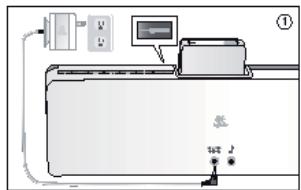
- To charge your speakers, connect the AC adapter to your speakers, then to an electrical outlet. The AC power LED lights up when the speakers are connected to AC power. You can use your speakers while the battery is charging.
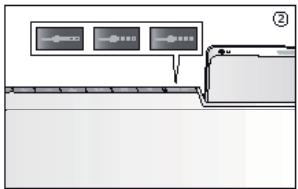
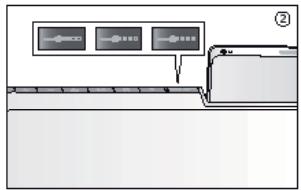
- The battery level LEDs will blink green while the speakers are charging. When all LEDs are solid green, the battery is fully charged.
- When running on battery power, a red battery level LED indicates that the battery needs to be recharged.
The Logitech Pure-Fi Anywhere™ 2 speakers use a non-removable lithium-ion rechargeable battery. This battery has a limited number of charge cycles and cannot be replaced. See "Battery Disposal" instructions for further information. While your Logitech Pure-Fi Anywhere™ 2 speakers are plugged into AC power, they will also recharge your iPod/iPhone battery.

Listening to Music
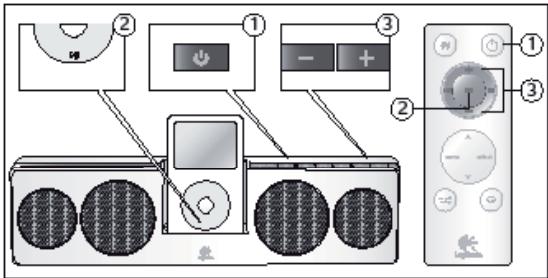
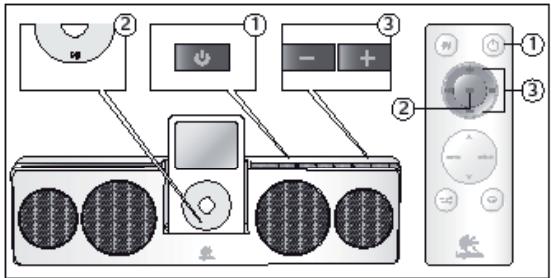
- Turn your Pure-Fi Anywhere™ 2 speakers on by pressing the power button.
- Press Play on your iPod.
- Use the volume buttons to adjust the volume level.
Note: You can also use the included wireless remote to turn the speakers on and off, adjust the volume, and select tracks.

Troubleshooting
My iPod/iPhone is in the Dock and playing, but I can't hear any music.
- Make sure that the speakers are turned on (if the power symbol LED is green, then the speakers are on).
- Try adjusting the volume level on the speakers. Use the volume buttons. Try turning off the Sound Check feature on your iPod.
- Download the latest version of iTunes (available at apple.com) and upgrade your iPod to the latest iPod firmware.
- Check iPod output with headphones or other speakers.
There isn't a Universal Dock adapter for my iPod.
- If you have a newer iPod, a Universal Dock adapter for your iPod should have been included with your iPod when you purchased it.
- If you have a 1st, 2nd, or 3rd generation iPod, you need to use the Aux input connector on the back of the speakers. To do so, you will need to purchase a separate cable to connect your iPod to the Aux input. (1st / 2nd generation iPod do not have a dock connector. 3rd generation iPod are not supported by the speakers' Universal Dock.)
The remote isn't working.
- Point the remote directly at the speakers.
- Make sure the remote sensor isn't being blocked. (It is located below the iPod.) Try using a fresh battery in the remote.
- The speakers may be in a battery saving mode. Push the power button on the speakers to wake the speakers up.
The speakers randomly turn off.
- To preserve battery life, when the speakers are running on battery power, they will automatically turn off if there is no music for 2 minutes.
- Download the latest version of iTunes (available at apple.com) and upgrade your iPod to the latest iPod firmware.
For the most up-to-date troubleshooting information, visit www.logitech.com/support.

Getting the Most Out of Your Speakers
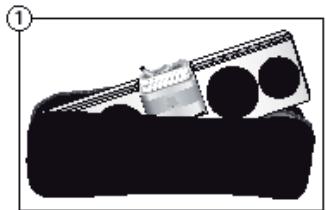
- Using the travel case
The AC adapter is designed to fit into the iPod dock. To avoid damaging the iPod connector, insert the AC adapter as shown - with the cable at the top.
- Navigating the iPod menus
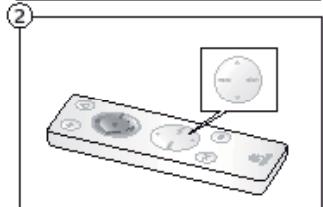
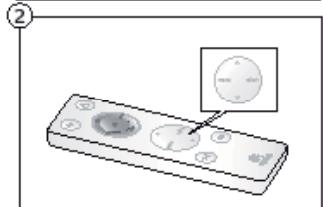
The remote control includes buttons to navigate the menus on the iPod. The arrow keys are used to scroll through the menu. The 'menu' key goes to the previous menu, and the 'select' key goes to the next menu.
- Adjusting shuffle and repeat
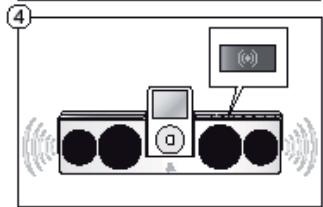
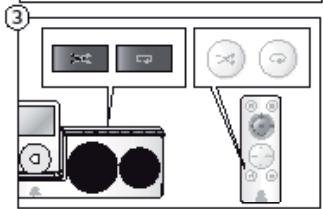
Both the speakers and the remote include buttons to adjust the shuffle and repeat states on the iPod.
- Stereo XL
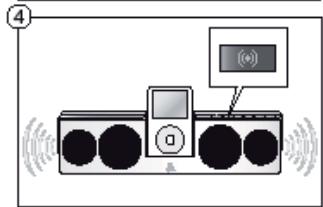
Logitech Pure-Fi Anywhere™ 2 includes a proprietary "Stereo XL" feature that dramatically widens the sound field. To turn Stereo XL on and off, use the button on the remote.


End-of-Life Battery Disposal Instructions
This device uses a Lithium-ion battery that should last the lifetime of the device. If you suspect your battery may be dead, try charging it. If the battery does not recharge, please contact Logitech Customer Support for repair information. The Logitech Pure-Fi Anywhere 2 compact speakers for iPod do not have
a user-serviceable battery. Please do NOT attempt to change the battery yourself. If the battery has died and you do not want Logitech to replace your battery, you should follow the disposal instructions below. Consult local laws and regulations for proper battery disposal in your region. If there are no local regulations concerning battery disposal, please dispose of the device in a waste bin for electronic devices.

Caution: The battery used in this device may present a risk of fire, explosion or chemical burn if mistreated.
Battery shall not be exposed to excessive heat such as sunshine, fire, or the like. Do not expose battery to heat above 60°C (140°F), or incinerate. Do not use or charge the battery if it appears to be leaking, discolored, deformed, or in any way abnormal. Do not leave your battery discharged or unused for extended periods of time. When batteries are misused, they may explode or leak, causing burns and personal injury. If your battery leaks, use normal precaution and discard the battery immediately.

Recycling Information for Lithium-ion Battery: Battery Removal
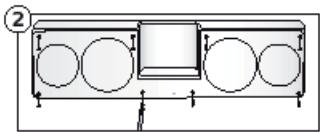
Caution: Use safety goggles when disassembling your Pure-Fi Anywhere™
- Pry off front cover.
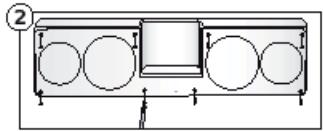
- Use Philips screwdriver to remove 8 screws as shown.
- Pull speakers apart.
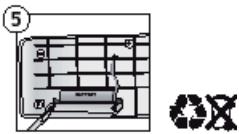
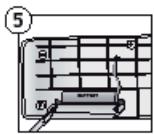
- Disconnect battery connector.
- Use a Philips screwdriver to remove the 2 screws as shown.
- Do not place in trash. Dispose of battery according to local battery recycling laws.

Remote Control - User-Replaceable Battery
Caution: Remote control contains a user-replaceable lithium battery.
Danger of fire or explosion if battery is incorrectly replaced. Replace only with CR2025 3V lithium button cell replacement battery. Dispose of used batteries promptly according to the user instructions, following local recycling or waste regulations.
Warning: Risk of fire, explosion, and burns. Do not disassemble, crush, or incinerate. Battery shall not be exposed to excessive heat such as sunshine, fire, or the like. Keep battery out of reach of children and in original package until ready for use. Never put batteries in mouth. If swallowed, contact your physician or local poison control center.
Logitech Hardware Product Limited Warranty
Logitech warrants that your Logitech hardware product shall be free from defects in material and workmanship for two (2) years, beginning from the date of purchase. Except where prohibited by applicable law, this warranty is nontransferable and is limited to the original purchaser. This warranty gives you specific legal rights, and you may also have other rights that vary under local laws.
Remedies
Logitech's entire liability and your exclusive remedy for any breach of warranty shall be, at Logitech's option, (1) to repair or replace the hardware, or (2) to refund the price paid, provided that the hardware is returned to the point of purchase or such other place as Logitech may direct with a copy of the sales receipt or dated itemized receipt. Shipping and handling charges may apply except where prohibited by applicable law. Logitech may, at its option, use new or refurbished or used parts in good working condition to repair or replace any hardware product. Any replacement hardware product will be warranted for the remainder of the original warranty period or thirty (30) days, whichever is longer or for any additional period of time that may be applicable in your jurisdiction.
This warranty does not cover problems or damage resulting from (1) accident, abuse, misapplication, or any unauthorized repair, modification or disassembly; (2) improper operation or maintenance, usage not in accordance with product instructions or connection to improper voltage supply; or (3) use of consumables, such as replacement batteries, not supplied by Logitech except where such restriction is prohibited by applicable law.
How to Obtain Warranty Support
Before submitting a warranty claim, we recommend you visit the support section at www.logitech.com for technical assistance. Valid warranty claims are generally processed through the point of purchase during the first thirty (30) days after purchase; however, this period of time may vary depending on where you purchased your product - please check with Logitech or the retailer where you purchased your product for details. Warranty claims that cannot be processed through the point of purchase and any other product related questions should be addressed directly to Logitech. The addresses and customer service contact information for Logitech can be found in the documentation accompanying your product and on the web at www.logitech.com/contactus.
Limitation of Liability
LOGITECH SHALL NOT BE LIABLE FOR ANY SPECIAL, INDIRECT, INCIDENTAL OR CONSEQUENTIAL DAMAGES WHATSOEVER, INCLUDING BUT NOT LIMITED TO LOSS OF PROFITS, REVENUE OR DATA (WHETHER DIRECT OR INDIRECT) OR COMMERCIAL LOSS FOR BREACH OF ANY EXPRESS OR IMPLIED WARRANTY ON YOUR PRODUCT EVEN IF LOGITECH HAS BEEN ADVISED OF THE POSSIBILITY OF SUCH DAMAGES. Some jurisdictions do not allow the exclusion or limitation of special, indirect, incidental or consequential damages, so the above limitation or exclusion may not apply to you.
Duration of Implied Warranties
EXCEPT TO THE EXTENT PROHIBITED BY APPLICABLE LAW, ANY IMPLIED WARRANTY OR CONDITION OF MERCHANTABILITY OR FITNESS FOR A PARTICULAR PURPOSE ON THIS HARDWARE PRODUCT IS LIMITED IN DURATION TO THE DURATION OF THE APPLICABLE LIMITED WARRANTY PERIOD FOR YOUR PRODUCT. Some jurisdictions do not allow limitations on how long an implied warranty lasts, so the above limitation may not apply to you.
National Statutory Rights
Consumers have legal rights under applicable national legislation governing the sale of consumer goods. Such rights are not affected by the warranties in this Limited Warranty.
No Other Warranties
No Logitech dealer, agent, or employee is authorized to make any modification, extension, or addition to this warranty.
Logitech Address
Logitech Europe S.A., Z.I. Moulin du Choc D, 1122 Romanel/Morges, Switzerland
© 2008 Logitech. All rights reserved. Logitech, the Logitech logo, and other Logitech marks are owned by Logitech and may be registered.
All other trademarks are the property of their respective owners.
iPod is a trademark of Apple, Inc., registered in U.S. and other countries.
| Pat mini | Rud(4th Gen.) | Rad with color display | Rad nano | Pad with video | Pad nano (dual mode) | Phone | Pad nano with video | Pod classic | Pad touch |
| 4GB, 6GB | 2023, 12 | 2023, 3023, 12 | 1GB, 2GB, 4GB | 32GB | 72GB, 4GB, 8GB | 124GB, 5GB | 124GB, 5GB | 80GB | 54GB, 16GB |
| 40GB | 40GB, 60GB | 60GB, 80GB | 160GB |

| Pud mini | Rud (4th Gen.) | Red with color display | Red mono | Red with video | Red mono (dual mode) | Phone | Red mono with video | Pod mini | Red touch |
| 4GB, 5GB | 20GB, 12G | 20GB, 30GB, 12G | 1GB, 2GB, 4GB | 3GB | 1G, 2GB, 4GB, 8GB | 12 GB, 5GB | 12 GB, 5GB | 8 GB | 14 GB, 5GB |
| 8GB | 70GB, 60GB | 10GB, 80GB | 10 GB |

| Pat mini | Rud(4th Gen.) | Rad with color display | Rad nano | Pad with video | Pad nano (dual mode) | Phone | Pad nano with video | Pod classic | Pad touch |
| 4GB, 6GB | 2023, 12 | 2023, 3023, 12 | 1GB, 2GB, 4GB | 32GB | 72GB, 4GB, 8GB | 124GB, 5GB | 124GB, 5GB | 80GB | 54GB, 16GB |
| 40GB | 40GB, 60GB | 60GB, 80GB | 160GB |

| Pud mini | Rud (4th Gen.) | Red with color display | Red mono | Red with video | Red mono (dual mode) | Phone | Red mono with video | Pod mini | Red touch |
| 4GB, 5GB | 20GB, 12G | 20GB, 30GB, 12G | 1GB, 2GB, 4GB | 3GB | 1G, 2GB, 4GB, 8GB | 12 GB, 5GB | 12 GB, 5GB | 8GB | 14 GB, 5GB |
| 8GB | 70GB, 60GB | 10GB, 80GB | 10TB |

| Pat mini | Rud(4th Gen.) | Rad with color display | Rad nano | Pad with video | Pad nano (dual mode) | Phone | Pad nano with video | Pod classic | Pad touch |
| 4GB, 6GB | 2023, 12 | 2023, 30GB, 12 | 1GB, 2GB, 4GB | 32GB | 72GB, 4GB, 8GB | 124GB, 5GB | 124GB, 5GB | 80GB | 54GB, 16GB |
| 40GB | 40GB, 60GB | 60GB, 80GB | 160GB |

| Pud mini | Rud (4th Gen.) | Red with color display | Red mono | Red with video | Red mono (dual mode) | Phone | Red mono with video | Pod mini | Red touch |
| 4GB, 5GB | 20GB, 12G | 20GB, 30GB, 12G | 1GB, 2GB, 4GB | 3GB | 1G, 2GB, 4GB, 8GB | 12 GB, 5GB | 12 GB, 5GB | 8 GB | 14 GB, 5GB |
| 8GB | 70GB, 60GB | 10GB, 80GB | 10 GB |

Charging your speakers and iPod/iPhone
| Pat mini | Rud(4th Gen.) | Rad with color display | Rad nano | Pad with video | Pad nano (dual mode) | Phone | Pad nano with video | Pod classic | Pad touch |
| 4GB, 6GB | 2023, 12 | 2023, 30GB, 12 | 1GB, 2GB, 4GB | 32GB | 72GB, 4GB, 8GB | 124GB, 5GB | 124GB, 5GB | 80GB | 54GB, 16GB |
| 40GB | 40GB, 60GB | 60GB, 80GB | 160GB |

| Pud mini | Rud (4th Gen.) | Red with color display | Red mono | Red with video | Red mono (dual mode) | Phone | Red mono with video | Pod mini | Red touch |
| 4GB, 5GB | 20GB, 12G | 20GB, 30GB, 12G | 1GB, 2GB, 4GB | 3GB | 1G, 2GB, 4GB, 8GB | 12 GB, 5GB | 12 GB, 5GB | 8 GB | 14 GB, 5GB |
| 8GB | 70GB, 60GB | 10GB, 80GB | 10 GB |

MEANING OF SYMBOLS:

| Pat mini | Rud(4th Gen.) | Rad with color display | Rad nano | Pad with video | Pad nano (dual mode) | Phone | Pad nano with video | Pod classic | Pad touch |
| 4GB, 6GB | 2023, 12 | 2023, 30GB, 12 | 1GB, 2GB, 4GB | 32GB | 72GB, 4GB, 8GB | 124GB, 5GB | 124GB, 5GB | 80GB | 54GB, 16GB |
| 40GB | 40GB, 60GB | 60GB, 80GB | 160GB |

| Pud mini | Rud (4th Gen.) | Red with color display | Red mono | Red with video | Red mono (dual mode) | Phone | Red mono with video | Pod mini | Red touch |
| 4GB, 5GB | 20GB, 12G | 20GB, 30GB, 12G | 1GB, 2GB, 4GB | 3GB | 1G, 2GB, 4GB, 8GB | 12 GB, 5GB | 12 GB, 5GB | 8GB | 14 GB, 5GB |
| 8GB | 70GB, 60GB | 10GB, 80GB | 10YOG |

MEANING OF SYMBOLS:

The lightning flash with arrowhead symbol within an equilateral triangle is intended to alert the user to the presence of uninsulated dangerous voltage within the product's enclosure that may be of sufficient magnitude to constitute a risk of electric shock to persons.
The lightning flash with arrowhead symbol within an equilateral triangle is intended to alert the user to the presence of uninsulated dangerous voltage within the product's enclosure that may be of sufficient magnitude to constitute a risk of electric shock to persons.

The lightning flash with arrowhead symbol within an equilateral triangle is intended to alert the user to the presence of uninsulated dangerous voltage within the product's enclosure that may be of sufficient magnitude to constitute a risk of electric shock to persons.
The exclamation point within an equilateral triangle is intended to alert the user to the presence of important operating and maintenance (servicing) instructions in the literature accompanying the appliance.
Disposal of waste equipment
- Pure-Fi Anywhere speaker system
- Remote control
- Protective earthing terminal
- Introduces, for example, a list of items
- AC adapter (100-240V)
Identifies the connector type and its usage
Connects to audio input
- To select the appropriate stand for your iPod or iPhone, refer to the following table. If your iPod or iPhone is not listed, the stand is not compatible with your device.
- Place the stand on a flat, stable surface. Connect the iPod or iPhone to the dock connector.
| Pat mini | Rud(4th Gen.) | Rad with color display | Rad nano | Pad with video | Pad nano (dual mode) | Phone | Pad nano with video | Pod classic | Pad touch |
| 4GB, 6GB | 2023, 12 | 2023, 30GB, 12 | 1GB, 2GB, 4GB | 32GB | 72GB, 4GB, 8GB | 124GB, 5GB | 124GB, 5GB | 80GB | 54GB, 16GB |
| 40GB | 40GB, 60GB | 60GB, 80GB | 160GB |

DANGER: RISK OF ELECTRIC SHOCK
Read these instructions. - Keep these instructions. - Heed all warnings. - Follow all instructions. - Do not use this apparatus near water. - Clean only with dry cloth. - Do not block any ventilation openings. Install in accordance with the manufacturer's instructions. - Do not install near any heat sources such as radiators, heat registers, stoves, or other apparatus (including amplifiers) that produce heat. - Do not defeat the safety purpose of the polarized or grounding-type plug. A polarized plug has two blades with one wider than the other. A grounding type plug has two blades and a third grounding prong. The wide blade or the third prong are provided for your safety. If the provided plug does not fit into your outlet, consult an electrician for replacement of the obsolete outlet. - Protect the power cord from being walked on or pinched particularly at plugs, convenience receptacles, and the point where they exit from the apparatus. - Only use attachments/accessories specified by the manufacturer. - Unplug this apparatus during lightning storms or when unused for long periods of time. - Refer all servicing to qualified service personnel. Servicing is required when the apparatus has been damaged in any way, such as power-supply cord or plug is damaged, liquid has been spilled or objects have fallen into the apparatus, the apparatus has been exposed to rain or moisture, does not operate normally, or has been dropped.
Avoid placing the unit near sources of heat, such as radiators, heat registers, stoves, or other apparatus (including amplifiers) that produce heat. Do not defeat the safety purpose of the polarized or grounding-type plug. A polarized plug has two blades with one wider than the other. A grounding type plug has two blades and a third grounding prong. The wide blade or the third prong are provided for your safety. If the provided plug does not fit into your outlet, consult an electrician for replacement of the obsolete outlet. Protect the power cord from being walked on or pinched particularly at plugs, convenience receptacles, and the point where they exit from the apparatus. Only use attachments/accessories specified by the manufacturer. Unplug this apparatus during lightning storms or when unused for long periods of time. Refer all servicing to qualified service personnel. Servicing is required when the apparatus has been damaged in any way, such as power-supply cord or plug is damaged, liquid has been spilled or objects have fallen into the apparatus, the apparatus has been exposed to rain or moisture, does not operate normally, or has been dropped.
WARNING.
TO REDUCE THE RISK OF ELECTRIC SHOCK, DO NOT EXPOSE THIS APPARATUS TO RAIN OR MOISTURE.
Explanation of symbols

This symbol on the product indicates...
Attention, read the manual. Follow all instructions in the documentation.
This symbol indicates that the product is double insulated.

This symbol on the product indicates...
Warning: Access to the interior is prohibited. Non-observance of this warning may result in...
Electric shock.

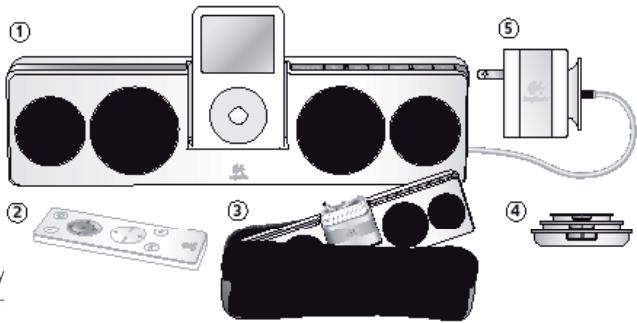
Package contents
- Logitech Pure-Fi Anywhere speaker system
- Wireless remote control
- Protective travel pouch 4. Universal base adapter 5. AC power adapter, designed for use with voltages of 100-240V
Universal adapter
for the base unit
Indicated by numbers

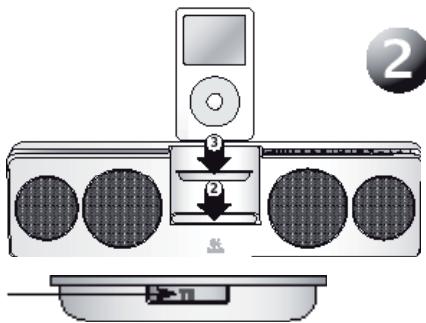
Connecting the universal base adapter
- Select the universal base adapter for your iPod or iPhone. To make your selection, refer to the table below. If your iPod or iPhone model is not listed, the adapter should be included in the package contents of the device.
- Connect the universal base adapter to the Logitech Pure-Fi Anywhere 2 system. 3. Place your iPod or iPhone into the universal base adapter.
| Pud mini | Rud (4th Gen.) | Red with color display | Red mono | Red with video | Red mono (dual mode) | Phone | Red mono with video | Pod mini | Red touch |
| 4GB, 5GB | 20GB, 12G | 20GB, 30GB, 12G | 1GB, 2GB, 4GB | 3GB | 1G, 2GB, 4GB, 8GB | 12 GB, 5GB | 12 GB, 5GB | 8 GB | 14 GB, 5GB |
| 8GB | 70GB, 60GB | 10GB, 80GB | 10 GB |

Charging the speakers with iPod or iPhone
The Logitech Pure-Fi Anywhere 2 speakers have a
built-in rechargeable battery. Before first
use, the battery must be charged. One full charge provides approximately 10 hours of playback.
- To charge the speakers, connect the AC power adapter to the speakers, then to a wall outlet. When the speakers are connected to AC power, the indicators light up, showing that they are powered from AC. During charging, you can continue to use the speakers.
- The battery charge level indicators light up green during charging. When all indicators light up continuously green, it means the battery is fully charged.
- If, when connected to the battery, the battery charge level indicator lights up red, it means the battery needs to be charged.
The Logitech Pure-Fi Anywhere™ 2 speaker system uses a built-in rechargeable battery. This battery has a limited number of charge cycles and can be replaced. Additional information is provided in the section on battery disposal.
When the Logitech Pure-Fi Anywhere™ 2 speakers are connected to AC power (via the adapter), they also charge the battery of the iPod or iPhone.
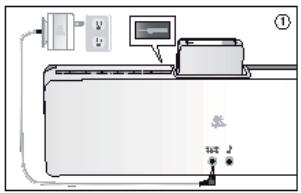
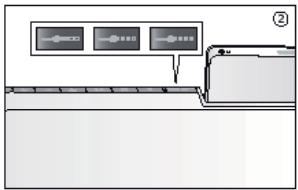

Listening to music
- Turn on the Pure-Fi Anywhere speakers by pressing the power button.
- Press the play/pause button. Use the volume buttons to adjust the volume level. Note: To turn the speakers on or off, adjust the volume, and select tracks, you can also
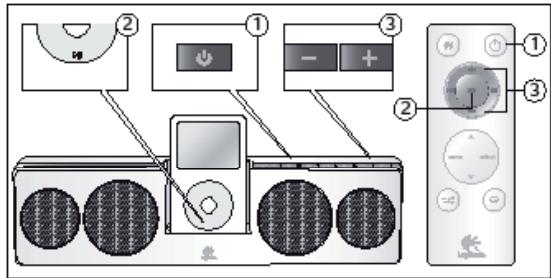
use the included wireless remote control.

Troubleshooting
The iPod or iPhone is in the base unit and is in play mode, but no sound is coming from the speakers.
It is possible that the speakers are muted (if the power indicator is lit, but the volume is too low). Try the following: - Try turning off the "Sound Check" function on your iPod. - Update to the latest version of iTunes (available at apple.com) and update your iPod's software to the latest version. - Check the volume output of your iPod, then adjust the volume using the volume buttons on the speakers. - Try connecting a different audio source to the auxiliary input. - If the problem persists, contact Logitech support.
There is no universal base unit for the iPod.
- For older iPod models, the base unit may not fit. You can connect the iPod to the auxiliary input using a cable (sold separately). On the back or bottom of the speakers, there is an auxiliary input (3.5mm). For iPod models with a dock connector, the base unit is not available. You can connect the iPod to the auxiliary input using a cable (sold separately).
The remote control does not work.
- Point the remote directly at the front of the speakers. Make sure the remote sensor is not blocked. (It is located on the front panel of the speakers.)
- Press the battery button to switch the keyboard to energy saving mode. Press the button on the keyboard to put it into energy saving mode.
The keys are randomly disconnected.
If the keyboard is not used for 2 minutes, it automatically turns off to save battery. To use it again, press any key. For the latest version of iTunes (available on the Apple website), update the software of your device to the latest version.
For more information on troubleshooting, visit the Logitech website or contact Logitech support.

Use your keyboard more efficiently
Legal protection measures
This warranty does not cover problems or damage caused by (1) accident, misuse, improper use, or unauthorized modification or repair; (2) improper use or maintenance, use not in accordance with the product instructions, or connection to improper voltage or power source; or (3) use of consumables, such as batteries, not supplied by Logitech, except as prohibited by applicable law.
How to obtain warranty service
Before contacting us for warranty service, we recommend that you visit our website for support. 08010000000000000000000000000000000000000000000000000000000000000000000000000000000000000000000000000000
Limitation of liability
No other warranties
No agent, employee, or representative of Logitech has the right to make any modifications or additions to this warranty or to extend its duration.
Logitech address
Logitech Europe S.A., Z.I. Moulin du Choc D, 1122 Romanel/Morges, Switzerland
Logitech, 2008. All rights reserved. Logitech, the Logitech logo, and other Logitech trademarks are owned by Logitech and may be registered. All other trademarks are the property of their respective owners. Apple Computer, Inc. trademarks are used under license.
IMPORTANT SAFETY INFORMATION

WARNING: ELECTRICAL SHOCK HAZARD!
| Pat mini | Rud(4th Gen.) | Rad with color display | Rad nano | Pad with video | Pad nano (dual mode) | Phone | Pad nano with video | Pod classic | Pad touch |
| 4GB, 6GB | 2023, 12 | 2023, 3023, 12 | 1GB, 2GB, 4GB | 32GB | 72GB, 4GB, 8GB | 124GB, 5GB | 124GB, 5GB | 80GB | 54GB, 16GB |
| 40GB | 40GB, 60GB | 60GB, 80GB | 160GB |

| Pud mini | Rud (4th Gen.) | Red with color display | Red mono | Red with video | Red mono (dual mode) | Phone | Red mono with video | Pod mini | Red touch |
| 4GB, 5GB | 20GB, 12G | 20GB, 30GB, 12G | 1GB, 2GB, 4GB | 3GB | 1G, 2GB, 4GB, 8GB | 12 GB, 5GB | 12 GB, 5GB | 8GB | 14 GB, 5GB |
| 8GB | 70GB, 60GB | 10GB, 80GB | 10YOG |

Charging the speakers and the iPod or iPhone device
| Pat mini | Rud(4th Gen.) | Rad with color display | Rad nano | Pad with video | Pad nano (dual mode) | Phone | Pad nano with video | Pod classic | Pad touch |
| 4GB, 6GB | 2023, 12 | 2023, 30GB, 12 | 1GB, 2GB, 4GB | 32GB | 72GB, 4GB, 8GB | 124GB, 5GB | 124GB, 5GB | 80GB | 54GB, 16GB |
| 40GB | 40GB, 60GB | 60GB, 80GB | 160GB |

IMPORTANT SAFETY INSTRUCTIONS
WARNING! ELECTRICAL SHOCK HAZARD
| Patents | Rf (proteins) | Rf (proteins) | Rf (proteins) | Rf (proteins) | Rf (proteins) | Rf (proteins) | Rf (proteins) | Rf (proteins) | Rf (proteins) |
| 3 | 4 | 8 | 8 | 8 | 11 | 12 | 12 | 8 | 14 |
| 4G1, GCB | 20G2, 12 | 20G3, 30G1, 12 | 1G4, 2G4, 4G5 | 30G2 | 71 | 72 | 72 | 8G2 | 16 |
| 8 | 9 | 10 | 60G2, 80G2 | 18 | 16G2 |

Charging the speaker system and iPod and/or iPhone
| Palmni | Rat (40gms) | Rat sarcomen utj | Rat mas | Pusuitine zaphism | Pusuitne (artijes) | #hme | Rat sarcomas zaphism | #hcs | Fet touch |
| 4GB, 5GB | 4 20GB, 12 | 8 20GB, 30GB, 12 | 8 12GB, 20GB, 4GB | 8 32GB | 71 20GB, 40GB, 8GB | 12 4GB, 5GB | 12 4GB, 5GB | 8 80GB | 14 5GB, 96GB |
| 8 40GB | 7 40GB, 60GB | 10 60GB, 80GB | 18 YOGB |

Charging the speakers and iPod/iPhone devices
| Polaris | Rat (Gen. 4) | Pst caustic-polar | Rat mass | Pst (caustic) | Pst (caustic) | Rat (caustic) | Rat mass | Rat (caustic) | Rat mass | Rat (caustic) |
| 4GB, 1GB | 4 20GB, 12 | 8 20GB, 30GB, 12 | 8 1GB, 2GB, 4GB | 8 30GB | 11 2GB, 4GB, 8GB | 12 4GB, 5GB | 12 4GB, 5GB | 12 8GB | 8 16GB | 14 5GB, 16GB |
| 8 40GB | 7 40GB, 60GB | 16 60GB, 80GB | 18 16GB |

| Patient | Ruf (monoc) | Pedicemont (antibody) | Ruf (mono) | Ruf (cancer) | Pedicemont (antibody) | affinity | Ruf (monoc) | Ruf (cancer) | Ruf (monoc) |
| 34GB, 5GB | 420GB, 12 | 820GB, 30GB, 12 | 81GB, 2GB, 4GB | 83GB | 712GB, 4GB, 8GB | 124GB, 5GB | 124GB, 5GB | 88GB | 145GB, 96GB |
| 84GB | 740GB, 60GB | 1060GB, 80GB | 18YOG |

Charging your speakers and iPod/iPhone
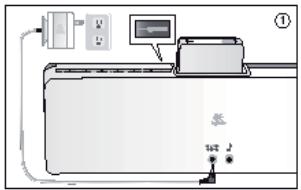
Your Logitech Pure-Fi Anywhere™ 2 speakers have a built-in rechargeable battery. This battery must be charged before you can use them for the first time. On a full charge, the battery will last approximately 10 hours.
- To charge the speakers, connect the AC adapter to the speakers, and then to an electrical outlet. The AC power indicator lights up when the speakers are connected to AC power. You can use your speakers while the battery is charging.
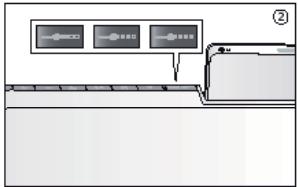
- The battery indicator light flashes green while the speakers are charging. When all indicator lights are solid green, the battery is fully charged.
- When you disconnect the AC power from the speakers, the power and battery indicators will turn off, and the speakers must be recharged.
The Logitech Pure-Fi Anywhere™ 2 speakers use a built-in lithium-ion battery that cannot be replaced. This battery has a limited charge life and cannot be changed. See the instructions in the "Battery Use" section for more information.
While the Logitech™ Pure-Fi AnyWhere™ 2 speakers are connected to AC power, they also charge the battery of your iPod/iPhone.

- Turn on your Logitech Pure-Fi Anywhere™ 2 speakers by pressing the power button.
- Press and hold the (play/pause) button on your iPod. The sound will be adjusted to the speaker volume.
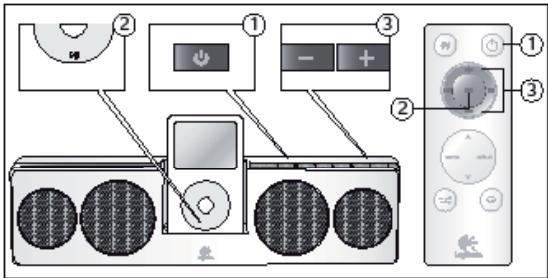
Note: You can also use
The remote control for turning on and off the speakers, adjusting the volume, and selecting songs.

Troubleshooting
My iPod/iPhone is in the dock adapter, but there is no sound.
Press the speaker power button (if the LED indicator is off, press it). The speaker volume will be adjusted. Press the volume button on the speaker. - Try the Sound Check function on your iPod. Update the iPod software (available at apple.com) and update the firmware for the product. - Check the dock connector with the speaker. There is a universal dock adapter for iPod. - If you have a newer iPod, the adapter may need to be replaced with a universal dock adapter. - If you have a first-generation iPod, the second generation, or the third, you need to connect the line-in cable. For this, you need to purchase a separate cable to connect your iPod to the line-in port. (First-generation iPod models do not have a dock connector. Third-generation iPod models are not supported by the universal dock adapter of the speaker.)
Remote control operation.
The remote control does not work with the speakers. Press the remote control button to ensure it is not locked. (Also works with iPod). - Try a new battery in the remote control. The speakers have a battery indicator. Press the power button on the speakers to check the battery status.
The speakers turn off automatically.
When operating on battery, the speakers will turn off automatically after 2 minutes of no music playback to save battery life. Update the iPod software (available at apple.com) and update the firmware for the product.
For more troubleshooting information, visit www.logitech.com/support.

Using your speakers in the best way
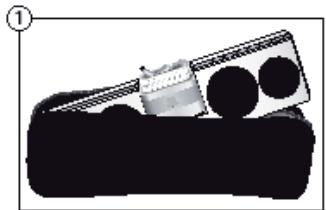
1. Using the carrying case
Place the power adapter so that the base is on the iPod. To avoid damaging the connector on the iPod, place the power adapter as shown in the diagram.
- Navigate the iPod menu
The remote control has buttons for navigating the iPod menu. Use the arrow keys to move through the menu. The Menu button returns to the previous menu, and the Select button opens the next menu.
- Setting the shuffle and repeat
Both the remote control and the buttons on the speaker for shuffle (X) and repeat (C) for iPod.
- Stereo XL
Logitech Pure-Fi Anywhere™ 2 includes the Stereo XL feature, which significantly expands the sound field. To enable or disable Stereo XL, press and hold the button.

Instructions for disposing of the battery
This device uses a lithium-ion battery that must be disposed of properly at the end of its life. If the battery is not rechargeable, do not attempt to recharge it. If the battery is leaking, contact Logitech for information on proper disposal. Do not attempt to replace the battery yourself. If the battery is not rechargeable and you do not want Logitech to replace it, you must follow the disposal instructions. Follow local laws and regulations for proper battery disposal in your region. For all local regulations regarding battery disposal, dispose of this device in a container for electronic equipment.

Warning: The battery, if exposed to fire, can explode, leak, or cause chemical burns if not handled properly.
The battery should not be exposed to excessive heat, such as sunlight, fire, or similar. Do not use or charge the battery if it is leaking, discolored, deformed, or abnormal in any way. Do not leave the battery unused or stored for long periods. When the battery is used normally, it may leak or corrode, causing damage or injury. If the battery leaks, take normal precautions and dispose of it properly.

Information on recycling lithium-ion batteries and battery disposal
Warning: Use only the provided power adapter when charging your Logitech Pure-Fi Anywhere™ 2.
- Remove the power adapter. 2. Use a Philips screwdriver to remove the screws as shown. 3. Remove the speaker. 4. Disconnect the battery.
5. Use a Philips screwdriver to remove the screws as shown. 6. Do not dispose of in the trash; dispose of the battery according to local regulations.


Remote control battery, which can be replaced by the user.
Caution: Remote control contains a replaceable battery.
Danger of explosion if the battery is replaced incorrectly. Replace only with the same or equivalent type recommended by the manufacturer. Dispose of used batteries according to the manufacturer's instructions.
Caution: This product contains a lithium battery. Do not disassemble, crush, or burn the battery. The battery must be replaced by a qualified person. When replacing the battery, follow the instructions in the manual. Do not dispose of the battery in fire. If you replace the battery, follow the instructions in the manual.
Limited warranty for Logitech hardware products
Safety instructions
The Logitech product warranty covers the product for a period of time from the date of purchase. The warranty covers defects in materials and workmanship under normal use. Logitech's obligations are limited to (1) repairing or replacing the product, and (2) providing technical support. The warranty does not cover damage caused by accident, misuse, or unauthorized modification. The warranty period is limited to the original purchaser and is not transferable. Logitech may charge for handling and shipping costs. Logitech's liability is limited to the repair or replacement of the product. This warranty gives you specific legal rights, and you may also have other rights which vary from state to state.
The warranty does not cover (1) any product that has been subjected to misuse, accident, modification, or unauthorized repair; (2) any product that has been damaged by improper installation or use; or (3) any product that has been used with unauthorized accessories, such as batteries not provided by Logitech, unless such accessories are approved by Logitech.
How to obtain warranty support
Limited warranty
Logitech is not liable for any damages, including but not limited to direct, indirect, incidental, special, or consequential damages, arising out of or in connection with the use or inability to use the product, even if Logitech has been advised of the possibility of such damages. Some jurisdictions do not allow the exclusion or limitation of incidental or consequential damages, so the above limitation or exclusion may not apply to you.
Product warranty period
Except as expressly provided in these terms, the warranty period for any replacement product is limited to the original warranty period of the product being replaced. In no event shall the warranty period exceed the original warranty period of the product.
Rights under applicable law
These terms are governed by the laws of the country in which you purchased the product, without regard to its conflict of law provisions. These rights are in addition to any other rights you may have under applicable consumer protection laws.
No other warranties
No employee, agent, or representative of Logitech is authorized to modify, extend, or add to these warranties unless done in writing.
Logitech address
Logitech Europe S.A., ZI. Moulin du Choc D, 1122 Romanel/Morges, Switzerland
© 2008 Logitech. All rights reserved. Logitech, the Logitech logo, and other Logitech marks are trademarks of Logitech and may be registered. All other trademarks are the property of their respective owners. Logitech assumes no responsibility for any errors that may appear in this manual. Information in this manual is subject to change without notice.
Mac is a trademark of Apple Inc., registered in the U.S. and other countries.
WARNING! RISK OF ELECTRIC SHOCK
- Read the instructions. Keep the instructions. Pay attention to all warnings. Follow all instructions. Do not use the appliance near water. - Clean only with a dry cloth. The appliance is not intended for use by persons (including children) with reduced physical, sensory or mental capabilities, or lack of experience and knowledge, unless they have been given supervision or instruction concerning use of the appliance by a person responsible for their safety. - Do not install near heat sources, such as radiators, stoves, or other appliances (including amplifiers) that produce heat. - Do not place the appliance in a built-in installation or in a confined space such as a bookcase or similar unit. Ensure adequate ventilation. Leave at least 15 cm of free space around the appliance. - Do not place objects on the appliance. - Do not block the ventilation openings with items such as newspapers, tablecloths, curtains, etc. - Do not expose the appliance to dripping or splashing and do not place objects filled with liquids, such as vases, on the appliance. - Do not place any naked flame sources, such as lighted candles, on the appliance. - The appliance is intended for use in moderate climates. - Do not use the appliance near water. - Do not install near heat sources, such as radiators, stoves, or other appliances (including amplifiers) that produce heat. - Do not defeat the safety purpose of the polarized or grounding-type plug. A polarized plug has two blades with one wider than the other. A grounding type plug has two blades and a third grounding prong. The wide blade or the third prong are provided for your safety. If the provided plug does not fit into your outlet, consult an electrician for replacement of the obsolete outlet. - Protect the power cord from being walked on or pinched particularly at plugs, convenience receptacles, and the point where they exit from the appliance. - Use only attachments/accessories specified by the manufacturer. - Unplug this apparatus during lightning storms or when unused for long periods of time. - Refer all servicing to qualified service personnel. Servicing is required when the apparatus has been damaged in any way, such as power-supply cord or plug is damaged, liquid has been spilled or objects have fallen into the apparatus, the apparatus has been exposed to rain or moisture, does not operate normally, or has been dropped. - Do not place the appliance on a bed, sofa, rug, or similar surface that could block the ventilation openings. - Do not place the appliance in a confined space such as a bookcase or built-in cabinet. - Do not place the appliance on an unstable cart, stand, tripod, bracket, or table. The appliance may fall, causing serious injury to a child or adult, and serious damage to the appliance. Use only with a cart, stand, tripod, bracket, or table recommended by the manufacturer, or sold with the apparatus. Any mounting of the apparatus should follow the manufacturer's instructions, and should use a mounting accessory recommended by the manufacturer. - Do not place the appliance near water, for example, near a bathtub, washbowl, kitchen sink, laundry tub, in a wet basement, or near a swimming pool. - Do not place the appliance in a built-in installation or in a confined space such as a bookcase or similar unit. Ensure adequate ventilation. Leave at least 15 cm of free space around the appliance. - Do not place objects on the appliance. - Do not block the ventilation openings with items such as newspapers, tablecloths, curtains, etc. - Do not expose the appliance to dripping or splashing and do not place objects filled with liquids, such as vases, on the appliance. - Do not place any naked flame sources, such as lighted candles, on the appliance. - The appliance is intended for use in moderate climates. - Do not use the appliance near water. - Do not install near heat sources, such as radiators, stoves, or other appliances (including amplifiers) that produce heat. - Do not defeat the safety purpose of the polarized or grounding-type plug. A polarized plug has two blades with one wider than the other. A grounding type plug has two blades and a third grounding prong. The wide blade or the third prong are provided for your safety. If the provided plug does not fit into your outlet, consult an electrician for replacement of the obsolete outlet. - Protect the power cord from being walked on or pinched particularly at plugs, convenience receptacles, and the point where they exit from the appliance. - Use only attachments/accessories specified by the manufacturer. - Unplug this apparatus during lightning storms or when unused for long periods of time. - Refer all servicing to qualified service personnel. Servicing is required when the apparatus has been damaged in any way, such as power-supply cord or plug is damaged, liquid has been spilled or objects have fallen into the apparatus, the apparatus has been exposed to rain or moisture, does not operate normally, or has been dropped. - Do not place the appliance on a bed, sofa, rug, or similar surface that could block the ventilation openings. - Do not place the appliance in a confined space such as a bookcase or built-in cabinet. - Do not place the appliance on an unstable cart, stand, tripod, bracket, or table. The appliance may fall, causing serious injury to a child or adult, and serious damage to the appliance. Use only with a cart, stand, tripod, bracket, or table recommended by the manufacturer, or sold with the apparatus. Any mounting of the apparatus should follow the manufacturer's instructions, and should use a mounting accessory recommended by the manufacturer. - Do not place the appliance near water, for example, near a bathtub, washbowl, kitchen sink, laundry tub, in a wet basement, or near a swimming pool.
Do not block the ventilation openings with items such as newspapers, tablecloths, curtains, etc. Do not place the appliance near water, for example, near a bathtub, washbowl, kitchen sink, laundry tub, in a wet basement, or near a swimming pool. - Do not place the appliance in a built-in installation or in a confined space such as a bookcase or similar unit. Ensure adequate ventilation. Leave at least 15 cm of free space around the appliance. - Do not place objects on the appliance. - Do not block the ventilation openings with items such as newspapers, tablecloths, curtains, etc. - Do not expose the appliance to dripping or splashing and do not place objects filled with liquids, such as vases, on the appliance. - Do not place any naked flame sources, such as lighted candles, on the appliance. - The appliance is intended for use in moderate climates. - Do not use the appliance near water. - Do not install near heat sources, such as radiators, stoves, or other appliances (including amplifiers) that produce heat. - Do not defeat the safety purpose of the polarized or grounding-type plug. A polarized plug has two blades with one wider than the other. A grounding type plug has two blades and a third grounding prong. The wide blade or the third prong are provided for your safety. If the provided plug does not fit into your outlet, consult an electrician for replacement of the obsolete outlet. - Protect the power cord from being walked on or pinched particularly at plugs, convenience receptacles, and the point where they exit from the appliance. - Use only attachments/accessories specified by the manufacturer. - Unplug this apparatus during lightning storms or when unused for long periods of time. - Refer all servicing to qualified service personnel. Servicing is required when the apparatus has been damaged in any way, such as power-supply cord or plug is damaged, liquid has been spilled or objects have fallen into the apparatus, the apparatus has been exposed to rain or moisture, does not operate normally, or has been dropped. - Do not place the appliance on a bed, sofa, rug, or similar surface that could block the ventilation openings. - Do not place the appliance in a confined space such as a bookcase or built-in cabinet. - Do not place the appliance on an unstable cart, stand, tripod, bracket, or table. The appliance may fall, causing serious injury to a child or adult, and serious damage to the appliance. Use only with a cart, stand, tripod, bracket, or table recommended by the manufacturer, or sold with the apparatus. Any mounting of the apparatus should follow the manufacturer's instructions, and should use a mounting accessory recommended by the manufacturer. - Do not place the appliance near water, for example, near a bathtub, washbowl, kitchen sink, laundry tub, in a wet basement, or near a swimming pool.
Do not place the appliance on a bed, sofa, rug, or similar surface that could block the ventilation openings. Do not place the appliance in a confined space such as a bookcase or built-in cabinet. Do not place the appliance on an unstable cart, stand, tripod, bracket, or table. The appliance may fall, causing serious injury to a child or adult, and serious damage to the appliance. Use only with a cart, stand, tripod, bracket, or table recommended by the manufacturer, or sold with the apparatus. Any mounting of the apparatus should follow the manufacturer's instructions, and should use a mounting accessory recommended by the manufacturer. - Do not place the appliance near water, for example, near a bathtub, washbowl, kitchen sink, laundry tub, in a wet basement, or near a swimming pool. - Do not place the appliance in a built-in installation or in a confined space such as a bookcase or similar unit. Ensure adequate ventilation. Leave at least 15 cm of free space around the appliance. - Do not place objects on the appliance. - Do not block the ventilation openings with items such as newspapers, tablecloths, curtains, etc. - Do not expose the appliance to dripping or splashing and do not place objects filled with liquids, such as vases, on the appliance. - Do not place any naked flame sources, such as lighted candles, on the appliance. - The appliance is intended for use in moderate climates. - Do not use the appliance near water. - Do not install near heat sources, such as radiators, stoves, or other appliances (including amplifiers) that produce heat. - Do not defeat the safety purpose of the polarized or grounding-type plug. A polarized plug has two blades with one wider than the other. A grounding type plug has two blades and a third grounding prong. The wide blade or the third prong are provided for your safety. If the provided plug does not fit into your outlet, consult an electrician for replacement of the obsolete outlet. - Protect the power cord from being walked on or pinched particularly at plugs, convenience receptacles, and the point where they exit from the appliance. - Use only attachments/accessories specified by the manufacturer. - Unplug this apparatus during lightning storms or when unused for long periods of time. - Refer all servicing to qualified service personnel. Servicing is required when the apparatus has been damaged in any way, such as power-supply cord or plug is damaged, liquid has been spilled or objects have fallen into the apparatus, the apparatus has been exposed to rain or moisture, does not operate normally, or has been dropped. - Do not place the appliance on a bed, sofa, rug, or similar surface that could block the ventilation openings. - Do not place the appliance in a confined space such as a bookcase or built-in cabinet. - Do not place the appliance on an unstable cart, stand, tripod, bracket, or table. The appliance may fall, causing serious injury to a child or adult, and serious damage to the appliance. Use only with a cart, stand, tripod, bracket, or table recommended by the manufacturer, or sold with the apparatus. Any mounting of the apparatus should follow the manufacturer's instructions, and should use a mounting accessory recommended by the manufacturer. - Do not place the appliance near water, for example, near a bathtub, washbowl, kitchen sink, laundry tub, in a wet basement, or near a swimming pool.
WARNING!
TO REDUCE THE RISK OF FIRE OR ELECTRIC SHOCK, DO NOT EXPOSE THIS APPARATUS TO RAIN OR MOISTURE.
Explanation of symbols:

The lightning flash with arrowhead symbol, within an equilateral triangle, is intended to alert the user to the presence of uninsulated dangerous voltage within the product's enclosure that may be of sufficient magnitude to constitute a risk of electric shock to persons. The exclamation point within an equilateral triangle is intended to alert the user to the presence of important operating and maintenance (servicing) instructions in the literature accompanying the appliance.
Понетеджени -пегда npodobженин DM.Надану DKOMENTHAJI.ДцЕ CMIBOA BDA YeMi CTMRCB M POKAII NOCiSHINA BIAI MAKKYABHUN, IOO CTCYETbCObEKTY 3aTeSTPEKHONY

P03miyetybCnHa npOdykTi Ta 03Nauea...
YBaTa - aOCTaOn yIeJI3 OTHOn 3a60pOHeHO. B HIOUOMBINADKy, CYIEP P3NkXpAKEnEaEKTPKmDTCyPMo
VckpHbui
- Akyctuna Cnctema Logitech Pure
- Be3ApOTOBINyAaTdNCTaHcHOr
- 3axnchmyoxoA 4.YHIBePcaIbHi DOK-aaanTepeN 5.Aaantep 3mHoro cTpyM yA p3Hx kaih cbity (100-240 B)
YHIBEpcAaBhi DOK-aAnTepeN iAeHTnΦIKyIOTbc3a HOMepom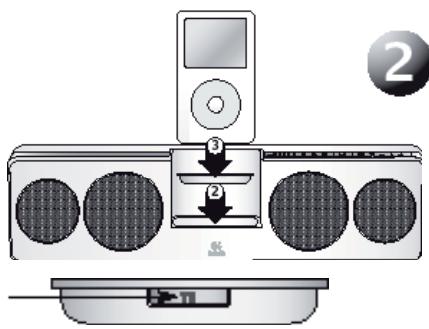
PiKIAUOeHHyHIBepCaIbHOro DOK-aAanTepa
- Bùnqípiβy yuībεpcaIbHn DOK-aàπTep DIA npiεtpoIB iPod qiu iPhone。CkρipctaIeTCE HNJxueHABeEOHO TabIeUO,Ⅲ6Bvibpatn IpaBnIbHn aàTep. JAKIO BAùloro npiεtpoIB iPod qiu iPhone HEmAé y cπiCKy,aàTep Maé BXOHTN B KOMPiKeT NocTbKx。 2.Пд'бдэтЕ.YИнрсацьмгДК-АдпгетдО Актун HoI CUSTeM Logitech"Pure-Fi Anywhere"2. 3.Пд'Енайтpe npicrtpi iPodЧи iPhonedo yhivepcaIbHoi DOK-CTaHcii.
| Rabbit | Openly Red Purposomeness | Openly Red Bleaching in color | Put away | Openly Red Bleaching | Openly Red Bleaching in color | Place | Openly Red Bleaching in color | Put away | Put away |
| 4GB, 1GB | 20GB, 102 | 20GB, 30GB, 102 | 1GB, 2GB, 4GB | 8GB, 2GB | 11GB, 4GB, 8GB | 12GB, 5GB | 12GB, 4GB, 8GB | 8GB, 2GB | 14GB, 16GB |
| 8GB, 60GB | 70GB, 60GB | 10GB, 80GB | 10GB, 80GB |

3apxHnHnDnHnAmikib Ta npictpo iPod/iPhone
Y komptekt dHnAmikib Logitech Pure-Fi Anywhere 2 BXOJntb
BHytpiHnAkyMnyIaTOPHa 6aTape. Ipeep nepuIM BVKOpNCtAHHM
II IHO6XIDHO 3a4yNTI.N.OdHopa3OBO 3a4yD 6TaapeB VbCTaHTb Pn6bNtHO H a10 rONHO
- Ⅲo6 3a4aIITn DnHAMIKn, niiKIOHTb aadTpe 3MiHORO cTpyM do CnCTEMn, mIcIy OTO nEiHaTe IIO ODe EKETrmuHO PO3eKn. IiNikATOP 3MiHORO cTpyM 3a4oPiC8c, KOJI NnDAmHKn 6yde NiE'DiHAHO Do MEpexKi 3MiHORO cTpyM. DnHAMIK MoKHs BkOpNtOByBAtn iNic lac 3apdKaHHa 6atapei. 2.Пд Ус задраджангддмамбikв Иддкатори рьна задуБагаши 6dUTb MMOTITIM 3eHMM.Яшко Bci Иndkakatopn 6e3pepeBNO roprtb 3eHMM, SABATEO NOBHCTIO 3aPdKeHO.
- To activate the speakers, press and hold the power button. The LED indicator will light up.
The Logitech Pure-Fi Anywhere™ 2 speakers use a built-in rechargeable battery that is not replaceable. The battery has a limited lifespan and is not replaceable. Refer to the instructions for battery information.
When the Logitech Pure-Fi Anywhere™ 2 speakers are connected to AC power, the battery of the connected iPod/iPhone will also be charged.

Troubleshooting
- Turn on the Logitech Pure-Fi Anywhere™ 2 speakers by pressing the power button.
- Press the Play button on your device.
- Use the volume buttons to adjust the volume.
Note: Refer to the remote control instructions.
Each button on the included remote can turn the speakers on/off, adjust volume, and select audio input.

Troubleshooting
If your iPod/iPhone does not play music through the dock, check the connection.
- Make sure the speakers are turned on (the power indicator light is on). Check the volume level on your device. Try using the Sound Check feature on your iPod. Update to the latest version of iTunes (from apple.com) and update your device's software.
- Check the audio input on your device.
Your device may not have a universal dock connector.
If your device has a newer version of the dock connector, you may need an adapter. If your device uses the 30-pin or 8-pin connector, you may need a separate cable to connect to the AUX input. (Devices with the 30-pin or 8-pin connector are not compatible with the universal dock for speakers).
The remote control does not work.
Press the remote control buttons directly on the device. - Check if the remote control is working. (You know the device is working). Try inserting new batteries into the remote control. The device may be in standby mode. Press the buttons on the device to exit standby mode.
The device does not respond to the remote control.
To extend the battery life of the device, it is recommended to use the latest firmware. Check for updates using the Logitech software (available on the Apple website) and update the firmware on the device.
For other issues, you can find help on the Logitech website at logitech.com/support.

Use the remote control features
1. Using the charging dock
The design of the adapter may vary. The adapter is compatible with iPod. If the adapter does not fit your iPod, insert the adapter as shown in the figure, and then place the device on top.
How to get help under warranty
Before presenting the product for warranty service, we recommend that you visit the website www.logitech.com. Warranty claims are handled in accordance with the terms and conditions of the manufacturer's warranty (see the warranty card for details). However, this does not affect your statutory rights. The warranty does not cover damage caused by accident, misuse, or unauthorized modification. Warranty claims that are not covered by the warranty are subject to a service fee. For more information, contact the Logitech customer service center. You can find the contact information in the documents that accompany the product, or by visiting www.logitech.com/support.
Limitation of liability
Logitech shall not be liable for any indirect, incidental, special, or consequential damages, including but not limited to loss of profits, loss of data (whether direct or indirect) or other commercial loss, arising out of the use or inability to use the product, even if Logitech has been advised of the possibility of such damages. Some jurisdictions do not allow the exclusion or limitation of incidental or consequential damages, so the above limitation or exclusion may not apply to you.
Warranty period
Except as expressly provided by applicable law, the warranty provided herein is in lieu of all other warranties, express or implied, including but not limited to any implied warranties of merchantability or fitness for a particular purpose, and is limited to the duration of the warranty period. Some jurisdictions do not allow limitations on how long an implied warranty lasts, so the above limitation may not apply to you.
National laws
| Patenti | Rat (4.8μg) | Test electron Fed | Raf name | Vehicle Fed | Fetures (aftersharp) | affine | Vehicle Fed no | Rat-Case | Rat touch |
| 40G, 6GB | 4 20GB, 12 | 20GB, 30GB, 12 | 1GB, 2GB, 4GB | 32GB | 71 2GB, 4GB, 8GB | 12 4GB, 5GB | 12 4GB, 5GB | 8 80GB | 14 5GB, 16GB |
| 8 40GB | 7 40GB, 60GB | 16 60GB, 80GB | 18 YOGS |

www.logitech.com/support

| Location | Noting technical |
| Dadepia, Mexico | Dadec-421-308-4914; Dadec-421-308-49223 M-18 |
| Oakhwell, Mexico | +65-33 1224 23 |
| Ramos, Mexico | +65-33 1788 627 |
| Rajal, Mexico | +34-41-221 6546 |
| Ramos | +33-41-157 33 1271 |
| Rahal | +33-41-204 14001 |
| Rafas | +33-42-49 48 3923 |
| Magoooy, Mexico | +33-07-79801 |
| Reddeed | +31-42-200-200 M-123 |
| Royo | +67-424 100671 |
| Rutinowich | +62-421 200-400 625 |
| Pablos | +65-32-691 11 33 |
| Portugal | +251-33-45-10 11 33 |
| Purjus | +7988-498 34-49 |
| Schwarz, Switzerland | D+65-422 798 42 5+65-422 798 42 11+65-422 798 42 11+65-422 798 42 11+65-422 798 42 11+65-422 798 42 11+65-422 798 42 11+65-422 798 42 |
| Smith & Wilcox | BMM 1011 B4 |
| Stevall | +334-421 725 1000 |
| Treslado | +65-422 100-400 100 |
| Trio, Spain | Clarberchicle |
| Ubald, Azab Gómez | +68-421-1200 |
| Ubald, Montefiore | +44-4203-424-421 100 |
| Vermosco, Mexico, Mexico | Dengfeng-421-421 791 421 11+65-421 791 421 11+65-421 791 421 11+65-421 791 421 11+65-421 791 421 11+65-421 791 421 11+65-421 791 11+65-421 791 11+65-421 791 11+65-421 791 11+65-421 791 11+65-421 791 11+65-421 791 11+65-421 791 |
| Londrina, Panama | Dengfeng-421-200-400 100 |
© 2008 Logitech. All rights reserved. Logitech, the Logitech logo, and other Logitech marks are owned by Logitech and may be registered. All other trademarks are the property of their respective owners.
iPod is a trademark of Apple Inc., registered in U.S. and other countries.
620-000374 Rev. 003
- IMPORTANT SAFETY INSTRUCTIONS
- CAUTION: ELECTRIC SHOCK HAZARD
- WARNING: TO REDUCE THE RISK OF FIRE OR ELECTRIC SHOCK, DO NOT EXPOSE THIS APPARATUS TO RAIN OR MOISTURE
- EXPLANATION OF SYMBOLS
- THANK YOU FOR PURCHASING A LOGITECH® PURE-FI ANYWHERE™
- IN THE BOX
- ATTACH A UNIVERSAL DOCK ADAPTER
- CHARGING YOUR SPEAKERS AND IPOD/IPHONE
- LISTENING TO MUSIC
- TROUBLESHOOTING
- MY IPOD/IPHONE IS IN THE DOCK AND PLAYING, BUT I CAN'T HEAR ANY MUSIC
- THERE ISN'T A UNIVERSAL DOCK ADAPTER FOR MY IPOD
- THE REMOTE ISN'T WORKING
- THE SPEAKERS RANDOMLY TURN OFF
- GETTING THE MOST OUT OF YOUR SPEAKERS
- END-OF-LIFE BATTERY DISPOSAL INSTRUCTIONS
- RECYCLING INFORMATION FOR LITHIUM-ION BATTERY: BATTERY REMOVAL
- REMOTE CONTROL - USER-REPLACEABLE BATTERY
- LOGITECH HARDWARE PRODUCT LIMITED WARRANTY
- REMEDIES
- HOW TO OBTAIN WARRANTY SUPPORT
- LIMITATION OF LIABILITY
- DURATION OF IMPLIED WARRANTIES
- NATIONAL STATUTORY RIGHTS
- NO OTHER WARRANTIES
- LOGITECH ADDRESS
- MEANING OF SYMBOLS
- DISPOSAL OF WASTE EQUIPMENT
- CONNECTS TO AUDIO INPUT
- DANGER: RISK OF ELECTRIC SHOCK
- WARNING
- PACKAGE CONTENTS
- CONNECTING THE UNIVERSAL BASE ADAPTER
- CHARGING THE SPEAKERS WITH IPOD OR IPHONE
- USE YOUR KEYBOARD MORE EFFICIENTLY
- LEGAL PROTECTION MEASURES
- HOW TO OBTAIN WARRANTY SERVICE
- IMPORTANT SAFETY INFORMATION
- WARNING: ELECTRICAL SHOCK HAZARD
- CHARGING THE SPEAKERS AND THE IPOD OR IPHONE DEVICE
- WARNING! ELECTRICAL SHOCK HAZARD
- CHARGING THE SPEAKER SYSTEM AND IPOD AND/OR IPHONE
- CHARGING THE SPEAKERS AND IPOD/IPHONE DEVICES
- MY IPOD/IPHONE IS IN THE DOCK ADAPTER, BUT THERE IS NO SOUND
- REMOTE CONTROL OPERATION
- THE SPEAKERS TURN OFF AUTOMATICALLY
- USING YOUR SPEAKERS IN THE BEST WAY
- INSTRUCTIONS FOR DISPOSING OF THE BATTERY
- INFORMATION ON RECYCLING LITHIUM-ION BATTERIES AND BATTERY DISPOSAL
- REMOTE CONTROL BATTERY, WHICH CAN BE REPLACED BY THE USER
- LIMITED WARRANTY FOR LOGITECH HARDWARE PRODUCTS
- SAFETY INSTRUCTIONS
- LIMITED WARRANTY
- PRODUCT WARRANTY PERIOD
- RIGHTS UNDER APPLICABLE LAW
- WARNING! RISK OF ELECTRIC SHOCK
- VCKPHBUI
- PIKIAUOEHHYHIBEPCAIBHORO DOK-AAANTEPA
- APXHNHNDNHNAMIKIB TA NPICTPO IPOD/IPHONE
- YOUR DEVICE MAY NOT HAVE A UNIVERSAL DOCK CONNECTOR
- THE REMOTE CONTROL DOES NOT WORK
- THE DEVICE DOES NOT RESPOND TO THE REMOTE CONTROL
- USE THE REMOTE CONTROL FEATURES
- USING THE CHARGING DOCK
- HOW TO GET HELP UNDER WARRANTY
- WARRANTY PERIOD
- NATIONAL LAWS
- WWW.LOGITECH.COM/SUPPORT
Brand : LOGITECH
Model : PURE-FI ANYWHERE 2
Category : Bluetooth speaker