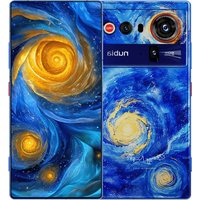
Z80 Ultra - Smartphone Nubia - Free user manual and instructions
Find the device manual for free Z80 Ultra Nubia in PDF.


| Product Type | Smartphone |
| Brand | Nubia |
| Model | Z80 Ultra |
| Processor | Snapdragon 8 Elite Gen 5 |
| Mobile Connectivity | 5G (bands NR1/3/5/7/8/20/28/38/40/41/77/78), LTE, WCDMA, GSM |
| Wireless Connectivity | Wi-Fi 7 (2.4/5/6 GHz), Bluetooth |
| Main Camera | Triple rear camera with LED flash, laser autofocus |
| Front Camera | Under-display front camera |
| Battery | Built-in non-removable lithium-ion. Fast charging up to 80 W, compatible with USB PD, wireless charging |
| Protection | IP68 and IP69 (dust and immersion resistant) |
| Biometric Security | Under-display fingerprint sensor, facial recognition |
| Operating System | Android |
| Sensors | Infrared, laser autofocus, NFC |
| Water and Dust Resistance | IP68 and IP69 rating |
| Maintenance and Cleaning | Use a soft cloth (e.g., for glasses). Avoid alcohol, solvents, harsh chemicals |
| Repairability | Non-removable battery, repair only by manufacturer or authorized service |
| Included Accessories | SIM tray ejection tool, USB Type-C cable (charger not included depending on version) |
| Warranty | See manufacturer terms |
| General Information | SAR head: 1.591 W/kg, body: 1.600 W/kg, limbs: 2.985 W/kg. Manufacturer: Nubia Technology Co., Ltd. Compliant with EU. |
Frequently Asked Questions - Z80 Ultra Nubia
User questions about Z80 Ultra Nubia
0 question about this device. Answer the ones you know or ask your own.
Ask a new question about this device
Download the instructions for your Smartphone in PDF format for free! Find your manual Z80 Ultra - Nubia and take your electronic device back in hand. On this page are published all the documents necessary for the use of your device. Z80 Ultra by Nubia.
USER MANUAL Z80 Ultra Nubia
Getting to Know Your Phone
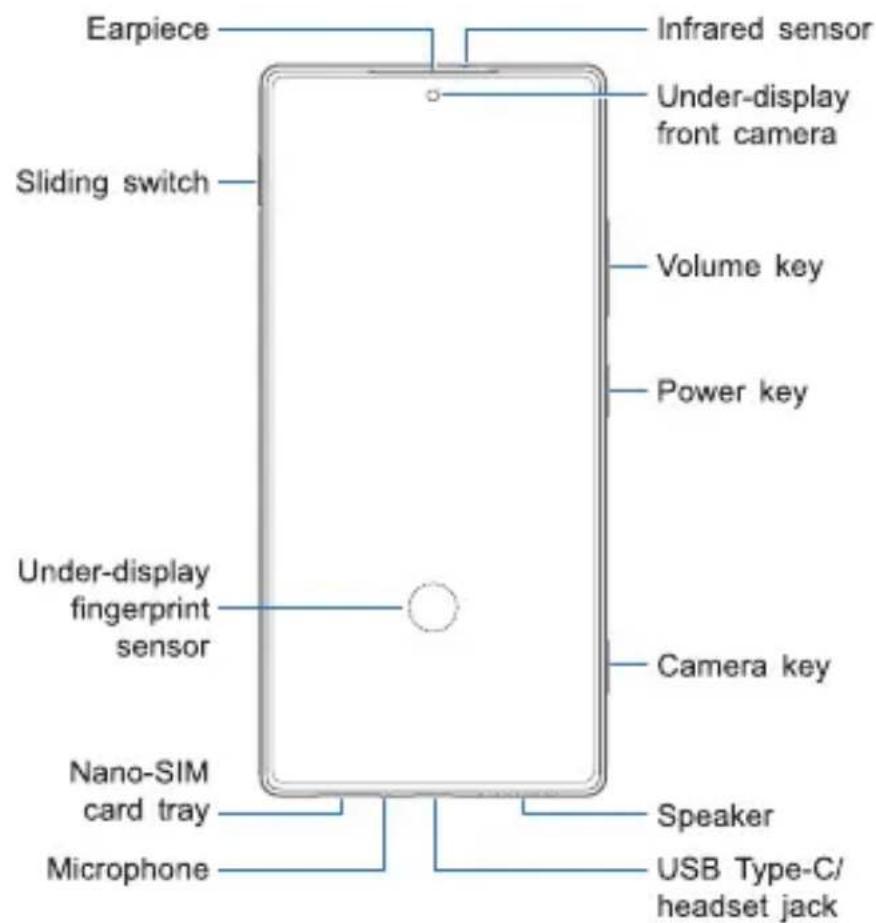
Front view: The infrared sensor is at the top side. The earpiece and the under-display front camera are one below the other at the top center of the front panel. The sliding switch is located at the upper left side, and on the right side front top to bottom are the Volume key, the Power key and the Camera key. The under-display fingerprint sensor is at the center of the lower half of the screen. On the bottom side, from left to right, are the nano-SIM card tray, the microphone, the USB Type-C/headset jack, and the speaker.
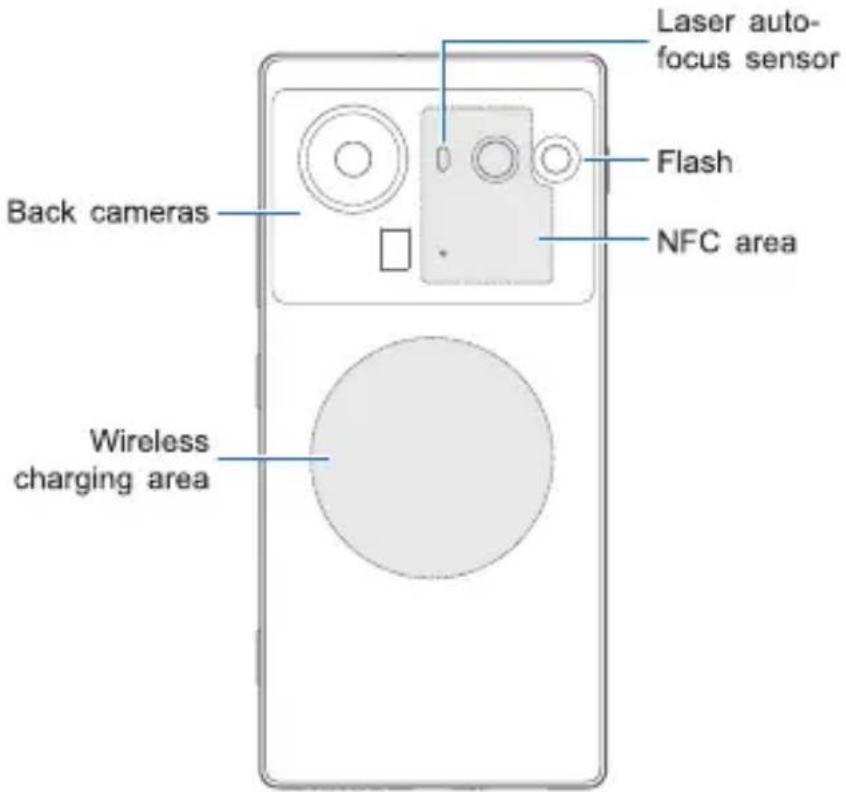
Back view: The back cameras are on the upper half of the back panel. On the upper right is the flash. The laser auto-focus sensor is on the right of the main camera. And the NFC area is in the right part of the upper half of the back panel.
Your phone supports 2.4 GHz, 5 GHz, and 6 GHz Wi-Fi.
Setting Up Your Phone
NOTE:
For users who are blind or have low vision, please ask someone to help with the SIM card insertion and initial system setup.
The nano-SIM card(s) can be installed or removed while the phone is turned on.
WARNING!
To avoid damage to the phone, do not use any other kind of SIM cards, or any non-standard nano-SIM card cut from a SIM card. You can get a standard nano-SIM card from your service provider.
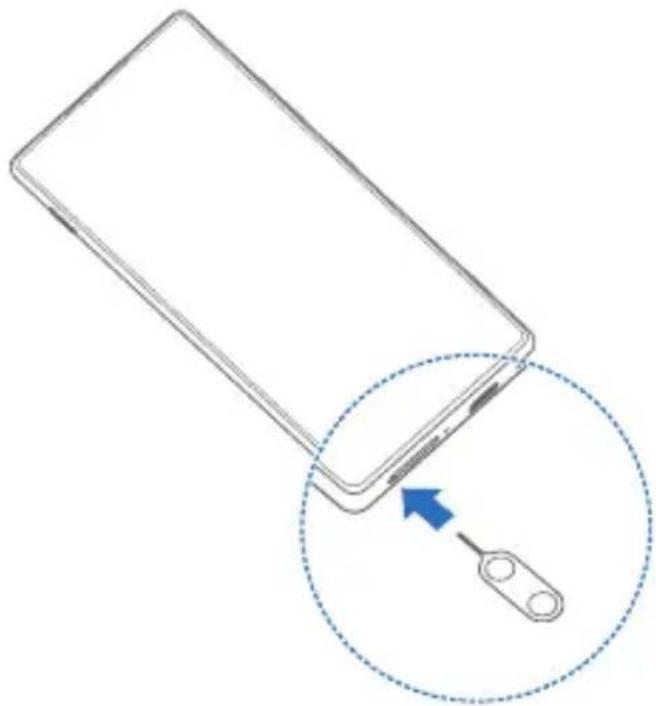
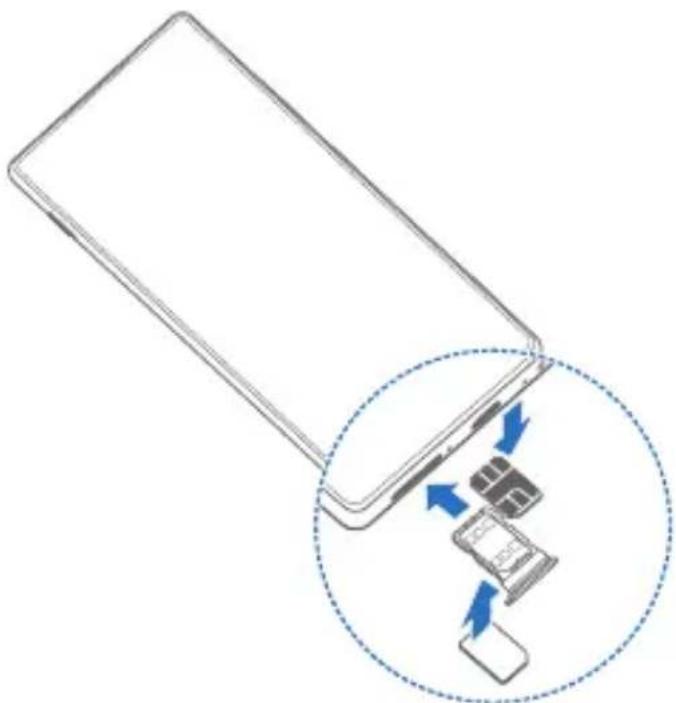
- Insert the tip of the tray eject tool into the hole on the card tray.
natural_image
Diagram of a smartphone with a cable being inserted, showing the cable being inserted into a device (no text or symbols present)- Pull out the card tray and place the nano-SIM card(s) flatly on either side of the tray as shown. Carefully slide the tray back into place.
natural_image
Diagram of a smartphone showing internal components being inserted into a device, with arrows indicating direction (no text or symbols present)NOTE:
Please use the tray eject tool included in the box. Otherwise the card tray may not be ejected. If two nano-SIM cards are installed, both cards can connect to the 5G network, and you can use either card for mobile data.
CAUTION:
Never replace the included tray eject tool with sharp objects. Ensure that the tray eject tool is perpendicular to the hole. Otherwise, the phone may be damaged. Do not insert the tray eject tool into other holes on the phone. You may damage the device and void your warranty.
Charging the Phone
Your phone's battery should have enough power for the phone to turn on, find a signal, and make a few calls. You should fully charge the battery as soon as possible.
NOTE:
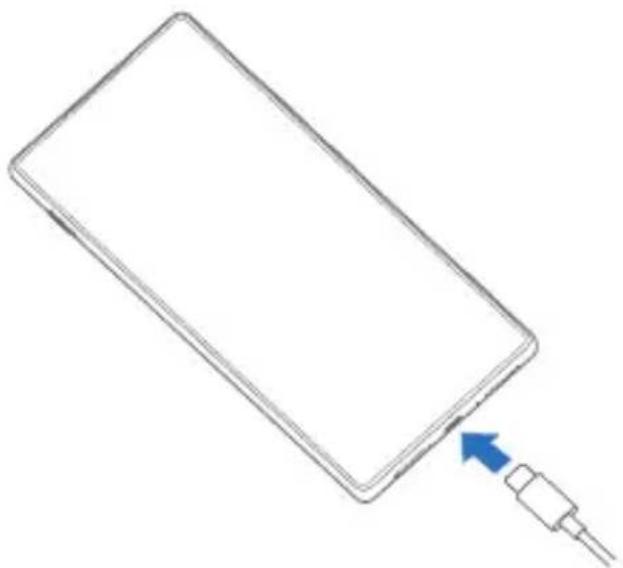
The power delivered by the charger must be between min 15 Watts required by this device, and max 80 Watts in order to achieve the maximum charging speed. And this device supports USB PD fast charging.
WARNING!
Use only compatible chargers and USB Type-C cables. The use of incompatible accessories could damage your phone or cause the battery to explode.
WARNING!
Do not remove the back cover. The battery is not removable. Removal may cause fire or explosion.
- Connect the adapter to the charging jack.
natural_image
Line drawing of a rectangular device with a blue arrow pointing to its edge, connected to a wire (no text or symbols)-
Connect the charger to a standard AC power outlet.
-
Disconnect the charger when the battery is fully charged.
NOTE:
If the battery is extremely low, you may be unable to power on the phone even when it is being charged. In this case, try again after charging the phone for at least 20 minutes. Contact the customer service if you still cannot power on the phone after prolonged charging.
NOTE:
If wireless charging is slow or not working at all, please remove the protective case and try again.
NOTE:
For environmental reasons, this package may not include a charger. This device can be powered with most USB power adapters and a cable with USB Type-C plug.
Powering On/Off Your Phone
Make sure the battery is charged before powering on.
Press and hold the Power key to turn on your phone.
To power off, press and hold the Power key until the power off/restart menu appears, touch and then touch


Power off again.
NOTE:
If the screen freezes or takes too long to respond, try pressing and holding the Power key for over 10 seconds to restart the phone.
Waking Up Your Phone
Your phone automatically goes into sleep mode when it is not in use for some time. The display is turned off to save power and the keys are locked to prevent accidental operations.
You can wake up your phone by turning on the display and unlocking the keys.
-
Press the Power key to turn the screen on.
-
Swipe up on the screen.
NOTE:
If you have set a face verification, a fingerprint, an unlock pattern, a PIN or a password for your phone, you'll need to use your face or fingerprint, draw the pattern, or enter the PIN/password to unlock your screen.
Lowering Blue Light
Blue light with wavelengths between 415 nm and 455 nm is considered harmful for the eyes. It may cause eye discomfort, suppress melatonin, and affect sleep quality and circadian rhythm. This product has the function of reducing blue radiant energy.
To avoid eye fatigue, it is recommended to place the product at an appropriate distance from your eyes and rest for 20 minutes to look into the distance after two hours of continuous viewing.
To enable eye protection, open the Settings app, touch Display, touch Eye comfort, and touch Turn on now. Use Turn on automatically to enable eye protection between sunset and sunrise or during customized time. In addition, you can adjust the protection effect by changing the intensity of the blue light filter.
Checking the Battery Information
You can view measured state of battery health, battery manufacturing date, date of first use of the battery, and number of full charge-discharge cycles. Just open Settings, touch Battery and then touch Battery health.
Battery Maintenance Tips
Your phone provides various options that help you conserve battery power and protect the battery. You can follow the tips below.
Reduce the screen backlight time.
Lower the screen brightness.
Reduce the screen refresh rate.
Turn Wi-Fi, Bluetooth, GPS, and auto-sync off when not in use.
Turn on Dark mode.
Use the Optimize Battery Usage feature to save battery power. Open Settings, touch Battery and touch Optimize Battery Usage.
Enable the Power saver or Ultra Power saver feature. Open Settings, touch Battery and touch Power saver / Ultra Power saver.
Slow down battery fast-charging and discharging in below 0 °C environment. Open Settings, touch Battery and touch Extreme Cold Mode.
Optimize the auto-start behavior, the secondary launch behavior, and the background running behavior of apps to save battery power. Open Settings, touch Battery and touch Apps AI-control.
Automatically close the apps that have not been used for a long time. Open Settings, touch Battery and touch More Settings. Then touch Scenario AI-optimization and turn on the Optimize when app not in use toggle switch.
Control the behavior of apps to reduce power consumption when the phone is in a long standby period. Open Settings, touch Battery and touch More Settings. Then touch Scenario AI-optimization and then Sleep mode.
To prevent overcharging the battery and shortening its lifespan, you can set the phone to stop charging when the battery level reaches 80%. Open Settings, touch Battery, and then select 80% upper limit.
To maintain battery health, charging automatically stops once the battery reaches full charge. If the phone remains connected to the charging source, charging will resume when the battery level drops below 95%. During this cycle, the displayed battery level stays at 100%. This feature is enabled by default. To access this feature, open Settings and touch Battery, and then select Basic.
To protect the battery, avoid charging the battery in high temperature environments.
Unplug the charger after the battery is fully charged.
To guarantee the charging performance, please use a compatible charger.
If you use a power source like a computer instead of the charger, the charging may be slower because of the reduced electric current.
If you use your phone during charging, it may take longer to fully charge the battery.
Accessibility
Your phone provides accessibility options and services including display, interaction controls, captions, audio, downloaded apps options, etc.
To access the accessibility features, open Settings, touch Features, and then touch Accessibility.
The main accessibility features include the following:
Display
Text and display size: Adjust font size and weight, select your preferred display size, and use high contrast text.
Color correction: Color correction and grayscale settings help your phone compensate for color blindness.
Color inversion: Reverse the color on the screen and apply to everything including media and images.
Dark mode: Turn the screen to dark with white text on a black background, relieving eye irritation caused by screen glare at night.
Remove animations: Reduce animation effects on the screen to help you focus.
Magnification: Magnify the screen and zoom in on a specific area.
Interaction controls
Accessibility Menu: Control your phone via a large on-screen menu. You can lock your phone, control volume and brightness, take screenshots, and more.
Touch & hold delay: Set the recognition time for touching and holding the screen.
Time to take action: Choose how long to show temporary messages that ask you to take action, but are visible only temporarily.
Power button ends call: Press the Power key to end a call, making it faster and easier to hang up.
Auto rotate screen: Automatically rotate the screen when you move the phone between portrait position and landscape position.
Captions: Detect speech on the phone and automatically generate captions. You can customize caption size and style to make them easier to read.
Audio
Audio description: Let you hear a description of what's happening on screen in supported videos.
Flash notifications: Flash the camera flashlight or the screen to alert you of an incoming notification or alarm.
Audio adjustment: Make both left and right audio channels get played back simultaneously when playing audio. Or balance the left and right channel volumes.
Text-to-speech output: Convert text input and play audio aloud. You can choose preferred speech synthesis engine, language, speech rate, and pitch.
Select to Speak: Select specific items on your screen and hear them read or described aloud.
Switch Access: Let you interact with your phone using one or more external switches or using facial gestures. This feature can be helpful if you can't interact directly with your phone.
TalkBack: Provide spoken feedback so that you can use the phone without looking at the screen. Instead of typical touch interactions, you can navigate the phone through TalkBack gestures.
NOTE:
The accessibility features may differ from your phone and may change with phone software updates. Please refer to your actual phone.
LEGAL INFORMATION
Copyright © 2025 Nubia Technology Co., Ltd.
All rights reserved.
No part of this publication may be quoted, reproduced, translated or used in any form or by any means, electronic or mechanical, including photocopying and microfilm, without the prior written permission of Nubia Technology Co., Ltd.
Notice
Nubia Technology Co., Ltd. reserves the right to make modifications on print errors or update specifications in this guide without prior notice.
We offer self-service for our smart device users. Please visit the official website
(at www.ztedevices.com) for more information on self-service and supported product models. Information on the website takes precedence.
Disclaimer
Nubia Technology Co., Ltd. expressly disclaims any liability for faults and damages caused by unauthorized modifications of the software.
Images and screenshots used in this guide may differ from the actual product. Content in this guide may differ from the actual product or software.
Trademarks
nubia and the nubia logos are trademarks of Nubia Technology Co., Ltd.
Android ^™ is a trademark of Google LLC.
The Bluetooth ^® word mark and logos are registered trademarks owned by the Bluetooth SIG, Inc. and any use of such marks by Nubia Technology Co., Ltd. is under license.

FOR DTS PATENTS,
SEE HTTP://XPERI.COM/DTS-PATENTS/.
MANUFACTURED UNDER LICENSE FROM DTS,
INC. AND ITS AFFILIATES. DTS, DTS:X, THE DTS:X
LOGO, AND DTS:X ULTRA ARE REGISTERED
TRADEMARKS OR TRADEMARKS OF DTS, INC.
AND ITS AFFILIATES IN THE UNITED STATES AND/
OR OTHER COUNTRIES. © DTS, INC. AND ITS
AFFILIATES. ALL RIGHTS RESERVED.

Covered by one or more claims of the HEVC patents listed at patentlist.accessadvance.com

Snapdragon sound
Powered by

Snapdragon 8 Elite Gen 5
Snapdragon ^® and Snapdragon Sound ^™ are products of Qualcomm Technologies, Inc. and/or its subsidiaries.
Snapdragon and Snapdragon Sound are trademarks or registered trademarks of Qualcomm Incorporated.
licensed by Qualcomm
This product implements certain patentedtechnologies licensed by Qualcomm Incorporated.
Qualcomm and the Licensed by Qualcomm logo are trademarks or registered trademarks of Qualcomm Incorporated.
WiFi 7 CERTIFIED
Wi-Fi CERTIFIED 7 ^™ and the Wi-Fi CERTIFIED 7 Logo are trademarks of Wi-Fi Alliance ^® .
Other trademarks and trade names are those of their respective owners.
Product Safety Information
 | Don't make or receive phone calls while driving. Never text while driving. |
 | Keep your phone at least 5 mm away from your body while making calls. |
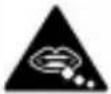 | Small parts may cause choking. |
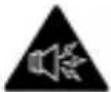 | Your phone can produce a loud sound. |
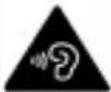 | To prevent possible hearing damage, do not listen at high volume levels for long periods. Exercise caution when holding your phone near your ear while the loudspeaker is in use. |
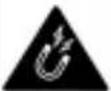 | Avoid contact with anything magnetic. |
 | Keep away from pacemakers and other electronic medical devices. |
 | Turn off when asked to in hospitals and medical facilities. |
 | Turn off when told to on aircraft and at airports. |
 | Turn off when near explosive materials or liquids. |
 | Don't use at gas stations. |
 | Your phone may produce a bright or flashing light. |
 | Don't dispose of your phone in fire. |
 | Avoid extreme temperatures. |
 | Avoid contact with liquids. Keep your phone dry. |
 | Do not attempt to disassemble your phone. |
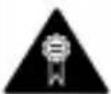 | Only use compatible accessories. |
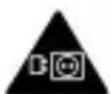 | For pluggable equipment, the socket-outlet shall be installed near the equipment and shall be easily accessible. |
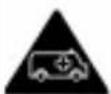 | Don't rely on your phone as a primary device for emergency communications. |
Radio Frequency (RF) Energy
General Statement on RF Energy
Your phone contains a transmitter and a receiver. When it is ON, it receives and transmits RF energy. When you communicate with your phone, the system handling your call controls the power level at which your phone transmits.
Specific Absorption Rate (SAR)
Specific Absorption Rate (SAR)
Your mobile device is a radio transmitter and receiver. It is designed not to exceed the limits for exposure to radio waves recommended by international guidelines. These guidelines were developed by the independent scientific organization ICNIRP and include safety margins designed to assure the protection of all persons, regardless of age and health.
The guidelines use a unit of measurement known as Specific Absorption Rate, or SAR. The SAR limit for mobile devices is 2 W/kg and the highest SAR value for this device when tested at the head was 1.591 W/kg*, and when tested at the body was 1.600 W/kg* with 5 mm distance. The limb (0 mm) SAR limit for mobile devices is 4 W/kg. The highest SAR value for this device when tested at the body with 0 mm distance was 2.985 W/kg*. As mobile devices offer a range of functions, they can be used in other positions, such as on the body as described in this guide**.
As SAR is measured utilizing the device's highest transmitting power, the actual SAR of this device while operating is typically below that indicated above. This is due to automatic changes to the power level of the device to ensure it only uses the minimum power required to communicate with the network.
* The tests are carried out in accordance with EN 50360, EN 50566, EN 50663, EN 62209-1 and EN 62209-2.
** Please see body worn operation in this guide.
Body Worn Operation
Important safety information regarding radio frequency radiation (RF) exposure:
To ensure compliance with RF exposure guidelines the phone must be used with a minimum of 5 mm separation from the body.
Failure to observe these instructions could result in your RF exposure exceeding the relevant guideline limits.
Limiting Exposure to Radio Frequency (RF) Fields
For individuals concerned about limiting their exposure to RF fields, the World Health Organisation (WHO) provides the following advice:
Precautionary measures: Present scientific information does not indicate the need for any special precautions for the use of mobile phones. If individuals are concerned, they might choose to limit their own or their children's RF exposure by limiting the length of calls, or using 'hands-free' devices to keep mobile phones away from the head and body.
Further information on this subject can be obtained from the WHO home page http://www.who.int/peh-emf (WHO Fact sheet 193: June 2000).
Distractions
Driving
Full attention must be given to driving at all times in order to reduce the risk of an accident. Using a phone while driving (even with a hands-free kit) can cause distraction and lead to an accident. You must comply with local laws and regulations restricting the use of wireless devices while driving.
Operating Machinery
Full attention must be given to operating the machinery in order to reduce the risk of an accident.
Product Handling
General Statement on Handling and Use
You alone are responsible for how you use your phone and any consequences of its use.
You must always switch off your phone wherever the use of a phone is prohibited. Use of your phone is subject to safety measures designed to protect users and their environment.
Always treat your phone and its accessories with care and keep them in a clean place.
Keep the screen and camera lens clean. An unclean screen or camera lens may slow down the phone's reaction to your operations or interfere with the image quality.
Clean your phone and its accessories with a soft material such as cleaning cloth for eyeglass lenses. Do not use alcohol or other corrosive substances for cleaning or allow them to get inside.
Do not expose your phone or its accessories to open flames or lit tobacco products.
Do not expose your phone or its accessories to liquid, moisture or high humidity.
Do not drop, throw or try to bend your phone or its accessories.
Do not use harsh chemicals, cleaning solvents, or aerosols to clean the phone or its accessories.
Do not paint your phone or its accessories.
Do not attempt to disassemble your phone or its accessories. Only authorized personnel can do so.
Do not place your phone inside or near heating equipment or high-pressure containers, such as water heaters, microwave ovens, or hot cooking utensils. Otherwise, your phone may be damaged.
Please check local regulations for disposal of electronic products.
Do not carry your phone in your back pocket as it could break when you sit down.
Battery Safety
Using incompatible battery, charger or power adapter may damage your device, shorten its lifespan or cause a fire, explosion or other hazards.
The recommended operating temperatures are 0 °C to 35 °C and the storage temperatures are -20 °C to +45 °C. Extreme temperatures can damage the device and reduce the charging capacity and lifespan of your device and battery.

WARNING!
Do not remove the back cover. The battery is not removable. Removal may cause fire or explosion.
Do not change or replace the built-in rechargeable battery in your device by yourself. The battery can only be changed or replaced by the manufacturer or an authorized service provider.
Do not place the device or the battery in or near heating equipment, such as microwave ovens, stoves or radiators. Keep the device and the battery away from excessive heat and direct sunlight. If not, the device or the battery may overheat and cause explosion or fire.
Do not disassemble, squeeze or puncture the device, as this can cause explosion or fire.
Do not throw the device into a fire to avoid explosion.
Please disconnect the charger when the battery is fully charged. Overcharging may shorten the battery life.
When not using the device for a long period, please charge the battery about half and then store the device in a cool dry place.
If the battery damages or shows signs of swelling or leakage, please stop use immediately and contact the manufacturer or an authorized service provider for replacement.
Small Children
Do not leave your phone and its accessories within the reach of small children or allow them to play with it. They could hurt themselves or others, or could accidentally damage the phone.
Your phone contains small parts with sharp edges that may cause an injury or may become detached and create a choking hazard.
Demagnetization
To avoid the risk of demagnetization, do not allow electronic devices or magnetic media close to your phone for a long time.
Electrostatic Discharge (ESD)
Do not touch the metallic connectors of the nano-SIM card.
Antenna
Do not touch the antenna unnecessarily.
Normal Use Position
When placing or receiving a phone call, hold your phone to your ear, with the bottom towards your mouth.
Airbags
Do not place a phone in the area over an airbag orin the airbag deployment area, as an airbag inflateswith great force and serious injury could result.
Store the phone in a safe and secure area before driving your vehicle.
Seizures/Blackouts
Your phone can produce a bright or flashing light. A small percentage of people may be susceptible to blackouts or seizures (even if they have never had one before) when exposed to flashing lights or light patterns such as when playing games or watching videos. If you have experienced seizures or blackouts or have a family history of such occurrences, please consult a physician. To reduce the risk of blackouts or seizures, use your phone in a well-lit room and take frequent breaks.
Repetitive Strain Injuries
To minimize the risk of Repetitive Strain Injury (RSI) when texting or playing games with your phone:
Do not grip the phone too tightly.
Press the buttons lightly.
Use the special features which are designed to minimize the times of pressing buttons, such as Message Templates and Predictive Text.
Take frequent breaks to stretch and relax.
Emergency Calls
This phone, like any other wireless phone, operates using radio signals, which cannot guarantee connection in all conditions. Therefore, you must never rely solely on any wireless phone for emergency communications.
Loud Noise
This phone is capable of producing loud noises, which may damage your hearing. Turn down the volume before using headphones, Bluetooth headsets or other audio devices.
Phone Heating
Your phone may become warm during charging and during normal use.
Electrical Safety
Accessories
Use only approved accessories.
Do not connect with incompatible products or accessories.
Take care not to allow metal objects, such as coins or key rings, to contact or short-circuit the charging jack. Never puncture the surface of the phone with sharp objects.
Connection to Vehicles
Seek professional advice when connecting a phone interface to the vehicle electrical system.
Faulty and Damaged Products
Do not attempt to disassemble the phone or its accessories. Only qualified personnel can service or repair the phone or its accessories. If your phone (or its accessories) has been submerged in water, punctured, or subjected to a severe fall, do not use it until you have taken it to be checked at an authorized service center.
Radio Frequency Interference
General Statement on Interference
Care must be taken when using your phone in close proximity to personal medical devices, such as pacemakers and hearing aids.
Please consult your doctor and the device manufacturers to determine if the operation of your phone may interfere with the operation of your medical devices.
Pacemakers
Pacemaker manufacturers recommend that a minimum separation of 15 cm be maintained between a mobile phone and a pacemaker to avoid potential interference with the pacemaker. To achieve this, use the phone on the opposite ear to your pacemaker and do not carry it in a breast pocket.
Hearing Aids
People with hearing aids or other cochlear implants may experience interfering noises when using wireless devices or when one is nearby.
The level of interference depends on the type of the hearing device and the distance from the interference source. Increasing the separation between them may reduce the interference. You may also consult your hearing aid manufacturer to discuss alternatives.
Medical Equipment
Switch off your wireless device when you are requested to do so in hospitals, clinics or healthcare facilities. These requests are designed to prevent possible interference with sensitive medical equipment.
Aircraft
Switch off your wireless device whenever you are instructed to do so by airport or airline staff.
Consult the airline staff about the use of wirelessdevices onboard the aircraft and enable airplanemode of your phone when boarding an aircraft.
Interference in Vehicles
Please note that because of possible interference with electronic equipment, some vehicle manufacturers forbid the use of mobile phones in their vehicles unless a hands-free kit with an external antenna is included in the installation.
Explosive Environments
Gas Stations and Explosive Atmospheres
In locations with potentially explosive atmospheres, obey all posted signs to turn off wireless devices such as your phone or other radio equipment.
Areas with potentially explosive atmospheres include fueling areas, below decks on boats, fuel or chemical transfer or storage facilities, and areas where the air contains chemicals or particles, such as grain, dust, or metal powders.
Blasting Caps and Areas
Power off your mobile phone or wireless devicewhen in a blasting area or in areas where signs areposted to power off “two-way radios” or “electronic devices” to avoid interfering with blasting operations.
Specification
| EUT tested radios application | GSM 900/1800WCDMA 850/900/2100LTE Band 1/3/5/7/8/20/28/34/38/40/415G NR Band1/3/5/7/8/20/28/38/40/41/77/78Wi-Fi 2.4GWi-Fi 5GBluetooth |
| Maximum RF output power | GSM900: 32.5 dBmGSM1800: 29.5 dBmWCDMA 850/900/2100: 24 dBmLTE Band 1/3/5/8/34/38/40: 24.5 dBmLTE Band 7/20/28: 24 dBmLTE Band 41: 26.5 dBm5G NR Band 1: 25 dBm5G NR Band 3/5/7/8/20/28/38/40: 24 dBm5G NR Band 41: 27 dBm5G NR Band 77/78: 26.5 dBmWi-Fi (2.4G): 20 dBmWi-Fi (5G): 20 dBmBluetooth: 18 dBm |
CE Caution
Battery Caution
There is a risk of explosion if battery is replaced by an incorrect type.
Dispose of used batteries according to the instructions.
Do not dispose of a battery into fire or a hot oven, or mechanically crush or cut a battery. Doing so can result in an explosion.
Leaving a battery in an extremely high temperature surrounding environment can result in an explosion or the leakage of flammable liquid or gas.
A battery subjected to extremely low air pressure may result in an explosion or the leakage of flammable liquid or gas.
Proper Use
As described in this guide, your device can be used only in right location. If possible, please do not touch the antenna area on your device.
Do not expose your device to extreme temperatures lower than -10 °C and higher than +40 °C.
Charge your device only between 0 °C and +40 °C.
Disposal of Your Old Appliance
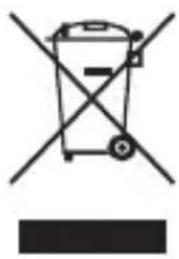
natural_image
Symbol of a trash bin crossed with no text or numbers, representing waste sorting or disposal (no text present)-
When this crossed-out wheeled bin symbol is attached to a product, it means the product is covered by the European Directive 2012/19/EU.
-
All electrical and electronic products should be disposed of separately from the municipal waste stream via designated collection facilities appointed by the government or the local authorities.
-
The correct disposal of your old appliance will help prevent potential negative consequences for the environment and human health.
For this product's recycling information based on WEEE directive, please send an e-mail to weee@zte.com.cn
EU DECLARATION OF CONFORMITY
CE
Hereby, ZTE Corporation declares that the radio equipment type NX741J is in compliance with Directive 2014/53/EU.
The full text of the EU declaration of conformity is available at the following Internet address: https://certification.ztedevices.com
The device is restricted to indoor use only when operating in the 5150 to 5350 MHz frequency range.
 | AT BE BG HR CY CZ DK | ||||||
| EE FI FR DE EL HU IE | |||||||
| IT LV LT LU MT NL PL | |||||||
| PT RO SK SI ES SE UK(NI) | |||||||
| NO IS LI CH TR | |||||||
ErP Conformity
If the packaging box includes a charger, it conforms to the Energy-related Product Directive (ErP)
2009/125/EC of the European Parliament and the Council.
The detailed ErP information is available on ZTE website https://certification.ztedevices.com.
Compliance of EU Data Act
Respecting the legitimate rights of EU users to access data generated by this device under the EU Data Act (Regulation (EU) 2023/2854) is a compliance principle integrated into ZTE's product and service design. You have the right to understand the details of the data generated by this device and may request ZTE to uphold your legal entitlements regarding data access, sharing, and transmission. For detailed information on data acquisition methods and operation instructions, please visit https://www.zte.com.cn/global/article/acknowledge.html. You will obtain the following information:
-
Data overview of the entire product line;
-
Specific types of data generated by this device (which may vary by product functionality).
Appendix
Weight range of the critical raw materials and environmentally relevant materials:
Cobalt in the battery: > 5 g
Tantalum in capacitors: < 0.05 g
Neodymium:
in loud speaker: 0.05 g \~ 0.2 g
in vibration motor: < 0.05 g
in other magnets: < 0.05 g
Gold: < 0.02 g
Percentage of recycled content for the device or a part thereof:
Metal: 0.3%
Glass: 7.7%
Aluminum alloy: 0.5%
Battery: 29.8%
Plastic: 7.4%
Metal+Plastic: 14.5%
Plastic+Metal: 12.5%
Copper: 2.5%
Stainless steel: 1.4%
PCB: 6.6%
Recyclability rate (Rcyc): 83.2%
Minimum battery endurance in number of cycles: 1000 cycles (80% power remaining)
Your device is rated IP68 and IP69 for dust and water resistance.
natural_image
Diagram of a smartphone with a cable being inserted, showing the cable being inserted into a device (no text or symbols present)natural_image
Diagram of a smartphone showing internal components with arrows indicating movement, no text or symbols presentNOTA:
natural_image
Line drawing of a smartphone with a blue arrow pointing to its cable (no text or symbols)Copyright © 2025 Nubia Technology Co., Ltd.
natural_image
Symbol of a trash bin crossed with a diagonal line, no text or numbers presentnatural_image
Line drawing of a smartphone with a blue arrow pointing to a disassembled device (no text or symbols present)natural_image
Diagram of a smartphone showing the internal components and a close-up of the screen (no text or symbols present)
HINWEIS:
natural_image
Simple line drawing of a rectangular device with a blue arrow pointing to it, no text or symbols present.Copyright © 2025 Nubia Technology Co., Ltd.
RSI-Syndrom (Repetitive Strain Injuries)
natural_image
Symbol of a trash bin crossed with no text or numbers, representing waste sorting or disposal (no text present)natural_image
Diagram of a smartphone with a cable being inserted, showing the cable being inserted into a device (no text or symbols present)natural_image
Diagram of a smartphone showing internal components with arrows indicating movement, no text or symbols present
REMARQUE :
natural_image
Line drawing of a smartphone with a blue arrow pointing to its right side (no text or symbols)Copyright © 2025 Nubia Technology Co., Ltd.
licensed by Qualcomm
natural_image
Symbol of a trash bin crossed with a diagonal line, no text or numbers presentDÉCLARATION DE CONFORMITÉ UE

natural_image
Line drawing of a smartphone with a blue arrow pointing to a disassembled device (no text or symbols present)natural_image
Diagram of a smartphone showing internal components being inserted into a device, with arrows indicating movement (no text or symbols present)NOTA:
natural_image
Simple line drawing of a rectangular device with a blue arrow pointing to it, no text or symbols present.Copyright © 2025 Nubia Technology Co., Ltd.
Interferenze in radio frequenza
natural_image
Symbol of a trash bin crossed with a diagonal line and a horizontal bar below (no text or labels)natural_image
Line drawing of a smartphone with a blue arrow pointing to a disassembled device (no text or symbols present)natural_image
Diagram of a smartphone showing the internal components of a device, with arrows indicating movement (no text or symbols present)NOT:
natural_image
Line drawing of a rectangular device with a blue arrow pointing to its edge, connected to a wire (no text or symbols)Telif Hakki © 2025 Nubia Technology Co., Ltd.
licensed by Qualcomm
natural_image
Symbol of a trash bin crossed with no text or numbers, representing waste sorting or disposal (no text present)natural_image
Diagram of a smartphone with a cable being inserted, showing the cable being inserted into a device (no text or symbols present)natural_image
Diagram of a smartphone showing internal components being inserted into a device, with arrows indicating direction (no text or symbols present)ПРИМЕЧАНИЕ:
natural_image
Line drawing of a rectangular device with a blue arrow pointing to its edge, connected to a wire (no text or symbols)Copyright © 2025 Nubia Technology Co., Ltd.
Все права защищены.
licensed by Qualcomm
natural_image
Symbol of a trash bin crossed with a diagonal line, no text or numbers presentnatural_image
Diagram of a smartphone with a cable being inserted, showing the cable being inserted into a device (no text or symbols present)natural_image
Diagram of a smartphone showing internal components and directional arrows, no text or symbols presentUWAGA:
natural_image
Simple line drawing of a rectangular device with a blue arrow pointing to it, no text or symbols present.Copyright © 2025 Nubia Technology Co., Ltd.
natural_image
Symbol of a trash bin crossed with a diagonal line, no text or numbers presentnatural_image
Diagram of a smartphone with a cable being inserted, showing the cable being inserted into a device (no text or symbols present)natural_image
Diagram of a smartphone showing internal components and directional arrows, no text or symbols present
HUOMAUTUS:
natural_image
Line drawing of a rectangular device with a blue arrow pointing to its edge, connected to a wire (no text or symbols)Copyright © 2025 Nubia Technology Co., Ltd.
licensed by Qualcomm
natural_image
Symbol of a trash bin crossed with a diagonal line, no text or numbers presentnatural_image
Diagram of a smartphone with a cable being inserted, showing the cable being inserted into a device (no text or symbols present)natural_image
Diagram of a smartphone showing internal components with blue arrows indicating movement, no text or symbols present
ПРИМИТКА:
natural_image
Line drawing of a smartphone with a blue arrow pointing to its side, no text or symbols presentCopyright © 2025 Nubia Technology Co., Ltd.
Усі права захищені.
licensed by Qualcomm
natural_image
Symbol of a trash bin crossed with two crossed lines, no text or numbers present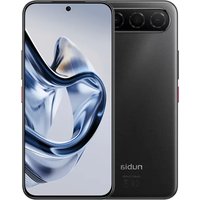
- Setting Up Your Phone
- NOTE:
- WARNING!
- CAUTION:
- Charging the Phone
- Powering On/Off Your Phone
- Waking Up Your Phone
- Lowering Blue Light
- Checking the Battery Information
- Battery Maintenance Tips
- Accessibility
- Display
- Interaction controls
- Audio
- LEGAL INFORMATION
- All rights reserved.
- Notice
- Disclaimer
- Trademarks
- Snapdragon sound
- Powered by
- Snapdragon 8 Elite Gen 5
- licensed by Qualcomm
- WiFi 7 CERTIFIED
- Product Safety Information
- Radio Frequency (RF) Energy
- General Statement on RF Energy
- Specific Absorption Rate (SAR)
- Body Worn Operation
- Limiting Exposure to Radio Frequency (RF) Fields
- Distractions
- Driving
- Operating Machinery
- Product Handling
- General Statement on Handling and Use
- Battery Safety
- Small Children
- Demagnetization
- Electrostatic Discharge (ESD)
- Antenna
- Normal Use Position
- Airbags
- Seizures/Blackouts
- Repetitive Strain Injuries
- Emergency Calls
- Loud Noise
- Phone Heating
- Electrical Safety
- Accessories
- Connection to Vehicles
- Faulty and Damaged Products
- Radio Frequency Interference
- General Statement on Interference
- Pacemakers
- Hearing Aids
- Medical Equipment
- Aircraft
- Interference in Vehicles
- Explosive Environments
- Gas Stations and Explosive Atmospheres
- Blasting Caps and Areas
- CE Caution
- Battery Caution
- Proper Use
- Disposal of Your Old Appliance
- EU DECLARATION OF CONFORMITY
- ErP Conformity
- Compliance of EU Data Act
- Appendix
- NOTA:
- HINWEIS:
- RSI-Syndrom (Repetitive Strain Injuries)
- REMARQUE :
- DÉCLARATION DE CONFORMITÉ UE
- Interferenze in radio frequenza
- NOT:
- ПРИМЕЧАНИЕ:
- UWAGA:
- HUOMAUTUS:
- ПРИМИТКА:
Brand : Nubia
Model : Z80 Ultra
Category : Smartphone