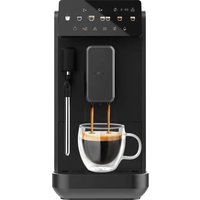
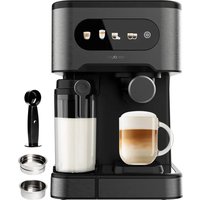
Cremmaet Lungo - Coffee machine CECOTEC - Free user manual and instructions
Find the device manual for free Cremmaet Lungo CECOTEC in PDF.


| Product Type | Automatic Coffee Machine |
| Brand | Cecotec |
| Model | Cremmaet Lungo |
| Water Tank | 1.5 L (removable) |
| Bean Hopper | 300 g (estimated capacity) |
| Pressure | 15 bar |
| Grinder | Yes, with grind adjustment (5 levels) |
| Steam Wand | Yes, adjustable, metal |
| Power | 1450 W |
| Functions | Espresso, Lungo, Double Espresso, Americano, hot water, steam |
| Settings | Intensity (3 levels), grind, customizable volume |
| Control Panel | Touch with icons |
| Auto Shut-off | Yes, adjustable: 10, 20 or 30 min |
| Descaling | Light alert, automatic cycle |
| Cleaning | Manual rinse, steam wand cleaning, brewing unit cleaning |
| Included Accessories | Cleaning brush, needle, manual |
Frequently Asked Questions - Cremmaet Lungo CECOTEC
User questions about Cremmaet Lungo CECOTEC
0 question about this device. Answer the ones you know or ask your own.
Ask a new question about this device
Download the instructions for your Coffee machine in PDF format for free! Find your manual Cremmaet Lungo - CECOTEC and take your electronic device back in hand. On this page are published all the documents necessary for the use of your device. Cremmaet Lungo by CECOTEC.
USER MANUAL Cremmaet Lungo CECOTEC
natural_image
Exterior view of a modern black coffee machine with control panel and tray (no visible text or symbols)- Parts and components 19
- Before use 21
- Operation 22
- Troubleshooting 27
- Cleaning and maintenance 28
- Recycling of electrical and electronic equipment 30
- Copyright 31
- Simplified EU Declaration of Conformity 31
SOMMAIRE
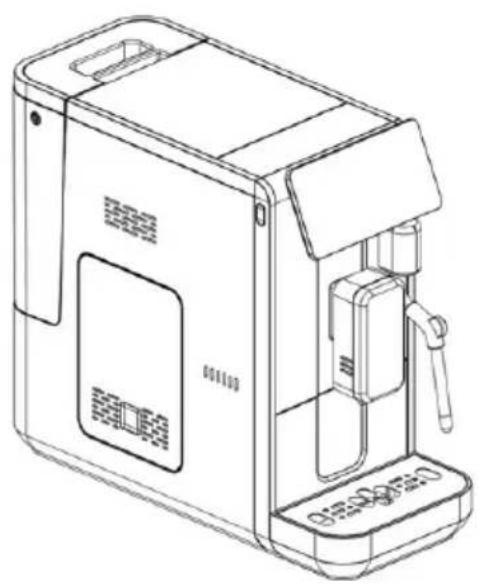
- External drip tray
- Drip tray grid
- Internal drip tray
- Coffee grounds container
- Metal vaporizer
- Adjustable coffee spout
- Control panel
- Grinding level knob
- Coffee bean hopper lid
- Water tank
- Brewing unit
- Side door
- Cleaning brush
- Power cord
- Needle
Control panel.
| Indicator light Description | ||
| 1 Power |  | |
| 2 Flashing: Low water level/lack of water tank | ||
| 3 Flashing: 100% of coffee beans | ||
| 4 It lights | 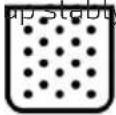 : The coffee : The coffee | grounds container is full.Flashing: Missing internal drip tray/coffee grounds container |
ENGLISH
5 It lights  | : Missing / incorrectly installed processing unit Flashing: Side door open / incorrectly installed |
6 It lights 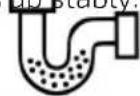 | Needs decalcification Flashing: Decalcification in progress |
7 System emptying function in progress  | |
8 Coffee touch icon  | |
9 Espresso  | |
10 Long touch icon  | |
11 Double Espress touch icon  | |
12 Americ  | |
13 Hot water touch icon  | |
14 Steam wand touch icon | |
15 Touch icon vaporizer cleaning | |
16 Double entity touch icon | |
17 Touch  cleaning/system cleaning cleaning/system cleaning |
NOTE:
The graphics in this manual are schematic representations and may not exactly match the product.
2. BEFORE USE
- This appliance comes in a packaging designed to protect it during transport. Take the appliance out of its box and remove all packaging materials. You can keep the original box and other packaging materials in a safe place to prevent damage to the appliance if you need to transport it in the future. If you wish to dispose of the original packaging, make sure all items are recycled properly.
- Check that all parts and components are included and in good condition. If any of them are missing or damaged, please contact Cecotec's Official Technical Support Service immediately.
Box content
- Super-automatic coffee machine
- Instruction manual
- Do not remove the product's serial number in order to keep proper traceability if technical assistance is required.
ENGLISH
3. OPERATION
Installation
- Remove protective films, stickers and other packaging materials from the device. (Fig. 2)
- Choose a safe and stable surface with an easily accessible power supply. Leave a minimum distance to the sides of the machine. (Fig. 3)
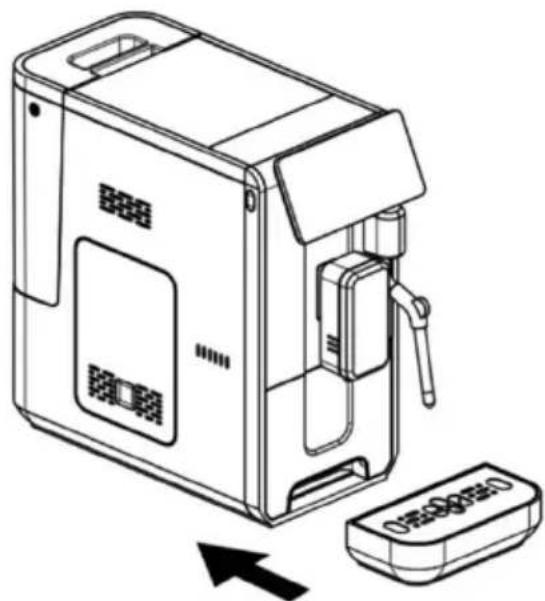
- Insert the outer drip tray into the machine until it is securely fastened. (Fig. 4).
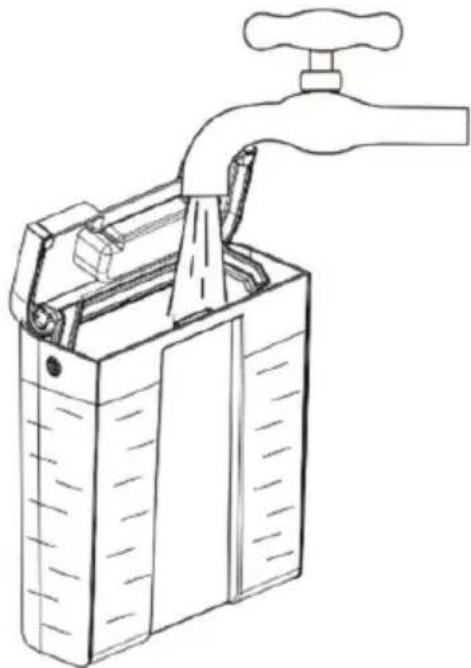
- Fill the water tank with water (see "Filling the water tank"). (Fig. 5)
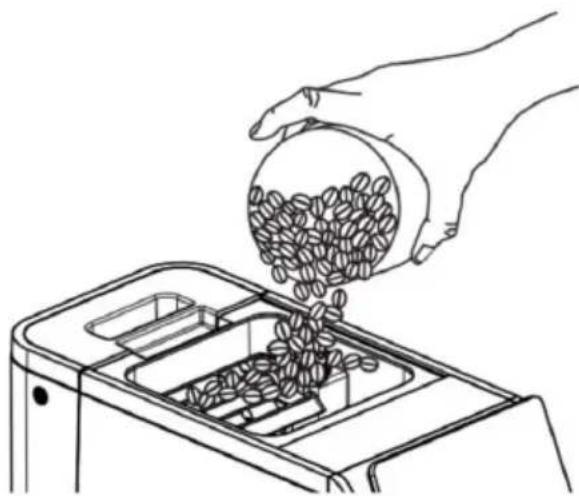
- Fill the container with coffee beans (see «Filling the coffee bean container»). (Fig. 6).
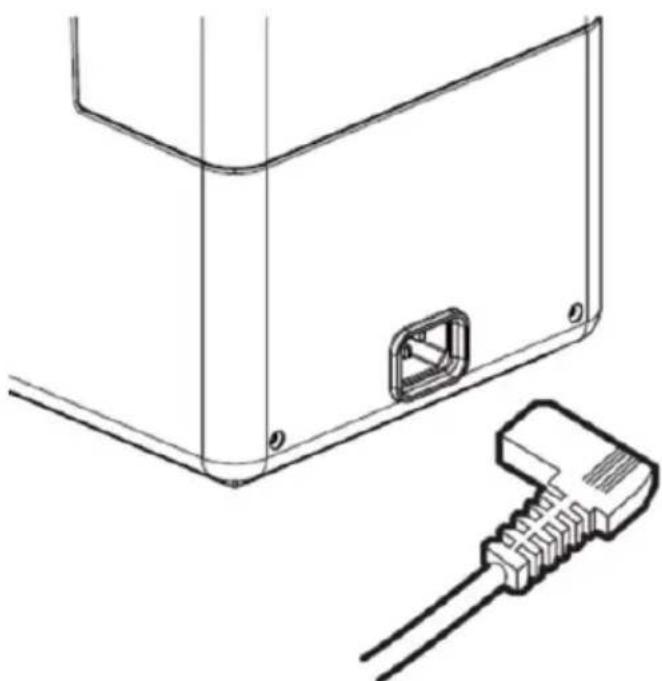
- Unwind and extend the power cord. Insert the plug into the socket located at the back of the machine, while the other end of the power cord to the wall socket with the correct voltage. (Fig. 7).
Note: Press the system cleaning touch icon ✦ (see «Manual rinsing») to clean the inside of the coffee machine before the first use.
Filling the water tank (Fig. 8)
When the ⚠ icon flashes, the water tank level is low and needs to be refilled.
- Lift the water tank using the lid as a handle.
- Rinse the water tank with fresh water.
- Fill the tank to the maximum level and put it back in the machine. Ensure it is properly installed.
NOTE: To avoid overflowing the water tank, do not add water directly into the appliance. (Fig. 9).
IMPORTANT: Never fill the water tank with warm water, hot water, carbonated water or other liquids that could damage the water tank and the machine.
Filling the coffee bean container
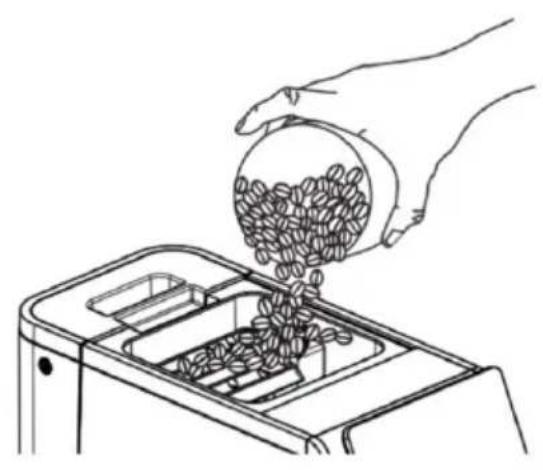
When flashes, it is necessary to fill the appliance with coffee beans:
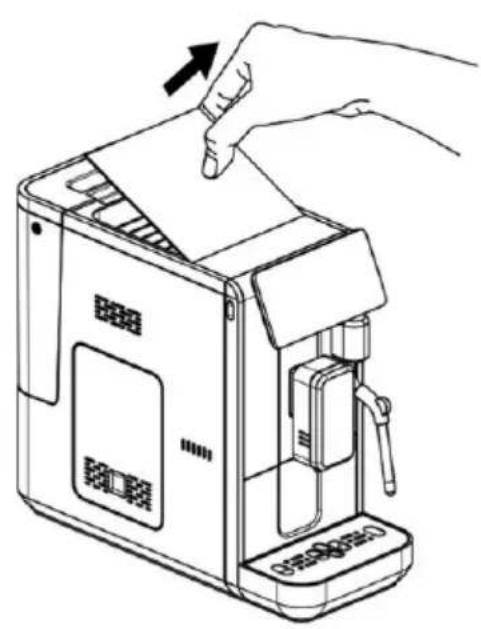
- Remove the cover of the coffee bean container. (Fig. 10)
- Fill the bean container with coffee beans.
- Install the tank cover. (Fig. 11)
IMPORTANT: Fill the bean container with coffee beans only. Ground coffee, instant coffee, caramelized coffee or other objects can damage the machine.
Coffee preparation
- Press the power button to switch on the appliance ⏻. Make sure the drip tray is located under the coffee spout and the water tank has water in it. The appliance will perform an automatic rinse in the frother and then in the coffee spout.
- The device will go to the main screen (standby mode).
-
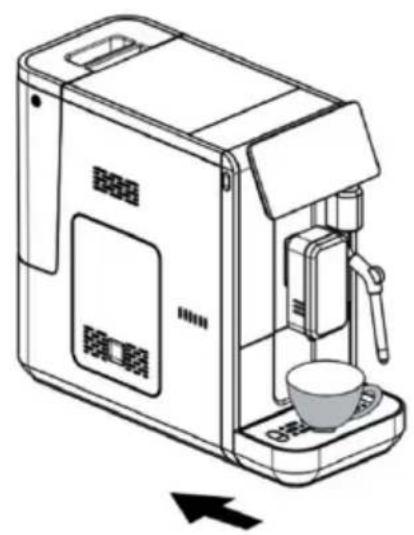
Place a cup under the coffee spout and adjust the height of the spout to fit the cup. Depending on the size of the cup (too high or too wide), the drip tray can be removed or the position adjusted. (Fig. 12)
-
Press the coffee strength touch icon Ⓧ to choose between mild, normal and strong flavor.
-
Choose a coffee by pressing the touch icon Espresso 🎯, Long 🎯, or Americano 🎯.
-
The light under the coffee spout will turn on, and the selected touch icon will illuminate indicating that the coffee maker is preparing the cup of coffee. You can stop the coffee by pressing the touch icon again.
-
When the coffee maker returns to the main screen (standby mode).
NOTE: The Espresso touch icon 📋 has a higher coffee strength. The volume of all the above-mentioned types of coffee can be adjusted (see «Adjusting the coffee/hot water volume»).
NOTE: Use the Quick Clean ✦ function to clean the inside of the brewer before the first use.
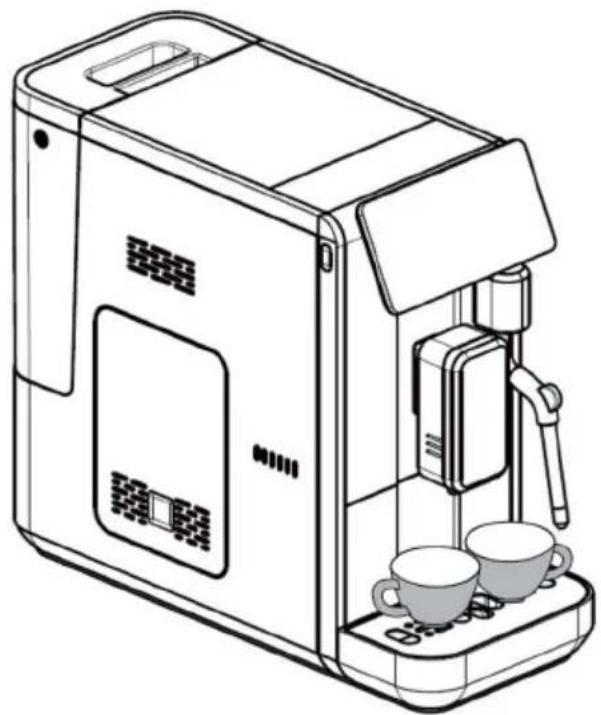
Preparation of two cups of coffee (Fig. 13)
-
Press the power button to switch on the appliance Ⓞ. Make sure the drip tray is located under the coffee spout and the water tank has water in it. The appliance will perform an automatic rinse in the frother and then in the coffee spout.
-
The device will go to the main screen (standby mode).
-
Place two cups under the coffee spout and adjust the height of the spout to fit the cups. Depending on the size of the cups (too high or too wide), the drip tray can be removed on the position adjusted. (Fig. 14)
-
Press the touch icon x2. The touch icon Espresso 🎯, Largo 🎯 and Double Espresso 🎯 will light up. Press the touch icon of your desired coffee.
-
Press the coffee strength touch icon Ⓤ to choose between mild, normal and strong flavor.
-
The coffee type touch icon and coffee spout light will illuminate, and the x2 touch icon will flash to indicate that the machine is preparing the two cups. Two cups of coffee will be dispensed.
-
The preparation will stop automatically. If you wish to stop the coffee output during operation, press the touch icon of the coffee type again.
Frothing milk for coffee
-
As the temperature of the steam is higher than that of the espresso, the latter must be prepared before frothing the milk; otherwise, the espresso will taste burnt.
-
Prepare espresso coffee by pressing the Espresso touch icon 📋, use a larger cup.
-
Turn the steam wand towards the drip tray.
-
Press the steam touch icon 📋. The touch icon will blink indicating that the coffee maker is heating up.
-
When heating is complete, the steam touch icon will stop flashing and remain lit.
-
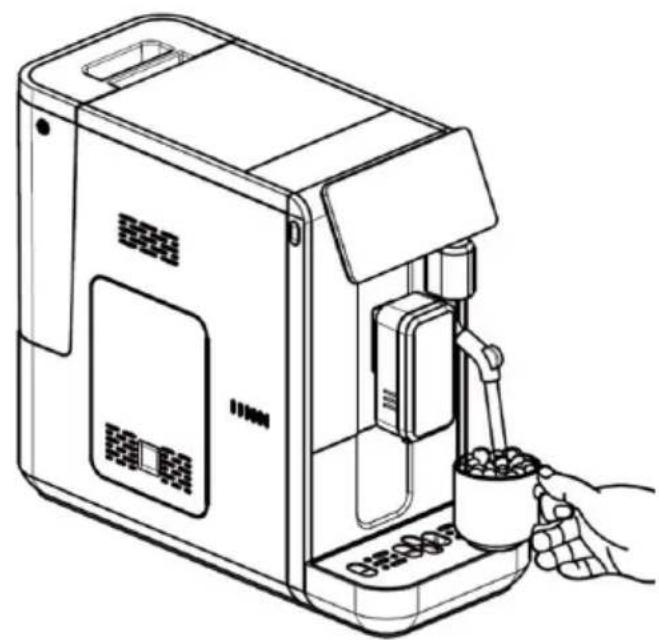
Prepare a container with milk. Place the container under the frother and immerse the frother about 5-8 cm deep above the level of the milk.
-
Press the Steam touch icon 📋 again. When the steam comes out, slightly tilt the container generating a whirlpool, this will generate the ideal foam formed by micro bubbles.
-
When the milk is hot enough, press the Steam touch icon to stop the process. Move the milk container away from the steam nozzle.
ENGLISH
-
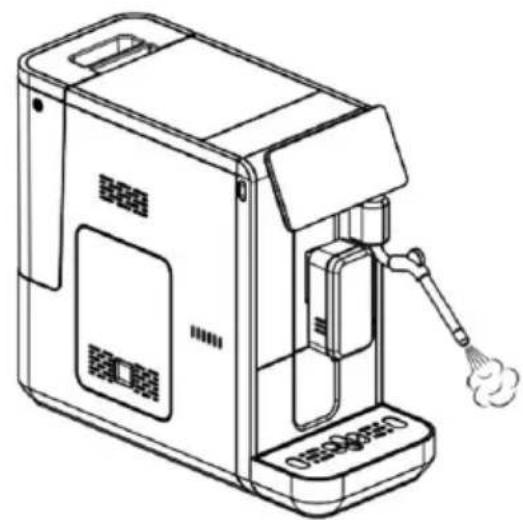
The vaporizer cleaning touch icon 🎩 will flash to remind the user to clean the vaporizer. Press the flashing touch icon for cleaning the frother and use a damp towel to wipe the milk residue from the frother. (See «Daily cleaning of the coffee maker»).
-
Pour the hot frothy milk into the espresso cup. You can now enjoy your coffee.
Hot water preparation
-
Place a cup under the coffee outlet.
-
Press the hot water touch icon 📁. Both the Hot Water icon and the coffee spout light illuminate indicating that the appliance is heating water.
-
The preparation will stop automatically. If you want to stop the hot water output during operation, press the Hot water touch icon again.
Daily cleaning of the coffee maker
Timely cleaning and maintenance of the coffee maker is essential to prolong its useful life.
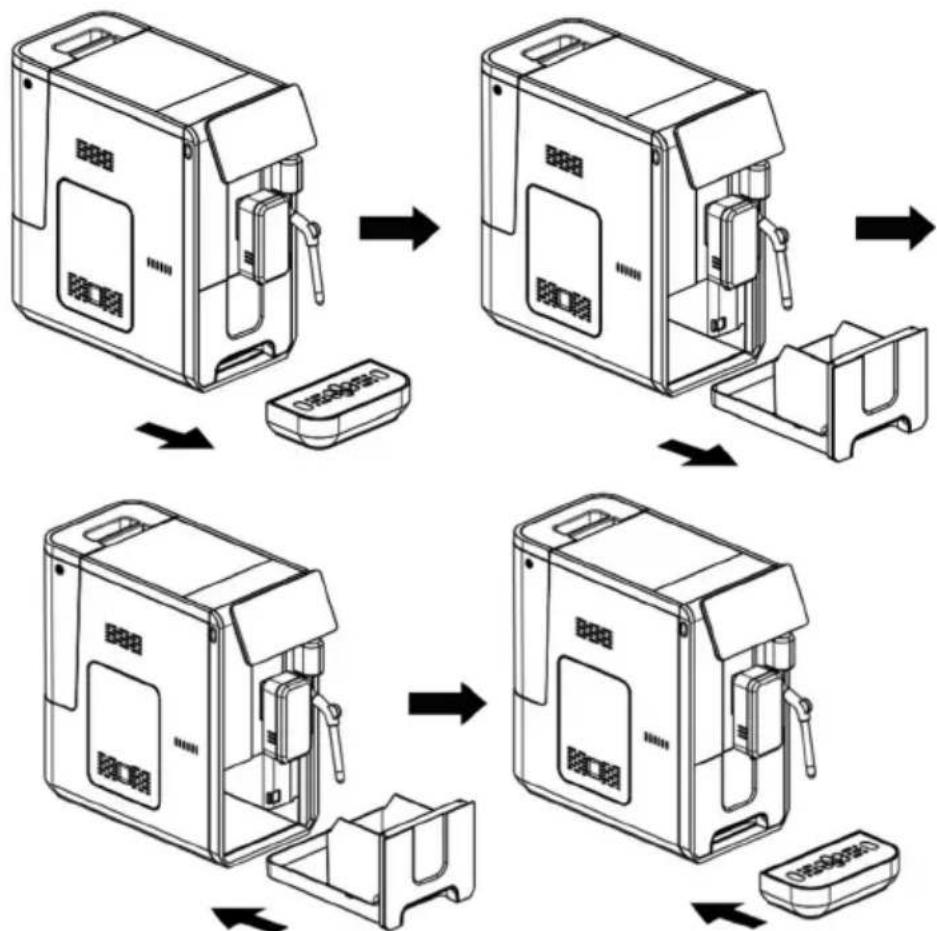
Cleaning the drip tray and coffee grounds container (Fig. 15)
- Empty and clean the drip tray every day.
- Remove the external drip tray from the brewer. Empty the remaining water in the drip tray and rinse it with clean water. Dry it afterwards.
-
Open the internal drip tray and the coffee grounds container. Empty the ground coffee grounds container and rinse it with clean water. Dry it afterwards.
-
Replace the ground coffee grounds container in the internal drip tray.
-
Fix the external drip tray in its original position.
NOTE: When 10 coffees have been made, the coffee grounds container full indicator will light up, indicating that the coffee grounds container needs to be emptied.

After removing the ground coffee grounds container for a few seconds, the icon will light up and the coffee count will start again, when 10 coffees are counted again, the alert will reappear.
Cleaning the brewing unit (Fig. 16)
- Press lightly on the side cover's bottom part to remove it.
- Remove the side door of the machine.
- Press the release button on the processing unit and pull it out. Rinse it under the faucet.
- Place the brewing unit in its position again.
- Place the side door on the machine.
NOTE:
When the alert icon lights up steadily, it indicates that the brewer is not installed correctly.
When the alert icon flashes, it indicates that the service door is not installed correctly.
Cleaning the steamer
The frother should always be cleaned after milk foaming.
- After each foaming cycle, press the vaporizer cleaning touch icon 🎩 for 5 seconds and wipe the vaporizer with a damp cloth. Be careful with the hot steam output while handling the vaporizer. (Fig. 17)
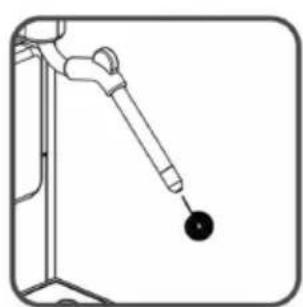
- If the vaporizer appears blocked, use the needle that comes with the machine to clear the opening.
- If the vaporizer remains blocked, unscrew the vaporizer tip. (Fig. 18)
- Immerse the steamer tip in hot water before using the cleaning tool to unclog it. Replace the tip in the vaporizer.
Cleaning the water tank
- Lift the water tank out of the machine and rinse it with clean water.
- Fill it with drinking water up to the maximum level. Replace it in the machine.
Turning off the machine
Switch off the coffee machine by pressing the power button
Automatic shut-off
The appliance is equipped with an automatic shut-off system. Depending on the mode you have selected, the unit will have different automatic switch-off times (see «Mode selection»).
Menus and beverage customisation
1. Coffee/hot water volume adjustment
- Adjustment of coffee/hot water volume
- The machine can memorize the desired volume of espresso, long espresso, double espresso, Americano and hot water.
- When preparing your coffee (espresso, long espresso, double espresso, Americano) or dispensing hot water, press and hold the touch icon you have selected. The appliance will continue to brew the cup of coffee or hot water.
- When the desired volume of coffee or hot water is reached, release the touch icon. Two beeps indicate that the coffee volume has been memorized.
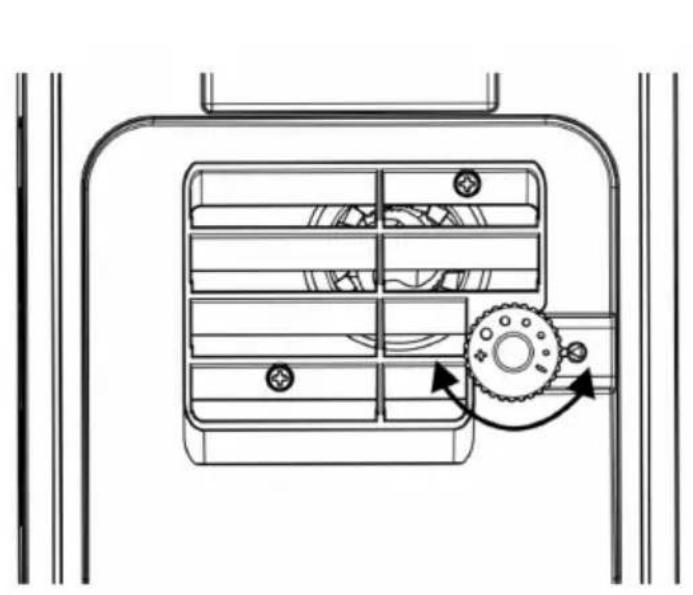
2. Grind adjustment (Fig. 19)
-
You can adjust the grinder to choose different coffee roast levels by turning the bean container adjustment knob. The dots on the adjustment knob indicate the fineness of the grind.
-
When the grinder is grinding the coffee beans, you can turn the adjustment knob to change the fineness.
WARNING: Never adjust the grinder adjustment knob when the grinder is not in operation. It could damage the grinder.
ENGLISH
3. Mode selection
The machine has three different settings: factory setting, ECO mode and fast mode. In ECO mode, the coffee maker helps to save more energy while in fast mode, the coffee maker uses all its energy to provide greater performance.
| Quick mode Factory settings ECO mode | ||
| Coffee outlet light Yes Yes No | ||
| Pre-infusion No Yes Yes | ||
| Automatic shut-off time 30 min 20 min 10 min | ||
| Volume memory Yes Yes Yes |
NOTE: The pre-infusion function moistens the ground beans in the brewer with a small amount of water prior to full extraction. This moistens the coffee grounds and improves the balance of flavors, especially in more intense espressos or origin coffees with more delicate profiles.
- When the coffee machine is in standby mode, press and hold the power button for 5 seconds.
- The touch icons will show the following indications according to the different settings:
| Long Espresso touch icon | Americano icon | Hot water touch icon | |
| Quick mode Light ON | Flashing | Flashing | |
| Factory settings | Flashing | Light ON | Flashing |
| ECO mode | Flashing | Flashing | Light ON |
- Press the Long Espresso touch icon 📋 to activate the quick mode, the Americano touch icon 📋 to activate the factory setting and the Hot Water touch icon 📋 to activate the ECO mode. A beep indicate that the mode is being selected.
- If you wish to keep the setting unchanged, press 📷 again or wait 5 seconds for the machine to return to standby mode.
4. TROUBLESHOOTING
| PROBLEM CAUSE - SOLUTION | ||
| The appliance does not work. | The appliance is not connected to the mains. | - Plug it in and press the power button.- Check the cord and plug. |
| No response on several attempts to press the panel function buttons. | The device is subject to electromagnetic interference.Dirt on the panel. | - Unplug the appliance. Restart after a few minutes.- Wipe the panel with the damp cloth. |
| The coffee is not hot enough. | The cups have not been preheated. | - Rinse the appliance at least 3 times before brewing coffee. |
| Coffee does not come out of the coffee spout. | The system emptying function may have been used before. | - Press the Hot Water touch icon until water comes out of the outlet. |
| The first cup of coffee is of poor quality. | The grinder's first grind does not pour enough coffee into the brewing unit. | - Discard the coffee. Subsequent coffees will be of good quality. |
| Coffee has no cream. Coffee beans are not fresh. | - Change or use the appropriate brand of coffee beans. | |
| The touch icons have no sensitivity. | Touch icons are not pressed from the front of the device. | - Press the lower part of the touch icon from the front of the appliance. |
| The appliance takes too long to warm up. | Too much scale has accumulated. | - Descale the appliance. |
ENGLISH
| The water shortage/ misplaced tank icon is flashing. | Water tank incorrectly positioned.The water level in the tank is very low.The area near the water tank sensor is wet. | - Fill up the water tank.- Clean the water around the water tank sensor. |
| The internal drip tray fills with a lot of water when making coffee. | The ground coffee is too fine and prevents the water from flowing out of the coffee spout. | - Adjust the coffee grind to a coarser level during grinder operation. |
| Coffee comes out too slowly. | The ground coffee is too fine and prevents the water from flowing out of the coffee spout. | - Adjust the coffee grind to a coarser level during grinder operation. |
| The bean out indicator blinks but coffee beans are still present. | The internal ground coffee outlet is blocked. | - Follow the steps described in "Cleaning the ground coffee outlet". |
| The descaling indicator continues to flash even after the descaling process. | The decalcification process has not been completed. | - Be patient and wait for the process to finish. The machine will turn off automatically. Do not turn off the machine manually. |
| The milk isn't frothed The | frother is dirty and milk residues have blocked the frother outlet. | - Follow the steps described in "Daily cleaning of the coffee maker" to clean the steamer. |
5. CLEANING AND MAINTENANCE
Descaling
When the Descaling indicator lights up permanently, it indicates that the coffee maker needs to be descaled. The coffee maker will be kept in the best conditions if this function is performed at least once a month or more regularly depending on the hardness of the water used.
- Add the cleaning product in the water tank.
- Fill the water tank with water up to the MAX level.
IMPORTANT: Do not use vinegar or other cleaning products that are not intended for descaling the coffee maker, as this could damage the appliance.
- Plug the device in.
- Place a large empty container under the coffee spout.
- In the main screen (standby mode), press and hold the system cleaning touch icon ^◆ for 5 seconds. A beep will sound, the descaling icon 📊 will light up and the system cleaning touch icon ^◆ will flash.
- Press the system cleaning touch icon again to confirm the descaling process. To return to the main screen (standby mode) press the On/Off button 📁.
- The descaling touch icon will flash and the system cleaning touch icon will light up to indicate that the unit is in the process of descaling.
WARNING: Use caution with hot water.
- When all the water has been drained from the water tank, the system cleaning touch icon ⚙️, the descaling touch icon 📋 and the no water touch icon ⬆ will flash. Fill the tank with tap water up to the MAX level. When the water tank is full, the water shortage touch icon ⬆ will turn off. The device will continue the decalcification process.
- Once the descaling process has been completed, the descaling touch icon will go out and the unit will automatically switch off.
System-emptying function
It is recommended that the system drain function be performed before storing the coffee maker.
- In the main screen (standby mode), press and hold the On/Off 🔒 and American 📋 button for 5 seconds.
- The icon will then flash.
- Remove the water tank from the appliance. The coffee spout will dispense a small amount of water.
- Once the system emptying function has been completed, the coffee maker will automatically turn off.
IMPORTANT: After performing the system drain function, when using the machine again, press the hot water or cleaning touch icon until water flows out of the frother and the coffee spout.
Manual rinsing
You can perform a manual rinse cycle to clean the coffee spout after each use, or after the appliance has not been used for a long period of time.
- In the main screen (standby mode), press the system cleaning touch icon once.
- The system cleaning touch icon ♦♦ will flash. The coffee spout will dispense a small amount of water.
WARNING: Hot water will flow out of the coffee spout into the external drip tray.
- After rinsing, the machine will return to standby mode.
ENGLISH
Cleaning of the coffee maker
- Unplug the cord from the power supply.
- Empty all water from the inner and outer drip pans.
- Use a damp cloth or a non-abrasive cleaning agent to clean water stains from the appliance.
IMPORTANT: Never use abrasive products, vinegar or descaling agents not included in the box to clean the appliance.
Cleaning the ground-coffee outlet
Ground coffee may adhere to the wall of the coffee outlet of the appliance after prolonged use. It is recommended to clean the outlet following these steps to ensure that the ground coffee can reach the coffee maker.
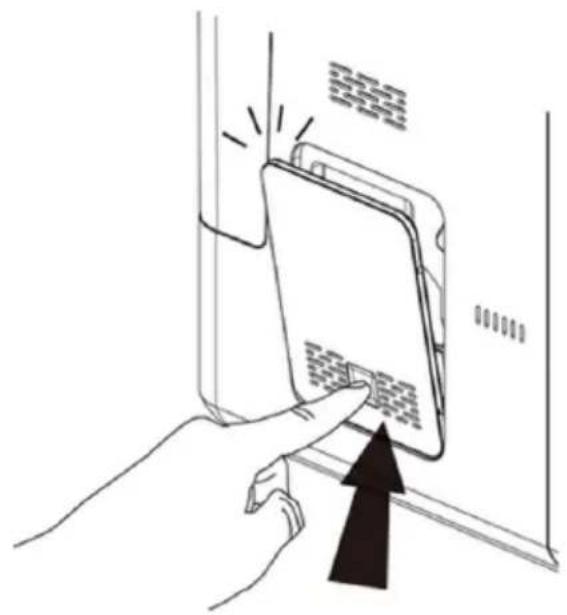
- Push the recessed area of the service door. (Fig. 20)
- Remove the service door. (Fig. 21)
- Press the release button on the brewer. (Fig. 22)
- Remove the coffee machine. (Fig. 23)
- Rinse the coffee maker under running water. Allow it to dry completely before reassembling it in the machine. (Fig. 24)
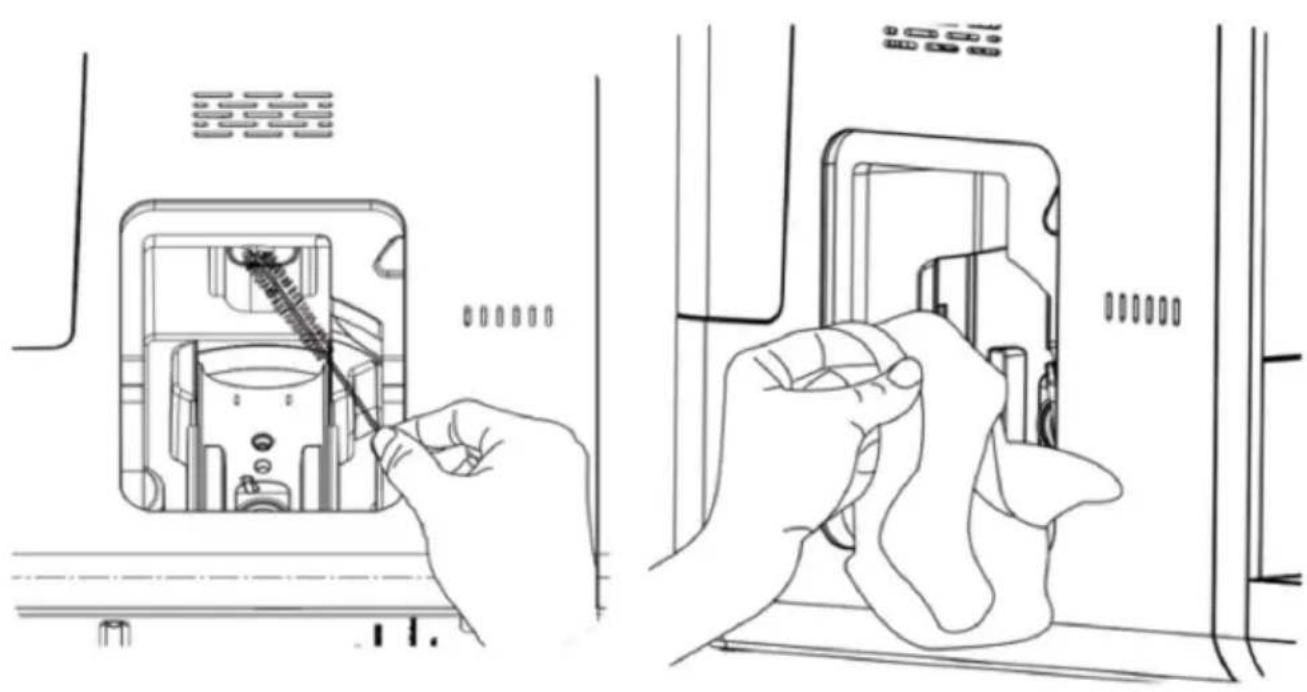
- Use the cleaning brush to clean the dust outlet and remove coffee grounds or dust residue from the machine. (Fig. 25)
- Use a cloth to thoroughly clean the inside of the machine. Allow to dry completely before closing the side door. (Fig. 26)
6. RECYCLING OF ELECTRICAL AND ELECTRONIC EQUIPMENT
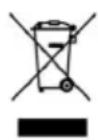
This symbol indicates that, according to the applicable regulations, the product and/or battery must be disposed of separately from household waste. When this product reaches the end of its shelf life, you should dispose of the batteries/accumulators and take them to a collection point designated by the local authorities.
For detailed information on how to properly dispose of electrical and electronic equipment and/or the corresponding batteries, consumers should contact their local authorities.
Compliance with the above guidelines will help protecting the environment.
7. COPYRIGHT
The intellectual property rights over the texts in this manual belong to CECOTEC INNOVACIONES, S.L. All rights reserved. The content of this publication may not, either in part or in its entirety, be reproduced, stored in a retrieval system, transmitted or distributed by any means (electronic, mechanical, photocopying, recording or similar) without prior authorisation from CECOTEC INNOVACIONES, S.L.
8. SIMPLIFIED EU DECLARATION OF CONFORMITY
CE Cecotec Innovaciones hereby declares that this product complies with the essential requirements and other relevant provisions of the regulations applicable in the European Union. This product has been designed, manufactured and tested in compliance with the required safety and quality standards. The full text of the EU Declaration of Conformity can be found on the following website: https://cecotec.es/es/information/declaration-of-conformity
FRANÇAIS
1. PIÈCES ET COMPOSANTS
Image 1
Fig./Img./Abb./Afb./Rys.1
natural_image
Line drawing of a device with labeled ports and internal components (no text or symbols)Fig./Img./Abb./Afb./Rys.2
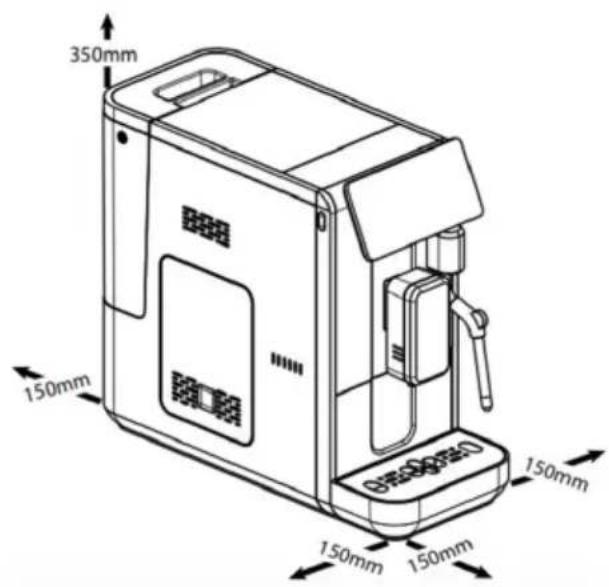
Fig./Img./Abb./Afb./Rys. 3
natural_image
Line drawing of a device with a box and internal components, showing an arrow indicating direction (no text or symbols present)Fig./Img./Abb./Afb./Rys. 4
natural_image
Line drawing of a water tap with a handle and valve (no text or symbols)Fig./Img./Abb./Afb./Rys. 5
natural_image
Line drawing of a hand pouring coffee beans into a grater (no text or symbols)Fig./Img./Abb./Afb./Rys. 6
natural_image
Technical line drawing of a device panel with an attached plug and cable (no text or symbols)Fig./Img./Abb./Afb./Rys. 7
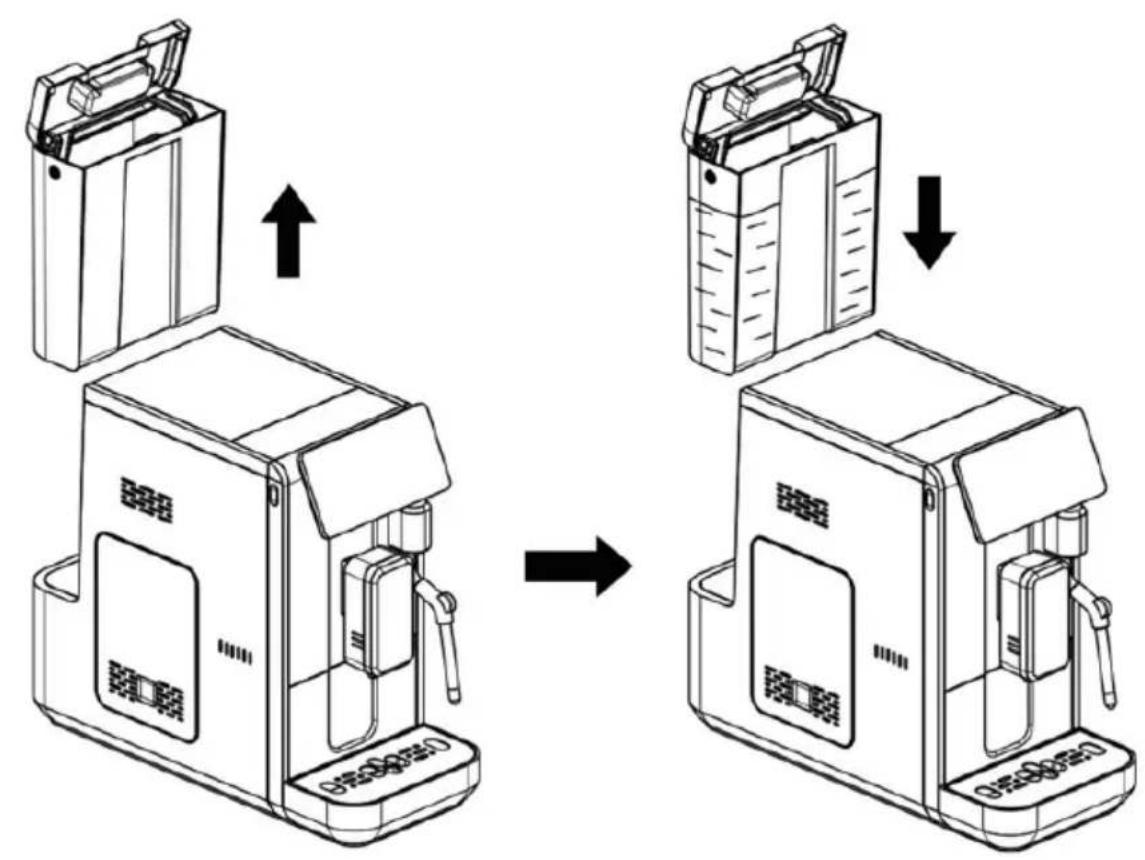
Fig./Img./Abb./Afb./Rys. 8
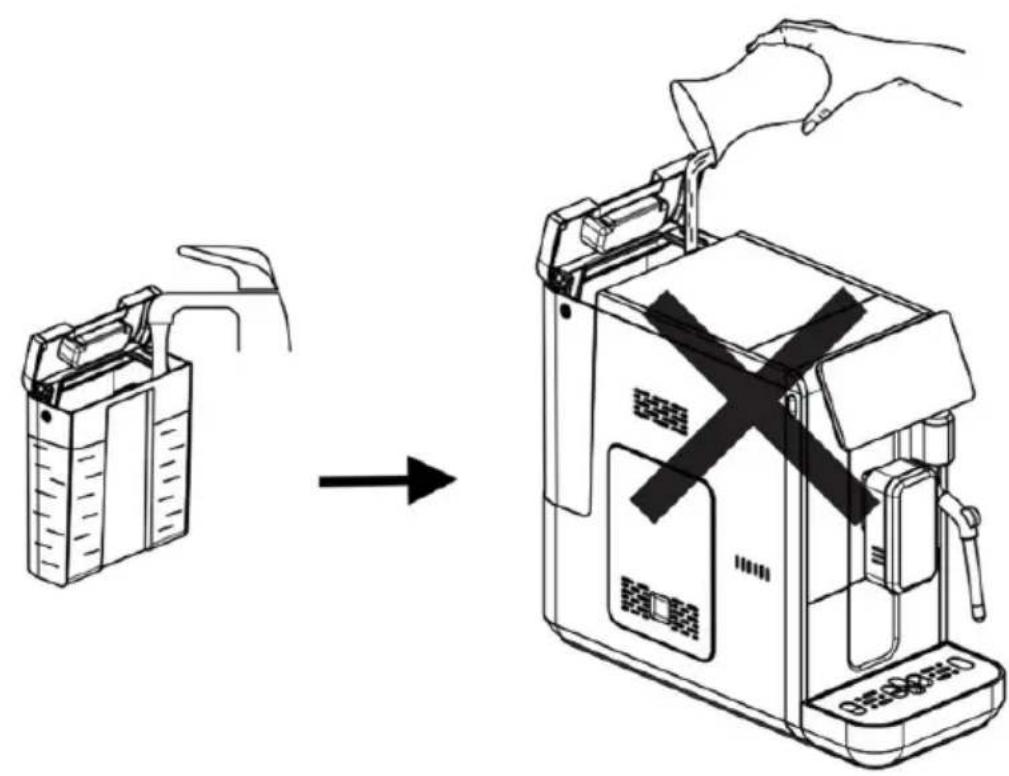
Fig./Img./Abb./Afb./Rys. 9
natural_image
Line drawing of a hand inserting paper into a device (no text or symbols)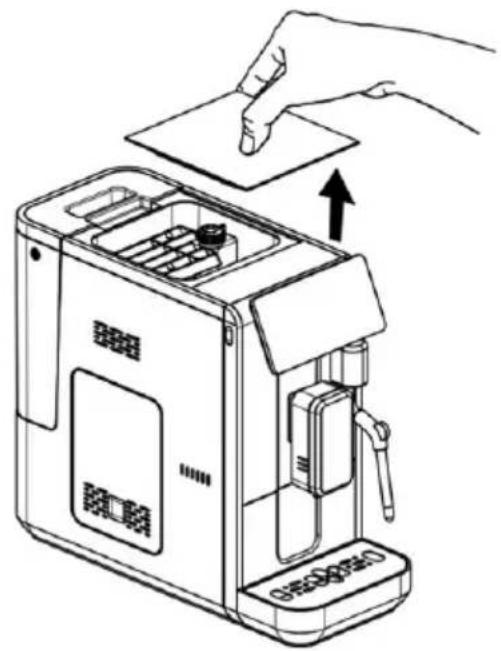
natural_image
Line drawing of a device with a hand inserting a card into a tray (no text or symbols)Fig./Img./Abb./Afb./Rys. 10
natural_image
Line drawing of a hand pouring seeds into a grater (no text or symbols)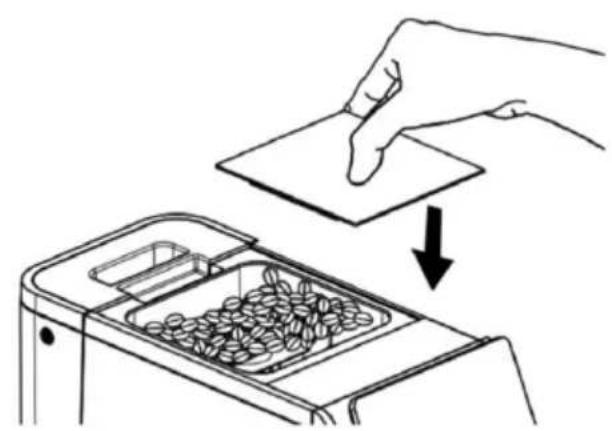
natural_image
Line drawing showing a hand pressing down on a piece of food into a grater (no text or symbols)Fig./Img./Abb./Afb./Rys. 11
natural_image
Line drawing of a coffee machine with a cup and side panel, showing no text or symbols.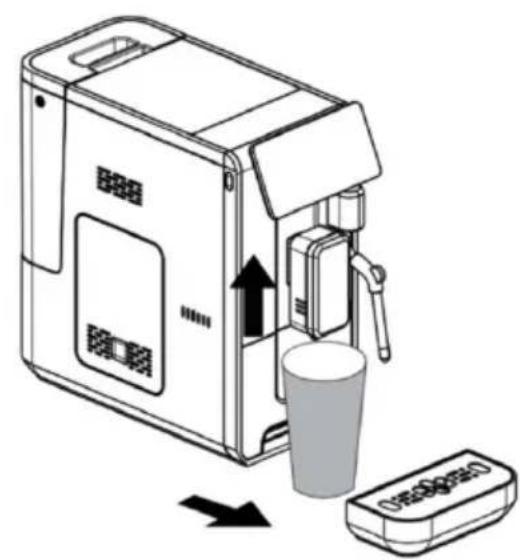
natural_image
Line drawing of a coffee maker with a cup and tray, showing a directional arrow indicating movement (no text or symbols)Fig./Img./Abb./Afb./Rys. 12
natural_image
Line drawing of a modern coffee machine with two cups and a side arm (no text or symbols)Fig./Img./Abb./Afb./Rys. 13
natural_image
Line drawing of a coffee maker with a hand pouring milk into the cup (no text or symbols)Fig./Img./Abb./Afb./Rys. 14
flowchart
graph TD
    A["Household with door panel"] --> B["Assembly Step 1"]
    B --> C["Assembly Step 2"]
    C --> D["Assembly Step 3"]
    D --> E["Final Packaging with plastic box"]
    style A fill:#f9f,stroke:#333
    style E fill:#bbf,stroke:#333
Fig./Img./Abb./Afb./Rys. 15
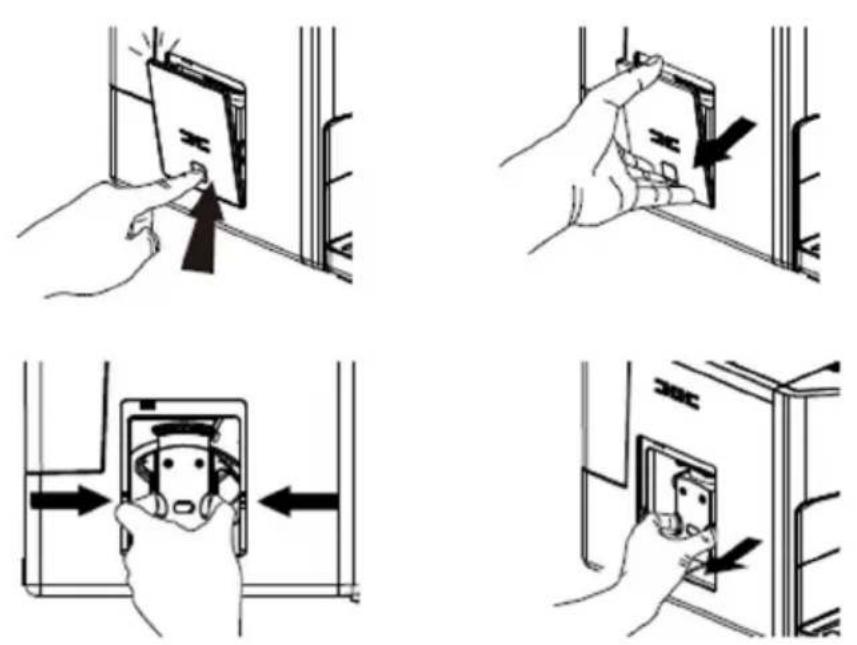
Fig./Img./Abb./Afb./Rys. 16
natural_image
Line drawing of a coffee maker with handle and spout, no text or symbols present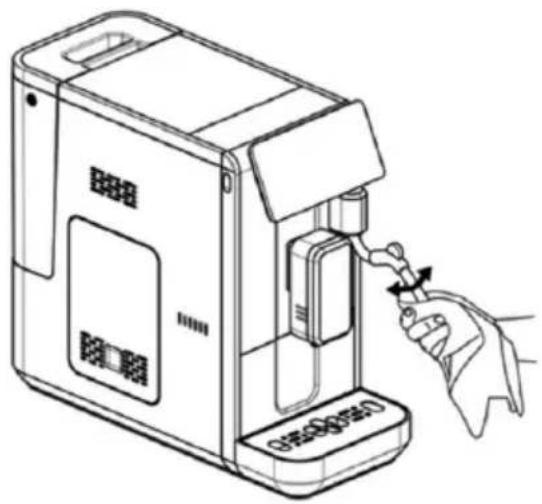
natural_image
Line drawing of a hand inserting a device into a device (no text or symbols present)Fig./Img./Abb./Afb./Rys. 17
natural_image
Simple line drawing of a mechanical lever with a black circular component at the end (no text or symbols)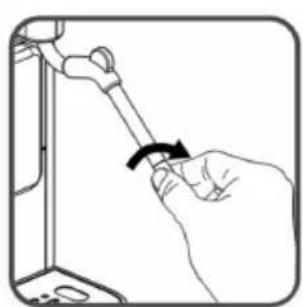
natural_image
Line drawing of a hand holding a tool with an arrow indicating rotation (no text or symbols)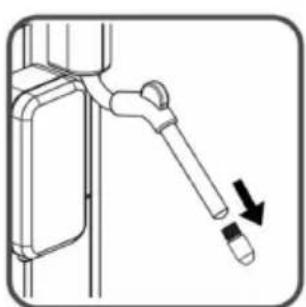
natural_image
Diagram of a mechanical lever with a downward arrow indicating motion or force (no text or symbols present)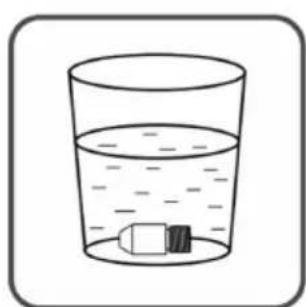
natural_image
Simple line drawing of a glass with liquid and a small object inside, no text or symbols present.Fig./Img./Abb./Afb./Rys. 18
natural_image
Technical line drawing of a mechanical component with a gear mechanism (no text or symbols)Fig./Img./Abb./Afb./Rys. 19
natural_image
Line drawing of a hand pressing a tablet device with a black arrow pointing to the screen (no text or symbols)Fig./Img./Abb./Afb./Rys. 20

natural_image
Hand inserting a tablet into a device panel, with a black arrow indicating the insertion direction (no text or symbols present)Fig./Img./Abb./Afb./Rys. 21
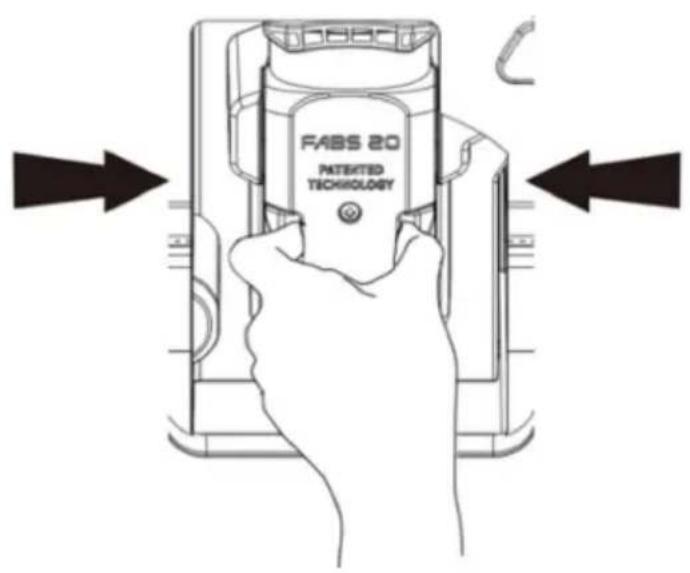
Fig./Img./Abb./Afb./Rys. 22
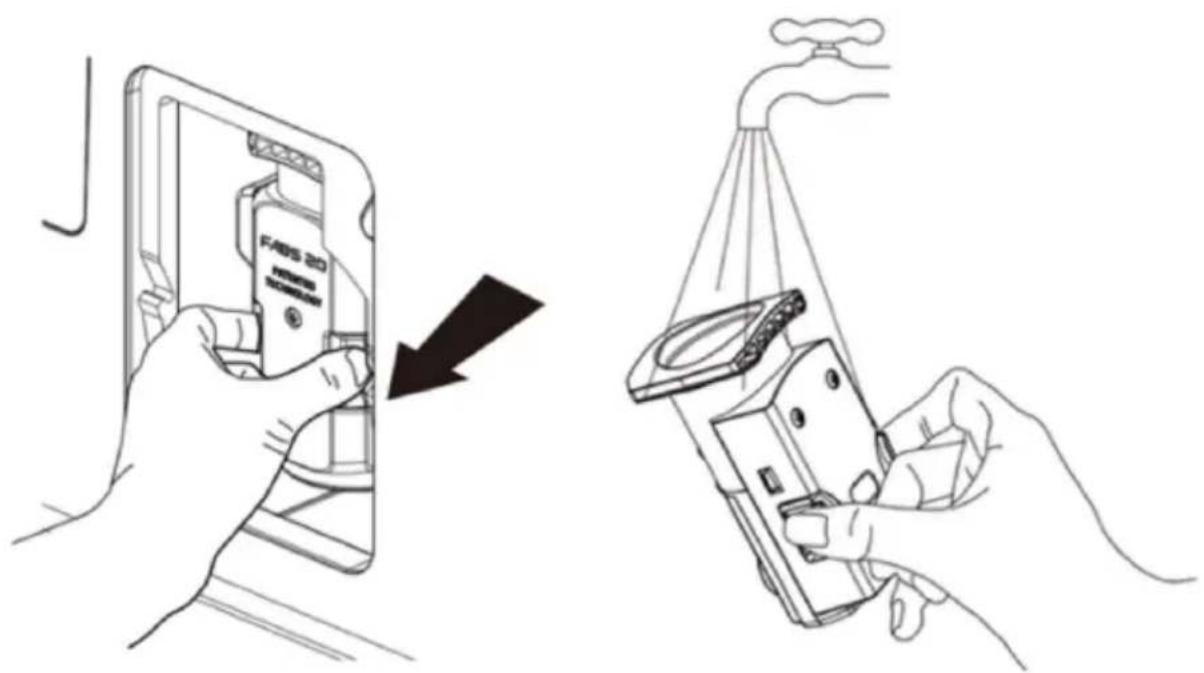
Fig./Img./Abb./Afb./Rys. 23 Fig./Img./Abb./Afb./Rys. 24
natural_image
Line drawing showing two hands installing or adjusting a device inside a device casing (no text or symbols present)Fig./Img./Abb./Afb./Rys. 25
Fig./Img./Abb./Afb./Rys. 26
www.cecotec.es
- SOMMAIRE
- ENGLISH
- NOTE:
- BEFORE USE
- Box content
- OPERATION
- Installation
- Filling the water tank (Fig. 8)
- Filling the coffee bean container
- Coffee preparation
- Preparation of two cups of coffee (Fig. 13)
- Frothing milk for coffee
- Hot water preparation
- Daily cleaning of the coffee maker
- Cleaning the drip tray and coffee grounds container (Fig. 15)
- Cleaning the brewing unit (Fig. 16)
- Cleaning the steamer
- Cleaning the water tank
- Turning off the machine
- Automatic shut-off
- Menus and beverage customisation
- Coffee/hot water volume adjustment
- Grind adjustment (Fig. 19)
- Mode selection
- TROUBLESHOOTING
- CLEANING AND MAINTENANCE
- Descaling
- System-emptying function
- Manual rinsing
- Cleaning of the coffee maker
- Cleaning the ground-coffee outlet
- RECYCLING OF ELECTRICAL AND ELECTRONIC EQUIPMENT
- COPYRIGHT
- SIMPLIFIED EU DECLARATION OF CONFORMITY
- FRANÇAIS
- PIÈCES ET COMPOSANTS
- Image 1
Brand : CECOTEC
Model : Cremmaet Lungo
Category : Coffee machine