
NC-2200W - Wireless Network Printer BROTHER - Free user manual and instructions
Find the device manual for free NC-2200W BROTHER in PDF.



| Product Type | External wireless print/scan server |
| Brand | Brother |
| Model | NC-2200W |
| Connectivity | IEEE 802.11b wireless, Ethernet (via adapter) |
| Interfaces | 1 USB type B port (for connection to printer) |
| Wireless standards | IEEE 802.11b (Wi-Fi) |
| Wireless security | WEP (64/128-bit), no encryption |
| Supported operating systems | Windows 98/98SE/Me/2000/XP/NT 4.0, Mac OS X 10.2.4 to 10.3 or later |
| Main functions | Network printing, network scanning (Scan Vers) |
| Power supply | Supplied AC adapter (input: 100-240V AC, 50/60 Hz) |
| Power consumption | Approx. 5 W (estimated) |
| Dimensions (approx.) | 100 x 60 x 25 mm (estimated) |
| Weight (approx.) | 200 g (estimated) |
| Operating temperature | 5 °C to 40 °C |
| Operating humidity | 20% to 80% (non-condensing) |
| LED indicators | Link LED (green), Status LED |
| Test button | Yes (for printing network configuration page) |
| Reset | Press and hold the Test button for 10 seconds to reset to factory defaults |
| Configuration | Wireless configuration wizard via CD-ROM, BRAdmin Professional |
| Box contents | NC-2200W, AC adapter, CD-ROM, quick installation guide |
| Printer compatibility | Selection of Brother models (HL, MFC, DCP) – list in manual |
| Certifications | CE, FCC Class B, ICES-003 |
Frequently Asked Questions - NC-2200W BROTHER
User questions about NC-2200W BROTHER
0 question about this device. Answer the ones you know or ask your own.
Ask a new question about this device
Download the instructions for your Wireless Network Printer in PDF format for free! Find your manual NC-2200W - BROTHER and take your electronic device back in hand. On this page are published all the documents necessary for the use of your device. NC-2200W by BROTHER.
USER MANUAL NC-2200W BROTHER
NC-2200w External Wireless Print/Scan Server (IEEE 802.11b) Quick Setup Guide
Externer Wireless Print/ScanServer NC-2200w (IEEE 802.11b) Installationsanleitung
This product is approved for use in the country of purchase only. Do not use this product outside the country of purchase as it may violate the wireless telecommunication and power regulations of that country.
Please read this Quick Setup Guide before you install the NC-2200w and use the Brother Printer/MFC/DCP on a wireless network. For more details about how to optimize the NC-2200w, please refer to the NC-2200w Network User's Guide on the CD-ROM we have supplied with the NC-2200w.
Keep this Quick Setup Guide and the supplied CD-ROM in a convenient place for quick and easy reference at all times.
Trademarks
Brother is a registered trademark of Brother Industries, Ltd.
Ethernet is trademark of Xerox Corporation.
Apple and Macintosh are registered trademarks of Apple Computer, Inc.
LAN Server is trademark of International Business Machines Corporation.
Windows and Windows NT are registered trademarks of Microsoft Corporation.
NC-2200w and BRAdmin Professional utility are trademarks of Brother Industries Ltd.
All other brand and product names mentioned in this user's guide are registered trademarks or trademarks of respective companies.
Deutsch
natural_image
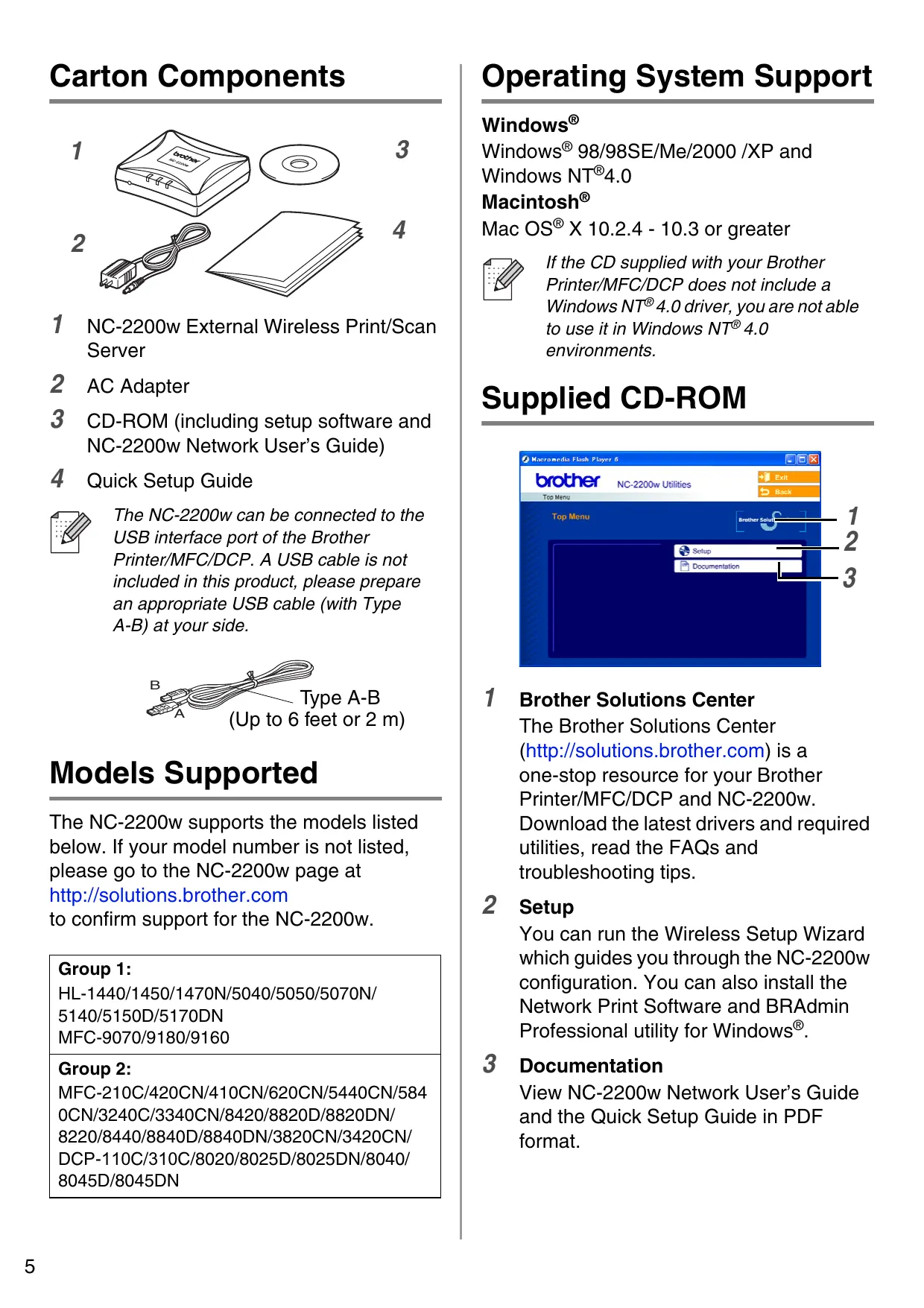
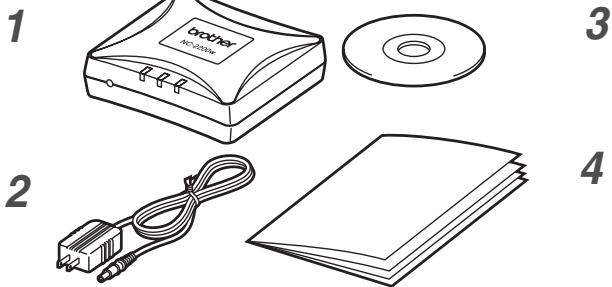
Illustration of electronic devices including a CD, DVD, and cable (no text or symbols)1 NC-2200w External Wireless Print/Scan Server
2 AC Adapter
3 CD-ROM (including setup software and NC-2200w Network User's Guide)
4 Quick Setup Guide

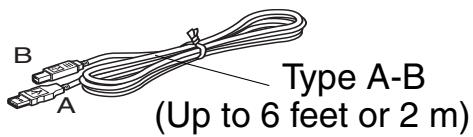
The NC-2200w can be connected to the USB interface port of the Brother Printer/MFC/DCP. A USB cable is not included in this product, please prepare an appropriate USB cable (with Type A-B) at your side.
Models Supported
The NC-2200w supports the models listed below. If your model number is not listed, please go to the NC-2200w page at http://solutions.brother.com to confirm support for the NC-2200w.
Group 1:
HL-1440/1450/1470N/5040/5050/5070N/5140/5150D/5170DN MFC-9070/9180/9160
Group 2:
MFC-210C/420CN/410CN/620CN/5440CN/5840CN/3240C/3340CN/8420/8820D/8820DN/8220/8440/8840D/8840DN/3820CN/3420CN/DCP-110C/310C/8020/8025D/8025DN/8040/8045D/8045DN
Operating System Support
Windows®
Windows ^® 98/98SE/Me/2000 /XP and Windows NT ^® 4.0
Macintosh®
Mac OS ^® X 10.2.4 - 10.3 or greater

If the CD supplied with your Brother Printer/MFC/DCP does not include a Windows NT ^® 4.0 driver, you are not able to use it in Windows NT ^® 4.0 environments.
Supplied CD-ROM
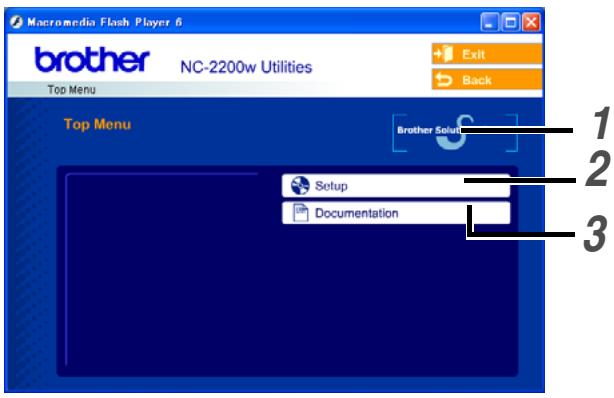
1 Brother Solutions Center
The Brother Solutions Center (http://solutions.brother.com) is a one-stop resource for your Brother Printer/MFC/DCP and NC-2200w. Download the latest drivers and required utilities, read the FAQs and troubleshooting tips.
2 Setup
You can run the Wireless Setup Wizard which guides you through the NC-2200w configuration. You can also install the Network Print Software and BRAdmin Professional utility for Windows®.
3 Documentation
View NC-2200w Network User's Guide and the Quick Setup Guide in PDF format.
Setting up the Print/Scan Server
Step 1
Installing the Print Server

The NC-2200w cannot be used with a USB HUB.
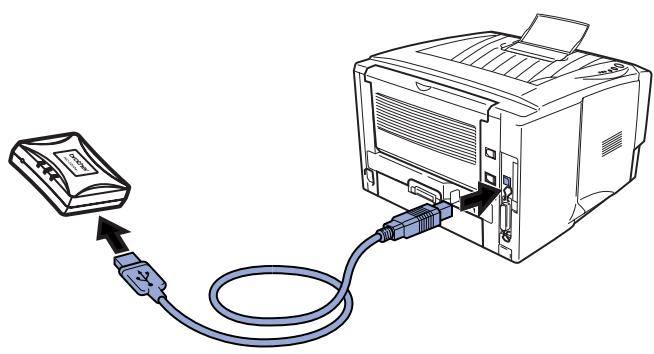
1 Connect the USB cable to the NC-2200w and Brother Printer/MFC/DCP.
natural_image
Diagram showing a USB cable being inserted into a printer, with a small device nearby (no text or symbols present)2 Connect the AC adapter to the NC-2200w.
3 Plug in the AC Adapter and turn on the Brother Printer/MFC/DCP.
4 Make sure that the Link LED of the NC-2200w is on and wait for a few minutes.
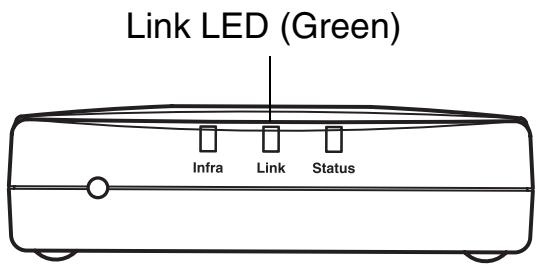
Before installation, if you are using Personal Firewall software (e.g. the Internet Connection Firewall available in Windows XP), disable it. Once you are sure that you can print, re-start your Personal Firewall software.
Step 2
Changing your Computer's Wireless Settings to configure the NC-2200w
Before you can use the Brother Printer/MFC/DCP in a wireless network, the NC-2200w must be configured to match your network configuration.
To configure the NC-2200w from a wireless computer on your network, you must temporarily change your current wireless settings. Before changing the current wireless settings of your computer, we recommend you make a note of your current wireless network settings. You will need to return to these settings at the end of Step 3 on page 9.

We recommend you to contact your network administrator if you need assistance with your computers wireless settings.
Current wireless network settings of your computer
| Item | Current Setting |
| Communication Mode: (Infrastructure / Ad-hoc) | |
| Network Name (SSID/ESSID) | |
| Channel: (1-14)*If necessary. | |
| Encryption: (NONE / WEP / Other) | |
| Encryption Key Size and Type: (64 bit, 128 bit / ASCII, HEX / Other) | |
| Encryption Key: |
To communicate with the un-configured NC-2200w change your wireless computer settings to:
Communication mode: Ad-hoc
(channel 11)
Network name : SETUP
(SSID/ESSID) (case sensitive)
Encryption: None
For Windows ^® 98/Me/2000, Windows NT ^® 4.0 Users
Please refer to your wireless card manufacturer instructions for changing the wireless settings, and then go to Step 3 Configuring the Print/Scan Server.
Go to Step 3 on page 9
If you are using Windows® XP or Mac OS® X 10.2.4 and you are using its built in Wireless Ethernet capabilities, use the following steps for each Operating System.
For Windows® XP Users
1 Click Start and then Control Panel.
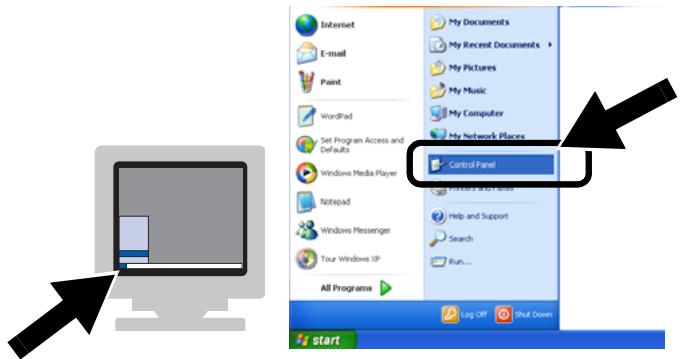
2 Click the Network Connections icon.
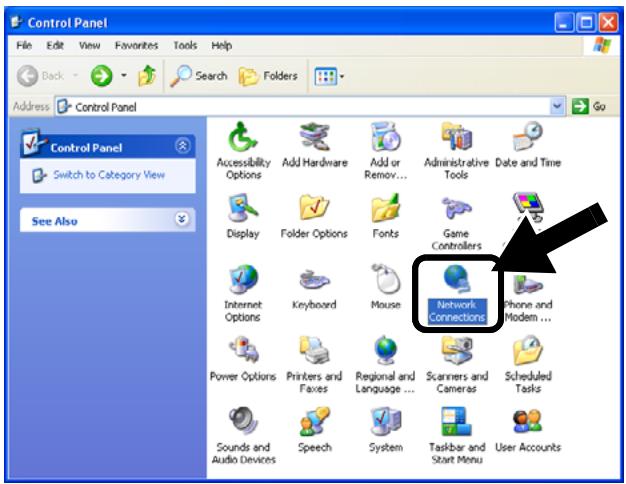
3 Select and right click Wireless Network Connection. Click View Available Wireless Networks.
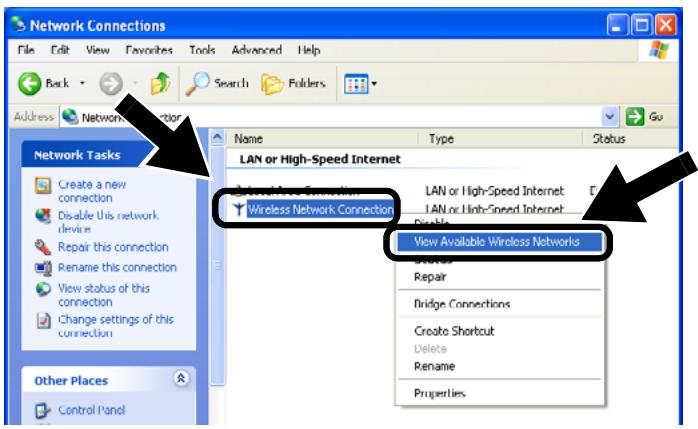
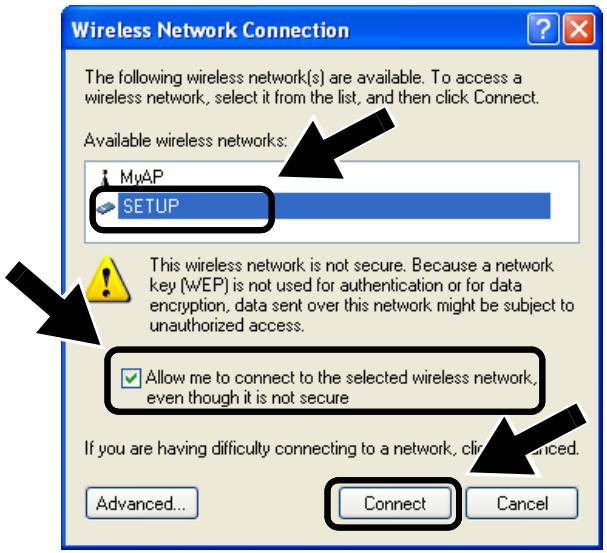
4 You can see the Network name (SSID/ESSID) of the NC-2200w in the Available wireless networks box. Select SETUP and check the Allow me to connect... check box. Click the Connect button.
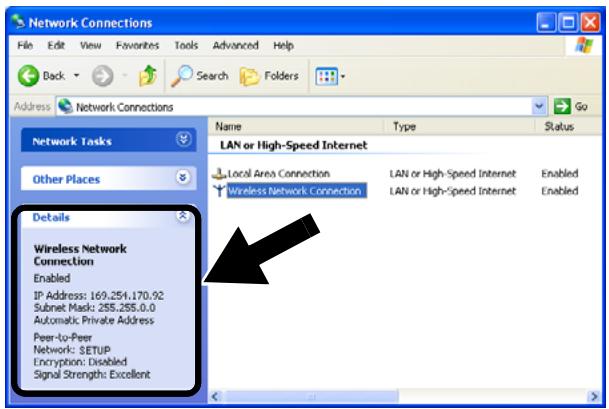
5 Check the wireless network connection status. It may take a few minutes to change from 0.0.0.0 to 169.254.x.x IP address to be shown on screen. (where x.x are numbers between 0 and 255).

If the Network name (SSID/ESSID) you want to choose is not listed, try the following:
■ Unplug the AC adapter, plug it back in again and then wait for a few minutes.
■ Move your Brother Printer/MFC/DCP with the NC-2200w installed closer to your computer and try again.
■ Reset the NC-2200w back to its default factory settings and try again. Refer to page 16 to reset to factory default settings.
Refer to Chapter 6 of the NC-2200w Network User's Guide on the CD-ROM we have supplied with the NC-2200w.
Go to Step 3 on page 9
For Mac OS ^® X 10.2.4 - 10.3 or greater Users
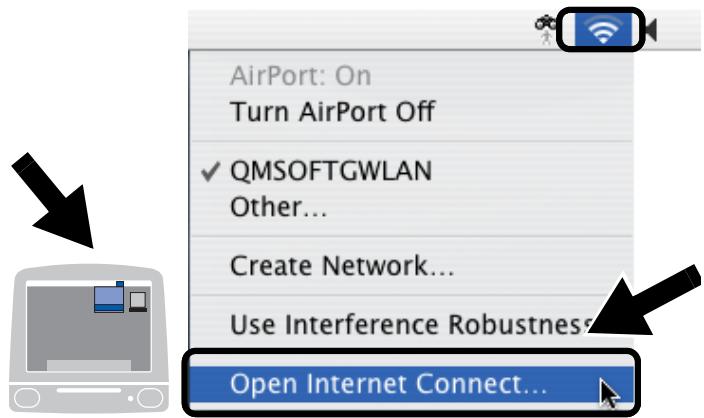
1 Click the AirPort status icon and select Open Internet Connect....
2 Click the Network tab to see the available wireless devices. You can see the Network name (SSID/ESSID) in the Network option. Select SETUP.
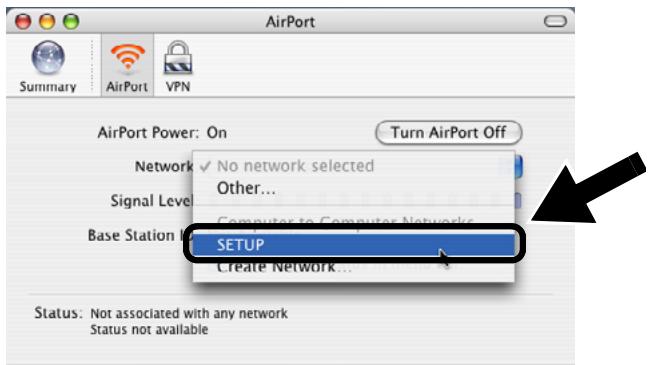
3 Your wireless network is connected successfully.
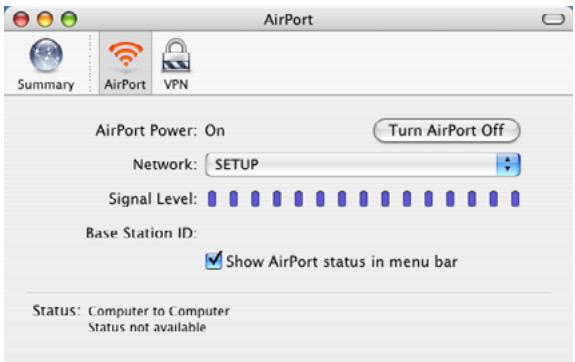

If the Network name (SSID/ESSID) you want to choose is not listed, try the following:
■ Unplug the AC adapter, plug it back in again and then wait for a few minutes.
■ Move your Brother Printer/MFC/DCP with the NC-2200w installed closer to your computer and try again.
■ Reset the NC-2200w back to its default factory settings and try again. Refer to page 16 to reset to factory default settings.
Refer to Chapter 6 of the NC-2200w Network User's Guide on the CD-ROM we have supplied with the NC-2200w.
Step 3
Configuring the Print/Scan Server
1 Insert the NC-2200w CD-ROM into your CD-ROM drive.
(For Windows ^® users) The opening screen will appear automatically.
(For Mac OS ^® X 10.2.4 to 10.3 or greater users) Double-click the NC2200w icon on your Macintosh ^® , and then double-click the Start Here OSX icon.
2 Select your language.
3 Click Setup and then Wireless Setup Wizard.
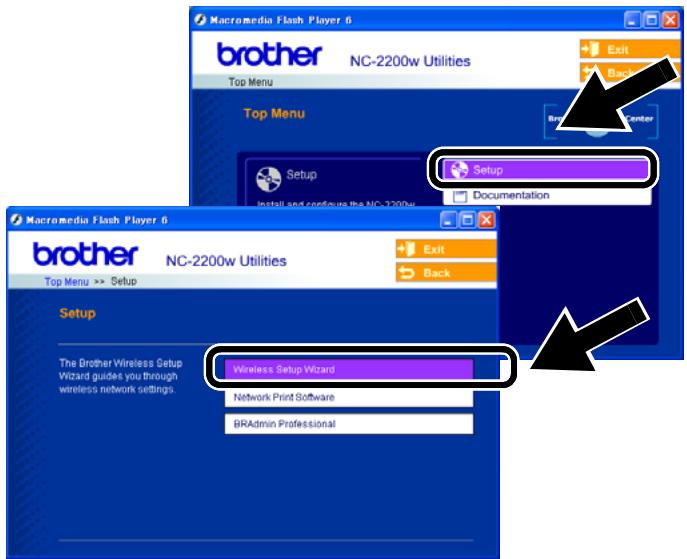
4 Review the Welcome information and when you are sure you have completed the necessary tasks, click Next.
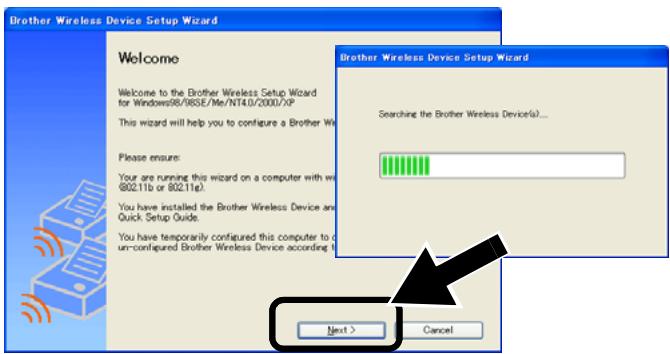
5 Follow the screens. For more information, refer to Chapter 2 of the NC-2200w Network User's Guide on the CD-ROM we have supplied with the NC-2200w.
6 After exiting the Wireless Setup Wizard, change the wireless settings of your computer back to their original settings using the information you noted when Changing your Computer's Wireless Settings to configure the NC-2200w on page 6.
For Windows® Users
Group 1:
HL-1440/1450/1470N/5040/5050/
5070N/5070DN/5140/5150D/5170DN
MFC-9070/9180/9160
Go to Step 4 on page 10
Group 2:
MFC-210C/420CN/410CN/620CN/
5440CN/5840CN/3240C/3340CN/8420/
8820D/8820DN/8220/8440/8840D/
8840DN/3820CN/3420CN/DCP-120C/
320CN/8020/8025D/8025DN/8040/
8045D/8045DN
Go to Step 4 on page 13
For Mac OS ^® X 10.2.4 - 10.3 or greater Users
Go to Step 4 on page 15
For Windows® Users
Group 1:
HL-1440/1450/1470N/5040/ 5050/
5070N/5070DN/5140/5150D/5170DN
MFC-9070/9180/9160
Step 4
Installing the Printer Driver
The above model users need to install the printer driver before setting up your computer to work with the NC-2200w. If the printer driver is already installed, you can skip this step. The driver is on the CD-ROM included with the Brother Printer/MFC/DCP. The printer driver can also be downloaded from the Brother Solutions Center at:
To install the printer driver using the CD-ROM, follow the steps below.
The instructions in this section are based on Windows ^® XP.
1 Click Start and select Printers and Faxes. Click on Add a printer and the Add Printer Wizard will start. When this screen appears, click Next.
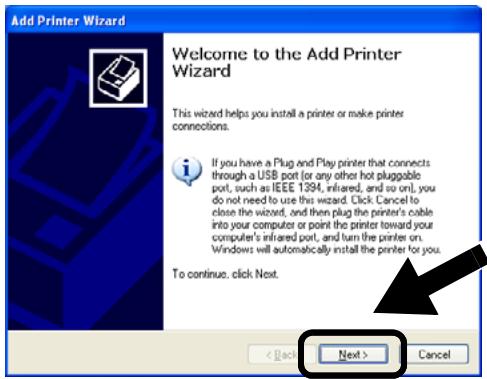
2 Un-check the Automatically detect and install my Plug and Play printer selection and then click Next.
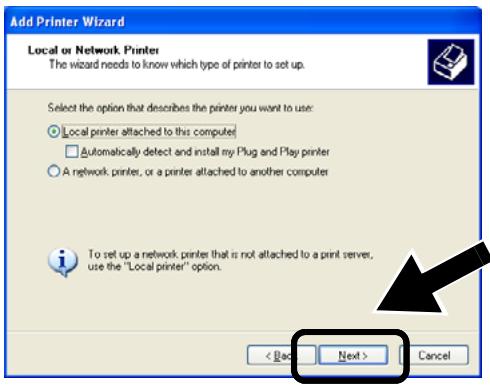

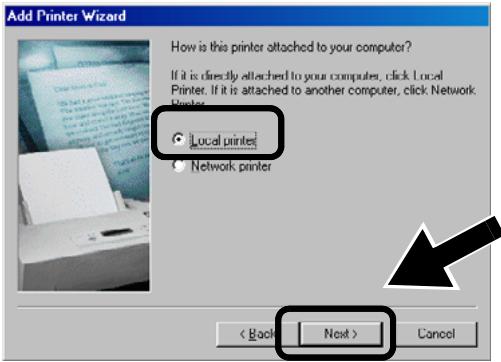
- Your OS may not have this screen.
(For Windows ^® 98/Me/Windows NT ^® 4.0 Uses) If this screen is displayed, select Local printer and then click Next.
3 Temporarily select
LPT1:(Recommended Printer Port) from the pull down window for the Printer Port Selection and then click Next.
![Add Printer Wizard Select a Printer Port Computers communicate with printers through ports. Select the port you want your printer to use. If the port is not listed, you can create a new port. Use the following port: LPT1: [Recommended Printer Port] Note: Most computers use the LPT1 port to communicate with a local printer. The connector for this port should look something like this: Create a new port: Type of port: Local Port < Back Next > Cancel](/content/2025/01/74910/images/7682b6ec4d83b29e8bbb8b8001dbe8ca005dca2e5d55ac98dde6c1cd93e225a3.jpg)
4 Click on Have Disk.
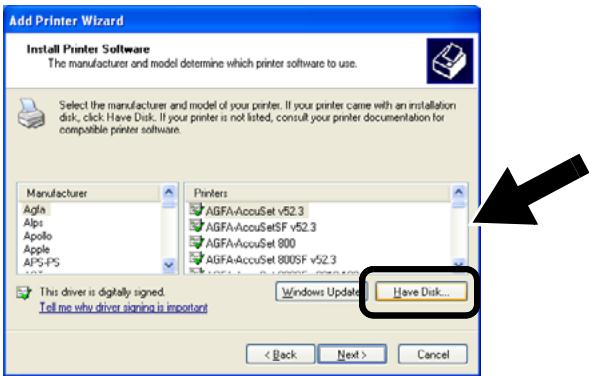
5 (For Brother Laser Printer Users) Browse the CD-ROM and select the Driver folder and click Open, then select the Win2k_xp folder (or the folder for your OS) and click Open and then select the appropriate language and click Open. (For Brother MFC/DCP Users) Browse the CD-ROM and select the appropriate language folder and click Open, then select the WXP folder (or the folder for your OS) and click Open and finally select the Addprt folder and click Open.

If your OS is Windows® XP and the Win2k_xp folder is not found in the list, please select Win2k folder. If you do not see the a folder for your operating system in the Driver folder, but instead see: inst, PCL, PS, USBW98ME, etc. we recommend that you select the PCL folder. You will see the appropriate operating system folder.
6 Click Open and then click OK.
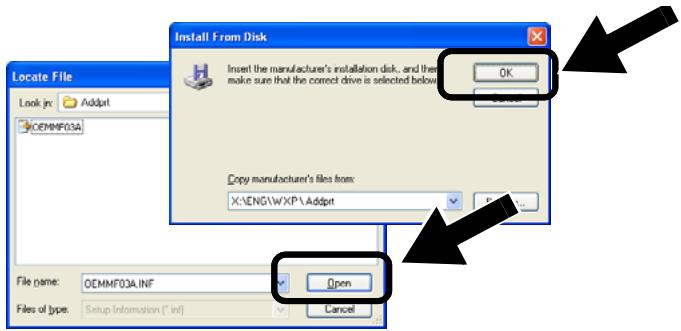
7 Highlight the model you are installing from the list of Printer/MFC/DCPs and click Next.
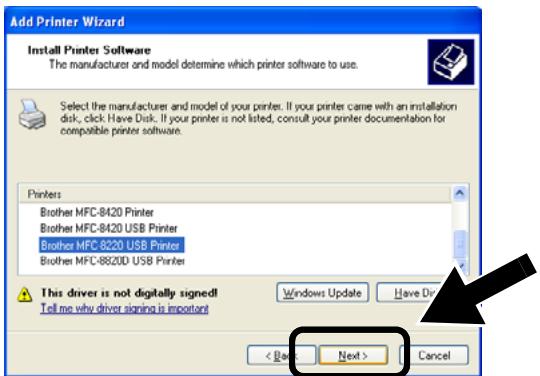
8 The model you are installing will be listed in the window. Select Yes or No if you want this printer to be your default printer, and then click Next.
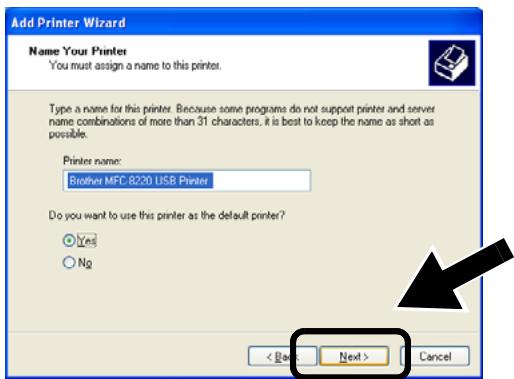
9 If this screen appears, select Do not share this printer and Next.
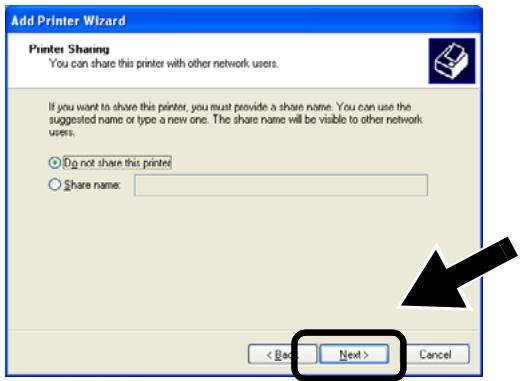
10 Select No and Next.
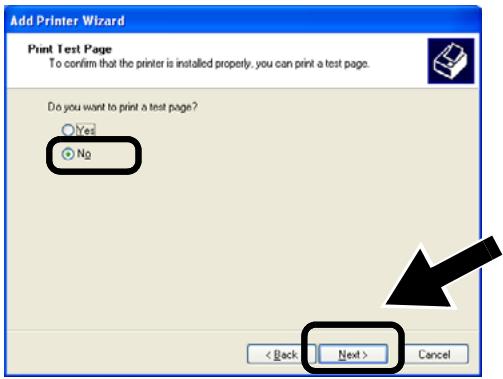
11 When this screen appears, click Finish.
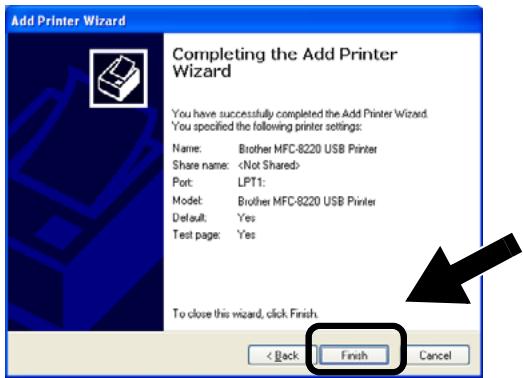
12 If the Windows Logo testing screen appears, click Continue Anyway.
![Hardware Installation The software you are installing for this hardware. Printers has not passed Windows Logo testing to verify its compatibility with Windows XP: [Tell me why this testing is important.] Continuing your installation of this software may impair or destabilize the correct operation of your system either immediately or in the future. Microsoft's AI will recommend that you stop this installation no contact the hardware vendors for software? passed Windows Logo testing. Continue Anyway STOP Installation](/content/2025/01/74910/images/d60915e2fc23e24f39b1504431ba41185a16770ab13d00ddc59761cfacaba8a3.jpg)
Step 5
Installing the Network Print Software
You need to install the network print software, and configure it for the wireless network connection of the Brother Printer/MFC/DCP. Please follow the steps below.
1 Click Network Print Software, and follow the on-screen instructions.
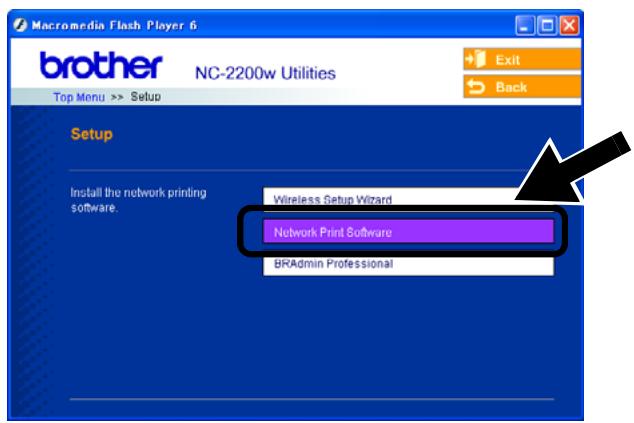
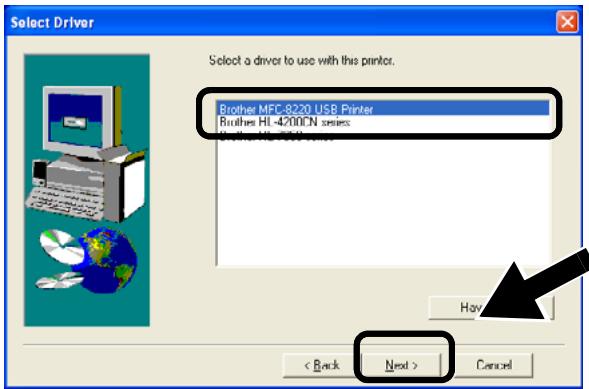
2 Select the same printer driver as the one you selected in the 7th step on page12. Highlight the model you are installing from the list of Printer/MFC/DCPs and click Next.

Setup is now complete.
For Windows® Users
Group: 2
MFC-210C/420CN/410CN/620CN/5440CN/5840CN/3240C/3340CN/8420/8820D/8820DN/8220/8440/8840D/8840DN/3820CN/3420CN/DCP-120C/320CN/8020/8025D/8025DN/8040/8045D/8045DN
Step 4
Installing the MFL-Pro Suite
You need to install the MFL-Pro Suite to make a wireless network connection from your computer to the Brother Printer/MFC/DCP. The software is in the CD-ROM included with your Printer/MFC/DCP. To install the software, follow the steps in ‘Installing the Driver & Software for Network Interface Cable User’s section of the Quick Setup Guide included with your Printer/MFC/DCP.
For MFC-8420/8820D/8820DN/8220/8440/8840D/8840DN/3820CN/3420CN and DCP-8020/8025D/8025DN/8040/8045D/8045DN When this screen is displayed in the installation process, select No and then click Next.
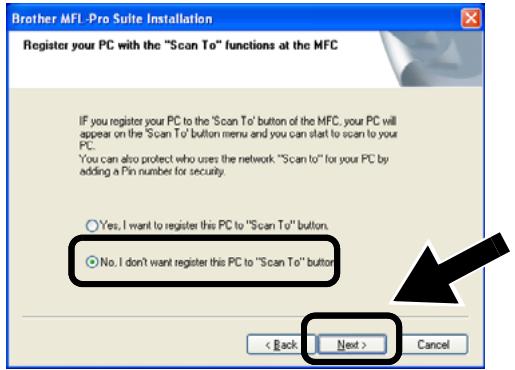
Some MFC/DCPs with the NC-2200w cannot be found in the search list during installation. In that case go back to the screen shown below and set the node name of the NC-2200w manually. You can see the node name on the Network Configuration page, see Other Information on page 16.
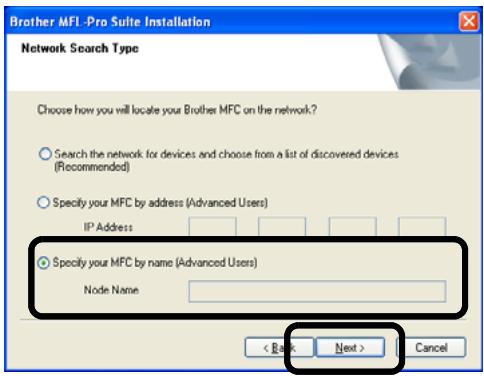
Step 5
Specifying the Scan Destination Address from the NC-2200w Home page
You need to specify the scan destination address from the NC-2200w URL to use the scanner on a network. Follow the steps below.
1 Open the Internet Explorer and enter the following in the URL field.
http://NC-2200w_ip_address Where NC-2200w_ip_address is the IP address or node name of your NC-2200w.

The IP address or node name of your NC-2200w is on the Network Configuration Page. For more information, see Other Information on page 16.
You will be asked for a user name and password. Enter the following.
users name: admin (case sensitive)
password: access (default)
2 Go to the General page under Configuration.
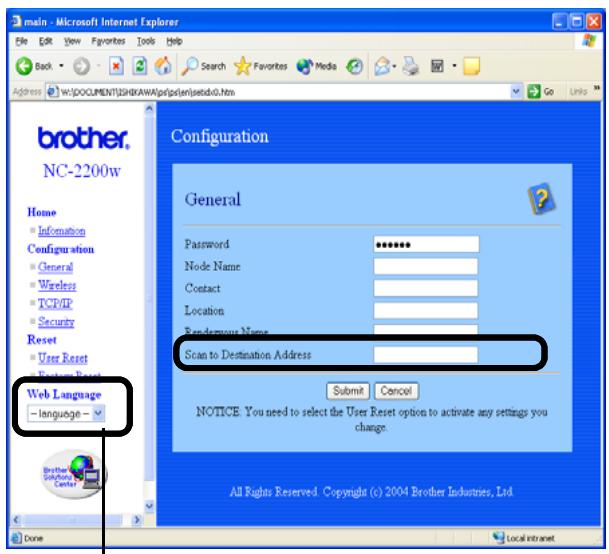
(Available languages are English, German, French, Dutch and Japanese.)
3 Enter the IP address of your computer.

If the IP address of your computer was assigned automatically by DHCP, you should enter the computer name because the IP address may change. The name can be the Windows® computer name or the DNS host name.
To learn your computer name, open Properties from My Computer and refer to the Computer Name tab. To use the domain name you have to assign the DNS server address using the Web server of the NC-2200w and your Web Browser.

Setup is now complete.
For Mac OS ^® X 10.2.4 - 10.3 or greater Users
Step 4
Installing and Configuring the Printer Driver using the Simple Network Configuration Capabilities of Mac OS® X
You need to install the printer driver before setting up your computer to work with the NC-2200w. If the printer driver is already installed, you can skip this step. The driver is on the CD-ROM included with your Printer/MFC/DCP or you can download the latest printer driver from our web site: http://solutions.brother.com Please follow the steps below to install the printer driver.
1 Insert the supplied CD-ROM into your CD-ROM drive and then double-click the Start Here OSX icon to install the software. If the language screen appears, select your language.
2 (For Brother Laser Printer Users) Click Install Software and then Printer Driver on the Menu screens.
(For Brother MFC/DCP Users) Click MFL-Pro Suite to install.
3 Follow the on-screen instructions to install the printer driver.
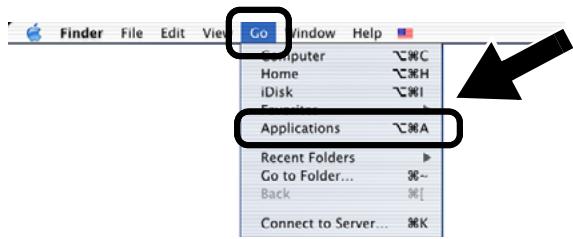
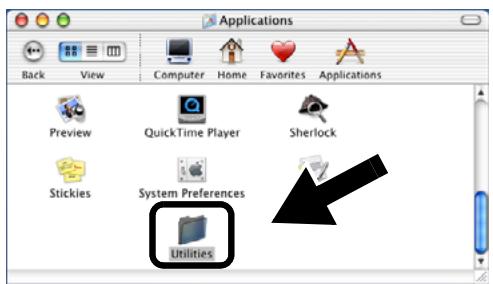
4 Select Applications from the Go menu.
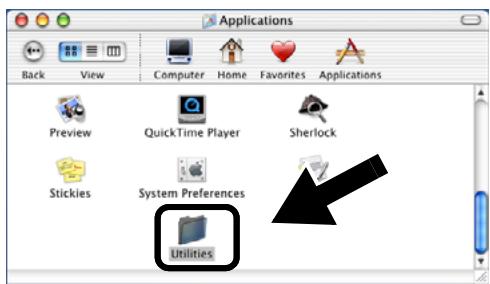
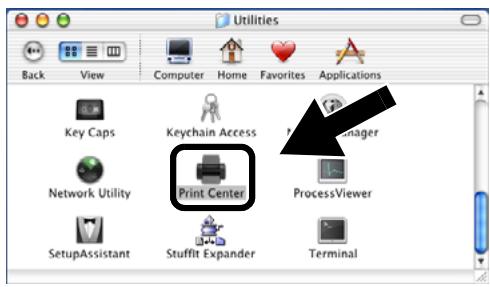
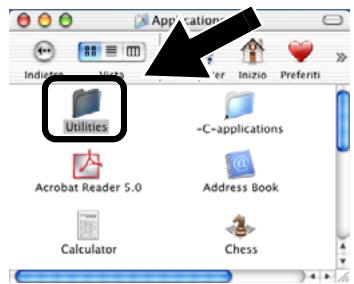
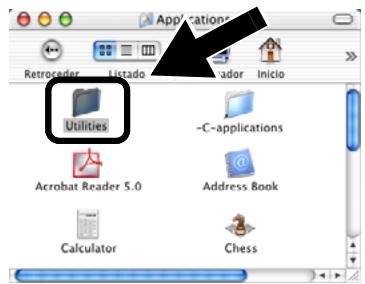
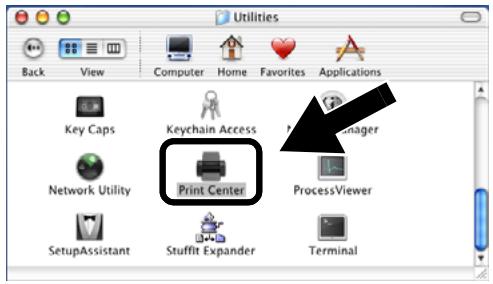
5 Open the Utilities folder.
6 (For Mac OS ^® X 10.2.4 users) Open the Print Center icon. (For Mac OS ^® X 10.3 users) Open the Printer Setup Utility icon.
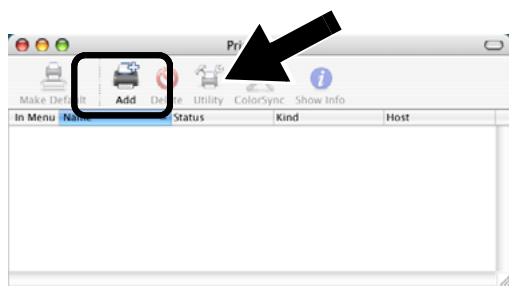
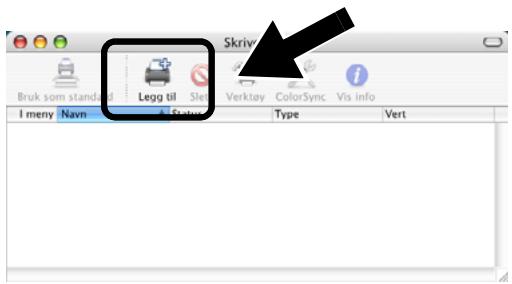
7 Click Add button.
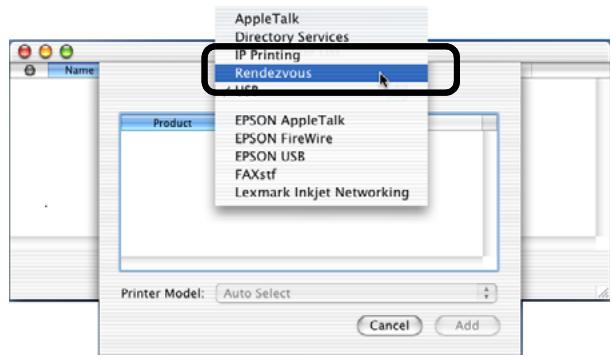
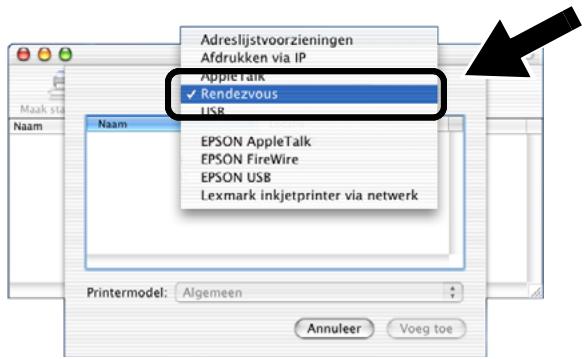
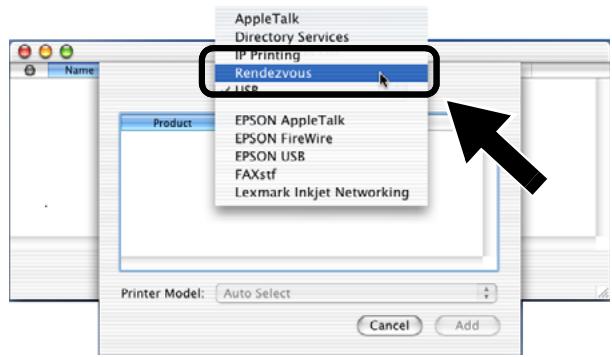
8 Select Rendezvous.
9 Select your machine's model name, and then click Add.
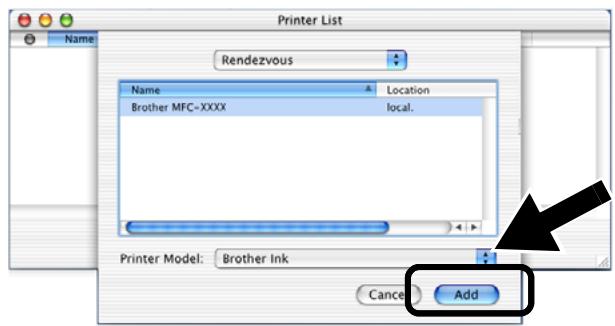

Setup is now complete.
Other Information
How to Print a Network Configuration Page
To print the Network Configuration Page, press the Test Button of the NC-2200w.
How to Reset to Factory Default Settings
If you wish to reset the NC-2200w back to its default factory settings (resetting all information such as the wireless settings, password and IP address), hold down the Test Button for more than 10 seconds.
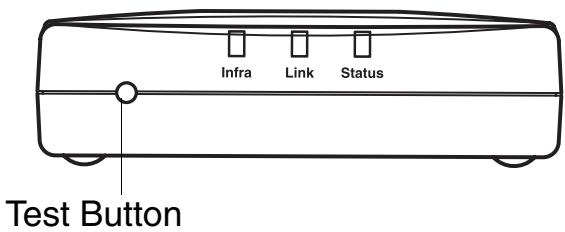

When you reset to factory default settings, you will need to set up again from Step2 Changing your Computer's Wireless Settings to configure the NC-2200w on page 6.
Lieferumfang
MFC-210C/420CN/410CN/620CN/5440CN/5840CN/3240C/3340CN/8420/8820D/8820DN/8220/8440/8840D/8840DN/3820CN/3420CN/DCP-110C/310C/8020/8025D/8025DN/8040/8045D/8045DN
1 Brother Solutions Center
natural_image
Diagram showing a computer with an attached cable and a separate card, connected to a printer (no text or symbols present)8820D/8820DN/8220/8440/8840D/
8840DN/3820CN/3420CN/DCP-120C/
320CN/8020/8025D/8025DN/8040/
8045D/8045DN
herunterladen.
8820D/8820DN/8220/8440/8840D/
8840DN/3820CN/3420CN/DCP-120C/
320CN/8020/8025D/8025DN/8040/
8045D/8045DN
Schritt 4
natural_image
Illustration of electronic devices including a CD, DVD, and cable (no text or symbols)2
MFC-210C/420CN/410CN/620CN/5440CN/5840CN/3240C/3340CN/8420/8820D/8820DN/8220/8440/8840D/8840DN/3820CN/3420CN/DCP-110C/310C/8020/8025D/8025DN/8040/8045D/8045DN
1 Centre de solutions Brother
natural_image
Diagram showing a computer with an attached cable and a small electronic device connected to the right (no text or symbols present)8820D/8820DN/8220/8440/8840D/
8840DN/3820CN/3420CN/DCP-120C/
320CN/8020/8025D/8025DN/8040/
8045D/8045DN
8820D/8820DN/8220/8440/8840D/
8840DN/3820CN/3420CN/DCP-120C/
320CN/8020/8025D/8025DN/8040/
8045D/8045DN
Etape 4
Installation de MFL-Pro Suite
http://solutions.brother.com
natural_image
Illustration of electronic devices including a CD, DVD, and cable (no text or symbols)MFC-210C/420CN/410CN/620CN/5440CN/5840CN/3240C/3340CN/8420/8820D/8820DN/8220/8440/8840D/8840DN/3820CN/3420CN/DCP-110C/310C/8020/8025D/8025DN/8040/8045D/8045DN
1 Brother Solutions Center
natural_image
Diagram showing a USB cable being inserted into a printer (no text or symbols present)8820D/8820DN/8220/8440/8840D/
8840DN/3820CN/3420CN/DCP-120C/
320CN/8020/8025D/8025DN/8040/
8045D/8045DN
http://solutions.brother.com
8 Selecteer Rendezvous.
MFC-210C/420CN/410CN/620CN/5440CN/5840CN/3240C/3340CN/8420/8820D/8820DN/8220/8440/8840D/8840DN/3820CN/3420CN/DCP-110C/310C/8020/8025D/8025DN/8040/8045D/8045DN
1 Brother Solutions Center
natural_image
Diagram showing a computer with an attached cable and a small electronic device connected to the right (no text or symbols present)Nome rete (SSID/ESSID): SETUP
8820D/8820DN/8220/8440/8840D/
8840DN/3820CN/3420CN/DCP-120C/
320CN/8020/8025D/8025DN/8040/
8045D/8045DN
8820D/8820DN/8220/8440/8840D/
8840DN/3820CN/3420CN/DCP-120C/
320CN/8020/8025D/8025DN/8040/
8045D/8045DN
Passaggio 4
http://solutions.brother.com
5 Aprire la cartella Utilities.
natural_image
Illustration of electronic devices including a CD, DVD, and cable (no text or symbols)MFC-210C/420CN/410CN/620CN/5440CN/5840CN/3240C/3340CN/8420/8820D/8820DN/8220/8440/8840D/8840DN/3820CN/3420CN/DCP-110C/310C/8020/8025D/8025DN/8040/8045D/8045DN
natural_image
Diagram showing a computer with an attached cable and a small electronic device connected to a printer (no text or symbols present)8820D/8820DN/8220/8440/8840D/
8840DN/3820CN/3420CN/DCP-120C/
320CN/8020/8025D/8025DN/8040/
8045D/8045DN
5 Abra la carpeta Utilities.
natural_image
Illustration of electronic devices including a CD, DVD, and cable (no text or symbols)2
MFC-210C/420CN/410CN/620CN/5440CN/5840CN/3240C/3340CN/8420/8820D/8820DN/8220/8440/8840D/8840DN/3820CN/3420CN/DCP-110C/310C/8020/8025D/8025DN/8040/8045D/8045DN
1 Brother Solutions Center
natural_image
Diagram showing connection between a USB drive and a printer (no text or symbols present)8820D/8820DN/8220/8440/8840D/
8840DN/3820CN/3420CN/DCP-120C/
320CN/8020/8025D/8025DN/8040/
8045D/8045DN
Gå til trinn 4 på side 85
http://solutions.brother.com
7 Velg Legg til.
natural_image
Illustration of electronic devices including a CD, DVD, and cable (no text or symbols)2
0CN/3240C/3340CN/8420/8820D/8820DN/
8220/8440/8840D/8840DN/3820CN/3420CN/
DCP-110C/310C/8020/8025D/8025DN/8040/
8045D/8045DN
Operativsystemsstöd
Windows®
1 Brother Solutions Center
natural_image
Diagram showing connection between a USB drive and a printer (no text or symbols present)8820D/8820DN/8220/8440/8840D/
8840DN/3820CN/3420CN/DCP-120C/
320CN/8020/8025D/8025DN/8040/
8045D/8045DN
natural_image
Illustration of electronic devices including a CD, DVD, and cable (no text or symbols)2
MFC-210C/420CN/410CN/620CN/5440CN/5840CN/3240C/3340CN/8420/8820D/8820DN/8220/8440/8840D/8840DN/3820CN/3420CN/DCP-110C/310C/8020/8025D/8025DN/8040/8045D/8045DN
1 Brother Solutions Center
natural_image
Diagram showing a printer connected to an open computer via cable (no text or symbols present)8820D/8820DN/8220/8440/8840D/
8840DN/3820CN/3420CN/DCP-120C/
320CN/8020/8025D/8025DN/8040/
8045D/8045DN
http://solutions.brother.com
5 Åbn mappen Utilities.
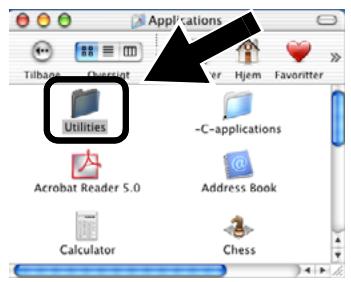
6 (For brugere af Mac OS® X 10.2.4) Åbn ikonet Print Center.
natural_image
Illustration of electronic devices including a CD, DVD, and cable (no text or symbols)MFC-210C/420CN/410CN/620CN/5440CN/5840CN/3240C/3340CN/8420/8820D/8820DN/8220/8440/8840D/8840DN/3820CN/3420CN/DCP-110C/310C/8020/8025D/8025DN/8040/8045D/8045DN
1 Brother Solutions Center
natural_image
Diagram showing connection between a computer device and cable, with no visible text or symbolsnatural_image
Illustration of a computer monitor with an arrow pointing to it, no text or symbols present.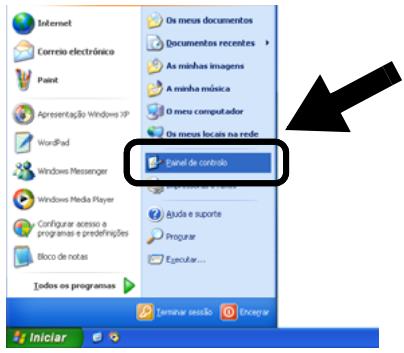

8820D/8820DN/8220/8440/8840D/
8840DN/3820CN/3420CN/DCP-120C/
320CN/8020/8025D/8025DN/8040/
8045D/8045DN
8820D/8820DN/8220/8440/8840D/
8840DN/3820CN/3420CN/DCP-120C/
320CN/8020/8025D/8025DN/8040/
8045D/8045DN
Passo 4
Instalar o MFL-Pro Suite
http://solutions.brother.com
5 Abra a pasta Utilities.
6 (Utilizadores de Mac OS® X 10.2.4) Abra o ícone Print Center. (Utilizadores de Mac OS® X 10.3) Abra o ícone Printer Setup Utility.
8 Seleccione Rendezvous.
1 Brother Solutions Center
natural_image
Diagram showing connection between a USB drive and a printer (no text or symbols present)HL-5040/5070DN/6050DN
MFC-8210J
このページの Step 4へ
Group 2:
MFC-8820J/3820JN/410CN/610CLN/
610CLWN/620CLN
DCP-110C/8025J
133 ページの Step 4 ヘ
HL-5040/5070DN/6050DN
MFC-8210J
Step 4
プリンタドライバをインストールする
Important Information: Regulations
Federal Communications Commission (FCC) Declaration of Conformity (For USA)
Responsible Party: Brother International Corporation
100 Somerset Corporate Boulevard
Bridgewater, NJ 08807-0911, USA
Telephone: (908) 704-1700
declares, that the products
Product Name: Brother External Wireless Print/Scan Server
Model Number: NC-2200w
complies with Part 15 of the FCC Rules. Operation is subject to the following two conditions: (1) This device may not cause harmful interference, and (2) this device must accept any interference received, including interference that may cause undersired operation.
This equipment has been tested and found to comply with the limits for a Class B digital device, pursuant to Part 15 of the FCC Rules. These limits are designed to provide reasonable protection against harmful interference in a residential installation. This equipment generates, uses, and can radiate radio frequency energy and, if not installed and used in accordance with the instructions, may cause harmful interference to radio communications. However, there is no guarantee that interference will not occur in a particular installation. If this equipment does cause harmful interference to radio or television reception, which can be determined by turning the equipment off and on, the user is encouraged to try to correct the interference by one or more of the following measures:
■ Reorient or relocate the receiving antenna.
■ Increase the separation between the equipment and receiver.
■ Connect the equipment into an outlet on a circuit different from that to which the receiver is connected.
- Consult the dealer or an experienced radio/TV technician for help.
Important
Changes or modifications not expressly approved by Brother Industries, Ltd. could void the user's authority to operate the equipment.
Industry Canada Compliance Statement (For Canada only)
This Class B digital apparatus complies with Canadian ICES-003.
EC Declaration of Conformity under the R & TTE Directive
Manufacturer
Brother Industries, Ltd.,
15-1, Naeshiro-cho, Mizuho-ku,
Nagoya 467-8561, Japan
Herewith declare that:
Products description: External Wireless
Print/Scan Server
Product Name: NC-2200w
is in conformity with provisions of the R & TTE Directive 1999/5/EC and we declare compliance with the following standards:
Radio : EN301489-1:2000
EN301489-17:2000
EN300328-2 V1.1.1
LVD : EN60950:
Year in which CE marking was first affixed: 2004
Issued by: Brother Industries, Ltd.
Date: 6 February, 2004
Place: Nagoya, Japan
Signature:
Jekazki Maeda
Takashi Maeda
Regulations Manager
Quality Management Group
Quality Management Dept.
Information & Document
Company
Hereby, Brother Industries, Ltd., declares that this NC-2200w is in compliance with the essential requirements and other relevant provisions of Directive 1999/5/EC.
Intel Copyright and License Information
This products includes object code from Intel's UPnP SDK.
The following is the copyright and licensing information for Intel UPnP SDK.
Copyright Intel Corporation 2004 All rights reserved.
Redistribution and use in source and binary forms, with or without modification, are permitted provided that the following conditions are met:
■ Redistributions of source code must retain the above copyright notice this list of conditions and the following disclaimer.
■ Redistributions in binary form must reproduce the above copyright notice, this list of conditions and the following disclaimer in the documentation and/or other materials provided with the distribution.
■ Neither name of Intel Corporation nor the names of its contributors may be used to endorse or promote products derived from this software without specific prior written permission.
THIS SOFTWARE IS PROVIDED BY THE COPYRIGHT HOLDERS AND CONTRIBUTORS "AS IS" AND ANY EXPRESS OR IMPLIED WARRANTIES, INCLUDING, BUT NOT LIMITED TO, THE IMPLIED WARRANTIES OF MERCHANTABILITY AND FITNESS FOR A PARTICULAR PURPOSE ARE DISCLAIMED. IN NO EVENT SHALL INTEL OR CONTRIBUTORS BE LIABLE FOR ANY DIRECT, INDIRECT, INCIDENTAL, SPECIAL, EXEMPLARY, OR CONSEQUENTIAL DAMAGES (INCLUDING, BUT NOT LIMITED TO, PROCUREMENT OF SUBSTITUTE GOODS OR SERVICES; LOSS OF USE, DATA, OR PROFITS; OR BUSINESS INTERRUPTION) HOWEVER CAUSED AND ON ANY THEORY OF LIABILITY, WHETHER IN CONTRACT, STRICT LIABILITY, OR TORT (INCLUDING NEGLIGENCE OR OTHERWISE) ARISING IN ANY WAY OUT OF THE USE OF THIS SOFTWARE, EVEN IF ADVISED OF THE POSSIBILITY OF SUCH DAMAGE.
Federal Communications Commission (FCC) Declaration of Conformity (For U.S.A. only)
Responsible Party: Brother International Corporation
100 Somerset Corporate Boulevard
Bridgewater, NJ 08807-0911, USA
Telephone: (908) 704-1700
declares, that the products
Product Name: Brother External Wireless Print/Scan Server
Model Number: NC-2200w
complies with Part 15 of the FCC Rules. Operation is subject to the following two conditions: (1) This device may not cause harmful interference, and (2) this device must accept any interference received, including interference that may cause undesired operation.
This equipment has been tested and found to comply with the limits for a Class B digital device, pursuant to Part 15 of the FCC Rules. These limits are designed to provide reasonable protection against harmful interference in a residential installation. This equipment generates, uses, and can radiate radio frequency energy and, if not installed and used in accordance with the instructions, may cause harmful interference to radio communications. However, there is no guarantee that interference will not occur in a particular installation. If this equipment does cause harmful interference to radio or television reception, which can be determined by turning the equipment off and on, the user is encouraged to try to correct the interference by one or more of the following measures:
■ Reorient or relocate the receiving antenna.
■ Increase the separation between the equipment and receiver.
■ Connect the equipment into an outlet on a circuit different from that to which the receiver is connected.
- Consult the dealer or an experienced radio/TV technician for help.
Important
Changes or modifications not expressly approved by Brother Industries, Ltd. could void the user's authority to operate the equipment.
Industry Canada Compliance Statement (For Canada only)
This Class B digital apparatus complies with Canadian ICES-003.
Brother Industries, Ltd.,
15-1, Naeshiro-cho, Mizuho-ku,
Nagoya 467-8561, Japan
EMC: EN55022:1998 Class B
EN55024:1998
EN61000-3-2:1995+A14:2000
EN61000-3-3:1995
Responsible Party : Brother International Corporation
100 Somerset Corporate Boulevard
Bridgewater, NJ 08807-0911, USA
Telephone: (908) 704-1700
declares, that the products
Product Name: Brother External Wireless Print/Scan Server
Model Number: NC-2200w
complies with Part 15 of the FCC Rules. Operation is subject to the following two conditions: (1) This device may not cause harmful interference, and (2) this device must accept any interference received, including interference that may cause undesired operation.
This equipment has been tested and found to comply with the limits for a Class B digital device, pursuant to Part 15 of the FCC Rules. These limits are designed to provide reasonable protection against harmful interference in a residential installation. This equipment generates, uses, and can radiate radio frequency energy and, if not installed and used in accordance with the instructions, may cause harmful interference to radio communications. However, there is no guarantee that interference will not occur in a particular installation. If this equipment does cause harmful interference to radio or television reception, which can be determined by turning the equipment off and on, the user is encouraged to try to correct the interference by one or more of the following measures:
■ Reorient or relocate the receiving antenna.
■ Increase the separation between the equipment and receiver.
■ Connect the equipment into an outlet on a circuit different from that to which the receiver is connected.
- Consult the dealer or an experienced radio/TV technician for help.
Important
Changes or modifications not expressly approved by Brother Industries, Ltd. could void the user's authority to operate the equipment.
Déclaration de conformité aux prescriptions de Industry Canada (Canada uniquement)
This Class B digital apparatus complies with Canadian ICES-003.
Brother Industries, Ltd.,
15-1, Naeshiro-cho, Mizuho-ku,
Nagoya 467-8561, Japon
Responsible Party: Brother International Corporation
100 Somerset Corporate Boulevard
Bridgewater, NJ 08807-0911, USA
Telephone: (908) 704-1700
declares, that the products
Product Name: Brother External Wireless Print/Scan Server
Model Number: NC-2200w
complies with Part 15 of the FCC Rules. Operation is subject to the following two conditions: (1) This device may not cause harmful interference, and (2) this device must accept any interference received, including interference that may cause undesired operation.
This equipment has been tested and found to comply with the limits for a Class B digital device, pursuant to Part 15 of the FCC Rules. These limits are designed to provide reasonable protection against harmful interference in a residential installation. This equipment generates, uses, and can radiate radio frequency energy and, if not installed and used in accordance with the instructions, may cause harmful interference to radio communications. However, there is no guarantee that interference will not occur in a particular installation. If this equipment does cause harmful interference to radio or television reception, which can be determined by turning the equipment off and on, the user is encouraged to try to correct the interference by one or more of the following measures:
■ Reorient or relocate the receiving antenna.
■ Increase the separation between the equipment and receiver.
■ Connect the equipment into an outlet on a circuit different from that to which the receiver is connected.
- Consult the dealer or an experienced radio/TV technician for help.
Important
Changes or modifications not expressly approved by Brother Industries, Ltd. could void the user's authority to operate the equipment.
This Class B digital apparatus complies with Canadian ICES-003.
Brother Industries, Ltd.,
15-1, Naeshiro-cho, Mizuho-ku,
Nagoya 467-8561, Japan
EMC: EN55022:1998 Class B
EN55024:1998
EN61000-3-2:1995+A14:2000
EN61000-3-3:1995
Quality Management Group
Quality Management Dept.
Information & Document
Company
Federal Communications Commission (FCC) Declaration of Conformity (Solo per gli Stati Uniti)
Responsible Party : Brother International Corporation
100 Somerset Corporate Boulevard
Bridgewater, NJ 08807-0911, USA
Telephone: (908) 704-1700
declares, that the products
Product Name: Brother External Wireless Print/Scan Server
Model Number: NC-2200w
complies with Part 15 of the FCC Rules. Operation is subject to the following two conditions: (1) This device may not cause harmful interference, and (2) this device must accept any interference received, including interference that may cause undersired operation.
This equipment has been tested and found to comply with the limits for a Class B digital device, pursuant to Part 15 of the FCC Rules. These limits are designed to provide reasonable protection against harmful interference in a residential installation. This equipment generates, uses, and can radiate radio frequency energy and, if not installed and used in accordance with the instructions, may cause harmful interference to radio communications. However, there is no guarantee that interference will not occur in a particular installation. If this equipment does cause harmful interference to radio or television reception, which can be determined by turning the equipment off and on, the user is encouraged to try to correct the interference by one or more of the following measures:
■ Reorient or relocate the receiving antenna.
■ Increase the separation between the equipment and receiver.
■ Connect the equipment into an outlet on a circuit different from that to which the receiver is connected.
- Consult the dealer or an experienced radio/TV technician for help.
Important
Changes or modifications not expressly approved by Brother Industries, Ltd. could void the user's authority to operate the equipment.
Industry Canada Compliance Statement (Solo per il Canada)
This Class B digital apparatus complies with Canadian ICES-003.
Brother Industries, Ltd.,
15-1, Naeshiro-cho, Mizuho-ku,
EMC: EN55022:1998 Class B
EN55024:1998
EN61000-3-2:1995+A14:2000
EN61000-3-3:1995
Quality Management Group
Quality Management Dept.
Information & Document
Company
Copyright Intel Corporation 2004
100 Somerset Corporate Boulevard
Bridgewater, NJ 08807-0911, USA
Brother Industries, Ltd.,
15-1, Naeshiro-cho, Mizuho-ku,
EMC: EN55022:1998 Class B
EN55024:1998
EN61000-3-2:1995+A14:2000
EN61000-3-3:1995
Quality Management Group
Quality Management Dept.
Information & Document
Company
Copyright 2004 Intel Corporation
Federal Communications Commission (FCC) Declaration of Conformity (kun for USA)
Responsible Party : Brother International Corporation
100 Somerset Corporate Boulevard
Bridgewater, NJ 08807-0911, USA
Telephone: (908) 704-1700
declares, that the products
Product Name: Brother External Wireless Print/Scan Server
Model Number: NC-2200w
complies with Part 15 of the FCC Rules. Operation is subject to the following two conditions: (1) This device may not cause harmful interference, and (2) this device must accept any interference received, including interference that may cause undersired operation.
This equipment has been tested and found to comply with the limits for a Class B digital device, pursuant to Part 15 of the FCC Rules. These limits are designed to provide reasonable protection against harmful interference in a residential installation. This equipment generates, uses, and can radiate radio frequency energy and, if not installed and used in accordance with the instructions, may cause harmful interference to radio communications. However, there is no guarantee that interference will not occur in a particular installation. If this equipment does cause harmful interference to radio or television reception, which can be determined by turning the equipment off and on, the user is encouraged to try to correct the interference by one or more of the following measures:
■ Reorient or relocate the receiving antenna.
■ Increase the separation between the equipment and receiver.
■ Connect the equipment into an outlet on a circuit different from that to which the receiver is connected.
- Consult the dealer or an experienced radio/TV technician for help.
Important
Changes or modifications not expressly approved by Brother Industries, Ltd. could void the user's authority to operate the equipment.
Industry Canada Compliance Statement (kun for Canada)
This Class B digital apparatus complies with Canadian ICES-003.
Brother Industries, Ltd.,
15-1, Naeshiro-cho, Mizuho-ku,
Nagoya 467-8561, Japan
erklærer herved at:
EMC: EN55022:1998 Class B
EN55024:1998
EN61000-3-2:1995+A14:2000
EN61000-3-3:1995
Første år med CE-merking: 2004
Utlevert av: Brother Industries, Ltd.,
Dato: 6. februar 2004
Sted: Nagoya, Japan
Signatur:
Jekazki Maeda
Takashi Maeda
Regelverksansvarlig
Quality Management Group
Quality Management Dept.
Information & Document
Company
Copyright Intel Corporation 2004
Med enerett.
Important Information: Regulations
Federal Communications Commission (FCC) Declaration of Conformity (för USA)
Responsible Party: Brother International Corporation
100 Somerset Corporate Boulevard
Bridgewater, NJ 08807-0911, USA
Telephone: (908) 704-1700
declares, that the products
Product Name: Brother External Wireless Print/Scan Server
Model Number: NC-2200w
complies with Part 15 of the FCC Rules. Operation is subject to the following two conditions: (1) This device may not cause harmful interference, and (2) this device must accept any interference received, including interference that may cause undersired operation.
This equipment has been tested and found to comply with the limits for a Class B digital device, pursuant to Part 15 of the FCC Rules. These limits are designed to provide reasonable protection against harmful interference in a residential installation. This equipment generates, uses, and can radiate radio frequency energy and, if not installed and used in accordance with the instructions, may cause harmful interference to radio communications. However, there is no guarantee that interference will not occur in a particular installation. If this equipment does cause harmful interference to radio or television reception, which can be determined by turning the equipment off and on, the user is encouraged to try to correct the interference by one or more of the following measures:
■ Reorient or relocate the receiving antenna.
■ Increase the separation between the equipment and receiver.
■ Connect the equipment into an outlet on a circuit different from that to which the receiver is connected.
- Consult the dealer or an experienced radio/TV technician for help.
Important
Changes or modifications not expressly approved by Brother Industries, Ltd. could void the user's authority to operate the equipment.
Industry Canada Compliance Statement (endast för Kanada)
This Class B digital apparatus complies with Canadian ICES-003.
Brother Industries Ltd.,
15-1, Naeshiro-cho, Mizuho-ku,
Nagoya 467-8561, Japan
EMC: EN55022:1998 Class B
EN55024:1998
EN61000-3-2:1995+A14:2000
EN61000-3-3:1995
Copyright Intel Corporation 2004
Med ensamrätt.
Federal Communications Commission (FCC) Declaration of Conformity (kun for USA)
Responsible Party: Brother International Corporation
100 Somerset Corporate Boulevard
Bridgewater, NJ 08807-0911, USA
Telephone: (908) 704-1700
declares, that the products
Product Name: Brother External Wireless Print/Scan Server
Modelnummer :NC-2200w
complies with Part 15 of the FCC Rules. Operation is subject to the following two conditions: (1) This device may not cause harmful interference, and (2) this device must accept any interference received, including interference that may cause undersired operation
This equipment has been tested and found to comply with the limits for a Class B digital device, pursuant to Part 15 of the FCC Rules. These limits are designed to provide reasonable protection against harmful interference in a residential installation. This equipment generates, uses, and can radiate radio frequency energy and, if not installed and used in accordance with the instructions, may cause harmful interference to radio communications. However, there is no guarantee that interference will not occur in a particular installation. If this equipment does cause harmful interference to radio or television reception, which can be determined by turning the equipment off and on, the user is encouraged to try to correct the interference by one or more of the following measures:
■ Reorient or relocate the receiving antenna.
■ Increase the separation between the equipment and receiver.
■ Connect the equipment into an outlet on a circuit different from that to which the receiver is connected.
- Consult the dealer or an experienced radio/TV technician for help.
Important
Changes or modifications not expressly approved by Brother Industries, Ltd. could void the user's authority to operate the equipment.
Industry Canada Compliance Statement (kun for Canada)
This Class B digital apparatus complies with Canadian ICES-003.
Brother Industries, Ltd.,
15-1, Naeshiro-cho, Mizuho-ku,
Nagoya 467-8561, Japan
Erklærer hermed, at:
EMC: EN55022:1998 Class B
EN55024:1998
EN61000-3-2:1995+A14:2000
EN61000-3-3:1995
Copyright©2004 Intel Corporation
Federal Communications Commission (FCC) Declaration of Conformity (Para os E.U.A.)
Responsible Party: Brother International Corporation
100 Somerset Corporate Boulevard
Bridgewater, NJ 08807-0911, USA
Telephone: (908) 704-1700
declares, that the products
Product Name: Brother External Wireless Print/Scan Server
Model Number: NC-2200w
complies with Part 15 of the FCC Rules. Operation is subject to the following two conditions: (1) This device may not cause harmful interference, and (2) this device must accept any interference received, including interference that may cause undersired operation.
This equipment has been tested and found to comply with the limits for a Class B digital device, pursuant to Part 15 of the FCC Rules. These limits are designed to provide reasonable protection against harmful interference in a residential installation. This equipment generates, uses, and can radiate radio frequency energy and, if not installed and used in accordance with the instructions, may cause harmful interference to radio communications. However, there is no guarantee that interference will not occur in a particular installation. If this equipment does cause harmful interference to radio or television reception, which can be determined by turning the equipment off and on, the user is encouraged to try to correct the interference by one or more of the following measures:
■ Reorient or relocate the receiving antenna.
■ Increase the separation between the equipment and receiver.
■ Connect the equipment into an outlet on a circuit different from that to which the receiver is connected.
- Consult the dealer or an experienced radio/TV technician for help.
Important
Changes or modifications not expressly approved by Brother Industries, Ltd. could void the user's authority to operate the equipment.
Industry Canada Compliance Statement (Apenas para o Canadá)
This Class B digital apparatus complies with Canadian ICES-003.
Brother Industries, Ltd.,
15-1, Naeshiro-cho, Mizuho-ku,
Copyright Intel Corporation 2004
- NC-2200w External Wireless Print/Scan Server (IEEE 802.11b) Quick Setup Guide
- Externer Wireless Print/ScanServer NC-2200w (IEEE 802.11b) Installationsanleitung
- Trademarks
- Deutsch
- Models Supported
- Group 1:
- Group 2:
- Operating System Support
- Windows®
- Macintosh®
- Supplied CD-ROM
- Brother Solutions Center
- Setup
- Documentation
- Setting up the Print/Scan Server
- Step 1
- Installing the Print Server
- Step 2
- Changing your Computer's Wireless Settings to configure the NC-2200w
- Communication mode: Ad-hoc
- Network name : SETUP
- Encryption: None
- For Windows ® 98/Me/2000, Windows NT ® 4.0 Users
- Go to Step 3 on page 9
- For Windows® XP Users
- Click Start and then Control Panel.
- Click the Network Connections icon.
- Select and right click Wireless Network Connection. Click View Available Wireless Networks.
- For Mac OS ® X 10.2.4 - 10.3 or greater Users
- Step 3
- Configuring the Print/Scan Server
- For Windows® Users
- Step 4
- Installing the Printer Driver
- Un-check the Automatically detect and install my Plug and Play printer selection and then click Next.
- Temporarily select
- Click on Have Disk.
- Click Open and then click OK.
- Step 5
- Installing the Network Print Software
- Installing the MFL-Pro Suite
- Specifying the Scan Destination Address from the NC-2200w Home page
- Open the Internet Explorer and enter the following in the URL field.
- Go to the General page under Configuration.
- Enter the IP address of your computer.
- Setup is now complete.
- Installing and Configuring the Printer Driver using the Simple Network Configuration Capabilities of Mac OS® X
- Select Rendezvous.
- Select your machine's model name, and then click Add.
- Other Information
- How to Print a Network Configuration Page
- How to Reset to Factory Default Settings
- Lieferumfang
- Schritt 4
- Centre de solutions Brother
- Etape 4
- Installation de MFL-Pro Suite
- Selecteer Rendezvous.
- Passaggio 4
- Aprire la cartella Utilities.
- Operativsystemsstöd
- Passo 4
- Instalar o MFL-Pro Suite
- Seleccione Rendezvous.
- プリンタドライバをインストールする
- Important Information: Regulations
- Federal Communications Commission (FCC) Declaration of Conformity (For USA)
- Important
- Industry Canada Compliance Statement (For Canada only)
- EC Declaration of Conformity under the R & TTE Directive
- Intel Copyright and License Information
- Federal Communications Commission (FCC) Declaration of Conformity (For U.S.A. only)
- Déclaration de conformité aux prescriptions de Industry Canada (Canada uniquement)
- Federal Communications Commission (FCC) Declaration of Conformity (Solo per gli Stati Uniti)
- Industry Canada Compliance Statement (Solo per il Canada)
- Federal Communications Commission (FCC) Declaration of Conformity (kun for USA)
- Industry Canada Compliance Statement (kun for Canada)
- Federal Communications Commission (FCC) Declaration of Conformity (för USA)
- Industry Canada Compliance Statement (endast för Kanada)
- Federal Communications Commission (FCC) Declaration of Conformity (Para os E.U.A.)
- Industry Canada Compliance Statement (Apenas para o Canadá)
Brand : BROTHER
Model : NC-2200W
Category : Wireless Network Printer