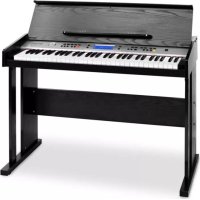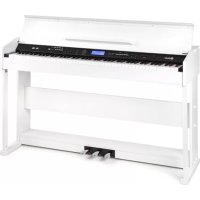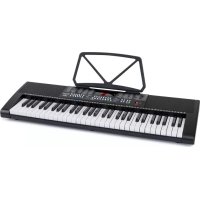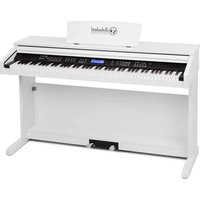
Subi 88 MKII - Electric piano Schubert - Free user manual and instructions
Find the device manual for free Subi 88 MKII Schubert in PDF.


User questions about Subi 88 MKII Schubert
0 question about this device. Answer the ones you know or ask your own.
Ask a new question about this device
Download the instructions for your Electric piano in PDF format for free! Find your manual Subi 88 MKII - Schubert and take your electronic device back in hand. On this page are published all the documents necessary for the use of your device. Subi 88 MKII by Schubert.
USER MANUAL Subi 88 MKII Schubert
natural_image
Line drawing of a piano with a flat top and two side legs, no text or symbols presentSubi 88 MKII
Keyboard
Teclado
Clavier
Tastiera
text_image
QR code image containing encoded data, no visible human-readable textTECHNISCHE DATEN
natural_image
Line drawing of a piano with a flat top and two side legs, no text or symbols presentMONTAGE
text_image
Diagram showing audio equipment connections with labeled buttons and audio devices, including a monitor and audio jack.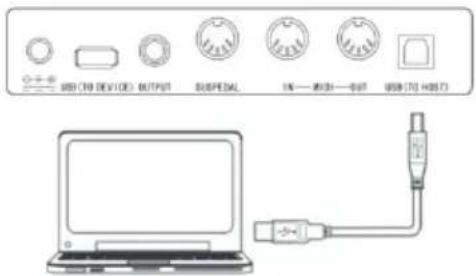
text_image
USB (70 DEVICE) OUTPUT SUSPEDAL 16—W301—W37 USB (70 HOST)natural_image
Simple line drawing of a USB device with an arrow indicating upward motion (no text or symbols)Netzschalter
text_image
LOADING...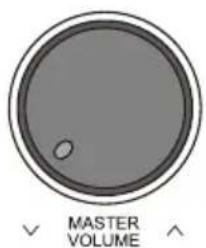
text_image
MASTER VOLUME

natural_image
Symbol of a trash bin crossed with a diagonal line, no text or labels presentBerlin Brands Group UK Limited
PO Box 42
272 Kensington High Street
London, W8 6ND
United Kingdom
Dear Customer,
Congratulations on purchasing this equipment. Please read this manual carefully and take care of the following hints to avoid damages. Any failure caused by ignoring the items and cautions mentioned in the instruction manual are not covered by our warranty and any liability. Scan the QR code to get access to the latest user manual and other information about the product.

text_image
QR code image containing encoded data, no visible human-readable textTECHNICAL DATA
| Item number 10033246 | 10033247 |
| Keyboard 88-key standard | d keyboard with touch response |
| Display LED | |
| Voice 360 kinds of voices | |
| Style 160 styles | |
| Demo 80 demo songs | |
| Effect control Touch, rever | b, chorus, dual, split, function menu, sound console |
| Record Single track, multi | tracks, combined record |
| Accompaniment control | Accompaniment volume, transpose control, MP3 function |
| Chord control ABC, auto | akkord |
| Pedal Soft pedal, sustain pedal | |
| External function USB (MP3), USB (MIDI), MIDI IN/OUT | |
| Power adapter | 220 V~, 12-15 V—— |
| Power input | 12-15 V——, 2-3 A |
CONTENTS
Technical Data 34
Safety Instructions 35
Panel Control and Display Illustration 36
Installation 39
Getting Stated & Operation 41
Function menu 50
Song List 57
Style List 59
Disposal Considerations 62
Manufacturer & Importer (UK) 62
SAFETY INSTRUCTIONS
- Please read carefully the following notice(but are not limited to the following notice) so as to prevent the possible hurt to yourself or others and possible damages of this instrument and external parts of other equipment.
- Do not open the case of this instrument. Do not try to disassemble any part of it, nor change any interior parts. Should any abnormal function occur in use, please stop it immediately and send it to qualified personnel for maintenance service.
- Never leave the instrument in circumstance with excessive dust, vibration, low or high temperature(such as place under the direct sunlight, close to other source of heat, inside the car which under the direct sunlight)to prevent damages of both appearance and internal components of instrument.
- Never leave the instrument in an unstable place to avoid falling down and cause the damages.
- Never place any container with liquid on the instrument to prevent the liquid flow into the instrument.
- Turn the master volume to '00' before connecting the power and adjust the volume gradually to the proper volume to prevent the damage of speakers.
- Never turn the volume to Max. Or the position that heard uncomfortable when you play, to prevent your hearing loss.
- Never apply excessive force or place heavy objects on instrument nor apply excessive force to press keyboard, power button and jack.
- The instrument must be unpacked by the adults before use to prevent baby or children form choking hazard. Please keep and store or discard the plastic packing.
- Properly store or discard after unpacking. The inside small components are not suitable for the children under 3 years old.
PANEL CONTROL AND DISPLAY ILLUSTRATION
Left control panel

text_image
1 ▼ TEMPO ^ 2 3 ACCOMP VOLUME ^ Q II 10 11 12 13 14 ▼ MASTER VOLUME ^ INTRO MENS SYNC SELL 1 SELL 2 STARTER 4 5 6 7 8 AUTO CHORD FULL MENS CHORD CHORD CLOSE SPLIT TOUCH FUNCTION MENU 15 16 17 18 19 20 √ TRACK TRACK TRACK METRONE √ TRANSPOSE ^ 21 SOUND CONSOLE
1 MASTER VOLUME - Adjust volume size
2 TEMPO v/∧- Adjust present tempo
3 ACCOMP VOLUME ∨/∧ Adjust accompaniment volume
4 AUTO CHORD
5 FULL RANGE CHORD
6 CHORD CLOSE
7 SPLIT
8 TOUCH Choose keyboard touch curve
9 FUNCTION MENU Enter into function menu
In the song mode
10 Set the beginning and ending position of song paragraph loop
11 Pausetaste Pause to play or continue to play the songs
12 To play songs fast backward
13 To play songs fast forward
14 Start or stop to play the songs
In style mode
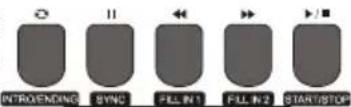
10 Intro/ Ending – Play the intro/ending of auto accompaniment
11 SYNC - Open/Close sync function
12 FILL IN 1 - Fill in variation1
13 FILL IN 2 - Fill in variation2
14 START/ STOP – Start or stop to play accompaniment
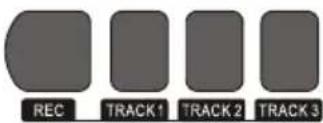
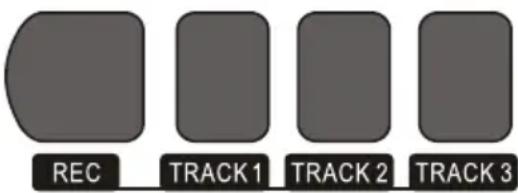
15 REC - Start the record function
16 TRACK 1 - Choose track 1 in record
17 TRACK 2 - Choose Track 2 in record
18 TRACK 3 - Choose Track 3 in record
19 METRONOME - Open or Close metronome
20 TRANSPONSE v/∧ - Transposing
21 SOUND CONSOLE – Enter into sound console menu
22 LCD-Bildschirm – Display all important setting information about this equipment

text_image
23 24 25 PIAND STYLE VOCE 32 33 34 35 SONG LESSON LEFT RIGHT 1 2 3 + 26 4 5 6 0 7 8 9 - 27 28 29 DUAL REVERB CHORUS VOLUME A 36 37 38 39 40 STOCK M1 M2 BANK PLAY/PAUSE ^ SONG 30 31 MP2 FUNCTION 4123 PIANO - Open or close piano performance mode
24 STYLE – Switch to style function state
25 VOICE - Switch to voice function state
26 Number/ +, - Adjust parameters
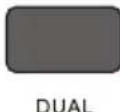
27 DUAL - Open or close dual voice function
28 REVERB
29 CHORUS
30 SONG ∨ VOLUME ∨ - Switch to previous song MP3
Press this button longer time to reduce MP3 play volume
31 SONG ∨ / VOLUME ∧ - Switch to next song MP3 Press this button longer time to increase MP3 play volume
32 SONG - Switch to song function state
33 LESSON – Enter into learning mode
34 LEFT - Choose left hand voice part of learning songs
35 RIGHT – Choose right hand voice part of learning songs
36 STORE
37 M1 - To tune out panel setting1 promptly
38 M2 - To tune out panel setting2 promptly
39 BANK - Switch memory bank
40 PLAY/PAUSE - Play/ Pause MP3
41 Open/close power
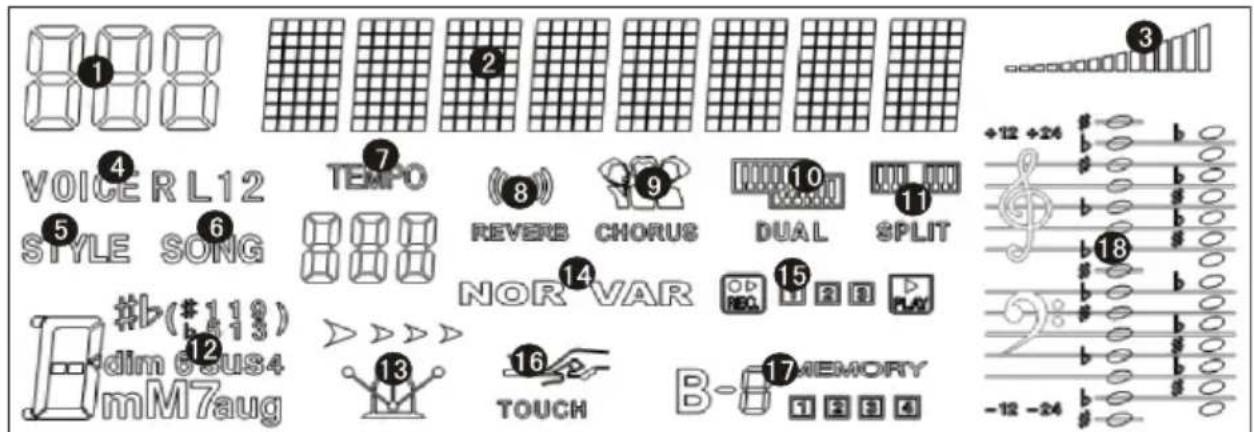
LCD-Bildschirm
text_image
1 2 3 4 VOICER L12 5 STYLE SONG 6 TEMPO 7 REVERB CHORUS 8 DUAL SPLIT 9 NOR VAR 10 11 14 15 16 TOUCH MEMORY 17 B-1 MEMORY dim 6#us4 mM7aug1 Digital code display area
2 Characters display area
3 Volume
4 Voice selection
5 Style selection
6 Songs
7 Tempo
8 Reverb
9 Chorus
10 Dual voice
11 Keyboard split
12 Chord display area
13 Metronome
14 FILL IN1/FILL IN2
15 Record/Play 16.Touch
16 State memory
17 Staff display area
Rückseite

text_image
39 40 41 42 43 44 45 USB (TO DEVICE) OUTPUT SUSPEDAL IN—MIDI—OUT USB (TO HOST)- External power jack
- Connect to external power adaptor 40.USB(MP3) equipment jack
- Connect USB equipment 41. Audio out jack
- Connect to external audio equipment 42.Pedal input jack
- Connect to pedal 43. MIDI IN jack
- Receiving MIDI information that was sent out by external MIDI equipment or computer 44.MIDI OUT jack
- Sending data of this piano to computer or MIDI equipment by this jack 45.USB(MIDI) jack
natural_image
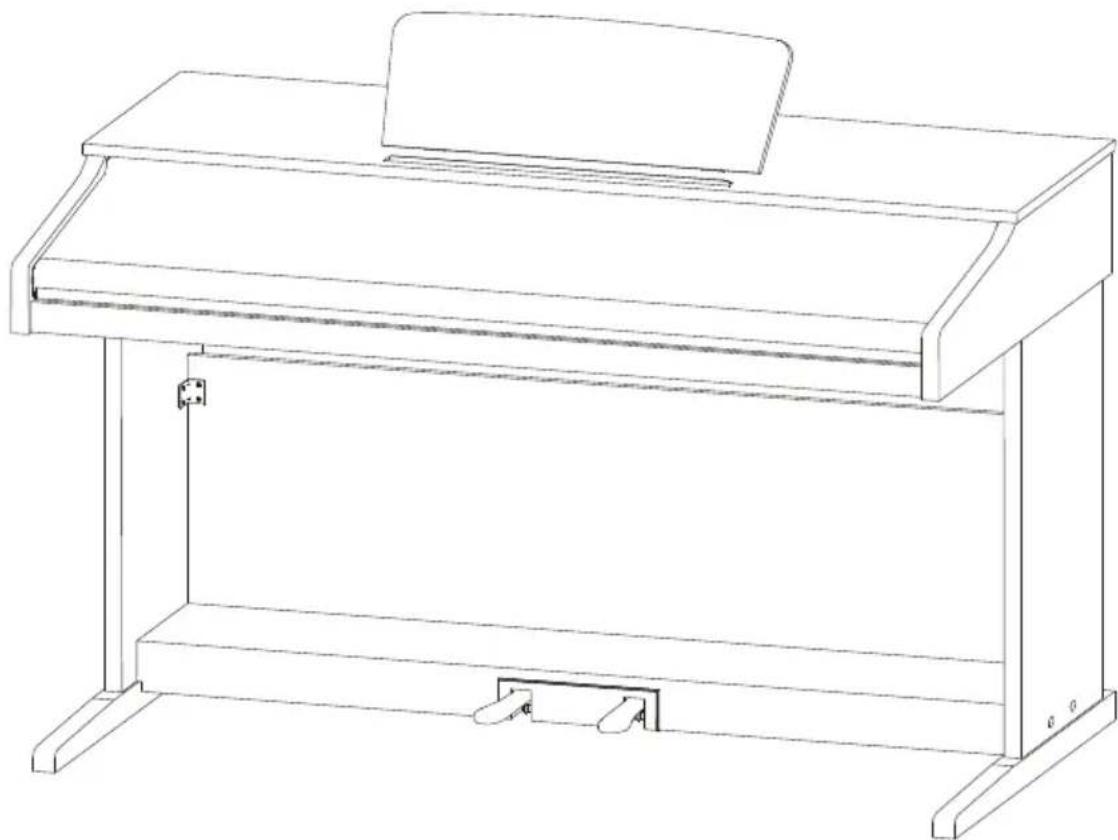
Line drawing of a piano with a flat top and two side legs, no text or symbols presentINSTALLATION
Assembly parts
| 1 |  | brown plastic cover 4pcs |
| 2 |  | M6*50 screws 4pcs |
| 3 | [68mm] | PA4*16 screws 6pcs |
| 4 | [1077] | M6*20 screws 4pcs |
| 5 | [19K4A] | Corner connectors of piano brackets 2pc |
| 6 | [177K4] | BA3*8 screws 8pcs |
Piano body assembly
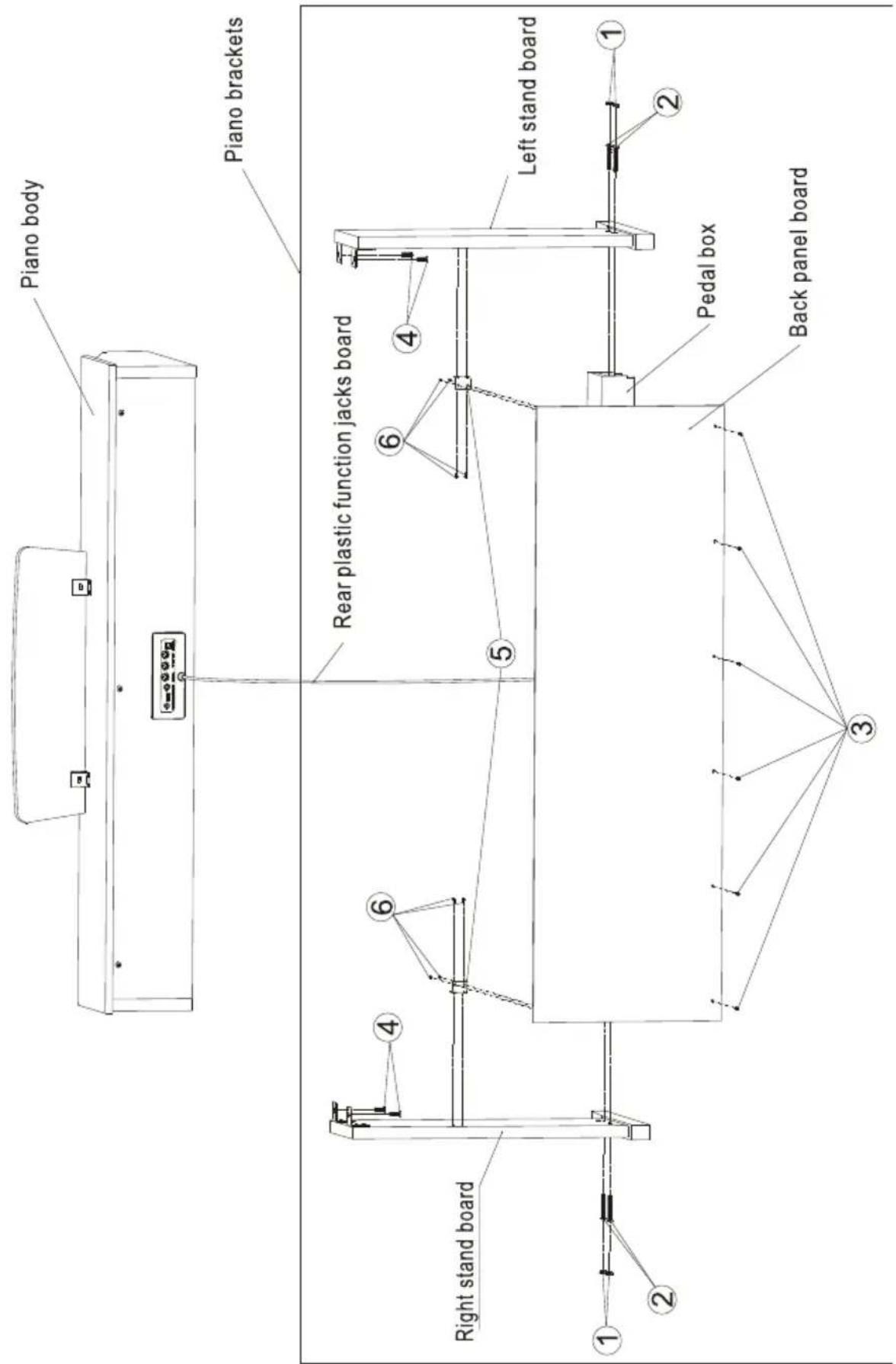
- Using 4pcs of M6*50 screws to connect left&right stand boards with pedal box.
- Using 4pcs of PA3*8 screws to fix one side of two corner connectors onto the back panel board.
- Using 4pcs of BA3*8screws to fix another side of the two corner into the left&right stand boards.
- Using 6pcs of PA4*16 screws to fix the bottom of back panel board to the pedal box. 5. Put the piano body on the left&right stand boards, fix it with 4 pcs of M6*20 screws.
- Cover with 4 pcs brown plastic covers on the screws holes.
- Put the pedal connect line midi plug into the piano body pedal jack.
text_image
Piano body Piano brackets Rear plastic function jacks board Right stand board 1 2 3 4 5 6 4 6 Left stand board Pedal box Back panel board- Please make sure that this instrument is at off state before connecting power.
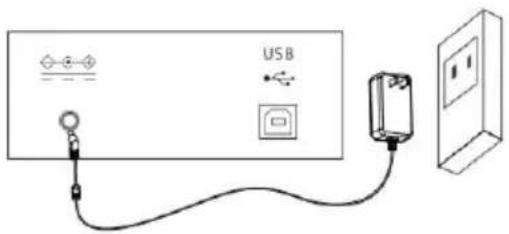
- Connect power adaptor to the DC jack of this instrument.
- Insert plugs of power adaptor into AC power socket.
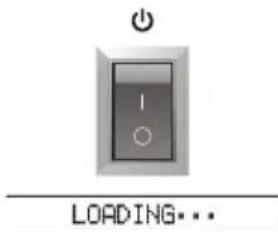
- Pressing down [power] button, LCD screen displays "Loading." Indicating that this piano has been opened.
Notice For safety purpose, please cut off the power of this instrument when you don't use it or suffer thunderstorm weather.
text_image
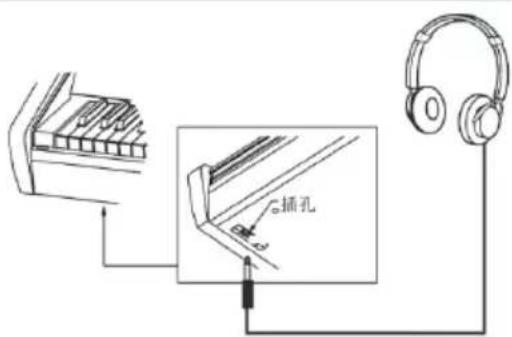
USBConnect headphone
- You can insert stereo headphone into phone jack of this piano when you need exercise alone or play it late at night.
- The speakers of this instrument will cut off automatically after headphone was entered into phone jack, the sound can only be heard from headphone, You can play as much as you can, you aren't afraid to disturb others.
Notice: Please avoid using headphone for long time high volume, or else, it will cause human ear fatigue, moreover, hearing damage.
text_image
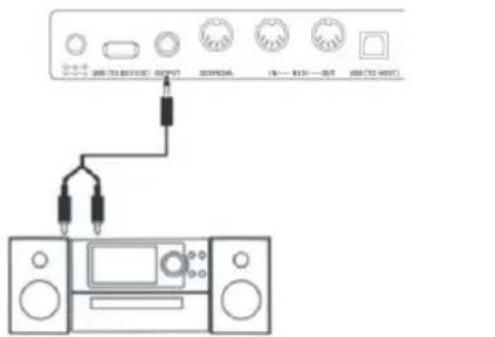
插孔Connect audio equipment
- Connecting this piano with external acoustics equipment, better music effect can be got. The audio out jack in rear panel can be used to connect to keyboard volume amplifier, Stereo acoustics systems, Sound console, Recorder or other equipment Using audio line to connect audio equipment to audio out jack of rear panel, Connecting another end to audio input jack of other equipment.
Note: Before connecting other equipment, please make sure that the power of all equipment had been closed, moreover, please make sure that volume setting of every parts had been adjusted to lowest value before opening power of equipment at the same time.
text_image
Diagram showing audio equipment connections with labeled buttons and audio devices, including a monitor and audio jack.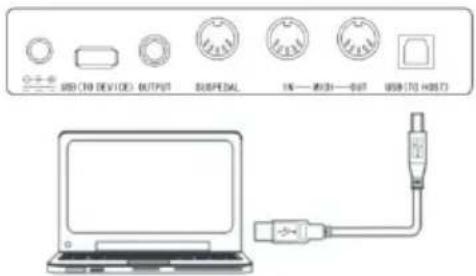
text_image
USB (70 DEVICE) OUTPUT SUSPEDAL 1K—W301—W37 USB (70 H65T)Connect computer
- This pian supplies one USB jack, it can be connected to personal computer. You only need one USB line, one end was inserted into USB jack of this piano, other end was inserted
into USB port of computer, it can transfer information with computer in both direction. Such as you can store the music that you had played on this piano to the computer, you also can play MIDI document of your computer by this piano as well.
Note: The USB audio equipment cannot be set for input and output at the same time when you do the setting of the computer softwa or else the sound will be overlapping when you play the keys.
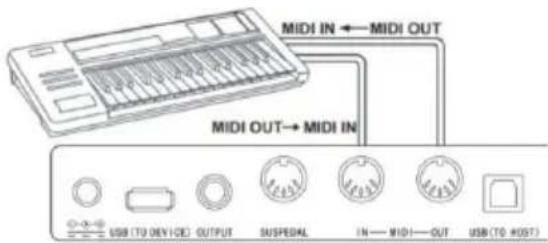
Connect to other equipments
- Connecting MIDI IN of this instrument to MIDI OUT of other equipment, you can use this instrument as sound source.
- Connecting MIDI OUT of this instrument to MIDI IN of other equipment, you can use this instrument as MIDI controller.
Connect pedal
Three pedals group parts was connected to SUSPEDAL jack of rear panel of piano, then, this piano can own three different function pedal: Soft Pedal, Sustain Pedal:
1. Soft Pedal
The soft pedal was stepped on, the played notes will occur pianissimo effect.
2. Sustain Pedal
The sustain pedal was stepped on, the played notes will occur sustain effect.
Connect USB equipment
- The piano support to connect largest 32G USB equipment, such as U plate etc.
- The MP3 files in USB equipment can be played.
Note: Do not not pull out USB equipment in playing process, or else it will cause mistake or USB equipment damage.
text_image
MIDI IN ← MIDI OUT MIDI OUT→ MIDI IN USB (TO DEVICE) OUTPUT SUSPEDAL IN— MIDI—OUT USB (TO HOST)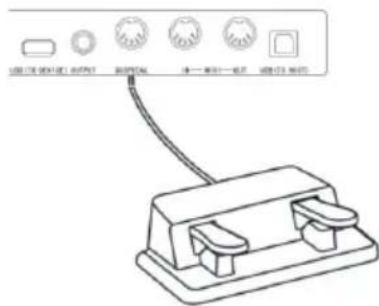
natural_image
Simple line drawing of a USB device with an arrow pointing to it, no text or symbols present.Power switch
- Firstly, Please make sure that the power had been connected correctly.
- Press down Power button, LCD display screen will become lighter, displaying boot screen, indicating that the piano had been opened.
Note: The LCD screen hasn't been lighted if you had press down.
Adjust volume
To rotate Master Volumeknob to the right after the piano was opened, the overall volume will become larger from smaller, to rotate Master Volume knob to the left, the overall volume will become smaller from larger. You can adjust the volume based on your requirement.
Play various kinds of instruments voice
- This piano has built-in hundreds kinds of vivid voice, including the timbre of chinese folk music, percussion tone etc.
- The detailed information, please see voice list. We also supply the effect function that it is relative to voice for your better playing voice.
Choose and play voice (Master voice)
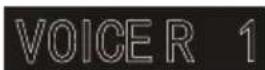
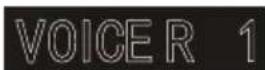
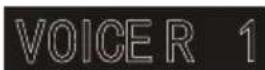
- Pressing Tone button, The voice selection mode can be entered into, the reminding mark "R1" lights in LCD at the same time, moreover, the present voice name and no. display as well.
- Using number button and +/- button to choose the voice that you need.
- To play keys to start play and appreciate wonderful voice.
To change voice selection sourcing you can press Voice button again and again if you had opened dual voice function. The corresponding R1/R2/L cursor will switch to light to display in LCD display screen.
Play two kinds of voice Dual voice
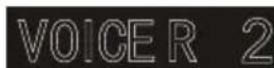
This piano has dual voice function, The casual two kinds of voice can be superposed and sounded at the same time by this function. The new voice effect will occur to enrich the layers of music. It seems that two kinds of instruments play at the same time. The voice will be fist "R1"voice before the dual voice function was started, The chosen voice will be second "R2"after dual voice function had been started.
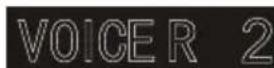
- Pressing Dual voice button to open dual voice function, The "R2" mark lights in LCD, the present dual voice name and No. Display as well at the same time.
- To choose the dual voice that you want to play by number buttons and +/-buttons.
text_image
LOADING...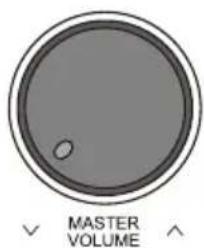
text_image
MASTER VOLUME
- The voice effect that was superposed by two kinds of different voices can be heared when you play the keyboard, it seems that two kinds of instruments are playing at the same time.
- Press Dual voice button again, the dual voice effect can be closed, "R2" cursor goes out in LCD, LCD display screen recovers previous state.
.When the music range of keyboard was divided, Only the keyboard in right hand area has dual voice function, the keyboard in left hand area doesn't have this function.
Touch Response
The keyboard of this piano has touch response function, It can help to enrich performance expression. It can reflect the touch that you had used to every notes correctly, It seems that you are playing real instrument. This piano has three pcs touch curves for choosing.
- Press Touch button to enter into touch function choosing state. The touch curve no of present keyboard displays in LCD screen temporarily, The default touch curve is second one in Boot-Up State, there are three pcs touch curves in total(001-003).
- Choose touch curve In the state of touch curve that displays in LCD screen temporarily, you can choose different touch curves by press Touch button continuously.
- Close touch response The present touch displays "OFF" in LCD, The relative "Touch" state mark goes out in LCD, it indicates that present keyboard is without touch response state.
Transpose
To use transpose function, you do not need to change play way, you can adjust the pitch of full keyboard in the unit of semitone.
- Press down Transpose or Transpose button to enter into transpose setting state, The present transpose value "xxx Transpos" displays in LCD temporarily.
- Adjust transpose value When transpose value "xxx Transpose" displays in LCD screen temporarily, you can press Transpose / button continuously to adjust keyboard pitch, the largest adjusting scope is ± 12 pcs seminote.
- The transpose value will recover to default "000 Transpose" if you press down Transpose ∨ ∨ button at the same time.
Note: If you want to play one G tone music, but you aren't familiar with
G tone keyboard, you can set transpose parameter for -05 or 007 at this time, you can use C tone pitch to play to produce G tone real pitch at this time. This parameter adjustment is valid for full keyboard and auto chord accompaniment.

Piano performance mode
This piano designs this function specially, you can tune out piano tone of full keyboard promptly in other state.
- Pressing Piano button, the piano performance mode can be entered into or exited directly.
- Choosing and starting style in piano performance mode. The accompaniment control can be operated same other mode, but style only play percussion music part, there is no harmony accompaniment part.
Note: The sound console function and function menu can be entered into in piano performance mode. The chord function will be closed automatically after the piano performance mode was entered into.

PIANO
Metronome
If you are afraid that you are't sure about beat when you are practing music or recording, you can get special metronome reminder by metronome function.
- Open Metronome
Pressing Metronome button to open metronome function, beat sounds, Pressing Metronome button again to close metronome function.
- Metronome style setting
Please jump to beat type setting in function menu to see setting method.
Notes:
- If the metronome was opened in style playing process, the beat sound will be responded to at the beginning of next beat, the beat point will change followed styles.
- If the metronome was opened fistly, then, play style, this piano will adjust metronome automatically at the same time that the first beat of style sounded to make it match with styles.
- The metronome can be opened in recording, but the sound of metronome wasn't stored as recorded data

METRONOME

Accompaniments
Playing various kinds of style accompaniments
Using auto accompaniment function, you play piano alone and you can enjoy the accompaniment effect of whole band, moreover, the Orchestra, you only need to start the different styles of accompaniment that you had chosen and use left hand to play suitable chord, the music will go ahead all the time.
This instrument has built in various kinds of auto accompaniment (The detailed information, please see style appendix list), you can choose your favorite accompaniment style and enjoy the pleasure that accompaniments bring to you as much as you can.

STYLE

Play auto accompaniment (Only play percussion music voice part)
-
Pressing Style button to enter into style mode. The top-left "STYLE" reminder marking lights in LCD and displays present style name and seria no.at the same time.
-
Choose style
You can choose the styles you need by number buttons or +/-buttons.
- Start style
The percussion music part of style can be played immediately by pressing Start/Stop button, you also can press Sync button to make the style to be in sync stat. .The beat point shines in LCD at the same time, then, play any keys to start style percussion music performance
Accompaniment Paragraphs
The auto accompaniment itself of this piano contains many kinds of different accompaniment paragraphs, it is convenient that you arrange your own accompaniments in various kinds of ways. These paragraphs including: Main play(A B) FILL IN(1 2) Intro Ending. When you play accompaniment, you can make more professional performance effect easily by simple switch of these paragraphs.
- Intro part
Intro is suitable for the beginning of one music, when the intro was played over, the accompaniment will enter into preset main play part. The length of intro will be different based on the difference of chosen style type.
- Main play part
Main play is suitable to the main part of one song, the main play will loop play all the time before you had pressed other style control button.
- FILL IN PART
It can produce various kinds of rich change for songs by FILLING IN paragraph 1 or 2, It enables your performance to be more professional. The accompaniment will switch to relative main play part automatically when FILL IN paragraphs had been played over.
- Ending sound part
Ending sound is suitable to the ending of one song, The song will stop immediately when the ending sound was played over, the length of ending is relative to chosen styles.
Note: Holding one of FILL IN1, FILL IN2 button when the accompaniment are going on, the variation will be loop filled in , until releasing this button to enter into relative main play part. Pressing FILL IN button will change initial default main play paragraph in the state that the accompaniment has stopped, LCD display screen will display relative marking.
Play different accompaniment paragraphs
-
Pressing STYLE button, the styles can be chosen by pressing +/- button, numbers buttons at this time.
-
Pressing AUTO CHORD button to enter into auto bass chord mode.
-
Pressing SYNC button to open sync start function.
-
Pressing FILL IN 1 to choose main play 1.
-
Pressing INTRO/ENDING button, FILL IN - "NOR" marking continue to shine in LCD. The style is in play preparation state at this time.
-
The auto accompaniment will start immediately when you pressed one chord in left hand area of keyboard.
The accompaniment will switch to relative main play part when intro part was played over.
- Pressing FILL IN 2 button, one small paragraph of variation will be filled in the accompaniment that are playing at this time.
The accompaniment will switch to relative main play 2 automatically when the variation was played over.
- Pressing INTRO/ENDING button, the accompaniment will enter into ending part at this time, the auto accompaniment will be stopped when the ending was played over.
Accompaniment volume control
The accompaniment volume is used for adjusting the overall volume of auto accompaniment. This function can get balance between auto accompaniment part and the volume of keyboard tone.
- Pressing ACCOMP VOLUME / the LCD display screen. will displays present accompaniment volume size temporarily, the accompaniment volume size can be adjusted by pressing ACCOMPANIMENT VOLUME /ACCOMPANIMENT
- VOLUME again at this time. Adjustment range:0\~127.
- Pressing ACCOMPANIMENT VOLUME v and ACCOMPANIMENT VOLUME ∧ buttons at the same time, the accompaniment volume can be closed. LCD display screen displays "Accompaniment volume OFF". The accompaniment volume can be opened by pressing ACCOMPANIMENT VOLUME v and ACCOMPANIMENT VOLUME ∧ buttons again at the same time.
Tempo
Every style has different best tempo value, you can change tempo value based on your hobby and songs requirement.
- The initial default tempo value can be changed byTempo v /Tempo ▲ button.
- The tempo can recover initial default value by pressing Tempo ∨ /Tempo ∧ buttons at the same time.
Note: The tempo will be set for the preset value of present style automatically if you choose style when the styles stopped, The tempo will keep same if you switch style when the style are playing.
Chords
Auto chord
Pressing Auto Chord button to start auto accompaniment, The left hand will be automatic chord area at this time.
Full rang chord
Pressing FULL RANGE CHORD button, all keyboard can be played chord sound at this time.
Chord close
Pressing CHORD CLOSE button, the chord accompaniment sound stops, the style continue to play.
Chord list
| Original name | Abbr. | Normal pronunciation |
| MAJOR | M | 1-3-5 |
| MAJOR SIXTH | M6 | 1-3-5-6 |
| MAJOR SEVENTH | M7 | 1-3-(5)-7 |
| MAJOR SEVENTH SHARP ELEVENTH | M7#11 | 1-(2)3# 4-(5)-7 |
| MAJOR ADD NINTH | Madd9 | 1-2-3-5 |
| MAJOR NINTH | M9 | 1-2-3-(5)-7 |
| MAJOR SIXTH ADD NINTH | 69 | 1-2-3-(5)-6 |
| AUGMENTED | aug | 1-3- ^\# 5 |
| MINOR | m | 1^b 3-5 |
| MINOR SIXTH | m6 | 1^b 3-5-6 |
| MINOR SEVENTH | m7 | 1^-b 3-(5)-7 |
| MINOR SEVENTH FLATTED FIFTH | m7^b 5 | 1-3-5-7 |
| MINOR ADD NINTH | madd9 | 1-2-3-5 |
| MINOR ADD NINTH | m9 | 1-2-3-5 |
| MINOR MAJOR ELEVENTH | m11 | 1-3-(5)-7 |
| MINOR MAJOR SEVENTH | mM7 | 1^-b 3-(5)-7 |
| MINOR MAJOR NINTH | mM9 | 1-2-3-(5)-7 |
| DIMINISHED | dim | 1-3-5 |
| DIMINISHED SEVENTH | dim7 | 1-3-5-6 |
| SEVENTH | 7 | 1-3(5)-7 |
| SEVENTH SUSLEND FOURTH | 7sus4 | 1-4-5-7 |
| SEVENTH NINTH | 79 | 1-2-3-(5)-7 |
| SEVENTH SHARP ELEVENTH | 7^\# 11 | 1-(2)3- ^\# 4-(5)-b7 |
| SEVENTH THIRTEENTH | 713 | 1-3-(5)-7/2-3-5-6-7 |
| SEVENTH FLATTED NINTH | 7^b 9 | 1-2-3-(5)-7 |
| SEVENTH FLATTED THIRTEENTH | 7^b 13 | 1-3-5-6-7 |
| SEVENTH SHARP NINTH | 7^\# 9 | (1)- ^\# 2-3-(5)-7 |
| MAJOR SEVENTH AUGMENTED | M7aug | 1-3 ^\# -5-7 |
| SEVENTH AUGMENTED | 7aug | (1)-3- ^\# 5-7 |
| SUSPENED FOURTH | sus4 | 1-4-5 |
| ONE PLUS TWO PLUS FIVE | 1+2+5 | 1-2-5 |
Reverb
- Pressing REVERB button, the reverb effect can be opened or closed.
- The reverb effect was opened, the reverb cursor will light.
• The reverb effect was closed, the reverb cursor will go out
Chorus
- Pressing CHORUS button, the chorus effect can be opened or closed.
- The chorus effect was opened, the chorus cursor will light. The chorus effect was closed, the chorus cursor will go out.
Sound console
- The played volume of every tracks can be controlled solely by sound console function.
-
Pressing SOUND CONSOLE button to enter into sound console function menu. LCD will display corresponding value temporarily. The first time to enter into the sound console menu when the power is on, The first option is "Percussion music track volume" of sound console menu, The option that was entered into again later is same as the option that exited from last time.
-
Pressing SOUND CONSOLE button again and again to choose the track item that you want to do the setting, then, pressing -/+ buttons to set parameters.
Concrete function items and parameters range are as following list
| Adjustment content LCD display Adjustment range | ||
| Percussion music track volume XXX | Rhythm 0 - 127 | |
| Bass track volume XXX Bass 0 - 127 | ||
| Harmony track volume XXX Chord | 0 - 127 | |
| Phrase track volume XXX Phrase 0 | 127 | |
| left hand track volume XXX Lower 0 | - 127 | |
| Right hand track volume | XXX Upper 0 – 127 |
Note
If there is no any setting operation in 5 seconds in sound console setting state, the sound console function state will exit automatically.
Pressing FUNCTION MENU button to enter into function menu, LCD displays present function menu option temporarily, to set the parameters of present menu by pressing -/+ buttons.
Concrete function items and parameters range are as following list
| Serial no. | Adjustment content LCD Display Adjustment range Presetting value | |||
| 1 Tune XXX Tune -50 - +50 000 | ||||
| 2 Keyboard split XXX KeySplit 1 - 88 034 | ||||
| 3 Beat type XXX BeatType 0, 2 - 9 004 | ||||
| 4 Metronome volume XXX | 0 - 127 | 080 | ||
| 5 Reverb depth XXX | 0 - 127 | 050t | ||
| 6 Chorus depth XXX | 0 - 127 | 000 | ||
| 7 MIDI Receiving XXX | 1 - 16, ALL | ALL | ||
| 8 MIDI Sending XXX | 1 - 16 | 001 | ||
Note: If there is no any setting operation in 5 seconds in sound console setting state, the sound console function state will exit automatically.
Tune setting
This function is used to adjust pitch detailedly.
- Pressing FUNCTIN MENU button to select tune menu, LCD displays "xxx Tune" temporarily. You can press + / - buttons to adjust pitch, the largest adjustment range is ±50 it is to rise or reduce one half-tone.
- Pressing + and - buttons at the same time, the pitch will recover to presetting value 000. This parameter adjustment is valid for keyboard and style.
Keyboard split setting
The position to split auto bass chord area and right hand area in keyboard is called "KEYBOARD SPLIT POINT". The keyboard in left hand area are used for controlling auto bass chord accompaniment generally when auto bass chord function was opened, the keyboard in left hand area also can be used for playing voice.
- Pressing [FUNCTION MENU] button to choose keyboard split point setting menu.LCD displays "xxx KeySplit" temporarily,You can press [-]/[+]buttons to set keyboard split point at this time, you also can play keys directly to do prompt setting. The adjustment range:1-88.
- Pressing [-]and[+]buttons at the same time.the keyboard split point will recover to presetting value:F#3 (34).
Beat type setting
- Pressing FUNCTION MENU button to choose keyboard split point setting menu, LCD displays "xxx KeySplit" temporarily, You can press -/+buttons to set keyboard split point at this time, you also can play keys directly to do prompt setting. The adjustment range: 1\~88.
- Pressing - and + buttons at the same time, the keyboard split point will recover to presetting value: F#3
Metronome volume setting
- Pressing FUNCTION MENU+ or FUNCTION MENU- button to choose metronome volume setting menu, LCD displays "xxx MetroVol" temporarily, You can press +/-button to set metronome volume at this time, range:0\~127. 2. Pressing + and - buttons at the same time, metronome volume will recover to presetting value:080.
Reverb depth setting
- Pressing FUNCTION MENU button to choose reverb depth setting menu, LCD displays "xxx ReverbLev" temporarily, You can press -/+ button to set reverb depth at this time. Range:0\~127.
- Pressing -/+ buttons at the same time, reverb depth will recover to presetting value: 050.
Chorus depth setting
- Pressing FUNCTION MENU button to choose chorus depth setting menu, LCD displays "xxx ChorusLev" temporarily. You can press -/+ button to set chorus depth at this time. Range:0\~127.
- Pressing - and + buttons at the same time, Chorus depth will recover to presetting value:000.
MIDI Sending setting
- Pressing FUNCTION MENU button to choose MIDI sending channel setting menu, LCD displays "xxx Midi Out" temporarily. You can press -/+ button to set MIDI sending channels at this time. Range: 1\~16
- Pressing - and + buttons at the same time, MIDI channel will recover to presetting value:001.
Pressing - and + buttons when power is off, then, open the power, the system will recover to factory rest, and delete all users' data in this piano, including: Users' songs, users' registration memory. The LCD will display "Wait...!". The system will be entered into automatically after deletion was finished, then recover to normal open state.
Panel registration memory setting
This instrument has panel registration memory function, it can be used for saving your most favorite setting as to the setting can be tuned out easily and promptly when you need it, moreover, it can enable your performance to be more efficient. Panel registration memory function can almost store all setting of panel, you only need to press one button simply, the setting can be tuned out immediately.
Save setting to storage
- This instrument has 4pcs registration memory banks, every registration bank includes 2 groups storage memory state (M1\~M2).
- When you press STORE button, press one of M1 - M2 button at the same time, present panel can be set to registration memory. Please notice: This operation will cover previous stored registration memory.
Note: Holding STORE and M1 buttons at the same time, open the power again, all registration memory will all recover to factory reset state at this time.
Tune out registration memory
Pressing one of M1 - M2 button to tune out one group setting to replace present state.
Choose memory bank
- Pressing BANK button, LCD displays memory bank serial no.temporarily.
- Pressing BANK button again and again at this time, you can choose to set memory bank. Range:1\~2.
- The following content can be stored in M1-M2 storage memory state.
• Voice parameters: Main voice Dual voice, Keyboard split, point voice, Digital effect, Sound console.
- Accompaniment parameters: Style tempo Auto bass chord open/close paragraphs selection.
- Function parameters: Touch partial parameters in function menu.
Song control
- Guiding beat function
The song will have guiding beat instructions before intro was played formally.
- Fast forward Fast backward
Play/Pause and stop functions of songsn
- Pressing down ▶ button can speed up to play songs when songs are playing, pressing down ◀ button can return back songs.
- Pressing down ▶ / ■ button again to continue to play songs.
- Pressing down II stops playing present songs.
- The fragment loop function of song
- Pressing down ⬆ kbutton can set starting point and ending point of loop play when the song are playing, pressing this button first time to set loop starting point, pressing this button second time to set loop ending point, when ending point was finished setting, the song will loop play the content between the two points.
- Pressing down ⬇ button can exit loop and continue to play songs in the state of fragment loop.
Record your own songs
The record function of this piano can record/replay your performance, you can appreciate your
own opus by replaying.You can record many pieces of users'songs in this piano, every song can record 3pcs tracks at most, it is 1pc accompaniment track and 2pcs melody tracks.
The accompaniment track was used for recording style, it is songs'accompaniment, The melody track was used for recording playing melody. The accompaniment track and melody track can
record at the same time, but, it can't record 2pcs melody tracks at the same time, of course, you also can only record melody or accompaniment separately; The accompaniment track and
melody track can replay at the same time.
The users'song has storage function if there is power-fail, the data cann't loss when the power is off.
text_image
REC TRACK 1 TRACK 2 TRACK 3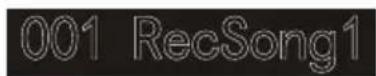

Start record
You need to choose one pc user's song that will be used for storing record before the record was starting and set record tracks.
-
Pressing RECORD button to enter into users'songs selection interface. The left top of LCD displays serial no. of users'songs, The characters display area displays users' songs name, The default name is "RecSong1". You can choose users'songs that need to store record by -/+ buttons.
-
Pressing RECORD button to enter into record preparation state, "REC" marking leights in booth part of LCD . 4 pcs beat pints shine at the same time in beat display area. This piano will choose one melody track that has not data to store your record automatically. The track cursor shines in LCS. I refers to the present track that stored record.
-
You can choose voice style adjustment tempo etc. that you want to record in record preparation state. You can press TRACK1, TRACK2, TRACK3 button to choose the tracks that you want to record, it means that the track was chosen when cursor shines. The accompaniment track and melody track can record at the same time, but can't record 2pcs melody tracks at the same time.
-
To press START/STOP button or play piano's keys directly to start record after the record tracks were chosen. When the record accompaniment was chosen and the auto bass chord accompaniment function was opened, to play one effective chord in keyboard left hand area, the record can be started as well.
Notes
- The style data can only be recorded in accompaniment track
- „The record track cursor has three kinds of state: Shine, Light, Go out.
- Shining, it means that this track has been chosen for record, if this track has already have data, the original data will be covered if you continue to record in this track. Lighting, it means that this track has data, It wil replay recorded data synchronously in record process. Going out, it means that this track has no data or has data, but has been prohibited to replay when the record was going on. The tracks state can be switched by pressing TRACK1 \~ TRACK3 again and again in record preparation state.
- This piano will choose one empty melody track to store record automatically (the system will choose automatically in the order of small to large.such as:if track2 has data, then, the system will choose track3 to store this time record)in record preparation state, if two tracks had already have data, then, it will choose track2 to store record.
- Track1: Accompaniment track
- Track2/Track3: Melody track
Stop record
- Pressing Start/Stop button can stop record immediately in record process. Pressing Style or Voice selection button can enter into other function.
- If the internal memory is full, the record will stop and store automatically in record process, "Rec_ull" will display in LCD temporarily to remind that the internal memory has been recorded full.
- The record will stop automatically after the style had played ending over if you had chosen record ccompaniment.
Replay recorded songs
- The record wil stop and enter into songs state automatically and loop play previous recorded users'songs immediately if RECORD button was pressed in record process.
- Pressing SONG button to enter into song state in standby mode, all songs will loop play automatically. The serial no.of users' songs can be selected directly by pressing -/+ buttons, such as: If there is no
text_image
REC TRACK 1 TRACK 2 TRACK 3recorded data in one user's songs, "NoFile!" will display in LCD display screen, reminding that there is no recorded data in present files, moreover, the loop play will stop.
- Choosing one user's song that has data in the state that songs has stopped. Pressing START/STOP button to start loop play this song.
Delete recorded songs
- Pressing RECORD and SONG at the same time when the power is off, then, open the power, all users' songs will be cleared.
- Pressing RECORD button for 2 seconds to enter into tracking deleting state in record preparation state, The LCD displays "Delete?".Pressing TRACK1, TRACK2, TRACK3 to choose the track you want to delete in deleting state, when the cursor of one certain track lights, it indicates that the data of this track will be deleted, when the cursor of track goes out, it indicates that the data of this track will be kept.If the cursors of all tracks light, the data of complete song will be deleted when the deleting operation was carried out.
- Pressing + button to carry out deleting operation after the tracks that you want to delete was chosen, it will return to record preparation state automatically after the operation was finished, Pressing - button to cancel deleting operation and return to record preparation state.
MP3 Play
MP3 Jack: MP3 song can play by this jack
- Pressing Play/Pause button can switch present state of songs Pressing Song button, one song goes backward, pressing
- Volume button for longer time, the volume will reduce small. Pressing Song button, one song goes forward, pressing
• Volume button for longer time, the volume will increase large.
Play and control songs
This instrument has presetting many kinds of different types songs. Every song has learning function. (For detailed information, please see songs list).
Appreciate songs
- Pressing SONG button to enter into song mode, LCD lights "SONG" marking, All songs will begin with loop play now.
- You can choose the songs that you want to appreciate by numbers button or -/+ buttons.
- To press START/STOP button to stop playing in the state that songs are playing, but doesn't exit song state, pressing START/STOP button again, the present song will loop play.
- Pressing STYLE, RECORD, VOICE, DUAL VOICE etc function buttons, the song mode can be exited when the song has stopped playing.
Song learning mode
The learning function of song are consist of Lesson Left Right these three buttons, these three buttons are valid only in song mode. All songs can be learned by three mode: Durationlearning, Pitch learning and play mode. This piano can give score based on your learning situation when the learning was over, it helps you to make progress continuously in learning process.
-
Enter into song learning mode Pressing Lesson button to enter into song learning mode in the state of the song had been stopped play.
-
Choose left hand or right hand to learn songs. The songs of this instrument can be chosen for three different kinds of way to learn. You can choose the learning part you need by Left or Right buttons, if you haven't proceed with selection, the system will choose right hand learning for you automatically.
The content of left hand learning will aslo be different based on different songs type. For style type songs, the left hand will be used for learning chords; For piano songs, the left hand will be used for learning part melody of left hand. The MIDI type songs doesn't support left hand learning function. The staff and chord display area in LCD will display melody or chords of songs when the songs are playing, It is convenient for following learning.
Learning mode1: Duration learning
-
Pressing Lesson button to enter into learning mode1 in the state that the songs were stopped playing. "Les1 R" will displays in LCD temporarily. The system will estimate the played duration of learner, it doesn't estimate the correctness of notes and chords in learning mode1, the song plays normally.
-
Pressing Start/Stop button to begin with songs learning. If you choose right hand to learn songs, the melody part of right hand will be concealed. The learner only needs to play correct duration, the melody will sound in the process of song playing, it is no need to consider that the played notes are correct or wong. If you choose left hand to learn songs, the chords of songs or left hand melody part will be concealed, the learner only need to play correct duration, it is no need to consider that the played.
Learning mode2: Pitch learning
-
Pressing Learn button repeatedly to enter into learning mode2 in the state that song has been stopped play. "Les2 R" reminder marking lights in LCD. The system only estimates the correctness of pitch of notes that learner has played, The song can go ahead backwards when it needs learner to play correct notes. If the pitch of played notes is wrong, the song will be in waiting state until the correct notes was played.
-
Pressing Start/Stop button to begin to learn song, it will give estimation after the learning was over.
Learning mode3 Play mode
-
Pressing Learn button repeatedly to enter into learning mode3 in the state that song has been stopped play. "Les3 R" reminder marking lights in LCD. The system only estimate the correctness of duration and pitch that learner are playing comprehensively. The song plays normally, learner must play correct pitch based on original duration of song, then, it can be estimated correct by system.
-
Pressing Start/Stop button to begin to learn song, it will give estimation after the learning was over.
SONG LIST
| Classify No. Full English Name English Abbreviation | |||
| FOLK & COUNTRY 1 Jambalaya Jambalaya | |||
| FOLK & COUNTRY 2 Ding! Dong! Merril on High DingDong | |||
| FOLK & COUNTRY 3 Battle Hymne of the Republic Battle | |||
| FOLK & COUNTRY 4 The Old Gray Mare GrayMare | |||
| FOLK & COUNTRY 5 American Patrol USPatrol | |||
| FOLK & COUNTRY 6 Christmas is Coming IsComing | |||
| FOLK & COUNTRY 7 Sippin/Cider through a Stray SCTStraw | |||
| FOLK & COUNTRY 8 Christmas Sound Sound | |||
| GOLDEN & POP 9 On London Bridge LdBridge | |||
| GOLDEN & POP | 10 | Are You Lonesome Tonight | Lonesome |
| GOLDEN & POP 11 | Der Deitcher's Dog | DerDDog | |
| GOLDEN & POP 12 | Joy to the World | JoyWordl | |
| GOLDEN & POP 13 | Silent Night | Sltnight | |
| GOLDEN & POP 14 | Ave Maria | AveMaria | |
| GOLDEN & POP 15 | Five Hundred Miles | FHMiles | |
| GOLDEN & POP | 16 | Happy New Year | HappyNY |
| GOLDEN & POP 17 | It's beginning to look a lot like Christmas | LikeXmas | |
| GOLDEN & POP 18 | Jeanie with the light brown hair LightHair | ||
| GOLDEN & POP 19 | My Bonnie MyBonnie | ||
| GOLDEN & POP | 20 | Song oft he Pearlfisher | SongOfTP |
| CLASSICAL | 21 | Swan | Swan |
| CLASSICAL | 22 | Prelude to Act 2 (Swan Lake) | SwanLak1 |
| CLASSICAL | 23 | Valse (Swan Lake) | SwanLak2 |
| CLASSICAL | 24 | The Happy Farmer | HpFarmer |
| CLASSICAL | 25 | The Sleeping Beauty | SleepBty |
| CLASSICAL | 26 | La Traviata | LaTravia |
| CLASSICAL | 27 | Wiegenlied | Wiegenli |
| CLASSICAL | 28 | Mov.2 Adagio Non Troppo Piano Sonata No. 9 D | Sonata 9 |
| CLASSICAL | 29 | Mov.1 Andante Grazioso Piano Sonata No. 11 in A | Sonata 11 |
| CLASSICAL | 30 | Prelude in C | Prelude |
| CLASSICAL | 31 | Chinese Dance | CHDance |
| CLASSICAL | 32 | Emperors Waltz | EmprWaltz |
| CLASSICAL | 33 | March Militaire | MilMar1 |
| CLASSICAL | 34 | Symphony No.40 | Symphony |
| JAZZ & FUSION | 35 | ShanZhaShu | ShanZaS |
| JAZZ & FUSION | 36 | You are my sunshine | MySun |
| JAZZ & FUSION | 37 | June Samba | JunSamba |
| Classify No. Full English | Name | English Abbreviation | |
| JAZZ & FUSION 38 Funk Funk | |||
| JAZZ & FUSION 39 I Can... I Can... | |||
| JAZZ & FUSION 40 Sea Shore SeaShore | |||
| JAZZ & FUSION 41 Guitar & Saxphone Gt&Sax | |||
| JAZZ & FUSION 42 The Hip Hop's Night HipHopNt | |||
| JAZZ & FUSION 43 Blue Lunch BlueLunch | |||
| JAZZ & FUSION 44 Cobweb Cobweb | |||
| JAZZ & FUSION 45 Wine Wine | |||
| JAZZ & FUSION 46 Jazz Old Man JzOldMan | |||
| JAZZ & FUSION 47 Dark Eyes DarkEyes | |||
| JAZZ & FUSION 48 Carlos Carlos | |||
| JAZZ & FUSION 49 Sad | Sad | ||
| JAZZ & FUSION 50 The Jazz | TheJazz | ||
| PIANO | 51 Für Elise | FürElise | |
| PIANO | 52 Military March | Mmarch | |
| PIANO | 53 Habanera Habanera | ||
| PIANO | 54 Minuet | Minuet | |
| PIANO | 55 Austria Variation | Avariati | |
| PIANO | 56 Old Macdonald had a Farm | OldAFarm | |
| PIANO | 57 Wedding March | Wedding | |
| PIANO | 58 2-Part Invention #13 In A Minor. B.W. lii | Invention | |
| PIANO | 59 Minuet in G | MinuetG | |
| PIANO | 60 | Turkish March | TurkishM |
| PIANO | 61 Hey Diddle Diddle | HeDiddle | |
| PIANO | 62 Italian Polka | ItaPolka | |
| PIANO | 63 Moseta Dance | MosetaDn | |
| PIANO | 64 Bulie Dance | BulieDn | |
| PIANO | 65 | Waltz in A Flat Op.39 No. 15 | Waltz 1 |
| PIANO | 66 Wild Rose WildRose | ||
| PIANO | 67 Away in A Manger | AwayInAM | |
| PIANO | 68 Jack & Jill | JackJill | |
| PIANO | 69 Angels We Have Heard on High Angels | ||
| PIANO | 70 | Waltz | Waltz |
| PIANO | 71 | Did you ever see a Lassie | Lassie |
| PIANO | 72 Chopsticks Chopstick | ||
| PIANO | 73 Four Little Swans | FLSwans | |
| PIANO | 74 | Old France | OldFrance |
| PIANO | 75 Jesus Saviour pilot Me | PilotMe | |
| PIANO | 76 Eclogue | Eclogue | |
| PIANO | 77 Santa Claus is coming to towen | SantaCT | |
| PIANO | 78 Brave Cavalier | Cavalier | |
| PIANO | 79 America The Beautiful | USFair | |
| PIANO | 80 Music Box Dancer | Dancer | |
| Classify No. Full English Name English Abbreviation | |||
| 8 BEAT 1 8 Beat Piano 8BtPiano | |||
| 8 BEAT 2 8 Beat 1 8Beat1 | |||
| 8 BEAT 3 8 Beat Shuffle 8BtShufl | |||
| 8 BEAT 4 Guitar Pop 1 GtPop1 | |||
| 8 BEAT 5 8 Beat Hip Hop 8BtHiHop | |||
| 8 BEAT 6 8 Beat R&B 8BeatR&B | |||
| 8 BEAT 7 8 Beat Pop 8BtPop | |||
| 8 BEAT 8 Pop Funk 1 PopFunk1 | |||
| 8 BEAT 9 Rhythm & Beat 1 Rhy&Bt1 | |||
| 8 BEAT 10 8 Beat Disco 1 8BtDisc1 | |||
| 8 BEAT 11 8 Beat Rock | 8BtRock | ||
| 8 BEAT 12 8 Beat 2 8Bt2 | |||
| 8 BEAT 13 Sweet Beat | SweetBt | ||
| 8 BEAT 14 8 Beat Dance | 8BtDance | ||
| 8 BEAT 15 8 Beat 3 8Bt3 | |||
| 8 BEAT 16 60's 8 Beat 60's8Bt | |||
| 16 BEAT | 17 16 Beat 1 | 16Beat1 | |
| 16 BEAT | 18 16 Beat Funk 1 | 16BtFuk1 | |
| 16 BEAT | 19 16 Beat Ballad 1 | 16BtBld1 | |
| 16 BEAT | 20 16 Beat R&B | 16BtR&B | |
| 16 BEAT | 21 Pop 16 Beat 1 Pop16Bt1 | ||
| 16 BEAT | 22 16 Beat Dance | 16BDanc | |
| 16 BEAT | 23 16 Beat 2 | 16Beat2 | |
| 16 BEAT | 24 Modern 16 Beat | Modrn16B | |
| 16 BEAT | 25 16 Beat Hot | 16BtHot | |
| 16 BEAT | 26 16 Beat Modern | 16BtModr | |
| 16 BEAT | 27 16 Beat 3 | 16Beat3 | |
| 16 BEAT | 28 Cool Beat | CoolBeat | |
| 16 BEAT | 29 16 Beat Ballad 2 | A6BtBld2 | |
| 16 BEAT | 30 16 Beat 4 | 16Beat4 | |
| 16 BEAT | 31 Pop Shuffle PopShufl | ||
| POP | 32 Pop Rock 1 | PopRock1 | |
| POP | 33 Pop Dance 1 PopDanc1 | ||
| POP | 34 Pop Fusion | PopFusn | |
| POP | 35 Analog Night 1 | AnalgNt1 | |
| POP | 36 6/8 Pop | 6/8Pop | |
| POP | 37 Brit. Pop 1 | BritPop1 | |
| POP | 38 Brit. Pop 2 | BritPop2 | |
| POP | 39 Pop Hit | PopHit | |
| POP | 40 Fusion Shuffle | FusShufl | |
| POP | 41 Pop Beat | PopBeat | |
| POP | 42 Soft Beat | SoftBeat | |
| POP | 43 60's Pop | 60'sPop | |
| POP 44 Sting Latin | StigLatn | ||
| BALLAD 45 R&B Ballad 1 R&BBad1 | |||
| BALLAD 46 Guitar | Ballad GtBallad | ||
| BALLAD 47 Ballad | Rock BalladRk | ||
| BALLAD 48 Piano pop PianoPop | |||
| BALLAD 49 Soft Ballad SoftBald | |||
| BALLAD 50 Natural Ballad NatuBld | |||
| BALLAD 51 Love Ballad LoveBld | |||
| BALLAD 52 Easy Ballad EasyBld | |||
| BALLAD 53 Slow Ballad SlowBald | |||
| BALLAD 54 Folk Ballad FolkBld | |||
| BALLAD 55 Pop Ballad 1 PopBld1 | |||
| BALLAD 56 EP Ballad EPBallad | |||
| ROCK | 57 Rock | Rock | |
| ROCK | 58 New Wave | NewWave | |
| ROCK | 59 Ska | Ska | |
| ROCK | 60 Slow Rock | SlowRock | |
| ROCK | 61 70's Rock & Roll | 70's Rock | |
| ROCK | 62 Folk Rock | FolkRock | |
| ROCK | 63 Soft Rock | SoftRock | |
| ROCK | 64 Easy Rock | EasyRock | |
| ROCK | 65 New Shuffle | NewShufl | |
| ROCK | 66 Rock Hip Hop | RkHipHop | |
| ROCK | 67 Rock & Roll 1 R'N'R1 | ||
| ROCK | 68 Rock & Roll 2 R'N'R2 | ||
| BALLROOM | 69 | Tango 1 | Tango1 |
| BALLROOM | 70 Spain Matador | Matador | |
| BALLROOM | 71 Twist 1 | Twist1 | |
| BALLROOM | 72 Big Band Fox | BandFox | |
| BALLROOM | 73 | Tango 2 | Tango2 |
| BALLROOM | 74 Slow Fox | SlowFox | |
| BALLROOM | 75 Slow Waltz 1 | SlowWlz1 | |
| BALLROOM | 76 Swing Fox | SwingFox | |
| BALLROOM | 77 Salsa 1 | Salsa1 | |
| BALLROOM | 78 Cha Cha 1 | ChaCha1 | |
| BALLROOM | 79 Cha Cha 2 | ChaCha2 | |
| BALLROOM | 80 Beguine 1 Beguine1 | ||
| BALLROOM | 81 Beguine 2 Beguine2 | ||
| BALLROOM | 82 Rumba 1 | Rumba1 | |
| BALLROOM | 83 Samba 1 | Samba1 | |
| BALLROOM | 84 Jive | Jive | |
| BALLROOM | 85 | Fox Trot | FoxTrot |
| DANCE | 86 | Techno 1 | Techno1 |
| DANCE | 87 Hip Hop 1 | HipHop1 | |
| DANCE | 88 Dream Dance | DrmDance | |
| DANCE | 89 House | House | |
| DANCE | 90 Down Beat | DownBeat | |
| DANCE 91 Progressive Progress | ||
| DANCE 92 Rap 1 Rap1 | ||
| DANCE 93 Disco Disco | ||
| DANCE 94 Soft Disco SoftDisc | ||
| DANCE 95 Disco Party DscParty | ||
| DANCE 96 70's Disco 70'sDisc | ||
| DANCE 97 Club Dance ClubDanc | ||
| DANCE 98 Euro Dance EuroDanc | ||
| DANCE 99 Hip Hop 2 HipHop2 | ||
| SOUL & FUNK 100 Funk 1 Funk1 | ||
| SOUL & FUNK 101 Classic Funk ClasFunk | ||
| SOUL & FUNK 102 Gospel Swing GopSwing | ||
| SOUL & FUNK 103 Gospel Gospel | ||
| SOUL & FUNK 104 Funk 2 Funk2 | ||
| SOUL & FUNK 105 Electric Funk ElecFunk | ||
| SOUL & FUNK 106 Groove Funk GrooveFk | ||
| SOUL & FUNK 107 Cool Funky ColFunky | ||
| SOUL & FUNK 108 Jazz Funk | JazzFunk | |
| SOUL & FUNK 109 Groove | Groove | |
| SOUL & FUNK 110 Soul | Soul | |
| SOUL & FUNK 111 Hip Hop Beat HipHopBt | ||
| SOUL & FUNK 112 R&B | R&B | |
| SOUL & FUNK 113 Soul Beat | SoulBeat | |
| SWING & JAZZ 114 Latin Jazz 1 LatinJz1 | ||
| SWING & JAZZ 115 Big Band | BigBand | |
| SWING & JAZZ 116 Dixieland 1 Dixland1 | ||
| SWING & JAZZ 117 Broadway Big Bang | BwayBand | |
| SWING & JAZZ 118 Swing | Swing | |
| SWING & JAZZ 119 Latin Jazz 2 LatinJz2 | ||
| SWING & JAZZ 120 Fusion | Fusion | |
| SWING & JAZZ 121 Acid Jazz | AcidJazz | |
| SWING & JAZZ 122 Cool Jazz Ballad | CoolJzBd | |
| SWING & JAZZ 123 Swing Shuffle | SwingSfl | |
| SWING & JAZZ 124 Big Band Medium | BandMid |
DISPOSAL CONSIDERATIONS
natural_image
Simple line drawing of a trash bin with crossed lines indicating no waste or discharge (no text or symbols)If there is a legal regulation for the disposal of electrical and electronic devices in your country, this symbol on the product or on the packaging indicates that this product must not be disposed of with household waste. Instead, it must be taken to a collection point for the recycling of electrical and electronic equipment. By disposing of it in accordance with the rules, you are protecting the environment and the health of your fellow human beings from negative consequences. For information about the recycling and disposal of this product, please contact your local authority or your household waste disposal service.
MANUFACTURER & IMPORTER (UK)
Manufacturer:
Chal-Tec GmbH, Wallstrasse 16, 10179 Berlin, Germany.
Importer for Great Britain:
Berlin Brands Group UK Limited
PO Box 42
272 Kensington High Street
London, W8 6ND
United Kingdom
Chère cliente, cher client,
text_image
QR code image containing encoded data, no visible human-readable textFICHE TECHNIQUE
natural_image
Line drawing of a piano with a flat top and two side legs, no text or symbols presentMONTAGE
text_image
Diagram showing audio equipment connections with labeled buttons and audio devices, including a monitor and speaker.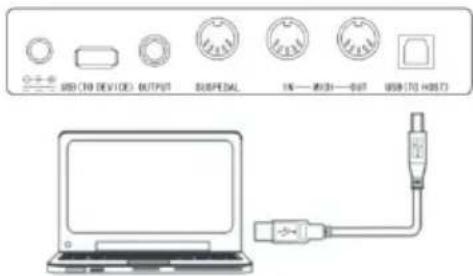
text_image
USB (70 DEVICE) OUTPUT SUSPEDAL 16—2031—3037 USB(70 HOSI7)natural_image
Simple line drawing of a USB device with an arrow pointing to its port (no text or symbols)text_image
LOADING...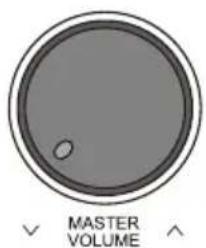
text_image
MASTER VOLUME

tons + et -.
natural_image
Symbol of a trash bin with crossed lines indicating no waste, and a solid black rectangle below (no text or labels)Berlin Brands Group UK Limited
PO Box 42
272 Kensington High Street
London, W8 6ND
United Kingdom
Estimado cliente:
text_image
QR code image containing encoded data, no visible human-readable textDATOS TÉCNICOS
natural_image
Line drawing of a piano with a flat top and two base legs, no text or symbols presenttext_image
USB (10 DEVICE) OUTPUT SUSPEDAL USB—USB—USB USB(70 HOSF)natural_image
Simple line drawing of a USB device with an arrow indicating upward motion (no text or symbols)text_image
LOADING...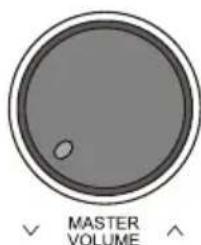
text_image
MASTER VOLUME
natural_image
Symbol of a trash bin crossed with diagonal lines and a horizontal bar below (no text or labels)Berlin Brands Group UK Limited
PO Box 42
272 Kensington High Street
London, W8 6ND
United Kingdom
text_image
QR code image containing encoded data, no visible human-readable textDATI TECNICI
natural_image
Line drawing of a piano with a flat top and two base legs, no text or symbols presentnatural_image
Simple line drawing of a USB device with an arrow pointing to its left edge (no text or symbols)text_image
LOADING...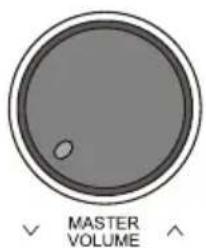
text_image
MASTER VOLUME
| Genere musicale N° Nome inglese Abbreviazione inglese | |||
| FOLK & COUNTRY 1 Jambalaya Jambalaya | |||
| FOLK & COUNTRY 2 Ding! Dong! Merril on High DingDong | |||
| FOLK & COUNTRY 3 Battle Hymne of the Republic Battle | |||
| FOLK & COUNTRY 4 The Old Gray Mare GrayMare | |||
| FOLK & COUNTRY 5 American Patrol USPatrol | |||
| FOLK & COUNTRY 6 Christmas is Coming IsComing | |||
| FOLK & COUNTRY 7 Sippin/Cider through a Stray SCTStraw | |||
| FOLK & COUNTRY 8 Christmas Sound Sound | |||
| GOLDEN & POP 9 On London Bridge LdBridge | |||
| GOLDEN & POP | 10 | Are You Lonesome Tonight | Lonesome |
| GOLDEN & POP 11 | Der Deitcher's Dog | DerDDog | |
| GOLDEN & POP 12 | Joy to the World | JoyWordl | |
| GOLDEN & POP 13 | Silent Night | Sltnight | |
| GOLDEN & POP 14 | Ave Maria | AveMaria | |
| GOLDEN & POP 15 | Five Hundred Miles | FHMiles | |
| GOLDEN & POP 16 | Happy New Year | Happy NY | |
| GOLDEN & POP 17 | It's beginning to look a lot like Christmas | LikeXmas | |
| GOLDEN & POP 18 | Jeanie with the light brown hair LightHair | ||
| GOLDEN & POP 19 | My Bonnie MyBonnie | ||
| GOLDEN & POP | 20 | Song oft he Pearlfisher | SongOfTP |
| CLASSICAL | 21 | Swan | Swan |
| CLASSICAL | 22 | Prelude to Act 2 (Swan Lake) | SwanLak1 |
| CLASSICAL | 23 | Valse (Swan Lake) | SwanLak2 |
| CLASSICAL | 24 | The Happy Farmer | HpFarmer |
| CLASSICAL | 25 | The Sleeping Beauty | SleepBty |
| CLASSICAL | 26 | La Traviata | LaTravia |
| CLASSICAL | 27 | Wiegenlied | Wiegenli |
| CLASSICAL | 28 | Mov.2 Adagio Non Troppo Piano Sonata No. 9 D | Sonata 9 |
| CLASSICAL | 29 | Mov.1 Andante Grazioso Piano Sonata No. 11 in A | Sonata 11 |
| CLASSICAL | 30 | Prelude in C | Prelude |
| CLASSICAL | 31 | Chinese Dance | CHDance |
| CLASSICAL | 32 | Emperors Waltz | EmprWaltz |
| CLASSICAL | 33 | March Militaire | MilMar1 |
| CLASSICAL | 34 | Symphony No.40 | Symphony |
| JAZZ & FUSION | 35 | ShanZhaShu | ShanZaS |
| JAZZ & FUSION | 36 | You are my sunshine | MySun |
| JAZZ & FUSION | 37 | June Samba | JunSamba |
| JAZZ & FUSION 38 Funk Funk | |||
| JAZZ & FUSION 39 I Can... I Can... | |||
| JAZZ & FUSION 40 Sea Shore SeaShore | |||
| JAZZ & FUSION 41 Guitar & Saxphone Gt&Sax | |||
| JAZZ & FUSION 42 The Hip Hop's Night HipHopNt | |||
| JAZZ & FUSION 43 Blue Lunch BlueLunch | |||
| JAZZ & FUSION 44 Cobweb Cobweb | |||
| JAZZ & FUSION 45 Wine Wine | |||
| JAZZ & FUSION 46 Jazz Old Man JzOldMan | |||
| JAZZ & FUSION 47 Dark Eyes DarkEyes | |||
| JAZZ & FUSION 48 Carlos | Carlos | ||
| JAZZ & FUSION 49 Sad | Sad | ||
| JAZZ & FUSION 50 The Jazz | TheJazz | ||
| PIANO 51 Für Elise | FürElise | ||
| PIANO 52 Military March | Mmarch | ||
| PIANO 53 Habanera Habanera | |||
| PIANO 54 Minuet | Minuet | ||
| PIANO 55 Austria Variation | Avariati | ||
| PIANO 56 Old Macdonald had a Farm OldAFarm | |||
| PIANO 57 Wedding March | Wedding | ||
| PIANO 58 2-Part Invention #13 | In A Minor. B.W. lii | Invention | |
| PIANO 59 Minuet in G | MinuetG | ||
| PIANO 60 Turkish March | TurkishM | ||
| PIANO 61 Hey Diddle Diddle | HeDiddle | ||
| PIANO 62 Italian Polka | ItaPolka | ||
| PIANO 63 Moseta Dance | MosetaDn | ||
| PIANO 64 Bulie Dance | BulieDn | ||
| PIANO 65 Waltz in A Flat Op.39 No. 15 | Waltz 1 | ||
| PIANO 66 Wild Rose WildRose | |||
| PIANO 67 Away in A Manger | AwayInAM | ||
| PIANO 68 Jack & Jill | JackJill | ||
| PIANO 69 Angels We Have Heard on High Angels | |||
| PIANO 70 Waltz | Waltz | ||
| PIANO 71 Did you ever see a Lassie | Lassie | ||
| PIANO 72 Chopsticks Chopstick | |||
| PIANO 73 Four Little Swans | FLSwans | ||
| PIANO 74 Old France OldFrance | |||
| PIANO 75 Jesus Saviour pilot Me | PilotMe | ||
| PIANO 76 Eclogue | Eclogue | ||
| PIANO 77 Santa Claus is coming to towen SantaCT | |||
| PIANO 78 Brave Cavalier | Cavalier | ||
| PIANO 79 America The Beautiful | USFair | ||
natural_image
Simple line drawing of a trash bin with crossed lines indicating no waste or discharge (no text or symbols)PRODUTTORE E IMPORTATORE (UK)
Produttore:
Chal-Tec GmbH, Wallstraße 16, 10179 Berlin, Germania.
Berlin Brands Group UK Limited
PO Box 42
272 Kensington High Street
London, W8 6ND
United Kingdom