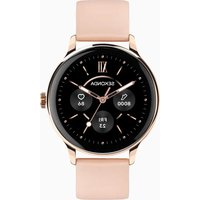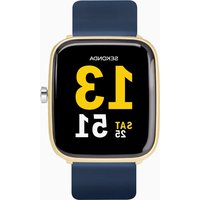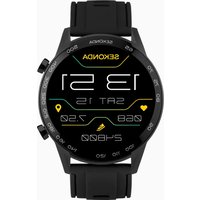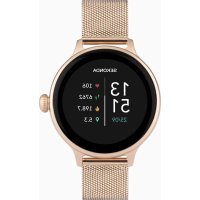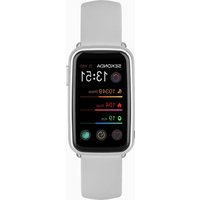
Track 30169 - Smartwatch Sekonda - Free user manual and instructions
Find the device manual for free Track 30169 Sekonda in PDF.


User questions about Track 30169 Sekonda
0 question about this device. Answer the ones you know or ask your own.
Ask a new question about this device
Download the instructions for your Smartwatch in PDF format for free! Find your manual Track 30169 - Sekonda and take your electronic device back in hand. On this page are published all the documents necessary for the use of your device. Track 30169 by Sekonda.
USER MANUAL Track 30169 Sekonda
SEKONDA TRACK SMART WATCH INSTRUCTIONS
(30169,30170,30171)
CHARGE YOUR SMART WATCH
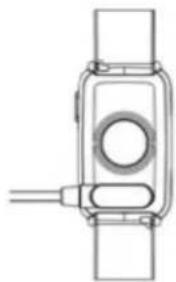
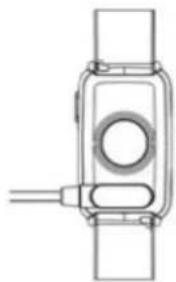
- Connect and charge your watch using the
magnetic USB cable provided.
-
Your Smart Watch should be charged for at least two hours before using it for the first time.
-
NOTE: Do not use a charger exceeding 5V
2A for charging.
TURN ON YOUR SMARTWATCH
- Remove the printed screen protector. Below this is an additional screen
protector. It is advised that you keep this on your watch to protect it from wear
and tear.
-
Press and hold the button for 5 seconds to turn your Smart Watch on.
-
The home screen of the watch will be displayed.
-
From the home screen, swipe to the right to access the menu screen. From here
you can tap on any of the function icons to enter the related menu.
-
Swipe right on any screen to return to the previous screen.
-
The screen will turn off when your Smart Watch is not in use. To wake up the
screen press the power button or turn your wrist.
Wrist gesture control is automatically turned on so that the screen will also
wake up when you turn your wrist. This can be turned on/off within the app, or
the screen display settings on your watch.

DOWNLOAD AND INSTALL THE APP
- To download the app please search for "SEKONDA SMART" in the app store on
your phone.
- Or scan the QR code using your smartphone camera or a QR code reader app.
The SEKONDA SMART app will work on the following smartphones:
Android (version 7.1 and above)
- Apple iOS (version 12.0 and above)
CONNECT YOUR SMART WATCH TO THE APP
- Open the app and accept the permissions.
-Tape either "Sign In" or "Guest" to continue without creating an account.
- On the next screen you can enter your personal information and goals such as
your step count target.
-
The app will then prompt to search for devices to connect to.
-
Your watch has a unique Bluetooth name beginning with "Sekonda" followed
by letters and/or numbers. You can find your watch's Bluetooth name by
swiping down from the home screen, tapping on the cog symbol, then going to
System > About. Here you will see the Bluetooth name.
- Select the correct Bluetooth name from the list on your phone to connect to
your Smart Watch.
- The watch will display the correct time after pairing is successful.
SYNCHRONISE DATA WITH THE APP
- After your watch is paired with the app you can synchronise data that the
watch has recorded.
- Please sync your app daily to avoid loss of recorded data. Data on the watch
is reset at midnight every day.
- To sync your data, connect to the app. On the home screen, swipe down to
sync data with the watch. "Syncing" will be displayed at the top of the page.
SETUP
On your Smart Watch:
-Tap the cog icon to access the settings list.
- Tap "display"
-Tap on "brightness" to set the desired screen brightness.
-Tap on "screen time" to set how long the screen will stay on for.
The screen can be set to stay awake for a maximum of 9 seconds.
-Tap on "Turn wrist wake" to set how long the screen will stay on
for after you turn your wrist.
-Tap "Vibration" to set the strength of the vibration that will be used for
notifications.
-Tap Battery'to view the current battery level, and to turn on/off power
saving mode. Bluetooth will be disconnected.
-Tap "Date setting" to manually set the date on the watch.
-Tap "Time setting" to manually set the time on the watch.
-Tap "Time format" to choose between 12hr and 24hr display.
SET THE LANGUAGE
- Swipe down from the home screen and tap the cog.
-Tap "Language".
Available languages are English, Spanish, Polish, Portuguese, German
French, Czech, Slovakian, Hungarian, Italian, Romanian, Turkish, Croatian,
Dutch, Danish, Estonian, Greek.
On the SEKONDA SMART app:
Open the app and navigate to the menu by tapping on the watch icon in the
bottom right of the screen.
Set which notifications you would like to receive on your watch
- Select "Message push" to set which notifications you would like to be
displayed on your Smart Watch.
OTHER SETTINGS
- Heart rate monitoring - Turn on to allow your watch to monitor your heart
rate at all times.
- Gesture control - With this selected, the screen of your watch will wake up
when you turn your wrist.
- Watch alarm - you may set up to five alarms.
Find watch - tap this and your watch will vibrate to help you find it.
-
Camera - use your watch as a remote shutter for taking photographs.
-
Drink water reminder - Set up your watch to give you reminders at set
intervals.
-
Sedentary reminder - Set up your watch to give you reminders at set intervals.
-
Left hand or right hand - select which wrist you wear your watch on.
CONNECTING MULTIPLE WATCHES TO ONE PHONE
You can create separate profiles for different people and switch
between these when using the app.
-
Tap on the person icon in the top left.
-
Tap on "Family", then tap on the + symbol in the top right.
-
The "Add a family member" screen will appear. Enter the required
details then tap "Bind device".
name from the list. You may need to tap "More" to view the full list.
-
Up to 3 additional family accounts can be added.
-
To delete an account, swipe left on it and tap the red delete button.
For the app to function correctly please take notice of the following:
- Do not pair the watch directly with the Bluetooth in your phone's
settings. Always pair the watch through the app.
-
Do not turn off Bluetooth in your phone's settings.
-
If you would like to receive notifications from the app, you must
accept the app's permissions.
USING YOUR SMART WATCH
THE SMART WATCH INTERFACE
Swipe right on any screen to return to the previous screen.
- Swipe right to display the function list.
- Swipe up and down to scroll
through the list and tap a function to select it.
- Swipe left to display daily activity - steps, distance, and calories burned.
Continue swiping left to show heart rate, sleep data, and weather.
-
Swipe down to show further menu options, and to view the battery level.
-
Swipe up to view new messages/notifications.
BUTTON
-
Press the button to wake up the screen.
-
Within any menu, press the button to return to the home screen.
-
To turn your Smart Watch on or off hold the button down for 5 seconds.
CHANGING YOUR WATCH DIAL STYLE
- On the home screen (the screen displaying the clock) of your watch, press
and hold on the middle of the screen.
- Swipe left or right to choose a dial style and tap to select it.
DOWNLOADING MORE DIAL STYLES
- Open the app and tap the watch face icon in the bottom middle of the
screen.
-
Here you can browse different dial designs.
-
To select a dial and add it to your watch, tap it and then tap "Push".
-
Make sure your watch is close to your phone. The app will display "Syncing..."
for a few seconds while data is transferred.
-
The new dial will then be displayed on your watch.
-
The app will search for nearby devices. Select the correct Bluetooth
-
Once paired, you will have the option to switch to this user's profile.
Stopwatch - Tap the play button to start the stopwatch. Tap the refresh button
to return the stopwatch to zero.
Music - With your phone connected via Bluetooth, music can be controlled
through the watch interface. The volume of the music playing from your
phone can be adjusted through the watch interface.
Find phone - After the watch has been connected to your phone via Bluetooth,
selecting this option will cause the phone to vibrate and beep so that it can be
easily located.
Setting
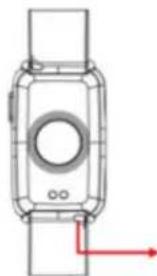
quick release
CHANGING THE STRAP
- The strap on the Smart Watch is removable
and interchangeable with other 16mm watch straps.
-
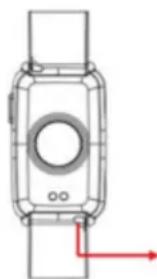
Turn the watch over and locate the quick release as pictured.
-
Push the quick release pin away from the watch to separate the strap from the watch.
SAFETY AND CARE INSTRUCTIONS
International Protection Rating (Water Resistance)
Your Smart Watch is IP68 rated, meaning it has complete protection from
the ingress of dust, and is protected from continuous immersion in water up
to a depth of 1.5metres for a maximum of 30 minutes. Please note that salt
water or certain chemicals in water may damage or weaken the watch seals,
especially with repeated exposure.
To ensure your watch stays in good functioning condition it is recommended
that you:
-
Do not press the buttons while your watch is submerged.
-
Do not use the watch when swimming, diving, or snorkelling.
-
Do not attempt to charge the watch while it is wet.
Please note that the watch's touch screen will not function while submerged in water.
If your watch is exposed to water, always dry it fully with a soft cloth.
If your watch is exposed to any other liquids such as salt water, swimming
pool water, soapy water, perfume, sunscreen, hand sanitiser, cosmetics, or
other chemical products; wash it with clean water and dry it fully with a soft
cloth.
The watch's functionality may be affected if these instructions are
not followed.
- Do not attempt to disassemble your Smart Watch. This may cause
a safety hazard, could damage your watch, and/or affect the water
resistance.
ADDING A PHOTO TO YOUR WATCH DIAL
- Open the app and tap the watch face icon in the bottom middle of the
screen.
-
Tap "DIY" at the top of the screen, then tap the image of the watch.
-
You will be given the option to take a photo or access the album within your
phone to select an existing photo.
-
Scroll down to see further options.
-
Under "Colour" you can select white or black to change the time/date colour.
-
Select whether you would like the time/date to be positioned at the top,
bottom, or centre of the dial.
- Tap "Push" to add the dial to your watch.
FUNCTIONS
Swipe right to access the menu. The watch will display a list of the below
functions. Scroll up or down and tap to select an option.
Daily Activity - The watch will display the user's total number of steps, the
distance walked, and calories burned for the current day. The data will be
cleared at midnight every day. You can also access the daily activity screen by
swiping left from the home screen.
Sports-In this mode you can select from 8 sports modes to record data
during the activity. Data that is recorded can include time, heart rate, steps
and calories burned, depending on which activity is selected. Press the button
to end the recording of data. Full sports list: running, walking, hiking, exercise
bike, treadmill, fitness, football, tennis.
Heart Rate - When this function is selected, the watch will begin to measure
your heart rate. The watch will vibrate when it has finished measuring.
Sleep - The watch will display your total sleep time for the previous night,
including the total time of deep sleep and light sleep. The watch will measure
sleep times between 21:30 - 12:00 the next day.
Blood Pressure - When this is selected, the watch will begin to measure your
blood pressure. The watch will vibrate when it has finished measuring.
Blood Oxygen - When this is selected, the watch will begin to measure your
blood oxygen. The watch will vibrate when it has finished measuring.
Message - When connected to your phone via Bluetooth, notifi cations from
your phone will be sent to your watch. View new messages/notifications here.
Make sure to accept the permissions for push notifications on your phone for
this to function correctly.
Weather - After your watch has been connected to the app, it will display
local weather information. To update the weather information, synchronise
the watch with the app. Please make sure location permissions are turned on
within your phone's settings
Female Care - In the app, scroll down on the home screen and tap "Female
Care". Enter your details to set up this function. This can then be viewed from
your Smart Watch menu. Please choose "female" when setting up your profile
for this function to appear.
- Do not use hair dryers, blowers, or any other heated equipment to
dry your watch
- Do not operate your watch near radiators or heat sources. This
could cause damage to your watch.
- Do not place heavy objects or exert strong pressure on your
Smart Watch.
- Avoid using the watch in extremely high or low temperature
environments.
- Avoid using the watch in high humidity environments.
This could affect the water resistance of the watch.
- Protect your Smart Watch from long exposure to direct sunlight.
Please note that the measurement results of this device are for reference
only and are not intended for medical use. Users should always follow the
advice of their doctor or other trusted medical professional.
When using your Smart Watch on aeroplanes, in hospitals, or near medical
electronic systems please follow theauthority standards and be aware that
wireless signals transmitted could impact the functionality of sensitive
electronics.
PRODUCT SPECIFICATION
Model Sekonda 30169, 30170, 30171
CPU RTL8762DK
Memory RAM 128KB + ROM 64Mb
Capacitive touch screen 1.47" IPS
172*320 screen
Bluetooth version 5.0
Battery Lithium-ion 3.7V/140mAh
How to unpair your smart watch from your phone
- Open the app and navigate to the menu by tapping on the icon in the top left
of the screen.
-
Tap on "Device".
-
Tap "Unpair". The app will ask if you wish to unpair the watch. Tap "OK"
to do so.
How to restore your watch to factory settings
- To clear all data from your watch and restore it to factory settings please
swipe down on the home screen of your watch and tap on the cog to enter the
settings menu.
- In this menu select "System", then "Reset".
If for any reason you need to return your watch to us, please restore your
Smart Watch to factory settings before sending it.
Arabic
SEKONDA TRACK
(30169·30170·30171)
a
-
US USB
ailliee
64
-15
2A
aill 1
a 1
Sill ju lyaiuiie Lue le la liy
gill
- jaiiui 5sud jilie jaiuianai
4
- 1JUSSSLLIJI LIL
j j 10
a
Ailie Lw yLae aall jay
jie bai jia jia jia jia jia jia jia jia jia jia jia jia jia jia jia jia jia jia jia jia jia jia jia jia jia jia jia jia jia jia jia jia jia jia jia jia jia jia jia jia jia jia jia jia jia jia jia jia jia jia j
yj yj
- 1
A. a1 + a2 + a_3 = 4
-1j
g 1
Jaiy jia dsi, gaoi yie la jai
- 1
yJgUdUaie iue aae aeai
- 1
aai
-
-
yilaill 1
- 1
jglgulallal
y 1
y j 1 j 1 1 1 1 1 1 1 1 1 1 1
()
y j 1
jgl jgl jgl glg jgl jgl jgl jgl
eL 1e jie jie jie jie jie jie jie jie jie jie jie jie jie jie jie jie jie jie jie jie jie jie jie jie jie jie jie jie jie jie
aiee
-12wae jyjdy"cglg"jle bale 24,
-
-ill"ic bainol."
-10000000000000000000000000000000000000000000000
dianxun jiu liu.
- Cginaa (all Jauy bJz) dJay - aird sdd
dclu jgiy, h jg jai. aalj e 1
-kiy 1j 1nssieu 1
-1 1
中
eall gaaallll 1 aal lall
Jsiilai jia jialie
y
中
-
-aiil jwaii aiail iie aiil pia
-414g,9ccll jjJy.
a aalll ae wlll jaae jss
e jai 1000000000000000000000000000000000000000000000000
15 15
-1 111 jss sio sbs bll jds ciaa a
-1
21 1
-
jai jai jai
1
aiee aee eae ee eae eae eae eae eae eae eae
y 1
ylll l 1
Jy 1
aaijai jai jai jai jai
8 1
y
gdlalil 154,4yjlll jll
y j 1
y 1
y e 1000
1 1
p 1
12:00-21:30
jai jai kaili jai liai hia aie - pali bai
jlln n eil 1iin jie jie jie
a 1
e 1
Jusjgln jne dnn Juaaie -
jll jie, dieu uui duiu jiu /
Joo
SYNCHRONISER LES DONNÉES AVEC L'APPLICATION
- Uypatalakshna Bhaayaray Adaroyi, Snyaninai, Poyilatnai, Puymtangalai, Jajmarni 1
Pefn, chek, rloaiokaikiay, gnoioyan, ihtalalvbi, roamannay, tukk, koeepa
安,贝宁
Seko 2023
Eeay 2o 3 4 5 6
安
喀迪尼伊阿普卡克丹蒂耶纳
Nootiikkeekshan pralat kraenna chahotte, "Mosej puz
Aapnokk k m aatot vaoi prr d
阿
藥藻對 藻藥藻藻藻藻藻藻藻藻藻藻藻藻藻藻藻藻藻藻藻藻藻藻藻藻藻藻藻藻藻藻藻藻藻藻藻藻藻藻藻藻藻藻藻藻藻藻藻藻藻藻藻藻藻藻藻藻藻藻藻藻藻藻藻藻藻藻藻藻藻藻藻
Huhvaygai, Niiad eotia aor mssam dixanne k the
PnKoN K O ACHI EITOTRPOEKs K M 00000000000000000000000000000000000000000000000000000000
Pkanu- 2- knaeyk m aam s e anne Aapke Pkan n se konnekt hane ne baid,
伊
阿美斯
曼
P
和贝阿尼16m
c
- 4
中贝
Nand - 7- 7- 7- 7- 7- 7- 7- 7- 7- 7- 7- 7- 7- 7- 7- 7- 7- 7- 7- 7- 7- 7- 7- 7- 7- 7- 7- 7- 7- 7- 7- 7- 7- 7-
E 1
- 二藥藻 藻藻藻藻藻藻藻藻藻藻藻藻藻藻藻藻藻藻藻藻藻藻藻藻藻藻藻藻藻藻藻藻藻藻藻藻藻藻藻藻藻藻藻藻藻藻藻藻藻藻藻藻藻藻藻藻藻藻藻藻藻藻藻藻藻藻藻藻藻藻藻藻藻藻藻藻藻藻藻藻藻藻
伊斯拉普乌卡克吉亚特萨阿德普马阿维尼
- Ampanai Smaatart vaoa kco loane Samaay tak sioi y
Kpuyypa 107 24
Kevanl 1eikekkaiy Uepayogaoke k 5iE Nnhi H
Uepayogaoakkatao k o hmeaia Icokpaalun k K
Aapnane aeket r a ananv n vnsnnnnae ne k
Hahvahdijahhazj paur, Ahsympaatai tali m, yaa moeificakl k a pash Ahpamni sataf k aabk ka aupyoyogk kkratsetamay
CARICA IL TUO SMART WATCH
COLLEGA IL TUO SMART WATCH ALL'APP
L'INTERFACCIA DELLO SMART WATCH
POLACZ SWOJ SMARTWATCH Z APLIKACJA
el agua o ciertos productos químicos en el aguaSEOSEOSEOSEOSEOSEOSEOSEOSEOSEOSEOSEOSEOSEOSEOSEOSEOSEOSEOSEOSEOSEOSEOSEOSEOSEOSEOSEOSEOSEOSEOSEOSEOSEOSEOSEOSEOSEOSEOSEOSEOSEOSEOSEOSEOSEOSEOSEOSEOSEOSEOSEOSEOSEOSEOSEOSEOSEOSEOSEOSEOSEOSEOSEOSEOSEOSEOSEOSEOSEOSEOSEOSEOSEOSEOSEOSEOSEOSEOSEOSEOSEOSEOSEOSEOSEOSEOSEOSEOSEOSEOSEOSEOSEOSEOSEOSEOSEOSEOSEO SEO
Pil Lityum-iyon 3,7V/140mAh