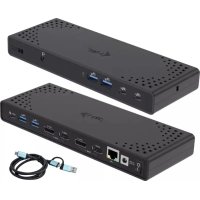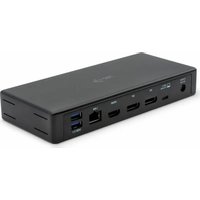
C31TRIPLEDOCKPD - USB Docking Station i-TEC - Free user manual and instructions
Find the device manual for free C31TRIPLEDOCKPD i-TEC in PDF.


| Product Type | USB-C Docking Station |
| Model | C31TRIPLEDOCKPD |
| Brand | i-TEC |
| Dimensions | 197 x 86 x 31 mm |
| Weight | 245 g |
| Power Supply | Power adapter 20.0V / 5.0A (100W), DC cable 160 cm, AC cable 180 cm |
| Output Power (Power Delivery) | 85W max (65W if device connected to front USB-C port) |
| Video Ports | 2x DisplayPort, 1x HDMI |
| Supported Resolutions (with DisplayPort 1.4 DSC) | 1 monitor: up to 5K/60Hz (dual DP) or 4K/60Hz (single HDMI/DP); 2 monitors: 2x 4K/60Hz; 3 monitors: 3x 4K/30Hz |
| Supported Resolutions (without DSC, DP 1.4) | 1 monitor: 4K/60Hz; 2 monitors: 2x 2560x1440/60Hz; 3 monitors: 3x 1920x1080/60Hz |
| Supported Resolutions (DP 1.2) | 1 monitor: 4K/30Hz; 2 monitors: 2x 1920x1080/60Hz; 3 monitors: 3x 1920x1080/30Hz |
| USB Ports | 1x USB-C Gen.2 (10 Gbps), 3x USB-A 3.1 Gen.2 (10 Gbps) including 1 with fast charging BC 1.2 |
| Ethernet Port | 1x RJ-45 Gigabit (Realtek RTL8153) |
| Audio Port | 1x 3.5 mm combo connector |
| Additional Features | ON/OFF switch, LED indicator, Kensington lock |
| System Compatibility | Windows 10, macOS*, Android, Chrome OS, Linux (latest updates) * macOS does not support MST (2+ monitors in extended mode) |
| Package Contents | Docking station, USB-C cable 100 cm, power adapter, quick start guide |
| Maintenance | Clean with a dry cloth; do not expose to moisture, extreme temperatures; use on a flat surface |
| Safety | Use the provided adapter; disconnect in case of malfunction; keep away from water |
| Repairability | Contact customer service for repairs. No user-serviceable parts. |
Frequently Asked Questions - C31TRIPLEDOCKPD i-TEC
User questions about C31TRIPLEDOCKPD i-TEC
0 question about this device. Answer the ones you know or ask your own.
Ask a new question about this device
Download the instructions for your USB Docking Station in PDF format for free! Find your manual C31TRIPLEDOCKPD - i-TEC and take your electronic device back in hand. On this page are published all the documents necessary for the use of your device. C31TRIPLEDOCKPD by i-TEC.
USER MANUAL C31TRIPLEDOCKPD i-TEC
USB-C/THUNDERBOLT 3 TRIPLE DISPLAY DOCKING STATION + POWER ADAPTER 100W
natural_image
Black rectangular electronic device with ports and connectors, no visible text or symbols on bodyUser guide • Gebrauchsanweisung • Mode d'emploi Manual de instrucciones • Manuale • Uživatelská príručka Instrukcje obsługi • Užívatel'ská príručka • Vartotojo vadovas Handleiding
ENGLISH
Please read the entire instruction manual carefully. Detailed manual is available on our website www.i-tec.cz/en/ in the tab „Manuals, drivers“. In case of any issues, please contact our technical support at: support@itecproduct.com
DEUTCH
Declaration of Conformity.... 48–49
European Ecodesign Directive.... 50–52
FCC 52

INTRODUCTION
Thank you for purchasing the i-tec USB-C Docking Station that will let you quickly and easily connect your favourite devices to a notebook, tablet, PC, USB-C equipped smartphone using a single USB-C connector. It offers 2x DisplayPort, 1x HDMI, 1x Ethernet LAN, 1x USB-C 3.1 (Gen. 2), 3x USB-A 3.1 (Gen. 2), 1x Audio port and 1x external DC power input.
Important note:
In order to take full advantage of the docking station's potential, it is important that the laptop's GPU supports DisplayPort 1.4 with DSC. If the laptop's GPU supports DisplayPort 1.4 without DSC or DisplayPort 1.2, the docking station will work, but will be limited in external monitor maximum resolutions. See the section SPECIFICATION.
DSC - an abbreviation for Display Stream Compression - this is a compression method that allows "visually lossless" video compression which allows to transmit higher resolution.
PACKAGE CONTENTS
• i-tec USB C Docking Station
• USB-C cable (length 100 cm)
• Power adapter (DC output: 20.0V / 5.0A, DC cable 160 cm, AC cable 180cm)
- Quick Start
SPECIFICATION
• 1x USB-C port for connecting to a laptop
- Power Delivery: 85.0 W, although if a device is connected to the USB-C port on the front panel, this is reduced to 65.0W
• Video ports: 2x DisplayPort, 1x HDMI
- Resolution: USB-Č/Thunderbolt™ 3 with DisplayPort 1.4 DSC support
1 monitor - 2x DP - up to 5K/60Hz
1 monitor - 1x DP or 1x HDMI - up to 4K/60Hz
2 monitors - 1x HDMI + 1 DP or 1x DP + 1x DP - up to 2x 4K/60Hz
3 monitors - 1x HDMI + 1x DP + 1x DP - up to 3x 4K/30Hz
USB-C/Thunderbolt™ 3 with DisplayPort 1.4 support without DSC support
1 monitor - 1x DP or 1x HDMI - up to 4K/60Hz
2 monitors - 1x HDMI + 1 DP or 1x DP + 1x DP - up to 2x 2560x1440/60Hz
3 monitors - 1x HDMI + 1x DP + 1x DP - up to 3x 1920x1080/60Hz
USB-C/Thunderbolt™ 3 with DisplayPort 1.2 support
1 monitor - 1x DP or 1x HDMI - up to 4K/30Hz
2 monitors - 1x HDMI + 1 DP or 1x DP + 1x DP - up to 2x 1920x1080/60Hz
3 monitors - 1x HDMI + 1x DP + 1x DP - up to 3x 1920x1080/30Hz
• 1x USB-C port Gen. 2 (10 Gbps)
• 3x USB 3.1 port Gen. 2 (10 Gbps), with fast charge support (BC 1.2)
• 1x Ethernet GLAN RJ-45 port (Realtek RTL8153)
• 1x 3,5mm Audio combo connector
• 1x power input (20.0V/5.0A)
- ON/OFF switch for turning the docking station on and off
- LED indicators
• Kensington lock support
• USB-C 3.1 cable (100 cm)
Quick Start / i-tec USB-C Docking Station
• OS: Windows 10, macOS, Android, Chrome OS Linux with the latest updates
• Dimensions: 197 x 86 x 31 mm
- Weight: 245 g
Note for macOS: macOS does not support MST technology (2 or more monitors in extended mode). None of the docking stations using the USB-C DisplayPort Alt Mode supports a connection of two or more monitors in macOS, this can only handle a Thunderbolt 3 docking station and a DisplayLink docking station.
DOCKING STATION DESCRIPTION
Front panel:
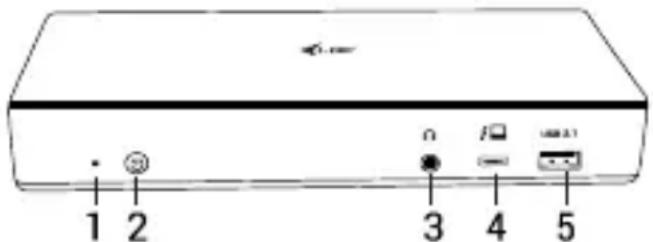
- LED indicators
- ON/OFF switch - for turning the docking station on and off
- 1x 3.5 mm Audio combo connector
- 1x USB-C port Gen. 2 (10 Gb/s)
- 1x USB 3.1 port Gen. 2 (10 Gb/s) with a quick charge, BC 1.2 specification
Back panel:
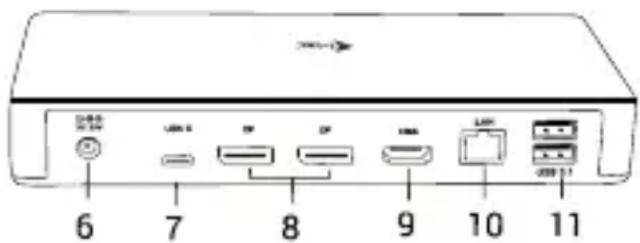
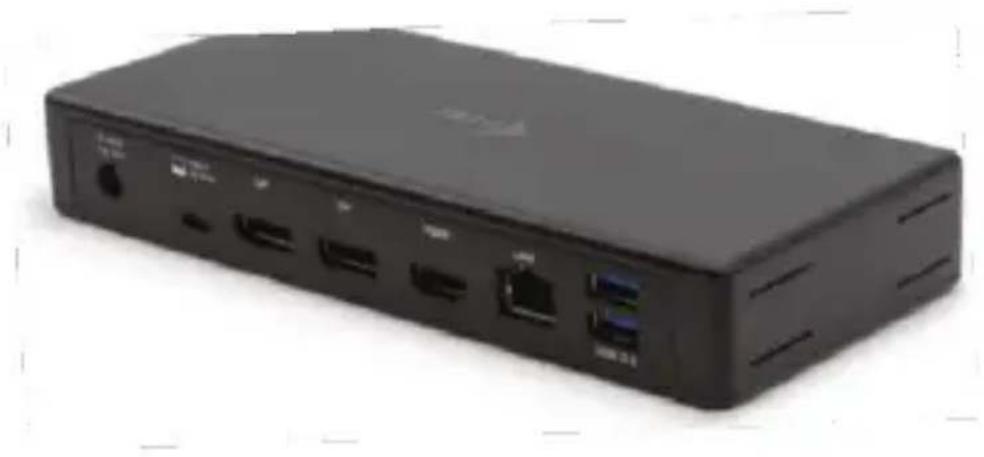
- Power input (20.0V/5.0A)
- USB-C port Data / DP Alt Mode / Power Delivery - to connect the docking station to the laptop's USB-C port. This port supports the Power Delivery function on profile 5, max. 85.0 W.
- 2x DisplayPort - allows to connect up to one 5K/60Hz monitor.
Only if the laptop meets the requirements. - 1x HDMI - for connecting a monitor with a HDMI input
- Ethernet GLAN RJ-45 port – supports 10/100/1000 Mb/s
- 2x USB-A 3.1 port Gen. 2 (10 Gbps) with a quick charge, BC 1.2 specification
SYSTEM REQUIREMENTS
Hardware requirements: Device with a free USB-C or Thunderbolt3 port
Power Delivery requirements: a device with a free USB-C or Thunderbolt 3 port with "Power Delivery" support.
Video output requirements: device with a free USB-C port with "DisplayPort Alternate Mode" support or with Thunderbolt 3 port.
Operating system: Windows 10, macOS, Android, Chrome OS, and Linux with the latest updates
Automatic driver installation in WINDOWS / macOS operating systems. If you need to install LAN, download the latest drivers from our website www.i-tec.cz/en/ in the "Download" tab of this product.
NOTICE!
Before plugging in the docking station, make sure you have the latest drivers for your device and an updated BIOS installed.
CONNECTING A HDMI / DISPLAYPORT MONITOR
The docking station is equipped with 1x HDMI and 2x DisplayPort 4K port for the connection of an external monitor or projector with a HDMI / DP interface. Connect the monitor to the docking station using a high quality HDMI / DP cable. During installation of an additional monitor the screen of the device can flicker which is a standard condition
1
natural_image
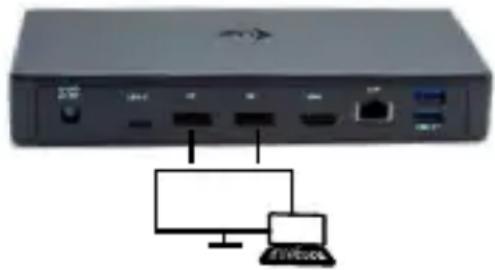
Front view of a network device with ports and a monitor connected to a laptop (no visible text or symbols)- 1 monitor connected via 2 DisplayPort cables - resolution up to 5K 5120x2880/60Hz.
5K resolution is only supported if your laptop's USB-C/Thunderbolt™ 3 connector supports DisplayPort 1.4 DSC.
2
natural_image
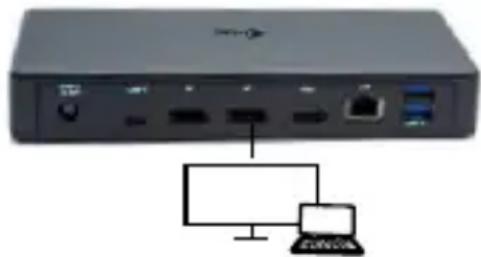
Front view of a network device with ports and a laptop connected via a network interface (no visible text or symbols)- 1 monitor connected via DisplayPort/HDMI cable - resolution up to 4K 3840x2160/60Hz.
4K/60Hz resolution is only supported if your laptop's USB-C/Thunderbolt™ 3 connector supports DisplayPort 1.4 DSC or DisplayPort 1.4 without DSC.
If the USB-C/Thunderbolt™ 3 only supports DisplayPort 1.2, the maximum resolution is 4K 3840x2160/30Hz.
3
natural_image
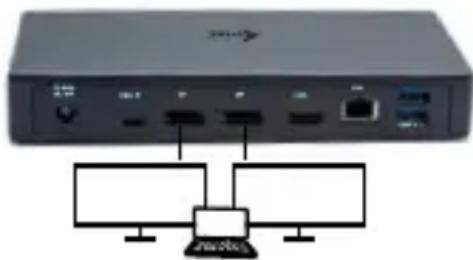
Front view of a network device with ports and cables (no visible text or labels)- 2 monitors connected via DisplayPort/HDMI cables - resolution up to 4K 3840x2160/60Hz.
Only if your laptop's USB-C/ Thunderbolt™ 3 connector supports DisplayPort 1.4 DSC.
If the USB-C/Thunderbolt™ 3 only supports DisplayPort 1.4 without DSC, the maximum resolution is 2x 2560x1440/60Hz.
If the USB-C/Thunderbolt™ 3 only supports DisplayPort 1.2, the maximum resolution is 2x 1920x1080/60Hz.
- 3 monitors connected via DisplayPort/HDMI cables - resolution up to 4K 3840x2160/30Hz.
Only if your laptop's USB-C/Thunderbolt™ 3 connector supports DisplayPort 1.4 DSC.
If the USB-C/Thunderbolt™ 3 only supports DisplayPort 1.4 without DSC, the maximum resolution is 3x 1920x1080/60Hz.
If the USB-C/Thunderbolt™ 3 only supports DisplayPort 1.2, the maximum resolution is 3x 1920x1080/30Hz.
Note: 3 external monitors can only be connected when the laptop's internal screen is off. This is a limitation of the Intel graphics card.
The resolution, the frame rate and the maximum number of connected external monitors depends on the capabilities of the host PC/laptop.
The majority of problems with the docking station and the connected peripheral devices can be solved by disconnecting the USB-C cable of the docking station from the USB-C port of the PC / Mac / smartphone and reconnecting after approximately 10 s.
SAFETY INSTRUCTIONS
- Do not expose to extreme temperatures and air humidity.
- Use the device on flat surfaces – this will prevent it from slipping and potentially causing damage to the product.
- Keep the user manual for future reference.
In co-operation with the service department:
- Check the functionality if the product receives any damage.
- Send the device back if it does not work in accordance with the user manual.
FREQUENTLY ASKED QUESTIONS
Available on our website www.i-tec.cz/en/ on the "FAQ" tab of this product.
EINLEITUNG
Quick Start / i-tec USB-C Docking Station
natural_image
Front view of a network device with ports and a monitor connected to a laptop (no visible text or symbols)natural_image
Front view of a network device with ports and cables, connected to a laptop (no visible text or symbols)natural_image
Front view of a network device with ports and cables, connected to a laptop (no text or symbols visible)natural_image
Front view of a network device with ports and connectors, shown with three blank rectangular boxes below (no text or symbols visible)Quick Start / i-tec USB-C Docking Station
natural_image
Front view of a network device with ports and cables, connected to a laptop (no visible text or symbols)natural_image
Front view of a network device with ports and a separate laptop connected via a network interface (no visible text or symbols)natural_image
Front view of a network device with ports and two connected devices (no visible text or labels)natural_image
Front view of a network device with ports and connectors, shown with three blank display screens below (no text or symbols visible)Quick Start / i-tec USB-C Docking Station
INTRODUCCIÓN
Quick Start / i-tec USB-C Docking Station
natural_image
Front view of a network device with ports and a laptop connected to it (no visible text or symbols)natural_image
Front view of a network device with ports and a monitor connected to a laptop (no visible text or symbols)natural_image
Front view of a network device with ports and connectors, connected to a central device labeled 'PTV200' (no text or symbols on the device itself)Quick Start
natural_image
Front view of a network device with ports and cables, shown with three blank monitor icons below (no text or labels visible)Quick Start / i-tec USB-C Docking Station
INTRODUZIONE
Quick Start / i-tec USB-C Docking Station
natural_image
Front view of a network device with ports and cables, connected to a laptop (no visible text or symbols)natural_image
Front view of a network device with ports and cables, connected to a separate device (no visible text or symbols)natural_image
Front view of a network device with ports and two connected devices (no visible text or labels)natural_image
Front view of a black network switch with ports and indicator lights, shown with three blank display screens below (no text or symbols visible)Quick Start / i-tec USB-C Docking Station
Operační systém:
natural_image
Front view of a network device with ports and a monitor connected to a tower (no visible text or symbols)natural_image
Front view of a network device with ports and cables, connected to a laptop (no visible text or symbols)natural_image
Front view of a network device with ports and connectors, connected to a central interface (no visible text or symbols)Quick Start / i-tec USB-C Docking Station
natural_image
Front view of a network device with ports and a separate computer connected via a network cable (no visible text or labels)natural_image
Front view of a network device with ports and a laptop connected to it (no visible text or symbols)natural_image
Front view of a network device with ports and connectors, connected to a central device (no visible text or labels)natural_image
Front view of a network device with ports and connectors, shown with three blank display screens below (no text or symbols visible)Quick Start / i-tec USB-C Docking Station
Quick Start / i-tec USB-C Docking Station
IVADAS
Quick Start / i-tec USB-C Docking Station
natural_image
Front view of a black network device with ports and connectors, shown with three blank white boxes below (no text or symbols visible)- 3 monitoriai, prijungti per „DisplayPort“ / HDMI kabelius - rezoliucija iki 4K 3840x2160 / 30Hz.
Tik tada, kai nešiojamojo kompiuterio USB-C / Thunderbolt™ 3 konektorius palaiko „DisplayPort 1.4 DSC“.
Quick Start / i-tec USB-C Docking Station
INLEIDING
Quick Start / i-tec USB-C Docking Station
SYSTEEMVEREISTEN
Hardware-vereisten:
This equipment is marked with the above recycling symbol. It means that at the end of the life of the equipment you must dispose of it separately at an appropriate collection point and not place it in the normal domestic unsorted waste stream. This will benefit the environment for all. (European Union only).
DEUTSCH
EN Amendment to user manual providing all necessary information required by COMMISSION REGULATION (EU) 2019/1782. (This product meets all the requirements laid down by the above regulation).
This equipment has been tested and found to comply within the limits of a Class B digital device pursuant to Part 15 of the FCC Rules. These limits are designed to provide reasonable protection against harmful interference in a residential installation.