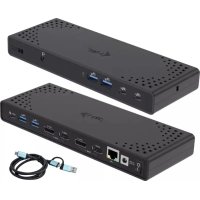
CADUA4KDOCKPDL2UK - USB Docking Station i-TEC - Free user manual and instructions
Find the device manual for free CADUA4KDOCKPDL2UK i-TEC in PDF.


| Product type | USB docking station |
| Brand | i-TEC |
| Model | CADUA4KDOCKPDL2UK |
| Dimensions (L x W x H) | 224 x 88 x 27 mm |
| Weight | 330 g |
| Power input | DC input 20V/6.5A (power supplied 100W) |
| Technology | DisplayLink + USB-C Power Delivery |
| Video ports | 2x DisplayPort (DP++) and 2x HDMI |
| Max resolution (1 monitor) | Up to 4K/60Hz (DP/HDMI) or 5K/60Hz (2x DP on Windows) |
| Max resolution (2 monitors) | Up to 2x 4K/60Hz |
| USB-C ports | 2x USB-C 3.2 Gen.2 with fast charging (BC 1.2) |
| USB-A ports | 4x USB 3.2 Gen.1 with fast charging (BC 1.2) |
| Ethernet port | 1x GLAN RJ-45 (DisplayLink DL-6950) |
| Audio | 1x 3.5 mm combo jack (input/output) |
| On/Off switch | Yes |
| LED indicator | Yes |
| Kensington lock support | Yes |
| VESA mounting | Yes |
| Included cable | USB-C to USB-C/USB-A (1 m) with adapter |
| Supported operating systems | Windows 10/11, macOS, Linux Ubuntu, Android 5+, Chrome OS R51+ |
| Driver installation | Required for DisplayLink (Windows, macOS, Ubuntu, Android) |
| Maintenance and cleaning | Wipe with a dry, soft cloth; avoid moisture |
| Safety | Do not expose to extreme temperatures or water |
| Spare parts | Replaceable USB-C cables |
| General information | Full manual available at www.i-tec.cz/en/ |
Frequently Asked Questions - CADUA4KDOCKPDL2UK i-TEC
User questions about CADUA4KDOCKPDL2UK i-TEC
0 question about this device. Answer the ones you know or ask your own.
Ask a new question about this device
Download the instructions for your USB Docking Station in PDF format for free! Find your manual CADUA4KDOCKPDL2UK - i-TEC and take your electronic device back in hand. On this page are published all the documents necessary for the use of your device. CADUA4KDOCKPDL2UK by i-TEC.
USER MANUAL CADUA4KDOCKPDL2UK i-TEC
EN Please read the entire instruction manual carefully. Detailed manual is available on our website www.i-tec.cz/en/ in the tab „Manuals, drivers". In case of any issues, please contact our technical support at: support@itecproduct.com
Declaration of Conformity. 48-49
FCC. 50
DESCRIPTION
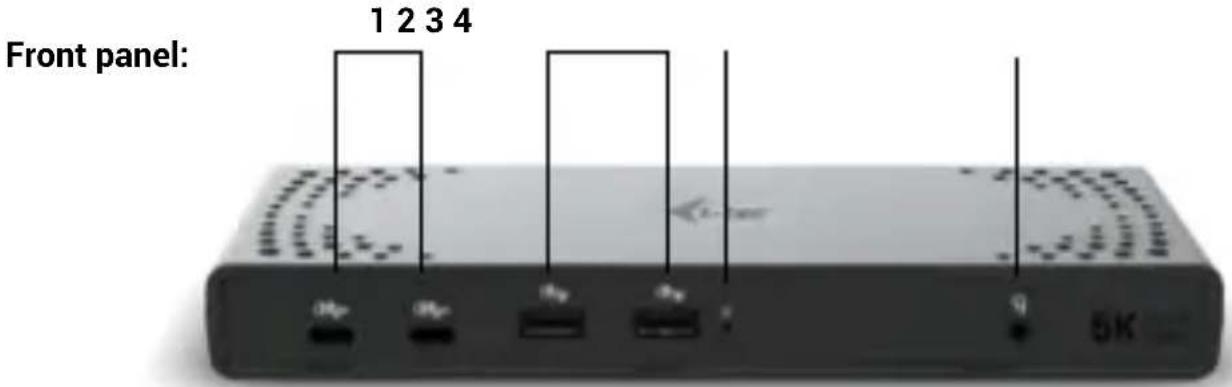
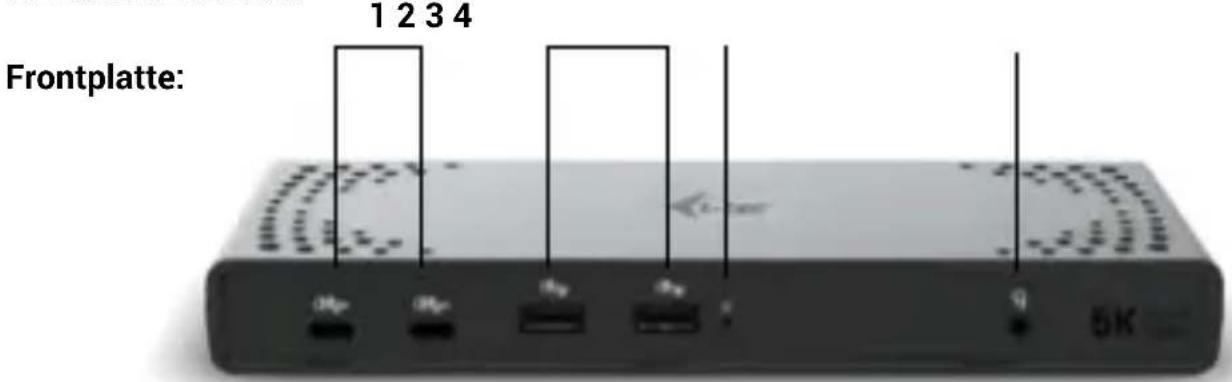
- 2x Gen.2 USB-C port with fast charging support (BC 1.2)
- 2x USB 3.2 Gen.1 port with fast charging support (BC 1.2)
- LED indication
- 3.5mm Audio combo connector
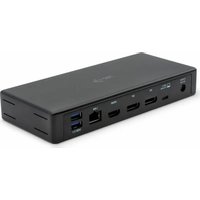
Back panel:
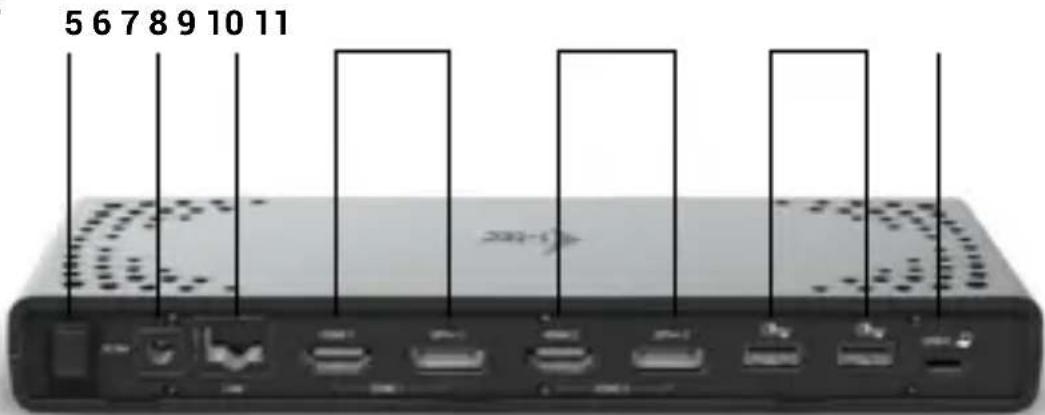
- On/Off switch to turn the docking station on and off
- Input for power supply
- Ethernet GLAN RJ-45 port (DisplayLink DL-6950)
- Zone 1 - HDMI/DP (HDMI or DP can be connected)
- Zone 2 - HDMI/DP (HDMI or DP can be connected)
- 2x USB 3.2 Gen.1 port with fast charging support (BC 1.2)
- USB-C port for connecting the dock to a laptop
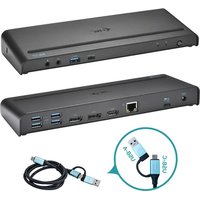
Side panel
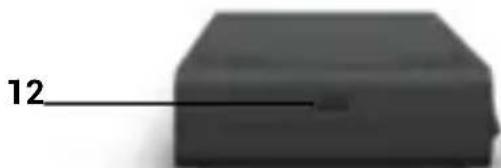
- Support for Kens
SPECIFICATIONS
- 1x USB-C port for connection to USB-C or USB-A devices (USB-C cable and USBC to USB 3.0 adapter included)
-
Docking station technology: displayLink + USB-C PD
Power Delivery: 100W
Video Ports: -
2x Display Port (supports DP++)
-2xHDMI -
Resolution:
-
1 monitor - 1x DP/HDMI up to 4K/60Hz
- 1 monitor - 2x DP up to 5K/60Hz*
-
2 monitors - 1x DP/HDMI + 1x DP/HDMI → up to 2x 4K/60Hz
-
2x USB-C 3.2 Gen.2 port with fast charging support (BC 1.2)
- 4x USB 3.2 Gen.1 port with fast charging support (BC 1.2)
- 1x Ethernet GLAN RJ-45 port (DisplayLink DL-6950)
- 1x3.5mm Audio combo connector
- 1x power input (DC 20V/6.5A)
ON/OFF switch to turn the docking station on and off - LED indication
- Support for Kensington lock
- Support for VESA mounting
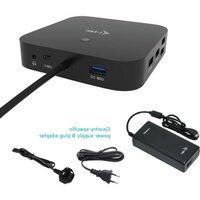
- USB-C to USB-C/USB-A cable (100 cm)
- OS: Windows 10/11, macOS, Linux Ubuntu, Android 5 and higher, Chrome OS R51 and higher
- Easy driver installation (Windows, MacOS, Ubuntu, Android (external link))
Product dimensions: 224 × 88 × 27 mm
Product weight: 330g - Package dimensions: 250 × 250 × 50 mm
- 5K resolution only supports Windows
SYSTEM REQUIREMENTS
Hardware requirements:
Devices with a free USB-A, USB-C or Thunderbolt™ 3/4
Requirements for the Power Delivery function:
Devices with a free USB-C, USB4 or Thunderbolt™ 3/4-enabled port "Power Delivery".
Operating system:
- Windows 10/11, macOS, Linux Ubuntu, Android 5 and higher, Chrome OS R51 andhigher
If the docking station is connected via USB 3.0, charging of laptops and tablets is not supported
INSTALLING DRIVERS
Windows:
1) Download and run DisplayLink Cleaner: https://synaptics.com/products/displaylink-graphics/downloads/weatherinstallation-cleaner
2) Restart your laptop
3) Download and install the DisplayLink driver: https://synaptics.com/products/displaylink-graphics/downloads/windows-10.3-m0-public?filetype=exe
4) Restart your laptop
5) Connect the docking station
macOS:
1) Download and install DisplayLink Manager: https://www.synaptics.com/products/displaylink-graphics/downloads/macos
2) The installation will prompt you to enable Screen Recording
a. Go to the APPLE tab / System Preferences / Security & Privacy / Privacy
b. Find Screen Recording in the Privacy tab
c. Click on the lock in the bottom left corner
d. Enter your password
e. Check the box next to DisplayLink Manager
3) After installation, open DisplayLink Manager from Launchpad
4) Find the DisplayLink icon in the top menu bar and open it
5) Select "Run the application automatically after login"
6) Connect the docking station
SAFETY INSTRUCTIONS FOR USING THE DOCKING STATION
- Do not expose to extreme temperatures and humidity.
- Use the device on flat pads to avoid slipping and falling on the ground.
- Keep the drivers and manual for later use.
- Avoid straining the USB-C port or cable.
- Restart the product periodically using the ON/OFF button or by unplugging it from the mains.
- Do not plug USB-C PD adapters into USB-C ports that are not marked as ports to connect USB-C PD power adapter.
- It is recommended that you switch off the docking station at the end of the day.
In cooperation with the service department:
- Check functionality after falling into water or on the ground.
- Verify functionality when the cover is cracked.
- Complain about the device not working according to the manual.
FREQUENTLY ASKED QUESTIONS
Available on our website www-i-tec.pro under "FAQ" for this product
GLOSSARY OF TERMS
Interface / port / connector / input / slot - the place where two devices are physically connected.
Controller - a semiconductor component (called a chipset) in a notebook/tablet that ensures the operation of some from the ports.
Thunderbolt™ - is a fast hardware interface that allows you to connect devices (peripherals) to your computer via an expansion bus. Thunderbolt combines PCI-Express and DisplayPort into a serial data interface. It allows daisy chaining of up to 6 additional Thunderbolt™ devices, with Thunderbolt™ 3/4 transfer rates of up to 40Gbit/s.
USB-C / USB Type-C / USB4 / Thunderbolt™ 3/4 - is a symmetrical connector Allows faster charging, power, dual-role (not only host, but also guest), support for alternative modes - Alt Mode (DisplayPort, MHL, Thunderbolt 3, Power Delivery) and error notification via Billboard device.
USB-C Power Delivery (USB-C PD) - optional feature of the USB-C connector. Connector with this support can both charge and be charged, and supports loads from 10W to 240W
USB 3.2 / 3.1 / 3.0 / 2.0 - standard for USB interface / port for connecting various USB devices. Various USB devices can be connected to the docking station or adapter using USB Type-A interface the USB Type B port is used to connect the docking station or adapter to a laptop/tablet.
HDMI/Display Port - A standard for a digital graphics interface/port used to connect monitors and other graphic display devices.
LAN (Local Area Network) - local area network, now the most common is the so-called Ethernet, which is used by The docking station achieves theoretical transfer rates of up to 2.5 Gbit/s.
Audio - a term for an audio input (microphone) or output device (headphones/speakers).
BESCHREIBUNG
QUESTIONS FREQUEMMENT POSÉES
This equipment is marked with the above recycling symbol. It means that at the end of the life of the equipment you must dispose of it separately at an appropriate collection point and not place it in the normal domestic unsorted waste stream. This wil benefit the environment for all. (European Union only)
DEUTSCH
This equipment has been tested and found to comply within the limits of a Class B digital device pursuant to Part 15 of the FCC Rules. These limits are designed to provide reasonable protection against harmful interference in a residential installation.
- DESCRIPTION
- BACK PANEL
- SIDE PANEL
- SPECIFICATIONS
- SYSTEM REQUIREMENTS
- HARDWARE REQUIREMENTS
- REQUIREMENTS FOR THE POWER DELIVERY FUNCTION
- OPERATING SYSTEM
- INSTALLING DRIVERS
- WINDOWS
- MACOS
- SAFETY INSTRUCTIONS FOR USING THE DOCKING STATION
- IN COOPERATION WITH THE SERVICE DEPARTMENT
- FREQUENTLY ASKED QUESTIONS
- GLOSSARY OF TERMS
- BESCHREIBUNG
- QUESTIONS FREQUEMMENT POSÉES
- DEUTSCH
Brand : i-TEC
Model : CADUA4KDOCKPDL2UK
Category : USB Docking Station