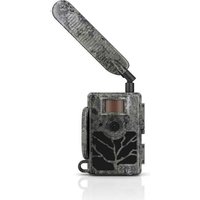
Secacam 5 - Camera ZEISS - Free user manual and instructions
Find the device manual for free Secacam 5 ZEISS in PDF.


| Product Type | Wildlife Surveillance Camera |
| Brand | ZEISS |
| Model | Secacam 5 |
| Image Sensor | 5.0 megapixel CMOS |
| Photo Resolution | 5 MP (standard), 8 MP (interpolation), 12 MP (interpolation) |
| Video Resolution | 1080p (1920x1080), 720p (1280x720), 480p (640x480) |
| Display | 2.4" color TFT-LCD display |
| Connectivity | 4G (integrated SIM card), Wi-Fi not specified |
| Power (batteries) | 8 LR6 (AA) batteries or LR6 (AA) rechargeable batteries |
| External Power | 12 V - 2 A, 4/1.7 mm jack plug (inner positive pole) |
| Infrared Sensor Range | Up to 25 m depending on object size and temperature difference |
| Number of Infrared LEDs | 60 black 940 nm LEDs |
| Trigger Speed | Less than 0.35 to 0.45 second |
| Supported Memory | SD or SDHC card up to 32 GB (32 GB card included) |
| Dimensions | Approx. 13 (H) x 10 (W) x 7 (D) cm |
| Operating Temperature | -20 °C to 55 °C |
| Package Contents | ZEISS Secacam 5, antenna, mounting strap, USB cable, quick guide with activation code, pre-installed SIM card, 32 GB memory card, 8 LR6 batteries |
| Warranty | 2 years |
| Compatible Apps | ZEISS Secacam app (iOS/Android), website secacam.zeiss.com |
| Menu Languages | German, English, Spanish, French, Italian |
| Lens Viewing Angle | 60° |
Frequently Asked Questions - Secacam 5 ZEISS
User questions about Secacam 5 ZEISS
0 question about this device. Answer the ones you know or ask your own.
Ask a new question about this device
Download the instructions for your Camera in PDF format for free! Find your manual Secacam 5 - ZEISS and take your electronic device back in hand. On this page are published all the documents necessary for the use of your device. Secacam 5 by ZEISS.
USER MANUAL Secacam 5 ZEISS
5 MP = 5,0 Megapixel = 2.592 x 1.944 Pixel
8 MP = 8,0 Megapixel = 3.264 x 2.448 Pixel
12 MP = 12,0 Megapixel = 4.000 x 3.000 Pixel
M = 1.280 x 960 Pixel
L = 1.920× 1.440 Pixel
www.zeiss.com/cop/warranty
3.1 Opening and closing the camera 28
3.2 Inserting the batteries 28
3.3 Inserting the memory card 28
3.4 Fitting the antenna 30
3.5 Inserting the SIM 30
- Getting started 30
4.1 Switch settings 30
4.2 Configuring settings 31
- Menu 31
5.1 Capture mode (Photo/video/Photo+Video) 32
5.2 Photo Size SD
5.3 Multi shot 32
5.4 Video Size 33
5.5 Video length 33
5.6 Sensitivity 33
5.7 Flash mode 33
5.8 Timer 34
5.9 Time lapse 34
5.10 Pause capture 34
5.11 Transmission 34
5.12 Sent photo size 35
5.13 Sent shots/h 35
5.14 GPS data 35
5.15 Battery type 35
5.16 Date/time 35
5.17 Language 35
5.18 Footer cam name 35
5.19 PIN code 36
5.20 SD cycle 36
5.21 Reset 36
5.22 Send test photo 36
5.23 Firmware version 36
5.24 Firmware update 36
- ZEISS Secacam app & web
6.1 Pause transmission 37
6.2 Topping up credit 37
- Network scan
- Manually triggering test recordings 38
- Checking recordings 38
- Fitting 39
10.1 Fitting with strap 39
10.2 Fitting with tripod/tree mount 40
- Technical data
- Connection to computer 42
- External power supply 42
14.Care 42 - Customer service and warranty 43
Congratulations on the purchase of your ZEISS Secacam 5 trail camera.
Dear customer,
Thank you for choosing one of our quality ZEISS Secacam products.
Please read all instructions carefully and attentively. This applies especially to the safety information. The device has a two-year warranty. If the camera should ever be faulty, you will need your proof of purchase.
Note: You might need to remove the protective film from the camera display by pulling it off using the protruding tab. This may require some strength. Be sure to pull the contact breaker strip out of the battery compartment to use the camera.

WARNING!
To avoid danger of suffocation, keep this plastic bag away from babies and children! There is a risk of suffocation.

WARNING!
Please observe the enclosed safety and legal information, which can also be found under:
www.zeiss.com/cop/safety

1. Contents of box
Carefully unpack the camera and check that all of the following items are contained in the box:
ZEISS Secacam 5
Mobile antennae
Mounting girdle
USB cable
Quick guide with personal activation code
Instruction manual
SIM card (already inserted)
32 GB memory card (already inserted)
8 LR6 AA batteries (already inserted)
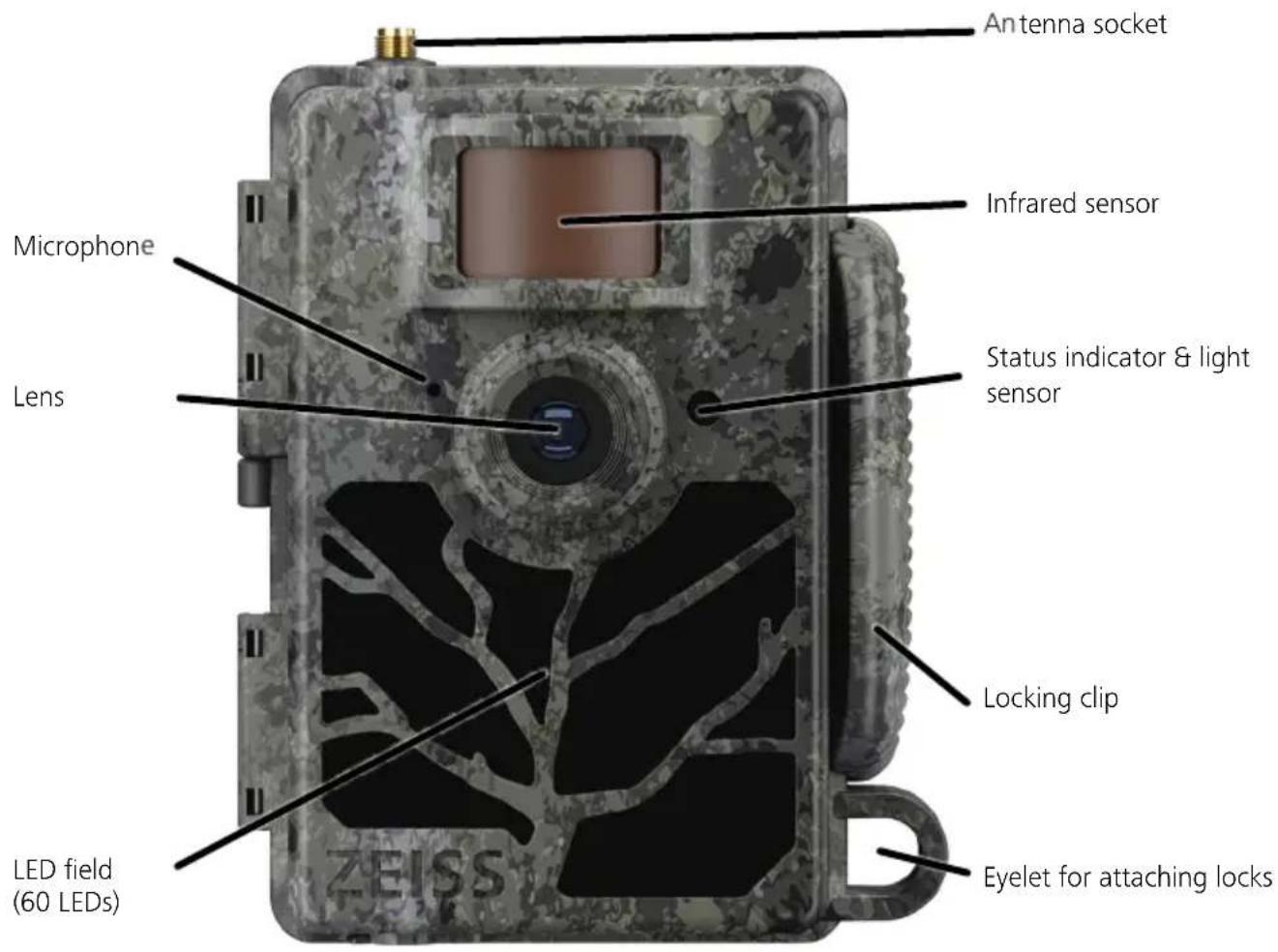
Lens: The ZEISS Secacam 5 uses a lens with a 60^ angle of view. This allows you to keep an optimal view of gardens or hunts.
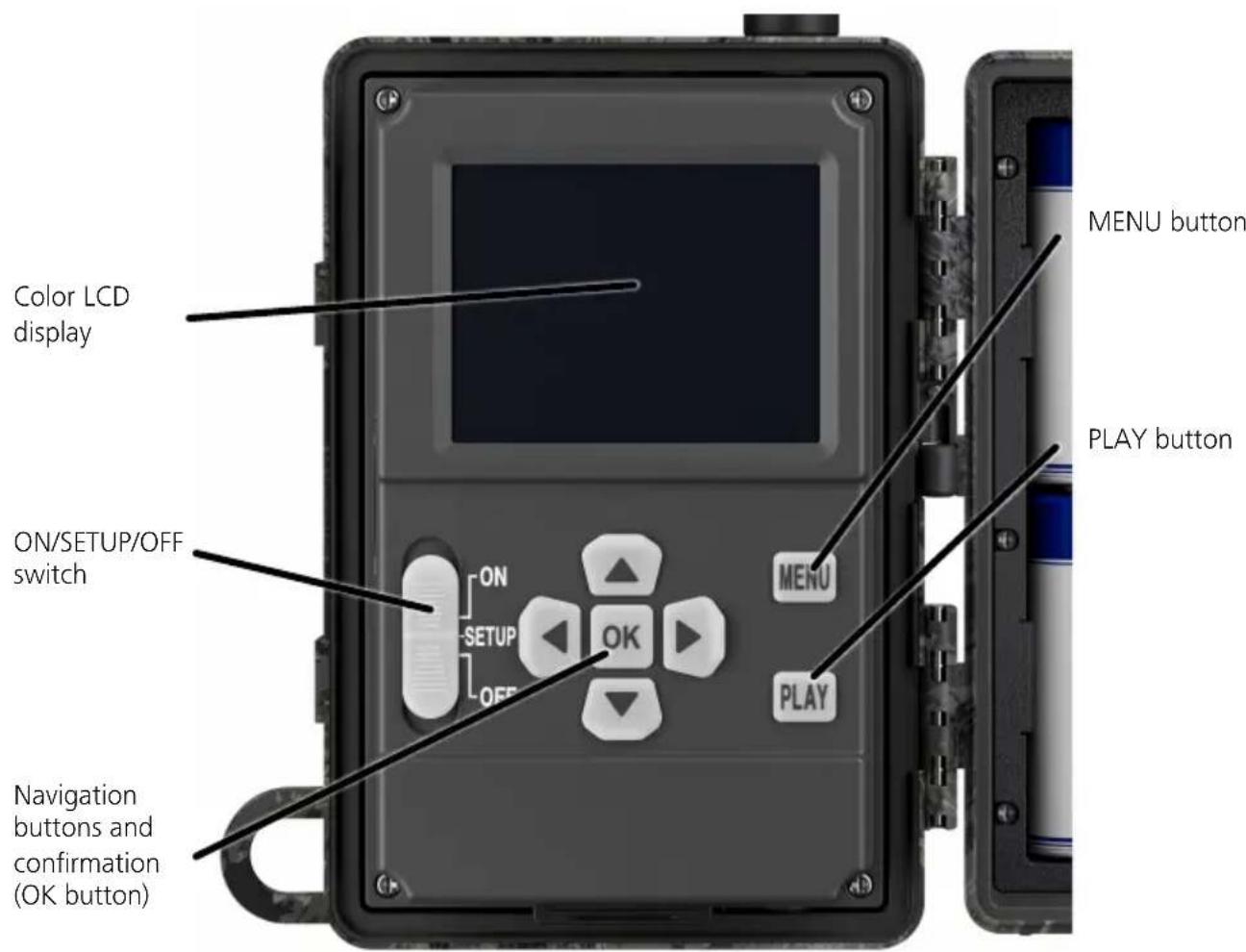
ON/SETUP/OFF switch: The camera is ready to use right away because we have already inserted batteries, a memory card and a SIM card for you. With the switch set to "ON", the ZEISS Secacam is armed after the red flashing status indicator goes out. The display turns on when the switch is set to "SETUP".
Note: Remove the contact breaker before use.
Light sensor: Measures the light intensity. It depends on whether the camera takes color pictures (daylight), black-and-white pictures without flash (twilight) or black-and-white pictures with flash (night).
Infrared sensor: The passive infrared sensor (PIR) recognizes moving heat sources and triggers the camera. The sensitivity of the sensor can be set in three levels via the menu.
Status indicator: Lights up red: Display switched on. Flashes red (up to 10 seconds):
After it goes out, the camera is ready to record.
Color LCD display: Setting the button to "SETUP" turns on the display. You can now check the capturing area, view images or make menu settings after pressing the MENU button.
MENUBuTton:When the display is switched on, the MENU button is used to call up the camera menu.
PLAY button: When the display is switched on, the PLAY button activates review mode.
3. Preparing the camera
3.1 Opening and closing the camera
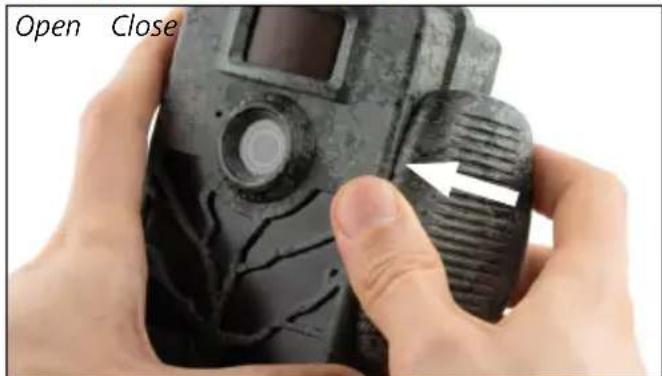
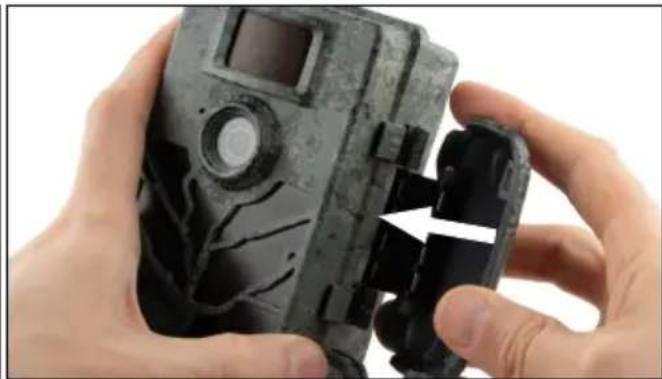
Open: Loosen the locking clip on the right side of the camera. Grasp the back of the lock with two fingers and pull it away from the camera until the lock pops open.

CAUTION!
Pull the contact breaker out of the battery compartment. Some force may be required for this. Only then will the camera's power supply activate so that the camera can be used.
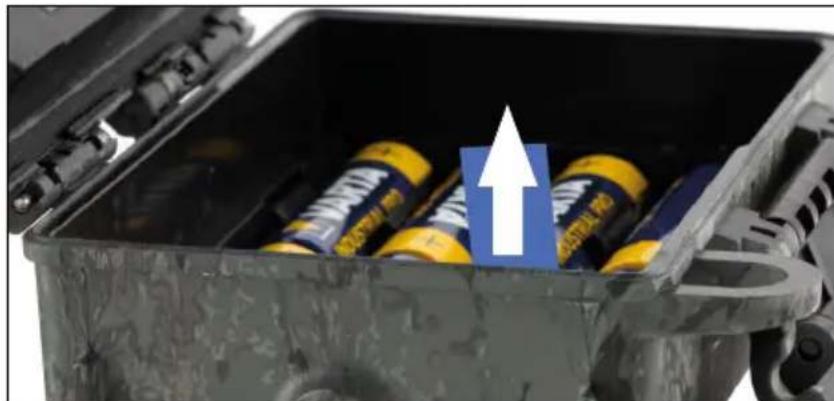
Close: Close the camera and place the locking clip on the two hooks on the side. Then press the locking clip backwards.
3.2 Inserting the batteries

CAUTION!
The camera must be turned off before inserting new batteries! Please use either disposable or rechargeable batteries, do not mix different types of batteries. For black night photography, please replace all batteries with fully charged batteries.
Battery compartment: Open the camera. When inserting the eight fully charged disposable or rechargeable batteries, be sure to insert the batteries with the matching polarity as indicated in the battery compartment.
3.3 Inserting the memory card
The ZEISS Secacam stores the photos and videos on commercially available SD or SDHC memory cards (guaranteed up to 32 GB); not Micro-SD cards.

CAUTION!
It is only possible to take photos or videos if there is a memory card inserted.
USB-C port
Memory card (only insert when camera is off)
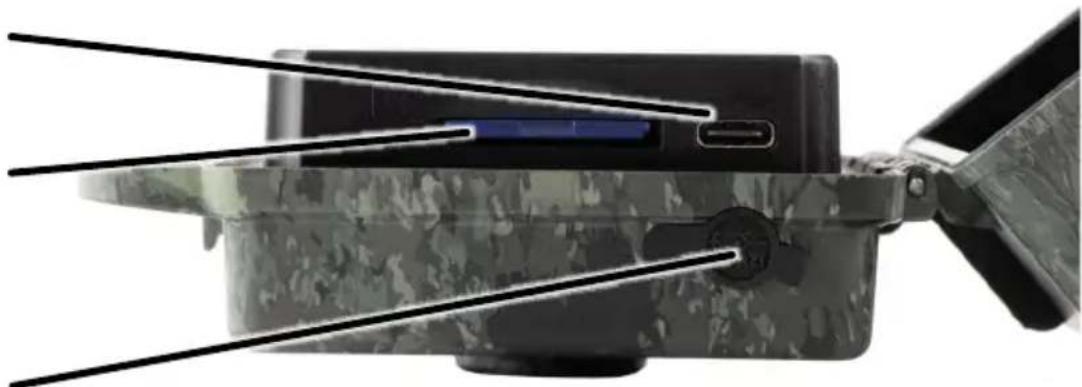
12 V power connection
Inserting the memory card: When you insert the memory card, the camera must be turned off! Open the locking clip and open the camera. On the right side, you will find the memory card slot. Insert a SD/SDHC memory card into the memory card slot until it clicks into place. When inserting the memory card, the memory card contacts must face upwards, meaning you must see the front of the camera and the golden contact strips of the memory card.
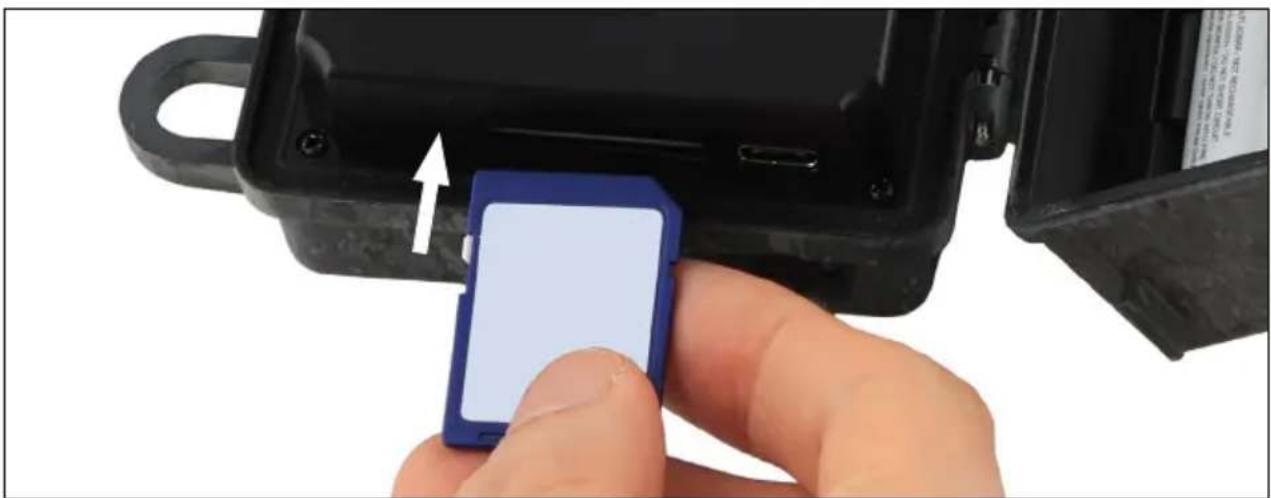
Note: The memory card label must face upwards.
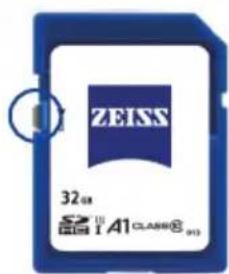
Write protection switch: A small slider is located on the side of each memory card to enable or disable the write protection. Before inserting the memory card make sure that the slider is facing the card contacts. Only in this position can the camera write data onto the memory card.
** Formatting the memory card:** We recommend formatting the memory card before using it for the time. To format the memory card, activate the camera display by switching the ON/SETUP/OFF switch to "SETUP". Then press the PLAY button to enter the preview mode. After pressing the MENU button, you will be given the "Format" or "Delete" options. Choose "Format" and press the "OK" button. If you format the card on your PC, please select the exFAT file system.
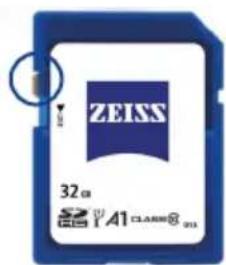
Write protection enabled: Write protection disabled: Not ready for use Ready for use
3.4 Fitting the antenna
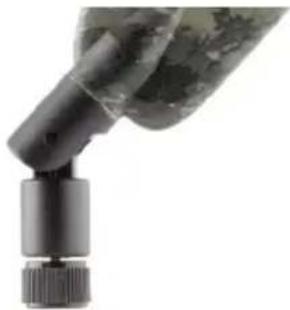
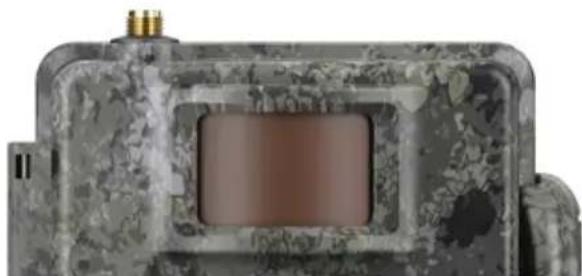
To access the mobile functions, the antenna must be fitted. Remove the yellow protective cap and then screw the antenna onto the top of the camera housing.
Note: To position the antenna as inconspicuously as possible, it can be angled and rotated at the joint. The reception and transmission of data is not affected by the positioning.
3.5 Inserting the SIM
The ZEISS Secacam uses a SIM card for mobile radio transmission.
Note: The camera's mobile function works exclusively with the already inserted ZEISS Secacam SIM card. SIM cards from other providers are not compatible.
Note: Please do not take out the SIM card or switch it for another SIM - not even for one from another ZEISS Secacam.
The SIM card slot is located on the side just below the screen on the left side of the opened housing. Insert the SIM card with the contacts facing down and the slanted corner facing to the front left until it audibly clicks into place.
4. Getting started
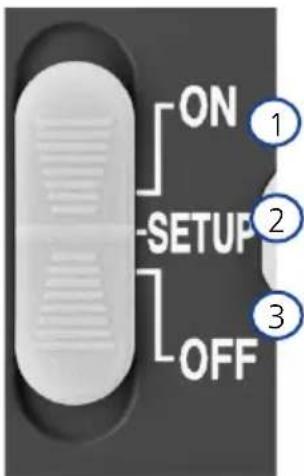
4.1 Switch settings
If you have equipped the ZEISS Secacam with antenna, batteries and memory card as described above, you can basically start using the camera immediately with our factory settings.
- Set the OFF/SETUP/ON switch to the "ON" position:
The camera is turned on and ready to use after a few seconds.
- Set the OFF/SETUP/ON switch to the "SETUP" position:
The camera's display is now on so you can check the camera's capturing area, preview photos, or make adjustments.
- Set the OFF/SETUP/ON switch to the "OFF" position:
The camera is completely switched off.
4.2 Configuring settings
Before using the camera, you should adjust the settings according to your requirements. All menu items and the possible settings are listed below.
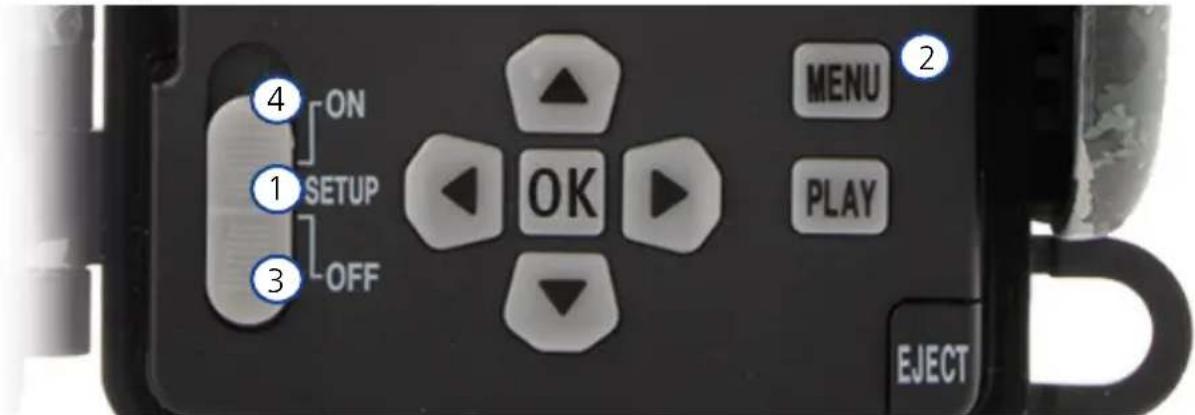
- SETUP: Set the switch to the "SETUP" position: The screen turns on and you can see the home screen for about 2 seconds. The camera then switches to preview mode and shows the section on the display that would also be visible during capturing.
- MENU: To access the menu, you need to set the switch to "SETUP" as described above and then press the MENU button. Use the "Arrow up" and "Arrow down" buttons to navigate to the required menu item. Press the OK button to move to the desired menu item and make changes. Press the MENU button to exit the menu.
- OFF: To turn off the camera, set the switch to "OFF".
- ON: To start the surveillance function, set the button to "ON". As soon as the LED light is no longer on, the camera is ready for use. The screen does not turn on in this position.
5. Menu
Status information on the display
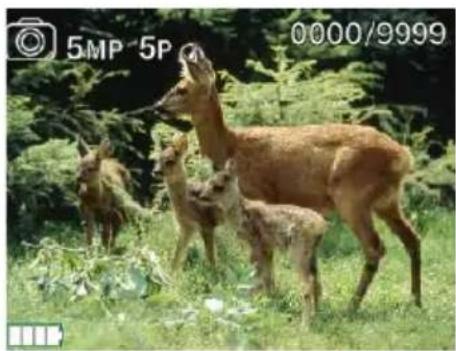
| 5MP 5P | Camera takes photos with 5x5 MP. |
| □HD 20s | Camera records a 20-second video in 720p. |
| □5P 20s | If both icons appear, the camera will first take the pre-selected number of photos and then records the pre-selected length of video. |
| 4G | The camera is connected to the 4G network and has strong reception. |
| Internal power supply | |
| External power supply |
5.1 Capture mode (Photo/Video/Photo+Video)

Photo: The camera takes photos according to the selected settings in "Photo Size SD" and "Multi shot".
Tip: We recommend the "Photo" setting for mobile image transmission.

Video: Here, a video recording is made according to the parameters selected under "Video Size" and "Video length".
Note: This menu item is only visible when mobile is switched off because videos cannot be transmitted without an associated image.

CAUTION!
Video transmission can only be activated if you have a suitable data plan and only via the ZEISS Secacam app. For more information on data plans, see: http://www.zeiss.ly/secacam-subscriptions

Photo+Video: First, the camera takes a photo(s) and then a video. The number of photos or the length of the following video depends on the settings under the menu items "Multi shot" or "Video length".

CAUTION!
Saving a video with the "Photo+Video" setting may delay mobile transmission of the captured photos. Sent videos are limited in resolution and recording length.
5.2 Photo Size SD
There are three image sizes to choose from with the ZEISS Secacam:
- 5MP = 5.0 megapixels = 2592× 1944 pixels
8 MP = 8.0 megapixels = 3,264 × 2,448 pixels
12 MP = 12.0 megapixels = 4,000 × 3,000 pixels
We recommend setting the resolution to 5 MP. Although a higher resolution might result in a partially improved photo quality, it results in larger photo files which, accordingly, require much more space on the memory card. Since the camera has a 5.0 MP CMOS image sensor, the resolutions 12 MP and 8 MP are generated by interpolation. Photos are taken in a 4:3 aspect ratio and saved in the JPEG format.
Note: This setting only affects the images saved on the SD card, not the images sent via mobile (see 5.12).
5.3 Multi shot
Select the number of photos (1 to 5 photos) to be taken in quick succession when triggered in Photo mode.
5P
5 images, each 1 second apart
5PM
5 images, < 1 second interval
In practice, the "5P" setting has proven most effective for common use cases. If the camera registers a movement, it will take 5 photos consecutively with a gap of approximately one second between two photos. With this series of photos, you increase the likelihood of capturing a moving object at least once.
However, you can also choose the option to have 3, 4 or 5 photos triggered very quickly one after the other. If the camera registers a movement, it will take 3 to 5 photos consecutively with a gap of around one second between two photos.
Note: When the mobile unit is switched on, in the default setting only the second photo is sent for each series of photos. Experience has taught us that the second photo has the highest chance of showing a moving object the best.
You can set the delay between two recording series under the "Pause capture" menu item (see below).
5.4 Video Size
There are three video resolutions to choose from with your ZEISS Secacam:
1080p = 1920 x 1080 pixels
720p = 1280× 720 pixels
480p = 640 x 480 pixels
We recommend 720p resolution. Although the 1080p resolution might result in a partially improved video quality, the video files will be larger and, accordingly, require much more space on the memory card. The videos are recorded at up to 30 fps (frames per second) and saved in mp4 format.
5.5 Video length
Under this menu item, specify the duration of a video recording triggered automatically. You can select a duration from 5 to 59 seconds for the video length.

CAUTION!
Please note that night videos have a considerably higher battery consumption than photos. While the LEDs only flash briefly while taking a photo, they light up during the entire recording in a video.
We recommend a maximum video length of 15 seconds. When using the "Photo+Video" mode, we recommend reducing the video length to 10 seconds.
Sent videos are limited in resolution and recording length and do not depend on the device settings in the menu.
5.6 Sensitivity
The ZEISS Secacam has a passive infrared sensor (PIR) that reacts to moving heat sources. You can set the sensitivity of the sensor between "High", "Medium" and "Low". We recommend the "High" setting. However, this settings increase the possibility of false triggering, for example when the camera recognizes moving branches that have been warmed up by sunlight and are now moving in the wind. In this case, we recommend gradually reducing the sensitivity.
5.7 Flash mode
The ZEISS Secacam has three setting options for the exposure time:

Max. range: If the living beings to be captured are moving comparatively slowly (e.g. grazing deer), this setting results in very well illuminated night shots. However, moving objects appear less sharp.

Balanced: This setting is a middle ground between max. range and min. blur. The scenery is illuminated well at night, and moving objects are rendered sufficiently sharp.

Min. blur: The exposure time is set as short as possible at night. Night shots tend to be a bit darker, but the motion sharpness is at its best.
5.8 Timer
Similar to a clock timer, you can define a time period here in which the camera should take photos. To do this, first select the "On" setting in the "Timer" menu item. The start and stop times are entered in the format hh:mm.
Example: A hunt should only be monitored during the night time. For example, you can define the time interval as follows: 22:00 to 06:00. Outside this period, the ZEISS Secacam will remain in stand-by mode.
Outside the selected time interval, the camera will not be triggered and will not take any photos or record any videos.
5.9 Time lapse
Continuous shooting is set in this mode. The camera then automatically triggers a recording at a pre-selected time interval. To do this, first select the "On" setting in the "Time lapse" menu item. The interval between two automatically triggered recordings is entered in the format hh:mm:ss in each case. Use the up and down arrow buttons to change the respective setting, and the right and left buttons to move one position forward or backward. You can choose an interval between recordings from 5 seconds (00:00:05) to 24 hours (23:59:59). Finally, confirm the settings with "OK".
This continuous shooting is possible in both photo mode and video mode, but photo shots make more sense in practice.
Example: You would like to create a time-lapse video. For these popular time lapse recordings, it makes sense to choose a short time interval of about 5 to 10 seconds. With additional software (not included), you can then combine these individual recordings into a time-lapse video.
Tip: It is recommended to set the "Multi shot" to "1" for continuous shooting, so that only one photo is taken per trigger.
5.10 Pause capture
The "Pause capture" is a forced pause set by you after the recording series has been completed. During the selected interval, the camera will not take pictures or record videos, even if there is movement in front of the camera. This prevents the memory card from being filled with too many unwanted recordings. This is because, depending on the setup, a branch moving in the sunlight or a mouse, for example, may repeatedly trigger almost identical images. To prevent the ZEISS Secacam from taking hundreds of unwanted images in such cases and possibly sending them via mobile, you can define a delay between two motion-activated images.
To do this, first select the "On" setting in the "Pause capture" menu item. Use the up and down arrow buttons to change the respective setting. You can choose the delay between 3 seconds (00:00:03) and 24 hours (23:59:59). Once you have finished, confirm with "OK".
Tip: If the surveillance camera is operated in photo mode, a combination of 5 images in series, interrupted by a 5 second delay, has proven successful in practice. For Photo+Video, the recommended interval is 15 seconds for taking videos, and a 15-second delay. The delay can be combined well with the mobile photos/videos per hour function. For example, if you select a maximum of 10 images per hour, we recommend a 6-minute delay. This would spread the 10 recordings over the 60 minutes. Otherwise, it is possible that 10 recordings are taken in the first 5 minutes and the camera does not become active again until an hour later.
5.11 Transmission
Here you can switch the transmission functions on or off. If you switch off this option, the ZEISS Secacam will no longer send you any images. The camera can also no longer be controlled via the ZEISS Secacam app.
5.12 Sent photo size
(This menu item can only be selected if mobile is switched on).
If you use the camera in an area where there is only 2G network coverage and sending images takes significantly too long, you can change the method of sending to "M" or even "S", which will speed up sending images.
S = 1024 × 768 pixels
M = 1280 x 960 pixels
L = 1920 × 1440 pixels
Note: This setting only applies to the images sent via mobile, not the images stored on the SD card.
5.13 Sent shots/h
(This menu item can only be selected if mobile is switched on.)
You can set the maximum number of photos/videos sent per hour via mobile in preset levels between 1 and
Outdoors, for example, moving branches can be heated by the sun's rays and, in combination with wind, lead to undesirable images.
Note: If an event happens after the tenth image with a limitation of, for example, 10 images/hour, it will be recorded and saved on the SD card, but no longer sent. Only events that happen after the next 60 minutes are then sent again. This can result in a surveillance gap of up to one hour.
5.14 GPS data
Note: This menu item can only be selected if mobile is switched on.
Here you can set whether the ZEISS Secacam should determine its GPS position. This allows you to display the location of your camera in the ZEISS Secacam app.
To save power, the camera updates its position data once when it is switched on. This may take some time depending on the position, meaning that the position is not visible on the first images.
5.15 Battery type
The ZEISS Secacam can also be used with LR6 (AA) 1.5 V Mignon rechargeable batteries. For the battery display to work correctly (rechargeable batteries tend to have a higher current capacity at lower voltage values), you can select here whether you are using batteries or rechargeable batteries.
Note: When using rechargeable batteries, the battery display may differ from the actual charge status.
5.16 Date/time
When the "Automatic" setting is selected, the camera loads the date and time from the mobile network. If necessary, you can adjust the time to the corresponding season or time zone using + and -. When the "Manual" setting is selected, you can set the date and time yourself. Use the up and down arrow buttons to change the respective setting, and the right and left arrow buttons to move forward or back one position. Confirm the settings with "OK" to complete. The date and time are now included in every recording.
5.17 Language
Choose the desired menu language. You can choose between German, English, Spanish, French and Italian.
5.18 Footer cam name
You have the option to choose a name that will appear at the bottom of your images. If you select the "On" option, you can enter a name with a total of 12 characters using the arrow buttons. Use the up and down arrow buttons to change the respective character and the right and left arrow buttons to move forward or back one position.
5.19 PIN code
You can secure the camera with a six-digit PIN to prevent the device being used in case of camera theft. To do this, first select the "On" setting in the "PIN code" menu item. Use the up and down arrow buttons to change the respective setting, and the right and left buttons to move one position forward or backward. Confirm the settings with "OK" to complete.
Note: This option has nothing to do with the PIN code on the quick guide you used to register your ZEISS Secacam. This option is used to password-protect your ZEISS Secacam.

CAUTION!
Please use the PIN code option very carefully. If you forget the selected PIN, the camera is also useless for you. In this case please contact our customer service. If you have booked a corresponding data plan, you can also deactivate the PIN request via the ZEISS Secacam app.
5.20 SD cycle
By setting this menu item to "On", you prevent new recordings from being made when the memory card is full. Otherwise the oldest recordings are overwritten by new ones.
5.21 Reset
If you select "Yes" under this menu item and confirm the selection with "OK", all settings are reset to the delivery status. The date and time are not affected.
5.22 Send test photo
(This menu item can only be selected if mobile is switched on.)
If you want to test whether sending recordings via mobile works as desired, you can take a test photo.
Note: We recommend that you familiarize yourself with the Pause capture, Time lapse and Timer functions mentioned above when using mobile mode. The functions will help you take and send the optimal number of photos.
5.23 Firmware version
The firmware version currently installed on the camera can be seen here. The ZEISS Secacam is continuously being updated. Please visit www.zeiss.com/cop/downloads and check if firmware updates with a higher version number are now available for your camera.
5.24 Firmware update
Note: This menu item can only be selected if there is a new firmware version on the SD card. The batteries need to be fully charged in order to install the update.
We are continuously updating our cameras. New firmware versions with optimizations or even new functions can be downloaded from www.zeiss.com/cop/downloads.

CAUTION!
Please follow the instructions on the website carefully, otherwise your camera may be damaged!
6. ZEISS Secacam app & web
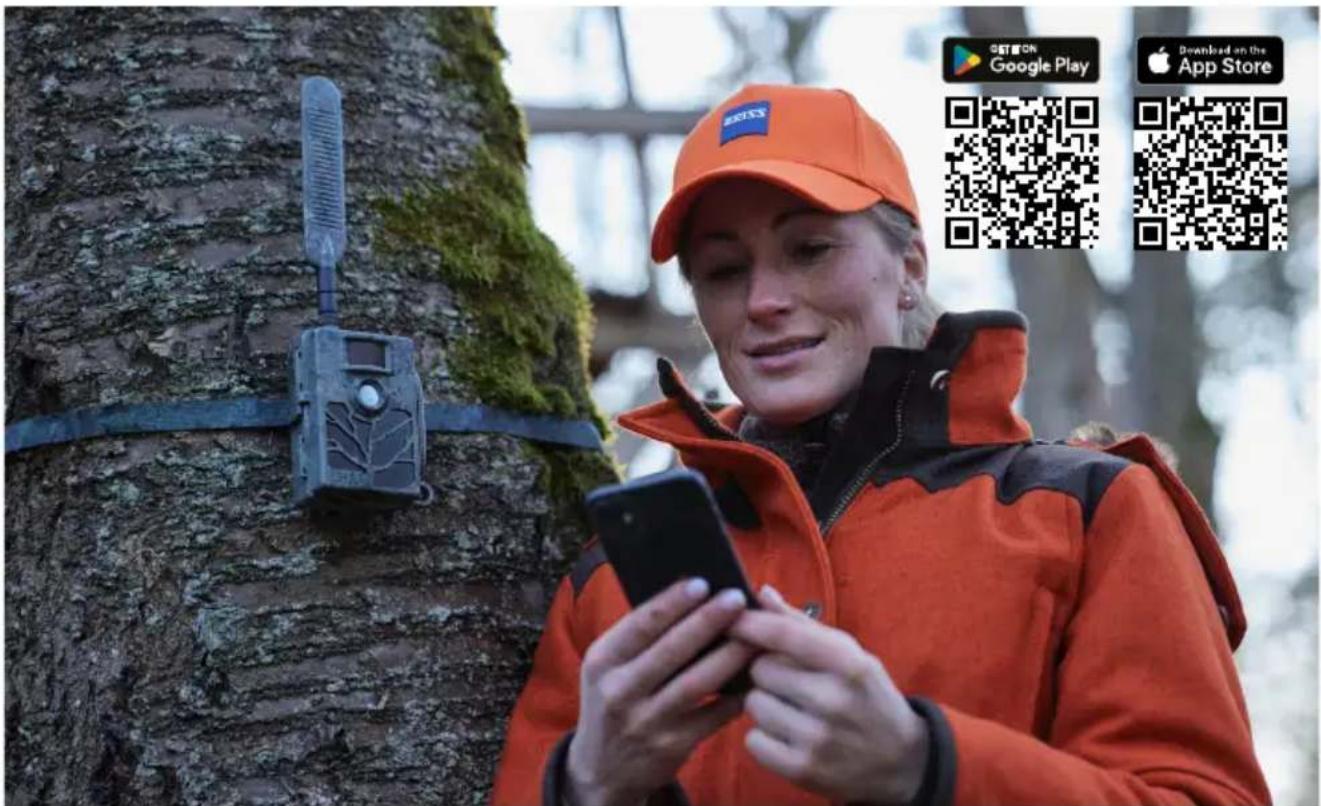
No additional software is required to access and manage the recordings on your ZEISS Secacam. You can conveniently access your ZEISS Secacam user account via the website https://secacam.zeiss.com or using the ZEISS Secacam app for Apple or Android devices. You will need to log in and then enter the ZEISS Secacam activation code to pair your camera with your user account. You will find the PIN under the scratch-off on the front of the quick guide. You can connect as many ZEISS Secacam to your account as you like.
Note: Be sure to keep your ZEISS Secacam activation code. You will need it if you ever need to reregister the camera.
From your user account you can view, delete, share or download recordings. You can name your ZEISS Secacams and view the battery, memory or camera status. The ZEISS Secacam app is very user-friendly, allowing you to easily access and manage all your cameras. It also allows you to manage multiple ZEISS Secacams easily and conveniently. This gives you complete control over all settings and an overview of everything that happens with your ZEISS Secacams - on the road or at home.
6.1 Pause transmission
In the ZEISS Secacam app, you will find the function "Pause transmission" within your camera. This allows you to conveniently pause the send function from your smartphone or PC, either permanently or for a certain period of time. If the pause is permanent, the camera can be reactivated via the app. However, during the pause, the camera continues to take photos and save them to the SD card.
6.2 Topping up credit
You will find the option to top up your credit under each of your ZEISS Secacams. Once it is used up, your camera will stop sending images. However, they are stored on the SD card as usual.
7. Network scan
The ZEISS Secacam automatically searches for the strongest available network. However, if you are not satisfied with your ZEISS Secacam's network connection, you can start a manual network scan. However, this might take some time. To perform a manual search, follow the steps below:
- SETUP: Wait for the camera to fully boot. Wait until "Search network", "Sync server time" and "Search GPS" have gone out on the screen.
- Right arrow button: Here you can see the details about your current network connection.
- Right arrow + left arrow: Press and hold the left and right arrow buttons simultaneously and wait until "Done" appears. If a stronger network is available, the camera will now connect to it, even after the next reboot.
The ZEISS Secacam is now connected to the strongest available network. If there is no stronger network in the vicinity, the ZEISS Secacam remains on the same network as before the scan.
8. Manually triggering test recordings
To check the capturing area or the recording quality, there is the option of manual triggering:
- SETUP: Set the switch to "SETUP". The screen turns on and the start screen is visible for about 2 seconds, after which the camera switches to preview mode and shows the section in the display that would also be visible during the recording.
- OK = recording: Press "OK" to trigger a recording manually. Caution: Depending on whether "Photo" or "Video" is selected in the "Mode" menu, either a photo and/or a video is recorded. Test videos are limited to a maximum of 15 seconds.
Note: To test your camera's mobile connection, you can also have a test image sent to your user account or the ZEISS Secacam app via the camera menu.
9. Checking recordings
- SETUP: Set the switch to "SETUP" and the screen will turn on and show the current capturing area. At the top right, the number of recordings and the theoretically possible number of recordings according to the memory capacity used are displayed.
- PLAY: Press the PLAY button to enter review mode. The screen switches to the last recording taken.
- Right arrow button = forward, left arrow button = back: Use the right and left arrow buttons to skip back or forward through a recording. You can recognize a video recording by the black bars at the top and bottom, as well as by the movie camera icon displayed at the bottom left. To start playing a video, press the OK button.
Deleting recordings: If you want to delete a recording, first go into review mode as described above. Then press the MENU button to enter the menu. Now you have the choice between "Delete" and "Format". If you select "Delete" here, you have the choice between "One" or "All". If you select the "One" option, you will be taken back to review mode. There you can use the left and right arrow buttons to jump and decide which recordings you want to delete by clicking "Yes" and confirming with "OK". If you choose the "All" option, you will be asked again if you really want to delete all files. Only when you select "Yes" and confirm with "OK" will the recordings be deleted.

CAUTION!
If you confirm the "All" selection at this point, you will irretrievably delete all recordings on the memory card!
10. Fitting
10.1 Fitting with strap
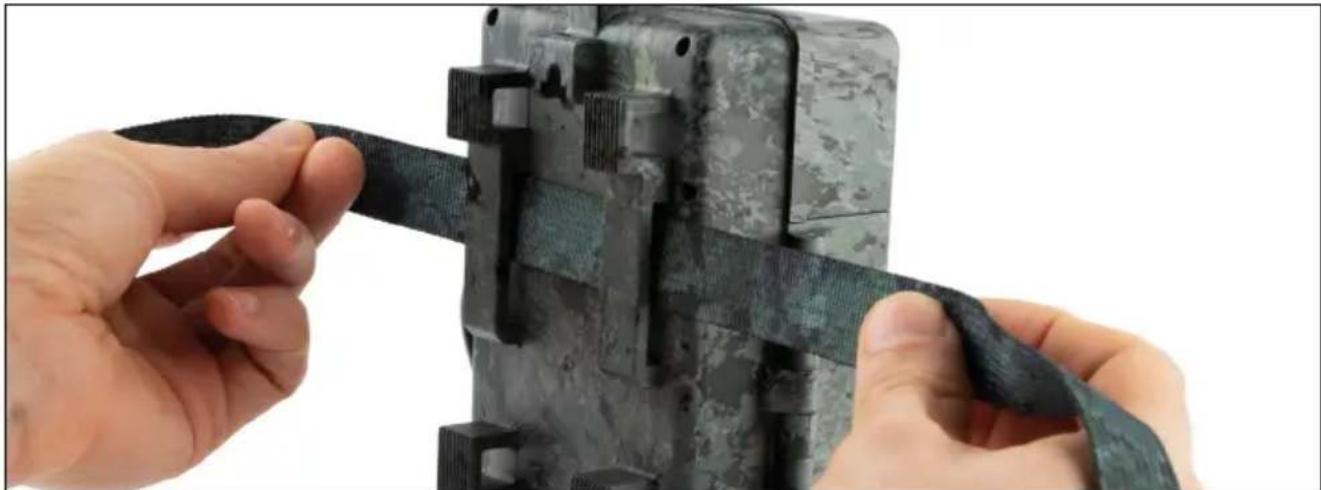
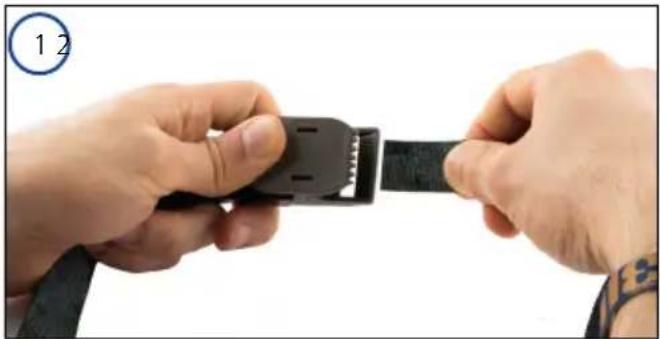
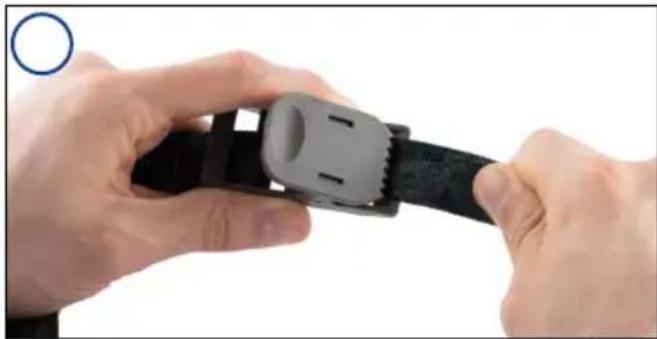
Use the enclosed mounting strap to attach the ZEISS Secacam to a tree, a solid branch or a pole. To do this, guide the retaining strap through the eyelets on the back of the housing. Hold the camera in the intended position and tighten the loose end of the mounting strap until the camera is securely fastened. Make sure to hide the remaining part of the strap.
To release the mounting strap, press the clip and pull out the strap end.
10.2 Fitting with tripod/tree mount
The ZEISS Secacams has a threaded bushing on the top and bottom for a ¼-inch tripod socket (diameter: 6.35 mm, length: 6 mm), which you will find on almost all commercially available camera tripod. This allows you to attach the camera on a variety of tripod, wall mounts or tree mounts available from accessory stores.
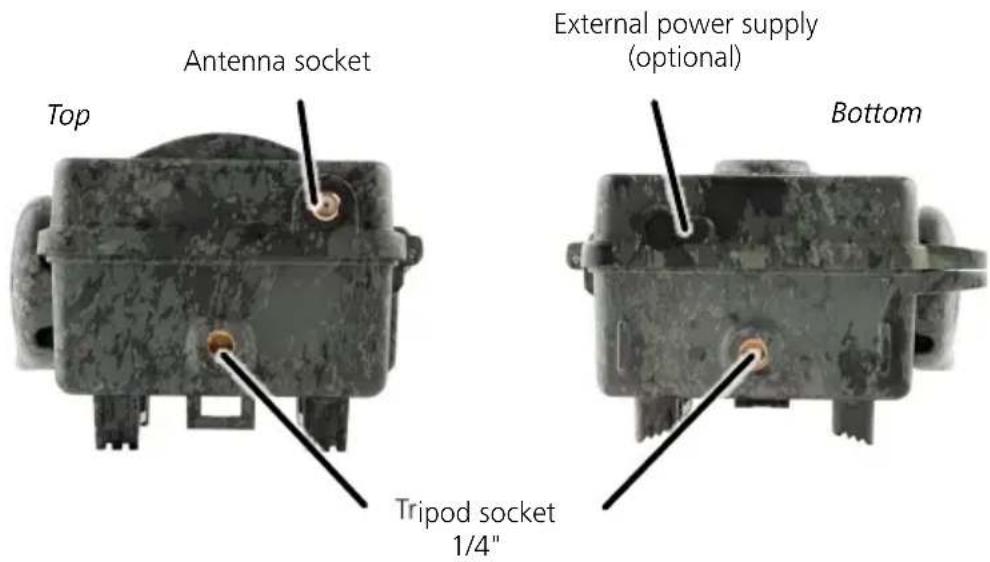
Tip: The best height to position a trail camera is around waist high and slightly pointed downwards.
11. Technical data
Element Description
| Image sensor 5.0 megapixels | Photo ratio: 4:3 Video ratio: 16:9 |
| Image size 5.0 megapixels as standard | 8.0 megapixels (interpolation) 12.0 megapixels (interpolation) |
| Number of photos per trigger 1 to 5 | |
| Display 2.4" (TFT-LCD color display) | |
| Continuous shooting Yes: Interval of 5 seconds to 24 hours | |
| Video resolutions 1080p = 1920 x 1080 pixels | 720p = 1280 x 720 pixels 480p = 640 x 480 pixels |
| Video duration 5 to 59 seconds | |
| Image information stamp Camera name | Time Date Moon phase (guide value) Temperature (guide value) |
| Number of LEDs/flash type 60 black LEDs | 940 nm |
| Trigger time < 0.35 ~ 0.45 seconds | |
| Infrared sensor 1 PIR sensor | Sensitivity adjustable (high | medium | low) |
| Sensor range Up to 25 m depending on object size and temperature difference | |
| Storage SD or SDHC up to 32 GB | |
| Ports USB-C | |
| Power supply | 8x LR6 batteries (AA) or 8x LR6 (AA) rechargeable batteries |
| External power supply | 12 V - 2 A |
| Dimensions | Approx. 13 (H) x 10 (W) x 7 (D)cm |
| Operating temperature | -20°C ~ 55°C |
Note: Design and technical data are subject to change without notice.
12. Connection to computer
Remove the memory card and insert it into a computer's card reader. If the computer does not have a card reader, you can also connect the camera directly to the computer using the USB cable provided.
Connection via USB cable: Release the locking clip and open the camera. There is a USB-C port at the bottom of the camera. You can connect the camera to your computer using the USB cable provided. Make sure the camera is turned off when you connect it to the computer. When the camera is plugged in, it will automatically turn on and "MSDC" appears on the display.
PC: The camera installs itself on the computer as an additional drive called "Removable disk". Double-click to open this drive on the computer. Inside the "DCIM" folder is the "100MEDIA" folder with the captured photo and video files. After 1,000 recordings, another folder is created, called "101MEDIA", "102MEDIA", etc. However, the recordings are numbered consecutively. You can now copy or move the folder or individual files to the computer.
Memory card reader: Using a memory card reader (not included), you can import photos and videos directly from the camera's memory card to your computer. To do this, connect the memory card reader to your computer and insert the camera's memory card into the slot. If necessary, please consult the manufacturer's operating instructions.
13. External power supply
External power supply: In addition to the power supply via batteries, the camera can also be permanently supplied with power via external power supplies with 12 V voltage and a current strength of at least 2 A. The corresponding socket is located at the bottom of the camera. The hollow plug of the power adapter must have an outer diameter of 4 mm and an inner diameter of 1.7 mm. Important: The positive pole must be on the inside, the negative pole on the outside. Remove the batteries when operating the camera with an external power supply.
External rechargeable battery: When using external rechargeable batteries for a long period of time, 12 V lead-gel batteries are particularly suitable. With a capacity of 4.5 Ah, for example, these batteries are an ideal long-term source of energy for the ZEISS Secacam. Please note that you must use a suitable cable with the correct polarity (positive pole inside) in addition to the rechargeable batteries.
14. Care
Do not use any harsh cleaners such as methylated spirits, thinners, etc. to clean the camera housing and the accessories provided. If necessary, clean the components using a soft, dry cloth.
15. Customer service and warranty
If you have any questions about your product, please contact us:
Phone
Within Germany: +49 (0)800 460 70 60
International: +49 (221) 59 68 60 60

Service website
www.zeiss.ly/secacam-service

FAQ
www.zeiss.ly/secacam-faq

If you want to download the current warranty conditions, visit our website:
www.zeiss.com/cop/warranty
We reserve the right to make changes to the design and scope of delivery in the interests of further technical development. No liability for errors and misprints.
Chere cliente, cher client,
www.zeiss.com/cop/safety

- 5MP = 5,0 megapixels = 2592× 1944 pixels
8 MP = 8,0 megapixels = 3264 x 2448 pixels
12 MP = 12,0 megapixels = 4 000 x 3 000 pixels
1080p = 1920 x 1080 pixels
720p = 1280× 720 pixels
480p = 640 x 480 pixels
M = 1280 x 960 pixels
L = 1920× 1440 pixels
www.zeiss.com/cop/warranty
www.zeiss.com/cop/safety

- 5MP = 5,0 megapixels = 2592× 1944 pixels
8 MP = 8,0 megapixels = 3264 x 2448 pixels
12 MP = 12,0 megapixels = 4000 x 3000 pixels
M = 1280 × 960 pixeles
L = 1920 × 1440 pixels
www.zeiss.com/cop/warranty
www.zeiss.com/cop/safety

- 5MP = 5,0 megapixel = 2.592× 1.944 pixel
8 MP = 8,0 megapixel = 3.264 x 2.448 pixel
12 MP = 12,0 megapixel = 4.000 x 3.000 pixel
Note: Anything that is not a parameter in the table is intended to be considered as an attribute.
M = 1.280 x 960 pixel
L = 1.920× 1.440 pixel
5.21 Impostaz.predef.
5.24 Update firmware
www.zeiss.com/cop/warranty
www.zeiss.com/cop/safety

- 5MP = 5,0 megapixel = 2.592 x 1.944 pixel
8 MP = 8,0 megapixel = 3.264 x 2.448 pixel
12 MP = 12,0 megapixel = 4.000 x 3.000 pixel
M = 1.280 x 960 pixel
L = 1.920× 1.440 pixel
www.zeiss.com/cop/safety

1. Pakkens indhold
- 5MP = 5,0 megapixels = 2.592× 1.944 pixels
- 8 MP = 8,0 megapixels = 3.264 x 2.448 pixels
12 MP = 12,0 megapixels = 4.000 x 3.000 pixels
1080p = 1.920 × 1.080 pixels
- 720p = 1.280 x 720 pixels
480p = 640 × 480 pixels
Vi anbefaler oplosningen 720p. Selvom 1080p-oplosningen ganske vist fere til delvist forbedret videokvalitet, resultanter den i storre videofiler, som kraever mere plads pa hukommelseskortet.
Videoerne optages med op til 30 fps (frames per second/billeder pr. sekund) og gemmes i mp4-format.
5.5 Videolängde
M = 1.280 x 960 pixels
L = 1.920 × 1.440 pixels
www.zeiss.com/cop/warranty
www.zeiss.com/cop/safety

www.zeiss.com/cop/warranty
www.zeiss.com/cop/safety

1. Pakkens innhold
www.zeiss.com/cop/warranty
Vi tar forbehold om endringer i konstruksjon og leveranse som ffolge av den tekniske videreutviklingen. Vi tar\ ikke ansvar for feiltakelser eller trykkfeil.
www.zeiss.com/cop/warranty
www.zeiss.com/cop/safety

- 5MP = 5,0 megapixel = 2 592 x 1 944 pixlar
8 MP = 8,0 megapixel = 3 264 x 2 448 pixlar
12 MP = 12,0 megapixel = 4 000 x 3 000 pixlar
www.zeiss.com/cop/warranty
- WARNING!
- Contents of box
- Preparing the camera
- Opening and closing the camera
- CAUTION!
- Inserting the batteries
- Inserting the memory card
- USB-C port
- V power connection
- Fitting the antenna
- Inserting the SIM
- Getting started
- Switch settings
- Configuring settings
- Menu
- Status information on the display
- Capture mode (Photo/Video/Photo+Video)
- Photo Size SD
- Multi shot
- Video Size
- Video length
- Sensitivity
- Flash mode
- Timer
- Time lapse
- Pause capture
- Transmission
- Sent photo size
- Sent shots/h
- GPS data
- Battery type
- Date/time
- Language
- Footer cam name
- PIN code
- SD cycle
- Reset
- Send test photo
- Firmware version
- Firmware update
- ZEISS Secacam app & web
- Pause transmission
- Topping up credit
- Network scan
- Manually triggering test recordings
- Checking recordings
- Fitting
- Fitting with strap
- Fitting with tripod/tree mount
- Technical data
- Connection to computer
- External power supply
- Care
- Customer service and warranty
- Phone
- Service website
- FAQ
- Impostaz.predef.
- Update firmware
- Pakkens indhold
- Videolängde
- Pakkens innhold
Brand : ZEISS
Model : Secacam 5
Category : Camera