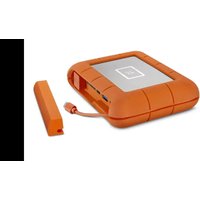
Rugged BOSS SSD - External hard drive LACIE - Free user manual and instructions
Find the device manual for free Rugged BOSS SSD LACIE in PDF.


| Product Type | External SSD with hub and standalone copy |
| Brand | LaCie |
| Model | Rugged BOSS SSD |
| Capacity | 1 TB, 2 TB (depending on version) |
| Interface | USB-C 3.2 Gen 2 (10 Gbit/s) |
| Dimensions (L × W × H) | 152 × 100 × 24 mm |
| Weight | ~300 g |
| Power | Built-in rechargeable battery + USB-C power adapter |
| Battery | Lithium-ion 5000 mAh (battery life ~10 h of copy) |
| Main functions | PC-free copy from SD card and USB device; mobile backup via LaCie BOSS app; use as an external SSD |
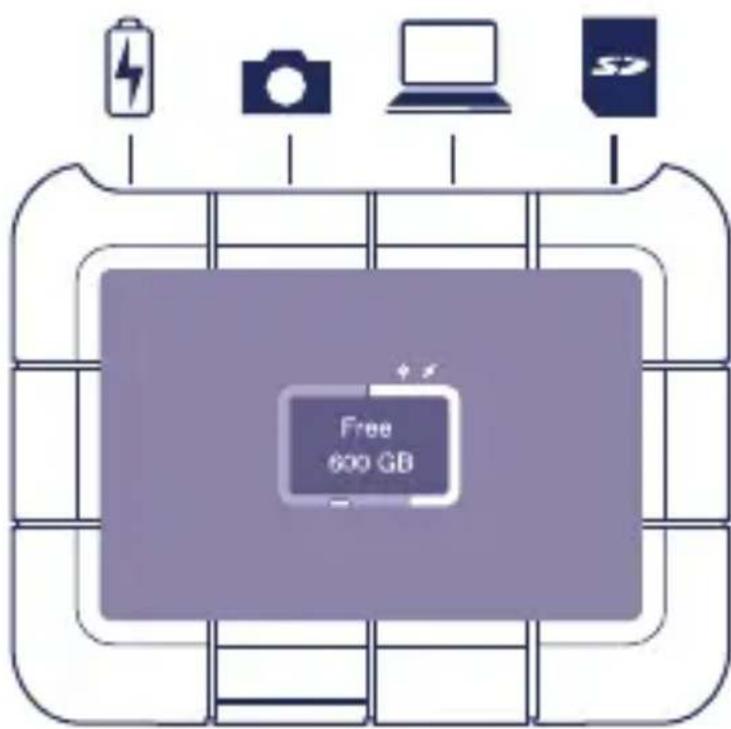
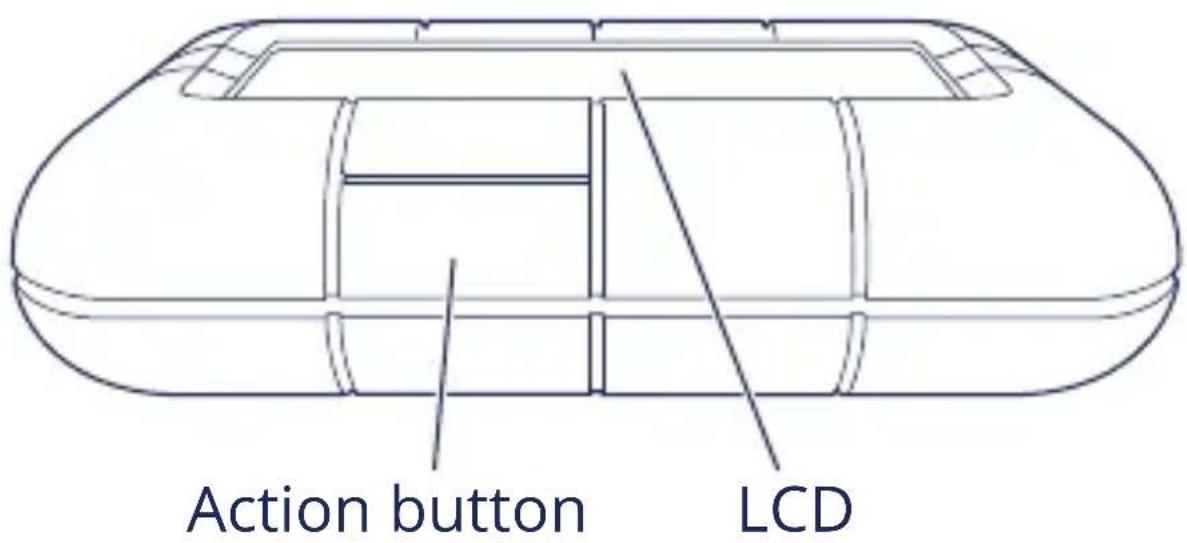
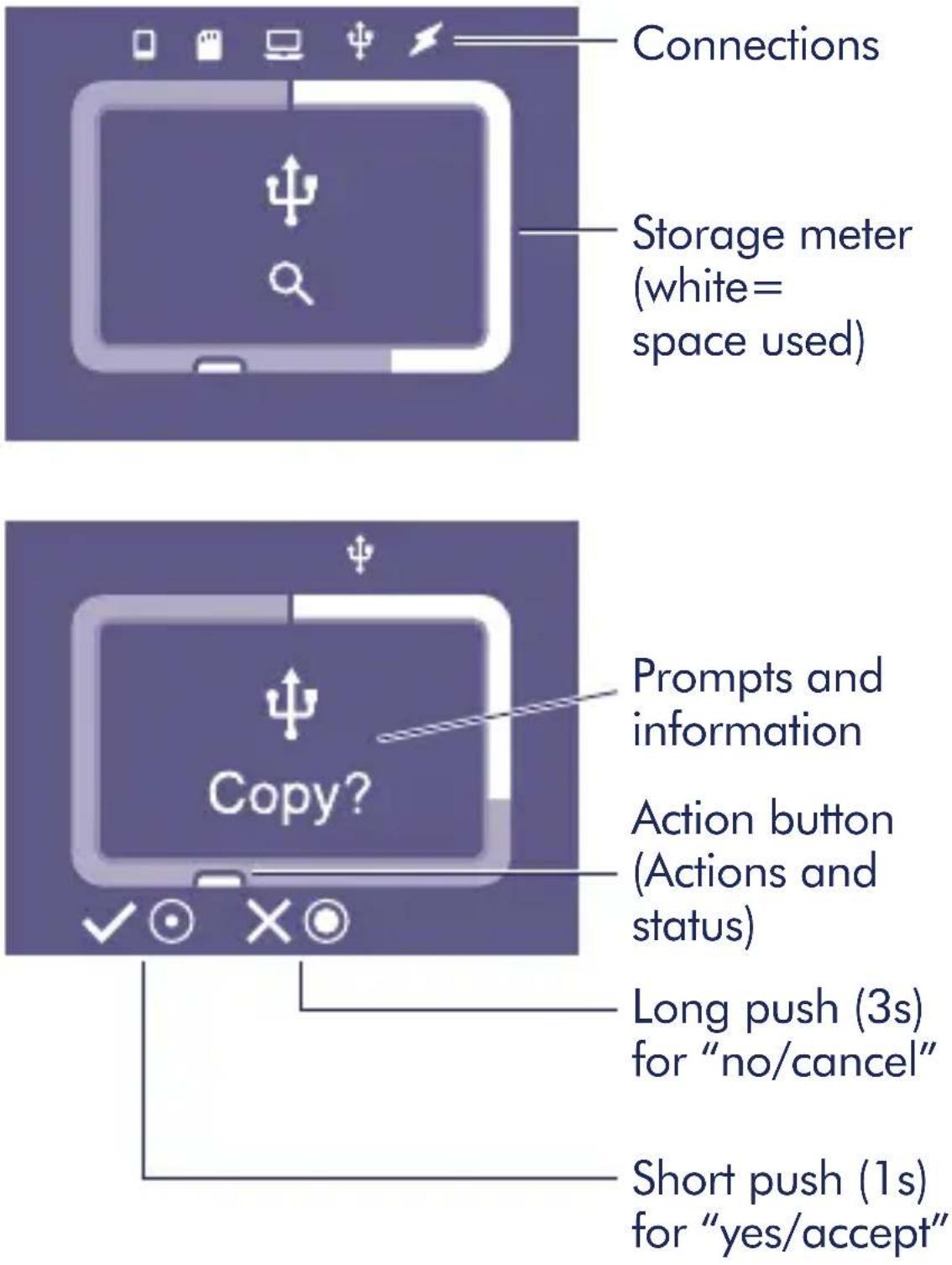
| LCD screen | Status display, space counter, prompts |
| Action button | Short press (1 s) to confirm, long press (3 s) to cancel |
| Dedicated app | LaCie BOSS (iOS and Android) |
| Compatibility | PC (Windows, macOS), smartphones/tablets (iOS, Android), cameras, drones |
| Protection standards | Resistant to drops from 1.5 m, IP54 rating (dust and splash) |
| Material | Rubber and aluminum casing |
| Warranty | 2-year limited (extendable on LaCie website) |
| Included accessories | USB-C cable, power cable, quick start guide |
| Care and cleaning | Wipe with a soft dry or slightly damp cloth; do not use chemicals |
| Safety | Avoid violent shocks; perform regular backups |
| Spare parts and repairability | Built-in battery not user-replaceable; no spare parts available |
| General information | Full manual available on the drive and online; support at www.lacie.com/support/rugged-boss-ssd |
Frequently Asked Questions - Rugged BOSS SSD LACIE
User questions about Rugged BOSS SSD LACIE
0 question about this device. Answer the ones you know or ask your own.
Ask a new question about this device
Download the instructions for your External hard drive in PDF format for free! Find your manual Rugged BOSS SSD - LACIE and take your electronic device back in hand. On this page are published all the documents necessary for the use of your device. Rugged BOSS SSD by LACIE.
USER MANUAL Rugged BOSS SSD LACIE
Backup On Set Solution | SD Reader | USB Hub | Power Bank
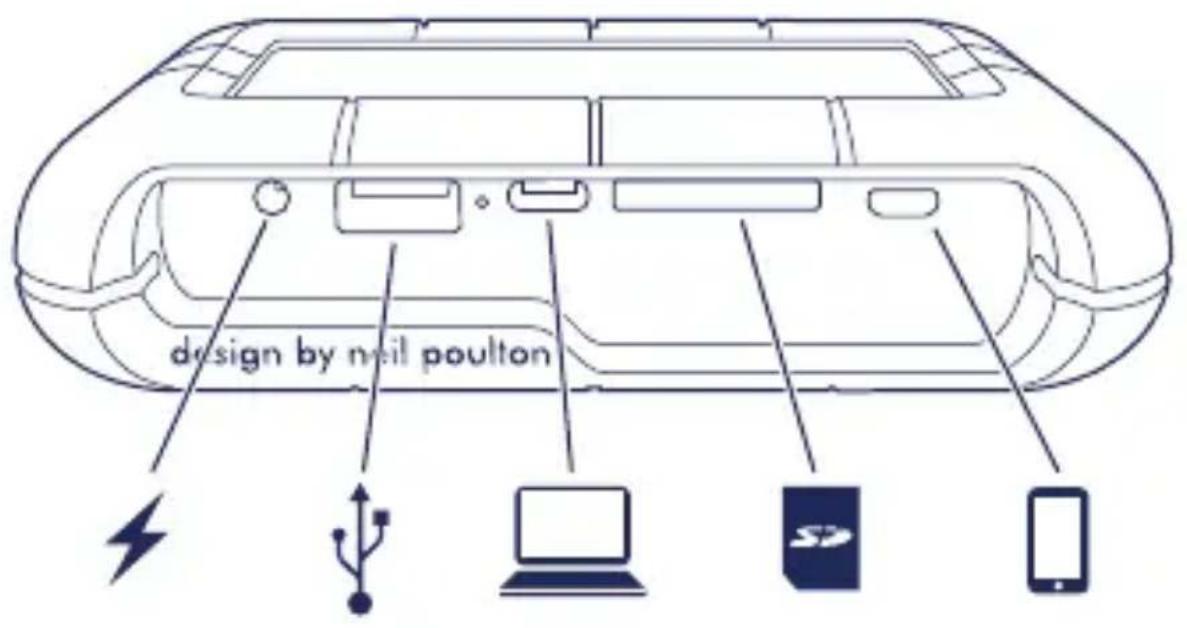
design by neil poulton
Quick Install Guide
Rugged® BOSS SSD ports and button
LCD guide
Set up Rugged BOSS SSD
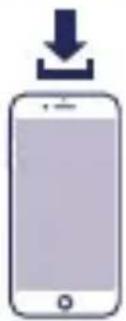
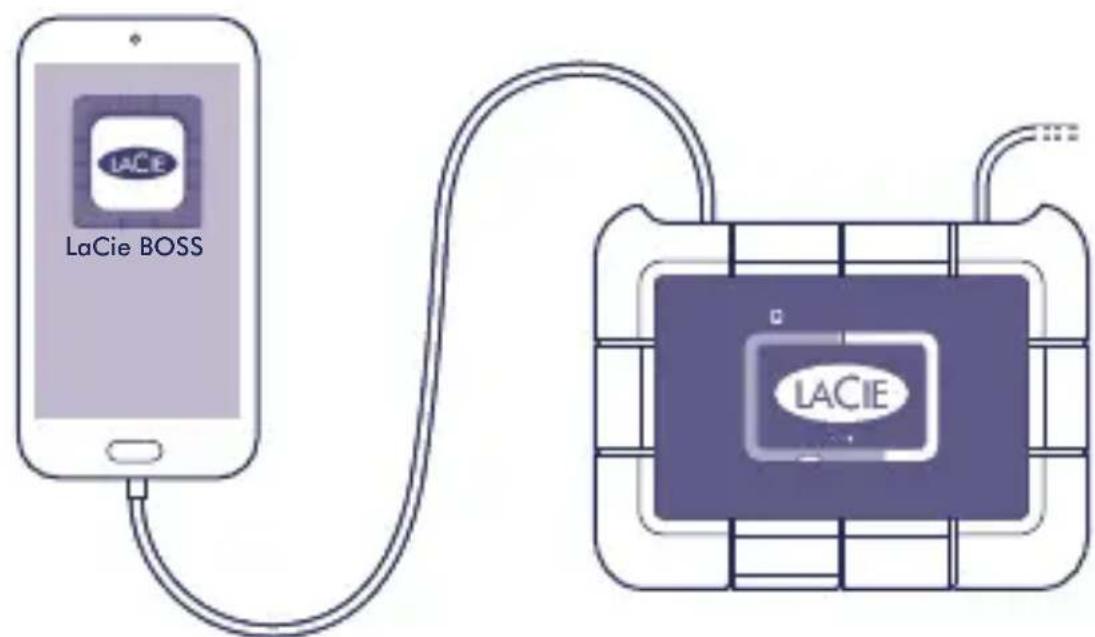
1 Install the LaCie BOSS app


LaCie BOSS LaCie BOSS


natural_image
Simple icon of a smartphone with a downward arrow above it, no text or symbols present.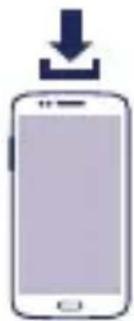
natural_image
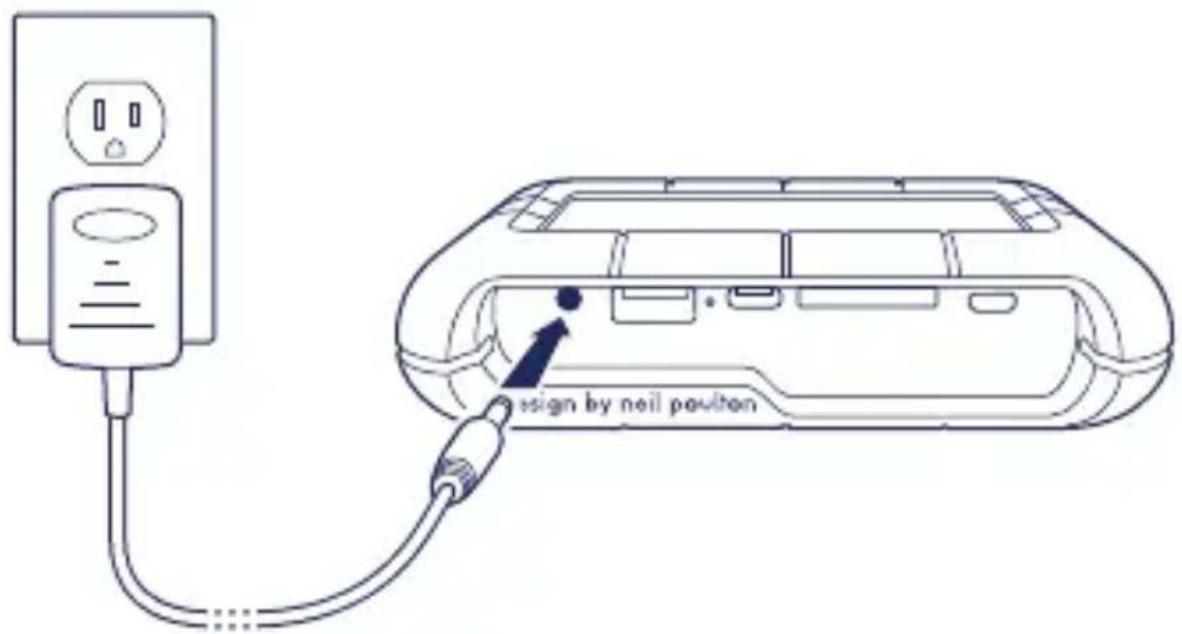
Simple icon of a smartphone with a downward arrow, no text or symbols present2 Connect the power cable to charge Rugged BOSS SSD's battery
Important: Make certain the power cable remains connected during the entire setup.

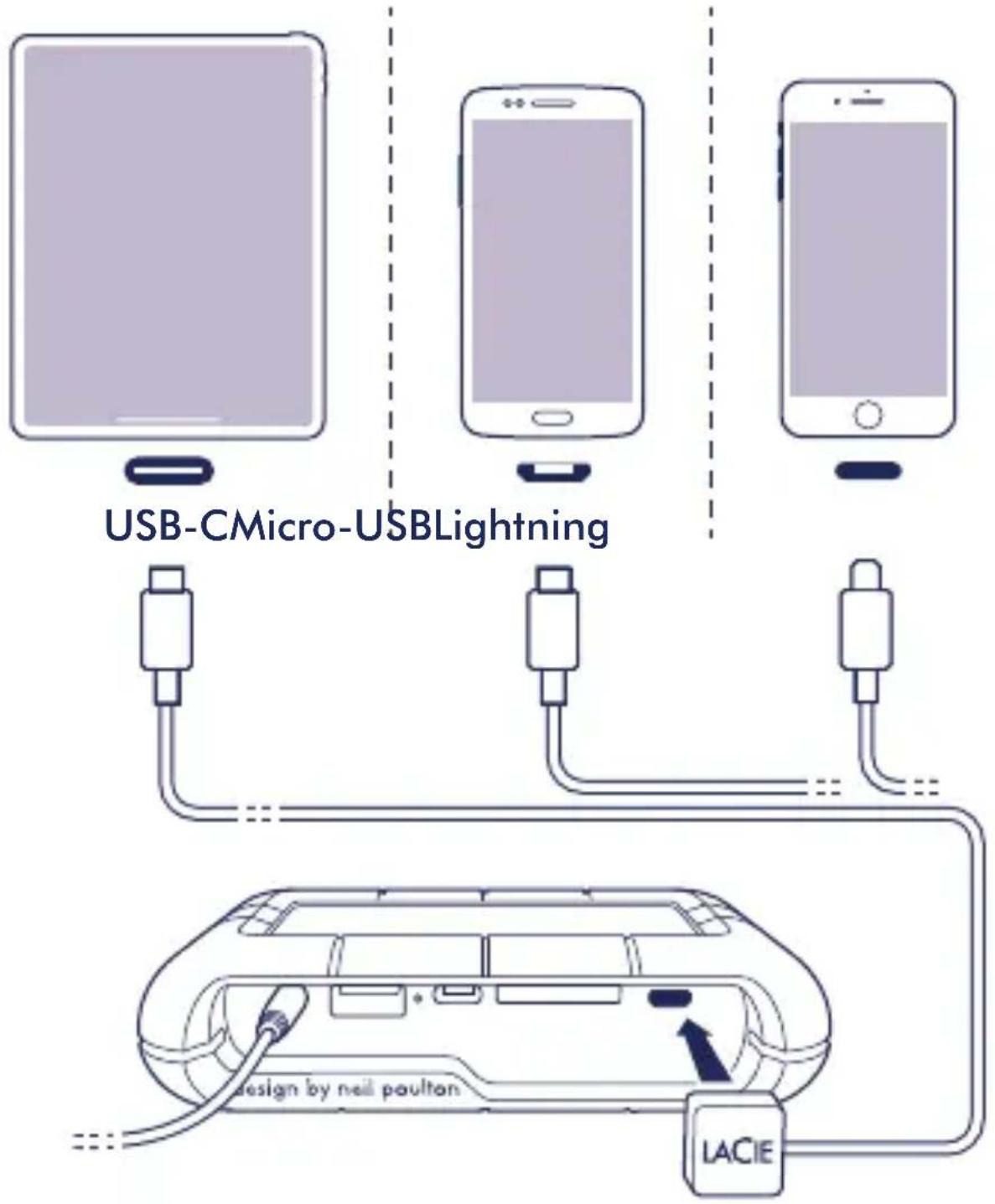
Connect mobile device
Choose the cable for your mobile device.

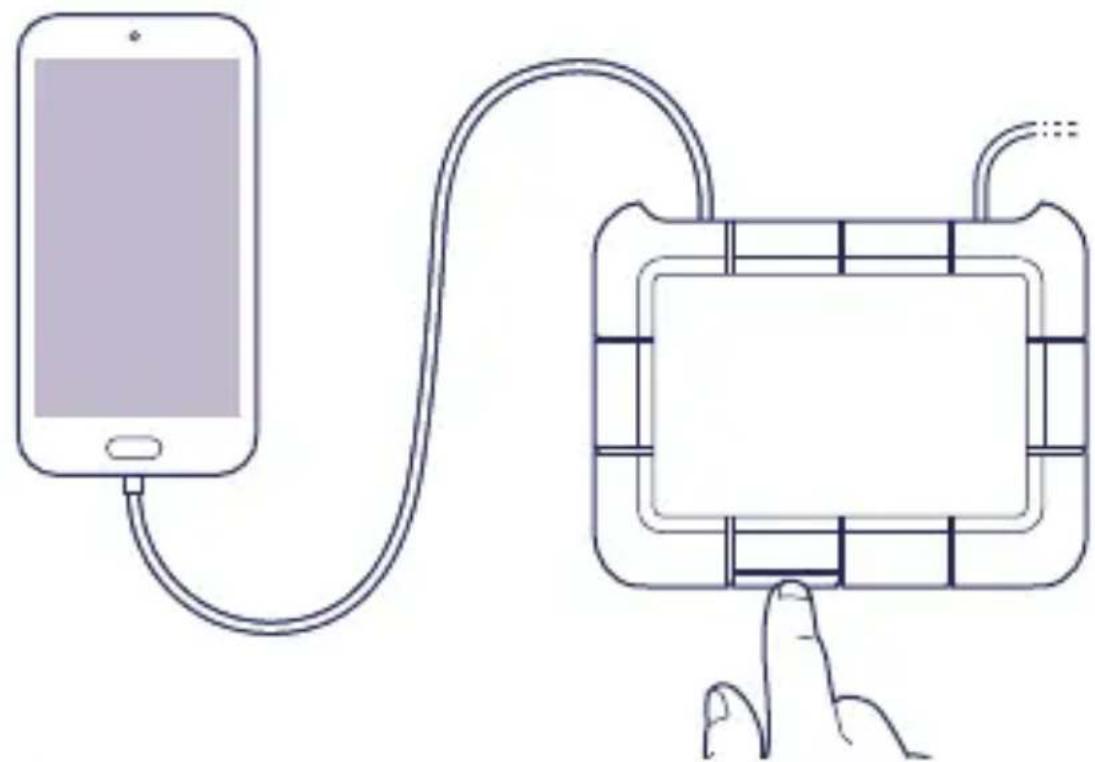
Push the action button to detect your mobile device
natural_image
Diagram of a smartphone connected to a device via cable, showing wiring and components (no text or symbols)
LaCie BOSS automatically opens to help you set up Rugged BOSS SSD (10-20s wait)
After setup is complete, you can:
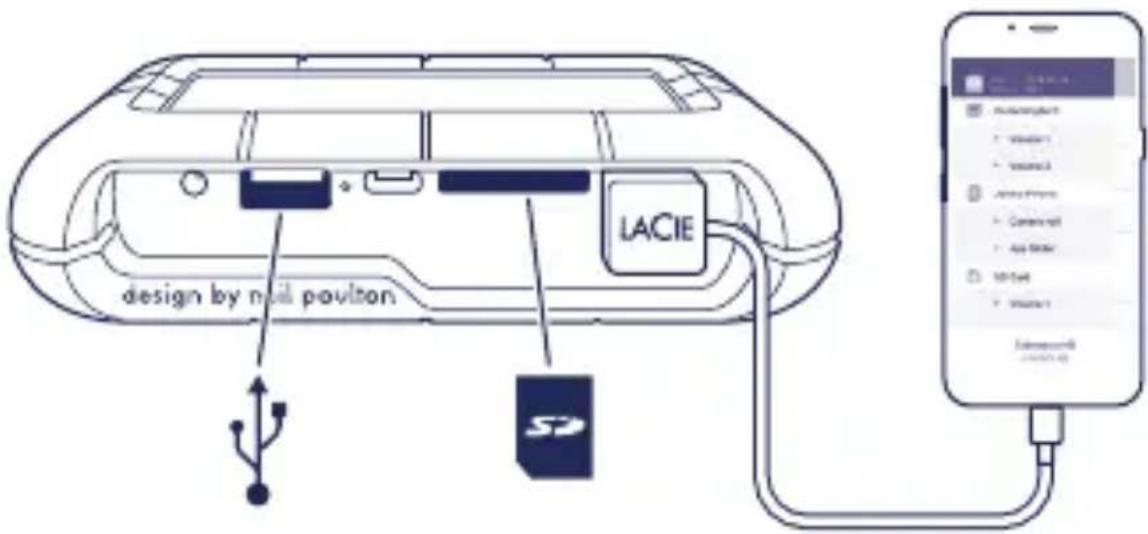
Copy and move files with LaCie BOSS
Use LaCie BOSS to manage files on Rugged BOSS SSD and connected SD cards, USB storage and mobile devices.
Connect to a PC/Mac
Rugged BOSS SSD is a high performance SSD and hub when connected to your PC/Mac. The SSD is formatted for no-hassle connections with Windows and Mac computers.
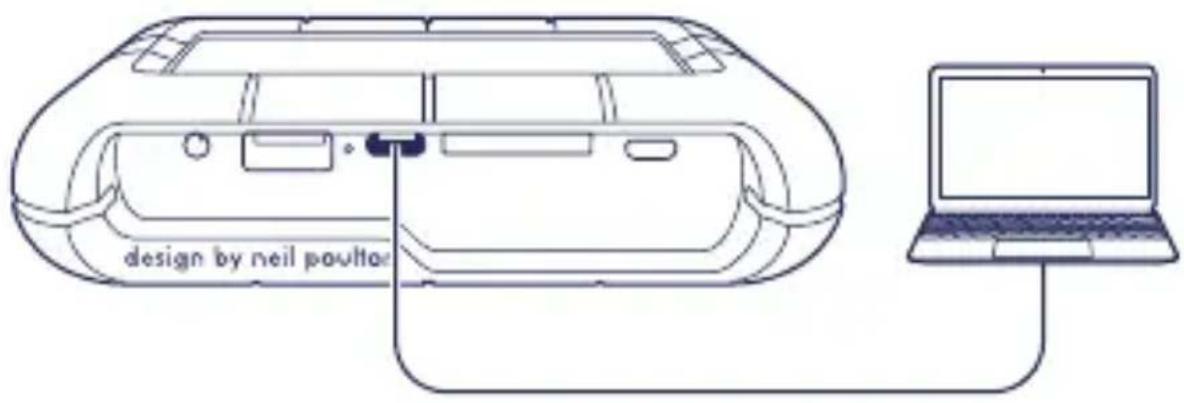
Run an Easy copy
Copy files from SD cards and USB storage with a simple touch of Rugged BOSS SSD's action button.
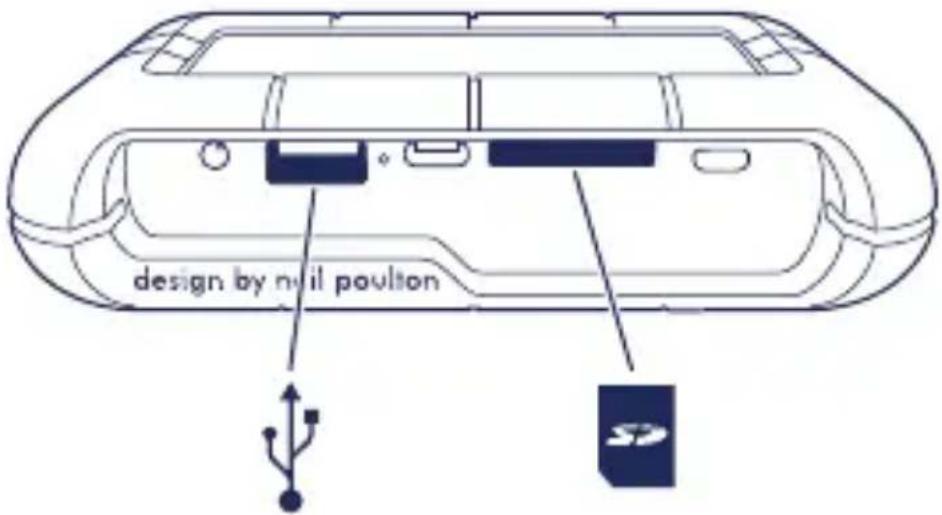
Expanded quick start guide available on the SSD. Connect Rugged BOSS SSD to your computer to review it.
Button pushes to search ports
First push
Search the tethered cable for a mobile device.
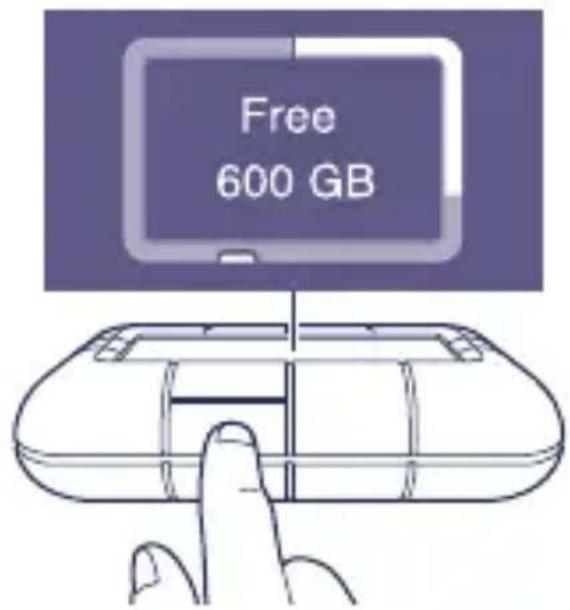
Second push (within 10s of the first push)
Search the SD and USB ports for connected devices.
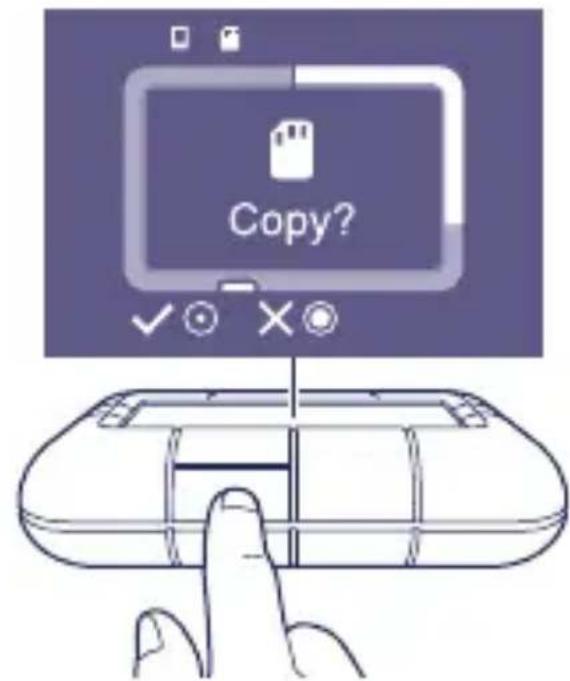
Easy copy

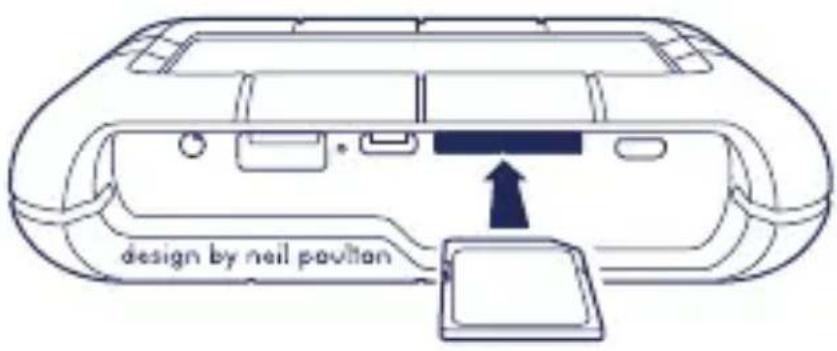
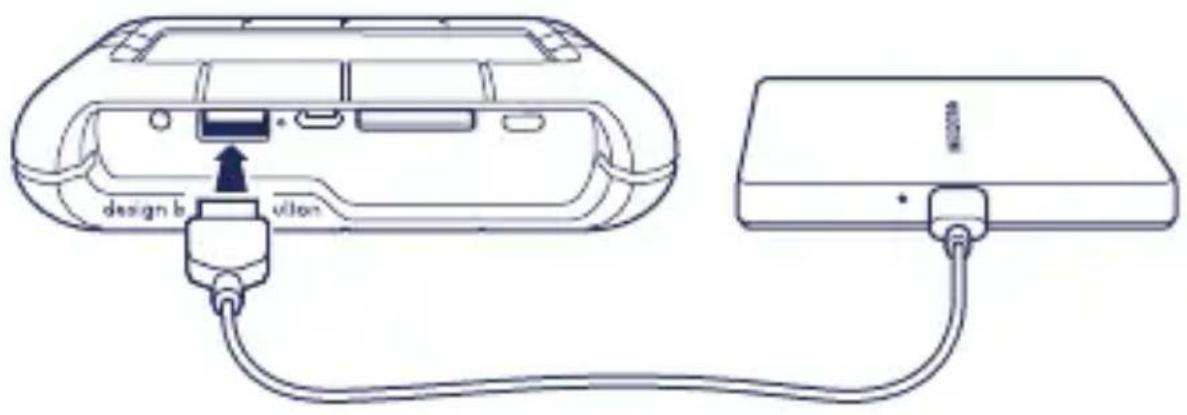
Insert an SD card or connect a USB device (storage, drone, etc.)
SD card
USB storage

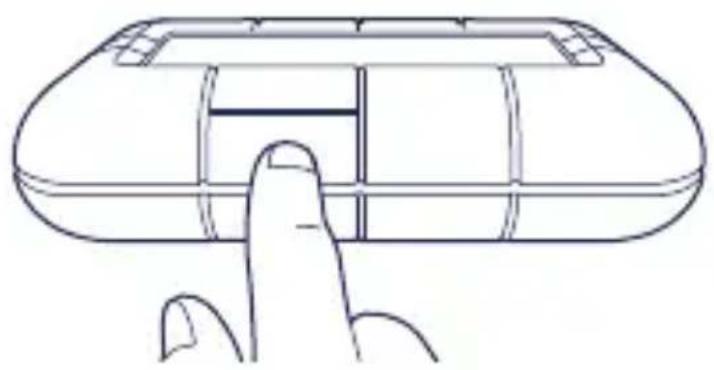
a. Push the action button for status b. Within 10s, push the action button to scan for the SD card or connected USB device
natural_image
Line drawing of a finger pressing a button on a rounded rectangular device (no text or symbols)
At the prompt, push the action button to confirm or cancel. Use a short (1s) push to confirm, or a long (3s) push to cancel
SD cardUSB
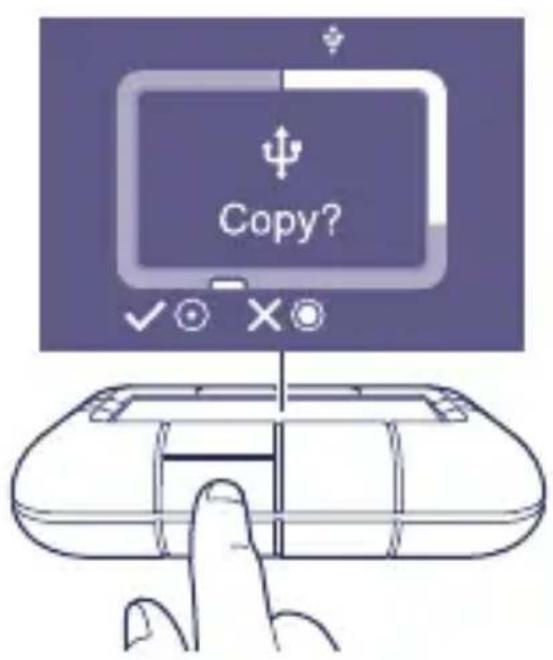
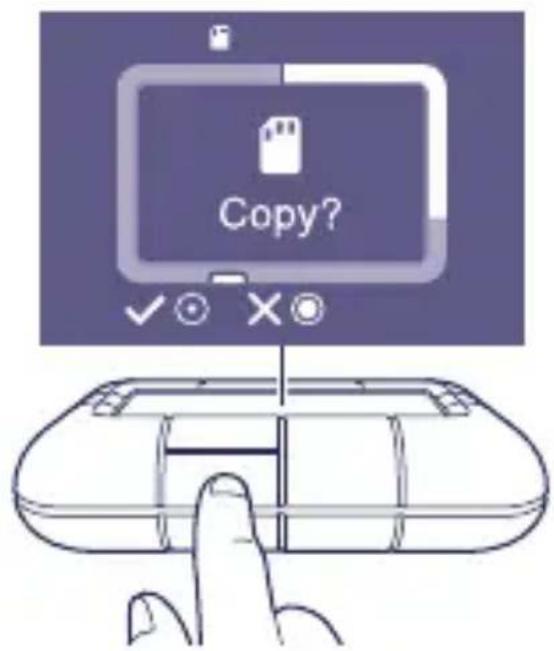

Rugged BOSS SSD automatically copies all files
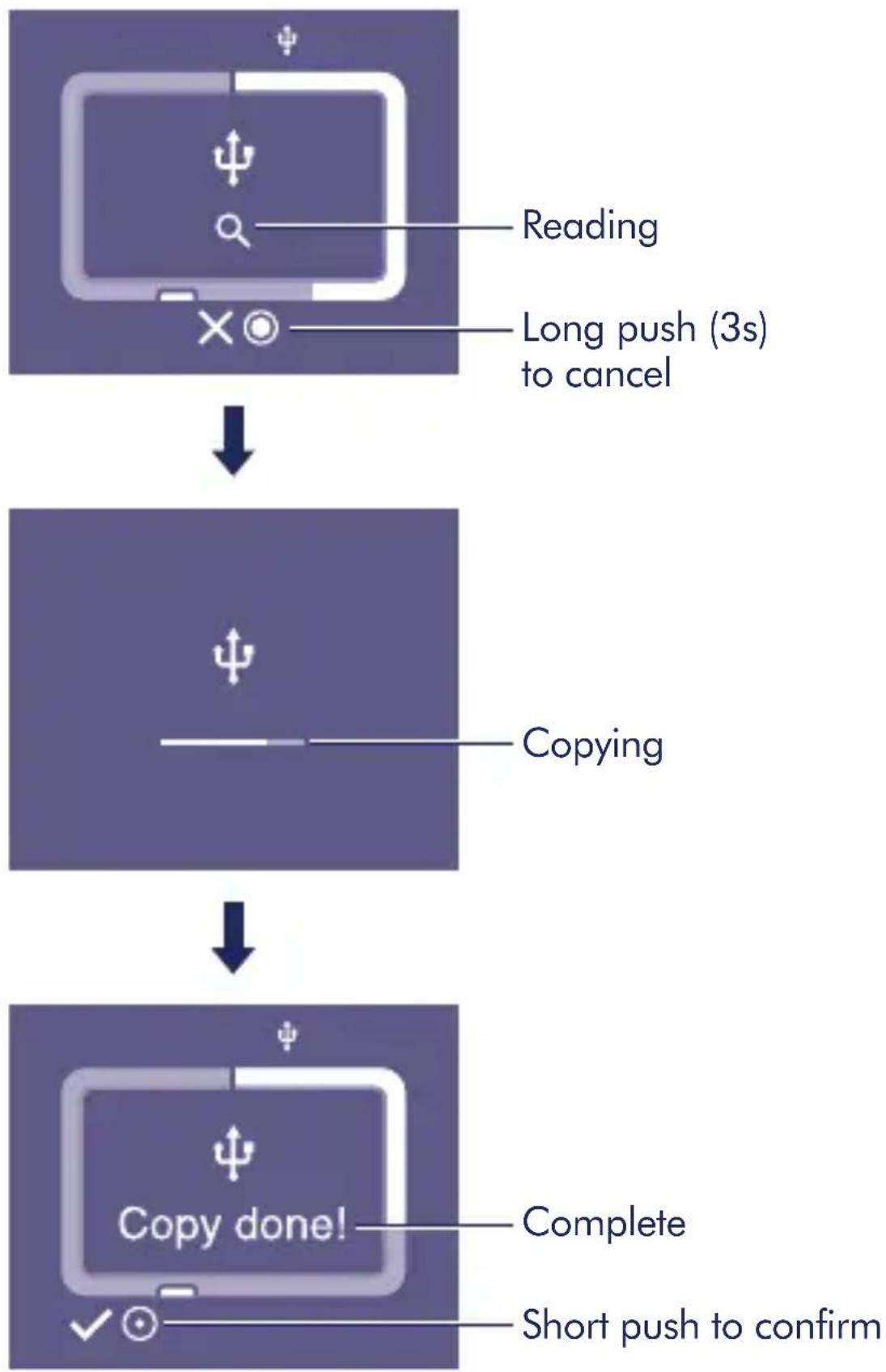
flowchart
graph TD
    A["Reading"] --> B["Long push (3s) to cancel"]
    B --> C["Copying"]
    C --> D["Copy done! Complete Short push to confirm"]
Manually detect a mobile device
Some mobile phones and tablets are not detected by Rugged BOSS SSD when connected to the tethered cable. If your device is not detected, try the following:
1 Wait for Rugged BOSS SSD to enter power-saving mode (the LCD has no content).
2. Apply a short push (1 second) to the action button to display Rugged BOSS SSD's status.
3. Apply a long push (3 seconds) to the action button.
4. The LCD displays a prompt ("On?"). Apply a short push to the action button to confirm.
Manually detect a USB device for Easy copy
Some USB devices and SD cards are not autodetected for Easy copy after pushing the action button twice. The status screen appears but the USB icon is not lit and there is no prompt to copy. You may encounter this issue with USB devices that have an independent power source (such as a power supply or battery).
To manually detect a USB device for Easy copy:
1 Wait for Rugged BOSS SSD to enter power-saving mode (the LCD has no content).
2. Apply a short push (1 second) to the action button to display Rugged BOSS SSD's status.
3. Apply a long push (3 seconds) to the action button.
4. The LCD displays a prompt ("On?"). Apply a short push to the action button to confirm.
Review details of your Rugged BOSS SSD's warranty by opening the LaCie Limited Warranty Statement on your drive or go to www.lacie.com/warranty. To request warranty service, contact an authorized LaCie service center or refer to www.lacie.com/support/rugged-boss-ssd for more information regarding customer support within your jurisdiction.
FR
China RoHS 2 refers to the Ministry of Industry and Information Technology Order No. 32, effective July 1, 2016, titled Management Methods for the Restriction of the Use of Hazardous Substances in Electrical and Electronic Products. To comply with China RoHS 2, we determined this product's Environmental Protection Use
Period (EPUP) to be 20 years in accordance with the Marking for the Restricted Use of Hazardous Substances in Electronic and Electrical Products, SJT 11364-2014.
Taiwan RoHS refers to the Taiwan Bureau of Standards, Metrology and Inspection's (BSMI's) requirements in standard CNS 15663, Guidance to reduction of the restricted chemical substances in electrical and electronic equipment. Beginning on January 1, 2018, Seagate products must comply with the "Marking of presence" requirements in Section 5 of CNS 15663. This product is Taiwan RoHS compliant.
The following table meets the Section 5 “Marking of presence” requirements.
natural_image
Simple line drawing of a trash bin with two crossed lines indicating no waste or discharge (no text or symbols)EAC

© 2019 Seagate Technology LLC. All rights reserved. Seagate, Seagate Technology, the Spiral logo, LaCie, and the LaCie logo are registered trademarks of Seagate Technology LLC in the United States and/or other countries. Rugged is either a trademark or registered trademark of Seagate Technology LLC or one of its affiliated companies in the United States and/or other countries. All other trademarks or registered trademarks are the property of their respective owners. Seagate reserves the right to change, without notice, product offerings or specifications. Complying with all applicable copyright laws is the responsibility of the user.
Seagate Technology LLC
10200 S. De Anza Blvd.
Cupertino, CA 95014
U.S.A.
Seagate Technology (Netherlands) B.V.
Koolhovenlaan 1
1119 N B S chiphol-R ijk
The Netherlands
Seagate Singapore International
Headquarters Pte. Ltd.
90 Woodlands Avenue 7
Singapore 737911
PN: 100855796 06/19
LACIE
www.lacie.com

www.lacie.com/register

www.lacie.com/manuals/rugged-boss-ssd

www.lacie.com/products/warranty

www.lacie.com/support/rugged-boss-ssd

- Rugged® BOSS SSD ports and button
- LCD guide
- Set up Rugged BOSS SSD
- Install the LaCie BOSS app
- Connect the power cable to charge Rugged BOSS SSD's battery
- Connect mobile device
- Push the action button to detect your mobile device
- LaCie BOSS automatically opens to help you set up Rugged BOSS SSD (10-20s wait)
- After setup is complete, you can:
- Copy and move files with LaCie BOSS
- Connect to a PC/Mac
- Run an Easy copy
- Button pushes to search ports
- First push
- Second push (within 10s of the first push)
- Easy copy
- Manually detect a mobile device
- Manually detect a USB device for Easy copy
- FR
- EAC
Brand : LACIE
Model : Rugged BOSS SSD
Category : External hard drive