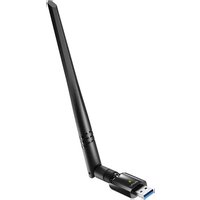
WU1400 - WiFi antenna Cudy - Free user manual and instructions
Find the device manual for free WU1400 Cudy in PDF.


| Product Type | WiFi Repeater |
| Brand | Cudy |
| Model | WU1400 |
| Category | WiFi Antenna / Range Extender |
| Dimensions | Approximately 70 x 45 x 20 mm |
| Weight | Approximately 50 g |
| Power Supply | Direct wall plug |
| Frequencies | 2.4 GHz and 5 GHz |
| Maximum Speed | Up to 1200 Mbps |
| Main Features | WiFi extension, WPS, browser configuration, signal LED indicator |
| Buttons | Reset, WPS |
| LED | Power, signal (red/violet/blue), WPS |
| Configuration Methods | WPS or Web browser (http://cudyre.net) |
| Safety | Compliant with CE directives (2014/53/EU, 2011/65/EU, etc.) |
| Maintenance | Clean with a soft, dry cloth. Do not use liquids. |
| Repairability | No user-serviceable parts. Contact support. |
| Warranty | Check Cudy website |
| Operating Temperature | 0°C to 40°C |
| Humidity | 10% to 90% non-condensing |
Frequently Asked Questions - WU1400 Cudy
User questions about WU1400 Cudy
0 question about this device. Answer the ones you know or ask your own.
Ask a new question about this device
Download the instructions for your WiFi antenna in PDF format for free! Find your manual WU1400 - Cudy and take your electronic device back in hand. On this page are published all the documents necessary for the use of your device. WU1400 by Cudy.
USER MANUAL WU1400 Cudy
Company: Shenzhen Cudy Technology Co., Ltd

Email:
support@cudy.com

Website:
www.cudy.com
Table of Contents Package Content
English....1-8
Deutsch 9-16
Español 17-24
Italiano....25-32
Français....33-40
にほんご....41-48
EU Declaration of Conformity.....49-52
1 x Wi-Fi Extender
1 x Quick Installation Guide
Method One: Using WPS Button(EN)
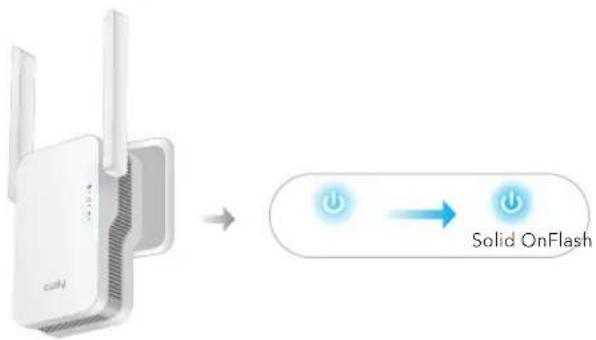
- Plug the extender next to your router, and wait until the LED turns solid on.
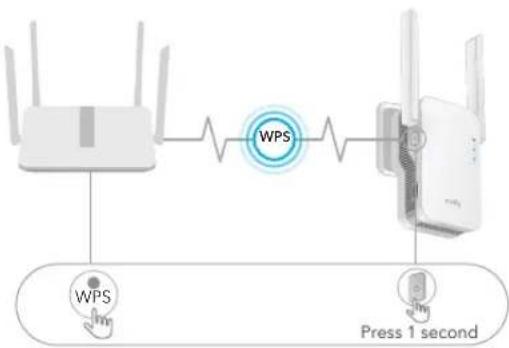
- Press the WPS button on your router, and then press the WPS button on the extender within 2 minutes.
flowchart
graph LR
    A["Router"] -->|WPS| B["WPS"]
    B --> C["Router"]
    C -->|Press 1 second| D["Press Output"]
    style A fill:#f9f,stroke:#333
    style B fill:#ccf,stroke:#333
    style C fill:#cfc,stroke:#333
    style D fill:#fcc,stroke:#333
-1--2-
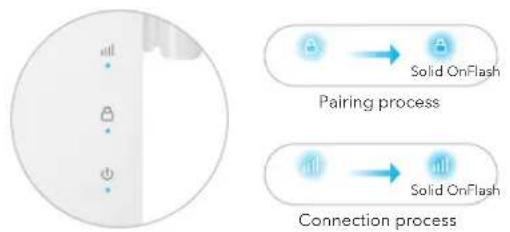
- Then the LED will start to flash, wait until the LED and LED turn solid on, which means the extender connects to your existing host WiFi network.
flowchart
graph TD
    A["Analog Signal"] --> B["Solid OnFlash"]
    C["Analog Signal"] --> D["Solid OnFlash"]
    style A fill:#f9f,stroke:#333
    style C fill:#f9f,stroke:#333
    style B fill:#ccf,stroke:#333
    style D fill:#ccf,stroke:#333
If the LED does not turn solid on after 2 minutes, try step 2 again. If still not work, try Method Two: Using Web Browser, or contact our support team support@cudy.com.
- Connect your device to the extender's WiFi network.
The extender's new WiFi network name is based on your Host WiFi network name, with -EXT2G or -EXT5G at the end of the name.
For example:
- Host WiFi network name: YourNetworkName
- New extended WiFi network name: YourNetworkName-EXT2G YourNetworkName-EXT5G
Use the same WiFi password that you use for your WiFi router.
- Relocate the extender halfway between your router and the WiFi dead zone, find a good place to plug it according to the LED.
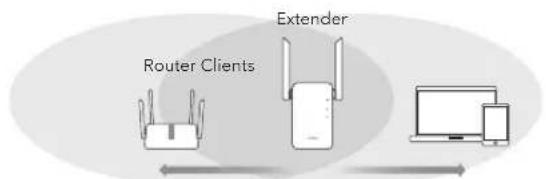
flowchart
graph LR
    A["Router Clients"] --> B["Extender"]
    B --> C["Laptop"]
Host WiFi Network Extended NetworkHalfway
| Red Flash: Connecting / not connected to host Wi-Fi | |
| Solid Red: Connected, signal is weak | |
| Solid Purple: Connected, signal is fair | |
| Solid Blue: Connected, signal is strong |

Enjoy the internet!
Method Two: Using Web browser
- Plug the extender next to your router, and wait until the LED turns solid on.

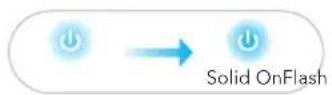
Connect your computer or smartphone to the extender's network Cudy-Extender.
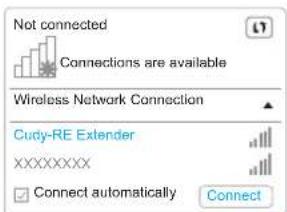
- Then below window will pop up, Use admin for password to log in.
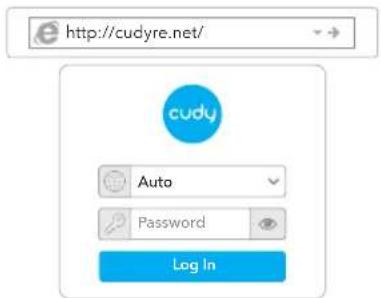
Note: If the login window does not appear, Launch a web browser, and enter http://cudyre.net/ or http://192.168.10.254/ in the address bar. Use admin for password to log in. If still not work, please refer to FAQ > Q1.
Select Wireless Extender, then click Next.
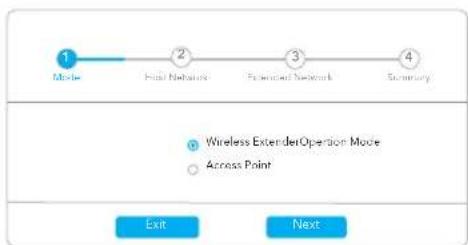
flowchart
graph LR
    A["1 Mode"] --> B["2 Host Networks"]
    B --> C["3 Forward Network"]
    C --> D["4 Summary"]
    style A fill:#fff,stroke:#000
    style B fill:#fff,stroke:#000
    style C fill:#fff,stroke:#000
    style D fill:#fff,stroke:#000
    subgraph Wireless ExtenderOperationMode
        E["● Wireless ExtenderOperation Mode"]
        F["○ Across Point"]
    end
    G["Exit"] --> H["Next"]
- Follow the step by step configuration to the end. After configuration, below page would pop up. Then wait the LED turns solid ON, it may take 1 or 2 minutes.
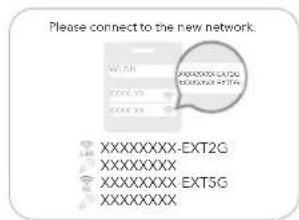
Note: Please check the information on the screen and confirm that the password is the same as the wifi password of the router. Otherwise, the extender will not be able to connect to the router WiFi.
- Relocate the extender halfway between your router and the WiFi dead zone, find a good place to plug it according to the LED.

flowchart
graph LR
    A["Router Clients"] --> B["Extender"]
    B --> C["Desktop Device"]
Host WiFi Network Extended NetworkHalfway
| Red Flash: Connecting / not connected to host Wi-Fi | |
| Solid Red: Connected, signal is weak | |
| Solid Purple: Connected, signal is fair | |
| Solid Blue: Connected, signal is strong |
- Connect your device to the extender using the extended SSID and WiFi password that you've set during the configuration. The default WiFi password is the same as your host WiFi network (router WiFi).
LED and Button
| LED | Color | Status | Indication |
| / | Off | No host Wi-Fi configuration | |
| Red | Flash | Connecting / not connected to host Wi-Fi | |
| On | Connected to host Wi-Fi, signal is weak | ||
| Purple | On | Connected to host Wi-Fi, signal is fair | |
| Blue | On | Connected to host Wi-Fi, signal is good | |
| / | Off | Not connected to host Wi-Fi | |
| Blue | Flash | WPS in progress | |
| On | Connected to host Wi-Fi | ||
| / | Off | No power | |
| Blue | Flash | The system is booting or upgrading | |
| On | System startup is complete | ||
| Reset | Long press for 2 seconds | Press and hold Reset button for 2 seconds until all the LED lights turn on and off. | |
| WPS | Press to take effect | Press the WPS button until WPS LED start flashing. | |
Frequently Asked Questions
Q1: What can I do if the login window does not appear?
A1: If your computer is wirelessly connected, make sure that you have connected to the extender's SSID.
A2: If your computer is connected via an Ethernet cable, please make sure that the connection is stable.
A3: Make sure your computer is set to obtain an IP address and DNS server address automatically.
A4: Verify that http://cudyre.net/ (or http://192.168.10.254/) is correctly entered in the web browser and press Enter.
A5: Reset the device and try again.
Q2: What should I do if my handy can not find Wi-Fi signal?
A: Please make sure the device is connected, power on. If everything is normal but still no signal, please try to use computer to set, or restore the extender to factory settings. If after restoring factory settings but still no signal, you can restart the extender, if it still doesn't work, maybe the device has fault.
Q3: How to Reset to defaults?
A: While the power is still on, keep pressing the Reset button for 2 seconds, and wait for 1-2 minutes for it to restart.
EU Declaration of Conformity
1. English:
Cudy hereby declares that the device is in compliance with the essential requirements and other relevant provisions of Directives Directive 2014/53/EU, Directive 2011/65/EU, Directive(EU) 2015/863, Directive 2009/125/EC. The original EU declaration of conformity may be found at http://www.cudy.com/ce.
2. Deutsch:

Brand : Cudy
Model : WU1400
Category : WiFi antenna