GP1200 - Router Cudy - Free user manual and instructions
Find the device manual for free GP1200 Cudy in PDF.


| Product Type | GPON Router |
| Model | GP1200 |
| Brand | Cudy |
| Interfaces | 1x PON, 4x Gigabit LAN (10/100/1000Mbps), 1x Power |
| Wi-Fi Standards | IEEE 802.11 a/b/g/n/ac, dual-band 2.4GHz & 5GHz |
| Wi-Fi Speed | Up to 1200Mbps (300Mbps 2.4GHz + 867Mbps 5GHz) |
| Antennas | 2x external antennas |
| Buttons | WPS, WLAN (Wi-Fi on/off), Reset |
| LED Indicators | Power, LOS, PON, LAN 1-4, WLAN, WPS |
| Management | Web-based GUI at http://192.168.1.1 |
| Security | Laser safety warning: Do not look directly at PON port when powered |
| Certifications | CE, RoHS compliant |
| Power Supply | External power adapter (included) |
| Package Contents | Router, Power Adapter, Quick Installation Guide |
| Dimensions | Approx. 200 x 140 x 40 mm (estimated) |
Frequently Asked Questions - GP1200 Cudy
User questions about GP1200 Cudy
0 question about this device. Answer the ones you know or ask your own.
Ask a new question about this device
Download the instructions for your Router in PDF format for free! Find your manual GP1200 - Cudy and take your electronic device back in hand. On this page are published all the documents necessary for the use of your device. GP1200 by Cudy.
USER MANUAL GP1200 Cudy

Quick Installation Guide
Connect and Register > 1
Connect to the PON Router > 4
Configure Wi-Fi Password > 5
Troubleshooting > 6
NEED TECH HELP?

www.cudy.com

support@cudy.com

www.cudy.com/download
810500266
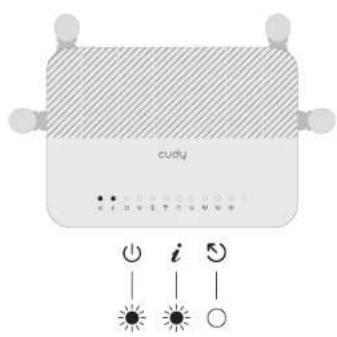
3 Verify if the ⏻ Power LED and i PON LED is solid on, and 🌐 LOS LED is off, and your PON router is successfully registered.
Note: If the router fail to register, please contact your ISP for help.
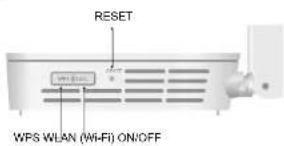
RESET: Press 5s to reset the device.
WPS: Press 1a for WPS authorization.
WLAN: Press 2s to turn on/off Wi-Fi.
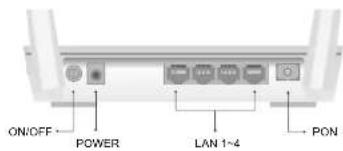
Caution, laser
DO NOT look directly at the PON port when the device is powered on, as well as the terminal of the indoor fiber cord, so prevent any harm to your eyes.
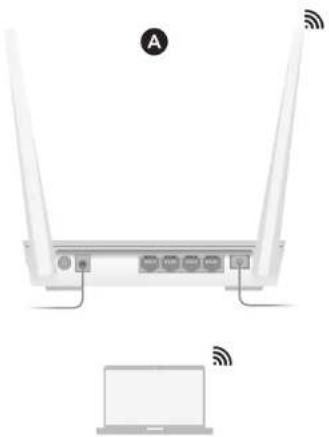
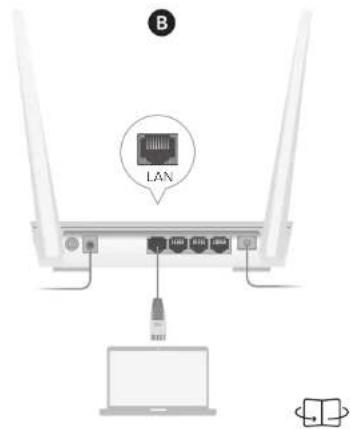
4 Connect your device to the router using A Wi-Fi or B Wired method.
natural_image
Front view of a wireless router with two antennas and connected ports, shown above with a laptop (no text or symbols visible)A Wi-Fi: Connect your device to the router's Wi-Fi using the SSID (network name) and Password printed on the bottom of the router.
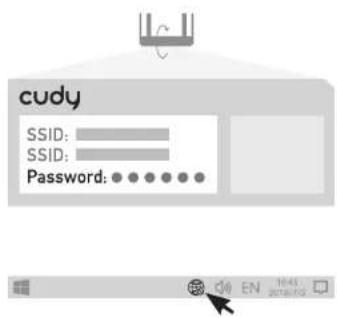
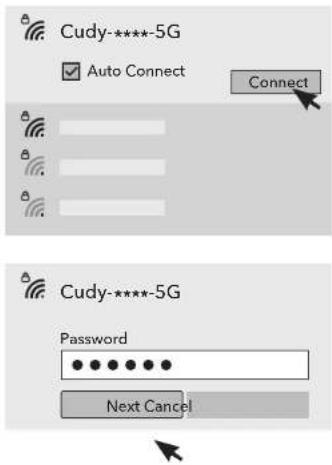
Go to step 5 and continue.
B Wired: Turn off the Wi-Fi on your computer and connect it to the router's LAN port via an Ethernet cable.
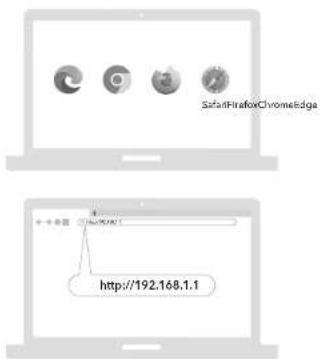
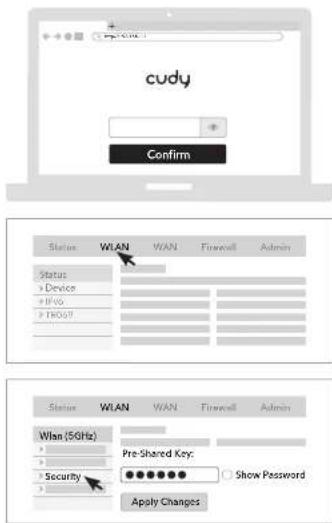
5 Open a browser on a device that is connected to the router and follow the picture to change Wi-Fi password.
EU Declaration of Conformity
1. English:
Cudy Horsby declares that the device is in compliance with the essential requirements and other relevant provisions of directive 2014/53/EU, directive 2011/65/EU, directive (EU) 2015/863.
The original EU declaration of conformity can be found at http://www.rudy.cenitoe
2. Deutsch
6 Troubleshooting LED
Q1: Why I cannot access 192.168.1.1?
Try following solutions—
-
Check the Power status of the PON router.
-
Check if your devices has connected to the router via Wi-Fi or Ethernet cable, and disabled all other connections such as 4G/5G cellular network.
-
Change another web broker or another device and try again.
-
Press the RESET button for 5 seconds, wait for the LED to turn solid on and reconfigure from the step 1.
-
Ask your ISP for help.
Q2: What if I cannot access the internet after the configuration?
Try following solutions—
-
Check the status of LED indicators.
-
If you set the ONT to the router mode, ensure that the ONT obtains a valid IP address and gateway on the Status > Device > WAN.
-
If you set the ONT to the bridge mode. Please check if the router you used for dial-up is configured properly.
-
Contact your ISP for help.
13. Suoman Kiell:
Cudy va auttaa taten, cts laite on direktivin 2014/53/EU, direktivin 2011/65/EU ja direktivin EU; 2013/883 olemnästen vanlinusen ja mäuten osikankouviien siikumöster muskireo.
17. Hungarian language:

Brand : Cudy
Model : GP1200
Category : Router