Grandstage - Synthesizer KORG - Free user manual and instructions
Find the device manual for free Grandstage KORG in PDF.


| Product Type | Stage Synthesizer (Stage Piano) with 88 or 73 keys |
| Dimensions (W x D x H) | Grandstage 88: 1311 x 359 x 140 mm; Grandstage 73: 1099 x 359 x 140 mm (without music stand) |
| Weight | Grandstage 88: 20 kg; Grandstage 73: 17 kg (without music stand) |
| Power Supply | 30 W, AC adapter, adjustable auto power-off |
| Keyboard | RH3 (weighted hammer action): 88 keys (Grandstage 88) or 73 keys (Grandstage 73) |
| Synthesis Engines | 7 engines: SGX-2, EP-1, CX-3, VOX organ, compact organ, AL-1, HD-1 |
| Number of Programs | 500 programs organized in Keyboards and Ensemble categories |
| Favorites | 64 favorites (A1-H8) with quick access via dedicated buttons |
| Maximum Polyphony | Varies by engine: up to 240 voices (SGX-2) or 128 voices (HD-1, CX-3) |
| Effects | Insertion per program, reverb/delay (HALL, STAGE, ROOM, SPRING, DELAY, CROSS, TAPE, MOD DLY) with DEPTH and TIME-TAP control, 3-band equalizer (LOW, MID, HIGH) |
| Real-time Controllers | Pitch bend wheel, modulation wheel, SW1/SW2 buttons, included damper pedal, jack for expression/switch pedal |
| Audio Connections | Balanced XLR outputs (LEFT, RIGHT) with LIFT/GND switch, unbalanced TS jack outputs (L/MONO, R), 1/4" stereo headphone jack |
| MIDI/USB Connections | MIDI IN/OUT, USB A (storage device), USB B (MIDI to computer) |
| Performance Functions | Layer, Split with adjustable split point, SWAP function (swap parts), semitone transpose, Panel Lock |
| Maintenance and Cleaning | Clean only with a dry cloth; do not use water or liquid products |
| Safety | Do not expose to moisture, do not block ventilation openings, use only on a stable surface, unplug during storms, refer servicing to qualified personnel |
| Spare Parts and Repairability | Repairs must be carried out by an authorized service center; no consumer spare parts are listed. Use only accessories specified by the manufacturer. |
| General Information | User manual, MIDI Guide and Sound Name List available as PDF on Korg website; operating temperature: +5 to +40°C |
| Included Accessories | Power cord, music stand, DS-1H damper pedal, owner's manual |
Frequently Asked Questions - Grandstage KORG
1. Are the speakers or headphones connected correctly and powered on?
2. Is the MASTER VOLUME knob high enough?
3. Are the KEYBOARDS and ENSEMBLE buttons lit (sound active)?
4. Are the LEVEL controls of each section not at minimum?
5. Is the system parameter Local Control set to On (for standalone use)?
If the problem persists, refer to the Troubleshooting section of the manual.
• Output level too high: reduce the MASTER VOLUME knob or the console gain.
• Excessive equalizer or LEVEL settings: lower the sliders.
• Saturated reverb/delay effect: decrease the Reverb Send parameter in program editing.
• Cables or ground loop: use the LIFT‑GND switch on the XLR outputs to eliminate hum.
If the problem persists, refer to the Troubleshooting chapter of the manual.
• SGX‑2 (acoustic piano): up to 240 voices (60 stereo double notes)
• EP‑1 (electric piano): 100 voices
• CX‑3 (tonewheel organ): 128 voices
• VOX organ and Compact organ: 100 voices each
• AL‑1 (analog modeling): 36 voices
• HD‑1 (PCM): up to 128 voices (64 stereo notes)
The maximum polyphony depends on the engine and effects used. The system allocates voices dynamically among engines.
User questions about Grandstage KORG
0 question about this device. Answer the ones you know or ask your own.
Ask a new question about this device
Download the instructions for your Synthesizer in PDF format for free! Find your manual Grandstage - KORG and take your electronic device back in hand. On this page are published all the documents necessary for the use of your device. Grandstage by KORG.
USER MANUAL Grandstage KORG
IMPORTANT SAFETY INSTRUCTIONS
1) Read these instructions.
2) Keep these instructions.
3) Heed all warnings.
4) Follow all instructions.
5) Do not use this apparatus near water.
6) Clean only with dry cloth.
7) Do not block any ventilation openings. Install in accordance with the manufacturer's instructions.
8) Do not install near any heat sources such as radiators, heat registers, stoves, or other apparatus (including amplifiers) that produce heat.
9) Do not defeat the safety purpose of the polarized or grounding-type plug. A polarized plug has two blades with one wider than the other. A grounding type plug has two blades and a third grounding prong.
The wide blade or the third prong are provided for your safety. If the provided plug does not fit into your outlet, consult an electrician for replacement of the obsolete outlet.
10) Protect the power cord from being walked on or pinched particularly at plugs, convenience receptacles, and the point where they exit from the apparatus.
11) Only use attachments/accessories specified by the manufacturer.
12) Use only with the cart, stand, tripod, bracket, or table specified by the manufacturer, or sold with the apparatus. When a cart is used, use caution when moving the cart/apparatus combination to avoid injury from tip-over.

13) Unplug this apparatus during lightning storms or when unused for long periods of time.
14) Refer all servicing to qualified service personnel. Servicing is required when the apparatus has been damaged in any way, such as power-supply cord or plug is damaged, liquid has been spilled or objects have fallen into the apparatus, the apparatus has been exposed to rain or moisture, does not operate normally, or has been dropped.
- WARNING—This apparatus shall be connected to a mains socket outlet with a protective earthing connection.
- Mains powered apparatus shall not be exposed to dripping or splashing. No objects filled with liquids, such as vases or drinking glasses, shall be placed on the apparatus.
- Turning off the power switch does not completely isolate this product from the power line.
- Keep the power plug easily accessible. Do not install this equipment far from a power outlet and/or power strip.
- Do not install this equipment in a confined space such as a box for the conveyance or similar unit.
- Excessive sound pressure from earphones and headphones can cause hearing loss.
WARNING:
TO REDUCE THE RISK OF FIRE OR ELECTRIC SHOCK DO NOT EXPOSE THIS PRODUCT TO RAIN OR MOISTURE.

CAUTION
RISK OF ELECTRIC SHOCK DO NOT OPEN

ATTENTION:
RISQUE DE CHOC ÉLECTRIQUE—NE PAS OUVRIR.
注意
感電の恐れあり、キャビネットをあけるな

The lightning flash with arrowhead symbol within an equilateral triangle, is intended to alert the user to the presence of uninsulated “dangerous voltage” within the product’s enclosure that may be of sufficient magnitude to constitute a risk of electric shock to persons.

The exclamation point within an equilateral triangle is intended to alert the user to the presence of important operating and maintenance (servicing) instructions in the literature accompanying the product.
THE FCC REGULATION WARNING (for USA)
NOTE: This equipment has been tested and found to comply with the limits for a Class B digital device, pursuant to Part 15 of the FCC Rules. These limits are designed to provide reasonable protection against harmful interference in a residential installation. This equipment generates, uses, and can radiate radio frequency energy and, if not installed and used in accordance with the instructions, may cause harmful interference to radio communications. However, there is no guarantee that interference will not occur in a particular installation. If this equipment does cause harmful interference to radio or television reception, which can be determined by turning the equipment off and on, the user is encouraged to try to correct the interference by one or more of the following measures:
- Reorient or relocate the receiving antenna.
- Increase the separation between the equipment and receiver.
- Connect the equipment into an outlet on a circuit different from that to which the receiver is connected.
- Consult the dealer or an experienced radio/TV technician for help. If items such as cables are included with this equipment, you must use those included items.
Unauthorized changes or modification to this system can void the user's authority to operate this equipment.
DECLARATION OF CONFORMITY (for USA)
Responsible Party : KORG USA INC.
Address : 316 SOUTH SERVICE ROAD, MELVILLE, NY
Telephone : 1-631-390-6500
Equipment Type : STAGE PIANO
Model: GS1-88, GS1-73
This device complies with Part 15 of FCC Rules. Operation is subject to the following two conditions:
(1) This device may not cause harmful interference, and (2) this device must accept any interference received, including interference that may cause undesired operation.
Notice regarding disposal (EU only)

When this "crossed-out wheeled bin" symbol is displayed on the product, owner's manual, battery, or battery package, it signifies that when you wish to dispose of this product, manual, package or battery you must do so in an approved manner. Do not discard this product, manual, package or battery along with ordinary household waste. Disposing in the correct manner will prevent harm to human health and potential
damage to the environment. Since the correct method of disposal will depend on the applicable laws and regulations in your locality, please contact your local administrative body for details. If the battery contains heavy metals in excess of the regulated amount, a chemical symbol is displayed below the “crossed-out wheeled bin” symbol on the battery or battery package.
* All product names and company names are the trademarks or registered trademarks of their respective owners.
Data handling
Incorrect operation or malfunction may cause the contents of memory to be lost, so we recommend that you save important data on USB storage devices or other media. Please be aware that Korg will accept no responsibility for any damages which may result from loss of data.
IMPORTANT NOTICE TO CONSUMERS
This product has been manufactured according to strict specifications and voltage requirements that are applicable in the country in which it is intended that this product should be used. If you have purchased this product via the internet, through mail order, and/or via a telephone sale, you must verify that this product is intended to be used in the country in which you reside.
WARNING: Use of this product in any country other than that for which it is intended could be dangerous and could invalidate the manufacturer's or distributor's warranty.
Please also retain your receipt as proof of purchase otherwise your product may be disqualified from the manufacturer's or distributor's warranty.
Table of Contents
IMPORTANT SAFETY INSTRUCTIONS ---- 2
About the owner's manual 3
Main Features 4
Panel description and functions----4
Front panel 4
Rear panel 6
Preparations 7
Making connections----7
Connecting audio devices 7
Connecting the power cord included with this keyboard 7
Turning the power on/off----7
Turning the power on 7
Turning the power off 7
Listening to the demo songs----8
Selecting and playing sounds 8
Selecting favorites 9
Selecting a program----9
Using the controllers 10
Pitch bend wheel----10
Modulation wheel---- 10
SW1, SW2 10
FOOT CONTROLLERS 10
Adjusting the dynamics and equalizer---- 11
Dynamics 11
Equalizer----11
Transpose and panel lock----11
Transpose----11
Panel lock----11
Creating favorites----12
Changing the programs used----12
Creating layered sounds----12
Creating split sounds----12
Saving a favorite that has been changed----13
Editing a program----13
How to edit 13
Reverb/delay settings----15
System settings----15
Types of system settings 15
Steps for making system settings 15
System setting parameters 15
Calibrating the pedal----17
Resetting, saving and loading data----18
Appendices 20
Trouble shooting 20
Error messages----21
Specifications 22
Thank you for purchasing the Korg Grandstage.
To help you get the most out of your new instrument, please read this manual carefully.
About the owner's manual
The documentation for this product consists of the following.
- Owner's Manual (what you're reading)
- MIDI guide (PDF) (you can download it from the Korg website http://www.korg.com)
- Sound Name List (PDF) (you can download it from the Korg website http://www.korg.com)
Owner's Manual
This provides a simple explanation of the Grandstage's main functionality. Read this first.
MIDI guide (PDF)
This guide also explains the MIDI messages and other information that can be handled by the Grandstage 88/73. Read this in order to use the Grandstage 88/73 with external MIDI devices, DAWs and so on.
Download this manual at http://www.korg.com.
Sound Name List (PDF)
This contains a list of the programs, favorites and demo songs on the Grandstage 88/73.
Download this manual at http://www.korg.com.
Descriptions used in the User's Manual
There are two Grandstage models, the Grandstage 88 with 88 keys, and the Grandstage 73 with 73 keys.
The Grandstage is referred to as “Grandstage” in this manual unless otherwise specified, or as “this keyboard”. The panel diagrams and other illustrations feature the Grandstage 88.
Symbols ▲ Note, Tips
These symbols respectively indicate a caution, a supplementary note, or a tip.
Display indications
The values of various parameters shown in the manual are only examples; they might not match what you see on the Grandstage's display.
Main Features
The Korg Grandstage is a stage piano that was designed in the pursuit of onstage playability, offering a rich variation of sounds including the greatest acoustic and electric piano sounds, along with an intuitive user interface.
The greatest piano sounds
- The Grandstage includes five of the world's most famous grand piano sounds. An SGX-2 dedicated acoustic piano sound generator makes both delicate and powerful, richly expressive sounds a reality with large, non-looping waveform samples in full stereo sound across the keyboard.
- The Grandstage includes vintage electric piano sounds from six classic models. The EP-1 dedicated electric piano sound generator makes the best sound a reality, with natural changes in sound and delicately-modeled panel effects, cabinets and so on.
Rich variation of sounds
- The Grandstage offers 500 types of sounds separated into two sections, KEYBOARDS and ENSEMBLE. Selecting a category and variation within each section allows you to choose your sound and play right away. The names of sounds are shown on an easy-to-read organic EL (electro-luminescent) display.
- Within the KEYBOARDS section, you can select grand piano, upright piano, electric piano, clay, and organ sounds. Within the ENSEMBLE section, you can select sound commonly used in stage performance such as strings, brass, synthesizer, and bells.
- The Grandstage features seven high-quality sound synthesis engines, including the SGX-2 (acoustic piano), EP-1 (electric piano), CX-3 (tonewheel organ), VOX organ, compact electric organ, AL-1 (analog modeling), and the HD-1 (PCM sound generator).
- A powerful effects section is provided. The optimum effect for each sound is already preset, such the standard assortment of effects like phaser and chorus for electric piano. Also, on the REVERB/DELAY section, reverb and delay can be instantly set.
- Layer and split functions can be set instantly. This is used to stack two sounds together, or to play two different sounds on the left and right of the keyboard.
The pursuit of onstage playability
- FAVORITE buttons are located at the center of the front panel. These 16 buttons can be combined to register 64 types of sounds or settings. These sounds and settings can be recalled instantly while playing live.
- The DYNAMICS knob can be used to instantly change how the volume and sound responds to changes in touch (i.e., how hard or soft the keys are played). The performance feel can be customized to match the playing style required (such as solos, ensembles, and bands) and the song. The EQUALIZER section can be used to instantly change the characteristics of the entire sound, to match the acoustics of the performance venue.
- A smooth sound transition (SST) feature eliminates dropouts in sound when changing sounds, making it possible to switch sound and effects naturally.
- The Grandstage uses an RH3 (Real weighted-Hammer action 3) keyboard. This keyboard recreates the feel of a grand piano, letting you perform highly nuanced, delicate passages.
Panel description and functions
Front panel
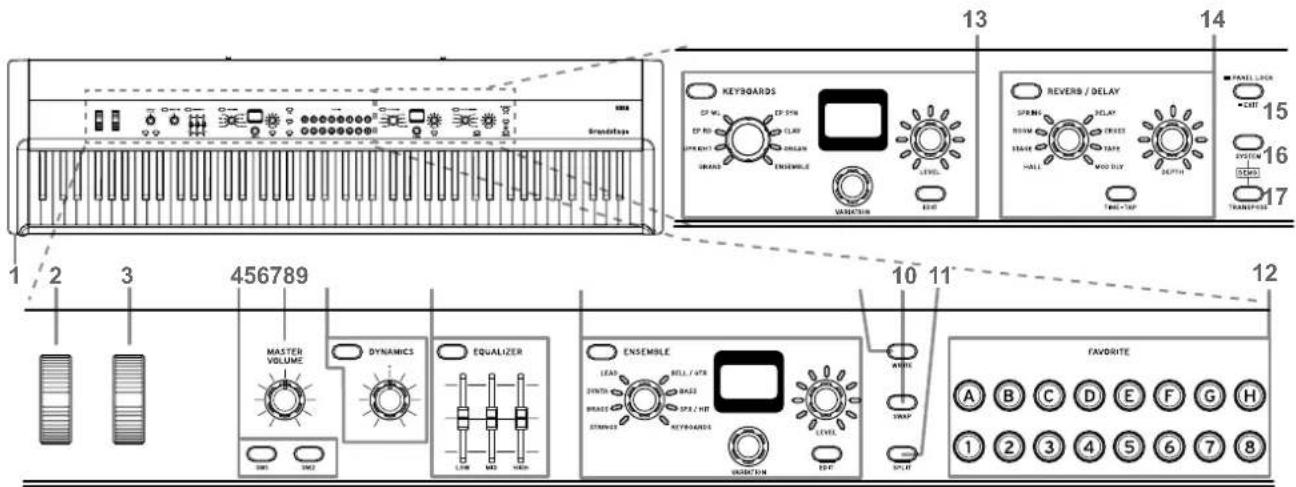
1. Headphone jack (Front left) (see page 7)
Here you can connect a set of headphones equipped with a 1/4" (φ6.3 mm) stereo phone-plug. This jack will output the same signals as the AUDIO OUTPUT. Use the MASTER VOLUME knob to adjust the headphone volume.
Note: The output from the AUDIO OUTPUT is not turned off even if headphones are connected to the Headphone jack.
2. Pitch bend wheel (see page 10)
Controls the pitch of notes played. Moving the wheel up causes the pitch to rise, while moving the wheel down causes the pitch to fall.
3. Modulation wheel (see page 10)
Controls the vibrato effect applied to the sound. Moving the wheel up will apply the effect set for each sound.
4. SW1 button, SW2 button (see page 10)
These buttons control the sound. SW1 controls the tone, and SW2 mainly controls whether the effect is on/off. The functions that can be controlled are effectively set for each sound.
5. MASTERVOLUMEknob
This adjusts the volume of the AUDIO OUTPUT and headphone jack.
6. DYNAMICS button, knob (see page 11)
Pressing the button to turn DYNAMICS on (the button will light) will activate the knob.
This adjusts how the volume and tone will be changed in response to how hard the keys are played (velocity) on the Grandstage.
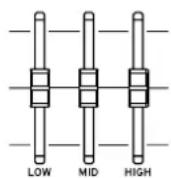
7. EQUALIZER button, LOW, MID, HIGH slider (see page 11)
This is a three-band equalizer, placed just before the audio output.
Pressing the button to turn the equalizer on (the button will light) will activate the sliders.
8. ENSEMBLE (Ensemble section) (see page 9)
This section is used to select and edit programs in the ENSEMBLE category for non-keyboard instrument sounds, such as strings and brass. Programs selected and parameters edited here can be saved as favorites.
ENSEMBLE button
Turns ENSEMBLE programs on (the button will light) or OFF (the button will go dark). The ENSEMBLE sounds will not be heard when the button is off.
Category selection knob
Selects the ENSEMBLE program category.
Display
Shows the program name and parameter values while in Edit mode.
VARIATION knob
Selects programs within categories, as well as parameters while in Edit mode.
LEVEL knob
Adjusts the volume of the program. The volume level is shown by the LEDs surrounding the knob. Also, this knob is used to set the values for the parameters shown on the display in Edit mode.
EDIT button (see page 13)
Enters Edit mode for the program. When this happens, the button will light up.
9. WRITE button (see page 13)
The current sound settings can be saved to the favorites.
10. SWAP button (see page 13)
When this button is pressed (the button will light) while the keyboard is in split sound mode, the lower part of the keyboard (lower note range) will be switched to the KEYBOARDS program, and the upper part of the keyboard (higher note range) will be switched to the ENSEMBLE program.
11. SPLIT button (see page 12)
When this button is pressed (the button will light), the keyboard will be split into two different sounds. This button is also used to set the split point.
12. FAVORITE (Favorite section)
(see page 8) (see page 12)
One of 64 favorite saved sounds to use can be selected. Favorites can be quickly selected through a combination of the A–II buttons and 1–8 buttons.
13. KEYBOARDS (Keyboard section) (see page 9)
This section is used to select and edit keyboard instrument programs in the KEYBOARDS category, such as pianos, electric pianos, organs and so on. Programs selected and parameters edited here can be saved as favorites.
KEYBOARDS button
Turns KEYBOARDS programs on (the button will light) or OFF (the button will go dark). The KEYBOARDS sounds will not be heard when the button is off.
Category selection knob
Selects the KEYBOARDS program category.
Display
Shows the program name and parameter values while in Edit mode.
VARIATION knob
Selects programs within categories, as well as parameters while in Edit mode.
LEVEL knob
Adjusts the volume of the program. The volume level is shown by the LEDs surrounding the knob. Also, this knob is used to set the values for the parameters shown on the display in Edit mode.
EDIT button (see page 13)
Enters Edit mode for the program. When this happens, the button will light up.
14. REVERB/DELAY (Reverb/Delay section)
(see page 15)
Sets the reverb and delay effects. The settings can be saved as favorites.
REVERB/DELAY button
Turns reverb and delay effects on (the button will light) or off (the button will go dark).
Effect selection knob
Selects the reverb or delay effect type.
DEPTH knob
This sets the depth of the effect. The setting value is shown by the LEDs surrounding the knob.
TIME-TAP button
Set the reverb time or delay time, according to the intervals at which you press the TAP button.
15. EXIT (PANEL LOCK) button
Pressing this button quickly will activate the Exit function. This is used to cancel a favorite write operation, and can also be used to exit the Panel Lock function, edit mode, navigate out of the system settings and so on. Hold this button down for about 1 second to turn on the Panel Lock function. The button will blink (see page 11).
16. SYSTEM button (see page 15)
Press this button to access the overall settings for the Grandstage, such as master tune, MIDI, the Control function, sound data restore and so on. When this is on, the button will blink.
17. TRANSPOSE button (see page 11)
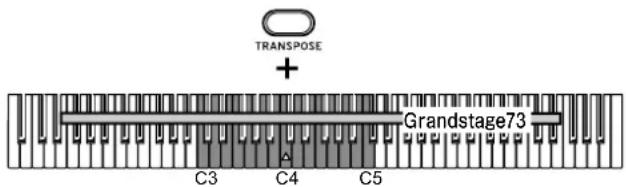
Adjusts the overall pitch in semitones, over a range of one octave up or down. Press a key from C3 to C5 while holding down the button to transpose the pitch.
Rear panel
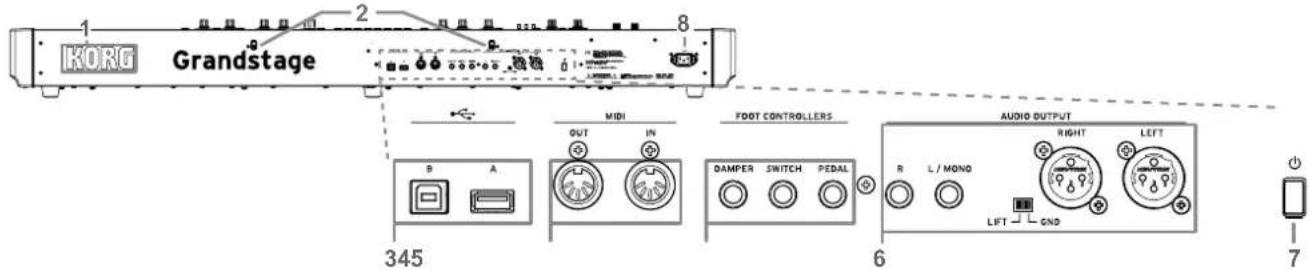
1. KORG logo
The LED of the KORG logo will light up.
The color of the LED illumination can be set, as well as whether the logo lights or not (see page 16).
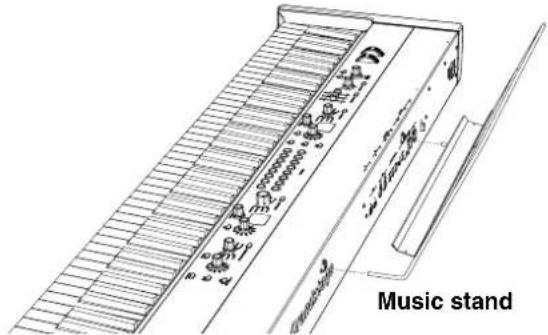
2. Music stand holes
These holes are used to mount the music stand that is included with this keyboard.
Mount the stand as shown in the diagram below.
3. ✉ USB:
A port
USB storage devices such as USB flash drives can be connected.
B port
Connect the USB A port on a Windows PC or Mac to exchange MIDI data.
4. MIDI:
IN connector, OUT connector
These connectors allow the Grandstage to exchange MIDI messages with an external MIDI device.
5. FOOT CONTROLLERS: (see page 10)
DAMPER jack
Connect the damper pedal included with the Grandstage here.
SWITCH jack
Connect the separately sold foot switch here.
PEDAL jack
Connect an expression pedal or foot controller (sold separately) here.
The Grandstage will automatically detect the polarity of the pedal switch and damper pedal that are connected. The pedal position will be considered to be off when the Grandstage power is turned on, or when the pedal is connected.

Do not press down the pedal when turning on the power or while connecting the pedal to the Grandstage.
6. AUDIO OUTPUT: (see page 7)
You can connect powered monitors, a stereo amp, mixer, or multi-track recorder to these jacks.
L/MONO, R jack
These are φ6.3mm TS (unbalanced tip-sleeve) phone jacks for outputting audio.
Adjust the volume level using the MASTER VOLUME knob.
If you're using a stereo connection, connect to both L/MONO and R jacks.
If you're using a monaural connection, connect to the L/MONO jack. This jack is used for devices that only have a mono input.
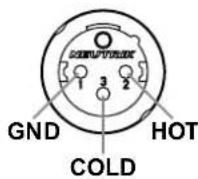
LEFT, RIGHT jack
These are XLS (balanced) jacks are for stereo audio output.
Adjust the volume level using the MASTER VOLUME knob.

If you connect the Grandstage's LEFT and RIGHIT jacks (XLR) to a mixer or similar device, be sure to turn off the phantom power of that device. The Grandstage might be damaged if you fail to do so.
LIFT - GND switch
Normally, the GND side is used. When the LIFT side is used, the GND jacks of the LEFT and RIGHT jacks will be separated from the ground of the main unit. If noise occurs from the ground loop and so on, using the LIFT side may cause the noise to dissipate.
7. (Power button)
This turns the power on/off (see page 7).
Auto Power-Off function
When a set period of time has passed without operating this keyboard, the power is automatically turned off. To change the set period of time or to disable this function, refer to "Auto Power Off" on page 16).
The factory-set default is 4 hours.

After turning off the power, any settings not saved in the favorites will be lost. Be sure to write any settings into memory that you want to keep before turning off the power. The system settings are maintained whenever they are changed (refer to “Types of system settings” on page 15).
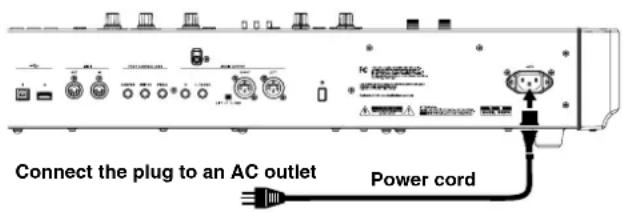
8. \~ACV (AC Power connector)
Connect the included power cord here. We recommend that you first connect the power cord to the Grandstage, and then connect the other end of the cord to an AC outlet.
Preparations
Making connections
Connecting audio devices
The Grandstage does not have built-in speakers.
You will need to connect audio equipment such as powered monitor speakers or a stereo set, or use headphones in order to hear sound.
Connecting powered monitor speakers or a mixer
The audio outputs on this keyboard output signal at a higher level than ordinary home audio equipment like CD players. For this reason, playing at an excessive volume may damage the connected speakers or audio equipment, so use caution with the volume level.
-
Turn down the volume on all of your connected equipment, and then turn off the power.
-
Connect the L/MONO and R jacks or the LEFT and RIGHT (XLR) jacks from the AUDIO OUTPUT of this keyboard to the audio input jacks of your powered monitor speakers or mixer.
Tip: The signals outputted from the L/MONO and R jacks are the same as those from the LEFT and RIGHT (XLR) jacks. You can use both at the same time.
Tip: If you're using a monaural connection, connect to the L/MONO jack.
Connecting headphones
Here you can connect a set of headphones equipped with a 1/4" (φ6.3 mm) stereo phone-plug. This jack will output the same signals as the AUDIO OUTPUT. Use the MASTER VOLUME knob to adjust the headphone volume.
Note: The output from the AUDIO OUTPUT is not turned off even if headphones are connected to the Headphone jack.
Connecting the power cord included with this keyboard
Turning the power on/off
Turning the power on
- Turn the Grandstage's VOLUME knob all the way to the left so that the volume is down.
If any external equipment, such as a monitor amplifier is connected, lower their volume as well and then turn off their power.
- Press the power button on the rear panel of the Grandstage.
The opening screen will be shown in the KEYBOARDS section display for a short while.
- The Grandstage will be ready to play once the buttons and LEDs on the front panel light up.
When turning on the power, bank A, number 1 of the favorites will always be selected.
-
Turn on the power of the external equipment that's connected to the Grandstage's AUDIO OUTPUT jacks, such as a monitor amplifier or stereo amplifier.
-
Use the Grandstage's MASTER VOLUME knob and the volume controls of your external equipment to set the volume to a suitable level.
Tip: When a set period of time has passed without playing the keys, turning the knobs or pressing the buttons on this keyboard, the power is automatically turned off. Refer to "Auto Power Off" on page 16.
Turning the power off
-
Lower the volume of your powered monitor speakers, stereo amp or other external output device, and then turn off their power.
-
Hold down the power button on the rear panel of the Grandstage for several seconds to turn off the power until the buttons and LEDs on the control panel have gone dark, and then release the power button.
"POWER OFF" will be shown in the KEYBOARDS section display for several seconds.
- Once the display goes dark, the power will automatically turn off.
Do not remove the power cord before the display goes dark. Doing so may cause a malfunction.
Listening to the demo songs
The Grandstage contains 16 demo songs. You can check which sounds are typically used while playing back each song (refer to the demo song list in the “Sound Name List”.)
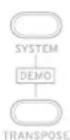
1. Press the SYSTEM and TRANSPOSE buttons together.
Each button will blink, and the keyboard will enter demo song performance mode.
The FAVORITE button, bank A will blink, and the first demo song will automatically start to play.
- One demo song is assigned to each favorite button, for a total of 16 demo songs.
- When song A finishes, song B will automatically begin. The button for each song will blink while the song is playing. All of the demo songs will play back in order, while you are not operating the Grandstage.
- The program number and sound name used by the demo song are shown in the left and right displays. This allows you to see which sounds are being used by the demo song.
- In demo song performance mode, all operations except for the SYSTEM button, TRANSPOSE button, the 16 FAVORITE buttons and the MASTER VOLUME knob are disabled.
- You will not be able to select sounds or operate the different knobs, or use the controllers including the wheels, SW 1/2, damper pedal and so on.
2. To select another demo song, press the desired FAVORITE button.
The button will blink, and the demo song you select will play back from the top.
Press the blinking button again to restart the song once more from the top.
3. To stop playback on a demo song, press the SYSTEM button, TRANSPOSE button or EXIT button.
The Grandstage will exit demo song performance mode and return to the state shown in step 1.
Note: The settings for favorites that you have changed but not saved will be reset after entering demo song performance mode. Be sure to write any favorites to memory before entering demo song performance mode if you want to save them, by using the following steps. (see page 13)
Selecting and playing sounds
The Grandstage includes 500 programs that are separated into categories (refer to the program list in the "Sound Name List".)
Each sound, such as piano, strings and so on is referred to as a “program”. Programs can be played on their own, or two programs can be layered or split to be played together.
These programs can be played by directly selecting a category and variation in the KEYBOARDS and ENSEMBLE sections; but programs that you wish to use can also be saved as favorites, which are convenient to quickly call up while playing.
64 favorites from A1 to H8
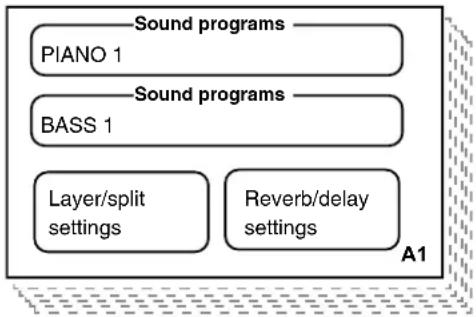
flowchart
graph TD
    A["Sound programs"] --> B["PIANO 1"]
    C["Sound programs"] --> D["BASS 1"]
    E["Layer/split settings"] --> F["Reverb/delay settings"]
    G["A1"] --> H
Favorites include programs, levels and edit information, and can also include as reverb/delay settings, layer/split settings and so on when saved.
The 64 favorites can be selected by using the 16 FAVORITE buttons (bank buttons A–H and number buttons 1–8; refer to the favorite list in the “Sound Name List”.)
Some of the favorites include recommended settings by factory default.
Tip: Favorite data can be backed up using external USB flash memory and replaced as necessary (see page 18).
Selecting favorites
When turning on the power, bank A, number 1 of the favorites will always be selected.
Bank A and number 1 on the FAVORITE buttons will be lit.
Bank
Number
-
Press one of the numbered buttons from 1 to 8 to switch to a different favorite in bank A.
-
Press one of the bank buttons from A to H to switch to a different favorite bank.
The selected bank button will light, and buttons 1–8 will blink.
- Press one of the blinking numbered buttons from 1 to 8.
The button you press will light up.
The program information saved in the favorite you select will be shown in the KEYBOARDS section or ENSEMBLE section display.
001
Grandstage Piano
Program number
Program name
The KEYBOARDS, ENSEMBLE, SPLIT or SWAP buttons will light when playing a favorite with layered sounds or split sounds, according to the settings.
The settings below are saved in the favorite data.
• One or two programs (category, variation, levels, edit information)
- Reverb/delay settings (type, depth, time)
- Layer or split (split point) settings
Refer to "Creating favorites" on page 12 for details.
Tip: The preloaded favorites in banks A–D include recommended sounds (refer to the favorite list in the “Sound Name List”.)
The favorites in banks E–H include default settings. Use these banks to conveniently create and write your own original favorites. The preloaded favorites can also be edited and written to banks A–H.
Selecting a program
The programs in the KEYBOARDS and ENSEMBLE sections are stored by category.
On the Grandstage, programs are not selected directly; rather, favorites are selected, and then the programs inside of the favorites are changed.
- Check that the KEYBOARDS or the ENSEMBLE buttons on the front panel are lit.
If only the KEYBOARDS button or the ENSEMBLE button is lit, they cannot be turned off. Turn both of the sections on and then turn off the section that you will not use.
- Use the category selection knob for the section you wish to change, in order to select the category.
When switching to a different category, the program previously selected for that category will be selected again.
- Select a program using the VARIATION knob.
The programs that can be selected for each category are shown in the program list, found in the “Sound Name List”.
KEYBOARDS categories
GRAND Grand piano. Includes five world-renowned grand piano sounds, including Italian, German, Berlin, Austrian and Japanese pianos.
UPRIGHT Includes various piano sounds, such as two types of upright pianos.
EP RD Vintage electric piano with tines. A wealth of variation sounds including the classic Model I, II, V, and Dyno-My-Piano (DMP) basic sounds, tones and effects are provided.
EP WL Reed-type and string-type vintage electric pianos. Includes classic sounds such as the model 200, 200A, CP and so on.
EP SYN Synthesizer-type electric piano. Includes many famous sounds created through analog and FM synthesis.
CLAV Clav sounds. Includes the classic D model with four types of pickups and a regular assortment of effects, for variation sounds. Also includes harpsichord.
ORGAN Organs. Includes a tonewheel organ, VOX transistor organ, compact transistor organ and three types of vintage organ sounds, as well as pipe organ and accordion.
ENSEMBLE Selects the programs from the ENSEMBLE section. Select this when you want to use two programs from the ENSEMBLE section, for instance, when layering strings and a synth pad.
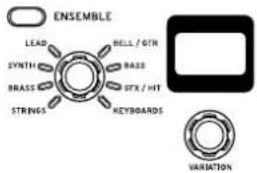
| STRINGS Strings | s, pads and choirs. Includes realistic-sounding string ensemble sounds, as well as synth pad sounds optimal for use in layering. |
| BRASS Brass, reed and woodwind instruments.Includes realistic-sounding brass sections, and wind instruments. | |
| SYNTH Synthesizer sounds. An assortment of many standard sounds, mainly focusing on polyphonic synthesizer sounds like bells and decaying sounds. | |
| LEAD Synth lead sounds. Includes lead sounds from mono and polyphonic synths. | |
| BELL/GTR Bells and guitar sounds. Includes acoustic sounds, mainly decaying sounds played with a mallet. | |
| BASS Bass. Includes a wide variety of bass sounds including acoustic, electric, synth bass and so on. | |
| SFX/HIT Sound effects, orchestral hits and percussion instruments. Includes various sounds that offer flexibility in onstage performance. | |
| KEYBOARDS Selects the various programs from the KEYBOARDS section. Select this when you want to use two programs from the KEYBOARDS section, for instance, when layering a grand piano and an electric piano. |
Using the controllers
For split and layered sounds, controllers aside from SW1 and SW2 can be turned on (enabled) or off (disabled) for each section (KEYBOARDS or ENSEMBLE; refer to "Other Controls" on page 14).
Pitch bend wheel
Moving the pitch bend wheel up and down while playing controls the pitch of notes played. Moving the wheel up causes the pitch to rise, while moving the wheel down causes the pitch to fall.
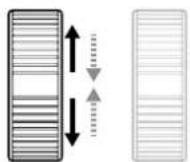
The wheel will move back to center position when released. The pitch bend wheel may control other aspects of the sound besides pitch, depending on the program.
Refer to the program list in the "Sound Name List" for the functions that are set.
Modulation wheel
Moving the modulation wheel up and down while playing controls the depth of the modulation set for each sound. Moving the wheel up strengthens the effect that is set, and moving the wheel all the way down turns the effect off.
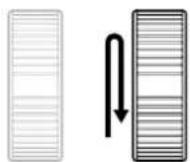
The modulation wheel remains in the position where you move it, and the effect remains the same.
Refer to the program list in the "Sound Name List" for the functions that are set.
SW1, SW2
These buttons can be turned on or off to control the sound while you play. The functions that can be controlled are effectively set for the sound of each program.
SW1 mainly controls the tone, and SW2 mainly controls whether the effect is on/off.
Refer to the program list in the "Sound Name List" for the functions that are set.
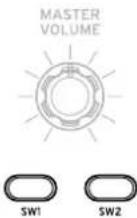
Note: The on and off settings for SW1 and SW2 can be saved as favorites.
Note: With split and layered sounds, this can only be used to control the KEYBOARDS section side.
FOOT CONTROLLERS
You can control the sound of the Grandstage using the foot pedals connected to each foot controller jack. Note that the polarity and variable range for each pedal must be adjusted as necessary (refer to "Calibrating the pedal" on page 17).
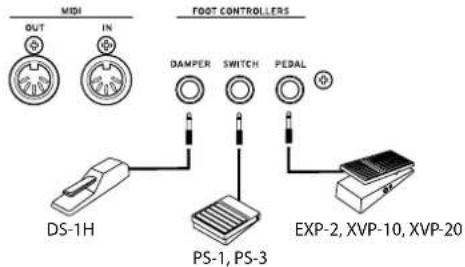
DAMPER jack
Connect the damper pedal (DS-1H) included with the Grandstage. This is used to make sounds sustain after removing your hands from the keys, for a piano damper effect.
When connecting the DS-1H pedal, this functions as a half-damper pedal. This will allow for more delicate damper control of piano and electric piano sounds on this keyboard.
When a switch-type pedal is connected, the pedal will act as a damper switch.
SWITCH jack
Connect an optional PS-1, PS-3 or other foot switch (sold separately) to this jack for on/off switching. This allows you to switch between favorites, as well as control sounds and effects. The functions for the foot switches are set in the system settings (refer to "Foot - Switch (foot switch functions)" on page 17). The factory-set default settings are front panel and SW2 button on/off (CC#81).
PEDAL jack
Used to connect an optional XVP-20 or XVP-10 expression/volume pedal, or an EXP-2 foot controller. This is used to control the overall volume and effects.
The functions for the foot switches are set in the system settings (refer to "Foot - Pedal (foot pedal functions)" on page 16). The pedal is set to control the overall volume of the Grandstage by factory-set default using expression (CC#11).
However, for preloaded programs that include the pedal wah effect, the pedal is automatically set to control the wow effect. Some of these programs contain the word "Pedal Wah" in the name.
Adjusting the dynamics and equalizer

DYNAMICS

EQUALIZER

Dynamics
This adjusts how the volume and tone will be changed in response to how hard the keys are played (velocity) on the Grandstage.
Pressing the button to turn DYNAMICS on (the button will light) will activate the knob settings.
Turning the knob to the left will cause the sound to play softer in response to the strength of the keys played.
This is good for playing highly inflected passages from pianissimo (very soft) to fortissimo (very loud), such as solo piano or in band ensembles.
Turning the knob to the right will cause the sound to play louder in response to the strength of the keys played.
This is good for generally making your sound stand out when playing backing parts in a band ensemble, or when playing a solo.
The DYNAMICS effect will not be applied when the knob is in center position.
For layered and split sounds, the dynamics effect will be applied to both sounds.
Note: The effect controlled may differ, depending on the program. The dynamics will have no effect on programs that do not change in volume or tone with velocity, such as organ sounds or some synth sounds.
Note: Dynamics settings cannot be saved to the favorites. Dynamics will always be off when turning on the Grandstage. Turning DYNAMICS on will cause the effect to be applied, according to the position of the knob.
Note: The effect will be applied according to the velocity curve (see page 16) that is set.
Equalizer
The overall audio output characteristics can be adjusted using the three equalizer faders, LOW, MID and HIGH.
Pressing the button to turn the equalizer on (the button will light) will activate the slider settings.
The equalizer effect will be applied to all sounds in the same way, regardless of favorite or program.
| Slider Explanation Adjustable range | |
| LOW Low-end shelving type -12 ~ 0 ~ +12dB | |
| MID Midrange band type -12 ~ 0 ~ +12dB | |
| HIGH High-end shelving type -12 ~ 0 ~ +12dB | |
Note: Equalizer settings cannot be saved to the favorites. The equalizer will always be off when turning on the Grandstage. Turning the equalizer on will cause the effect to be applied, according to the positions of the sliders.
Increasing the equalizer settings may cause excessive levels, which could distort the audio output. Turn the LEVEL knobs for the KEYBOARDS and ENSEMBLE sections down when adjusting the equalizer settings.
Transpose and panel lock
Transpose
By changing (transposing) the key in semitones, you can play using fewer black keys, or play along with other instruments that may be in different keys, while still using the fingering you previously memorized.
Setting the transpose feature
While holding down the TRANSPOSE button, press a key from C3 to B3 to transpose the keyboard down in semitones, or press a key from C#4 to C5 to transpose the keyboard up in semitones, to a maximum of one octave in either direction.
The TRANSPOSE button will light when the keyboard is transposed. The display in the KEYBOARDS section will show the transpose value while the TRANSPOSE button is being held.
Cancelling the transpose feature
Press the lighted TRANSPOSE button. The button will go dark, and the transpose feature will be cancelled.
Note: The transpose feature will be cancelled when the power is turned off.
Panel lock
The Grandstage features a Panel Lock function to prevent the sounds and programs on the panel from accidentally being changed by hitting the wrong button or knob while playing.
When this function is turned on, all buttons and knobs on the panel will be "frozen" and will not respond, except for the pitch bend wheel, modulation wheel, MASTER VOLUME knob, SW1 and SW2 buttons, and the EXIT button.

Turning the Panel Lock function ON or OFF (cancel)
1. Hold down the EXIT (PANEL LOCK) button for about two seconds to turn Panel Lock ON.
When this happens, the button will blink.
2. Press the blinking EXIT button to turn panel lock OFF (cancel).
The button will go dark.
Panel lock on (wheels, knobs and buttons that can be used)

Panel lock off

Note: The panel lock setting will not be saved. When the power is turned off and then on again, the keyboard will reset.
Creating favorites
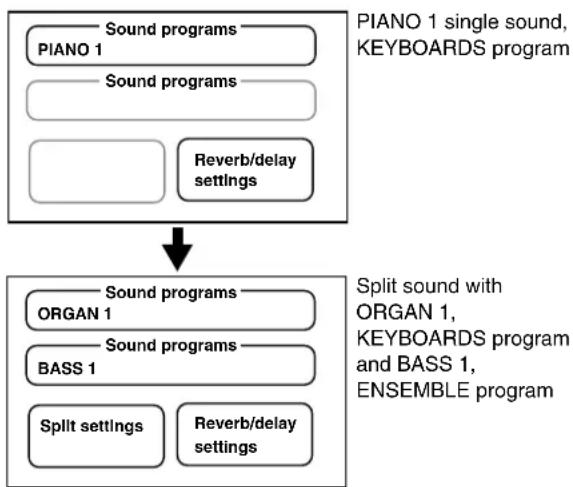
To create a new favorite, you must modify the two programs (in single sound mode) originally saved, or modify the program with layer/split sounds that uses two programs.
You can also edit the sound of the program you are using.
Changing a program within a favorite
flowchart
graph TD
    A["Sound programs\nPIANO 1"] --> B["Sound programs"]
    B --> C["Reverb/delay settings"]
    D["Sound programs\nORGAN 1"] --> E["Sound programs\nBASS 1"]
    E --> F["Split settings"]
    E --> G["Reverb/delay settings"]
    H["PIANO 1 single sound, KEYBOARDS program"] --> I["Split sound with ORGAN 1, KEYBOARDS program and BASS 1, ENSEMBLE program"]
Editing a program within a favorite
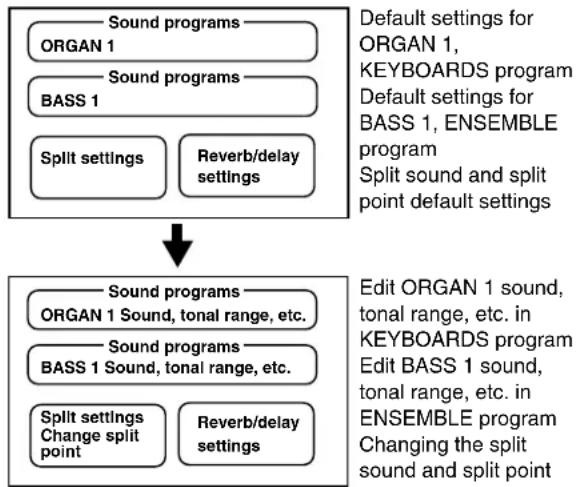
flowchart
graph TD
    A["Default settings for ORGAN 1, KEYBOARDS program"] --> B["Default settings for BASS 1, ENSEMBLE program"]
    B --> C["Split sound and split point default settings"]
    D["Edit ORGAN 1 sound, tonal range, etc. in KEYBOARDS program"] --> E["Edit BASS 1 sound, tonal range, etc. in ENSEMBLE program"]
    F["Start"] --> G["Start"]
Note: Since the edits you make to the program will be saved as part of the favorite's settings, this will not affect the original program. This means that when you edit a program, this will not change the same program's sounds that happen to be used in another favorite. The "Release" edit parameter and the sound parameters will be reset to their original settings when you select a program again.
Changing the programs used
- Use the FAVORITE buttons to select a favorite (see page 9).
Note: When selecting a favorite that was set by default, select any bank from E and up.
- Press either the KEYBOARDS button or the ENSEMBLE button to make them light (on) or go dark (off).
If only the KEYBOARDS button or the ENSEMBLE button is lit, they cannot be turned off. Turn both of the sections on and then turn off the section that you will not use.
- Select the program using the category selection knob and the VARIATION knob, in the section on which the button is lit.

Any changes you make to a favorite will be lost and the favorite will return to its previous saved state, if you select a different favorite or turn off the power.
Be sure to write the favorite to memory in order to save any changes you make. (Refer to “Saving a favorite that has been changed” on page 13.)
Creating layered sounds
Two sounds can be stacked together to create a layered sound (example: piano and strings).
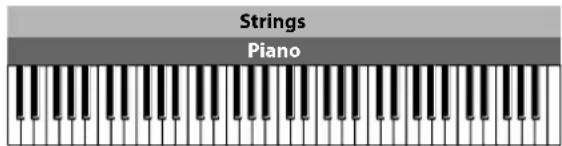
- Turn both the KEYBOARDS and ENSEMBLE section buttons on, and select a program for each.
This will make a layered sound.
- Use the LEVEL knobs for each section to adjust the volume balance between both programs.
Tip: When creating a layered sound with two programs from the ENSEMBLE section, select the ENSEMBLE category for the KEYBOARDS program. When creating a layered sound with two programs from the KEYBOARDS section, select the KEYBOARDS category for the ENSEMBLE program.
Creating split sounds
You can assign a different sound to the higher range of the keyboard and the lower range of the keyboard to create a split sound (for instance, piano and bass).
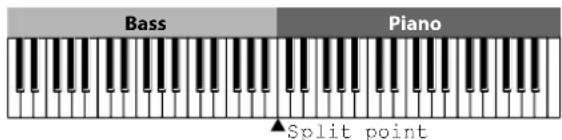
- When in single sound mode, press the SPLIT button.
The SPLIT button will light, and the KEYBOARDS and ENSEMBLE buttons will both turn on (light up).
- Select a program for each section.
The ENSEMBLE program will be assigned to the lower part of the keyboard (lower note range), and the KEYBOARDS program will be assigned to the upper part of the keyboard (higher note range).
3. To cancel the split sound, press the SPLIT button, or press either the KEYBOARDS or ENSEMBLE button to return to single sound mode.
The SPLIT button will go dark.
When using layered sound, pressing the SPLIT button will switch to a split sound.
Press the SPLIT button once more (the button will go dark) to switch to layered sound.
The ENSEMBLE program will be assigned to the lower part of the keyboard (lower note range), and the KEYBOARDS program will be assigned to the higher part of the keyboard (higher note range).
Note: When setting a split sound, if the SPLIT button is pressed to turn split sound OFF, the Grandstage will return to the mode it was in before entering split sound mode.
However, if you select a favorite that uses split sound, only the KEYBOARDS section will turn on when the SPLIT button is OFF, and the keyboard will return to single mode.
Tip: When creating a split sound with two programs from the ENSEMBLE section, select the ENSEMBLE category for the KEYBOARDS program. When creating a split sound with two programs from the KEYBOARDS section, select the KEYBOARDS category for the ENSEMBLE program.
Split point
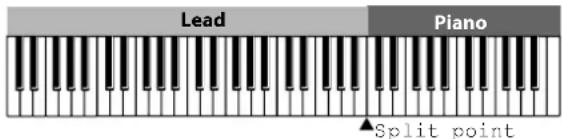
The lowest note of the upper part on the keyboard is called the "split point". The split point is set to C4 by factory default.
Changing the split point
- While holding down the SPLIT button, press the key (on the keyboard) where you want the split point to be.
You can save the split point that you have changed, as a split sound in a favorite. Note that the split point will return to the default setting of C4 if you return to single sound mode before saving, or when you turn off the power.
Switching upper and lower keyboard parts
- Pressing the SWAP button to make the button light will allow you to switch the sounds used on the upper part (higher note range) and lower part (lower note range) of the keyboard in split sound mode.
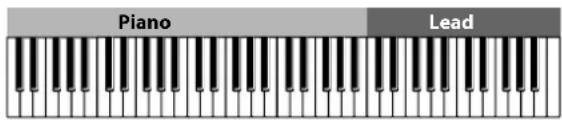
Although you will be able to change or edit sounds after pressing SWAP, be careful to remember that the higher note range is the ENSEMBLE section, and the lower note range is the KEYBOARDS section—the left and right sides of the keyboard have been swapped.
Pressing the SWAP button once more will cause the button to go dark, and the sounds on the upper and lower sides of the keyboard will return to the way the sections are labeled on the panel.
Saving a favorite that has been changed
Favorites that have been changed will return to their previous saved state, if you select a different favorite or turn off the power. Be sure to write any favorites that you have changed to memory if you want to save them, by using the following steps.
1. Press the WRITE button once you are finished with editing.
The WRITE and EXIT buttons will blink.
2. If you wish to overwrite the current favorite, simply press the WRITE button.
The WRITE and EXIT buttons will go dark, and writing will be finished.
To cancel the write operation, press the EXIT button.
3. To save to a different favorite, press the new bank and number buttons where you want the favorite to be saved.
4. Press the WRITE button.
The WRITE and EXIT buttons will go dark, and writing will be finished.

Tip: When you press a bank or number button during the write operation, the selected program in the favorite to be saved will be shown on the display, until you release the button. You can use this to check the contents of the favorite location you are saving to. This function is useful for making sure that it's all right to overwrite the desired favorite location.
Editing a program
You can make basic adjustments to the sound and effects of the programs you select. Edited programs can be saved as a favorite.
......
How to edit
The steps to edit a program are the same for both the KEYBOARDS and ENSEMBLE sections.
1. After selecting the program to edit, press the EDIT button.
The button lights up, and the parameters are shown in the display.
2. Select a parameter using the VARIATION knob.

flowchart
graph LR
    A["EDIT\nOctave\n0"] <--> B["EDIT\nTune\n0.00 semitones"]
    B <--> C["EDIT\nDamper\nOff"]
    C <--> D["EDIT\nOther Controls\nOn"]
3. Edit the parameter values using the LEVEL knob.
4. Repeat steps 2 and 3 to continue editing.
5. To finish editing, press the EDIT button or the EXIT button.
The EDIT button will go dark, and the program name will be shown in the display.
Editing will automatically end if you select a different program or favorite, or switch the Grandstage to layer or split sound mode.
6. To save the settings you have edited, be sure to write the favorite to memory. (Refer to "Saving a favorite that has been changed".)
Note: Any changes you make to a program will return to the previous saved state if you select a different favorite or turn off the power without saving them. Use caution, as the release and sound parameters will be reset if you select another program.

Program parameter list
| Parameter Value | |
| Octave -3, -2, -1, 0, +1, +2, +3 | |
| Tune -100 ... 0 ... +100 (cents) | |
| Release -100 ... 0 ... +100% | |
| Sound parameter 1 Depends on program | |
| Sound parameter 2 Depends on program | |
| Sound parameter 3 Depends on program | |
| Sound parameter 4 Depends on program | |
| Reverb Send -inf ... + 6.0dB | |
| Damper Off, On | |
| Other Controls Off, On | |
Octave
Sets the pitch of the Grandstage in octaves. The setting range is ±3 octaves.
Use this when adjusting the pitch balance between two different programs when setting layers or split sounds.
The value is "0" when this function is not used.
Tune
Sets the pitch of the Grandstage in cents (1 semitone=100 cents).
The pitch is adjustable within a range of ±100 cents.
For instance, this could be used when fine-tuning the pitch between layered sounds in a program, to create a thicker sound.
The value is "0" when this function is not used.
Release
This adjusts the release times for the program.
Specify the time from note-off until the sound fades to silence.
The value is set to "0" when this function is not used.
This is a value that is relative to the actual release time for each program. A value of “0” means that the release time will be the same as the program parameters. Negative values make shorter release times, and positive values make longer release times.
Sound parameters 1–4
Adjusts the sound parameters of a program.
The editable parameters differ for each program. There are a maximum of four sound parameters already set in each sound, to allow the sound to be effectively adjusted.
Reverb Send
This adjusts the send level to output from the program, into the REVERB/DELAY section.
Normally, this is set to 0 db, and the reverb and delay volume are adjusted using the DEPTH knob in the REVERB/DELAY section.
To balance the volume between the programs of the two sections and the reverb/delay when in layer or split mode, adjust the
Reverb Send value.
For instance, you can apply a deep reverb to the piano sound, and apply no reverb to the bass sound.
If the input level of the REVERB/DELAY section is too loud, the reverb or delay sound may distort. If this happens, lower the Reverb Send value, so that the sound does not distort.
Damper
This sets whether the damper effect is enabled (on) or disabled (off).
Normally, the setting is enabled. When turning off the Damper function for one of the sections when using split or layered sound, make the setting in each section.
For example, if you are using a split sound, you can enable the Damper function for the piano sound, but disable the Damper function for the bass sound.
Other Controls
This sets whether other controllers shown below are enabled (on) or disabled (off).
Note: Controllers cannot be individually enabled or disabled.
- Pitch bend wheel
- Modulation wheel
- Pedal connected to the FOOT CONTROLLERS PEDAL jack. Note that if the PEDAL jack function set in system settings (see “Foot - Pedal” on page 16) is set to “Master Volume”, this pedal function will always be enabled, without regard to the “Other Controls” setting here.
- Switches connected to the FOOT CONTROLLERS SWITCH jack. Note that if the SWITCH jack function set in system settings (see “Foot - Switch” on page 17) is set to “Favorite Up” or “Favorite Down”, those pedal functions will always be enabled, without regard to the “Other Controls” setting here.
Normally, the setting is enabled. When turning off either the pitch bend or the expression pedal function for only one of the sounds in split or layered sound, make the setting in each section.
For example, when using layered sound, the volume control using the expression pedal function can be enabled for just the piano sound or the strings sound. Another example is when you are using a split sound, you can disable the pitch bend function for the piano sound, but enable it for the synth lead sound or bass sound.
Reverb/delay settings
These are the settings for the reverb and delay effects. Four types of reverbs and four types of delays can be set as effects.
| Type Details | |
| HALL This is a | hall-type reverb that simulates the reverberations of a large concert hall or ensemble hall. |
| STAGE This re | reverb simulates a stage with less reverberations that that of the hall type. |
| ROOM | This reverb simulates the reverberations of a small room. The reverb includes multiple initial reflections of the sound from the walls and ceiling. |
| SPRING This | reverb simulates the spring reverb sound used in some guitar amps and organs. |
| DELAY This is | a simple stereo delay. |
| CROSS This is | a stereo delay that bounces back and forth from left to right. |
| TAPE This effect | models the analog tape echo found on popular devices. The effect recreates the changes in tone from sound distortion and vibration produced by the rotation of magnetic tape and the motor. This offers a warm echo sound. |
| MOD DLY This | effect adds a pitch shift-type effect similar to a chorus effect to a delay, creating a swelling, wobbly delay sound. |
1. Press the REVERB/DELAY button.
The LEDs of the button and the selection knob will light, and the effect will be applied.
2. Use the selection knob to select the effect.
3. Adjust the amount of the effect to apply with the DEPTH knob.
The value will be shown on the LEDs around the knob. Reverb type is used to control the reverb level, and delay type is used to control the delay level and feedback level at the same time.
4. The delay and reverb times can be adjusted to match the intervals at which you press the TIME-TAP button.
The button will blink at the interval that is currently set.
Note: The reverb time will be set to the interval between taps, when you tap the button four times.
When using layered or split sound, the effect volume balance can be adjusted with the “Reverb Send” effect edit parameter in the KEYBOARDS and ENSEMBLE programs.
The settings in this section can be saved as a favorite.
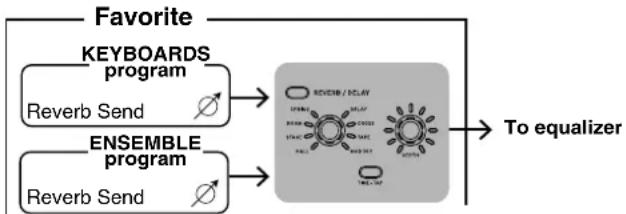
flowchart
graph TD
    A["KEYBOARDS program"] --> B["Reverb Send"]
    C["ENSEMBLE program"] --> D["Reverb Send"]
    B --> E["REVIEW / RELAY"]
    D --> F["REVIEW / RELAY"]
    E --> G["To equalizer"]
    F --> G
    style A fill:#f9f,stroke:#333
    style C fill:#f9f,stroke:#333
    style E fill:#ccf,stroke:#333
    style F fill:#ccf,stroke:#333
    style G fill:#cfc,stroke:#333
The sound can be played right after changing the reverb or delay effect settings, but the settings will return to their previous saved state if you select a different favorite or turn off the power. To save your settings, be sure to write the favorite to memory. (Refer to “Saving a favorite that has been changed” on page 13.)
System settings
Types of system settings
The settings that can be made here include overall settings for the Grandstage including master tune, MIDI, controller functions and so on.
- Master tune
• MIDI channel settings
• MIDI channel mode settings - Lower part MIDI channel settings
- Local control settings
• Velocity curve settings - Convert position
• Auto power-off settings - Adjustments made to display brightness
• KORG logo backlight (on/off)
• KORG logo backlight color - Foot pedal functions
- Foot switch functions
- Pedal calibration
- Saving/loading favorite settings
- Restoring the Grandstage to factory-set default settings
Any changes made to these settings will be automatically written to memory within several seconds, and will be saved even after the power is turned off.
Steps for making system settings
The steps for making system settings basically involve the following operations. Separate steps will be provided for steps that differ from what is written below.
1. Press the SYSTEM button to turn it on (the button blinks).
The word "SYSTEM" will display on the top line of the KEYBOARDS section display.
2. Select a parameter using the VARIATION knob of the KEYBOARDS section.
Each parameter is shown on the second line of the display.

flowchart
graph LR
    A["SYSTEM\nMaster Tune\n0 (440.00 Hz)"] <--> B["SYSTEM\nMIDI Channel\n1"]
    B <--> C["..."]
    C <--> D["SYSTEM\nSave .FAV File\n[Press EDIT"]]
    D <--> E["SYSTEM\nLoad .FAV File\n[Press EDIT"]]
3. Set the values using the LEVEL knob in the KEYBOARDS section.
The values and setting details are shown on the third line of the display.
Changing these values will immediately apply them as system settings and save them to memory, even after the power is turned off.
4. After you are finished with the settings, press the SYSTEM button or the EXIT button.
The SYSTEM button will go dark.
System setting parameters
Master Tune
Sets the tuning for the entire keyboard.
Tuning can be set in cents (1 semitone=100 cents), within a range of ±50 cents (427.47... 440...452.89Hz). The default setting is “+0”, or 440Hz (the frequency for A4).
MIDI Channel
Specifies the MIDI channels on which the Grandstage will transmit and receive (from 1–16).
The default setting is "1".
Download and refer to the “Grandstage 88/73 MIDI Guide” (PDF) for details.
MIDI Ch Mode (MIDI channel mode)
This selects the MIDI channel mode used by the Grandstage to transmit and receive MIDI data.
Global Only: Uses only the channels set in "MIDI Channel". When playing in layered or split mode, this keyboard will transmit and receive on only one channel.
U/L Individual (Upper/Lower Individual): the channels set using the "MIDI Channel" and "MIDI Ch (Lower)" settings will be used to transmit and receive MIDI data for the KEYBOARDS and ENSEMBLE sections.
The default setting is "Global Only".
Download and refer to the “Grandstage 88/73 MIDI Guide” (PDF) for details.
MIDI Ch (Lower) (MIDI channel for the lower part)
This setting is enabled when the MIDI Ch Mode is set to "U/L Individual". This specifies the MIDI channels on which the Grandstage will transmit and receive (from 1–16) on the lower ENSEMBLE section note range.
The default setting is "2".
Download and refer to the “Grandstage 88/73 MIDI Guide” (PDF) for details.
Local Control (MIDI local control)
Set whether the Grandstage's own keyboard, wheels and other controls will control the Grandstage's sound engine (On), or whether the Grandstage's own keyboard will only be used to output MIDI messages to external devices, without controlling the Grandstage's sound engine (Off). Normally, this is "On" when playing the Grandstage by itself.
The default setting is "On".
Download and refer to the “Grandstage 88/73 MIDI Guide” (PDF) for details.
Velocity Curve
This sets how the volume and tone will be changed in response to the keyboard velocity (how hard the keys are played) on the Grandstage.
The default setting is "4 (Normal)".
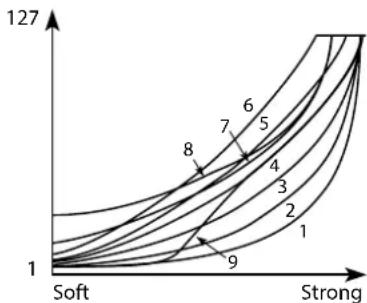
line
| Label | Value | |-------|-------| | 1 | 1 | | 2 | 2 | | 3 | 3 | | 4 | 4 | | 5 | 5 | | 6 | 6 | | 7 | 7 | | 8 | 8 | | 9 | 9 || Value Details | |
| 1 (Heavy), 2, 3 | These curves produce an effect when you play strongly. |
| 4 (Normal) This is the typical curve. | |
| 5, 6 These curves let you produce dynamic change without having to play very hard. | |
| 7 This curve provides a flat effect when playing softly. | |
| 8 (Light) This curve provides an even more flat effect when playing softly. | |
| 9 (Wide) This curve produces an even softer response when playing softly compared to the typical curve #4. | |
Convert Position
This specifies the position at which the transposition and velocity curve will apply. The setting has an effect on MIDI data that is transmitted and received.
Note: The transpose value is set from the TRANSPOSE button (see page 11).
Pre-MIDI: Transposes and applies the velocity curve to data immediately after it is outputted from the keyboard.
Post-MIDI: Transposes and applies the velocity curve to data before it enters the sound generator.
This setting does not have an effect when playing the Grandstage's own sounds using this keyboard.
The default setting is "Pre-MIDI".
Download and refer to the "Grandstage 88/73 MIDI Guide" (PDF) for details.
Auto Power Off
When a set period of time has passed without playing the keys, turning the knobs or pressing the buttons on this keyboard, the power is automatically turned off. This is called "auto power off". Select a setting of either "Disabled" or "4 Hours".
The default setting is “4 Hours”, which means that the power will automatically turn off if the Grandstage is not used for four hours.
Brightness (display brightness)
Sets the display brightness for each display corresponding to the two sections on the front panel. The setting range is from 1–10, and the default setting is "8".
Continuing to use the Grandstage while the brightness is set to a high value will have an effect on the life of the displays.
KORG Logo Light (turning the KORG logo light on/off)
This sets the brightness of the rear panel KORG logo. To make the logo light up in response to the note-on velocities played on the keyboard, set this to “On-Note Vel”.
The default setting is "5".
KORG Logo Color (color of KORG light)
Sets the color of the KORG logo on the rear panel when it lights up.
The logo will light up in one of the following colors: white, red, pink, blue, green, purple, or gold.
When selecting “Cycle”, the color will change gradually over time. The default setting is “White”.
Foot - Pedal (foot pedal functions)
This sets the functions that will be controlled when a foot pedal (such as the XVP-20, XVP-10 or EXP-2, sold separately) is connected to the FOOT CONTROLLERS PEDAL jack on the rear panel. This allows the volume and effects to be controlled. The default setting is “Expression (CC#11)”.
*1: Controls the volume of the REVERB/DELAY section and the equalizer prior to input.
*2: On the CX-3 type organ programs, this controls the volume before the rotary speaker input. Recreates the effect of an expression pedal used with drawbar organs. The expression pedal effect can be recreated in the same way for VOX organ and electric organ programs as well.
*3: The MASTER VOLUME knob adjusts the output level from AUDIO OUTPUT.
| Function Details | |
| Off The connected pedal will not function. | |
| Expression (CC#11) | The pedal will control expression. Controls the volume on the output line for both the KEYBOARDS and ENSEMBLE sections. The value of the MIDI Volume (CC#7) message and the expression are multiplied to get the actual volume. (*1) (*2)Pedal WahThis functions differently from normal in some programs. For programs that include the words “Pedal Wah”, the pedal controls the pedal wah effect within the program, not the volume. |
| Volume (CC#7) | This is used to control the volume. Controls the volume on the output line for both the KEYBOARDS and ENSEMBLE sections. (*1) |
| Master Volume | Controls the master volume. This controls the volume at the last stage of the sound generator output. At the same time, this sends a master volume message (universal exclusive message) to control the volume of all outputs, including the REVERB/DELAY section and the equalizer. (*3) |
| M. Wheel (CC#1) | This allows the modulation wheel effect of the Grandstage to be controlled by pedal. |
| MIDI CC#0... #95 | Outputs the MIDI control change message that is set. If the Grandstage supports this control setting, the effect will be applied. |
| MIDI CC#102... #119 | Outputs the MIDI control change message that is set. If the Grandstage supports this control setting, the effect will be applied. |
Foot - Switch (foot switch functions)
This sets the functions that will be controlled when a foot pedal (such as the PS-1 or PS-3, sold separately) is connected to the FOOT CONTROLLERS SWITCH jack on the rear panel. This allows you to switch between favorites, as well as control sounds and effects.
The default setting is "SW2 (CC#81)".
| Function Details | |
| Off The connected pedal will not function. | |
| SW 1(CC#80) | This controls the SW1 button effect using a foot switch. |
| SW 2(CC#81) | This controls the SW2 button effect using a foot switch. |
| Soft(CC#67) | Turns the soft pedal effect on or off. |
| Favorite Up | Selects the next favorite number using a foot switch. At the same time, this sends a program change message. |
| Favorite Down | Selects the previous favorite number using a foot switch. At the same time, this sends a program change message. |
| MIDI CC#0... #95 | Outputs the MIDI control change message that is set. If the Grandstage supports this control setting, the effect will be applied. |
| MIDI CC#102... #119 | Outputs the MIDI control change message that is set. If the Grandstage supports this control setting, the effect will be applied. |
Calibrating the pedal
Damper Calib. (damper pedal calibration)
Calibrate the damper pedal (such as the DS-1H) that is connected to the DAMPER jack. This will adjust the half-damper variable range.
Tip: The calibration set here will be stored in memory until you perform the calibration again.
1. Connect the damper pedal to the Grandstage.
Refer to "FOOT CONTROLLERS" on page 10 for how to connect the pedal.
2. Lift your foot off the damper pedal.
3. Press the SYSTEM button, and select "Damper Calib." using the VARIATION knob.
"[Press Pedal]" will blink on the third line of the display.
Note: If you wish to cancel the calibration while "[Press Pedal]" is blinking, select a parameter using the VARIATION knob, or press the SYSTEM or EXIT button to finish system settings.
4. Press the damper pedal down all the way until it stops, and then lift your foot off the pedal.
Note: The display will stop blinking and remain lit while the damper pedal is being used. If nothing happens even when you press the pedal, the pedal may not be connected properly to the DAMPER jack. Check the connections.
5. When the calibration is completed, the word "Completed" will be shown on the third line of the display.
Note: If calibration was not correctly completed, "[Press Pedal]" will blink. Do step 4 once more.
6. To continue making other settings, use the VARIATION knob to select the necessary parameter.
Foot Sw Calib. (foot switch calibration)
Calibrate the switch-type foot pedal (such as the PS-1 or PS-3, sold separately) that is connected to the SWITCH jack. This will adjust the pedal's variable range.
Tip: The calibration set here will be stored in memory until you perform the calibration again.
1. Connect the switch-type foot pedal to the Grandstage.
Refer to "FOOT CONTROLLERS" on page 10 for how to connect the pedal.
2. Lift your foot off the foot pedal.
3. Press the SYSTEM button, and select "Foot Sw Calib." using the VARIATION knob.
"[Press Pedal]" will blink on the third line of the display.
Note: If you wish to cancel the calibration while “[Press Pedal]” is blinking, select a parameter using the VARIATION knob, or press the SYSTEM or EXIT button to finish system settings.
4. Press the foot pedal down all the way until it stops, and then lift your foot off the pedal.
Note: The display will stop blinking and remain lit while the foot pedal is being used. If nothing happens even when you press the pedal, the pedal may not be connected properly to the SWITCH jack. Check the connections.
- When the calibration is completed, the word "Completed" will be shown on the third line of the display.
Note: If calibration was not correctly completed, "[Press Pedal]" will blink. Do step 4 once more.
- To continue making other settings, use the VARIATION knob to select the necessary parameter.
Pedal Calib. (pedal calibration)
Calibrate the expression pedal (such as the XVP-20, XVP-10 or EXP-2, sold separately) that is connected to the PEDAL jack. This will adjust the pedal's variable range.
Tip: The calibration set here will be stored in memory until you perform the calibration again.
-
Connect the expression pedal to the Grandstage. Refer to "FOOT CONTROLLERS" on page 10 for how to connect the pedal.
-
Tilt the expression pedal all the way down towards you.
-
Press the SYSTEM button, and select "Pedal Calib." using the VARIATION knob.
"[Press Pedal]" will blink on the third line of the display.
Note: If you wish to cancel the calibration while “[Press Pedal]” is blinking, select a parameter using the VARIATION knob, or press the SYSTEM or EXIT button to finish system settings.
- Press the expression pedal upward all the way until it stops, and then bring the pedal all the way down.
Note: The display will stop blinking and remain lit while the expression pedal is being used. If nothing happens even when you press the pedal, the pedal may not be connected properly to the PEDAL jack. Check the connections.
- When the calibration is completed, the word "Completed" will be shown on the third line of the display.
Note: If calibration was not correctly completed, "[Press Pedal]" will blink. Do step 4 once more.
- To continue making other settings, use the VARIATION knob to select the necessary parameter.
Resetting, saving and loading data
Factory Reset (restoring the factory default settings)
The Grandstage can be returned to its factory default settings.
This will reset (initialize) the favorite data and system setting data. Any edited or newly created favorite data will be overwritten, and your data will be lost. If you want to keep your favorite data, save the data to a USB storage device (aftermarket product). All system settings (including calibration data) will be reset, and you will need to make your settings and perform calibration once more.
While resetting, do not turn off the Grandstage's power, play the keyboard, or move any buttons, knobs or controllers. Doing so may cause the reset operation to fail, and you will be unable to use the Grandstage.
- Press the SYSTEM button, and select "Factory Reset" using the VARIATION knob.
"[Press EDIT]" will blink on the third line of the display.
Note: If you wish to cancel the reset to factory default settings while “[Press EDIT]” is blinking, select a parameter using the VARIATION knob, or press the SYSTEM or EXIT button to finish system settings.
- Press the EDIT button.
The words "OK?[Press EDIT]" will blink on the third line of the display, to reconfirm that you wish to reset the data.
-
Press the EDIT button once more to reset the keyboard.
-
When the reset is completed, the word "Completed" will be shown on the third line of the display.
-
Press the SYSTEM or EXIT button to finish the system settings.
Save .FAV File (saving the favorite data)
This saves the 64 favorites that have been edited on or written to the Grandstage, to external USB storage media connected to this keyboard via the USB A port.
For instance, you could save the favorites that you created in your home studio to a USB flash drive or other USB device, and then reload these favorites in the studio or onstage to the Grandstage, which will bring back the favorite sounds you created in your home studio. Also, by managing your favorites that might differ for each live performance or project as a .FAV file, you can instantly prepare a “set” of the favorites that you need each time.
- Plug a USB storage device into the USB A port of the Grandstage.
Note: The USB A port on the Grandstage supports hot-plugging (meaning that the USB media/cable can be removed while the power is turned on).
- Press the SYSTEM button, and select "Save .FAV File" using the VARIATION knob.
"[Press EDIT]" will blink on the third line of the display.
Note: If you wish to cancel the save operation while “[Press EDIT]” is blinking, select a parameter using the VARIATION knob, or press the SYSTEM or EXIT button to finish system settings.
- Press the EDIT button once more to continue saving.
Note: If a USB storage device is not connected to the USB A port, the message "No valid media" will be displayed on the third line of the display, and the save operation will be cancelled. If this happens, connect a USB storage device, select "Save .FAV File" once more using the VARIATION knob, and perform step 3.
-
The words "Set File Name" and "Save [Hold EDIT]" will be alternately shown on the middle line of the display, and the file name will be shown on the third line.
-
Turn the VARIATION knob to select the characters to edit (the selected character will blink), and use the LEVEL knob to change the blinking character.
The name is "GS0000" by default, and the leftmost character "G" will blink. Filenames can be up to six characters long.
Note: Press the EXIT button if you wish to cancel the renaming of the filename. "[Press EDIT]" will be displayed.
-
After you have finished naming the file, hold down the EDIT button for around one second to save the data.
-
The words "OK?[Press EDIT]" will blink on the third line of the display, to reconfirm that you wish to save the data.
Note: To cancel the save operation, press the EXIT button. This will return the display to a point three steps back.
-
Press the EDIT button quickly to begin saving the data.
-
When the save is completed, the word "Completed" will be shown on the third line of the display.
Note: If a file with the same name already exists where the file will be saved, the message "File Overwrite" will be shown on the second line of the display. To overwrite the file, press the EDIT button. To cancel overwriting the file, press the EXIT button. The display will return to the "Set File Name" screen. Change the file name, and then save using step 6 again.
- Press the SYSTEM or EXIT button to finish the system settings.
Storage media that can be used
USB storage devices, such as MS-DOS FAT16 or FAT32-formatted flash media or disks
Maximum usable storage capacity
FAT32: Up to 2 TB (2,000 GB)
FAT16: Up to 4 GB
When saving to storage media, the "KORG/Grandstage" directory will automatically be created in the media's root directory. This directory will be used exclusively by the Grandstage. When using the "Save .FAV File" function, a file with the .FAV extension will be created in this directory.
If the storage media is not formatted as MS-DOS FAT16 or FAT32, the message “No valid media” will be shown. Format the storage media on your computer. If there is very little free space remaining on the storage media and data cannot be saved, the message “No free space” will be displayed. In this case, delete any unnecessary files from the storage media to free up disk space, or use a different storage media with more capacity.
When loading a .FAV file from storage media, only the .FAV files in the "KORG/Grandstage" directory can be shown and selected for loading. Note that if you change the directory, folder hierarchy or filename using your computer, you will no longer be able to load the file.
The Grandstage recognizes the .FAV file extension. If you change the file extension on a computer or other device, the Grandstage will recognize this as an undefined file, and will not be able to load it. The filenames saved by the Grandstage are six characters long. If you add more characters to a filename using your computer or other device, you may no longer be able to display any of the filenames on the storage media.
Load .FAV File (loading the favorite data)
This loads the favorite data (64 favorites) into the Grandstage's memory, which were saved to a USB storage device using the favorite data save function.
This will load the favorite data into memory. Any factory-set default data or favorite data that was edited and saved on the Grandstage will be overwritten, and your favorites will be lost. If you want to keep your favorite data, save the data to a USB storage device (aftermarket product).
1. Plug the USB storage device that contains the saved favorite data into the USB A port of the Grandstage.
Note: The USB A port on the Grandstage supports hot-plugging (meaning that the USB media/cable can be removed while the power is turned on).
2. Press the SYSTEM button, and select "Load .FAV File" using the VARIATION knob.
"[Press EDIT]" will blink on the third line of the display.
Note: If you wish to cancel the load operation while "[Press EDIT]" is blinking, select a different system parameter using the VARIATION knob, or press the SYSTEM or EXIT button to finish system settings.
3. Press the EDIT button once more to continue loading.
Note: If there is no USB storage device plugged into the USB A port, the KORG/Grandstage directory that was created when executing the "Save .FAV File" function on this keyboard was not found, or if there is no .FAV file located in that directory, the message "No valid media" or "No File/Path" will be shown on the third line of the display, and loading will stop. If this happens, connect a USB storage device to the Grandstage that contains the .FAV file you saved, select "Load .FAV File" using the VARIATION knob, and perform step 3.
4. The file to load is shown on the third line of the display. If there is more than one file that can be loaded, use the LEVEL knob to select the filename to load.
5. Hold down the EDIT button for around one second to load the data.
The words "OK?[Press EDIT]" will blink on the third line of the display, to reconfirm that you wish to load the data.
Note: To cancel the load operation, press the EXIT button. This will go back to the "Select File" display.
6. Press the EDIT button quickly to begin loading the data.
When loading is completed, the word “Completed” will be shown on the third line of the display.
7. Press the SYSTEM or EXIT button to finish the system settings.
Appendices
Trouble shooting
If the Grandstage does not function as you expect, check the following points.
Power does not turn on
□ Is the power cord connected to an AC outlet?
☐ Did you hold down the power button?
Power won't turn off
☐ Did you hold down the power button for several seconds?
Power turns off
□ Could the Auto Power-Off function be enabled?
No sound when you play the keyboard
☐ Is your powered monitor system or headphones connected to the correct jack(s)?
☐ Is the connected monitor system powered-on, and is the volume raised?
□ Is the MASTER VOLUME knob set to a position where sound will be output?
□ Is Local Control turned on?
□ Are the LEVEL knobs for each section turned all the way down (to the left)?
□ Is the volume down on the pedal connected to the FOOT CONTROLLERS PEDAL jack?
□ Are you exceeding the Grandstag e's maximum polyphony when you do not hear some sounds while playing?
The sound will not stop.
☐ Are the settings for the damper pedal correct? Use the Calibration function to adjust the polarity and half-damper variable range of the pedal.
The sound seems to be doubled.
☐ If you are using an external MIDI device or a DAW, check whether the local control setting of the Grandstage is turned OFF.
The sound is distorted.
□ Are the inputs of the mixer, powered monitor speakers and so on being overloaded?
Use the MASTER VOLUME knob on the Grandstage to adjust the output level, as well as the volume faders on the mixer to adjust the input level gain.
Chords cannot be played on the keyboard.
☐ On some programs such as monophonic synthesizer sounds, you will not be able to play chords. This is not a malfunction.
The pitch doesn't sound right.
□ Is the Transpose function set correctly?
☐ Are “Master Tune” in the system settings, as well as the Octave and Tune edit parameters for the program set correctly?
The knobs and buttons on the panel won't respond.
☐ Is panel lock on? (The EXIT (PANEL LOCK) button is blinking in this case.)
The equalizer, dynamics and reverb/delay effects don't sound, or I can't control them.
☐ Is panel lock on? (EXIT (PANEL LOCK) is blinking in this case.)
□ Are the DYNAMICS, EQUALIZER, or REVERB/DELAY buttons off (dark)?
I hear noise.
☐ One effect used by programs is a noise-like effect, called “Analog Record”. The resonance filter may also be used to make the sound resonate. In either of these cases, this is not a malfunction.
☐ When raising the volume using the DYNAMICS knob, EQUALIZER slider, LEVEL knob and other controls, the levels may become excessive due to signal processing, which might result in a distorted or noisy sound. This is not a malfunction.
Adjust this by turning down the levels for each section.
☐ When the REVERB/DELAY section is on, the sound may be distorted or noisy due to excessive input. This is not a malfunction.
Adjust this by lowering the LEVEL knobs on the KEYBOARDS and ENSEMBLE sections, and by lowering the value on the Reverb Send effect parameter.
☐ Some noise may occur when you change the delay effect time using the TIME-TAP button and so on. This is because the delay time is being abruptly changed and becomes non-continuous. This is not a malfunction.
☐ You may hear some noise as a result of a ground loop, depending on your power supply situation. This noise may be defeated in some cases by switching the LIFT-GND switch to the LIFT side.
The knobs and buttons on the KEYBOARDS and ENSEMBLE sections do not work, and I can't control them.
☐ Is panel lock on? (The EXIT (PANEL LOCK) button is blinking in this case.)
□ Are the KEYBOARDS or ENSEMBLE buttons off (dark)?
I made a favorite by modifying its program or making other edits, but it's no longer there.
☐ You may have switched to another favorite or turned off the power before saving your favorite.
The damper pedal, expression pedal and foot switch connected to the FOOT CONTROLLERS jacks don't work as intended.
☐ Are you using the correct settings when connecting the pedals? Use the Calibration function to adjust the polarity and variable range.
MIDI transmit and receive is not working correctly with external devices.
□ Are the MIDI cables connected correctly?
☐ If connecting via USB-MIDI, is the USB cable correctly plugged in to the USB B port?
☐ Is the Grandstage set to transmit and receive MIDI data on the same channel as the external MIDI device?
□ Are MIDI messages being transmitted and received that are compatible with the Grandstage?
The Grandstage is not responding to MIDI program change messages.
☐ The Grandstage supports MIDI program change messages for selecting favorites. However, sound programs on the KEYBOARDS and ENSEMBLE sections cannot be selected using MIDI program change messages.
The DYNAMICS knob does not respond to MIDI input.
☐ The Dynamics function only works on notes that are played using this keyboard. Dynamics has no effect on notes received via MIDI IN.
Error messages
No valid media
Refer to “Storage media that can be used” on page 19, “Save .FAV File (saving the favorite data)” on page 18, and “Load .FAV File (loading the favorite data)” on page 19.
No File/Path
Refer to "Save .FAV File (saving the favorite data)" on page 18.
No free space
Refer to "Storage media that can be used" on page 19.
Save Error
An error occurred when writing to media while executing “Save FAV File”. The media may become unusable if it is ejected during a save operation, and data may not be able to be saved to it. Use a computer to back up the data as necessary, and repair the media by reformatting it or by other means.
Write Protected
The media where you attempted to write data is write protected. Disable write protect on the media, and execute the command once again.
Specifications
| Operating temperature +5 - +40 °C (no condensation) | |||||
| Keyboard Grandstage 88 RH3 (Real Weighted Hammer A | Action 3) | ||||
| 88-key: A0-C8, velocity sensitive, aftertouch not supported | |||||
| Grandstage 73 RH3 (Real Weighted H | ammer Action 3) | ||||
| 73-key: E1-E7, velocity sensitive, aftertouch not supported | |||||
| Tone Generator Synthesis type and maximum polyphony*1, *2 | SGX-2: 60 dual stereo notes (equivalent to 240 voices max.) | ||||
| EP-1: 100 voices | |||||
| AL-1: 36 voices | |||||
| CX-3: 128 voices | |||||
| VOX Organ: 100 voices | |||||
| Compact Organ: 100 voices | |||||
| HD-1: 64 stereo notes (equivalent to 128 voices max.) | |||||
| *1: The actual polyphony will vary depending on the synthesis types and effects being used. | |||||
| *2: The quoted maximum numbers of voices apply when 100% of the voice processing power is devoted to a single engine. Dynamic voice allocation between synthesis types: exclusive system intelligently allocates resources as necessary. | |||||
| Preloaded PCM storage capacity App | ox. 19 GB (approx. 32 GB using linear conversion) | ||||
| Number of sounds 500 | |||||
| Favorite 64 (Includes 32 preloads) | |||||
| Effect Insert effect for sound programs 3-band EQ and four insert effects. | |||||
| Reverb/Delay section REVERB/DELAY | button, Type selection knob, DEPTH knob, TIME-TAP buttonSelect 1 from Reverb type (HALL, STAGE, ROOM, SPRING), Delay type (DELAY,CROSS, TAPE, MOD DLY).DEPTH, TIME (Tap) parameter, user-editable | ||||
| Equalizer section EQUALIZER button, | LOW, MID, HIGH slider (3 band Equalizer) | ||||
| Demo songs 16 | |||||
| Panel interface Favorite section FAVORITE buttons: 64 (A-H: 8, 1-8: 8), WRITE button | |||||
| Audio Output AUDIO OUTPUT (LEFT, RIGHT): XLR Connector XLR-3-32 type (ba)anced) + LIFT - GND switch | |||||
- Specifications and appearance are subject to change without notice for improvement.
CONSIGNES IMPORTANTES DE SÉCURITÉ
TO REDUCE THE RISK OF FIRE OR ELECTRIC SHOCK DO NOT EXPOSE THIS PRODUCT TO RAIN OR MOISTURE.

CAUTION
RISK OF ELECTRIC SHOCK DO NOT OPEN

ATTENTION:
RISQUE DE CHOC ÉLECTRIQUE—NE PAS OUVRIR.
注意
感電の恐れあり、キャビネットをあけるな
Release (Relâchement)
Master Tune (Accordage global)
line
| Label | X | Y | |-------|-------|-------| | 1 | Doux | 1 | | 2 | Fort | 1 | | 3 | Fort | 1 | | 4 | Fort | 1 | | 5 | Fort | 1 | | 6 | Fort | 1 | | 7 | Fort | 1 | | 8 | Fort | 1 | | 9 | Fort | 1 |TO REDUCE THE RISK OF FIRE OR ELECTRIC SHOCK DO NOT EXPOSE THIS PRODUCT TO RAIN OR MOISTURE.
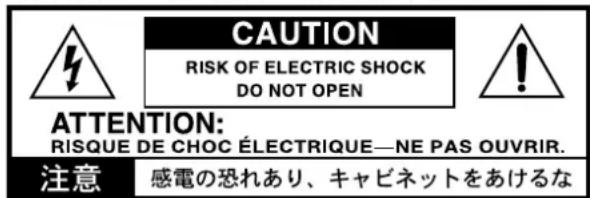
TO REDUCE THE RISK OF FIRE OR ELECTRIC SHOCK DO NOT EXPOSE THIS PRODUCT TO RAIN OR MOISTURE.

CAUTION
RISK OF ELECTRIC SHOCK DO NOT OPEN

ATTENTION:
RISQUE DE CHOC ÉLECTRIQUE—NE PAS OUVRIR.
注意
感電の恐れあり、キャビネットをあけるな
Conector IN, conector OUT
TO REDUCE THE RISK OF FIRE OR ELECTRIC SHOCK DO NOT EXPOSE THIS PRODUCT TO RAIN OR MOISTURE.
プログラム・パラメーター・リスト
KORGロゴの点灯/消灯 (KORG Logo Light)
This warranty is valid only in Japan.
This Product is only suitable for sale in Japan. Properly qualified service is not available for this product if purchased elsewhere. Any unauthorised modification or removal of original serial number will disqualify this product from warranty protection.
お客様相談窓口

0570-666-569
- IMPORTANT SAFETY INSTRUCTIONS
- WARNING:
- CAUTION
- ATTENTION:
- 注意
- THE FCC REGULATION WARNING (for USA)
- DECLARATION OF CONFORMITY (for USA)
- Notice regarding disposal (EU only)
- Data handling
- IMPORTANT NOTICE TO CONSUMERS
- Table of Contents
- IMPORTANT SAFETY INSTRUCTIONS ---- 2
- Main Features 4
- Panel description and functions----4
- Preparations 7
- Selecting and playing sounds 8
- Creating favorites----12
- System settings----15
- Appendices 20
- Specifications 22
- About the owner's manual
- Owner's Manual
- MIDI guide (PDF)
- Sound Name List (PDF)
- Descriptions used in the User's Manual
- Symbols ▲ Note, Tips
- Display indications
- Main Features
- The greatest piano sounds
- Rich variation of sounds
- The pursuit of onstage playability
- Panel description and functions
- Front panel
- Headphone jack (Front left) (see page 7)
- Pitch bend wheel (see page 10)
- Modulation wheel (see page 10)
- SW1 button, SW2 button (see page 10)
- MASTERVOLUMEknob
- DYNAMICS button, knob (see page 11)
- EQUALIZER button, LOW, MID, HIGH slider (see page 11)
- ENSEMBLE (Ensemble section) (see page 9)
- ENSEMBLE button
- Category selection knob
- Display
- VARIATION knob
- LEVEL knob
- EDIT button (see page 13)
- WRITE button (see page 13)
- SWAP button (see page 13)
- SPLIT button (see page 12)
- FAVORITE (Favorite section)
- (see page 8) (see page 12)
- KEYBOARDS (Keyboard section) (see page 9)
- KEYBOARDS button
- REVERB/DELAY (Reverb/Delay section)
- (see page 15)
- REVERB/DELAY button
- Effect selection knob
- DEPTH knob
- TIME-TAP button
- EXIT (PANEL LOCK) button
- SYSTEM button (see page 15)
- TRANSPOSE button (see page 11)
- Rear panel
- KORG logo
- Music stand holes
- ✉ USB:
- A port
- B port
- MIDI:
- IN connector, OUT connector
- FOOT CONTROLLERS: (see page 10)
- DAMPER jack
- SWITCH jack
- PEDAL jack
- AUDIO OUTPUT: (see page 7)
- L/MONO, R jack
- LEFT, RIGHT jack
- LIFT - GND switch
- (Power button)
- Auto Power-Off function
- \~ACV (AC Power connector)
- Preparations
- Making connections
- Connecting audio devices
- Connecting powered monitor speakers or a mixer
- Connecting headphones
- Connecting the power cord included with this keyboard
- Turning the power on/off
- Turning the power on
- Turning the power off
- Listening to the demo songs
- Press the SYSTEM and TRANSPOSE buttons together.
- To select another demo song, press the desired FAVORITE button.
- To stop playback on a demo song, press the SYSTEM button, TRANSPOSE button or EXIT button.
- Selecting and playing sounds
- Selecting favorites
- Bank
- Number
- 001
- Grandstage Piano
- Selecting a program
- KEYBOARDS categories
- Using the controllers
- Pitch bend wheel
- Modulation wheel
- SW1, SW2
- FOOT CONTROLLERS
- Adjusting the dynamics and equalizer
- Dynamics
- Turning the knob to the left will cause the sound to play softer in response to the strength of the keys played.
- Turning the knob to the right will cause the sound to play louder in response to the strength of the keys played.
- The DYNAMICS effect will not be applied when the knob is in center position.
- Equalizer
- Transpose and panel lock
- Transpose
- Setting the transpose feature
- Cancelling the transpose feature
- Panel lock
- Turning the Panel Lock function ON or OFF (cancel)
- Hold down the EXIT (PANEL LOCK) button for about two seconds to turn Panel Lock ON.
- Press the blinking EXIT button to turn panel lock OFF (cancel).
- Panel lock off
- Creating favorites
- Changing the programs used
- Creating layered sounds
- Creating split sounds
- To cancel the split sound, press the SPLIT button, or press either the KEYBOARDS or ENSEMBLE button to return to single sound mode.
- Split point
- Changing the split point
- Switching upper and lower keyboard parts
- Saving a favorite that has been changed
- Press the WRITE button once you are finished with editing.
- If you wish to overwrite the current favorite, simply press the WRITE button.
- To save to a different favorite, press the new bank and number buttons where you want the favorite to be saved.
- Press the WRITE button.
- Editing a program
- ......
- How to edit
- After selecting the program to edit, press the EDIT button.
- Select a parameter using the VARIATION knob.
- Edit the parameter values using the LEVEL knob.
- Repeat steps 2 and 3 to continue editing.
- To finish editing, press the EDIT button or the EXIT button.
- To save the settings you have edited, be sure to write the favorite to memory. (Refer to "Saving a favorite that has been changed".)
- Octave
- Tune
- Release
- Sound parameters 1–4
- Reverb Send
- Damper
- Other Controls
- Reverb/delay settings
- Press the REVERB/DELAY button.
- Use the selection knob to select the effect.
- Adjust the amount of the effect to apply with the DEPTH knob.
- The delay and reverb times can be adjusted to match the intervals at which you press the TIME-TAP button.
- System settings
- Types of system settings
- Steps for making system settings
- Press the SYSTEM button to turn it on (the button blinks).
- Select a parameter using the VARIATION knob of the KEYBOARDS section.
- Set the values using the LEVEL knob in the KEYBOARDS section.
- After you are finished with the settings, press the SYSTEM button or the EXIT button.
- System setting parameters
- Master Tune
- MIDI Channel
- MIDI Ch Mode (MIDI channel mode)
- MIDI Ch (Lower) (MIDI channel for the lower part)
- Local Control (MIDI local control)
- Velocity Curve
- Convert Position
- Auto Power Off
- Brightness (display brightness)
- KORG Logo Light (turning the KORG logo light on/off)
- KORG Logo Color (color of KORG light)
- Foot - Pedal (foot pedal functions)
- Foot - Switch (foot switch functions)
- Calibrating the pedal
- Damper Calib. (damper pedal calibration)
- Connect the damper pedal to the Grandstage.
- Lift your foot off the damper pedal.
- Press the SYSTEM button, and select "Damper Calib." using the VARIATION knob.
- Press the damper pedal down all the way until it stops, and then lift your foot off the pedal.
- When the calibration is completed, the word "Completed" will be shown on the third line of the display.
- To continue making other settings, use the VARIATION knob to select the necessary parameter.
- Foot Sw Calib. (foot switch calibration)
- Connect the switch-type foot pedal to the Grandstage.
- Lift your foot off the foot pedal.
- Press the SYSTEM button, and select "Foot Sw Calib." using the VARIATION knob.
- Press the foot pedal down all the way until it stops, and then lift your foot off the pedal.
- Pedal Calib. (pedal calibration)
- Resetting, saving and loading data
- Factory Reset (restoring the factory default settings)
- Save .FAV File (saving the favorite data)
- Storage media that can be used
- Maximum usable storage capacity
- Load .FAV File (loading the favorite data)
- Plug the USB storage device that contains the saved favorite data into the USB A port of the Grandstage.
- Press the SYSTEM button, and select "Load .FAV File" using the VARIATION knob.
- Press the EDIT button once more to continue loading.
- The file to load is shown on the third line of the display. If there is more than one file that can be loaded, use the LEVEL knob to select the filename to load.
- Hold down the EDIT button for around one second to load the data.
- Press the EDIT button quickly to begin loading the data.
- Press the SYSTEM or EXIT button to finish the system settings.
- Appendices
- Trouble shooting
- Power does not turn on
- Power won't turn off
- Power turns off
- No sound when you play the keyboard
- The sound will not stop.
- The sound seems to be doubled.
- The sound is distorted.
- Chords cannot be played on the keyboard.
- The pitch doesn't sound right.
- The knobs and buttons on the panel won't respond.
- The equalizer, dynamics and reverb/delay effects don't sound, or I can't control them.
- I hear noise.
- The knobs and buttons on the KEYBOARDS and ENSEMBLE sections do not work, and I can't control them.
- I made a favorite by modifying its program or making other edits, but it's no longer there.
- The damper pedal, expression pedal and foot switch connected to the FOOT CONTROLLERS jacks don't work as intended.
- MIDI transmit and receive is not working correctly with external devices.
- The Grandstage is not responding to MIDI program change messages.
- The DYNAMICS knob does not respond to MIDI input.
- Error messages
- No valid media
- No File/Path
- No free space
- Save Error
- Write Protected
- CONSIGNES IMPORTANTES DE SÉCURITÉ
- Release (Relâchement)
- Master Tune (Accordage global)
- Conector IN, conector OUT
- KORGロゴの点灯/消灯 (KORG Logo Light)
- お客様相談窓口
Brand : KORG
Model : Grandstage
Category : Synthesizer