Pa5X - Synthesizer KORG - Free user manual and instructions
Find the device manual for free Pa5X KORG in PDF.
User questions about Pa5X KORG
0 question about this device. Answer the ones you know or ask your own.
Ask a new question about this device
Download the instructions for your Synthesizer in PDF format for free! Find your manual Pa5X - KORG and take your electronic device back in hand. On this page are published all the documents necessary for the use of your device. Pa5X by KORG.
USER MANUAL Pa5X KORG
- Read these instructions.
- Keep these instructions.
- Follow all instructions.
- Do not use this apparatus near water.
- Clean only with dry cloth.
- Do not block any ventilation openings. Install in accordance with the manufacturer’s in- structions.
- Do not install near any heat sources such as radiators, heat registers, stoves, or other ap- paratus (including amplifiers) that produce heat.
- Do not defeat the safety purpose of the po- larized or grounding-type plug. A polarized plug has two blades with one wider than the other. A grounding type plug has two blades and a third grounding prong. The wide blade or the third prong are provided for your safe- ty. If the provided plug does not fit into your outlet, consult an electrician for replacement of the obsolete outlet.
- Protect the power cord from being walked on or pinched particularly at plugs, convenience receptacles, and the point where they exit from the apparatus.
- Only use attachments/accessories specified by the manufacturer.
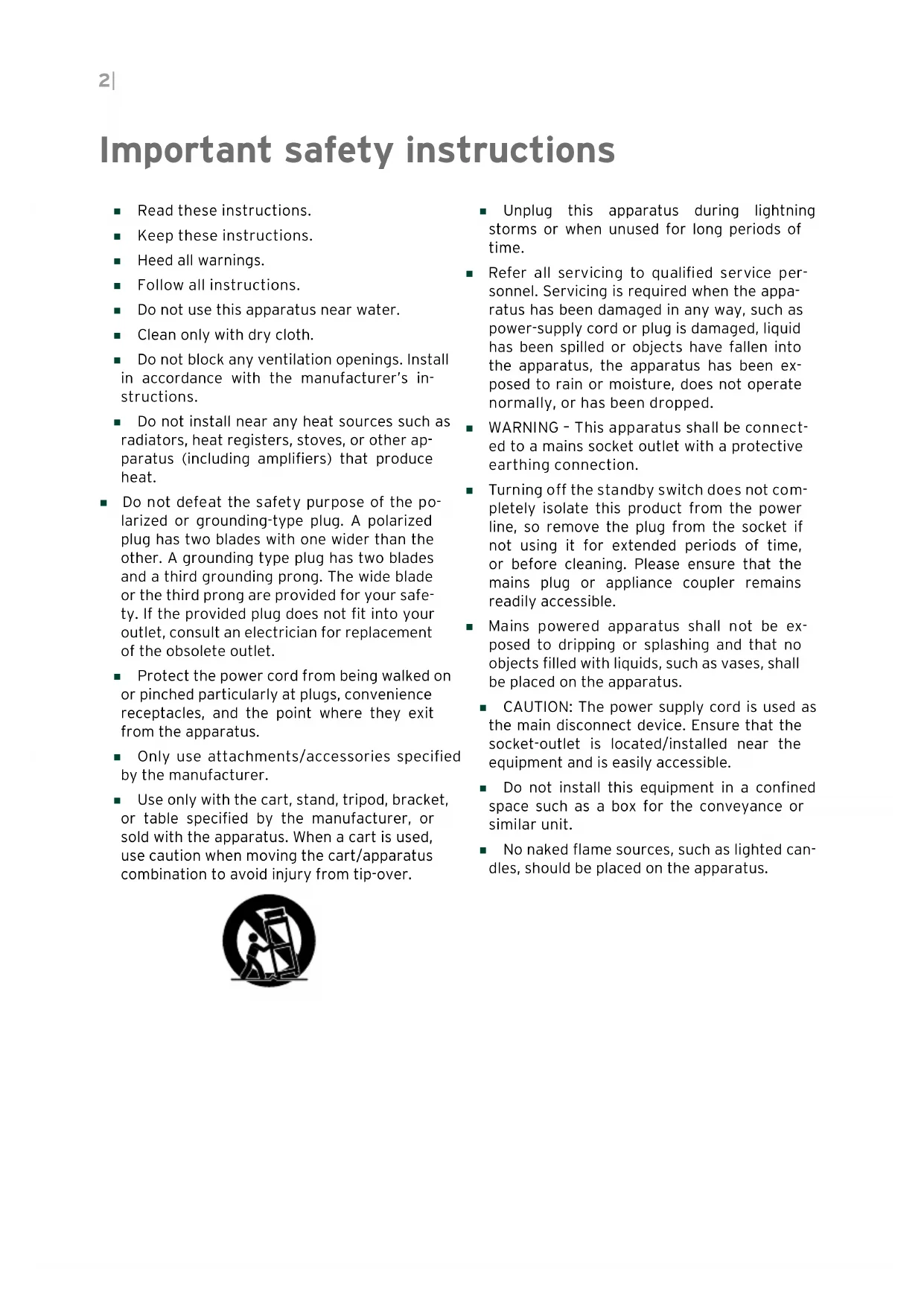
- Use only with the cart, stand, tripod, bracket, or table specified by the manufacturer, or sold with the apparatus. When a cart is used, use caution when moving the cart/apparatus combination to avoid injury from tip-over.
- Unplug this apparatus during lightning storms or when unused for long periods of time.
- Refer all servicing to qualified service per- sonnel. Servicing is required when the appa- ratus has been damaged in any way, such as power-supply cord or plug is damaged, liquid has been spilled or objects have fallen into the apparatus, the apparatus has been ex- posed to rain or moisture, does not operate normally, or has been dropped.
- WARNING – This apparatus shall be connect- ed to a mains socket outlet with a protective earthing connection.
- Turning off the standby switch does not com- pletely isolate this product from the power line, so remove the plug from the socket if not using it for extended periods of time, or before cleaning. Please ensure that the mains plug or appliance coupler remains readily accessible.
- Mains powered apparatus shall not be ex- posed to dripping or splashing and that no objects filled with liquids, such as vases, shall be placed on the apparatus.
- CAUTION: The power supply cord is used as the main disconnect device. Ensure that the socket-outlet is located/installed near the equipment and is easily accessible.
- Do not install this equipment in a confined space such as a box for the conveyance or similar unit.
- No naked flame sources, such as lighted can- dles, should be placed on the apparatus.|3 English WARNING – Do not ingest battery, chemical burn hazard. This product contains a coin/but- ton cell battery. If the coin/button cell battery is swallowed it can cause severe internal burns in just 2 hours and can lead to death. Keep new and used batteries away from chil- dren. If the battery compartment does not close securely, stop using the product and keep it away from children. If you think the battery may have been swal- lowed or placed inside any part of the body seek immediate medical attention.
Date/time Lithium button cell battery inside. Replace only with the same or equivalent type. The internal date/time Lithium button cell bat- tery is user replaceable.
- CAUTION – R isk of explosion if battery is replaced by incorrect type. Dispose of used batteries according to the instructions.
- Do not expose batteries to excessive heat, such as direct sunshine, fire or the like.
- Remove and immediately recycle or dispose of used batteries according to local regula- tions and keep away from children. Do NOT dispose of batteries in household trash or incinerate.
- Even used batteries may cause severe injury or death.
- Non-rechargeable batteries are not to be re- charged.
- Do not force discharge, recharge, disassem- ble, heat above 40°C or incinerate. Doing so may result in injury due to venting, leakage, or explosion resulting in chemical burns.
- Ensure the batteries are installed correctly according to polarity (+ and –).
- Do not mix old and new batteries, different brands or types of batteries, such as alkaline, carbon-zinc, or rechargeable batteries.
- Remove and immediately recycle or dispose of batteries from equipment not used for an extended period of time according to local regulations.
- Always completely secure the battery com- partment. If the battery compartment does not close securely, stop using the product.
- INGESTION HAZARD: This product contains a button cell or coin battery.
- DEATH or serious injury can occur if ingested.
- A swallowed button cell or coin battery can cause Internal Chemical Burns in as little as 2 hours.
- KEEP new and used batteries OUT OF REACH of CHILDREN.
- Seek immediate medical attention if a battery is suspected to be swallowed or inserted inside any part of the body. WARNING4| The lightning flash with arrowhead symbol within an equilateral triangle, is intended to alert the user to the presence of uninsulated “dangerous voltage” within the product’s enclo- sure that may be of sufficient mag- nitude to constitute a risk of electric shock to persons. The exclamation point within an equi- lateral triangle is intended to alert the user to the presence of important op- erating and maintenance (servicing) instructions in the literature accom- panying the product. Serial number Please record the model number, serial number, and date of purchase below. Keep this manual, as use these information as a record of your purchase. Model _________________________________ Serial No. ________________________________ Purchase Date ___________________________|5 English Other notices Automatic power-off To avoid wasting power, Pa5X will by default automatically enter standby mode after twenty minutes not using it (playing, pressing buttons or using the touch-screen). Please save your data (Keyboard Sets, Styles, Songs, and so on) before taking a prolonged pause. Data handling Data in memory may sometimes be lost due to incorrect user action. Be sure to save important data to the internal memory or to an external USB device. KORG will not be responsible for damages caused by data loss. Display handling Be very careful not to force the display when tilt- ing it. Fully lower the display before carrying the instrument. Also, be very careful not to apply too much pressure on the display while carrying the instrument, or it might break. Note about the LCD display The integrated LCD display is a precision de- vice, and careful attention has been paid to its product quality. Although you may notice some of the issues listed below, please be aware that these are due to the characteristics of LCD screens, and are not malfunctions.
- There may be pixels in the screen that are al- ways dark (unlit) or always bright (lit).
- Depending on the displayed content, the brightness of the screen may appear uneven.
- Depending on the displayed content, horizon- tal stripes of shading may be visible.
- Depending on the displayed content, flickering or moiré patterns may be visible. Cleaning If the exterior becomes dirty, wipe it with a clean, dry cloth. Do not use liquid cleaners such as benzene or thinner, or cleaning compounds or flammable polishes. Use a soft cotton cloth to clean the display. Some materials, such as paper towels, could cause scratches and damage it. Computer wipes are also suggested, provided they are specifi- cally designed for LCD screens. Do not spray any liquid on the LCD screen direct- ly. Always apply the solution to your cloth first, then clean the screen. Wooden sides The instrument’s sides are made of natural wood, whose characteristics vary from piece to piece. The more it is used, the more beautiful it will become. If you notice any irregularities, these are to be considered unique intrinsic char- acteristics, which further enhance its natural origin. Example screens Some pages of the manuals show snapshots of the screen along with an explanation of func- tions and operations. All sound, style, song or parameter names, as well as shown values, are merely examples and may not always match the actual display you are working on. Trademarks Mac and iOS are registered trademarks of Apple, Inc. Android is a trademark of Google Inc. MS-DOS and Windows are registered trademarks of Microsoft Corporation. Waves MaxxAudio® is a trademark of Waves Audio Ltd. All other trade- marks or registered trademarks are the prop- erty of their respective holders. Open source notice Portions of this product’s software are copyright ©2007 “The FreeType Project” (www.freetype.org). All rights reserved.6| Copyright warning
- This professional device is intended only for use with works for which you yourself own the copyright, for which you have received permission from the copyright holder to pub- licly perform, record, broadcast, sell, and du- plicate, or in connection with activities which constitute “fair use” under copyright law. If you are not the copyright holder, have not re- ceived permission from the copyright holder, or have not engaged in fair use of the works, you may be violating copyright law, and may be li- able for damages and penalties.
- The content that is built into this product or included with it may not be extracted, recorded, or stored in a form similar to its original state, and distributed or made publicly available on the internet. The content of this product (such as sound pro- grams, style data, accompaniment patterns, MIDI data, PCM sample data, audio data, oper- ating system etc.) is the copyrighted property of KORG Inc. or is copyrighted material used by KORG Inc. under license from a third party. You do not need permission from KORG Inc. to use the above content to produce or perform musical works, or to record and distribute such works. Disclaimer The information contained in this manual have been carefully revised and checked through. Due to our constant efforts to improve our prod- ucts, the specifications might differ to those in the manual. KORG is not responsible for any differences found between the specifications and the contents of the instruction manual – all specifications being subject to change without prior notice. Liability KORG products are manufactured under strict specifications and voltages required by each country. These products are warranted by the KORG distributor only in each country. Any KORG product not sold with a warranty card or carrying a serial number disqualifies the prod- uct sold from the manufacturer’s/distributor’s warranty and liability. This requirement is for your own protection and safety. Service and user’s assistance For service, please contact your nearest Authorized KORG Service Center. For more in- formation on KORG products, and to find soft- ware and accessories for your keyboard, please contact your local Authorized KORG distributor. For up-to-date information, please point your web browser to our web site. Keep your instrument up-to-date Your instrument can be constantly updated as new versions of the operating system are released by KORG. You can download the op- erating system from our web site (www.korg. com/us/support/download/). Please, read the instructions supplied with the operating system.Welcome to Pa5X! |7 English Introduction Welcome to Pa5X! Many thanks, and congratulations on purchasing the KORG Pa5X Professional Arranger! We’re confident it’ll give you countless hours of enjoyment as you cre- ate great music on stage or at home. Pa5X is an elegant and powerful music production workstation that boasts an intuitive user interface. The tiltable color touch screen and illuminated buttons on the control panel provide clear color-coded functions, making it easy to navi- gate and operate. The naturally responsive 88-note piano-like hammer-action keyboard and the 76- and 61-note semi-weighted keyboards offer a complete and authentic feel, allowing users to express themselves fully. Pa5X, a robust and reliable live instrument, is also a powerful creative tool in the studio. It aids in songwriting and soundtrack composition, generating a pro- duced sound that makes convincing demos or ready-to-use media music. Our EDS-X (Enhanced Definition Synthesis-eXpanded) sound engine powers the onboard sounds, which range from ultra-realistic acoustic instruments to elec- tric vintage keyboards, synth classics, and fantasy sounds and special effects for media and cinema production. We’ve also included instruments from various ages and cultures, providing ample room for your own expansions. Pa5X is user-friendly, controlled through the KORG’s DNC (Defined Nuance Control) system. This system enables the performer to precisely and expressive- ly introduce the most subtle nuances and sound articulations. Faders, switches, real and virtual matrices of real-time controls, a joystick, and a ribbon controller provide immediate access to all the parameters of the sound. A dedicated strip display is associated with a complete set of programmable sliders and buttons. The sounds are processed through an elaborate chain of effects for each Player and Keyboard Sound. Each Player even has a finalizer module. The final master- ing effects on the audio outputs, resulting in a blended and produced instrument sound, are the result of KORG’s long-term collaboration with Waves Audio, the industry leader in studio mastering effects. To ensure the best audio quality, even at the lowest volume for rehearsing at night, you can add the optional KORG PaAS Amplification System. This system is specifically designed to connect directly to the Pa5X.8| Introduction The optional modern, stylish dedicated ST-SV1-BK stand elevates the instrument to a solid statement on stage, while at the same time transforming it into a styl- ish piece of modern furniture in your living room. Pa5X’s included KORG XDS Crossfade Dual Sequencer/Player allows you to freely preload and mix Styles and Songs. You can also create your own Styles and record your own MIDI and MP3 Songs. The automatic harmonization, chord sequencer, and sophisticated chord recognition engine enable you to create the rich arrangement of a competent pop or jazz player. With both Songs and Styles, you can display lyrics and chords in the internal or an external display. Additionally, you can convert any MIDI Song track into a readable score. Markers enable you to jump back to a specific passage that you want to repeat, which is useful for studying, rehearsing, or performing live. You can record a MIDI Song using a full-featured sequencer, or do a quick cap- ture of your live performance in the Recording Studio. Alternatively, you can record your singing and playing (including MP3 Songs) as an MP3 file and listen to it anywhere you like. Songs and Styles can be saved in the onboard SongBook, along with all the as- sociated sounds, effects, lyrics, and chords. These database-like entries are easy to synchronize with external score readers on a tablet. This allows you to use a digital music book to control your Pa5X. You can also create your own set lists, each dedicated to a specific style or show. The dedicated audio inputs allow you to connect the voice and guitar, and the excellent onboard effects can process them. Our extensive experience in vo- cal harmonies and guitar effects is fully integrated here. Additionally, the Vocal Remover feature enables you to sing along with any MP3 Song. Pa5X, the most evocative, powerful, and user-friendly complete Professional Arranger ever produced, offers much more. Explore Pa5X in depth and embark on a musical journey like never before. Enjoy your musical life with the new Pa5X!Before starting to play… |9 English Before starting to play… What’s in the box After you get your Pa5X, please check that all the listed items are included in the package. If any of them is missing, please contact your KORG dealer imme- diately. > Pa5X > Music stand > AC power cable > Quick Guide > Pa5X-88 only: Safety felts for the ST-SV1-BK stand What you can download Point your web browser to our web site (www.korg.com/us/support/download/), to download the most up-to-date software, the full User Manual, an easier Performance Guide, the video tutorials, a MIDI driver. What you can add After having purchased Pa5X, you might want to add these other fine options: > The elegant KORG ST-SV1-BK keyboard stand, recommended for safety and comfort, perfectly matching your arranger design. CAUTION: The Pa5X Professional Arranger is intended for use only with the KORG ST-SV1-BK stand. Use with another stand may result in instability and cause injury. > The PaAS Amplification System, adding a three-way amplification system, a pair of integrated speakers and a bass-reflex box. > One of the sturdy pedals and footswitches from the KORG catalogue.10| Introduction Making a safety copy of your data In case you like to customize your musical resources, we suggest you do frequent backups of your data. Press the FILE button to go to the File page, select the Internal group, select the All folder, and choose the Save command from the page menu (on the top right corner). Then save the data into an external storage device. Restoring a safety copy To restore a backup of User data, reload the backup data. If it is an external device, connect the backup storage device. Press the FILE button to go to the File page, select the Drives group and then the external storage device. Select the folder where you backed up your data, and choose the Load command from the page menu (on the top right corner). Then load the data into the internal memory. If you like, you can only reload some individual elements. Restoring the original factory data In case you want to restore the original factory data, use the Factory Restore command you can find in the File > Menu > Factory Restore page.
WARNING: This operation will overwrite all the User data!
Loading the Operating System Your Pa5X can be constantly updated as new versions of the operating system are released. You can download the most up-to-date operating system from our web site (www.korg.com/us/support/download/). Please, read the instructions supplied with the operating system. You can see which version of the operating system is installed in your Pa5X by going to the File pages, and choosing the System Info command from the page menu. HINT: Be sure your Pa5X always includes the latest version of the operating system. This may contain new features and bug fixes.
WARNING: Do not install an OS other than the official OS supplied by KORG for
the Pa5X. Trying to install an OS created for different models or downloaded from unofficial web sites may cause data loss and permanent damage to the instrument. KORG is not responsible for any damage caused by improper instal- lation of the OS.The front panel |11 English Overview of the instrument The front panel The front panel is where you can find the instrument’s controls. Music stand A music stand is included with your Pa5X. PaAS amplification system You can install the (optional) PaAS amplification system. When installed, control the output volume of the speakers via the MASTER VOLUME slider. The speakers are automatically deactivated when connecting the headphones. You can also manually deactivate them by deselecting the Speakers checkbox in the Settings > Audio/Video > MP3/Speakers page. Headphones connector Connect a pair of headphones to this output. You can use headphones with an impedance of 16-200 Ohms (50 Ohms suggested). Keyboard Use the keyboard to play notes and chords. Depending on the status of the SPLIT indicator, the keyboard may be joint or split between different sounds.12| Overview of the instrument KeyboardHeadphones Guide for the music stand and PaAS amplification systemThe control panel |13 English The control panel The control panel is the part of the front panel where you can find the instru- ment’s controls. Display Sliders and switches area Styles, Pads and Markers area Players area Sounds area Navigation area The Matrix Tempo area Display Use this touchscreen display to interact with the instrument. The display can be tilted for optimal visualization. There are controls around the display, to help you select the various elements.14| Overview of the instrument Navigation area Use these controls to go through the menus, pages and parameters, and change the value of the selected parameter . Sounds area Sounds are what you can play on the keyboard. Here you can choose Sound sets saved as Keyboard Sets in a dedicated library. Styles, Pads and Markers area Styles supply the automatic accompaniment with a virtual band. Markers allow jumping to saved points in the MIDI Song. You can play Sounds (selected via the Keyboard Sets) and Pads along with the Styles and Songs.The control panel |15 English Players area Styles and Songs can be played back by the two onboard Players. You can assign different elements to each Player, to have another Style or Song ready to play at the end of the current one. You can mix the two Players with the X-FADER. SongBook area The SongBook is a database of ‘songs’, called SongBook Entries. Each of them is a snapshot of the current situation, including the selected Style, Song, Keyboard Set, Pads, Chord Sequences and Mic and Guitar effects. You can quickly access all the songs in the SongBook (Book), or selected lists of songs (Set Lists). Tempo area Use these buttons to control the Tempo of the Styles and the Songs. You can turn a metronome click on or off by pressing the CONTROL > SWITCH #9 button while in STYLE/SONG mode, and practice with the metronome16| Overview of the instrument The Matrix You can use this programmable matrix of big, easy accessible keys to trigger Pads, mute Tracks, choose SongBook Entries from the selected Set List, or trig- ger Chord Sequences. USB connector Use this socket (that will appear as HOST-F) to connect an USB memory device, like an USB pendrive, or other musical instruments to be used as controllers. You can also use it to attach a small USB lamp and illuminate the control panel or the music stand. Please note that two other ports are on the back of the instrument.The rear panel |17 English The rear panel The rear panel is where you can find the various connections. Guide for the music stand and PaAS amplification system Connectors Power connector Audio inputs Use these connectors to connect a microphone, a guitar or another musical in- strument. The handy STEREO minijack can be used to directly connect the audio output of a media player, a smartphone or a tablet. Audio outputs Use the LEFT/RIGHT sockets to send the stereo audio signal to a mixer, a PA system, a set of powered monitors, or your hi-fi system. Four separate audio outputs (1-4) are also available.18| Overview of the instrument Pedal connectors Use the DAMPER connector to connect a damper pedal, and the ASSIGNABLE connectors to connect two continuous and/or footswitch pedals. MIDI ports Use these ports to connect Pa5X to external controllers (master keyboard, MIDI guitar, wind controller, MIDI accordion, MIDI pedalboard…), to a series of expand- ers, or to a computer with a MIDI interface. Battery and microSD slot This opening contains the clock battery and the microSD card slot.The rear panel |19 English USB ports Use these sockets to connect your Pa5X to a personal computer or a tablet (DEVICE) or to connect up to two USB memory device, like an USB pendrive, or another musical instrument to be used as a controller (HOST1-R, HOST2-R). Another HOST socket (HOST-F) is available on the front panel. Video out Connect Pa5X to a TV or video monitor, to read lyrics and chords on a bigger display. Power connector Use this socket to plug in the supplied IEC power cable.20| Overview of the instrument Plug the other end of the cable to an AC power outlet. Be sure to use a compat- ible plug. Never force the plug into the socket!
WARNING: Connect the plug to an AC socket of matching voltage! Please read
the safety information at the beginning of this manual.Connecting the pedals |21 English Setting up the pedals and the audio connections Connecting the pedals Connecting the damper pedal Use the PEDAL > DAMPER connector to connect a damper pedal, like the (op- tional) KORG PS-1, PS-3 or DS-1H. The DS-1H pedal supports all the nuances of half-pedaling on some acoustic piano sounds. You can experiment how it works by gradually pressing it down, and gradually releasing it, while playing the Concert Grand Sound. If you need to change the pedal’s polarity and calibrate it, go to the Settings > Controllers > Foot page. Connecting a pedal and/or footswitch Use the PEDAL > ASSIGNABLE connectors to connect one or two footswitch pedals like the (optional) KORG PS-1, PS-3 or DS-1H, and/or one or two continuous pedals like the (optional) KORG XVP-20 Volume pedal or the EXP-2 Expression pedal. By default, these connectors will work as a Master Volume and a Keyboard Expression continuous pedal. If you want to change the assigned functions, or you need to change the pedal’s polarity and calibrate it, go to the Settings > Controllers > Foot page.22| Setting up the pedals and the audio connections What if the pedals do not behave correctly? If needed, you might have to calibrate the pedals to use their full range of values, without any ‘dead spot’. Also, this procedure allows to choose a pedal’s polarity, in case you are using a pedal working in reverse. 1 Go to the Settings > Controllers > Foot page. 2 Touch the Calibration button in the area of the pedal to calibrate, to make the Pedal/Footswitch Calibration dialog appear. 3 Fully press the pedal down, and while continuing to press touch the top (highlighted) button to confirm the maximum value.Connecting the pedals |23 English 4 When the following dialog appears, release the pedal. 5 Touch the lower (now highlighted) button in the display to confirm the mini- mum value. Check if the pedal is working properly. In case it isn’t, repeat the procedure. 6 Press the EXIT button to return to the previous page.24| Powering up Powering up Turning the instrument on Connecting the power cable Plug the supplied power cable into the POWER socket on the back of the instru- ment, and the cable plug into a wall power socket. When the cable is connected, the instrument is in standby.
WARNING: When the instrument is in standby, it is still connected to the power
line. Accessing the inside of the instrument can be dangerous. To completely dis- connect the instrument from the power, unplug the power plug from the power socket on the wall. Turning the power on or off > Turn the instrument on > Press the POWER ( ) button to turn the instrument on (that is, ‘exit from standby’). After you turn the instrument on, wait for the welcome screen to dis- appear, then the Main page will be shown in the display. > Turn the instrument off (standby) > Keep the POWER ( ) button pressed for about two seconds, then release it when the screen appears dimmed. The shutdown procedure will begin and last for a few seconds. Please do not disconnect the power cable during this proce- dure.Tilting the display |25 English Tilting the display For optimal visibility under any seating position, the display’s tilt angle can be adjusted. Lifting the display 1 Press the UNLOCK button to unlatch the display. 2 Keep the UNLOCK button pressed, and lift the display. 3 Open the safety bracket by detaching it from the top back of the display.26| Powering up 4 While still keeping the UNLOCK button pressed, adjust the tilt angle, and fix the bracket to one of the stops in the bottom of the display housing. CAUTION: Do not apply excessive pressure, or you risk to break it! 5 Release the UNLOCK button to fix the display to the current position.Tilting the display |27 English Closing the display 1 Keep the UNLOCK button pressed, and lift the display. 2 Lift the safety bracket, and put it back to the closed position. 3 Still keeping the UNLOCK button pressed, accompany the display down to its housing. 4 Release the UNLOCK button, and gently press the center of the top border of the display to lock it in the initial position.28| Powering up Adjusting the display brightness The display brightness can be adjusted to match the ambient’s light. > Keep the SHIFT and MENU buttons pressed, and use the DIAL to adjust the display brightness. You can also adjust the display (and the strip display) brightness in the Settings > General Controls > Interface page.Listening to the Demo Songs |29 English Listening to the Demo Songs You can listen to some songs we prepared, to let you understand what this in- strument can do. > Access the Demo mode > Press the DEMO buttons together. > Listen to all the Demo Songs > After accessing the Demo mode, do not press any button. All the Demo Songs will be played back. > Choose a single Demo Song > Touch one of the options on the display, then choose one of the Demo Songs. > Exit from the Demo mode > Press either of the DEMO buttons.30| Choosing and playing the musical resources Choosing and playing the musical resources Opening a Select window When you press the STYLE, SONG, or one of the KEYBOARD SET LIBRARY but- tons, the corresponding Select window appears. The Select window can also be opened by touching the name of the correspond- ing element (Style, Song, Keyboard Set, Mic or Guitar Preset…) in the display. Touch to choose a Style or Song Touch to choose a Keyboard SetOpening a Select window |31 English For example, this is the Select window when browsing for a Keyboard Set: TypeGroups Selected Keyboard Set PagesCurrent directory Upper level (folders corresponding to Categories) Lower level (individual elements) If you are lost while browsing though the data, you can return to the folder con- taining the selected element by touching the Locate ( ) button. You can always exit from this window by pressing the EXIT button, or by touch- ing the Exit command in the top left corner of the display. You can play a Style or a Song with either Player 1 or Player 2. Therefore, if you want, you can assign a Style or Song to each of the players, and have the other player be ready for the next musical selection. You can also mix Styles and Songs with the different Players. You can choose which Player has the focus by moving the X-FADER, or by press- ing the corresponding PLAY/STOP ( ) button when both Players are stopped.32| Choosing and playing the musical resources Choosing your preferred Keyboard Set Choosing the ‘My Setting’ Keyboard Set > Press the MY SETTING button to choose your preferred sounds. The My Setting Keyboard Set My Setting is a special Keyboard Set, where you can save your preferred set- tings for things like Keyboard sounds, effects, control sliders and switches, the assignable switches. This Keyboard Set is automatically chosen when the in- strument is turned on, and will automatically configure the instrument for you. You can save here your preferred Keyboard Set. Keep the MY SETTING button pressed for about one second, until the Save dialog appears, then touch the Save button to confirm saving to memory.Playing and controlling the sound |33 English Playing and controlling the sound Playing the keyboard The instrument’s keyboard is like a piano keyboard. Just play it! With some Sounds, you can press the keys while they are down, and the sound might vary (for example, you might hear more vibrato). Using the pedals Pedals do different things depending on how they are programmed. The Damper pedal is just that – a damper pedal, sustaining notes until you release the pedal. An Assignable pedal (or footswitch) may change depending on how it is pro- grammed in the Settings > Controllers > Foot page. Using the control sliders and switches Depending on the selected mode, the CONTROL sliders and switches can control different things, like volume levels of the different sounds, the organ drawbars or some assignable functions. How they work is shown by the strip display under the sliders. Using the assignable switches Depending on the chosen Keyboard Set and the assigned functions, these con- trollers can do different things. With the DNC Sounds, the switches can either ‘book’ a function, that will be triggered while playing, or enable (or disable) it by pressing the button to ‘toggle’ it. In other cases, these switches can ‘toggle’ or ‘trigger’ the assigned function.34| Choosing and playing the musical resources Using the Matrix The Matrix of programmable buttons can be used to trigger Pads, Chord Sequences, choose SongBook Entries from the selected Set List, or mute Tracks. Touch one or more of them to select the desired function. If they are on/off switches, touch them again to turn them off. The color of the switches may change, depending on the assigned function and the selected Player. Using the joystick Moving the joystick left of right usually changes the Sound’s pitch. Moving it forward usually add modulation, but this depends on the selected sounds. With the electro-mechanical organs, pushing the joystick forward changes the rotary speaker’s speed. What it does when pulled back depends on the selected Sounds. Just experiment! Using the ribbon controller Sweeping left of right on the ribbon controller usually changes the brilliance of the sounds and/or the pitch, but how it works depends on the selected sounds.Starting and stopping the Styles |35 English Starting and stopping the Styles You can manually start and stop the automatic accompaniment, by using the controls in the PLAYER 1 or PLAYER 2 section. Stop/ Go to Start Play/Stop > Set the right mix > Move the X-FADER fully toward the Player you want to listen to. Move it fully to the left for Player 1, to the right for Player 2. > Move it to an intermediate position to mix the two Players. > Start the accompaniment 1 Press the PLAY/STOP ( ) button. 2 Play some chords with your left hand, while playing a melody with your right hand. While the accompaniment is playing, please note the various indicators in the display. Recognized chord Tempo Current measure Beat indicator In Play: Remaining measures In Stop: Total pattern length With a Style Variation: Loop Selected Style Element File path36| Choosing and playing the musical resources > Stop the accompaniment > Press the PLAY/STOP ( ) button again. > As an alternative, you can presse the STOP/GO TO START ( ) button. > Start and stop both Players at the same time You can start both Players at the same time, to mix them with the X-FADER while playing. > Keep the SHIFT button pressed, and press any of the two PLAY/STOP ( ) buttons to start both Players at the same time. > Keep the SHIFT button pressed, and press any of the two the PLAY/STOP ( ) buttons to stop both Players at the same time.Starting, stopping and controlling the Songs |37 English Starting, stopping and controlling the Songs You can manually start and stop the Songs, by using the controls in the PLAYER 1 or PLAYER 2 section. Stop/ Go to Start Play/Stop > Set the right mix > Move the X-FADER fully toward the Player you want to listen to. Move it fully to the left for Player 1, to the right for Player 2. > Move it to an intermediate position to mix the two Players. > Start the Player > Press the PLAY/STOP ( ) button. While the Song is playing, please note the various indicators in the display. With a MIDI Song: Tempo Current markerFile path Current measure Beat indicator Meter (Time Signature) In Play: Remaining measures In Stop: Total song length Fast Reverse / Fast Forward controls38| Choosing and playing the musical resources With an MP3 Song: File path Tempo variation Elapsed time Fast Rewind/Fast Forward controls In Play: Remaining time In Stop: Total song length > Fast Forward the Song > Touch the FAST FORWARD ( ) button once to jump to the next measure (MIDI Song) or to the next second (MP3 Song). > Keep touching the FAST FORWARD ( ) button to scroll the Song continu- ously. Release it when you have reached the desired position. > Rewind the Song > Touch the FAST REWIND ( ) button once to jump to the previous measure (MIDI Song) or to the previous second (MP3 Song). > Keep touching the FAST REWIND ( ) button to scroll the Song continu- ously. Release it when you have reached the desired position. > Pause and resume playback > Press the PLAY/STOP ( ) button to stop the Song at the current position. The button’s indicator will turn off. > Press the PLAY/STOP ( ) button again to resume playback. The indicator will turn on again. > Stop the Player and return to the beginning of the Song > Press the STOP/GO TO START ( ) button to stop the Player and move to the beginning of the Song. The button’s indicator will turn off.Starting, stopping and controlling the Songs |39 English > Start and stop both Players at the same time You can start both Players at the same time, to mix them with the X-FADER while playing. > Keep the SHIFT button pressed, and press any of the two PLAY/STOP ( ) buttons to start both Players at the same time. > Keep the SHIFT button pressed, and press any of the two the PLAY/STOP ( ) buttons to stop both Players at the same time.IMPORTANT NOTICE TO CONSUMERS This product has been manufactured accord- ing to strict specifications and voltage re- quirements that are applicable in the country in which it is intended that this product should be used. If you have purchased this product via the internet, through mail order, and/or via a telephone sale, you must verify that this product is intended to be used in the country in which you reside.
WARNING: Use of this product in any country
other than that for which it is intended could be dangerous and could invalidate the manu- facturer’s or distributor’s warranty. Please also retain your receipt as proof of pur- chase otherwise your product may be disquali- fied from the manufacturer’s or distributor’s warranty. NOTICE REGARDING DISPOSAL (EU ONLY) If this symbol is shown on the product, manual, battery, or package, you must dispose of it in the correct manner to avoid harm to human health or dam- age to the environment. Contact your local administrative body for details on the correct disposal method. If the bat- tery contains heavy metals in excess of the regulated amount, a chemical symbol is displayed below the symbol on the battery or battery package. In case of electromagnetic radiations a tem- porary deterioration of the quality of audio performances may occur. A deterioration that might arise can be a sound signal emitted. This will stop when the electromagnetic dis- turbance ceases. THE FCC REGULATION WARNING (FOR USA) This equipment has been tested and found to comply with the limits for a Class B digital device, pursuant to Part 15 of the FCC Rules. These limits are designed to provide reason- able protection against harmful interference in a residential installation. This equipment generates, uses, and can radiate radio fre- quency energy and, if not installed and used in accordance with the instructions, may cause harmful interference to radio communica- tions. However, there is no guarantee that in- terference will not occur in a particular instal- lation. If this equipment does cause harmful interference to radio or television reception, which can be determined by turning the equip- ment off and on, the user is encouraged to try to correct the interference by one or more of the following measures:
- Reorient or relocate the receiving antenna.
- Increase the separation between the equip- ment and receiver.
- Connect the equipment into an outlet on a circuit different from that to which the receiv- er is connected.
- Consult the dealer or an experienced radio/ TV technician for help. If items such as cables are included with this equipment, you must use those included items. Unauthorized changes or modification to this system can void the user’s authority to oper- ate this equipment. DECLARATION OF CONFORMITY (FOR USA) Responsible Party: KORG USA INC. Address: 316 SOUTH SERVICE ROAD, MELVILLE Telephone: 1-631-390-6500 Equipment Type: Professional Arranger Model: Pa5X This device complies with Part 15 of FCC Rules. Operation is subject to the following two condi- tions: (1) This device may not cause harmful in- terference, and (2) this device must accept any interference received, including interference that may cause undesired operation.FRANÇAIS2 | Consignes importantes de sécurité
- INGESTION HAZARD: This product contains a button cell or coin battery.
- DEATH or serious injury can occur if ingested.
- A swallowed button cell or coin battery can cause Internal Chemical Burns in as little as 2 hours.
- KEEP new and used batteries OUT OF REACH of CHILDREN.
(pour les U.S.A. uniquement) This equipment has been tested and found to comply with the limits for a Class B digital device, pursuant to Part 15 of the FCC Rules. These limits are designed to provide reaso- nable protection against harmful interference in a residential installation. This equipment generates, uses, and can radiate radio fre- quency energy and, if not installed and used in accordance with the instructions, may cause harmful interference to radio communications. However, there is no guarantee that interfe- rence will not occur in a particular installation. If this equipment does cause harmful interfe- rence to radio or television reception, which can be determined by turning the equipment off and on, the user is encouraged to try to correct the interference by one or more of the following measures:
- Reorient or relocate the receiving antenna.
- Increase the separation between the equip- ment and receiver.
- Connect the equipment into an outlet on a circuit different from that to which the recei- ver is connected.
- INGESTION HAZARD: This product contains a button cell or coin battery.
- DEATH or serious injury can occur if ingested.
- A swallowed button cell or coin battery can cause Internal Chemical Burns in as little as 2 hours.
- KEEP new and used batteries OUT OF REACH of CHILDREN.
(für die USA) This equipment has been tested and found to comply with the limits for a Class B digital device, pursuant to Part 15 of the FCC Rules. These limits are designed to provide reason- able protection against harmful interference in a residential installation. This equipment generates, uses, and can radiate radio fre- quency energy and, if not installed and used in accordance with the instructions, may cause harmful interference to radio communica- tions. However, there is no guarantee that interference will not occur in a particular ins- tallation. If this equipment does cause harmful interference to radio or television reception, which can be determined by turning the equip- ment off and on, the user is encouraged to try to correct the interference by one or more of the following measures:
- Reorient or relocate the receiving antenna.
- Increase the separation between the equip- ment and receiver.
- Connect the equipment into an outlet on a circuit different from that to which the recei- ver is connected.
- Consult the dealer or an experienced radio/ TV technician for help. If items such as cables are included with this equipment, you must use those included items. Unauthorized changes or modification to this system can void the user’s authority to ope- rate this equipment. KONFORMITÄTSERKLÄRUNG (für die USA) Responsible Party: KORG USA INC. Address: 316 SOUTH SERVICE ROAD, MELVILLE Telephone: 1-631-390-6500 Equipment Type: Professional Arranger Model: Pa5X This device complies with Part 15 of FCC Rules. Operation is subject to the following two con- ditions: (1) This device may not cause harmful interference, and (2) this device must accept any interference received, including interfer- ence that may cause undesired operation.ITALIANO2| Avvertenze importanti sulla sicurezza
- INGESTION HAZARD: This product contains a button cell or coin battery.
- DEATH or serious injury can occur if ingested.
- A swallowed button cell or coin battery can cause Internal Chemical Burns in as little as 2 hours.
- KEEP new and used batteries OUT OF REACH of CHILDREN.
- INGESTION HAZARD: This product contains a button cell or coin battery.
- DEATH or serious injury can occur if ingested.
- A swallowed button cell or coin battery can cause Internal Chemical Burns in as little as 2 hours.
- KEEP new and used batteries OUT OF REACH of CHILDREN.
- INGESTION HAZARD: This product contains a button cell or coin battery.
- DEATH or serious injury can occur if ingested.
- A swallowed button cell or coin battery can cause Internal Chemical Burns in as little as 2 hours.
- KEEP new and used batteries OUT OF REACH of CHILDREN.
- Seek immediate medical attention if a battery is suspected to be swallowed or inserted inside any part of the body. WARNING4 |
还请保留您的收据作为购买凭证,否则您的产品 可能无法享受制造商或经销商的保修服务。 关于处置的通知(仅限欧盟) 如果此符号显示在产品、手册、电池 或包装上,您必须以正确的方式处置 它,以避免危害人体健康或破坏环境。 有 关 正 确 处 置 方 法 的 详 细 信 息 ,请 联 系您当地的行政机构。如果电池含有 超过规定量的重金属,电池或电池包 装上的符号下方会显示化学符号。 在电磁辐射的情况下,音频性能的质量可能会暂 时下降。可能出现的恶化可以是发出音色信号。 当电磁干扰停止时,这将停止。 FCC法规警告(针对美国) This equipment has been tested and found to comply with the limits for a Class B digital device, pursuant to Part 15 of the FCC Rules. These limits are designed to provide reason- able protection against harmful interference in a residential installation. This equipment gen- erates, uses, and can radiate radio frequency energy and, if not installed and used in accor- dance with the instructions, may cause harm- ful interference to radio communications. However, there is no guarantee that interfer- ence will not occur in a particular installation. If this equipment does cause harmful interfer- ence to radio or television reception, which can be determined by turning the equipment o and on, the user is encouraged to try to cor- rect the interference by one or more of the fol- lowing measures:
- Reorient or relocate the receiving antenna.
- Increase the separation between the equip- ment and receiver.
- Connect the equipment into an outlet on a circuit dierent from that to which the receiver is connected.
- Consult the dealer or an experienced radio/ TV technician for help. If items such as cables are included with this equipment, you must use those included items. Unauthorized changes or modication to this system can void the user’s authority to oper- ate this equipment.
Responsible Party: KORG USA INC. Address: 316 SOUTH SERVICE ROAD, MELVILLE Telephone: 1-631-390-6500 Equipment Type: Professional Arranger Model: Pa5X This device complies with Part 15 of FCC Rules. Operation is subject to the following two con- ditions: (1) This device may not cause harmful interference, and (2) this device must accept any interference received, including interfer- ence that may cause undesired operation.© KORG Italy 2022–25. All rights reserved PART NUMBER: MAN0010152 (M14) Address KORG ITALY SpA Via Cagiata, 85 60027 Osimo (AN) Italy Web www.korg.com Pa5X | Professional Arranger
EasyManual