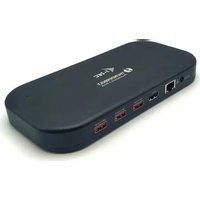
TB3HDMIDOCKPD - Interface i-TEC - Free user manual and instructions
Find the device manual for free TB3HDMIDOCKPD i-TEC in PDF.
User questions about TB3HDMIDOCKPD i-TEC
0 question about this device. Answer the ones you know or ask your own.
Ask a new question about this device
Download the instructions for your Interface in PDF format for free! Find your manual TB3HDMIDOCKPD - i-TEC and take your electronic device back in hand. On this page are published all the documents necessary for the use of your device. TB3HDMIDOCKPD by i-TEC.
USER MANUAL TB3HDMIDOCKPD i-TEC
natural_image
Black T-TEC wireless device with ports and connectors (no visible text or symbols on body)User guide • Gebrauchsanweisung • Mode d'emploi Manual de instrucciones • Manuale • Uživatelská príručka Instrukcje obsługi • Užívatel'ská príručka • Vartotojo vadovas Handleiding
P/N: TB3HDMIDOCKPD
EN Please read the entire instruction manual carefully. Detailed manual is available on our website www.i-tec.pro/en in the tab „Manuals, drivers“. In case of any issues, please contact our technical support at: support@itecproduct.com
Declaration of Conformity 134-135
FCC....136
SPECIFICATIONS
- 1x Thunderbolt™ 3 port for connection to Thunderbolt 3/4, USB4 or USB-C* devices
- Docking station technology: Thunderbolt™ 3
• Power Delivery: 60W - 1x Thunderbolt™3 port
- Data transfer*
- Video Port*
- Video ports:
- 1x HDMI
- Resolution
- Thunderbolt™ 3/4:
- 1 monitor - 1x HDMI → up to 4K/60Hz
- 1 monitor - 1x TB3 → up to 8K/30Hz**
- 1 monitor - 1x TB3 → up to 5K/60Hz
- 2 monitors - 1x HDMI + 1x TB3 → up to 2x 4K/60Hz
- 2 monitors - 1x HDMI + 1x TB3 → up to 2x QHD/144Hz
- USB-C* (DP Alt mode):
- 1 monitor - 1x HDMI → up to 4K/30Hz
- Compatible with G-Sync/Freesync, HDR 400 - 1000 via Thunderbolt™3 output only
- 2x USB-A 3.2 Gen 1 with fast charging support (B.C 1.2)
• 3x USB-A 3.2 Gen 2 with fast charging support (B.C 1.2)
• 1x Ethernet GLAN RJ-45 port (Realtek RTL8153) - 1x SD slot
- 1x microSD slot
• 1x 3.5mm Audio combo connector
• Support for Kensington lock
• Thunderbolt 3 cable (70 cm)
• Product dimensions: 198 x 98 x 22 mm
• Product weight: 340 g
• Package dimensions: 260 x 130 x 80 mm
• Package weight: 1242 g
* When connected to a laptop with a USB-C/USB4 port, the data transfer rate on the Thunderbolt™ 3 port will drop to USB 2.0 speed and video will not be active through this port
** 8K resolution must be supported by a connected laptop or tablet.
Quick Start / TB3HDMIDOCKPD/ English Quick Start / TB3HDMIDOCKPD / English
Important notice regarding 8K resolution: The dock supports up to 8K resolution (7680x4320/30Hz), but this resolution can only be set if your laptop supports it - USB4/ Thunderbolt™ 3 / Thunderbolt™ 4 must support DisplayPort 1.4.
Contents of the package
- Product
• Power adapter (DC cable 160 cm, power cord 170 cm)
• ThunderboltTM 3 Connection Cable (70 cm) - USB-C to DP cable
- Manual
DESCRIPTION
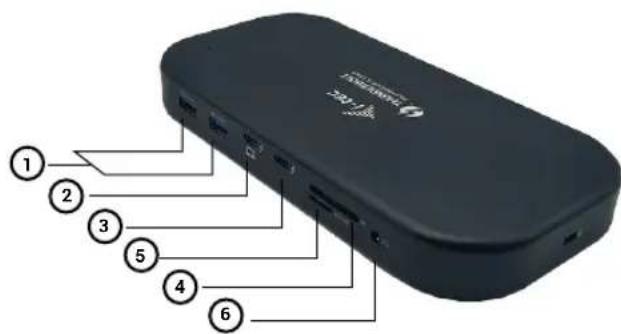
Front panel:
text_image
24/1X ① ② ③ ⑤ ④ ⑥- 2x USB 3.2 Gen. 2 port with fast charging support (BC 1.2)
- 1x Thunderbolt™ 3 port for connection to Thunderbolt 3/4, USB4 or USB-C* devices
- 1x Thunderbolt™3 port
- SD
- microSD slot
- 3.5mm Audio combo connector
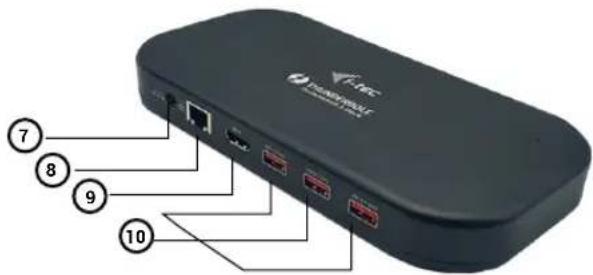
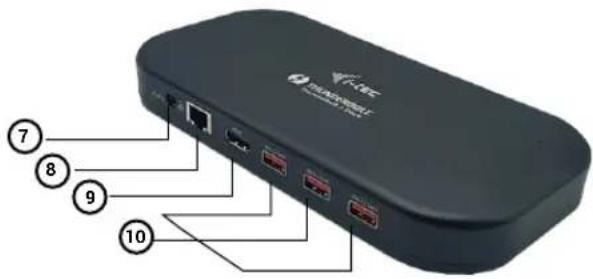
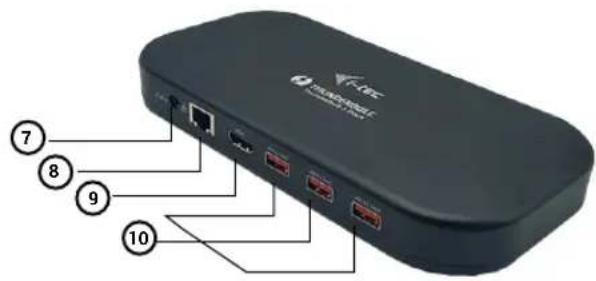
Back panel:
text_image
Vitas Qualcomm 7 8 9 10- 1x power input (24V/5.6A)
- 1x Ethernet GLAN RJ-45 port (Realtek RTL8153)
- supports 10/100/1000 Mbps
- HDMI 2.1 port
- 3x USB-A 3.2 Gen 2 with fast charging support (B.C 1.2)
SYSTEM REQUIREMENTS
Hardware requirements:
• Devices with a free Thunderbolt™3/4, USB4 or USB-C* port.
Requirements for the Power Delivery function:
- Devices with a free Thunderbolt™3/4, USB4 or USB-C* port with "Power Delivery" support
Video output requirements:
• Devices with a free Thunderbolt™3/4, USB4 or USB-C* port.
- To use refresh rates higher than 60 Hz, you need a monitor that supports these refresh rates.
- To use HDR, G-Sync/Freesync, the monitor and graphics card need to support these technologies.
Operating system:
OS: Windows 10/11, macOS, iPadOS, and Linux with the latest updates.
Quick Start / TB3HDMIDOCKPD/ English Quick Start / TB3HDMIDOCKPD / English
INSTALLING DRIVERS
The docking station can be connected directly, the drivers are included in the operating system.
For Windows 10, please make sure you have the latest Thunderbolt™ 3 drivers installed on your computer, as provided by your laptop manufacturer.
In Windows, the LAN port appears in Start → Control Panel (View Small Icons) → Device Manager → Network Adapters as "Realtek RTL8153". Audio ports can be found in Start → Control Panel (View Small Icons) → Device Manager → Audio, Video and Game Controllers as "USB Advanced Audio Device" and/or according to the connected monitor (e.g. in Fig. "LG Ultra HD (Intel® Display Audio)").
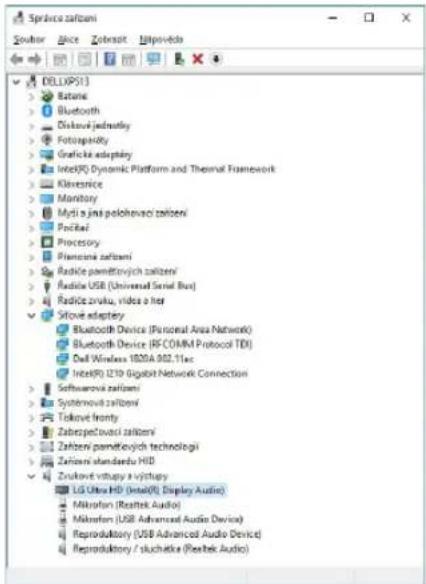
text_image
Spruce zatzeni Sovlar Bice Zobrot Upprovda DELUXS(1) Retina Bluetooth Diskovi jednostky Fotzepacity Graphic adaptory Intel(R) Dynamic Platform and Thermal Framework Kleversice Mantory Myti s jint polohovaci zatzeni Pacitral Processory Plevenia zatzeni Radiois paměčtvých zatzení Audio USB (Universal Serial Bus) Radioiz svoku, video a liter Silové adaptery Bluetooth Device (Functional Area Network) Bluetooth Device (RF COMM Protocol TDI) Dell Wireless 1800A 002.11ac Intel(R) 219 Gigabit Network Connection Softwarevici zatzeni Systemová zatzení Toková fronty Zabespěčtvých zatzeni Zatzeni paměčtvých technologi Zatzeni standardu HD Zukové výtuzy výstřiny LG Ultra HD (Intel®) Display Audio Mikrofon (Reebek Audio) Mikrofon (USB Advanced Audio Device) Reproduktory (USB Advanced Audio Device) Reproduktory / slučetika (Reebek Audio)View LAN and audio ports in Device Manager
HARDWARE INSTALLATION (CONNECTING THE DOCKING STATION TO THE LAPTOP/TABLET)
Turn on your laptop/tablet and connect the power adapter to the docking station. Plug the power adapter of the docking station into a 110 V / 230 V AC mains supply. Plug the Thunderbolt™ 3 cable into the Thunderbolt™ 3 port on the front panel of the dock.
Plug the other end into a free Thunderbolt™ 3/4 or USB-C* port on your laptop/tablet. Enable a new Thunderbolt™ 3 device in Windows OS - see image
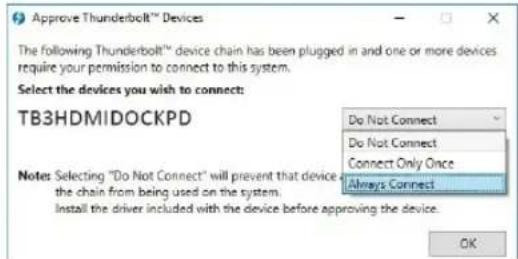
text_image
Approve Thunderbolt™ Devices The following Thunderbolt™ device chain has been plugged in and one or more devices require your permission to connect to this system. Select the devices you wish to connect: TB3HDMIDOCKPD Do Not Connect Do Not Connect Connect Only Once Always Connect Notes: Selecting "Do Not Connect" will prevent that device the chain from being used on the system. Install the driver included with the device before approving the device. OKOn Linux, enable new Thunderbolt™ 3 devices. It must be displayed with the description Enabled
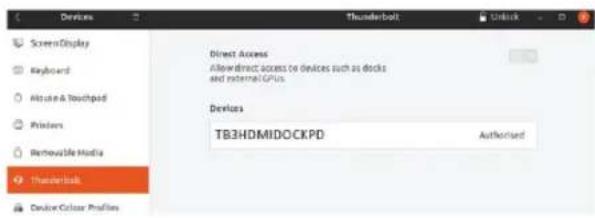
text_image
Devices Screen Display Keyboard Altice & Touchpad Printers Removable Media Thunderbolt DeviceColor Profiles Thunderbolt Unlock Direct Access Allow direct access or devices such as docks and external GPUs. Devices TB3HDMIDOCKPD AuthorisedThe automatic installation of ports on each system is then started. After the installation is complete, we recommend restarting your laptop/tablet.
Quick Start / TB3HDMIDOCKPD/ English Quick Start / TB3HDMIDOCKPD / English
HDMI / DP MONITOR CONNECTION
Use HDMI / Thunderbolt™ 3 to connect the monitor to the dock (for HDMI, we recommend a version 2.0 or higher cable). The monitor on your laptop/tablet may flicker during installation of the additional monitor, which is a standard condition.
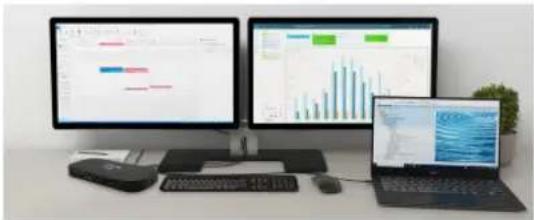
The dock supports connection of up to two monitors. Graphics interface: 1x HDMI and Thunderbolt™ 3. Resolution:
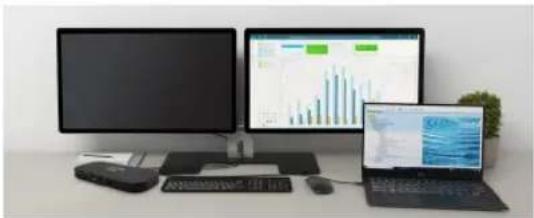
natural_image
Office desk setup with two desktop monitors, a laptop displaying charts, and a small office chair with a keyboard (no visible text or symbols)1 monitor connected via Thunderbolt™3 port
- up to 8K 7680x4320/30Hz resolution
8K resolution is only supported if your laptop's Thunderbolt™
connector supports DisplayPort 1.4.
1 monitor connected via HDMI port - resolution up to 4K 3840x2160/60Hz
natural_image
Office desk setup with three monitors displaying charts and a laptop displaying data graphs (no visible text or labels)2 monitors connected simultaneously 1x Thunderbolt™
3 port and 1x HDMI,
resolution max. 4K 4096x2160@60Hz
Video resolution and repetition rate depends
on the capabilities of the host PC/NB
USING THE DOCKING STATION IN OS WINDOWS
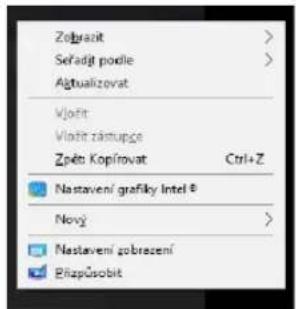
- Right-click anywhere on the free screen and select View Settings
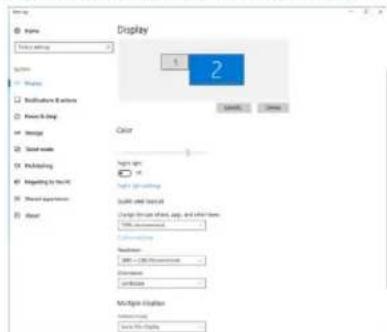
- The settings for Display Resolution from Windows are then displayed.
text_image
Name Display 2 Settings Options Settings Options Power Drop Color Light type Light Spelling Light Color Width and height Change from other, app, and other items Width: 100 mm Background: Normal: 200 - CDI: Proportionate Extension: Lock: Multiple Options Selected Options Save As DisplayDisplay resolution in Windows 10
Now you can make the Extend and Mirror/Duplicate settings:
- Extend mode: on the screen, select Multiple monitors → Extend this view → OK.
- Mirror / Duplicate mode: on the screen, select Multiple monitors → Duplicate this view → OK.
Quick Start / TB3HDMIDOCKPD/ English Quick Start / TB3HDMIDOCKPD / English
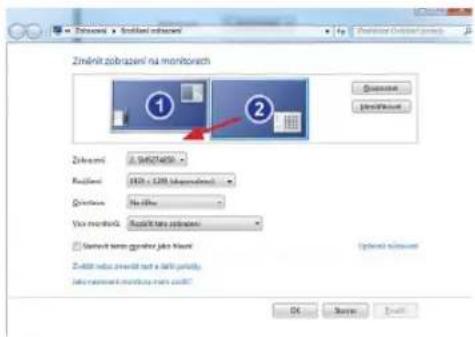
Check the "Set this monitor as main" box to select the additional monitor as the main monitor.
Click and drag the second monitor to position it relative to the original monitor on your laptop/tablet as needed.
text_image
Zinärkt zobrajeni na monitorach 1 2 Zinrazeni: 3.94527400 Realien: 1820 x 2300 (unknown) Quarture: No line Vice monitora: Real/Inte monitora □ Quarture term grainer jek hlaeni Zinärkt nada zveratit test a lacki portu: jeka monitori monitora men zinkt? OK Cancel FinishPlacement of one additional monitor in relation to the original laptop/tablet monitor
Standby / Hibernate mode and Video port - after activating the laptop/tablet from Standby / Hibernate mode, the primary (original) monitor is displayed, so we recommend using the one integrated with the laptop/tablet as the primary monitor to log back into the system.
Mirror mode - the additional monitor is governed by the parameters of the original monitor in the system, i.e. if you set the Mirror mode and the original monitor has a resolution of 1920x1080, then the screen is transferred to the additional monitor at a maximum resolution of 1920x1080, even if you set it to a higher resolution.
You can also easily control the monitors using the "Windows" + P keyboard option.
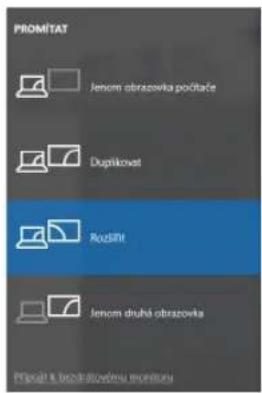
Control the monitor in Windows 10
USING THE DOCKING STATION IN MAC OS
When you connect the monitor, the screen on your Mac will flicker, which is a standard condition. Once it has stabilized, you can make adjustments here: System Preferences-Monitors:
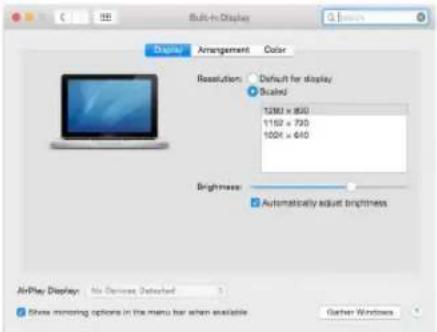
text_image
Built-in Display Display Arrangement Color Resolution: Default for display Scaled: 1200 x 800 1150 x 700 1000 x 640 Brightness: Automatically adjust brightness AirPlay Display: No Devices Detected Show mirror options in the menu bar when available Gather WindowsQuick Start / TB3HDMIDOCKPD/ English Quick Start / TB3HDMIDOCKPD / English
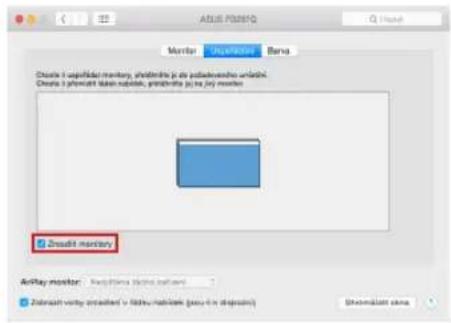
In the Layout tab and in the default mode (Expand), click and drag the new monitor as needed relative to the Mac's monitor. Selecting Mirror Monitors will change the mode to Mirror (the resolution of the monitors will automatically adjust to their parameters, setting the highest resolution possible on both monitors). Deselect Mirror Monitors to restore the Expand mode.
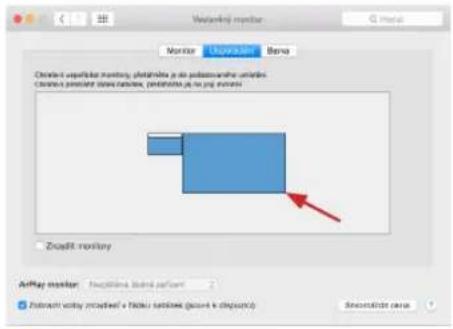
Extend mode: The arrow indicates the possibility of positioning the connected monitor relative to the Mac monitor.

text_image
Monitor Upplatin Bara Ochte v upplatan monitor, photolins je na paladovrorna uratek. Ochte v plazifik fialin ratiske, photolins je na lir monitor. Zraskit mistry AirPlay monitor: Naglárna šdlna svilben Zobrast vity stradiční v řátku ratiske (scu-kl is dopot) Shomakstí otraExtend mode: In this mode, you can select the Main Monitor by dragging the Menu Bar.
text_image
ADEUS PDMSP Monitor Options Beta Choose 1 up to 5000 monitor, shodnillo je do podewegno vkladni. Choose 2 precast basan napička, prednillo je je je monitor Znaudit monitor Anlay monitor: Replona (lina ballam) Znabrutt vorty izradite v klastu naškrem (pav-4 in dispozij) Shomakast sinaMirror mode: can only be used if it is offered by Mac.
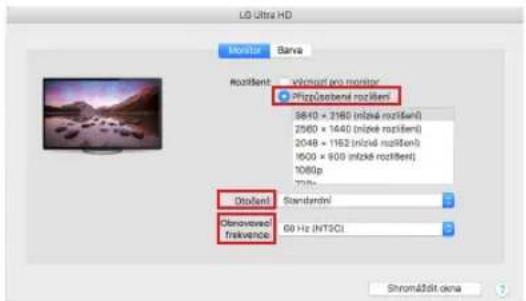
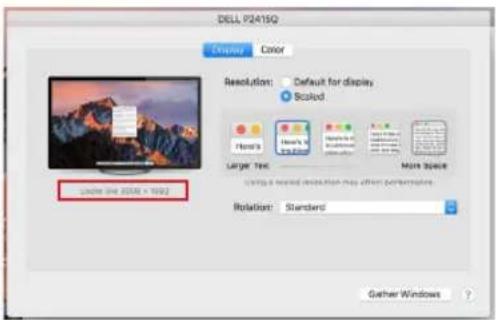
By selecting Gather Windows, you can choose the settings for the corresponding monitor - Customized Resolution (offers usable resolutions), Rotation (Standard, 90°, 180° and 270°) and Refresh Rate (if offered). Depending on the monitor you are using, these settings are:
text_image
LG Ultra HD Monitor Barra Routifent: Microsoft pro monitor Olofent: 8640 x 2160 (mlzé rozlěn) 2560 x 1640 (mlzé rozlěn) 2048 x 1162 (mlzé rozlěn) 1600 x 909 (mlzé rozlěn) 1060p 70% Olofent: Standardí Obrovová: frékvence 60 Hz (HTSC) Shromášti očenaDisplay variant 1
Quick Start / TB3HDMIDOCKPD/ English Quick Start / TB3HDMIDOCKPD / English
text_image
DELL P2419Q Display Color Resolution: Default for displays Scaled Home's Home's Large Text More Space Using a sealed resolution may offset performance. Rotation: Standard Gather WindowsDisplay variant 2
In Customized mode, click on the icon of your choice, the resolution will be described below the screen
(here visually 3008x1692 = 4K@30Hz)
Closed display mode - Working on a connected external monitor when the Mac monitor is tilted is only possible when the Mac is powered on and the mouse and keyboard are connected. More information here:
https://support.apple.com/cs-cz/HT201834
Most of the problems with screen refresh on a connected monitor after putting the Mac to sleep, after using a screensaver, after restarting the Mac, after turning the Mac off/on can be solved by disconnecting the Thunderbolt™ 3 dock cable from the Thunderbolt™ 3 port of the Mac and reconnecting it after about 10s. After that, please wait for all peripherals to finish connecting.
ADDITIONAL DOCKING STATION FEATURES on Windows and macOS
LAN Connection - GLAN RJ-45 port connects to router/switch/hub and to the Internet, supports speeds of 10 / 100 / 1000 Mbps
Connecting USB devices - After connecting USB devices to the USB 3.0 port of the docking station (USB external HDD, USB keyboard, USB mouse, USB Hub, USB graphics adapter), these devices are used in the standard way. USB-C devices e.g. external HDD, flash drive, graphics adapter can be connected via Thunderbolt™ 3 port.
Charging - The docking station supports charging of connected USB mobile devices such as smartphones, e-book readers, media players, navigation devices and tablets. Simply connect the device to be charged with the original cable to the USB port of the docking station.
Power Delivery charging - the dock supports Power Delivery on the designated Thunderbolt™ 3 port. Power Delivery is supported on Profile 5, i.e. max 60W.
Audio in Windows
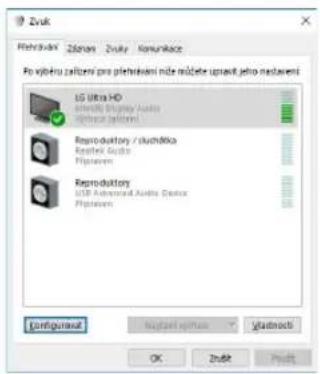
By default, the audio output automatically switches to the connected docking station. You can check or set the default audio output in Control Panel-Sound
The audio output device for listening via the graphic output needs to be set/verified here: System Preferences-Sound-Output - Set USB Advanced Audio Device.
The audio output devices for both headphones and monitor can be selected in Open-Applications-Utilities-Audio MIDI.app - click on "+" at the bottom left - Create Multi Output Device and select the desired outputs from the options on Multi Output Device.
Note: Most issues with the dock and connected peripherals can be resolved by disconnecting the Thunderbolt™ 3 cable of the dock from the Thunderbolt™ 3 port of the laptop/tablet/Mac and reconnecting it after about 10s.
SAFETY INSTRUCTIONS FOR USING THE DOCKING STATION
- Do not expose to extreme temperatures and humidity.
- Use the device on flat pads to avoid slipping and falling on the ground.
- Keep the drivers and manual for later use.
In cooperation with the service department:
- Check functionality after falling into water or on the ground.
- Verify functionality when the cover is cracked.
- Complain about the device not working according to the manual.
FREQUENTLY ASKED QUESTIONS
Available on our website www-i-tec.cz under "FAQ" for this product
SPEZIFIKATIONEN
text_image
Diagram of a black wireless device with numbered labels pointing to ports and connectorstext_image
Approve Thunderbolt™ Devices The following Thunderbolt™ device chain has been plugged in and one or more devices require your permission to connect to this system. Select the devices you wish to connect: TB3HDMIDOCKPD Do Not Connect Do Not Connect Connect Only Once Always Connect Notes: Selecting "Do Not Connect" will prevent that device the chain from being used on the system. Install the driver included with the device before approving the device. OKtext_image
Devices ScreenDisplay Keyboard Mouse & Touchpad Printers Removable Media Thunderbolt Device Color Profiles Thunderbolt Direct Access Allow direct access to devices such as decks and external GPUs. Devices TB3HDMIDOCKPD Authorizednatural_image
Office desk setup with two desktop computers, one displaying a bar chart and the other a laptop displaying data graphs (no visible text or symbols)text_image
Office desk setup with three monitors displaying charts and a laptop displaying data graphs, alongside a small globe chart.text_image
Virtual monitor Monitor Userboard Test PortBuild: Virtual ports monitor ● Portloaders numbers 1024 = 150 +102 = 150 1024 = 610 Joc: Automatic ports control joc Antry monitor: Macchina (base platform) Autoport port built-in x Fidu port server (pass-x desktop) Streambird cacheQuick Start / TB3HDMIDOCKPD/ Deutsch Quick Start / TB3HDMIDOCKPD / Deutsch
text_image
Monitoring monitor Monitor Unspecified Bench Created unsupplished monitors, photolysis is also phototransverse variables. contains phototransverse variables, phototransverse values are not visible. Zscall territory AirPlay monitor: Inquiring Global surface Software working product's Fiduci libraries (paved & displayed) Sensitistic datatext_image
Diagram of a black USB device with numbered labels pointing to ports and connectorstext_image
WiFi 6.8 7 8 9 10- 1x entrée d'alimentation (24V/5.6A)
- 1x port Ethernet GLAN RJ-45 (Realtek RTL8153)
- supporte 10/100/1000 Mbps
text_image
Approve Thunderbolt™ Devices The following Thunderbolt™ device chain has been plugged in and one or more devices require your permission to connect to this system. Select the devices you wish to connect: TB3HDMIDOCKPD Do Not Connect Do Not Connect Connect Only Once Always Connect Notes: Selecting "Do Not Connect" will prevent that device the chain from being used on the system. Install the driver included with the device before approving the device. OKtext_image
Devices Screen.Display Keyboard Mouse & Touchpad Princess Removable Media Thunderbolt Device Colour Profiles Thunderbolt Direct Access Allow direct access to devices such as decks and external GPUs. Devices TB3HDMIDOCKPD Authorizednatural_image
Office desk setup with two desktop monitors, a laptop displaying charts, and a keyboard (no visible text or symbols)text_image
Office desk setup with two monitors displaying charts and a laptop displaying data dashboardstext_image
Vodamini monitor Monitor Superlaser Beta Created superlaser monitor, photolysis is also photodarate units. Cinescent precast close cassette, photolysis is no play button Dualisk-territory AirPlay monitor Magazines: Solid array Streamwise process's Fiduci series (solid & dropout) Streamwise datatext_image
ASUS PDMSP2 Monitor Supermarket Bono Choose 1 up to 5000 monitor, shielding in the postoperative unstable. Choose 2 precast launch module, precast release by any monitor Drought mandatory Antry monitor: https://www.pdmsp2.org/ Zoblastv testy created by https://postoptics/ (see it in directory) Show all this actiontext_image
Diagram of a black electronic device with numbered parts labeled 1 through 6, showing internal components and connectors.- 2 puertos USB 3.2 Gen. 2 con soporte de carga rápida (BC 1.2)
- 1 puerto Thunderbolt™ 3 para conectar dispositivos Thunderbolt 3/4, USB4 o USB-C*.
- 1 puerto Thunderbolt™3
- SD
- ranura microSD
- Conector combinado de audio de 3,5 mm
Panel trasero:
text_image
7 8 9 10text_image
Approve Thunderbolt™ Devices The following Thunderbolt™ device chain has been plugged in and one or more devices require your permission to connect to this system. Select the devices you wish to connect: TB3HDMIDOCKPD Do Not Connect Do Not Connect Connect Only Once Always Connect Notes: Selecting "Do Not Connect" will prevent that device the chain from being used on the system. Install the driver included with the device before approving the device. OKtext_image
Devices Screen.Display Keyboard Mouse & Touchpad Princess Removable Media Thunderbolt Device Colour Profiles Thunderbolt Direct Access Allow direct access to devices such as decks and external GPUs. Devices TB3HDMIDOCKPD Authorizednatural_image
Office desk setup with two desktop computers, one displaying a financial chart on the screen, and another showing a laptop with charts (no visible text or symbols)natural_image
Office desk setup with two monitors displaying charts and a laptop displaying data graphs (no visible text or symbols)text_image
Obraovirus 1 2 Gene selection Genotype: Not selected Not selected Not selected Not selected Not selected Not selected Not selected Not selected Not selected Not selected Not selected Not selected Not selected Not selected Not selected Not selected Not selected Not selected Not selected Not selected Not selected Not selected Not selected Not selected Not selected Not selected Not selected Not selected Not selected Not selected Not selected Not selected Not selected Not selected No mutation detected No mutation detectedtext_image
Vodamini monitor Monitor Superlaser Beta Created superlaser monitor, photolysis is also photodarate units. Cinescent prevent close cassette, photolysis is no play button Dualisk-territory AirPlay monitor Magazines: Solid array Streamwise monitor's Fiduci series (solid & dropout) Streamwise menutext_image
ASUS PDMSP2 Monitor Supermarket Bono Choose 1 up to 5000 monitor, shielding in the postoperative unstable. Choose 2 precast launch module, precast release by any monitor Drought mandatory Antry monitor: https://www.pdmsp2.org/ Zobustalt vorty struttet / kbitu nisikom (see it in directory) Show that thistext_image
Diagram of a black USB flash drive with numbered ports and labeled connectorstext_image
VFC VFC 7 8 9 10text_image
Approve Thunderbolt™ Devices The following Thunderbolt™ device chain has been plugged in and one or more devices require your permission to connect to this system. Select the devices you wish to connect: TB3HDMIDOCKPD Do Not Connect Do Not Connect Connect Only Once Always Connect Notes: Selecting "Do Not Connect" will prevent that device the chain from being used on the system. Install the driver included with the device before approving the device. OKtext_image
Devices Screen Display Keyboard Mouse & Touchpad Prisons Removable Media Thunderbolt Device Colour Profiles Thunderbolt Direct Access Allow direct access to devices such as decks and external GPUs. Devices TB3HDMIDOCKPD Authorisednatural_image
Office desk setup with two desktop monitors, a laptop displaying charts, and a small potted plant (no visible text or symbols)natural_image
Office desk setup with two monitors displaying charts and a laptop displaying a data visualization (no readable text or symbols)text_image
Obračka Size Size Settings Size Size Settings Size Settings Size Settings Size Settings Size Settings Size Settings Size Settings Size Settings Size Settings Size Settings Size Settings Size Settings Size Settings Size Settings Size Settings Size Settings Size Settings Size Settings Size Settings Size Settings Size Settings Size Settings Size Settings Size Settings Size Settings Size Settings Size Settings Size Settings Size Settings Size Settings Size Settings Size Settings Size Settings Size Settingstext_image
Microsoft monitor Monitor Unipackton Status Position: Vjrochol pre-monitor Photostore number: value = 100 1152 x 100 value = 610 Jet: Automaticity current job AutoPlay monitor: Macromedia island platform Extrach setting enabled a folder selection (based on diagnosis) Newarkish colorQuick Start / TB3HDMIDOCKPD/ Italiano Quick Start / TB3HDMIDOCKPD / Italiano
text_image
Wetlenyi monitor Monitor OpenPoint Beta Created up/ulbar monitor, photodress is also putdownarable unitar. Camera pinnter close radar, photodress is not put in series Zoulli territory AirPlay monitor Nagillina Beta server! Zouarm wzyg moutek's Foku tariak (p#### x depervs) S###chich ceratext_image
ASUS PDMSP2 Monitor Supermarket Bono Choose 1 up to 5000 monitor, shielding in the postoperative unstable. Choose 2 precast launch module, precast release by any monitor Drought mandatory Antry monitor: https://www.pdmsp2.org/ Zoblastv testy created by https://testv.mdbk.com (http://is.depository) Show all this actiontext_image
Diagram of a black electronic device with numbered labels pointing to ports and componentstext_image
Approve Thunderbolt™ Devices The following Thunderbolt™ device chain has been plugged in and one or more devices require your permission to connect to this system. Select the devices you wish to connect: TB3HDMIDOCKPD Do Not Connect Do Not Connect Connect Only Once Always Connect Notes: Selecting "Do Not Connect" will prevent that device the chain from being used on the system. Install the driver included with the device before approving the device. OKtext_image
Devices Screen Display Keyboard Mouse & Touchpad Prisons Removable Media Thunderbolt Device Colour Profiles Thunderbolt Direct Access Allow direct access to devices such as decks and external GPUs. Devices TB3HDMIDOCKPD Authorisednatural_image
Office desk setup with two desktop monitors, a laptop displaying charts, and a keyboard (no visible text or symbols)natural_image
Office desk setup with two monitors displaying charts and a laptop displaying a data visualization (no readable text or symbols)text_image
Wetlenyi monitor Monitor OpenPoint Beta Created up/ulbar monitor, photodress is also putdownarate variables. Camera pinnter close coordinates, photodress is not put in boxes Zoudit territory AirPlay monitor Nagillina Beta array Zouam wzyy mitek's fakui tariates (picti x depots) Sawmukh ceratext_image
Diagram of a black electronic device with numbered labels pointing to ports and connectorstext_image
Approve Thunderbolt™ Devices The following Thunderbolt™ device chain has been plugged in and one or more devices require your permission to connect to this system. Select the devices you wish to connect: TB3HDMIDOCKPD Do Not Connect Do Not Connect Connect Only Once Always Connect Notes: Selecting "Do Not Connect" will prevent that device the chain from being used on the system. Install the driver included with the device before approving the device. OKtext_image
Devices Screen Display Keyboard Mouse & Touchpad Prisons Removable Media Thunderbolt Device Colour Profiles Thunderbolt Direct Access Allow direct access to devices such as decks and external GPUs. Devices TB3HDMIDOCKPD Authorisednatural_image
Office desk setup with two desktop monitors, a laptop displaying charts, and a small keyboard (no visible text or symbols)natural_image
Office desk setup with three monitors displaying charts and a laptop displaying a data visualization (no readable text or symbols)text_image
Unaudited monitor 12 hours Monitor Unplifier Serva Reagent: * Myputal pro monitor (Pre-plastic pre-number) 1103 x 799 1001 x 610 Jet: Automation current job Airplay monitor: Myputable static server/ Extricate reset accounted in failure controller (current is unsigned)Quick Start / TB3HDMIDOCKPD/ Polski Quick Start / TB3HDMIDOCKPD / Polski
text_image
Monitoring monitor Monitor Uplink Bench Creates uplinker monitoring, platformer is to podbusware via mini. Creates precast data function, posttest by app monitor Znredit monitoring AHPay monitor: Postprint activity recorded in Fuku stations (file 4 in directory) Show click dateAudio w systemie macOS
text_image
Diagram of a black electronic device with numbered labels pointing to ports and connectors- 2x port USB 3.2 Gen. 2 s podporou rýchleho nabíjania (BC 1.2)
- 1x port Thunderbolt™ 3 na pripojenie k zariadeniam Thunderbolt 3/4, USB4 alebo USB-C*
- 1x port Thunderbolt™3
- SD
- slot microSD
- 3,5 mm kombinovaný audio konektor
Zadný panel:
text_image
7 8 9 10- 1x napájaci vstup (24V/5,6A)
- 1x Ethernet GLAN RJ-45 port (Realtek RTL8153) - podporuje 10/100/1000 Mbps
- Port HDMI 2.1
- 3x USB-A 3.2 Gen 2 s podporou rychleho nabijania (B.C 1.2)
text_image
Approve Thunderbolt™ Devices The following Thunderbolt™ device chain has been plugged in and one or more devices require your permission to connect to this system. Select the devices you wish to connect: TB3HDMIDOCKPD Do Not Connect Do Not Connect Connect Only Once Always Connect Notes: Selecting "Do Not Connect" will prevent that device the chain from being used on the system. Install the driver included with the device before approving the device. OKtext_image
Devices Screen Display Keyboard Mouse & Touchpad Prisons Removable Media Thunderbolt Device Colour Profiles Thunderbolt Direct Access Allow direct access to devices such as decks and external GPUs. Devices TB3HDMIDOCKPD Authorisednatural_image
Office desk setup with two desktop monitors, a laptop displaying charts, and a keyboard (no visible text or symbols)natural_image
Office desk setup with two monitors displaying charts and a laptop displaying data graphs (no visible text or symbols)text_image
Monitoring monitor Monitor Uplink Down Create uplinker monitoring, platformer jus podpontaneous uterine. Create precast drive function, postcode jus pop monitor Zscikit repository Aflay monitor: Uplinker drive function Subtract activity recorded in Fluka diskless (visual & display) Show click datetext_image
Diagram of a black electronic device with numbered labels pointing to ports and buttonstext_image
Approve Thunderbolt™ Devices The following Thunderbolt™ device chain has been plugged in and one or more devices require your permission to connect to this system. Select the devices you wish to connect: TB3HDMIDOCKPD Do Not Connect Do Not Connect Connect Only Once Always Connect Notes: Selecting "Do Not Connect" will prevent that device the chain from being used on the system. Install the driver included with the device before approving the device. OKtext_image
Direct Access Allow direct access to devices such as docks and external GPUs. Devices TB3HDMIDOCKPD Authorisednatural_image
Office desk setup with two desktop monitors, a laptop displaying charts, and a potted plant (no visible text or symbols)natural_image
Office desk setup with two monitors displaying charts and a laptop displaying data graphs (no visible text or symbols)text_image
Obrazka 1 2 In a form Name: New Litter Organic Add to a new form Add to a new form Add to a new form Add to a new form Add to a new form Add to a new form Add to a new form Add to a new form Add to a new form Add to a new form Add to a new form Add to a new form Add to a new form Add to a new form Add to a new form Add to a new form Add to a new form Add to an end Add to an end Add to an end Add to an end Add to an end Add to an end Add to an end Add to an end Add to an end Add to an end Add to an end Add to an end Add to an end Add to an end Add to an end Add to an end Add to an end Add to an end Add to an end Add to an end Add to an ends Add to an ends Add to an ends Add to an ends Add to an ends Add to an ends Add to an ends Add to an ends Add to an ends Add to an ends Add to an ends Add to an ends Add to an ends Add to an ends Add to an ends Add to an ends Add to an ends Add to an ends Add to an ends Add to an ends Add to an end Add to an end Add to an end Add to an end Add to an end Add to an end Add to an end Add to an end Add to an end Add to an end Add to an end Add to an end Add to an end Add to an end Add to an end Add to an endtext_image
Monitoring monitor Monitor Upgrade Screen Baro Create up to 1250 monitor, phototube is the postoperative instance. Create precast data packets, postcode is the post instance. Zscadl: treasury Airplay monitor: https://ailellina.stable.com/ Zscadl: airplay monitor's data packets (get out at this point) Sneumath screentext_image
QR code image containing encoded data, no visible human-readable textwww.i-tec.pro
European Union Only
Note: Marking is in compliance with EU WEEE Directive

English
This equipment is marked with the above recycling symbol. It means that at the end of the life of the equipment you must dispose of it separately at an appropriate collection point and not place it in the normal domestic unsorted waste stream. This will benefit the environment for all. (European Union only)
Deutsch
We declare under our sole responsibility that the above named product is in conformity with the following European Union directives:
This equipment has been tested and found to comply within the limits of a Class B digital device pursuant to Part 15 of the FCC Rules. These limits are designed to provide reasonable protection against harmful interference in a residential installation.