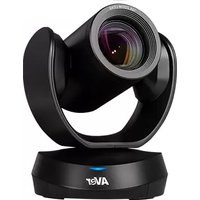
CAM520 Pro3 - Video conferencing system AVer - Free user manual and instructions
Find the device manual for free CAM520 Pro3 AVer in PDF.


| Product Type | Video Conferencing System |
| Brand | AVer |
| Model | CAM520 Pro3 |
| Max Video Resolution | 1080p at 60 fps (USB 3.1 / HDMI); 1080p at 30 fps (USB 2.0) |
| Connectivity | USB 3.1 Type B, HDMI, RJ45 (PoE), RS-232 (Mini DIN 9 to Mini DIN 8) |
| Power Supply | 12 V DC (power adapter) or PoE (IEEE 802.3AT/802.3AF) |
| Key Features | PTZ, Smart Framing (face/body detection), WDR, RTMP Streaming, RTSP |
| Field of View | Not specified (estimated: 90° horizontal) |
| Zoom | Not specified (likely optical zoom 12x or 20x) |
| Dimensions | Not specified |
| Weight | Not specified |
| Operating Temperature | Not specified |
| Mounting | L-bracket wall mount (included), optional: ceiling, TV |
| Control | IR remote, PTZApp 2 (software), web browser (IP) |
| Management Software | PTZApp 2 (free download), IP Finder |
| Application Compatibility | Zoom, Microsoft Teams, Skype, Google Meet, WebEx, etc. |
| Security | Kensington anti-theft device, web password (default: aver4321) |
| Maintenance | Clean the lens with a soft, dry cloth |
| Included Accessories | Camera, remote control (without battery), power adapter, USB 2.0 cable (5 m), RS-232 cable, L-brackets, screws, drilling template, QR card |
| Optional Accessories | HDMI cable (3 m), RS-232 D-Sub 9 cable, TV/ceiling mount, USB 3.1 extension (10/20/30 m) |
| Warranty | Not specified |
Frequently Asked Questions - CAM520 Pro3 AVer
User questions about CAM520 Pro3 AVer
0 question about this device. Answer the ones you know or ask your own.
Ask a new question about this device
Download the instructions for your Video conferencing system in PDF format for free! Find your manual CAM520 Pro3 - AVer and take your electronic device back in hand. On this page are published all the documents necessary for the use of your device. CAM520 Pro3 by AVer.
USER MANUAL CAM520 Pro3 AVer
| Camera Unit | Remote Control | Power Adapter & Power Plug* | USB 2.0 Type-B to Type-A Cable (5m) |
| Mini DIN 9 to Mini DIN 8 RS-232 Adapter Cable | L-Mount Brackets | Screws for Mount | Drilling Paper |
| QR Code Card | 1/4"-20 L=7.5mm (x2) | ||
*The power plug will vary depending on the standard power outlet of the country where it is sold.
Optional Accessories*
| HDMI Cable (3m) | Mini DIN 8 to D-Sub 9 Cable | Foldable TV Mount | USB 3.1 Extender 10m/20m/30m |
| Ceiling Mount** | Ceiling Mount** (Upside Down Installation) | ||
| *Optional Accessories will vary depending on the country where it is sold. **To mount on ceiling, please purchase ceiling mount kit from AVer. | |||
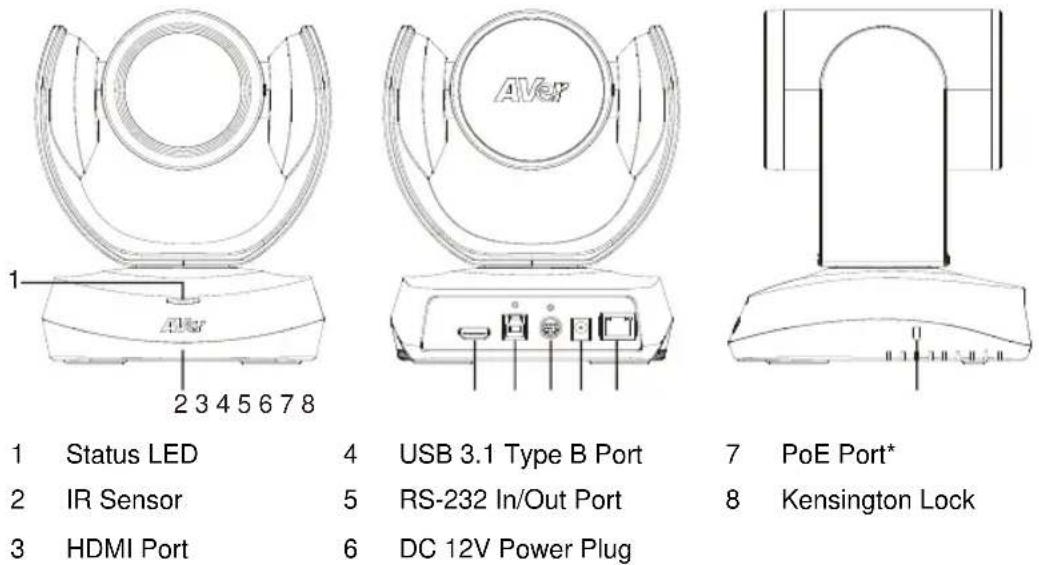
Overview
*Power over Ethernet (PoE), compatible with IEEE 802.3AT/802.3AF. Please use CAT 5e FTP cable (not included).
LED Indicator
Blink blue once: Power on
Solid red: Start-up
Solid orange: Standby
Solid blue: Video on
Installation
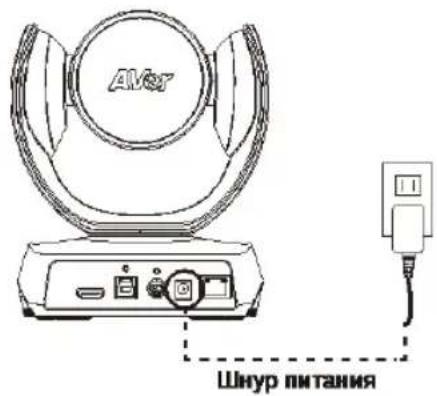
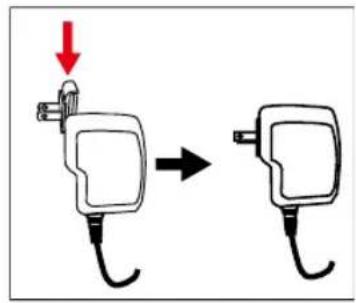
- Connect the camera to a power outlet.
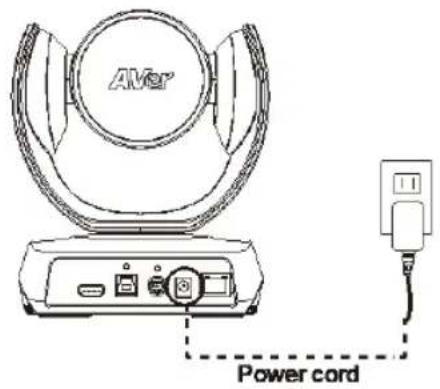
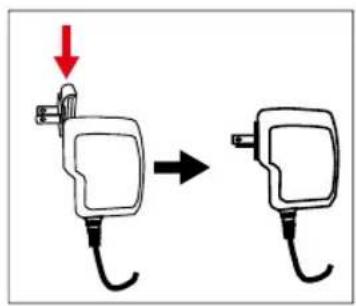
- Connect the necessary cables.
[Notes]
- Secure the USB and RS-232 cables with attached screws.
Make sure the cable is well connected to the connector on the camera before securing the cable.
![AVer CAM520 Pro3 - [Notes] - 1](/content/2026/04/667311/images/f4a9e3ee5e1d48314c2470cc637fb5879c80180e2050e68396998be6cc3b8ccb.jpg)
- Connect the camera to the computer/laptop.
[Notes]
Use the USB 2.0 cable included in the package.
CAM520 Pro3 has the USB 3.1 port which is USB 2.0 compatible.
Maximum resolution/fps for USB 2.0 and USB 3.1 port are shown below.
![AVer CAM520 Pro3 - [Notes] - 1](/content/2026/04/667311/images/98c705641b97c7dc038b2eeaff23f5dbce5e3a64ecd3a168fc4f7bb10c3ac310.jpg)
| USB 2.0 | USB 3.1 | HDMI | ||
| YUV | M-JPEG | YUV | M-JPEG | |
| -640x480 or lessresolution, up to 30fps-720p, up to 10fps | -1080p/60fps | - Up to 1080p/30fps-720p/60fps | -1080p/60fps | -1080p/60fps-1080p/30fps |
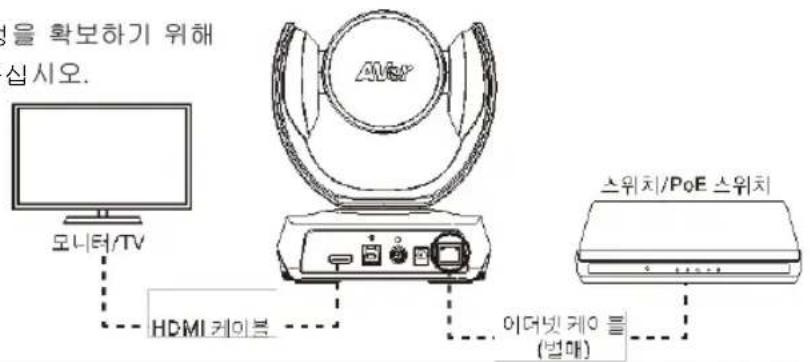
4. Connect an Ethernet cable for IP streaming and remote camera control.
[Notes]
To ensure the stability of IP video streaming, please use a CAT 5e FTP cable.
![AVer CAM520 Pro3 - [Notes] - 1](/content/2026/04/667311/images/f6b76a6d0e18eefc2bf6903b1d13be3ce9878f6486e87425452dab867e67ad7d.jpg)
![AVer CAM520 Pro3 - [Notes] - 2](/content/2026/04/667311/images/1ee44324ee6bffbcdd2ac9f102c5e5b96a0040e62a799e2614bd6a7a5338a796.jpg)
5. Connect an HDMI cable to a TV monitor to have instant live video.
[Note]
HDMI port supports 1080p and 720p resolution.
Remote Control
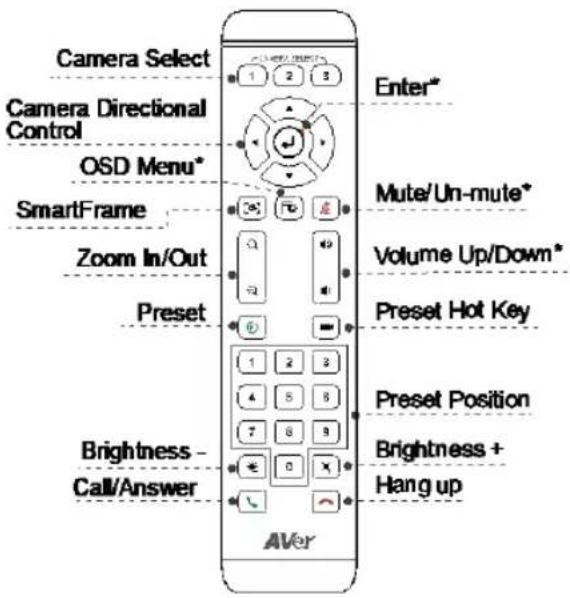
- Not supported for CAM520 Pro3
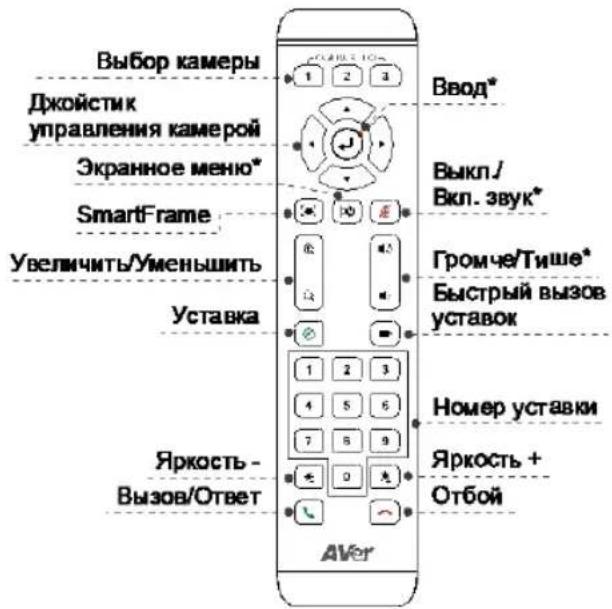
AAA Batteries (required) - Preset (I) The Preset button on the remote serves 2 functions.
To Save a Preset - Move the camera to a desired position. Press and hold the preset button until you receive the save message on the screen. Select preset position button 0-9 to store the current camera position. Repeat steps if needed.
To Load a Preset - Press the preset button and preset position button 0-9 to load a saved camera position. Repeat steps if needed.
Press and hold the number button "for 1 second to turn on or off the WDR function.
Press and hold the number button " $or 1 second to turn on or off the SmartFrame function.
Press and hold the number button "8" for 1 second to enable or disable RTMP streaming function.
Press and hold the number button for 1 second to force the camera to enter sleep mode. This will end any video streaming. To wake up the camera, press the button or any directional button for 1 second. This mode is not functional while USB streaming is on.
Camera Select () If you 3
only have one camera and do not need to adjust any setting, the default is camera 1. If you press camera 2 or 3 on the remote control, you will find your remote can't control your camera. In this case, please press camera 1 on your remote again.
SmartFrame (Press for 1 second to switch the SmartFrame function among Manual Framing/Auto Framing/ Preset Framing modes. A message (as figures shown) will display on the screen to indicate the mode.

[Note] SmartFrame deploys face and body detection technology. People wearing masks and side facial profiles can still be detected. The maximum detection distance is 7-10 meters.
Set up preset points in advance (Only for Preset point 1-9. Preset 0 is for home position).
Wall Mount Installation
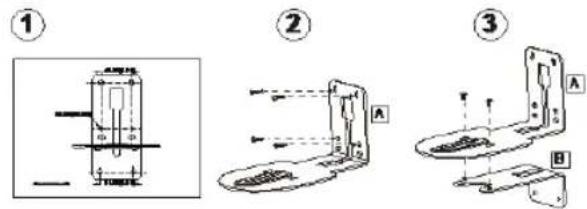
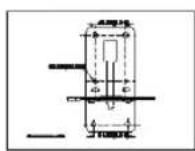
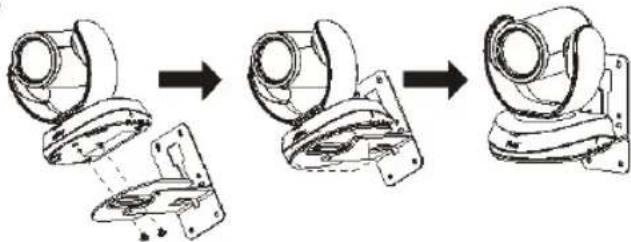
- Use the drilling paper included in the package to drill the holes in the wall where the user wants to mount the camera.
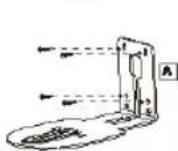
- Use the screws (not included) to secure the L-mount bracket A on the wall. [Note] For cement wall: M4 x20mm self-tapping screws (x4) + Plastic conical anchor For wooden wall: M4 x20mm self-tapping screws (x4)
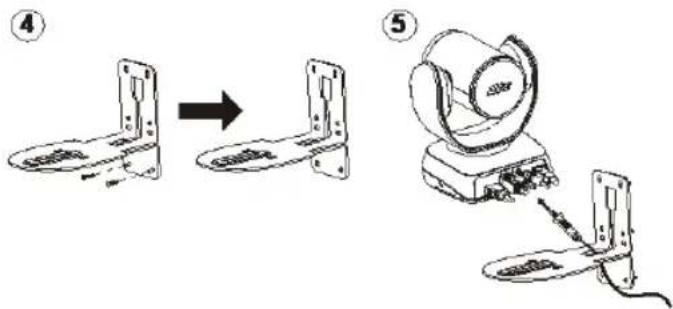
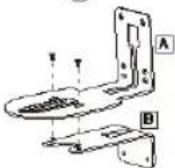
- Then, assemble the L-mount brackets A + B with 2 screws (M4 x8mm, included in the package).
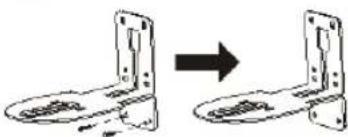
- After assembling the L-mount brackets, use the screws (not included) to secure the lower part of L-mount brackets to the wall. [Note] For cement wall: M4 x20mm self-tapping screws (x2) + Plastic conical anchor For wooden wall: M4 x20mm self-tapping screws (x2)
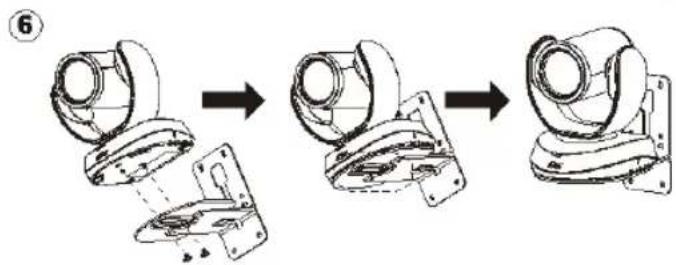
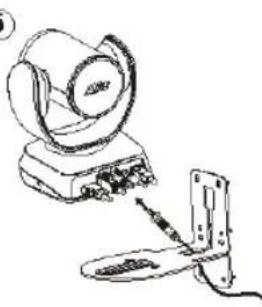
- Pass the cables through the hole on the L-mount brackets and connect the cables to corresponding connection ports.
- Use the remaining screws (1/4"-20 L=7.5mm, included in the package) to secure the camera to the L-mount brackets.
Making a Video Call
A computer is required to use this device.
- Open your video collaboration application such as Zoom, Microsoft Teams, Skype for Business, Skype, Google Meet, Intel Unite™, RingCentral, BlueJeans, V-Cube, LiveOn, CyberLink U Meeting®, TrueConf, Adobe Connect, Cisco WebEx®, Fuze, GoToMeeting™, Microsoft Lync™, Vidyo, vMix, WebRTC, Wirecast, XSplit.
- Set the CAM520 Pro3 as your primary camera device in your application (Please consult your application setup guide for details).
- Ready to make a video call.
[Note] CAM520 Pro3 is a Plug-n-Play Conference Camera. The system requires no special drivers. For advanced setting and firmware update, please download PTZApp 2.
Making a Connection through the Browser
CAM520 Pro3 has an Ethernet port for IP streaming and allows administrators to remotely control and set up the camera via an internet access. Moreover, CAM520 Pro3 also supports RTSP and RTMP functions. For more details, please refer to user manual or contact our technical support.
- Make sure the CAM520 Pro3 has an internet access connection.
- Launch PTZApp 2^* (PT2) and connect CAM520 Pro3 to PC with USB cable.
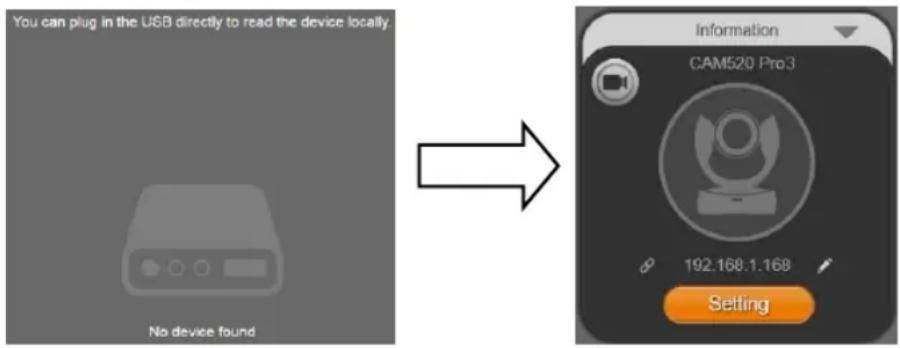
- The camera default IP address is 192.168.1.168. Click pencil icon ( ) to edit IP address**.

- Click weblink icon ( ) to launch Chrome page. Please enter the password (default password is aver4321).
[Note] The browser supports:
-
Chrome: version 76.x or above - Firefox: version 69 or above - IE: Doesn't support
-
After editing IP address, user can access web settings of the camera with only Ethernet cable connection. Unplug the USB cable.
-
The main web screen is displayed as below.
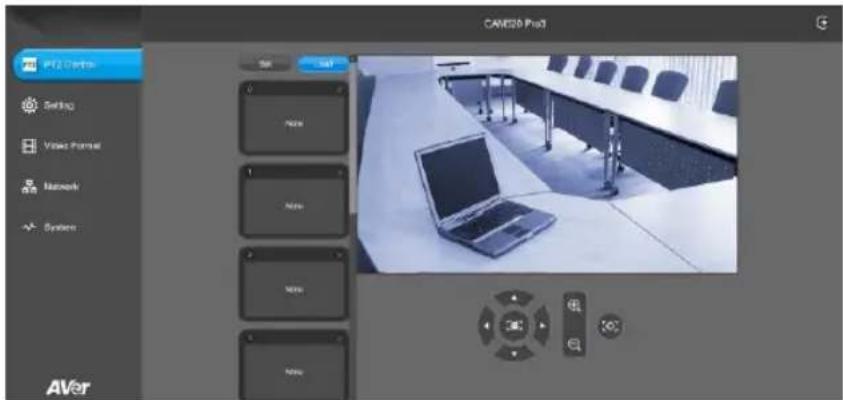
*In PTZApp 2, user can change the IP address setting of CAM520 Pro3, configure the parameters of the camera, set up AI tracking functions and some advanced image settings, pan, tilt, and zoom the camera. Please refer to the user manual for details.
Please go to https://www.aver.com/download-center/ (Global),
https://www.aveurope.com/download-center/ (Europe), or
https://www.averusa.com/business/support/ (USA) to download the PTZApp 2. After downloading, double-click on the file and follow the on-screen instructions to complete the installation.
After installing the PTZApp 2, double-click on the PTZApp 2 icon to run the application.
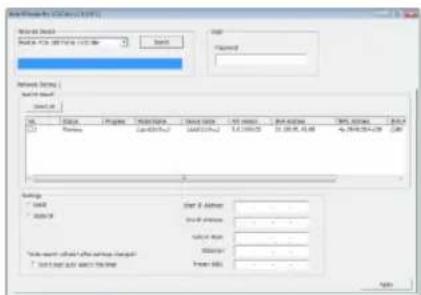
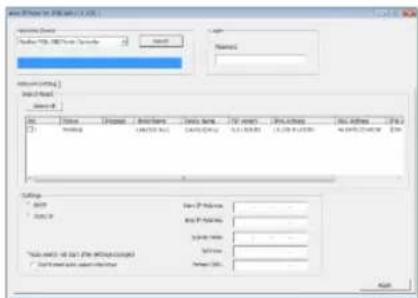
**To support IP address changes in groups, user can download AVer IP Finder app.
- Download the IP Finder from https://www.aver.com/download-center/ (Global), https://www.aveereurope.com/download-center/ (Europe), or https://www.averusa.com/business/support/ (USA).
- Run the IP Finder.
- Click Search, and all available devices will be listed on the screen.
FEDERAL COMMUNICATIONS COMMISSION
NOTE: This equipment has been tested and found to comply with the limits for a Class A digital device, pursuant to part 15 of the FCC Rules. These limits are designed to provide reasonable protection against harmful interference when the equipment is operated in a commercial environment. This equipment generates, uses, and can radiate radiofrequency energy and, if not installed and used in accordance with the instruction manual, may cause harmful interference to radio communications. Operation of this equipment in a residential area is likely to cause harmful interference in which case the user will be required to correct the interference at his own expense.
FCC Caution: Any changes or modifications not expressly approved by the party responsible for compliance could void the user's authority to operate this equipment.
This device complies with part 15 of the FCC Rules. Operation is subject to the following two conditions: (1) This device may not cause harmful interference, and (2) this device must accept any interference received, including interference that may cause undesired operation.
Warning:
This is a class A product. In a domestic environment this product may cause radio interference in which case the user may be required to take adequate measures.
Risk of Explosion if Battery is replaced by an Incorrect Type. Dispos of Used Batteries According to the Instructions.
COPYRIGHT
© 2022 AVer Information Inc. All rights reserved. | December 27, 2022
The information contained in this documentation is subject to change without notice.
More Help
For FAQs, technical support, software and user manual download, please visit:
Headquarters
Download Center: https://www.aver.com/download-center
Technical Support: https://www.aver.com/technical-support
USA Branch office
Download Center: https://www.averusa.com/business/support/ Technical Support: https://averusa.force.com/support/s/contactsupport
Europe Branch office
Download Center: https://www.aveurope.com/download-center Technical Support: https://www.aveurope.com/technical-support
Contact Information
Headquarters
AVer Information Inc.
https://www.aver.com
8F, No.157, Da-An Rd., Tucheng Dist., New Taipei City 23673, Taiwan
Tel: +886 (2) 2269 8535
USA Branch office
AVer Information Inc., Americas
https://www.averusa.com
668 Mission Ct., Fremont, CA 94539, USA
Tel: +1 (408) 263 3828
Toll-free: +1 (877) 528 7824
Technical support: support.usa@aver.com
Europe Branch office
AVer Information Europe B.V.
https://www.avereurope.com
Westblaak 134, 3012 KM, Rotterdam, The Netherlands
Tel: +31 (0) 10 7600 550
Technical support: eu.rma@aver.com
Japan Branch Office
Vietnam Branch Office
Cong ty TNHH AVer Information (Viet Nam)
Tang 5, 596 Nguyen Dinh Chiieu, P.3, Quan 3, Thanh pho Ho Chi Minh 700000, Viet Nam
Tel: +84 (0)28 22 539 211
包装内容物
https://www.avereurope.com/download-center/(歐洲)或
https://www.aveereurope.com/download-center/ (歐洲)或
https://www.averusa.com/business/support/ (美國)下載IP Finder。
https://www.aver.com
https://www.avercuropc.com/download-center/(欧洲)或
https://www.aveereurope.com/download-center/(欧洲)或
https://www.averusa.com/business/support/(美国)下载IP Finder。
https://www.aver.com
新北市土城区大安路157号8楼
电话:+886 (2) 2269 8535
八夕一内容
©2022 AVer Information Inc. All rights reserved.
dawon口一·七夕一https://jp.aver.com/download-center
ル複蔵一 https://jp.aver.com/helpcenter
| USB 2.0 | USB 3.1 | HDMI | ||
| YUV | M-JPEG | YUV | M-JPEG | |
| -해상도 640x480 이하, coax해 30fps -720p, coax해 10fps | -1080p/60fps | - coax해 1080p/30fps -720p/60fps | -1080p/60fps | -1080p/60fps -1080p/30fps |
- IP StreIing MaKae KaAeR ReAeO IeBnE KaeBilue to enelhahsii si o.
[查卫]
IP bitidiom streirming of anetg in hobh it wae CAT 5e FTP kaii bok ihy
https://www.aver.com/download-center/ (转载请注明出处), https://www.aveereurope.com/download-center/ (引用)
http://www.averusa.com/business/support/(M)roIeundhpePTZApp2d
卡运罗德后,印日将一国
https://www.aveurope.com/download-center/(京)http://www.averusa.com/business/support/
(民国)出版社,多云
- IP Finder 1
- “艹” 而“艹”
© 2022 AVer Information Inc. 法院索引
| 기름週 | 지慕지내용만 |
| A. 기재 기재 (원신목성상품만 기재) | 이 기재 기재는 채무목(A류) 전쟁서 흐고 기재 기재만 기재는 채무목(A류) 어지 사는 사목자은 이 기재 majority 기재 기재 기재 기재 기재 기재 기재 기재 기재 기재 기재 기재 기재 기재 기재 기재 기재 기재 기재 기재 기재 기재 기재 기재 기재 기재 기재 기재 기재 기재 기재 기재 기재 기재 기재 기재 기재 기재 기재 기재 기재 기재 기재 기재 기재 기재 기재 기재 기재 기재 기istem다. DI. 기재와의 툘목목목사 기재는 흐고 기재 majority 기재 majority 기재 majority 기재 majority 기재 majority 기재 majority 기재 majority 기재 majority 기재 majority 기재 majority 기재 majority 기재 majority 기재 majority 기재 majority 기재 majority 기재 majority 기재 majority 기재 majority 기재 majority 기재 majority 기재 majority 기재 majority 기재 majority 기재 majority 기재 majority 기재 majority 기재 majority 기재 majority 기재 majority 기재 majority 기재 majority 기재 majority 기재 majority 기재 majorityerna. [1](''('')(''('')(''('')(''('')(''('')(''('')(''('')(''('')(''('')(''('')(''('')(''('')(''('')(''('')(''('')(''('')(''('')(''('')(''('')(''('')(''('')(''('')(''('')(''('')(''('')(''(''('')(''(''(''(''(''(''(''(''(''(''(''(''(''(''(''(''(''(''(''(''(''(''(''(''(''(''(''(''(''(''(''(''(''(''(''(''(''(''(''(''(''(''(''(''(''(''(''(''(''(''(' 注:(''(''(''(''(''(''(''(''(''(''(''(''(''(''(''(''(''(''(''(''(''(''(''(''(''(''(''(''(''(''(''(''(''(''(''(''(''(''(''(''(''(''(''(''(''(''(''(''(''('"(''(''(''(''(''(''(''(''(''(''(''(''(''(''(''(''(''(''(''(''(''(''(''(''(''(''(''(''(''(''(''(''(''(''(''(''(''(''(''(''(''(''(''(''(''(''(''(''(''(''' 注:(''(''(''(''(''(''(''(''(''(''(''(''(''(''(''(''(''(''(''(''(''(''(''(''(''(''(''(''(''(''(''(''(''(''(''(''(''(''(''(''(''(''(''(''(''(''(''(' 注:(''(''(''(''(''(''(''(''(''(''(''(''(' 注:(''(''(''(''(''(''(''(' 注:(''(''(''(''(''(' 注:(''(''(''(' 注:(''(''(' 注:(''(''(' 注:(''(' 注:(''(' 注:(''(' 注:(''(' 注:(''(' 注:(''(' 注:(''(' 注:(''(' 注:(''(' 注:(''(' 注:(''(' 注:(''(' 注:(''(') 注:(''(' 注:(''(' 注:(''(' 注:(''(' 注:(''(' 注:(''(' 注:(''(' 注:(''(' 注:(''(' 注:(''(' 注:(''(' 注:(''(' 注:(''(' 注:(''(' 注:(''(' 注:(''(' 注:(''(' 注:(''(' 注:(''(' 注:(''(' 注:(''(' 注:(''(' 注:(''(' 注:(''(' 注:(''(' |
区刘显
Aver Information Inc.
https://www.npc.com
8E No 157, Da-An Rd, Tucheng Dist., New Taipei City 23673, Taiwan
图:+886(2)22698535
Assistance Technique: https://www.aveurope.com/technical-support
Westblaak 134, 3012 KM, Rotterdam, The Netherlands
Tel: +31 (0) 10 7600 550
Assistance technique: eu.rma@aver.com
Por favor, vaya a https://www.aver.com/download-center/ (Sede Global),
https://www.aveurope.com/download-center/ (Sede Europa) o
Sopporté technique: https://www.aveurope.com/technical-support
Westblaak 134, 3012 KM, Rotterdam, The Netherlands
Tel: +31 (0) 10 7600 550
Soporte专业技术: eu.rma@aver.com
KOMnJIeKT NOCTaBKn
Cnlooho opaHkeBbI:KdUcN
Cnlooho CnHn: BnDeo Ha
YCTaHOBka
- IodcoeHnTe KaMepy K 3neKtpopo3eTke.
- NpoknHouHTe Heo6xOaMbIe Ka6eJI.
[Приимechаня]
3akpenTe ka6eIu USB n RS-232 BCtpoeHHbIMN BnHTaMn.
Ipeep3aKpEnnHnemKa6eY6eHntecbB NaedxHocTnNoDcoEHHHeHnKa6eN K pa3bemy KaMepbl.
![AVer CAM520 Pro3 - [Приимechаня] - 1](/content/2026/04/667311/images/3083be5b4ee6dc1792e6c5485a5ae0742ae0f7ff2469a2c3048b178bb83825d8.jpg)
- ПОДКЛЮЧИТЕ KMЕРУ K KOMNBIOTEpy/Hoутбуку.
[Приимechаши]
IcnoJb3ynte Ka6eJIb USB 2.0, BXoJaIuB KOMnJIeKT NOCTaBKn.
Kamepa CAM520 Pro3 nmeT nopT USB 3.1, coBmecTmblc USB 2.0. Hnke npnbEeHbI MaKc. pa3peSeHne n cKopoctb nepeDaun KaDpOB dnn npToB USB2.0 n USB3.1.
![AVer CAM520 Pro3 - [Приимechаши] - 1](/content/2026/04/667311/images/c256e92d94d1c82f402185c02d5d8a0b6c60152802c5326f1f059496be9b0c97.jpg)
| USB 2.0 | USB 3.1 | HDMI | ||
| YUV | M-JPEG | YUV | M-JPEG | |
| -640x480 ял mени, до 30 кадр/c | -1080p/60 kaор/c | - до 1080p/30 кадр/c | -1080p/60 kaор/c | -1080p/60 kaор/c |
| -720p, до 10 кадр/c | -720p/60fps | -1080p/30 kaор/c | ||
4.ПодключITE ka6eь RJ45 dЯ IP-tpaHcJIaCmN nДиctaHcIOnHHoro ynpabJIeHnKaMepoJ.
[Приимechаи]
UTo6bI o6ecneuHTb Cta6nHocTb IP-TpaHcnaBn BIndeo nCnoNb3yIte Ka6eB FTP Kateropnn 5e.
![AVer CAM520 Pro3 - [Приимechаи] - 1](/content/2026/04/667311/images/b44947ff2b4f8da4741fa07f1fffd0a9bfe0c939f0037493d6288a375212cbc8.jpg)
- Поdkночи Кбелн HDMI K TeleBu3opy, YTO6bl NOyHTb BndeOn3o6paXeHne B peXmpeaIbHoro BpeMeHn.
[Приимechаи]
IoprHDMI noDepknaeT pa3peueHne 1080p n720p.
NyIbT dy
- He noopdepkmbaetcna CAM520 Pro3
BaTapeA AAA (Tpe6yioTc8)
YcTabKa()KhONka Preset (YcTabKa)Ha nyIbTe BbINOJIHReT 2 cyHKUIN.
Coxpaehne yctabkn - nepemecnte kamepy B Huxhoe noIooxeHne. PnIXMITE KHOKky Preset (YcTabka) do noBHeHna 3kpane 3aIpOca Ha coXpaehne yCTabKn. BbIbepuTe Homep yCTabKn 0-9 dJa coXpaehnra TeKyUero noIooxeHn KaMepbl. Ecn Tpe6yETc, NOBTOPnte yka3aHHyo npoueDpy.
3arpy3ka yctabkn - npnxmTe KhoNky Preset (YcTabka) n KhoNky Homepa yctabkn 0 - 9 dans 3arpy3kn coxpaHeHHoro noJIOKeHnKaMepbl. Ecnn Tpe6yeTcra, NOBTOPe yka3aHHyO npoueDpy.
PnIXMnTe KhONKy C HOMepom «Ha 1 cekyHny, YTO6bI BkJIIOHTb INN BblKIIIOHTb cyHKnIO WDR.
PnKMTe KONky C HOMepom 1 ceKyHdy, YTO6bI BKNIOHTb NIN BBIKIOHTb cyHKcNo SmartFrame.
PnKMTe KHOIky C HOMepom «8Ha 1ceKyHny, YTO6bI BKJIIOHTb NJIN BbIKJIIOHTb cyHKUHO TpaHCJIaUN noToka RTMP.
Haxmte u ydepkubai Te cnofoyho KhoNky «》B teueHne 1 cekyHdbI, YTO6bI KAMepa nepeuHa B cnaui pexIM.3TO OTKIOHT BCE NOTOKOBe BVJeO.4TO6bl pa36yDntb erO,CHOBA HaxmTe KhoNky Ha 1 ceKyHdy nnn HaxmTe KhoNky HanpaBHeHn.3TO He pa60taT, noka BKNIOUeHa NOTOKOBa nepedaa no USB.
Bb6op kamepb()
Bac TOnbKO Onda KaMepa H He
Tpe6yeTcRa BbINOHNrTa KaKx-Ni6o
HaCTpoEe, TOrDa No yMOJUaHnIO
HCNoIb3yeTcRa KaMepa 1. EcNn Bbl
Bbl6epTe Ha NyIbTe KaMepy 2 nnn 3,
YnpabJIeHHe KaMepoC nyIbTa
OKaXeTcRA HeBO3MOxHbIM. B 3tOM
Clyuae CneDyET ChOBA HaxaTb Ha
NyIbTe KONkY KaMepbI 1.
SmartFrame (PnKMTe Ha 1 ceKyHdy dIy IpeKeIIOUeHMy MeKdye pexmam: Manual Framing (pyHoe KaDnpoBaHne), Auto Framing (ABTOKaDpnpoBaHne), Preset Framing (PipeDyCTaHOBJIeHHOe KaDnpoBaHne). Ha 3KpaHe NOBITc coO6ueHne o BbIbpaHHOM pexmE (KaK noka3aHo Ha npcsyHKax).

[Прмочи]Функш SmartFrame nCIOJIb3yeT aIropITMbI paCNo3HaBaHnA JIua n Tea. TaKKe oBecneuBaETcR paCNo3HaBaHnE IIODeB MACKax I 6OKOBOrO pOoJnIaMakcMaJIbHa
daNbHoCTb 06HapyKeHHa CoCTaBnAeT
7-10 metpoB.
3apahee yctaHOBNTe
PpeDyCtHaOBJIeHHbIe TOUKn (TOJbKO DnA
npeyctaHOBJeHHbIXTOyeK1-9.
PpeDyuctaHOBKa 0 PpeHa3HaueHa dla
NcXoHOrO nOIOXKeHnA).
HaCTeHHbIMoHTaX
- C nomoob npnilaraemoro cbeepnibho ro 7a6noHa npocbeprnte B cTeHe KpeexHbIe OTBepCTnB MeTe KpePHeHn KaMepbl.
2.CnOMOuBnHTOB(He npnaTc)npKpeNTe KCTHeΓ-6pa3HbIKpoHHTeH A.
[Примочи] Д�� симentнов стейы: Camohape3hie BnHTbI M4 x 20 MM (4 wT.) + пастковыkoшескne дюбели
Дя DepeBHHOн CTeHbI: CamoHape3HbIe BnHTbI M4 x 20 MM (4 wT.)
- 3aTeM cKpeHnTe Γ-OBpa3HbIe KPOHHTeHbI A + B DByMBAHTaM (M4 x 8 MM, BXOJRT B KOMJIeKT NOCTaBKn).
- Iocne c6opkn -o6pa3hbx KPOHsTeHOB, npKpeNte HxKHN -o6pa3hbl KPOHsTeH K CTHe C NOMOsbIO BnHTOB (He npnilaraIOTc).
[Примechанe] Дя сеMuENTHоI CTeHbI: CamOHape3HbIe BnHTbI M4 x 20 MM (2 wT.) +пlaCTNKOBbIe KOHueckne dIO6eJIi
Длг Дереваннй стени: Camohape3нье BИNTы M4 x 20 MM (2 Wt.)
- Ipnocntte Ka6eJn Cheep3 OTBepctne B-06pa3Hom KpoHtTeHne N NOdkNIOHTe INK COOTBeTCTByOuM pa3bemam KaMepbl.
- C nOMoUbIO ocTbUHXcR BnHTOB (1/4 dIOIMa - 20 L = 7,5 MM, n3 KOMPNeKTA noCTaBKn) 3akpeNITe KaMepy Ha I-OBpa3HbIX KPOHSTeHax.
1
②
3
4
5
6
UeHTp 3aRpy3ok: https://www.aver.com/download-center
TexpoДерЖka: https://www.aver.com/technical-support
KoHTaKTHaHnHΦopMaun
AVer Information Inc.
https://www.aver.com
8F, No.157, Da-An Rd., Tucheng Dist., New Taipei City 23673, Taiwan
Tei.: +886 (2) 2269 8535
Isi Paket
| Unit Kamera | Remote Control | Adaptor Daya & Steker Daya* | Kabel USB 2.0 Tipe-B ke Tipe-A (5m) |
| Kabel Adaptor RS-232 Mini DIN 9 ke Mini DIN 8 | Braket Pemasangan L | Sekrup untuk Dudukan | Kertas Pengeboran |
| Kartu Kode QR | 1/4"-20 L=7.5mm (x2) | ||
Silakan kunjungi https://www.aver.com/download-center/ (Global),
https://www.aveurope.com/download-center/ (Eropa), atau
- Optional Accessories*
- LED Indicator
- Installation
- [Notes]
- Connect an Ethernet cable for IP streaming and remote camera control.
- Connect an HDMI cable to a TV monitor to have instant live video.
- [Note]
- Remote Control
- Wall Mount Installation
- Making a Video Call
- Making a Connection through the Browser
- FEDERAL COMMUNICATIONS COMMISSION
- Warning:
- COPYRIGHT
- More Help
- Headquarters
- USA Branch office
- Europe Branch office
- Contact Information
- Japan Branch Office
- Vietnam Branch Office
- 包装内容物
- 八夕一内容
- KOMnJIeKT NOCTaBKn
- YCTaHOBka
- [Приимechаня]
- [Приимechаши]
- [Приимechаи]
- NyIbT dy
- HaCTeHHbIMoHTaX
- KoHTaKTHaHnHΦopMaun
- Isi Paket
Brand : AVer
Model : CAM520 Pro3
Category : Video conferencing system